



Display Stream Compression: What 4K Monitor Buyers Should Know
Quick Answer:
Display Stream Compression (DSC) helps 4K gaming monitors achieve higher refresh rates by reducing the bandwidth needed to transmit images. It delivers visually lossless quality with minimal latency. When buying a 4K monitor, check DSC support, graphics card compatibility, DisplayPort or HDMI bandwidth, and maximum refresh rate before making your choice.
Display Stream Compression (DSC) helps 4K gaming monitors achieve higher refresh rates without exceeding connection bandwidth. It uses visually lossless compression to maintain image quality with minimal latency. However, performance and compatibility depend on your graphics card, monitor and DisplayPort or HDMI connection.
Let's look at what DSC actually does, whether it affects gaming performance and what you should check before buying your next monitor.
What Is Display Stream Compression and How Does It Work?
Display Stream Compression is a display compression technology developed by the Video Electronics Standards Association (VESA). It reduces the amount of data needed to transmit an image from your graphics card to your monitor.
A 4K screen contains approximately 8.3 million pixels. At higher refresh rates, your graphics card must send updated image information many times every second. For example, a 4K monitor running at 144Hz requires considerably more display bandwidth than the same screen running at 60Hz.
Without sufficient bandwidth, your system may need to lower the refresh rate, reduce colour depth or use a different output format. DSC helps avoid these compromises by compressing the display stream before transmission and decompressing it inside the monitor.
What Is the Display Stream Compression Ratio?
VESA Display Stream Compression is commonly associated with compression ratios of up to approximately 3:1 while maintaining visually lossless image quality. This means the compressed display stream can require roughly one-third of the original data rate, depending on the selected compression settings. The exact bandwidth savings depend on the implementation and display mode.
Does DSC reduce 4K resolution?
No. Your monitor still receives and displays its intended 3840 × 2160 image. DSC compresses the information being transmitted rather than changing the monitor's native pixel resolution. This makes it particularly useful for high-resolution gaming monitors that would otherwise exceed the available connection bandwidth.
Why Does DSC Matter When Buying a 4K Gaming Monitor?
A monitor's resolution is only part of the buying decision. Refresh rate, colour depth and connectivity also determine what your gaming setup can deliver.
A 4K 60Hz monitor generally has much lower bandwidth requirements than a 4K 144Hz or 240Hz model. As refresh rates increase, DSC becomes more relevant, especially when using connections that cannot carry the desired uncompressed display mode.
Here's how different configurations compare.
|
Monitor configuration |
Why DSC matters |
|
4K at 60Hz |
Often unnecessary with a suitable modern connection |
|
4K at 120Hz |
May be useful depending on the connection, colour format and bit depth |
|
4K at 144Hz |
Frequently used with DisplayPort 1.4 connections to support full-resolution, high-refresh output |
|
4K at 240Hz |
Often important, although requirements depend on the available bandwidth and display implementation |
These are general examples rather than universal requirements. A sufficiently capable connection may support some modes without compression, while another connection may need DSC for the same settings.
Should You Choose a 4K Monitor With DSC?
If you're buying a high-refresh 4K monitor, DSC support is worth checking alongside the display's other specifications. For example, a 4K 144Hz monitor with DisplayPort 1.4 may rely on DSC to deliver its advertised maximum refresh rate with RGB colour and higher bit depth.
Without compatible compression support, the available display modes may be more limited. When comparing 4K gaming displays, look beyond the refresh rate printed in the product title. Check which input supports the maximum resolution, refresh rate and colour settings. That matters more than simply choosing the monitor with the highest advertised Hz figure.
Does Display Stream Compression Affect Image Quality or Gaming Performance?
One of the biggest concerns buyers have about DSC is whether compression makes their games look worse.
The short answer is that DSC is designed to preserve image quality so that differences are not noticeable under normal viewing conditions. However, visually lossless compression is not identical to mathematically lossless compression.
Can Display Stream Compression Cause Artifacts?
Display stream compression artifacts are unwanted visual differences that may occur during the compression and reconstruction process. VESA DSC is designed to minimise these differences, including in demanding image content.
For most gaming and everyday desktop use, properly implemented DSC should not produce noticeable compression artifacts.
If you experience flickering, black screens, corrupted images or intermittent signal loss, don't automatically assume DSC compression is damaging the picture. These symptoms can also result from cable problems, firmware issues, connection instability or compatibility faults.
Before replacing your monitor, try another certified or appropriately rated cable, update your graphics drivers and test a lower refresh rate.
Does Display Stream Compression Increase Latency?
Display stream compression latency is another concern, particularly for competitive gamers. DSC uses a low-latency, line-based compression process rather than waiting for an entire frame to be transmitted before processing it. As a result, the compression and decompression stages generally introduce very little delay compared with the overall display pipeline.
DSC is unlikely to be a meaningful source of input lag in a properly functioning gaming setup.
Your monitor's response-time performance, display processing, refresh rate and the game's frame delivery are usually more important considerations.
For competitive gaming, prioritise a monitor with good measured response times and low input lag rather than avoiding DSC solely because it involves compression.
Display Stream Compression and Graphics Card Compatibility
A monitor supporting DSC doesn't guarantee that every graphics card can use it. Your graphics card must support the required display compression standard through the relevant output connection.
The monitor must also accept the compressed signal through the input you're using.
Does NVIDIA Support Display Stream Compression?
Display stream compression NVIDIA compatibility depends on the GPU generation, output specification and driver support.
Many NVIDIA GeForce RTX graphics cards support DSC through compatible DisplayPort connections, including supported RTX 20 Series and newer models. However, support for DSC alone does not guarantee every resolution and refresh-rate combination.
For example, your maximum output may depend on whether the card provides DisplayPort 1.4 with DSC, DisplayPort 2.x or a suitable HDMI implementation.
Some NVIDIA GPU and driver configurations may also have limitations involving DSC, multi-monitor setups or particular display features. Check the exact GPU specifications and relevant driver information before assuming a specific mode will work.
What About AMD and Intel Graphics?
DSC is not exclusive to NVIDIA. Compatible AMD Radeon graphics cards and Intel graphics processors can also support the technology. However, support varies between GPU generations and individual devices.
When comparing display stream compression graphics cards, check:
- Maximum display resolution: Can the GPU output 4K at your target refresh rate?
- Output version: Does the relevant DisplayPort or HDMI connection support the required mode?
- DSC compatibility: Does the GPU support DSC on the output you intend to use?
- Colour capabilities: Can it deliver your preferred RGB or YCbCr format and colour depth?
- Multiple monitors: Can the GPU support your planned combination of displays simultaneously?
If your current GPU cannot deliver your monitor's preferred display mode, upgrading to a compatible model from our graphics card range may help you make better use of the screen.
Remember that display output capability and gaming performance are different things. A graphics card might support 4K 144Hz output without being powerful enough to run demanding games at 144 FPS.
DisplayPort vs HDMI: Which Is Better for DSC?
Both DisplayPort and HDMI can support DSC, but the actual capabilities depend on the connection version and device implementation.
|
Connection |
What 4K buyers should know |
|
DisplayPort 1.4 |
DSC can enable demanding 4K high-refresh modes beyond the connection's uncompressed bandwidth |
|
DisplayPort 2.1 |
Higher-bandwidth implementations can support more demanding uncompressed modes, with DSC available where supported |
|
HDMI 2.1 |
Supports high-bandwidth display modes, with DSC available as an optional feature on compatible devices |
|
USB-C with DisplayPort Alt Mode |
DSC support depends on the GPU, USB-C implementation, DisplayPort capabilities and connected display |
An important point is that a connection version alone doesn't tell you everything. For example, not every HDMI 2.1 device supports the same optional features or bandwidth.
Similarly, DisplayPort 2.1 products can offer different link speeds. A monitor may also provide its highest refresh rate through one input but not another.
What should you check?
Look for the manufacturer's supported display modes for each input. Ideally, confirm that your preferred connection can deliver the monitor's native resolution, maximum refresh rate and intended colour depth.
For everyday productivity, you may not need the same bandwidth as a competitive 4K gaming setup. If your main priorities are sharp text, spreadsheets, photo editing and multitasking, our 4K ultra HD screens offer a useful starting point for comparing displays around those needs.
Should Display Stream Compression Be On or Off?
The question of display stream compression on or off usually comes down to whether your monitor needs it for the display mode you've selected. If your setup requires DSC to achieve 4K at a high refresh rate, leaving it enabled is generally the sensible choice.
Turning it off may force you to accept a lower refresh rate, reduced colour depth or another supported output configuration. For most users, there is no practical image-quality advantage to disabling properly functioning DSC.
How to Disable Display Stream Compression
If you're wondering how to disable display stream compression, the process depends on your monitor and graphics card. There is no universal DSC on/off switch in Windows. Some monitors provide DSC-related options in their on-screen display menu, while others manage compression automatically.
Where a DSC setting is available, you can try the following:
- Open your monitor's on-screen display menu.
- Look under Display, Input, Gaming or Advanced settings for a DSC option.
- Disable DSC if the monitor provides that control.
- Check which resolution and refresh-rate options remain available in Windows.
- Restore the original setting if your preferred display mode is no longer supported.
If your monitor doesn't provide a DSC toggle, you may still be able to select a lower-bandwidth display mode that operates without compression. However, choosing a lower refresh rate doesn't guarantee DSC is disabled. The actual connection behaviour depends on the hardware and firmware.
Our advice: Unless you're troubleshooting a specific compatibility issue, there's usually little reason to change a working DSC configuration.
How to Choose the Right 4K Monitor for Your Setup
DSC is useful, but it shouldn't be the only feature guiding your purchase. The better approach is to decide what you want from your monitor first, then check whether your PC and connections can deliver it.
1. Match the Refresh Rate to Your Games
A 4K 144Hz monitor can be a strong choice for players who want sharp visuals and smooth motion across a mixture of games. A 240Hz model may appeal to buyers prioritising higher refresh rates, but reaching very high frame rates at native 4K can demand substantial GPU performance.
If you mostly play slower-paced games or use your screen for work and entertainment, you may get more value from panel quality, contrast and useful connectivity.
2. Consider the Panel Technology
DSC doesn't determine how good a monitor's colours, contrast or motion clarity will look.
Those characteristics depend heavily on the display panel and its implementation.
- IPS: Often a practical choice for balanced colour reproduction, viewing angles and gaming performance.
- VA: Can offer stronger native contrast, although motion performance varies considerably between models.
- OLED: Provides excellent pixel-level contrast and fast pixel response times, with burn-in considerations for prolonged static content.
Don't choose a monitor simply because it supports DSC. A well-performing panel with suitable connectivity is more important.
3. Check HDR and Colour Depth
If you want HDR gaming, look beyond the HDR logo. Peak brightness, contrast, local dimming or OLED pixel-level control, and colour performance all affect the experience.
Higher colour depth can also increase display bandwidth requirements. DSC can help compatible connections carry demanding combinations of resolution, refresh rate and colour depth without requiring reduced chroma resolution. However, DSC support doesn't automatically mean a monitor delivers good HDR performance.
4. Check Your GPU and Cable Before Buying
A powerful monitor is only as useful as the display modes your system can support. Before ordering, confirm the graphics card's output specifications, the monitor's supported input modes and the cable requirements. If you're connecting through a dock or adapter, check its capabilities too. A connection that works at 4K 60Hz might not support the same screen at 4K 144Hz.
5. Buy for Your Actual Use, Not Just the Specification Sheet
A higher refresh rate isn't automatically better value for everyone. If you spend most of your time working, browsing and watching films, a good-quality 4K 60Hz or 120Hz display may be enough.
For a mix of office work, creative projects and occasional gaming, our broader monitor range makes it easier to compare screen sizes, resolutions, connectivity and panel types before deciding. The goal is to buy a monitor that suits your everyday use, not to pay extra for features you rarely need.
Quick Checklist Before Buying a DSC-Compatible 4K Monitor
Use this checklist to narrow down your options.
|
What to check |
Why it matters |
|
Native resolution |
Confirms the monitor delivers the 4K detail you want |
|
Maximum refresh rate |
Determines the screen's motion update capability |
|
DSC support |
Helps enable demanding display modes over compatible connections |
|
DisplayPort and HDMI specifications |
Determines which output modes each connection can carry |
|
Graphics card compatibility |
Confirms your GPU can drive the selected mode |
|
Cable and adapter capabilities |
Helps avoid unnecessary connection limitations |
|
Panel and HDR performance |
Has a major effect on real-world picture quality |
|
Warranty and support |
Provides reassurance when investing in a new display |
If two monitors offer similar specifications, compare their actual display performance, supported input modes and price before treating DSC as the deciding factor.

Final Verdict: Is DSC Worth Having on a 4K Gaming Monitor?
Display Stream Compression is a useful technology for modern 4K gaming monitors, especially when higher refresh rates push beyond the available uncompressed connection bandwidth. For most buyers, it offers a practical benefit: access to demanding display modes without a noticeable image-quality penalty during normal use.
But DSC isn't a substitute for a good panel, a capable graphics card or the right connection.
Our recommendation is simple: Choose your monitor based on resolution, refresh rate, picture quality and the games you play. Then verify that your GPU and chosen input can deliver those specifications, using DSC where needed.
At Laptop Outlet, you can explore our monitor range, including gaming and everyday displays, to find a screen that suits your setup, budget and performance needs.

Frequently Asked Questions
1. Is Display Stream Compression Lossless?
DSC is described as visually lossless rather than mathematically lossless. It uses lossy compression designed to make image differences imperceptible under normal viewing conditions. It doesn't reduce the monitor's native resolution.
2. Does DSC Reduce FPS in Games?
DSC doesn't directly reduce your game's rendered FPS. It compresses the display signal after the GPU has produced the image. However, DSC compatibility and driver behaviour can affect which display modes or features are available.
3. Do All 4K 144Hz Monitors Use DSC?
No. Whether DSC is required depends on the monitor's input bandwidth, colour format, colour depth and supported connection modes. Some 4K 144Hz configurations can operate without DSC using sufficiently capable connections.
4. Can DSC Work With HDR and 10-Bit Colour?
Yes. Compatible DSC implementations can support HDR display modes and higher colour depths, provided the graphics card, connection and monitor support the selected configuration.
5. Is Display Stream Compression Good for Competitive Gaming?
Yes. DSC is designed for low-latency display transmission and generally isn't a meaningful disadvantage for competitive gaming. Refresh rate, response times, input lag and stable game performance matter more.
6. Can I Use DSC With Multiple Monitors?
Yes, but the supported combination depends on your graphics card, output connections, drivers and display modes. Some hardware or driver configurations have limitations when DSC is active, so check compatibility if you're planning a demanding multi-monitor setup.
Related Articles

Last Updated: August 19, 2026
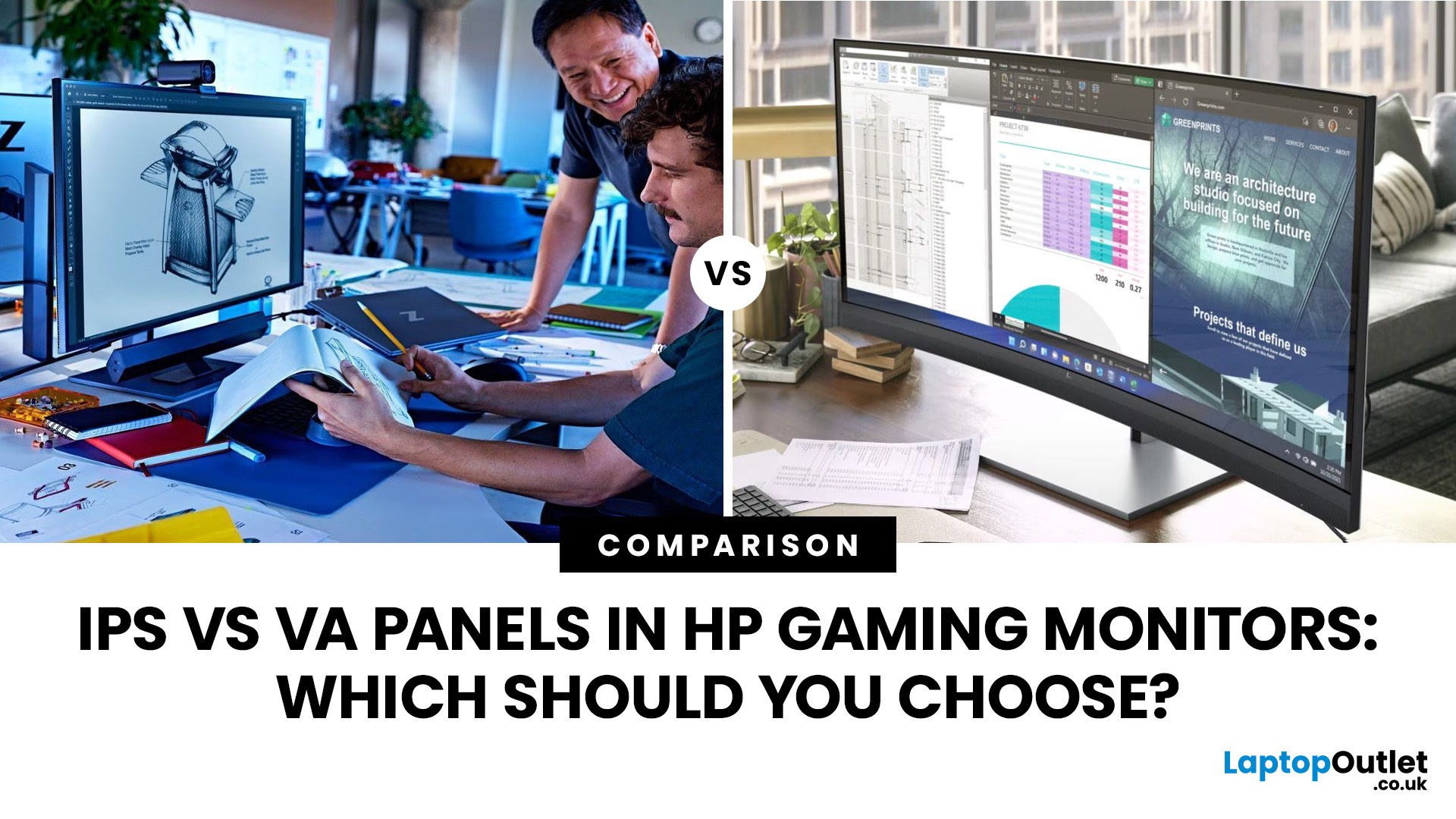
IPS panels are usually the better choice for competitive gaming, wider viewing angles and mixed gaming and creative work. VA panels generally deliver deeper blacks and stronger contrast, making them attractive for immersive games in darker rooms. However, the IPS vs VA panel decision should also consider the monitor’s exact response time, refresh rate, resolution, adaptive sync, and measured performance. Read our complete guide to gaming monitor panels for a full breakdown of IPS vs VA and other display technologies.
IPS vs VA Panels: Quick Comparison
| Feature | IPS Panel | VA Panel |
| Native contrast | Usually lower | Usually higher |
| Black depth | Blacks can appear grey in dark rooms | Deeper blacks in suitable conditions |
| Viewing angles | Wider and more consistent | Narrower, with more off-centre variation |
| Fast-motion clarity | Generally cleaner | Can show dark smearing |
| Colour consistency | Usually strong across the screen | Can change more when viewed off-centre |
| Colour accuracy | Depends on the individual monitor | Depends |
Published: August 24, 2026
Published: August 25, 2026
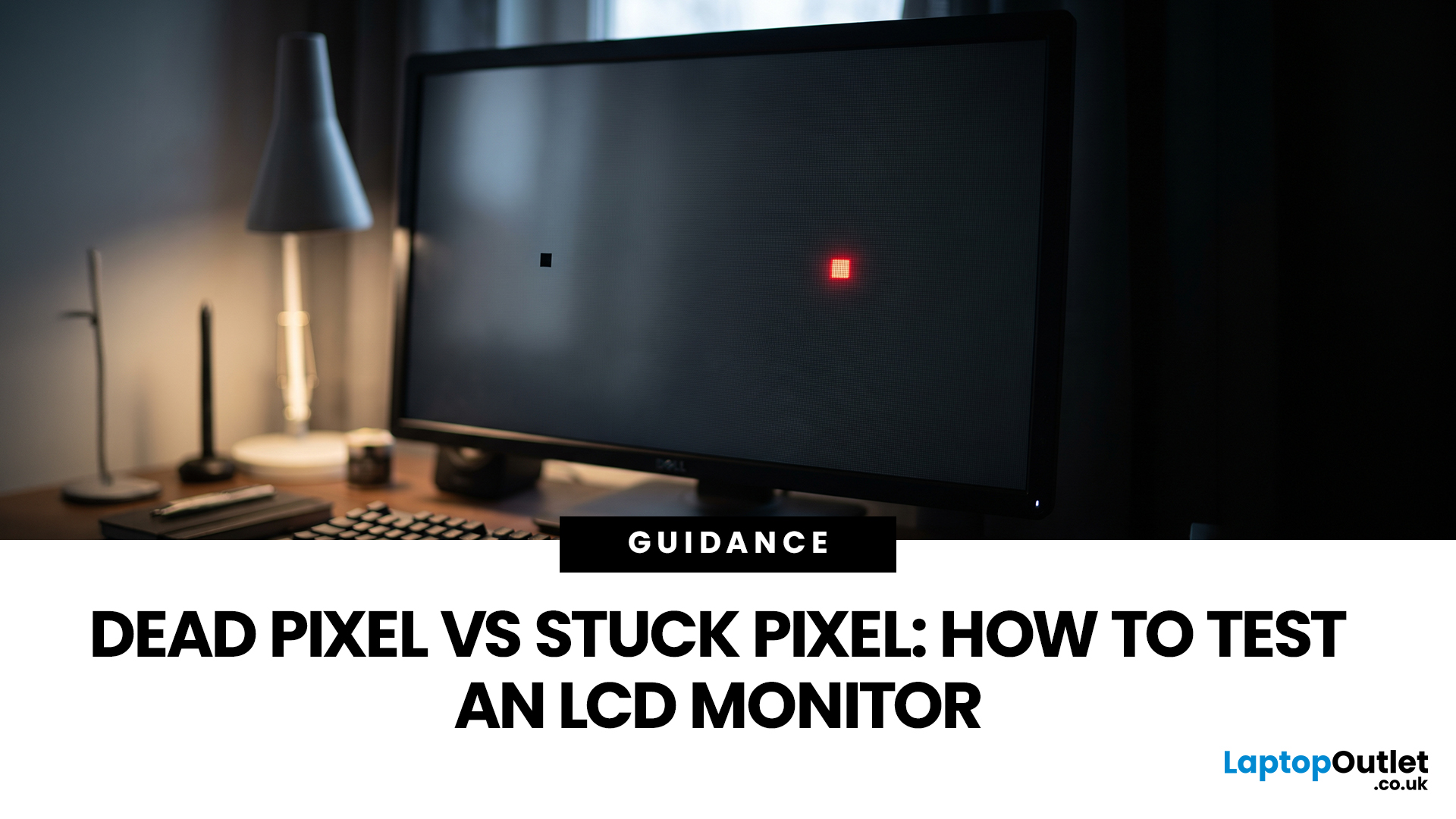
A tiny black, white or coloured dot can be hard to ignore once you notice it on an LCD monitor. The mark may be a pixel fault, a subpixel problem, dust on the panel or an image issue from the connected device.
Understanding dead vs stuck pixel behaviour helps you identify what you are seeing before you try to fix it. This guide explains how the defects differ, what causes them, how to run a safe LCD monitor pixel test, and when repair, return or replacement makes more sense.
How Pixels and Subpixels Work on an LCD Monitor
An LCD screen creates an image from a grid of pixels. A standard colour pixel is normally made from red, green and blue subpixels. By changing how much light each subpixel passes, the display produces different colours.
This structure explains why faults can look different. If all colour components at one position fail to produce the required output, the point may appear black. If only one subpixel remains on or off, the result may look red, green, blue or slightly different
Published: August 25, 2026
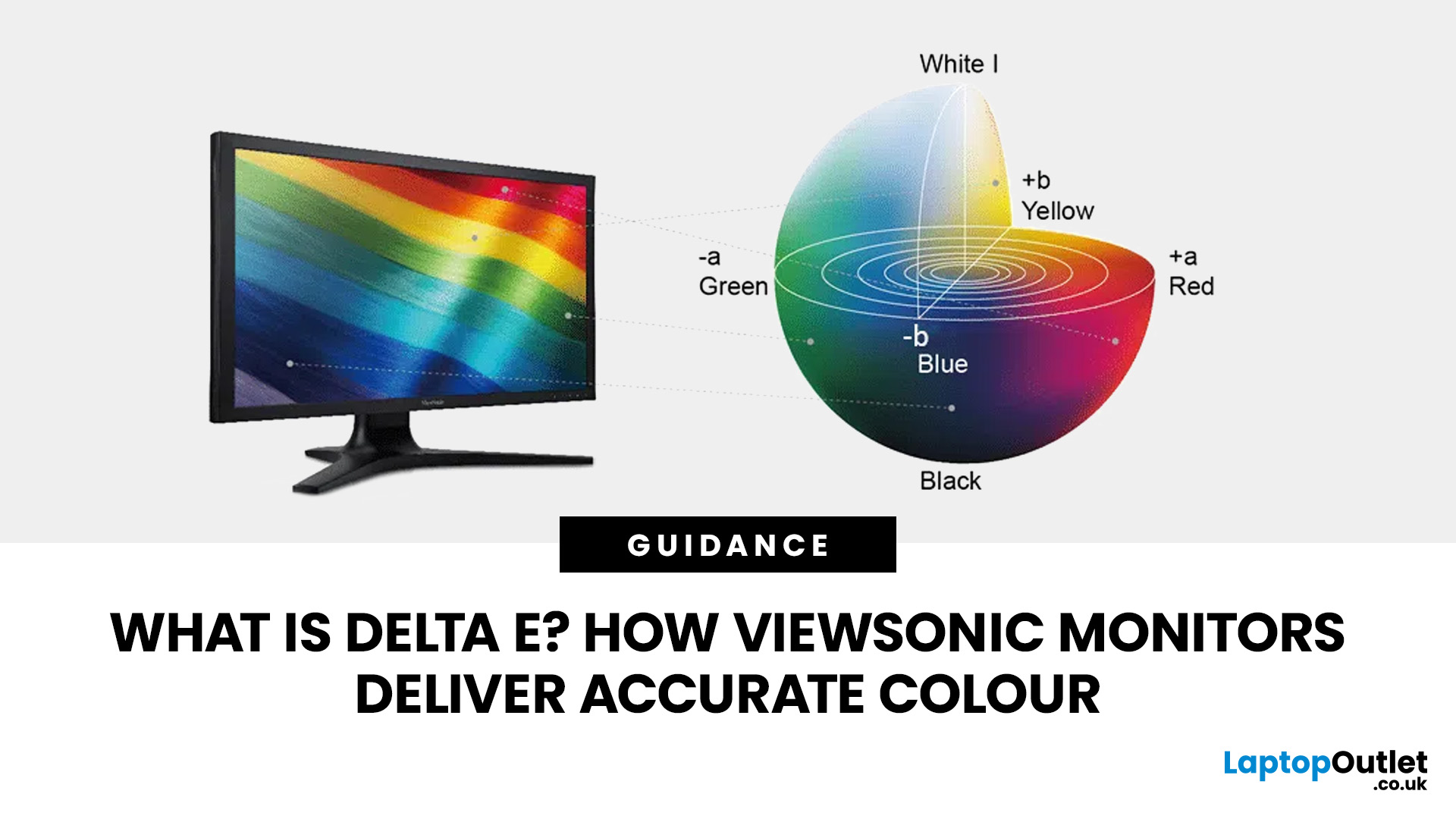
Have you ever edited a photo until it looked perfect on your screen, only to see different colours elsewhere? This often comes down to monitor colour accuracy. Delta E measures how closely a display matches true colours, the lower the value, the more accurate the screen. It’s especially important for photographers, designers, and video editors. ViewSonic’s ColorPro range, including models like the VP2766-2K, is factory calibrated for Delta E < 2 accuracy. Here’s what Delta E means and how it compares to sRGB coverage when choosing a monitor.
What Does Delta E Mean on a Monitor?
Delta E, written as ΔE, is a colour difference measurement. It calculates how far a reproduced colour differs from a reference colour.
Think of it this way: if your editing software tells the monitor to display a precise shade of red, Delta E helps quantify how closely the red appearing on the screen matches that intended colour.
A Delta E of zero represents no measurable difference between the target and reproduced
Published: August 27, 2026
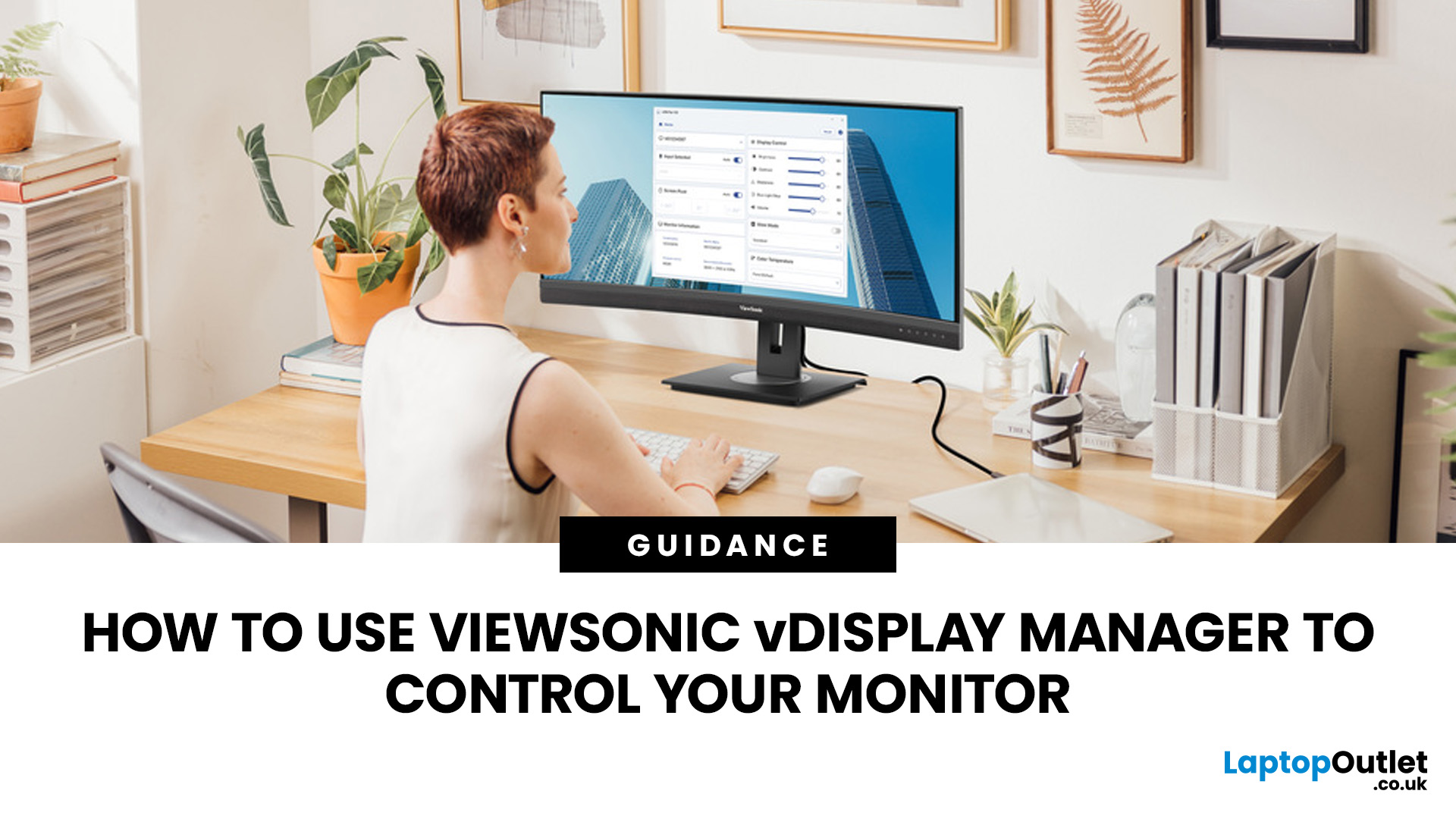
Reaching behind your monitor every time you want to change the brightness or switch inputs can quickly become inconvenient. ViewSonic vDisplay Manager gives you another option by bringing compatible monitor controls directly onto your computer.
With the software, you can manage settings such as brightness, contrast, input source, ViewMode, colour temperature and screen orientation using your mouse. The exact controls available depend on your ViewSonic monitor model.
This guide takes you through downloading the software, connecting your display and adjusting the settings you are most likely to use.
What is ViewSonic vDisplay Manager?
It is desktop software designed to let you manage compatible ViewSonic monitor settings from your computer. Instead of navigating the monitor's physical OSD controls each time, you can make supported adjustments through a software interface.
This is particularly useful if you regularly alter your screen for different tasks, switch between connected devices or
Last Updated: September 02, 2026
Choosing a monitor is not simply a case of buying the highest resolution or fastest refresh rate you can afford. Your graphics card has to render the resolution, generate enough frames to benefit from the screen’s refresh rate and support the connection needed to carry that signal.
Get those factors right and you can enjoy sharper images, smoother motion and better use of the hardware you already own. Here is how to choose the right monitor for gaming, creative work and everyday use without paying for display performance your PC cannot use.
Quick Answer: How Do You Choose the Right Monitor?
Start with your GPU’s real performance at the resolution you want. Match the monitor’s native resolution and refresh rate to the frame rates your graphics card can realistically deliver, then check variable refresh rate support and display connections. After that, compare panel type, screen size, HDR and other features based on how you use the PC.
For most buyers, resolution should come first, refresh
Published: September 22, 2026

Published: October 19, 2026
A spooky photo booth gives guests somewhere to show off costumes, try ridiculous poses and leave with photos from the night. Better still, you do not need professional photography equipment to build one.
A laptop, webcam, screen, a little lighting, and a suitably creepy backdrop can turn a spare corner into a working DIY Halloween photo booth. You can keep things simple with your laptop's built-in camera or create a more polished setup using an external webcam and separate monitor. Here is how to put everything together without turning your party into an IT project.
What Do You Need for a Halloween Photo Booth?
The key is making the setup reliable. Guests should be able to walk up, pose and take a picture without adjusting cables or camera settings every time. Start with equipment you may already have:
- Laptop or desktop computer
- Built-in or USB webcam
- Monitor or portable display
- Tripod, webcam mount or stable surface
- LED lamp, ring light or another soft light source
- Halloween backdrop
- Props
Last Updated: October 26, 2026
Last Updated: October 28, 2026

