



Glossy vs Matte Monitors: Which Finish Suits Your Workspace Best?
Quick answer:
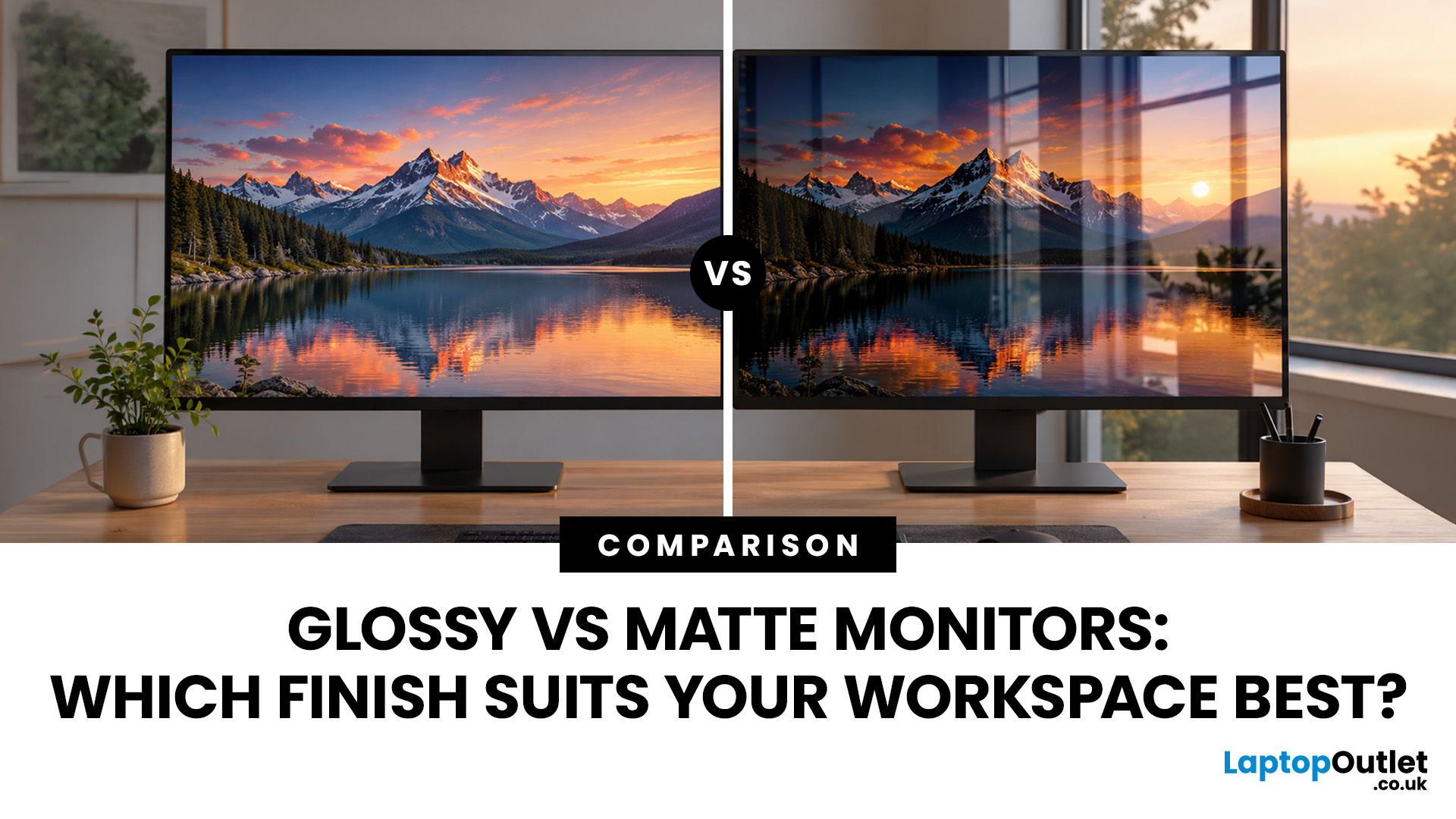
A matte monitor is generally better for bright offices, everyday work and long reading sessions because its anti-glare coating reduces distracting reflections. A glossy monitor suits controlled lighting, entertainment and colour-focused work, offering clearer-looking images and deeper perceived contrast. Neither finish is automatically better for your eyes or gaming. The right choice depends on your room lighting, screen positioning and how you use your monitor.
Ever noticed how some monitors reflect your face while others make reflections look softer and less distracting? That's the difference between glossy and matte screen finishes.
When choosing a glossy vs matte monitor, it's easy to focus on which looks sharper or more colourful. However, the lighting around your desk can make a bigger difference to your everyday experience than you might expect.
Whether you're working from home, gaming, editing photos or reading documents, we'll help you understand which finish makes sense for your setup and where spending more is actually worthwhile.
What is the difference between glossy and matte monitors?
Both finishes affect how light interacts with the screen surface. They don't determine the monitor's resolution, refresh rate or panel technology, but they can change how the picture looks in your room.
What is a glossy monitor?
A glossy monitor has a smooth, reflective surface that allows light from the display to pass through with relatively little diffusion. This can make colours appear richer, dark scenes look deeper and fine details seem more defined, particularly when room lighting is controlled.
However, glossy screens also reflect windows, ceiling lights and objects around your desk. These reflections can become distracting when you're working with dark backgrounds or watching films.
Best suited for: Photo editing, entertainment, creative work and desks with controlled lighting.
What is a matte monitor?
A matte monitor uses an anti-glare surface treatment to scatter reflected light instead of producing sharp, mirror-like reflections. This makes it easier to concentrate on documents, spreadsheets and other everyday tasks in brightly lit spaces.
The trade-off is that some matte coatings introduce a slightly grainy appearance, particularly on white backgrounds. Heavy coatings can also reduce perceived image clarity, although modern light matte finishes often minimise this effect.
Best suited for: Office work, studying, reading, shared workspaces and rooms with unavoidable reflections.
Glossy vs matte screen: Key differences at a glance
|
Feature |
Glossy monitor |
Matte monitor |
|
Reflections |
More visible and mirror-like |
Softer and diffused |
|
Perceived sharpness |
Often clearer-looking |
Depends on coating quality |
|
Colour appearance |
Often richer in controlled lighting |
More consistent in bright rooms |
|
Dark scenes |
Can appear deeper without reflections |
Less distracting under room lighting |
|
Bright office use |
Needs careful positioning |
Generally more practical |
|
Gaming |
Good for immersive visuals |
Good for varied lighting |
|
Photo editing |
Good with controlled lighting |
Good where reflections are difficult to avoid |
|
Reading |
Good without glare |
Often easier in bright spaces |
|
Cleaning |
Fingerprints and smudges can stand out |
Smudges may be less noticeable |
Our advice: If you can't control the lighting around your desk, start with a matte monitor. If you can keep direct reflections off the screen, a glossy finish is worth considering for its image clarity.
Which screen finish is better for office work and productivity?
For most offices and home workspaces, matte is the more practical choice. Think about a typical working day. You might have sunlight coming through a window, overhead lighting and several applications open at once. A matte coating reduces distinct reflections that could otherwise interfere with your work.
For spreadsheets, emails, video calls and web browsing, a matte screen generally offers a comfortable, predictable viewing experience. However, glossy isn't necessarily unsuitable for productivity. If your desk faces away from windows and you can control overhead lighting, a glossy screen can look crisp and pleasant.
What about IPS monitors?
When considering a glossy vs matte IPS monitor, remember that IPS refers to the panel technology, while glossy and matte describe the surface finish.
IPS panels are popular for their wide viewing angles and generally consistent colour reproduction. They can have either surface treatment, although matte finishes are common on office displays.
For home office setups, IPS display options offer wide viewing angles and consistent colour reproduction. However, the screen coating, adjustable stand and connectivity also matter when choosing a monitor that suits your workspace.
Glossy vs matte gaming monitor: Which should you choose?
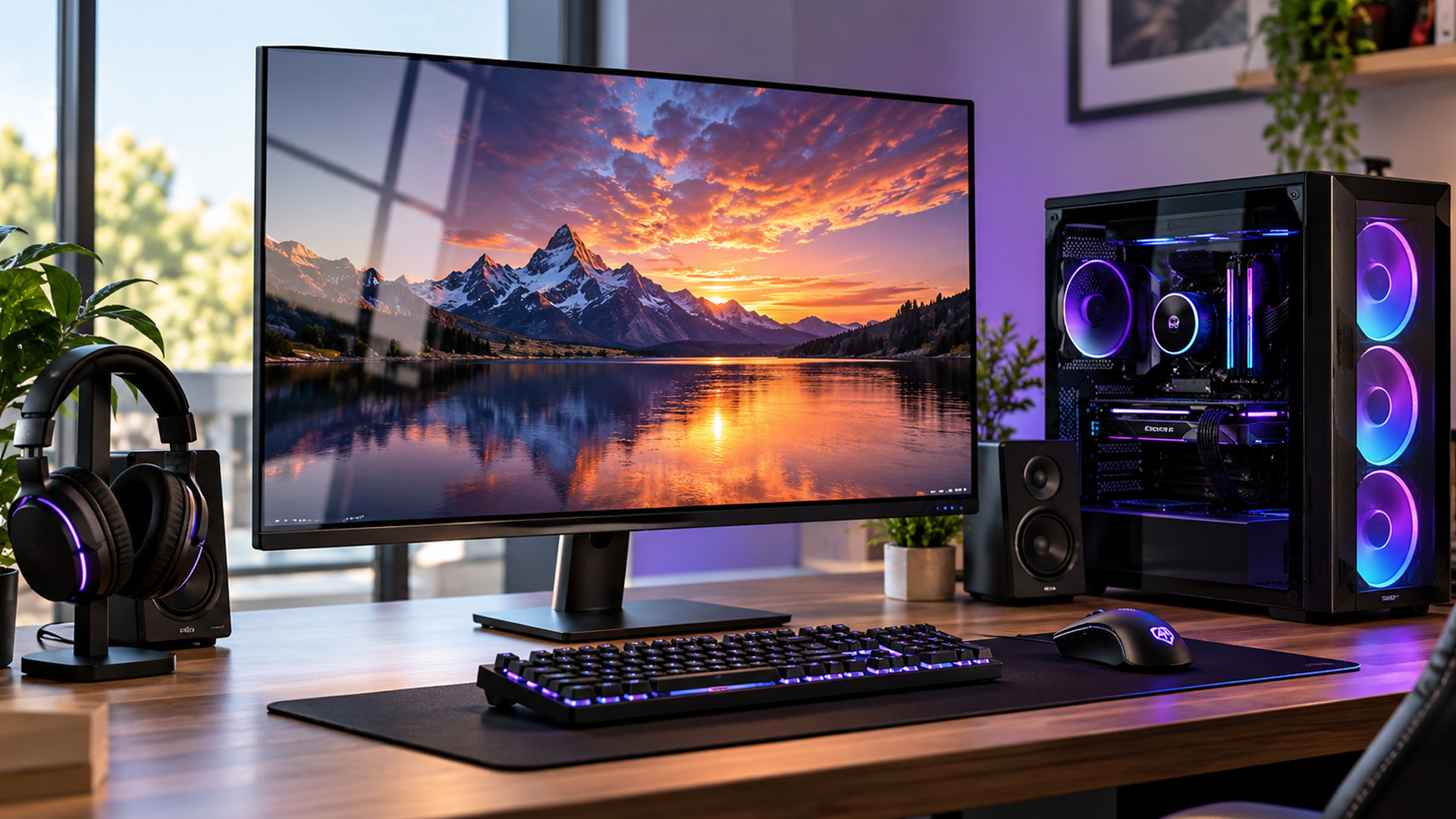
The right glossy vs matte gaming monitor depends on the games you play and your gaming environment. A glossy screen can make colourful environments, cinematic lighting and dark scenes look particularly impressive in a dim room. This can be appealing for story-driven games, racing titles and visually detailed adventures.
A matte monitor is often more practical when you're gaming during the day or using overhead lights. Reflections are less likely to distract you when you're trying to spot movement or follow fast action.
Does a glossy screen improve gaming performance?
No. A glossy coating doesn't increase FPS, reduce input lag or improve pixel response times.
For competitive gaming, focus on these specifications instead:
- Refresh rate: A 144Hz or higher monitor can display more frames per second than a 60Hz screen, provided your PC can deliver them.
- Response time: Faster pixel transitions can reduce visible motion blur and ghosting.
- Variable refresh rate: Technologies such as Adaptive-Sync help reduce tearing when frame rates change.
- Resolution: Full HD is easier to run at high frame rates, while QHD and 4K provide more detail but demand more graphics performance.
For gaming, screen finish is just one consideration. The refresh rate, response time and resolution of gaming screens play a bigger role in delivering smooth, responsive gameplay, while glossy or matte coatings mainly affect how reflections and visuals appear.
Are glossy OLED gaming monitors worth considering?
Glossy and semi-glossy OLED monitors have become an increasingly visible option in premium gaming displays, alongside matte OLED alternatives.
OLED pixels produce their own light and can switch off individually, delivering deep blacks and excellent pixel response times. However, surface coatings still matter.
A glossy OLED can look particularly striking in a dark room, while a matte OLED may be easier to use with bright lights nearby. Some glossy QD-OLED displays can also show raised-looking blacks under strong ambient lighting.
If you're considering something from OLED monitor range, check the specific model's coating, brightness performance and warranty information. OLED's image quality benefits don't automatically make every model the right choice for a bright office.
Glossy vs matte screen for photo editing and creative work
When choosing between a glossy vs matte screen for photo editing, colour accuracy matters more than the surface finish alone.
A glossy display can make images appear more vibrant and detailed, especially when you're editing in a room with controlled lighting. This can be useful for reviewing photographs, digital illustrations and video content.
Matte monitors reduce reflections that might interfere with judging shadows, highlights and fine details. Many professional creative displays use anti-glare finishes for this reason.
What should you prioritise for accurate editing?
Look beyond glossy or matte and consider:
- Colour gamut: Coverage of sRGB, Adobe RGB or DCI-P3, depending on your work.
- Colour accuracy: A factory-calibrated monitor can be a useful starting point, although calibration quality varies.
- Resolution: Higher pixel density helps when examining detailed images and working with editing tools.
- Uniformity: Consistent brightness and colour across the panel make visual adjustments more reliable.
- Calibration support: A compatible colourimeter can help maintain accurate colours over time.
A glossy monitor isn't inherently more colour-accurate than a matte one. The display's calibration, panel quality and viewing conditions are more important.
For detailed creative projects, 4K ultra hd displays offer options with higher resolution. Check each model's colour specifications rather than assuming every 4K monitor is designed for professional editing.
Matte vs glossy screen eye strain: Which is more comfortable?
If you're concerned about matte vs glossy screen eye strain, neither finish guarantees better eye comfort. A matte monitor can reduce distracting reflections in bright rooms, making it easier to see content without constantly adjusting your position.
However, some matte coatings introduce visible grain or haze that certain people find distracting. Glossy screens can look clearer but may create uncomfortable reflections when positioned near windows or lights.
Eye discomfort can also be influenced by screen brightness, prolonged close-up work, dry eyes, viewing distance and uncorrected vision problems.
How to make either monitor more comfortable
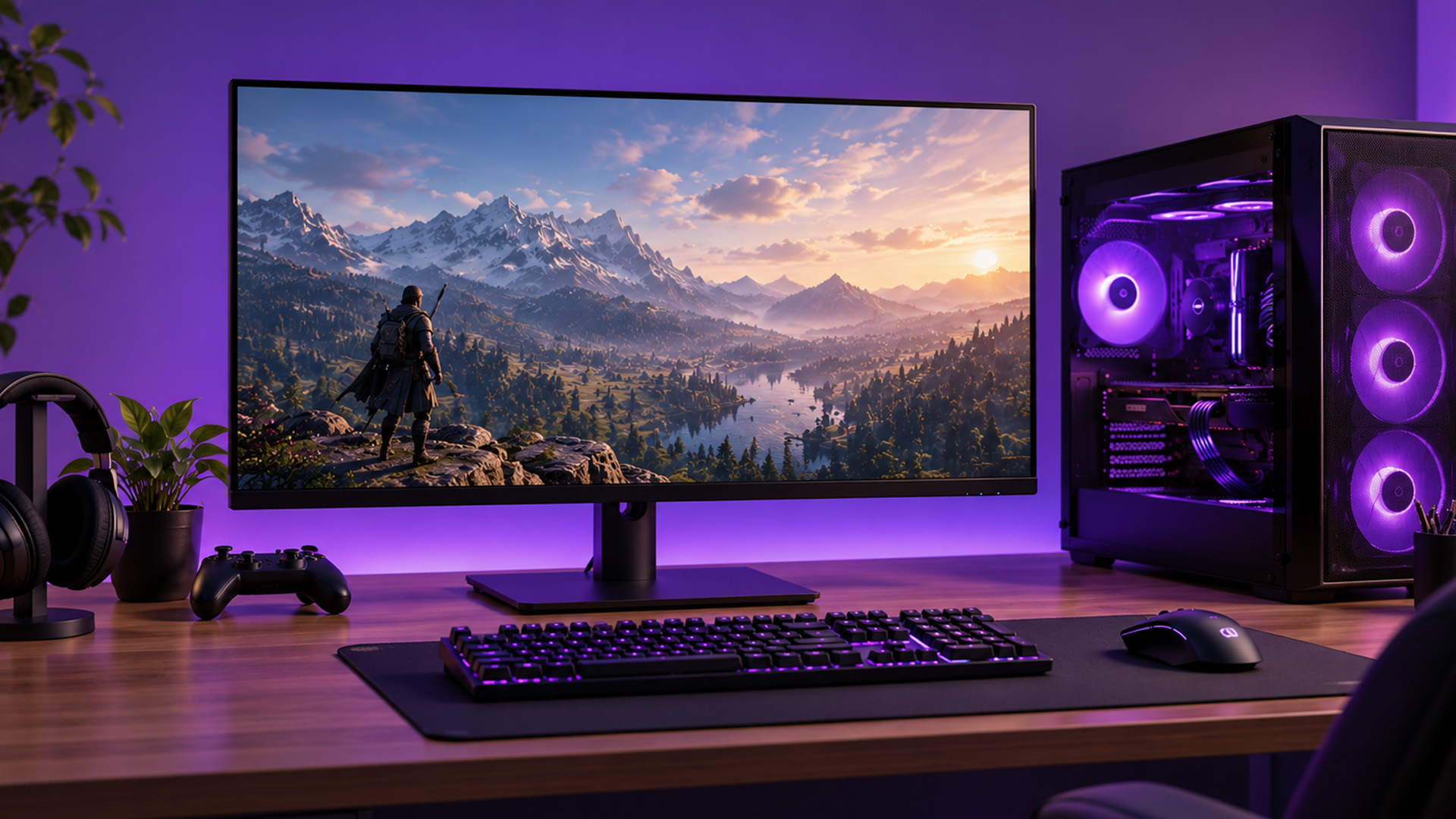
- Position your monitor so windows and lamps don't reflect directly into the screen.
- Adjust brightness to suit the surrounding room rather than leaving it at maximum.
- Keep the display roughly an arm's length away, adjusting for screen size and readability.
- Increase text scaling if you find yourself leaning towards the screen.
- Take regular breaks and look at something in the distance using the 20-20-20 rule as a practical reminder.
- Reduce harsh lighting contrasts between your monitor and the surrounding workspace.
Expert tip: Before replacing a monitor because of glare, try moving your desk lamp or changing the screen angle. A small adjustment can make a noticeable difference without costing anything.
Matte vs glossy screen for reading and studying
For matte vs glossy screen for reading, matte usually makes more sense in a typical bright room. Long documents, research papers and spreadsheets often involve white backgrounds and small text. A matte coating helps prevent distinct reflections from covering words or distracting your attention.
Glossy monitors can still be excellent for reading when positioned away from strong light sources. Their clear-looking surface may make fine text particularly appealing to some people.
For students and anyone who spends hours working through documents, we'd prioritise readable text, suitable screen size, adjustable height and comfortable brightness over the finish alone.
A 27-inch QHD monitor, for example, can provide useful workspace for documents and multitasking. A 27-inch 4K model offers higher pixel density, although you may want to increase text scaling for comfortable reading.
Anti-glare matte screen vs glossy outdoor performance
The difference in anti-glare matte screen vs glossy outdoor performance becomes particularly noticeable in strong daylight. Glossy surfaces produce more distinct reflections of the sky, surrounding buildings and nearby objects. These can make darker content difficult to see.
Matte coatings scatter reflections, which can improve visibility in bright environments. However, strong sunlight can still wash out the image, and a matte coating cannot compensate for insufficient display brightness.
For a laptop or portable monitor used outdoors, consider brightness, screen positioning and shade together.
|
Environment |
More practical choice |
Why |
|
Bright office |
Matte |
Reduces sharp reflections |
|
Dim home office |
Either |
Depends on personal preference |
|
Desk beside a window |
Matte |
More forgiving of daylight |
|
Dark gaming room |
Glossy or matte |
Glossy can deliver clearer-looking images |
|
Outdoor shaded workspace |
Matte, with sufficient brightness |
Helps manage reflected light |
|
Direct sunlight |
Neither is ideal |
High brightness and shade remain important |
Our advice: Don't choose a display for outdoor use based on the anti-glare label alone. Brightness and visibility in real daylight matter just as much.
Are semi-glossy monitors a good middle ground?
Yes, a semi-glossy monitor can be a sensible choice if you want clearer-looking images without the full mirror effect of a glossy screen. Semi-glossy and semi-matte finishes sit between the two traditional coatings. They allow some direct reflections while scattering others, although the results vary between manufacturers and individual models.
This is particularly relevant in 2026, as premium OLED displays offer a wider variety of screen treatments. Glossy, matte and semi-glossy finishes can all be found across different OLED monitor designs.
However, don't assume every semi-glossy monitor handles reflections equally well. Check independent reflection tests or see the screen in person where possible.
How to choose between a glossy and matte monitor
Before spending money on a new display, consider these five practical factors.
1. Check your room lighting
If sunlight or ceiling lights regularly reflect on your screen, a matte finish is generally the safer choice. Glossy works well when you can control direct reflections.
2. Think about your main tasks
For office work and study, prioritise readability. For entertainment and creative projects, a glossy display may appeal more, provided your lighting suits it.
3. Consider resolution and clarity
Screen finish isn't everything. Resolution, pixel density and panel technology can have a greater effect on text clarity than the coating itself.
4. Look for comfortable adjustments
Height adjustment, tilt and a suitable viewing distance can make your monitor more pleasant to use. Don't pay extra for a premium coating while overlooking basic ergonomics.
5. Spend where you'll notice the difference
A well-priced matte IPS monitor may be all you need for everyday work. Spending more on a glossy OLED or higher-resolution display makes sense when you'll benefit from its picture quality.
Find the right monitor at Laptop Outlet
Whether you're replacing an ageing office display or building a gaming setup, the right monitor should suit your work, your room and your budget.
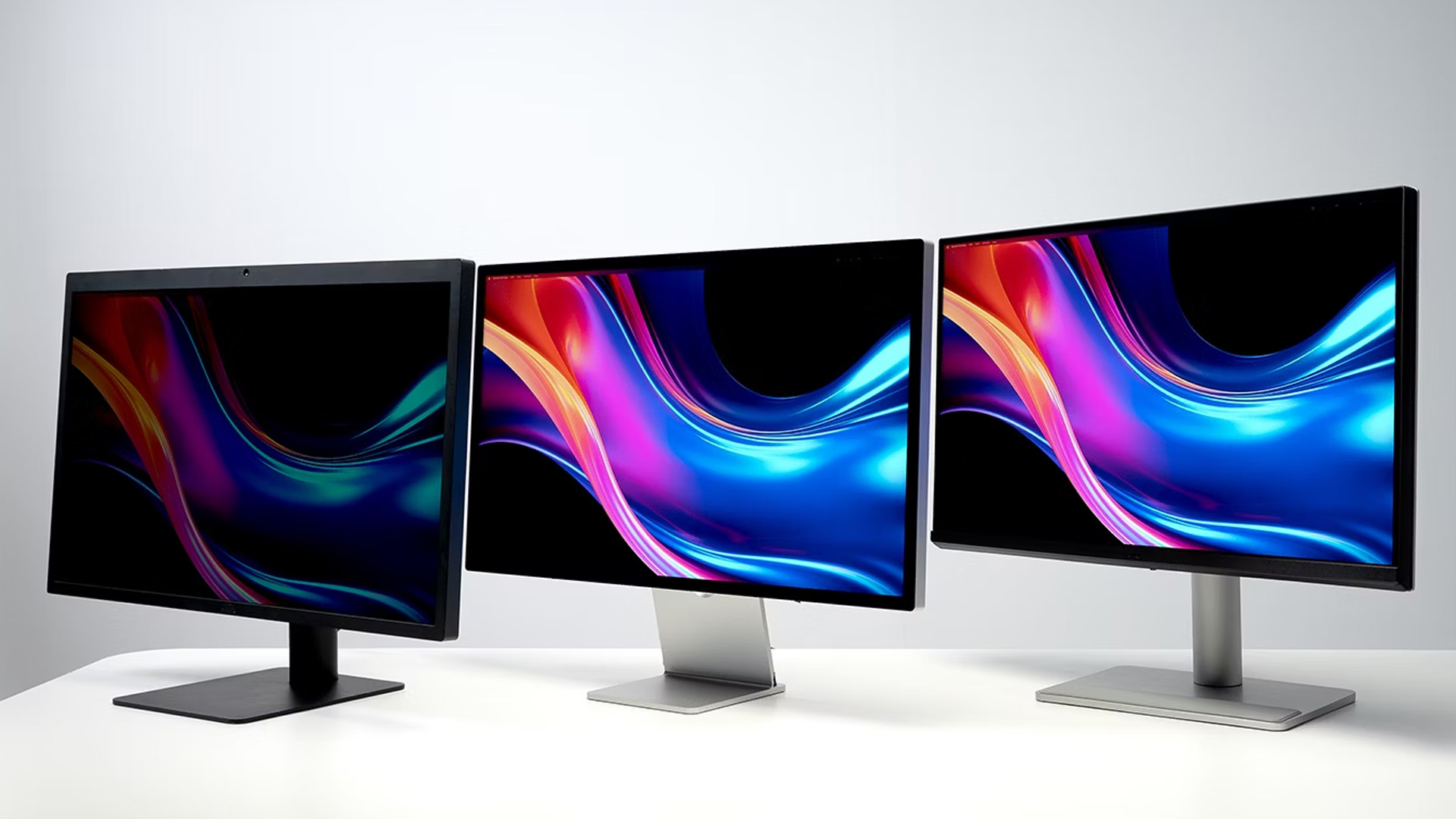
At Laptop Outlet, our monitor range includes options for everyday productivity, creative work and gaming from leading brands.
We make it easier to choose a screen based on the features you'll actually use, whether that's a practical IPS panel, sharper 4K resolution or a responsive gaming display.
You can also look at refurbished monitors if you're trying to get more for your money. Check each product's condition, specifications and warranty details before buying.
Our advice is simple: start with the tasks you do most, choose a screen finish that works with your lighting, then decide which additional features are worth paying for.

Final verdict: Glossy vs matte monitor?
For most home offices, students and everyday workspaces, a matte monitor is the sensible choice. It reduces distracting reflections and works well in rooms where lighting changes throughout the day.
Choose glossy if you enjoy crisp-looking images, watch plenty of films or work with photographs in a controlled environment. For gaming, neither finish offers a performance advantage, so prioritise refresh rate, response times and panel quality.
Ultimately, a well-positioned monitor with the right specifications will serve you better than choosing a finish based on appearance alone.

Frequently asked questions
1. Does a matte monitor reduce image quality?
Not necessarily. Matte coatings scatter reflected light, and some can introduce slight graininess or haze. However, a good matte monitor can still deliver excellent colour accuracy, sharp text and detailed images. Panel quality and resolution remain important.
2. Can you turn a glossy monitor into a matte monitor?
You can apply a compatible anti-glare screen protector, but it may introduce haze, reduce perceived sharpness or affect touch sensitivity where applicable. Avoid attempting to remove or modify the monitor's original coating, as this can permanently damage the display.
3. Do glossy monitors show fingerprints more easily?
Fingerprints and smudges are often more noticeable on glossy surfaces, particularly when the screen is switched off. Matte coatings can make marks less obvious, although both finishes need occasional cleaning. Always follow the manufacturer's cleaning instructions.
4. Is a glossy monitor better for watching movies?
A glossy monitor can provide clearer-looking images and strong perceived contrast in a dim room. However, the panel's contrast ratio, HDR performance and black levels have a greater influence on movie quality than the finish alone. If reflections are unavoidable, a matte display may be more enjoyable.
5. Are all OLED monitors glossy?
No. OLED monitors are available with glossy, matte and semi-glossy coatings. The finish varies between models, so check the manufacturer's specifications and independent reflection tests before buying.
6. How can I tell whether my monitor is glossy or matte?
Switch off the monitor and look at its surface in a well-lit room. If you can clearly see your face or nearby objects, it's likely glossy. If reflections appear blurred or diffused, it's likely matte. Semi-glossy displays may show characteristics of both finishes.
Related Articles

Last Updated: August 17, 2026
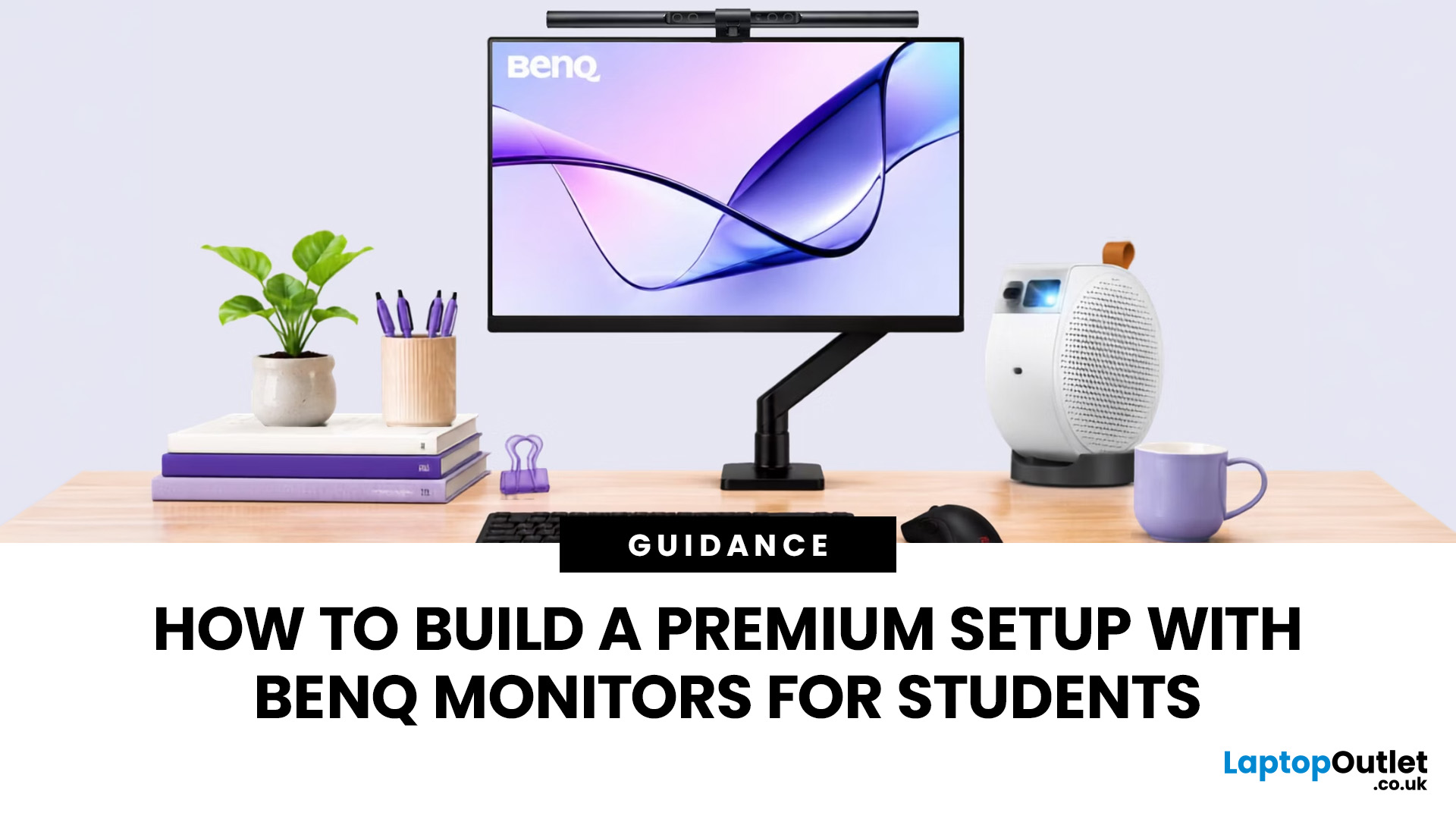
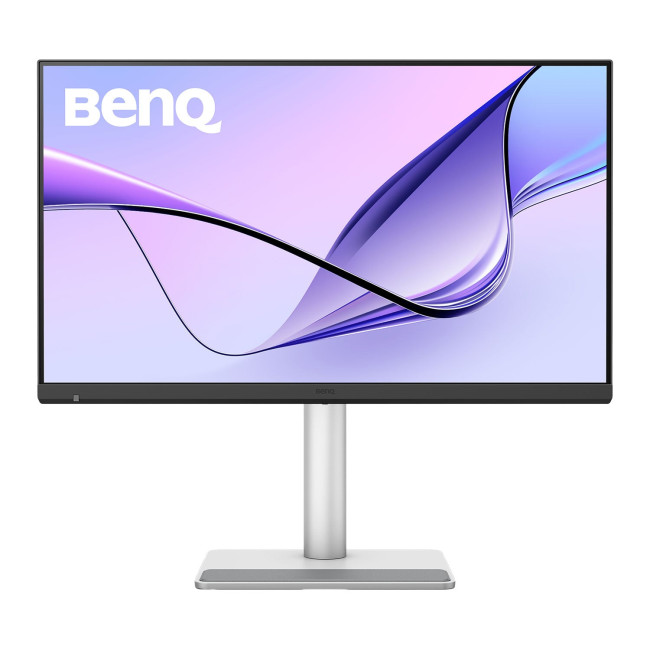
BenQ monitors for students can create a more comfortable and capable workspace for coursework, research, creative projects and downtime. The right display should suit your course, desk space, laptop and daily routine rather than simply offer the highest resolution. For many students, the strongest setup combines clear text, useful screen space, simple connectivity and enough versatility for life beyond studying.
A premium student monitor setup is not defined by one specification. A compact high-resolution screen may work better in university accommodation, while a larger display can make research, timelines and spreadsheets easier to manage. Room lighting, USB-C charging, ergonomics and gaming needs also influence the decision. This guide compares BenQ's Mac-focused MA Series with a faster mixed-use alternative and explains where each approach makes practical sense.
Compare the Best BenQ Monitors for Students in 2026
| Model | Display | Colour and HDR | Laptop Connection | Best Student Use |
|
|
Last Updated: September 03, 2026
Creative work depends on display quality, from colour accuracy to detail clarity.
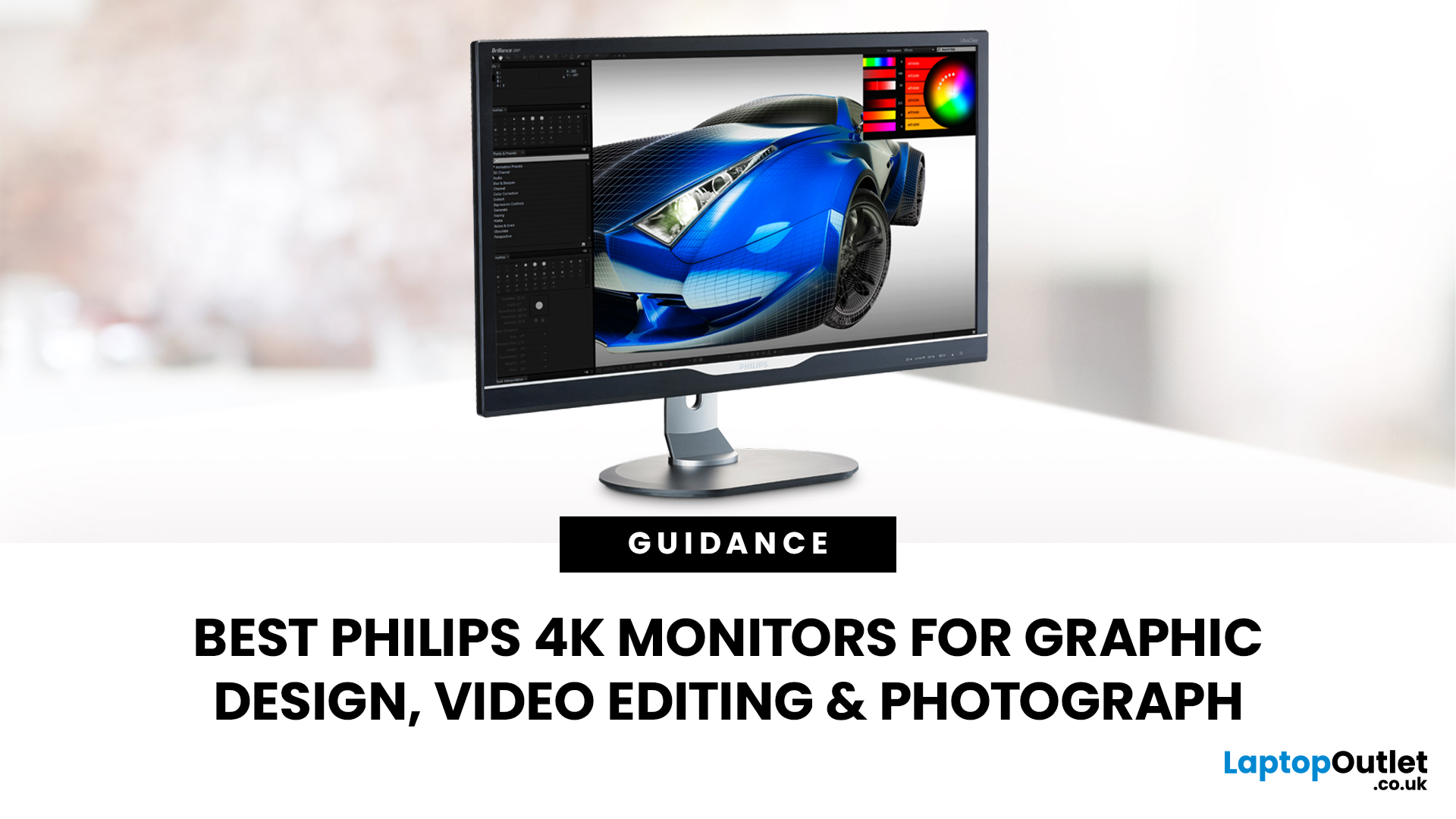
The best Philips 4K monitors for creative work include the 27E1N1800AE for affordable 4K clarity, the 27E1N1900AE for convenient USB-C laptop connectivity and the curved 328E1CA for a larger editing workspace. A 27-inch IPS model suits most designers and photographers, while a 31.5-inch VA display offers stronger contrast and more room for video timelines. Choose according to colour requirements, connectivity, available desk space and your everyday creative workflow needs.
These 4K monitors deliver four times Full HD resolution for sharper visuals and more workspace, but panel type, colour performance and connectivity are just as important.
This guide highlights the best Philips 4K options for design, video editing and photography. It also highlights key considerations so you can compare different computer monitors for designers more effectively.
Best Philips 4K Monitors at a Glance
| Philips Monitor | Best For |
Published: August 17, 2026
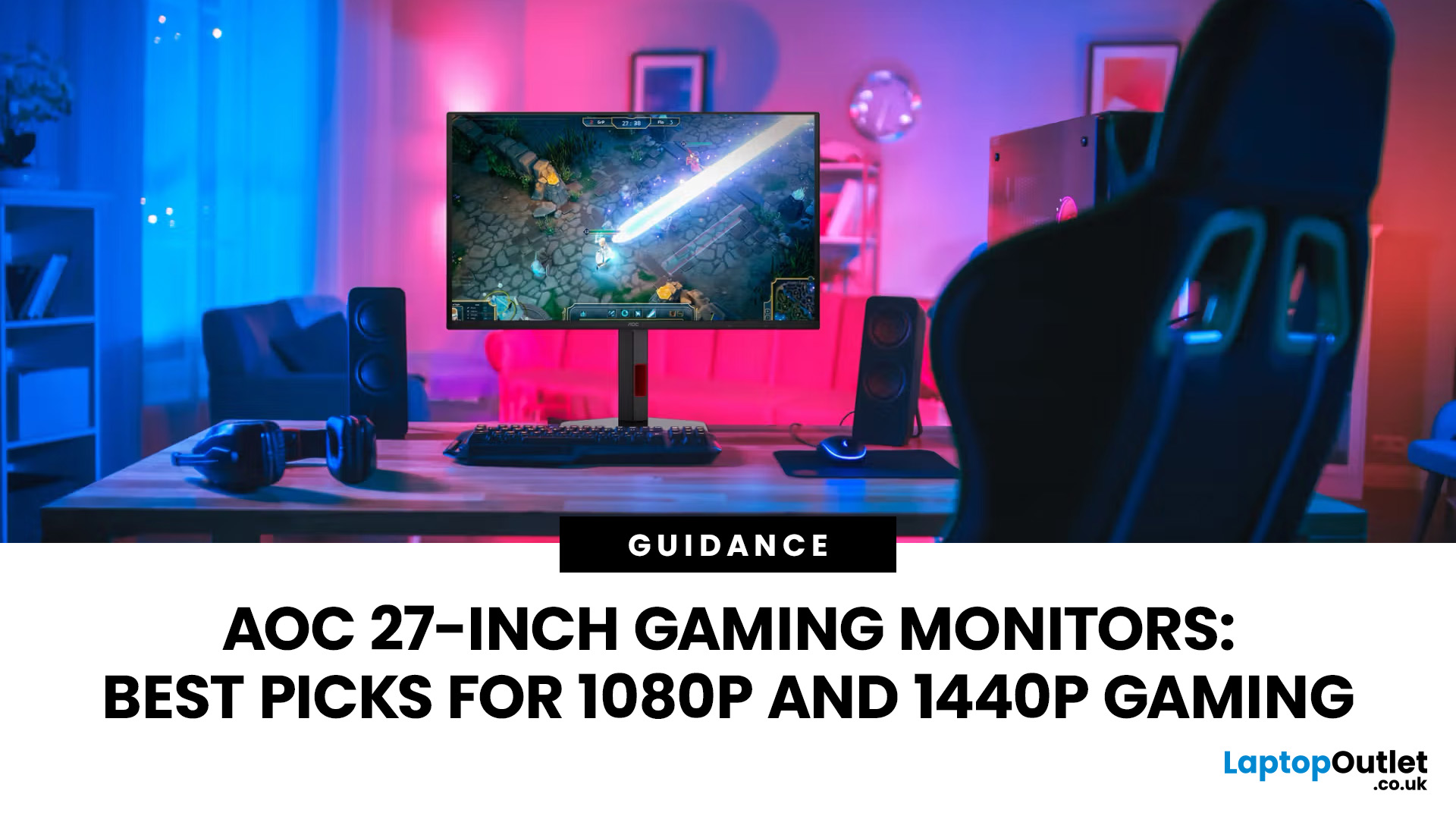
An AOC gaming monitor 27 inch screen gives you plenty of room to play without taking over your whole desk. The key decision is resolution.
The best AOC gaming monitor 27 inch choice for most players is the Q27G42ZE, thanks to its sharp QHD resolution, Fast IPS panel and 240Hz native refresh rate. Choose the C27G4ZXE for competitive 1080p gaming, the Q27G3XMN/BK for stronger HDR, or the AG276UZD for premium 4K QD-OLED visuals. Your ideal model ultimately depends on your GPU, preferred games, target frame rate and available budget, plus your PC or console setup.
Full HD makes high frame rates easier to achieve, while QHD produces a noticeably sharper picture. If your budget and graphics card can go further, 4K QD-OLED delivers another level of detail, colour and contrast.
AOC 27 Inch Gaming Monitors at a Glance
| Model | Resolution | Panel | Refresh Rate | Best For |
| AOC AGON AG276UZD | 3840 × 2160 | QD-OLED | 240Hz | Premium 4K gaming |
| AOC Q27G42ZE | 2560 × 1440 | Fast IPS | 240Hz, 260Hz overclocked | High-refresh QHD |
Published: August 19, 2026
Comparing LCD vs LED monitors? An LED monitor is an LCD that uses energy-efficient LED backlighting, while older LCDs typically use fluorescent CCFL lights.
LED-backlit models are generally slimmer, more efficient and more widely available. However, the LED label alone does not guarantee better colours, smoother gaming or greater eye comfort. Panel type, refresh rate, response time, resolution and brightness all matter too.
LCD vs LED Monitors at a Glance
The main difference between a traditional LCD monitor and an LED monitor is the backlight. A traditional LCD commonly uses CCFL tubes, while an LED monitor uses smaller light-emitting
Last Updated: August 19, 2026
IPS panels are usually the better choice for competitive gaming, wider viewing angles and mixed gaming and creative work. VA panels generally deliver deeper blacks and stronger contrast, making them attractive for immersive games in darker rooms. However, the IPS vs VA panel decision should also consider the monitor’s exact response time, refresh rate, resolution, adaptive sync, and measured performance. Read our complete guide to gaming monitor panels for a full breakdown of IPS vs VA and other display technologies.
IPS vs VA Panels: Quick Comparison
| Feature | IPS Panel | VA Panel |
| Native contrast | Usually lower | Usually higher |
| Black depth | Blacks can appear grey in dark rooms | Deeper blacks in suitable conditions |
| Viewing angles | Wider and more consistent | Narrower, with more off-centre variation |
| Fast-motion clarity | Generally cleaner | Can show dark smearing |
| Colour consistency | Usually strong across the screen | Can change more when viewed off-centre |
| Colour accuracy | Depends on the individual monitor | Depends |
Published: August 24, 2026
Published: August 25, 2026
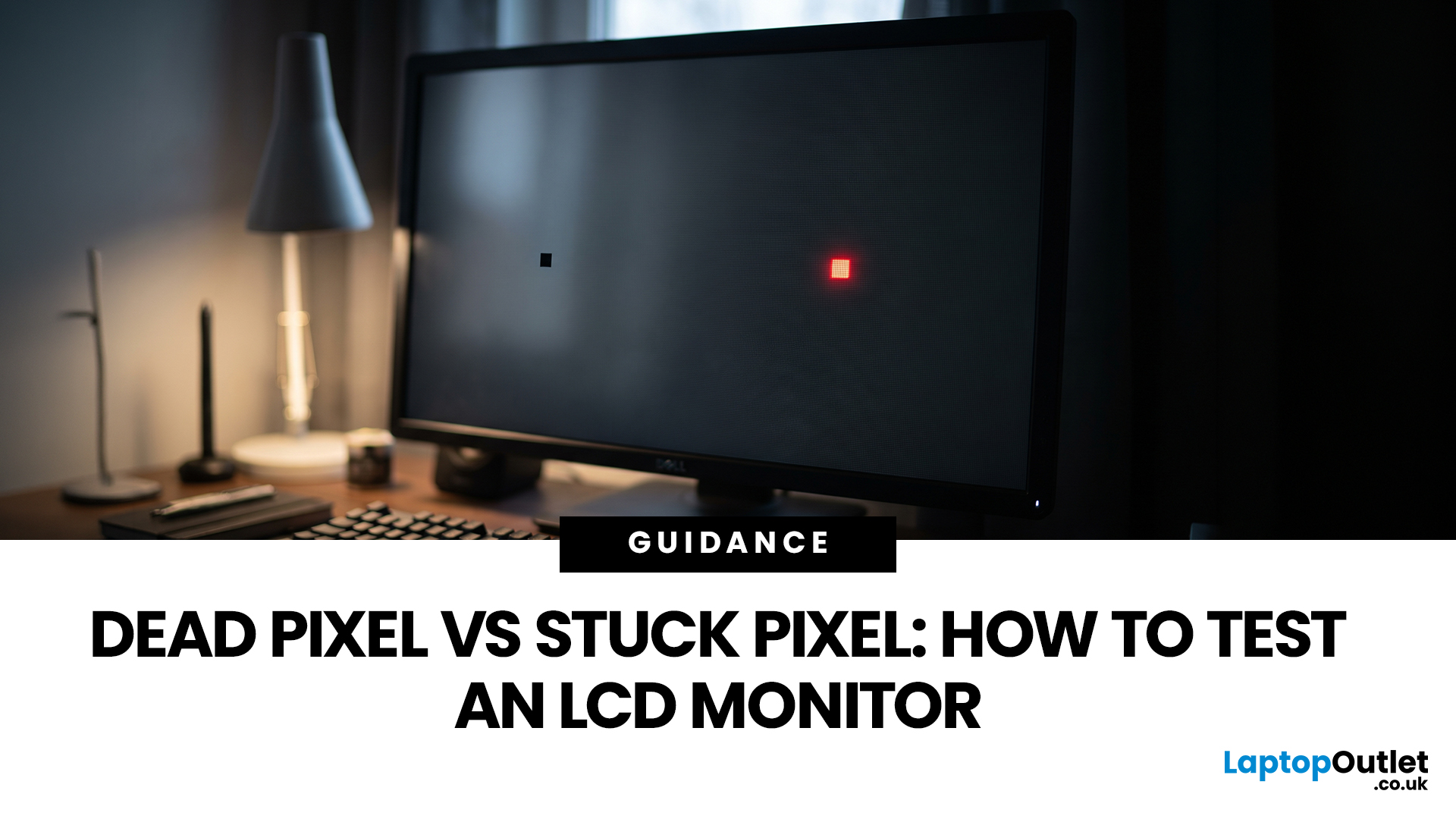
A tiny black, white or coloured dot can be hard to ignore once you notice it on an LCD monitor. The mark may be a pixel fault, a subpixel problem, dust on the panel or an image issue from the connected device.
Understanding dead vs stuck pixel behaviour helps you identify what you are seeing before you try to fix it. This guide explains how the defects differ, what causes them, how to run a safe LCD monitor pixel test, and when repair, return or replacement makes more sense.
How Pixels and Subpixels Work on an LCD Monitor
An LCD screen creates an image from a grid of pixels. A standard colour pixel is normally made from red, green and blue subpixels. By changing how much light each subpixel passes, the display produces different colours.
This structure explains why faults can look different. If all colour components at one position fail to produce the required output, the point may appear black. If only one subpixel remains on or off, the result may look red, green, blue or slightly different
Published: August 25, 2026
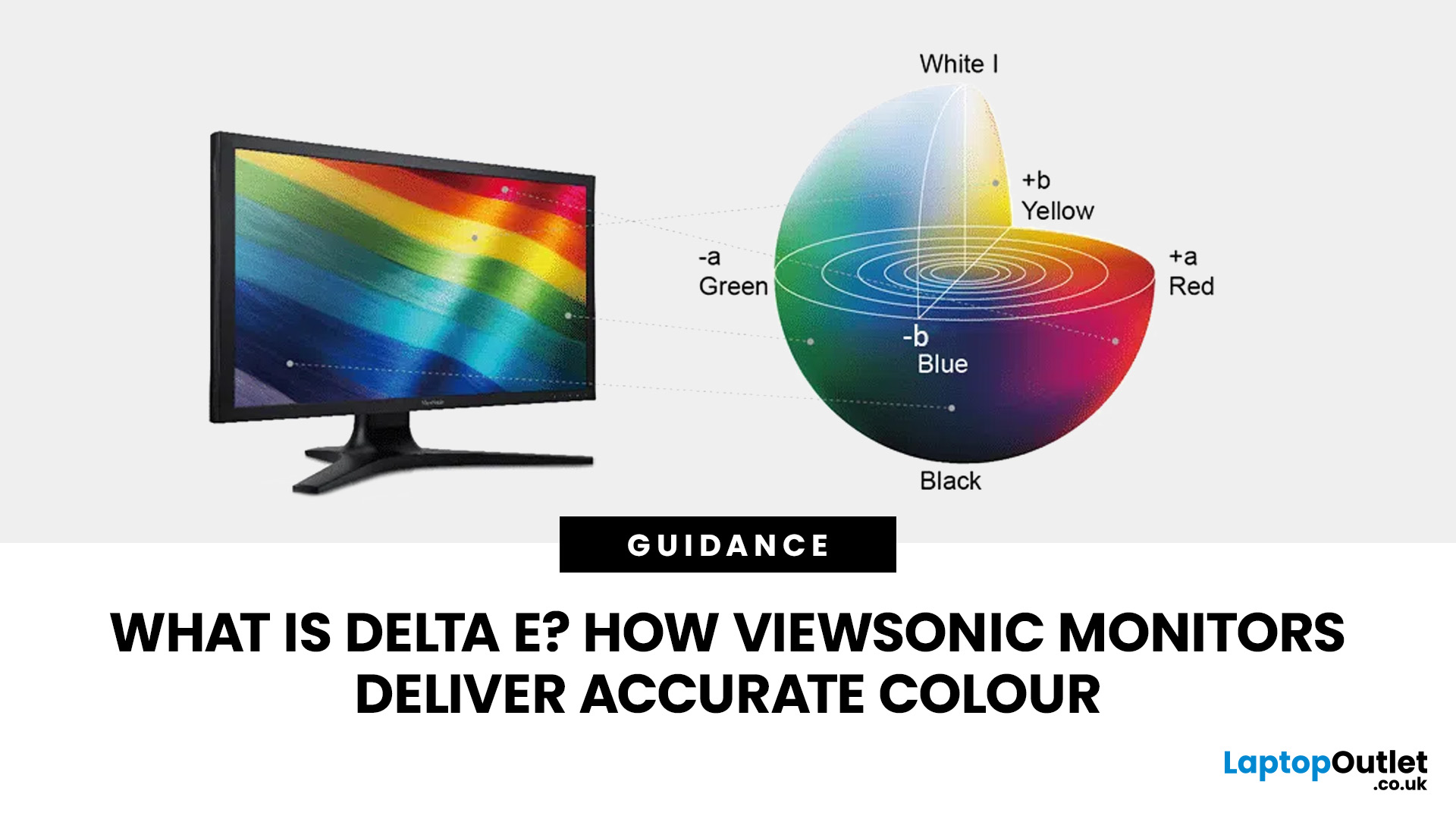
Have you ever edited a photo until it looked perfect on your screen, only to see different colours elsewhere? This often comes down to monitor colour accuracy. Delta E measures how closely a display matches true colours, the lower the value, the more accurate the screen. It’s especially important for photographers, designers, and video editors. ViewSonic’s ColorPro range, including models like the VP2766-2K, is factory calibrated for Delta E < 2 accuracy. Here’s what Delta E means and how it compares to sRGB coverage when choosing a monitor.
What Does Delta E Mean on a Monitor?
Delta E, written as ΔE, is a colour difference measurement. It calculates how far a reproduced colour differs from a reference colour.
Think of it this way: if your editing software tells the monitor to display a precise shade of red, Delta E helps quantify how closely the red appearing on the screen matches that intended colour.
A Delta E of zero represents no measurable difference between the target and reproduced
Published: August 27, 2026
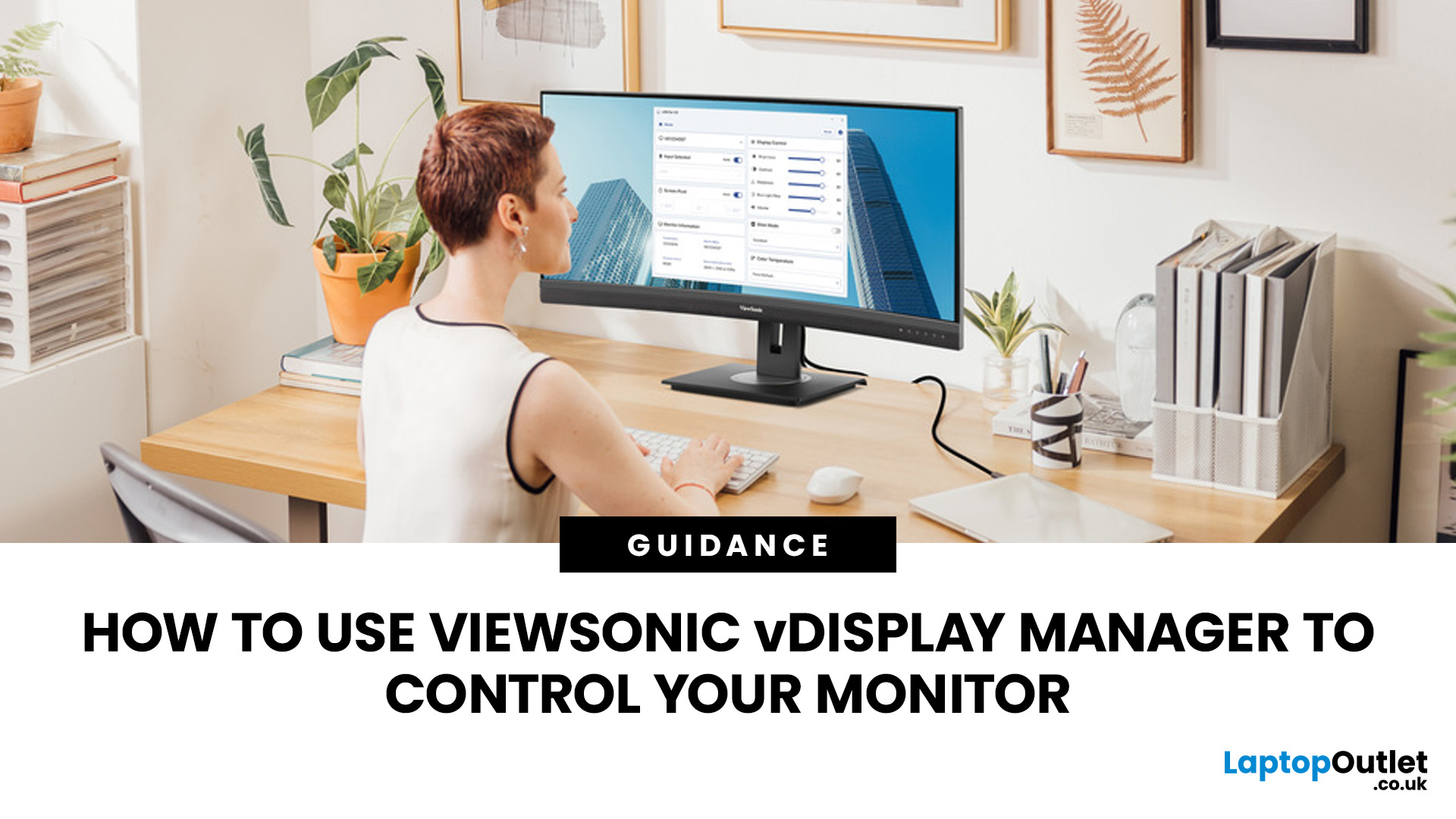
Reaching behind your monitor every time you want to change the brightness or switch inputs can quickly become inconvenient. ViewSonic vDisplay Manager gives you another option by bringing compatible monitor controls directly onto your computer.
With the software, you can manage settings such as brightness, contrast, input source, ViewMode, colour temperature and screen orientation using your mouse. The exact controls available depend on your ViewSonic monitor model.
This guide takes you through downloading the software, connecting your display and adjusting the settings you are most likely to use.
What is ViewSonic vDisplay Manager?
It is desktop software designed to let you manage compatible ViewSonic monitor settings from your computer. Instead of navigating the monitor's physical OSD controls each time, you can make supported adjustments through a software interface.
This is particularly useful if you regularly alter your screen for different tasks, switch between connected devices or
Last Updated: September 02, 2026
Choosing a monitor is not simply a case of buying the highest resolution or fastest refresh rate you can afford. Your graphics card has to render the resolution, generate enough frames to benefit from the screen’s refresh rate and support the connection needed to carry that signal.
Get those factors right and you can enjoy sharper images, smoother motion and better use of the hardware you already own. Here is how to choose the right monitor for gaming, creative work and everyday use without paying for display performance your PC cannot use.
Quick Answer: How Do You Choose the Right Monitor?
Start with your GPU’s real performance at the resolution you want. Match the monitor’s native resolution and refresh rate to the frame rates your graphics card can realistically deliver, then check variable refresh rate support and display connections. After that, compare panel type, screen size, HDR and other features based on how you use the PC.
For most buyers, resolution should come first, refresh

