



Motherboard VRM Explained: Why CPU Power Delivery Really Matters
Quick answer:
A motherboard VRM (Voltage Regulator Module) converts power from your PC's power supply into the lower, stable voltage your CPU needs. Its quality affects power delivery, heat management and the processor's ability to maintain performance during demanding tasks. A capable VRM with effective cooling can support sustained CPU boost speeds, while an inadequate design may overheat and limit performance.
Even with a powerful CPU, plenty of RAM and a capable graphics card, your PC may struggle under heavy workloads. Your VRM motherboard design plays an important role in delivering stable power to the processor, especially during gaming, video rendering and other demanding tasks.
But does a motherboard with 20 power phases automatically outperform one with 12? And do you actually need an expensive motherboard for a high-end CPU?
We'll explain how VRMs work, what matters when choosing one and how to avoid paying extra for specifications you won't use.
What is a VRM on a motherboard, and how does it work?
A motherboard VRM is a group of electronic components responsible for regulating the electricity supplied to your processor.
Your PC's power supply delivers 12V power to the motherboard through its CPU power connections. However, the CPU cores operate at much lower voltages that change according to workload. The VRM steps down that voltage and regulates the electrical current to keep the processor running reliably.
Think of it as a power controller between your electricity supply and the CPU. When the processor suddenly needs more power, the VRM responds to changes in demand while keeping the voltage within the required operating range.
What are the main components of a motherboard VRM?
A typical CPU VRM uses several components working together.
|
Component |
What it does |
Why it matters |
|
PWM controller |
Controls the switching of power stages |
Regulates output as CPU demand changes |
|
MOSFETs or power stages |
Switch electrical power rapidly |
Influence efficiency, current capacity and heat generation |
|
Chokes (inductors) |
Store and release energy |
Help maintain a smooth, controlled current |
|
Capacitors |
Store electrical charge and filter fluctuations |
Help stabilise the output voltage |
|
VRM heatsink |
Transfers heat away from power components |
Helps prevent excessive temperatures under sustained load |
Modern motherboards often use integrated power stages that combine switching components and their drivers into a single package.
The quality of these parts, their layout and the cooling around them all influence how effectively the motherboard handles demanding processors.
Why does motherboard VRM quality matter for CPU performance?
Your processor doesn't consume the same amount of electricity all the time. When you're browsing the web, its power demand may be relatively low. Start a demanding game, compile a large project or render a 4K video, and that demand can increase considerably.
A well-designed VRM supplies the required power while keeping electrical losses and temperatures under control. An inadequate VRM may struggle with sustained high current, potentially causing voltage instability, thermal throttling or reduced CPU performance.
How does VRM quality affect CPU boost clocks?
Modern AMD and Intel processors automatically adjust clock speeds according to workload, temperature, power limits and other operating conditions.
A capable VRM helps supply the power needed for those boost frequencies. However, better power delivery doesn't automatically mean higher FPS or faster CPU speeds.
If your existing motherboard already supports your processor without power or thermal limitations, upgrading to a more expensive board may produce little measurable performance improvement.
Recent motherboard thermal testing reinforces this distinction: suitable mainstream boards can perform similarly to enthusiast models under normal conditions, while weaker designs may struggle with demanding CPUs and sustained workloads.
When does VRM quality matter most?
VRM quality becomes particularly important when you're:
- Running a high-core-count CPU for extended periods.
- Rendering videos, performing 3D modelling or compiling large software projects.
- Using CPU overclocking or higher power limits where supported.
- Building a workstation that regularly operates under heavy load.
- Installing powerful components in a compact case with restricted airflow.
For everyday browsing, office applications and moderate gaming workloads, a well-built mainstream motherboard is usually sufficient.
Our advice: Choose a motherboard that can comfortably handle your processor's sustained power requirements. Paying for a premium VRM only makes sense when your CPU and workload can benefit from the additional capacity.
Motherboard VRM phases explained: Does more always mean better?
When browsing motherboards, you'll often encounter specifications such as 8+2, 12+2+1 or 16+2+2 power designs.
These figures describe aspects of the motherboard's power delivery arrangement, but they don't tell you everything about its quality.
What are motherboard VRM phases?
VRM phases are separate switching circuits that share the work of converting and delivering electricity to the processor. Rather than relying on one circuit to supply all the current, a multiphase VRM distributes the load across several power stages.
This can improve efficiency, reduce heat generated by individual components and help maintain stable output under changing CPU demand.
However, the advertised numbers need context. For example, in a hypothetical 12+2+1 configuration:
- 12 may refer to power stages assigned to the CPU cores.
- 2 may supply another processor-related voltage rail, such as the integrated graphics or SoC rail.
- 1 may serve an additional voltage rail.
The exact allocation varies by motherboard and processor platform. Manufacturers also count doubled, teamed and parallel power stages differently.
Is a 16-phase VRM better than an 8-phase VRM?
Not automatically, an 8-phase design using efficient, higher-current power stages and effective cooling can perform better than a poorly implemented 16-phase arrangement.
The important factors are the quality of the components, how the phases are controlled, the amount of current they can sustain and their operating temperatures.
|
VRM characteristic |
Why it matters |
|
Number of phases |
Helps distribute electrical load |
|
Power-stage current rating |
Indicates component capability under specified conditions |
|
Power-stage efficiency |
Influences how much energy becomes heat |
|
Heatsink design |
Helps remove heat during sustained workloads |
|
Controller and circuit design |
Affects voltage regulation and load response |
|
Independent thermal testing |
Shows how the complete system performs under load |
One more point: a power stage rated for 80A doesn't mean it can continuously supply that current in every motherboard design. Actual capability depends on operating temperature, cooling and the manufacturer's test conditions.
Don't multiply the phase count by the advertised amperage and treat the result as guaranteed continuous power delivery.
Motherboard VRM cooling: Why temperature control matters
Power conversion produces heat, even in an efficient motherboard. As the CPU draws more current, the VRM's switching components generate heat through electrical losses. If temperatures climb too high, the motherboard may reduce power delivery or activate thermal protection.
That makes motherboard VRM cooling an important consideration, especially for high-performance processors.
What does a motherboard VRM heatsink do?
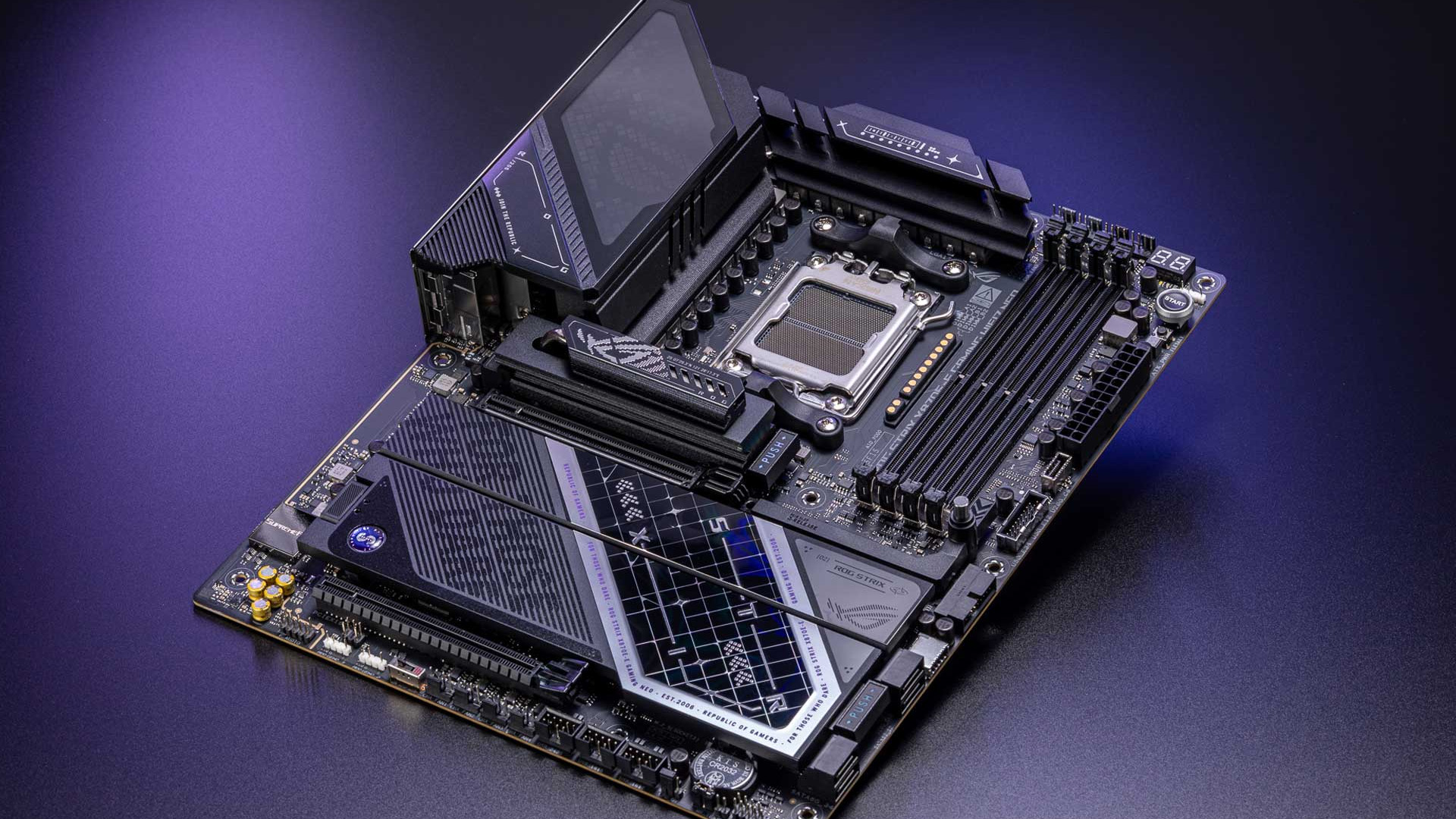
Heatsink is usually an aluminium structure positioned around the CPU socket. It absorbs and spreads heat from the power delivery components, allowing surrounding airflow to carry that heat away.
You'll typically find larger heatsinks on performance-oriented motherboards, although size alone doesn't determine effectiveness. A good design also needs proper contact with the components, suitable thermal pads and enough airflow.
How can you improve VRM cooling?
You don't necessarily need a new motherboard to improve VRM temperatures.
- Improve case airflow: Make sure intake and exhaust fans provide a clear path for air through the case.
- Check the area around the CPU socket: Large graphics cards, cables and bulky components shouldn't unnecessarily obstruct airflow.
- Keep dust under control: Clean accessible filters and fans regularly with the PC switched off and unplugged.
- Review fan settings: A suitable case fan curve can increase airflow during demanding workloads.
- Avoid unnecessary overclocking: Higher CPU power limits can place additional stress on the VRM.
CPU cooling also deserves attention. Some tower air coolers provide airflow around the socket, while certain liquid cooling setups provide less direct airflow over nearby motherboard components.
If you're planning a new build, CPU cooling solutions include options for different processor and case requirements. Remember that a larger CPU cooler doesn't automatically cool the VRM. Case ventilation still matters.
What is a safe motherboard VRM temperature?
There's no single VRM motherboard temperature that applies to every motherboard. Different MOSFETs, integrated power stages, thermal sensors and motherboard designs have different operating limits.
A VRM running at 80°C under a demanding workload isn't necessarily overheating. However, temperatures approaching a component's specified thermal limit may indicate insufficient cooling or excessive load.
How to check motherboard VRM temperature
You can inspect available motherboard temperature readings using monitoring software.
Popular options include:
- HWiNFO: Provides detailed hardware sensor information on supported systems.
- Motherboard manufacturer utilities: May display VRM or MOS temperatures, depending on the model.
- BIOS/UEFI hardware monitoring: Some motherboards expose relevant temperature sensors.
Not every board includes a VRM temperature sensor. Even when one is available, its position may not represent the hottest component.
When should you be concerned?
Look for a combination of unusually high readings and actual performance problems rather than relying on one temperature number.
|
What you notice |
Possible explanation |
What to check |
|
High reported VRM temperature |
Heavy load or limited airflow |
Case ventilation and the board's thermal specifications |
|
CPU clocks falling under sustained load |
CPU thermal, power or VRM limits |
CPU temperatures, power limits and throttling indicators |
|
Performance improves with additional airflow |
Possible cooling limitation |
Fan placement and VRM temperature changes |
|
System becomes unstable under heavy load |
Several possible hardware or software causes |
Cooling, memory stability, power supply and BIOS settings |
|
No VRM sensor reading |
Sensor unavailable or unsupported |
Manufacturer documentation and independent testing |
Expert tip: If you suspect VRM overheating, repeat the same workload with improved case airflow and check whether temperatures and sustained CPU performance change. It can help identify a cooling problem, although it isn't a definitive diagnosis.
Avoid touching motherboard components to judge their temperature. VRM heatsinks and nearby parts can become hot enough to cause burns.
Does motherboard VRM quality affect gaming FPS?
Yes, but mainly when the motherboard is limiting your CPU's performance. In most gaming PCs, a capable mainstream motherboard can deliver the power needed for normal processor operation. Once that requirement is met, adding more power phases won't automatically improve frame rates.
However, a weak VRM paired with a demanding CPU could struggle during sustained workloads, especially in a poorly ventilated case. This may contribute to reduced clock speeds or inconsistent performance if power delivery or VRM temperatures become limiting factors.
Should gamers prioritise VRM specifications?
Consider your processor and the types of games you play. For a mainstream gaming CPU running at standard settings, good VRM cooling and proven compatibility are usually more valuable than exceptionally high phase counts.
If you're building around a flagship processor or planning CPU overclocking, stronger power delivery can provide useful thermal and electrical headroom. Before choosing a motherboard, make sure your selected desktop processors are compatible with the socket, chipset and BIOS version.
Our advice : Don't spend an extra £100 purely because one motherboard advertises more power phases. You may get greater practical value from additional SSD storage, better cooling or a graphics card upgrade.
Motherboard VRM coil whine: What causes that buzzing noise?
Have you ever noticed a faint, high-pitched buzzing sound coming from your PC when launching a game or running a demanding application?
That sound could be VRM motherboard coil whine. Coil whine occurs when electrical components, particularly inductors, vibrate at audible frequencies as electrical current changes. The noise may become more noticeable during certain workloads or rapid changes in power demand.
Is motherboard coil whine dangerous?
Coil whine alone doesn't necessarily indicate a faulty motherboard.
In many cases, it's an acoustic characteristic rather than a sign of electrical failure. However, unusually loud or worsening noises deserve investigation, particularly if accompanied by instability, overheating or an unusual smell.
How to reduce motherboard coil whine
Try these practical steps:
- Identify whether the sound comes from the motherboard, graphics card or power supply.
- Check for BIOS updates that address relevant power management behaviour.
- Avoid unnecessarily aggressive CPU overclocking or voltage settings.
- Check whether the noise changes when CPU power settings are returned to their defaults.
- Contact the manufacturer or retailer if the noise is excessive or accompanied by other problems.
Don't attempt to physically modify the VRM components to stop the noise. Changes to sensitive motherboard circuitry can cause permanent damage.
Motherboard VRM tier list AM5: How to choose the right AMD board
If you're building an AMD Ryzen desktop, you've probably searched for a VRM motherboard tier list AM5 to work out which boards can handle your processor.
AM5 motherboards support compatible AMD Ryzen processors using the AM5 socket, but their power delivery designs vary significantly. The chipset tells you about platform features and connectivity. It doesn't automatically tell you how good the VRM is.
For example, a well-designed B650 or B850 motherboard may provide sufficient power delivery for a demanding processor, while a more expensive X870E board might offer connectivity features you don't actually need.
Which AM5 motherboard VRM is suitable for your build?
|
Your PC build |
What to prioritise |
Our recommendation |
|
Everyday PC with a mainstream Ryzen CPU |
Reliable basic power delivery, compatible BIOS |
A suitable entry-level or mainstream board |
|
Mid-range gaming PC |
Effective VRM heatsinks, stable power delivery |
A well-reviewed mainstream AM5 board |
|
High-end gaming PC |
Proven thermals with your chosen CPU |
A capable B-series or X-series board |
|
Content creation workstation |
Sustained-load stability, effective cooling |
A board with independently tested VRM performance |
|
Overclocking-focused build |
Efficient high-current stages, thermal headroom and BIOS controls |
A suitable enthusiast board with verified results |
These are buying categories rather than fixed VRM performance rankings. Individual motherboard designs matter more than chipset names.
Are B650, B850 and X870 motherboards good enough?
All three families can include motherboards with capable VRMs, but you need to assess the individual model.
A well-built B650 or B850 board can be an excellent choice for a gaming PC. Premium X870 and X870E models may provide more connectivity and enthusiast features, but those extras don't guarantee better real-world CPU performance.
The AM5 motherboard range includes models with different VRM configurations, cooling designs and chipset features, so power delivery can vary even between boards using the same socket.
Similarly, AMD-compatible motherboards differ in processor support and power requirements, making it important to check CPU compatibility and VRM performance before choosing a board.
Expert tip: Treat VRM tier lists as a shortlist, not a final verdict. Check the exact motherboard revision, BIOS support and independent thermal results using a CPU with similar power requirements to yours.
How to choose a motherboard with good VRM power delivery
You don't need to become a motherboard engineer to make a sensible purchase. Focus on these six checks.
1. Match the motherboard to your CPU
Check processor compatibility, BIOS support and how much power your CPU may draw during sustained workloads. A mainstream processor usually doesn't need an enthusiast-grade power delivery system.
2. Look beyond the phase count
Check power-stage quality, current ratings and independent testing. A high number printed on the product box doesn't guarantee superior performance.
3. Check VRM cooling
Look for well-designed heatsinks around the CPU socket. Independent thermal testing can help establish whether they remain effective during extended workloads.
4. Review the CPU power connectors
Make sure your power supply provides the required compatible cables. Additional 8-pin EPS connectors can support demanding configurations, but extra connectors alone don't make a motherboard better.
5. Consider your case and cooling setup
Even a capable VRM benefits from adequate airflow. Small cases and restricted ventilation deserve particular attention when you're choosing a powerful CPU.
6. Spend on features you'll actually use
Once your motherboard can reliably support the CPU, consider the other features that matter: USB connectivity, Wi-Fi, storage slots, memory support and upgrade options.
Common mistakes to avoid
Even experienced PC builders can overlook important details when evaluating power delivery.
Assuming more phases always means better performance
Phase count is only one part of the design. Component efficiency, cooling and controller configuration can be more important than the advertised number.
Buying an expensive motherboard for a modest CPU
You don't need flagship power delivery for everyday computing or a moderate-power gaming processor. A good mainstream board can provide the same practical performance for less money.
Ignoring case airflow
A large heatsink can still struggle if hot air has nowhere to go. Plan your cooling setup around the entire system, not just the CPU.
Treating every performance drop as a VRM problem
CPU thermal throttling, memory instability, GPU limitations, background applications and power settings can all affect performance. Check these possibilities before replacing your motherboard.
Confusing chipset quality with VRM quality
A premium chipset provides platform features, but motherboard manufacturers decide how to implement the power delivery circuitry. Two boards using the same chipset can have very different VRM designs.
Find a suitable motherboard at Laptop Outlet
Choosing a motherboard is about more than finding the highest power-phase number. At Laptop Outlet, we offer components for everyday desktop PCs, gaming setups and demanding workstations. Our PC motherboard range gives you options across supported AMD and Intel platforms.
Start with your processor, then narrow your choice by socket compatibility, memory support, connectivity and the power delivery capability you actually need.
If you're building a value-focused gaming PC, you may find that a well-equipped mainstream motherboard covers your requirements without the additional cost of enthusiast features.
For more demanding builds, consider stronger VRM cooling and proven sustained-load performance before paying extra. The aim is to put your budget towards components that genuinely improve your PC rather than specifications that simply look impressive.

Final verdict
A good VRM helps your CPU receive stable power and maintain performance under demanding workloads. It becomes particularly important with power-hungry processors, sustained rendering tasks and overclocking.
However, more phases and larger heatsinks don't automatically make a motherboard faster. For most gaming and everyday PCs, a capable mainstream board with adequate cooling is enough.
Choose your CPU first, check the motherboard's power delivery and cooling, then spend the rest of your budget on features that will make a noticeable difference.

Frequently asked questions
1. Can a bad motherboard VRM damage your CPU?
A poorly designed or failing VRM can cause instability and, in severe cases, create a risk of component damage. However, modern motherboards generally include electrical and thermal protections. A weak VRM is more likely to cause throttling or shutdowns than immediate CPU damage.
2. Does undervolting a CPU reduce VRM temperatures?
Yes, undervolting can reduce CPU power consumption and the electrical load placed on the VRM. This may lower VRM temperatures, depending on the processor and workload. However, excessive undervolting can cause instability, so changes should be tested carefully.
3. Do motherboard VRMs wear out over time?
VRM components can age through prolonged use and exposure to heat. However, a properly designed motherboard operating within its specified limits can remain reliable for many years. Adequate cooling helps reduce unnecessary thermal stress.
4. Can a motherboard work without VRM heatsinks?
Yes. Some lower-power motherboards use VRM designs that operate safely without dedicated heatsinks. Whether this is suitable depends on the components, processor power requirements and airflow. Avoid pairing an uncooled, low-capacity VRM with a demanding CPU without checking its capabilities.
5. Does a higher-wattage power supply improve motherboard VRM performance?
Not directly. A higher-wattage PSU doesn't improve the motherboard's power delivery circuitry or automatically increase CPU performance. What matters is using a reliable power supply with sufficient capacity, stable output and the correct power connectors.
6. Does the motherboard VRM affect RAM overclocking?
Yes, indirectly. Motherboards also regulate power for memory-related components, but RAM overclocking stability depends on several factors, including the memory controller, motherboard layout, BIOS and memory modules. A stronger CPU-core VRM alone doesn't guarantee higher RAM speeds.
| Read More: |
| How to Choose the Right Motherboard for Your Next PC Build |
| Is Your PC Overheating? How to Check CPU & GPU Temperature |
| Which Motherboard Brands are Best for Gaming? |
Related Articles

Last Updated: October 22, 2026
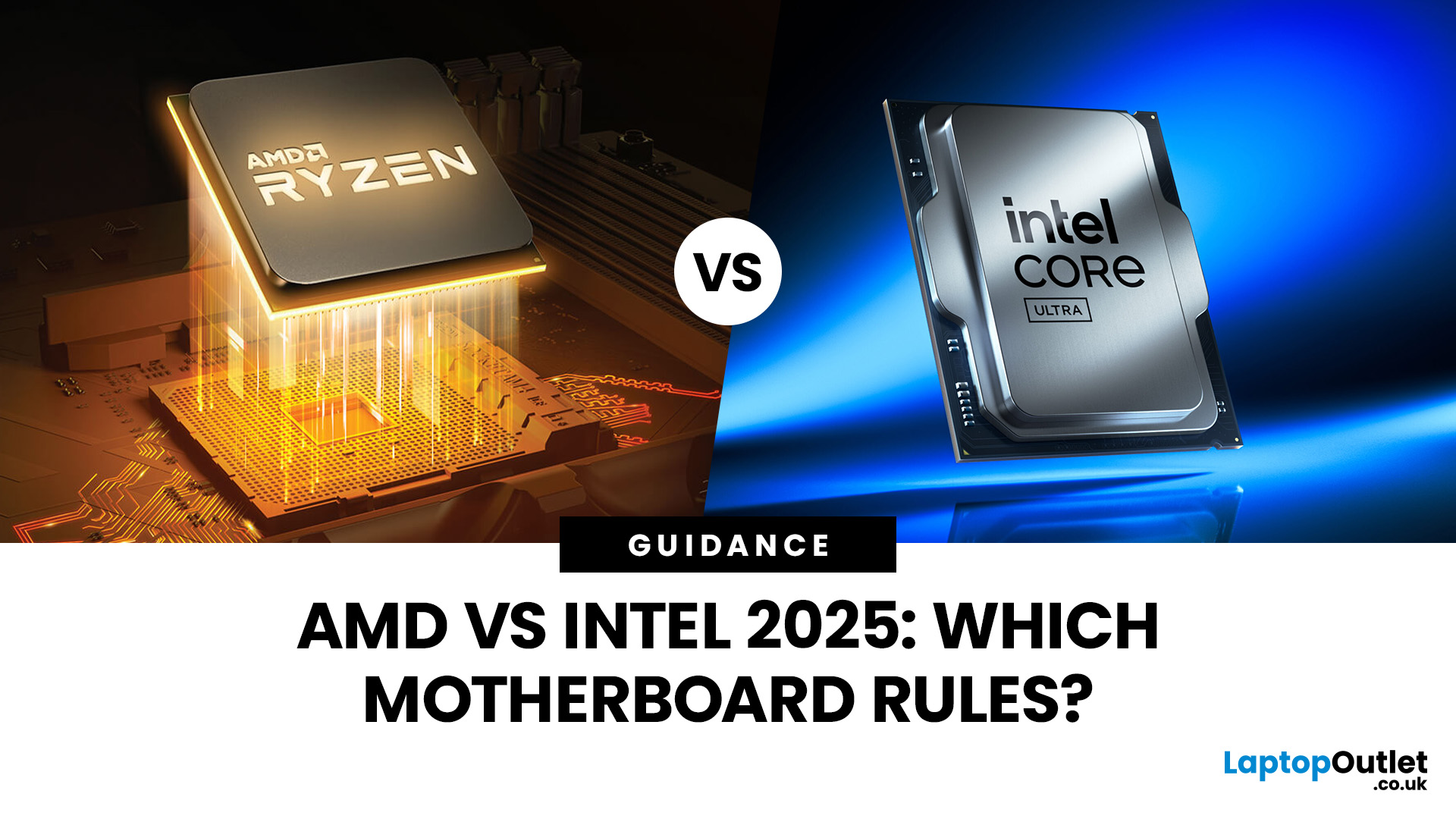
When you’re building or upgrading a PC, choosing the right motherboard can feel a little intimidating — especially when it comes down to the age-old rivalry of AMD vs Intel motherboards.
Both brands make fantastic hardware, but each has its strengths. Whether you’re planning a high-end gaming rig, a creative workstation, or an everyday PC, the motherboard you choose will shape your system’s performance, features, and future-proofing.
In this guide, we’ll compare Intel vs AMD motherboards across performance, chipsets, memory, overclocking, and more. By the end, you’ll know exactly which option suits your needs in 2025.
What Exactly is a Motherboard?
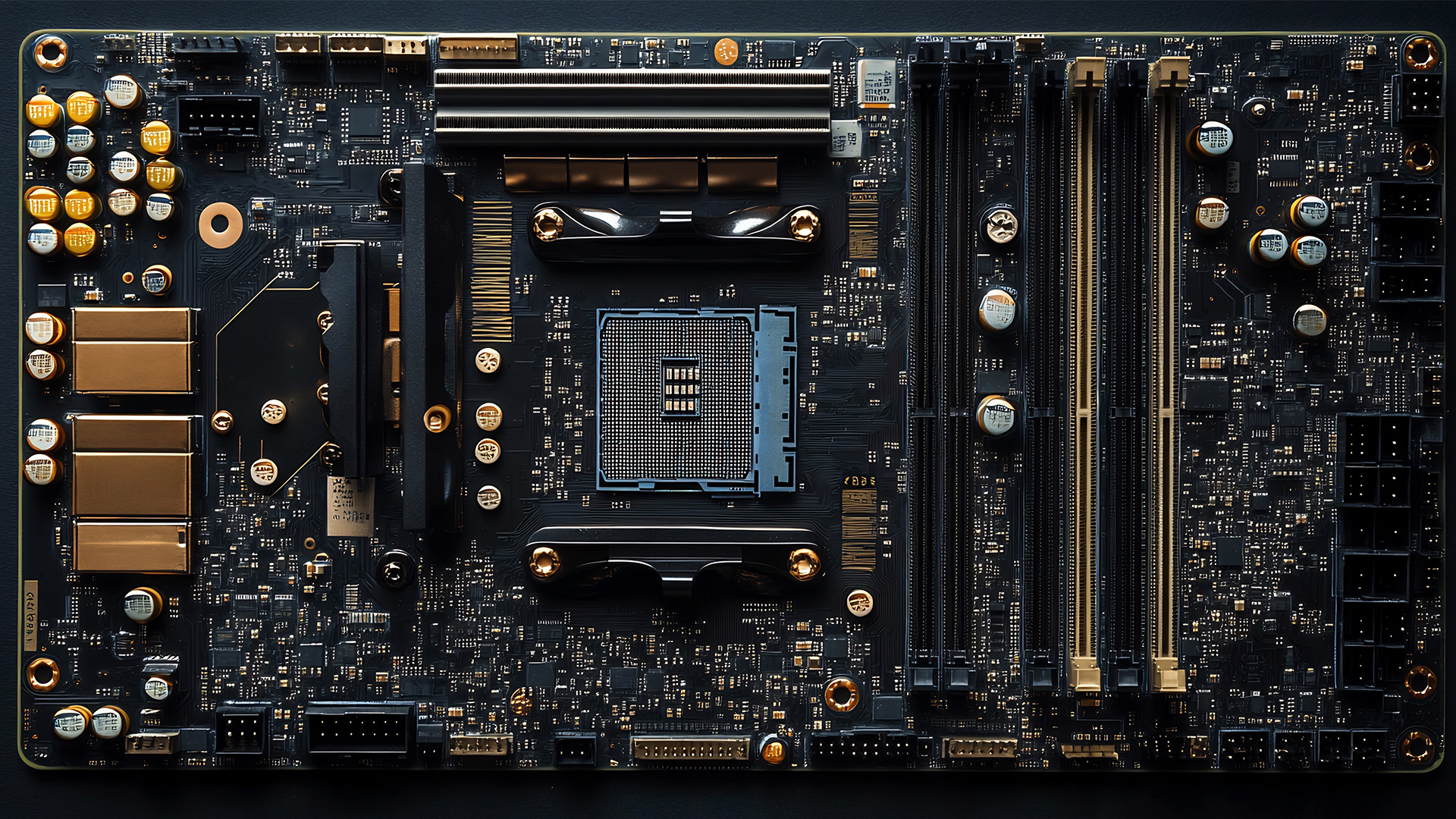
Before diving into the AMD vs Intel motherboards comparison, let's briefly clarify what a motherboard is and why it's so important.
Often called the 'mainboard' or 'system board,' the motherboard is the central printed circuit board (PCB) in a computer. It is, quite simply, the foundation and communication hub for all other components.
It houses
Last Updated: December 03, 2025
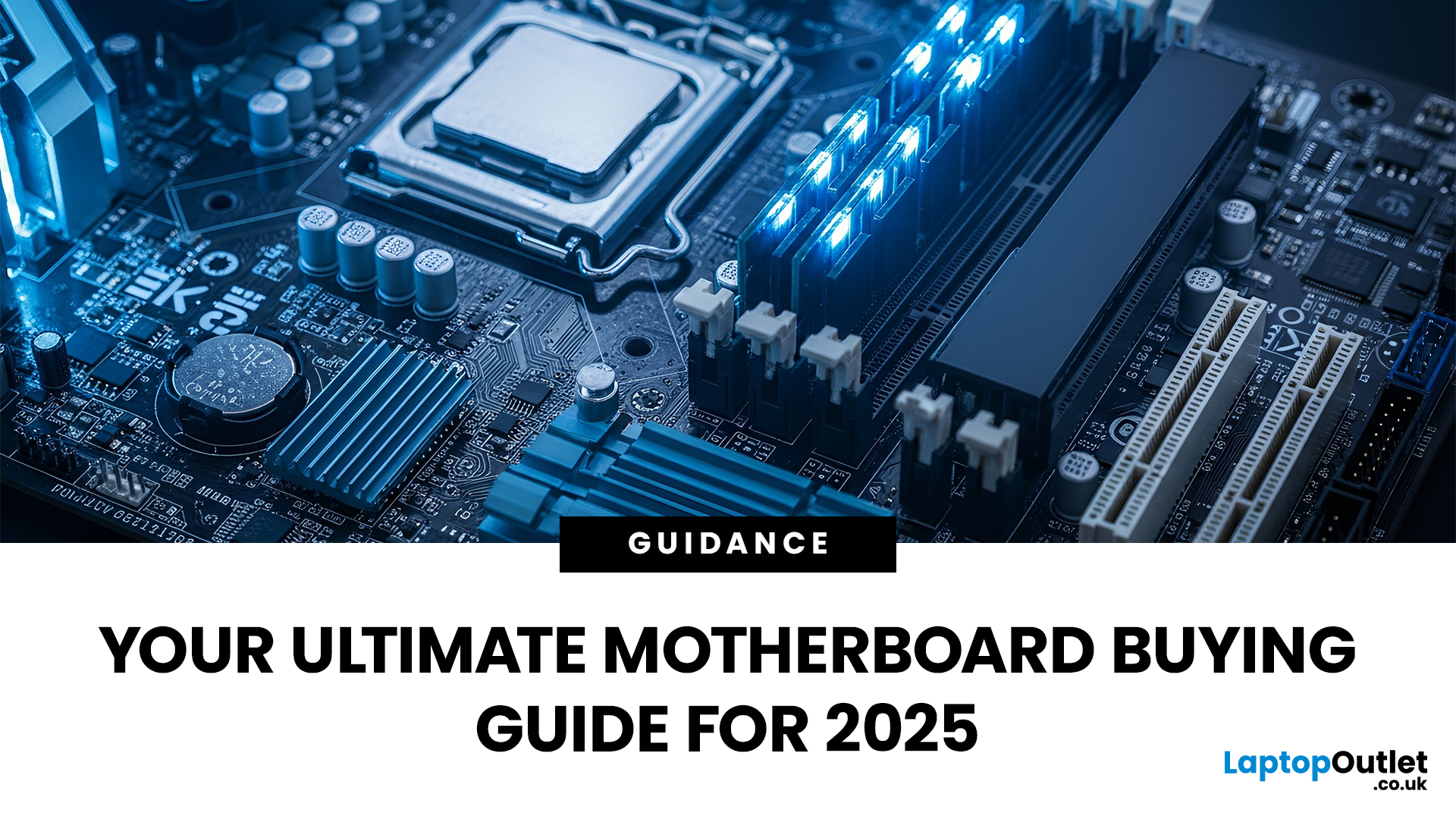
The motherboard is the central nervous system of your computer. Every component, from the CPU and RAM to the GPU and storage drives, connects to it.
Making the right choice here is crucial. A well-chosen board ensures smooth performance, effortless upgrades, and long-term stability for your entire desktop PC build.
If you’re wondering how to choose the right motherboard to suit your needs, you’ve come to the right place. This comprehensive motherboard buying guide will take you through every essential step to help you lay the best foundation for your next project.
Step 1: CPU Choice Defines the Socket (AMD vs Intel)
The first and most crucial step when selecting a motherboard is choosing your CPU (Central Processing Unit). The processor dictates which socket type and chipset your motherboard must have.
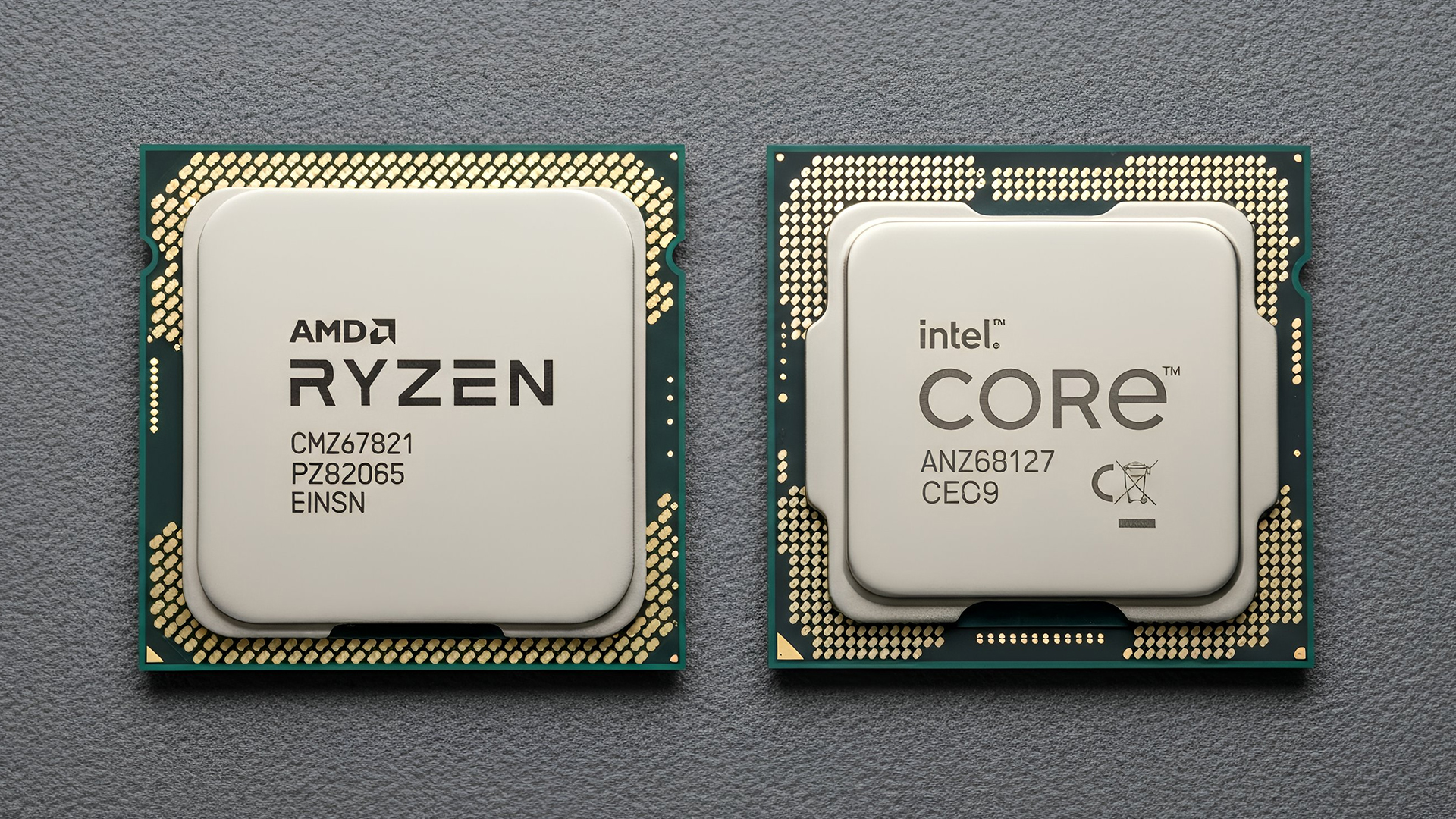
AMD vs Intel Motherboards
- AMD motherboards are known for value and longevity. Platforms like AM5 often maintain compatibility across several CPU generations, allowing for future upgrades

Last Updated: June 05, 2026
If you’re upgrading your gaming rig or building one from scratch in 2025, the motherboard you choose is going to set the tone for your entire PC. Whether you’re aiming for an affordable setup or an ultra-high-end powerhouse, the motherboard is the foundation - determining not just what components you can use today, but how future-ready your system will be.
This guide takes you through the best motherboards for gaming PCs in 2025, handpicked for performance, features, and value. You’ll find AMD and Intel options, from budget boards with modern DDR5 support to premium PCIe 5.0 powerhouses. Every recommendation is researched using up-to-date 2025 benchmarks, market data, and UK availability, ensuring you can make an informed purchase that fits your budget and build goals.
Why the Motherboard Matters in 2025

With the launch of AMD’s Ryzen 9000 and Intel’s 15th-gen “Arrow Lake” CPUs, the motherboard landscape has changed considerably. New chipsets like AMD B650E and Intel Z890 bring cutting-edge

Last Updated: May 06, 2026
year is more than just a fresh calendar; it’s one of the best times of the year to upgrade your PC hardware for less. As retailers clear stock, introduce refreshed product lines, and compete for attention during seasonal sales, motherboard New Year deals 2026 unlock savings that simply aren’t available during regular months. Whether you’re planning a brand-new desktop build, upgrading an ageing system, or finally pairing a powerful CPU with a compatible board, New Year sales make high-end components far more affordable.
New Year Sale on AMD Motherboards
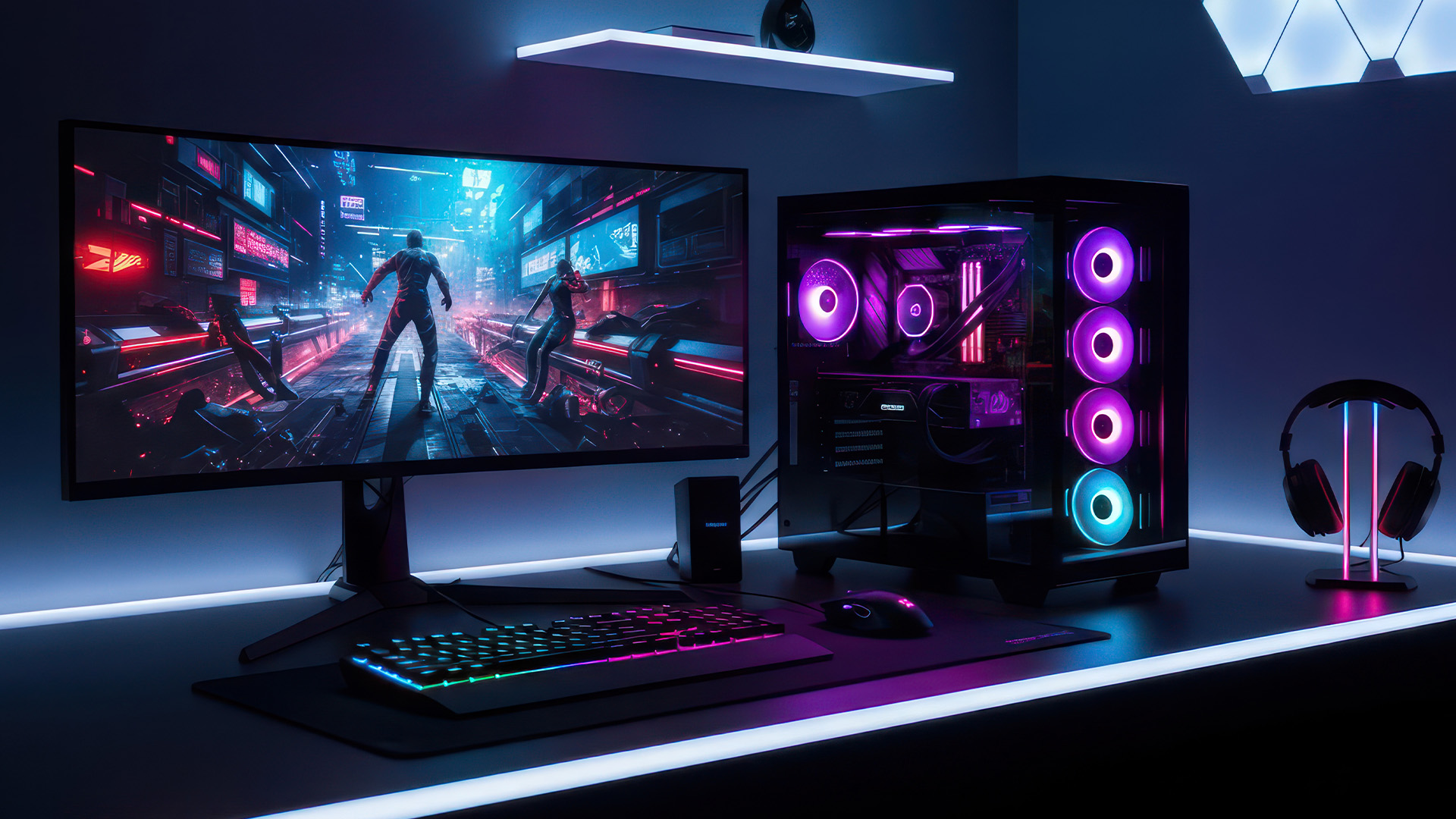
This New Year, AMD motherboard discounts make it easier than ever to build or upgrade your PC with powerful AM5 boards at lowered prices.
1. ASUS TUF GAMING X870E-PLUS WIFI7 ATX AMD Socket AM5 Motherboard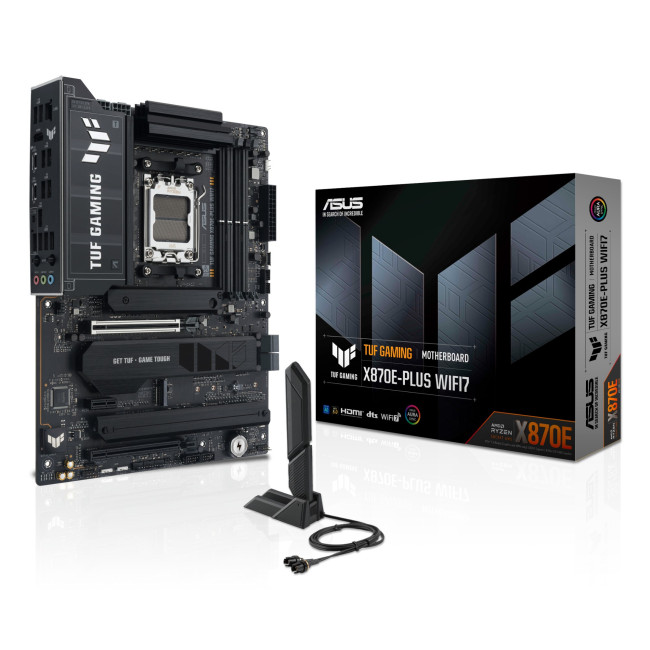
This flagship TUF board typically sits in the upper mid-range price bracket, but New Year Sale pricing often brings it into compelling territory compared to standard retail tags, shaving a noticeable percentage off regular prices.

Last Updated: January 02, 2026
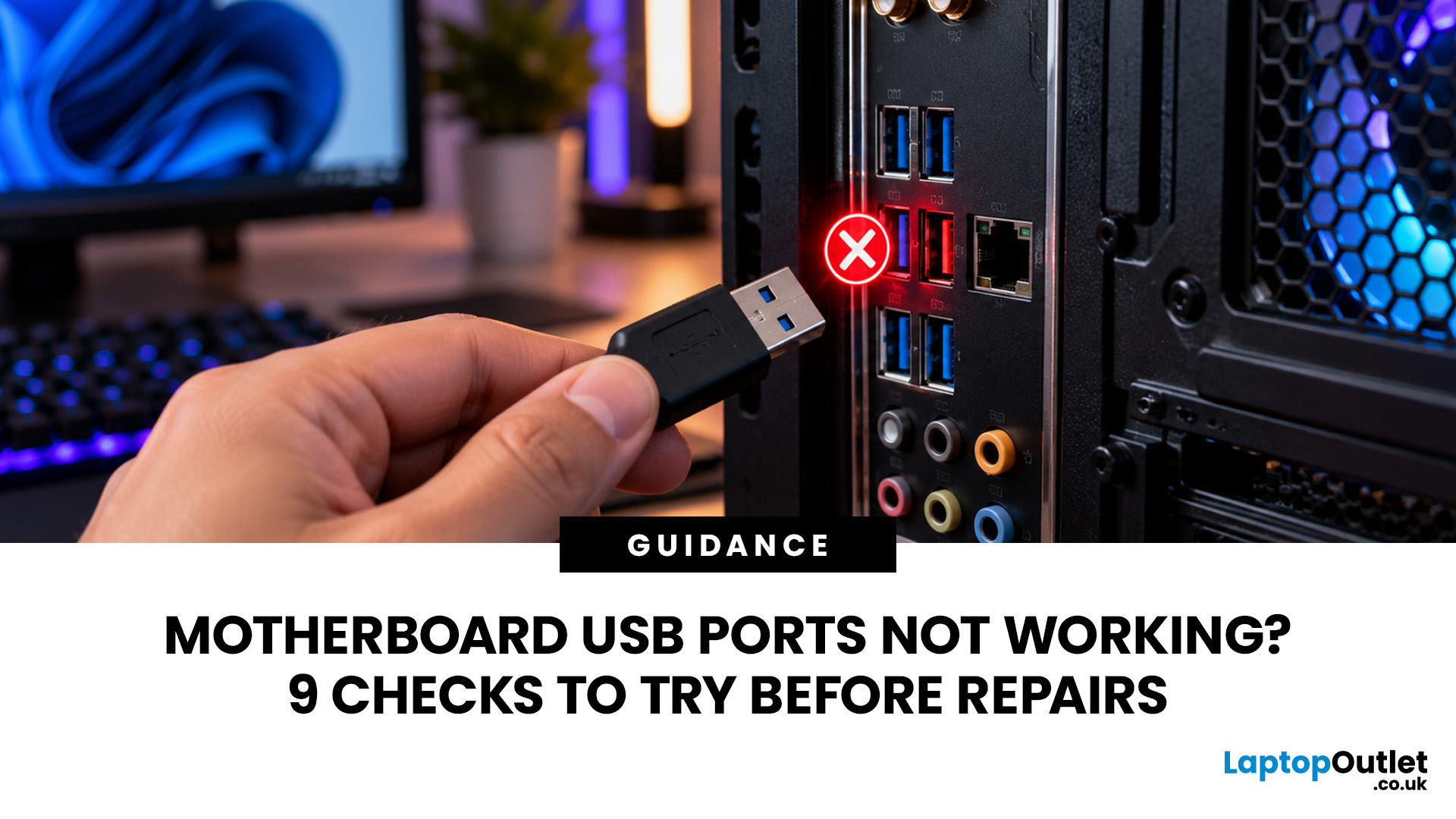
When you start plugging in devices and suddenly run out of USB slots, the first question that comes to mind is a simple one: how many USB ports does my motherboard actually have?
This is something most users never think about until they hit a limitation. Whether you are building a PC, upgrading an old system, or just trying to understand why you need a USB hub, the answer always comes back to your motherboard USB ports.
The tricky part is that the total number of USB ports is not always obvious at first glance. Some are visible on the back of the PC, others are internal, and some are supported but not even active unless you connect the right headers.
This guide breaks everything down in a practical way and helps you discover how to check the total USB ports supported by your motherboard.
Why Motherboard USB Ports Matter More Than You Think
Motherboard USB ports define how many devices your system can handle directly. That includes keyboards, mice, external drives, webcams, printers

Last Updated: January 06, 2026
Need to find motherboard model details for an upgrade? Knowing your motherboard (often called the baseboard or system board) helps you pick compatible RAM and storage to download the right drivers. You can usually confirm it easily in minutes using built-in Windows tools, or via BIOS/UEFI if Windows won’t load. It’s especially handy before ordering parts or booking a repair. Learn easy ways to check your motherboard model in Windows or BIOS.
Method 1: Windows System Information (msinfo32)
System Information often shows the clearest result.
- Press Windows + R
- Type msinfo32 and press Enter
- In System Summary, look for:
BaseBoard Manufacturer
- BaseBoard Product (often the motherboard model)
- BaseBoard Version (board revision)
If you’re sharing details with support, use File > Export to save a report.
Method 2: Command Prompt (WMIC)
A fast command-line check:
- Open Start, type Command Prompt, and run it
You’ll typically see the motherboard manufacturer and product/model code. On some OEM laptops

Last Updated: January 06, 2026
Have you ever needed to upgrade your PC, install new RAM or a CPU, or simply troubleshoot hardware - only to realise you don’t actually know what motherboard is inside your computer? It’s a more common situation than you’d think. Whether you’re working on a desktop you assembled years ago, a shop-bought laptop, or helping a mate sort out theirs, knowing how to check your motherboard type quickly and accurately is a vital tech skill.
Ever wondered what motherboard is powering your PC? Good news - finding out is way easier than you might think. No opening your case, no tech wizard required. Using built-in tools on Windows, macOS, and Linux (plus a few handy apps), you can uncover all the details in just minutes.
Why You Might Need to Know Your Motherboard
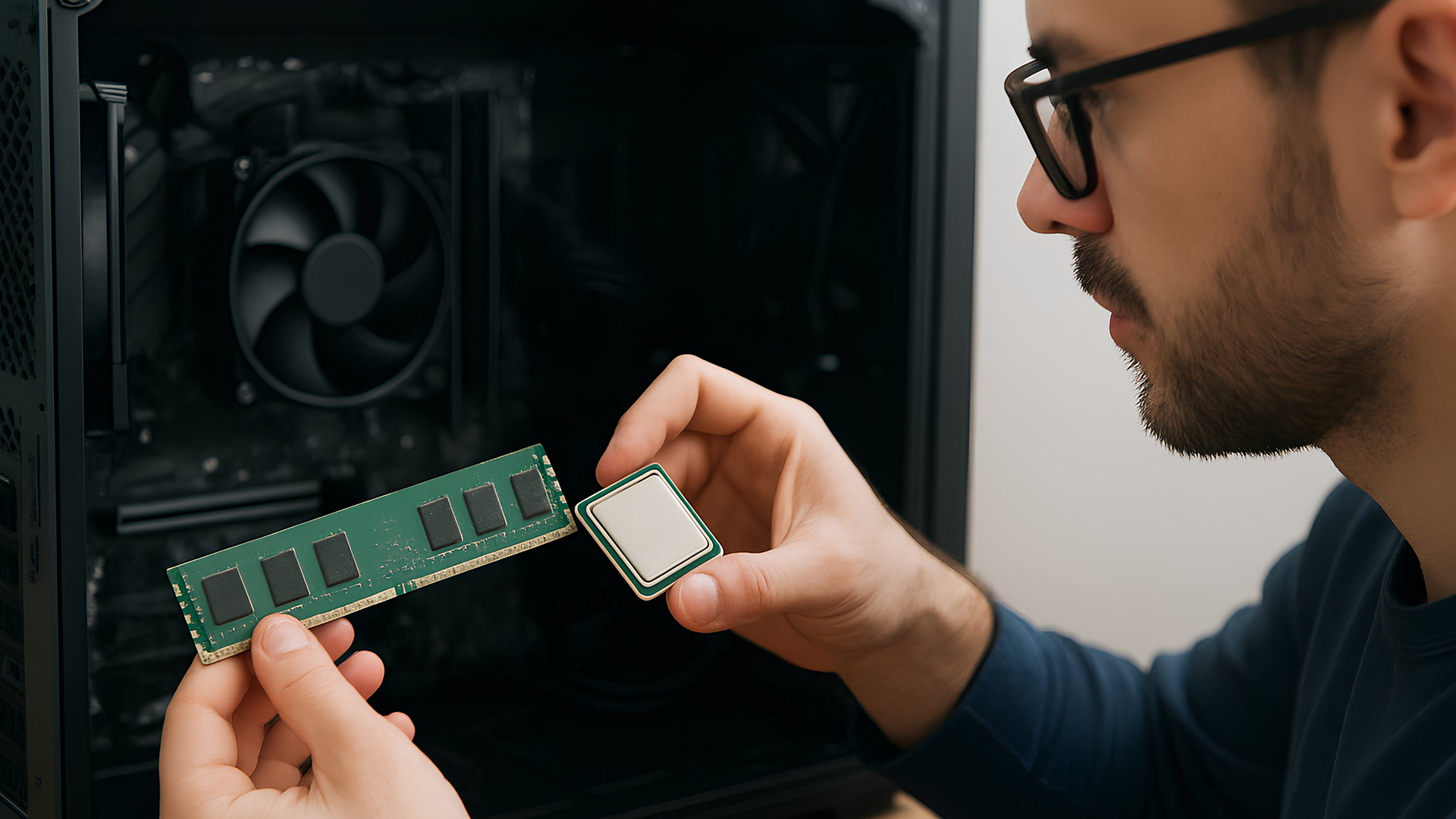
Before we explore the methods, you might be wondering why this even matters. Here are common reasons:
- Upgrading components: If you want to fit a new CPU or faster RAM, you must know the motherboard’s socket type and supported standards.
Last Updated: September 29, 2026
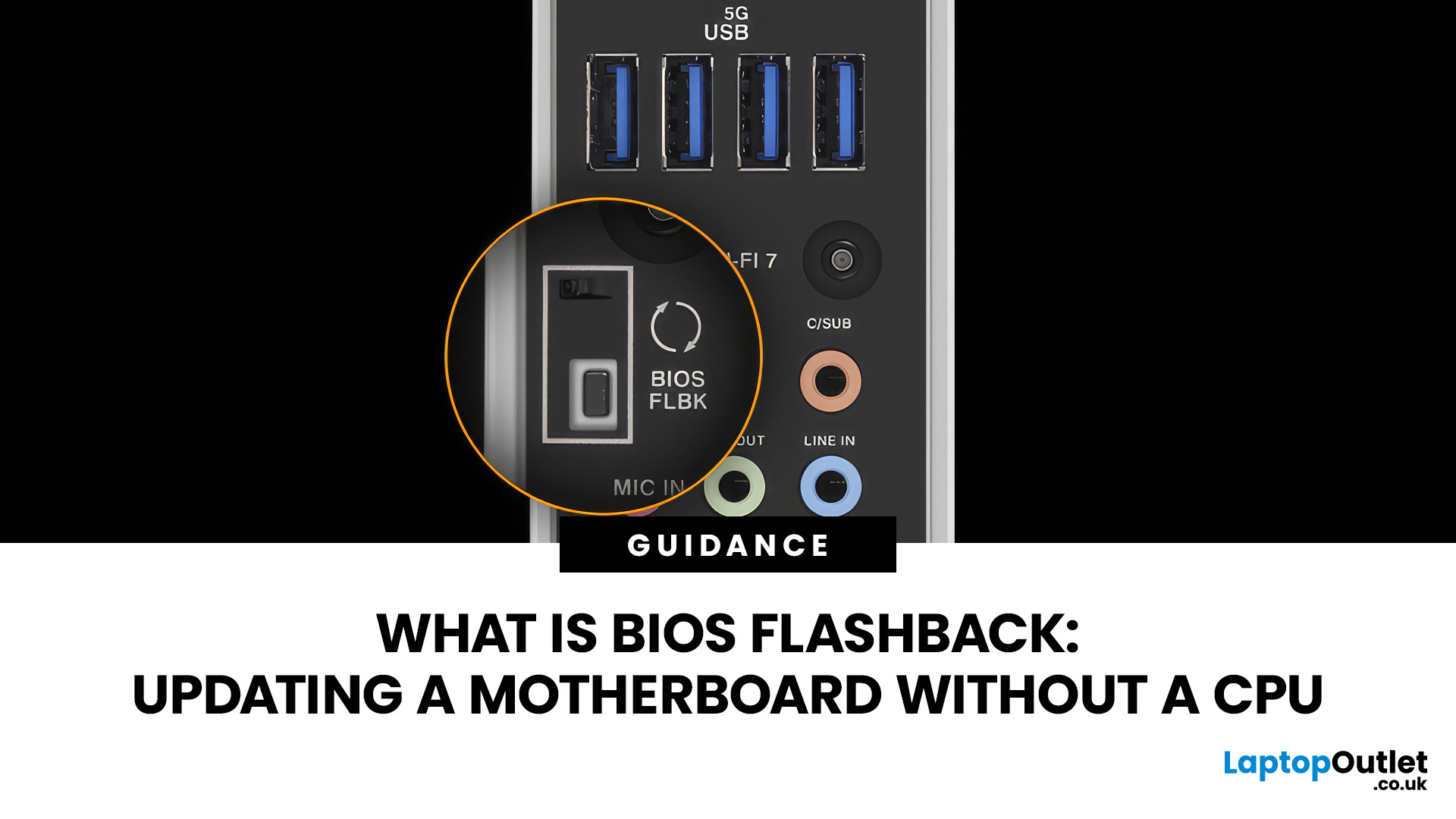
A conventional BIOS update normally requires a working processor so the computer can start, complete POST and enter its UEFI firmware interface. BIOS Flashback changes that on supported motherboards by allowing the firmware to be programmed from a USB drive without completing a normal CPU-driven boot.
That makes BIOS Flashback particularly useful when a motherboard needs newer firmware before it can recognise an otherwise compatible processor. However, it is a motherboard-specific feature rather than a standard function available on every board, and the exact USB, filename, button and power requirements can differ between manufacturers and models.
What Is BIOS Flashback?
BIOS Flashback is a hardware-assisted motherboard feature that can update or restore supported motherboard firmware without relying on a conventional system boot. On compatible boards, the process typically uses a prepared USB drive, motherboard power and a dedicated BIOS Flashback button or equivalent control.
This differs
Published: October 20, 2026
Published: October 22, 2026

