



Memory Card Types Explained: SD, microSD, CF, and More
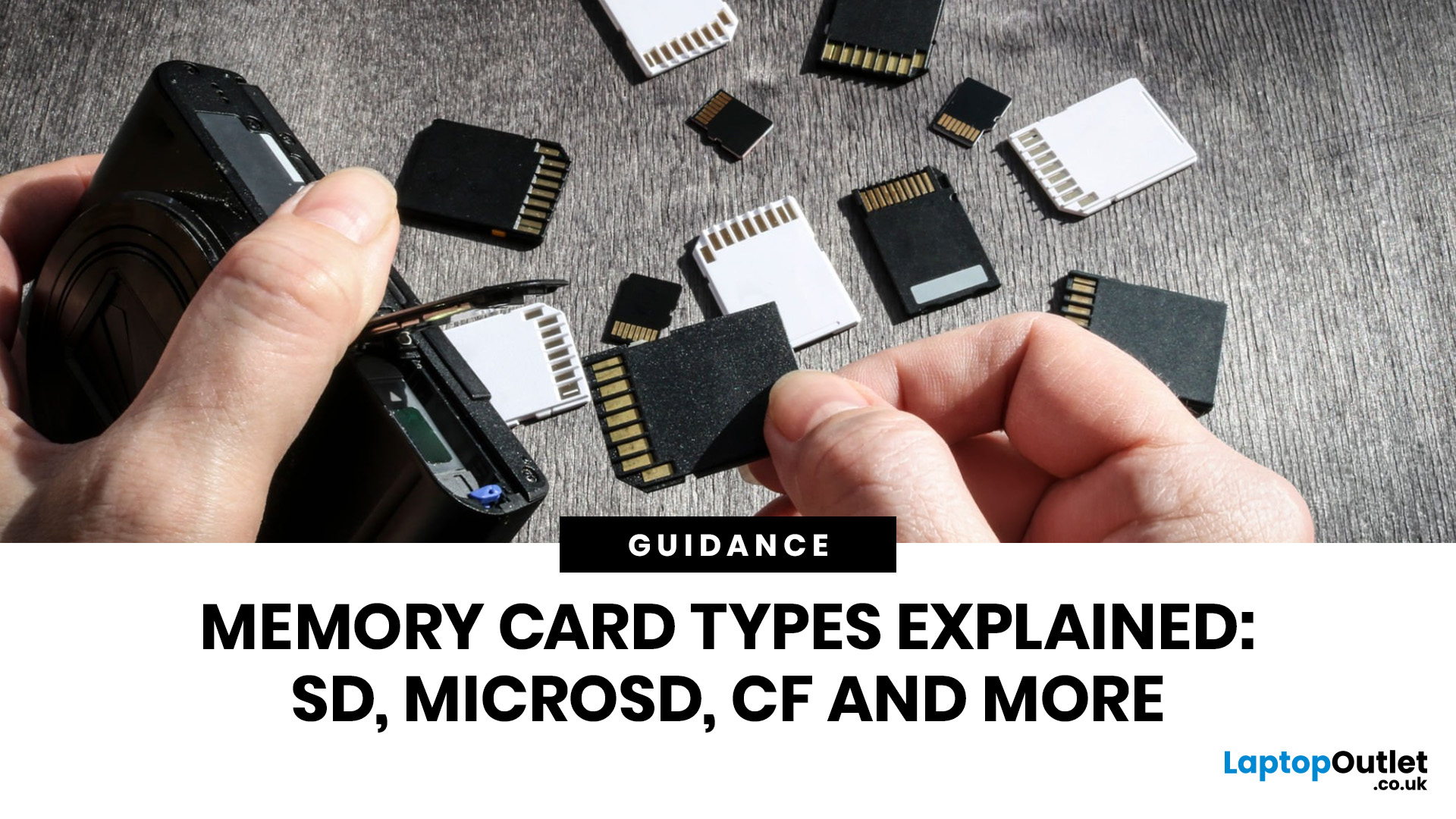
Memory cards look simply until you are standing there with a camera, drone, dash cam, or handheld console thinking, “Why does this tiny bit of plastic have more labels than a flight booking?” Fair. The names are confusing, the speed symbols look like exam questions, and buying the wrong one is a very expensive way to get absolutely nowhere.
So, let’s fix that.
This guide explains the main memory card types, the differences between SD, microSD, and CF, how memory cards work, and which card actually makes sense for your device. We’ll also answer the questions people ask all the time, like microSD the same as microSDXC, what is a CF card vs SD card, and how many pictures can a 64GB card hold. No waffle. No acronym soup. Just the stuff that helps you buy the right card first time.
Quick answer: what are the main types of memory cards?
Right now, the memory card world mostly splits into two big families: SD-based cards and CompactFlash-based cards. The SD family includes standard SD cards and microSD cards, with capacity standards such as SD, SDHC, SDXC, and SDUC. The CompactFlash Association family includes CompactFlash, CFast, XQD, and CFexpress.
If you want the short version:
- SD cards are common in cameras, laptops, and some card readers.
- microSD cards are the tiny ones used in action cams, drones, handheld consoles, dash cams, and some phones and tablets.
- CompactFlash and CFexpress cards are usually aimed at more demanding professional imaging workflows.
- The letters on the card are not random. They tell you about size, capacity standard, bus speed, and minimum sustained write speed.
Memory card types at a glance
|
Card type |
Physical size |
Typical use |
Main thing to know |
|
SD |
Full-size card |
DSLRs, mirrorless cameras, laptops, readers |
Most common camera card format |
|
microSD |
Tiny card |
Drones, dash cams, action cams, Switch-style devices |
Same SD standards, smaller shape |
|
CompactFlash |
Larger legacy pro card |
Older professional cameras |
Mostly legacy now |
|
CFast |
CompactFlash family |
Some pro video/camera gear |
Faster than old CF, less common now |
|
XQD |
CompactFlash family |
Some older high-end cameras |
Transitional pro format |
|
CFexpress |
CompactFlash family |
Modern pro cameras, high-end video |
Very fast, built for demanding capture |
How memory cards work
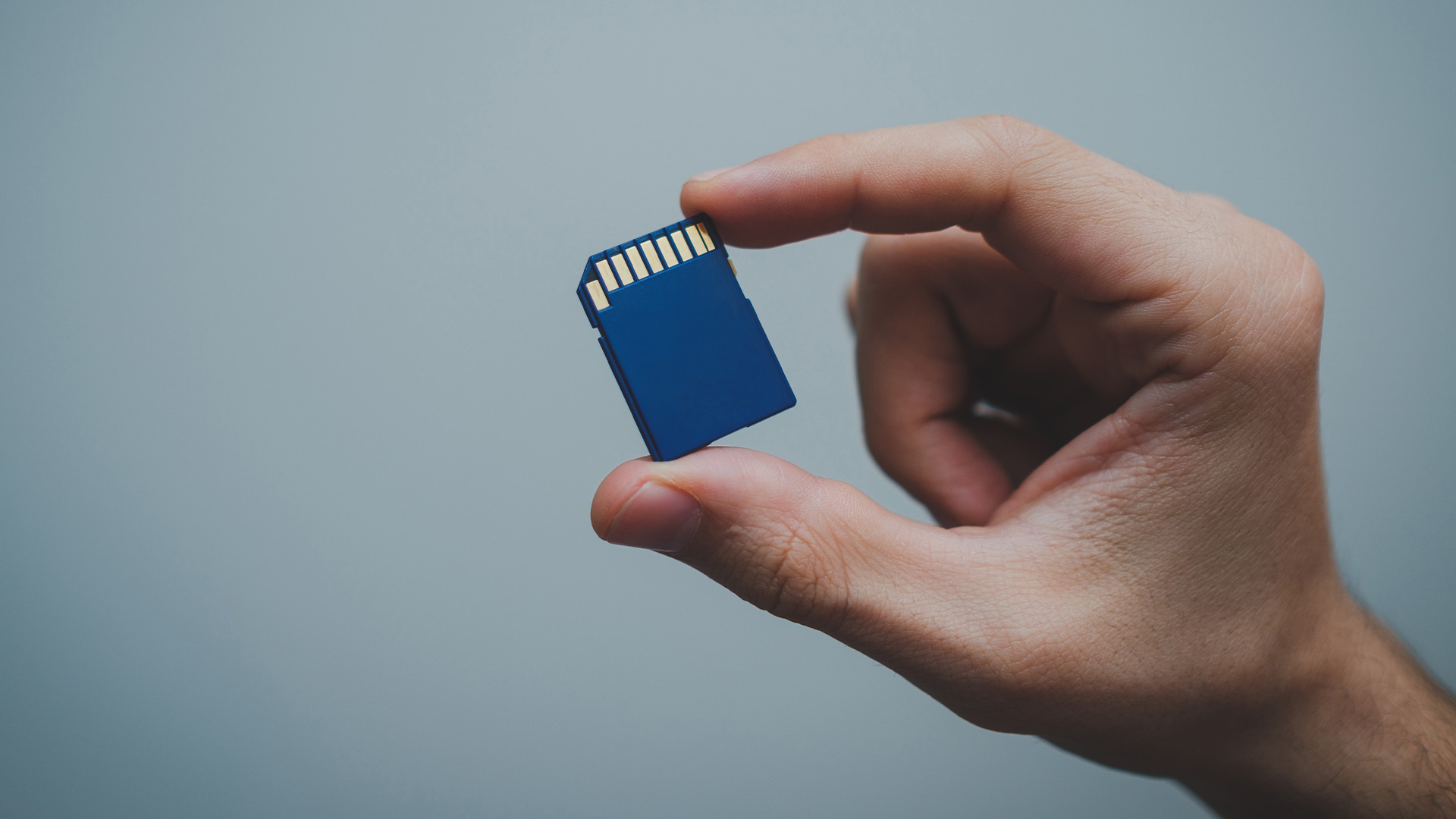
A memory card is basically flash-based storage. Instead of spinning discs like old hard drives, it stores data in flash memory, which has no moving parts. That is why cards are small, silent, portable, and widely used in cameras, phones, drones, handheld gaming, and other mobile kit.
Inside the card, there is more going on than most people realise. A memory card includes flash memory plus a controller that manages reading, writing, bad block handling, wear levelling, and general communication with the host device. Kingston’s flash guide notes that flash storage devices rely on controllers, wear-levelling, error correction, and block management to extend usable life and reliability.
Why does that matter to normal buyers? Because a card is not just “storage.” It is also:
- a physical format that has to fit your device
- a capacity standard your device must support
- a speed class that affects recording performance
- a bus/interface that affects how fast data moves
- sometimes an application class for app-heavy devices like Android storage expansion.
That is also why a cheap random card can look fine on paper and still be a pain in real life. If the camera needs higher sustained write speed than the card can guarantee, you can get dropped frames, failed recordings, or buffering that kills the vibe.
Different types of SD cards explained
This is where most people get tripped up. “SD card” is not just one thing. It is a whole family.
1. SD or SDSC
The original SD standard supports up to 2GB and uses FAT12 or FAT16 file systems. It is now mostly legacy territory. If you see a plain old SD card with a tiny capacity, that is what you are looking at.
2. SDHC
SDHC stands for Secure Digital High Capacity. These cards cover over 2GB up to 32GB and use FAT32. They are still common for entry-level cameras, audio devices, and older kit.
3. SDXC
SDXC means Secure Digital eXtended Capacity. These cards cover over 32GB up to 2TB and use exFAT. This is the sweet spot for many modern cameras because it gives you more space for high-resolution photos and larger video files.
4. SDUC
SDUC goes over 2TB up to 128TB in the standard. That is the monster tier. It exists in the specification, but mainstream consumer demand and device support are still far more centered on SDHC and SDXC.
So, what about microSD, microSDHC, microSDXC, and microSDUC?
Same family. Same logic. Smaller size.
That means microSD is the physical format, while microSDHC, microSDXC, and microSDUC describe the capacity standard. So no, microSD is not the same as microSDXC. A microSDXC card is still a microSD card physically, but it belongs to a higher-capacity standard and usually needs device support for that standard. Kingston’s guide explicitly separates the shared standards into SD, SDHC, SDXC, SDUC and microSD, microSDHC, microSDXC, microSDUC.
That is the bit many buyers miss. The card may physically fit, but that does not guarantee the device supports that capacity or file system. Older hardware may not support newer standards, while newer host devices are generally backward compatible with older cards.
SD vs microSD: what is the actual difference?
Physically, the difference is obvious. SD is the bigger card. microSD is a tiny one. Functionally, both can share the same SD-family standards, so the bigger question is not “which is better?” but “which does my device take?”
A full-size SD card is common in:
- mirrorless cameras
- DSLRs
- laptops with card readers
- standalone card readers
A microSD card is more common in:
- drones
- action cameras
- dash cams
- handheld consoles
- some tablets, phones, and compact devices.
There is one small catch. A microSD card can often be used in an SD slot with an adapter, but that does not magically upgrade performance. The device support and the card’s real spec still decide the outcome.
CF vs SD memory card: which one is better?
This is the classic CF vs SD memory card question, and the answer is gloriously annoying: neither is universally better. The right choice depends on the device.
SD cards are more common, more affordable, easier to find, and better suited to mainstream buyers. If you are shopping for everyday photography, casual video, drones, dash cams, or general portable storage, SD and microSD dominate for a reason.
CompactFlash-family cards, especially CFexpress, are more likely to show up in high-end professional photo and video gear were sustained performance matters much more. The CompactFlash Association lists CompactFlash, CFast, XQD, and CFexpress as their card standards.
If your device uses SD, buy SD. If it uses CFexpress, buy CFexpress. This is not one of those “maybe with a little adapter magic” situations. These are different physical formats and different ecosystems.
CompactFlash
The classic CompactFlash card is older and physically larger. You still see it in older professional cameras and legacy workflows, but it is no longer the go-to option for most new buyers.
CFast
CFast was a faster successor in the CompactFlash world and became popular in some professional video setups. It is still around, but not the centre of gravity for most modern consumer gear.
XQD
XQD landed in another pro-focused format and appeared in some Nikon and Sony workflows. Think of it as a serious performance card, but one that sits in a narrower device ecosystem.
CFexpress
CFexpress is the modern performance beast in the CFA family. It is designed for high-end imaging and very fast workflows. If you are capturing high-bitrate video, long bursts, or professional stills and your camera specifically supports CFexpress, that is where this card type shines.
So when people ask cf card vs sd card or compact flash card vs sd memory card, the honest answer is:
- SD wins for mainstream compatibility and value
- CFexpress wins for supported pro gear that needs speed
- the device slot decides everything.
The labels that actually matter: speed classes and bus speed
This is the part everyone ignores until their camera starts acting dramatically.
Speed Class
The SD Association defines Class 2, 4, 6, and 10 as baseline speed classes. These relate to minimum sustained writing performance.
UHS Speed Class
You will also see U1 and U3. These are UHS speed classes and matter for faster devices and more demanding recording tasks.
Video Speed Class
For video, the SD Association defines V6, V10, V30, V60, and V90. Higher classes are designed for more demanding recording, with V60 and V90 aimed at the more serious end of the spectrum. The Association states that these classes exist to answer demand for high-resolution, high-quality 4K and 8K video recording.
Bus speed: UHS-I, UHS-II, UHS-III, SD Express
Bus speed is separate from capacity and speed class. The SD Association says:
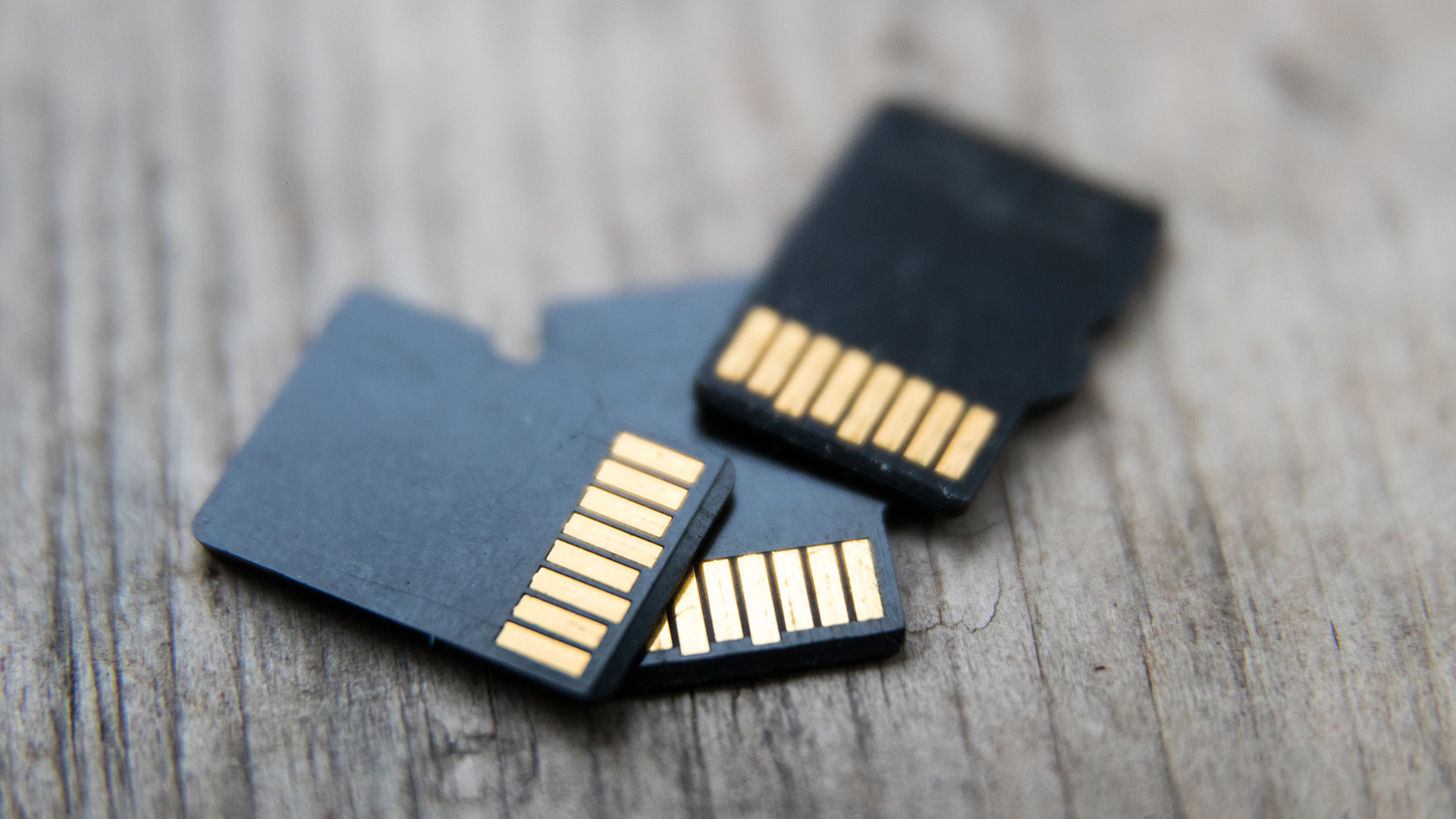
- UHS-I uses one row of pins
- UHS-II and UHS-III use extra pins for faster transfer
- SD Express pushes things much further using PCIe and NVMe.
That second row of pins is why some UHS-II cards look visibly different. And yes, that is why buying a fancy faster card for a slow older reader can feel like putting racing tyres on a shopping trolley.
Application Performance Class
For phones, tablets, or app-heavy use, you may see A1 and A2. The SD Association says this application classes were introduced to improve the experience of running apps and app data on SD cards, with A2 adding command queuing and cache-related improvements.
Best memory card for cameras: what should you actually buy?
Here is the no-nonsense version.
For entry-level cameras
A reliable SDHC or SDXC UHS-I card is usually enough. Full HD video and everyday stills do not usually need pro-tier madness.
For mirrorless and DSLR users
An SDXC card is often the safer choice because modern cameras produce larger photo files and video files, and SDXC supports capacities over 32GB up to 2TB with exFAT.
For 4K video
Look closely at the camera’s recommended minimum write speed. Video Speed Class ratings like V30, V60, and V90 matter more here than headline marketing fluff. The SD Association specifically links Video Speed Class to high-resolution recording needs.
For professional stills and high-bitrate video
If the camera supports CFexpress, that may be the better pick because it is built for more demanding capture and transfer workflows. But if the camera only has SD slots, do not overthink it: buy the fastest supported SD format the camera manual recommends.
The real buying rule
Do not buy a card by brand name alone. Buy by:
- slot type
- supported capacity standard
- minimum sustained write speed
- real use case
That is how you avoid paying extra for speed or capacity your device cannot even use properly.
How many pictures can a 64GB card hold?
This depends on photo size, file format, and camera settings, so there is no single magic number. But there are useful estimates.
Kingston’s storage chart says a 64GB card can hold approximately:
- 53,571 photos at 12MP
- 800 photos at 24MP uncompressed RAW.
SanDisk’s picture capacity chart shows that a 64GB card can hold around:
- 15,258 JPEG photos at 12MP
- 1,524 uncompressed RAW photos at 12MP
- 8,322 JPEG photos at 22MP
- 832 uncompressed RAW photos at 22MP.
So when people search how many pictures a 64GB holds, the honest answer is: anywhere from hundreds of RAW files to many thousands of JPEGs, depending on resolution and compression. If you shoot RAW on a modern camera, 64GB is decent, but it is not endless. If you shoot compressed JPEG on a lower-megapixel camera, it can feel massive.
How many pics can a 2GB SD card hold?
A 2GB card sits in the original SD range, which tops out at 2GB. That already tells you this is legacy territory.
SanDisk’s chart estimates that a 2GB card can hold roughly:
- 476 JPEG photos at 12MP
- 47 uncompressed RAW photos at 12MP
- 260 JPEG photos at 22MP
- 26 uncompressed RAW photos at 22MP.
So, if someone asks how many pics a 2GB SD card can hold, the answer is: not many by modern standards. Fine for old point-and-shoot cameras. Not exactly the move for current mirrorless or video-heavy use.
UK buyer checklist: how to choose the right memory card without the faff
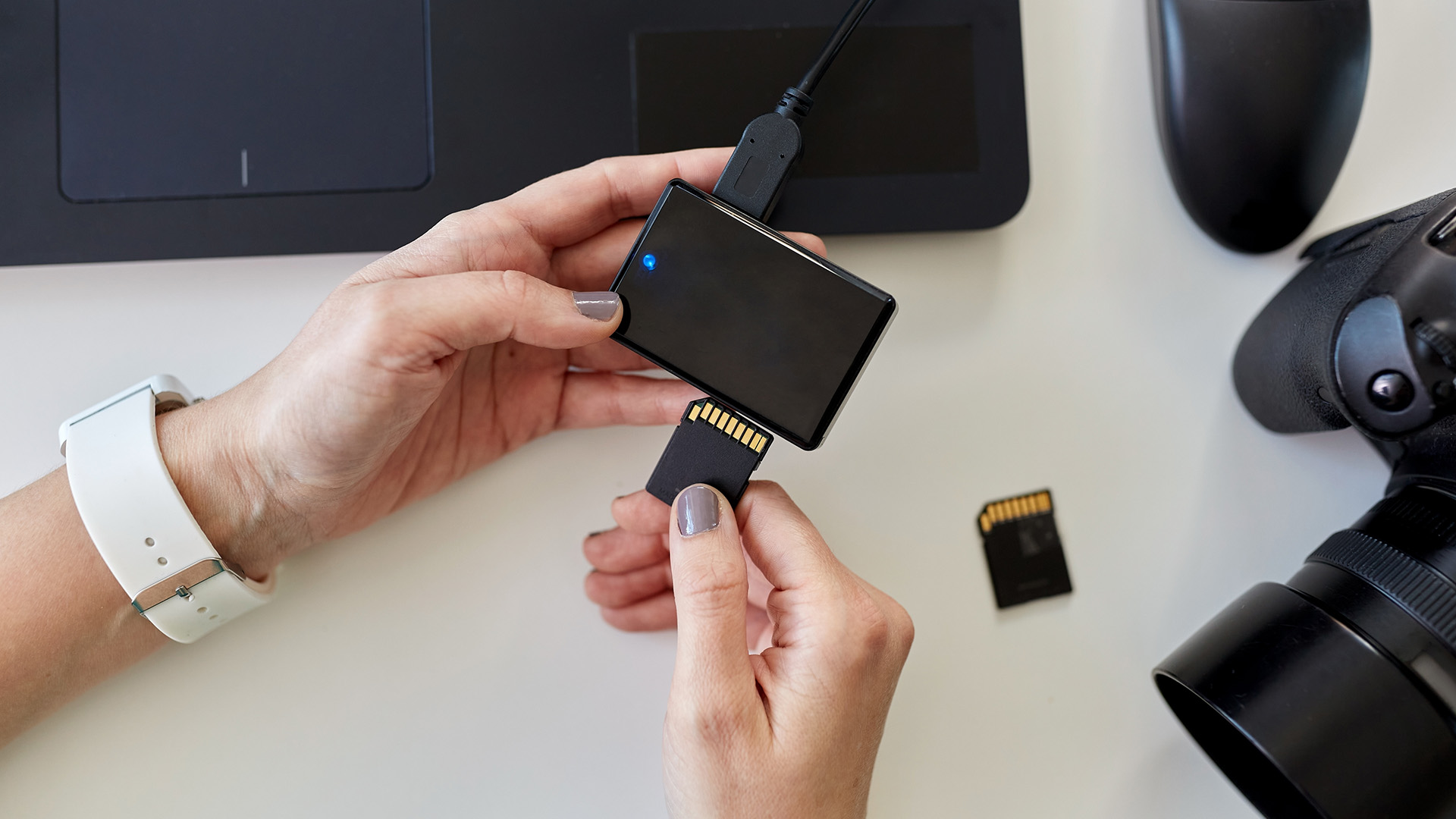
If you are buying in the UK and just want the right card without spending your lunch break decoding symbols, use this checklist:
1. Check the device manual first
The manual or manufacturer support page should tell you the supported card type, capacity range, and sometimes minimum video class. This is the quickest way to avoid compatibility pain. Kingston explicitly recommends checking the instruction manual or manufacturer site to identify the SD standard a device requires.
2. Match the card to the job
photo storage only: capacity matters most
4K video: write speed matters a lot
app storage on Android-style devices: look for A1 or A2
pro capture: check whether CFexpress is supported.
3. Do not overbuy blindly
A UHS-II or SD Express card is great only if your device and reader can actually use it. Otherwise, you are paying extra for bragging rights and disappointment. The SD Association notes that faster interfaces such as UHS-II, UHS-III, and SD Express need corresponding host support to deliver their potential.
4. Think about your wider storage setup
Memory cards are great for capturing and portable expansion, but long-term storage usually makes more sense on other hardware. That is where external and internal SSDs, external hard drives, and USB storage become the grown-up part of the conversation.
If you are building out a whole setup, this is a natural point to guide readers toward:

Final word
Memory cards are small, but the buying decision is not. The good news is that once you separate physical size, capacity standard, and speed rating, the confusion drops fast.
If your device takes SD, stick with SD. If it takes microSD, buy microSD. If your camera supports CFexpress, that is a different performance league. And if you are choosing between SDHC vs SDXC, or microSD vs microSDXC, the real question is how much capacity your device supports and how demanding your recording workflow is.
Basically: do not buy the card with the coolest packaging. Buy the one your device can actually be used properly. Revolutionary concept, I know.

FAQ
What are the most common types of memory cards today?
For most buyers, the main ones are SD, microSD, and in more specialist gear, CFexpress. The SD Association’s core capacity families are SD, SDHC, SDXC, and SDUC, while the CompactFlash Association’s card families include CompactFlash, CFast, XQD, and CFexpress.
What is the difference between SD, microSD, and CF?
SD and microSD belong to the same SD standards family but use different physical sizes. CF usually refers to the CompactFlash family, which is a separate ecosystem with formats including CompactFlash, CFast, XQD, and CFexpress.
Is microSD the same as microSDXC?
No. microSD refers to the physical card format, while microSDXC refers to a microSD card that uses the SDXC capacity standard, which covers more than 32GB up to 2TB and uses exFAT.
Which is better for cameras: CF or SD?
For most mainstream cameras, SD is the most common and practical choice. For supported professional cameras that need very high performance, CFexpress can be the better fit. The right answer depends on the card slot and the camera’s own speed requirements.
How many pictures can a 64GB memory card hold?
It varies a lot by file type and resolution. Kingston estimates around 53,571 12MP photos or 800 24MP uncompressed RAW photos on 64GB, while SanDisk’s chart shows 15,258 12MP JPEGs or 1,524 12MP uncompressed RAW files.
How many pics can a 2GB SD card hold?
SanDisk estimates around 476 JPEG photos at 12MP or 47 uncompressed RAW photos at 12MP on a 2GB card. That is why 2GB cards feel very limited today.
Do faster cards always make a device faster?
Not necessarily. The device has to support the faster bus or class. A fast card in a slower host still works within the host limits.
| Read More: |
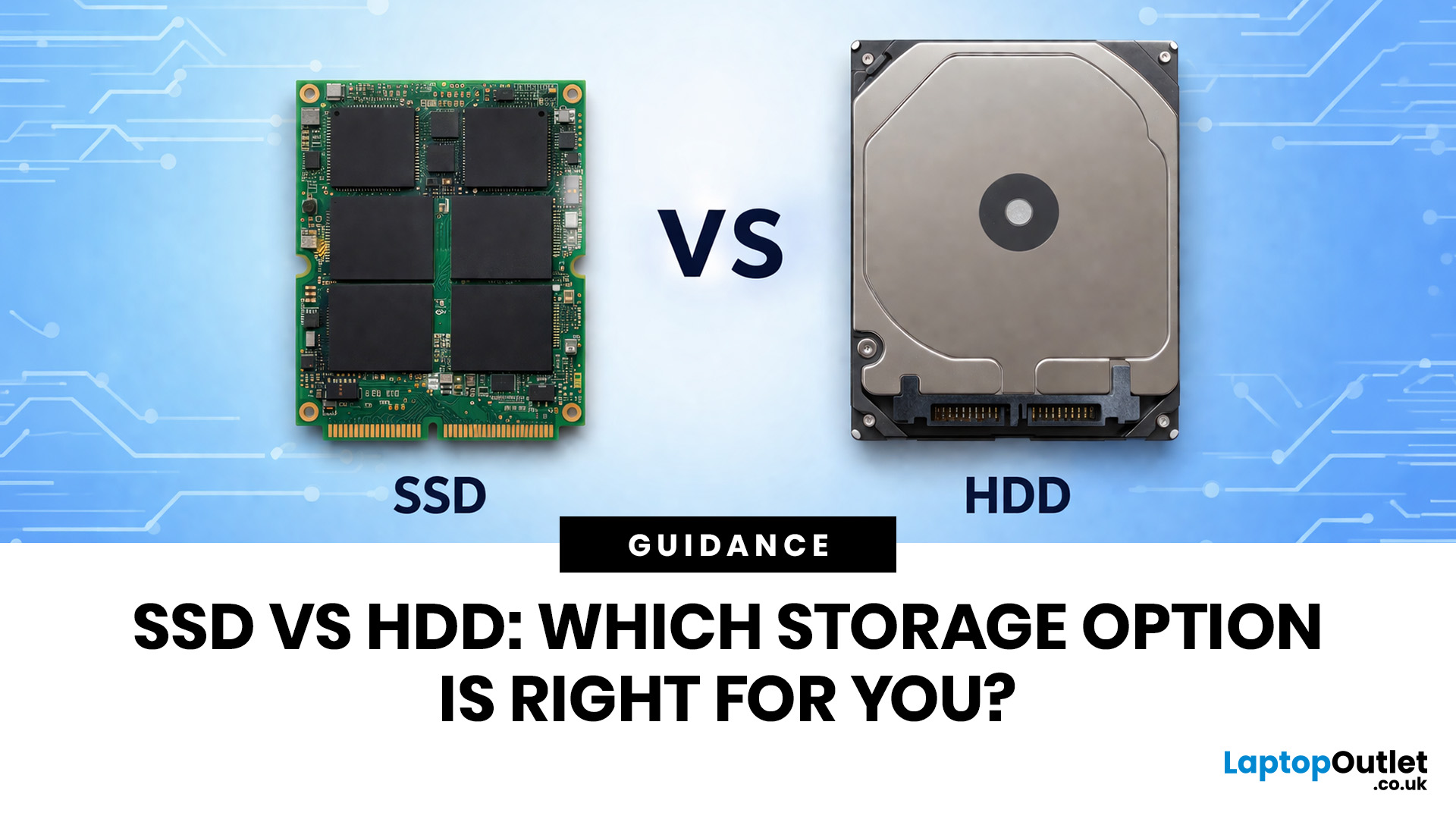
| SSD vs HDD: Which Storage Option is Right for You? |
| A Complete Guide to Formatting and Partitioning an SSD |
| How to Clone Your Hard Drive to an SSD: Upgrade Guide |
Related Articles

Last Updated: May 14, 2026
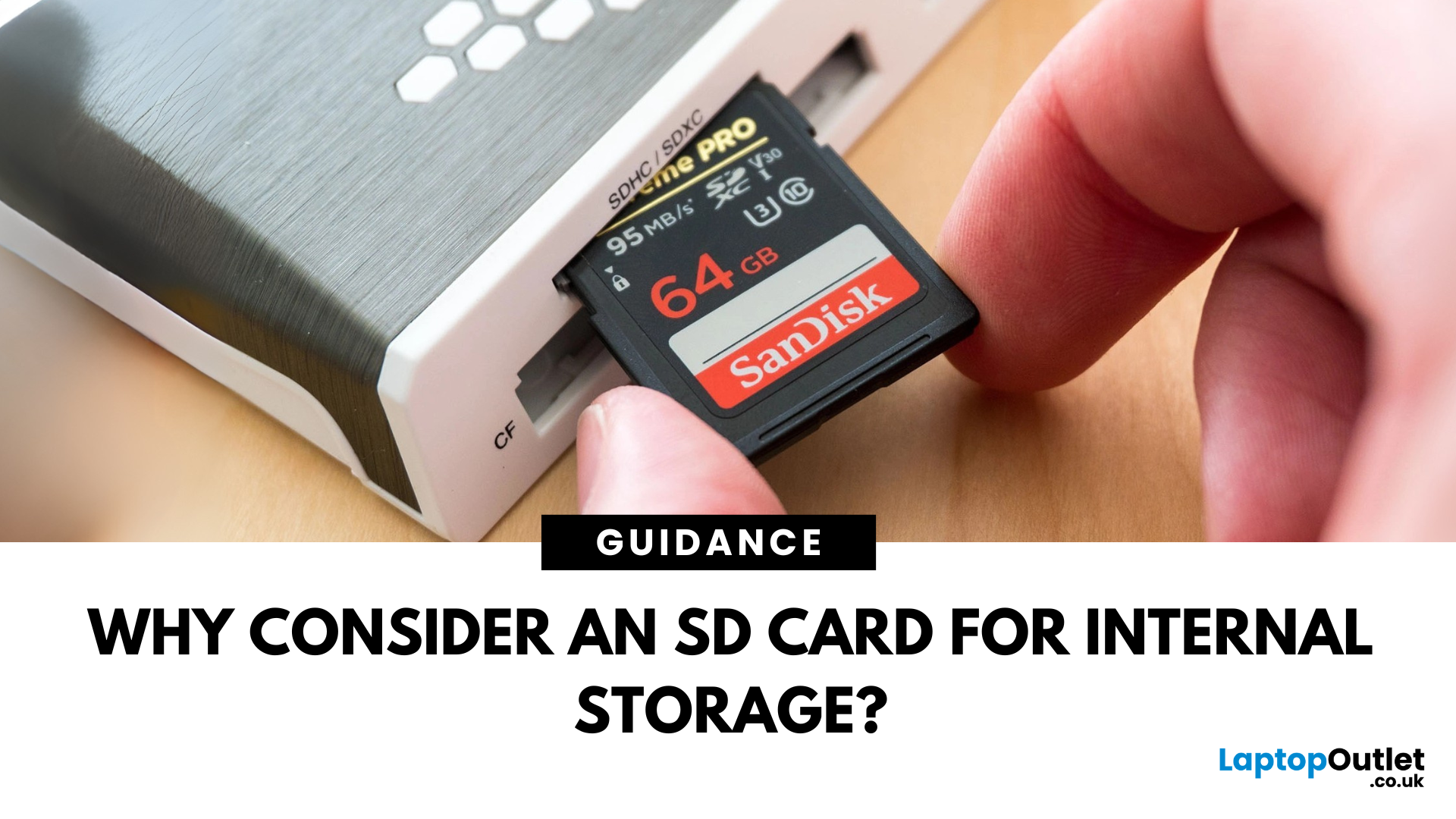
When most people think of internal storage, their minds leap to solid-state drives (SSDs) or embedded flash memory. Yet, there's a smaller, often overlooked storage solution in this space: the SD card. Traditionally used for photography, portable gaming, and mobile data transfer, SD cards have quietly evolved into powerful, reliable, and cost-effective internal storage solutions.
As devices become compact and users demand greater portability without sacrificing storage capacity, SD cards and their MicroSD variants are becoming popular. SD cards provide an expandable internal storage solution for affordable smartphones, compact PCs, tablets, and embedded systems.
In this blog, we explore the technical and practical reasons why SD and MicroSD cards have become viable internal storage alternatives. We'll discuss the advantages of SD cards, including their reliability, portability, energy efficiency, compatibility, and more.
Solid Reliability in a Small Package
Modern SD cards are built using
Last Updated: September 09, 2025
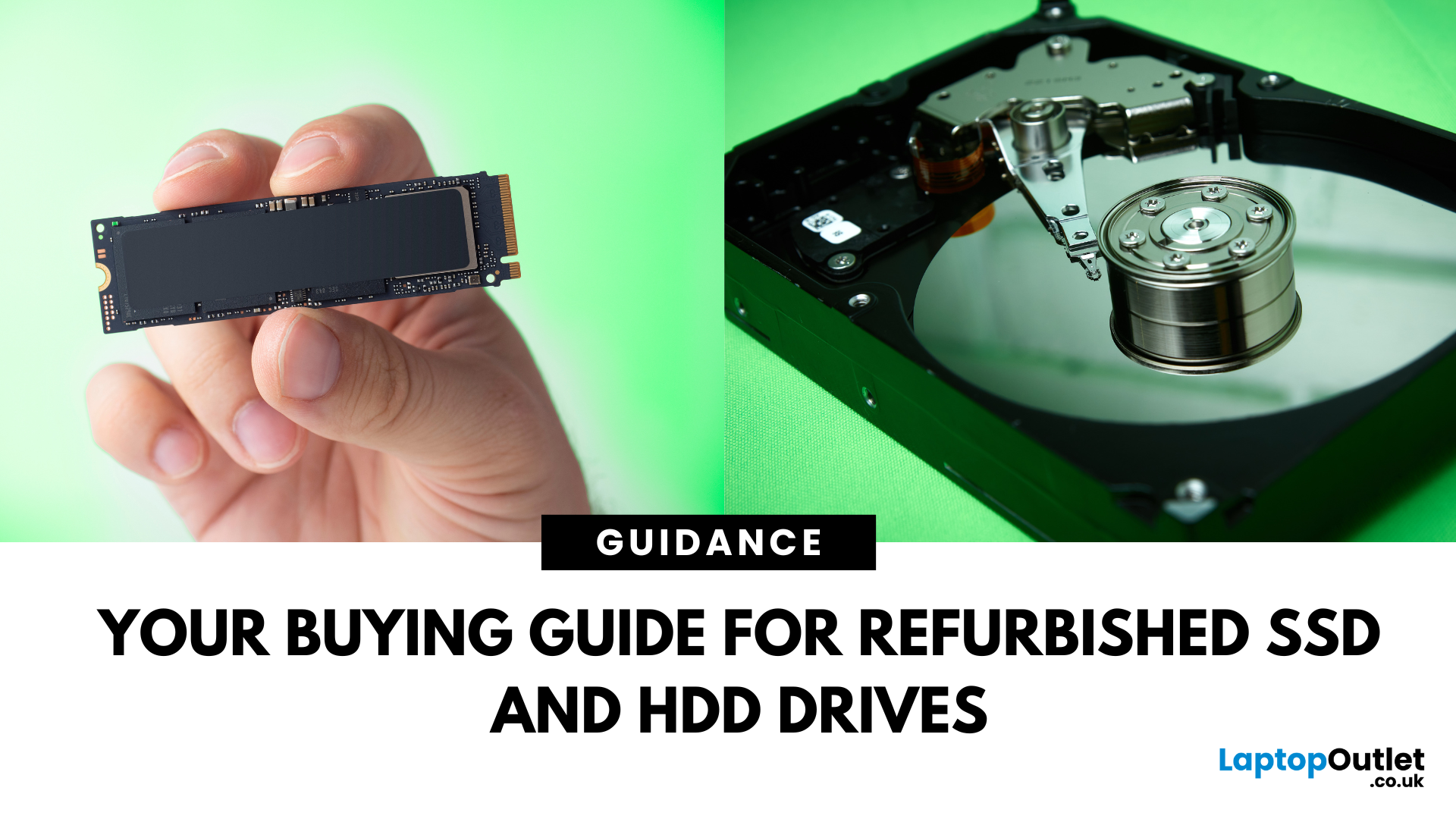
Need more storage or speed but don’t fancy paying full price? Buying a refurbished SSD or HDD could be the budget-friendly solution you’re after. Whether you're upgrading your current device or adding extra space for files, games, or media, refurbished drives offer great value without compromising functionality.
However, not all refurbished storage is created equal. To ensure your investment lasts and performs well, you need to understand the difference between drive types, evaluate their health, and select based on your specific needs, whether it’s for day-to-day use, gaming, or business tasks.
This guide covers everything you should know before buying refurbished SSD or HDD, external refurbished drives, or upgrading your refurbished SSD laptop. It’s your go-to resource for making a smart, informed choice.
Understanding the Difference Between SSD and HDD
When choosing between a refurbished SSD and HDD, it’s important to know how each works and which suits your needs better. Both offer
Last Updated: June 09, 2026
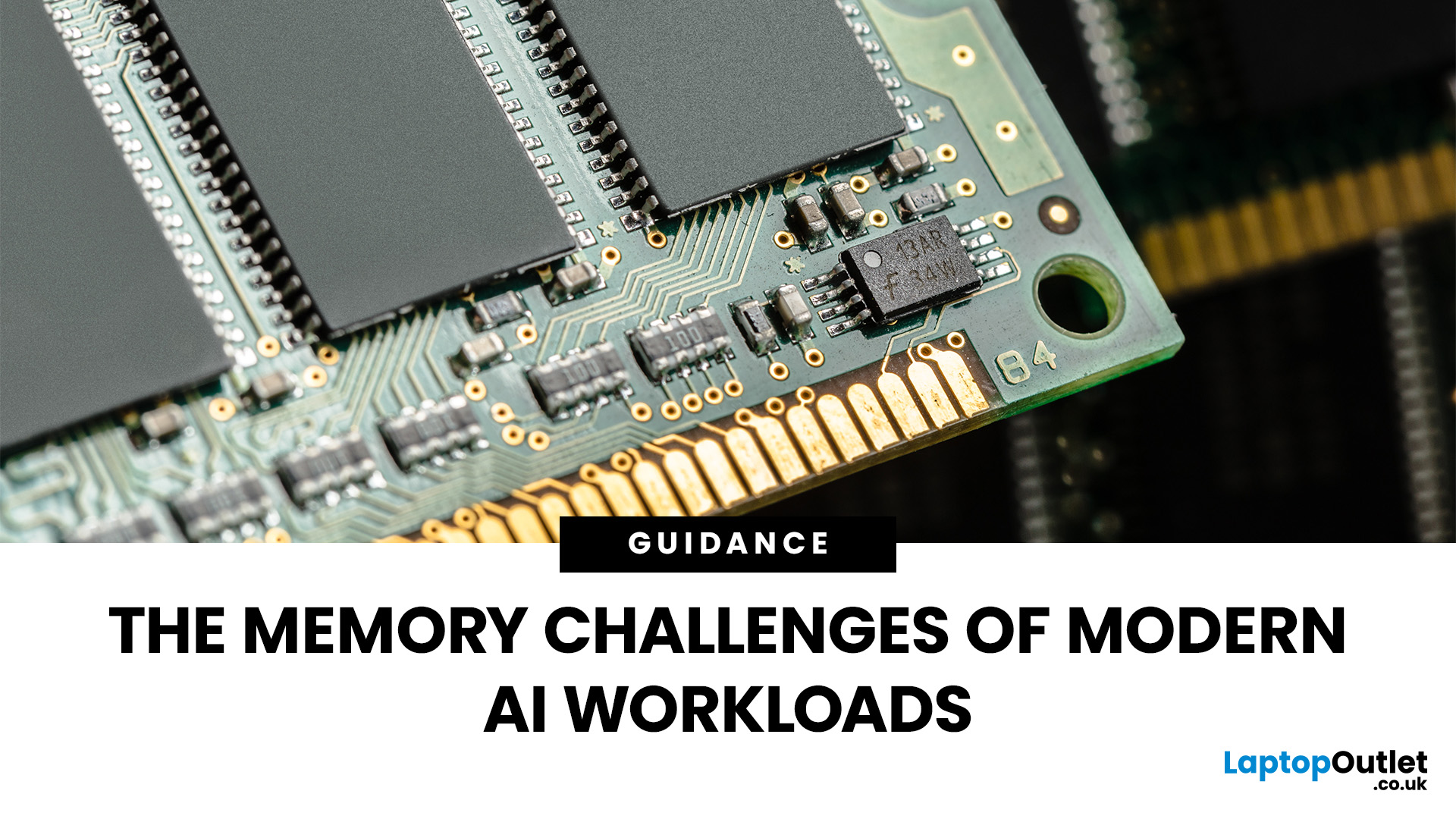
Imagine your brain trying to juggle not just numbers, but thousands of entire books at once; that’s what modern AI workloads are asking from compute systems. The models keep growing larger and more complex: trillions of parameters, expanding context windows, and sparse activation models like “mixture of experts” that selectively wake up parts of the network, but still demand fast memory access everywhere.
Even the most powerful GPUs and AI accelerators, loaded with teraflops of compute, can sit idle if the memory subsystem lags. Memory bandwidth and latency have become the real choke points. This bottleneck is often referred to as the “memory wall”: compute capability (FLOPs) has been increasing at a far faster pace than DRAM and interconnect bandwidth.
And there’s more: power, cooling, and cost. High-performance memory like HBM isn’t just expensive; it’s energy-hungry. The energy required to move data around often exceeds the energy needed for actual computation. When you add in dataset
Last Updated: May 06, 2026
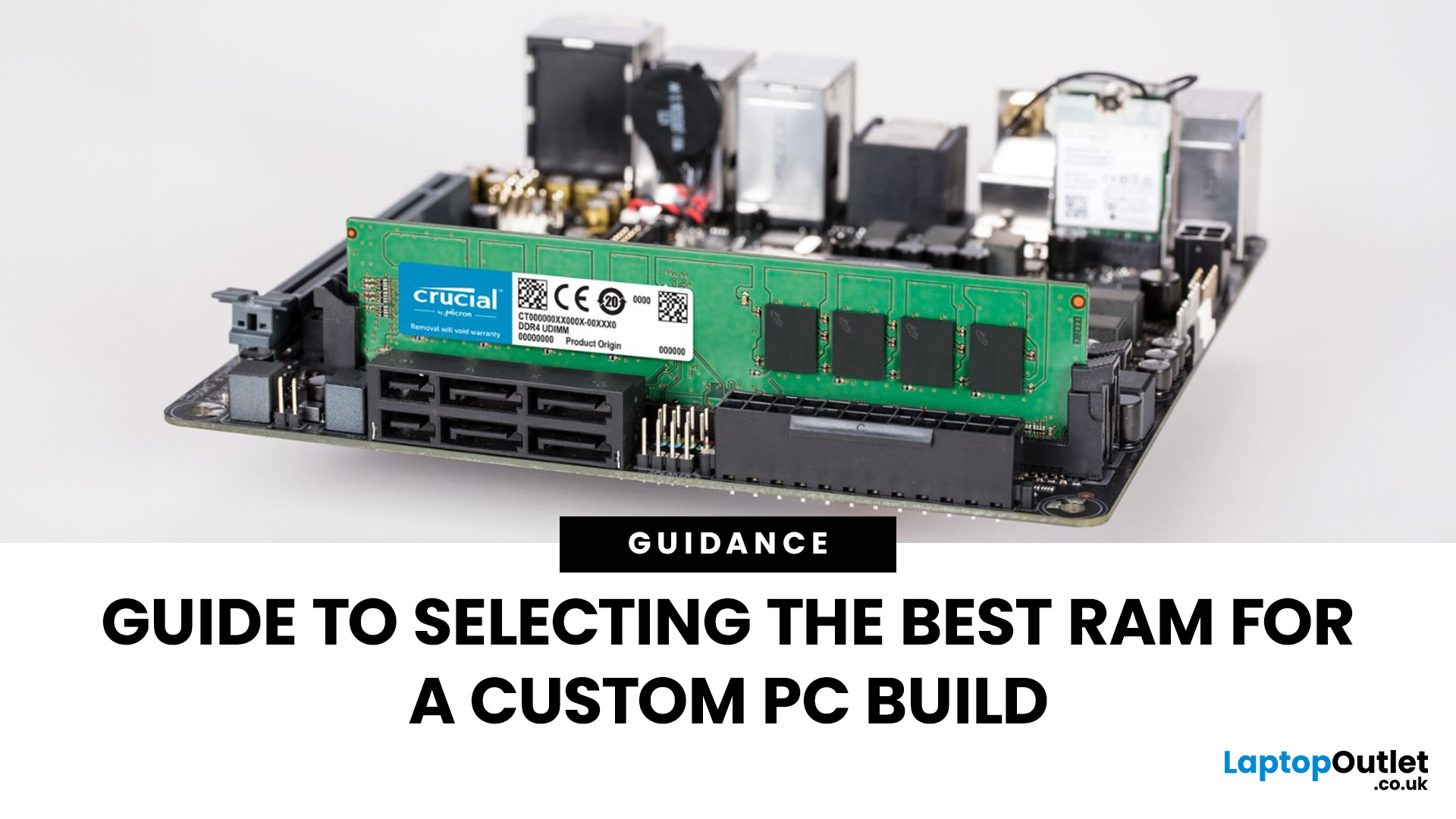
When planning your next desktop or gaming setup, selecting the correct RAM (Random Access Memory) is one of the most important decisions you’ll make. RAM directly impacts your system’s speed, responsiveness, and ability to handle multitasking or demanding applications. With so many types, speeds, and capacities available, knowing how to choose the right RAM for PC build can be confusing. This guide will help you understand the essentials so you can make the best choice for your system.
Why RAM Matters in a PC Build
RAM acts as your computer’s short-term memory, storing the data your system needs to access quickly. The more and faster RAM you have, the better your PC can handle tasks like gaming, video editing, or running multiple apps simultaneously. Choosing the right memory ensures smoother performance, reduces bottlenecks, and extends the lifespan of your build.
Capacity: How Much RAM Do You Really Need?
One of the first things to decide is how much memory your system requires.
- 8GB:
Last Updated: October 14, 2025
Meet the ROG Ally — the Portable Gaming Beast
If you’ve been anywhere near gaming TikTok or Reddit lately, you’ll know the ASUS ROG Ally has taken the handheld scene by storm. It’s sleek, powerful, and gives a proper run for its money. But beyond its flashy white shell and 120 Hz display, there’s one detail everyone’s curious about: how fast is the storage really?
What Kind of SSD are We Talking About?
The 512 GB variant packs a PCIe Gen 4 NVMe SSD, fancy words for “blistering quick”, running over the M.2 2230 form factor (the compact size used in handhelds).
Typical specs:
- Sequential Read Speed – around 5,000 MB/s
- Sequential Write Speed – around 3,500 MB/s
- Random 4K Read/Write – 500K / 600K IOPS
That’s several times faster than older SATA SSDs and absolutely galaxies ahead of traditional hard drives. Translation? Instant game launches, smoother texture streaming, and snappier OS performance.
What is ROG Xbox Ally 512GB SSD Speed in Real-World Use?

Loading Times
When you’re booting
Last Updated: April 02, 2026
Black Friday 2025 is set to bring some of the best deals we’ve seen yet on gaming laptops and PCs, especially those powered by NVIDIA’s RTX 40-series graphics. But this year, smart buyers aren’t just chasing discounts, they’re targeting the right specs for lasting performance. The RTX 4060 and RTX 4070 GPUs have become the ideal mid-to-high range picks, balancing power, efficiency, and price. Pair that with fast DDR5 RAM and a 1TB NVMe SSD, and you have a future-ready setup built for modern gaming. This guide breaks down exactly what to look for in fast DDR5 RAM and a 1TB NVMe SSD, and you have a future-ready setup built for modern gaming. This guide breaks down exactly what to look for and make the most of Black Friday gaming laptop deals (RTX 4070) in the UK.
The 2025 Gaming Hardware Landscape: What’s Changed
Gaming hardware has evolved quickly over the past year, and 2025’s market looks very different from before. NVIDIA’s RTX 40-series GPUs, like the RTX 4060 and RTX 4070, now deliver

Last Updated: February 17, 2026
Storage problems aren’t just annoying; they’re productivity killers. Studies show that nearly 60% of laptop slowdowns are linked to storage-related issues, whether it’s low disk space, corrupted files, or failing SSDs. When your drive is over 85% full, performance can drop significantly because your system has less room to manage temporary files and virtual memory. Add disk errors or early SSD/HDD failure into the mix, and suddenly your “quick task” turns into a 30-minute meltdown.
Laptop storage issues don’t just slow things down, they risk your data, crash your apps, and test your patience.
The good news? Most storage problems are fixable in real time. In this guide, we’ll break down exactly what’s happening, why it’s happening, and how to fix it step-by-step, no tech degree required.
SSD vs HDD: What’s Actually Inside Your Laptop (And Why It Matters)

Before you panic about laptop storage issues, you need to know what you’re working with. Not all drives fail the same way and the fix
Last Updated: May 01, 2026
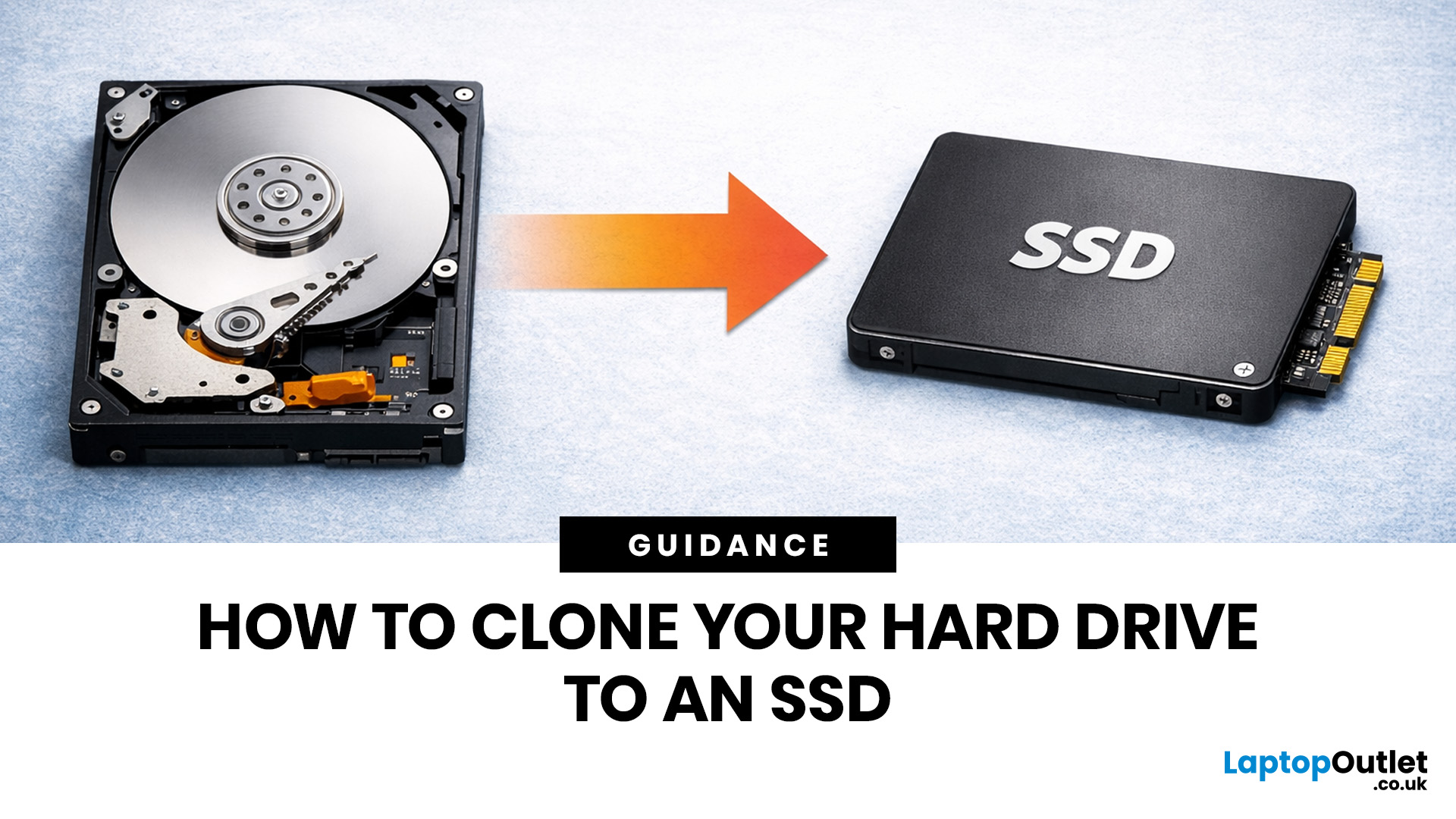
If your laptop feels slow to boot, takes too long to open files, or struggles with everyday performance, it may be time to clone hard drive to SSD and give your system a faster, more responsive upgrade. Moving from a traditional hard disk drive to a solid-state drive is one of the most effective ways to improve speed without replacing your entire device.
In this guide, you’ll learn how to clone a hard drive safely, what you need before you start, and how to handle the SSD migration process step by step. Whether you want to clone HDD to SSD for quicker startup times or simply transfer hard drive to SSD without losing your files, this guide will help you do it with confidence.
Why Upgrade from HDD to SSD?
A hard disk drive stores data using moving parts, while an SSD uses flash memory to access files much faster. That means quicker boot times, faster app launches, smoother multitasking, and less waiting around. If you use your laptop daily for work, study, browsing, or entertainment, choosing
Last Updated: May 01, 2026
Formatting an SSD takes less than five minutes when you know what you're doing. The tricky part is knowing which tool to use, which file system to pick, and how to avoid losing data along the way. That's exactly what this guide covers.
You will learn how to format a solid state drive on Windows, macOS, and Linux laptops, with step-by-step instructions for each. You'll also find out how to partition your SSD and wipe it securely when needed.
Before You Start: What You Need to Know
Before you touch any settings, take a few minutes to prepare. Skipping this stage is the most common reason people run into problems when setting up or reformatting a drive.
Back Up Your Data First
Formatting wipes everything. Every file, folder, and installed programme will be gone.
- Copy important files to a USB drive or cloud storage
- Use an external drive for large backups (if you need one, you can buy external hard drive options from Laptop Outlet)
- Double-check your backup before proceeding
There's no undo
Last Updated: May 01, 2026
Your laptop can have a great screen, a decent processor, and enough RAM to survive the day, but if the storage is slow, the whole thing still feels off. That is why the SSD vs HDD laptop debate matters more than most people think. One option is built for speed, faster boot-ups, quicker app launches, and way less waiting around. The other is better known for giving you more storage for less money.
So which one actually makes sense for you?
That depends on how you use your laptop. If you want something that feels fast, smooth, and ready to move when you are, an SSD usually wins. If you need loads of space without spending too much, an HDD can still hold its ground.
In this guide, we will break down the real difference between HDD and SSD drives, compare speed, lifespan, value, and help you figure out which one is actually worth it.
SSD vs HDD laptop: what is the actual difference?
An HDD, or hard disk drive, is the old-school storage option. It stores your files, apps, operating system,

