



How to Connect Your Smartphone to a Portable Monitor: A Complete Guide

Portable monitors have completely changed the way we work, game, and watch media on the move. They offer a much larger display than your smartphone, transforming your pocket-sized device into a mini-desktop or a fully immersive entertainment system.
If you want to connect smartphone to a portable monitor for work or play, you've come to the right place. This complete guide will walk you through every possible connection method, covering both Android and iPhone devices, as well as essential tips for a seamless setup.
What You Need to Connect Smartphone to a Portable Monitor
Before we dive into 'how to use phone with portable monitor, you need to check a few things. Having the right kit is essential for a successful smartphone to portable monitor setup.

1. The Right Portable Monitor
Your monitor needs to have the correct input ports. The best portable monitors for phones feature a dual-connection design, offering both USB-C (for single-cable power and video) and Mini-HDMI ports (for universal compatibility with traditional devices).
Enhance your viewing experience with our wide range of portable monitors with high-resolution display.
2. The Right Smartphone
For the simplest wired connection, your phone needs to support video output.
- Android: The best and most common method is using a USB-C port that supports DisplayPort Alternate Mode (DP Alt Mode). This allows the USB-C port to carry a video signal. Most flagship 5G smartphones and many mid-range models from the last few years have this feature. If your phone doesn't, don't worry; there are still options!
- iPhone/iPad: Modern models use USB-C, while older models use the Lightning port, each requiring a specific adapter.
3. The Right Cables or Adapters
The cable you use will depend on the ports on your phone and your monitor.
|
Phone Port |
Monitor Port |
Required Connection/Adapter |
|
USB-C (with DP Alt Mode) |
USB-C (Video In) |
A full-featured USB-C to USB-C cable. |
|
USB-C (with DP Alt Mode) |
Mini-HDMI or Standard HDMI |
A USB-C to HDMI adapter (or cable) and an HDMI cable. |
|
Lightning (Pre-iPhone 15) |
HDMI |
An official Apple Lightning Digital AV Adapter + an HDMI cable. |
|
Micro-USB (Older/Budget) |
HDMI |
A Mobile High-Definition Link (MHL) adapter or DisplayLink adapter. |
How to Connect an Android Phone to a Portable Monitor
Connecting an Android phone to monitor is usually a straightforward process, especially if you have a recent model. You can quickly get your smartphone screen on external monitor using one of these methods.

USB-C to USB-C (The Easiest Way)
If both your Android phone and the portable monitor have a full-featured USB-C port that supports video signal transmission (DP Alt Mode), this is the simplest method. It also often allows the monitor to charge your phone simultaneously.
- Connect the Cable: Plug one end of a USB-C to USB-C cable into your Android phone and the other end into the monitor's USB-C video input port.
- Monitor Setup: The monitor should automatically detect the signal. If not, use the monitor's menu to select the USB-C input source.
- Phone Interface: Your phone’s screen will either be mirrored or, on premium models like Samsung (using DeX), Huawei, or Motorola, a desktop mode may launch, giving you a PC-like interface.
USB-C to HDMI Adapter
If your monitor only has an HDMI input, or if your monitor's USB-C port is only for power, you'll need an adapter. This is a common method to connect Android phone to monitor.
- Check for DP Alt Mode: First, verify that your Android phone supports video output via its USB-C port (DisplayPort Alt Mode). This is crucial.
- Connect the Adapter: Plug the USB-C to HDMI adapter into your phone's USB-C port.
- Connect the Cable: Plug a Mini-HDMI or standard HDMI cable into the adapter, and the other end into the portable monitor’s HDMI port.
- Power: You may need to connect an external power source to the adapter or the monitor itself, as the phone might not provide enough power through the adapter alone.
Legacy/Budget Phones (DisplayLink or MHL)
If your Android phone doesn't support the DisplayPort Alt Mode required for the standard USB-C or adapter connection, you still have options for to connect smartphone to a portable monitor.
- DisplayLink: This requires a special DisplayLink-certified adapter or docking station and the DisplayLink Presenter app installed on your phone. This technology uses the phone's processing power to transmit the video signal over a standard USB data connection. It’s a reliable workaround for phones lacking native video output.
- MHL (Mobile High-Definition Link): This older technology is less common today but may apply to older or very budget-friendly phones. You’ll need a specific MHL adapter that plugs into your phone’s Micro-USB or USB-C port and converts the signal to HDMI. Note: Always check your phone's manual to confirm MHL support.
How to Connect iPhone to Portable Monitor
Connecting an iPhone or iPad depends entirely on the port it uses: Lightning or the newer USB-C.

USB-C iPhones (iPhone 15 Series and Newer iPads)
With the move to USB-C, connecting modern iPhones and iPads is much easier, following a similar process to Android.
- Direct USB-C Connection: For most iPhones (iPhone 15 series and later, and recent iPad Pro/Air models), you can use a high-quality USB-C to USB-C cable. Plug it directly into your phone and the monitor’s video-enabled USB-C port.
- USB-C to HDMI: If your monitor uses HDMI, use a USB-C to monitor HDMI connection adapter or cable. The process is identical to the Android setup above.
Lightning iPhones (Pre-iPhone 15 Models)
For older iPhones and some budget iPads, you must use an official Apple adapter.
- The Adapter: You need the Apple Lightning Digital AV Adapter. Third-party versions often fail due to copy protection issues.
- Connection: Plug the Lightning end into your iPhone/iPad. Then, plug an HDMI cable into the adapter, and connect the other end of the HDMI cable to your portable monitor.
- Power: The Apple adapter includes an extra Lightning port, allowing you to charge your phone while using the monitor. This is vital for long sessions. The output resolution will be capped at 1080p (Full HD).
Explore our range of iPhones with advanced features for effortless setup and premium performance.
Wireless Connection Options (All Smartphones)
If cables are not your style, going wireless offers maximum flexibility, though it may introduce a small amount of lag.
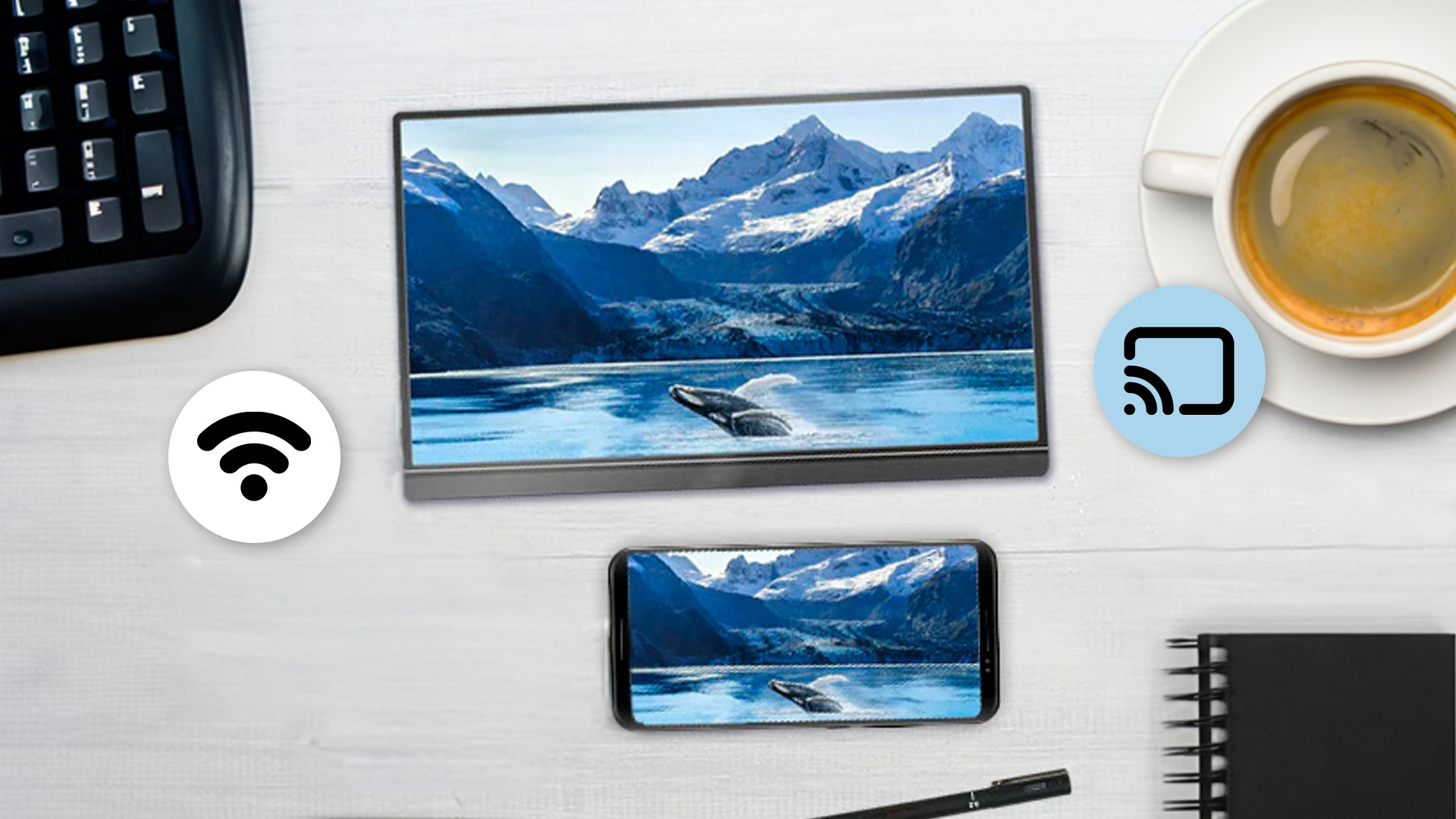
Miracast (Android)
Many newer portable monitors have built-in Miracast support (often called Screen Mirroring or Smart View). On your Android phone, look for "Cast," "Smart View," or "Wireless Display" in your Quick Settings panel. Select the monitor to connect.
Chromecast (Android/iOS)
Plug a Chromecast dongle into your portable monitor's HDMI port. You can then use the Google Home app to cast your entire smartphone screen on external monitor or cast media directly from compatible apps like Netflix or YouTube.
Apple AirPlay (iPhone/iPad)
If you have an Apple TV or an AirPlay-enabled portable monitor, you can use the built-in screen mirroring feature on your iPhone or iPad. Swipe down from the top-right corner to open Control Centre and tap "Screen Mirroring."
Practical Scenarios of Using Your Phone with a Portable Monitor
Once you successfully connect smartphone to portable monitor, a new world of possibilities opens up. The added screen space significantly boosts usability.
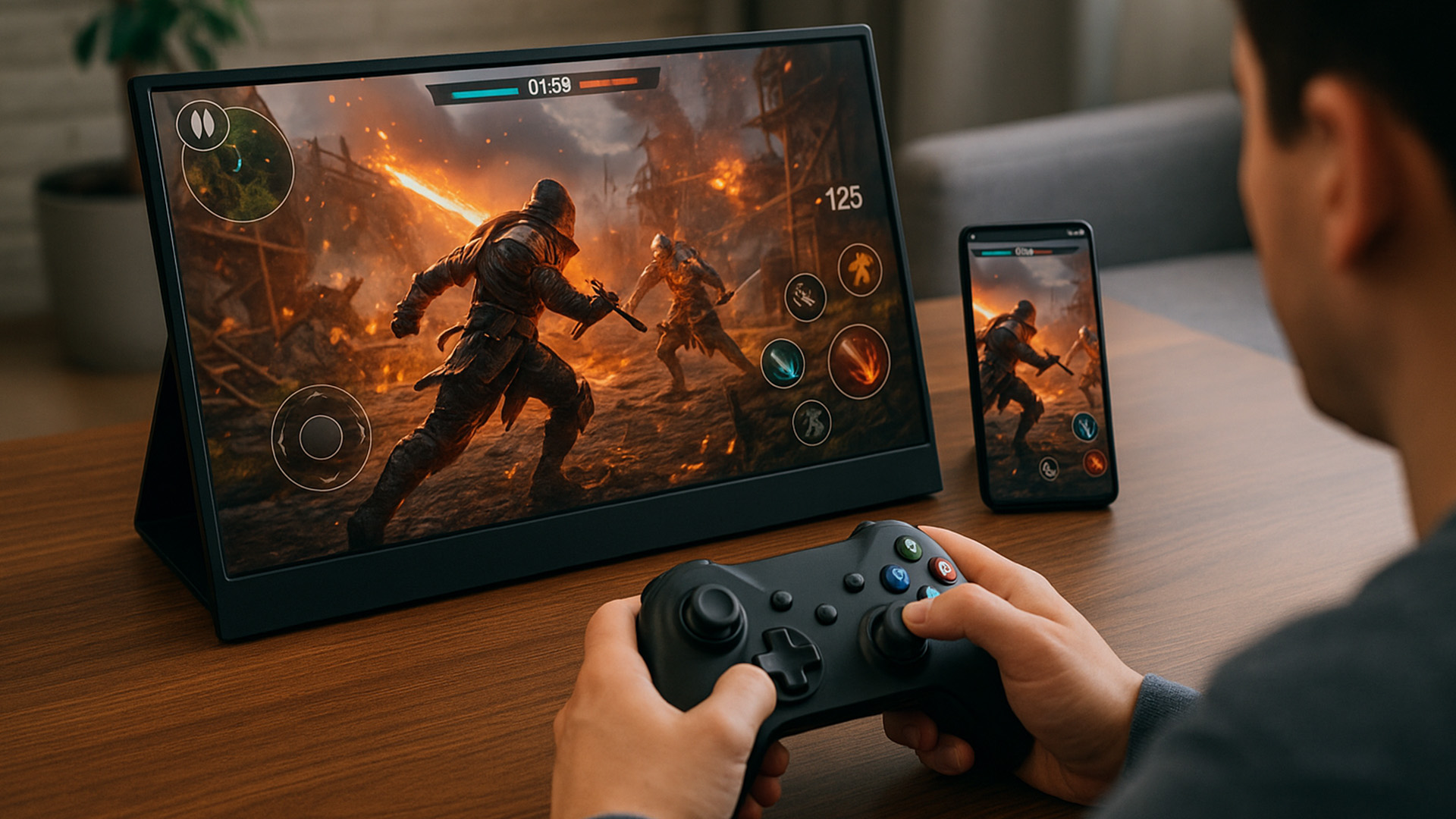
1. Immersive Mobile Gaming
Mobile gaming is no longer limited to the small screen in your hand. When you connect smartphone to portable monitor, you enjoy a massive, crisp display.
- Enhanced View: The larger display provides a much better view of the action, which is a huge advantage in fast-paced titles.
- Reduced Latency (Wired): Using a direct wired connection ensures minimal delay, which is crucial for competitive play.
Discover our range of the best smartphones for gaming equipped with 5G to dominate on a big screen!
2. Media Consumption and Streaming
Watching movies, TV shows, or YouTube videos on a portable monitor is a joy.
- Cinematic Experience: You can easily stream 4K content (if supported by your phone and monitor) from popular services.
- Sharing: It’s much easier to share content with friends and family on a larger display than huddling around a tiny screen.
3. Desktop Mode Productivity
Many high-end Android phones, like Samsung Galaxy Series, offer a desktop-style interface (DeX, Ready For, etc.) when connected to an external display.
- PC-Like Environment: This mode allows you to run multiple apps in resizable windows, just like on a traditional computer.
- Full Workstation: Pair your phone and monitor with a Bluetooth keyboard and mouse to create a full, highly portable workstation for emails, documents, and spreadsheets. This is the ultimate mobile office for the professional on the go.
4. Presentations and Meetings
Using a portable monitor makes professional tasks simpler.
- Instant Presentation: You can project documents or slides directly from your phone to the monitor for an impromptu meeting or client pitch.
- Note-Taking: Use the phone screen as a notepad or teleprompter while viewing the main content on the monitor.
5. Photo and Video Editing
Creative professionals can benefit greatly from the extra screen real estate.
- Precise Editing: The larger display allows for more accurate touch-ups and frame-by-frame video editing.
- Viewing True Colour: If your monitor offers a wide colour gamut, you can view your creations in richer, more accurate colours before uploading.
Troubleshooting: What to Do if Your Smartphone Won’t Connect
Whether your USB-C portable monitor connection or phone to monitor HDMI connection is failing, there is a fix. Use this quick portable monitor setup guide to troubleshoot.

|
Problem |
Potential Cause |
Solution |
|
No Signal Displayed |
Insufficient Power: The monitor is not receiving enough power from the phone. |
If your phone and monitor support it, use an external power source (charger) plugged into the monitor or the adapter/hub. |
|
Connection is Intermittent |
Bad Cable: The USB-C cable is not fully rated for video signal transmission. |
Use a high-quality, short cable specifically labelled as supporting 4K video or DisplayPort Alt Mode. |
|
Screen Keeps Flashing |
Phone Settings: The phone is trying to output an unsupported resolution or refresh rate. |
Check your phone's display settings and try lowering the resolution or refresh rate. |
|
Lightning iPhone Error |
Third-Party Adapter: The adapter is not certified or is faulty. |
Switch to the official Apple Lightning Digital AV Adapter. |
|
Android Doesn’t Output Video |
Phone Incompatibility: The phone does not support DisplayPort Alt Mode. |
Use a DisplayLink adapter (requires an app download) as an alternative. |

Wrapping Up Your Screen Setup
Learning how to connect smartphone to a portable monitor opens the door to a more flexible, productive, and enjoyable digital experience. Whether you're gaming, streaming, working, or simply multitasking, the combination of your smartphone and a portable monitor can replace laptops in many situations.
Android devices and iPhones both offer reliable ways to extend your screen using USB-C, HDMI, or wireless connectivity. With the right cables and a suitable portable monitor, you can enjoy a bigger, clearer, and more immersive view wherever you are.
Be sure to explore device compatibility, choose the correct cable, and keep your software updated for the best performance.

Answers You Might Be Looking For
Can every smartphone connect to a portable monitor?
No. Some older or budget smartphones lack video output support. However, many still work using DisplayLink adapters or wireless methods.
Do I need a special cable to connect my Android phone?
Yes. Most Android phones require a USB-C to USB-C cable that supports video output. Others may need a USB-C to HDMI adapter.
Can I charge my phone while using a portable monitor?
Yes. If your monitor supports USB-C Power Delivery, it can charge your phone while displaying content.
Do iPhones support USB-C video output?
Only iPhone 15 models and newer iPads with USB-C support it directly. Older Lightning models require a Lightning Digital AV Adapter.
Why is there no sound from my phone on the monitor?
Some portable monitors do not have speakers. You may need Bluetooth headphones or an external speaker.
Can I play games on a portable monitor using my phone?
Absolutely. Many users connect smartphones to portable monitors for immersive mobile gaming with lower eye strain.
| Read More: |
| How to Screen Mirror iPhone to TV |
| How to Connect Two Monitors to a Laptop? |
| How to Clean Your Monitor and TV Screen |
Related Articles

Last Updated: June 10, 2026
Choosing an iiyama monitor starts with one question: what will you use the screen for most often?
If you mainly work, look for comfort, clear text, useful ports and ergonomic adjustment. If you mainly game, focus on refresh rate, response time and smooth motion. If you need one screen for everyday use, choose a balanced monitor that fits your desk, your device and your daily routine.
This iiyama monitor selection guide explains the main iiyama monitor types, features and specifications, so you can choose the right screen for work, gaming, study, browsing or mixed use.
Quick answer: Which iiyama monitor should you choose?
- Choose an iiyama ProLite monitor if your main use is work, study, business productivity or hybrid working.
- Choose an iiyama G-Master monitor if your main use is gaming, esports or fast-moving entertainment.
- Choose a balanced iiyama monitor if you use the same screen for work, streaming, browsing and occasional gaming.
Here is the simple way to think about it:
| YOU MAIN USE |
|---|
Last Updated: August 28, 2026
Here’s a fact: You’re probably reading this on a screen that’s either too small, too slow, or just… Shrug. Don’t worry, we didn’t hack your device; it’s the most predictable thing.
In 2026, good enough isn’t good enough anymore. You're on your third Zoom call of the day, mid-rank in Valorant, or pulling an all-nighter before your design portfolio is due, your monitor isn't just a screen. It’s your command centre, your creative canvas, your second (possibly better) brain.
And that’s where ViewSonic professional monitors come in.
This isn't about tossing fancy terms like “IPS” or “ergonomics” at you without context. It’s about what matters: sharp visuals, fast refresh rates, wide screens, and prices that don’t trigger a full-blown financial crisis. You want the best ViewSonic monitors that match your workflow and your weekend vibe? Cool. We are here to help you out.
Let’s break it down…. without boring you to death.
Why ViewSonic? (No Corporate Jargon, Just Facts)
ViewSonic has built its
Last Updated: April 07, 2026
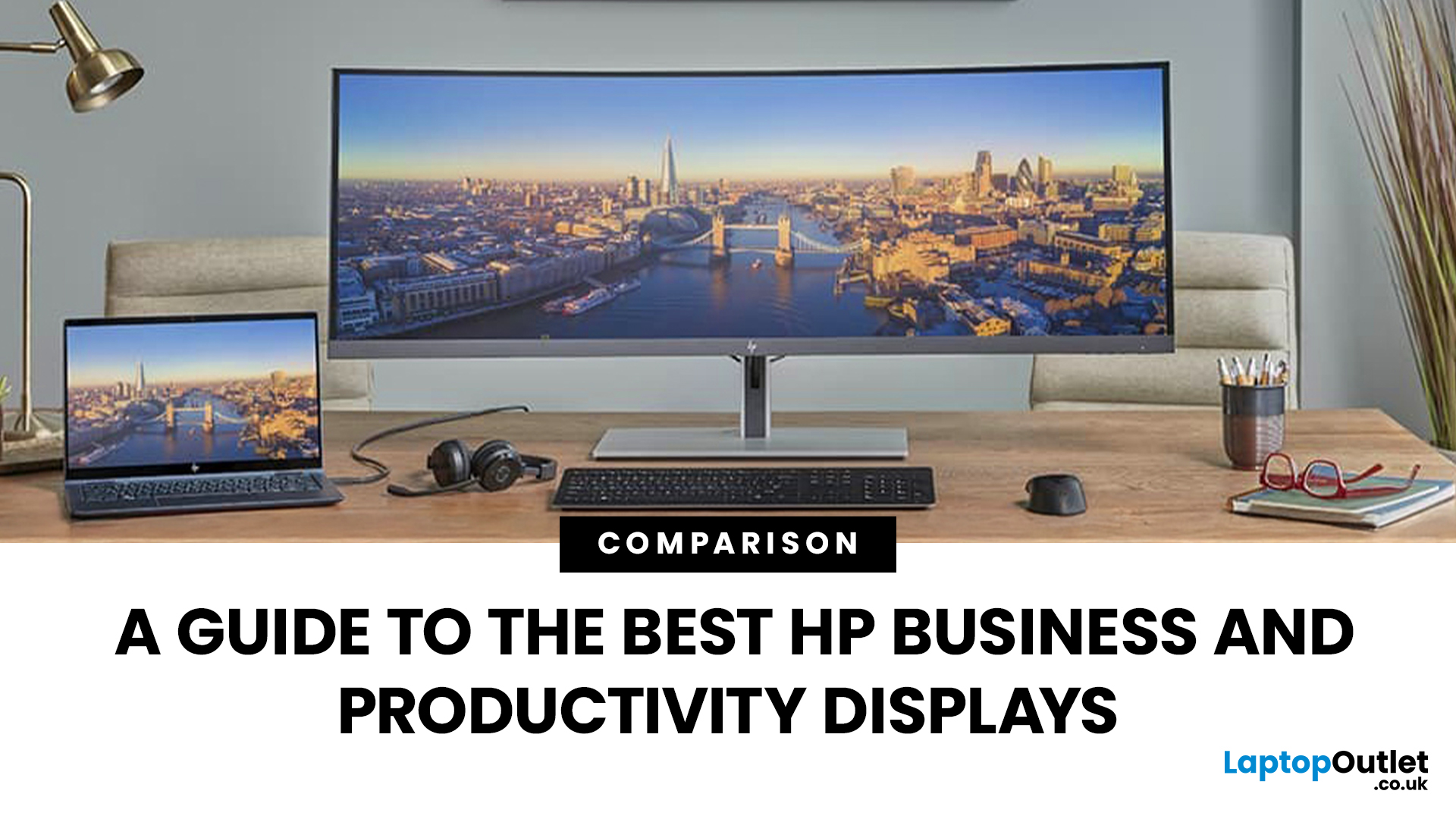
Walk into any modern office in the world and you’ll see how much the workplace has changed. Some desks sit empty while their owners log in from home; others are built around dual screens, webcams, and docking stations. A monitor used to be a passive rectangle on your desk. In 2026, it’s the centre of your working day.
A good business monitor now is about how well it supports the way you work, whether that means sharper spreadsheets, smoother scrolling, cleaner video calls, or simply reducing eye fatigue after hours of screen time.
HP has quietly positioned itself as one of the most dependable names in this space. Its business and productivity monitors don’t rely on gimmicks. Instead, they focus on the fundamentals professionals actually need: clear panels, comfortable ergonomics, sensible refresh rates, and connectivity that fits real office setups. HP also continues to build around eye comfort features like HP Eye Ease on many models, with an always on low blue light approach that’s designed
Last Updated: August 21, 2026
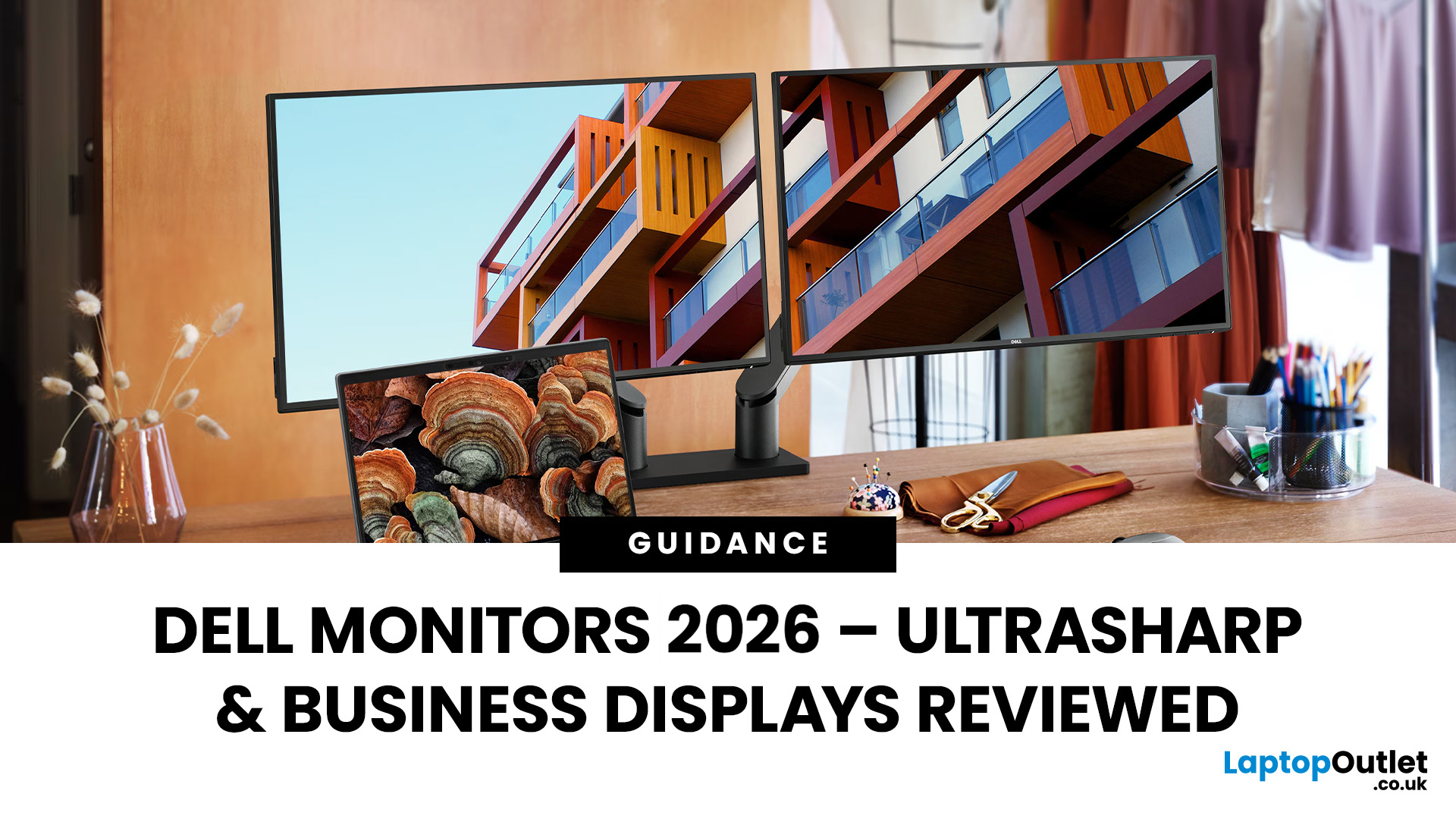
Dell UltraSharp business monitors are the strongest choice for colour-sensitive work, complex multitasking and premium USB-C or Thunderbolt setups. Dell Pro Plus models suit most office and hybrid workers, while Dell Pro displays cover essential everyday tasks at a lower cost. In 2026, choose by resolution, connectivity, ergonomics and workload, not by screen size, series name or headline price alone.
Read the complete guide for a deep dive into the world of Dell UltraSharp monitors and their broader Dell office and productivity ranges.
Which Dell Monitor Range Should You Choose?
Dell's business monitor range now covers several distinct needs. UltraSharp sits at the premium end, Dell Pro Plus focuses on productive office features and Dell Pro covers essential workplace requirements. Dell Plus serves broader home and mixed-use setups, while Alienware remains the gaming-focused family.
| Your Main Requirement | Best Starting Point | Features to Prioritise |
| Everyday admin, email and web work | Dell |
Last Updated: August 25, 2026
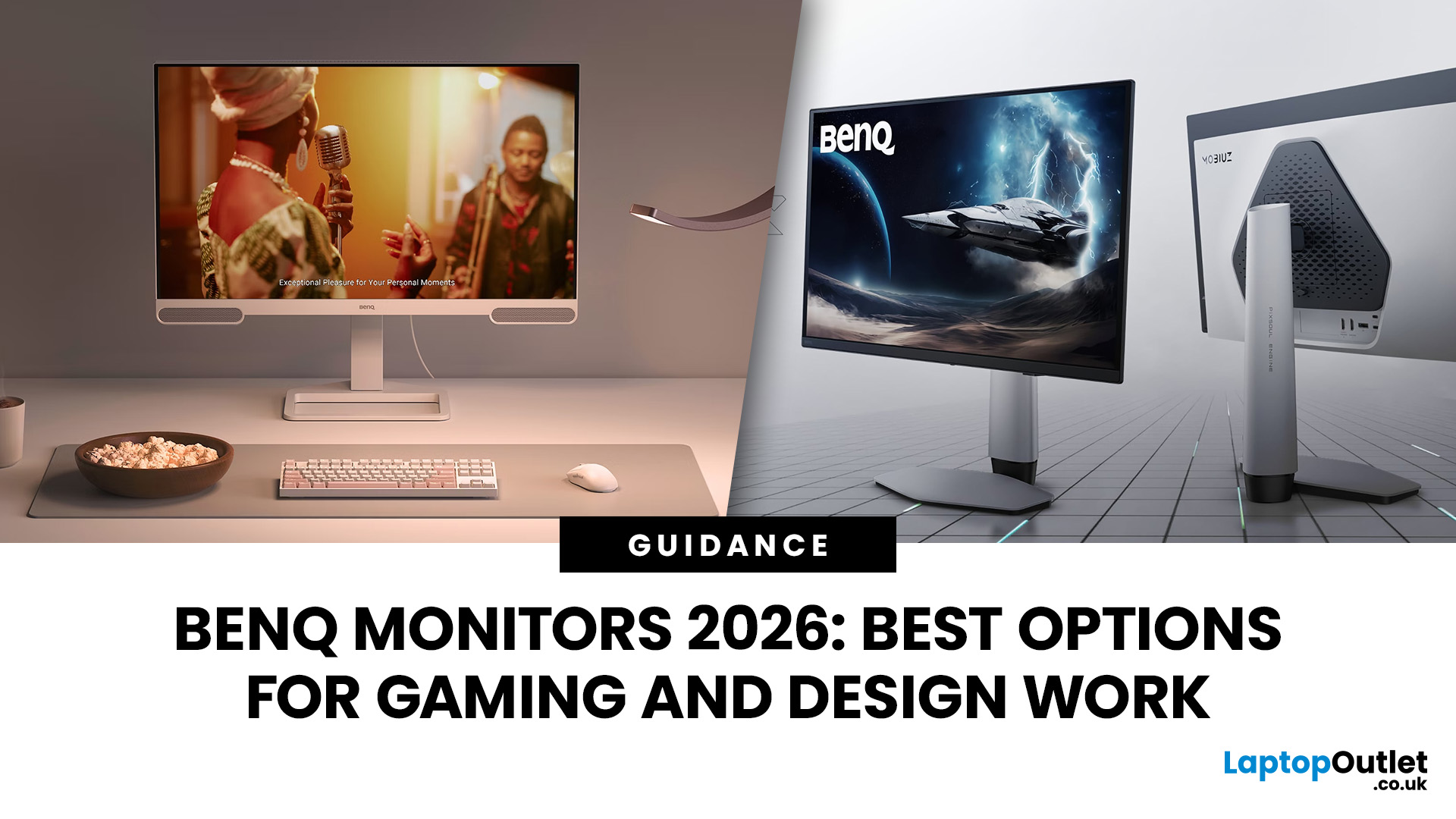
In 2026, BenQ screens for gaming and design stand out as some of the most versatile displays available, combining advanced technology, eye-care features, and excellent build quality. From BenQ gaming monitors designed for esports and AAA titles to BenQ design monitors aimed at creative professionals, the BenQ monitor lineup covers every need. This blog highlights the best BenQ monitors you can buy at Laptop Outlet, with a breakdown of their features, benefits, and why they’re trusted worldwide.
Why Choose BenQ Monitors in 2026?
Before diving into specific models, let’s explore why BenQ remains a top choice for professionals and gamers.
Innovation Across Categories
For competitive players, BenQ gaming monitors now feature refresh rates up to 240Hz, 1ms response times, and adaptive sync technologies like AMD FreeSync Premium and NVIDIA G-Sync compatibility. On the other hand, its design monitors offer factory-calibrated colour accuracy, HDR10 support, and wide gamut coverage (sRGB, AdobeRGB,
Last Updated: September 03, 2026
A good monitor changes everything. It makes your gaming sessions sharper, your workday less draining, and your screen time far more enjoyable. The trouble is, decent monitors can be pricey — and not everyone wants to overspend just to get a clear picture.
That is where Acer comes in.
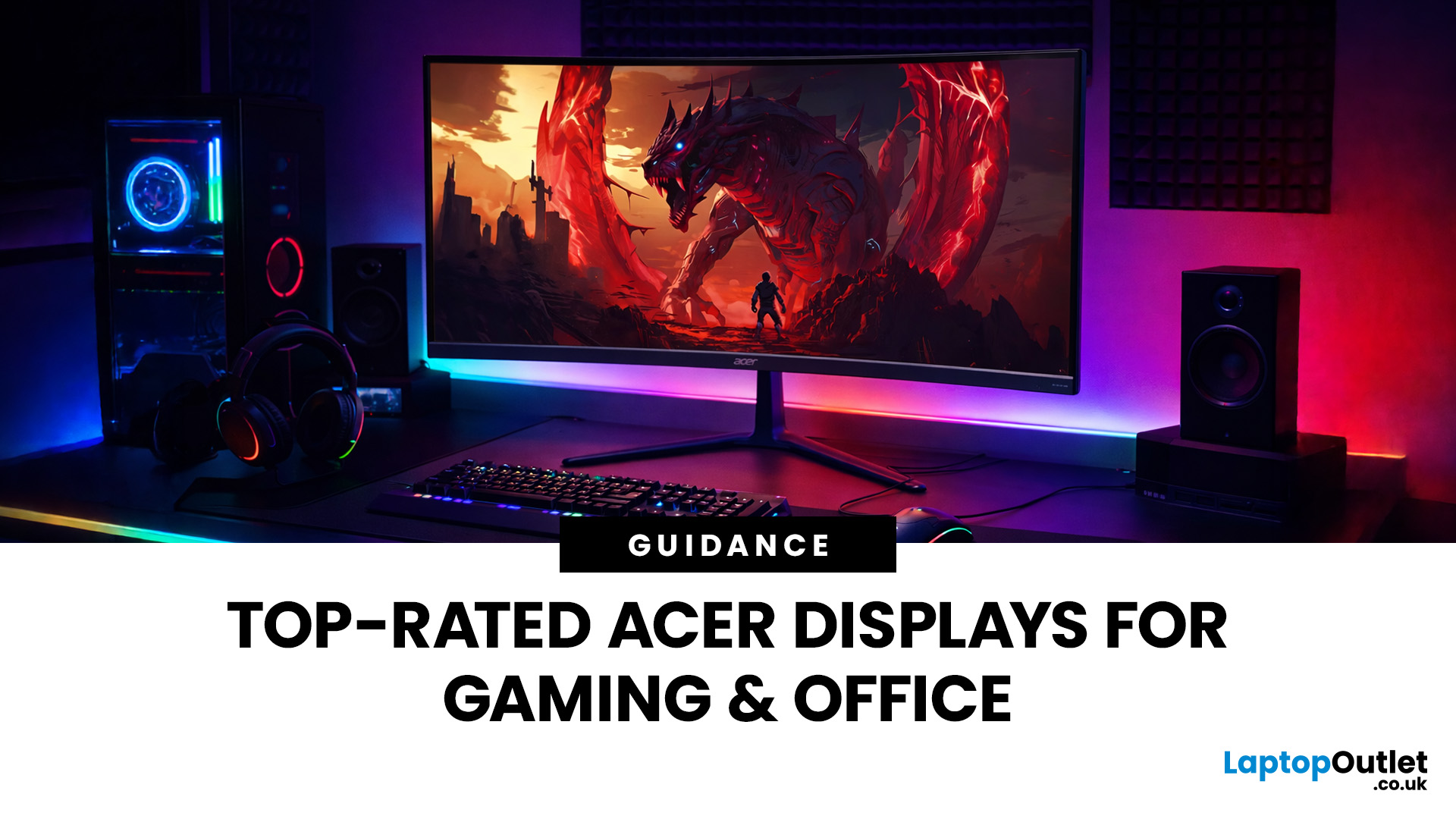
Acer has become one of the most trusted names in affordable display technology. Whether you are gaming late into the night or working through spreadsheets from home, there is an Acer monitor for your lifestyle and your budget. In 2026, their range spans from compact 21.5-inch office panels to sprawling 34-inch ultrawide gaming screens.
This guide covers the best Acer monitors currently available at Laptop Outlet, split into gaming and office categories, so you can find the right display without overthinking it.
Best Acer Gaming Monitors in 2026
A gaming monitor is a display built to keep up with fast-paced gameplay. Unlike standard screens designed for everyday tasks, gaming monitors prioritise speed, smoothness,
Last Updated: August 24, 2026
Getting a better monitor does not necessarily mean buying the most expensive screen or chasing the biggest specifications. The better approach is finding the features that improve what you actually do, whether that means clearer documents, more workspace, smoother gaming or a more comfortable everyday setup.
That is where KOORUI monitors offer plenty of choice. The range stretches from straightforward everyday displays to faster, higher-resolution and more advanced options. This guide breaks down what you get, where the value lies and what to consider before spending your money.
What Are KOORUI Monitors and Who Makes Them?
KOORUI is a display and consumer-electronics brand established in 2021 under HKC Group, a company involved in display-panel manufacturing and semiconductor display technology. The relationship gives KOORUI access to an established display supply chain while the consumer brand itself remains comparatively young.
For buyers, the important point is that KOORUI is not one
Last Updated: August 04, 2026
Choosing the right monitor makes a real difference. Whether you're gaming at high frame rates, editing photos, or managing spreadsheets all day, the display in front of you shapes your entire experience.
ASUS has become one of the most trusted monitor brands in the UK — and for good reason. Their line-up covers everything from portable office screens to ultrawide gaming monitors and colour-accurate displays for creative work.
In this guide, we've broken down the best ASUS monitors for 2026 by use case, so you can find exactly what you need, fast.
Best ASUS Monitors for Office Workers
Office monitors need to be reliable, comfortable, and practical. ASUS's business and ZenScreen ranges tick every box, offering everything from portable displays to large 4K screens designed for long working days.
1. ASUS ZenScreen Go MB16AHP — Best Portable Office Monitor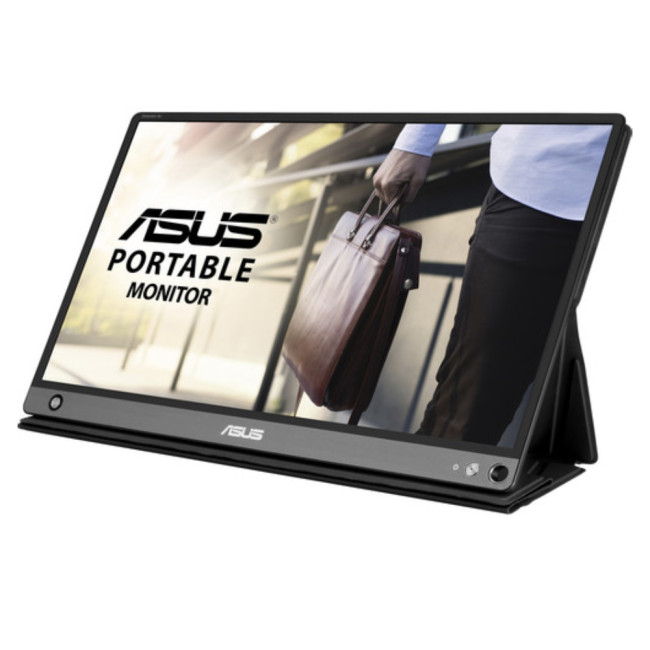
- Screen Size: 15.6"
- Panel Type: IPS
- Resolution: 1920 x 1080 (Full HD)
- Refresh Rate: 60 Hz
- Response Time: 5 ms
- Brightness: 220
Last Updated: April 08, 2026
Halloween’s here and while most people are stocking up on sweets, the real treats are happening over at Laptop Outlet’s Halloween Sale. If you’ve been eyeing a new monitor, this is your moment. The discounts this year are no joke: from affordable 60 Hz office screens to lightning-fast 400 Hz gaming beasts, prices are dropping faster than a horror-movie jump scare.
Whether you’re chasing smoother frames, better colours, or a proper upgrade for your setup, this sale has something for every type of user. Think premium displays from trusted brands, curved and ultrawide options, and refresh rates that make your old monitor feel prehistoric.
Over the next few minutes, we’ll walk you through the best picks across every price and performance tier, so you can upgrade smartly before these Halloween deals disappear into
Why Halloween Is the Best Time to Snag a Monitor
Here’s the thing: Halloween has quietly become the underrated season for tech deals. While everyone’s waiting for Black Friday, Laptop
Last Updated: August 25, 2026
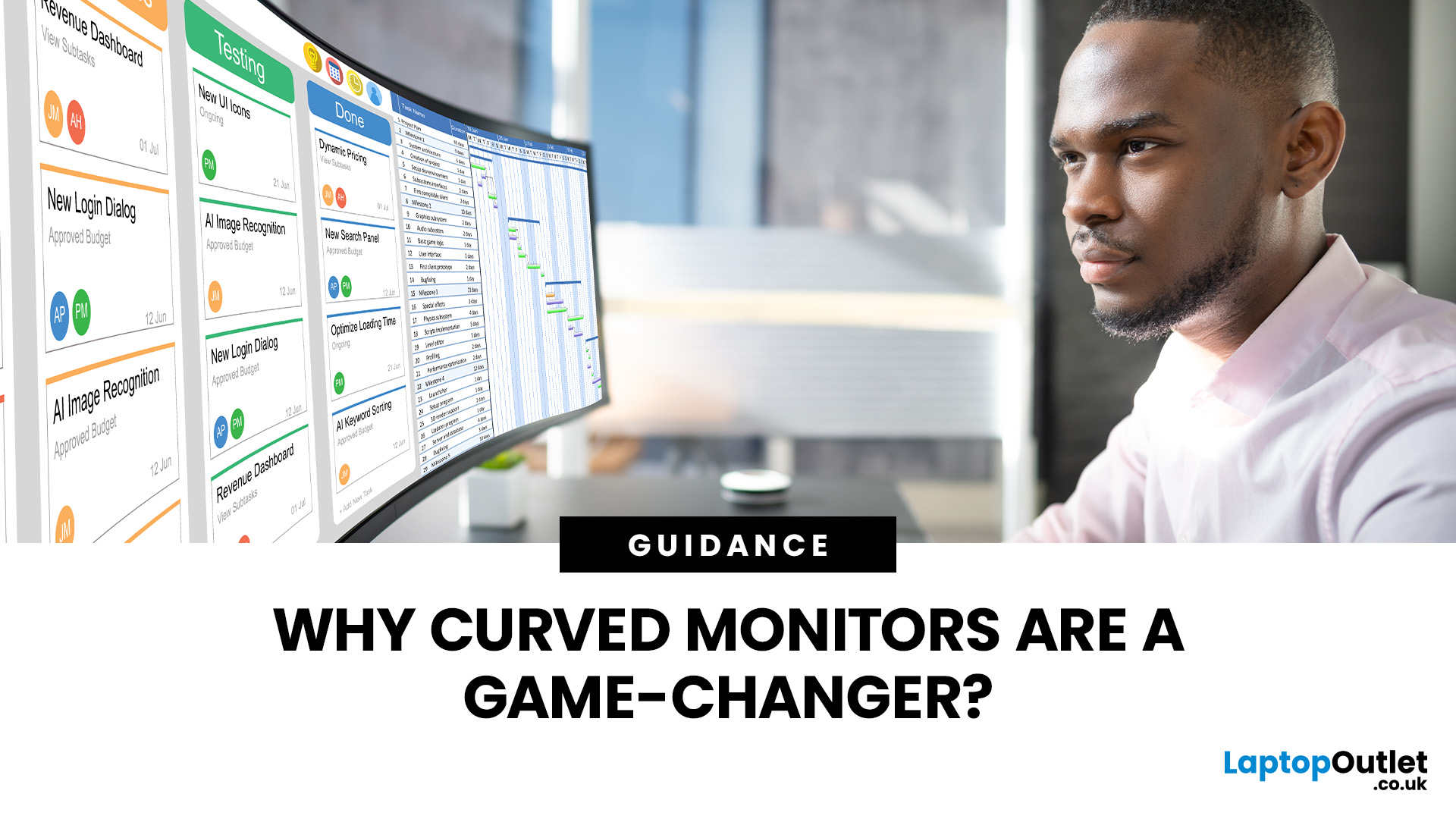
A bigger monitor gives you more room to work, watch and play, but wider flat screens can place their outer edges noticeably farther from your natural viewing position. Curved monitors address this by bringing those edges towards you, creating a more cohesive view across the screen.
That difference is useful far beyond gaming. From managing multiple work windows to editing timelines, watching films or creating a more immersive setup, the right curved monitor can make a large display feel easier and more engaging to use.
What Makes a Curved Monitor Different?
Curved computer displays change the relationship between your eyes and a wide screen. Instead of stretching straight across the desk, the edges angle gently towards your viewing position.
Monitor curvature is measured using figures such as 1000R, 1500R and 1800R. The number represents the radius of the curve in millimetres, with a lower number indicating a tighter, more pronounced curve.
| Curvature | How It Feels | Often Suited To |
| 800R-1000R |

