



Can You Upgrade an All-in-One PC? RAM, SSD and Graphics Limits
Yes, you can upgrade an all-in-one PC in some cases, but the options are more limited than on a traditional desktop. RAM and SSDs are usually the most realistic upgrades, although compatibility and internal access depend on the exact model. Replacing the processor or graphics card is rarely practical.
Before spending money on new components, it's worth checking whether an upgrade will actually solve your performance problems. Sometimes, adding memory or replacing an older drive is enough. Other times, the limitations of an all-in-one PC make replacement the more sensible investment.
Which All-in-One PC Parts Can You Upgrade?
An all-in-one PC combines the computer and display in one unit, leaving less room for replaceable components. Some models provide accessible memory and storage slots, while others have soldered parts or require extensive disassembly.
Here's what an all-in-one PC upgrade typically involves.
|
Component |
Upgrade possibility |
Main limitation |
|
RAM |
Possible on selected models |
Soldered memory, limited slots or maximum capacity |
|
SSD |
Often possible on supported models |
Drive compatibility, available slots and internal access |
|
Graphics card |
Generally not possible |
Integrated graphics, limited space and cooling |
|
Processor (CPU) |
Usually impractical |
Soldered CPU, motherboard and cooling restrictions |
Can You Upgrade RAM in an All-in-One PC?
An all-in-one PC RAM upgrade can improve multitasking if your existing memory is insufficient. For example, moving from 8GB to 16GB may help when you regularly use multiple applications or browser tabs.
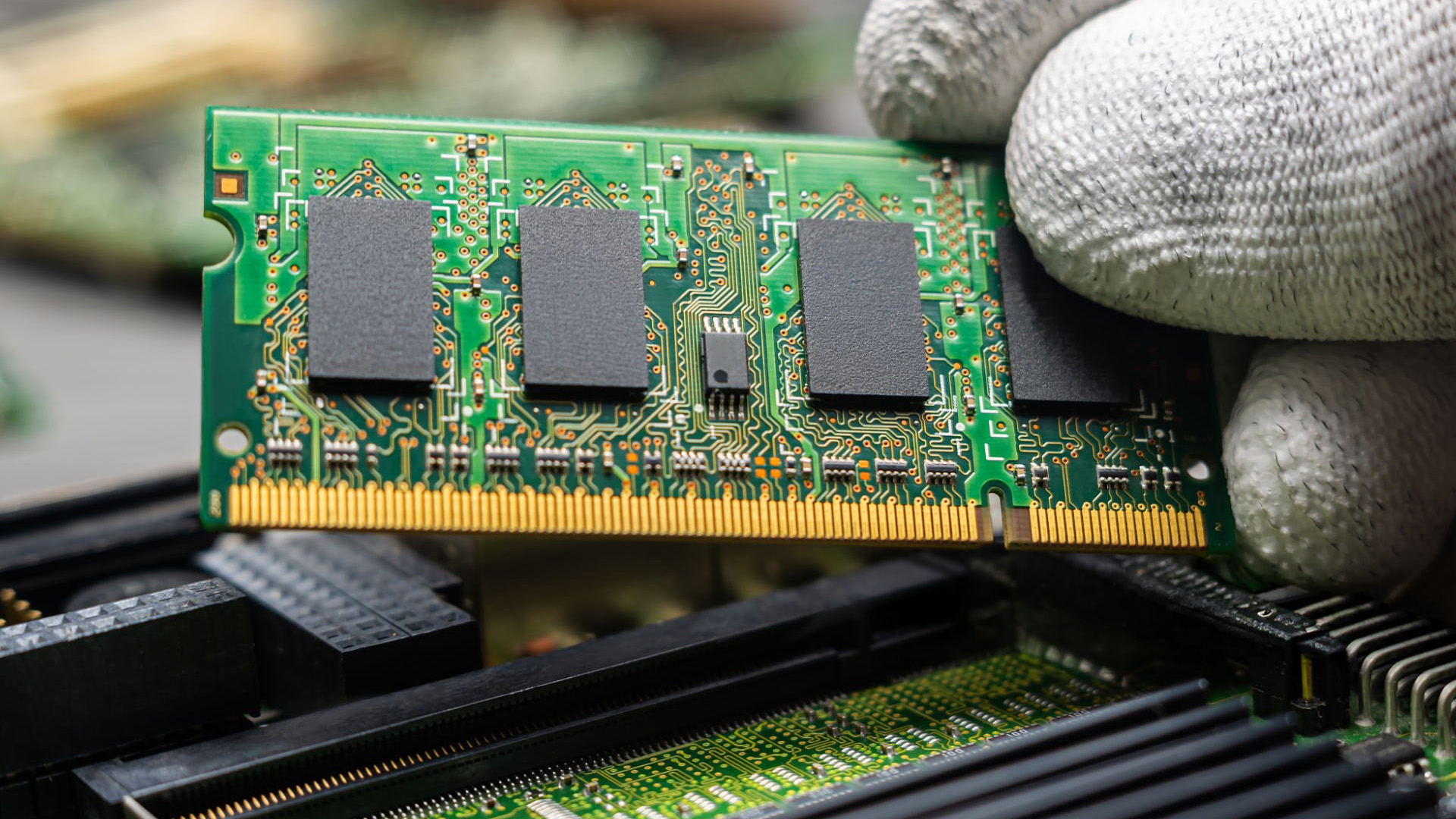
Many all-in-one computers use SO-DIMM memory, the compact modules commonly found in laptops. However, some models have soldered RAM or already operate at their maximum supported capacity.
Before choosing SO-DIMM memory modules, check your model's memory type, available slots and supported capacity. Adding RAM won't solve slow performance caused primarily by an outdated processor.
Can You Upgrade the SSD in an All-in-One PC?
An all-in-one PC SSD upgrade can be worthwhile, particularly if your computer still uses a traditional hard drive. Replacing it with an SSD can improve Windows startup times, application loading and general responsiveness.
Some AIOs support 2.5-inch SATA SSDs, while others use compact M.2 drives. However, not every M.2 slot supports the same interface, and some computers have limited internal access.
If your main concern is running out of storage, an external SSD or hard drive may be a simpler solution. You can keep Windows, applications and frequently used files on your internal SSD while storing large files, photos, videos and backups on an external drive. This avoids opening the computer just to gain additional storage space.
If you do need to replace the internal drive, check the manufacturer's service documentation before selecting from compatible internal solid-state drives. Back up important files before replacing an existing drive.
Can You Upgrade an All-in-One PC Graphics Card?
An all-in-one PC graphics card upgrade is generally impractical. Most AIOs use integrated graphics or specially designed internal hardware, without the space, power supply or cooling required for a conventional desktop graphics card.
Some specialised systems may support external graphics hardware, but a USB-C port alone does not guarantee compatibility.
If your existing computer struggles with demanding games, 3D modelling or graphics-intensive applications, replacing its RAM or SSD won't fix an inadequate GPU. In such cases, tower desktop systems with suitable dedicated graphics may provide a more practical solution.
Can You Upgrade the Processor in an All-in-One PC?
Processor upgrades are usually difficult or unsupported. Many AIO processors are soldered directly to the motherboard, while others have restrictions involving the processor socket, cooling system or firmware.
Even when a processor is physically removable, that doesn't guarantee a compatible upgrade exists.
If your computer's CPU can no longer handle your everyday software, replacing the system may offer better value than attempting a complicated hardware change.
Before opening any AIO, check the exact model's service manual, warranty conditions and safe servicing instructions. A compatible component is not necessarily straightforward to install.
All-in-One PCs to Consider When Upgrading Isn't Practical
If your existing AIO has fixed memory, an ageing processor or graphics limitations, purchasing a replacement may be more worthwhile than investing in upgrades that cannot address the underlying problem.
When comparing all-in-one PCs, consider whether you need a larger screen for home working, a shared family computer or a system with Windows 11 Pro for business use
HP 27-cr0000na: For a Larger Home Workstation
The HP 27-cr0000na is worth considering if your older AIO struggles with everyday multitasking and you also want a physically larger display. Its AMD Ryzen 7 7730U processor, 16GB DDR4 RAM and 512GB SSD provide a capable setup for spreadsheets, video calls, browsing and other home-office tasks. The 27-inch Full HD screen offers a larger viewing area, although its integrated AMD Radeon graphics are not intended for demanding gaming or intensive 3D workloads.

Lenovo IdeaCentre AIO 24ARR9: For a Shared Study PC
The Lenovo IdeaCentre AIO 24ARR9 is a practical replacement for an ageing family computer that struggles with coursework, multiple browser tabs and everyday applications. It combines an AMD Ryzen 5 7535HS processor, 16GB DDR5 RAM and a 512GB SSD with a 23.8-inch Full HD display. Its existing 16GB memory configuration makes it better suited to someone wanting a capable, ready-to-use system rather than someone planning substantial future RAM expansion.
Dell Pro 24 QC24250: For Demanding Office Workloads
For offices where an older AIO struggles with larger spreadsheets, business applications or frequent multitasking, the Dell Pro 24 QC24250 offers a more capable replacement. Its Intel Core Ultra 7 265 processor, 16GB DDR5 RAM and 512GB SSD are paired with Windows 11 Pro and a 24-inch Full HD touchscreen. This combination is particularly useful for business users who need reliable everyday productivity and a responsive workspace for managing multiple tasks.

Final Thoughts: Upgrade or Replace Your All-in-One PC
An all-in-one PC upgrade is worth considering when compatible RAM or SSD storage can solve a specific performance problem without significant expense.
However, if your processor is outdated, the memory cannot be expanded or the graphics hardware no longer meets your needs, replacement is often the more practical option.
The important thing is to avoid spending money on an upgrade that won't address the real limitation. Depending on your requirements, you can compare all-in-one systems and other suitable alternatives within the wider desktop computer range.

Frequently Asked Questions
Are All-in-One PCs Upgradeable?
Some all-in-one PCs support RAM and SSD upgrades, but others have soldered components or restricted internal access. Processor and graphics upgrades are generally impractical. Always check the service documentation for your exact model.
Can I Upgrade the SSD in an HP All-in-One PC?
Yes, selected HP all-in-one PCs support SSD upgrades. However, the supported drive type, capacity and installation procedure vary between models. Check your HP product number and service manual before purchasing a replacement SSD.
Can I Upgrade RAM in a Lenovo All-in-One PC?
Some Lenovo AIOs have replaceable memory. For example, the IdeaCentre AIO 24ARR9 has two DDR5 SO-DIMM slots, with tested memory configurations up to 16GB. Check your specific model's supported memory capacity before purchasing additional RAM.
Can You Upgrade the Graphics Card in an All-in-One PC?
Usually not. Most all-in-one PCs lack a conventional graphics card expansion slot and sufficient internal space or cooling. Integrated graphics are typically not replaceable, so a system replacement may be necessary for substantially better graphics performance.
How Do You Upgrade the Processor in an All-in-One PC?
Most all-in-one PC processors cannot be upgraded practically because they are soldered or restricted by motherboard, cooling and firmware compatibility. If CPU performance is holding you back, replacing the computer is generally more sensible than attempting a processor upgrade.
Related Articles

Last Updated: May 01, 2026
If your laptop feels slow to boot, takes too long to open files, or struggles with everyday performance, it may be time to clone hard drive to SSD and give your system a faster, more responsive upgrade. Moving from a traditional hard disk drive to a solid-state drive is one of the most effective ways to improve speed without replacing your entire device.
In this guide, you’ll learn how to clone a hard drive safely, what you need before you start, and how to handle the SSD migration process step by step. Whether you want to clone HDD to SSD for quicker startup times or simply transfer hard drive to SSD without losing your files, this guide will help you do it with confidence.
Why Upgrade from HDD to SSD?
A hard disk drive stores data using moving parts, while an SSD uses flash memory to access files much faster. That means quicker boot times, faster app launches, smoother multitasking, and less waiting around. If you use your laptop daily for work, study, browsing, or entertainment, choosing
Last Updated: May 01, 2026
Formatting an SSD takes less than five minutes when you know what you're doing. The tricky part is knowing which tool to use, which file system to pick, and how to avoid losing data along the way. That's exactly what this guide covers.
You will learn how to format a solid state drive on Windows, macOS, and Linux laptops, with step-by-step instructions for each. You'll also find out how to partition your SSD and wipe it securely when needed.
Before You Start: What You Need to Know
Before you touch any settings, take a few minutes to prepare. Skipping this stage is the most common reason people run into problems when setting up or reformatting a drive.
Back Up Your Data First
Formatting wipes everything. Every file, folder, and installed programme will be gone.
- Copy important files to a USB drive or cloud storage
- Use an external drive for large backups (if you need one, you can buy external hard drive options from Laptop Outlet)
- Double-check your backup before proceeding
There's no undo
Last Updated: May 01, 2026
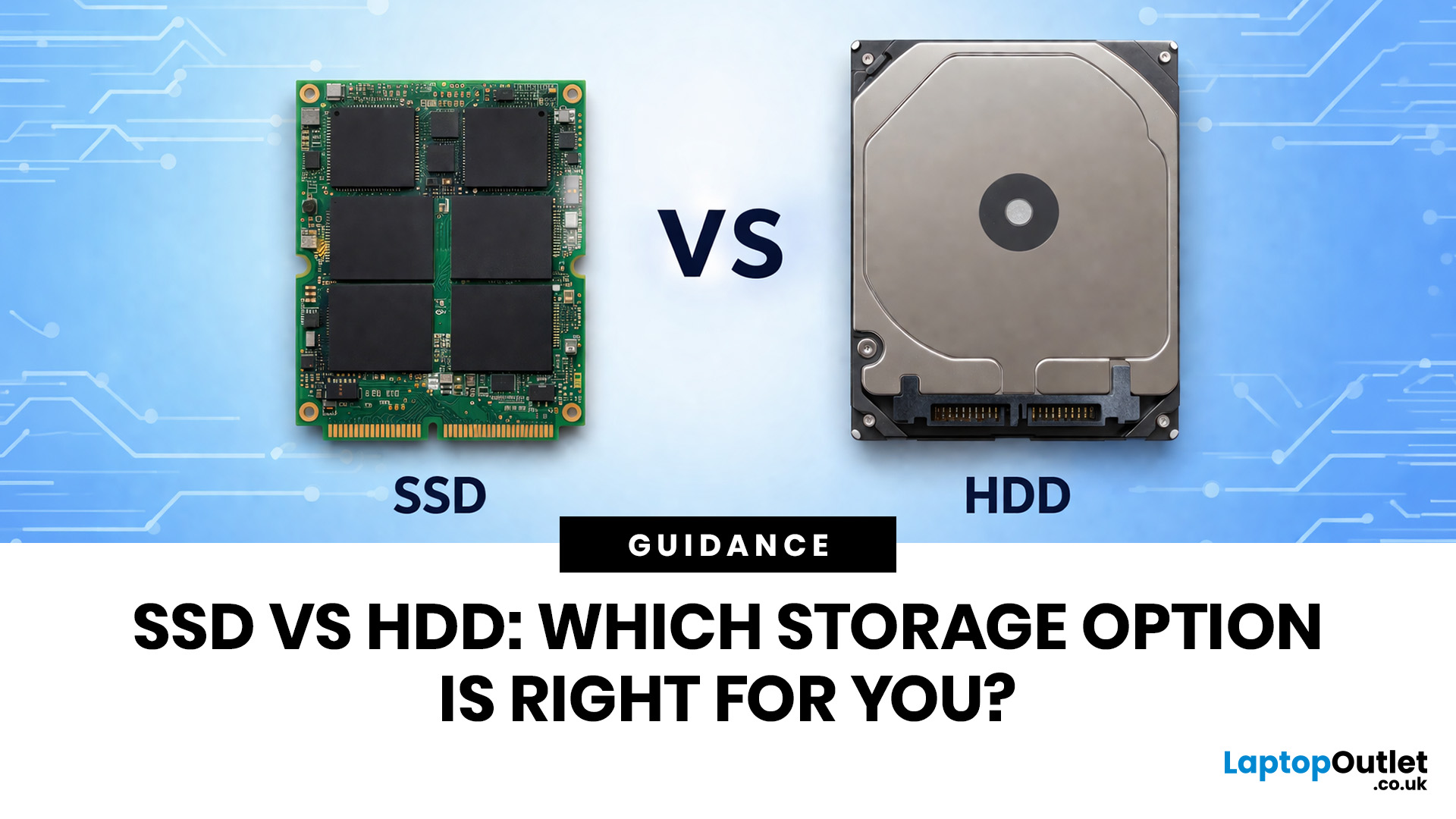
Your laptop can have a great screen, a decent processor, and enough RAM to survive the day, but if the storage is slow, the whole thing still feels off. That is why the SSD vs HDD laptop debate matters more than most people think. One option is built for speed, faster boot-ups, quicker app launches, and way less waiting around. The other is better known for giving you more storage for less money.
So which one actually makes sense for you?
That depends on how you use your laptop. If you want something that feels fast, smooth, and ready to move when you are, an SSD usually wins. If you need loads of space without spending too much, an HDD can still hold its ground.
In this guide, we will break down the real difference between HDD and SSD drives, compare speed, lifespan, value, and help you figure out which one is actually worth it.
SSD vs HDD laptop: what is the actual difference?
An HDD, or hard disk drive, is the old-school storage option. It stores your files, apps, operating system,
Last Updated: May 01, 2026
The computer that helped guide the Apollo missions worked with just 4 KB of RAM and around 72 KB of stored memory. Today, a modern laptop can burn through more than that just opening a few tabs.
That is how fast tech has moved and why an older laptop can suddenly feel frustratingly slow. Long boot times, laggy apps, and constant low-storage warnings can make even simple tasks feel harder than they should.
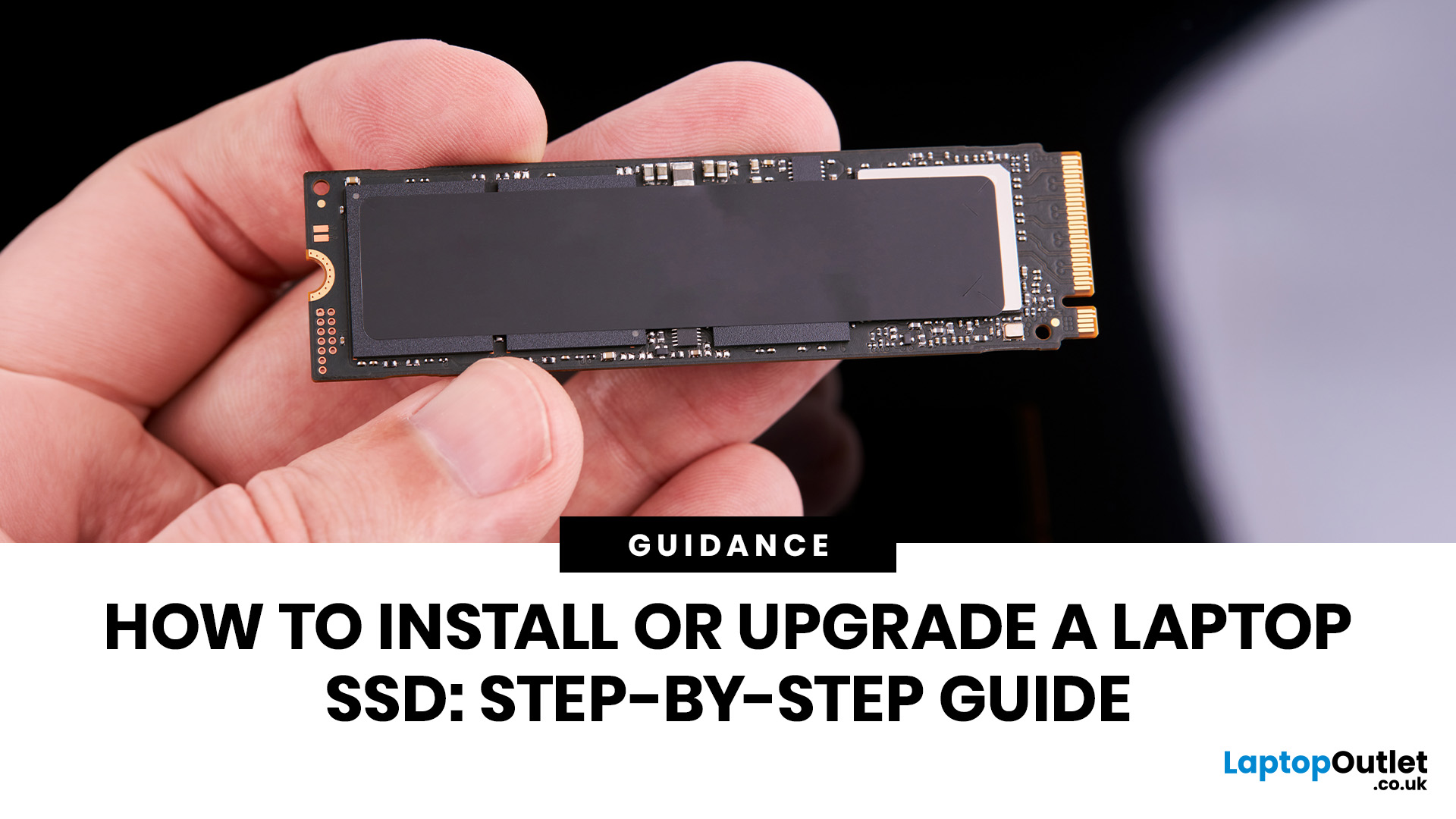
The good news is that you do not always need a brand-new machine. In many cases, upgrading your SSD is one of the easiest ways to make your laptop feel faster, smoother, and far more usable.
In this guide, we will show you how to upgrade a laptop SSD step by step, from checking compatibility to choosing the right drive and installing it properly.
Why upgrading your laptop SSD is worth it
Faster boot times, file transfers, and app loading
A slow laptop gets old fast. Long startup times, laggy apps, and endless waiting usually point to one thing: slow storage.
That is why how to upgrade
Published: September 18, 2026
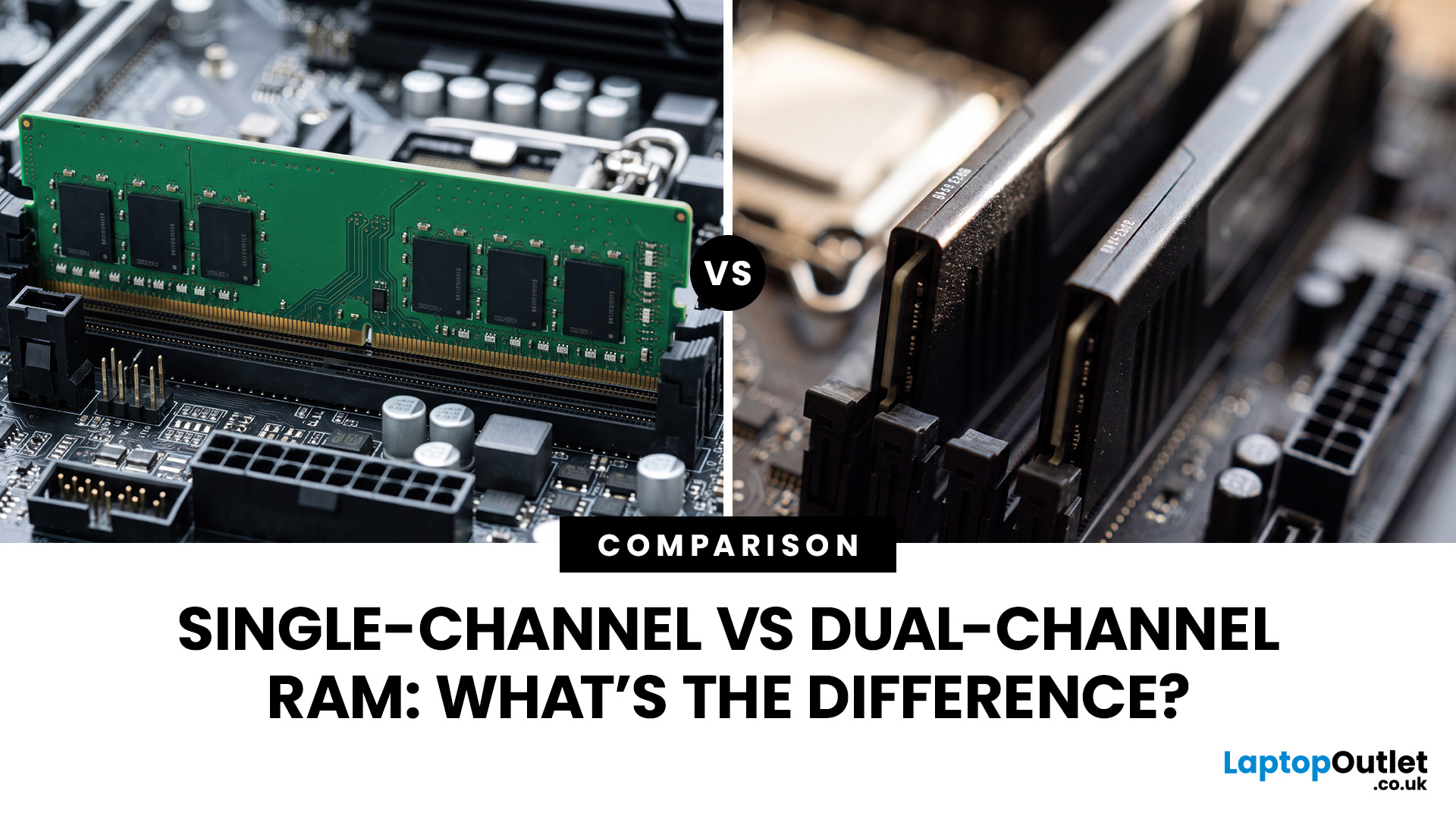
The difference between single channel vs dual channel RAM comes down to how the processor communicates with your system memory. Single-channel memory uses one system memory channel, while dual-channel memory uses two, allowing more data to move between the RAM and processor at the same time.
That extra memory bandwidth can improve performance in workloads that rely heavily on memory access. However, dual-channel RAM does not automatically make a desktop PC twice as fast. The difference you notice depends on the processor, graphics hardware, application and memory configuration.
If you are choosing new RAM and memory kits, understanding how channels work can help you decide whether one larger module or two smaller modules make more sense.
Single-Channel vs Dual-Channel RAM at a Glance
Here is the practical difference between the two configurations:
| Options | Single-Channel RAM | Dual-Channel RAM |
| System memory channels used | One | Two |
| Common configuration | 1x16GB | 2x8GB |
| Available memory bandwidth |

Last Updated: September 18, 2026
Installing RAM looks simple until you see four motherboard slots labelled A1, A2, B1 and B2. Put the memory in the wrong pair and your PC may still boot, but you might not be using the motherboard’s recommended memory configuration.
So, which RAM slots to use? On many four-slot desktop motherboards, a single stick goes in A2, while two sticks go in A2 and B2. With four compatible sticks, all four slots are populated. However, this is not a universal rule. Your motherboard manual should always take priority.
If you are upgrading capacity or building a PC, it is also worth checking that your RAM and memory modules are compatible with the motherboard before deciding where they go.
What Do A1, A2, B1 and B2 RAM Slots Mean?
Most mainstream desktop motherboards with four DIMM slots divide them between two memory channels, commonly called Channel A and Channel B.
The labels normally work like this:
| Slot | What the label usually means |
| A1 | First DIMM position on Channel A |
| A2 | Second DIMM position |
Last Updated: September 24, 2026
Published: September 22, 2026
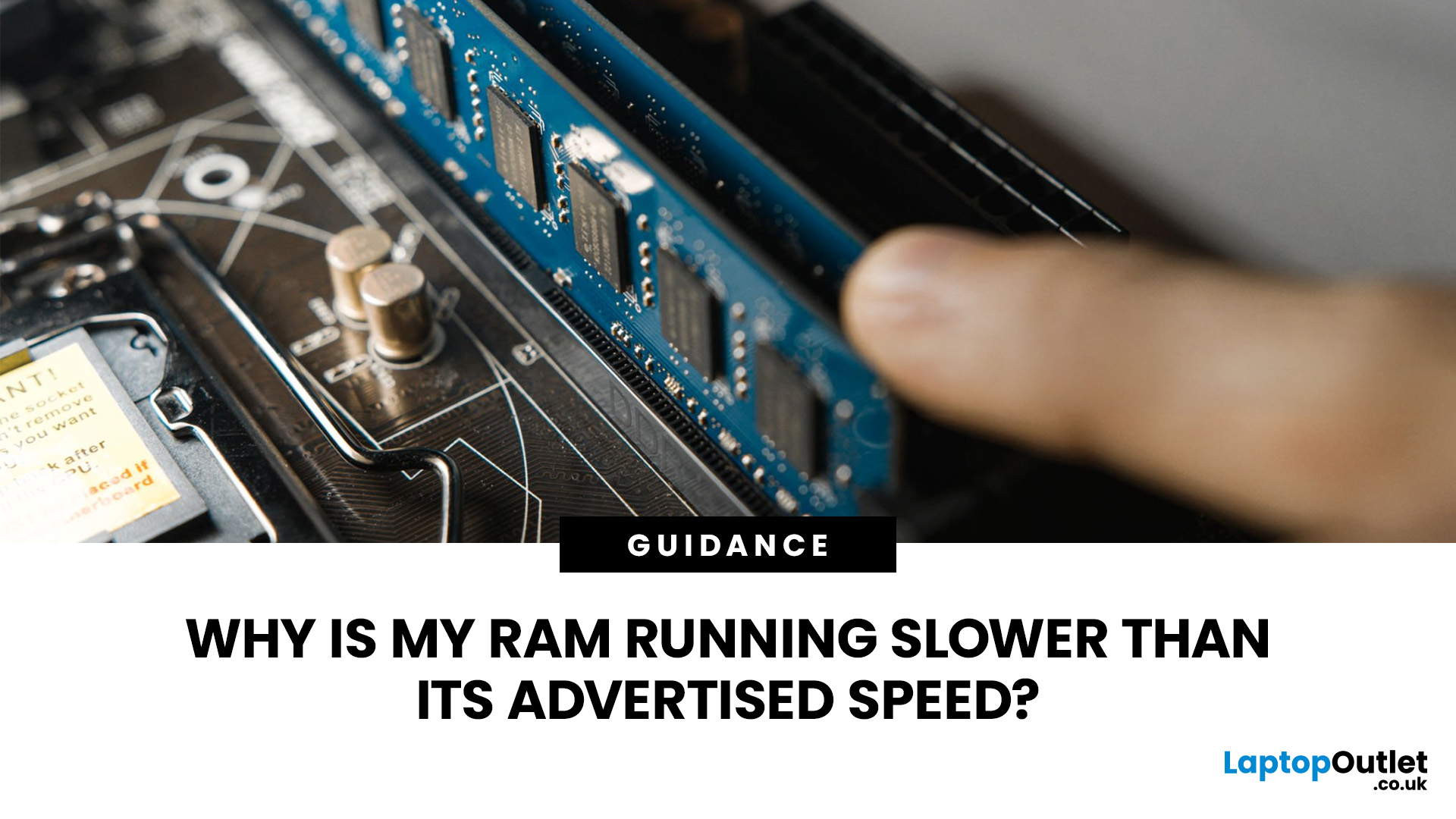
Buying fast DDR5 RAM is only part of getting the performance printed on the box. Your memory may initially run at a lower standard speed until you enable the appropriate performance profile in your motherboard BIOS.
That is where Intel XMP and AMD EXPO come in. Both are RAM overclocking profiles that apply tested memory frequency, timing, and voltage settings without requiring you to configure every value manually.
So, what is the difference between XMP vs EXPO, and can you use an XMP kit with AMD or EXPO memory with Intel? Here is what you need to know before choosing or configuring your RAM.
XMP vs EXPO: What is the Difference?
The simplest distinction is the platform each standard was developed for.
Intel XMP, or Extreme Memory Profile, is Intel's memory-overclocking technology. AMD EXPO, or Extended Profiles for Overclocking, was developed for DDR5 memory used with AMD Ryzen processors on the AM5 platform.
Both technologies let a compatible motherboard read preconfigured performance
Published: September 22, 2026
SSDs are fast. Like, really fast and tiny. And now we’re apparently supposed to worry about them getting too hot??
So… do SSDs actually need extra cooling, or are we just putting tiny heatsinks on everything because we can? It’s a fair question, especially now that modern SSDs are cramming more speed into less space and casually generating more heat while doing it.
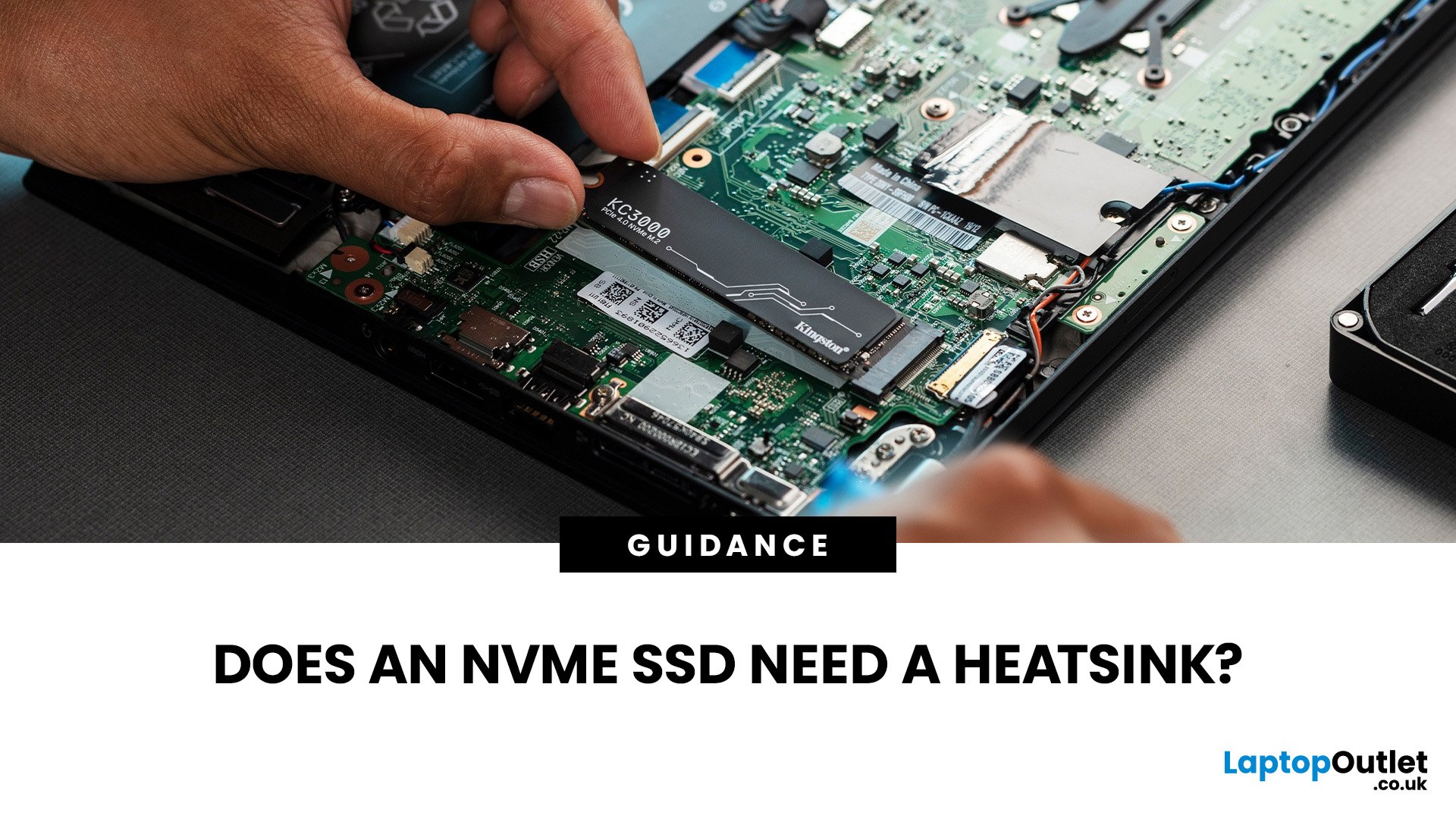
An NVMe SSD heatsink is not essential for every drive, but it can help maintain stable performance when an SSD runs hot during sustained workloads. High-performance PCIe 4.0 and PCIe 5.0 drives are more likely to benefit from additional SSD cooling, especially if airflow is limited. If your motherboard already includes an M.2 SSD heatsink, that may be sufficient. Always check the SSD manufacturer’s temperature limits and cooling guidance before adding extra cooling.
Whether you need one depends on your SSD, workload, airflow and the cooling already available in your system. Many drives can maintain safe temperatures using normal
Last Updated: September 25, 2026
Two SSDs can both claim seriously fast read speeds while hiding one pretty important difference: one has dedicated DRAM, and the other does not.
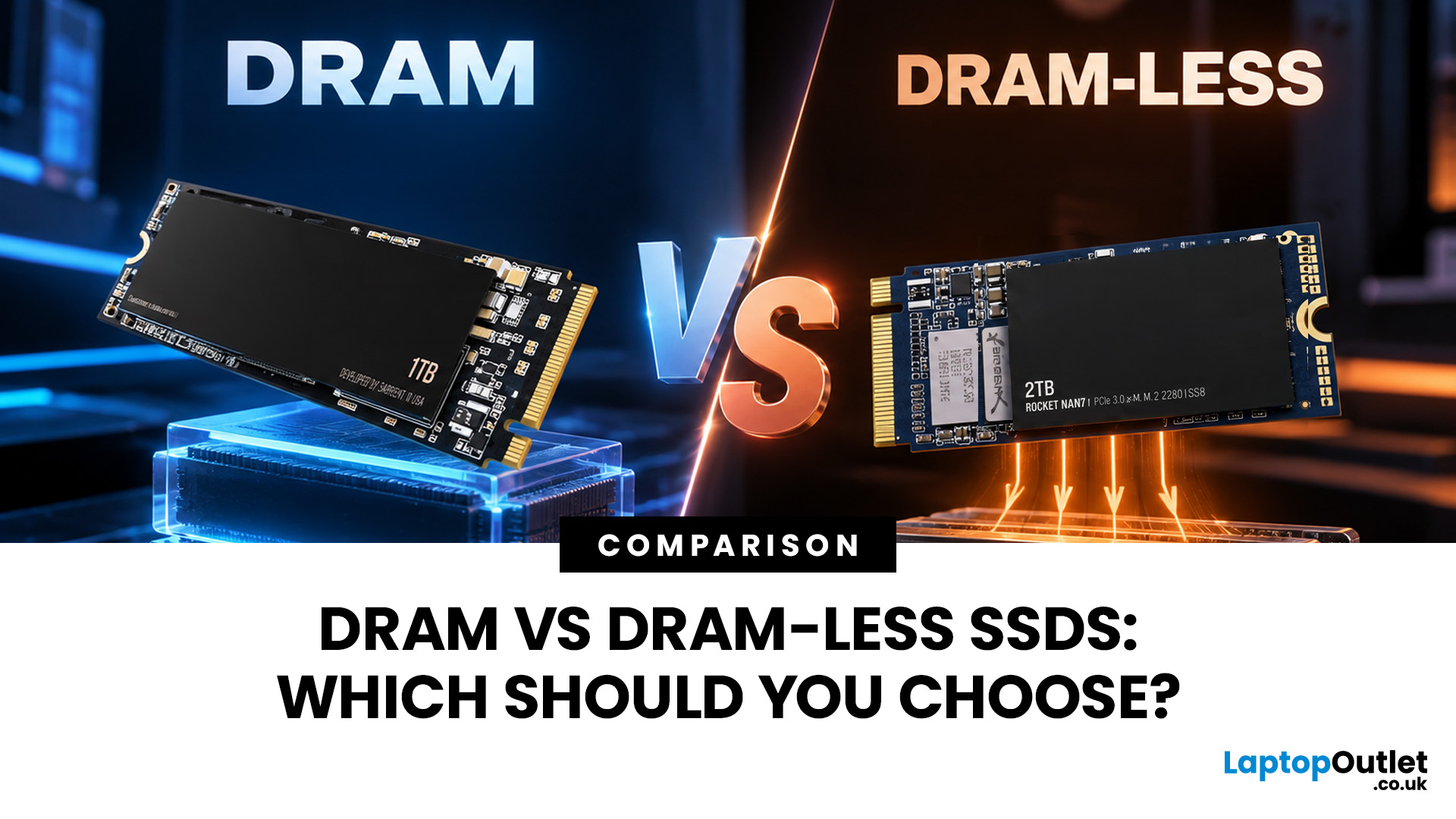
A DRAM vs DRAM-less SSD choice depends on how you use your PC. SSDs with DRAM generally offer more consistent random performance and sustained speeds, making them better suited to heavy workloads, large file transfers and professional use. Modern DRAM-less NVMe SSDs can still perform very well by using Host Memory Buffer (HMB), making them a strong choice for gaming, Windows 11 and everyday computing.
But the DRAM vs DRAM-less SSD debate is not as simple as “DRAM good, DRAM-less bad”. Modern NVMe drives have changed the game with Host Memory Buffer, smarter controllers and better caching. So, what actually matters when choosing one? Let’s break it down.
DRAM vs DRAM-Less SSD: Quick Answer
An SSD with DRAM has dedicated memory that helps its controller quickly locate and manage data stored across the NAND flash. This can improve responsiveness and

