



What is Razer Synapse 4? Everything Gamers Need to Know
From mouse sensitivity and key commands to macros and RGB lighting, Razer Synapse 4 puts your entire compatible Razer gaming setup under one control panel.
Razer Synapse 4 is Razer’s free device-management software for compatible gaming laptops, mice, keyboards, headsets, controllers and RGB accessories. It gives gamers one place to change performance settings, remap controls, create profiles and macros, and manage lighting. The software is not required for every basic device function, but it unlocks the advanced features that make Razer hardware more customisable.
Synapse 4 replaces Razer Synapse 3 as the main platform for new features and cloud profiles. It adds a redesigned interface, multi-threaded architecture and migration tools. This guide explains how it works, which devices it supports and which settings are worth using.
What Does Razer Synapse 4 Do?
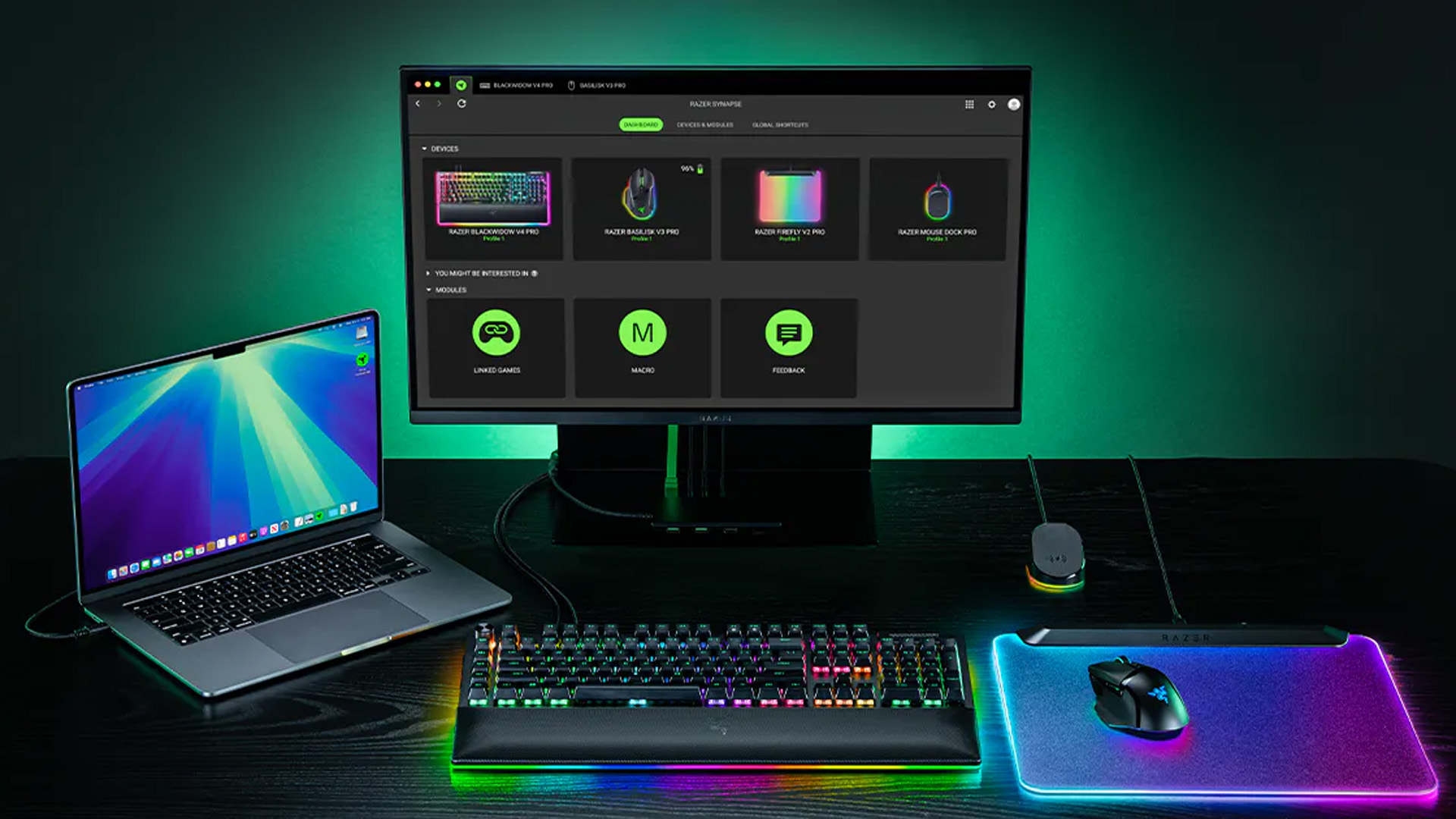
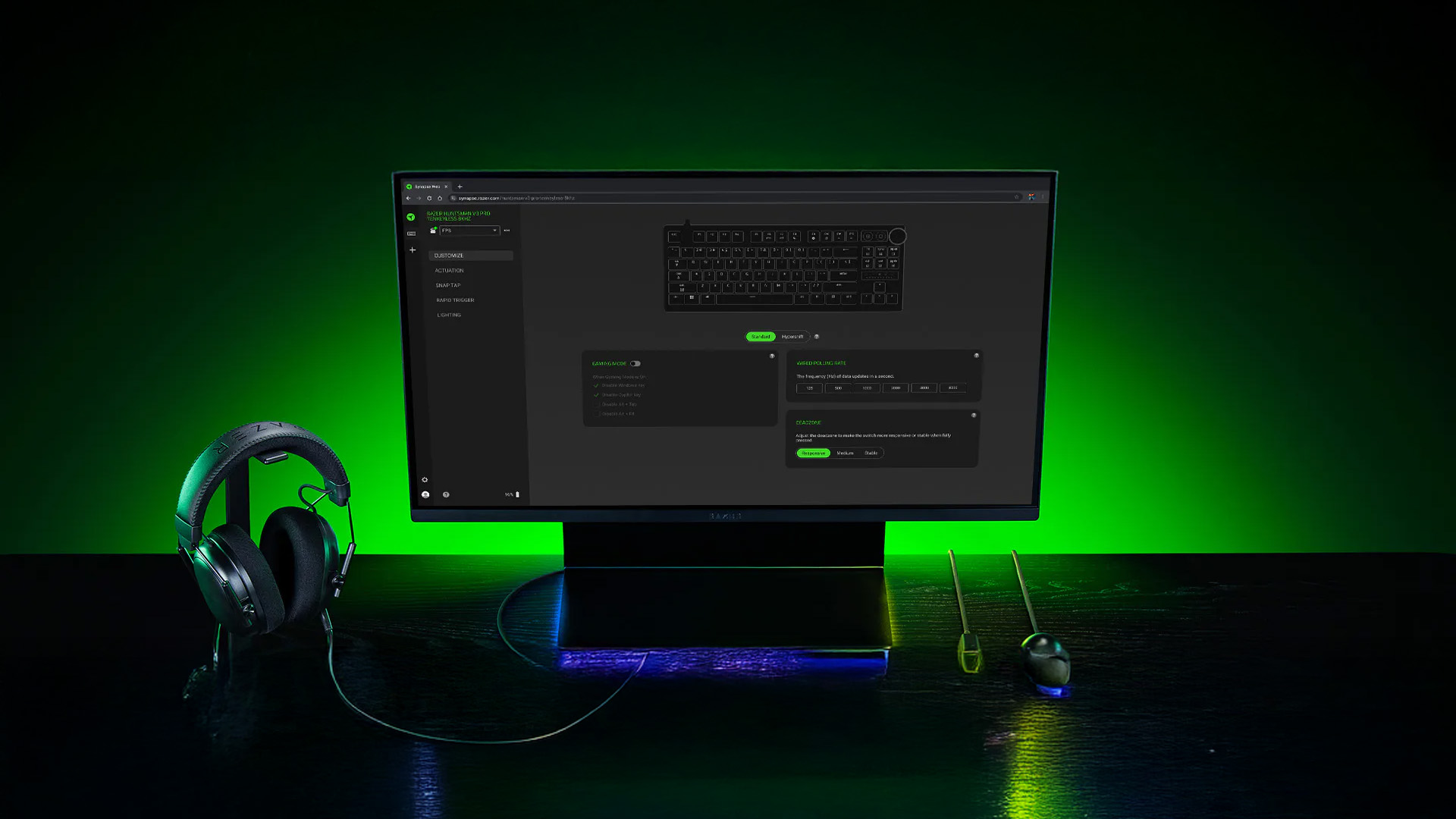
The Razer Synapse 4 software acts as a control centre between your computer and supported Razer hardware. After you connect a device, it appears on the dashboard with the settings available for that model. A mouse may show sensitivity, polling rate and button assignments, while a keyboard may offer key remapping, gaming mode, actuation controls and lighting.
Its main functions include:
- Changing mouse DPI, polling rate and surface calibration
- Remapping keyboard keys, mouse buttons and controller inputs
- Creating profiles for different games and applications
- Assigning macros and Razer Hypershift functions
- Controlling lighting through Razer Chroma RGB
- Linking profiles to games for automatic switching
- Managing supported laptop performance and lighting options
Available controls vary by product, and some lighting or performance settings only work on specific hardware.
Razer Synapse 4 vs Razer Synapse 3
Razer Synapse 3 established the cloud-based system for configuring Razer devices, but Synapse 4 is now the version receiving the main feature development. Razer rebuilt it around a multi-threaded architecture and states that overall processing can be up to 30% faster than Synapse 3 under its test conditions.
|
Area |
Razer Synapse 3 |
Razer Synapse 4 |
|
Development focus |
Maintenance and essential fixes |
Current platform for new features |
|
Architecture |
Older software foundation |
Multi-threaded design |
|
Interface |
Familiar but more fragmented |
Cleaner dashboard and navigation |
|
Profile transfer |
Original profile format |
Built-in migration tools |
|
Device support |
Existing supported hardware |
Backwards compatible with Synapse 3 devices |
|
Cloud services |
Ended on 3 February 2026 |
Active cloud profile support |
The newer architecture separates device processes, reducing the chance that one product update interrupts another. Synapse 3 can still configure locally installed devices, but it no longer receives updates or supports cloud syncing. Installing Synapse 4 removes Synapse 3 automatically, and running both together is not recommended.
Which Features Matter Most for Gamers?
Mouse Sensitivity and Polling Rate
For a compatible gaming mouse from Razer, Synapse lets you set DPI stages and choose a supported polling rate. DPI controls cursor sensitivity, while polling rate describes how frequently the mouse reports movement to the computer.
Higher values are not automatically better. Competitive players often prefer one consistent DPI matched to their in-game sensitivity. Very high polling rates can improve input reporting on supported hardware, but they may also use more processor resources.
Surface calibration may help selected mice track more reliably when the cursor feels uneven or you change mouse mats.
Synapse 4 improves hardware control, but performance still depends on CPU, GPU and cooling. Buyers comparing gaming laptops can also check the MEDION ERAZER Deputy 15 P1’s specifications and gaming performance.
Key Remapping, Hypershift and Advanced Inputs
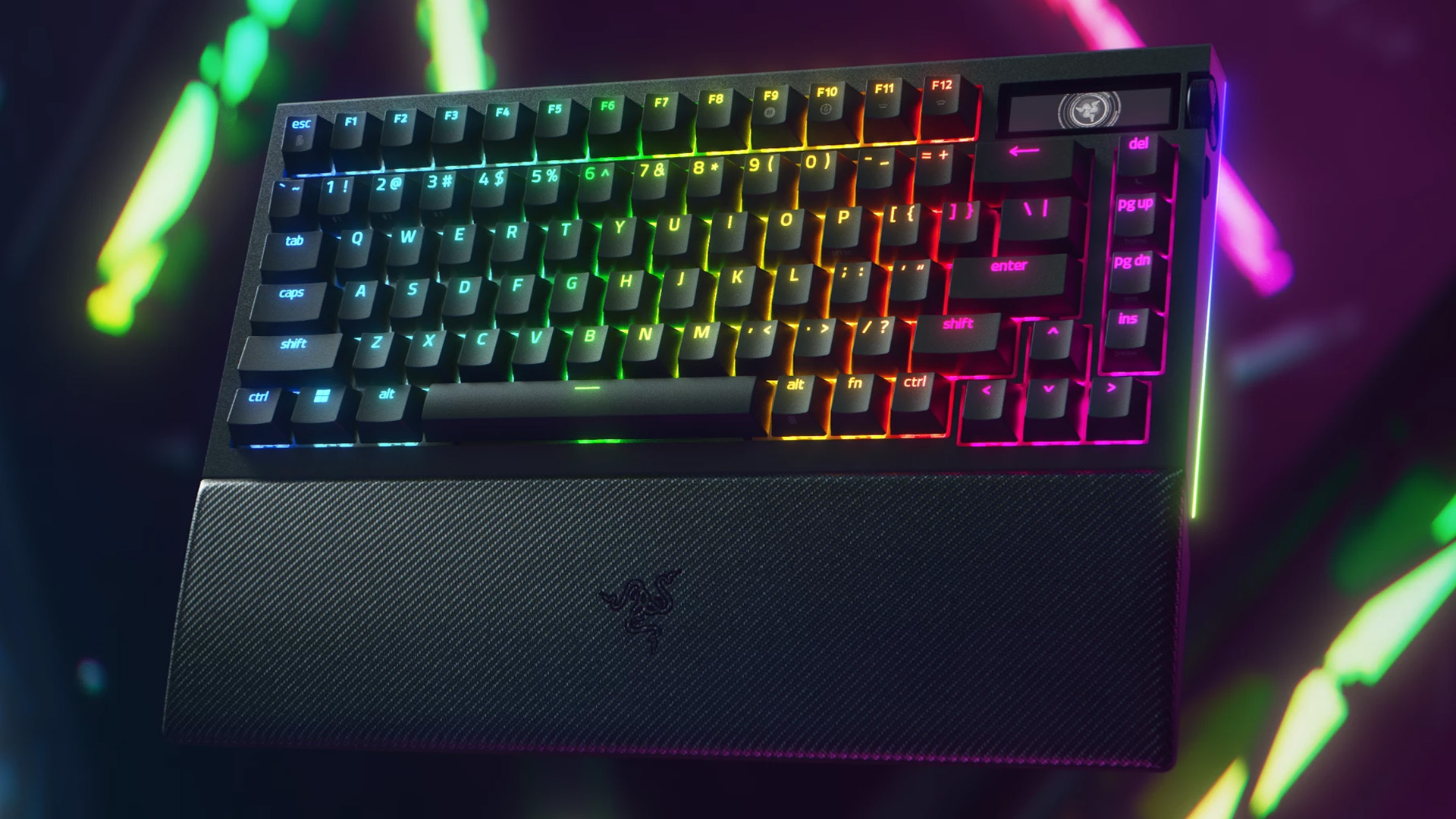
Compatible keyboards let you change key functions, use Gaming Mode and create a second command layer through Razer Hypershift. Holding the assigned button activates alternative bindings for media controls, push-to-talk or extra commands.
Some keyboards also offer Rapid Trigger, adjustable actuation or Snap Tap. These are hardware-dependent, and competitive players should check game rules before enabling input-priority features.
When comparing RGB keyboards for gamers, check the exact model’s switches, onboard memory and Synapse support rather than choosing on lighting alone.
Game Profiles and Linked Games
Profiles save different configurations for the same device, such as lower sensitivity for a tactical shooter or extra buttons for an MMO. Linked Games connects a profile or Chroma effect to a title and switches settings when it launches. Non-game applications can also be added.
Razer Synapse 4 Macro Controls
A Razer Synapse 4 macro records a sequence of keyboard presses, mouse actions and delays, then assigns it to a supported key or button. It can simplify repeated actions in productivity software and provide convenient command chains in games that allow them.
Open the Macro module, select New Macro, record the inputs and review the timing. Then assign it to an available control. Some keys, including Windows and Fn on certain products, cannot be reassigned.
Use macros responsibly. A productivity shortcut is different from automation designed to remove skill, repeat actions indefinitely or bypass a game’s rules.
Razer Chroma RGB Lighting
Razer Chroma RGB controls supported Razer products and compatible third-party hardware through the separate Chroma App, selected by default during installation.
Quick Effects provide simple options such as static, breathing or spectrum lighting. Advanced Effects offer detailed control over zones, layers and synchronisation. Supported games can also trigger reactive lighting for health changes, abilities or environmental effects.
A consistent profile can coordinate keyboards, mice, gaming headsets and laptop lighting without changing every product separately.
Razer Synapse 4 Supported Devices and Compatibility
Razer Synapse 4 compatibility covers all devices that were supported by Synapse 3, along with newer products developed for the current platform. The official list includes Razer Blade laptops, desktop hardware, mice, keyboards, mouse mats, audio products, controllers, monitors, streaming equipment and Chroma accessories.
Not every Razer product uses the same application. Older hardware and some console or mobile accessories may use separate tools, so search the official list by model number before installing.
Windows users need a 64-bit version of Windows 10 or Windows 11 for the full desktop application. Razer also offers a Synapse for Mac Preview for Apple silicon Macs running macOS 15 Sequoia or later, but its device list is still expanding.
Owners of a compatible Blade can explore Razer laptops that support system controls such as keyboard lighting and selected performance settings. The available options depend on the laptop generation and configuration.
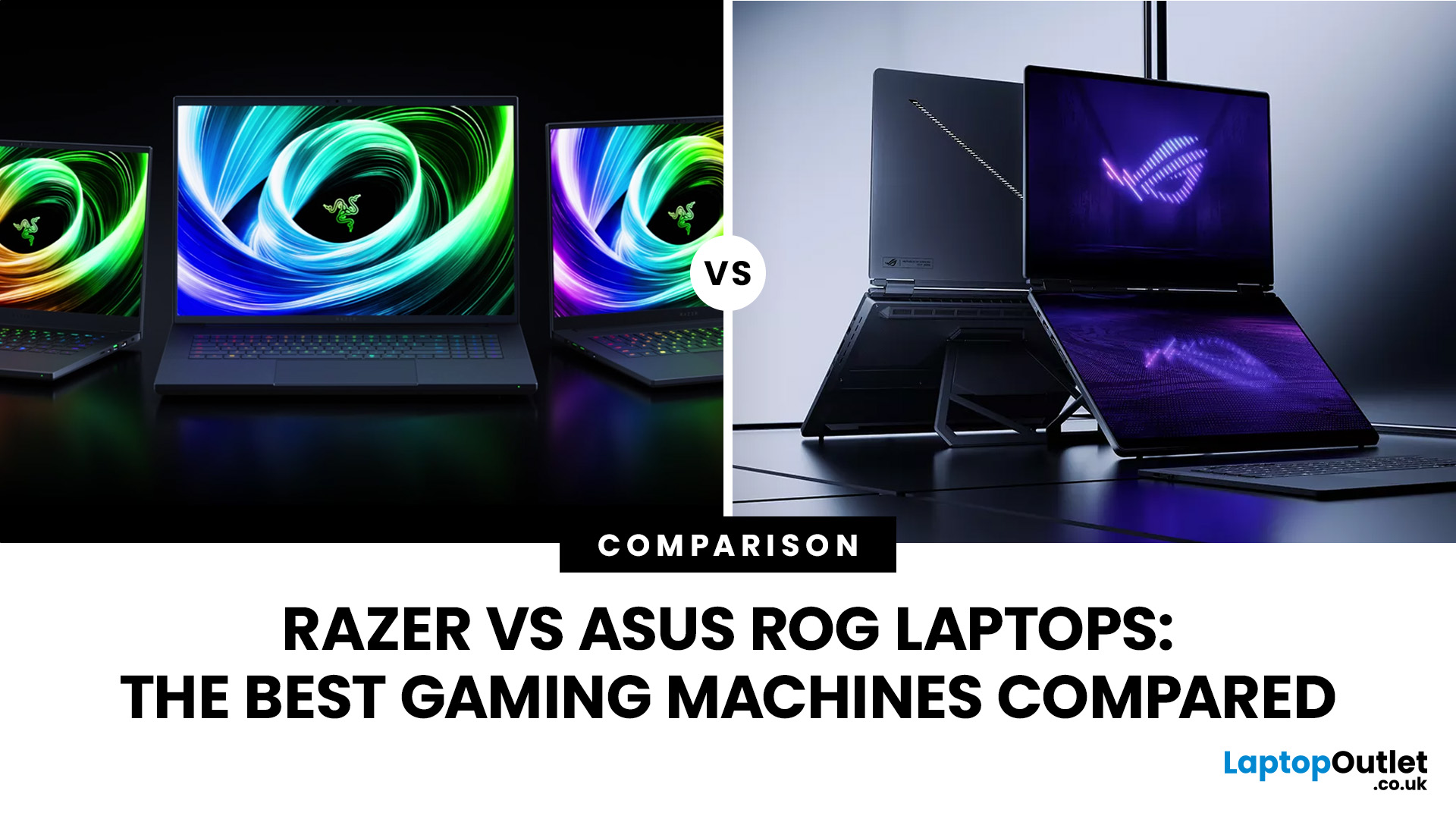
Gamers comparing Razer and ASUS ROG laptops should also consider how each brand’s software ecosystem manages performance modes, lighting, device profiles and connected gaming accessories.
How to Complete the Razer Synapse 4 Setup
Use the official Razer Synapse 4 download page rather than a third-party installer. This reduces the risk of outdated packages, unwanted software or modified files.
- Download the current installer from Razer.
- Run the file and approve the Windows security prompt.
- Accept the software licence agreement.
- Select Synapse 4 and decide whether to include the Razer Chroma App.
- Complete the installation and sign in with a Razer ID.
- Connect supported devices and allow their modules to install.
- Configure each device from the dashboard.
- Create profiles and link them to games where useful.
Internet is needed for the download, activation and updates. After a previous Razer ID login, many local functions can continue offline. Installing the new software removes Synapse 3 automatically, so back up important settings and use the Profile Migration Tool.
How to Move Profiles From Razer Synapse 3
The migration tool transfers supported profiles, macros and Chroma settings when Synapse 4 detects backed-up Synapse 3 data.
Select only the profiles you still use. If the tool cannot find one, the older data may not be stored locally, and Razer provides a separate recovery process for eligible cloud data.
Finish the migration, check your important settings and test each device in a familiar game before deleting separate backups.
Is Razer Synapse Necessary?
No, Razer Synapse is not necessary for every basic task. A mouse may still move and click, a keyboard may still type and a headset may still play audio without it. Advanced settings such as custom DPI stages, remapped controls, linked profiles, detailed lighting and macro creation depend on the software.
Some devices have onboard memory and can retain selected settings after Synapse closes or when they move to another computer. The number of profiles and settings stored locally varies by model. Cloud profiles, dynamic game switching, Chroma integrations and on-the-fly macro recording may still require Synapse to be installed or running.
For one simple peripheral, the software is optional if the default settings suit you. For several Razer devices or game-specific profiles, it becomes much more useful.
Common Razer Synapse 4 Problems and Quick Fixes
If a device is not detected, confirm that it appears on the supported list, connect it directly to another USB port, restart the computer and check for firmware or Synapse updates. Avoid an unreliable hub until the device works correctly.
If profiles are not switching, open Linked Games and confirm that the correct game executable, device and profile are connected. If an on-the-fly macro will not record, make sure Synapse is running in the system tray.
Lighting problems often come from conflicting RGB applications or a disabled Chroma Apps setting. Update the Chroma App, close other lighting tools temporarily and test a simple Quick Effect.
Display problems can occur below a 1024 × 720 resolution or with unusually high Windows scaling. Reset the display to a normal scale, restart Synapse and install the latest update. Persistent crashes or missing modules may require a clean reinstall.

Final Verdict
Razer Synapse 4 is the practical choice for gamers using current Razer hardware. It combines settings, profiles, macros, performance controls and lighting in a cleaner platform, while backwards compatibility makes upgrading easier for most Synapse 3 users.
It will not increase frame rates simply because it is installed, and not every player needs layers of profiles or RGB effects. Its real value is consistency: your preferred controls, sensitivity and device behaviour can follow the game or setup you are using.
Start with the settings that affect how you play, then add profiles, lighting and automation gradually. When upgrading the wider desk, compare top gaming setup accessories that support the features you will genuinely use.

FAQs
What Is Razer Synapse 4 Used For?
Razer Synapse 4 is used to configure compatible Razer devices. It can adjust mouse sensitivity, polling rates, key and button assignments, laptop settings, game profiles, macros and Razer Chroma RGB lighting.
Is Razer Synapse Free to Download?
Yes. Razer Synapse is free to download from Razer’s official website. Some functions require a supported device, a Razer ID and an internet connection for activation, syncing or updates.
Which Devices Are Compatible With Razer Synapse 4?
Synapse 4 supports devices previously supported by Synapse 3 and newer Razer products. These include selected laptops, mice, keyboards, audio devices, controllers, streaming equipment and Chroma accessories. Check the official list by model number because available features differ.
Can I Use Razer Synapse 4 Without Internet?
Many local features can work offline after installation and a previous Razer ID login. Internet access is still required for downloading the software, updates and cloud-dependent functions.
Does Razer Synapse 4 Work on Mac?
Razer offers a Synapse for Mac Preview for Apple silicon Macs running macOS 15 Sequoia or later. Device support is more limited than the Windows version, so check the Mac compatibility list before downloading.
| Read More: |
| Razer vs ASUS ROG Laptops: The Best Gaming Machines Compared |
| MEDION ERAZER Deputy 15 P1 Specs, Features and Gaming Performance |
| Medion vs HP Laptops: Affordable Choices for Everyday Users |
Related Articles

Last Updated: September 08, 2026
If you’re looking for a serious gaming laptop in 2026, two names will keep cropping up: Razer and ASUS ROG. Both brands produce high-performance machines with premium displays, powerful processors, and NVIDIA GeForce RTX graphics. However, they approach gaming laptops in noticeably different ways.
Razer Blade laptops generally prioritise slim aluminium designs, portability, and a refined user experience. ASUS ROG offers a broader selection, ranging from portable Zephyrus laptops to performance-focused Strix and Strix SCAR machines.
Quick Answer:
- Choose Razer for refinement and portability.
- Choose ASUS ROG for choice, sustained performance and value.
Here’s a practical guide to Razer vs ASUS ROG laptops, covering design, performance, displays, cooling, battery life, value, and the current models worth comparing.
Razer vs ASUS ROG: Key Differences at a Glance
| Area | Razer Blade | ASUS ROG |
| Portable gaming | Blade 14 | Zephyrus G14 |
| Premium 16-inch | Blade 16 | Zephyrus G16 |
| Desktop replacement | Blade 18 |
Last Updated: September 03, 2026
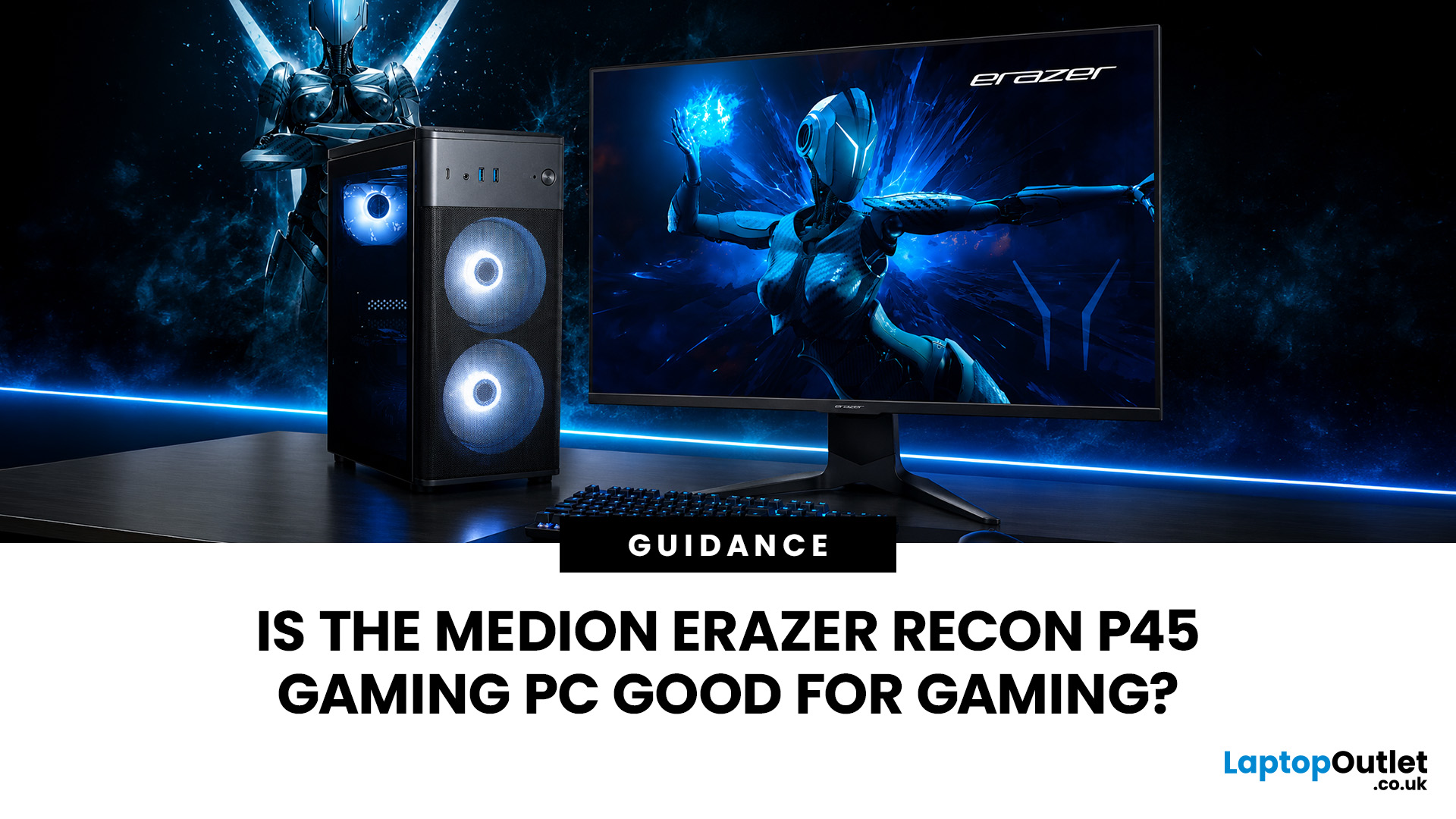
Yes, the Medion Erazer Recon P45 is a good gaming PC for players who want smooth everyday gaming, strong 1080p performance, fast loading times and a ready-to-use desktop without building a PC from scratch.
At Laptop Outlet, current Medion Erazer Recon P45 Gaming PC options include configurations with an AMD Ryzen 5 5500, 1TB SSD, Windows 11 Home, and dedicated NVIDIA RTX graphics, including RTX 5060 and RTX 5050 variants. The RTX 5060 model also includes 32GB RAM in the listed specification, while the RTX 5050 model is listed with 16GB RAM.
Is the Medion Erazer Recon P45 Worth it?
For most UK gamers, the Medion Recon P45 PC makes sense if you want a capable prebuilt gaming desktop that can handle modern games, multitasking, streaming, schoolwork, everyday browsing, and entertainment. It is especially suitable for:
| User Type | Is it a Good Fit? | Why |
| Beginner gamers | Yes | No PC-building knowledge needed |
| 1080p players | Yes | RTX graphics and Ryzen 5 power are well matched |
| Students | Yes | Good for gaming, |
Last Updated: July 27, 2026
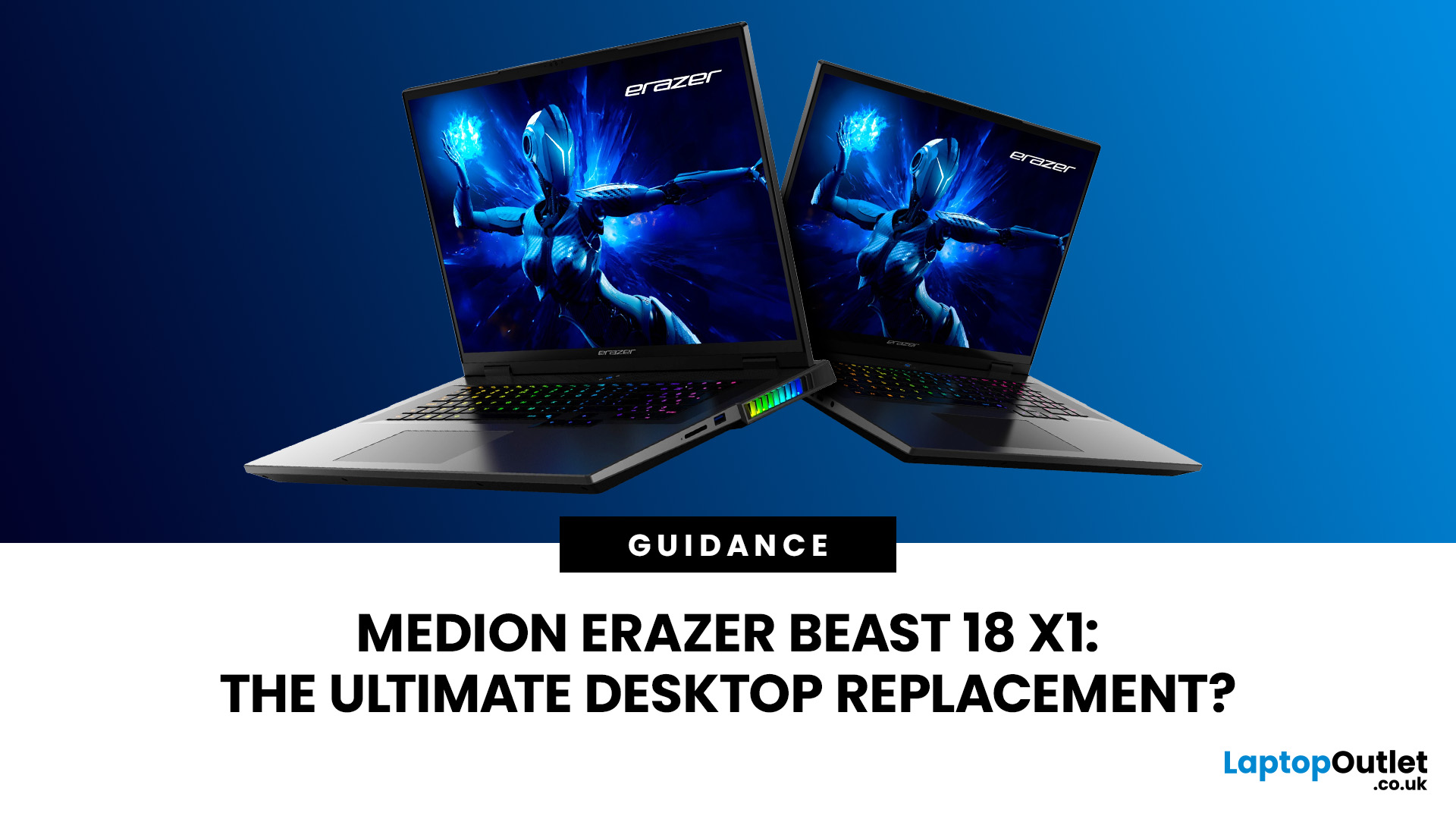
The MEDION ERAZER Beast 18 X1 is an 18-inch high-performance gaming laptop for buyers who want desktop-class hardware in one movable system. Its Intel Core Ultra 9 275HX processor, NVIDIA GeForce RTX 5080 or RTX 5090 Laptop GPU, 240Hz QHD+ display and upgrade options make it a serious desktop-replacement candidate. However, its weight, fan noise and IPS panel mean it will not suit everyone.
This assessment uses official specifications and independent test data rather than presenting third-party results as Laptop Outlet testing.
What Is the MEDION ERAZER Beast 18 X1?
The Beast 18 X1 is MEDION ERAZER’s first 18-inch laptop. It focuses on maximum gaming and creative performance
Published: August 03, 2026
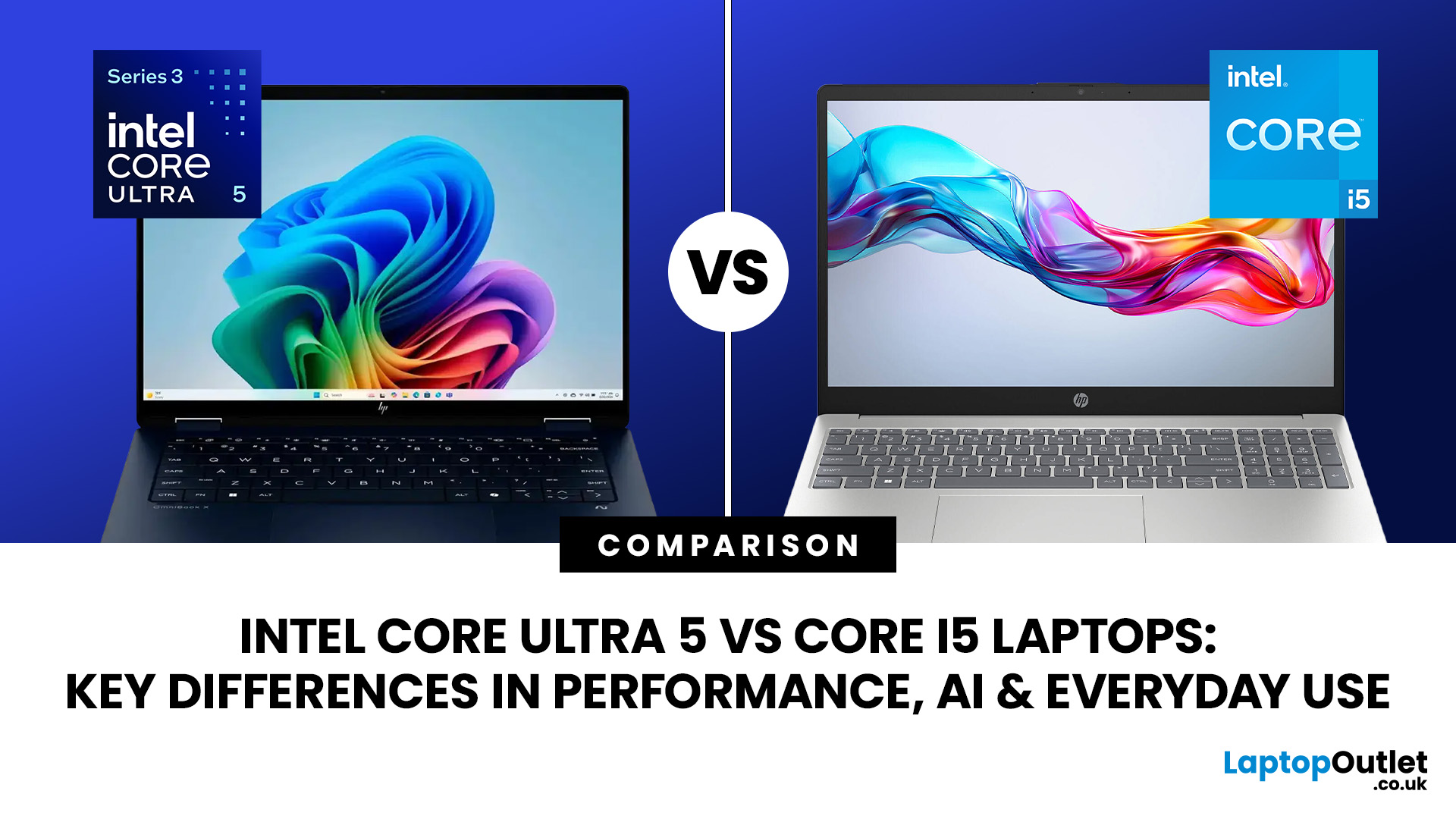
Intel has changed how it names and builds its laptop processors (CPUs). Traditional Core i5 chips remain widely available, but newer premium laptops increasingly use the Core Ultra 5 name, which Intel introduced alongside a major architectural redesign and built-in AI acceleration. That makes the Intel Core Ultra 5 vs i5 comparison more complicated than simply checking which number looks newer.
This guide explains the differences in everyday speed, multitasking, graphics, gaming, AI features, and battery life, without burying the answer under unnecessary technical jargon.
Quick Answer: Should You Buy Intel Core Ultra 5 or Core i5?
Buy Core Ultra 5 for stronger integrated graphics, on-device AI features and generally better efficiency. Buy Core i5 when price matters most, especially for office work or laptops with dedicated graphics card. Always compare the exact processor suffix and laptop configuration.
| If you want... | Buy | Why |
| Lowest price | Core i5 | Older i5 laptops are regularly discounted |
Published: August 03, 2026
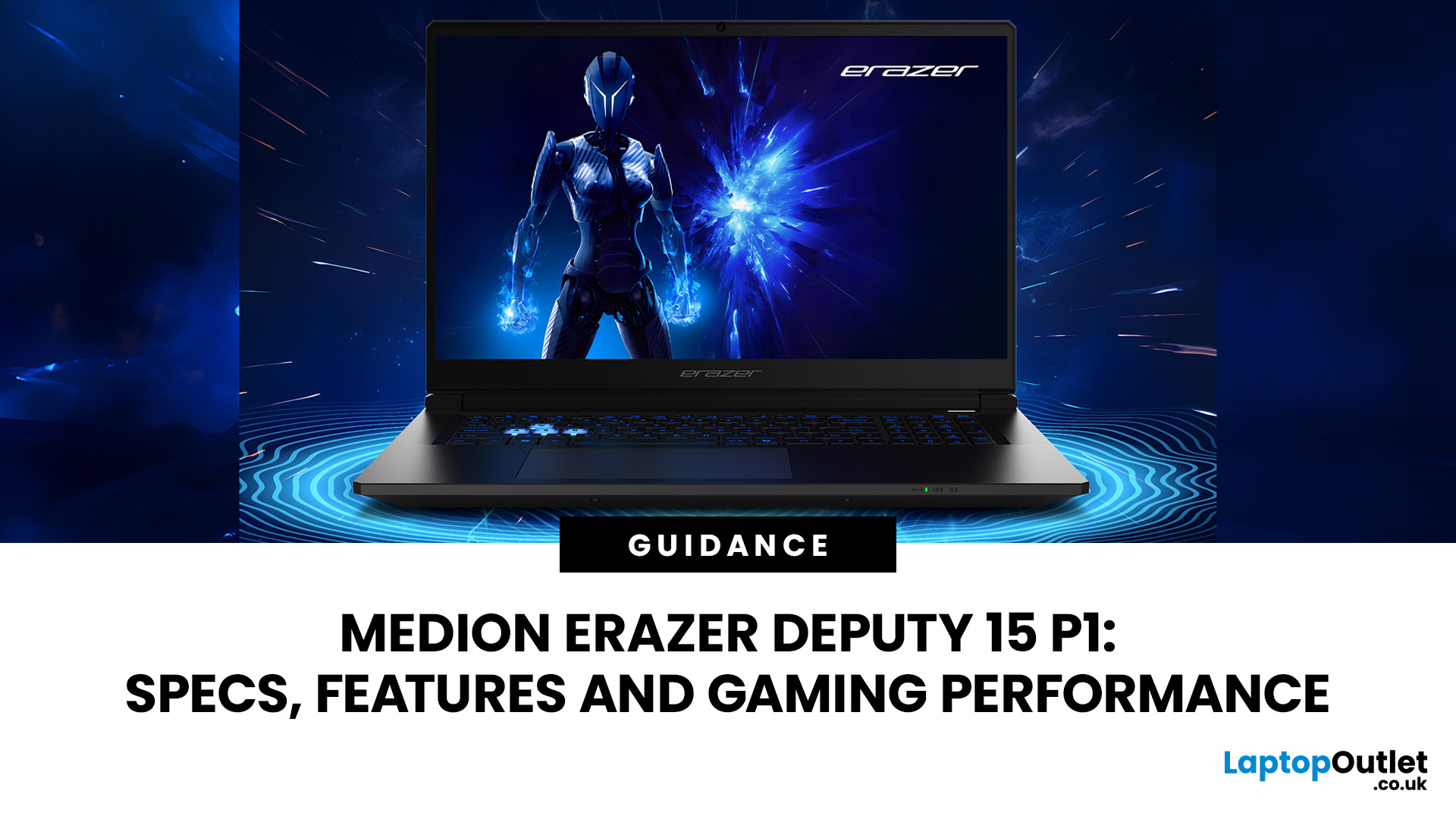
The MEDION ERAZER Deputy 15 P1 targets gamers who value frame rates over luxury finishes. Its RTX 5060 or RTX 5070, 144Hz Full HD display, and upgradeable memory create an appealing package, but the narrow colour gamut, loud fans and small battery reveal the cost-cutting. This review examines Deputy 15 P1 performance and shows where the Medion Erazer Deputy 15 gaming laptop beats or trails its budget rivals.
MEDION ERAZER Deputy 15 P1 Full Specifications
| Specification | RTX 5060 configuration | RTX 5070 configuration |
| Processor | Intel Core i7-13620H | Intel Core 9 270H |
| CPU cores | 10 | 14 |
| Maximum boost speed | Up to 4.9GHz | Up to 5.8GHz |
| Graphics | NVIDIA GeForce RTX 5060 Laptop GPU | NVIDIA GeForce RTX 5070 Laptop GPU |
| Graphics memory | 8GB GDDR7 | 8GB GDDR7 |
| RAM | 16GB | 32GB |
| Storage | 1TB SSD | 2TB SSD |

Last Updated: August 13, 2026
A 15 inch laptop sleeve can fit a 15.6-inch laptop, but the label alone does not guarantee it. The deciding factor is whether your laptop’s actual width, depth, and thickness fit within the sleeve’s internal measurements.
Laptop screen sizes are measured diagonally, whereas sleeves must accommodate the complete device. This means a slim 15.6-inch laptop may fit comfortably inside some 15 inch laptop sleeves, while a thicker model with wide bezels may not.
Before buying, compare the external dimensions of your laptop with the internal dimensions of the sleeve rather than relying only on the advertised screen size.
Why 15-Inch vs. 15.6-Inch Laptop Sleeve Sizing Causes Confusion
The 15-inch measurement usually refers to the diagonal display size, not the overall size of the laptop. It does not tell you the device’s width, depth, or thickness.
Retailers and accessory manufacturers also use “15-inch” as a broad size category. Laptop Outlet, for example, groups many 15-inch and 15.6-inch models

Last Updated: August 05, 2026
I made almost every mistake possible when I bought my first laptop as a student. I focused on the processor name, ignored the RAM, underestimated how heavy it would feel in my backpack and had no idea what half the technical jargon meant.
Within months, I realised I had paid for features I barely used while missing the ones I actually needed. Choosing between Core i5, Core Ultra, SSD sizes and different Dell series can still feel just as confusing today.
To help you avoid the same blunder, we reviewed the best Dell laptops for students in 2026 and narrowed them down based on real student needs, including performance, mobility,
Last Updated: August 20, 2026
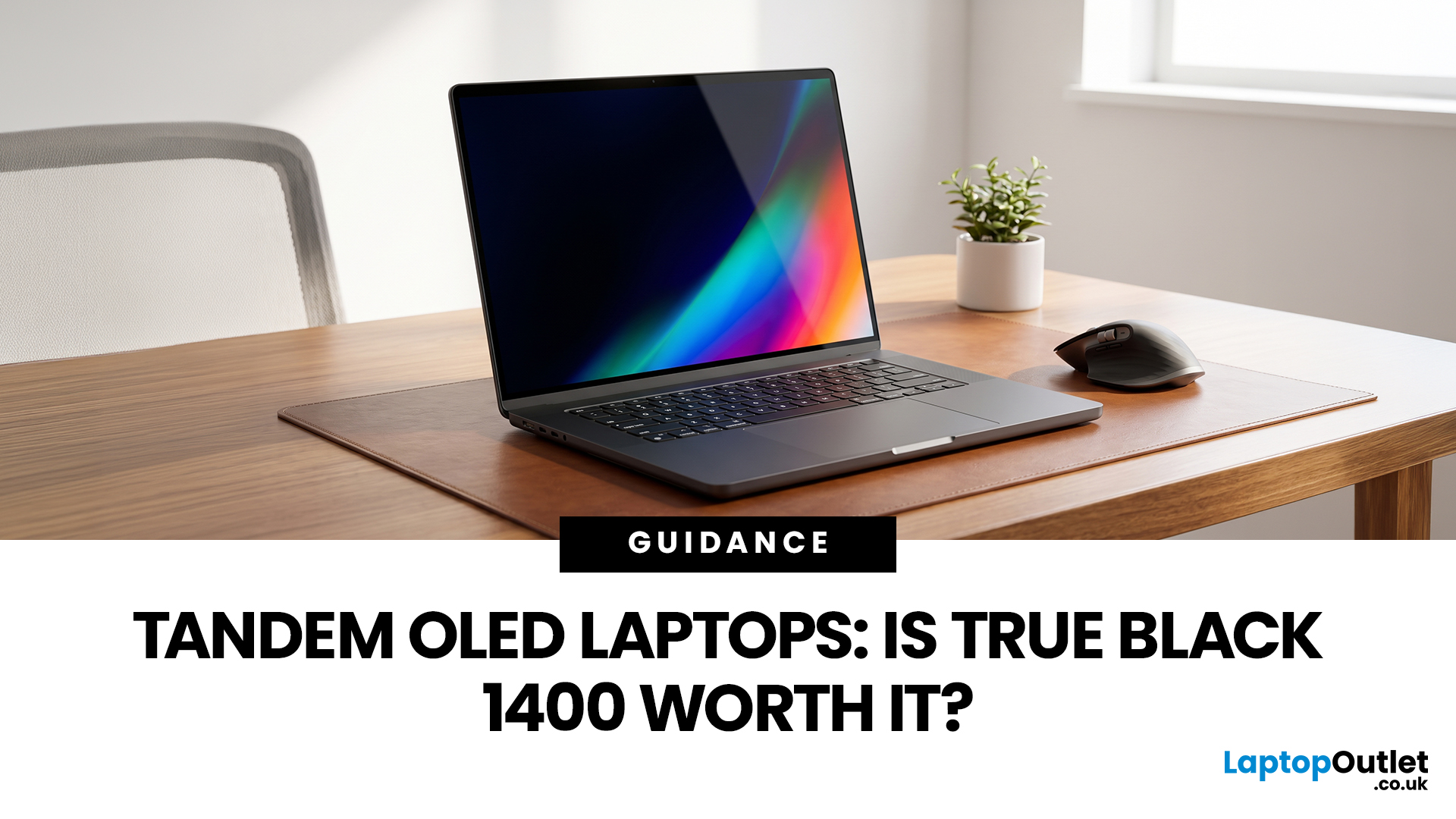
OLED laptops are already known for deep blacks, rich colour and fast pixel response, but a newer display design is pushing brightness further.
Tandem OLED laptops use stacked light-producing layers to deliver stronger HDR highlights while retaining the pixel-level control that makes OLED attractive.
That improvement now has an official benchmark. VESA introduced DisplayHDR True Black 1400 in July 2026 as its highest True Black certification tier, aimed at next-generation OLED screens for professional HDR creation and premium entertainment. The first certified laptop display shows that tandem OLED is becoming a buying consideration.
Understanding the Real Impact of True Black 1400 Displays
DisplayHDR True Black 1400 is worth considering if you edit HDR video, review colour-critical content, watch high-quality HDR films

Last Updated: August 17, 2026
Last Updated: August 06, 2026

