



Can You Replace the Graphics Card on a Laptop? Here's the Real Deal
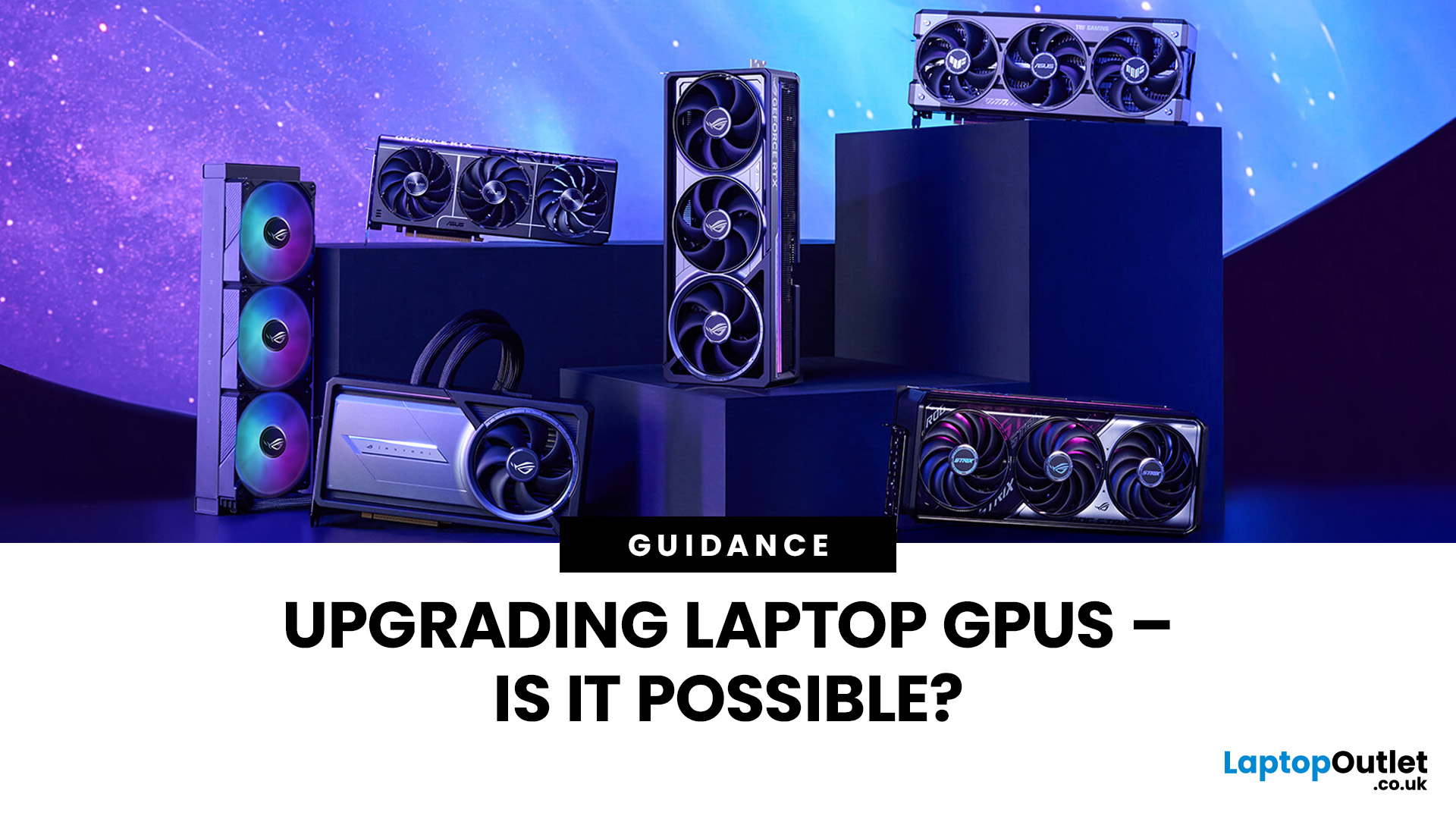
Let’s be honest: laptops are bloody brilliant. Sleek, portable, and increasingly powerful, what’s not to love? But then you try running a modern game on “Ultra” or crunching a 4K video edit and your laptop’s fan sounds like it’s preparing for takeoff. That’s when the thought creeps in: Can I replace the graphics card on my laptop? Well, grab a cuppa and settle in. We’re diving into the surprisingly sticky world of laptop GPU upgrades.
First Things First: What Exactly is a Laptop GPU?
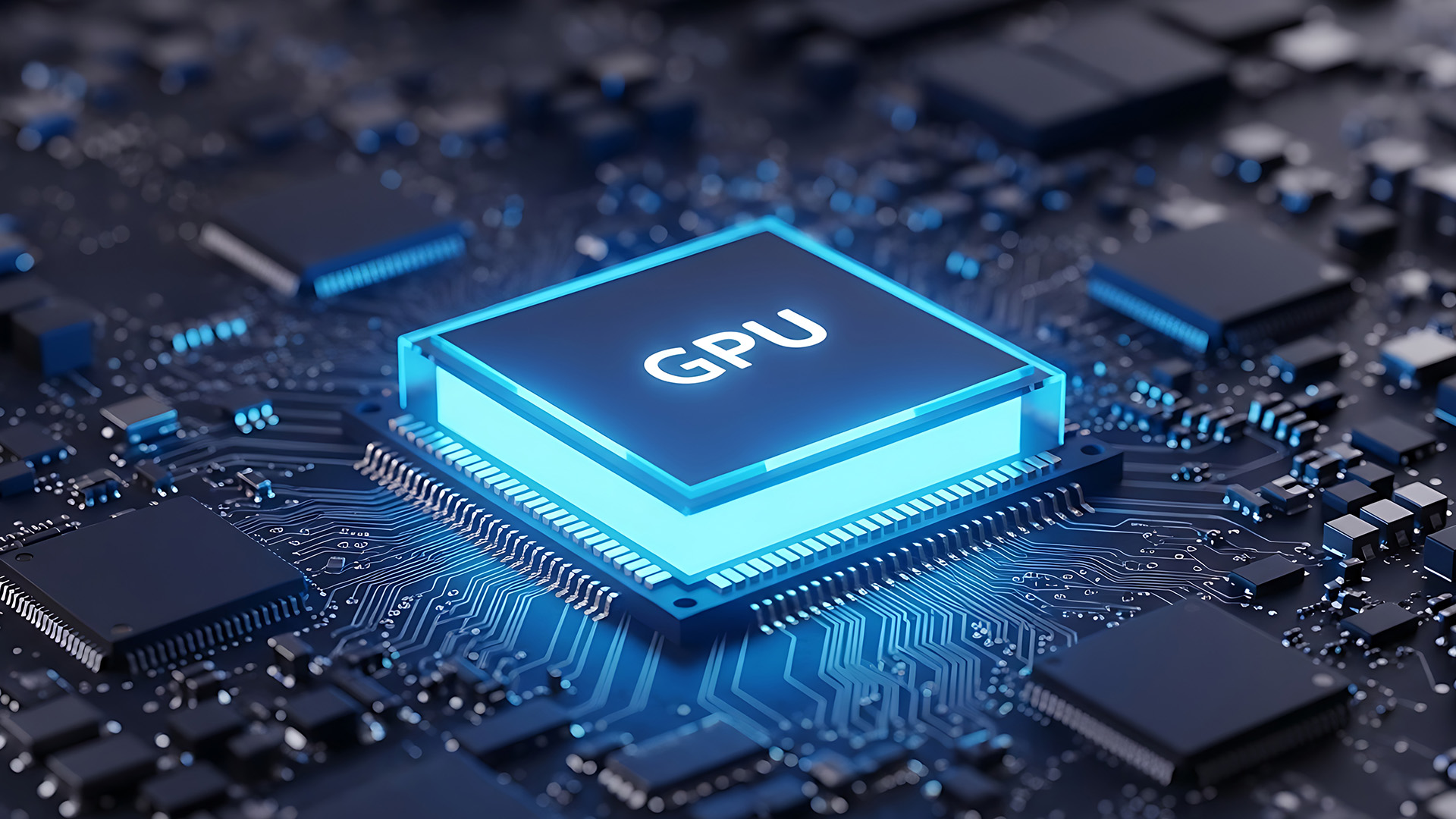
A GPU (Graphics Processing Unit), often referred to as a graphics card, is what makes the pretty things on your screen look… well, pretty. Whether you're gaming, editing videos, running simulations, or just watching Netflix in glorious HD, it’s your GPU doing the heavy lifting.
Now, in desktop PCs, the graphics card is typically a large, separate component that you can easily yank out and replace. But in laptops, things get a little trickier.
Can You Replace a Laptop Graphics Card?
The Brutal Truth: In Most Cases, No.
For the majority of consumer laptops, think budget models, Ultrabook, and even many gaming laptops, the GPU is soldered directly onto the motherboard. That means it's permanently attached and cannot be removed or upgraded like you would with a desktop.
Yep, that means you can’t just pop it out and stick a new one in like you’re playing a game of Lego.
Why Manufacturers Do This:
- Space-saving: Laptops are compact by nature.
- Thermal design: Integrated GPUs help control heat in tight spaces.
- Cost and simplicity: It keeps production costs lower.
So, for most of us? No, you can’t replace your laptop’s graphics card and trying to do so could turn your beloved machine into an expensive paperweight.
Exceptions to the Rule
Before you toss your gaming dreams out the window, there are a few exceptions worth mentioning.
MXM (Mobile PCI Express Module) GPUs
Some high-end, enthusiast or workstation-class laptops (think Alienware, Clevo, MSI Titan, or older Dell Precision models) use modular MXM graphics cards, which can be removed and replaced.
BUT:
- MXM GPUs are becoming increasingly rare.
- Compatibility is a nightmare, BIOS support, thermal design, and power delivery must all match.
- The modules themselves are expensive and hard to find.
- Your warranty? Say goodbye.
In short: Yes, technically possible. Practically? Not for the faint-hearted.
External GPU (eGPU) Enclosures
This is the much cooler (and safer) workaround.
eGPUs allow you to connect a desktop-grade graphics card to your laptop via Thunderbolt 3 or 4. Essentially, you plug a GPU into a separate box, which then connects to your laptop.
Perks of an eGPU:
- Use a full desktop graphics card (RTX 4080, anyone?)
- Huge performance boost for gaming and creative work
- Non-destructive and doesn’t void your warranty
- You can upgrade the GPU later
Drawbacks:
- Requires Thunderbolt support
- Expensive setup (enclosure + GPU)
- Not all laptops benefit equally
- Slight performance bottleneck vs a native desktop
Still, if you're stuck with integrated graphics and your machine supports Thunderbolt 3/4, this might be your knight in shining GPU.
What If You’re Desperate for More Graphics Power?
If you can’t replace the graphics card in your laptop and an eGPU isn't an option, what can you do?
A Few Workable Alternatives:
- Optimise in-game settings: Drop resolution, lower shadows and anti-aliasing.
- Use performance-boosting software: Tools like Razer Cortex can free up resources.
- Clean your laptop: Dust can throttle performance more than you'd think.
- Undervolt the CPU/GPU: If you're feeling brave, this can reduce heat and improve sustained performance.
- Switch to cloud gaming: Services like NVIDIA GeForce NOW or Xbox Cloud Gaming let you play high-end games via streaming.
How to Check if Your Laptop GPU is Replaceable
If you're still unsure whether your laptop's GPU is upgradeable:
- Google your laptop model + “GPU upgrade”
- Check sites like NotebookCheck, Reddit, or manufacturer forums.
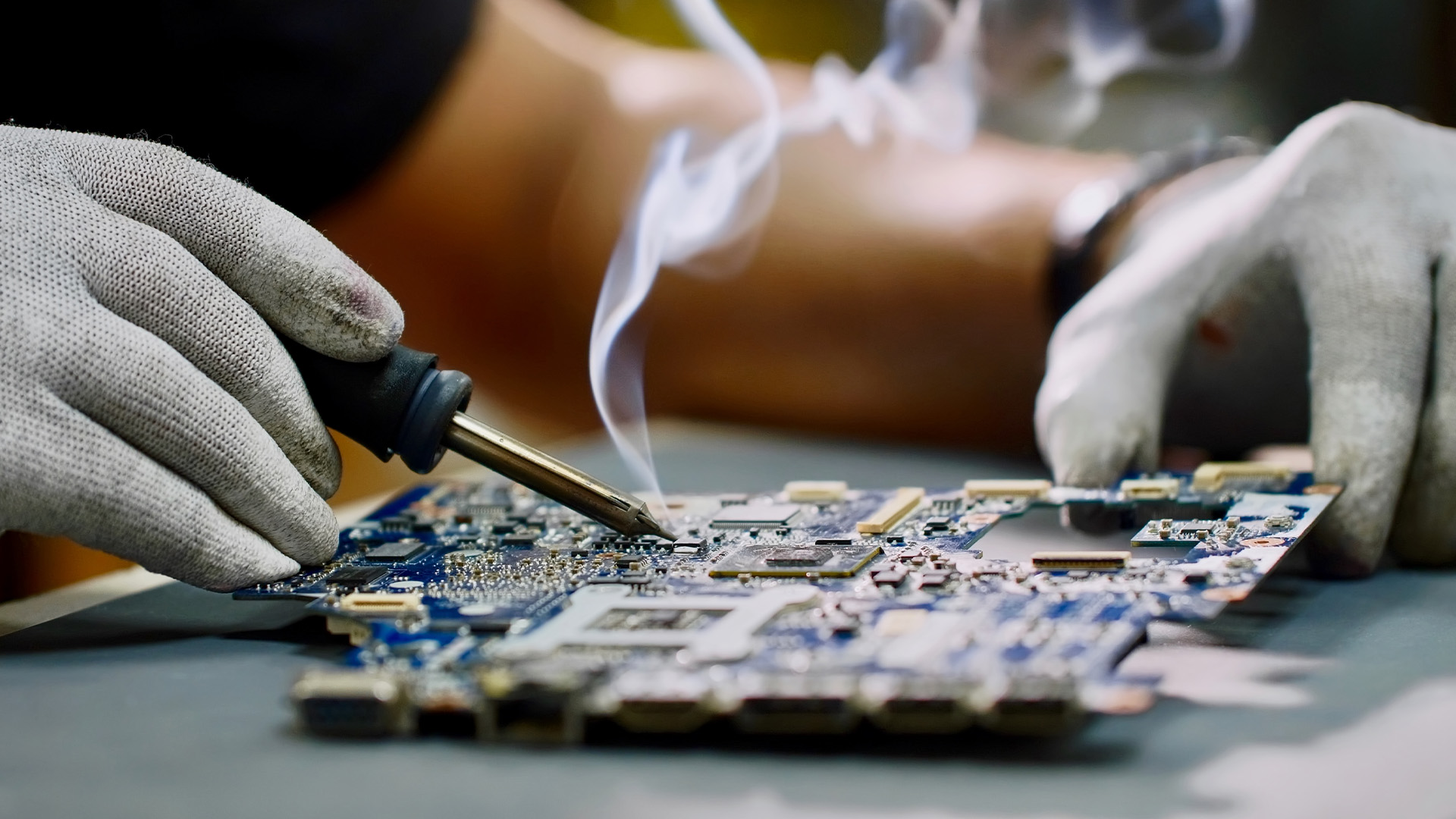
- Open up your laptop (if you're confident) and look for an MXM module. If it looks permanently glued to the motherboard, it is.
- Contact the manufacturer directly.
Warning: Attempting to replace a soldered GPU can seriously damage your laptop, and your warranty will vanish faster than your FPS in Cyberpunk 2077.

Pros and Cons of Upgrading a Laptop GPU (If Possible)
Pros:
- Boost in performance
- Extend laptop lifespan
- Great for high-end tasks (gaming, 3D rendering, editing)
Cons:
- Rarely possible
- Extremely risky
- Cost may exceed value
- May need BIOS tweaks or driver mods
- Can void your warranty

Is it Worth Trying to Replace Your Laptop Graphics Card?
In most cases, trying to replace your laptop's graphics card is a no-go. Unless you're working with a rare modular GPU design or you're willing to shell out for an eGPU, your best bet is to buy a laptop with the graphics performance you need upfront.
Laptop upgrades just aren’t like desktop upgrades, and that’s okay. The tech world is adapting fast, and options like eGPUs and cloud gaming are filling the gaps beautifully.
So, if you’re itching for better graphics, you might not need to rip your laptop apart, there’s probably a smarter (and less warranty-voiding) path forward. And if you're stuck with integrated graphics, remember, there’s always cloud gaming… or patience.

Want more tips on laptop upgrades and performance hacks?
Can I replace the graphics card on any laptop?
No, most laptops have the GPU soldered onto the motherboard, making it non-replaceable. Only a few rare models use modular GPUs that can be swapped.
What is an MXM GPU and does my laptop have one?
An MXM GPU is a modular graphics card used in some high-end laptops. It allows upgrades, but it’s rare and typically found in gaming or workstation laptops.
Is using an external GPU (eGPU) a good alternative?
Yes! If your laptop has a Thunderbolt 3 or 4 port, an eGPU can dramatically boost graphics performance without needing to open up your device.
Will replacing my laptop’s GPU void the warranty?
Yes, in nearly all cases, opening up your laptop or attempting a GPU swap will void the warranty and possibly damage the system if not done properly.
Can I upgrade my laptop GPU by installing software?
You can’t upgrade the GPU with software, but you can optimise performance using game boosters, driver updates, and by lowering in-game settings.
Related Articles

Last Updated: September 09, 2025
Time for a GPU Upgrade?
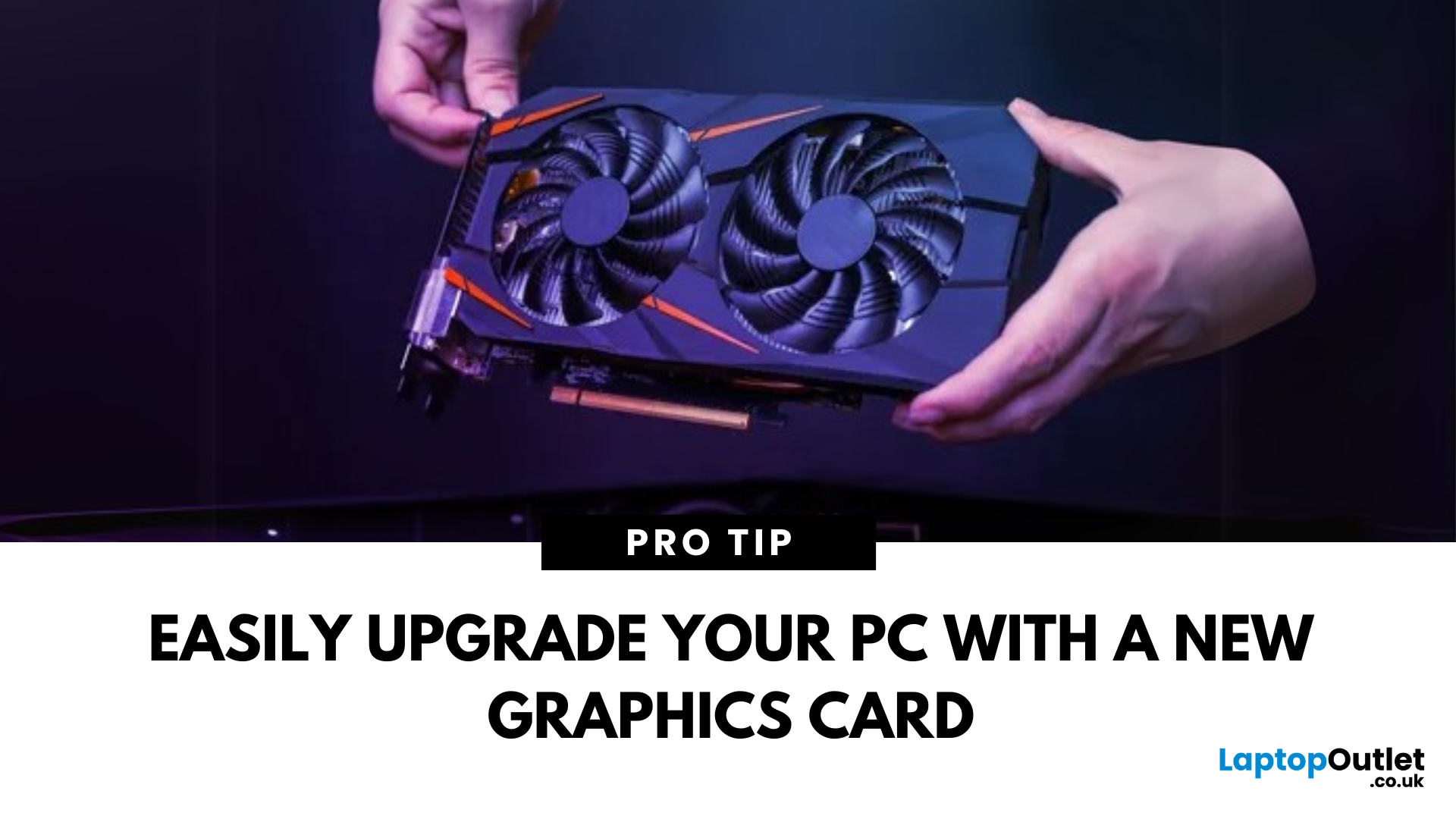
Whether you're chasing better gaming performance, smoother rendering, or next-gen AI capability, installing a new graphics card (GPU) is one of the best PC upgrades you can make. Here's how to safely and properly install your new GPU.
1. What You’ll Need
- Your new graphics card
- A Philips screwdriver
- An anti-static wrist strap (recommended)
- A clean, flat workspace
Optional: compressed air to clean out dust before installing the new GPU
2. Prepare Your PC
- Shut down your computer
- Unplug the power cable and all peripherals
- Hold the power button for 5 seconds to discharge remaining power
3. Open the Case and Remove the Old GPU (If Needed)
- Unscrew and remove the side panel of your PC case
- Disconnect power cables from your existing GPU
- Unscrew the GPU bracket
- Release the PCIe latch and gently pull out the old card
- If you’re installing a GPU for the first time, skip to the next step
4. Insert the New Graphics Card
- Locate the PCIe x16
Last Updated: March 04, 2026
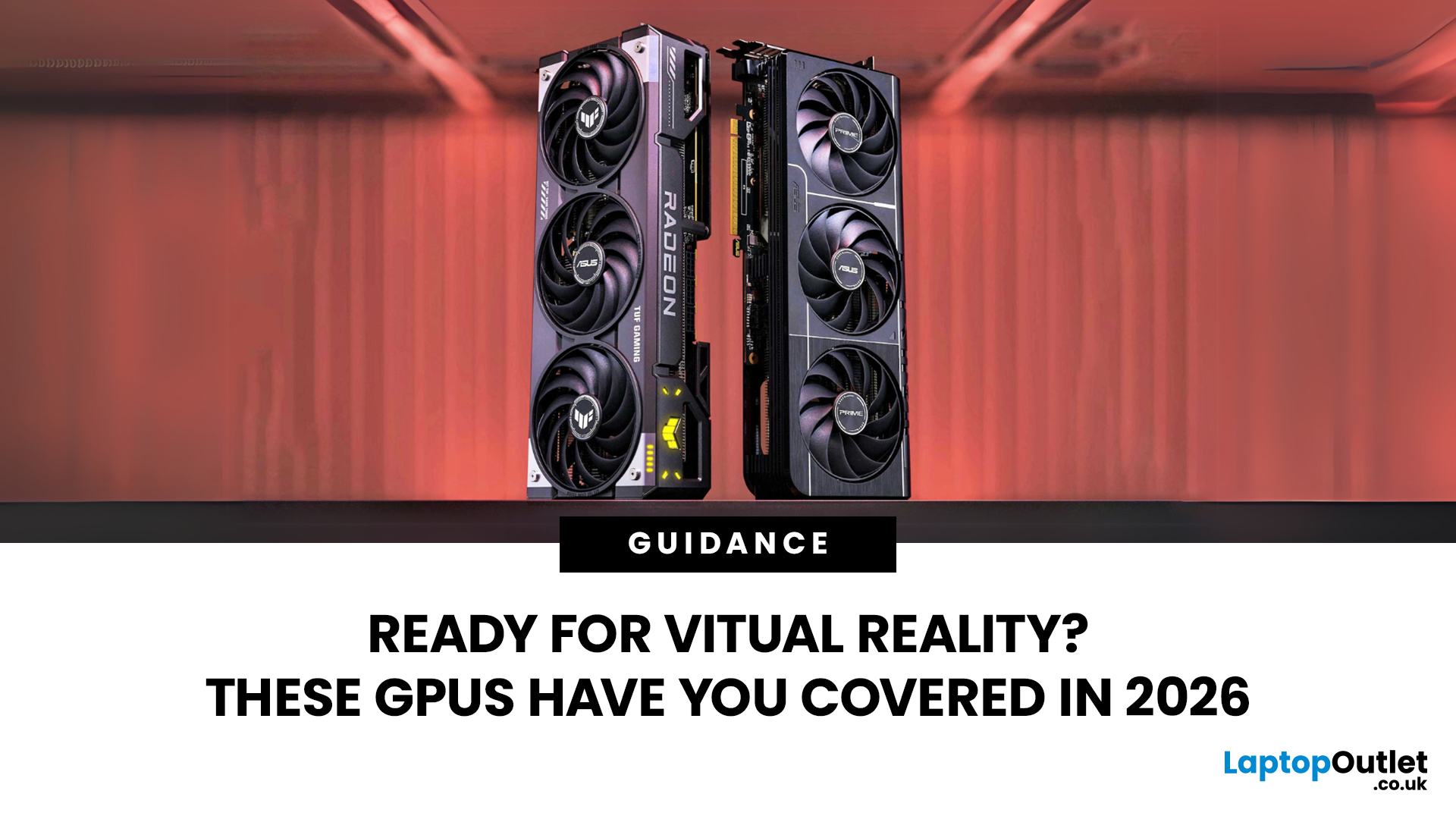
Virtual reality is the way forward when looking for total immersion and enjoying entertainment in another dimension. Whether you're stepping into alien landscapes, racing through hyper-realistic circuits, or exploring entire worlds from your living room, VR takes everything you love about gaming and cranks it up to another level. But to truly make the most of it, your PC needs to be more than just average; it needs serious graphical muscle.
If you plan to upgrade your system for a smoother, sharper, and more responsive VR experience, choosing the best graphics card for virtual reality experiences is key. And with so many options now on the market, narrowing it down can be daunting. That's why we've done the legwork for you.
Unlike standard gaming, virtual reality demands more from your hardware. Take it as running dual high-resolution displays - except one is strapped to your face, and every frame counts. Frame rates need to stay consistently high, latency needs to be minimal, and
Last Updated: September 09, 2025
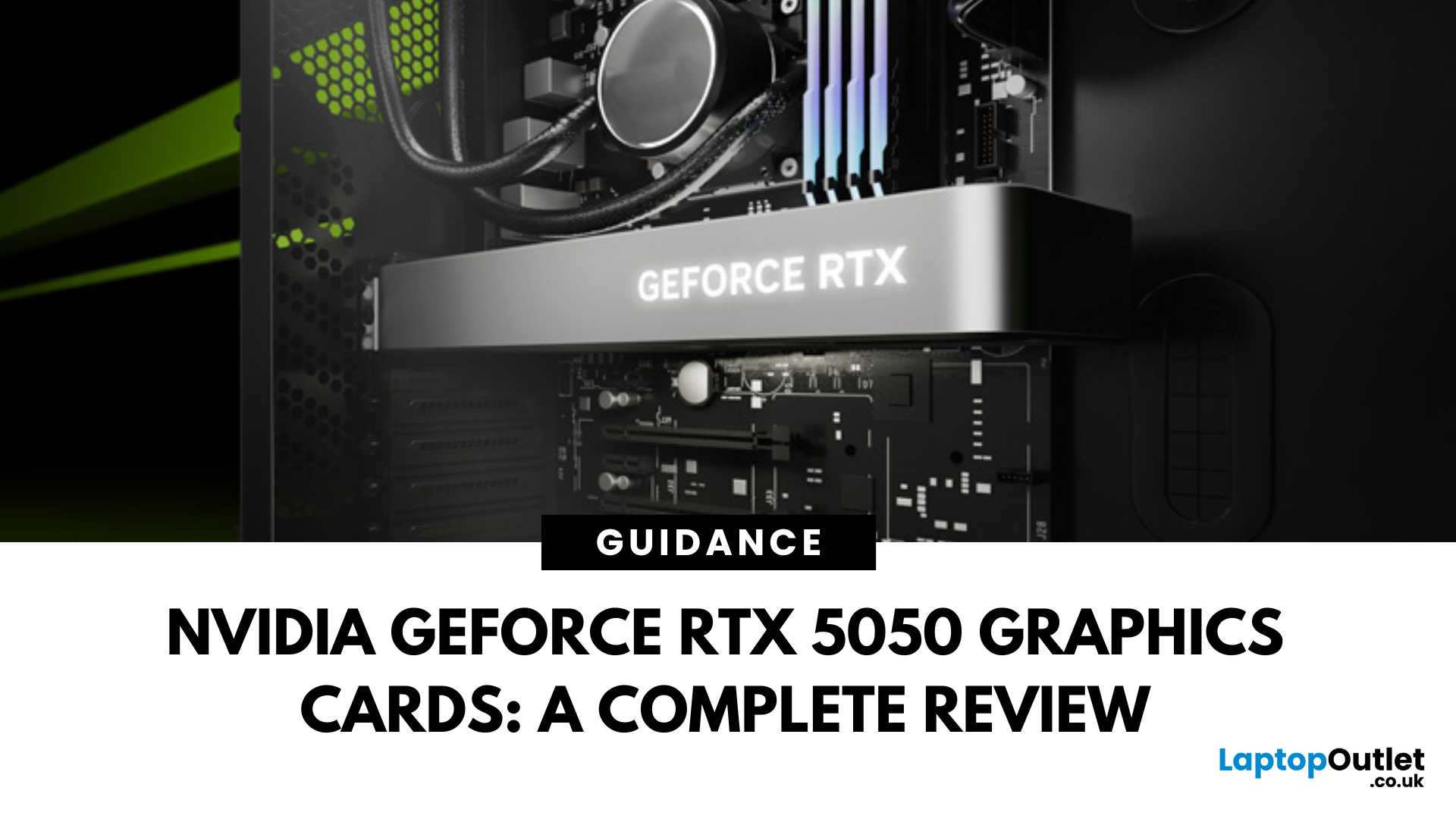
The RTX 5050 arrives as a timely and much-needed addition to NVIDIA’s mid-range line-up. With GPU prices escalating and older models ageing out of relevance, this card positions itself as a smart compromise between performance, features, and affordability. Targeted at gamers, upgraders, and budget-conscious users alike, it strikes an appealing balance that’s increasingly rare in the entry-level space. If you're considering an RTX 5050 upgrade, this RTX 5060 graphics cards review has something for you.
Architecture & Specifications: A Capable Foundation
Under the hood, the RTX 5050 is built on NVIDIA’s Blackwell architecture, the same foundation used in high-end models like the RTX 5090 graphics card. This gives it access to 5th-gen Tensor cores and 4th-gen RT cores, cutting-edge tech for a budget-friendly GPU. The card features 2,560 CUDA cores, a boost clock of up to 2,570 MHz, and 8GB of GDDR6 memory with 320 GB/s bandwidth. Despite its modest memory interface, performance stays sharp
Last Updated: September 09, 2025
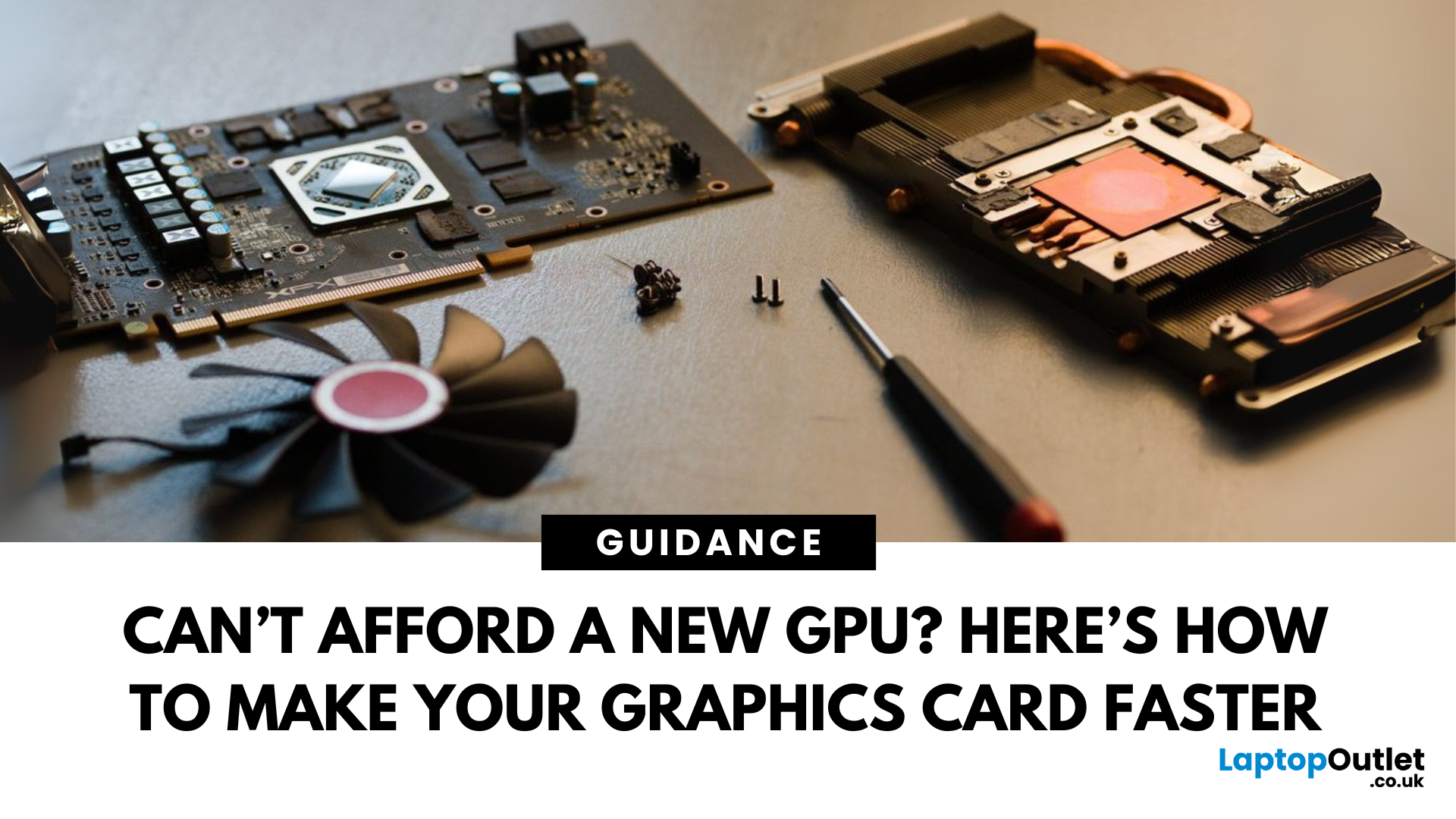
Let’s face it. Graphics cards are expensive. And while everyone wants that shiny new GPU to max out game settings or improve their creative workloads, it’s not always realistic. Between supply issues, steep prices and rapid technology cycles, buying a new graphics card can often feel like a luxury rather than a necessity.
The good news is that you don’t need to replace your GPU to breathe new life into your gaming rig or workstation. With a little time, care, and smart system tweaks, you can get more performance out of your current card and make it run quieter, cooler and faster.
In this guide, we’ll walk you through practical ways to improve your GPU’s performance, longevity, and efficiency without splashing out on brand-new hardware. If you’re looking to upgrade graphics card performance without replacing it entirely, you’re in the right place.
Tips to Make your Graphics Card Faster Without Upgrading It
-
Clean and Maintain Your GPU for a Performance Boost
Before we even touch the software
Last Updated: February 25, 2026
We’ve been deep in the trenches with today’s top-tier GPUs, testing them across real-world gaming sessions, editing timelines, and production rigs. This isn’t just another spec dump. It’s a curated breakdown of what actually matters when you're pushing pixels or chasing frames. Whether you're building for buttery 4K gameplay or need something that won’t choke on a multi-cam 8K edit, we’ve cut through the marketing noise to highlight what each card nails (and where it stumbles). No filler, no fluff, just the kind of insight we’d want before dropping serious cash on a new GPU.
ASUS GeForce RTX 5090 ROG Astral 32GB OC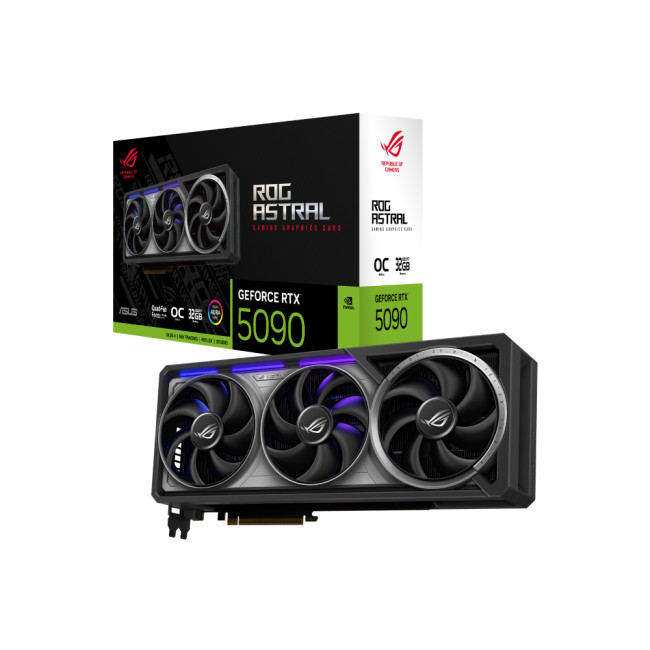
Also Known As:
- ROG STRIX RTX 5090
- NVIDIA GeForce RTX 5090 ROG Astral OC
- The Beast from the Future
Overview & Standout Features
The ASUS RTX 5090 ROG Astral isn’t just a GPU; it’s a flex. This monster packs 32GB of next-gen GDDR7 VRAM, triple axial-tech fans, and more RGB than your setup probably needs (but still wants). ASUS has taken NVIDIA’s flagship and strapped
Last Updated: September 22, 2026
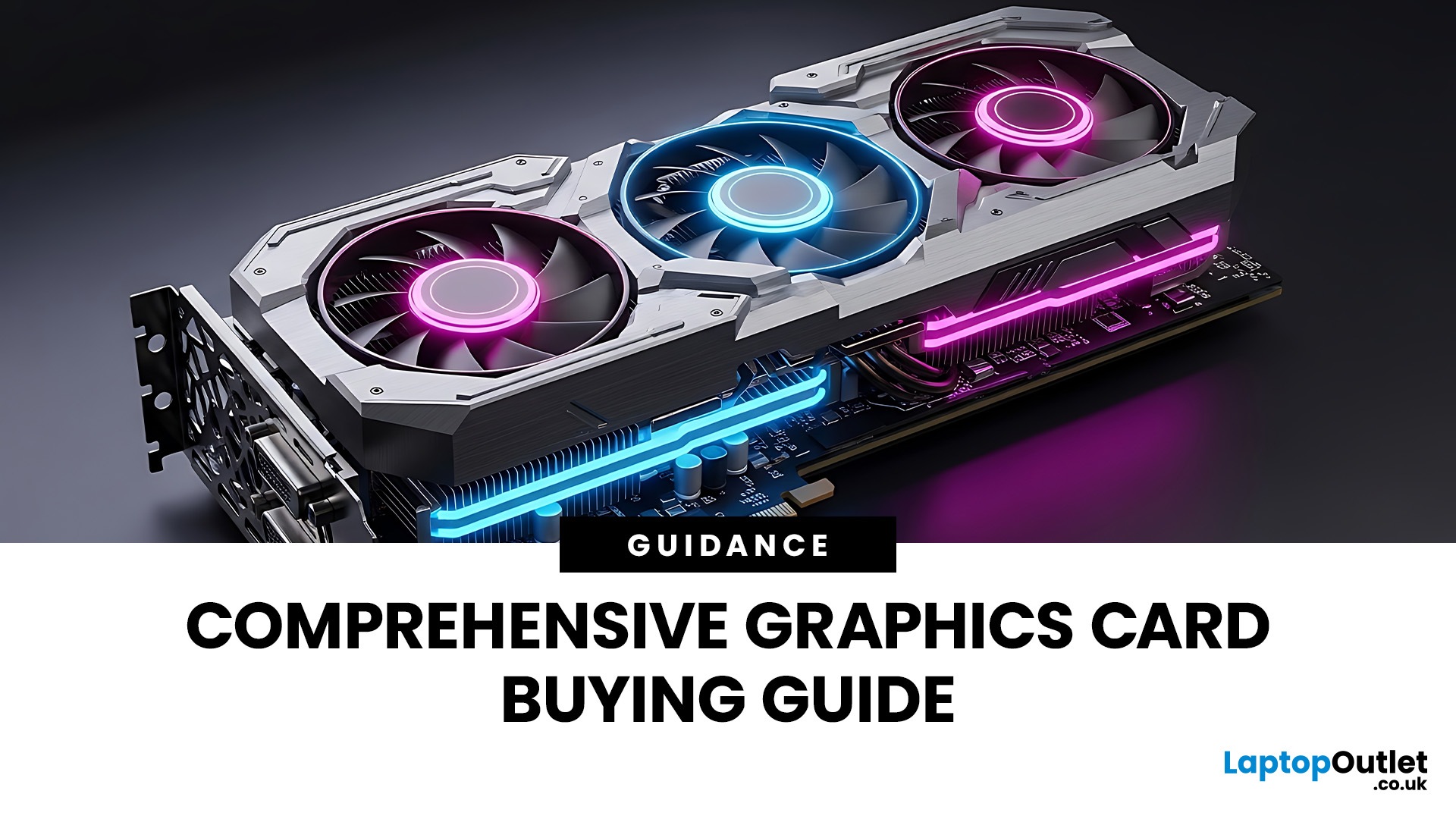
Choosing the right graphics card starts with what you actually want your PC to do. Your monitor resolution and refresh rate, games or software, VRAM requirements, power supply, case space and available budget all matter more than simply buying the newest GPU.
To choose the right graphics card, match the GPU to your monitor resolution, refresh rate, games or software, and budget. Check real-world performance, VRAM, power-supply requirements, physical size, cooling and supported features such as ray tracing and upscaling. For 2026, compare current NVIDIA, AMD and Intel options rather than relying on model names or generation alone when making your choice.
This graphics card buying guide explains how to choose a graphics card for gaming, content creation and everyday GPU-accelerated workloads, while covering the specifications and compatibility checks that matter in 2026.
Quick Graphics Card Buying Checklist
Before comparing individual GPUs, check these seven things:
- Resolution: Are you gaming
Last Updated: October 30, 2025
Setting the Scene
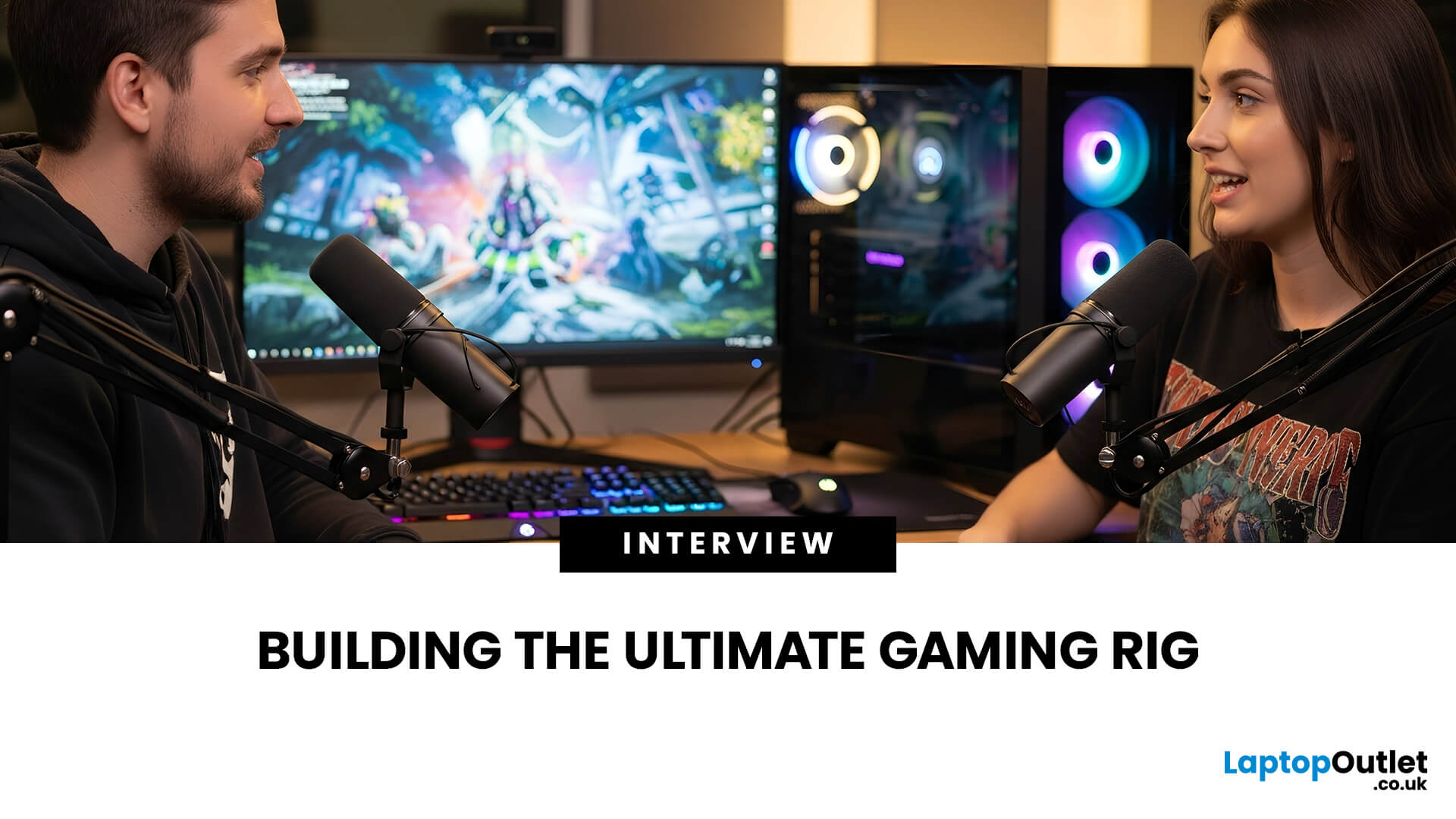
Alex: First of all, thanks for having this discussion, Jamie. I’m in the process of upgrading my rig, and I want to get the best GPU for gaming I can afford. But there are so many options out there, and I’m a bit lost, especially with the new 50-series from NVIDIA, and the still-very-solid 40-series.
Jamie: No problem, Alex, happy to help. Upgrading the graphics card is probably the biggest single component decision in a gaming rig (other than maybe the monitor or CPU). So, it’s good that we step through it together.
Why is the Graphics Card Matters
Alex: So, to start with: why is the graphics card so important for a gaming rig?
Jamie: In short, the GPU is what actually renders your game frames, handles complex calculations for lighting, shadows, textures, and especially if you’re gaming at higher resolutions (1440p, 4K) or using high refresh rates. If you pair everything else well (CPU, RAM, storage, PSU, cooling), the graphics card becomes a bottleneck if it’s too

