



How to Upgrade Your Graphics Card Without Buying a New One
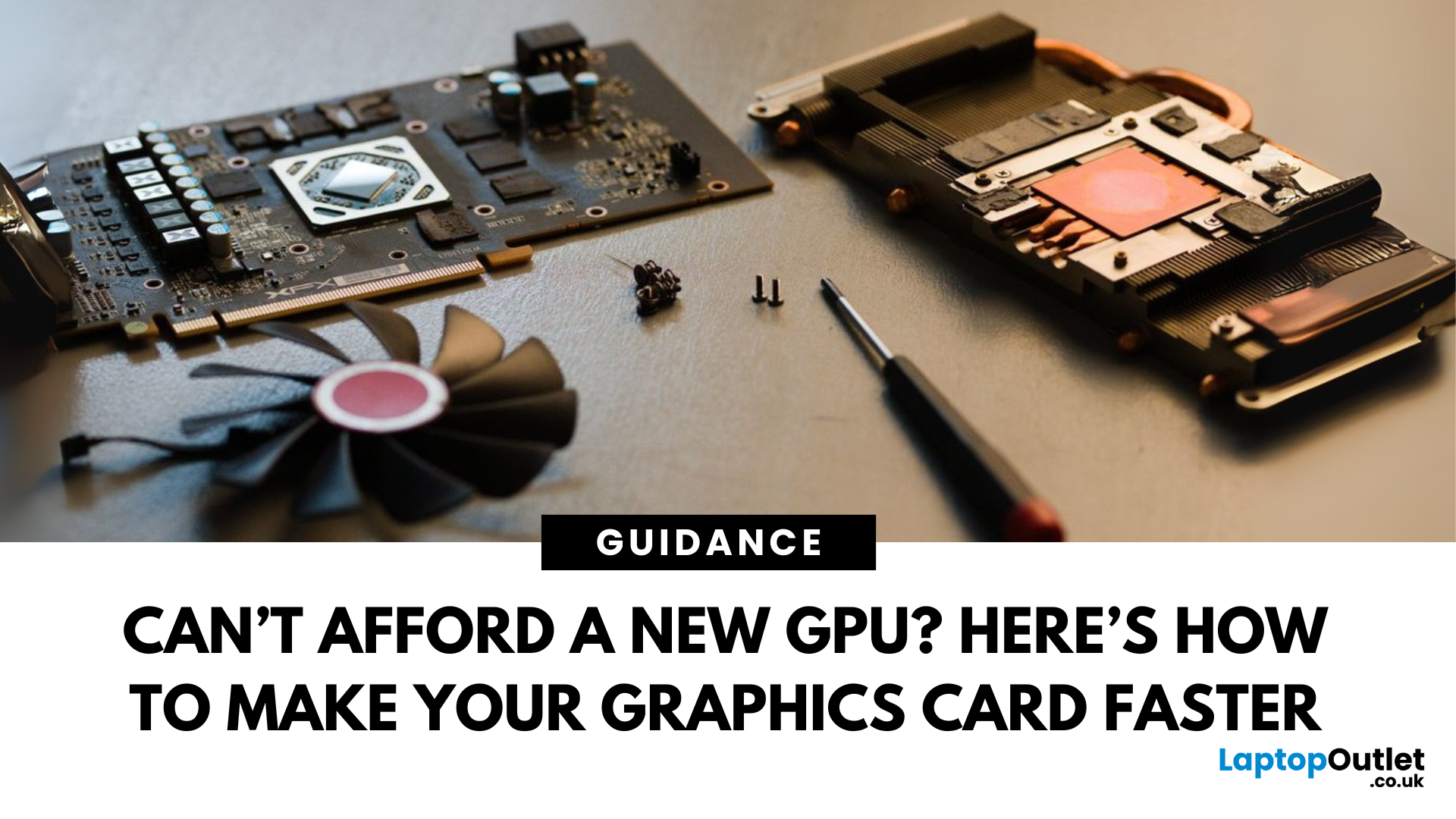
Let’s face it. Graphics cards are expensive. And while everyone wants that shiny new GPU to max out game settings or improve their creative workloads, it’s not always realistic. Between supply issues, steep prices and rapid technology cycles, buying a new graphics card can often feel like a luxury rather than a necessity.
The good news is that you don’t need to replace your GPU to breathe new life into your gaming rig or workstation. With a little time, care, and smart system tweaks, you can get more performance out of your current card and make it run quieter, cooler and faster.
In this guide, we’ll walk you through practical ways to improve your GPU’s performance, longevity, and efficiency without splashing out on brand-new hardware. If you’re looking to upgrade graphics card performance without replacing it entirely, you’re in the right place.
Tips to Make your Graphics Card Faster Without Upgrading It
-
Clean and Maintain Your GPU for a Performance Boost
Before we even touch the software or settings side of things, start with a physical clean. Over time, dust settles on your components, especially the GPU’s heatsinks and fans. This dust build-up can clog airflow and cause your graphics card to overheat, leading to performance throttling or noisy fans spinning at full blast unnecessarily.
Power down your system completely and carefully remove the GPU. Use compressed air to clean the fans, shroud and heatsink fins. If you notice particularly stubborn dirt or thermal paste that has dried out, you can go a step further. Gently remove the cooler (if you're comfortable and confident), clean the GPU die with isopropyl alcohol, and reapply a fresh layer of thermal paste. Replacing aged thermal pads can also help lower memory and VRM temperatures.
-
Tidy Up Your Case Airflow
Your GPU doesn't work alone. The environment around it plays a big role in how well it performs. One of the most underrated upgrades you can give your GPU is better airflow inside your PC case.
Make sure your system has a well-thought-out intake and exhaust setup. Typically, cool air should enter from the front or bottom and exit from the top or rear. Check the orientation of your fans and reposition them if needed. Cable clutter can also obstruct airflow, so take a few minutes to route cables neatly along the case edges or behind the motherboard tray.
If your case allows it, adding an extra fan or two in key positions can make a significant difference to internal temperatures. Cooler ambient conditions inside the chassis allow your GPU to run at higher boost clocks for longer, improving frame rates and reducing noise. These tweaks are especially effective for those running top graphics cards that tend to run hot under pressure.
-
Upgrade the Cooling Without Changing the Card
Stock coolers work, but they aren’t always the most efficient option for every scenario. If your GPU runs particularly hot or noisy, you might want to explore aftermarket cooling options. Many older graphics cards can be fitted with more efficient air coolers or even water blocks if you’re into custom loops.
Adding a third-party cooler can reduce your GPU temperatures by a notable margin, especially during long gaming or rendering sessions. This not only improves performance but extends the lifespan of the card as it spends less time operating near thermal limits.
Not ready to go full custom loop? Even software-controlled fan curves using tools like MSI Afterburner can offer a noticeable improvement. A slightly more aggressive fan profile, tailored to your thermal thresholds, can stop performance dips while maintaining safe noise levels.
-
Explore Safe Overclocking
Overclocking used to be a badge of honour reserved for the technically inclined, but now, with modern software, it's safer and more accessible than ever. Whether you're on an NVIDIA or AMD card, tools like Precision X1, AMD Radeon Software or MSI Afterburner let you push clock speeds and memory bandwidth without diving into BIOS menus.
Start with a small bump in core and memory clocks, and monitor temperatures using stress-testing tools such as Heaven Benchmark, FurMark or 3DMark. The goal is to find a stable configuration that boosts performance without crashing your system or running too hot.
Overclocking doesn't work miracles, but even a modest increase of five to ten percent in frequency can translate to smoother gameplay or faster renders. If you’re using a graphic card for PC builds that are several years old, a well-managed overclock can really make it feel like new again.
-
Adjust Game Settings for Maximum Efficiency
Modern games are incredibly demanding, and while your hardware might be ageing, smart settings management can go a long way. Not all graphics settings are created equal. Some have a massive performance impact with minimal visual benefit.
Start by lowering or turning off resource-heavy features like anti-aliasing, ambient occlusion, dynamic shadows and post-processing effects. You’ll find that dropping settings from Ultra to High or even Medium will barely affect visual quality but can dramatically improve frame rates.
Resolution plays a major role too. If you’re struggling at 1440p or 4K, consider gaming at 1080p, especially in competitive or fast-paced titles. The visual difference may be minor, but the performance gain is often substantial. Some games also allow dynamic resolution scaling, which adjusts the resolution in real time to maintain a stable frame rate.
Finally, check if your game uses DirectX 11 or DirectX 12. Some cards perform better on one over the other depending on the game engine, so it's worth testing both if the option is available. This applies whether you're using a best budget graphics card or one of the latest graphics card models available on the market.
-
Leverage Technologies Like DLSS and FSR
Even if you have an older GPU, you might still benefit from newer technologies designed to make games run more efficiently. NVIDIA DLSS and AMD FidelityFX Super Resolution use intelligent scaling to render the game at a lower internal resolution and then upscale it to your screen resolution using advanced algorithms.
The result is often a big jump in performance with only a minor loss in image quality, especially at higher resolutions. These technologies are now supported in many AAA games and are worth enabling if your card can take advantage of them.
For those on mid-range or entry-level cards, this could be the single biggest performance boost outside of a full upgrade. And if you’re working with a graphic cards for gaming PC setup, enabling DLSS is almost always a win.
-
Enable Resizable BAR or AMD Smart Access Memory
If your system includes a relatively modern motherboard and CPU, there’s a chance you can enable features like Resizable BAR (on Intel and NVIDIA platforms) or Smart Access Memory (on AMD). These features allow the processor to access more of the GPU’s memory at once, leading to performance gains in select titles.
The benefits vary by game and resolution, but in some cases, you can gain a few additional frames without any extra cost. Check your motherboard BIOS and graphics card software for these options. Just make sure your components are compatible before enabling it.
These benefits are even more noticeable when paired with an Nvidia GPU from the current generation or something like the powerful RTX 5080 and RTX 5090 cards available for premium users.
-
Eliminate System Bottlenecks
Sometimes your GPU is not the weakest link in your system. If your CPU is outdated or your RAM is limited, the performance of your graphics card will be affected no matter how capable it is.
For example, if you’re gaming at 1080p on a CPU-heavy title like CS:GO, an old quad-core chip could be limiting your frame rate more than your GPU. In such cases, upgrading your processor or increasing your RAM to 16GB can unlock your GPU’s full potential.
Similarly, switching from a mechanical hard drive to a solid-state drive can reduce game loading times, improve system responsiveness, and eliminate annoying stutters during gameplay. For those chasing the best graphics card performance without purchasing new hardware, balancing system resources is key.
-
Use Driver Updates and Performance Tools
It sounds basic, but many users forget to update their GPU drivers regularly. Both NVIDIA and AMD frequently release updates that optimise performance in new games, patch bugs and improve system stability.
Installing the latest drivers can often provide free performance improvements, especially in newer titles. Alongside driver updates, software suites like GeForce Experience or AMD Adrenalin allow you to auto-optimise game settings based on your system hardware. This is ideal for those who want better performance but aren’t sure which settings to change.
Keep your operating system updated as well. Windows updates often include patches and driver-level improvements that can benefit your entire PC.
-
Optimise Monitor Settings and Refresh Rates
If you’ve recently upgraded your monitor to one with a high refresh rate, make sure your Windows settings are correctly configured. You’d be surprised how often systems default to 60Hz even when the display supports 120Hz or higher.
Head into Display Settings or your GPU control panel to set the correct refresh rate. A smoother desktop experience and reduced input lag can make even an older GPU feel more responsive in games.
If you’re struggling to reach high frame rates at 1440p or 4K, consider switching back to a 1080p panel temporarily. You’ll still enjoy great visuals, but your GPU will have a much easier time maintaining high frame rates.
-
Know When It’s Time to Actually Upgrade
Despite all the tweaks and optimisations, there may come a point where your GPU simply can’t keep up with the demands of modern software. When you find that games are crashing regularly, settings must be turned down to the absolute minimum, or even basic tasks like video playback start to lag, it might be time to plan for a replacement.
However, until that time comes, there is a surprising amount you can do to get more life from your existing graphics card. From improving airflow to optimising in-game settings and enabling the latest upscaling tech, the combination of small changes can have a big impact.
-
Final Thoughts
You don’t need to break the bank to experience better graphics performance. Often, the solution lies not in new hardware, but in understanding how your system works and making it work smarter.
At Laptop Outlet, we support every type of PC user. Whether you’re gaming on a budget, editing high-resolution video, or just looking to extend the life of your current rig, there’s always a way forward.
If and when you’re ready for a full upgrade, we offer a wide selection of graphics cards, RAM kits, motherboards, and PC cooling systems to help you level up.
Until then, treat your GPU right, and it will keep rewarding you for many sessions to come.
FAQs
- How do I know if my current graphics card is underperforming?
If you're noticing frequent stutters, crashes, or the inability to run games at playable settings, it may be time to investigate whether your card is being held back by heat, outdated drivers, or other system limitations. - Is it safe to remove my GPU for cleaning?
Yes, as long as you power down your PC, disconnect all cables, and ground yourself to avoid static discharge. Handle the card gently and use appropriate tools like compressed air. - Will overclocking damage my graphics card?
When done properly and in moderation, overclocking is safe. Always monitor temperatures and test for stability. Avoid extreme changes and ensure your cooling is adequate. - What games benefit the most from DLSS or FSR?
Modern AAA titles like Cyberpunk 2077, Horizon Zero Dawn, and Call of Duty offer significant performance boosts when using upscaling technologies. Benefits are especially noticeable at higher resolutions. - Can driver updates really make that much difference?
Yes. Driver updates often bring optimisations for new games, bug fixes, and general performance improvements. Keeping your drivers current ensures your card runs as efficiently as possible. - Is adding extra case fans worth it for GPU performance?
Absolutely. Improved airflow keeps your GPU cooler, allowing it to maintain higher clock speeds for longer periods, which can improve overall system responsiveness and stability.
Related Articles

Last Updated: March 05, 2026
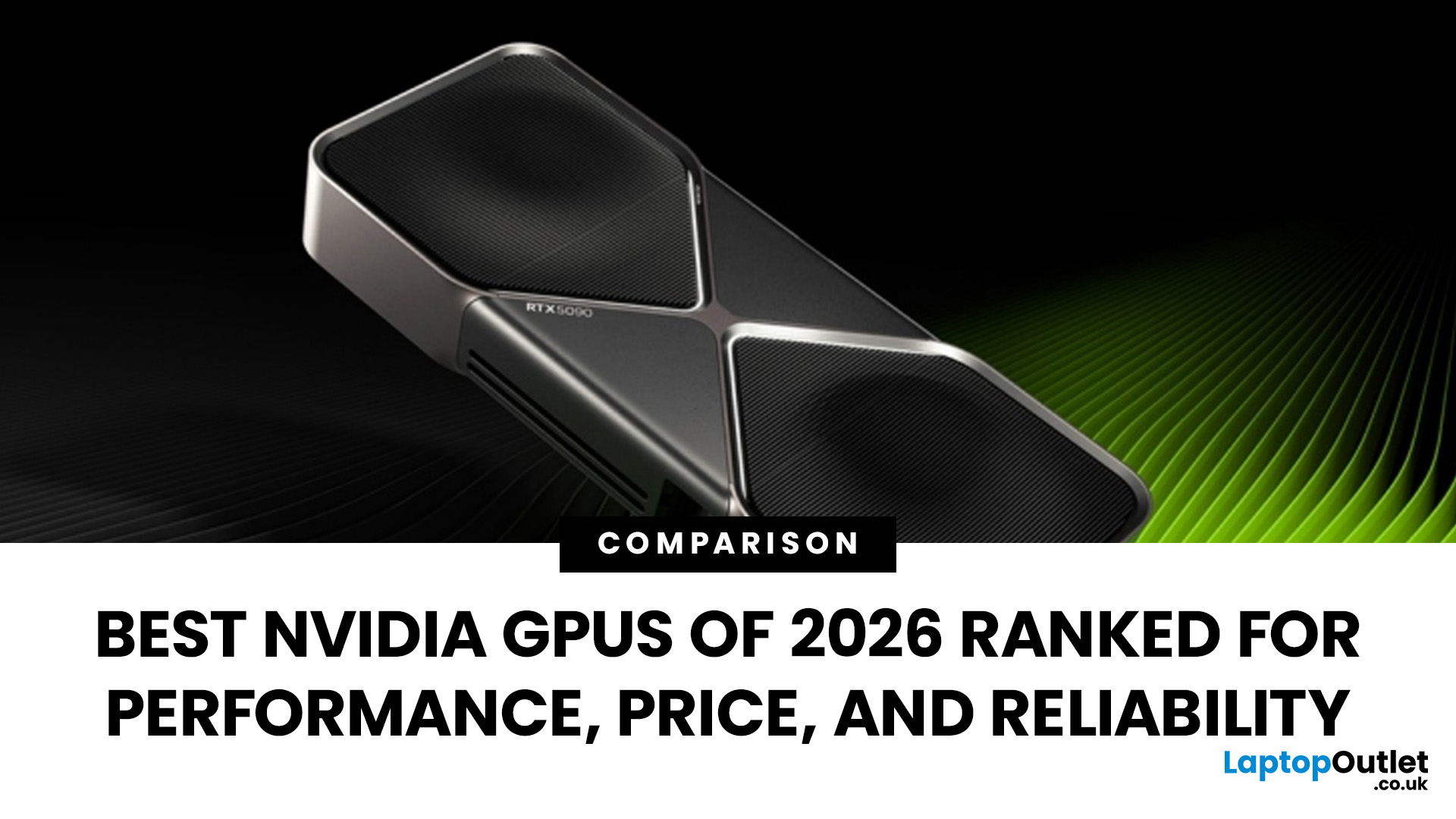
In 2026, gaming and content creation are more accessible than ever, thanks to Nvidia’s lineup of budget-friendly graphics cards. Whether you're a casual gamer, a competitive esports player, or a creative professional, finding the right GPU doesn’t have to drain your wallet. The market is filled with options that deliver exceptional performance without the premium price tag, ensuring you get the best value for your investment.
From the power-efficient GTX 1650 to the feature-rich RTX 3060, Nvidia continues to redefine budget gaming. These GPUs offer remarkable frame rates, smooth gameplay, and cutting-edge features like DLSS and ray tracing, bringing next-gen technology within reach for everyone. With the right choice, you can enjoy immersive visuals, faster rendering, and seamless multitasking without compromise.
With so many options available, it can be challenging to determine which budget Nvidia GPU is the best fit for your needs. Whether you’re looking for smooth 1080p gaming, entry-level

Last Updated: October 02, 2025
Want to Know Your GPU? Here's How
Whether you’re gaming, editing videos, or just curious—knowing what graphics card (GPU) you have matters. It affects performance, display quality, and what software your laptop can handle. Good news: it’s easy to check.
How to Find Out What Graphics Card You Have on Windows
1. Use Device Manager
- Press Windows + X, then select Device Manager
- Click the Display Adapters dropdown
- You’ll see the name of your graphics card listed
- This method works for both integrated (e.g. Intel HD) and dedicated GPUs (e.g. NVIDIA, AMD)
2. Use System Information
- Press Windows + R to open Run
- Type msinfo32 and press Enter
- Navigate to Components > Display
- Look for Adapter Type and Adapter Description
3. Use DirectX Diagnostic Tool (dxdiag)
- Press Windows + R, type dxdiag, and hit Enter
- Go to the Display tab
- Your GPU details will be listed under “Device”
4. Use Task Manager (Quick Check)
- Press Ctrl + Shift + Esc to open Task Manager
- Go to the

Last Updated: September 09, 2025
Exploring the Latest and Greatest in GPU Tech!
If you're wondering what makes a graphics card "good," you're not alone. Whether you're a gamer, a creator, or just love a snappy desktop experience, the right GPU (graphics processing unit) can completely redefine the way your system performs. With the release of Nvidia's 50 Series and AMD's latest GPUs, there's much to get excited about. But what actually makes a graphics card good? And which are the best graphics cards out there at the moment?
Let's break it down, human-style—no jargon overload, no fluffy nonsense, just real talk about real performance.
What Makes a Graphics Card 'Good'?
At its core, a good graphics card delivers consistent performance, reliable cooling, and future-ready features. Whether gaming at 4K, editing high-resolution video, or running AI software, a good GPU doesn't slow down when pushed.
The best graphics card should offer:
- Solid FPS (frames per second) across modern titles
- Support for ray tracing
Last Updated: September 09, 2025
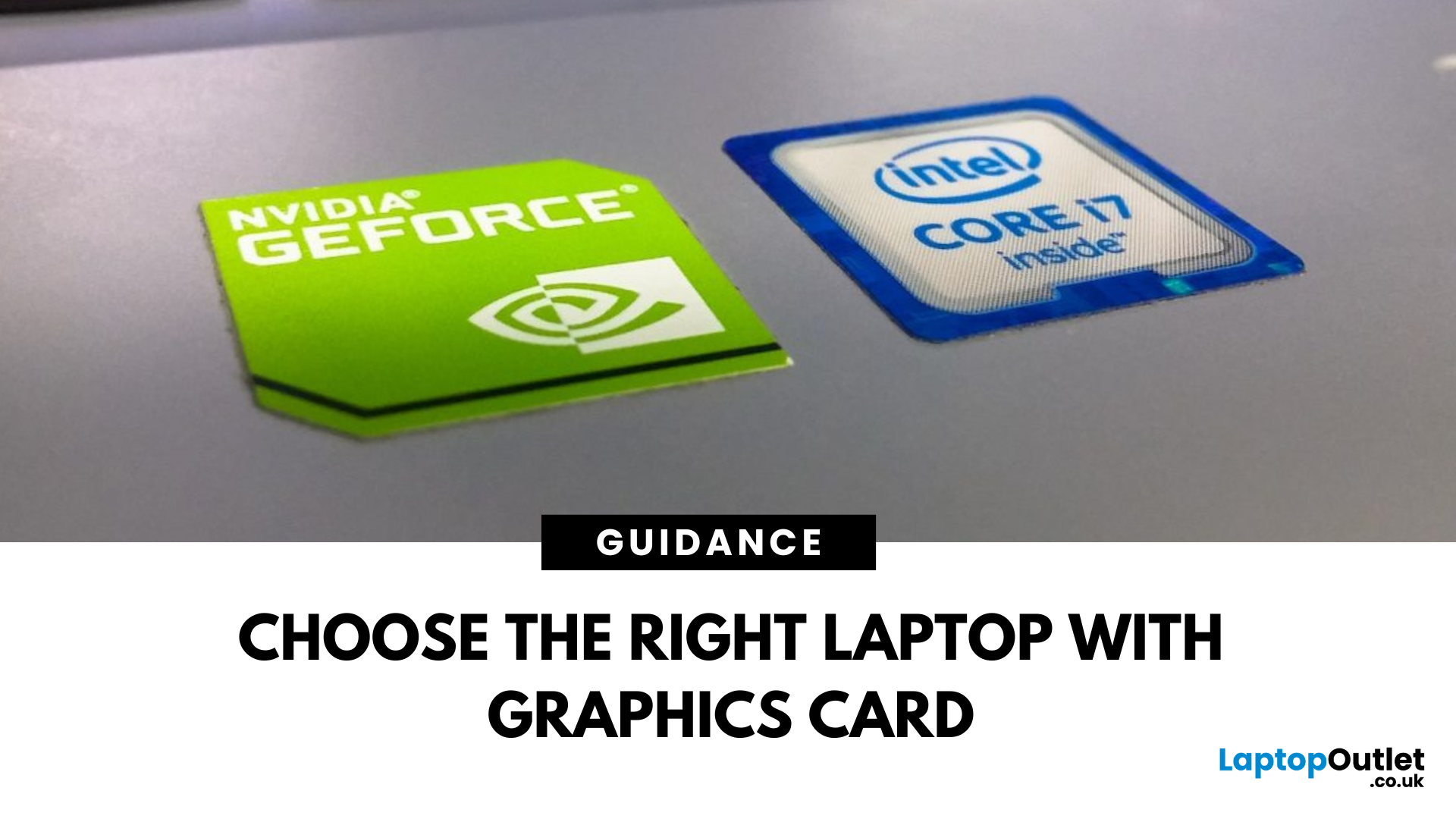
Graphics cards are the powerhouse behind stunning visuals and smooth gameplay on your laptop. From gaming and 3D rendering to video editing and CAD software, choosing the right graphics card can make all the difference. In this comprehensive guide, we break down how to select the perfect GPU for your laptop, focusing on the latest options like RTX 5090 and RTX 5060.
Why Graphics Cards Matter
Graphics cards, also known as GPUs, are crucial for rendering images, videos, and animations. A high-performance GPU can handle intensive tasks like 4K gaming, video editing, and graphic design without breaking a sweat. But with so many choices, finding the right one can be a challenge.
Enhanced Gaming Performance
For gamers, a powerful GPU is a game-changer. It enables laptops to run graphically intensive games smoothly, delivering high frame rates and lifelike graphics. A top-tier GPU like the NVIDIA RTX 5090 offers real-time ray tracing, DLSS technology, and AI-driven enhancements that make gaming

Last Updated: September 09, 2025
The Engine Behind Visual Power
Whether you're gaming, editing videos, or just watching YouTube, your device’s visuals are powered by a graphics card. But what exactly does it do—and do you need a powerful one? Let’s break down what a graphics card (GPU) is and why it matters.
What Is a Graphics Card?
A graphics card, or GPU (Graphics Processing Unit), is a specialised piece of hardware responsible for rendering images, videos, and animations on your screen.
It turns data into visuals—everything you see on your monitor runs through the GPU
What Does a Graphics Card Actually Do?
- Renders 2D and 3D graphics
- Processes high-resolution video and games
- Powers graphical user interfaces (GUIs)
- Enables faster photo and video editing, 3D rendering, and simulations
- Handles hardware acceleration for apps like browsers, games, and design tools
Types of Graphics Cards
1. Integrated GPU: Built into the CPU (e.g., Intel Iris, AMD Radeon Vega)
- Lower performance, uses shared memory

Last Updated: September 09, 2025
Time to Switch or Upgrade Your GPU?
Whether you're upgrading to a new GPU, troubleshooting hardware issues, or cleaning your PC, knowing how to safely remove your graphics card is essential. Follow this simple, step-by-step guide to do it without damaging your system.
1. What You’ll Need
- A Philips screwdriver
- Anti-static wristband (recommended)
- A clean, flat workspace
Optional: compressed air for cleaning dust around the GPU
2. Turn Off Your PC and Unplug Everything
- Shut down your PC completely
- Unplug the power cable and all connected peripherals (monitor, mouse, etc.)
Hold the power button for 3–5 seconds to discharge remaining power
3. Open the PC Case
- Use a screwdriver to remove the side panel (usually the left side)
- Place the screws somewhere safe—you’ll need them later
4. Ground Yourself
- Wear an anti-static wristband or touch a grounded metal object to prevent static discharge
5. Locate the Graphics Card
- It’s the large card connected to the motherboard’s
Last Updated: September 09, 2025
Time for a GPU Upgrade?
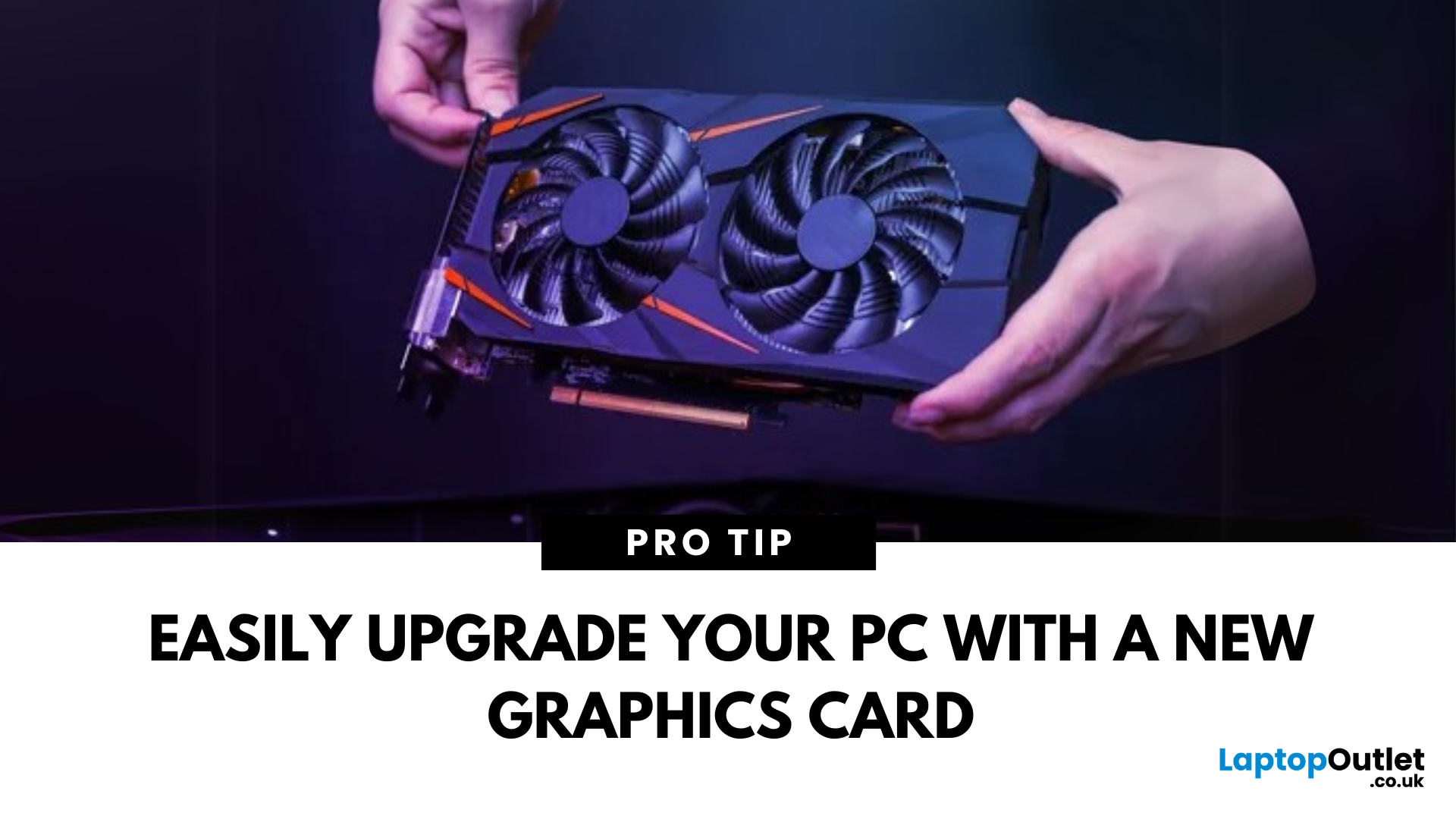
Whether you're chasing better gaming performance, smoother rendering, or next-gen AI capability, installing a new graphics card (GPU) is one of the best PC upgrades you can make. Here's how to safely and properly install your new GPU.
1. What You’ll Need
- Your new graphics card
- A Philips screwdriver
- An anti-static wrist strap (recommended)
- A clean, flat workspace
Optional: compressed air to clean out dust before installing the new GPU
2. Prepare Your PC
- Shut down your computer
- Unplug the power cable and all peripherals
- Hold the power button for 5 seconds to discharge remaining power
3. Open the Case and Remove the Old GPU (If Needed)
- Unscrew and remove the side panel of your PC case
- Disconnect power cables from your existing GPU
- Unscrew the GPU bracket
- Release the PCIe latch and gently pull out the old card
- If you’re installing a GPU for the first time, skip to the next step
4. Insert the New Graphics Card
- Locate the PCIe x16
Last Updated: September 09, 2025
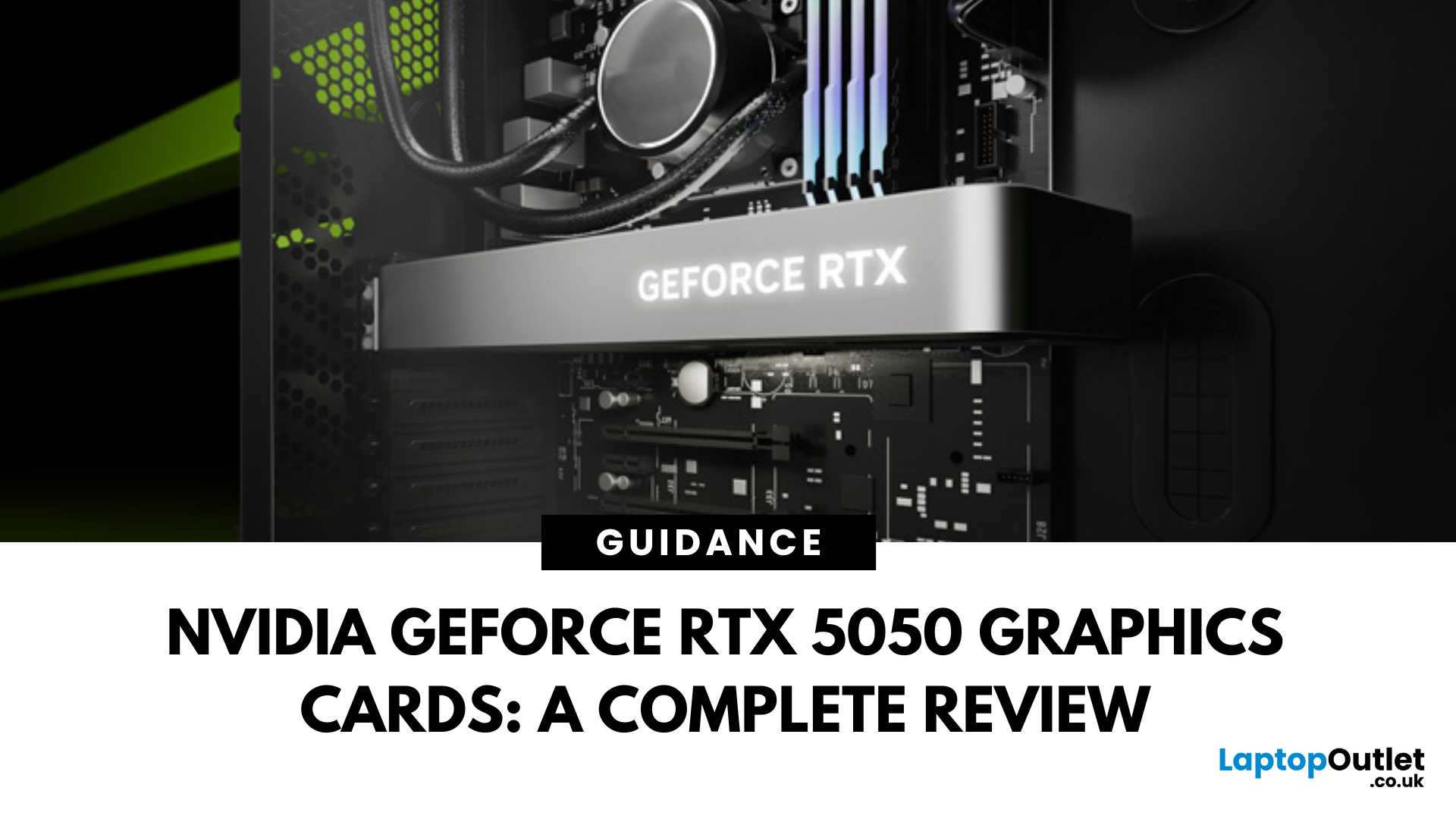
The RTX 5050 arrives as a timely and much-needed addition to NVIDIA’s mid-range line-up. With GPU prices escalating and older models ageing out of relevance, this card positions itself as a smart compromise between performance, features, and affordability. Targeted at gamers, upgraders, and budget-conscious users alike, it strikes an appealing balance that’s increasingly rare in the entry-level space. If you're considering an RTX 5050 upgrade, this RTX 5060 graphics cards review has something for you.
Architecture & Specifications: A Capable Foundation
Under the hood, the RTX 5050 is built on NVIDIA’s Blackwell architecture, the same foundation used in high-end models like the RTX 5090 graphics card. This gives it access to 5th-gen Tensor cores and 4th-gen RT cores, cutting-edge tech for a budget-friendly GPU. The card features 2,560 CUDA cores, a boost clock of up to 2,570 MHz, and 8GB of GDDR6 memory with 320 GB/s bandwidth. Despite its modest memory interface, performance stays sharp

