



How to Create a Shortcut on Desktop
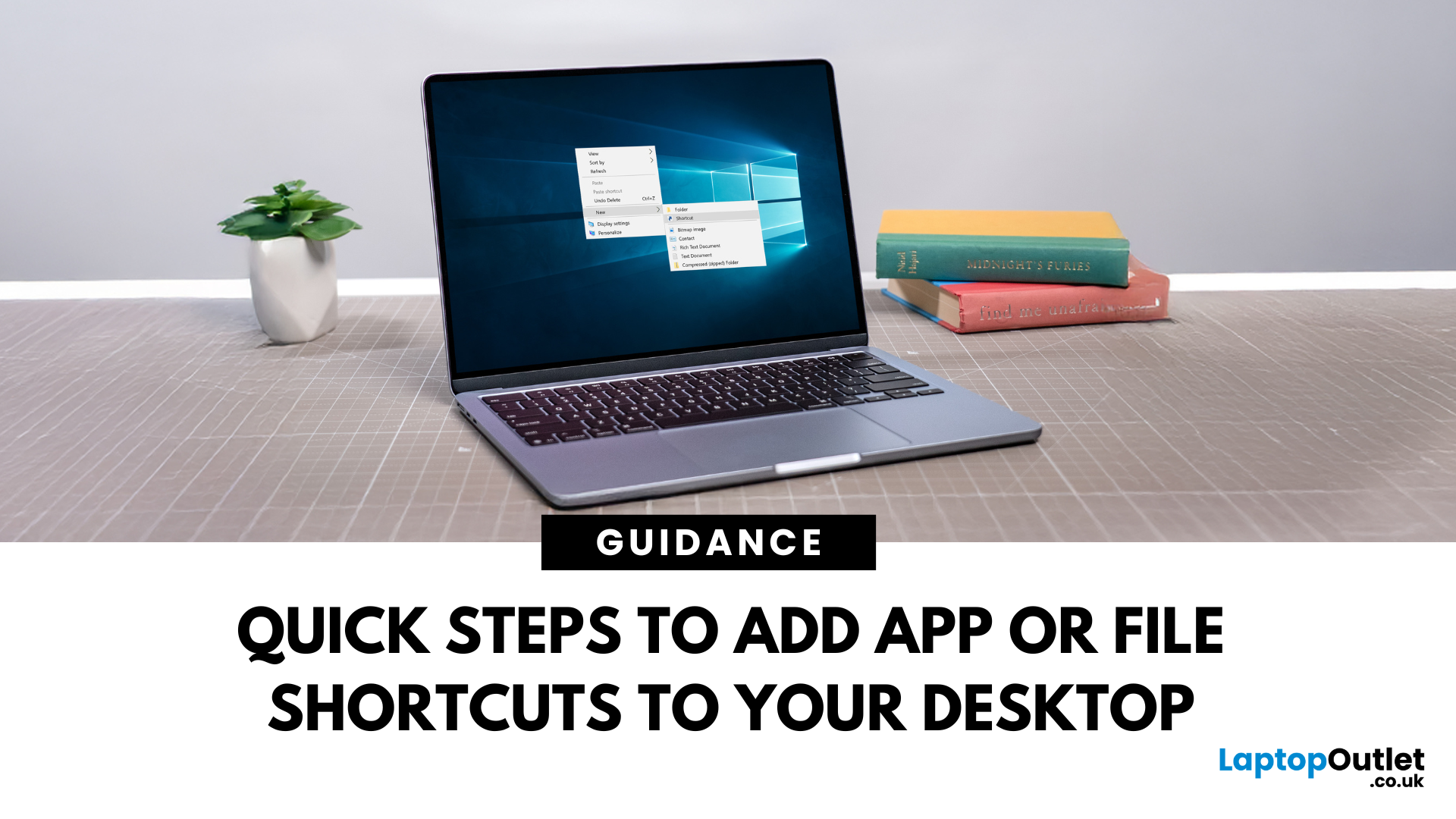
Make Your Desktop Work Smarter
Tired of digging through folders to open your favourite apps or files? A desktop shortcut can save you time by placing what you need right where you can see it. Here’s how to create a desktop shortcut in Windows and macOS.
1. How to Create a Shortcut on Windows (10 & 11)
For Applications:
- Click the Start Menu
- Find your app and right-click it
- Select More > Open File Location
- Right-click the app’s icon and choose Send to > Desktop (create shortcut)
For Files or Folders:
- Locate the file or folder in File Explorer
- Right-click > Send to > Desktop (create shortcut)
You can also drag and drop while holding the Alt key to create a shortcut
2. How to Create a Shortcut on Mac (macOS Sonoma, Ventura, Monterey)
For Applications or Files:
- Open Finder and locate the file, app, or folder
- Right-click and select Make Alias
- Drag the alias to your desktop
Alternatively, hold Command + Option and drag the item to the desktop to create a shortcut automatically
3. Rename or Organise Your Shortcuts
- Right-click the shortcut > Rename
- Drag it into folders or arrange on your desktop
Use desktop folders to organise work, games, media, or tools
4. Remove or Delete a Shortcut
Windows: Right-click > Delete (does not delete the original file)
Mac: Drag the alias to the Trash
Final Thoughts: Speed Up Everyday Access
Creating a desktop shortcut is a small move that adds major convenience. Whether you’re launching apps or accessing files, it puts your favourites front and centre.
Looking for faster systems or organised workspace tools? Shop Windows laptops and Macs at Laptop Outlet today.
FAQs: Desktop Shortcut Tips
1. Does deleting a shortcut delete the app?
No—it only removes the shortcut, not the original file or app.
2. Can I create a shortcut for a website?
Yes—drag the padlock icon from the browser bar to your desktop.
3. How do I pin an app to the taskbar instead?
Right-click the app > Pin to Taskbar (Windows only).
4. Why can’t I create a shortcut on Mac?
Make sure you’re creating an alias—not moving the original file.
5. Can I change a shortcut icon?
Yes—right-click > Properties > Change Icon (Windows) or use Get Info on Mac.
Read More:
| How to Check Your PC Specs |
| How to Build a Gaming PC |
| What Desktop PC Should I Buy |
Related Articles

Last Updated: June 17, 2026
Choose a gaming desktop PC if you want the strongest performance, easier upgrades, better cooling, and the best long-term value. Choose a gaming laptop if you need portable play, a built-in screen, and one machine for gaming, study, work, or travel. In 2026, the sensible choice depends on your space, budget, upgrade plans, and real-world performance expectations.
The debate between a PC gaming laptop vs desktop has been running for years, and in 2026 it is more relevant than ever. Many current gaming laptops and PCs now support NVIDIA RTX 50-series graphics, PCIe Gen 5 storage, and DDR5 memory. On paper, they have never been closer. In practice, the differences that matter most to everyday gamers remain clear and significant. This guide will compare both platforms across all meaningful aspects to help you choose the right one.
Gaming Desktop vs Gaming Laptop: A Side-by-Side Overview
Before diving into the detail, here is a top-level comparison across the factors most UK buyers care about.
Last Updated: April 06, 2026
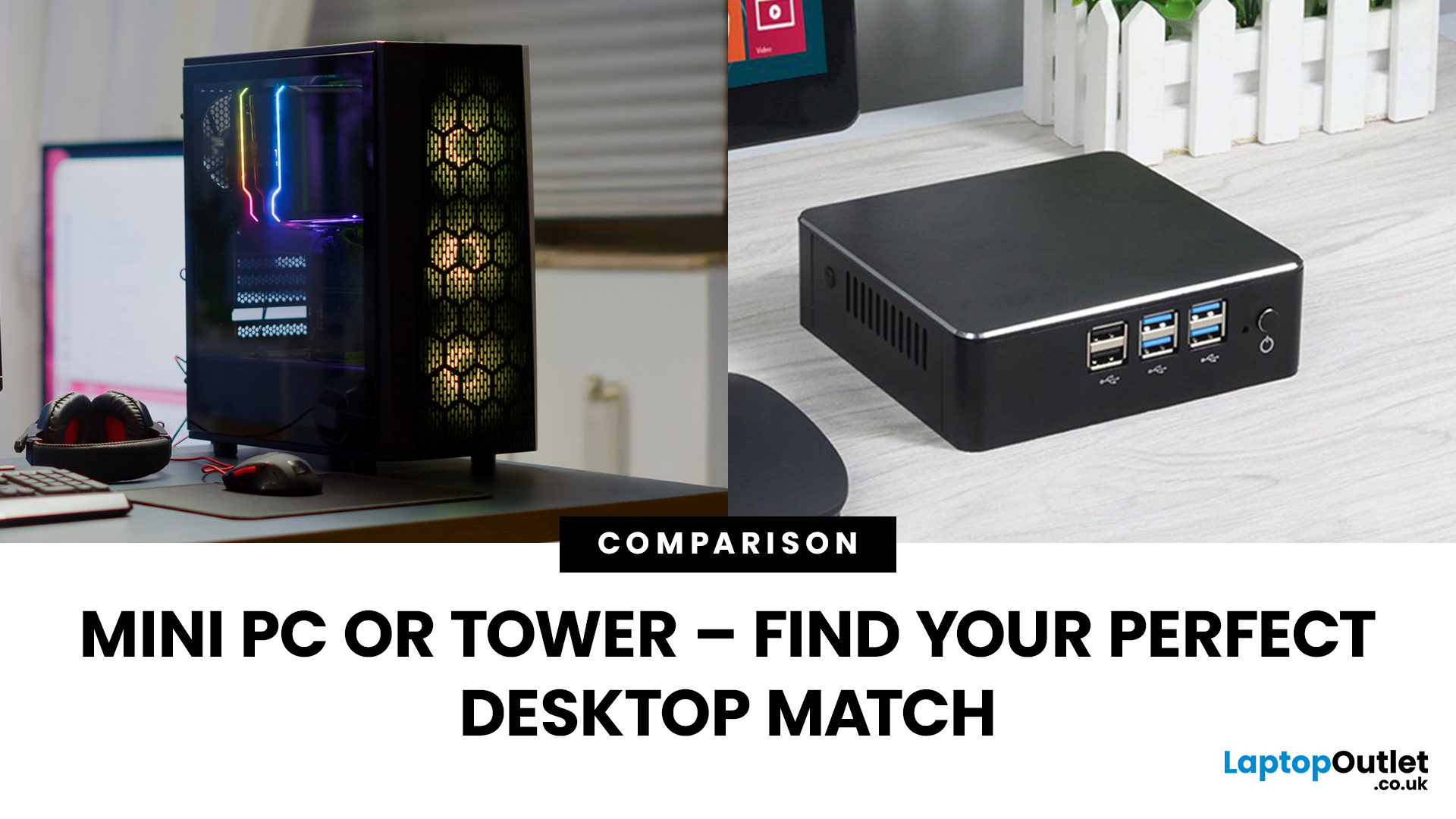
Need a black and white answer to ‘mini PC vs. tower PC’? You have come to the right place! Mini PCs and tower PCs are great devices suitable for different needs. While mini PCs are compact, space-saving, and offer competent-high performance, tower PCs are typically more robust, super spacious, capable of accommodating various components, and offer higher performance potential. Ultimately, choosing between them depends on your needs and preferences. However, mini PCs are ideal for people with limited space, everyday users, remote workers, and frequent travellers. At the same time, tower PCs are terrific options for gamers, content creators, professionals, tech enthusiasts, heavy multitaskers, and power users.
Mini PC vs. tower PC is a frequently discussed topic, often with a straightforward answer. Both offer distinct advantages and are fantastic options for different types of users. If you have limited space, want to enjoy competitive performance at a cost-effective price, and prioritise
Last Updated: July 01, 2025
Introduction: Ready to Build Your Dream Gaming PC?
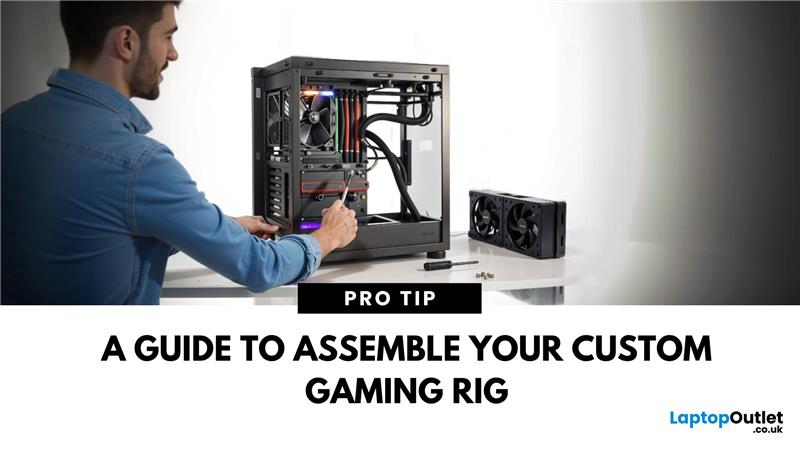
Building a gaming PC isn’t just for tech enthusiasts—it’s the best way to get exactly the performance you want for your budget. Whether you’re after high FPS, 4K visuals, or competitive play, building your own gaming PC gives you full control over your setup. Here’s how to do it, step by step.
What You’ll Need to Build a Gaming PC
Essential Components:
- CPU (Processor)
- GPU (Graphics Card)
- Motherboard
- RAM (Memory)
- Storage (SSD/HDD)
- Power Supply Unit (PSU)
- PC Case
- Cooling System (Stock cooler or aftermarket fans/liquid cooling)
Optional Components:
- RGB lighting
- Additional case fans
- Aftermarket CPU cooler
Step-by-Step: How to Build a Gaming PC
1. Prepare Your Workspace
- Work on a large, flat surface
- Use an anti-static mat or wrist strap
- Gather all your components and tools
2. Install the CPU
- Open the CPU socket on the motherboard
- Align the CPU correctly (check the corner marker)
- Gently place and
Last Updated: August 20, 2026
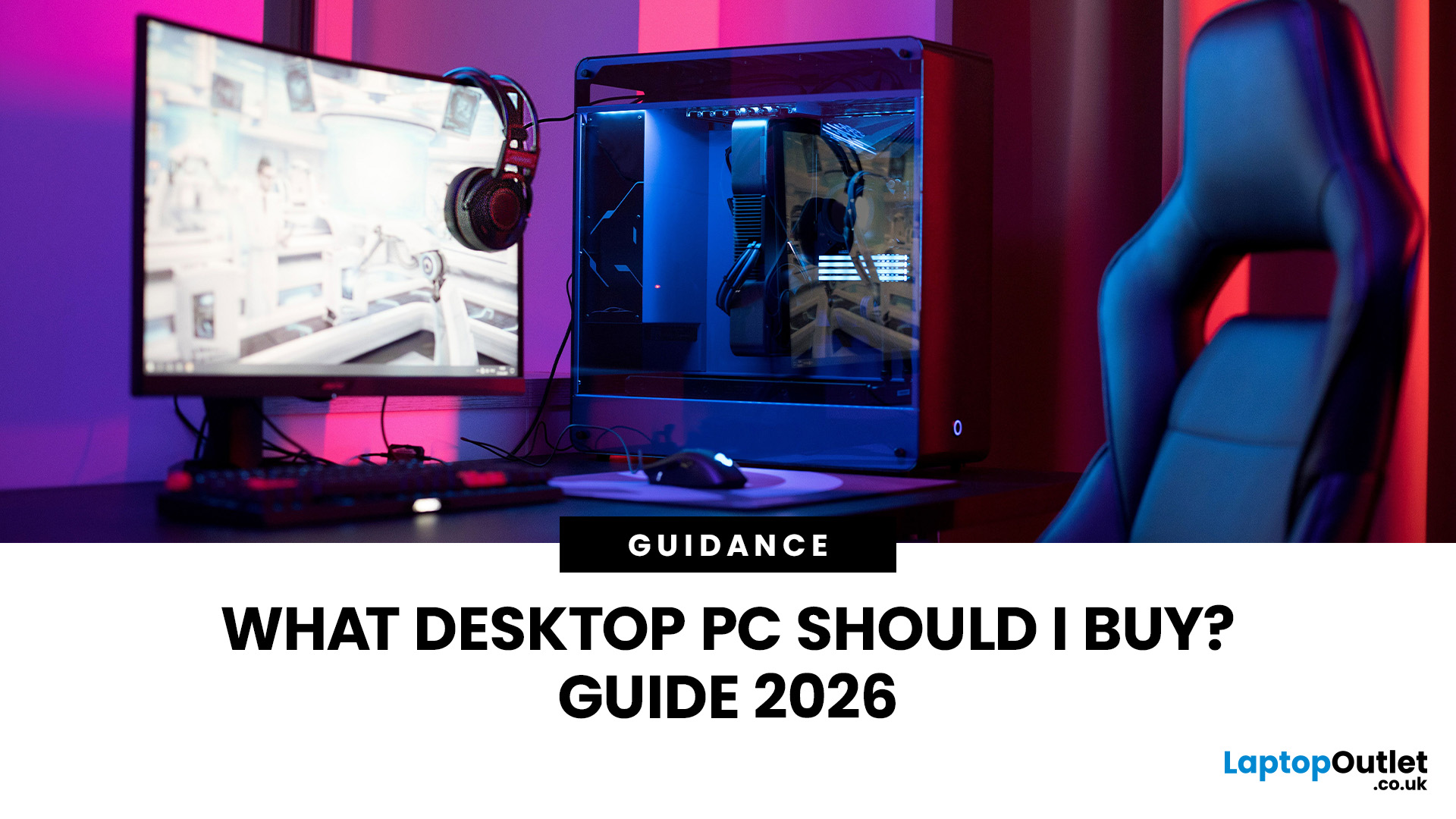
Buying a new desktop PC can be confusing when you are faced with different processors, graphics cards, RAM capacities, storage options and form factors.
The right choice depends on what you actually need the computer to do. A PC for browsing, studying and office work does not need the same hardware as a gaming desktop or professional workstation.
This guide explains what to look for when buying a desktop PC in 2026, whether you need an affordable home computer, a productive office setup, a powerful gaming PC or a machine for creative work.
Key Factors to Consider Before Buying
Before comparing individual desktop PCs, think about:
- Your main use, such as gaming, work, study or creative applications
- Processor (CPU) performance
- Graphics (GPU) requirements
- RAM capacity
- SSD storage
- Desktop size and form factor
- Upgrade potential
- Connectivity and ports
- Operating system
- Your overall budget
For most buyers, getting a balanced specification is more important than simply choosing the fastest processor

Last Updated: May 23, 2025
Bluetooth or Not? Let’s Find Out
Want to connect wireless headphones, a keyboard, or a mouse—but not sure if your PC has Bluetooth? Many modern laptops and desktops include it, but it’s not always obvious. Here’s how to check if your PC has Bluetooth, and what to do if it doesn’t.
1. Check for Bluetooth in Windows Settings
Steps (Windows 10/11):
- Open Settings (press Windows + I)
- Click Devices > Bluetooth & other devices
- If you see a toggle switch for Bluetooth, your PC supports it
If there’s no Bluetooth section at all, it likely isn’t built-in
2. Check Device Manager for Bluetooth Hardware
- Right-click the Start menu and select Device Manager
- Look for a Bluetooth category in the list
- Expand it to see Bluetooth adapter details
If you don’t see Bluetooth here, check under Network Adapters or Hidden Devices
3. Use the Run Command to Confirm
- Press Windows + R to open Run
- Type devmgmt.msc and hit Enter
- Look for Bluetooth devices in the list that appears
4. Search
Last Updated: May 23, 2025
A New Era of Computing
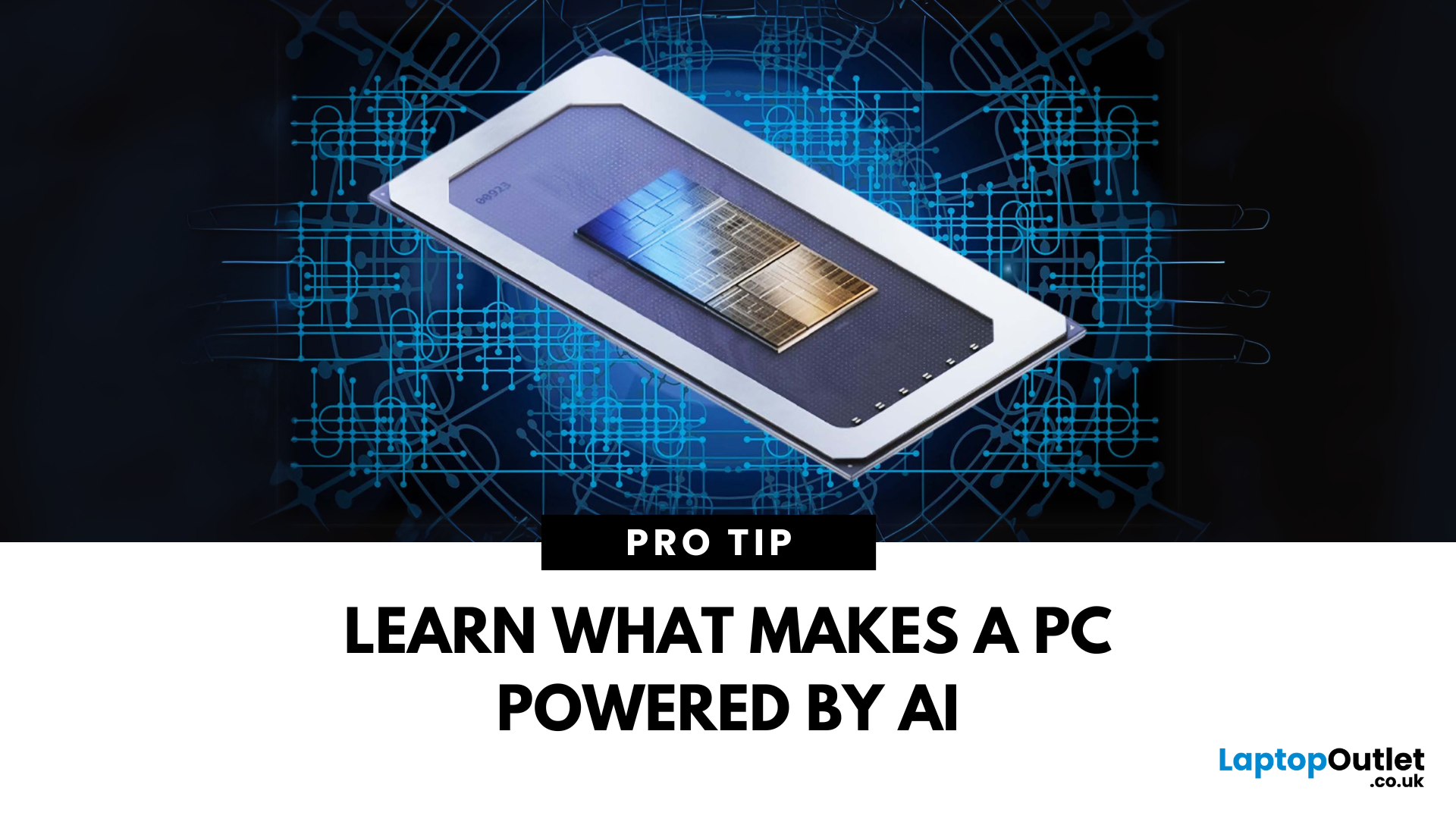
You’ve heard of AI in smartphones and smart homes—but now, AI PCs are becoming the next big thing. From smarter performance to predictive features, AI is transforming how laptops and desktops operate. Here’s everything you need to know about AI PCs and why they matter.
1. What Is an AI PC?
An AI PC is a computer that uses artificial intelligence technologies built directly into its hardware and software to:
- Optimise performance automatically
- Predict user behaviour
- Enhance multitasking and battery life
- Improve security and personalisation
Think of it as a computer that adapts to you, rather than you adapting to it
2. How Does an AI PC Work?
AI PCs use a combination of:
- Dedicated AI processors (like NPUs—Neural Processing Units)
- Machine learning algorithms to predict user needs
- On-device AI models that analyse data without needing the cloud
The result? Faster performance, smarter multitasking, and highly efficient energy use—all in real time.

Last Updated: May 20, 2025
Know What’s Inside Your Machine
Whether upgrading, troubleshooting, or just curious, it’s important to know your PC specs—including your CPU, RAM, GPU, and storage. Here’s how to quickly check your PC’s specifications on Windows.
Use System Settings (For Basic Specs)
Steps:
- Go to Settings > System > About
- Under Device specifications, you’ll see:
- Processor (CPU)
- Installed RAM
- System type (32-bit or 64-bit)
This section also includes your Windows edition and version
Use Task Manager (Quick View of Performance)
Steps:
- Press Ctrl + Shift + Esc to open Task Manager
- Click the Performance tab
View:
- CPU details and usage
- Memory (RAM)
- Disk, GPU, and network activity
Helpful for seeing how your hardware is performing in real time
Use System Information Tool (Detailed Specs)
Steps:
- Press Windows + R, type msinfo32, and press Enter
- Explore details including:
- BIOS version
- Motherboard
- System model
- Memory, CPU, and more
A complete breakdown of your

