



How to Undervolt Your GPU: Lower Temperatures and Noise
Quick Answer:
To undervolt a GPU, lower its operating voltage in small steps using software such as MSI Afterburner for NVIDIA cards or AMD Software: Adrenalin Edition for Radeon GPUs. Test stability after each change with games or benchmarks. A stable undervolt can reduce GPU temperatures, fan noise and power consumption while keeping performance close to stock settings.
Is your graphics card running hotter or louder than you'd like? GPU undervolting can reduce power use, heat and fan noise without significantly affecting performance when configured properly.
In this guide, we'll show you how to undervolt NVIDIA and AMD GPUs safely, test stability and avoid common issues such as crashes or graphical artefacts.
What Is GPU Undervolting and How Does It Work?
GPU undervolting is the process of lowering the voltage a graphics processor uses at a particular operating frequency. The aim is to maintain useful performance while consuming less power and generating less heat.
Modern graphics cards automatically adjust their clock speeds and voltage according to workload, temperature and available power. Manufacturers configure these operating limits to accommodate differences between individual chips and ensure reliable performance across a wide range of conditions.
However, some GPUs can maintain a particular clock speed at a lower voltage than their default settings.
For example, a graphics card operating at 2,500MHz and 1,050mV might remain stable at a similar frequency using 950mV. These are illustrative values, not recommended settings for every card.
Reducing voltage can lower electrical power consumption, particularly when the GPU operates under sustained load. Less power consumed by the graphics processor generally means less heat for the cooling system to remove.
The important distinction is that undervolting is not the same as underclocking.
|
GPU adjustment |
What it changes |
Main purpose |
|
Undervolting |
Reduces operating voltage |
Improve power efficiency and reduce heat |
|
Underclocking |
Reduces operating frequency |
Lower performance demands, power use and heat |
|
Overclocking |
Raises operating frequency |
Increase performance, potentially at higher power consumption |
|
Power limiting |
Restricts maximum allowed power draw |
Control power consumption and heat output |
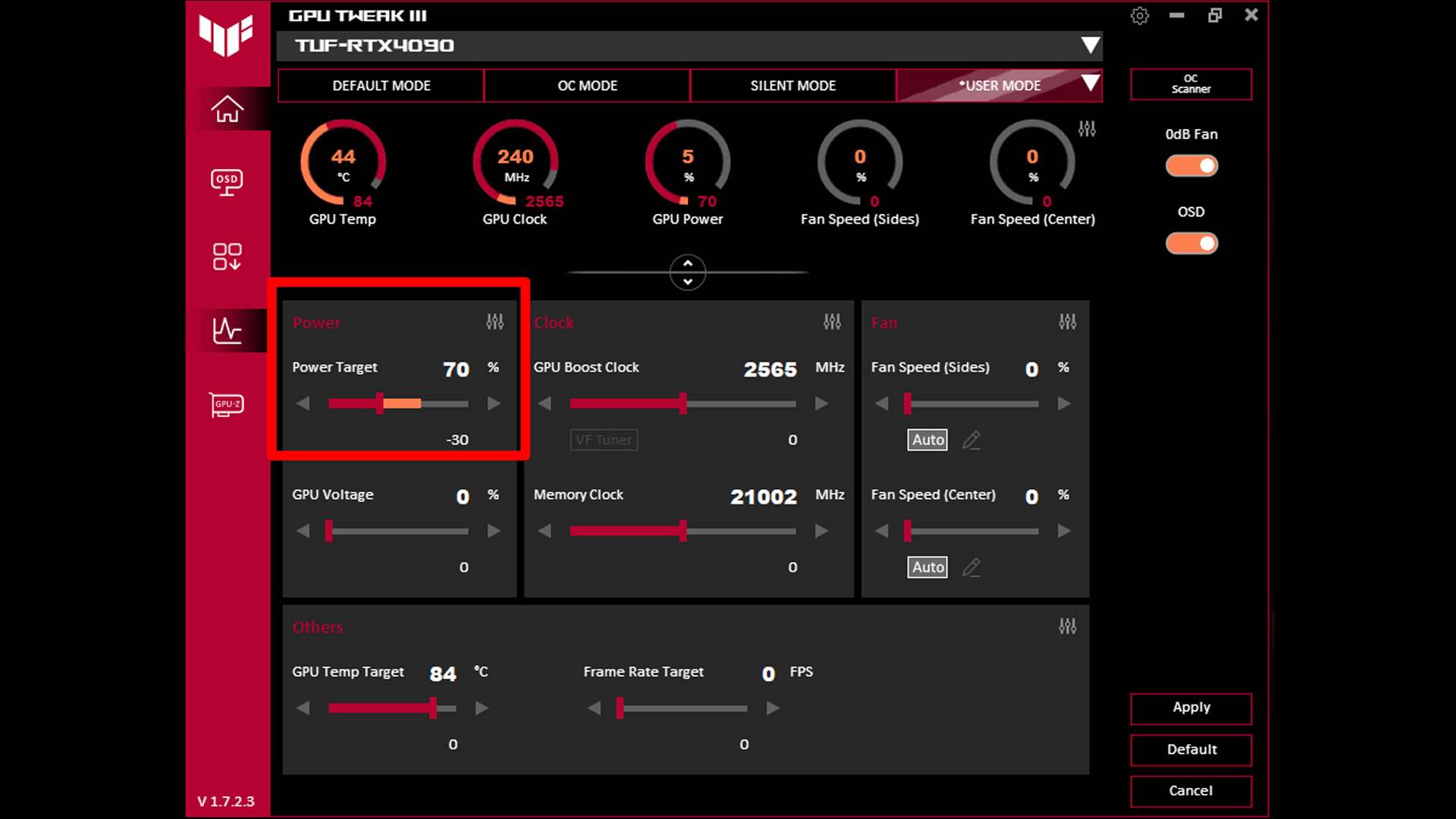
You can combine undervolting with a modest clock adjustment or power limit, but these are separate controls.
What Are the Benefits of Undervolting a GPU?
The benefits of undervolting GPU hardware depend on the graphics card, cooling system, workload, and how aggressively you adjust its voltage.
1. Lower GPU Temperatures
Reducing voltage can decrease the GPU's power consumption and heat output during demanding workloads. This is particularly useful when playing graphically intensive games, rendering video or running applications that keep the graphics processor under sustained load.
A successful undervolt may lower the GPU's core temperature and hotspot temperature, although the improvement varies between systems.
2. Quieter Cooling Fans
When your GPU generates less heat, its cooling fans may not need to spin as quickly. That can make a noticeable difference if your graphics card becomes particularly noisy during extended gaming sessions.
However, fan noise depends on the card's fan curve, case airflow and surrounding temperature. An undervolt won't necessarily make every graphics card quieter.
3. Lower Power Consumption
A more efficient voltage configuration can reduce the electricity your graphics card uses during demanding tasks. This can be particularly appealing if you spend several hours gaming or working with GPU-intensive applications.
Remember that GPU power consumption isn't the same as total system power consumption. Your processor, memory, storage, cooling and other components also contribute to your PC's electricity usage.
4. More Consistent Performance Under Thermal Constraints
Some graphics cards automatically reduce their operating frequency when they approach temperature or power limits. By reducing heat output, undervolting may help a GPU maintain more consistent clock speeds during longer workloads.
In certain circumstances, this can improve sustained performance. However, it won't automatically increase FPS, particularly if your graphics card wasn't experiencing thermal or power limitations in the first place.
5. Better Efficiency Without Buying New Hardware
If you're happy with your existing graphics card's performance but want a cooler or quieter system, undervolting can be worth trying before spending money on an upgrade. That said, it cannot compensate for a failing fan, blocked heatsink or inadequate cooling system.
If your GPU consistently struggles with modern games, you can browse our graphics card range at Laptop Outlet for alternatives suited to your performance requirements and budget.
What Do You Need Before Undervolting Your GPU?
Before making any changes, install the appropriate tuning and monitoring software.
|
Tool |
Purpose |
|
MSI Afterburner |
Adjust compatible GPU voltage-frequency curves and monitor performance |
|
AMD Software: Adrenalin Edition |
Access supported Radeon GPU tuning controls |
|
HWiNFO |
Monitor GPU temperatures, clock speeds, power and other sensors |
|
GPU-Z |
Identify GPU specifications and monitor graphics card information |
|
3DMark or Unigine Superposition |
Run repeatable graphics benchmarks |
|
Your usual games |
Check stability under realistic workloads |
You don't need every application listed above. Choose the tools appropriate for your graphics card and testing preferences.
Before you start:
- Update your graphics driver to a suitable stable version.
- Check whether your GPU supports voltage adjustments.
- Close unnecessary background applications.
- Record your existing GPU temperatures, clock speeds, power consumption and benchmark results.
- Save your current tuning profile or make a note of the default settings.
- Ensure your PC has adequate airflow and that the cooling fans are working correctly.
Expert tip: Test your graphics card at its default settings before undervolting. Run a demanding game or benchmark for around 15–20 minutes and record average FPS, 1% low FPS, GPU temperature, hotspot temperature where available, fan speed and GPU power consumption. These measurements will give you a useful baseline.
How to Undervolt an NVIDIA GPU Using MSI Afterburner
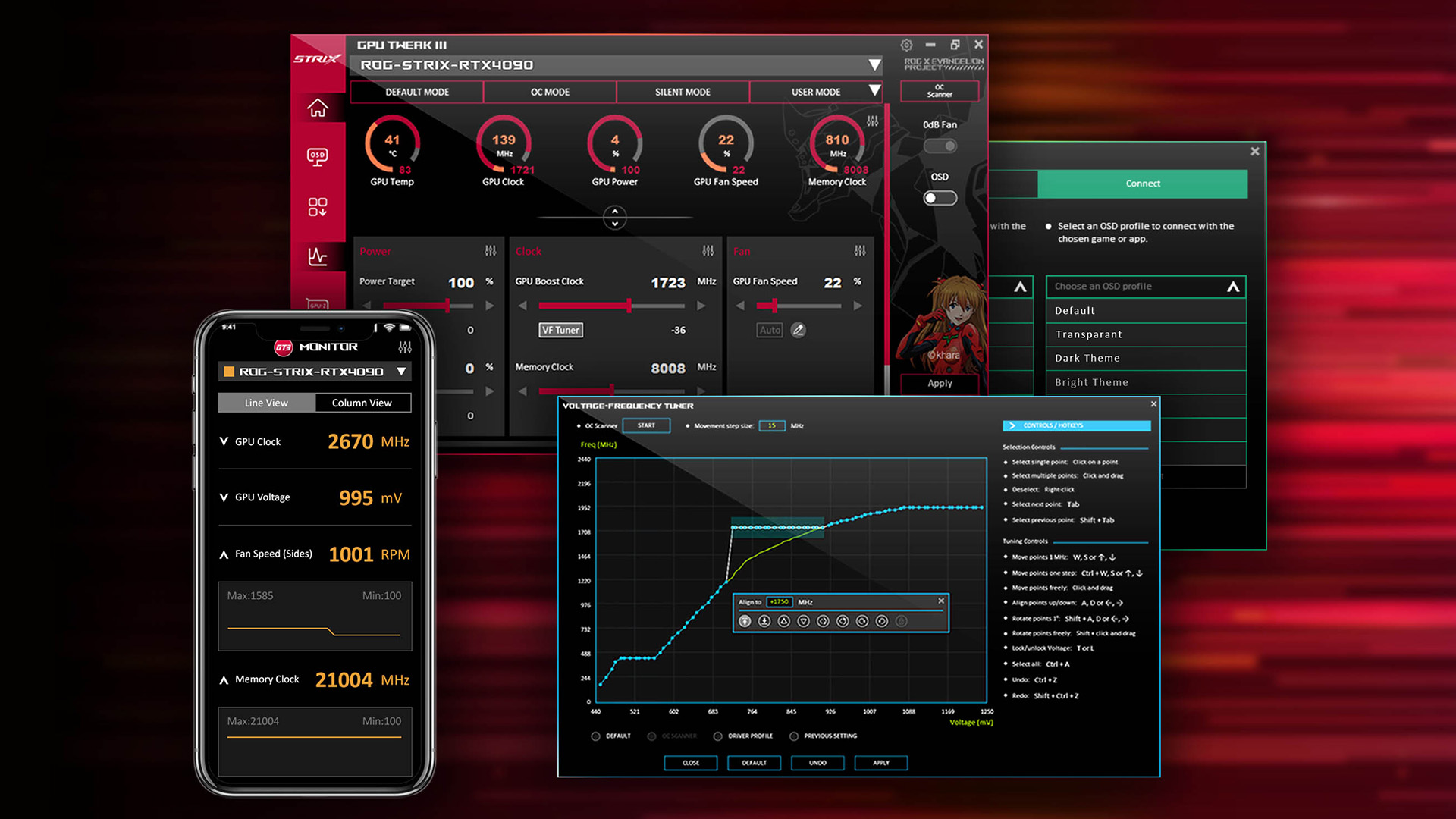
For many supported NVIDIA desktop graphics cards, MSI Afterburner provides a practical way to adjust the voltage-frequency relationship.
The MSI Afterburner undervolt process involves selecting a lower voltage point, assigning an appropriate clock frequency and adjusting the curve to prevent the GPU from boosting beyond your intended target.
The following method applies to compatible cards that expose voltage-frequency curve controls. The available settings can differ between GPU generations, drivers and laptop or desktop implementations.
Step 1: Install MSI Afterburner
Download MSI Afterburner from its official source and install it on your PC. Launch the application and familiarise yourself with the main controls, including core clock, memory clock, power limit and temperature monitoring.
Avoid changing multiple settings at once. Leave memory frequency and other tuning options at their defaults while establishing a stable undervolt.
Step 2: Record Your GPU's Normal Behaviour
Run a demanding game or benchmark with your graphics card at its default settings. Monitor the GPU's operating frequency, voltage, temperature and power consumption.
For example, you might observe your GPU maintaining approximately 2,600MHz at around 1,050mV under load. The values will fluctuate because modern NVIDIA GPUs dynamically adjust their operating conditions.
Use your observations to identify a reasonable starting point rather than copying someone else's voltage settings.
Step 3: Open the Voltage-Frequency Curve Editor
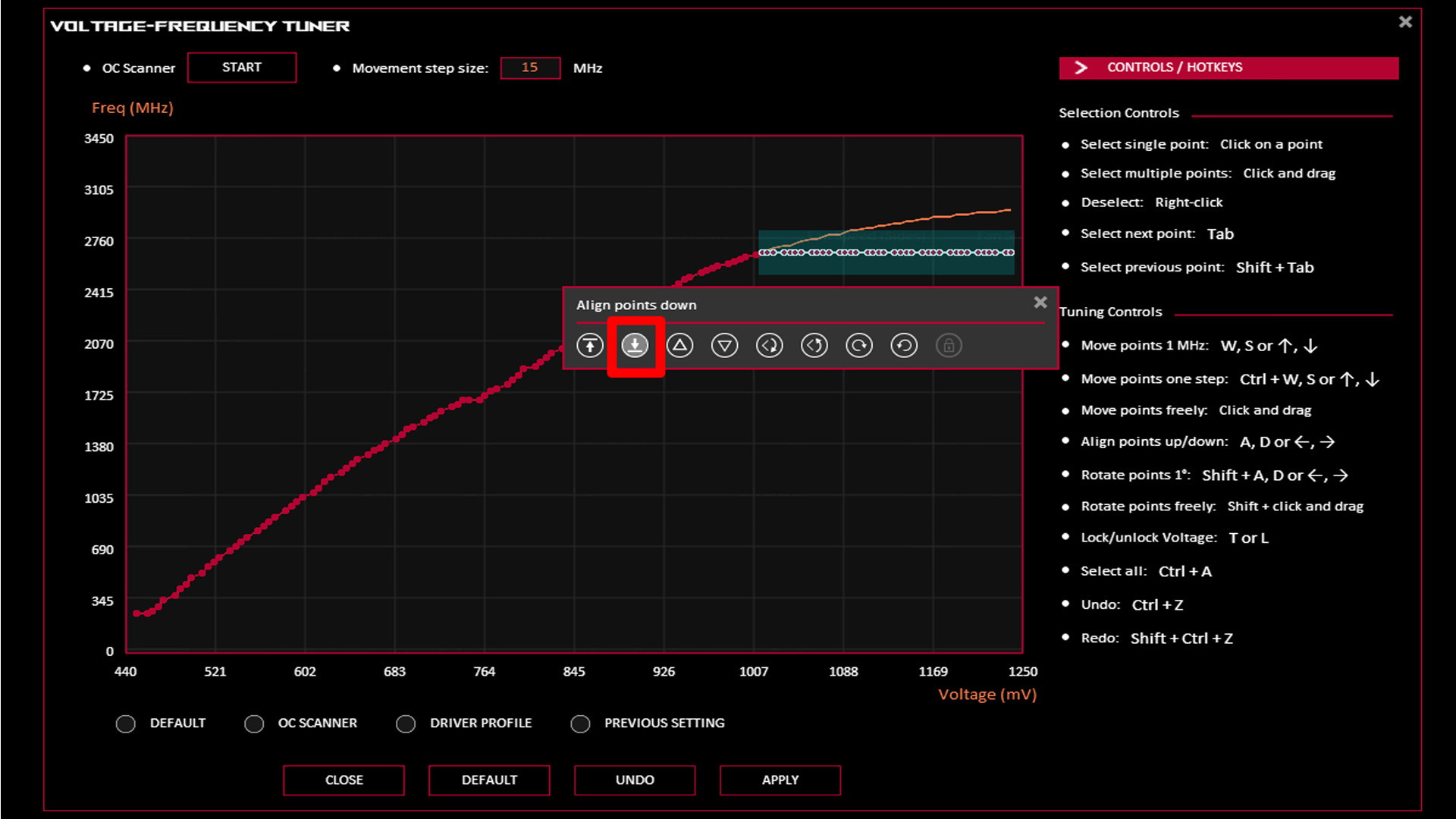
In MSI Afterburner, press Ctrl + F to open the voltage-frequency curve editor.
You'll see a graph showing the relationship between voltage and core frequency.
- The horizontal axis represents voltage, usually measured in millivolts (mV).
- The vertical axis represents GPU core frequency, measured in megahertz (MHz).
Each point represents a voltage-frequency operating target.
Step 4: Choose a Conservative Voltage Target
Find a voltage point slightly below the level your GPU typically uses during demanding workloads. For example, if your card commonly operates near 1,050mV, you could begin by testing a modest reduction rather than immediately attempting a very low voltage.
Adjust the selected point to a frequency close to your observed stable operating speed. If necessary, use a slightly lower clock target to improve stability.
Avoid assuming that a particular voltage will work across all NVIDIA graphics cards. Two cards with the same model number can have different voltage requirements.
Step 5: Adjust the Curve and Apply Your Settings
After selecting your target voltage-frequency point, adjust the higher-voltage portion of the curve so that the GPU does not continue boosting to higher frequencies at higher voltage points. The exact editing method depends on your MSI Afterburner version and GPU support.
Check the resulting curve after pressing Apply, as the software may normalise or shift the points. Save the configuration to a profile once you've confirmed that it behaves as intended.
Step 6: Test Your NVIDIA GPU
Run the same benchmark or game you used during your baseline test.
Watch for:
- Unexpected crashes or driver resets
- Flickering textures or graphical artefacts
- Sudden clock-speed drops
- Stuttering or inconsistent frame times
- Lower-than-expected benchmark performance
If the system becomes unstable, increase the target voltage slightly or reduce the selected frequency. Repeat until you find a stable balance between performance, temperature and power consumption.
You can apply this general approach to many supported cards in our NVIDIA RTX graphics category, although individual tuning controls and results vary by model.
How to Undervolt an AMD GPU Using Radeon Software
If you're using a compatible AMD Radeon graphics, you may not need a separate tuning application. AMD Software: Adrenalin Edition includes built-in performance tuning features for supported GPUs.
The AMD undervolt GPU process can be more straightforward because Radeon Software may offer an automatic undervolting option alongside manual controls.
Step 1: Open AMD Software: Adrenalin Edition
Right-click your desktop and open AMD Software: Adrenalin Edition. Navigate to the Performance section and select Tuning.
The interface and available options depend on your graphics card and software version.
Step 2: Check for Automatic Undervolting
On supported Radeon graphics cards, look for an automatic undervolting option. If available, this can provide a convenient starting point without manually adjusting individual voltage and frequency settings.
Apply the automatic undervolt and run a benchmark to check temperatures, performance and stability. Automatic tuning doesn't guarantee that every application will remain stable, so further testing is still necessary.
Step 3: Enable Manual GPU Tuning
If you want more control, select the manual or custom tuning option. Accept any applicable warnings and enable GPU tuning. Depending on your Radeon model, you may see controls for maximum frequency, minimum frequency and voltage.
Some GPUs provide a voltage offset rather than a direct maximum-voltage setting.
Step 4: Reduce Voltage Gradually
Begin with a small adjustment rather than a large voltage reduction. For GPUs that expose a voltage value in millivolts, you can test a modest reduction, apply the settings and observe the result.
If your software uses a voltage offset, make a similarly conservative adjustment using the available control. Avoid changing memory tuning, frequency limits and voltage simultaneously. Keeping other variables unchanged makes it easier to identify what caused any instability.
Step 5: Apply and Test
Run a demanding game or benchmark after each adjustment. If the graphics card remains stable and performance is acceptable, you can experiment with another small reduction.
If you experience crashes, display corruption or driver timeouts, return to the previous stable setting. Save your preferred tuning profile once you've completed stability testing.
If you're considering a graphics upgrade, understanding the differences between available GPUs can help you choose the right card for your needs. AMD Radeon graphics offer options for various gaming resolutions, creative workloads, and performance requirements.
How to Test GPU Undervolt Stability Properly
A GPU undervolt stability test is essential because a graphics card can appear stable during light workloads but fail when a demanding game or application pushes it harder.
Passing a short benchmark is encouraging, but it doesn't prove that your undervolt is reliable across every workload.
Stage 1: Run a Short Benchmark
Start with a repeatable graphics benchmark lasting approximately 10–15 minutes. Check for visual artefacts, driver errors, unexpected shutdowns and significant performance changes. If the test fails, return to your last stable settings before continuing.
Stage 2: Test Real Games
Choose two or three games that place different demands on your graphics card.
For example, test a graphically demanding AAA title, a high-frame-rate competitive game and a title using intensive ray tracing if your GPU supports it.
Play each for approximately 20–30 minutes while monitoring performance. Different games can exercise different GPU functions and operating frequencies, revealing problems that synthetic benchmarks miss.
Stage 3: Run an Extended Workload
Once the undervolt passes shorter tests, try an extended gaming session or another demanding workload for one to two hours.
Pay attention to stability after the graphics card reaches its normal operating temperature.
Also check whether the undervolt remains stable when switching between menus, gameplay and lighter workloads.
Stage 4: Review Your Results
Compare your new measurements against the original baseline.
Illustrative example only - not a measured result or guaranteed improvement.
|
Metric |
Before undervolting |
After undervolting |
|
GPU temperature |
78°C |
70°C |
|
GPU power consumption |
250W |
220W |
|
Average gaming FPS |
120 |
118 |
|
Fan speed |
1,900 RPM |
1,550 RPM |
|
GPU stability |
Stable |
Stable after testing |
In this hypothetical example, the GPU uses 30W less power, runs 8°C cooler and produces almost the same average frame rate.
However, your results may be considerably different depending on the graphics card, cooling configuration and workload.
A successful undervolt should provide a worthwhile efficiency improvement without introducing unacceptable instability or performance loss.
How Much Power and Electricity Can GPU Undervolting Save?
The electricity savings depend on how much your GPU's actual power consumption falls and how long you use it under load.
You can estimate the savings using:
Electricity saved (kWh) = Power reduction (W) × Usage hours ÷ 1,000
For example, suppose undervolting reduces GPU power consumption by 30W while gaming for four hours each day.
GPU Undervolting Electricity Savings Calculator
Assumes the same power reduction throughout the specified gaming hours, every day of the year. Actual savings vary with workload and electricity tariffs.
Assumes the same power reduction throughout the specified gaming hours, every day of the year. Actual savings vary with workload and electricity tariffs.
The financial savings may be modest, but lower heat output and quieter operation can make undervolting worthwhile even when electricity costs aren't your main concern.
Undervolting can help reduce power consumption, but a suitable power supply is still essential for stable system operation. If you're upgrading your GPU or building a PC, understanding your components' power requirements can help you choose from the available power supplies for PCs.
Does Undervolting a GPU Reduce FPS?
Not necessarily. A properly configured undervolt can maintain performance close to the GPU's default settings, although some configurations will reduce FPS.
The outcome depends on how the voltage adjustment affects operating frequency and whether the graphics card was previously limited by temperature or power.
There are three common scenarios.
Scenario 1 : Similar FPS with lower temperatures
The GPU maintains approximately the same operating frequency at a lower voltage. Performance stays close to the original level while power consumption and heat output decrease.
Scenario 2 : Slightly lower FPS with better efficiency
You reduce the voltage and select a modestly lower frequency to maintain stability. Average FPS falls slightly, but the graphics card runs cooler and potentially quieter.
Scenario 3 : Better sustained performance
The GPU previously encountered thermal or power limits that reduced its boost frequency. A successful undervolt may help it sustain higher clock speeds, potentially improving performance in longer workloads. Don't judge the result using average FPS alone. Check 1% low FPS, frame-time consistency and real gameplay responsiveness.
A configuration that produces nearly identical average FPS but introduces frequent stutters isn't a worthwhile improvement.
Common GPU Undervolting Problems and How to Fix Them
Even a conservative undervolt can cause problems if your graphics processor requires more voltage than the selected configuration provides.
|
Problem |
Possible cause |
What to do |
|
Game crashes to desktop |
Insufficient voltage at the selected frequency |
Increase voltage slightly or lower the frequency |
|
Driver timeout or reset |
Unstable voltage-frequency configuration |
Restore the last stable profile and retest |
|
Flickering or visual artefacts |
GPU instability, potentially from the undervolt |
Revert the adjustment and check whether the issue disappears |
|
Lower FPS than expected |
Reduced operating frequency or power limitations |
Check actual clock speeds and benchmark results |
|
No temperature improvement |
Limited power reduction or cooling behaviour |
Check GPU power consumption and fan settings |
|
Settings reset after a crash |
Driver or tuning software recovery |
Reapply a tested stable profile |
|
PC freezes or restarts |
GPU instability or another system problem |
Return to defaults and investigate further if the issue continues |
If you're troubleshooting instability, restore your GPU's default settings first.
Should the problem continue at stock settings, investigate graphics drivers, temperatures, system memory and power delivery rather than assuming undervolting is responsible.
Also, avoid configuring tuning software to apply an experimental profile automatically at Windows startup. Enable automatic profile loading only after you've completed sufficient stability testing.
Is GPU Undervolting Safe?
GPU undervolting is generally a low-risk adjustment when performed through supported software controls and tested carefully. Unlike raising voltage, reducing voltage doesn't normally increase the electrical stress placed on the graphics processor.
However, undervolting is not completely risk-free. An unstable configuration can cause application crashes, driver resets, freezes or unexpected restarts. If a crash happens while you're working on an unsaved project, you could lose your progress.
The safest approach is to make small adjustments, test each change and keep a stable profile available. Avoid modifying the GPU BIOS or using unsupported firmware tools simply to achieve a lower voltage.
Can Undervolting Damage a GPU?
Reducing GPU voltage through supported software controls is unlikely to cause physical damage by itself. The more common risk is instability rather than hardware failure.
However, changing voltage settings doesn't guarantee that your GPU will operate correctly. Excessively low voltage can cause computational errors or crashes, so stability testing remains important.
Does Undervolting Void Your Warranty?
Warranty implications depend on the graphics card manufacturer, the specific product and the terms of your warranty.
Software-based tuning isn't automatically treated the same as physically modifying hardware, but you shouldn't assume every manufacturer provides identical coverage.
Check the relevant warranty conditions before making adjustments, particularly if you're using a laptop or prebuilt gaming systems.
Should You Undervolt a Laptop GPU?
Laptop GPU undervolting can be more restricted than desktop tuning. Many gaming laptops have tightly managed power, temperature and voltage controls configured by their manufacturers.
Depending on the model, your laptop may not expose voltage adjustment settings through MSI Afterburner or other software.
Some manufacturers also restrict tuning through firmware or system management utilities.
If your laptop supports GPU undervolting, use conservative settings and monitor both GPU and CPU temperatures because the two components may share parts of the cooling system. Don't try to bypass firmware restrictions or flash unsupported BIOS files.
If your existing laptop or desktop struggles with heat, noise and gaming performance, upgrading to a better-balanced system may be more practical than extensive tuning.
Is Undervolting a GPU Worth It?
For many PC gamers and creative professionals, undervolting is worth considering when the goal is to reduce power consumption, temperatures and cooling noise without sacrificing much performance. It's particularly useful if your graphics card runs at high temperatures during demanding workloads or its fans become noticeably loud.
However, not every graphics card has substantial undervolting headroom. Some are already highly efficient at their default settings, while others may require a meaningful frequency reduction to remain stable at lower voltages.
If your GPU already runs cool, quiet and efficiently, the improvement may be too small to justify extensive tuning. The best approach is to test a modest undervolt, measure the results and decide whether the difference is worthwhile for your setup.

Final Thoughts: A Cooler, Quieter GPU Without Sacrificing Performance
Learning how to undervolt your GPU gives you more control over your graphics card's efficiency. With the right settings, you may be able to lower temperatures, reduce fan noise and cut power consumption while maintaining similar gaming performance.
Start with a conservative voltage adjustment, change one setting at a time and test your GPU across different workloads. Stability matters more than achieving the lowest possible voltage.
If your graphics card already runs efficiently, the improvement may be limited. But if heat and fan noise are affecting your gaming experience, a carefully tested undervolt is a practical adjustment worth trying before investing in new hardware.

Frequently Asked Questions About GPU Undervolting
How much should I undervolt my GPU?
There is no universal voltage reduction that works for every GPU. Start with a small adjustment using supported tuning software, then test stability and performance. If the GPU remains stable, you can experiment further. The ideal setting depends on your graphics card's individual voltage requirements and operating frequency.
Can I undervolt my GPU without MSI Afterburner?
Yes. Compatible AMD Radeon graphics cards can be undervolted through AMD Software: Adrenalin Edition. Some manufacturers also provide their own tuning utilities. The available options depend on your GPU model, driver and firmware. MSI Afterburner is one popular choice, but it isn't the only supported method.
Does undervolting increase GPU lifespan?
Undervolting can reduce heat output and operating temperatures, potentially lowering thermal stress on certain components. However, there's no reliable way to guarantee a specific increase in GPU lifespan. Component quality, cooling, workload, environmental conditions and other factors also affect long-term reliability.
Can undervolting cause stuttering in games?
Yes. If the selected voltage is insufficient for the GPU's operating frequency, undervolting can cause instability, including stuttering, frame-time spikes and crashes. Increase the voltage slightly or reduce the target frequency, then repeat your stability tests to find a more reliable configuration.
Should I undervolt or lower my GPU power limit?
Undervolting can improve efficiency while preserving much of the GPU's performance, whereas lowering the power limit restricts its maximum permitted power consumption. A power limit is often simpler to adjust, but it may reduce clock speeds under heavy load. Testing both approaches separately helps identify which suits your system.
Can I undervolt an NVIDIA RTX 50 Series GPU?
Some NVIDIA RTX 50 Series graphics cards support voltage-frequency adjustments through compatible tuning utilities. However, available controls depend on the specific model, driver and software version. Confirm compatibility before attempting an undervolt, and don't assume settings from older RTX generations will provide stable results.
Related Articles

Last Updated: August 20, 2026
Last Updated: June 18, 2026
For most buyers in 2026, the best laptop specs are a modern Intel Core Ultra 5/7 or AMD Ryzen AI 5/7 processor, 16GB RAM, 512GB SSD storage, and integrated graphics. Choose 32GB RAM, 1TB storage, and a dedicated GPU if you edit videos, create content, play demanding games, or use professional software.
Buying a new laptop in 2026 can feel confusing, especially when every product page is packed with technical words, numbers, and abbreviations. This processors & specs explained guide breaks everything down in plain English so you can understand what matters before you spend your money.
For most buyers, the four most important laptop components are the CPU, RAM, GPU, and storage. Once you understand these, it becomes much easier to compare models, avoid overspending, and choose a laptop that actually suits your daily needs.
What are Laptop Specs and Why Do They Matter?
Understanding laptop specifications becomes important. Specs affect:
- How fast your laptop feels when opening apps.
- How many
Published: June 11, 2026
Choosing the right gaming desktop can be the difference between smooth, immersive gameplay and a system that struggles within a year. This gaming PC buying guide explains the key components that affect gaming performance, future-proofing, and value for money, so you can buy with confidence rather than guessing from confusing spec sheets.
A good gaming PC is not just about the most expensive graphics card. It is about balance. The CPU, GPU, RAM, storage, cooling, power supply, motherboard, and case all work together. Whether you play competitive esports, cinematic single-player titles, open-world RPGs, racing games or VR, understanding the right configuration helps you avoid overspending and choose a desktop that lasts.
This article is designed as a practical gaming PC specs guide for beginners, but it also includes up-to-date 2026 advice for buyers comparing modern RTX, Radeon, Intel, and AMD-powered systems.
Why Buy a Gaming Desktop PC?
A gaming desktop PC remains one of the best choices
Last Updated: June 15, 2026
Overheating can slow down your PC, crash games, and damage key components. Checking CPU and GPU temperature helps spot heat issues early, compare readings with safe ranges, and choose the right fix, from cleaning vents to upgrading cooling fans, coolers, processors, or graphics cards for smoother everyday performance and overall stability.
Is your laptop sounding like it’s about to take off? Or does your PC randomly slow down, crash, or shut itself off? Yeah, that’s usually not a vibe. It could mean your system is overheating.
Doing a quick check CPU GPU temperature laptop test can help you spot heat issues before they turn into expensive damage. Whether you game, edit videos, stream, or just multitask like a boss, keeping an eye on your processor’s and graphics cards temperature is a smart move.
Here’s how to check both easily.
Signs Your PC or Laptop is Overheating
Your device usually gives you clues before things get serious. Watch out for:
- Loud fans running non-stop
- Sudden lag or freezing
Last Updated: June 30, 2026
An integrated vs dedicated GPU laptop decision comes down to one simple question: do you need strong graphics performance every day, or do you mostly need a cooler, lighter, longer-lasting laptop for normal work?
For everyday browsing, office work, video calls, streaming, study and light photo editing, integrated graphics are usually enough. For serious gaming, 3D work, video editing, CAD, AI workloads or high-refresh creative work, a laptop with dedicated graphics card hardware is usually the better option.
Quick answer: Integrated vs dedicated GPU explained
Integrated graphics are built into the processor sharing, system memory. They are efficient, affordable and good for everyday laptop use.
A dedicated GPU is a separate graphics processor with its
Last Updated: August 24, 2026
Last Updated: July 21, 2026
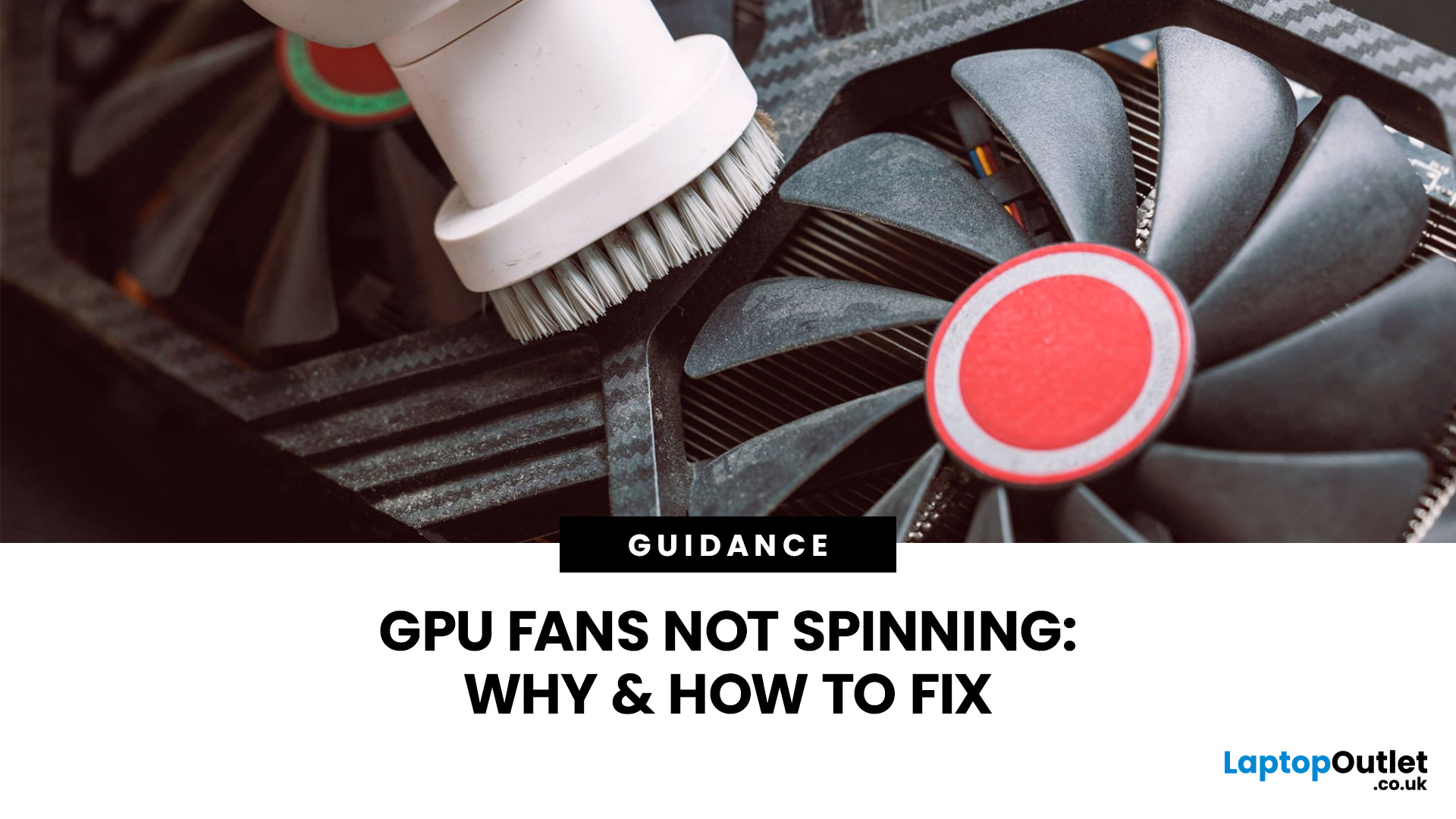
Your PC is on. Your game is loading. Everything seems fine… until you peek inside your case and notice your GPU fans not spinning. Instant panic? Understandable.
Your graphics card is one of the hottest components in a gaming PC, so when the fans stop moving, it feels like your graphics card is about to enter meltdown mode. But here’s the plot twist: graphics card fans not spinning is not always a bad sign. In many modern graphics cards, the fans stay off on purpose when the card is cool.
Still, if your GPU fan not working situation comes with overheating, crashes, noise, or poor performance, then yeah, it is time for some proper GPU fan troubleshooting. Let’s break down what is normal, what is not, and how to fix a processor fan not spinning issue without going full tech panic mode.
First, is it Normal for GPU Fans Not to Spin?
Sometimes, yes.
Many modern NVIDIA GeForce and AMD graphics cards for gaming come with a zero RPM or fan-stop mode. This means the fans do not spin when the GPU
Published: August 20, 2026
Published: September 25, 2026
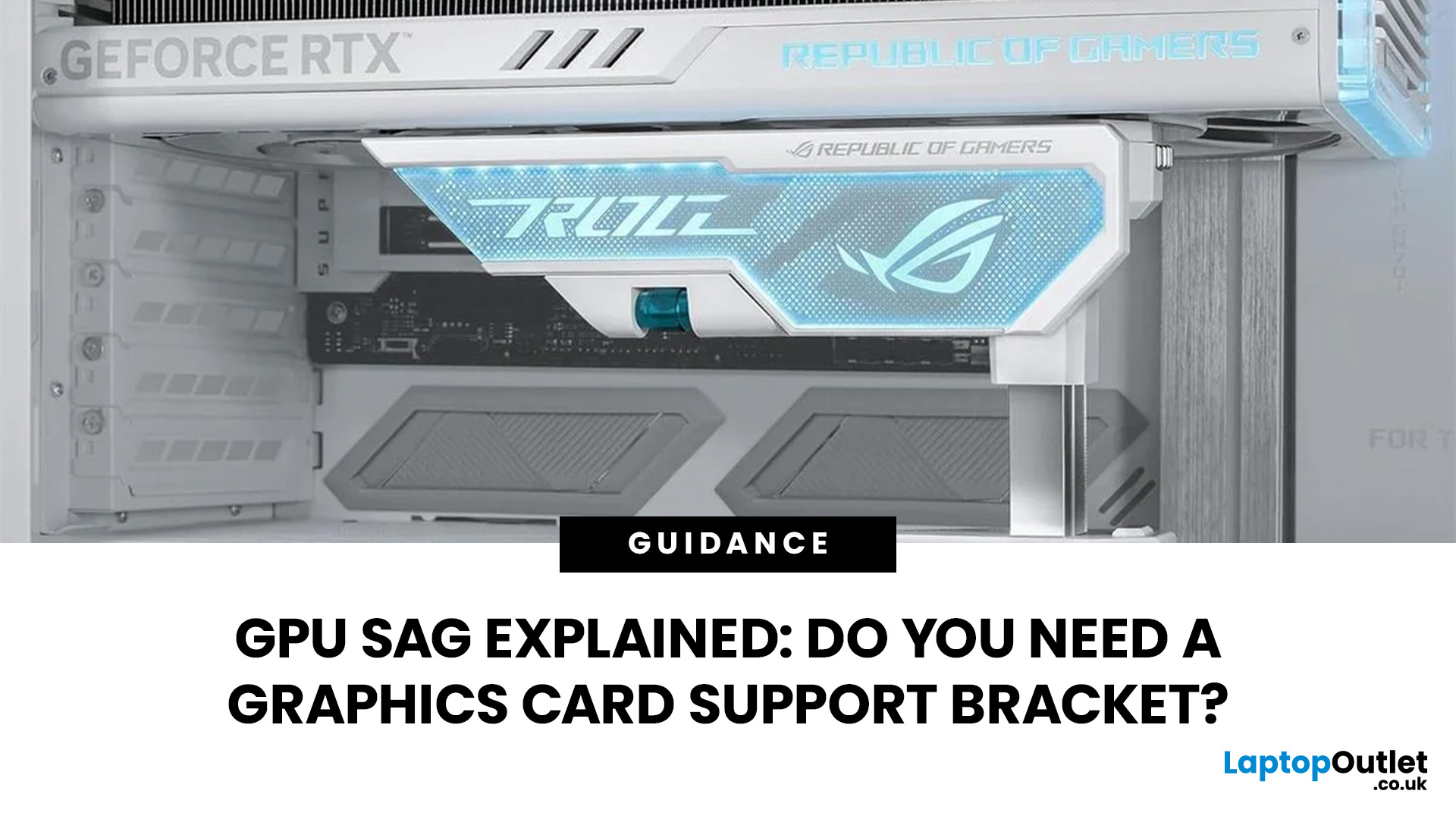
GPU sag is the downward tilt of a graphics card caused by its weight pulling on the unsupported end of the card. It is most noticeable with long, heavy GPUs using large multi-fan coolers. A slight tilt is not automatically a sign of damage, but obvious sag is worth checking rather than ignoring.
GPU sag is the downward tilt of a graphics card caused by its weight pulling on the unsupported end. A GPU support bracket is not always necessary, but it can help stabilise long or heavy graphics cards that visibly droop after correct installation. Before adding support, check the card is fully seated, securely screwed in and not being pulled by cables.
Before buying a GPU support bracket, make sure the graphics card is fully seated and properly secured to the case. If it still droops, a bracket, stand or holder can support the free end of the card without placing unnecessary upward pressure on it.
What Is GPU Sag?
GPU sag happens when one end of a horizontally mounted graphics card sits lower
Published: September 29, 2026
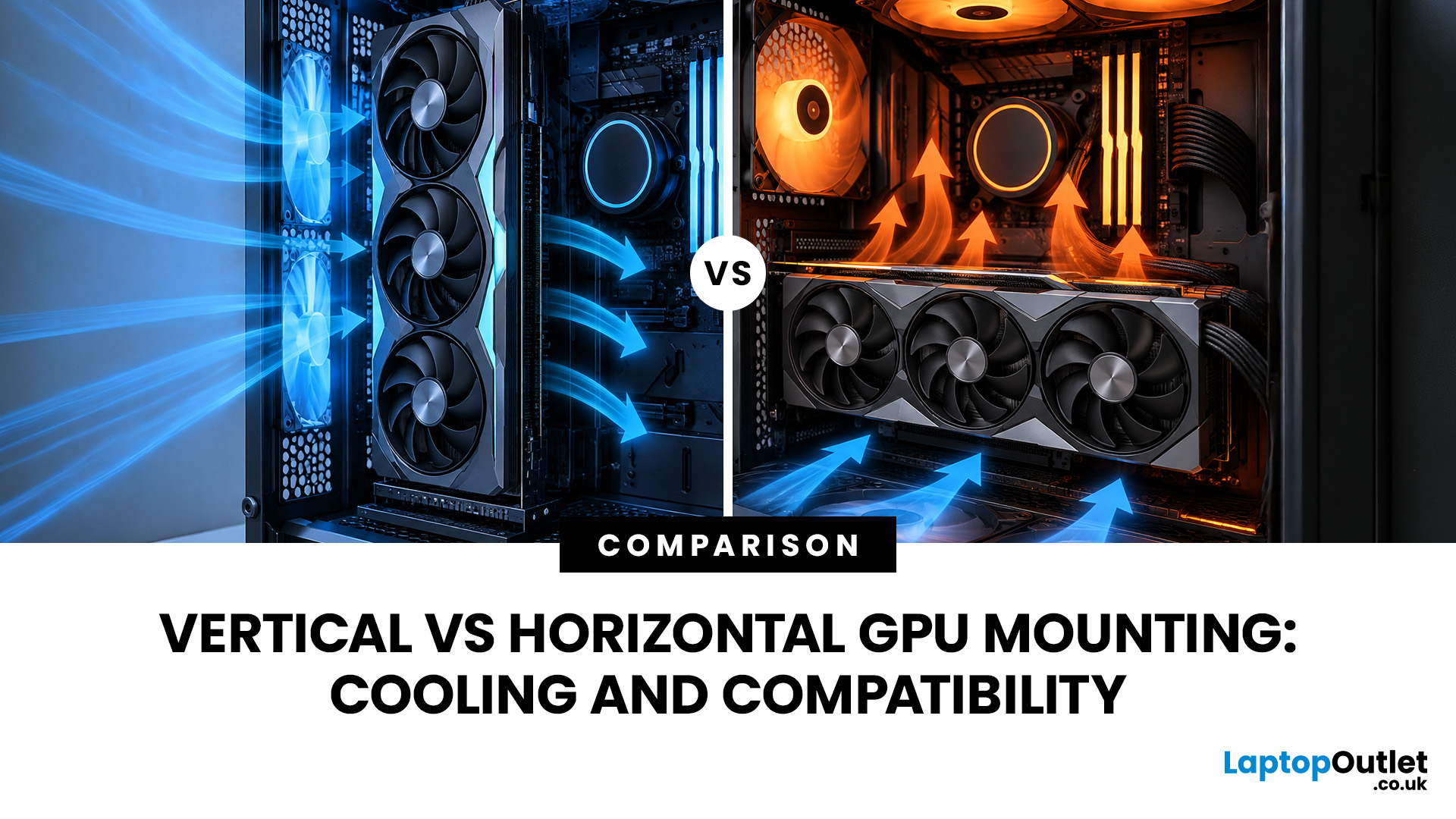
A graphics card is normally installed horizontally, with its fans facing down towards the bottom of the PC case. However, many modern cases also support vertical GPU installation, allowing the graphics card to sit upright and display its cooling shroud, RGB lighting or custom design through a side panel.
Vertical vs horizontal GPU mounting refers to the different ways a graphics card can be positioned inside a PC case. A horizontal GPU mount installs the graphics card directly into the motherboard’s PCIe slot, while a vertical GPU mount uses a bracket and often a GPU riser cable to reposition the card. Horizontal mounting usually offers simpler installation and airflow, while vertical mounting can improve aesthetics but requires careful compatibility checks.
The choice between a vertical vs horizontal graphics card setup is not only about appearance. The position of the GPU can affect airflow, temperatures, installation requirements and long-term compatibility. A vertical GPU mount may

