



Eco Friendly Printing Practical Ways to Reduce Waste and Save Costs
Eco friendly printing does not require an expensive sustainability programme or an immediate equipment upgrade. Simple changes to printer settings, paper choices, consumables and everyday habits can reduce waste while lowering running costs.
The most effective approach is to print only when necessary, use both sides of each sheet, select appropriate quality settings and choose equipment that matches your workload. These sustainable printing practices are equally useful for households, hybrid workers and small businesses.
This guide explains 12 practical ways to reduce printing waste without compromising document quality. It also covers paper certification, cartridge recycling, energy efficient printing and the features worth checking when comparing printers for home and office.
What Is Eco-Friendly Printing?
Eco friendly printing means reducing the paper, ink, toner, electricity and equipment consumed throughout the printing process. It considers not only what you print, but also how efficiently your printer operates and what happens to supplies and hardware after use.
Environmentally responsible printing should still meet the purpose of the document. The goal is not to eliminate every printed page. It is to avoid unnecessary output and use suitable materials, settings and equipment whenever printing is genuinely useful.
12 Ways to Reduce Printing Waste
1. Print Only What You Need
Before selecting the print button, decide whether the document needs a physical copy. Emails, meeting notes, invoices and reference materials can often be stored, shared or reviewed digitally.
For documents that must be printed, choose the relevant page range instead of sending the entire file. Removing blank pages, large unnecessary images and duplicated sections helps reduce paper waste without affecting the information you need.
This is particularly useful with long reports and web pages. Browser print tools often let you exclude adverts, menus and other elements that would otherwise consume extra paper and ink.

2. Make Duplex Printing the Default
Duplex printing places content on both sides of a sheet. Setting it as the default means users do not have to remember to activate it for every suitable document.
Automatic double-sided printing is especially useful for reports, coursework, drafts and internal paperwork. ENERGY STAR identifies automatic duplex capability as a feature that makes it easier to lower paper consumption.
Not every document should be printed on both sides. Contracts requiring separate signatures, display notices and certain customer materials may need single-sided output. However, double-sided printing should usually be the starting point rather than an option that is rarely enabled.
3. Use Draft and Monochrome Settings
High-resolution colour output is unnecessary for many everyday documents. Draft or economy mode can use less ink by placing less colourant on the page, although the exact result varies between printers.
Black-and-white mode is suitable for text-heavy notes, forms and internal reports. Reserve full-colour output for photographs, presentations, marketing materials and documents where colour communicates important information.
When colour quality matters, inkjet printers for colour printing can produce detailed graphics and photographs. Check the printer driver before each major job so that premium settings are used intentionally rather than automatically.
This simple adjustment can help you save printer ink while keeping important customer-facing documents clear and professional.
4. Check Print Preview First
Print preview shows how a file will appear before it reaches the printer. It can reveal blank pages, cropped content, poor scaling, missing text and awkward page breaks.
Spreadsheets are a common source of avoidable waste because a single column may spill onto another sheet. Adjusting orientation, margins, scaling and the selected print area can fit the information onto fewer pages.
For important or high-volume work, print one proof copy before producing the full quantity. A short check is less costly than discovering the same formatting error across 100 finished pages.
5. Choose Paper More Carefully
Using recycled paper for printing can reduce dependence on virgin fibres, but recycled content is not the only factor to consider. Paper weight, whiteness, finish, sourcing and suitability for your printer also affect the result.
Look for credible certification rather than relying only on green packaging. FSC UK explains that its Recycled label verifies that the wood or paper content has been genuinely reclaimed or recycled. Other FSC labels may indicate material from responsibly managed forests, recycled sources or a combination of both.
Test recycled printer paper before purchasing large quantities, particularly when printing detailed graphics or customer documents. Product descriptions for recycled copy papers should also be checked for recycled-content percentages, printer compatibility, and appropriate use.
Do not use heavier paper than the document requires. Standard internal paperwork rarely benefits from premium, high-weight media.
6. Use High-Yield Consumables Appropriately
A high-yield cartridge normally contains more ink or toner than a standard version and may require fewer replacements. However, it only offers practical value when the cartridge is compatible with your device and is likely to be used before its condition deteriorates.
Higher-capacity supplies often suit regular users and shared workplaces. Someone who prints only a few pages each month may benefit more from a printer designed for occasional use than from buying the largest available ink cartridge.
Refillable ink-tank systems can also reduce the number of small cartridges used by frequent colour printers. Compare the initial printer price, stated page yields, refill costs and expected monthly output rather than judging efficiency from the purchase price alone.
The best ink saving printers are not necessarily the cheapest models. They are the devices whose consumable system fits how frequently and how heavily you print.
7. Return and Recycle Used Cartridges
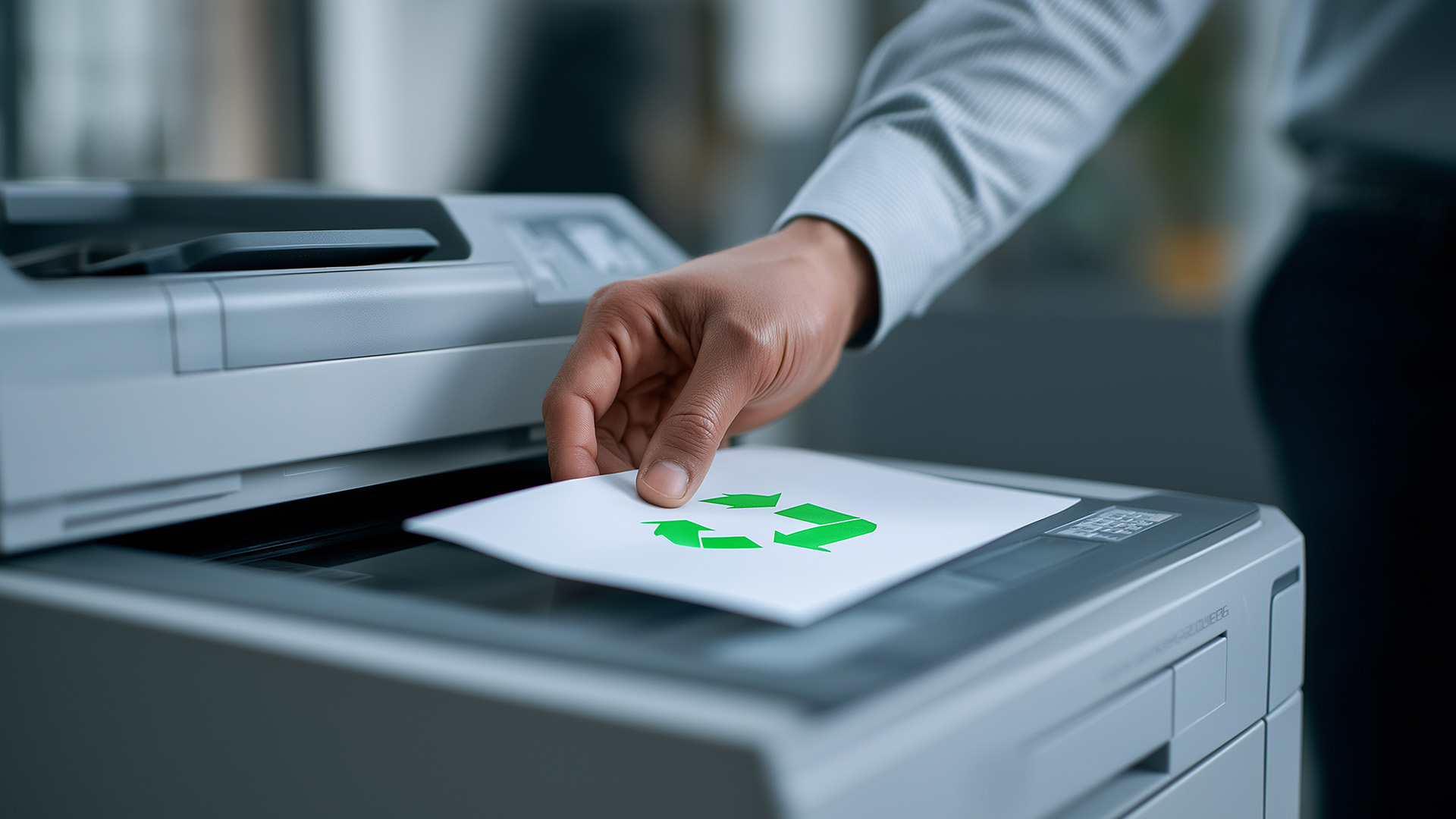
Empty cartridges should not automatically enter general household or workplace waste. Manufacturers, retailers, charities and specialist recycling schemes may accept used ink and toner supplies.
Follow the instructions provided by the cartridge manufacturer because programmes, packaging requirements and accepted products differ. Recycle Now also provides a location tool for finding cartridge recycling options in the UK.
Be cautious with vague claims about eco friendly ink cartridges. A remanufactured or recycled cartridge may reduce the need for new materials, but it must still be suitable for the printer and produced to a dependable standard.
Never attempt to open, burn or dismantle toner cartridges. Toner is a fine powder, and damaged supplies should be handled according to the manufacturer’s safety and disposal instructions.
8. Manage Printer Energy Use
Printers can consume electricity while actively printing, waiting for work or remaining connected to a network. Energy efficient printing therefore depends on both hardware design and power-management settings.
Enable sleep mode and shorten the inactivity period where appropriate. ENERGY STAR’s printer guidance highlights sleep mode, automatic shut-off and automatic duplexing as useful efficiency features.
Do not repeatedly disconnect a printer that is used throughout the working day without checking manufacturer guidance. Some inkjet models perform maintenance routines that protect the printhead, while networked offices may need the device to remain available.
For longer periods of inactivity, shut the printer down correctly rather than switching it off at the socket during an active maintenance cycle.
9. Match the Printer to Your Workload
There is no single printer technology that is automatically the most sustainable in every setting. The best option depends on what you print, how frequently you print and how many people use the device.
Inkjet printers often suit mixed colour documents, creative work and photographs. Refillable-tank models can be economical for users with regular colour workloads, but occasional users should consider the risk of ink drying during long inactive periods.
Monochrome laser printers for sharp documents may be more suitable for frequent text output. Toner does not dry in the same way as liquid ink, while higher print speeds and larger paper trays can support demanding office workloads.
Compare automatic duplex support, page yield, power consumption, maintenance parts, paper capacity and expected cost per page. Choosing the right machine initially can prevent premature replacement and unsuitable consumable purchases.
Businesses producing barcodes, shipping labels or product stickers should also compare the different types of label printers, as each design supports different materials, print volumes and working environments.
10. Consolidate Functions Where Practical
A multifunction device combines printing, scanning and copying in one unit. This can save desk space and reduce the need to purchase and power several separate machines.
Households and small teams can compare versatile printers for everyday tasks when scanning and copying are regular requirements. An automatic document feeder is particularly useful for digitising multi-page paperwork.
Consolidation is not always the right answer. A busy workplace may need separate equipment to avoid queues or downtime, while specialist photo, label or large-format work may require a dedicated device.
Choose functions that will genuinely be used. Buying a complicated machine with unnecessary features does not automatically make printing more efficient.
11. Maintain and Repair Before Replacing
Poor print quality does not always mean the printer has reached the end of its life. Cleaning the printhead, aligning cartridges, replacing a drum or installing current drivers may resolve the problem.
Follow the manufacturer’s maintenance process rather than repeatedly running cleaning cycles. Excessive cleaning can consume ink, so it should be used to address a genuine quality problem.
Consider repair when the device still suits your workload, replacement supplies remain available and the fault can be corrected economically. Replacement may make more sense when failures are recurring, essential parts are unavailable or the printer no longer provides the required security, connectivity or duplex features.
When hardware cannot be reused or repaired, dispose of it through an appropriate electrical recycling route. Printers fall within the wider UK framework for waste electrical and electronic equipment.
Specialist devices can develop their own faults, so understanding common label printer problems and solutions may help you resolve feeding, alignment or print-quality issues before replacing the hardware.
12. Measure Paper, Ink and Costs
Improvements are difficult to prove without a starting point. Record the number of pages printed, paper purchased and cartridges replaced during a normal month.
Small offices can also monitor misprints, abandoned jobs and the departments or activities responsible for the most output. This produces a more useful sustainable office printing policy than imposing an arbitrary restriction on every user.
After changing default settings, compare the figures over several months. Seasonal changes, large projects and staffing levels can affect results, so one unusually quiet week is not enough to demonstrate long-term savings.
The aim is not to punish necessary printing. Tracking should help identify repeated waste, unsuitable equipment and opportunities to reduce printing waste while maintaining productive workflows.
Choosing an Eco-Friendly Printer
An eco friendly printer should be evaluated across its expected working life, not selected because one feature sounds sustainable. Start by matching the technology and capacity to your realistic monthly workload.
The same lifecycle approach can help when assessing how sustainable modern laptops and PCs really are, including their energy use, repairability, materials and recycling options.
Useful features include:
- Automatic duplex printing
- Draft and monochrome modes
- Sleep mode and automatic power-off
- High-yield or refillable consumables
- Replaceable maintenance components
- Clear ink or toner page-yield information
- Manufacturer recycling programmes
- Suitable paper capacity and print speed
- Recognised energy or environmental certification
Review the replacement ink or toner price before buying. A low printer price can be misleading when the supplied cartridges have limited capacity or replacements are expensive.
Laptop Outlet offers compact printers for home offices for users who prioritise space, wireless connectivity and everyday document handling. A busier workplace may require larger trays, network controls and an automatic document feeder.
Home Printing vs Office Printing
Home users often print intermittently, so compact size, simple controls and consumable reliability may matter more than maximum speed. Offices usually need stronger paper handling, user controls and lower costs across a much higher number of pages.
|
Requirement |
Home or hybrid use |
Shared office use |
|
Typical output |
Homework, forms and occasional colour |
Reports, invoices and regular documents |
|
Useful features |
Wi-Fi, compact size and simple scanning |
Duplex, networking and larger trays |
|
Main waste risk |
Dried ink and unnecessary colour pages |
Abandoned jobs and excess bulk printing |
|
Priority |
Low maintenance |
Capacity and cost per page |
Businesses with heavier workloads can compare reliable printers for busy offices, but capacity should reflect actual demand. An oversized device may waste money and space, while an underpowered model may wear out early.
For externally produced brochures, packaging or large marketing runs, eco friendly printing services may offer specialist materials and production methods that desktop hardware cannot provide. Ask suppliers for evidence behind environmental claims, including paper certification, waste controls and recycling processes.
How Much Can Sustainable Printing Save?
There is no universal percentage because printing costs vary by printer, cartridge, paper type and workload. A household printing 30 pages per month will not save the same amount as an office producing several thousand pages.
Calculate your current monthly spending on paper and replacement supplies. Then divide consumable cost by the manufacturer’s stated page yield to estimate cost per page, remembering that real output can vary with page coverage and quality settings.
Track the same figures after enabling duplex printing, reducing unnecessary colour output and correcting repeated errors. This gives you a realistic return on green printing solutions rather than relying on broad savings claims that may not match your usage.

Let’s Sum Up
Eco friendly printing works best when practical habits and suitable equipment are considered together. Printing fewer unnecessary pages, using duplex and draft settings, choosing verified paper, recycling consumables and maintaining hardware can lower waste without disrupting useful work.
The most sustainable choice is not always a new printer or the product with the strongest environmental marketing. Begin by improving your current settings, measure the results and replace equipment only when it no longer suits your needs. When an upgrade becomes necessary, compare page yield, energy management, repairability and long-term running costs before making a decision.

Still Have Some Questions
What is the most eco-friendly way to print?
Print only necessary pages, use duplex and draft modes, choose responsibly sourced or recycled paper, recycle cartridges and maintain your current printer for as long as it remains efficient and suitable.
Does double-sided printing really reduce waste?
Yes. Double-sided printing can place two pages of content on one sheet, directly reducing paper use for suitable documents. Check formatting first and keep single-sided output for documents that require it.
Is an inkjet or laser printer better for the environment?
Neither is universally better. Inkjet models can suit colour and mixed-media printing, while laser printers often suit frequent text output. The better choice matches your volume, consumables, maintenance needs and expected lifespan.
How can I use less ink when printing?
Use draft or economy quality, select monochrome for text, remove unnecessary images, proof documents on screen and print only required pages. Avoid repeated cleaning cycles unless print quality indicates a genuine problem.
Can ink and toner cartridges be recycled?
Many cartridges can be returned through manufacturer, retailer, charity or specialist schemes. Check the cartridge brand’s programme or use a local recycling locator, as household collection rules vary between UK areas.
| Read More: |
| Eco Tech 2026: How Sustainable Are Modern Laptops and PCs? |
| Top 7 Label Printer Common Problems and Solutions |
| A Complete Guide to the Different Types of Label Printers |
Related Articles

Last Updated: June 08, 2026
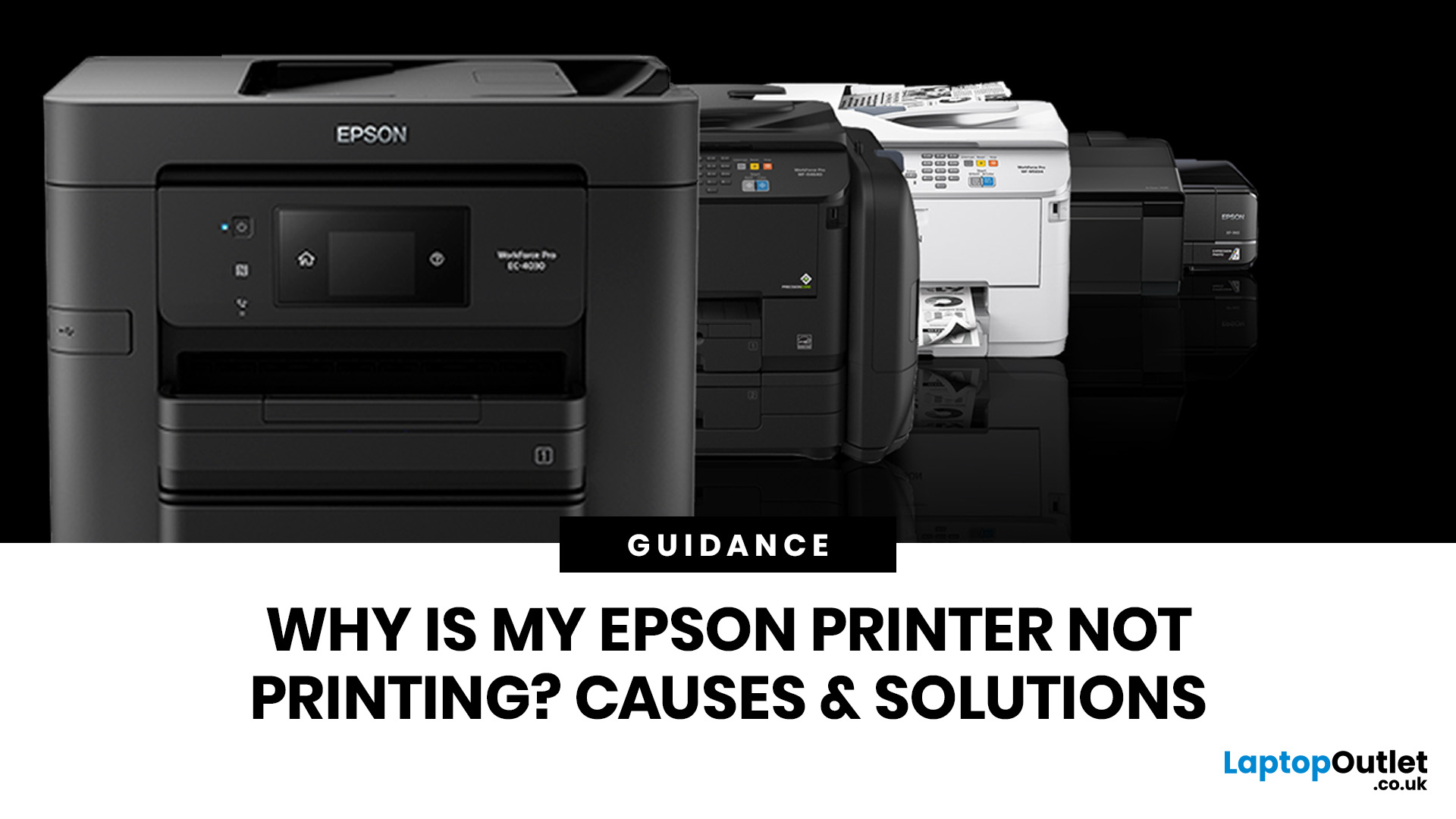
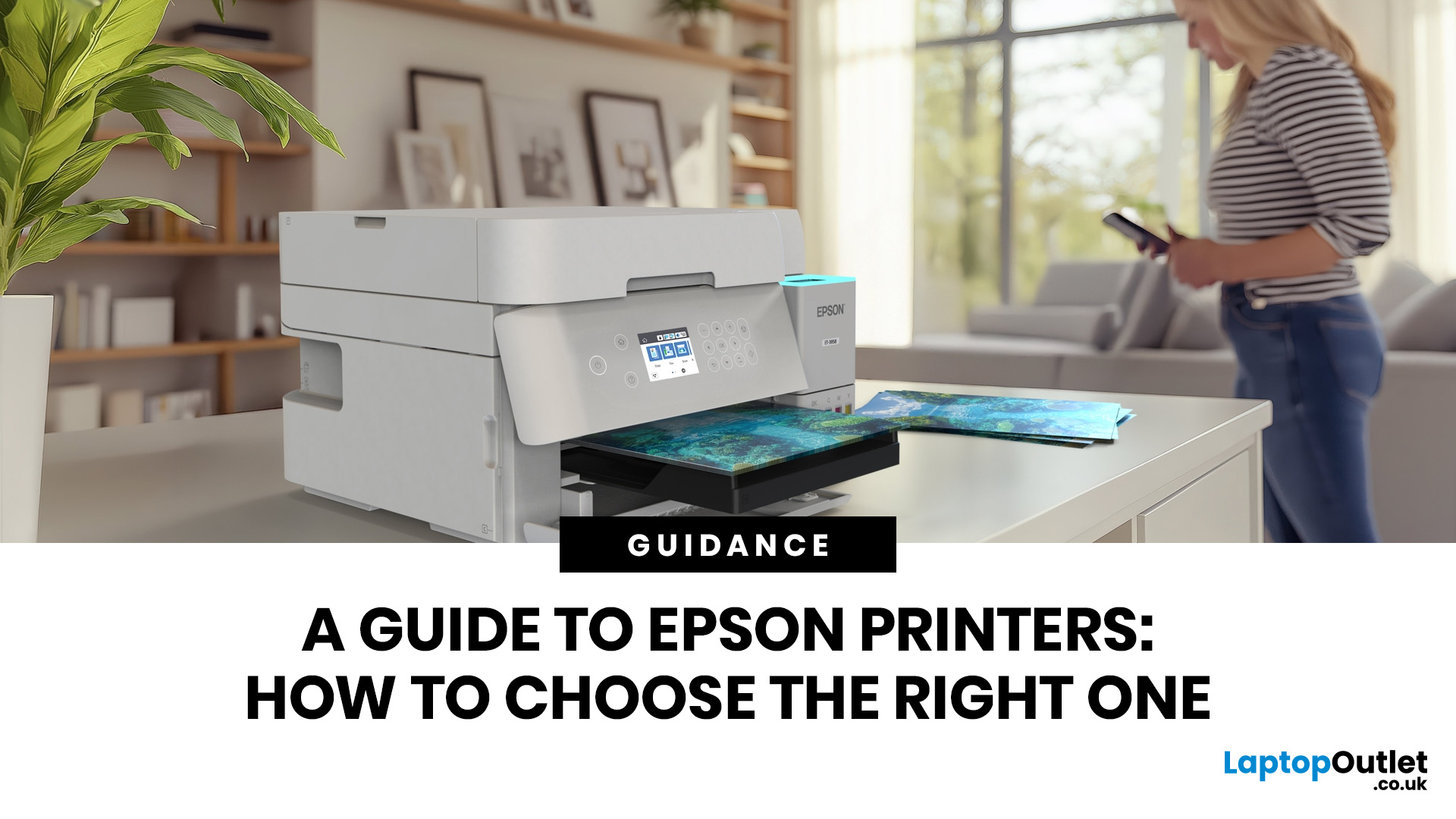
If your Epson printer is not printing, the problem is usually caused by low ink, clogged print heads, offline settings, connection issues, stuck print jobs, or outdated drivers. Most Epson printer problems can be fixed with simple troubleshooting steps such as checking cartridges, cleaning the print head, clearing the print queue, updating drivers, or resetting the printer.
An Epson printer not printing can be frustrating, especially when you need an important document, return label, invoice, or school assignment right away. The good news is that most Epson printer problems are not as serious as they first seem. In many cases, the issue comes down to low ink, clogged nozzles, offline settings, a weak connection, or a stuck print queue.
So, if you are wondering, “Why is my Epson printer not printing?”, this guide will walk you through the most common causes and simple ways to fix Epson printer issues at home. Before you think about replacing your printer, try these easy Epson printer troubleshooting
Last Updated: June 10, 2026
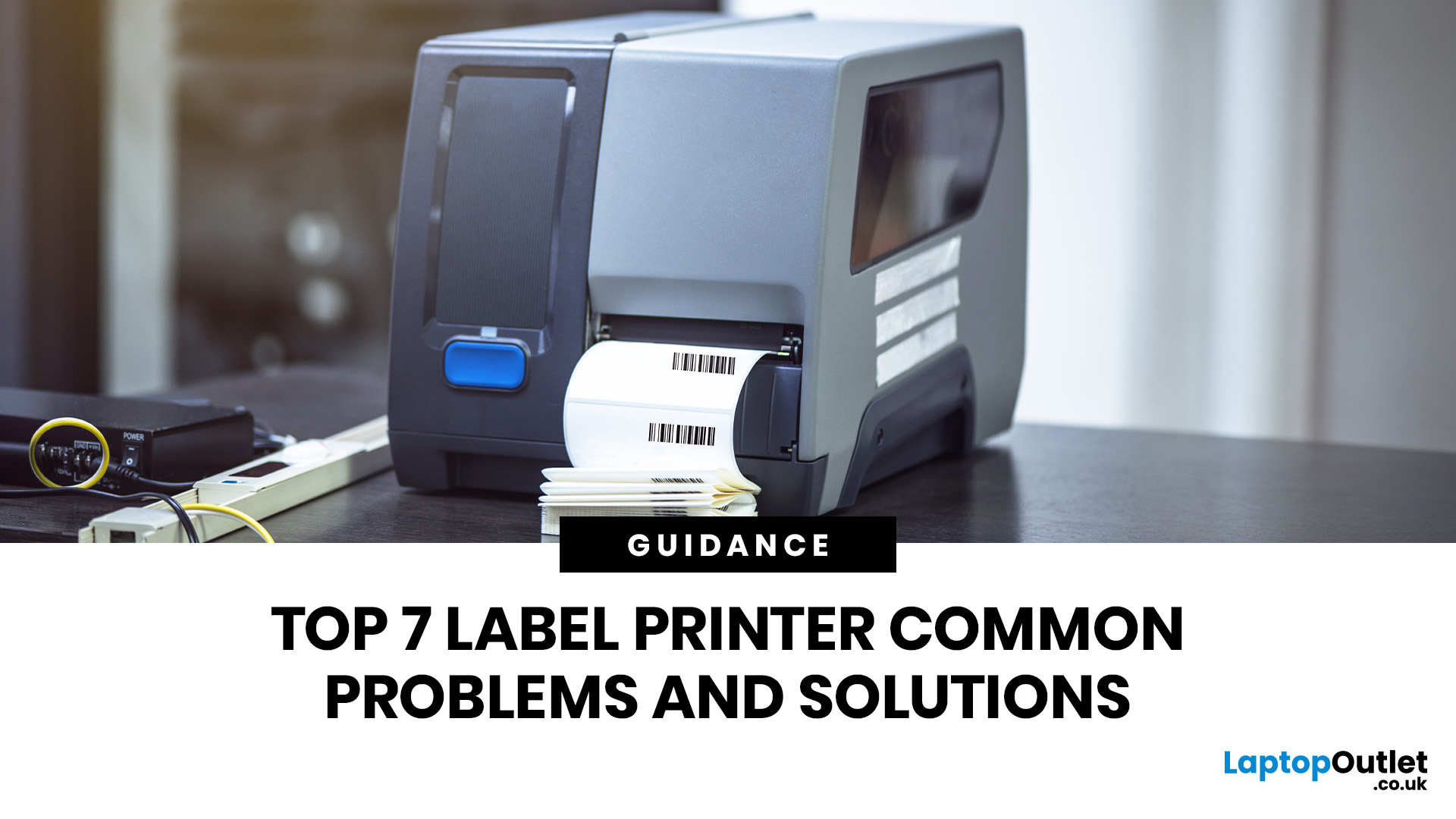
Epson is one of the most popular printer brands for UK homes, students, hybrid workers, small offices and creative users. Choosing the right Epson printer depends on how often you print, what you print, and how much you want to spend long term. For occasional home use, an affordable Epson inkjet printer is a solid pick. For regular printing, Epson EcoTank offers better running value with refillable ink tanks. If you need scanning, copying and mobile printing, choose a wireless all-in-one Epson printer for the easiest everyday setup.
Buying a printer should be simple. You want to print, scan, copy, maybe send something from your phone, and not spend half your life decoding ink cartridges like it is a secret side quest. That is where Epson printers come in. The brand covers compact inkjet printers, refillable EcoTank printers, wireless all-in-one models, photo printers and business-friendly options.
This Epson printer guide breaks down how Epson printers work, how to choose an Epson printer,
Last Updated: June 10, 2026
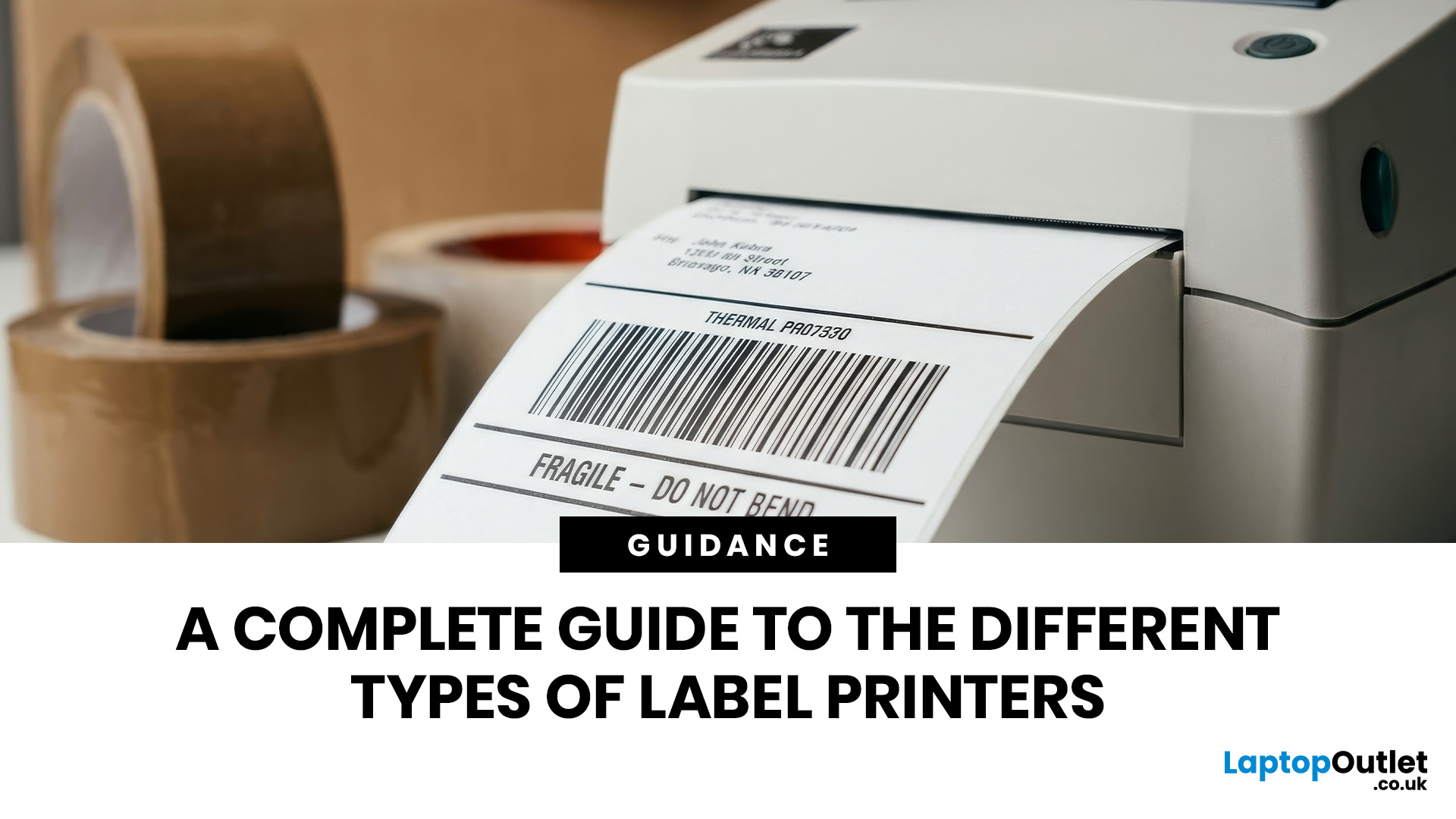
Label printers are practical, reliable, and incredibly useful when they work as expected. Whether you use one for shipping labels, barcodes, product tags, warehouse labels, office organisation, or home storage, a good label printer can save time and keep everything running smoothly.
Like any printer, label printers can occasionally run into problems. You may find your label printer not printing, producing faded labels, jamming midway through a job, or printing blurry labels that are difficult to scan. These label printer issues can be frustrating, especially when you need quick and accurate prints for business operations.
The good news is that many label printer common problems are easy to fix once you know what is causing them. In this guide, we’ll walk you through the top seven label printer errors users often face and show you how to solve them with simple, practical steps. This guide covers seven common label printer issues, explains what causes them, and shows you how to solve them
Last Updated: June 09, 2026
The main types of label printers are direct thermal, thermal transfer, inkjet, and laser. Direct thermal printers use heat-sensitive paper with no ink or ribbon, making them ideal for short-term labels like shipping and receipts. Thermal transfer printers use a wax or resin ribbon for durable, long-lasting labels. Inkjet and laser printers can print onto standard label sheets and work well for colour-rich or low-volume tasks. The right choice depends on your print volume, label durability requirements, and budget.
Whether you are running a small e-commerce shop, managing a busy warehouse, or simply trying to get your home office organised, choosing the right label printer can make a real difference. There are several label printer types on the market, each suited to different tasks, environments, and budgets.
This guide breaks down all the major types of label printers, explains how each technology works, and helps you figure out which one is the right fit for your needs.
Label Printer
Published: June 11, 2026
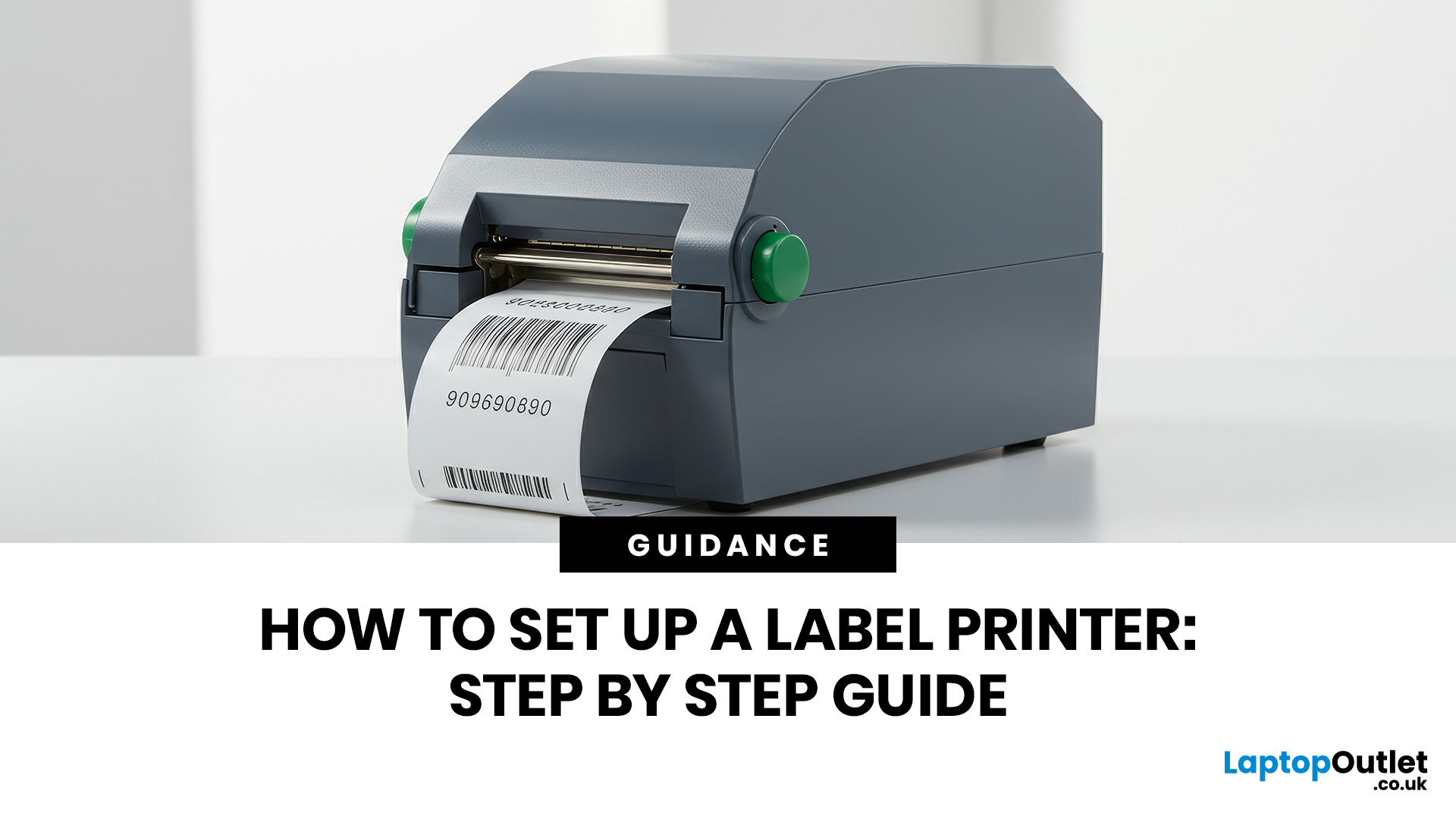
You are printing shipping labels, barcode labels, address stickers, product tags, file labels, or office labels. Setting up a label printer properly from the start saves time and avoids annoying print errors later.
This label printer setup guide walks you through every step in a clear, beginner-friendly way, so you can install, configure, and start printing labels without guessing your way through the manual.
Why Label Printer Setup Guide Matters
A label printer may look like a plug-and-play device, but the setup still matters. If the printer driver is wrong, the labels may print sideways. If the label size
Last Updated: June 15, 2026
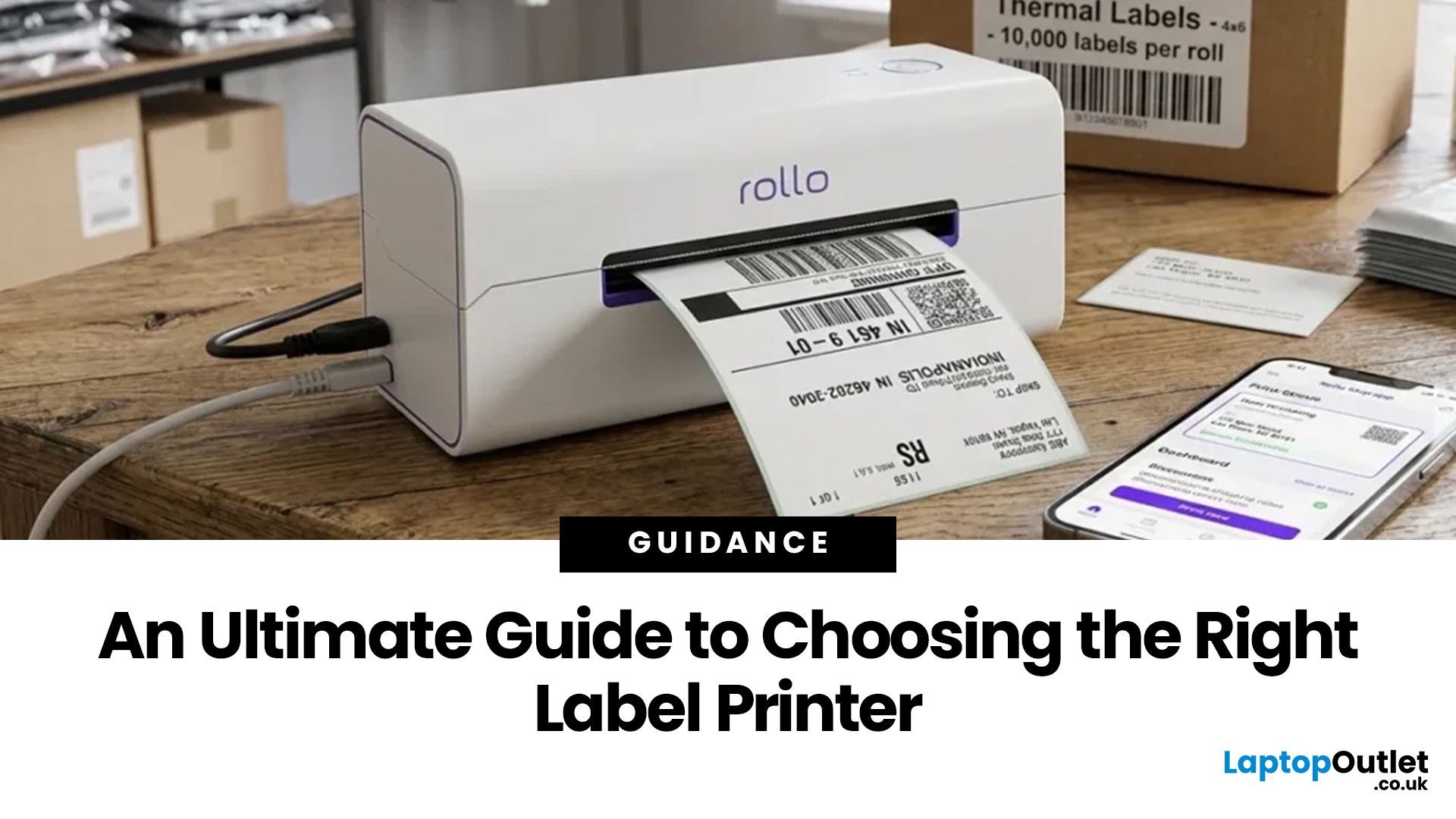
Choosing the right label printer doesn’t have to be complicated. This label printers guide makes it easy to understand the main features, costs, label printer types, and how to choose a label printer that fits your home, office, or business needs.
Whether you’re organising your home office, printing parcel labels, managing stock, creating barcodes, or simply keeping things neat, the right label printer can save time and make everything look more professional.
In this
Last Updated: June 15, 2026
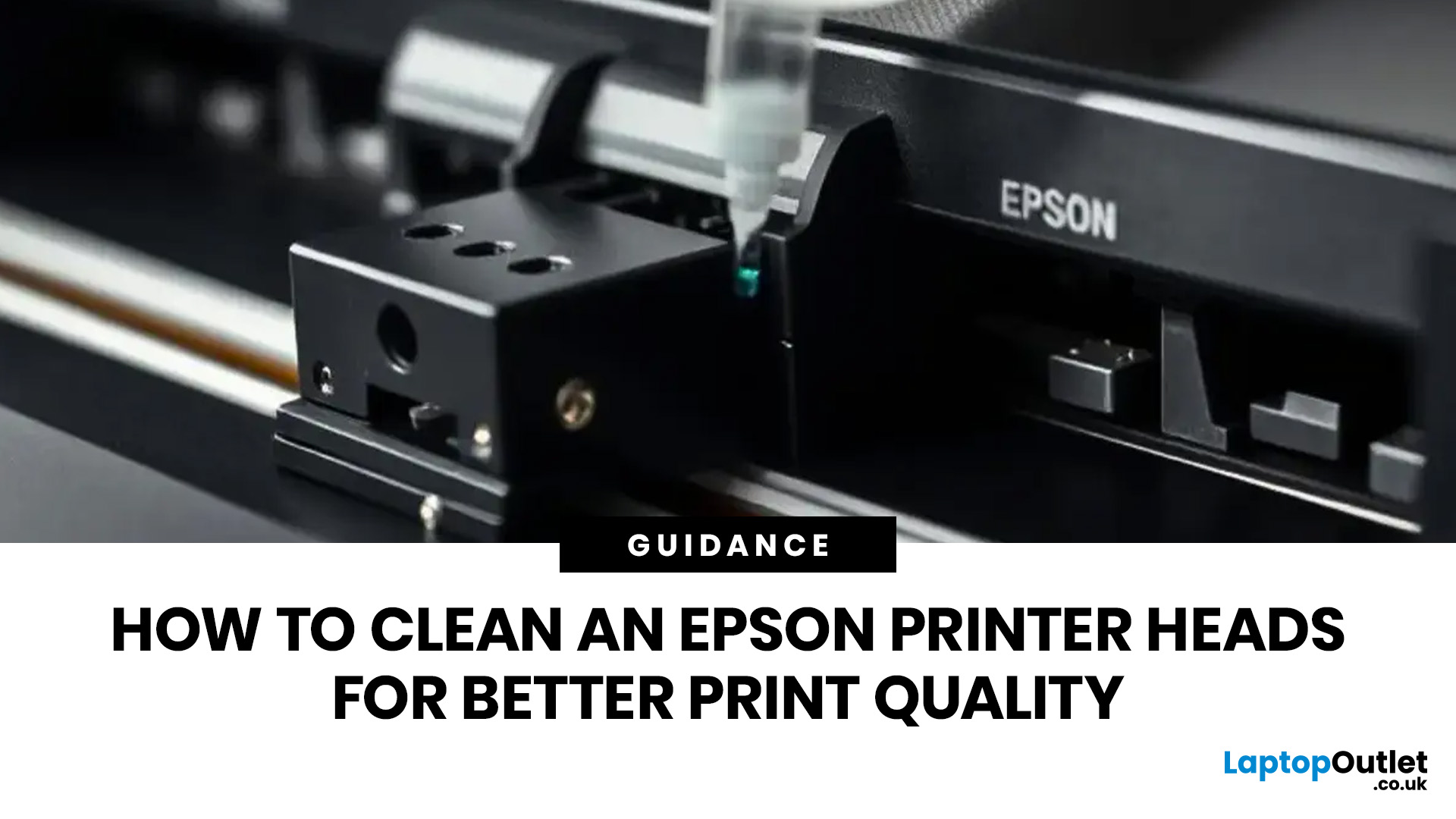
If your Epson prints look faded, streaky, patchy, or show missing colours, the print head may be clogged. You can usually fix this by running a nozzle check, using the built-in print head cleaning tool, and printing a test page to check the results.
Let’s be honest: when your Epson printer starts printing faded text, weird lines, missing colours, or completely blank pages, it feels like the printer has chosen chaos. But before you assume it is broken or start shopping for a new one, there is one simple thing you should check first: The Print Head.
If you are wondering how to clean an Epson print head, you are in the right place. Most print quality issues happen because the print head nozzles are clogged with dried ink. The good news? You can usually fix this with built-in print head cleaning tools, and you do not need to be a tech expert to do it. In this guide, you will learn what an Epson print head does, why it gets clogged, how to clean it properly, and what to do if your printer
Last Updated: June 30, 2026
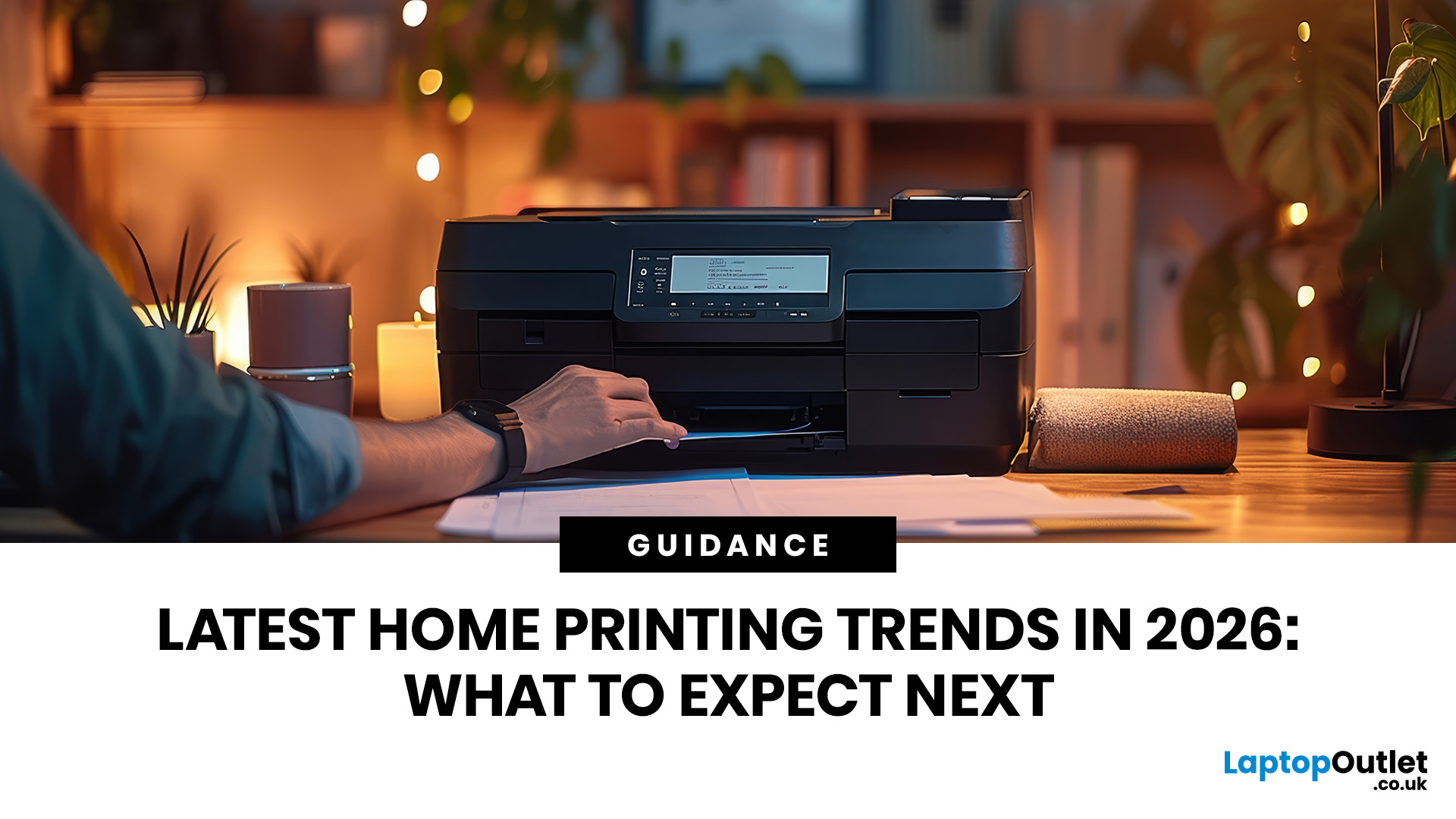
Printers are no longer just “that thing in the corner” for the occasional return label.
For UK buyers, the most important shift is simple: people want printers that are affordable to run, easy to connect and useful for both home and work.
For UK homes, hybrid workers, students and small businesses, printers remain an important everyday tool. But with so many options available, choosing the right one can be challenging.
This guide explores the latest home printing trends in 2026 and what UK buyers should look for when choosing a printer for home, work or study.
Why Home Printing Still Matters for UK Buyers
The idea that nobody needs a printer anymore is outdated.
Many UK households now use printers for:
- Hybrid work documents
- School and university assignments
- Returns labels
- Invoices
Last Updated: June 30, 2026
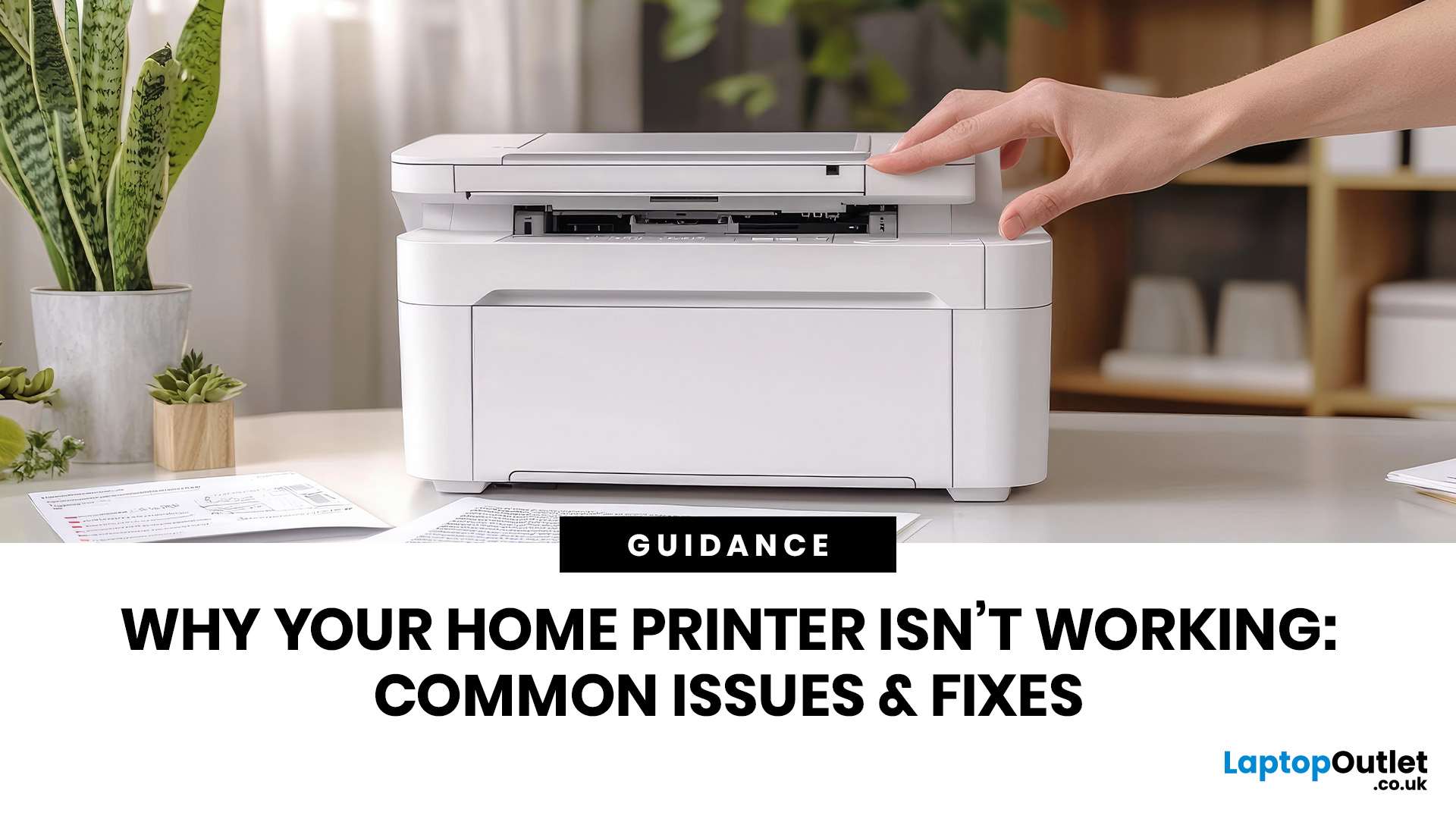
Your document is ready, your deadline is real, and your printer has chosen chaos.
When your home printer is not working, even a simple print job can turn into a frustrating delay. From offline errors and paper jams to driver issues and connection problems, most home printer problems have quick fixes once you know where to look.
This guide explains the common causes and practical steps to get your printer working again.
Last Updated: June 30, 2026
A printer sounds simple… until you need one.
Then suddenly you are comparing inkjet vs laser, cartridges vs ink tanks, print speed, Wi-Fi, duplex printing, scanners, toner, photo quality, paper sizes and running costs. And the worst part? The cheapest printer on the shelf can become the most expensive one after a few months of ink refills.
This home printers guide is here to make the decision easier.
Whether you are buying for schoolwork, hybrid working, family documents, shipping labels, retail paperwork

