



Can You Upgrade a Laptop Wi-Fi Card? What to Check Before Buying
Quick answer:
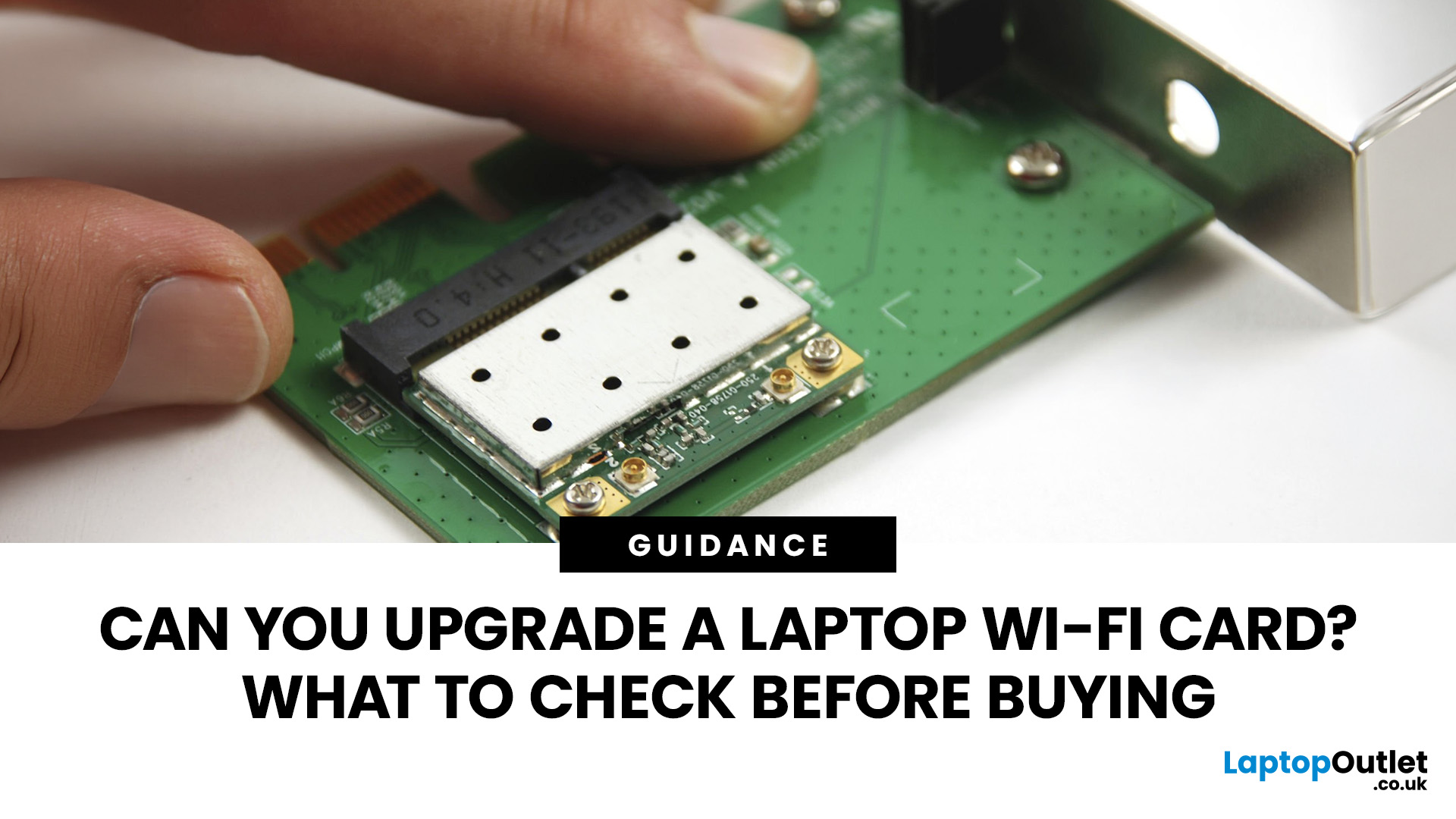
Yes, you can upgrade a laptop Wi-Fi card if it has a removable wireless module and supports the replacement. Many serviceable laptops use an M.2 Wi-Fi card, but others have wireless hardware soldered to the motherboard. Even when the card is removable, the slot type, interface, antennas, BIOS and driver support must match. If your laptop doesn't support an internal upgrade, a compatible USB Wi-Fi adapter is often the simpler option.
Upgrading to Wi-Fi 6 or replacing a faulty wireless card can help extend the useful life of your laptop. However, buying a newer card doesn't automatically mean faster internet or a more reliable connection.
Before spending money, you need to know whether your laptop accepts a replacement and whether the upgrade will make a noticeable difference. Here's what to check, which limitations matter and when another solution makes more sense.
Can all laptops have their Wi-Fi cards upgraded?
Not every laptop is designed for wireless upgrades. Some have a removable card secured by a small screw, while others have Wi-Fi hardware integrated into the motherboard.
The difference matters because a removable card can potentially be replaced without changing the entire laptop. Soldered wireless hardware isn't a practical user upgrade.
|
Laptop Wi-Fi design |
Can you upgrade it? |
What to consider |
|
Removable M.2 Wi-Fi card |
Often, yes |
Requires compatible slot, interface, antennas and manufacturer support |
|
Older Mini PCIe wireless card |
Sometimes |
Needs a suitable older-format replacement |
|
Soldered Wi-Fi hardware |
Generally, no |
Consider external wireless connectivity |
|
Manufacturer-restricted wireless module |
Only with supported cards |
BIOS, approved parts and regulatory restrictions may apply |
Some thin-and-light laptops prioritise compact designs over internal accessibility. Others provide replaceable wireless modules as part of their serviceable components.
Don't assume a laptop is upgradeable simply because it has an M.2 slot. That slot might be intended for storage, mobile broadband or another component rather than a Wi-Fi adapter.
How to check which Wi-Fi card your laptop uses
Before buying a replacement, identify the existing wireless adapter and check whether your particular laptop model supports changing it.
You can begin with Windows without opening the laptop.
Step 1: Find your Wi-Fi adapter in Windows
If you're wondering how to check the Wi-Fi card in a laptop, Device Manager is the easiest starting point.
- Right-click the Start button and select Device Manager .
- Expand Network adapters .
- Look for the wireless adapter, usually identified by Intel, Realtek, MediaTek or Qualcomm.
- Double-click it to view its properties and driver details.
- Record the full model number before searching for a replacement.
For example, Windows might identify an Intel Wi-Fi 6 AX200 or AX201 adapter.
These model numbers help establish the existing wireless technology, but they don't tell you everything about the physical connection or which replacement cards your laptop supports.
Step 2: Check your laptop's exact model
Look for the full laptop model number or product identifier on the manufacturer's label, in Windows System Information or in the manufacturer's support software.
Then find the official maintenance or service manual.
Look for information about:
- Whether the WLAN or wireless module is removable.
- Which replacement part numbers are supported.
- The type and dimensions of the wireless card.
- How many antenna cables are fitted.
- Whether accessing the card requires removing other components.
If the manual doesn't confirm replacement support, contact the manufacturer before ordering. The same laptop family can contain different internal configurations.
Step 3: Check whether opening the laptop is permitted
Some Wi-Fi cards sit beneath an accessible bottom cover. Others require more extensive disassembly.
If you use a company-managed laptop, check your IT team's upgrade policy first. For businesses replacing older equipment, newer office laptops may offer supported wireless connectivity alongside improved security, performance and everyday usability.
For personal devices, check the manufacturer's servicing instructions and warranty conditions before opening the case.
Are laptop Wi-Fi cards interchangeable?
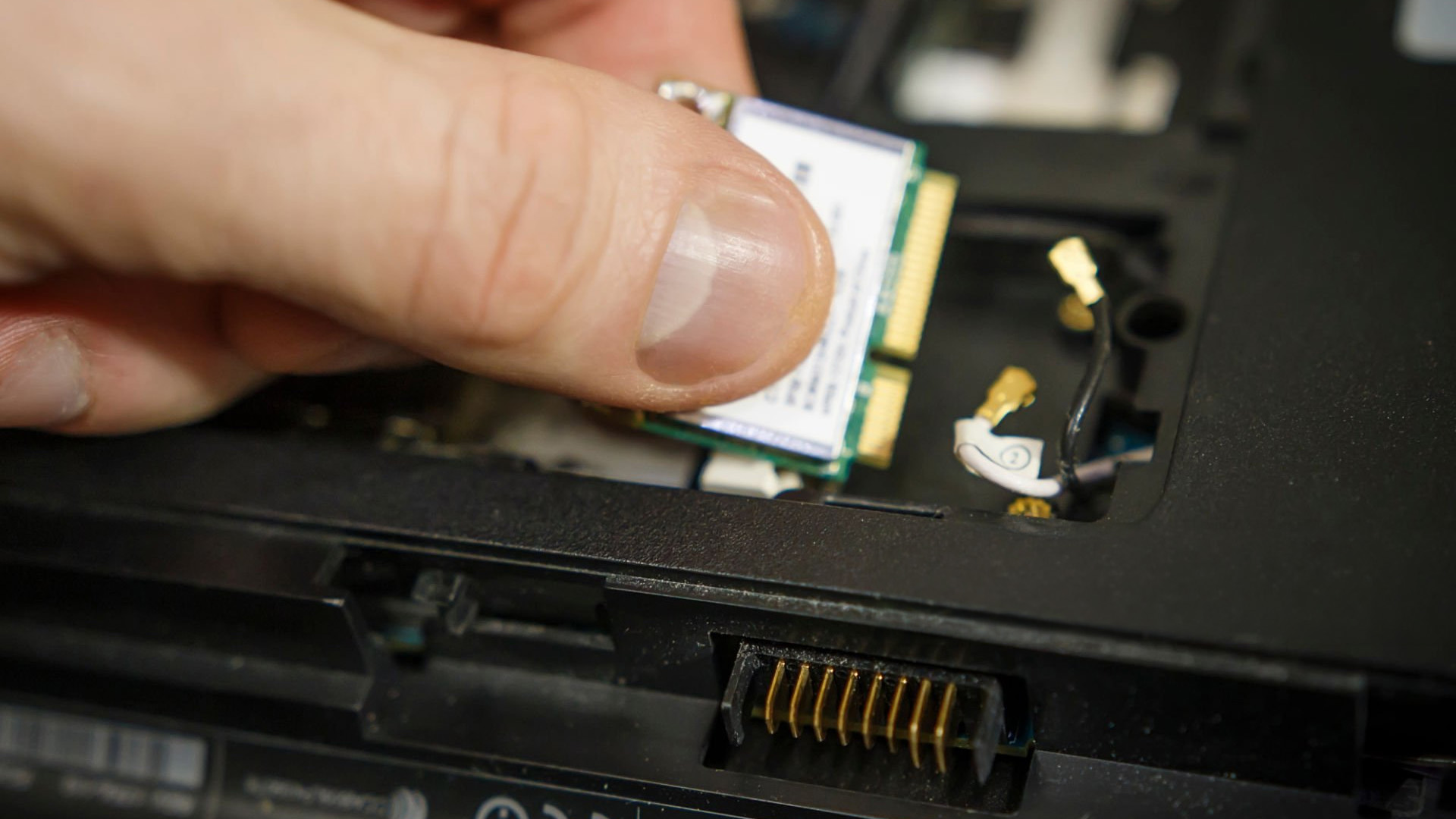
No, laptop Wi-Fi cards are not universally interchangeable. Two wireless cards can look almost identical and still use incompatible interfaces.
A replacement must satisfy several requirements beyond simply fitting inside the laptop.
1. Laptop Wi-Fi card slot types
The main laptop Wi-Fi card slot types include M.2 and the older Mini PCIe format.
- M.2 2230: Commonly used for removable wireless modules. The card measures 22mm wide and 30mm long. Wireless modules typically use Key E or A+E edge connections, depending on the card.
- Mini PCIe: Found in some older laptops, often as a half-size Mini PCIe card. These cards are physically different from M.2 wireless modules.
- Soldered modules: Integrated into the motherboard and generally unsuitable for a straightforward replacement.
A wireless card for a laptop must match the supported physical format. An M.2 Wi-Fi card cannot simply replace a Mini PCIe card.
Also, make sure you're checking the wireless slot rather than an M.2 slot intended for an SSD.
2. PCIe, CNVio and CNVio2 compatibility
This is one of the easiest details to overlook.
Some Intel wireless modules use a conventional PCIe-based Wi-Fi interface, while others rely on Intel's integrated connectivity technology, commonly referred to as CNVi.
For example:
- Intel AX200: Uses a PCIe interface for Wi-Fi.
- Intel AX201: Uses Intel's CNVio2 interface and requires a compatible Intel platform.
- Intel AX210: Uses a conventional PCIe interface for Wi-Fi 6E.
- Intel AX211: Uses CNVio2 and requires a supported platform.
Although these cards can share the M.2 2230 form factor, they aren't automatically compatible.
Even a physically compatible M.2 socket may not support both conventional PCIe wireless cards and Intel CNVi-based modules.
Expert tip: Match the replacement card against the manufacturer's supported hardware list rather than assuming that a newer model number means it will work.
3. Laptop Wi-Fi card connectors and antennas
Wireless cards connect to antennas positioned inside the laptop, often around the display assembly.
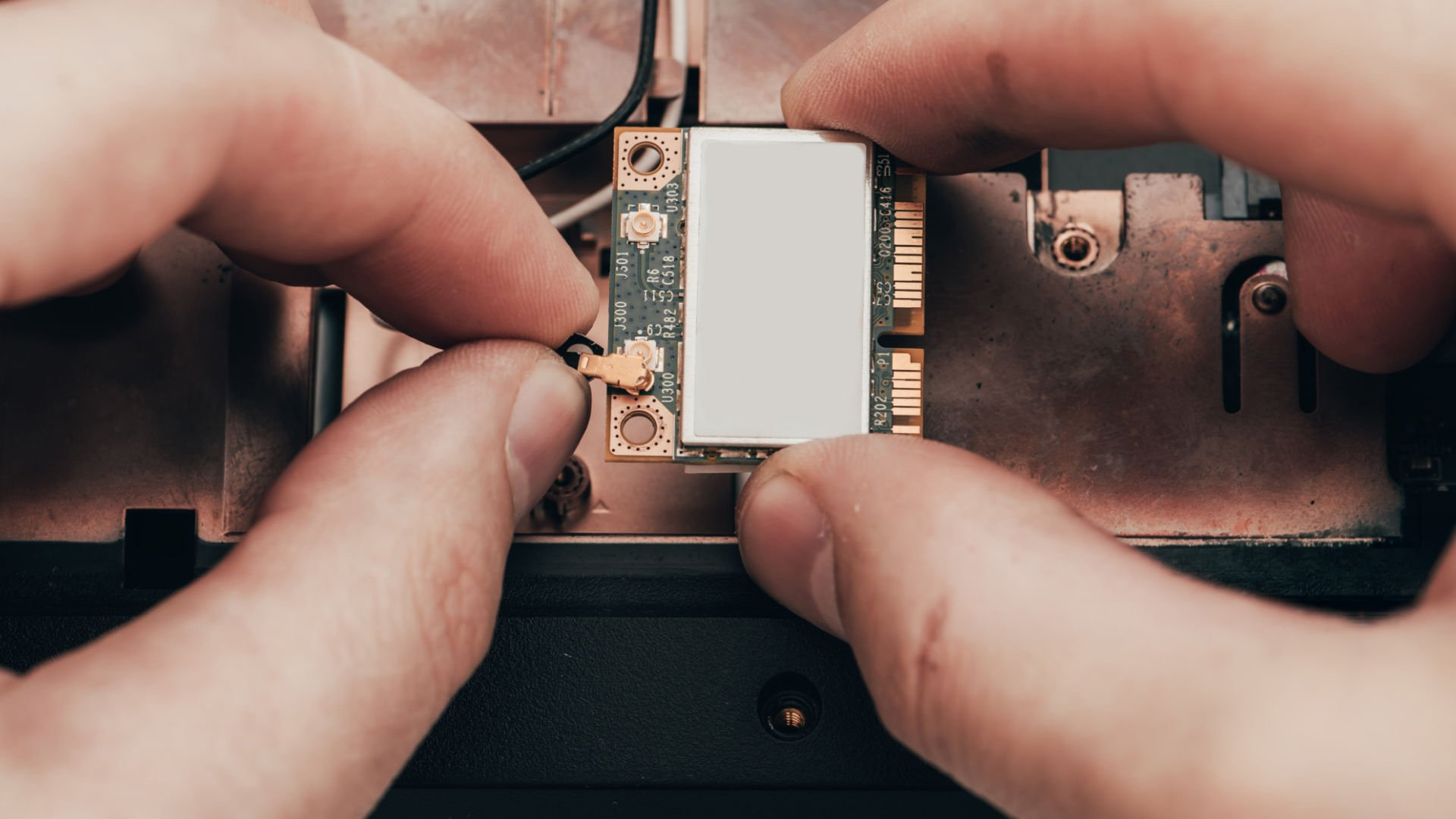
Many removable cards have two small antenna terminals labelled Main and Aux, although some laptops have only one antenna cable.
Before buying, check:
- Whether your laptop has one or two Wi-Fi antennas.
- Whether the replacement requires a particular antenna configuration.
- Whether the tiny antenna connectors are physically compatible.
- Whether the existing cables can reach the new module.
A 2×2 wireless card is designed to use two antenna paths. Installing one in a laptop with only one available antenna can limit its capabilities or make the upgrade unsuitable.
Different card generations can also use different miniature antenna connector formats. Never force an antenna cable onto a terminal that doesn't match.
4. BIOS, operating system and driver support
Physical compatibility isn't the final check.
Some manufacturers restrict which wireless adapters are supported through their system firmware or approved parts lists. An unsupported card may not be recognised or could trigger an error during startup.
You also need compatible Wi-Fi and Bluetooth drivers.
Windows laptops generally offer more straightforward access to wireless adapter drivers, but support still depends on the exact hardware and operating system.
ChromeOS devices require additional care because driver and firmware support are tied closely to the device configuration. If you're choosing a Chromebook for long-term use, comparing ChromeOS laptops with suitable built-in wireless connectivity is usually more practical than planning an unsupported internal upgrade.
Is upgrading to a Wi-Fi 6 card worth it?
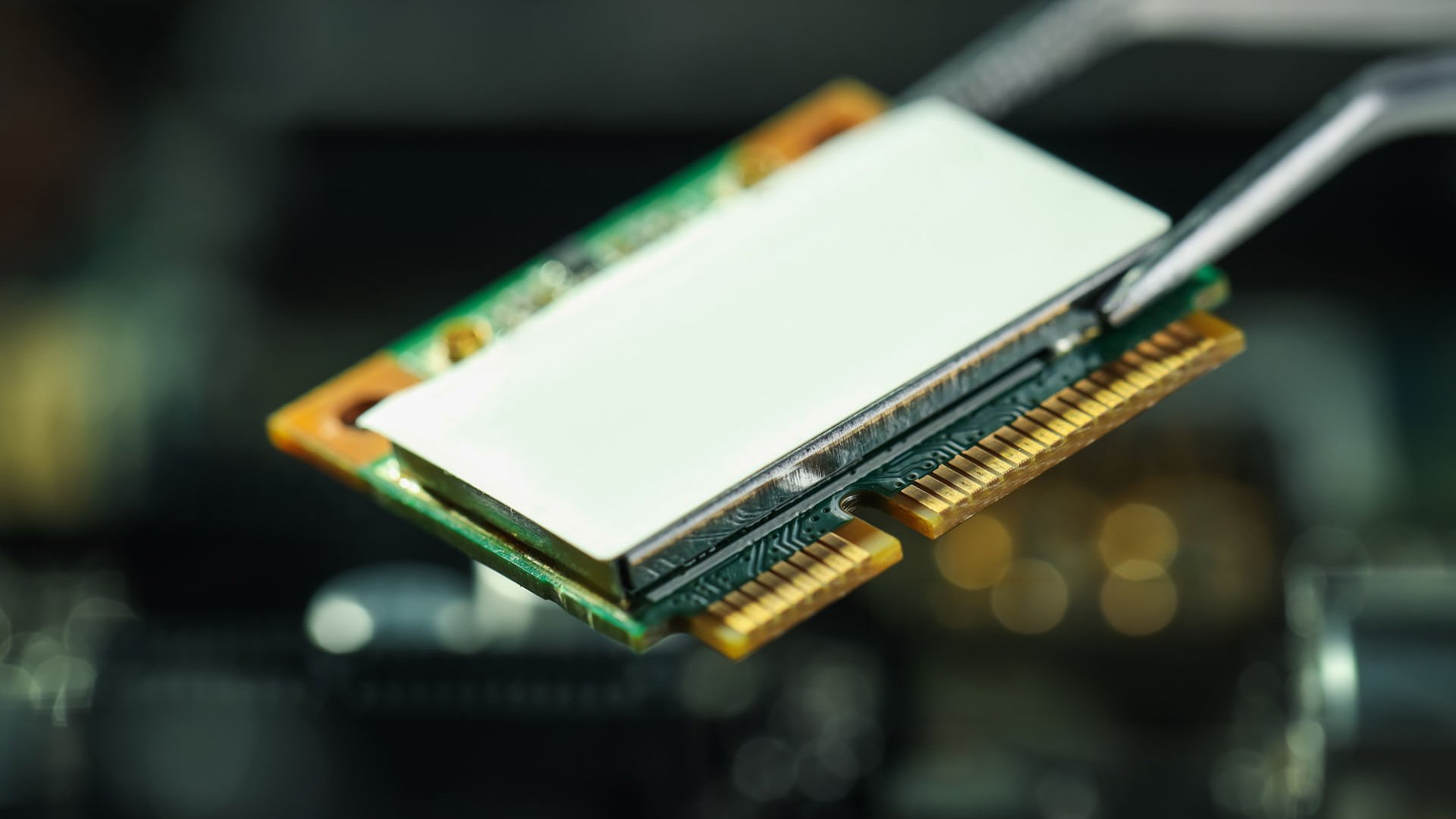
A Wi-Fi 6 card for a laptop can be a worthwhile upgrade when your current adapter is older, your laptop supports the replacement and your router can take advantage of the newer standard.
Wi-Fi 6, also called 802.11ax, improves wireless efficiency and can offer better performance on busy networks.
However, it won't automatically fix poor broadband speeds, weak coverage or interference.
Wi-Fi 5 vs Wi-Fi 6 vs Wi-Fi 6E
|
Wireless standard |
Supported bands |
Who should consider it? |
|
Wi-Fi 5 |
5GHz |
Users with stable connections who don't need newer wireless features |
|
Wi-Fi 6 |
2.4GHz and 5GHz |
Users upgrading older wireless hardware on compatible systems |
|
Wi-Fi 6E |
2.4GHz, 5GHz and 6GHz |
Users with compatible 6GHz networking equipment and system support |
Wi-Fi 6E offers access to the 6GHz band, but that benefit requires a compatible router, operating system, drivers and regulatory support.
Wi-Fi 7 offers further capabilities, although it introduces additional compatibility requirements. It isn't automatically the most sensible upgrade for an older laptop.
When will an upgrade make a noticeable difference?
Consider replacing your wireless card if:
- Your existing adapter only supports older Wi-Fi standards.
- Your router supports newer wireless features.
- You regularly transfer large files over your local network.
- Your laptop's existing card is faulty and a compatible replacement is available.
- Your current wireless adapter is a genuine performance limitation.
If your laptop already has a stable Wi-Fi 6 connection, paying for a newer card may deliver little practical benefit.
For gaming, a newer wireless adapter can improve local wireless performance under suitable conditions, but it won't increase FPS or eliminate latency caused by your broadband connection or game servers. If you're assessing laptops for gaming , look beyond Wi-Fi specifications and prioritise the GPU, CPU, cooling and overall suitability for the games you play.
How to replace a Wi-Fi card in a laptop
Once you've confirmed compatibility, the physical replacement is relatively straightforward on some serviceable laptops.
However, the exact procedure varies by model. Always follow the manufacturer's official service instructions rather than a generic disassembly guide.
Before replacing the card
Prepare the following:
- A manufacturer-approved compatible Wi-Fi card.
- The correct screwdriver and suitable non-metallic opening tools.
- The appropriate Wi-Fi and Bluetooth drivers, downloaded beforehand.
- The manufacturer's service manual.
- A clean workspace with suitable protection against static electricity.
If the manufacturer recommends professional servicing, use an authorised technician.
Step-by-step replacement process
- Shut down the laptop. Disconnect the charger and external devices.
- Follow the battery-disconnection procedure. Disconnect the internal battery where the manufacturer's instructions require it.
- Remove the access cover. Follow the specified order for removing screws and panels.
- Locate the Wi-Fi card. Identify the small wireless module and its antenna cables.
- Disconnect the antennas carefully. Release the miniature connectors using the recommended technique, without pulling on the cables.
- Remove the existing card. Undo its retaining screw and gently slide it out of the socket.
- Install the replacement. Insert the compatible module at the angle specified in the manual and secure it.
- Reconnect the antennas. Match the manufacturer's terminal labels and cable routing instructions.
- Reassemble the laptop. Reconnect the battery and replace the covers.
- Install or verify drivers. Start the laptop and check that Windows recognises the wireless adapter.
After installation, connect to your wireless network and test Bluetooth if the replacement card includes it.
If the adapter isn't detected, don't assume it's a driver issue. Recheck the replacement model's compatibility and installation according to the service manual.
What if your laptop Wi-Fi card cannot be upgraded?
An internal replacement isn't always necessary. Depending on the problem, a USB Wi-Fi adapter or a different networking solution may offer better value.
Option 1: Use a USB Wi-Fi adapter
A USB Wi-Fi adapter provides wireless connectivity without replacing the internal hardware.
It can be useful when your laptop has a soldered Wi-Fi module, an unsupported internal slot or a failed adapter that's difficult to replace.
A USB adapter has several advantages:
- No internal disassembly.
- Straightforward installation on supported operating systems.
- A range of Wi-Fi standards and adapter designs.
- Can be moved between compatible computers.
The trade-offs are that it occupies a USB port, may protrude from the laptop and can offer different performance depending on its size, antenna design and USB connection.
Check operating-system compatibility before buying. Also remember that a USB Wi-Fi adapter doesn't necessarily replace your laptop's Bluetooth functionality.
Option 2: Fix the existing connection first
If your Wi-Fi connection is simply slow or unreliable, replacing hardware shouldn't be your first response.
Try updating the wireless driver, checking signal strength, testing another network and reviewing your router settings.
A strong Wi-Fi card cannot compensate for every coverage problem. If several devices struggle in the same room, the router's positioning or wireless coverage may be responsible.
Option 3: Consider whether the laptop itself needs replacing
A wireless upgrade makes sense when the rest of your laptop still meets your needs.
However, if your device also struggles with basic multitasking, has limited battery life or lacks support for the software you use, spending money on internal components may offer limited long-term value.
For browsing, streaming and general home use, our everyday laptops include options suited to different budgets and practical requirements. Compare the wireless specifications alongside RAM, storage, battery life and screen quality rather than choosing based on Wi-Fi generation alone.
If you're replacing an older Windows device, laptops with Windows 11 are another option worth comparing. Look for a model with the wireless standard you need, supported drivers and enough overall performance to remain useful for your daily tasks.
Laptop Wi-Fi upgrade: What should you buy?
The sensible choice depends on what's limiting your connection and how much useful life your laptop has left.
|
Your situation |
Recommended approach |
|
Removable Wi-Fi 5 card, compatible laptop and Wi-Fi 6 router |
Consider an approved Wi-Fi 6 replacement |
|
Already using reliable Wi-Fi 6 |
Keep your existing card unless you need a specific newer feature |
|
Soldered or unsupported wireless module |
Consider a compatible USB Wi-Fi adapter |
|
Connection problems affecting multiple devices |
Investigate router coverage or broadband first |
|
Older laptop with several performance limitations |
Compare the value of replacing the complete laptop |
Before ordering an internal wireless card, confirm its exact model number, supported interface, physical format, antennas and driver availability.
A compatible upgrade that solves your problem is better value than a more advanced adapter you cannot use properly.

Conclusion
You can upgrade a laptop Wi-Fi card when the existing module is removable and your laptop supports a compatible replacement. For an otherwise capable machine, moving from older wireless hardware to Wi-Fi 6 can be a sensible improvement, particularly if your router supports it.
But compatibility matters more than the advertised speed. Check the slot, interface, antennas, BIOS and drivers before buying.
If internal replacement isn't supported, a USB Wi-Fi adapter may solve the problem without unnecessary expense. And if your laptop needs improvements beyond connectivity, Laptop Outlet has a range of laptops worth comparing based on your budget and everyday requirements.

Frequently asked questions
Can I upgrade my laptop from Wi-Fi 5 to Wi-Fi 6?
Yes, provided your laptop has a suitable removable wireless card slot and supports the replacement adapter. Check the interface, antenna configuration, BIOS compatibility and operating-system drivers first. You'll also need a Wi-Fi 6 router to benefit fully from the newer standard.
How do I know if my laptop Wi-Fi card is soldered?
Check your laptop's official service manual or manufacturer's hardware documentation. Some manuals identify a removable WLAN module and provide replacement instructions. If the design isn't clear, contact the manufacturer rather than opening the laptop unnecessarily.
Does replacing a laptop Wi-Fi card also upgrade Bluetooth?
Often, yes. Many internal wireless modules combine Wi-Fi and Bluetooth capabilities. However, the replacement must support Bluetooth through your laptop's hardware interface and have compatible drivers. Confirm both features before purchasing.
Can you use a Wi-Fi 6 card with a Wi-Fi 5 router?
Yes. Wi-Fi 6 adapters are generally backwards compatible with Wi-Fi 5 networks. However, the connection will operate using the capabilities supported by the router and adapter. You won't gain the full benefits of Wi-Fi 6 until you connect to compatible networking equipment.
Can upgrading a Wi-Fi card improve gaming ping?
It can help if your existing wireless connection is causing delays, interference-related problems or packet loss. However, gaming latency also depends on router performance, broadband quality, network congestion and game-server location. A newer card isn't guaranteed to reduce ping.
Related Articles

Last Updated: August 17, 2026
Last Updated: September 02, 2026
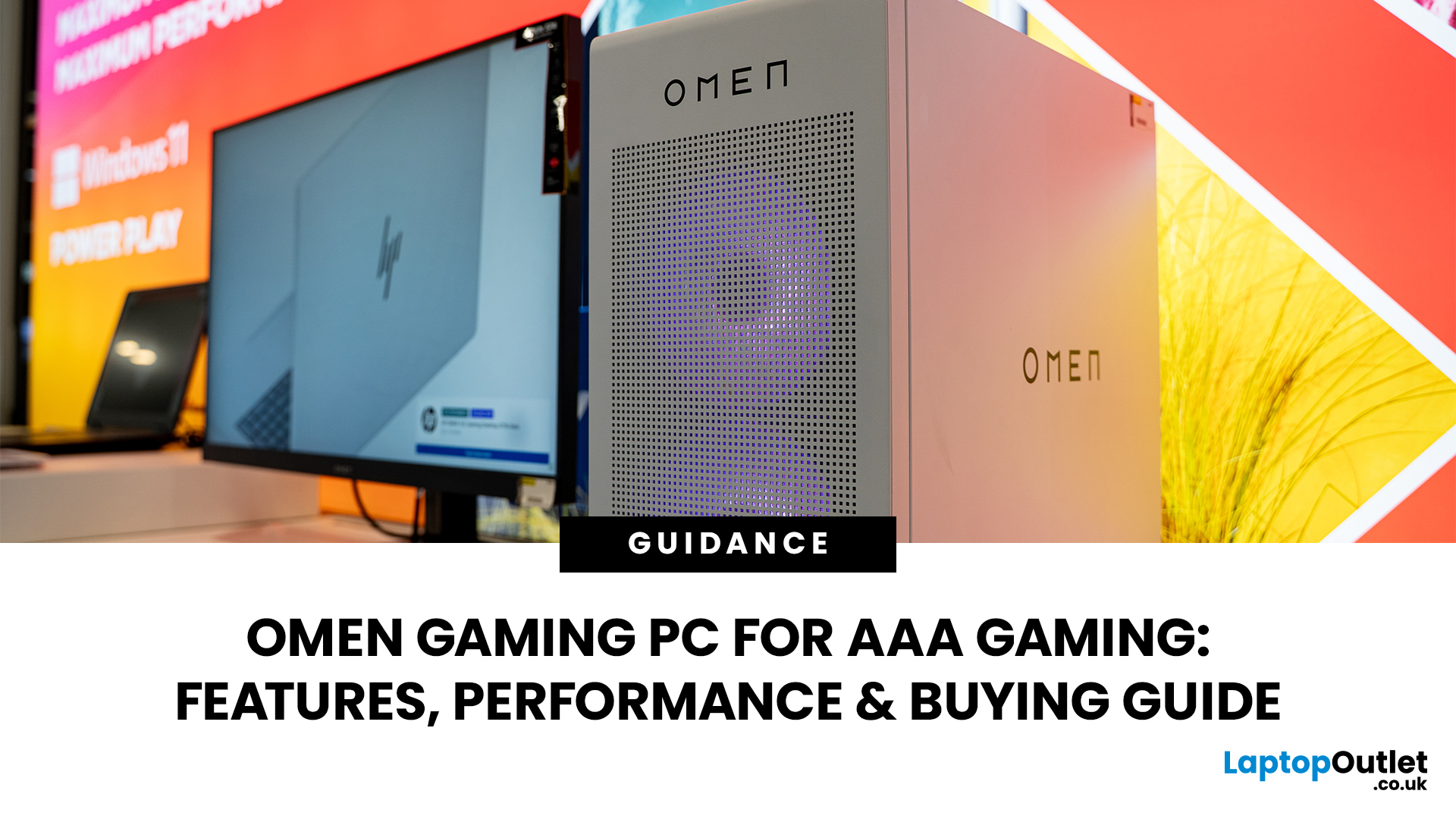
AAA games can be absolutely stunning, but they are not shy about demanding serious hardware. High-resolution textures, dense open worlds, ray-traced lighting, advanced physics, and background asset streaming can push an ordinary desktop to its limits. If your computer is short on graphics power, memory or cooling capacity, the result may be stuttering, inconsistent frame rates and a graphics menu full of compromises.
That's where an OMEN gaming PC comes in. An HP OMEN desktop combines dedicated gaming graphics, modern processors, SSD storage, and performance-focused cooling in a pre-built system. But not every configuration delivers the same experience, one OMEN gaming desktop may be ideal for 1080p gaming, while another is built for high-refresh 1440p or demanding 4K gameplay. This guide breaks down the HP OMEN specs that actually matter and how to match them to the way you play.
Is an OMEN Gaming PC Actually Good for AAA Games?
Yes. A correctly configured OMEN PC for AAA games can deliver
Last Updated: September 08, 2026
Two laptops can both say AMD Ryzen 5 on the specification sheet and still be built for very different jobs. One may prioritise battery efficiency and portability, while another is designed to sustain more performance for gaming, coding or creative work.
That is why choosing an AMD Ryzen 5 laptop in 2026 means looking beyond the tier name. AMD currently spans several mobile naming families, from Ryzen 7000 and 8000 to newer Ryzen 100, Ryzen 200 and Ryzen AI ranges. The exact processor, power class, memory, graphics, storage and laptop design all influence the experience.
This guide explains how to read those specifications, avoid misleading shortcuts and match the complete configuration to the way you actually use your laptop.
Quick Answer: How to Choose a Ryzen 5 Laptop
For most buyers, the right Ryzen 5 laptop is the one with a balanced specification rather than simply the largest processor number. Start with your main workload, then check the full CPU name, RAM, storage, graphics, display

Last Updated: July 21, 2026
Using your laptop in public is normal now. Cafés, trains, airports, libraries, lecture halls, shared offices, the laptop comes everywhere. But if the person sitting next to you can casually read your emails, bank details, work chats or assignments, that is not exactly ideal.
That is where privacy screen protectors laptops come in. Whether you are a student, business user, commuter or hybrid worker, this guide explains how privacy screens work, their benefits, disadvantages, types and whether they are actually worth buying.
How Does a Privacy Screen Protector Work?
Most laptop privacy screens use tiny vertical filter layers, often called micro-louvres. These work a bit like blinds. When you look at the laptop straight on, you can see the display clearly. When someone looks from the side, the filter blocks the view.
This is also how laptops and notebooks privacy screens work in everyday spaces. If you are working on a train, someone sitting beside you should find it much harder to read your
Last Updated: September 03, 2026
Last Updated: July 29, 2026
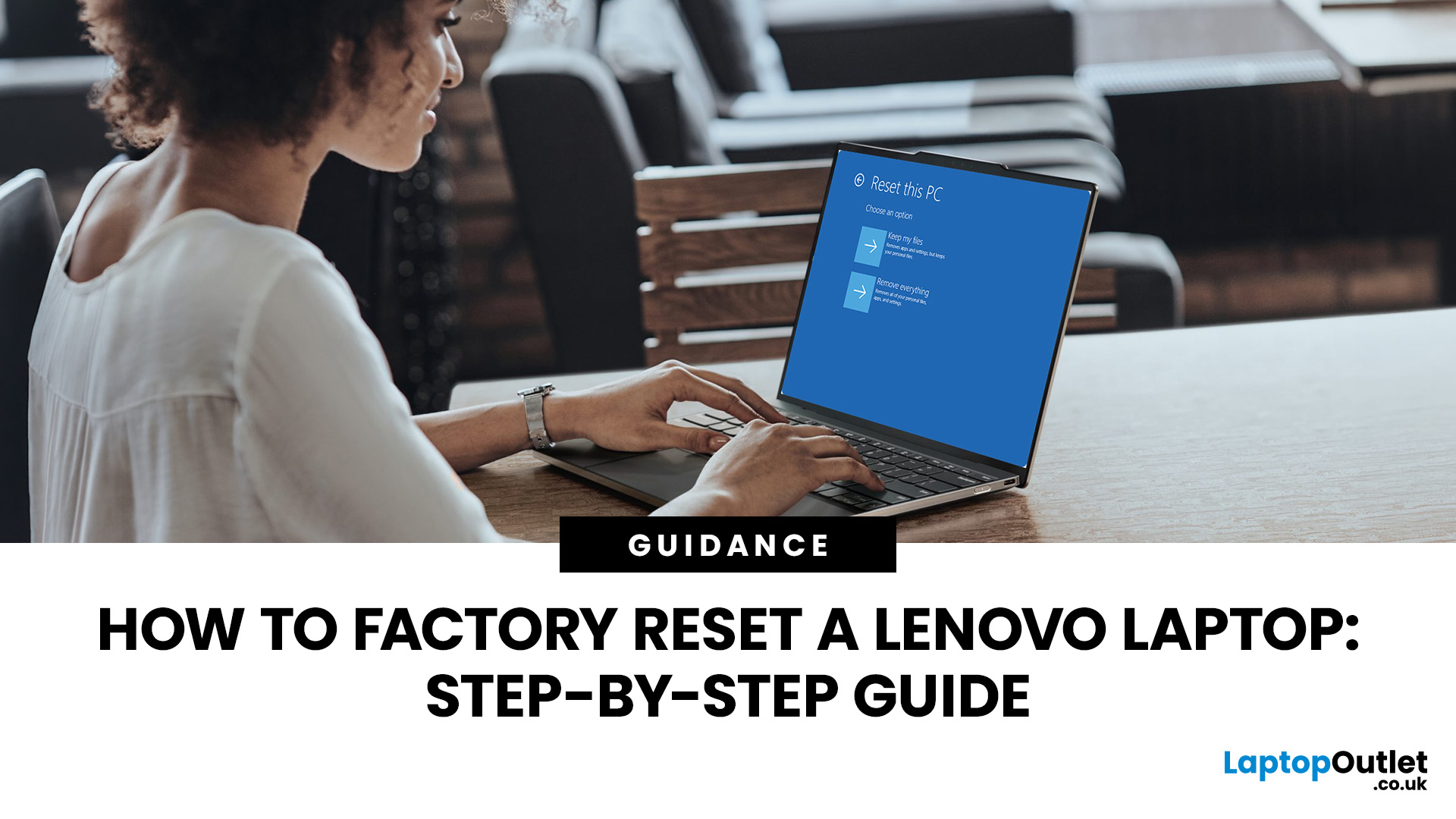
Your Lenovo laptop is slow, crashing, affected by persistent software problems or being prepared for a new owner; don't panic, it’s simply time for a factory reset.
A proper Lenovo factory reset reinstalls Windows and may remove applications, settings and personal data. This guide explains how to reset Lenovo laptop systems through Settings, the sign-in screen, Lenovo recovery mode, the Novo button or recovery media.
Before You Factory Reset Your Lenovo Laptop
- Back up documents, photos and other important files to cloud storage or an external drive.
- Keep the charger connected, remove unnecessary laptop accessories

Published: August 13, 2026
Your HP gaming monitor might have a fast refresh rate, sharp resolution, and solid HDR support, but poor colour settings can still leave games looking washed out, overly dark, or weirdly saturated. That is where monitor calibration makes a noticeable difference.
The key thing to know is that there is no single magic set of values that works for every HP or OMEN monitor. The right monitor settings depend on your exact panel, room lighting and whether you are playing in SDR or HDR.
This HP display calibration guide will show you how to get a more accurate starting point, fine-tune your screen in Windows 11 and fix the most common colour problems without turning everything up to 100.
What Does Monitor Calibration Actually Change?
Monitor calibration adjusts how your screen reproduces brightness and colour so that the image looks balanced rather than artificially enhanced. The main settings you are dealing with are:
- Brightness: Controls how bright the screen appears.
- Contrast: Affects the difference
Published: August 17, 2026
Dell laptops are built for everything from everyday study to demanding business workloads, but any device can develop faults over time. Common Dell laptop problems can involve slow performance, charging, overheating, displays, connectivity, or startup. The useful first step is not replacing parts at random, but identifying exactly what the laptop is doing. In this guide, you’ll learn how to recognise common symptoms, try safe, practical Dell laptop troubleshooting steps and decide when a repair or replacement makes practical sense.
What are the Most Common Dell Laptop Problems?
Slow Performance and System Lag
A Dell laptop may slow down because of too many startup apps, limited free storage, demanding background processes or outdated software. These Dell laptop issues often appear as slow boot times, freezing, or delayed app launches.
Battery Draining Too Quickly
Fast battery drain can result from high brightness, heavy workloads, background activity or an ageing battery. If runtime has
Published: August 20, 2026
Published: August 24, 2026

