



Top MacBooks of 2025: Which Model is the Right Choice for You?

Choose a MacBook for improved performance and ergonomics and experience improved operations, functionality, efficiency, and productivity compared to standard laptops.
MacBooks are among the most popular laptops because of their dynamic performance and incomparable functionality. However, Apple provides a range of MacBooks to cater to the diverse needs of various users.
If you are looking for a ‘MacBook laptop’ or apple laptop cost estimates, here are a few essential factors you should consider before making your decision and enjoying the ultimate computing experience.
How to Choose the Right MacBook Model?
Price
A MacBook can be expensive, but it provides users many benefits that other laptops don't, offering long-term use and value for offers users many benefits that other laptops don't, providing long-term value and a good return on investment with many benefits that other laptops don't, offering long-term use and value r money.
One way to choose the right MacBook is according to its price, which depends entirely on how much you are willing to spend. Suppose you are a student on a budget constraint. In that case, we recommend choosing a cheaper model, but for advanced users looking for a more robust experience, the expensive models are advised for high-end performance.
Processor and GPU
MacBooks feature different CPU cores for beginner and advanced tasks. For instance, the M1 chip has an 8-core CPU and a 7-core GPU. More powerful models, like the M4 Max chip, have up to a 16-core CPU and a 40-core GPU. The higher the number of cores, the better.
If you are a beginner-level user, like a new student, the M1 chip will be sufficient, whereas a higher-core CPU and GPU will fit advanced users.
Higher cores are recommended for flawless computing during video editing and gaming. They lead to better performance but are more expensive and power-consuming.
RAM and Storage
Apple offers plenty of RAM options for users to choose accordingly. You can find 8GB, 16GB, 18GB, 24GB, 36GB, 48GB, 64GB, and 128GB sizes. Higher RAM is advisable for multitasking and running resource-intensive software.
Higher RAM options come with a heavier price tag, so if you are an everyday user not involved in too much multitasking, the 8GB and 16GB options will suffice. Ideally, you should choose a moderate RAM size, even with subtle requirements, as it is a one-time investment recommended for reliable PC usage.
Like RAM, Apple MacBooks provide many storage options, with a 256GB SSD being standard. However, 512GB, 1TB, 2TB, and 8TB options are available.
Higher storage is for those who work with large volumes of data and must save their files in one place. So, choose a higher storage option if you are a graphic designer, engineer, or creator. However, a lower SSD will be enough if you are new to computing and just starting.
Portability
Portability is essential to every laptop, as it determines its usability.
Choosing the ideal weighted MacBook depends on your preferences. MacBooks weigh differently, with the most popular models weighing 1.51kg, 1.55kg, and 2.14kg.
Suppose you are a student or working remotely looking for a laptop for on-the-go use. In that case, the 1.51kg MacBook Air 15" will be a viable option. However, if portability is unimportant, you can choose a heavier model like the MacBook Pro 16", which weighs 2.14kg.
Screen Size
You can find a suitable MacBook model by choosing the right screen size. MacBook has different display sizes, with 14.2", 15.3", and 16.2" being the most popular choices.
Choose a smaller screen size if you work on the go. However, if you are engaged in graphics-intensive work with many visuals or are a content creator, choose a larger size, like 16.2”.
Ports
The MacBook’s port support is another vital consideration before purchasing one.
If you are looking for multiple port support for connecting your device to external peripherals, choose the MacBook Pro 14 or MacBook Pro 16, which features 2-3 Thunderbolt 4 ports, an SDXC card slot, and an HDMI port. On the other hand, if you don't require multiple ports, we recommend the MacBook Air 15-inch, which supports two Thunderbolt and USB 4 ports.
Battery Life
Battery life is a crucial consideration for choosing the right MacBook model. While most MacBooks have an excellent battery, some offer extended hours.
We suggest going for a more advanced MacBook model like the MacBook Pro 16" if you are involved in resource-intensive tasks and need a device with a longer battery life.
Other vital considerations when choosing the perfect MacBook model are its keyboard and trackpad, wireless support, and audio and camera support.
Top 4 MacBooks for 2025
1. Apple MacBook Air (2020, M1) — 13.3″
Technical Specifications
- Chip / Processor: Apple M1
- 8-core CPU (4 performance + 4 efficiency)
- 7- or 8-core GPU (depending on model)
- 16-core Neural Engine
- Memory (Unified): 8 GB (in the spec you gave)
- Storage: 256 GB SSD
- Display: 13.3-inch Retina display
- Built-in rechargeable lithium-polymer battery
- Up to ~18 hours of video playback (depending on usage)
- Ports: 2× Thunderbolt / USB 4
- Wireless: Wi-Fi 6, Bluetooth (depending on generation)
- Operating System: macOS Big Sur
- Camera: FaceTime HD camera
- Weight: ~1.29 kg (depending on spec)
Features / Advantages:
- Very energy efficient thanks to M1 chip → good battery life.
- Fan-less design → silent operation.
- Unified memory architecture → good performance for everyday tasks as well as moderate creative workloads.
- Lightweight and portable; great for students, writers, professionals.
- macOS Big Sur supports all the M1 optimizations.
2. Apple MacBook Air (M4) — 13.6″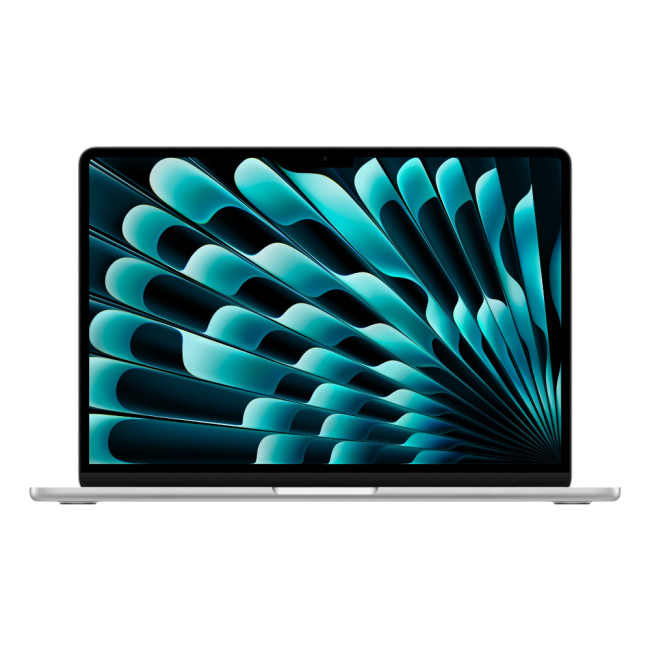
Technical Specifications
- Chip / Processor: Apple M4
- 10-core CPU (Apple’s spec)
- 10-core GPU (for the 10-core M4 variant)
- Memory (Unified): 16 GB (in the model you listed), though base M4 Airs are often configured with 24 GB or 32 GB per Apple’s spec page.
- Storage: 256 GB SSD— note: Apple’s spec for M4 Air starts from 256 GB.
- Display: 13.6-inch LED-backlit Liquid Retina (native resolution ~2560×1664)
- Built-in 53.8-watt-hour lithium-polymer battery (for 13" M4 Air)
- Included power adapter: either 30W USB-C or 35W dual-port (depending on GPU)
- Fast-charging possible with 70W USB-C adapter
- 2 × Thunderbolt / USB-C / USB4
- MagSafe 3 charging port
- Camera: 12 MP camera with Centre Stage (for auto framing in video calls)
- Wireless: Wi-Fi 6E, Bluetooth (per modern Apple silicon spec)
- Operating System: Likely ships with macOS Sequoia (or later) given M4 generation.
- Weight: ~1.24 kg for 13.6″ Air (per Apple spec)
Key Features / Strengths:
- More powerful than older Airs due to the M4 chip → better for more intensive tasks (e.g., editing, AI tasks) while still being light and portable.
- Excellent battery life (very efficient chip + Apple’s power management).
- Modern design with MagSafe, Thunderbolt ports, and very good webcam.
- Fan-less design → silent operation.
- Bright, sharp display with good colour and clarity.
3. Apple MacBook Pro 14″ 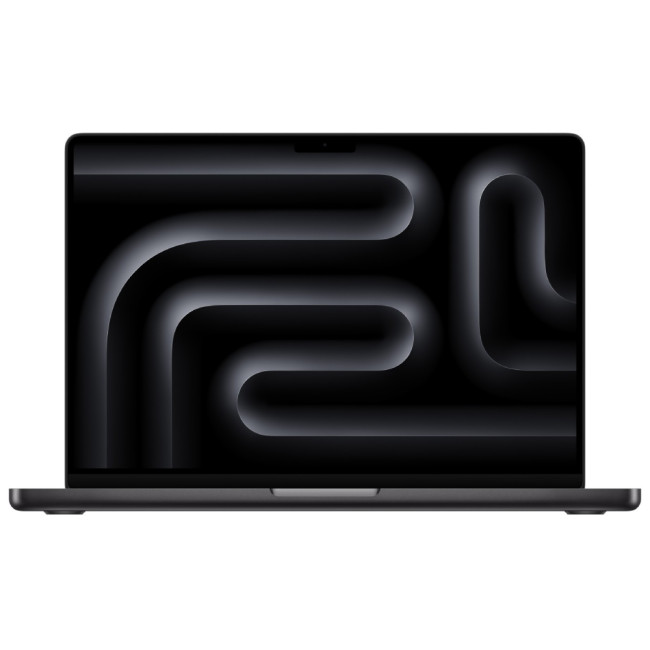
Technical Specifications
- Chip / Processor: Apple M4 Max
- 14-core CPU (10 performance + 4 efficiency cores)
- 32-core GPU (for the 14-core CPU / 32-core GPU variant) per Apple’s spec.
- 16-core Neural Engine
- Memory bandwidth: ~410 GB/s (for this 14-core / 32-core GPU M4 Max) per Apple spec.
- Memory (Unified): 36 GB, Apple’s spec sheet says for M4 Max with 14-core CPU, 36 GB is a supported configuration.
- Storage: 1 TB SSD, Apple supports configurable SSD sizes.
- 14.2-inch Liquid Retina XDR (mini-LED) display
- Native resolution: 3024 × 1964 (or very similar) per Apple spec sheet for 14-inch.
- ProMotion-capable (adaptive refresh rate up to 120 Hz) as in many Pro-line models.
- Hardware-accelerated ray tracing (supported on M4 Max)
- Media engines for H.264, HEVC, ProRes, ProRes RAW, plus video decode/encode and ProRes encoding/decoding engines.
- Memory Bandwidth: ~410 GB/s (for 14-core / 32-core GPU config).
- 72.4-watt-hour lithium polymer battery for 14″ Pro.
- Power Adapter: 70W USB-C (for some configs) or 96W (for higher GPU / CPU configs) depending on variant.
- Fast-charge capable with a high-wattage USB-C adapter.
- 3 × Thunderbolt (likely Thunderbolt 4) ports
- HDMI port, SDXC card slot, headphone jack, MagSafe 3 port (on Pro)
- Wi-Fi and Bluetooth (modern Apple silicon spec)
- Operating System: Likely ships with macOS Sequoia or a recent version compatible with the M4 architecture.
- Magic Keyboard with Touch ID
- Force Touch trackpad
- High-dynamic-range XDR mini-LED display → great for colour-critical video/photo editing, HDR work.
Strengths / Use Cases:
- Designed for professional workloads: video editing, 3D, rendering, software development, ML tasks.
- High GPU core count + memory bandwidth → excellent graphics performance.
- Very good thermal performance (compared to fan-less Air) + sustained performance for heavy tasks.
- High-quality display (mini-LED) with ProMotion and high brightness / contrast → ideal for creative professionals.
- Ample unified memory (36 GB) helps with large projects, multi-app workflows.
4. Refurbished Apple MacBook Pro 14″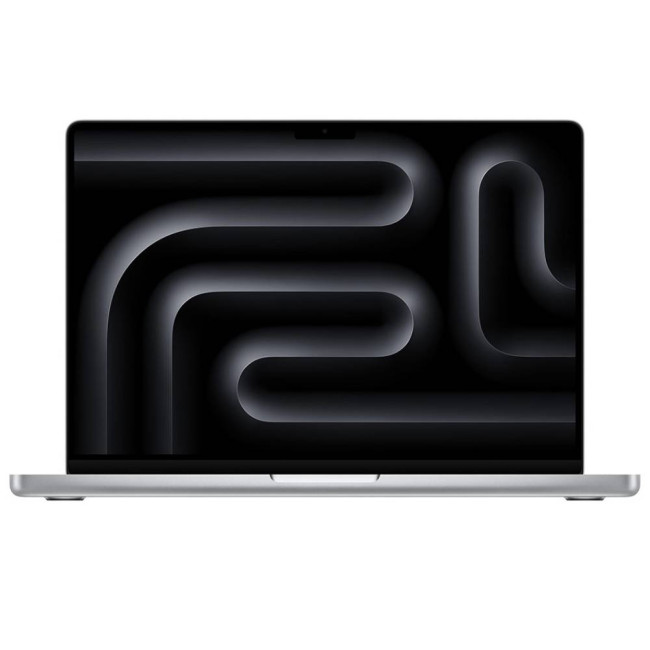
Technical Specifications
- Chip / Processor: Apple M3 Pro
- Can be configured with an 11-core CPU (5 performance + 6 efficiency) or 12-core CPU (6 performance + 6 efficiency) depending on the version.
- GPU: Depending on CPU, the GPU can be 14-core or 18-core (in M3 Pro).
- 16-core Neural Engine
- Memory (Unified): 36 GB is a possible CTO / BTO configuration for M3 Pro per some spec/refurb listings.
- Storage: 1 TB SSD, SSD sizes are configurable via Apple’s CTO / refurbished offerings.
- 14.2″ Liquid Retina XDR (mini-LED) display
- Resolution: 3024 × 1964 (same as many 14″ Pro models) per spec sheets.
- ProMotion (adaptive refresh rate up to 120 Hz) for smoothness in motion / UI.
- Hardware-accelerated H.264, HEVC, ProRes, ProRes RAW decode / encode, etc. (M3 Pro includes media engines suited for creative workloads)
- Likely the same 72.4 Wh battery (as with other 14″ Pros) in that generation. (Some spec resources point to ~72.4 Wh for 14-inch Pro).
- Power adapter: depending on the model, could be 70W or 96W USB-C / MagSafe adapter (refurb / CTO may have either)
- 3 × Thunderbolt ports (USB-C) + HDMI + SD-card slot + MagSafe 3 + headphone jack, typical for 14″ Pro.
- Operating System: Should support modern macOS versions compatible with M3 Pro.
- Magic Keyboard with Touch ID
- Force Touch trackpad
- High brightness mini-LED screen → great colour gamut, HDR work, video editing
Comparison & Summary of MacBook Models
|
Model |
Best For |
Strengths |
|
MacBook Air M1 (2020) |
Everyday use, students, writers |
Lightweight, silent, efficient, great battery life |
|
MacBook Air M4 (13.6″) |
Productivity, moderate creative tasks |
More powerful than M1, modern chip, better webcam, very portable |
|
MacBook Pro 14″ M4 Max (36 GB) |
Professional creatives, video editors, devs |
High GPU power, memory bandwidth, mini-LED XDR screen, long thermally sustained performance |
|
MacBook Pro 14″ M3 Pro (Refurb) |
High power at lower cost |
Strong CPU/GPU, ample memory, high-quality display, value via refurb |

Wrapping Up
Choosing the suitable MacBook model depends on what you are looking for, how much you are willing to spend, and what you prioritise. Many MacBook models are available, but for 2025, you should choose one with immaculate features like a fast processor, a dedicated graphics card, a long battery life, multiple port support, the latest Wi-Fi connectivity, and a comfortable keyboard and touchpad. Selecting a MacBook with a warranty is recommended for added peace of mind.
If you want the ideal MacBook for 2025, browse Laptop Outlet to find the perfect device.

Still Confused?
Which MacBook is the best overall in 2025?
The MacBook Air M4 is considered the best all-rounder in 2025 thanks to its excellent balance of performance, battery life, portability and price. It’s powerful enough for productivity and creative tasks while staying lightweight.
Which MacBook is best for professional video editing or 3D work?
If you need top-tier power, the MacBook Pro M4 Max (14-inch or 16-inch) is the ideal choice. Its advanced GPU cores, high memory bandwidth, and XDR Mini-LED display make it perfect for heavy creative workflows.
Is the MacBook Air M1 still worth buying in 2025?
Yes, if you're on a budget. The MacBook Air M1 still handles everyday tasks smoothly, including light editing, office work, and browsing. It offers strong battery life and remains one of the best-value laptops.
Should I choose the Air or Pro model in 2025?
Choose the MacBook Air if you want portability, long battery life, and excellent value.
Choose the MacBook Pro if you need sustained performance for design, coding, engineering, or creative work.
Are refurbished MacBooks reliable in 2025?
Yes. Apple-certified refurbished MacBooks are tested, restored, and sold with warranty support. Models like the refurbished M3 Pro deliver high performance at a lower cost, making them a smart choice for professionals and students.
| Read More: |
| Why Buy a MacBook? |
| How to Split Screen on Mac |
| How to Change Your MacBook Name |
Related Articles


Last Updated: November 12, 2025
Yes, MacBook is the go-to laptop for professionals. It’s no surprise that Macs were traditionally associated with creative industries like graphic design and marketing, but over time more businesses have started to adopt Apple technology. We now see them in so many industries i.e., association, retail, government, construction, transportation, etc.
There are many good reasons for this, but many businesses still regard Macs with suspicion and are hesitant to switch from PCs to Macs. The high cost of Macs is a common criticism leveled at them. While they are not cheap, they are generally comparable in price to high-end PCs and offer outstanding quality and longevity.
Businesses can easily stick with what they know and continue to rely on PCs, but there are numerous reasons to consider switching to Macs.
Let's look at a few of the more significant ones.
Security:
As compared to PCs, Macs are a safer option. Viruses for Apple are very less in number. Apple mostly does not get attacked by cybercriminals
Last Updated: December 12, 2025
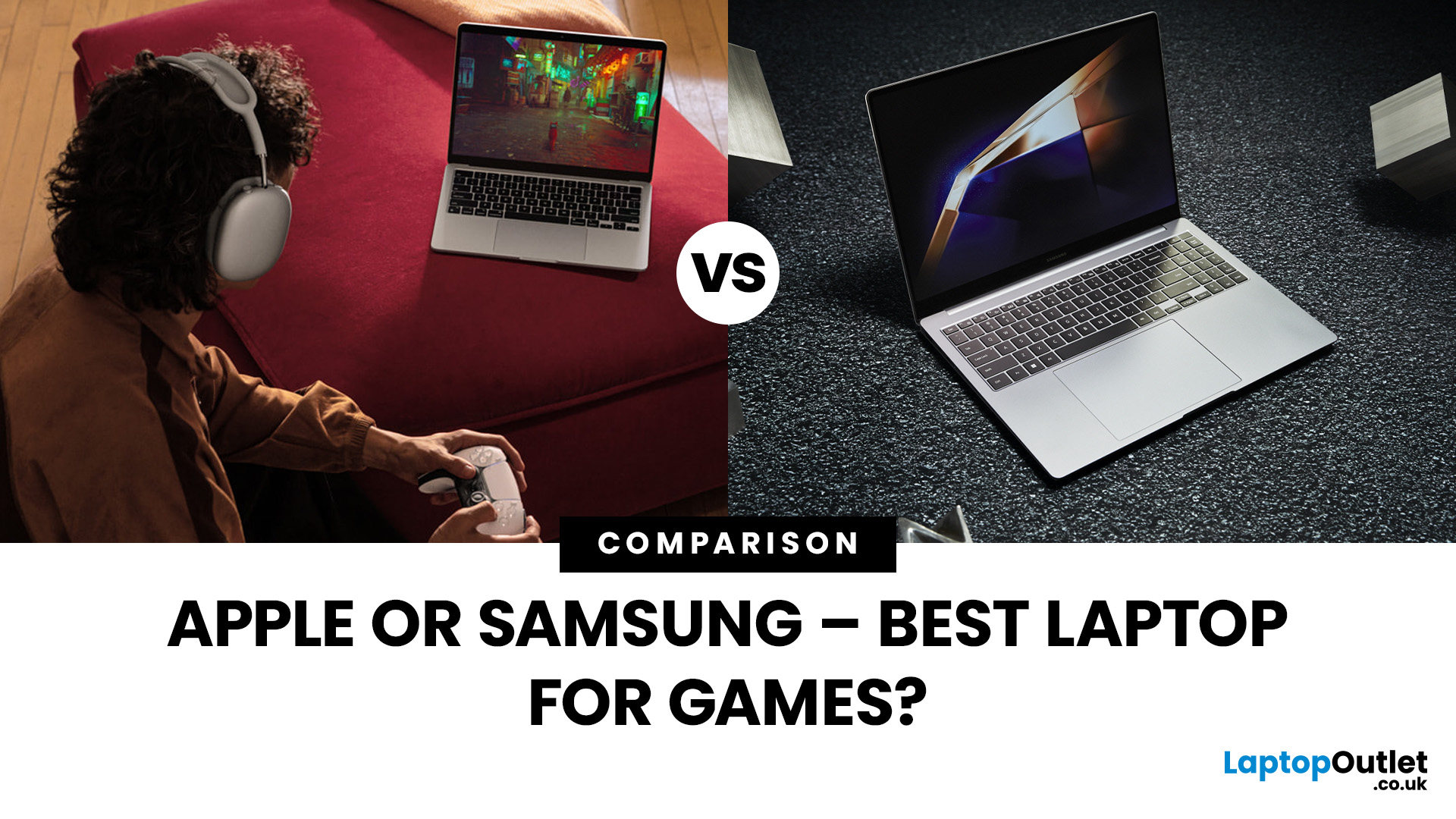
Are you in the market for a new gaming laptop and wondering what to choose between Samsung or Apple?
If you're even remotely familiar with the gaming arena, then you've no doubt heard of two big names which emerged as frontrunners in the high-stakes race of gaming laptops: Samsung and Apple. The latest Samsung models are super thin and ultraportable, and gaming on them may be mediocre if you stick to older titles. On the other hand, Apple laptops are technically suitable for demanding tasks like video editing and creative design as they have powerful CPUs, but the price may dig a big hole in your pocket. So, what to choose?
To provide you with a definitive answer, this guide covers everything from hardware and performance to laptops' design and user experience.
So, let's get started!
Samsung Laptops (Window-Based)
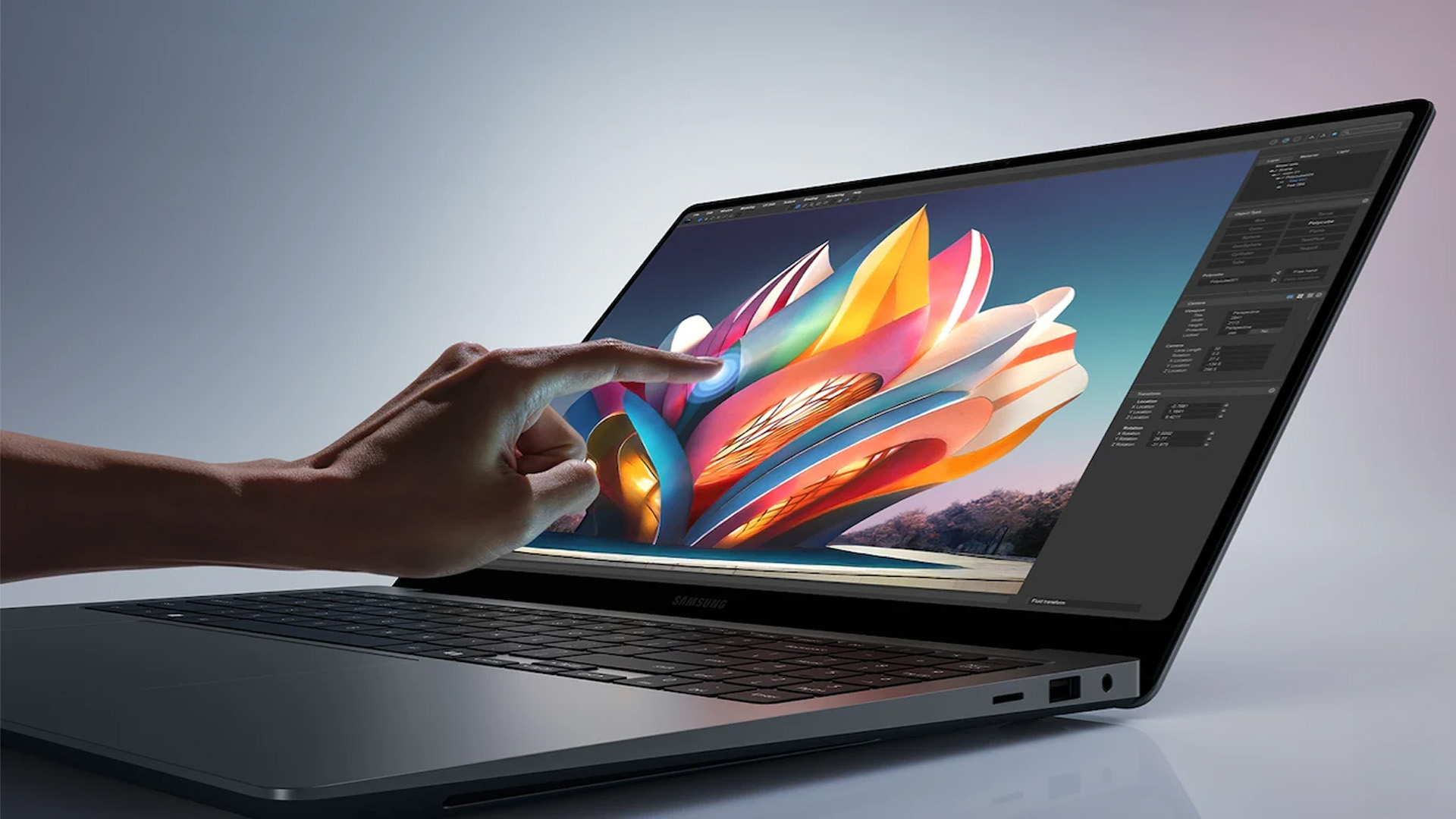
Samsung stands out among the top leading electronics brands in the world. Their laptops are best known for their innovative designs, spectacular build quality, colour-accurate
Last Updated: October 03, 2025
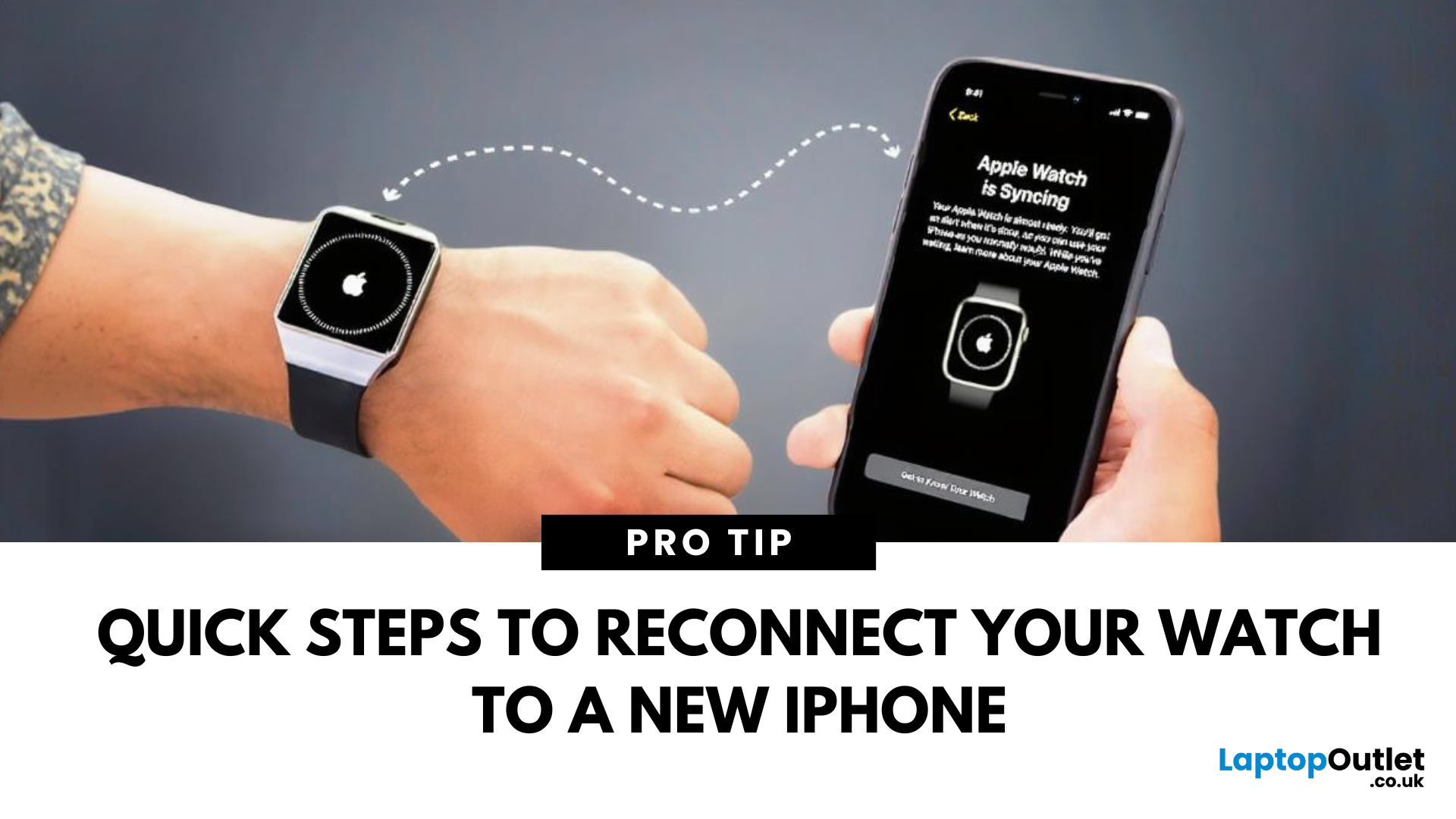
New iPhone, Same Watch? Here’s How to Pair It
Upgrading to a new iPhone? Great! But what about your Apple Watch? You’ll need to pair it to your new phone and transfer all your settings, apps, and data. Here’s how to do it step by step without losing your watch data.
How to Pair Apple Watch to a New iPhone – Step by Step
1. Back Up Your Old iPhone
Your Apple Watch data is included in your iPhone backup.
Steps:
- Go to Settings > [Your Name] > iCloud > iCloud Backup
- Tap Back Up Now
Alternatively, back up via iTunes or Finder on a computer.
2. Unpair Your Apple Watch from Your Old iPhone
- Open the Watch app on your old iPhone
- Tap All Watches > Info icon (i) next to your watch
- Tap Unpair Apple Watch
- Confirm and enter your Apple ID password
This creates a backup of your watch on your old iPhone.
3. Set Up Your New iPhone
Restore your new iPhone from your latest iCloud or iTunes backup so it includes your Apple Watch data.
4. Pair Apple Watch with New iPhone
- Bring

Last Updated: July 01, 2025
Rename Your Mac in Seconds
Whether you just got a new MacBook or want to keep your devices organised, changing your Mac’s name is quick and simple. It helps when using AirDrop, Bluetooth, iCloud, or sharing files on a network. Here's exactly how to do it.
How to Change MacBook Name – Step by Step
1. Open System Settings
- Click the Apple Menu in the top-left corner
- Select System Settings (or System Preferences on older macOS versions)
2. Go to General > About
- In the left-hand menu, click General
- Then choose About
3. Click the Current Name
- At the top, you’ll see your Mac’s current name
- Click the name field to edit it
4. Enter a New Name
- Type in your desired name (e.g. “John’s MacBook Pro”)
- Press Enter to save it
Your MacBook is now renamed! This will reflect across iCloud, AirDrop, and local network sharing.
Why Change Your MacBook’s Name?
- Makes it easier to identify on a shared network
- Keeps AirDrop clear when using multiple Apple devices
- Helps with iCloud

Last Updated: September 09, 2025
Keep Your Apple ID Up to Date
Your Apple ID email is your gateway to everything Apple—App Store, iCloud, Messages, and more. If you’ve changed emails or just want to use a different address, it’s easy to update your Apple ID. Here’s exactly how to do it safely.
Important Before You Start
- Sign out of Apple ID on all Apple devices except the one you're updating
- Make sure you know your current Apple ID password
- Backup important data if possible
1. How to Change Apple ID Email on iPhone or iPad
Steps:
- Open Settings
- Tap your name at the top
- Tap Sign-In & Security (iOS 17 and later) or Name, Phone Numbers, Email
- Tap Edit next to Reachable At or Account
- Tap Change Apple ID
- Enter the new email address you want to use
- Verify the email by entering the code sent to the new address
Make sure the new email isn’t already used as an Apple ID
2. How to Change Apple ID Email via Web Browser
Steps:
- Go to appleid.apple.com
- Sign in with your current Apple ID and password

Last Updated: September 09, 2025
Don’t Worry—You’re Not Locked Out
Your Apple ID password unlocks access to iCloud, the App Store, iMessage, and more. If you’ve forgotten it, don’t panic. Finding or resetting your Apple ID password is simple with Apple’s built-in recovery options.
1. Check Password Saved in Keychain (iPhone or Mac)
If you previously saved your Apple ID password in iCloud Keychain:
On iPhone/iPad:
- Open Settings
- Tap Passwords
- Search for "Apple ID"
- Tap to view the saved password
On Mac:
- Open System Settings > Passwords
- Search for "Apple ID"
- If saved, you’ll find your Apple ID password here easily
2. Reset Apple ID Password via Settings (iPhone or iPad)
Steps:
- Open Settings
- Tap your name at the top
- Tap Sign-In & Security (or Password & Security)
- Tap Change Password
- Follow the on-screen instructions
You’ll need your device passcode to proceed
3. Reset Apple ID Password Using Web Browser
Steps:
- Visit iforgot.apple.com
- Enter your Apple ID email address
- Follow

Last Updated: July 01, 2025
Mac Performance Without the Mac Price
Apple fans love the sleek design, power, and ecosystem of MacBooks—but the price can be a deal-breaker. If you’re eyeing a cheaper alternative, you’re probably wondering: are refurbished MacBooks good? The answer is yes, but only if you buy smart. Here’s what you need to know.
1. What Is a Refurbished MacBook?
A refurbished MacBook is a previously owned Apple laptop that’s been returned, restored to working order, tested, cleaned, and resold.
It’s not “used” in the traditional sense. Refurbished models go through inspection and come with warranties.
2. Benefits of Buying a Refurbished MacBook
- Save up to 40% compared to buying new
- Same macOS experience and Apple ecosystem integration
- Eco-friendly – reduces electronic waste
- Comes with warranty – usually 6–12 months
- Tested for performance and reliability
3. Downsides to Consider
- Slight cosmetic wear (depends on grade)
- Older models may lack the newest features
- May not come in original
Last Updated: October 08, 2025
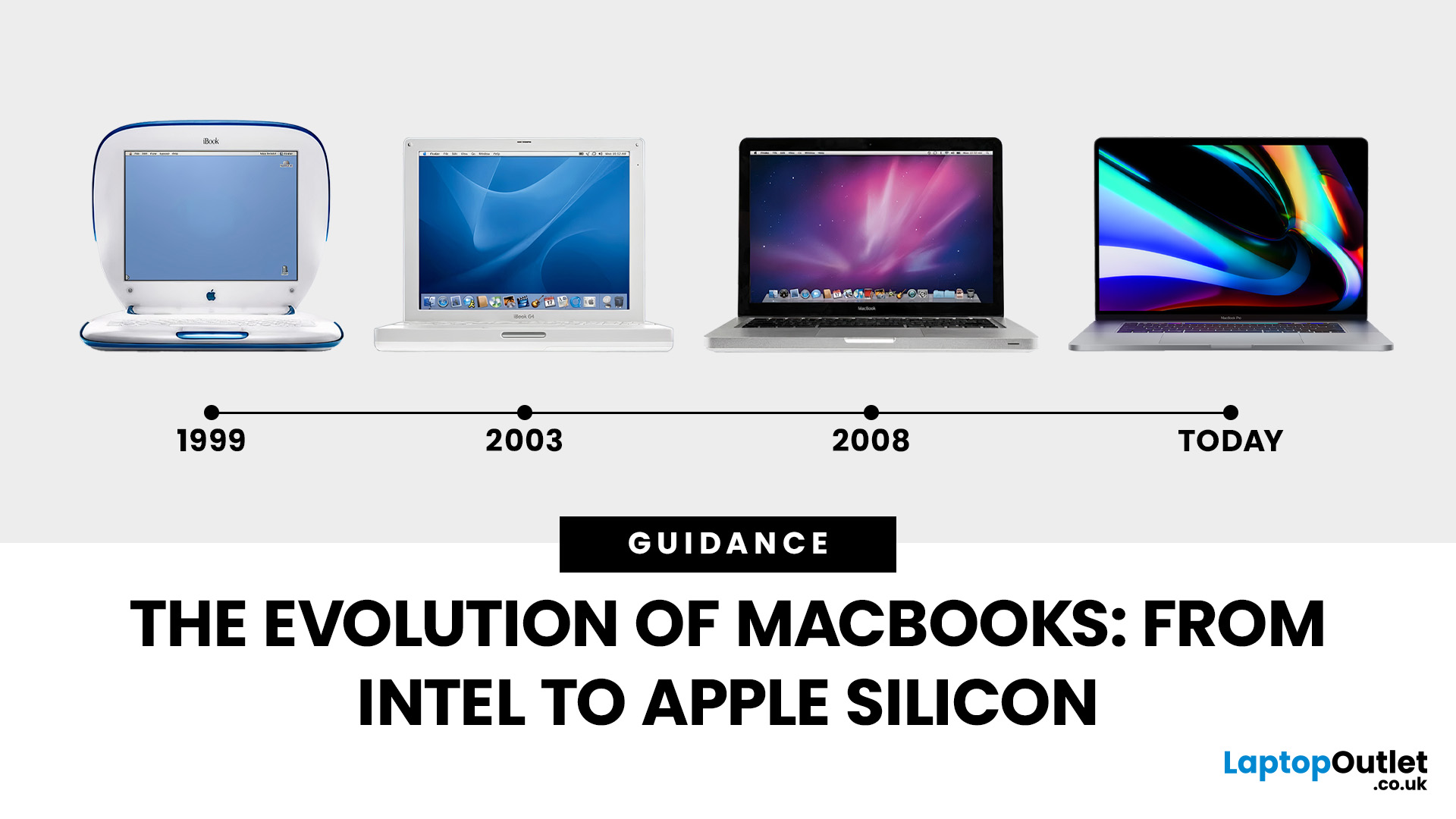
Few products have shaped modern computing quite like the Apple MacBook. From its early Intel-powered beginnings to today’s lightning-fast Apple Silicon machines, the MacBook has consistently pushed the boundaries of laptop design, performance, and portability. Along the way, it’s become a symbol of premium computing - beloved by students, professionals, and creative powerhouses worldwide.
But the evolution of Apple MacBooks hasn’t always been smooth sailing. There have been bold design shifts, controversial choices (remember the butterfly keyboard?), and groundbreaking innovations like Retina displays and MagSafe. The biggest leap of all came in 2020, when Apple ditched Intel processors in favour of its own Apple Silicon chips - a move that completely redefined, what users could expect from a laptop.
In this guide, we’ll take you through the full MacBook journey: from its early days, through key design changes and the Intel era, right up to the Apple Silicon transition and the future of

Last Updated: April 02, 2026
If you’ve been holding off on upgrading your Apple tech, this is the moment you’ve been waiting for. Black Friday 2025 is just around the corner, which means serious savings on everything from MacBooks and iPhones to iPads and AirPods.
Apple products rarely see big discounts, so when Black Friday arrives, it’s a golden opportunity to grab the device you’ve had your eye on or to tick a few gifts off your Christmas list. Whether you’re looking for the best MacBook Pro deals, a lightweight MacBook Air, an iPad for the kids or even a refurbished iMac, this year’s offers are shaping up to be impressive.
Here’s your ultimate guide to finding the best Black Friday Apple Deals in 2025, how to shop smartly, and where to get the most for your money.
Why Black Friday 2025 Is a Big Deal for Apple Fans
Apple’s premium design and performance mean prices don’t drop often which is exactly why Black Friday is so exciting. Retailers across the UK slash prices on top Apple gear for a limited time, making

