



How to Pair Apple Watch to a New Phone?
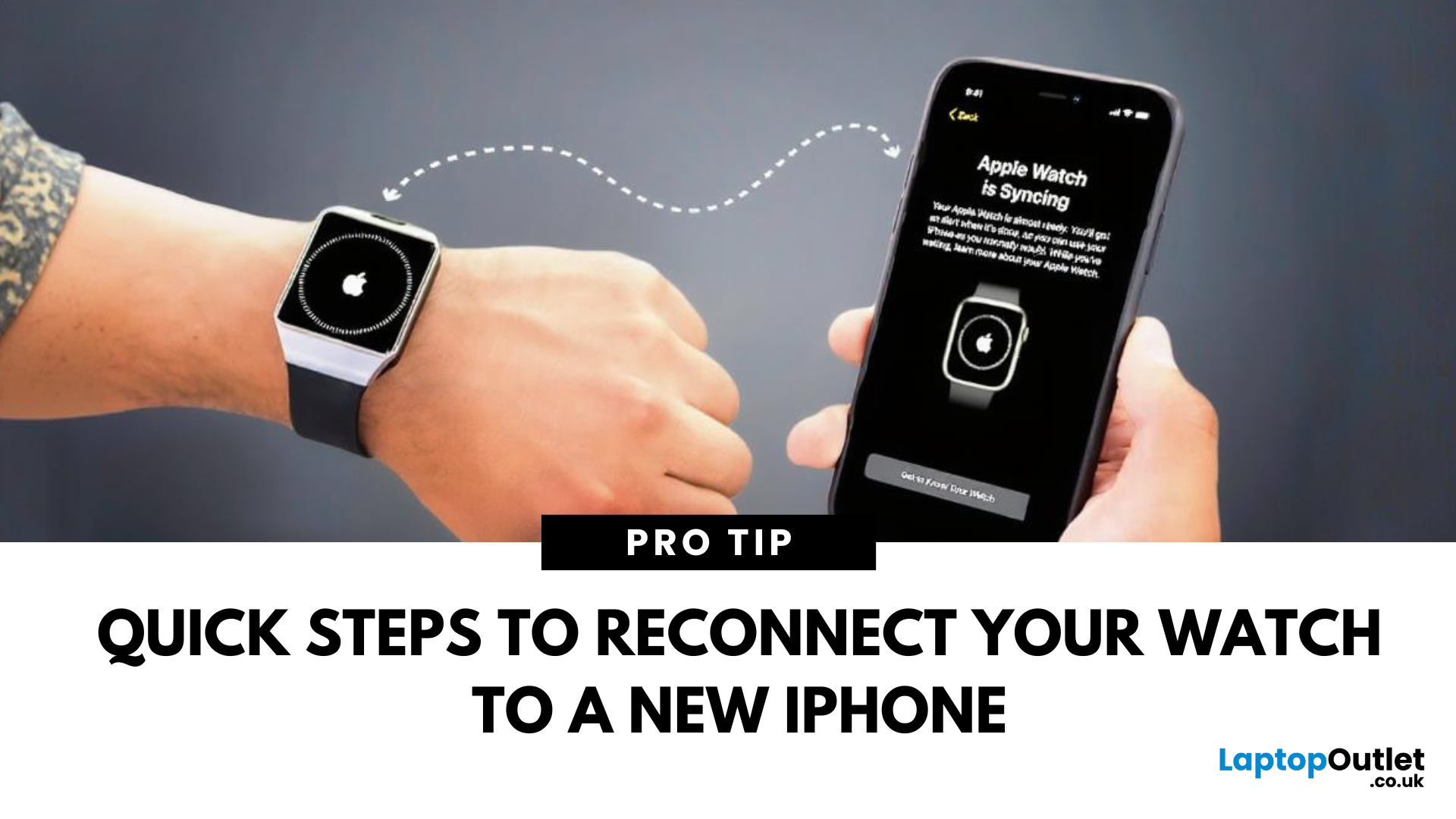
New iPhone, Same Watch? Here’s How to Pair It
Upgrading to a new iPhone? Great! But what about your Apple Watch? You’ll need to pair it to your new phone and transfer all your settings, apps, and data. Here’s how to do it step by step without losing your watch data.
How to Pair Apple Watch to a New iPhone – Step by Step
1. Back Up Your Old iPhone
Your Apple Watch data is included in your iPhone backup.
Steps:
- Go to Settings > [Your Name] > iCloud > iCloud Backup
- Tap Back Up Now
Alternatively, back up via iTunes or Finder on a computer.
2. Unpair Your Apple Watch from Your Old iPhone
- Open the Watch app on your old iPhone
- Tap All Watches > Info icon (i) next to your watch
- Tap Unpair Apple Watch
- Confirm and enter your Apple ID password
This creates a backup of your watch on your old iPhone.
3. Set Up Your New iPhone
Restore your new iPhone from your latest iCloud or iTunes backup so it includes your Apple Watch data.
4. Pair Apple Watch with New iPhone
- Bring your Apple Watch near your new iPhone
- A pop-up will appear – tap Continue
- Or open the Watch app > Start Pairing
- Follow the on-screen instructions to restore from backup or set up as new
Troubleshooting: If You Can’t Unpair
If you no longer have your old iPhone:
- Reset your Apple Watch: Settings > General > Reset > Erase All Content and Settings
- Pair it manually with your new iPhone
You may lose data if no backup is available.
Final Thoughts: Pair Seamlessly, Stay Connected
Switching to a new iPhone doesn’t mean leaving your Apple Watch behind. With the right steps, you can move everything over smoothly and keep tracking your fitness, calls, and notifications without missing a beat.
Looking for a new iPhone or Apple accessories? Check out Laptop Outlet’s latest tech deals today.
FAQs: Apple Watch Pairing Questions Answered
1. Do I need to unpair my Apple Watch before pairing with a new phone?
Yes—unpairing creates a backup and prepares the watch for pairing.
2. Will I lose data when pairing Apple Watch to a new iPhone?
No—if you unpair and back up your old iPhone, your data transfers over.
3. Can I pair my Apple Watch to a new iPhone without the old one?
Yes, but you may lose saved data if there’s no backup.
4. How do I manually pair my Apple Watch?
Open the Watch app on your iPhone and follow the on-screen instructions.
5. Can I use the same Apple Watch with multiple iPhones?
No—Apple Watch can only pair with one iPhone at a time.
Watch our video on how to pair your Apple Watch to a new phone.
Read More:
| How to Back Up Your Samsung Phone |
| How to Screen Mirror iPhone to TV |
| How to Clear Cache on an Android Phone |
Related Articles

Last Updated: May 21, 2025

Last Updated: September 09, 2025
Keep Your Apple ID Up to Date
Your Apple ID email is your gateway to everything Apple—App Store, iCloud, Messages, and more. If you’ve changed emails or just want to use a different address, it’s easy to update your Apple ID. Here’s exactly how to do it safely.
Important Before You Start
- Sign out of Apple ID on all Apple devices except the one you're updating
- Make sure you know your current Apple ID password
- Backup important data if possible
1. How to Change Apple ID Email on iPhone or iPad
Steps:
- Open Settings
- Tap your name at the top
- Tap Sign-In & Security (iOS 17 and later) or Name, Phone Numbers, Email
- Tap Edit next to Reachable At or Account
- Tap Change Apple ID
- Enter the new email address you want to use
- Verify the email by entering the code sent to the new address
Make sure the new email isn’t already used as an Apple ID
2. How to Change Apple ID Email via Web Browser
Steps:
- Go to appleid.apple.com
- Sign in with your current Apple ID and password
Last Updated: September 09, 2025
Don’t Worry—You’re Not Locked Out
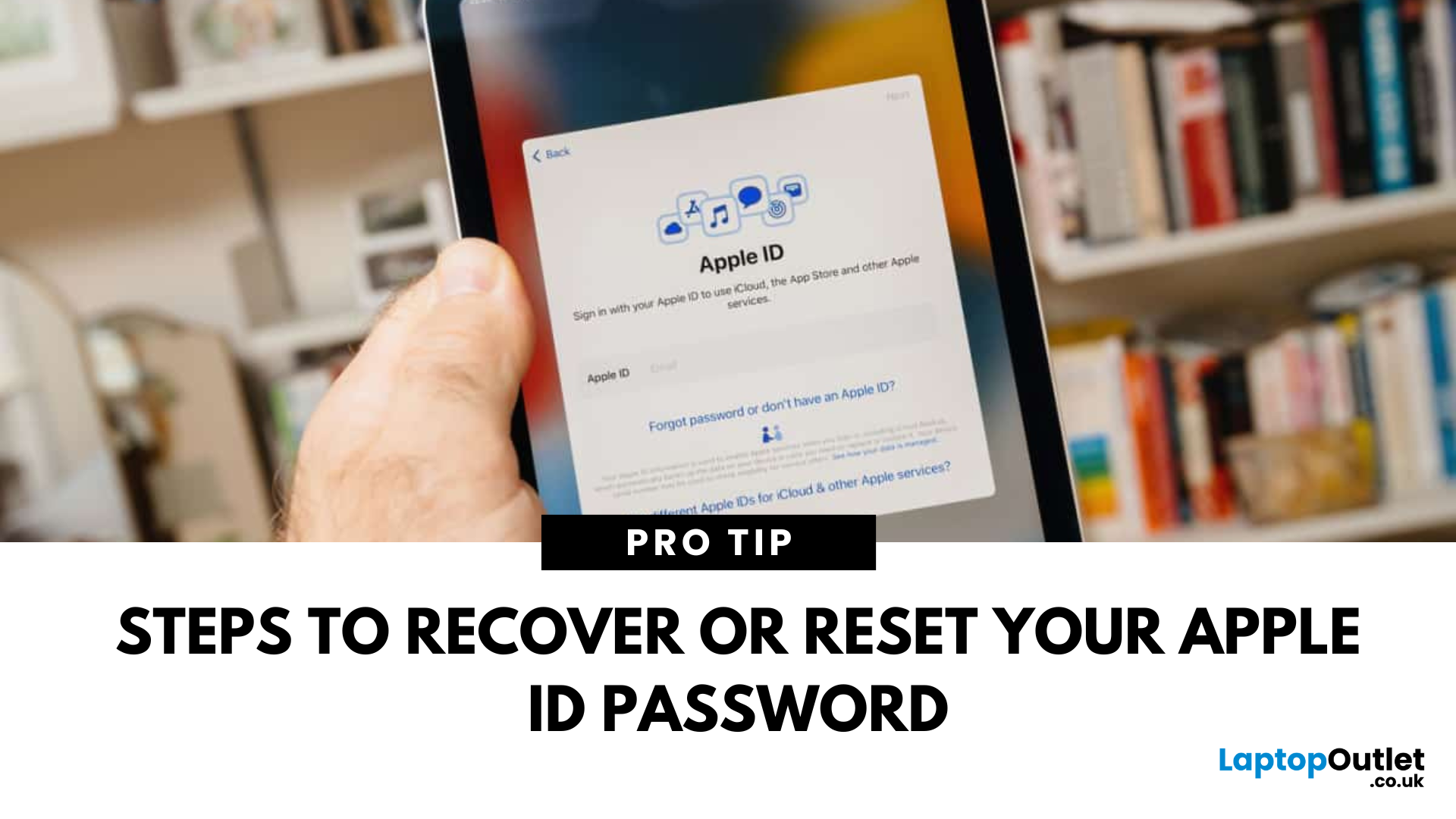
Your Apple ID password unlocks access to iCloud, the App Store, iMessage, and more. If you’ve forgotten it, don’t panic. Finding or resetting your Apple ID password is simple with Apple’s built-in recovery options.
1. Check Password Saved in Keychain (iPhone or Mac)
If you previously saved your Apple ID password in iCloud Keychain:
On iPhone/iPad:
- Open Settings
- Tap Passwords
- Search for "Apple ID"
- Tap to view the saved password
On Mac:
- Open System Settings > Passwords
- Search for "Apple ID"
- If saved, you’ll find your Apple ID password here easily
2. Reset Apple ID Password via Settings (iPhone or iPad)
Steps:
- Open Settings
- Tap your name at the top
- Tap Sign-In & Security (or Password & Security)
- Tap Change Password
- Follow the on-screen instructions
You’ll need your device passcode to proceed
3. Reset Apple ID Password Using Web Browser
Steps:
- Visit iforgot.apple.com
- Enter your Apple ID email address
- Follow

