



How to Split Screen on Mac

Master Multitasking on Your Mac
Need to work in two apps at once? Split screen on Mac lets you run apps side by side—great for research, editing, Zoom calls, or comparing documents. Here’s how to split screen on macOS the easy way.
Use Split View via the Green Full-Screen Button
Steps:
- Hover over the green full-screen button in the top-left corner of an app window
- Select Tile Window to Left of Screen or Tile Window to Right of Screen
- Your window will fill half the screen
- Choose another open app to fill the other side
This works on macOS Catalina and newer
Adjust Window Sizes Manually (Drag & Snap)
Steps:
- Click and hold the top of an app window
- Drag it to the left or right edge until the screen highlights
- Release to snap it into place
- Do the same with another window on the other side
This isn’t true Split View but offers a similar multitasking layout
Exit Split View
- Move your mouse to the top of the screen
- Click the green button in either window to exit full-screen and return to normal
Apps will remain open side by side after exiting
Use Mission Control for Better Window Management
Steps:
- Swipe up with three or four fingers on your trackpad (or press F3)
- Use Mission Control to move apps into separate desktops or arrange windows
Combine Mission Control with Split View for advanced multitasking
5. Split Screen Tips for Productivity
- Use Safari + Notes for research
- Combine Zoom + Docs for meetings and collaboration
- Drag and drop files or text between apps easily in Split View
Final Thoughts: Do More with Less Clicks
Split screen mode on Mac helps you stay productive without switching tabs. Whether you’re working, studying, or browsing, macOS multitasking features make everything feel more organised.
Looking to upgrade your MacBook or iMac? Check out Laptop Outlet’s latest Apple tech deals and bundles today.
FAQs: Split Screen on Mac Explained
1. Does split screen work on all Macs?
Yes, as long as your Mac is running macOS Catalina or later.
2. Can I resize the split screen windows?
Yes—drag the vertical divider to adjust the size of each app.
3. Why can’t I enter Split View on my Mac?
Check if the app supports Split View, or update macOS.
4. Can I use split screen with more than two apps?
No—but you can manually resize and arrange multiple windows using Mission Control.
5. Will closing one app end split screen mode?
Yes—Split View will exit and the remaining app goes full screen.
Read More:
| How to Screen Record on Mac |
| How to Find Hidden Files on a Mac |
| How Do You AirPlay on a Mac |
Related Articles

Last Updated: September 22, 2026

Last Updated: July 01, 2025
Rename Your Mac in Seconds
Whether you just got a new MacBook or want to keep your devices organised, changing your Mac’s name is quick and simple. It helps when using AirDrop, Bluetooth, iCloud, or sharing files on a network. Here's exactly how to do it.
How to Change MacBook Name – Step by Step
1. Open System Settings
- Click the Apple Menu in the top-left corner
- Select System Settings (or System Preferences on older macOS versions)
2. Go to General > About
- In the left-hand menu, click General
- Then choose About
3. Click the Current Name
- At the top, you’ll see your Mac’s current name
- Click the name field to edit it
4. Enter a New Name
- Type in your desired name (e.g. “John’s MacBook Pro”)
- Press Enter to save it
Your MacBook is now renamed! This will reflect across iCloud, AirDrop, and local network sharing.
Why Change Your MacBook’s Name?
- Makes it easier to identify on a shared network
- Keeps AirDrop clear when using multiple Apple devices
- Helps with iCloud

Last Updated: July 01, 2025
Hidden Doesn’t Mean Gone
macOS hides certain system files and folders by default to keep things tidy and avoid accidental changes. But if you’re troubleshooting, customising settings, or managing storage, you might need to see those hidden files. Here’s how to find them quickly and safely.
1. Show Hidden Files in Finder with a Shortcut
The fastest way to reveal hidden files in macOS is through Finder.
Steps:
- Open Finder
- Go to any folder (e.g. Documents, Applications, etc.)
- Press Command + Shift + . (period)
Hidden files and folders will appear in grey
Press the shortcut again to hide them
2. Use Terminal to Show All Hidden Files
Prefer a more permanent method? Use the Terminal app to change system settings.
Steps:
- Open Terminal (use Spotlight with Command + Space > type "Terminal")
- Type the following command and press Enter:
- defaults write com.apple.finder AppleShowAllFiles -bool true
- Then type and run:
killall Finder
This restarts Finder with hidden
Last Updated: July 01, 2025
Take Your Mac to the Big Screen
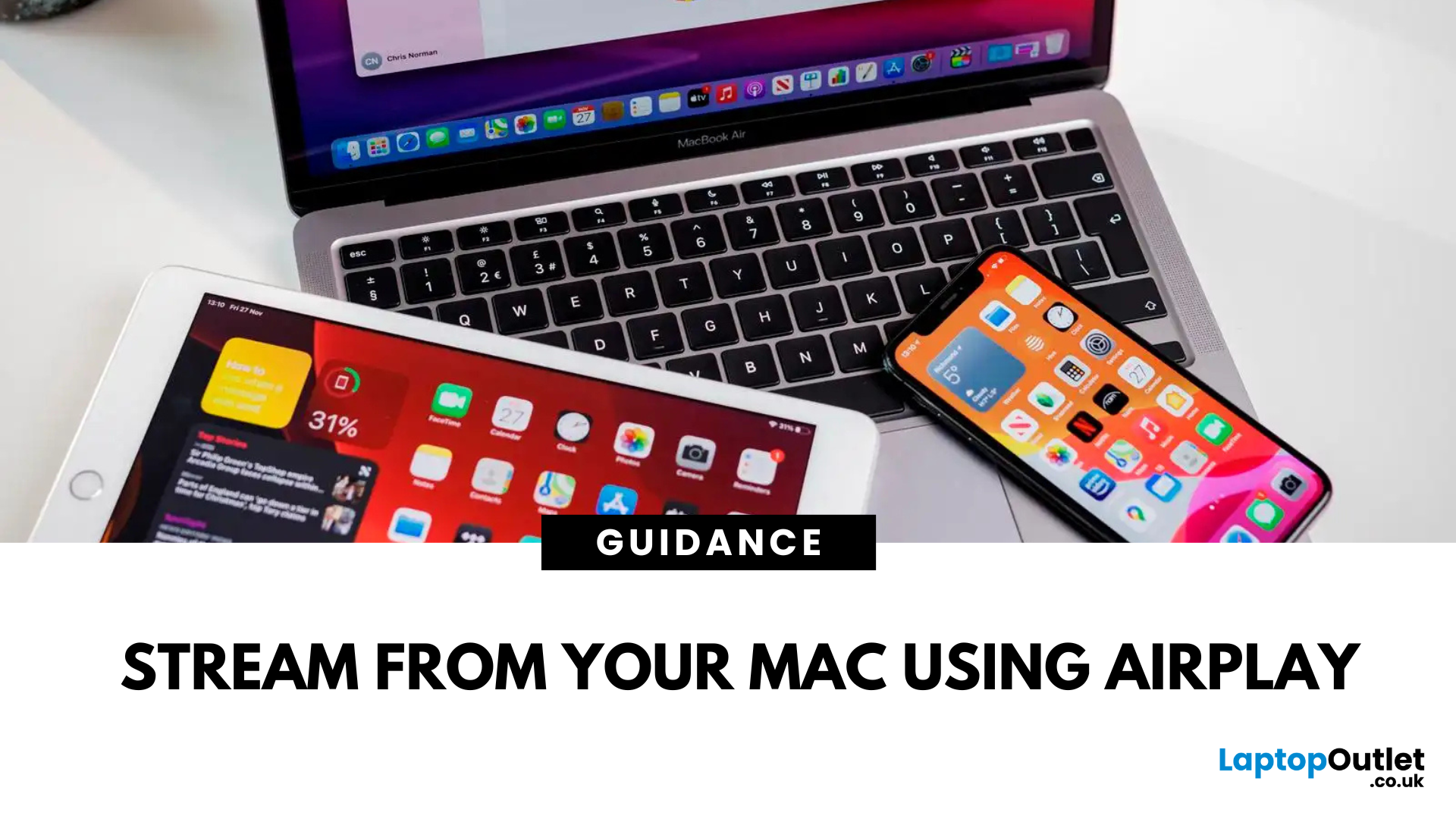
Need to share a presentation, stream a video, or mirror your screen? AirPlay lets you wirelessly share content from your Mac to a TV or other Apple device in seconds. It’s built into macOS, and using it is easier than you think.
What You Need to Use AirPlay on a Mac
- A Mac running macOS Mojave or later
- An Apple TV or AirPlay 2-compatible smart TV
- Both devices connected to the same Wi-Fi network
1. Mirror Your Mac Screen with AirPlay
Steps:
- Click the Control Centre icon in the top menu bar
- Select Screen Mirroring
- Choose your Apple TV or smart TV from the list
- Enter the code displayed on your TV (if prompted)
Your Mac screen will now appear on your TV in real time
2. Stream Video from Mac to TV
If you're watching a video in Safari, QuickTime, or Apple TV:
Steps:
- Click the AirPlay icon in the video player (a rectangle with a triangle)
- Select your AirPlay-compatible device
- The video will stream directly to your TV, while controls

Last Updated: July 01, 2025
Capture Everything on Your Mac Screen
Whether you’re making tutorials, saving a livestream, or showing a tech issue, screen recording on a Mac is quick and easy. Best part? macOS has built-in tools—you don’t need extra software. Here’s exactly how to do it.
1. Use the Built-In Screen Recording Shortcut (macOS Mojave and later)
Steps:
- Press Command + Shift + 5
- A small control bar appears at the bottom of the screen
Choose:
- Record Entire Screen
- Record Selected Portion
- Click Record
- To stop recording, click the Stop button in the menu bar or press Command + Control + Esc
- Files are saved automatically to your desktop (by default)
2. Record Screen Using QuickTime Player
Steps:
- Open QuickTime Player from Applications
- Click File > New Screen Recording
- Click the Record button
- Choose to record the full screen or a portion
- Stop recording from the menu bar
QuickTime lets you add audio input if you want to record voiceover narration
3. Customize Your Screen Recording Settings
Before recording,

