



How to Share Your Phone’s Internet Connection with a PC (Tethering Guide)

Ever found yourself out and about, needing to work on your laptop, but there’s no reliable Wi-Fi? It’s a common scenario. Luckily, your smartphone holds the solution: tethering.
Tethering is a simple, effective way to use your phone's mobile data connection to get your PC online. Essentially, you're turning your phone into a portable Wi-Fi hotspot or a physical modem.
This comprehensive guide will walk you through the three main ways to tether phone to PC, ensuring you can get back to work (or play) swiftly and securely.
What is Tethering?
Tethering is the process of sharing your mobile phone's internet connection with another device, like a computer or tablet. It effectively turns your phone into a portable Wi-Fi router. You are "tethering" the two devices together to share the data.
You can tether phone to PC using a cable (USB), wirelessly (Wi-Fi hotspot), or via Bluetooth. Each method has its own advantages, which we will explore below.
Method 1: Wi-Fi Hotspot (The Most Popular Way)
The wireless hotspot is the most common and easiest method to tether phone to PC. It broadcasts a Wi-Fi signal, just like a router, which your PC can then connect to.
For iPhone (iOS)
- Go to Settings: Open the Settings app on your iPhone.
- Find the Hotspot: Tap on Personal Hotspot.
- Turn it On: Toggle the switch for Allow Others to Join.
- Note Credentials: Pay attention to the Wi-Fi Password displayed—you’ll need this later.
- Connect PC: On your PC, look for the list of available Wi-Fi networks. Your phone's name (e.g., "John's iPhone") should appear. Select it.
- Enter Password: Type in the Wi-Fi Password from Step 4. You are now connected!
For Android
- Go to Settings: Open the Settings app on your Android phone.
- Find the Hotspot: Look for Network & internet or Connections, then tap on Hotspot & Tethering (the exact wording may vary slightly by manufacturer).
- Set up Hotspot: Tap on Wi-Fi hotspot or Mobile Hotspot.
- Configure: Here, you can set a custom Network name (SSID) and, importantly, a secure password.
- Turn it On: Toggle the switch to turn the hotspot on.
- Connect PC: On your PC, find the Wi-Fi network list. Select the network name you just created and enter the password. Done!
Keep in Mind: Using a Wi-Fi hotspot is easy, but it can drain your phone’s battery very quickly. It's wise to keep your phone plugged into a charger while doing this.
Method 2: USB Tethering (The Fastest and Most Stable)
Using a USB cable to tether phone to PC is the most reliable method and is generally faster than a Wi-Fi hotspot. It also keeps your phone charged!
For iPhone (iOS)
- Connect the Cable: Use your charging cable to connect your iPhone directly to a USB port on your PC.
- Trust the Device: If it's your first time, you may see a "Trust This Computer?" prompt on your iPhone. Tap Trust and enter your passcode.
- Turn on Hotspot: Go to Settings → Personal Hotspot on your iPhone. Ensure Allow Others to Join is toggled on (even though you're using a cable).
- Connect PC: Your PC should automatically recognise the connection and use the phone’s internet. If not, check your PC's network settings for a new wired connection.
For Android
- Connect the Cable: Plug your Android phone into your PC using a USB cable.
- Enable Tethering: Go to Settings → Network & internet → Hotspot & tethering.
- Turn on USB Tethering: Toggle the USB tethering switch to the on position.
- Connect PC: Your PC will detect the new wired connection and begin using your mobile data instantly.
Method 3: Bluetooth Tethering (The Least Data-Intensive)
Bluetooth tethering is the slowest option to tether phone to PC, but it uses the least amount of battery power. This is best for light tasks like checking emails.
Steps for Bluetooth Tethering
- Ensure Bluetooth is enabled and pair the two devices together from your phone's Bluetooth settings menu.
- On your phone, go to Settings and find the Hotspot & Tethering section.
- Toggle the Bluetooth Tethering option to On.
- Connect PC:
- On Windows: Go to Bluetooth settings. Find your phone, click the connection options, and select Join a Personal Area Network (PAN). Right-click your phone and select Connect using → Access Point.
- On Mac: Go to the Bluetooth menu bar icon. Hover over your phone's name and select Connect to Network.
Essential Things to Note Before You Tether
Before you confidently tether phone to PC and start working, remember these crucial points:
- Watch Your Data: Tethering can consume your data allowance extremely quickly. This is especially true if your computer runs background updates or you stream high-definition video. Always monitor your data use.
- Security First: Always set a unique and strong password for your Wi-Fi hotspot. This stops unauthorized individuals from connecting to your network and using up your paid-for data.
- Battery Management: If you are using Wi-Fi tethering for an extended period, try to keep your phone plugged into a power source. USB tethering neatly solves this problem by charging the device.

Choose Your Tethering Method
Now that you understand the different ways to tether phone to PC, the final step is choosing the method that best fits your situation.
Here is a quick comparison to help you make your choice:
|
Method |
Speed |
Stability |
Battery Drain |
Best For |
|
Wi-Fi Hotspot |
Fast |
Good |
High |
Connecting multiple devices wirelessly and easily. |
|
USB Tethering |
Fastest |
Excellent |
Low (Phone often charges) |
Single, stable, and secure connection for heavy use. |
|
Bluetooth Tethering |
Slowest |
Moderate |
Lowest |
Checking emails or light browsing to save battery. |

The Bits You Might Be Wondering About
Is tethering safe?
Yes, tethering is safe, especially if you set a strong, secure password for your Wi-Fi hotspot. Use the USB method for the most secure connection.
Does tethering use up my phone battery quickly?
The Wi-Fi hotspot method is the fastest way to drain your battery. USB tethering is best as it keeps your phone charged while sharing the connection.
What’s the difference between tethering and a mobile hotspot?
Tethering is the general term for sharing the connection. A mobile hotspot is the specific name for the Wi-Fi-based, wireless method of tethering.
Will tethering affect the speed of my PC's internet?
Yes. Your PC's speed will be limited by your phone's mobile data speed (4G, 5G, etc.). It will likely be slower than home broadband.
Can I tether an iPhone to a Windows PC?
Absolutely. The operating system of the PC (Windows or Mac) does not matter for any of the three tethering methods.
Why won't my carrier let me tether phone to PC?
Some older or budget data plans may intentionally disable the tethering feature to encourage users to purchase a more expensive data plan.
| Read More: |
| How Do I Copy Contacts from Android to iPhone |
| How to Clear Cache on iPhone |
| How to Connect Apple Pencil to iPad |
| How to Screen Mirror iPhone to TV |
| How to Set Up an Android Phone for a Child |
Related Articles

Last Updated: May 19, 2025
Last Updated: October 02, 2025
Don’t Let Your Old Phone Gather Dust
So you’ve upgraded to a shiny new phone—but what about your old one? Instead of letting it rot in a drawer, there are plenty of useful, profitable, or eco-friendly ways to put it to good use. Here’s exactly what to do with old mobile phones (that doesn’t involve forgetting about them forever).
1. Trade It in for Cash or Credit
- Most retailers, mobile networks, and tech stores offer trade-in programmes.
- Get store credit or instant cash
- Helps reduce e-waste
2. Donate It to Charity
- Many organisations accept old phones:
- Help survivors of domestic abuse, refugees, or people in crisis
- Some charities refurbish and resell phones to raise funds
3. Recycle Responsibly
- Phones contain valuable materials—and harmful ones, too. Don’t bin it!
- Use local e-waste recycling centres or certified recycling schemes
- Some brands (Apple, Samsung) offer mail-in recycling
4. Turn It into a Backup Phone
- Accidents happen. Having a backup means you’re
Last Updated: May 23, 2025
Lost Your Phone? Let’s Find It
Misplacing your smartphone is stressful, but modern devices come with built-in tracking features. Whether you’ve lost your device or want to locate a family member, tracking a mobile phone is easier than ever.
1. How to Track an iPhone (Find My iPhone)
Apple’s Find My feature is built into every iPhone.
Steps:
- Open the Find My app on another Apple device or visit iCloud.com
- Sign in with your Apple ID
- Select Devices
- Choose your missing iPhone
- View its location on the map
You can also Play Sound, Mark as Lost, or Erase the device remotely
2. How to Track an Android Phone (Find My Device)
Google offers a similar tool for Android users.
Steps:
- Visit android.com/find
- Sign in with your Google account linked to the phone
- Select your device
- View the location on the map
Options include Play Sound, Secure Device, or Erase Device remotely
3. How to Track a Family Member’s Phone
- iPhone: Set up Family Sharing and enable location
Last Updated: May 05, 2026
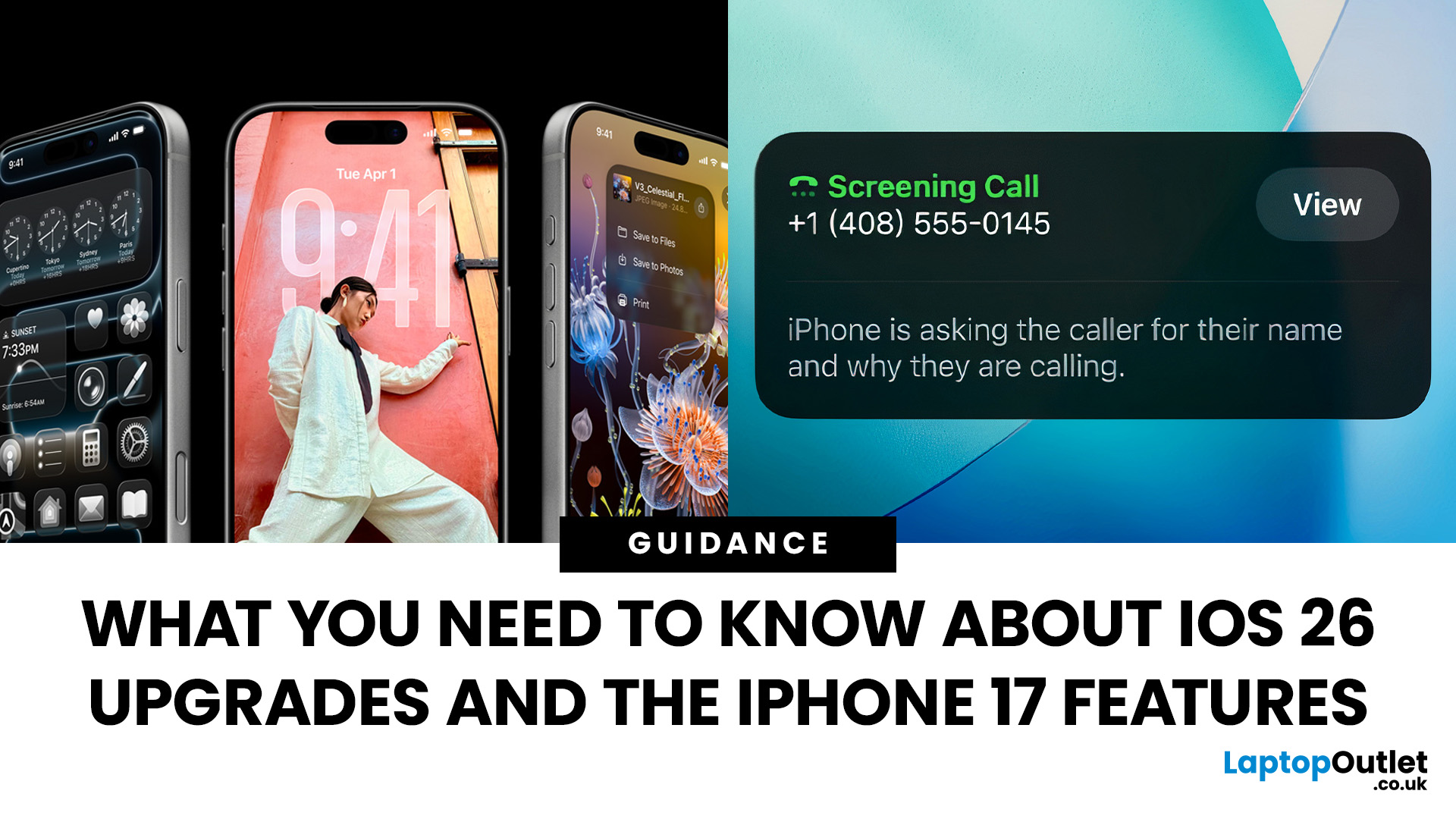
Apple’s 2025 drop is a one-two punch: iOS 26 brings a fresh look and smarter tools, while the iPhone 17 line turns those ideas into everyday wins. If you’re deciding whether to update, upgrade, or both, this guide lays out what’s new, why it’s useful, and how to get the most from it on day one.
iOS 26 At a Glance
Apple describes iOS 26 as a major update centered on a gorgeous new design, intelligent experiences, and daily improvements to the apps you use. In practice, that means a cleaner interface, on-device smarts that actually help, calmer communication, and quality-of-life tweaks across CarPlay, Music, Maps, Wallet and more.
A beautiful new look: Liquid Glass everywhere

The first thing you’ll notice is the design. iOS 26 introduces Liquid Glass, a translucent material that reflects and refracts what’s behind it. It brings a gentle sense of depth to icons, widgets, controls and navigation without making the interface feel busy. The result is expressive and modern, yet instantly familiar.
Last Updated: December 23, 2025
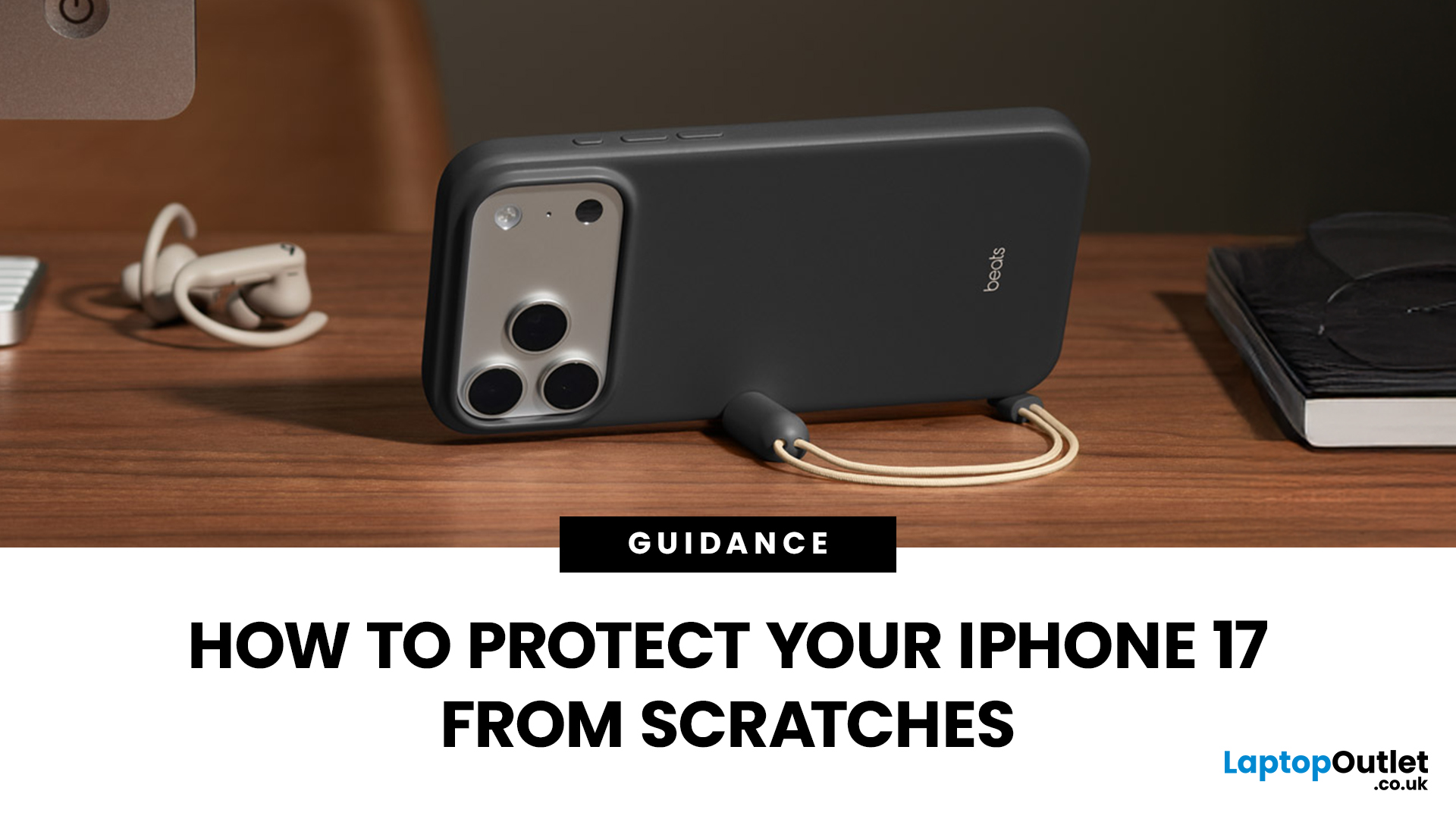
Apple’s iPhone 17 launch should have been about its powerful new hardware and fresh design. Instead, headlines are dominated by “iPhone 17 Scratchgate” complaints that the Pro models are picking up scratches and chips far too easily. The reaction is hardly surprising for a device that costs well over £1,000.
Is this simply a misunderstanding, or is Apple facing a genuine durability problem? Let’s take a closer look.
Apple’s Official Response to iPhone 17 Scratch Complaints
Apple has been quick to downplay the issue. The company told CNET that what many people are calling scratches on demo units are actually residue from worn MagSafe display stands, not permanent marks. According to Apple, these blemishes can be wiped away with a cloth, and the stands in retail stores are being replaced to prevent further problems.
While this explanation covers store displays, it doesn’t account for the growing number of personal handsets showing signs of wear straight out of the box. That’s where the
Last Updated: May 05, 2026
What’s Going on with the iPhone 17 Camera?
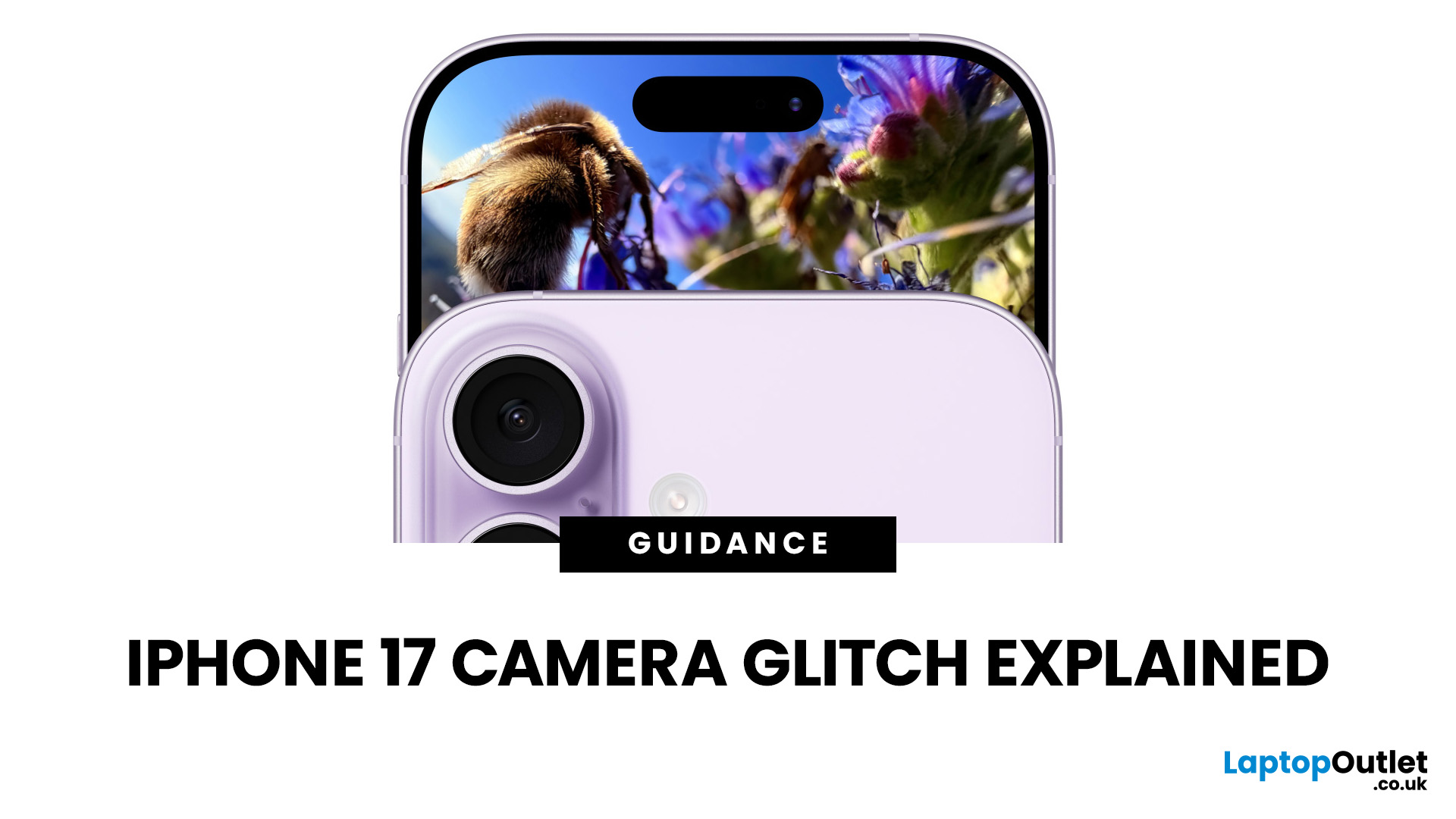
iPhone 17 has landed and, as usual, Apple’s made a song and dance about its shiny new features. Titanium frame? Nice. Periscope zooms on all models? Lovely jubbly. But let’s be real: what’s everyone actually talking about? The camera. And not in a “wow this is insane” way, more like a “hang on, why is my £1k+ phone acting up when I try to snap a pic?” sort of way.
Yep, if you’ve noticed your shots glitching, freezing, or showing weird distortions, you’re not alone. This is what’s now being dubbed the iPhone 17 camera glitch, and it’s caused enough noise online that Apple’s had to officially acknowledge it. Classic, right? New phone hype meets first-week bugs.
The Symptoms: What Does the Camera Glitch Look Like?
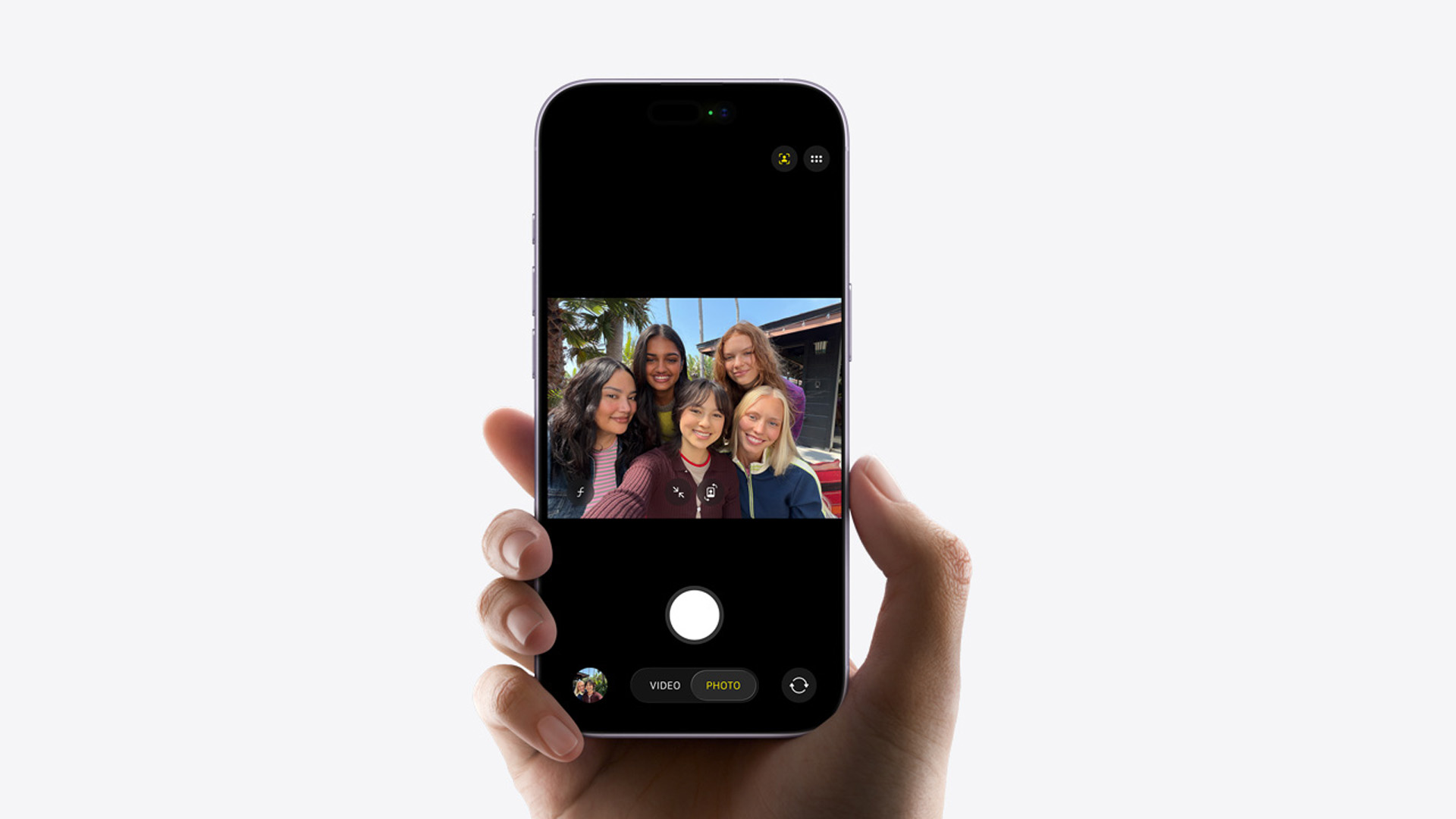
Basically, you don’t need to be a tech whizz to spot when something’s off. Here is, what’s off about iPhone 17’s camera:
- Shaky Previews: Your camera viewfinder stutters or skips frames.
- Weird Distortions: Images sometimes look stretched

Last Updated: December 23, 2025
The Problem Everyone’s Talking About
iPhone 17 is in the market, but it wouldn’t be a proper Apple launch without a bit of drama, would it? We’ve had the camera bug, a few battery wails, and now the hot topic on Reddit and TikTok: Wi-Fi connection issue. Yep, some users are finding their shiny new iPhone keeps dropping out of Wi-Fi for no apparent reason. One minute you’re streaming Netflix, the next you’re staring at the dreaded “No Connection” pop-up. Not ideal on a £1,000+ device.
This growing chatter has been dubbed the iPhone 17 wi-fi issue. The good news? It’s not your router having a meltdown, and no, you don’t need to throw your phone at the wall just yet.
What Does the Wi-Fi Glitch Look Like?

Here’s what people are reporting:
- Random Dropouts: Wi-Fi disconnects even when the signal is strong.
- Slow Reconnections: The iPhone takes forever to rejoin a saved network.
- Auto-Switching to Data: iOS quietly flips you onto mobile data without asking.
- Laggy Browsing: Pages hang or apps
Last Updated: April 01, 2026
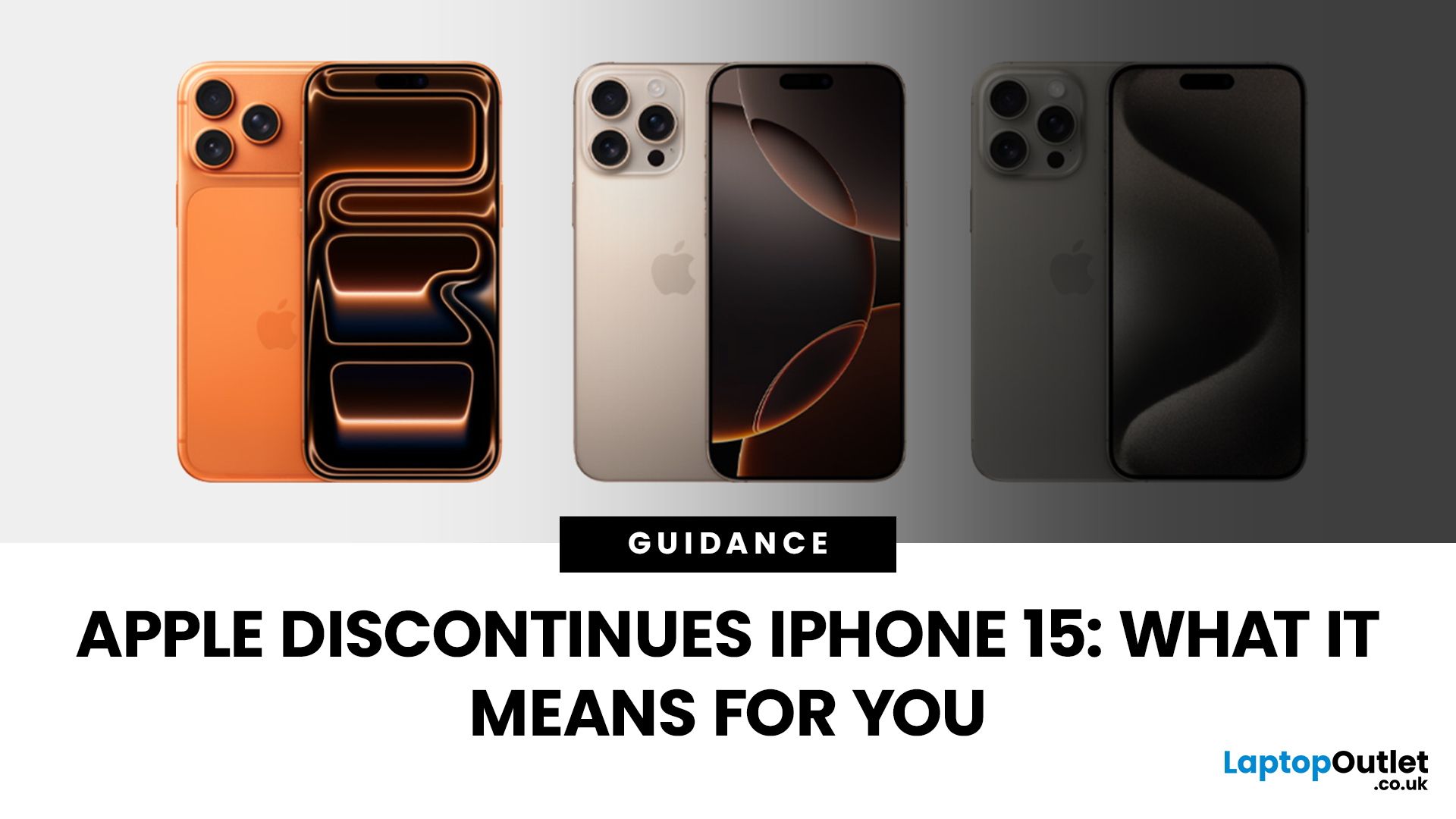
Apple has done it again - trimmed its iPhone line-up to make room for the shiny new models. With the launch of the iPhone 17 series, the company has officially discontinued the iPhone 15 and iPhone 15 Plus, along with last year’s iPhone 16 Pro and Pro Max. If you’ve been eyeing up an iPhone 15 or already own one, this news might feel like a curveball. After all, the 15 series only debuted in late 2023, and here we are two years later with Apple quietly removing it from the shop floor.
But here’s the thing: discontinuation doesn’t mean “dead.” Apple’s strategy has always been to streamline its line-up after new launches, focusing on the latest flagships while phasing out older models. The iPhone 15 may no longer be sold on Apple’s website, but it will continue to be supported for years to come.
So what does this mean for you? If you’re a current owner, should you panic about support or resale value? If you’re shopping for a new iPhone, is it still worth picking up a discontinued model at
Last Updated: September 04, 2026
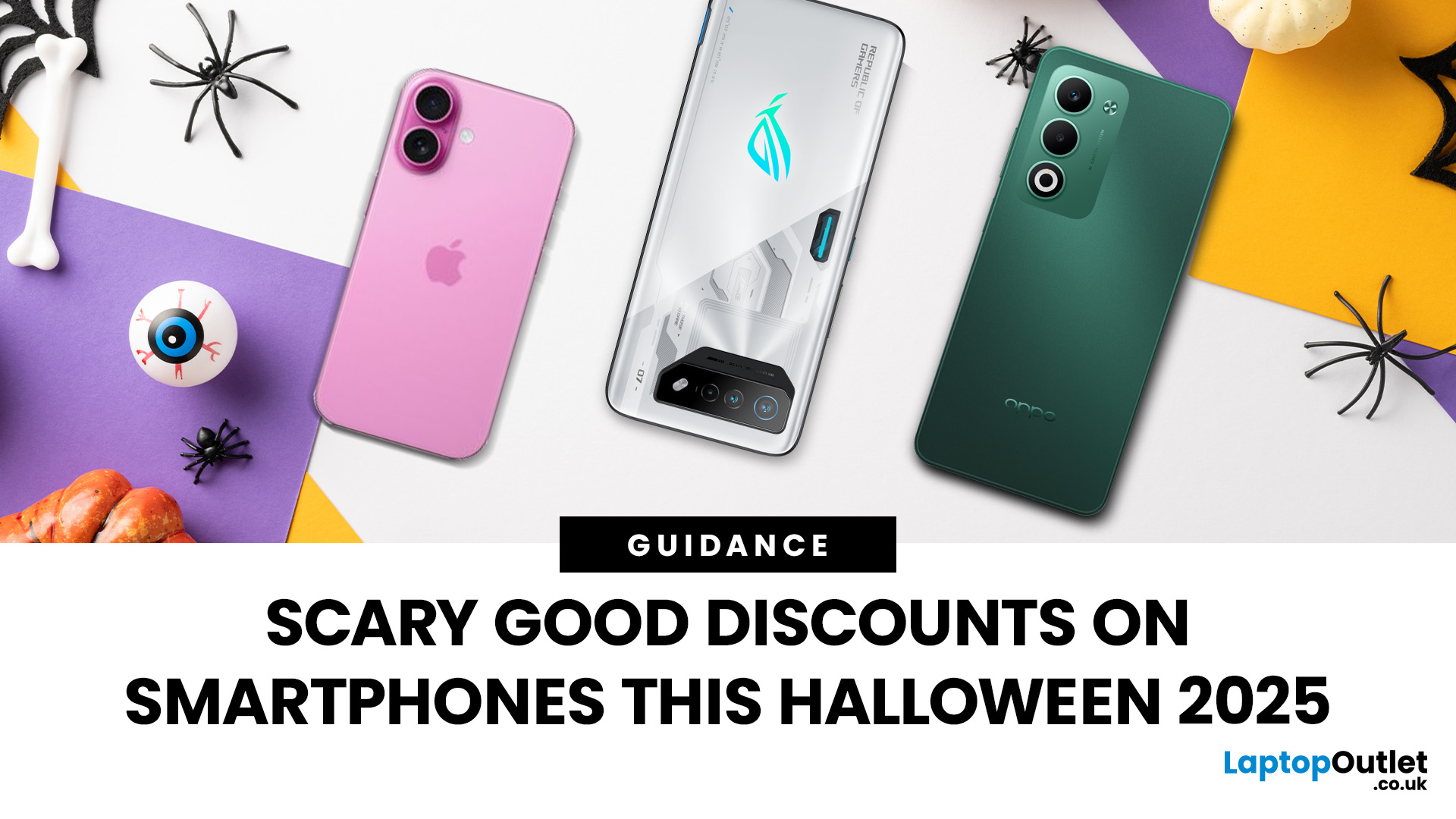
This Halloween, the only thing scarier than ghosts is the prices dropping on top smartphones. From flagship powerhouses to budget-friendly favourites, Laptop Outlet is serving up frighteningly good discounts across leading brands like Apple, Samsung, ASUS, and Google. You’ve been eyeing the latest iPhone, craving a Galaxy upgrade, or looking for a sleek ASUS Zenfone, now’s the perfect time to make your move.
With spooky-season savings, bundle offers, and flash deals that vanish faster than a ghost at sunrise, you can treat yourself to a brand-new device without the tricks. But beware - these offers won’t stick around for long.
Get ready to unwrap monstrous value, hauntingly good performance, and deals so good they’re almost supernatural. This Halloween 2025, your next smartphone upgrade is waiting - if you’re brave enough to grab it before it disappears.
Best Halloween Smartphone Deals 2025
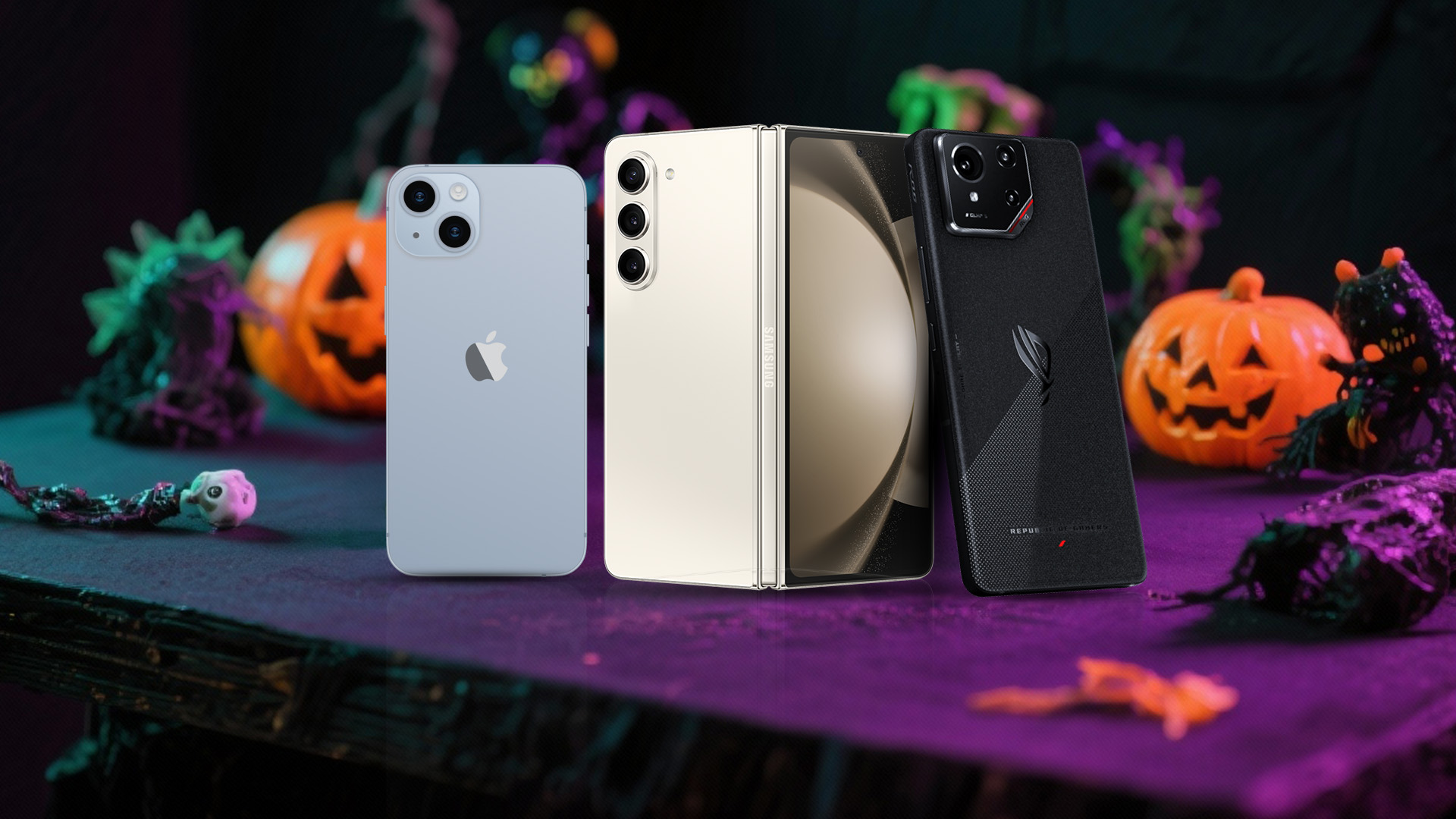
Halloween 2025 is turning into the perfect time to ditch your old handset and grab a frighteningly
Last Updated: April 02, 2026
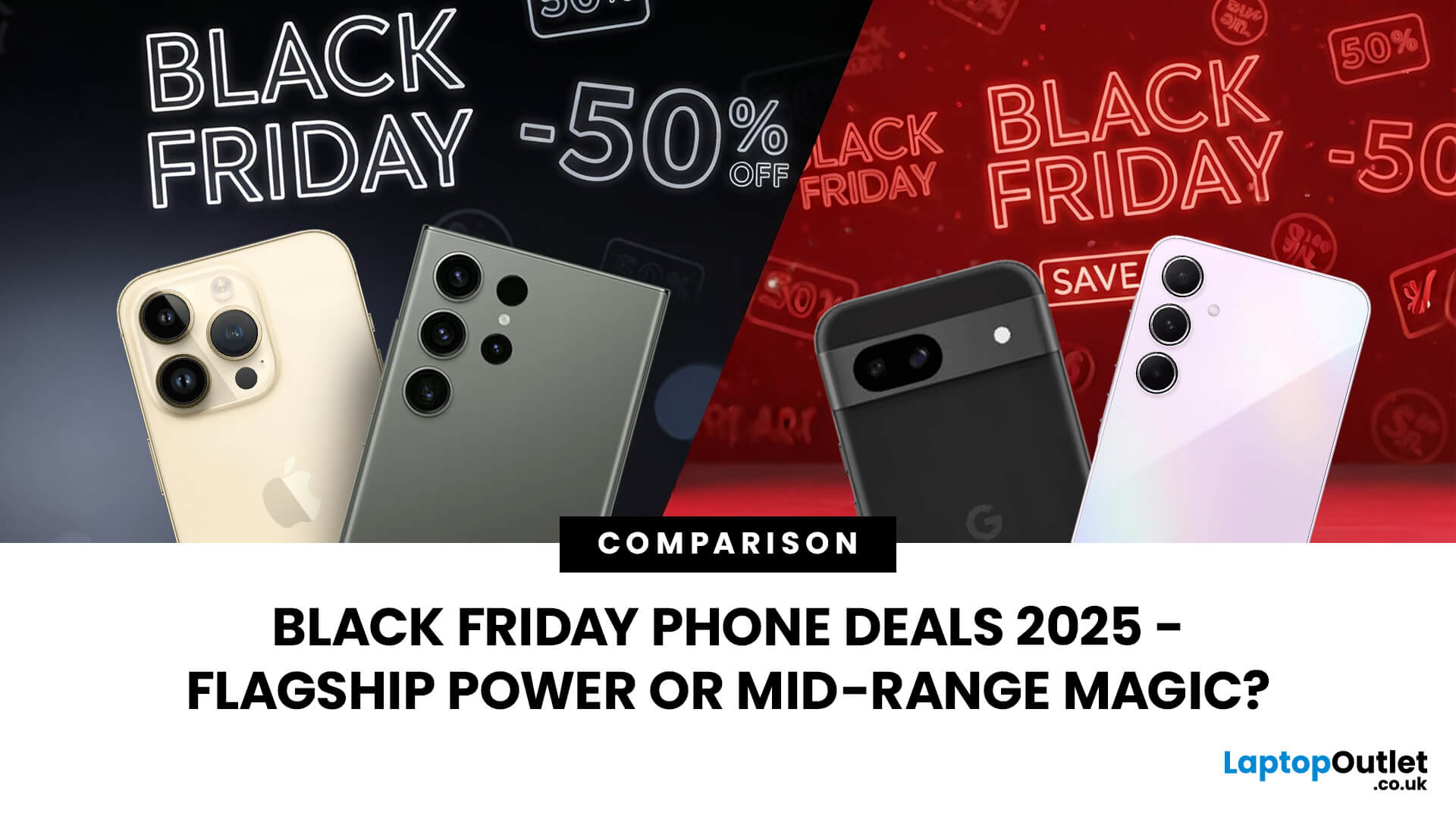
Every year, as Black Friday chaos hits your inbox, the same debate re-emerges: Do you splurge on last year’s flagship or save with a shiny new mid-range?
By 2025, that line’s blurrier than ever. Last year’s iPhone 14 Pro or Galaxy S23 Ultra now costs less than most mid-rangers, while new phones like the Pixel 8a, Galaxy A55, and OnePlus Nord 4 offer flagship-level performance for half the price. So, what’s the smarter play, premium power at a discount, or a 2025 fresh release with modern efficiency?
This guide breaks it all down, comparing real-world specs, prices, and performance from the UK’s best Black Friday phone deals. Whether you’re chasing camera quality, gaming muscle, or the best battery life for your budget, you’ll leave here knowing exactly when (and what) to buy.
Understanding the Two Camps - What’s Really Changed?
Not long ago, “mid-range” meant compromise, plastic frames, mediocre cameras, and sluggish chips. But in 2025, the gap betweenflagships and mid-rangersnarrowed

