



Acer Touchpad Not Working? Easy Fixes That Actually Work
This guide moves from quick checks to BIOS and repair advice. It covers Windows 11 and Windows 10 notebooks across the wider range of Acer products, including Aspire, Swift, Nitro, Predator and TravelMate. Use these steps to fix Acer touchpad faults without changing unrelated settings.
Why Is Your Acer Touchpad Not Working?
A touchpad is a touch-sensitive pointing device built into the laptop. Windows communicates with it through a small software component called a driver.
When that driver, a related setting or the hardware itself develops a fault, the touchpad may stop detecting movement and gestures.
Common causes include:
- The touchpad was disabled with a keyboard shortcut.
- Windows has turned the touchpad off.
- An external mouse or USB device is causing a conflict.
- The touchpad driver is missing, outdated or corrupted.
- A recent driver or Windows update introduced a compatibility issue.
- Gesture settings have been changed.
- The touchpad is disabled or incorrectly configured in the BIOS.
- Dirt, moisture or physical damage is affecting the surface.
- An internal cable, battery or touchpad component has failed.
The timing of the fault can help identify the cause. If the Acer touchpad stopped working immediately after an update, start with the driver and Windows Update sections. If the laptop was dropped or exposed to liquid, treat it as a possible hardware issue.
Check These Things First
Complete these quick checks before uninstalling drivers or entering the BIOS. They solve many touchpad faults without making major system changes.
External Mouse Conflicts
Disconnect USB mice, wireless receivers, docks and other peripherals. Temporarily turn off any Bluetooth mouse.
Removing peripherals helps rule out a mouse, dock or USB conflict. Acer recommends testing with only the power cable attached.
Restart Windows
Save your work and choose Start > Power > Restart. Do not only close and reopen the lid, because sleep does not reload every driver.
A restart can clear a temporary driver or software fault. If Windows is frozen, hold the power button until the laptop switches off, then restart it.
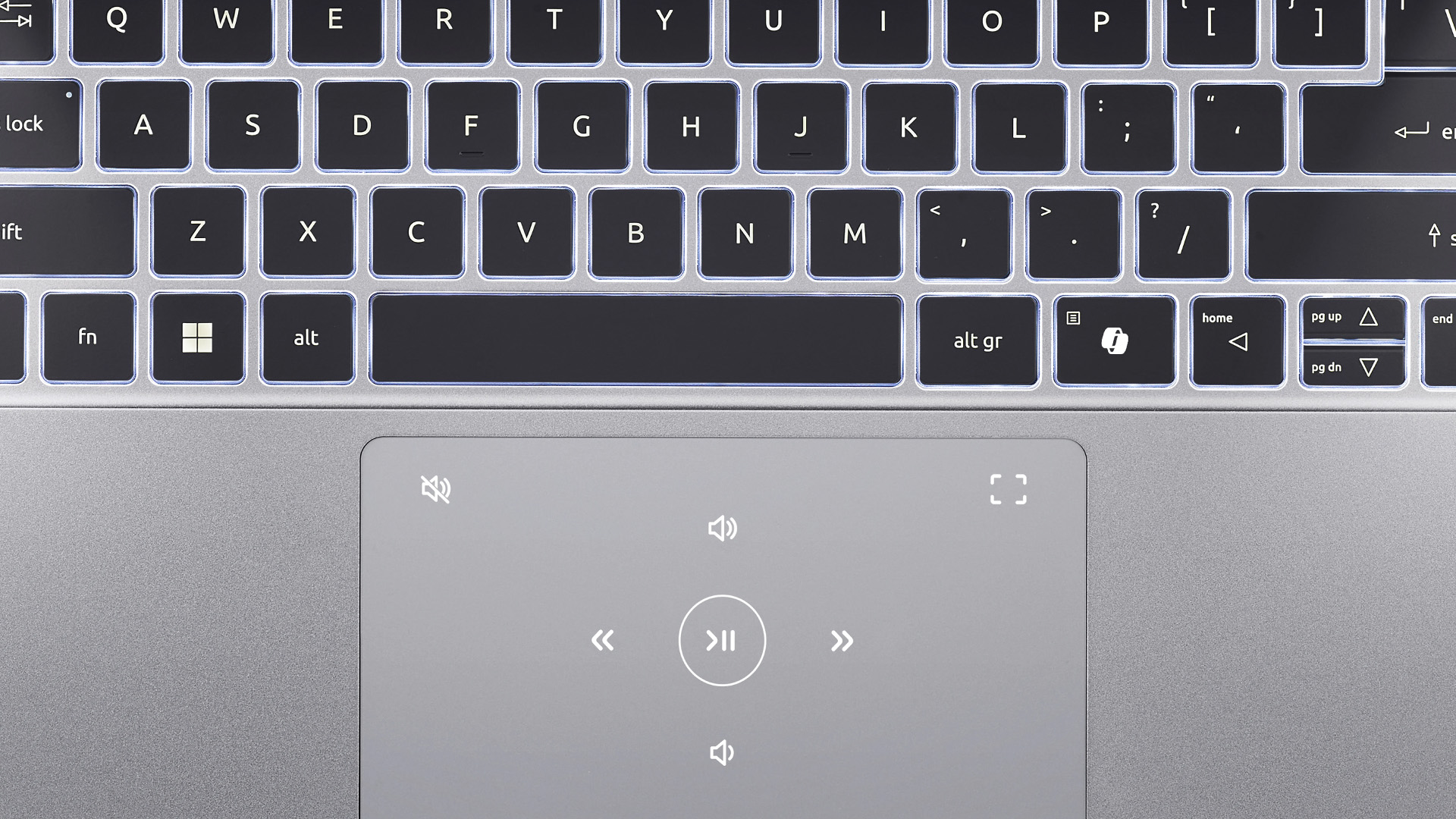
Try the Touchpad Function Key
Many Acer laptops include a keyboard shortcut that switches the touchpad on and off.
- Look across the function-key row for a touchpad icon.
- Press that key once.
- If nothing changes, hold Fn and press the same key.
- Wait for an on-screen enabled or disabled message.
Acer states that F10 is used on many current models. Older laptops may use Fn with F2, F6 or F7 instead.
This is usually the quickest way on how to enable touchpad on Acer laptop models after an accidental shortcut press.
Is the Acer Touchpad Disabled?
In Windows 11, press Windows + I, then open Bluetooth & devices > Touchpad. Turn Touchpad on.
In Windows 10, open Settings > Devices > Touchpad. Acer confirms this menu controls sensitivity, taps, scrolling and gestures. Microsoft ended standard Windows 10 support on 14 October 2025, so compatible PCs should move to a supported Windows version.
How to Fix an Acer Touchpad That Isn't Working
Work through the following fixes in order. Test the touchpad after every step so you know which change solved the problem.
Enable the Touchpad in Windows Settings
Open the Acer laptop touchpad settings and confirm the main switch is on, then review taps, scroll and zoom, and multi-finger gestures.
If movement works but clicks or scrolling fail, reset only that option. Available precision gestures depend on the hardware and driver.
Check Device Manager
Right-click Start and select Device Manager. Expand both Human Interface Devices and Mice and other pointing devices, because Microsoft says a touchpad may appear under either category.
Look for names containing HID, I2C, ELAN, Synaptics or touchpad. If the device has a down-arrow icon, right-click it and choose Enable device. If it has a warning icon, open Properties and note the error code before changing the driver.
Do not remove random HID or I2C entries, which may control other devices.
Update or Roll Back the Driver
Right-click the identified touchpad device and choose Update driver > Search automatically for drivers. Microsoft recommends Windows Update as the main source, but Device Manager can also update or reinstall a driver.
If the issue began immediately after a driver update, open Properties > Driver > Roll Back Driver. This option is only available when Windows has retained the previous version, and administrator permission may be required.
Reinstall Touchpad Drivers
In Device Manager, right-click the correct touchpad entry and select Uninstall device. Confirm the removal, then restart the laptop.
Windows should attempt to reinstall the device after restart. Microsoft specifically recommends this approach when updating does not help.

Update Acer Drivers
Visit Acer Support and enter the serial number, SNID or exact model. Download only files listed for that device and operating system.
Install the chipset or serial I/O package first when Acer lists it as a dependency, then install the touchpad driver. Do not use generic driver-download utilities, because they may select an unsuitable package. Acer’s support site provides model-specific drivers, manuals, BIOS files and patches.
Check Windows Update Issues
In Windows 11, open Settings > Windows Update > Check for updates. Then check Advanced options > Optional updates > Driver updates for an available touchpad or system driver.
If the problem began after a named update, first install any newer corrective update. As a last resort, open Windows Update > Update history > Uninstall updates and remove the recent update you have linked to the failure. Microsoft warns that not every update can be removed and generally recommends keeping updates installed.
Check BIOS or UEFI Settings
BIOS or UEFI is the firmware menu that starts hardware before Windows loads. Shut down the Acer notebook, switch it on and press F2 when the Acer logo appears.
Do not change unrelated options. If your model exposes a touchpad setting, confirm it is enabled or set to its documented default. When no clear setting exists, load Acer’s defaults with F9, confirm, then press F10 to save and exit.
Reset Scrolling and Gesture Settings
If movement works but two-finger scrolling does not, open Settings > Bluetooth & devices > Touchpad > Scroll & zoom in Windows 11. Enable two-finger dragging to scroll and check the scrolling direction.
Test taps and gestures individually. Missing controls may indicate a basic driver or unsupported feature. Microsoft notes that some gestures require a precision touchpad.
Test in Safe Mode
Safe Mode starts Windows with a limited set of files, services and drivers. If the touchpad works there, a third-party service, utility or recently installed driver is a more likely cause.
In Windows 11, open Settings > System > Recovery. In Windows 10, open Settings > Update & Security > Recovery. Under Advanced startup, select Restart now.
In Windows Recovery, select Troubleshoot > Advanced options > Startup Settings > Restart, then choose Safe Mode.
Restart normally to leave Safe Mode. Remove or update recently installed input utilities one at a time rather than disabling Windows security features.
Advanced Troubleshooting
Use these steps only after settings and driver checks fail. They help separate deeper Windows faults from firmware or physical hardware failures.
BIOS Updates
Update the BIOS only when Acer’s release notes identify a relevant fix or improvement for your exact model. Acer states that a BIOS update is not a general performance upgrade.
Connect the AC adaptor, close your work and follow Acer’s package instructions without interrupting the process. Use only the Acer Drivers and Manuals page, select the exact device, and download the listed BIOS or firmware file.
Hardware Diagnostics
Search Windows for Acer Care Center if your model includes it. Acer says the utility can display system details, run hardware diagnostics, check warranty status and install supported software or driver updates.
A diagnostic pass may not test the pad directly. A touchpad that is absent everywhere, especially after impact or liquid damage, needs physical inspection.
Acer Support
Record the model, serial number, Windows version, when the fault began, completed steps, Device Manager status and Safe Mode results.
Contact Acer before opening a laptop that remains under warranty. Internal ribbon cables, batteries and palm-rest assemblies require model-specific disassembly, and an incorrect repair can damage clips or connectors.
Prevent Future Touchpad Problems
Good maintenance reduces conflicts, wear and future diagnostic work. A few simple habits can also protect the touchpad and its internal parts.
Keep Drivers Updated
Use Windows Update for routine driver delivery and Acer Support for model-specific packages. Avoid installing a newer-looking driver from an unrelated Acer model.
Create a restore point before major driver or firmware work. System Restore can return system settings and drivers to an earlier state without serving as a replacement for a full file backup.
Clean Regularly
Switch off and unplug the laptop. Wipe the touchpad gently with a clean, soft microfibre cloth.
Do not pour cleaner onto the pad or let moisture enter its edges. Keep drinks away from the palm rest. Useful laptop accessories, such as a protective sleeve and external mouse, can reduce travel damage and provide a temporary input option.
Good Maintenance Practices
Keep the laptop on a stable surface and avoid lifting it by one corner.
Do not ignore a lifting touchpad, separating case or unusual pressure near the battery. Back up important files regularly, keep the exact model number available and document major updates.
When to Repair or Replace Your Laptop
Arrange repair if the touchpad remains absent from Device Manager after installing the correct Acer system and input drivers, resetting BIOS defaults and restarting the laptop. Repair is also the correct route for liquid exposure, loose clicking, battery swelling or an intermittent connection linked to moving the screen or chassis.
A touchpad assembly, ribbon cable, battery or palm-rest unit may be replaceable. Ask for a written diagnosis and compare the repair cost with the laptop’s age, battery condition, performance and remaining software support.
Business users who need dependable uptime may prefer replacement when an older machine has several faults. Those comparing managed, work-focused options can buy Acer TravelMate laptops after confirming repair is uneconomical. For anyone who mainly uses their laptop for browsing, email, and streaming rather than heavier tasks, lightweight Acer Chromebooks are also worth a look.

The Touchpad Verdict
When an Acer touchpad is not working, begin with the touchpad key, a full restart and Windows Settings. Then check Device Manager, Windows Update and the correct Acer driver before moving to BIOS defaults, Safe Mode or firmware updates.
Stop troubleshooting and request repair when there is swelling, liquid damage or persistent hardware detection failure. If replacement offers better long-term value, compare supported affordable Acer laptops rather than continuing to spend on an unreliable system.

Quick Answers Before You Go...
Why is my Acer touchpad not working after a Windows update?
The update may have changed, replaced or conflicted with the touchpad driver. Check Windows Update again, review optional driver updates, then use Device Manager to update, roll back or reinstall the identified touchpad device.
Why is my Acer pad not working but my USB mouse works?
The built-in pad may be disabled by its function key, Windows setting or driver, while the USB mouse uses a separate device path. Disconnect the mouse, restart, toggle the touchpad key and check Settings.
Why has my touchpad disappeared from Device Manager?
It may be listed under Human Interface Devices rather than Mice and other pointing devices. If it is absent from both, install the correct Acer chipset and input drivers, reset BIOS defaults and seek hardware support.
Can I use my Acer laptop without a working touchpad?
Yes. Use a wired, wireless or Bluetooth mouse while troubleshooting. Keyboard shortcuts can also open Settings and Device Manager. However, repair the underlying fault if you travel often or need reliable built-in input.
Should I reset Windows to solve a touchpad fault?
Only after settings, drivers, updates, BIOS checks and Safe Mode testing fail. Back up your files first. A reset reinstalls Windows and can remove apps or settings, but it cannot repair physically damaged touchpad hardware.
Related Articles

Last Updated: April 06, 2026
If you are comparing Acer Predator vs Nitro, you are likely at a point where a standard monitor no longer cuts it. Maybe you are upgrading your setup, moving into competitive gaming, or simply trying to get better value for your money.
Acer has made this decision slightly more complex by offering two strong Acer gaming monitor ranges that, at first glance, seem similar. Both support high refresh rates, both look like gaming displays, and both are widely available across the UK.
But once you dig deeper, Predator and Nitro are built for very different types of users. This guide breaks it down properly. No fluff, no brand hype, just a clear explanation of what matters when you are choosing between them.
Why Acer Splits Predator and Nitro in the First Place
Before comparing specs, it helps to understand Acer’s thinking. The company is not just offering two versions of the same product. These are two separate strategies:
- Predator is where Acer pushes performance, display innovation, and premium
Last Updated: September 01, 2026
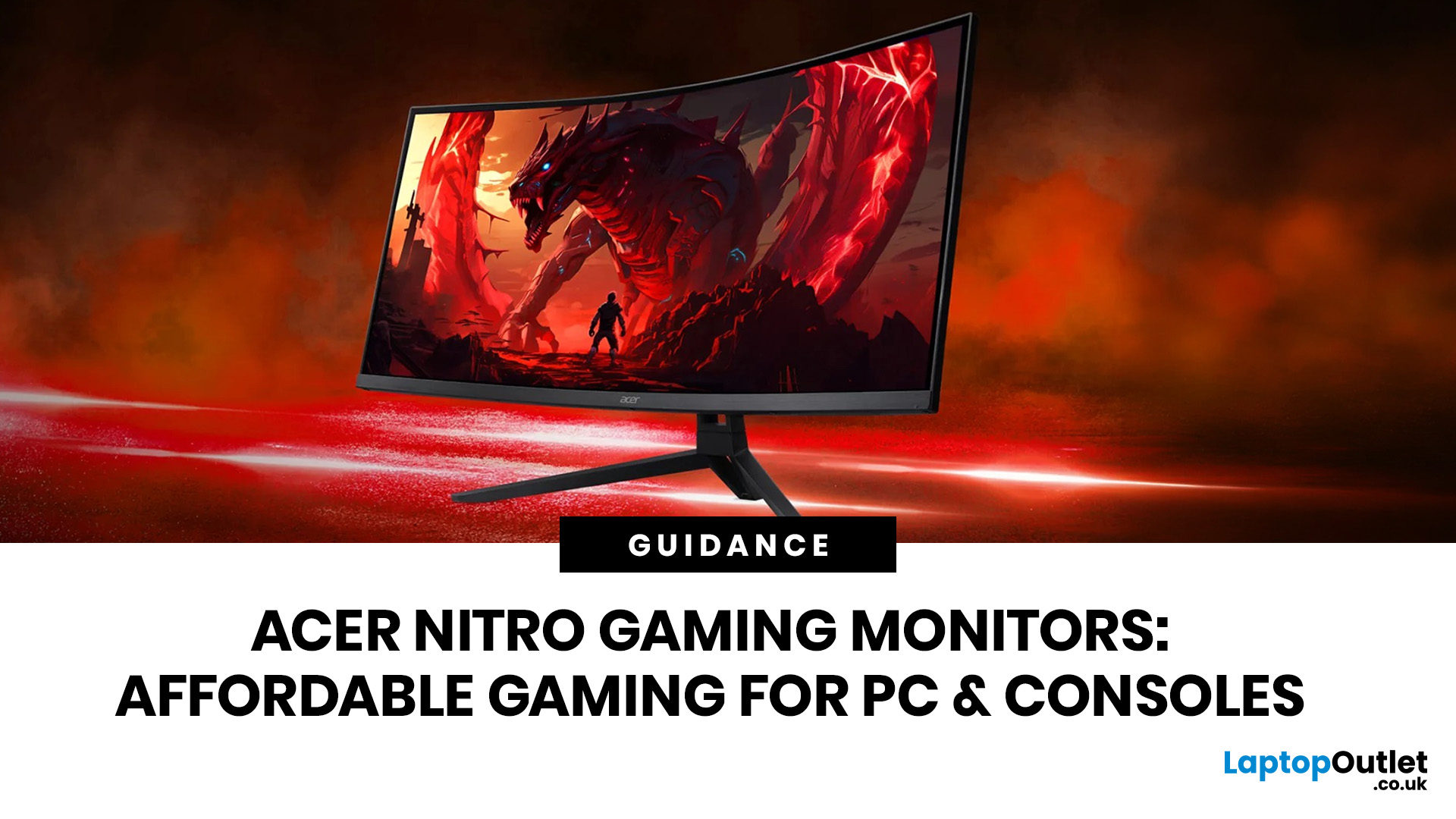
If you want smooth gameplay without jumping straight into premium OLED pricing, Acer Nitro gaming monitors are one of the easiest ranges to shortlist. Acer positions the Nitro line as a gaming family with options for fast-paced play, ultrawide immersion and richer colour, while Our Acer monitor range backs that up with Full HD, QHD, curved and ultrawide Nitro models aimed at buyers who want value, not just spec-sheet flexing.
That is exactly why Acer Nitro monitors UK shoppers keep coming back to the series. The range is broad enough to cover casual desk gaming, PS5 and Xbox setups, and entry-level PC esports, but it still stays realistic on price compared with high-end Predator and OLED alternatives. Nitro models from compact 23.8-inch Full HD panels up to 34-inch curved UWQHD displays, with refresh rates running from 120Hz to 240Hz.
Are Acer Nitro Gaming Monitors Good for Budget Gaming?
Yes. For casual gaming, console play and entry-level PC builds, Acer Nitro sits in a very practical
Last Updated: July 06, 2026
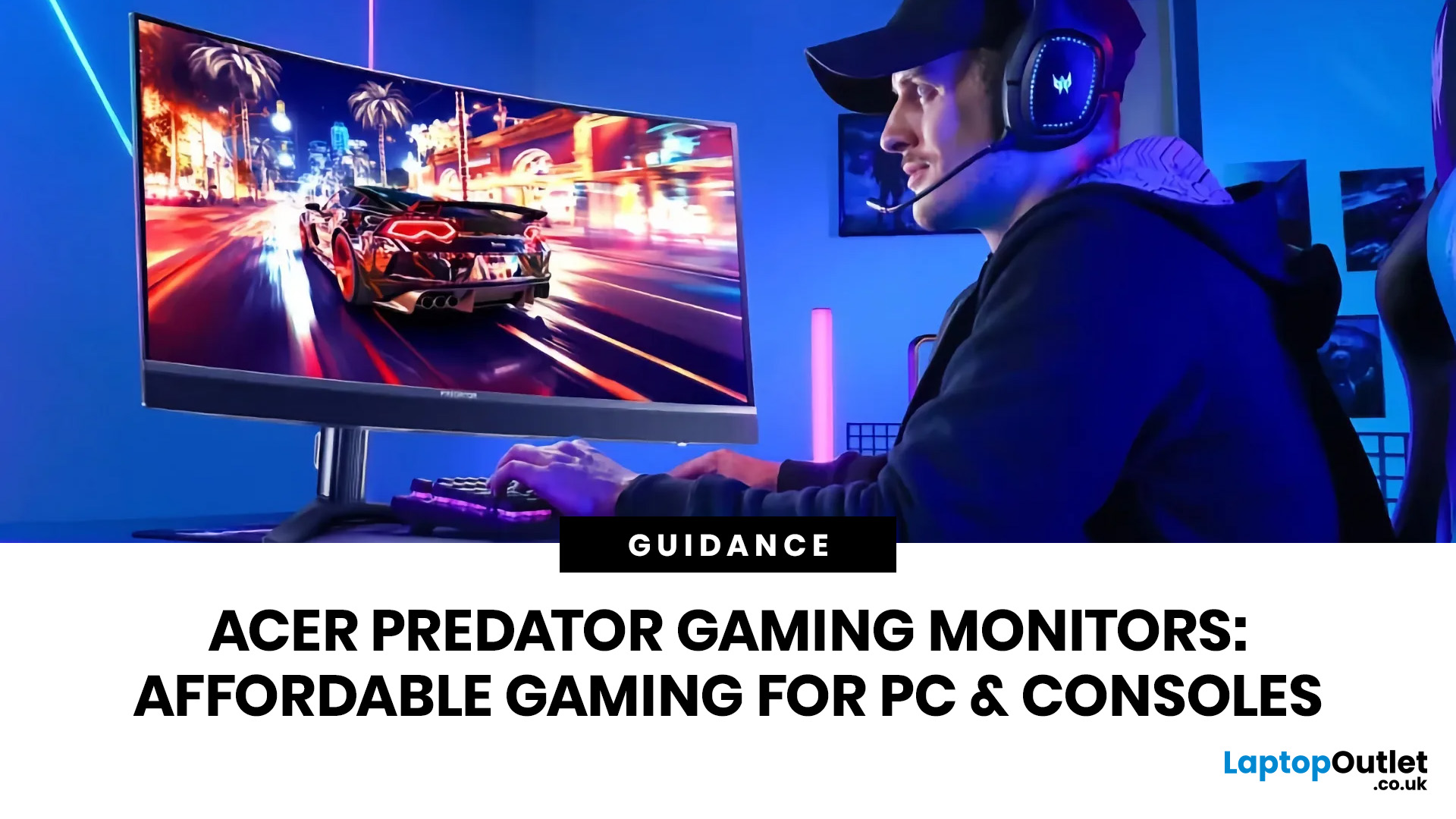
you are shopping for Acer Predator gaming monitors, you are usually not looking for a basic panel. You are looking for speed, image quality and a monitor that genuinely fits the kind of games you play. For some buyers, that means a fast 27-inch display for ranked shooters and esports titles. For others, it means a bigger 4K panel for high-detail single-player games. And for enthusiasts building the kind of setup that makes every desk photo look dramatic, it means an ultrawide or super-ultrawide screen that turns a gaming PC into the centrepiece of the room.
That is why Predator remains such an interesting range. Acer's broader monitor line covers different budgets and uses cases, but the Predator family is where Acer pushes harder on premium gaming features like OLED and QD-OLED panels, very high refresh rates, ultrawide formats and esports-level response times.
If you want the simple answer: Why choose Acer Predator monitor
Here is the short version.
- For competitive esports and fast shooters,
Last Updated: July 13, 2026
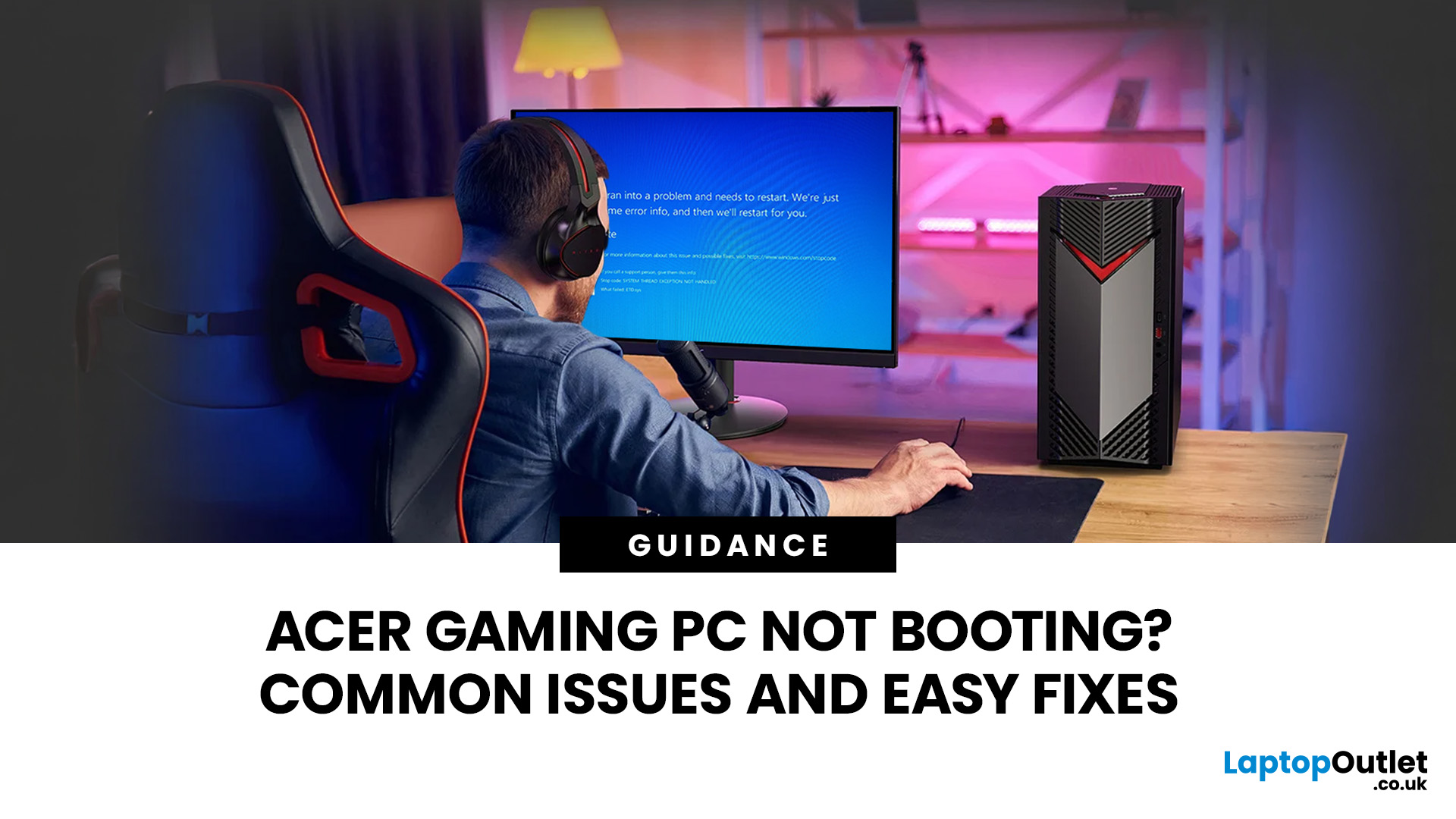
An Acer gaming PC not booting can feel like instant panic mode, especially when you were ready to jump into a game, finish work, or just chill. One minute everything is fine, and the next your PC turns on but no display appears, the monitor says no signal, or the screen stays completely black.
The good news? A PC not booting does not always mean something major is broken. Sometimes it is a loose cable, a monitor input issue, a RAM problem, or a BIOS setting that needs a reset. In this guide, we will walk through the most common Acer desktop startup issues, what they usually mean, and the easy fixes you can try before heading straight to a repair shop.
Is Your Acer PC Actually Not Booting, or is There No Display?
Before you start unplugging parts, it helps to know what problem you are really dealing with. A PC can fail in different ways, and each one points to a different cause.
If your Acer PC is not starting up that means there are no lights, no fans, and no sound at all, it may be a power
Last Updated: July 21, 2026
Last Updated: September 03, 2026
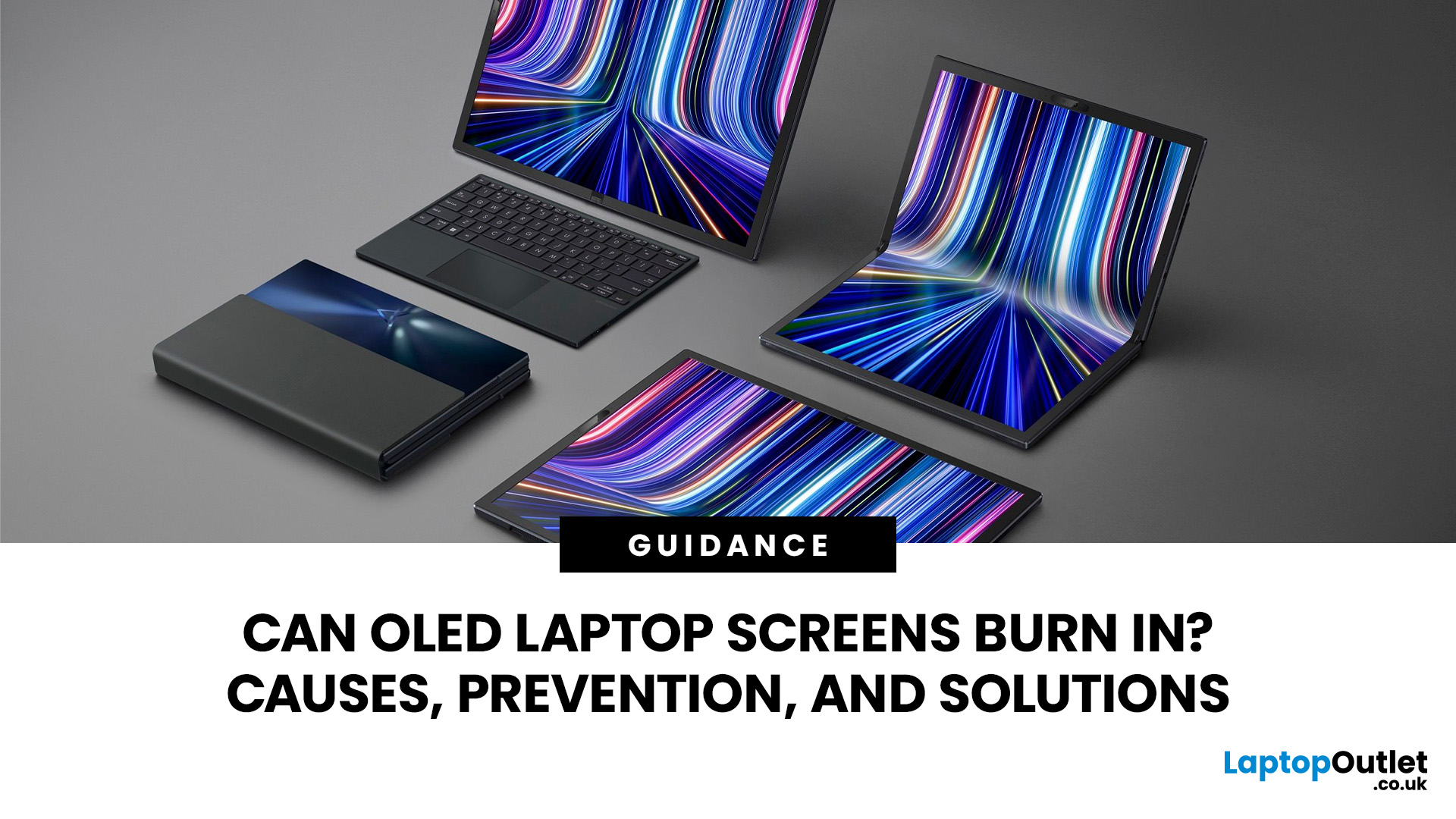
Yes, OLED laptop screens can develop permanent burn-in, but it is unlikely to happen quickly during normal, varied use. Risk increases when the same bright interface elements remain in one position for long periods, particularly at high brightness.
Modern OLED laptops reduce the risk through pixel shifting, automatic dimming and pixel-refresh routines. However, no OLED panel is completely immune.
For buyers considering laptops with OLED screen, burn-in is a manageable long-term consideration rather than a reason to avoid OLED. Sensible settings let you enjoy deep blacks, rapid response times and exceptional contrast while protecting the display.
For help comparing suitable models, see our guide to the best OLED laptops for work, gaming and creative use, covering options for different workloads and performance needs.
What Is OLED Screen Burn-In?
OLED screen burn in is a permanent shadow, outline or colour change caused by some pixels ageing faster than others.
OLED is a self-emissive display.
Published: July 27, 2026
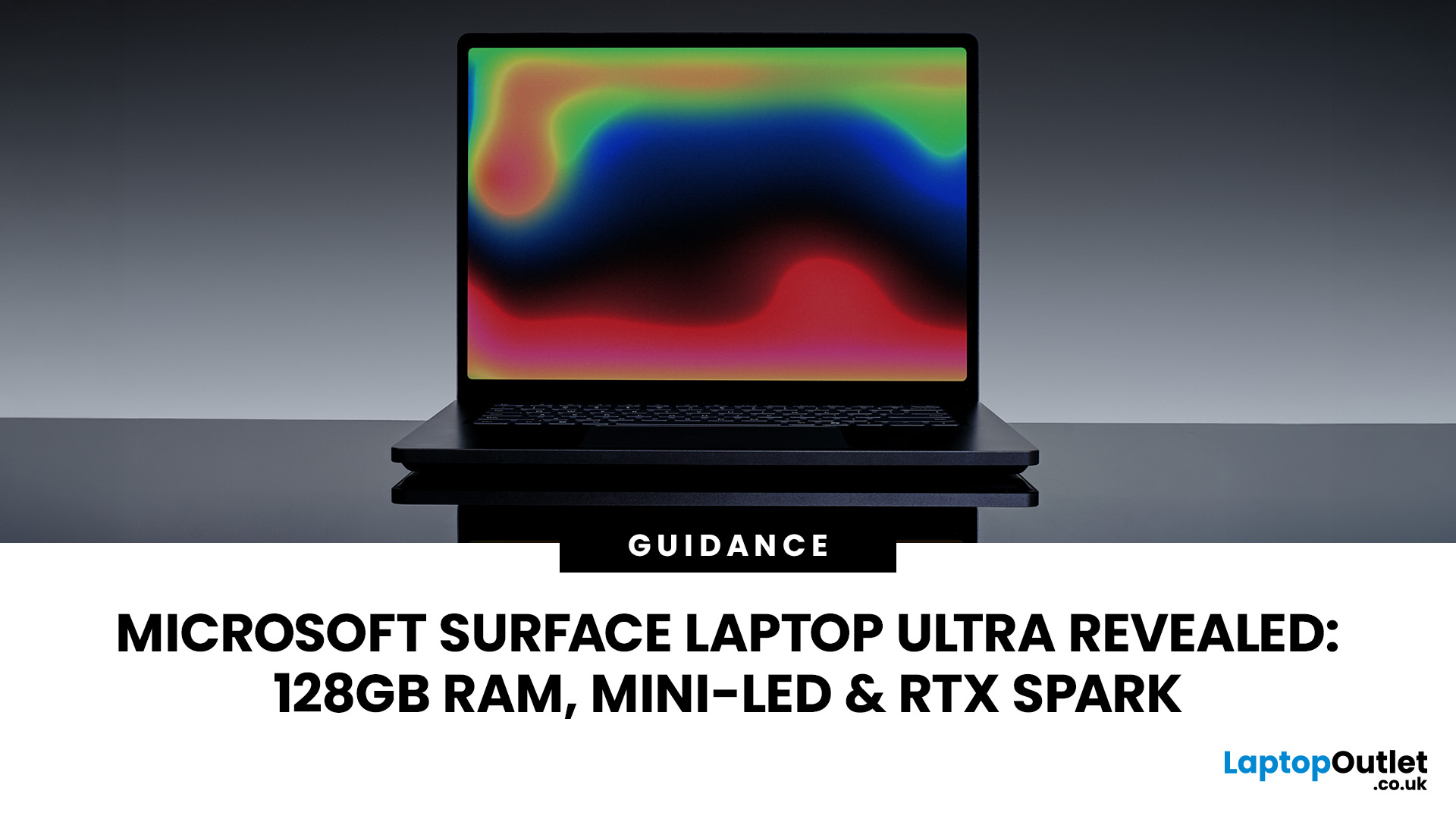
The Surface Laptop Ultra is Microsoft’s boldest laptop yet, built for local AI, 3D work, coding and demanding creative projects. It combines NVIDIA RTX Spark, Blackwell graphics, full CUDA support, and up to 128GB of unified memory, giving it serious workstation-level potential in a much slimmer design.
The 15-inch Mini-LED PixelSense Ultra display, upgraded cooling, and wider port selection make it even more appealing for power users. The only catch is that the exact UK price, full configurations and release date are still under wraps.
Microsoft Surface Ultra Specs at a Glance
The confirmed Microsoft Surface Ultra specs place the device above Microsoft’s conventional

Last Updated: August 06, 2026
Published: July 27, 2026
Last Updated: July 27, 2026

