



Projector Buying Guide: How to Choose the Right Projector
To choose the right projector, first decide how you plan to use it: home cinema, gaming, office presentations, or portable use. Then match these core specs to your needs: brightness (measured in ANSI lumens), resolution (at least 1080p for films and gaming), throw ratio (which affects how far back the projector needs to sit), contrast ratio, and connectivity ports.
Whether you're after the best projector for home use, a business-ready model for the office, or something you can take camping, this projector buying guide breaks it down clearly and skips the jargon where we can.
What Is a Projector?
A projector is a display device that casts an image or video onto a flat surface, typically a wall or a dedicated screen. It does this by shining light through (or off) an image chip, then passing that light through a lens to project a magnified picture.
Projectors generally fall into four categories based on use:
- Home cinema projectors, built for films, sport and streaming in living rooms or media rooms.
- Portable projectors, lightweight and compact for travel, garden movie nights or shared flats.
- Office and education projectors, designed for bright rooms, presentations and long daily use.
- Gaming projectors, tuned for low input lag and fast refresh rates so on-screen action stays sharp.
Types of Projectors Explained
Not all projectors are built the same. To find the right fit for your space and budget, you need to look at three main factors: its projection technology, its light source, and its physical form factor. Let’s break down the projector types.
By Technology (DLP, LCD, LCoS)
|
TECHNOLOGY |
HOW IT WORKS |
BEST FOR |
|
DLP (Digital Light Processing) |
Uses tiny micro-mirrors on a chip to reflect light, often with a colour wheel |
Sharp motion, compact build, gaming, portable use |
|
LCD (3LCD) |
Passes light through three separate red, green, and blue LCD panels |
Vivid colour accuracy, bright rooms, business presentations |
|
LCoS (Liquid Crystal on Silicon) |
Reflects light off a liquid crystal panel; higher fill factor than DLP |
Premium home cinema, fine detail, dark room use |
By Light Source (Lamp, LED, Laser)
|
LIGHT SOURCE |
TYPICAL LIFESPAN |
BRIGHTNESS |
RUNNING COST |
BEST FOR |
|---|---|---|---|---|
|
Lamp (UHP) |
3,000–10,000 hours |
High |
Lamp replacements (£50–£150) |
Budget-conscious buyers, occasional use |
|
LED |
15,000–30,000 hours |
Low–moderate |
Very low (no replacements) |
Portable projectors, dark rooms |
|
Laser |
20,000–30,000+ hours |
Very high |
Very low (maintenance-free) |
Bright rooms, frequent use, long-term value |
By Form Factor
- Standard (throw) projectors: Sit 1.5–3 metres from the screen; the most versatile and widely available option.
- Short throw projectors: Project a large image from less than 1.5 metres away; ideal for small rooms where there is limited space behind the sofa or desk.
- Ultra short throw projectors: Can sit just centimetres from the wall; suited to living rooms with permanent screen installations.
How to Choose a Projector? Key Specs to Look for
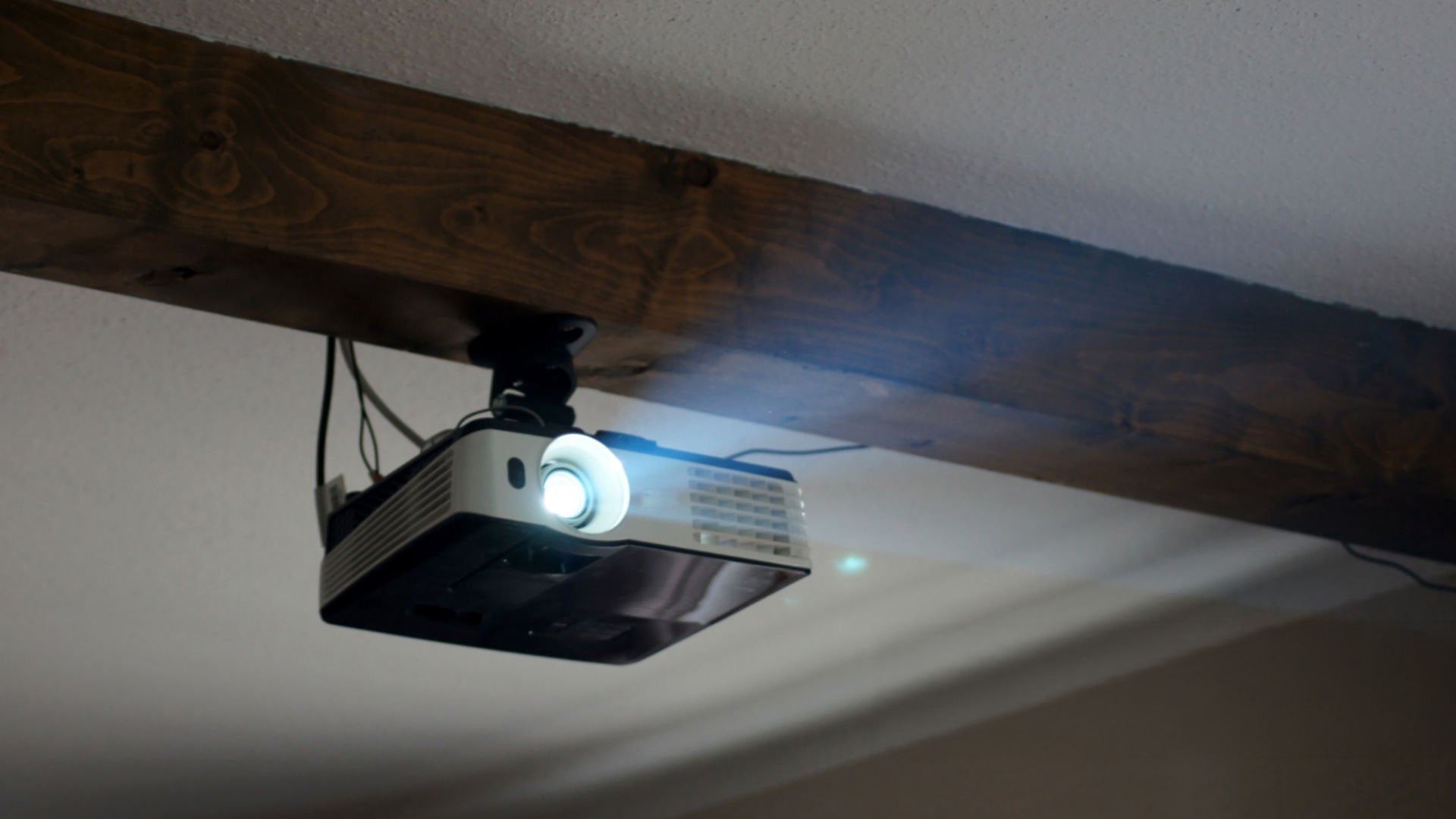
When you're asking, "what's a good projector?", the answer usually comes down to five core specifications. Let's break each one down, so you know exactly what the numbers on a spec sheet mean for your viewing experience.
1. Brightness and Lumens: How Much Do You Need?
Brightness is measured in ANSI lumens. The higher the number, the brighter the projected image. This matters most in rooms that have natural light or where you cannot fully control ambient lighting.
Always look for ANSI lumens rather than "peak lumens" or unqualified marketing lumens figures, which can be significantly inflated and do not reflect real-world brightness.
|
BRIGHTNESS LEVEL |
BEST ENVIRONMENT |
TYPICAL USE CASE |
|---|---|---|
|
Under 500 lumens |
Completely dark room |
Bedroom portable use, camping, casual viewing |
|
500–1,500 lumens |
Dim or blacked-out room |
Dedicated home cinema, evening films |
|
1,500–2,500 lumens |
Dimmed room with some ambient light |
Living room viewing, general home use |
|
2,500–3,500 lumens |
Normally lit room |
Daytime films, sports streaming at home |
|
3,500+ lumens |
Bright room or daylight |
Office presentations, classrooms, meeting rooms |
2. Resolution: 720p, 1080p, 4K and WXGA Explained
Resolution determines how sharp and detailed the projected image looks. The larger the screen size you project, the more noticeable a low resolution becomes. Generally, Full HD (1080p) is the minimum to aim for if you plan to watch films or play games on a screen of 100 inches or more.
|
RESOLUTION |
PIXEL COUNT |
BEST FOR |
NOTES |
|---|---|---|---|
|
HD Ready (720p) |
1,280 x 720 |
Small screens under 80 inches, casual viewing |
Acceptable but soft on large screens |
|
WXGA |
1,280 x 800 |
Office presentations, slides, spreadsheets |
Wider aspect ratio (16:10); good for documents |
|
XGA |
1,024 x 768 |
Classrooms, basic business use |
4:3 format; fine for slides, not ideal for films |
|
Full HD (1080p) |
1,920 x 1,080 |
Films, streaming, gaming, general home use |
The most popular choice in 2026; strong value |
|
WUXGA |
1,920 x 1,200 |
Business and education in bright rooms |
Wider 16:10 aspect; suits spreadsheets and slides |
|
4K UHD |
3,840 x 2,160 |
Premium home cinema, large screens 120 inches+ |
Best clarity but costs more; content must be 4K |
If you stream from Netflix, Disney+, or Apple TV in 4K, a 4K projector will make a visible difference on screens larger than 120 inches. For most everyday film and sports viewers on a 100-inch screen, Full HD 1080p hits the right balance of quality and cost.
3. Throw Distance and Throw Ratio: Getting the Placement Right
Throw distance is the gap between the projector lens and the screen. Throw ratio tells you how far back a projector needs to sit relative to the image width. For example, a throw ratio of 1.5:1 means the projector needs to be 1.5 metres away to produce a 1-metre-wide image.
|
THROW TYPE |
THROW RATIO |
DISTANCE FOR 100" SCREEN |
GOOD FOR |
|---|---|---|---|
|
Standard Throw |
1.5:1 – 2.5:1 |
Approx. 3–4 metres |
Larger rooms, ceiling-mounted setups |
|
Short Throw |
0.5:1 – 1.5:1 |
Approx. 1–2.5 metres |
Smaller rooms, table-top use, avoiding shadows |
|
Ultra Short Throw |
Under 0.4:1 |
Under 50 cm |
Living rooms with limited depth, wall-adjacent use |
Measure your room before buying. A common mistake is choosing a standard throw projector for a small flat where the sofa sits only 2 metres from the wall.
4. Contrast Ratio: Why Dark Scenes Matter
Contrast ratio is the difference between the brightest white and the darkest black a projector can display. A high contrast ratio means richer black levels, better shadow detail, and a more cinematic look, particularly noticeable in dark or night scenes.
For home cinema use, aim for a contrast ratio of at least 10,000:1. Higher numbers produce more depth and dimension on screen. In business environments where you are mainly displaying bright slides, contrast is less critical than raw brightness.
- 10,000:1 or below: Acceptable for casual home viewing and office use.
- 10,000:1 – 50,000:1: Good choice for dedicated home cinema rooms.
- 100,000:1+: Premium home cinema territory; needed only for very dark, controlled environments.
5. Connectivity: Which Ports Do You Actually Need?
A high quality projector with limited ports quickly becomes frustrating to use day-to-day. Before buying, consider every device you plan to connect: streaming sticks, gaming consoles, laptops, Blu-ray players, and speakers all have different connection requirements.
|
PORT / CONNECTION |
WHAT IT DOES |
WHO NEEDS IT |
|---|---|---|
|
HDMI 1.4 |
1080p and basic 4K up to 30Hz |
General home and office use |
|
HDMI 2.0 |
4K at 60Hz and HDR |
4K streaming, PS5, Xbox Series X/S |
|
HDMI 2.1 |
4K at 120Hz, 8K support, VRR |
High-frame-rate gaming, next-gen consoles |
|
USB-A |
Media playback from USB drives |
Film playback without a separate player |
|
USB-C |
Video and data over one cable |
Laptop users, portable projector setups |
|
VGA |
Analogue video input |
Older laptops, legacy office equipment |
|
RS-232 |
Control via serial connection |
AV integration in meeting rooms and classrooms |
|
Wi-Fi / Bluetooth |
Wireless screen mirroring, audio output |
Cable-free setups, smartphone casting |
|
Audio Out (3.5mm) |
Send audio to external speakers |
Anyone wanting better sound than built-in speakers |
Ready to compare specs side by side? You can buy projectors online at Laptop Outlet and filter by brightness, resolution and brand to find the right match for your room.
Other Features Worth Checking Before You Buy
Before you hit 'add to basket,' make sure to check these essential performance and setup features that can make or break your viewing experience.
Keystone Correction
Keystone correction fixes the trapezoidal distortion that appears when a projector is not perfectly aligned with the screen. Vertical keystone is standard on most models. Horizontal keystone, or full 2D keystone, gives you more flexibility in unusual room layouts. Auto keystone is convenient but should not replace proper physical alignment.
Zoom and Lens Shift
Optical zoom lets you adjust the image size without moving the projector. A 1.2x zoom ratio means you can fine-tune the image size by 20% from one position, which is useful for ceiling-mounted setups. Lens shift moves the image up, down, left, or right without changing the projector's physical position, and is highly valued in dedicated home cinema installations.
Fan Noise
Projector fans can be distracting during quiet films or presentations. Look for a noise level below 30dB for home cinema use. Most business-focused models run at 35–40dB. If noise is a concern, check the manufacturer's rated noise level in Eco mode as well as standard mode.
HDR Support
HDR (High Dynamic Range) allows a projector to display a wider range of brightness and colour information, which can improve picture quality with compatible content. Look for HDR10 as a baseline, or HDR10+ and Dolby Vision support if you have a premium streaming subscription.
Built-in Speakers
Most projectors include built-in speakers for convenience, but very few deliver the audio quality needed for a satisfying film experience. For anything beyond casual use, connect a soundbar, AV receiver, or Bluetooth speaker via the audio output. The built-in speakers are fine for office presentations and quick setups.
Lamp Life and Running Costs
Lamp-based projectors need a replacement bulb every few thousand hours. Replacement lamps typically cost £50 to £150 depending on the model. Laser and LED projectors avoid this cost entirely, which makes them better value over time if you use your projector frequently.
Input Lag
Input lag is the time between a signal being sent to the projector and the image appearing on screen. This matters significantly for gaming. Aim for under 20ms for comfortable gaming. Some projectors include a dedicated Game Mode that reduces processing to lower input lag.
If you're building a full entertainment setup, buy AV accessories online, including cables, mounts and screens that pair well with your new projector.
Best Projectors by Use Case
Specs matter less once you know exactly what you'll be using the projector for. Below are top recommendations for each common use case, all currently available through Laptop Outlet.
Best Projector for Movies, Sport and Streaming
|
|
|
|
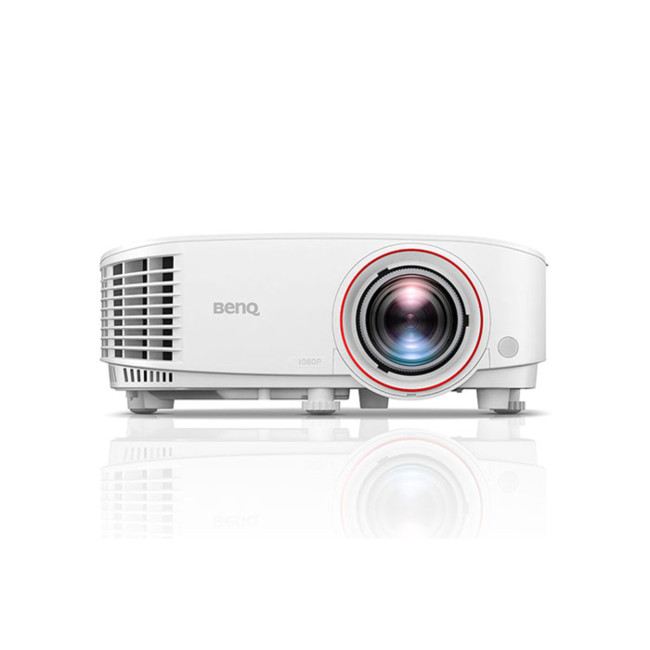
BenQ TH671ST 1080p 3000 ANSI Lumens Short Throw Projector Full HD resolution with a short throw ratio, ideal for smaller and medium living rooms. Projects up to 180 inches with VGA, HDMI, USB and RS232 connectivity, plus built-in speakers for quick setup. |
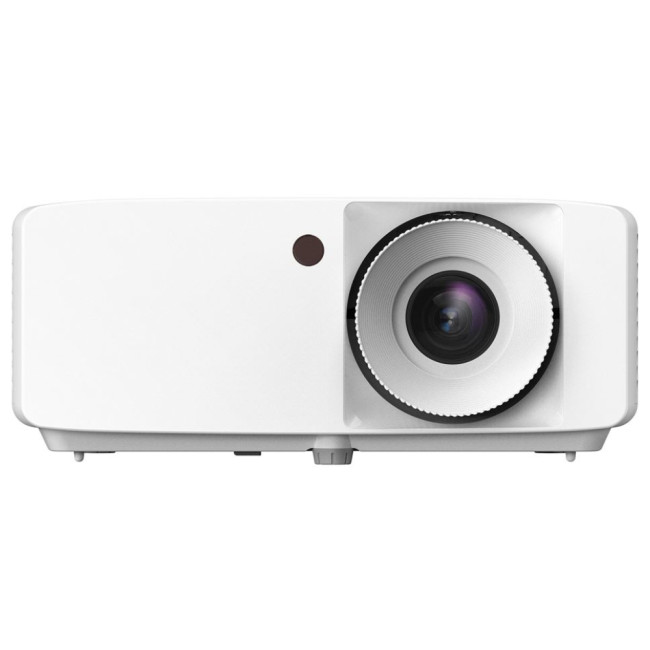
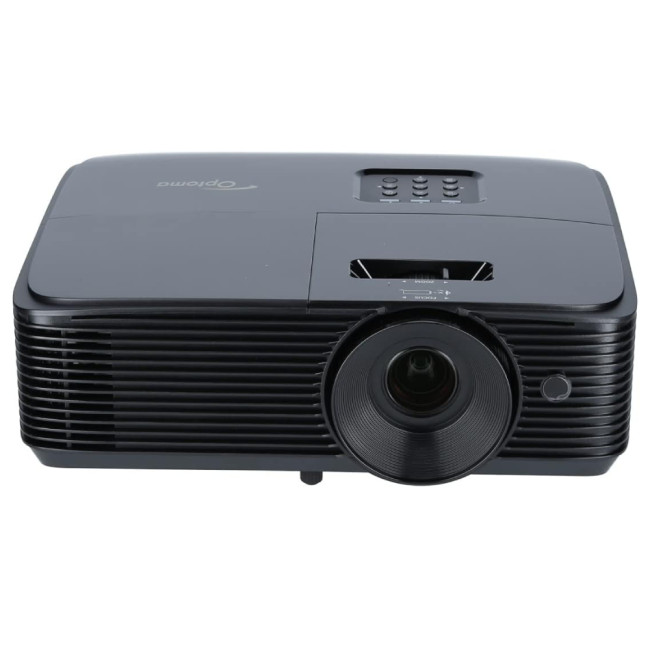
Optoma HZ40HDR Full HD Laser Projector A 4,000 ANSI lumen laser projector with HDR support and a 30,000 hour light source, this is a genuinely high quality projector for daytime sport and evening films alike, with dual HDMI for consoles and streaming boxes. |
Best Projectors for Gaming
|
|
|
|
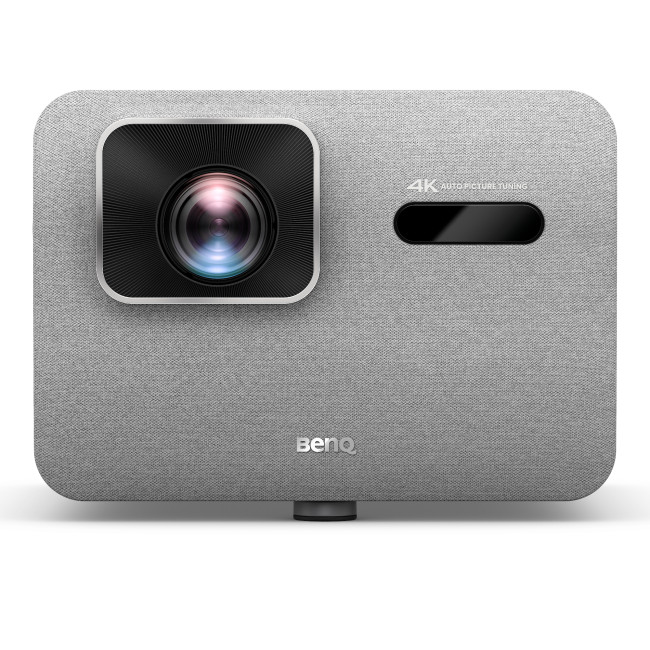
BenQ TK705STi 4K Ultra HD DLP Gaming Projector True 4K resolution with 5ms input lag at up to 4K 60Hz, plus 2x HDMI 2.1 ports and USB-C with 30W power delivery. Built for gamers who want sharp, responsive visuals without compromising on detail. |
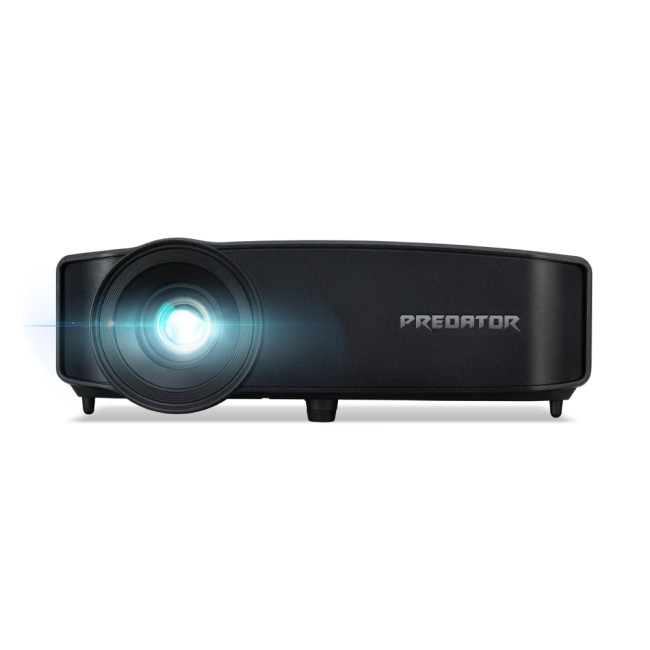
Acer Predator GD711 UHD 4K 240Hz Gaming Projector 240Hz refresh rate reduces motion blur during fast-paced action, paired with 4K UHD resolution and 1450 ANSI lumens for clear visuals in most lighting. Comes with 2x HDMI and 2x USB ports. |
Best Office Projector for Presentations
|
|
|
|
Optoma H190X 3900 ANSI Lumens WXGA Projector 3900 ANSI lumens makes this a strong choice for bright meeting rooms and classrooms. Includes HDMI, VGA, USB-A and audio in/out, with a built-in 10W speaker and a 2 year warranty for peace of mind. |
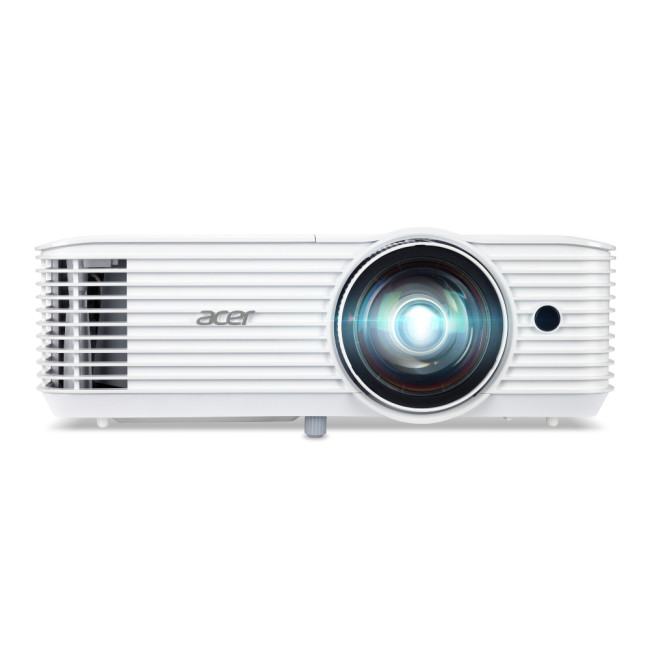
Acer S1286Hn XGA Short Throw 4,500 ANSI Lumens Projector Short throw design suits smaller meeting rooms and classrooms, projecting up to 150 inches from close range. Wireless projection, HDMI, VGA, USB and RS232 connectivity, backed by a 3 year warranty. |
How a Projector Compares with a TV or Monitor
If you are still weighing up a projector against a traditional screen, here is a side-by-side view.
|
FACTOR |
PROJECTOR |
TV / MONITOR |
|---|---|---|
|
Screen Size |
Easily 100 to 150+ inches |
Limited by panel size; very costly for anything over 85 inches |
|
Value for Money |
Unbeatable cost-per-inch for massive displays |
Becomes exponentially more expensive as screen size increases |
|
Daytime Viewing |
Requires a dark room (unless using a high-brightness model) |
Performs brilliantly even in direct daylight |
|
Space & Setup |
Highly portable; screen can be rolled away out of sight |
Takes up permanent wall space or furniture real estate |
|
Audio Quality |
Built-in speakers are often weak; usually requires an external soundbar or audio setup |
Decent built-in sound, though premium setups still benefit from a soundbar |
|
Gaming Performance |
Higher casual input lag; premium models required for competitive gaming |
Excellent refresh rates and minimal lag out of the box |
|
The Cinema Factor |
Delivers that authentic, soft-lit commercial cinema experience |
Can feel harsh or cause eye strain during long viewings in the dark |
|
Longevity & Maintenance |
Bulb models require replacement lamps; modern LED/Laser variants last for years |
Minimal ongoing maintenance or extra costs |
If you decide a screen suits your space better, it is worth browsing affordable TVs or the latest monitor deals in the UK for a sharp, daylight-friendly alternative.

Ready, Set, Project
This projector buying guide shows that choosing the right projector comes down to matching brightness, resolution, throw distance, contrast ratio and connectivity to how and where you will actually use it.
Films and sport benefit from brighter, higher contrast models, a good projector for gaming needs to have a low input lag and fast refresh rates, portable use favours light weight, and office work demands strong brightness for well-lit rooms.
Once you have these basics sorted, picking between specific models becomes far easier, and you can shop with confidence rather than guesswork.
Browse our latest projectors to find the right model for your needs. However, if you prefer a sharper screen for work, gaming or streaming, check out our best 4K monitors.

Just to Be Absolutely Sure...
What type of projector should I buy?
It depends on your use: DLP for gaming and portability, 3LCD for vivid business colour, laser for long-term home use. Match the light source and technology to your room size, lighting conditions, and primary activity.
How many lumens do I need for a good projector?
For dark rooms, 1,500 to 2,500 ANSI lumens is usually enough. Brighter living rooms need 2,500 to 3,500, while offices and classrooms with daylight should look for 3,500 lumens or more.
What is the best projector for home use?
A Full HD or 4K projector with 1,500 to 3,000 ANSI lumens, HDMI connectivity and built-in speakers suits most living rooms. Short throw models work well in smaller spaces.
Is a projector good for gaming?
Yes, as long as it has low input lag, ideally under 20ms, a fast refresh rate, HDMI 2.1 where possible, and enough brightness to handle fast-moving on-screen action clearly.
What is the difference between throw distance and throw ratio?
Throw distance is the gap between the projector lens and the screen. Throw ratio is that distance divided by the image width, showing how far back to place the projector.
Do I need a projector screen or can I use a wall?
A flat white or light grey wall works fine for casual viewing. A dedicated projector screen improves sharpness, contrast uniformity, and gain. Grey or ALR (ambient light rejecting) screens are worth considering in rooms with limited light control.
Can a projector replace a TV?
A projector can replace a TV if you have a suitable wall or screen, can manage room lighting, and pair it with a good audio solution. For very bright rooms or daytime viewing without blackout curtains, a large TV or monitor may be more practical.
Related Articles

Last Updated: July 06, 2026
you are shopping for Acer Predator gaming monitors, you are usually not looking for a basic panel. You are looking for speed, image quality and a monitor that genuinely fits the kind of games you play. For some buyers, that means a fast 27-inch display for ranked shooters and esports titles. For others, it means a bigger 4K panel for high-detail single-player games. And for enthusiasts building the kind of setup that makes every desk photo look dramatic, it means an ultrawide or super-ultrawide screen that turns a gaming PC into the centrepiece of the room.
That is why Predator remains such an interesting range. Acer's broader monitor line covers different budgets and uses cases, but the Predator family is where Acer pushes harder on premium gaming features like OLED and QD-OLED panels, very high refresh rates, ultrawide formats and esports-level response times.
If you want the simple answer: Why choose Acer Predator monitor
Here is the short version.
- For competitive esports and fast shooters,
Last Updated: May 20, 2026
HDR is one of those monitor specs that sounds instantly premium. You see it on gaming monitors, 4K displays, creator screens, and even some budget monitors. But here’s the plot twist: not every HDR monitor gives you that “wow, this looks unreal” experience.
Some HDR displays look bright, rich and cinematic. Others technically support HDR but barely look different from standard mode. Bit awkward. So, what is HDR on a monitor, how does it work, and is HDR actually worth paying for? This complete HDR monitor explained guide breaks it all down in plain English, so you can shop smarter and avoid getting finessed by shiny spec labels.
What Does HDR Mean on a Monitor?
HDR stands for High Dynamic Range.
On a monitor, HDR is designed to show a wider range of brightness, contrast and colour than a standard SDR display. In simple terms, it helps bright areas look brighter, dark areas look deeper and colours look richer when you are watching or playing HDR-supported content.
So, when someone asks,
Last Updated: August 24, 2026
Buying a monitor should be simple. Pick a screen, plug it in, done. Except the second you start shopping, you’re hit with Full HD, QHD, 4K Ultra HD, 60Hz, 144Hz, 240Hz, IPS, VA, response time, HDMI, DisplayPort and about 47 other things that sound like they belong in a sci-fi film.
So, let’s make it easy.
This monitors & displays guide breaks down the two specs that matter most for most buyers: resolution and refresh rate. Whether you’re building a gaming setup, upgrading your home office, sorting a uni desk, editing content or just replacing an old screen that’s seen better days, this guide will help you choose the right monitor without getting finessed by big numbers.
Quick Answer: What Resolution and Refresh Rate Should You Choose?
Here’s the no-stress version.
| What You Use it For | Best Resolution | Best Refresh Rate | Best Monitor Type |
| Everyday browsing, emails and admin | Full HD | 60Hz–100Hz | Budget monitor |
| Studying or home office work | Full HD or QHD | 75Hz–120Hz | Productivity monitor |
| Multitasking |
Last Updated: August 24, 2026
One screen is fine. Two screens? That is where your setup starts feeling seriously organised. Whether you are working from home, studying, gaming, editing, coding or just tired of switching between 27 tabs every five seconds, a dual monitor setup can make your desk feel cleaner and your workflow feel smoother.
The good news is that learning how to set up dual monitors is not as complicated as it sounds. You just need the right monitors, the correct cables or adapters, and a few display settings adjusted properly. This complete guide explains how to connect two monitors, how to set up dual monitors on Windows, how to set up dual monitors with a laptop, and how to get the best layout for work, study, gaming and everyday use.
How Do You Set Up Dual Monitors?
Here is the simple version.
To set up dual monitors, connect both screens to your laptop or desktop PC using HDMI, DisplayPort, USB-C, Thunderbolt or a compatible docking station. Then open your display settings, choose Extend these displays
Last Updated: September 03, 2026
Ultrawide monitors look seriously clean on a desk. One big screen, loads of horizontal space, fewer bezels, and that “main character workstation” vibe. But are they actually useful, or are they just a pricey way to make your setup look dramatic?
If you are asking, “is an ultrawide monitor worth it?”, the answer is: yes, for the right person. An ultrawide screen monitor can be a massive upgrade for multitasking, gaming, editing, streaming, and hybrid work. But it is not the perfect choice for everyone. This complete ultrawide monitor buying guide breaks down the benefits, drawbacks, best use cases and key specs to check before you buy.
Are Ultrawide Monitors Worth it in 2026?
Yes, ultrawide monitors are worth it in 2026 if you want more horizontal workspace, better multitasking, immersive gaming or a cleaner alternative to dual monitors. They are especially worth it for:
- Hybrid workers
- Multitaskers
- Gamers
- Video editors
- Designers
- Streamers
- Coders
- Finance and dashboard users
- Anyone who wants
Last Updated: May 20, 2026
Choosing a monitor resolution should be simple, right? You pick a screen, plug it in, and get on with your day. Except the moment you start shopping, you get hit with 1080p, 1440p, QHD, 4K, Ultra HD, scaling, refresh rates and a whole lot of spec-sheet chaos.
So, which one should you actually buy?
This guide breaks down the 4K vs 1440p vs 1080p monitor debate in plain English. Whether you need a screen for gaming, work, studying, streaming, editing or a bit of everything, we’ll help you choose the right resolution without overpaying for pixels you do not need.
Quick Answer: 1080p vs 1440p vs 4K Monitor
Here’s the no-drama answer.
| User Type | Best Resolution | Why |
| Budget buyers | 1080p / Full HD | Affordable, reliable and easy to run |
| Students | 1080p or 1440p | Good value with enough clarity for study |
| Home office users | 1440p / QHD | Sharper text and better multitasking |
| Hybrid workers | 1440p or 4K | More screen space for apps and documents |
| Casual gamers | 1080p or 1440p | Good mix of smoothness, price and quality |
Last Updated: June 10, 2026
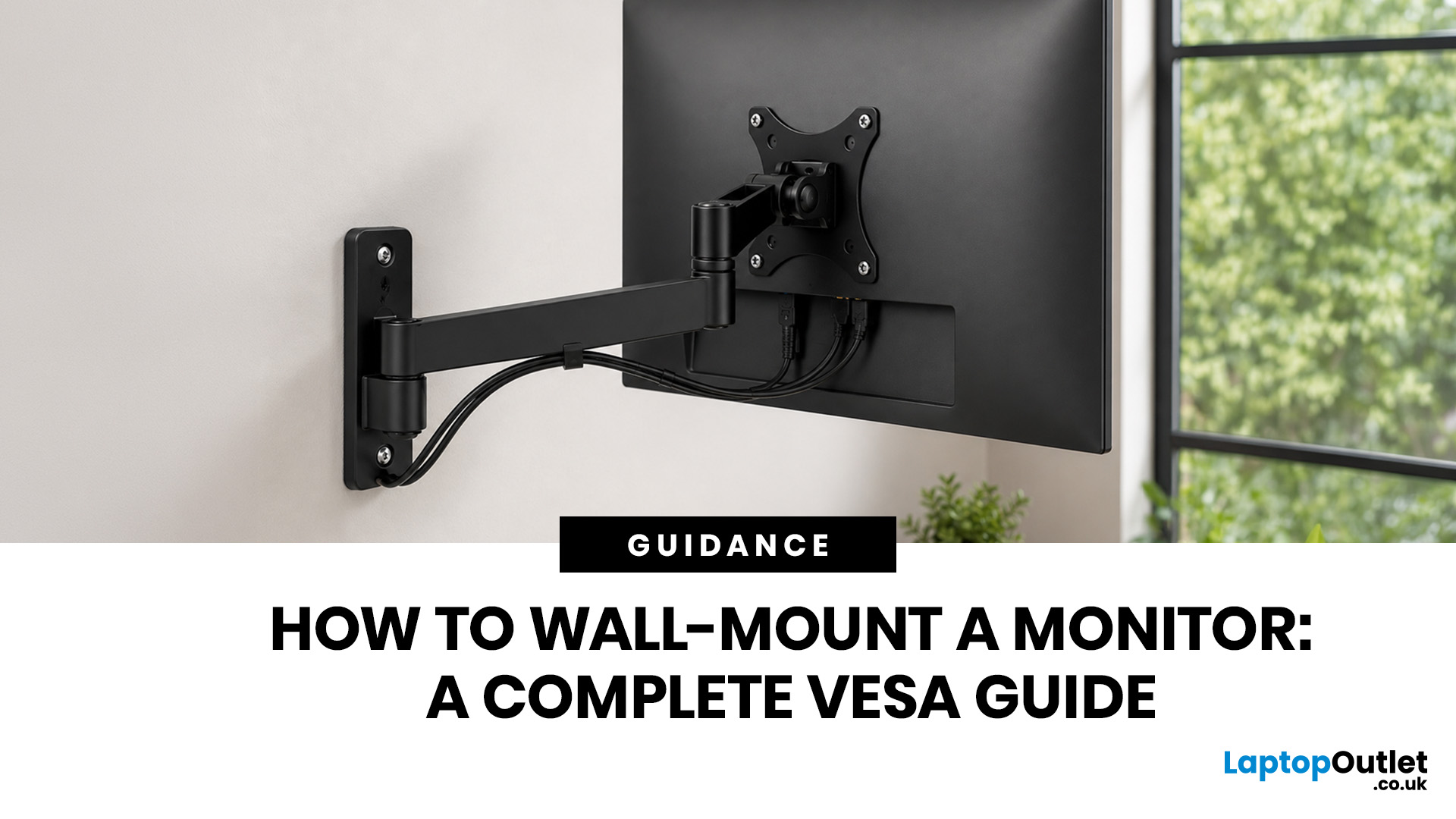
Quick Answer: Wall-mounting a monitor is worth it if you want to save desk space, improve posture and create a cleaner setup. Before you start, check that your monitor supports VESA mounting, confirm the correct VESA mounting pattern, choose a wall mount that supports your monitor’s weight, and make sure your wall can safely hold it. This VESA mount monitor guide explains what VESA mounting is, how to check compatibility, what tools you need, and how to wall mount a monitor safely step by step.
Wall-mounting a monitor can make your setup look instantly cleaner. No bulky stand. More desk space. Better cable management. A screen that actually sits at the right height instead of forcing your neck into questionable positions. Before you grab a drill and start making holes in the wall like you’re on a home renovation show, there are a few things to check. Not every monitor can be mounted, not every wall is suitable, and not every mount fits every screen.
What is VESA Mounting?
VESA mounting
Last Updated: June 10, 2026
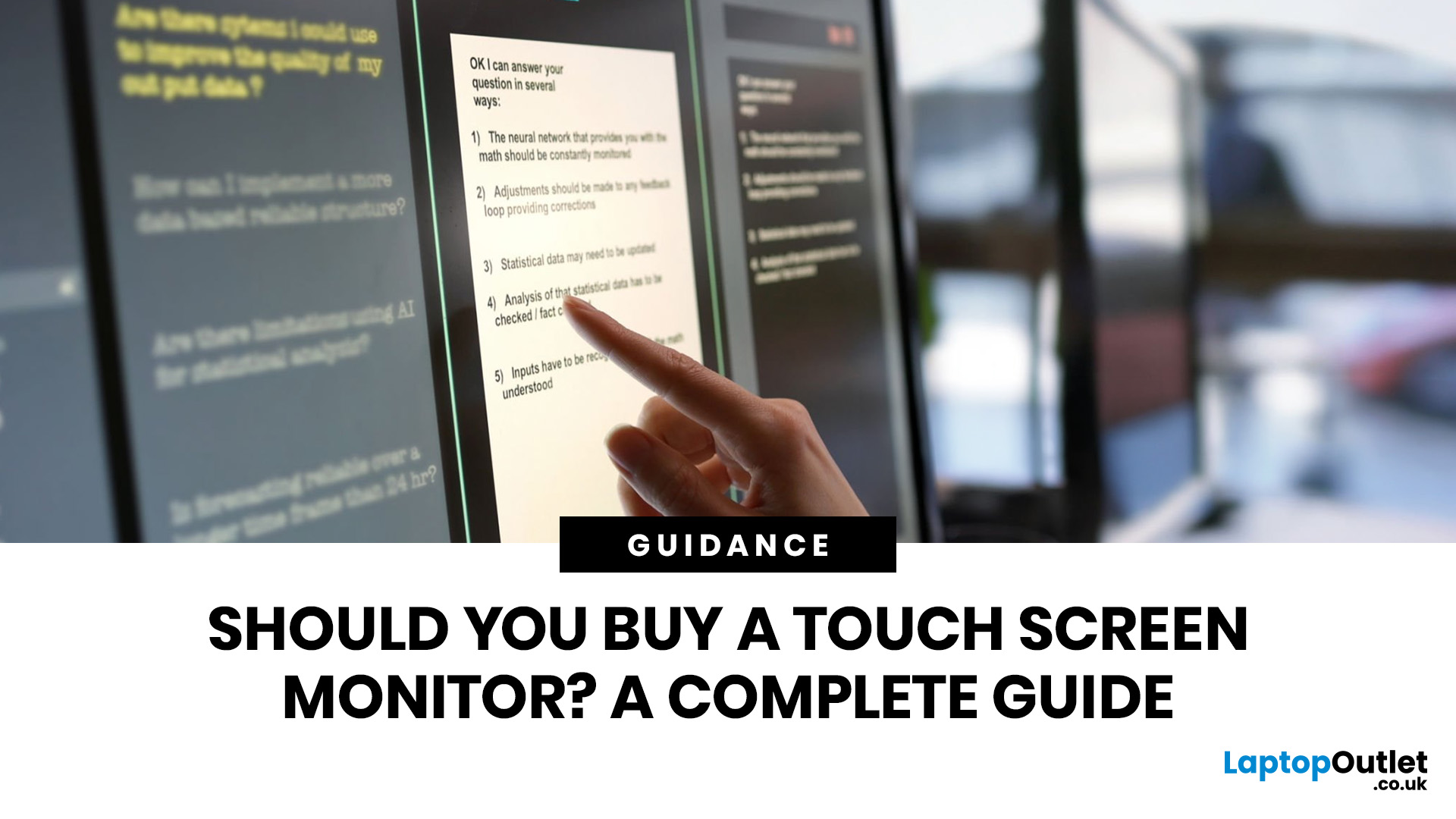
Quick Answer: Yes, touch screen monitors are worth it if you need a more interactive display for work, business, education, presentations, creative tasks or customer-facing setups. They let you tap, swipe, scroll, zoom and sometimes draw directly on the screen, which can feel much more natural than using only a mouse and keyboard.
A touch screen monitor sounds cool. You can tap apps, swipe through pages, pinch to zoom, sign documents, control presentations and interact with your PC like it is a giant tablet. Very futuristic. Very clean setup energy. But before you spend extra, it is worth asking: should I buy a touch screen monitor, or would a standard display do the job better?
The answer depends on how you use your computer. For business, education, creative work and interactive setups, touch can be genuinely useful. For spreadsheets, typing, gaming and everyday browsing, it may be more of a nice bonus than a must-have. This touch screen monitor buying guide breaks down the benefits,
Last Updated: June 10, 2026
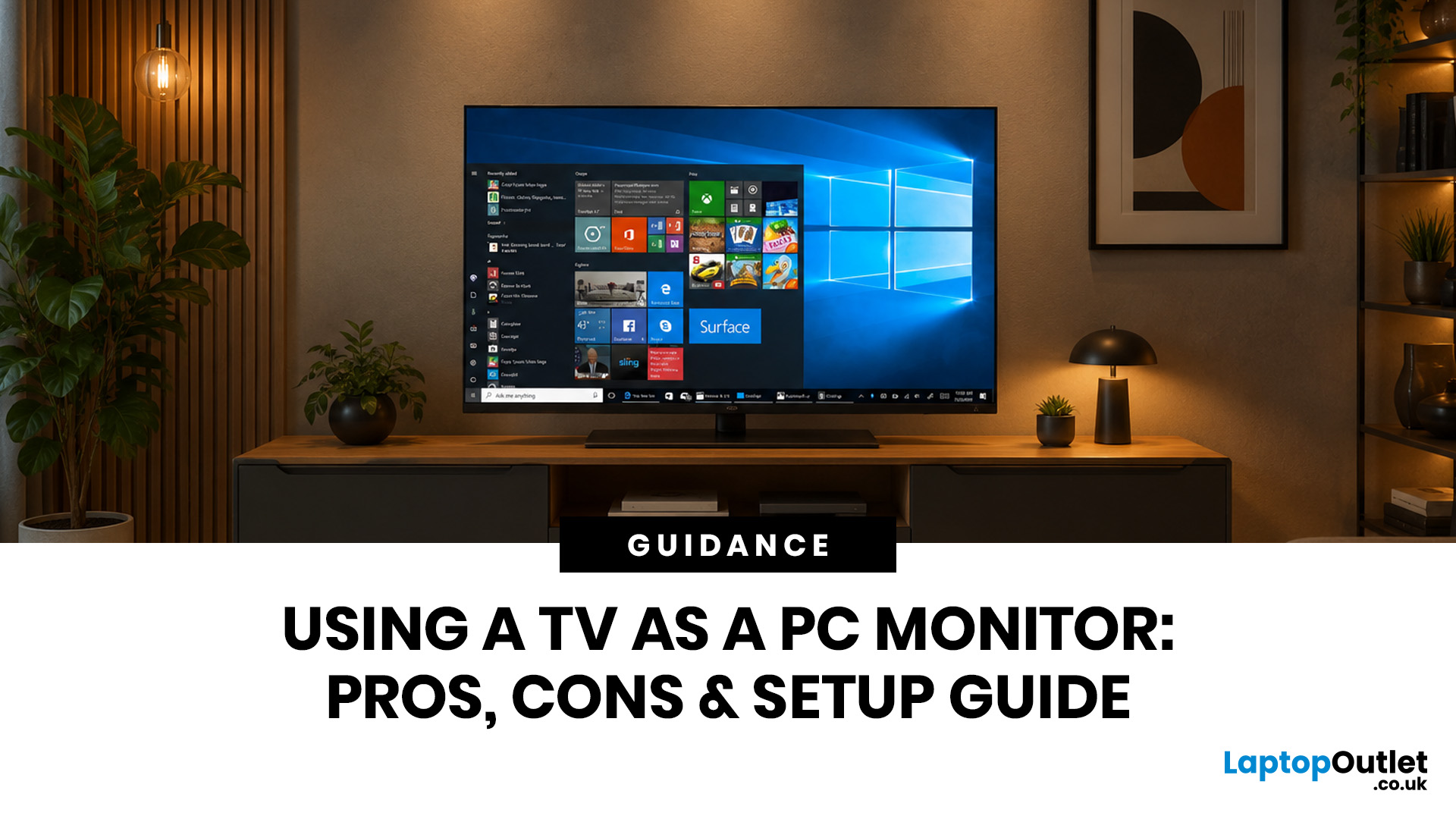
Quick Answer: Yes, you can use TV as PC monitor if your computer and TV have compatible ports, usually HDMI. It works well for films, casual gaming, presentations, sofa browsing and large-screen entertainment. However, using a TV as PC monitor is not always ideal for daily desk work because TVs can have higher input lag, lower pixel density, blurry text up close and fewer ergonomic adjustments than proper monitors. For entertainment and casual use, a TV can be a great option. For work, study, competitive gaming and sharp close-up text, a dedicated monitor is usually the better choice.
Using a big TV as your computer screen sounds like a genius move. Bigger display, built-in speakers, great for Netflix, and you may already have one sitting in the living room. Honestly, it sounds like a setup hack.
Before you plug in your PC and call it a day, there are a few things to know. A TV as computer monitor setup can work brilliantly for some people, especially for media, casual gaming and
Last Updated: June 10, 2026
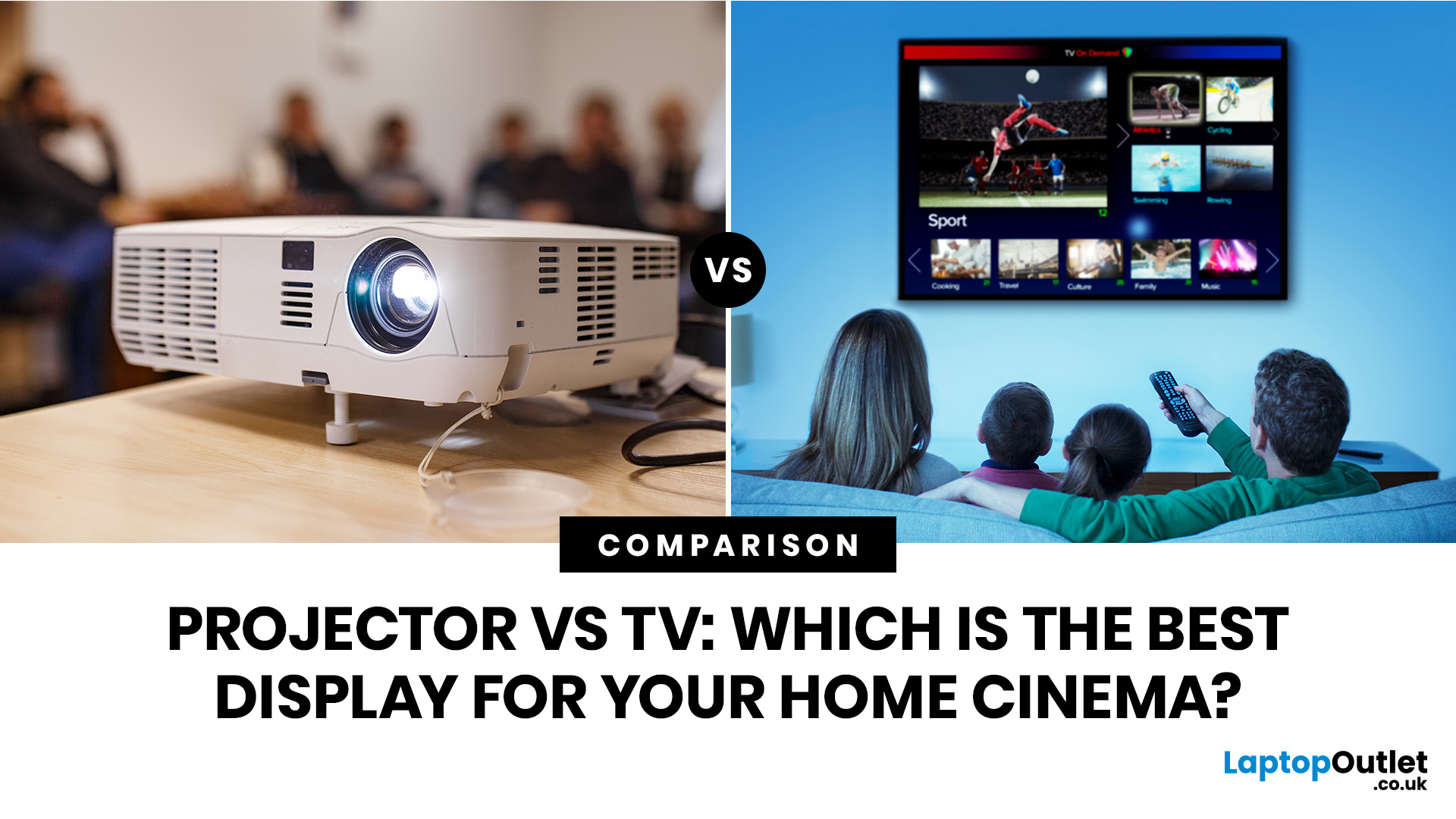
Choosing between a projector vs TV depends on your room, budget, viewing habits and expectations. A projector can deliver a huge cinematic image that feels closer to a real theatre, while a TV offers brighter visuals, easier setup, stronger HDR and better everyday convenience.
The projector vs TV debate has become a major consideration for anyone building a modern home cinema setup. With streaming platforms, 4K content, next-gen consoles, and soundbars now part of everyday entertainment, buyers want a display that feels immersive without being awkward to install or expensive to maintain.
Some people dream of a wall-sized cinema screen. Others want a sharp, bright, plug-and-play display for films, gaming, and daily TV. The right choice depends on key factors such as picture quality, screen size, budget, installation needs, viewing distance, and room lighting. This guide breaks down projector vs TV comparisons in a practical, buyer-focused way so you can make a confident decision.

