



Hidden Sim Racing Settings for a Better Experience
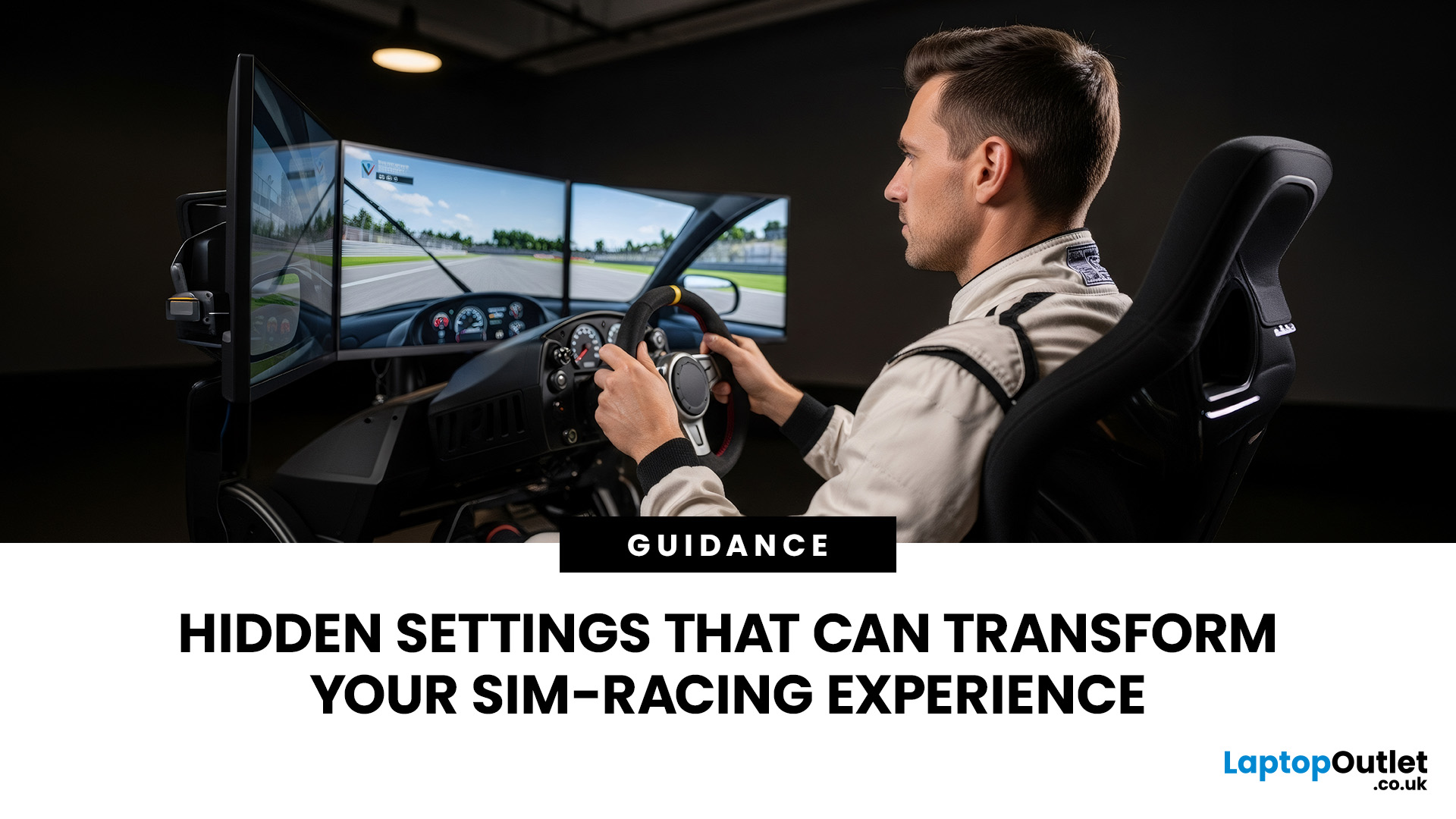
A better sim racing experience does not always start with a new wheel, pedals, or graphics card. Many racing games use default settings designed to work across a broad range of controllers, displays and hardware, rather than being optimised for your exact driving position and setup.
Small adjustments to steering rotation, force feedback, pedal calibration, field of view, graphics, and audio can make your inputs easier to interpret and the car more consistent to control. This guide walks through some of the most overlooked settings worth checking in racing titles such as Assetto Corsa Competizione, iRacing, Gran Turismo, Forza Motorsport and EA Sports WRC. Menu names and available controls vary between games, platforms and hardware.
Before You Change Anything: Create a Repeatable Test
Before searching for the best settings for sim racing, create a repeatable way to judge whether a change has actually helped.
Choose one familiar car and circuit, then keep the weather, fuel load, tyres, and other conditions consistent where the game allows it. Record your current settings or save a separate profile before changing anything.
Change only one variable at a time and complete several representative laps. A setting may initially feel different simply because it is unfamiliar, so avoid judging it from the first corner. Look instead for repeatable improvements in steering response, braking control, visual clarity, and the information reaching you through the wheel.
1. Match Steering Rotation and Steering Lock
Your physical wheel should behave predictably in relation to the steering inside the game.
Wheel rotation describes how far your wheel can turn from lock to lock, while steering lock determines how much steering angle the simulated car can use. If these do not correspond correctly, a small physical movement may produce too much virtual steering, or you may need excessive wheel movement to negotiate a corner.
Some simulators automatically match rotation to individual cars or apply a soft lock at the appropriate limit. Others require additional configuration through the game or wheel software.
Watch the virtual steering wheel, where available, and compare its movement with your physical wheel. They should remain closely synchronised through normal steering inputs.
Do not assume one rotation range suits every car. Formula cars, GT cars, road cars, and rally vehicles can use different steering characteristics.
2. Reduce Force Feedback Clipping
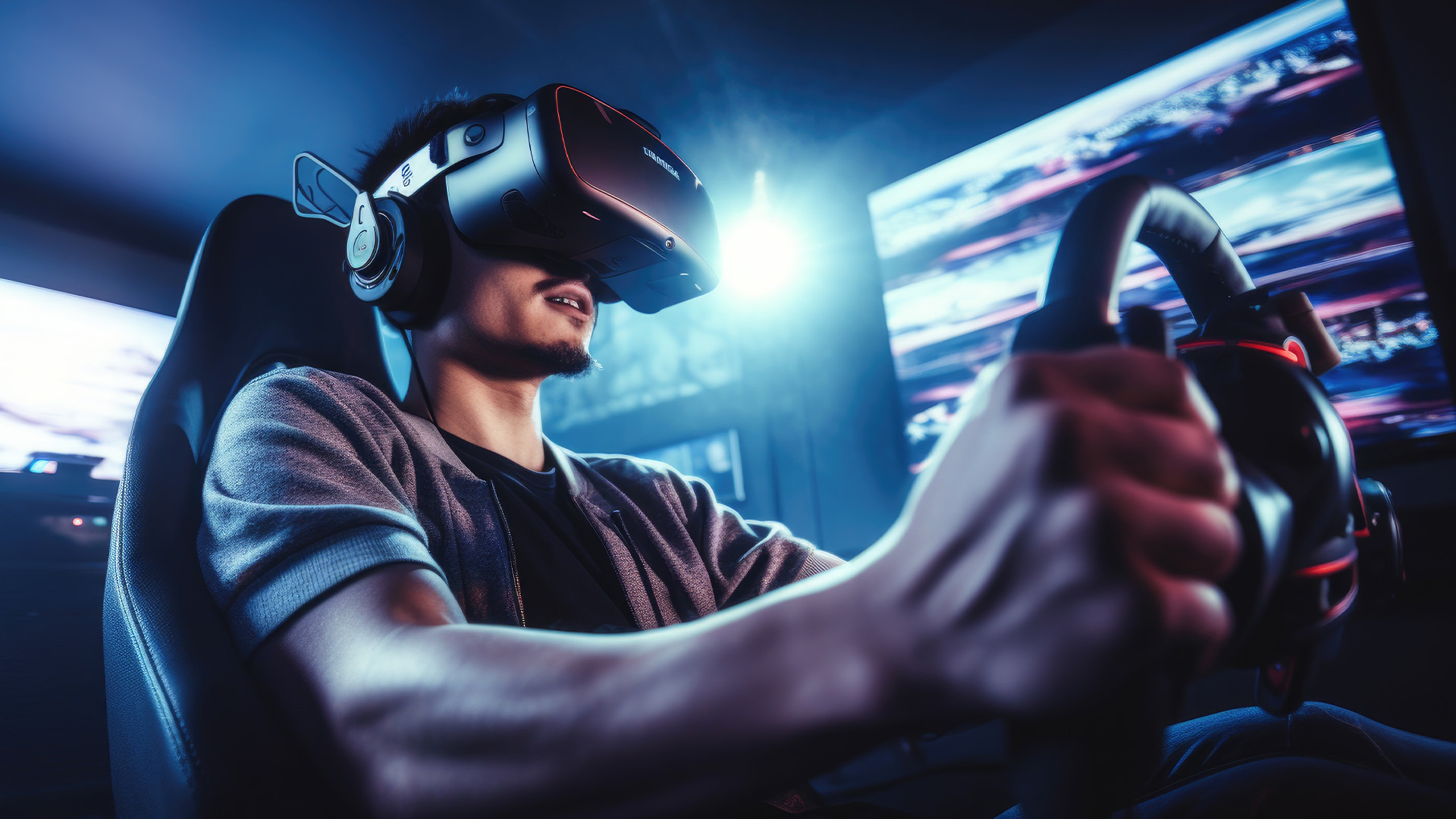
More FFB strength does not necessarily mean better feedback.
Force feedback clipping occurs when the game requests more force than the wheel can reproduce. Once the wheel reaches its maximum output, different high-force events can begin to feel similarly strong. Information about increasing tyre load, kerbs or weight transfer may therefore become harder to distinguish.
Start by balancing the wheelbase output with the game's overall force-feedback gain. Test demanding corners where steering forces become high and watch any available FFB meter or clipping indicator. If the signal regularly reaches its limit, reduce the relevant strength or gain rather than simply accepting the heaviest possible steering.
The aim is to retain a useful range of information: lighter changes around the centre, increasing cornering load and clearer indications when grip begins to change.
Direct-Drive Safety: powerful direct-drive wheelbases can generate substantial torque. Begin with conservative strength settings, make sure the wheelbase and rig are securely mounted, and keep control of the wheel during use. If severe oscillation begins, pause the game before attempting to regain control.
3. Tune Minimum Force, Damping, and Road Effects
Several secondary force-feedback controls can dramatically change how a wheel feels.
Minimum force can help some gear- or belt-driven wheels overcome the small mechanical resistance that makes very light forces difficult to feel. Direct-drive systems usually behave differently, so do not automatically copy settings intended for another wheel technology.
Damping can calm unwanted oscillation and excessive movement, particularly around the centre. Too much, however, can make steering feel heavy or slow and may hide useful detail.
Road, kerb, vibration and similar effects deserve the same restraint. Increasing them can initially make a gaming racing setup feel more dramatic, but excessive artificial texture may overwhelm the more useful information coming from the tyres and steering geometry.
Tune these controls for clarity rather than maximum activity through the wheel.
4. Correct Your Field of View Before Adjusting the Camera
Field of view, or FOV, affects how much of the virtual world is visible and how accurately distances, corner shapes and apparent speeds are represented.
A suitable FOV depends on your screen dimensions, aspect ratio and viewing distance. That means someone using a monitor close to the wheel may require a different setting from someone sitting farther away, even if both displays have the same resolution.
Single monitors, ultrawides and triple-screen systems also need different treatment. Triple displays may add separate controls for screen width, angle, bezel correction or viewing distance.
Use the game's FOV calculator where one is provided, or an appropriate calculation based on your physical setup. Once FOV is established, adjust the virtual seat position or camera offset to improve visibility without unnecessarily changing the underlying perspective.
A wider display or one of today's high-refresh gaming monitors can improve the viewing experience, but correct physical positioning and FOV still matter.
5. Check Pedal Deadzones, Brake Gamma, and Saturation
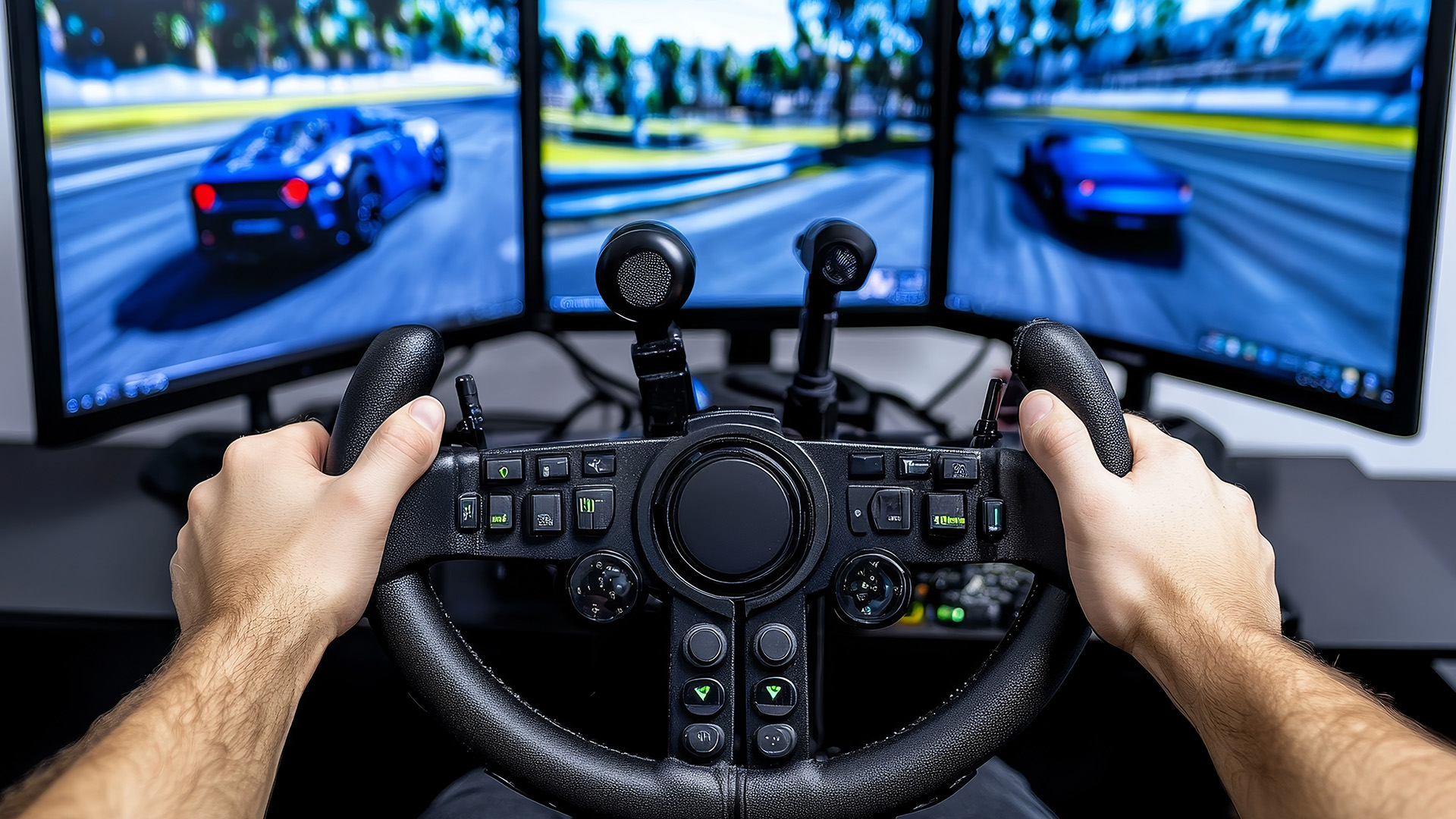
Pedal calibration deserves as much attention as the steering wheel.
A brake deadzone defines the portion of pedal movement ignored by the game. A small lower deadzone can prevent tiny unintended inputs, while excessive deadzone reduces the usable pedal range. Upper deadzone or saturation controls determine how soon the game registers maximum input.
Brake gamma or linearity changes how physical pedal movement is translated into virtual braking. Potentiometer pedals measure pedal position, whereas load-cell pedals primarily measure applied force, so they may benefit from different response curves.
Avoid copying somebody else's brake gamma simply because they use the same game. Pedal hardware, elastomers, seating position and preferred braking force all matter.
Where possible, calibrate the pedals correctly in their manufacturer software first and then calibrate them again inside the game. Use the input meter to confirm that each pedal reaches zero and full input consistently without unexplained spikes.
6. Disable Visual Effects That Hide Useful Information
Some graphical effects make racing look cinematic but can make driving information harder to read.
Try reducing or disabling motion blur, excessive depth of field, strong lens effects and aggressive camera movement if they make braking markers, track edges or vehicle motion less clear.
Camera shake deserves particular attention. Some movement can communicate bumps and suspension behaviour, but too much movement makes the visual reference unstable.
You can also review whether the virtual steering wheel needs to remain visible when a physical wheel already occupies the same part of your view. Some racers prefer hiding it to reduce duplication, while others use it as a useful steering reference.
Keep whichever option helps you read the car and circuit most consistently. Our guide to building a sim-racing gaming PC explains the hardware considerations in more detail.
7. Prioritise Stable Frame Times Over Maximum Graphics
High frame rates are useful in sim racing, but consistency matters too.
A system moving between very high and much lower frame rates can feel less predictable than one maintaining a stable output. Uneven frame pacing can affect visual smoothness and make steering responses feel less immediate, even when the average frame-rate counter appears respectable.
Match your graphics choices to your display's refresh rate and investigate V-Sync, adaptive-sync technologies and frame-rate limits where appropriate. Their behaviour varies by platform, display and game, so test for smoothness as well as input latency.
If performance is inconsistent, consider reducing demanding options such as shadows, reflections, mirror quality, crowd density or visible vehicles before automatically reducing resolution.
PC racers reaching a genuine hardware limit can consider a purpose-built gaming PC, while portable gaming systems may suit setups that also need to move between locations.

8. Use Audio and Telemetry as Driving Tools
Sound is another source of feedback.
Tyre scrub can help indicate changing grip, while engine tone gives you another reference for gear changes and throttle use. Transmission, suspension and surface sounds may also communicate what the car is doing before the information becomes obvious visually.
Adjust the audio mix so important driving cues are not buried beneath less useful effects. In games with a spotter or co-driver, keep that channel clear enough to understand without overpowering everything else.
Telemetry can provide useful information such as tyre temperatures, braking traces and pedal input. Use overlays selectively, though. Filling the screen with data can become distracting when you should be watching braking points, traffic and the circuit.
9. Review Driving Assists and Input Filters
Turning every assist off does not automatically make a racing simulator more realistic.
First distinguish between assists fitted to the simulated vehicle and game-level assistance added for accessibility or easier control. A real racing car may legitimately use ABS or traction control, so disabling those systems could actually move the experience further from the real vehicle.
Review settings such as steering filters, speed sensitivity, stability assistance, auto-blip and traction control individually.
Some filters are particularly useful for controllers but may make wheel inputs feel delayed or indirect. If steering feels disconnected, inspect these controls before increasing FFB strength.
The right configuration depends on the car, game and your objectives. Aim for predictable controls and appropriate vehicle behaviour rather than simply selecting the most difficult combination available.
A Quick Sim-Racing Settings Checklist
Before rebuilding your racing sim set up, work through these basics:
- Back up the original profile.
- Match wheel rotation and steering lock.
- Check for force feedback clipping.
- Calibrate pedal deadzones and saturation.
- Set FOV using screen size and viewing distance.
- Reduce distracting visual effects.
- Aim for stable frame times.
- Balance tyre, engine and spotter audio.
- Review assists and input filters.
- Test one change at a time.
This approach makes it much easier to identify which adjustments genuinely improve your sim racing experience.

When Settings are Not the Whole Problem
Software adjustments cannot correct every issue.
If your wheel stand moves under braking, your seating position changes between sessions or pedals flex against an unsecured surface, consistent control will remain difficult. Similarly, persistent frame-rate drops may indicate a genuine system performance limitation rather than a badly configured graphics option.
This does not mean you immediately need new racing simulator equipment. Check mounting, seating, cable connections, calibration, drivers and game settings first.
If hardware eventually becomes the limiting factor, compare racing simulation hardware around the specific problem you want to solve rather than replacing everything at once. Racing sim bundles can simplify a new setup, while Laptop Outlet's complete gaming range covers the wider PC and display hardware used alongside racing rigs.

FAQs
What are the most important sim racing settings to adjust?
Start with steering rotation, force feedback, pedal calibration, field of view and graphics performance. These settings directly affect how you control the car and interpret its behaviour. Audio, camera movement and driving assists can then be adjusted once the core steering, braking and visual setup feels consistent.
How strong should force feedback be for sim racing?
Force feedback should be strong enough to communicate steering load and grip changes without regularly clipping or becoming difficult to control. There is no universal FFB value because wheelbases produce different levels of torque and games calculate feedback differently. Prioritise usable detail rather than maximum strength.
What field of view should I use for sim racing?
Your field of view should be calculated from factors including monitor dimensions, aspect ratio and the distance between your eyes and the display. Avoid copying another player's FOV without knowing their physical setup. Set the FOV first, then use camera or seat-position controls for smaller viewpoint adjustments.
Should I turn motion blur off in racing games?
Turning motion blur off or reducing it can improve visual clarity, particularly when identifying braking markers and judging movement at speed. Some players still prefer a small amount for visual smoothness. Test both options because the implementation and performance impact differ between racing games.
Why do my sim racing pedals feel inconsistent?
Inconsistent pedals can result from incorrect calibration, excessive deadzones, unsuitable response curves, unstable mounting or hardware issues. Recalibrate the pedals in both their software and the game where applicable, then watch the input meter for spikes or incomplete travel before changing brake gamma or sensitivity.
Is a higher frame rate important for sim racing?
A higher frame rate can improve motion clarity and responsiveness, but stable frame times are equally important. A slightly lower but consistent frame rate may feel smoother than one that fluctuates heavily. Balance graphics quality, refresh rate, and latency instead of concentrating only on the highest possible FPS figure.
Related Articles

Last Updated: October 28, 2025
The evolution of GPU performance is accelerating faster than ever, driven by the combined power of DLSS 4 and Ray Tracing. Together, they are transforming how games render light, shadow, and motion, pushing the boundaries of realism while maintaining exceptional frame rates.
In this in-depth technical overview, we explore how DLSS 4 ray reconstruction and AI-enhanced Ray Tracing GPUs are reshaping both desktop and laptop performance, what makes them distinct from DLSS 3.5, and why technologies like Nvidia RTX 5080 and RTX 5090 are redefining the meaning of “high-end”.
Current GPU Performance Landscape
Today’s high-end GPUs particularly those built on NVIDIA’s Blackwell architecture are far more than rasterisation engines. They are hybrid compute systems, balancing shader processing, tensor-based inference, and dedicated ray-tracing operations across thousands of cores.
This complexity introduces a familiar problem: the better visuals become, the heavier the workload on the GPU. Real-time

Last Updated: January 27, 2026
The world of PC gaming has changed forever thanks to a massive leap in graphics innovation. If you have looked at modern gaming desktop PCs recently, you have likely seen the term "RTX" everywhere.
But what is NVIDIA RTX technology exactly? It is not just a fancy label on a box. It represents a total shift in how your computer creates the images you see on screen.
By combining clever artificial intelligence with raw power, NVIDIA has made games look like Hollywood films while keeping them running smoothly.
Introduction to NVIDIA RTX Technology
NVIDIA RTX (Ray Tracing Texel eXtreme) is more than just a brand name. it is a high-end computing platform. It combines specialized hardware cores with advanced software to create lifelike visuals.
A Brief History of NVIDIA Graphics Cards
Before RTX, we had the GTX (Giga Texel Shader eXtreme) series. These cards were powerful, but they relied on "rasterisation." This is a method where a 3D scene is squashed into 2D pixels on your screen. It worked
Last Updated: August 18, 2026
Choosing the best AMD gaming PC in 2026 is less about buying the fastest processor and more about matching the CPU, GPU, memory and monitor to your target resolution. AMD Ryzen processors scale from efficient integrated-graphics systems for light Full HD gaming to X3D-equipped towers built for demanding AAA titles.
This guide compares six current AMD Ryzen gaming PCs across 1080p, 1440p and 4K use. It explains where each system makes sense, where it has limitations and which games suit its hardware.
Best AMD Gaming PCs at a Glance
The six systems below cover very different levels of gaming performance. That matters because an office-focused PC with integrated graphics should not be judged in the same way as dedicated gaming desktop PCs equipped with RTX graphics.
| PC | Processor | Graphics | RAM | Storage | Best For |
| Lenovo ThinkCentre M75s Gen 2 | Ryzen 5 5600G | Integrated Radeon | 8GB DDR4 | 256GB SSD | Light 1080p gaming |
| Lenovo IdeaCentre AIO 24ARR9 | Ryzen 5 7533HS | Radeon 660M | 16GB DDR5 | 512GB SSD | Casual 1080p |
Published: August 18, 2026
Last Updated: August 19, 2026
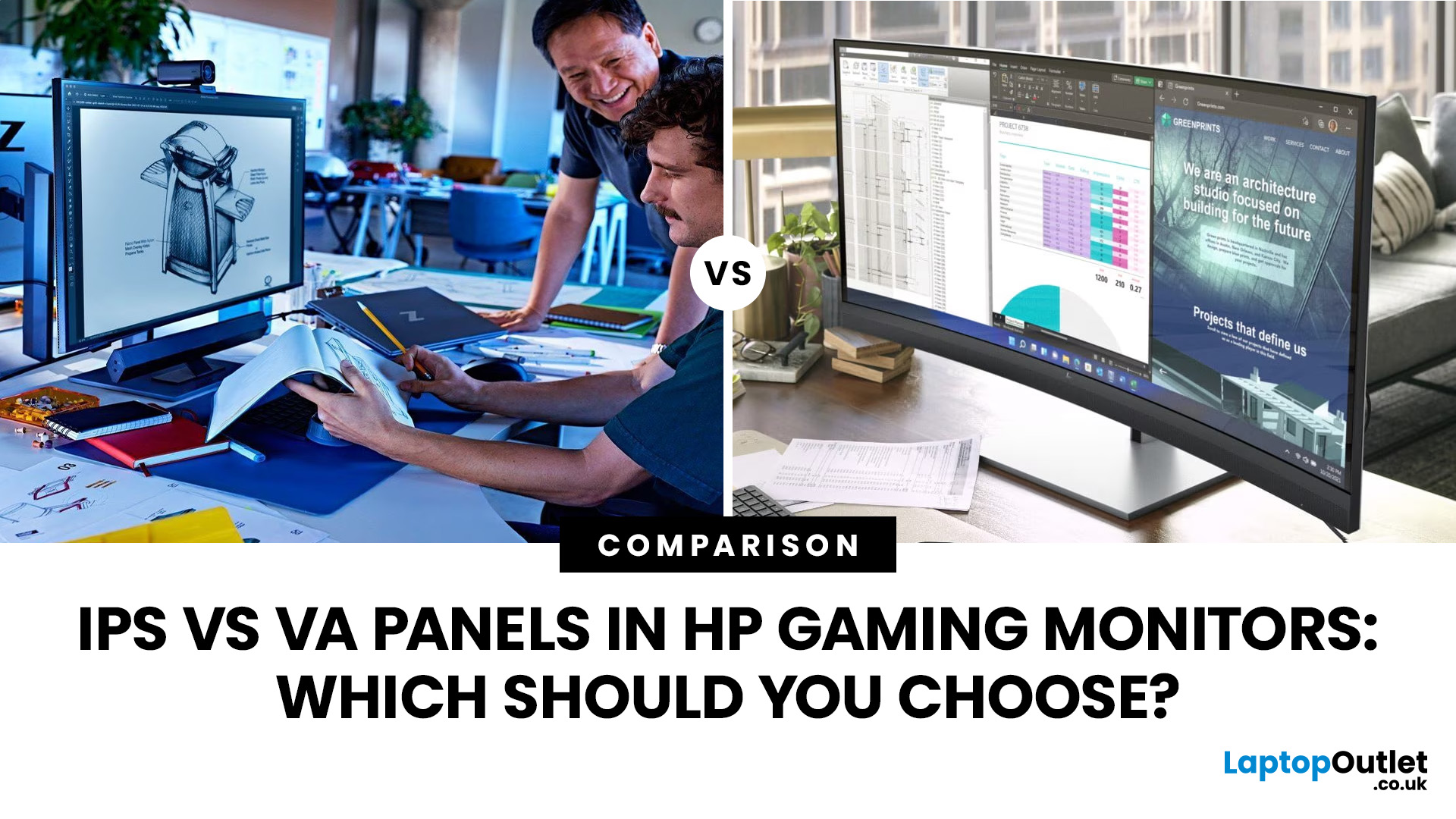
IPS panels are usually the better choice for competitive gaming, wider viewing angles and mixed gaming and creative work. VA panels generally deliver deeper blacks and stronger contrast, making them attractive for immersive games in darker rooms. However, the IPS vs VA panel decision should also consider the monitor’s exact response time, refresh rate, resolution, adaptive sync, and measured performance. Read our complete guide to gaming monitor panels for a full breakdown of IPS vs VA and other display technologies.
IPS vs VA Panels: Quick Comparison
| Feature | IPS Panel | VA Panel |
| Native contrast | Usually lower | Usually higher |
| Black depth | Blacks can appear grey in dark rooms | Deeper blacks in suitable conditions |
| Viewing angles | Wider and more consistent | Narrower, with more off-centre variation |
| Fast-motion clarity | Generally cleaner | Can show dark smearing |
| Colour consistency | Usually strong across the screen | Can change more when viewed off-centre |
| Colour accuracy | Depends on the individual monitor | Depends |
Last Updated: August 20, 2026
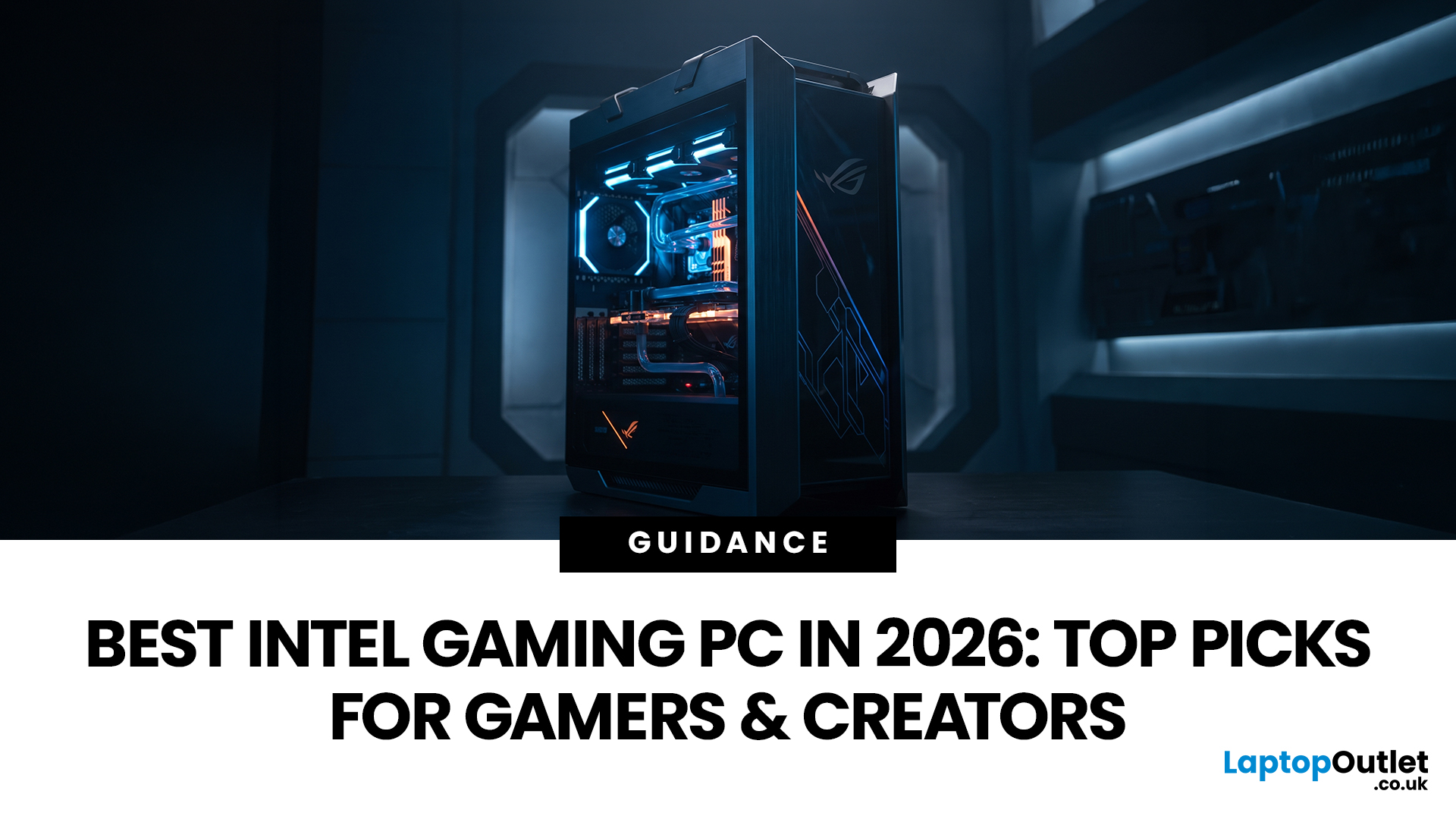
Choosing the best Intel PC for gaming and creative work in 2026 means looking beyond the processor name. CPU performance matters, but your graphics card, system memory, storage and cooling can have just as much impact on how the PC handles games and demanding applications.
This guide compares eight Intel-powered desktops for different types of gamers and creators, from accessible 1080p systems to powerful 4K gaming and content-creation PCs.
Why Intel PCs Make Sense for Gaming and Content Creation
Intel is a strong choice for gaming and content creation because its desktop range covers everything from mainstream Core i5 systems to more powerful Core i7 and Core Ultra configurations. That gives buyers plenty of choice when matching performance to gaming, streaming or creative workloads.
Many high-performance Intel processors use a hybrid architecture with Performance-cores and Efficient-cores. With Intel Thread Director, compatible systems can help the operating system prioritise demanding
Last Updated: August 24, 2026
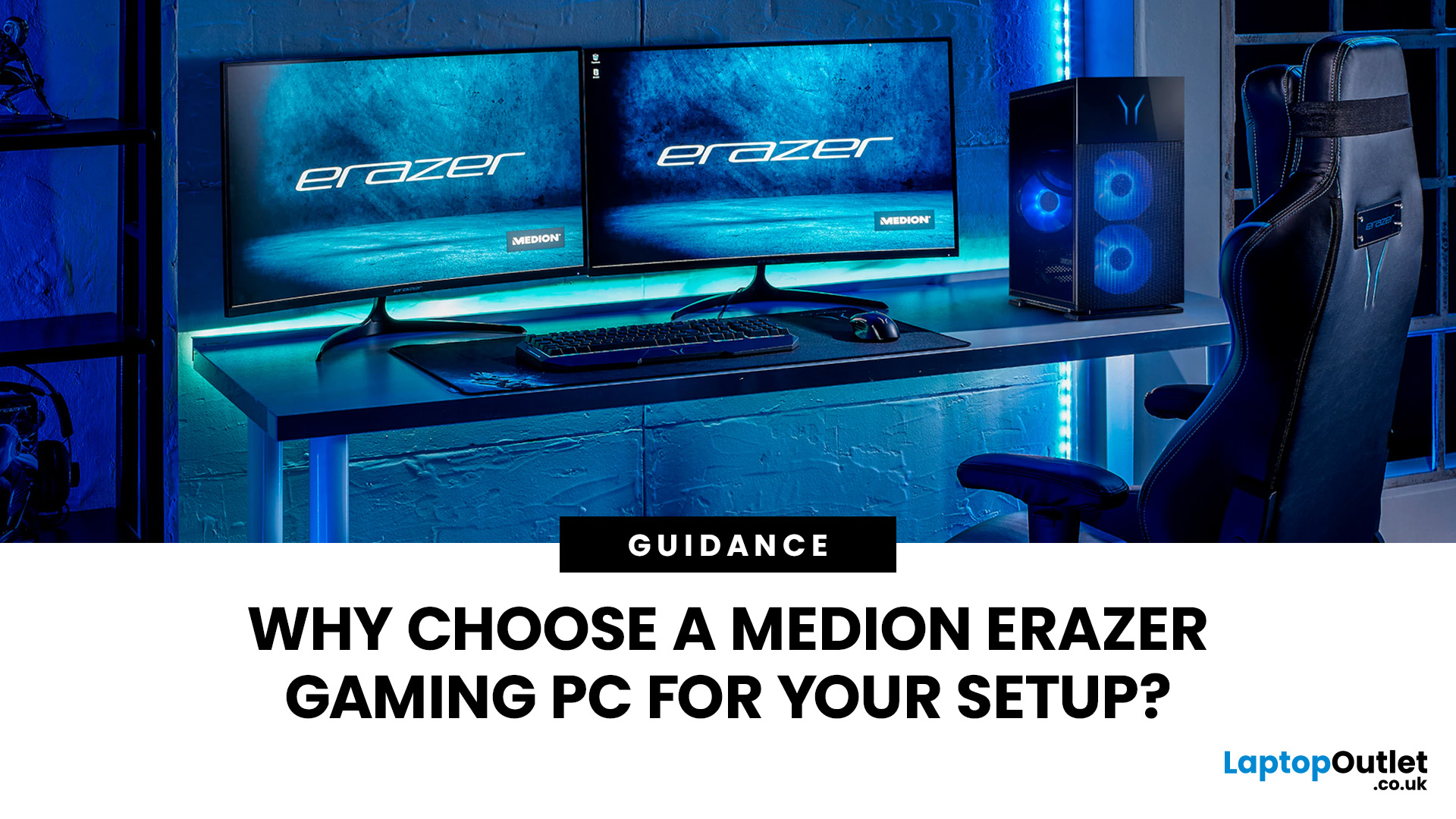
A Medion Erazer gaming PC is a solid choice for desktop gaming without the hassle of building your own system.
The range covers 1080p, 1440p and high-end gaming with NVIDIA GeForce RTX graphics, Intel or AMD processors, SSD storage and Windows 11.
However, not every model suits every gamer. Entry-level options work well for esports and 1080p gaming, while AAA titles, streaming and higher resolutions need stronger specs. The key is to match the PC to your games, not just its design.
This guide covers where Medion Erazer desktops
Published: August 24, 2026
Published: August 25, 2026
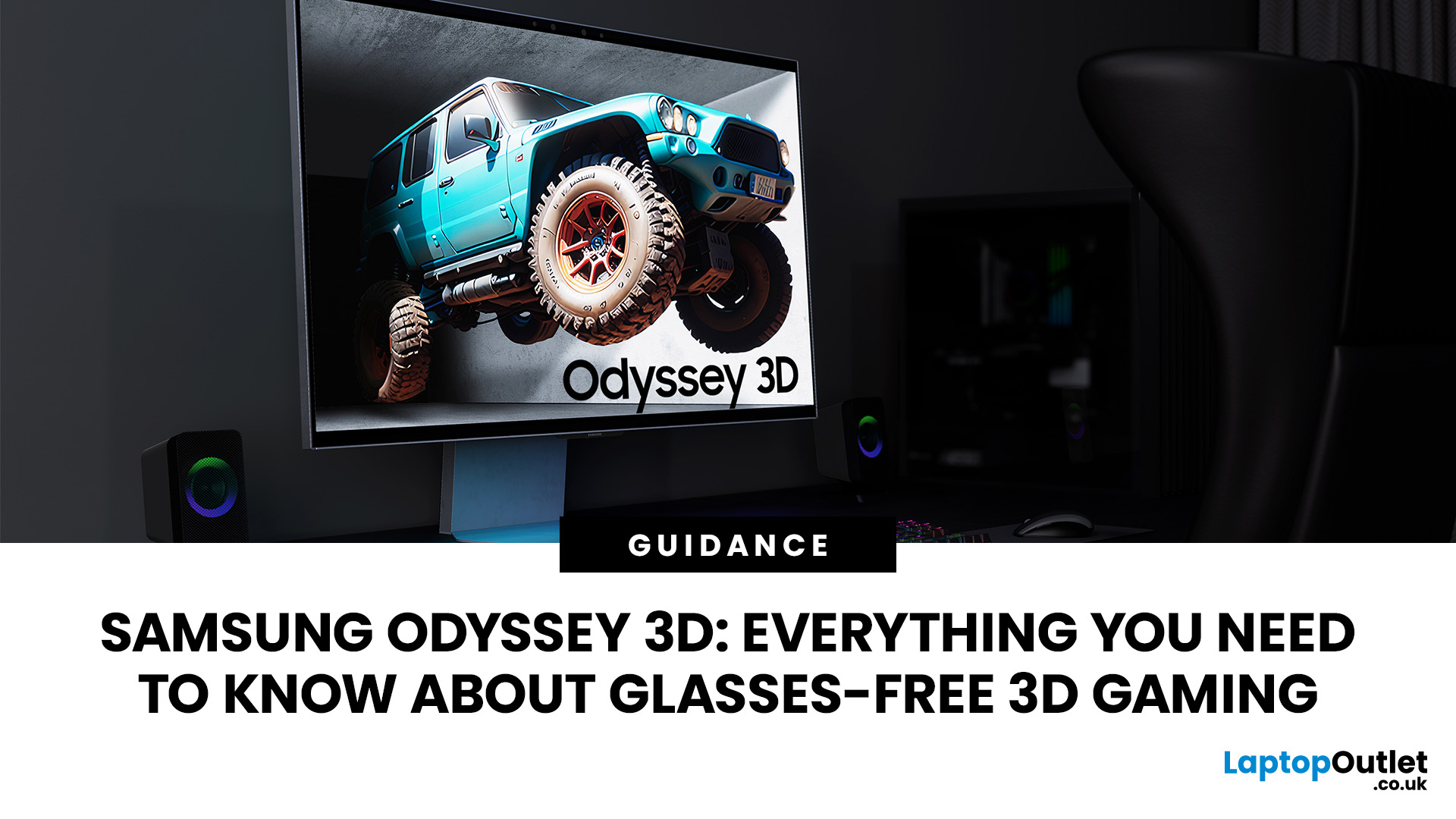
The Samsung Odyssey 3D takes a different route to gaming immersion. Instead of requiring a headset or 3D glasses, this 27-inch 4K monitor uses eye tracking, view mapping and a lenticular lens to create a stereoscopic 3D display from your normal seated position. You can also switch back to conventional 2D gaming whenever you want.
What is the Samsung Odyssey 3D?
The Samsung Odyssey 3D G90XF is a 27-inch flat IPS gaming monitor combining 4K UHD, 165Hz and a 1ms GtG response time with Samsung's Odyssey 3D Hub software. It also supports HDR10+ Gaming, AMD FreeSync Premium, and NVIDIA G-SYNC compatibility.
Key Features of the Samsung Odyssey 3D
Its headline feature is Samsung glasses-free 3D technology, powered by real-time eye tracking and view mapping. You also get stereo speakers, Edge Lighting, an adjustable stand, HDMI 2.1 and DisplayPort 1.4.
Who is the Samsung Odyssey 3D designed for?
This Samsung 3D gaming monitor suits PC gamers who value immersion, play supported titles and want one
Last Updated: September 21, 2026

