



Gaming Headset Not Working? Common Problems and How to Fix Them
A headset can fail in several ways, including no sound, a microphone that stops working, one-sided audio, crackling or repeated wireless disconnections.
The headset itself is not always faulty. Connection problems, incorrect settings, permissions, drivers, game settings and device compatibility can cause similar issues.
This guide covers the most common problems affecting wired and wireless gaming headsets and explains how to fix them.
Gaming Headset Not Working? Start With a Quick Diagnosis
Headsets are among the essential gaming accessories many players rely on for game audio and voice chat, so even a simple connection or settings problem can quickly disrupt a session.
If your headset has stopped working, start by identifying the cause. This makes it easier to tell whether the problem comes from the headset, connection, device or application.
|
Problem |
Common Area to Check |
First Thing to Try |
|
Gaming headset no sound |
Output, volume, connection |
Reconnect and select the headset as output |
|
Gaming headset mic not working |
Mute, input, permissions |
Unmute and select the headset microphone |
|
Gaming headset not detected |
USB, jack, Bluetooth or receiver |
Disconnect and reconnect |
|
Only one side works |
Balance, cable, plug, earcup |
Centre balance and reconnect |
|
Crackling or cutting out |
Cable, port, interference |
Reconnect or try another port |
|
Wireless disconnects |
Battery, pairing, receiver |
Charge and re-pair |
|
Works in some games only |
Game or chat settings |
Check the app's input and output |
Also check:
- Is the headset switched on?
- Does a wireless model have enough charge?
- Is mute enabled?
- Is the 3.5 mm plug, USB cable or wireless receiver firmly connected?
- Does your device recognise the headset?
- Is sound failing, the microphone failing, or both?
- Does it work on another compatible device?
If the headset works elsewhere, investigate the original device or settings. If the same fault appears across several compatible devices, the headset hardware becomes more likely to be responsible.
Common Gaming Headset Problems and How to Fix Them
1. No Sound from the Gaming Headset
If the headset is connected but silent, check where your PC or console is actually sending its audio. A headset can be connected correctly without being selected as the active output device.
Try these steps:
- Raise the headset volume using its physical controls.
- Check that the headset, system and game are not muted.
- Reconnect the 3.5 mm plug, USB cable or USB receiver.
- Select the headset as the correct audio output.
- Check the game's own output and volume settings.
- Restart the game or device after reconnecting.
For wired headsets, make sure the plug is fully inserted. If the cable is detachable, reconnect both ends.
Gaming PCs can have several USB peripherals connected at once, including wired gaming keyboards and mice. If your headset or receiver is not being detected, test it in another direct USB port.
Wireless models can also reconnect to another nearby device they have previously paired with, so confirm that the headset is connected to the device you are actually using.
Still no sound? Test the headset on another compatible device. If it works normally, focus on the original device's audio settings or connection.
2. Gaming Headset Microphone Is Not Working
When a gaming headset mic is not working, first establish whether your PC or console can detect any microphone input.
Check:
- The headset's mute switch.
- A flip-to-mute microphone boom.
- Whether a detachable microphone is fully connected.
- The selected microphone input.
- The microphone input level.
- The game's or voice-chat application's microphone setting.
On Windows, also check microphone permissions. An application may be blocked from accessing the microphone even when the headset itself is working.
Run a microphone test through the operating system. If the input meter responds when you speak but your game or voice-chat app does not, check that application's selected microphone, permissions, mute settings and push-to-talk controls.
For 3.5 mm gaming headsets, connection type also matters. Many laptops use a single combined headset socket, while some desktop PC systems have separate headphone and microphone ports.
A headset with one combined 3.5 mm plug may therefore need a compatible splitter to provide both sound and microphone input on certain desktop PCs.
3. Headset Is Connected but Not Detected or Selected
A headset must normally be connected, recognised by the device and selected for audio. If it fails at any of these stages, sound or microphone input may not work.
For USB headsets and wireless receivers:
- Disconnect and reconnect the device.
- Try another suitable USB port.
- Restart the PC or console.
- Avoid USB hubs while testing.
For Bluetooth on a compatible device:
- Remove the existing saved pairing.
- Restart the headset and host device.
- Put the headset into pairing mode.
- Pair it again.
Not every wireless gaming headset uses Bluetooth. Many use a dedicated 2.4 GHz wireless dongle or another platform-specific connection.
If Windows still does not recognise the headset, use its audio or Bluetooth troubleshooting options. Investigate drivers only after checking the physical connection and device selection.
4. Sound Works on Only One Side of the Headset
If only one earcup works, check balance and connections before assuming the headset speaker has failed.
Start by confirming that the left/right audio balance is centred.
Then:
- Reseat the 3.5 mm plug.
- Reconnect detachable cables.
- Try another compatible port.
- Reconnect the wireless receiver.
- Re-pair the headset where appropriate.
- Test it on another device.
With a wired model, gently moving the cable can also reveal a fault. If one side repeatedly cuts in and out near the connector or earcup, the cable or plug may be damaged.
If the same side remains silent on several devices after checking balance and connections, an internal cable, connector or driver-unit fault becomes more likely.
5. Audio Is Crackling, Distorted or Cutting Out
Crackling and interrupted sound can come from a loose connection, damaged cable, wireless interference or software settings.
For a wired headset:
- Reseat the connector.
- Try another compatible port.
- Inspect the cable for damage.
- Reconnect detachable cables.
- Reduce very high headset or system volume.
For a wireless headset:
- Charge the battery.
- Move closer to the receiver.
- Reduce nearby wireless interference.
- Reconnect or re-pair the headset.
- Try another suitable USB position for the receiver.
If the problem affects every application on Windows, also check audio drivers and optional audio enhancements.
Change one setting at a time. This makes it easier to identify the real cause rather than changing several things and not knowing which one solved the problem.
6. Headset Volume Is Too Low or Game and Chat Audio Are Unbalanced
Gaming headset volume can be controlled in several places.
Check:
- The headset's physical volume wheel
- Windows or console volume
- Individual application volume
- In-game audio
- Voice-chat volume
- Game/chat balance
If game audio is loud but teammates are difficult to hear, inspect the game/chat balance where your headset or platform supports it.
If only one game is quiet, check that game's settings before increasing the entire system volume.
Some headsets also use companion software with additional mixer controls. Make sure those settings are not overriding your operating system or game.
7. Wireless Gaming Headset Keeps Disconnecting or Will Not Pair
If a wireless gaming headset is not working, first identify how it connects.
It may use:
- Bluetooth
- A dedicated USB wireless dongle
- A 2.4 GHz receiver
- Console-specific wireless technology
These connection methods are not interchangeable.
Charge the headset and make sure it is in the correct mode. If it uses a receiver, reconnect that as well.
For Bluetooth on a compatible host device, remove the pairing and connect again. For a dedicated receiver, follow the manufacturer's pairing procedure instead.
If the headset keeps disconnecting, move closer to the receiver and reduce possible wireless interference from nearby devices such as wireless gaming mice, routers and other 2.4 GHz equipment. Also check whether the headset is switching between multiple remembered devices.
Where supported, install relevant firmware through the manufacturer's official software.
Only perform a factory reset using instructions for your exact headset model.
8. Gaming Headset Stopped Working After an Update or Restart
If your headset suddenly stops working after an update or restart, recheck the selected audio output and microphone input first.
A monitor, speaker or different microphone may have become the active device.
Reconnect the headset and restart the affected application. If the problem continues on Windows, check the relevant audio, USB or Bluetooth driver.
If the issue began immediately after a driver update and a previous version is available, a driver rollback may help.
Also check for supported headset firmware updates.
However, do not assume the update caused the problem. Test the headset on another compatible device. If it now fails everywhere, the timing may simply have coincided with a hardware or connection fault.
Gaming Headset Not Working on PC, PS5 or Xbox?
The troubleshooting steps differ slightly between platforms because Windows PCs, PlayStation and Xbox support different connections and audio settings.
|
Device |
First Settings to Check |
Connection Issue to Remember |
|
Windows PC or laptop |
Input, output, microphone permissions |
USB, 3.5 mm, Bluetooth or receiver |
|
PS5 |
Audio Output and Microphone |
Use a PS5-compatible connection |
|
Xbox |
Volume, audio settings and accessories |
Use an Xbox-compatible connection |
Gaming Headset Not Working on a PC or Windows Laptop
If a headset is not working on a laptop or PC, open Settings > System > Sound.
Make sure the headset is selected under Output and its microphone under Input.
Then:
- Check Windows volume.
- Check the Volume mixer for individual apps.
- Open Settings > Privacy & security > Microphone and check microphone access.
- Confirm the game or chat app uses the correct input and output.
- Reconnect USB, the receiver or supported Bluetooth.
- Restart the application.
- Use Windows audio or Bluetooth troubleshooting if needed.
- Check drivers only after the basic settings and connection tests.
If Windows audio works but one game does not, focus on that game's settings.
Likewise, if Windows detects your microphone but a voice-chat app cannot hear you, check that application's microphone selection and permissions first.
For 3.5 mm headsets on desktop PCs, check whether the computer has separate headphone and microphone sockets. A compatible splitter may be required for a headset with one combined connector.
Gaming Headset Not Working on PS5
On PS5, open Settings > Sound > Audio Output and confirm that the correct Output Device is selected.
For microphone problems, check the Input Device, mute status and microphone level.
If you use a wired headset through the DualSense controller, remove the 3.5 mm connector and insert it firmly again. Testing another compatible controller can help determine whether the controller socket is the issue.
For supported wireless headsets, check the USB adapter, transmitter or PlayStation Link connection and re-pair the hardware if necessary.
Standard Bluetooth audio headsets do not connect directly to PS5 for game audio. A headset being Bluetooth-capable does not automatically make it compatible with the console.
If wireless audio keeps cutting out, move closer, reduce likely interference and, where possible, try another supported USB position for the adapter.
Gaming Headset Not Working on Xbox
On Xbox, start with mute, headset volume and game/chat balance.
For wired headsets, reconnect the 3.5 mm plug firmly to a compatible Xbox Wireless Controller. If possible, test another of your console gaming controllers to determine whether the headset socket is causing the problem.
For wireless models, confirm that the headset specifically supports Xbox. Wireless compatibility with a PC, phone or another console does not automatically mean it will work wirelessly with Xbox.
Xbox consoles do not use ordinary Bluetooth for headset audio. Compatible wireless headsets use supported Xbox wireless connections or dedicated transmitters instead.
If your model supports configuration through the Xbox Accessories app, check its settings and available firmware updates there.
If the problem happens only in one game or party, check that application's chat and audio settings before resetting the headset.
How to Tell Whether Your Gaming Headset Is Faulty
A hardware fault becomes more likely when the same problem continues after you have checked different devices, connections and settings.
Look for these signs:
- The headset fails on several compatible devices.
- The same earcup stays silent after balance checks.
- Moving the cable repeatedly makes audio cut out.
- The 3.5 mm jack, USB connector or cable is visibly damaged.
- A known-working detachable cable does not solve the problem.
- The microphone fails across different devices and applications.
- A wireless headset cannot reliably power on or hold charge.
Cross-device testing is particularly useful. If the headset works elsewhere, continue troubleshooting the original PC, console, controller or app.
If exactly the same fault follows the headset, hardware becomes the stronger possibility.
Before opening the headset, check the manufacturer's warranty. For confirmed hardware faults, warranty support, professional repair or replacement is usually safer than dismantling the headset yourself, especially with wireless models containing built-in batteries.

Fix or Replace? Make the Right Call
A gaming headset not working does not necessarily mean it needs replacing. Start with power, mute controls and connections before checking input and output devices, permissions, pairing, game settings and drivers.
Testing the headset on another compatible device is one of the simplest ways to isolate the problem. If it works elsewhere, focus on the original device or settings. If the same fault follows the headset after troubleshooting, check the warranty, repair options or replacement.

In Case You Were Wondering...
What to do if your gaming headset is not working?
Check power, mute controls, cables or wireless connection first. Then select the correct audio input and output, restart the device, update relevant software, and test the headset on another compatible device.
What are the common problems with headsets?
Common headset problems include no sound, microphone failure, one-sided audio, low volume, crackling, poor wireless connection, pairing failures, incorrect device settings, driver problems, damaged cables, and worn internal components.
How can i fix my headset if only one side works?
If sound comes from only one earcup, centre the left-right audio balance, reconnect the plug or wireless headset, test another port, and try the headset on a second compatible device.
How to fix a faulty headset?
Start by isolating the fault: test the headset on another device, inspect removable cables and connectors, reset or update it if supported, and use the warranty service for confirmed hardware failures.
Why is my headset suddenly not working?
A headset can suddenly stop working because the selected audio device changed, a cable or dongle disconnected, Bluetooth pairing failed, permissions changed, software updated, the battery drained, or hardware developed a fault.
| Read More: |
| Gaming Headset Comparison: Wired or Wireless, Which Should You Choose? |
| 10 Best Gaming Headsets Under £100 for Gaming and Music |
| What to Look for in a Gaming Headset: 5 Essential Features |
Related Articles

Last Updated: September 29, 2026
Last Updated: May 06, 2026
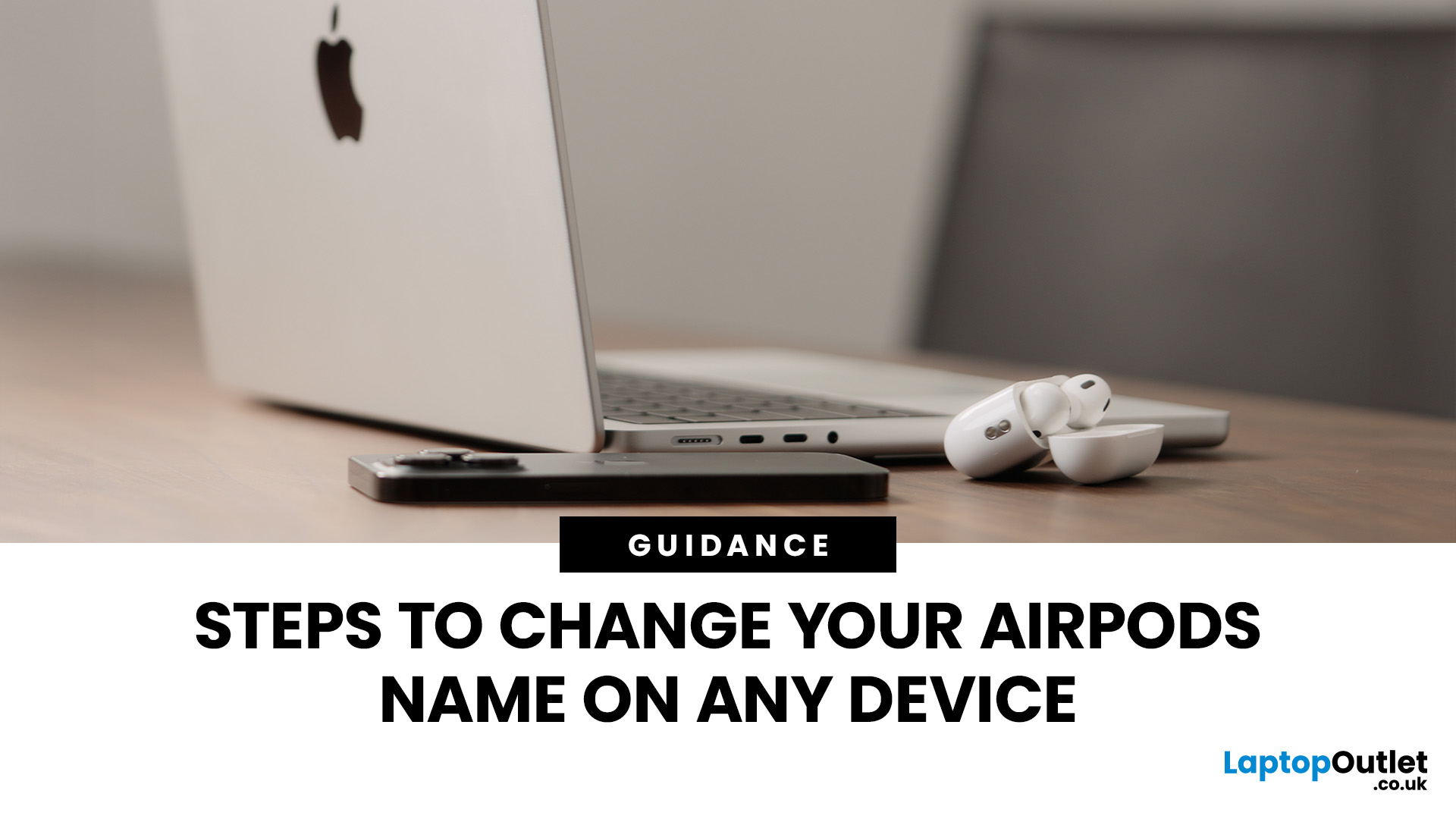
Your Apple AirPods are a brilliant piece of kit, but sometimes the default name – usually something like '[Your Name]'s AirPods' – just doesn't feel personal enough.
Perhaps you have multiple pairs, or maybe you've bought them second-hand and want to shake off the previous owner's tag. Whatever your reason, learning how to rename AirPods is a simple process that helps you personalise your wireless earbuds.
This comprehensive guide will walk you through the simple steps to rename AirPods across all the common platforms.
Renaming Your AirPods on iPhone or iPad (The Easiest Way)
Renaming your AirPods on an iOS or iPadOS device is arguably the simplest method. The change will then update automatically on any other Apple device you own that uses the same Apple ID.
Steps to Rename Your AirPods on iPhone or iPad
- Ensure Connection: Make sure your AirPods are connected to your iPhone or iPad. The quickest way to do this is to open the AirPods case lid near your unlocked device, or place the AirPods

Last Updated: March 18, 2026
Apple’s AirPods Max 2 arrive as a meaningful upgrade rather than a simple refresh. With the introduction of the H2 chip, Apple is clearly focusing on smarter audio processing, better efficiency, and features that adapt to real-life situations. For users in the UK dealing with daily commutes, hybrid work, and constant switching between devices, these changes are designed to feel practical rather than just technical. This guide breaks down everything new, from performance improvements to real-world usability, while helping you understand whether the upgrade is worth it.
What is AirPods Max 2?
The AirPods Max 2 are Apple’s latest over-ear headphones, positioned at the premium end of the market. They build on the original model but shift the focus towards intelligent features powered by the H2 chip.
Rather than simply improving sound, Apple is moving towards a more adaptive listening experience. The headphones are designed to adjust automatically depending on your surroundings, whether you
Published: March 17, 2026
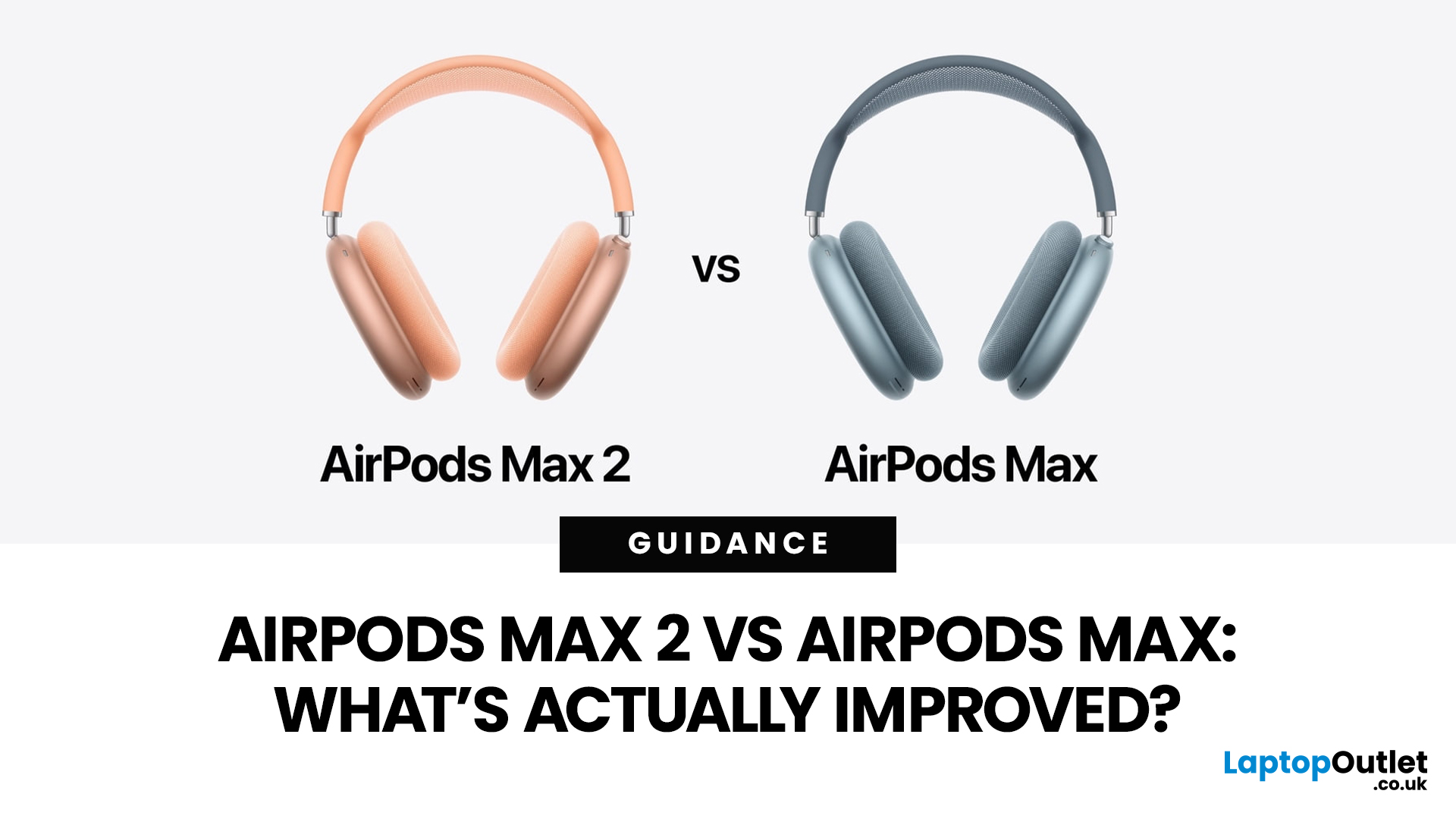
Apple has finally given its premium over-ear headphones a proper second-generation update. That matters because, for a long time, the original AirPods Max looked beautiful, sounded good, and felt very Apple, but they were also starting to feel behind the rest of the AirPods line. The 2026 release of AirPods Max 2 changes that. Apple has added the H2 chip, stronger noise cancellation, newer smart features, and a handful of quality-of-life improvements that make the headphones feel more current again.
That said, this is not a complete redesign. If you were expecting lighter materials, longer battery life, or a total rethink of the Smart Case, you were disappointed. Apple has kept the same broad design language and the same premium positioning, which means the buying decision is less about whether AirPods Max 2 looks new and more about whether the upgraded internals actually make a difference in daily use.
In this guide, we break down AirPods Max 2 vs AirPods Max in simple terms, covering
Last Updated: June 17, 2026
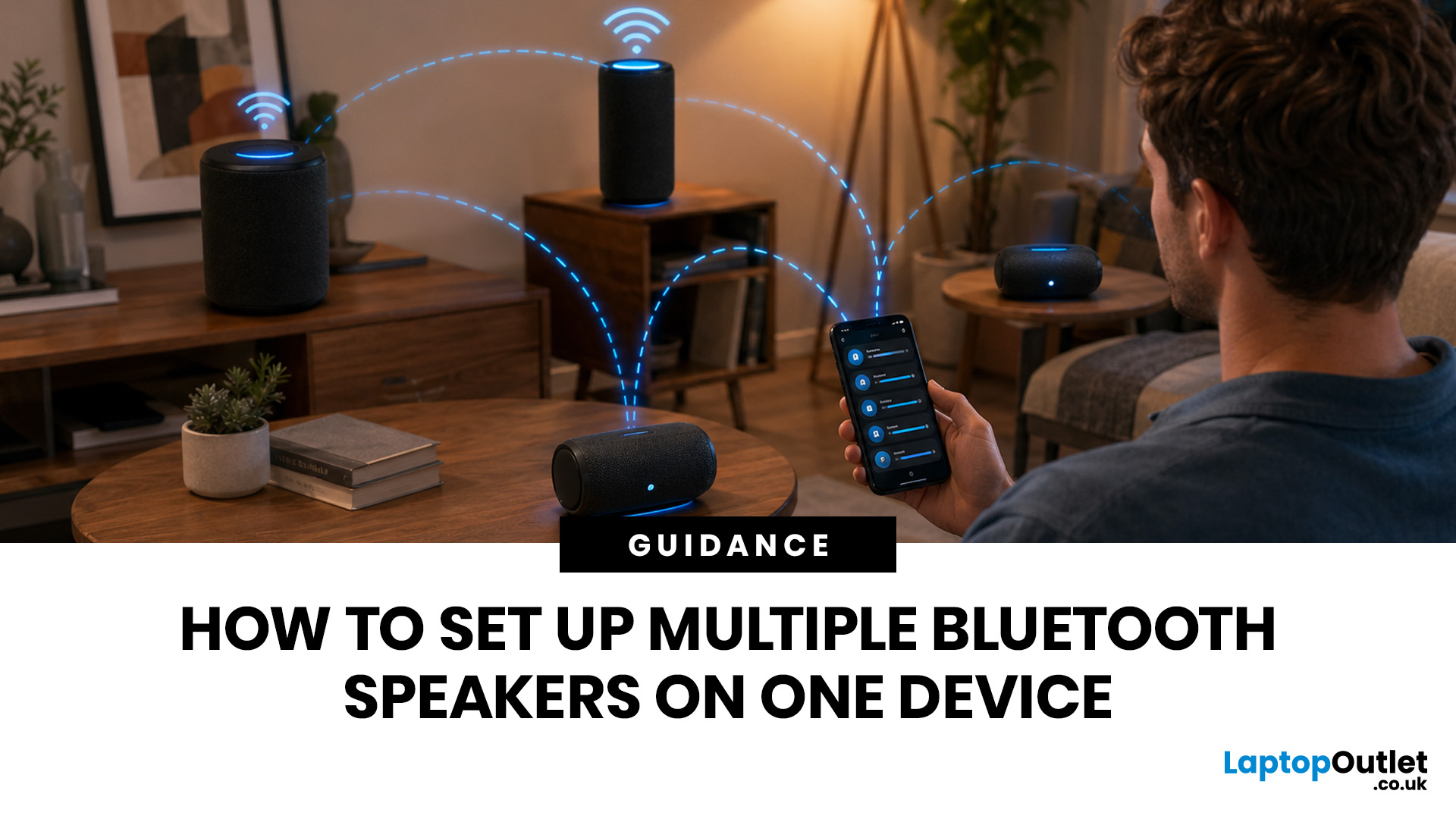
Quick Answer: You can set up multiple Bluetooth speakers on one device when your phone, laptop, tablet, or speakers support multi-speaker audio. The easiest method is to use compatible speakers from the same range and link them via the speaker’s party mode, stereo pair mode, the connect button, or the companion app.
Standard Bluetooth pairing does not always let you play sound through multiple Bluetooth speakers simultaneously. Your device may remember several speakers yet only send audio to one. For two-speaker playback, Samsung Galaxy Dual Audio, AirPlay-compatible speakers, Bluetooth LE Audio, Auracast, same-brand speaker pairing, or a Bluetooth transmitter are usually the best routes.
Introduction
You can connect multiple Bluetooth speakers, but the right setup depends on your device and the compatibility of your speakers. A Samsung Galaxy phone, an iPhone, an Android phone, a Windows laptop, a MacBook, or a TV may all need a slightly different method.
The main thing to know is
Last Updated: June 08, 2026
Noise is one of the biggest distractions in modern life. Whether you are working from a busy home, taking Teams calls in an open office, gaming late at night, travelling by train or trying to focus in a café, good noise cancelling headphones can make a noticeable difference.
| The best noise-cancelling headphones are those that block background noise effectively while offering clear audio, comfort, reliable battery life, and good microphone quality. Whether you need them for work calls, travel, gaming, or music, choosing the right model depends on your budget and daily usage. |
In 2026, the best Bluetooth headphones with noise cancellation are no longer just for music lovers. Many now include adaptive ANC, voice-isolating microphones, multi-device pairing, low-latency gaming modes and long battery life. That makes them useful for work, study, gaming, streaming, commuting and everyday entertainment.
Best Bluetooth Noise-Cancelling Headphones UK: Quick Comparison
| PRODUCT | BEST FOR | CONNECTION TYPE |
Last Updated: July 14, 2026
Finding the best gaming headsets UK players can actually rely on should not feel like a side quest with impossible difficulty. Whether you are grinding ranked matches, jumping into weekend co-op, streaming with friends, or just vibing to your favourite playlist, the right headset can completely change the experience.
A good headset is not only about loud audio. It is about clean sound, clear voice chat, comfort during long sessions, and solid value for money. That is why a budget gaming headset can still be a total win when it gets the basics right. You do not always need a super-premium setup to hear footsteps, enjoy cinematic soundtracks, or keep your squad comms crisp.
In this guide, we have rounded up 10 strong picks for gamers who want quality without overspending. Most of these are good gaming headsets under 100, while a few premium “stretch picks” are included because they are worth watching when deals drop. Prices can change, so it is always smart to check the latest offer before
Last Updated: July 07, 2026
Wired gaming headsets offer near zero latency, lower prices, and no battery to manage, making them better for competitive play. Wireless gaming headsets offer freedom of movement, modern 2.4GHz low latency tech, and longer comfort, making them better for casual and everyday gaming. Your choice depends on priorities, not a single right answer.
If you are looking for advice on whether to go wired or wireless, this gaming headset comparison guide will help you. We will walk through every aspect that matters for gaming, including sound quality, latency, comfort, battery life, mic performance, and price. By the end, you will know exactly which type suits the way you play, plus a few specific headsets worth shortlisting.
Wired vs Wireless Gaming Headsets: An Overview
A wired gaming headset connects directly to your PC, console, or controller via a 3.5mm jack or USB cable. There is no signal compression, no battery to worry about, and latency is as close to zero as physically possible. That
Published: July 22, 2026
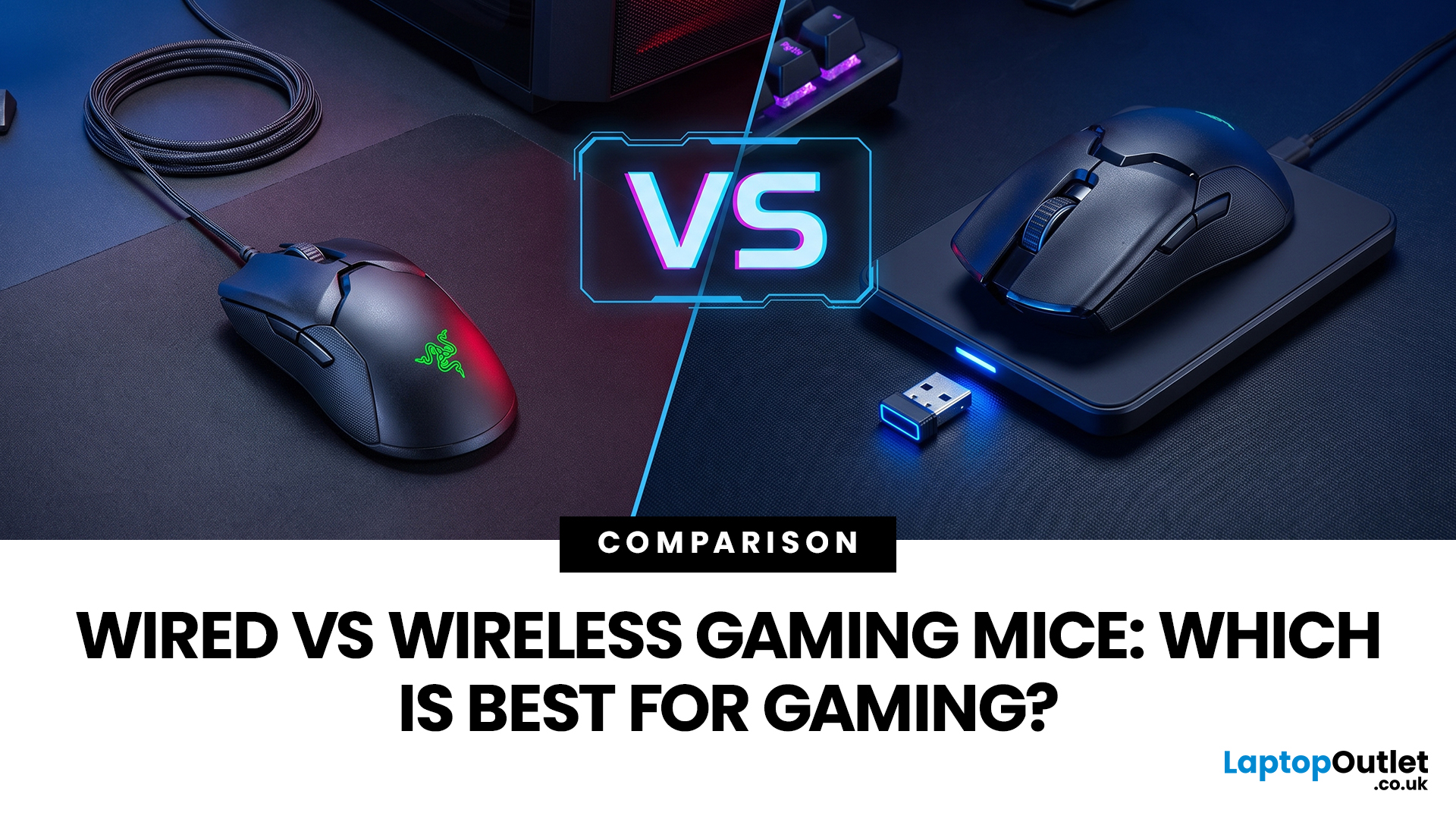
Last Updated: July 31, 2026
A gaming mouse with a 1,000Hz polling rate can report position every millisecond, and both wired and modern wireless models achieve this performance.
Wired gaming mice offer reliable plug-and-play use, lower cost, and no charging, while 2.4GHz wireless mice provide cable-free comfort and portability. Both can be low-latency for gaming, though Bluetooth is usually slower than a dedicated receiver. Choose wired for value and consistency, or wireless for freedom and convenience.
Wireless technology has advanced significantly. Gaming-grade 2.4GHz connections deliver low latency, lightweight wireless designs are common, and many mice can be used while charging. Wired mice offer lower cost, constant connection, and no battery concerns. Gamers must weigh latency, cable drag, weight, reliability, charging, and value.
This guide compares wired vs wireless gaming mice , explains 2.4GHz vs Bluetooth, helping you choose the best option.
Wired vs Wireless Gaming Mice: Quick Comparison
| Feature | Wired |

