



The Ultimate Back-to-School Tech Checklist for Students 2026
A new academic year means new classes, new routines, new deadlines, and, let’s be honest, a lot of tabs open at once. Whether you’re heading to school, college, or university in 2026, having the right technology can make studying easier, faster, and less stressful.
This tech checklist covers the real student tech essentials you need before term starts, from student laptops and digital learning tools to accessories, storage, security, and study productivity upgrades. You don’t need to buy every gadget you see online. You just need the right setup for your course, your budget, and the way you study. Use this guide as your practical back to school checklist for building a reliable, affordable, and future-ready student study setup.
Quick Back-to-School Tech Checklist for 2026
Before we go into detail, here’s the short version of the school tech essentials most students should consider:
- Laptop or tablet for coursework, online classes and research projects
- Charger, power bank and spare cables
- USB-C Hub or docking station
- External SSD or cloud storage
- Wireless keyboard and wireless mouse
- Noise-cancelling headphones
- Webcam for hybrid learning and remote learning
- Laptop stand for an ergonomic workspace
- Portable monitors for multitasking
- Productivity apps and note-taking tools
- Antivirus, password manager and two-factor authentication
- Backpack, sleeve or protective case
1. Choose the Right Laptop or Portable Device

Your laptop is the centre of your student setup. It’s where you’ll write essays, join online classes, organise coursework, complete research projects, run design software, edit videos, code assignments, and collaborate with classmates. For most students, the best device is not the most expensive one. It’s the one that fits your course requirements and lasts through long study days.
What to Look for in a Student Laptop
When comparing student laptops, focus on:
- Portability: You’ll be carrying it between lectures, libraries, cafes, and home.
- Battery life: Aim for a laptop that can handle a full day of classes.
- Performance: Your laptop should manage multitasking without slowing down.
- Storage: SSD storage helps files and apps load faster.
- Webcam and microphone: Essential for online classes, hybrid learning and student collaboration.
- Durability: A sturdy build matters when your laptop travels every day.
- Compatibility: Check your course requirements before buying.
Laptop, Tablet, or 2-in-1?
A laptop is still the safest choice for most students because it handles typing, multitasking, research, presentations, and specialist software better than a tablet.
A tablet is useful for reading, note-taking, annotating PDFs, and quick access to digital learning tools. A 2-in-1 device gives you a balance between touchscreen convenience and laptop productivity.
Here’s a simple way to choose:
|
DEVICE |
BEST FOR |
|---|---|
|
Laptop |
Essays, coursework, coding, research, online classes and multitasking |
|
Tablet |
Reading, note-taking, PDFs and lightweight study tasks |
|
2-in-1 laptop |
Students who want typing, touchscreen and portability in one device |
|
Desktop setup |
Creative workflows, engineering applications or heavy design software |
If you want something more future-ready, AI-powered laptops are becoming more useful for summarising notes, organising research and speeding up everyday tasks. You can compare the best AI laptops for students if you want stronger performance for study productivity and creative workflows.
2. Build a Smarter Student Study Setup
A good student study setup is not just about the laptop. Your accessories affect comfort, focus and productivity every day. You don’t need a complicated desk. You need a setup that helps you study longer without discomfort and switch between tasks easily.
Laptop Stand
A laptop stand raises your screen to a better height, helping reduce neck and shoulder strain. It’s one of the easiest ways to create an ergonomic workspace, especially if you study for hours at a desk.
Pair it with a wireless keyboard and wireless mouse so you’re not typing at an awkward angle.
Wireless Keyboard and Wireless Mouse
A wireless keyboard and mouse make long coursework sessions more comfortable. They’re especially useful if you connect your laptop to portable monitors or use a dual-monitor setup. This small upgrade can make your workspace feel more like a proper study station instead of a temporary desk.
Portable Monitors
Portable monitors are excellent for multitasking. You can keep your notes on one screen and your essay, lecture recording or research source on another.
A dual-monitor setup is especially helpful for:
- Research projects
- Programming workstation setups
- Spreadsheet work
- Design software
- Video editing
- Online classes
- Student collaboration
USB-C Hub or Docking Station
Many modern laptops have fewer ports, which is where a USB-C Hub or docking station becomes useful. A USB-C hub can connect your laptop to:
- External SSD
- Monitor
- Keyboard
- Mouse
- Webcam
- Memory card
- Ethernet cable
- Projector or display
A reliable docking station is better if you want a more permanent desk setup. It lets you plug in multiple devices at once and turn your laptop into a full workstation.
3. Pack the Essential Gadgets for Students
The best essential gadgets for students are the ones that solve everyday problems: low battery, poor audio, limited storage, uncomfortable typing or messy cables. Here are the student essentials worth packing before term starts.
Noise-Cancelling Headphones
Noise-cancelling headphones are useful in libraries, shared houses, dorm rooms, buses and busy study areas. They help you focus during lectures, online classes and revision sessions. In addition, they’re also helpful for hybrid learning and remote learning because they reduce background noise during calls.
External SSD
An external SSD gives you fast, portable storage for coursework, videos, design files, coding projects and backups. It’s especially useful if you work with:
- Large research files
- Media projects
- CAD software
- Video editing files
- Design portfolios
- Engineering applications
Even if you use cloud storage, an external SSD gives you an extra layer of protection.
Webcam

Most top laptops for school and university have built-in webcams, but a separate webcam can improve video quality for online classes, interviews, presentations and group projects. This matters if you regularly attend remote learning sessions or need to present professionally.
Power Bank and Spare Charger
Another affordable tech accessories are a power bank and portable charger that can save you when you’re on campus all day and can’t find a plug socket. Keep spare cables in your bag so you’re not stuck with a dead device before a lecture.
Protective Backpack or Laptop Sleeve
A padded laptop sleeve or backpack protects your device from knocks, spills and daily travel. Look for a bag with space for your charger, mouse, external SSD, notebook and headphones. For budget-friendly seasonal options, check portable back to school deals before buying everything separately.
4. Install the Usefull Student Productivity Tools
The right student productivity tools help you manage deadlines, notes, group work and revision without feeling overwhelmed. Think of these as your digital study kit.
Note-Taking Tools
Good note-taking tools help you capture lecture points, organise ideas and find information quickly later. Choose one main note-taking app and stick with it. Constantly switching tools can make your notes harder to manage.
Popular options include:
- OneNote
- Notion
- Google Keep
- Apple Notes
- Evernote
Writing, Presentation, and Spreadsheet Tools
You’ll need tools for essays, reports, presentations and data work. Depending on your school or university, you may use core digital learning tools for coursework, collaboration and everyday academic tasks:
- Microsoft Word
- PowerPoint
- Excel
- Google Docs
- Google Slides
- Google Sheets
Planning and Task Management Apps
Use a task app to track deadlines, exams, reading lists and project milestones. The goal is simple: keep your deadlines out of your head and in a system you actually check.
Good options include:
- Microsoft To Do
- Todoist
- Notion
- Google Calendar
- Trello
Collaboration Tools
Student collaboration is part of modern education, especially for group projects and hybrid learning. Keep your calendar synced with your class timetable so you don’t miss meetings or online classes. You may need:
- Microsoft Teams
- Zoom
- Google Meet
- Slack
- Discord
5. Prepare for Hybrid Learning and Online Classes
Even if you study on campus, hybrid learning is now a normal part of education. You may have recorded lectures, online seminars, remote tutorials, virtual office hours or group calls. To avoid problems, test your setup before term starts.
Online Class Checklist
For online classes, audio quality is often more important than video. If your classmates or tutor can’t hear you clearly, collaboration becomes harder. Make sure you have:
- Reliable laptop or tablet
- Working webcam
- Clear microphone
- Noise-cancelling headphones
- Stable Wi-Fi
- Backup internet option if possible
- Updated video calling apps
- Cloud access to your files
- Quiet place to study
Remote Learning Setup
For remote learning days, create a simple routine:
- Keep your laptop charged
- Open your notes before class
- Close distracting tabs
- Use headphones
- Save files in organised folders
- Back up coursework after each session
6. Secure Your Devices Before Term Starts

Security is a key part of any 2026 tech checklist. Your laptop contains coursework, personal details, saved passwords, banking access, emails, and private files. A few simple steps can prevent major problems later.
Update Your Operating System
Before school or university starts, update your laptop, tablet, and phone. Updates usually include security fixes, performance improvements and compatibility upgrades. Also update your browser, productivity apps, video meeting tools and antivirus software.
Set Up Antivirus Protection
Use built-in security tools or trusted antivirus software to protect your device from malware, unsafe downloads and suspicious links. This is especially important if you download files from shared folders, online forums or course platforms.
Use a Password Manager
A password manager helps you create and store strong passwords for university portals, email, cloud storage, banking and shopping accounts. Never reuse the same password across important accounts.
Turn On Two-Factor Authentication
Two-factor authentication adds an extra layer of protection. If someone gets your password, 2FA can still help protect your account. Turn it on for:
- Student email
- University portal
- Cloud storage
- Banking apps
- Shopping accounts
- Social media
- Password manager
Back Up Your Coursework
Backups are not optional. Losing your coursework the night before a deadline is one of the easiest disasters to avoid. Cloud storage is useful, but pairing it with local storage gives you better protection. Use a simple backup plan:
- Save active files to cloud storage
- Keep important files on an external SSD
- Organise folders by module or subject
- Back up after major edits
- Keep final submissions in a separate folder
7. Choose Affordable Back to School Tech Without Wasting Money
You don’t need to buy the most expensive gadgets to build a strong setup. The best affordable back to school tech gives you reliable performance, good durability, and practical value.
Prioritise What You’ll Use Every Day
Start with:
- Laptop
- Charger
- Headphones
- Storage
- Productivity apps
- Backpack or sleeve
- Mouse and keyboard
Then add extras like portable monitors, docking station, laptop stand or webcam if your course or study routine needs them.
Consider Refurbished Laptops
Second-hand laptops for study and work can be a smart choice if you want better specs for less money. They’re especially useful for students who need a reliable laptop for study and work but don’t want to pay full price for a new model.
Don’t Overspend on Specs You Don’t Need
A student writing essays, browsing research papers and joining online classes probably doesn’t need the same machine as someone using CAD software, video editing tools or engineering applications. Match the device to your workload. That’s how you get better value. Furthermore, you can go through back-to-school tech trends in 2026, which show that students are choosing practical, portable, and budget-friendly devices that make studying, online classes, and everyday campus life easier.
8. Best Tech for University Students by Course Type
The best tech for university students depends on what you study. A business student, engineering student and creative student will not need the same setup.
For Essay-Based Courses
You’ll need:
- Lightweight laptop
- Long battery life
- Comfortable keyboard
- Cloud storage
- Note-taking app
- Noise-cancelling headphones
This setup is ideal for humanities, social sciences, law, and general coursework.
For STEM and Engineering Students
You may need:
- More powerful student laptop
- 16GB RAM or more
- Strong processor
- External SSD
- Portable monitor
- CAD software support
- Docking station
- Reliable cooling
Engineering applications and data-heavy tasks need stronger performance than basic schoolwork.
For Computer Science and Coding Students
Look for:
- Fast processor
- 16GB RAM
- Comfortable keyboard
- Good battery life
- External monitor support
- Linux, Windows or macOS compatibility
- Programming workstation accessories
A dual-monitor setup can make coding projects much easier because you can view code, documentation and output at the same time.
For Creative Students
Creative workflows often need more power and storage.
Consider:
- Colour-accurate display
- Strong CPU and GPU
- 16GB RAM or more
- External SSD
- Portable monitors
- Stylus or drawing tablet
- Design software compatibility
- Video editing performance
If you study design, media, animation or photography, storage and screen quality matter as much as speed.
9. What Not to Buy Before Checking Your Course Requirements
Before buying educational technology, check what your school, college or university already provides.
You might already have access to:
- Microsoft 365
- Google Workspace
- Specialist design software
- Cloud storage
- Antivirus tools
- Printing services
- Course-specific apps
- Library computers
- Loan devices
Also check whether your course has specific laptop requirements. Some programmes require Windows software, while others may support macOS or cloud-based tools. For this purpose, you can either choose Windows 10 laptop, Windows 11 laptop, or MacBook. Furthermore, this step can save you money and prevent compatibility problems later.

Wrapping Up
A good tech setup does not need to be complicated. A smart back-to-school tech setup helps you study better, stay organised, and avoid last-minute problems. Start with the essentials, choose devices that match your course and budget, and add accessories that genuinely improve comfort, productivity and learning throughout 2026.

Still Have Questions?
What is included in a back-to-school tech checklist for 2026?
A 2026 back-to-school tech checklist should include a laptop or tablet, charger, USB-C hub, external SSD or cloud storage, headphones, webcam, productivity apps, antivirus protection, password manager and accessories for a comfortable student study setup. It should also include backups, software updates and tools for online classes or hybrid learning.
What tech do you actually need for university in 2026?
Most university students need a reliable laptop, headphones, cloud storage, note-taking tools, productivity apps, a charger, a protective bag and secure access to university systems. Depending on your course, you may also need portable monitors, an external SSD, a docking station, CAD software support, design software or a stronger programming workstation.
Which accessories should students buy alongside a laptop?
The most useful laptop accessories for students are a USB-C hub, wireless mouse, wireless keyboard, laptop stand, noise-cancelling headphones, external SSD, webcam and protective sleeve or backpack. These accessories make studying more comfortable, improve multitasking and help protect your device.
Are AI tools necessary for students in 2026?
AI tools are not essential for every student, but they can be helpful for summarising notes, organising research, planning study tasks, brainstorming ideas and improving productivity. Students should use AI responsibly and always follow their school or university’s academic integrity rules.
Do students really need cloud storage?
Yes, cloud storage is strongly recommended because it protects your coursework and lets you access files from different devices. It is best to use cloud storage alongside an external SSD so you have both online and offline backups. This is especially important for research projects, presentations, design files, coding projects and final assignments.
| Read More: |
| MacBook Air M5 for Students, Creators & Professionals: Who Should Buy? |
| Best Laptops for Students Heading Into 2026 |
| Best Windows 11 Laptops for Students, Creators & Professionals in 2026 |
Related Articles


Last Updated: December 24, 2025
Technology never stands still, and if the past few years have taught us anything, it’s that innovation moves fast. As we look ahead, tech trends 2026 are shaping up to be smarter, faster and more user-focused than ever before. From AI-powered laptops to next-level PCs and sustainable tech, the future is all about performance with purpose. So, whether you’re upgrading your setup, planning ahead, or just love staying in the know, here’s a breakdown of the biggest tech trends set to define 2026.
AI Everywhere: Smarter Devices, Smarter Decisions
Artificial Intelligence is no longer a “nice to have” by 2026, it’s expected to be built into almost every device we use. We’re talking about laptops that learn your preferences, PCs that optimise performance in real time, and software that adapts to how you work or play.
AI-driven features such as predictive battery management, real-time security monitoring and intelligent multitasking will become standard. For users, this means less time managing

Last Updated: April 03, 2026
New Year 2026 is finally here, and it’s the perfect time to upgrade your digital life. Whether you’re a student gearing up for the next term, a professional looking to boost productivity, or a gamer looking for that next-gen edge, getting the latest tech doesn't have to break the bank.
That is why Laptop Outlet is here to help you start the year right. We offer an incredible range of pay monthly tech 2026 deals that allow you to snag the latest devices without the upfront sting. With flexible finance and top-tier brands, your 2026 tech upgrade is just a few clicks away.
Affordable Devices with Monthly Plans
Shopping for tech should be exciting, not stressful. At Laptop Outlet, we provide several ways to spread the cost to suit your budget. Whether you are looking for a quick interest-free split or longer-term finance, we have a solution for you.
At checkout, you can choose any of these options:
- PayPal Pay in 3 lets you split your purchase into three interest-free payments.
- PayPal Credit

Last Updated: April 21, 2026
The world of computing is changing fast. We are no longer just looking for faster processors or thinner designs. Today, the focus has shifted to intelligence.
To understand this shift, we need to look at a new category of devices: Copilot+ Laptops. These are not just standard computers; they are AI-powered laptops designed to think, learn, and assist you in real-time.
Whether you are a busy professional, a digital artist, or a student, Windows Copilot+ PCs offer a new way to interact with technology. By integrating hardware and software more tightly than ever before, these machines handle complex tasks with ease.
In this guide, we will explore why these next-generation Windows laptops are the ultimate choice for your next upgrade.
What are Copilot+ Laptops?
Copilot+ Laptops are a new class of Windows 11 laptops with dedicated hardware for advanced Artificial Intelligence (AI) tasks. They offer enhanced performance, security, and unique features that run locally on the device.
Unlike

Last Updated: January 27, 2026
Intel has remained a titan in the world of PC gaming for decades. Their processors power some of the most capable high-performance gaming desktops on the market today.
Recently, we have seen a massive shift in how these chips operate. The evolution from the classic Core i-series to the brand-new Ultra Core processors marks a new era. These advancements are not just about speed; they are redefining the entire gaming experience.
If you want a top-tier machine, understanding how Intel CPUs work in gaming desktops is essential.
The Role of a CPU in Gaming
The CPU acts as the brain of your computer. It handles every logic calculation and physics instruction required for your game.
CPU vs GPU: Understanding the Balance
The GPU handles the visuals and graphics rendering. Meanwhile, the CPU manages physics, logic, and artificial intelligence.
You need a strong balance between both components to avoid lag. If one is too slow, the other cannot perform at its full potential during intense sessions.

Last Updated: January 27, 2026
The world of PC gaming has changed forever thanks to a massive leap in graphics innovation. If you have looked at modern gaming desktop PCs recently, you have likely seen the term "RTX" everywhere.
But what is NVIDIA RTX technology exactly? It is not just a fancy label on a box. It represents a total shift in how your computer creates the images you see on screen.
By combining clever artificial intelligence with raw power, NVIDIA has made games look like Hollywood films while keeping them running smoothly.
Introduction to NVIDIA RTX Technology
NVIDIA RTX (Ray Tracing Texel eXtreme) is more than just a brand name. it is a high-end computing platform. It combines specialized hardware cores with advanced software to create lifelike visuals.
A Brief History of NVIDIA Graphics Cards
Before RTX, we had the GTX (Giga Texel Shader eXtreme) series. These cards were powerful, but they relied on "rasterisation." This is a method where a 3D scene is squashed into 2D pixels on your screen. It worked

Last Updated: January 27, 2026
Building or buying a high-end gaming PC is an exciting journey for any enthusiast. The market moves fast, and staying updated on the latest hardware is essential for the best experience.
In this gaming desktop PC breakdown, we will explore the core parts that make a machine powerful. We will look at the latest processors from AMD and Intel, the incredible graphics power of NVIDIA RTX and Radeon RX, alongside other core components.
Whether you want to play the newest AAA titles or compete in esports, understanding these parts is vital. Let us dive into the modern world of gaming PC technologies.
Understanding Gaming Desktop PCs
A gaming desktop PC is a high-performance computer designed specifically to handle demanding video games. Unlike standard PCs, these machines focus on graphical power and fast processing speeds. They use specialised parts that can handle high heat and heavy workloads.
While gaming laptops and consoles are popular, the desktop remains the "gold standard" for several
Last Updated: August 25, 2026
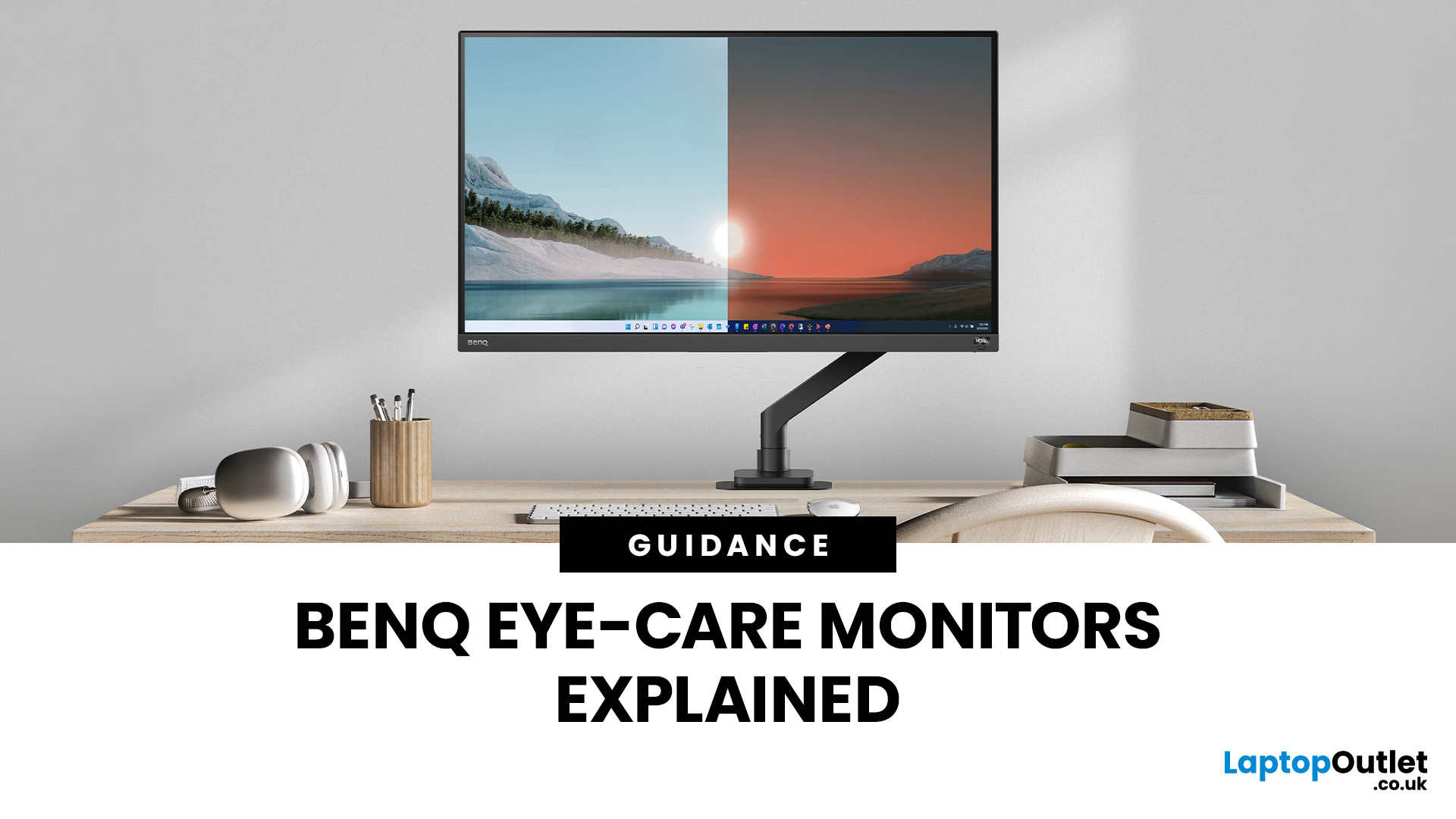
If you spend hours a day on a screen, you’ve probably felt it: tired eyes, headaches, dryness or that slightly gritty end-of-day sensation. While no monitor can solve every cause of screen-related discomfort, BenQ Eye-Care monitors include features designed to make longer sessions more comfortable by managing brightness, reducing flicker and giving you control over blue-heavy light, particularly for evening use.
What BenQ Eye-Care Means: Features and What They’re For
Several BenQ monitor ranges include comfort-focused tools under the Eye-Care umbrella. The exact feature set varies by model, but the typical options include:
- BenQ Brightness Intelligence, sometimes called Brightness Intelligence Plus or B.I.+, to adjust the screen according to your surroundings and displayed content
- Visual Optimizer, the newer name for B.I.+ on supported BenQ monitors, which can adapt brightness and colour temperature
- BenQ Low Blue Light or Low Blue Light Plus modes to reduce blue-heavy light output
- BenQ
Published: March 04, 2026
If your remote setup still revolves around “a decent laptop and home Wi-Fi”, you’re behind. In 2026, remote work is judged by output and presence. Your audio quality affects how credible you sound. Your connectivity affects whether clients trust you. Your screen space affects how quickly you work. And your security setup determines whether your business data is actually protected.
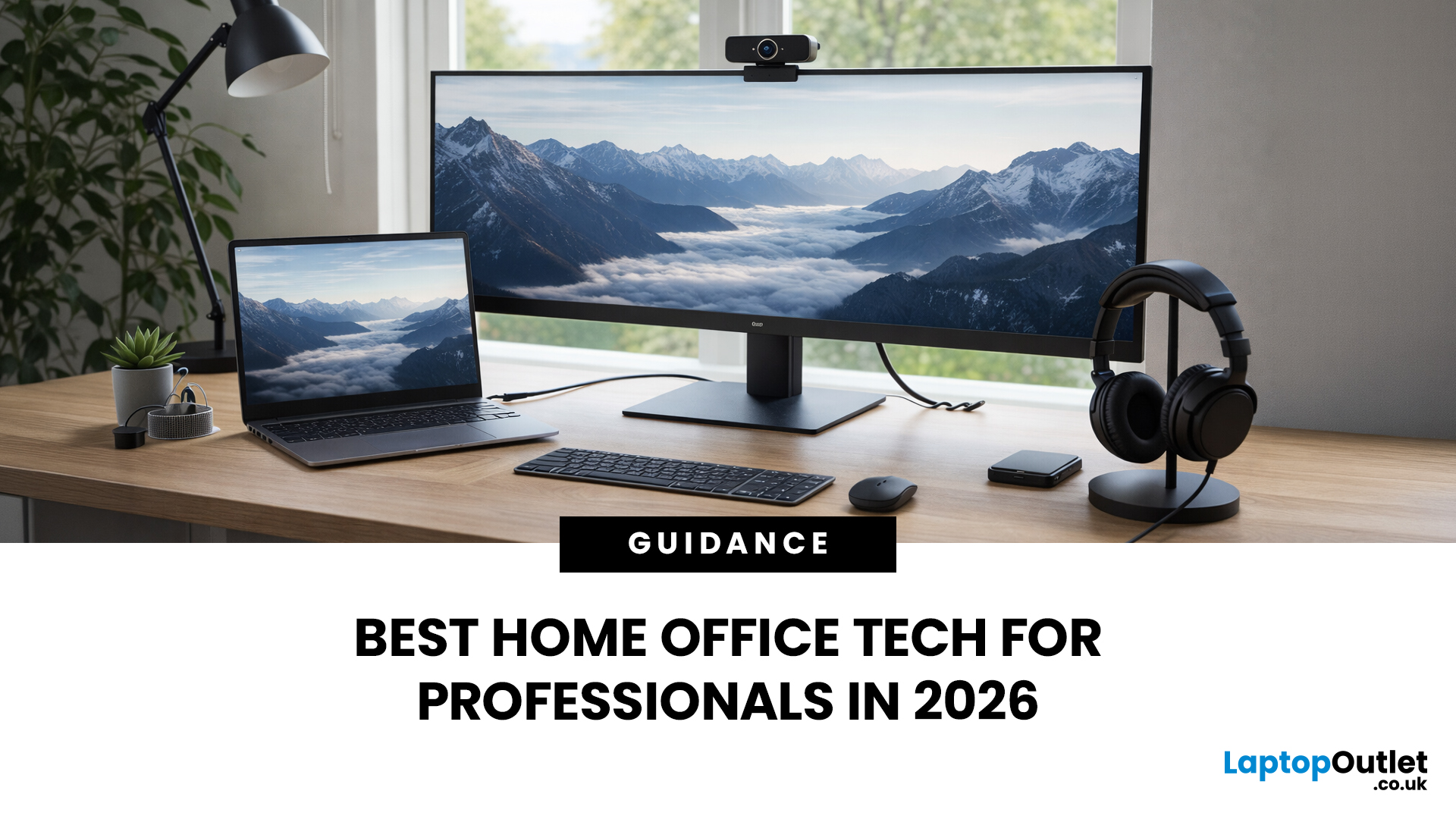
Most people still treat home-office tech like: A chair. A webcam. A desk lamp. Useful, yes, but disconnected. What professionals need now is a deliberate tech stack. One that reduces friction, prevents small failures, and works the same way every single day.
That is Remote Work 2.0. It is not about owning more gear. It is about engineering reliability into your workday.
What Remote Work 2.0 Really Means in 2026
For professionals, four elements matter more than anything else:
1. Stable connectivity
If your connection drops mid-presentation, nothing else matters. Wi-Fi 7 and modern mesh systems are no longer
Last Updated: March 10, 2026
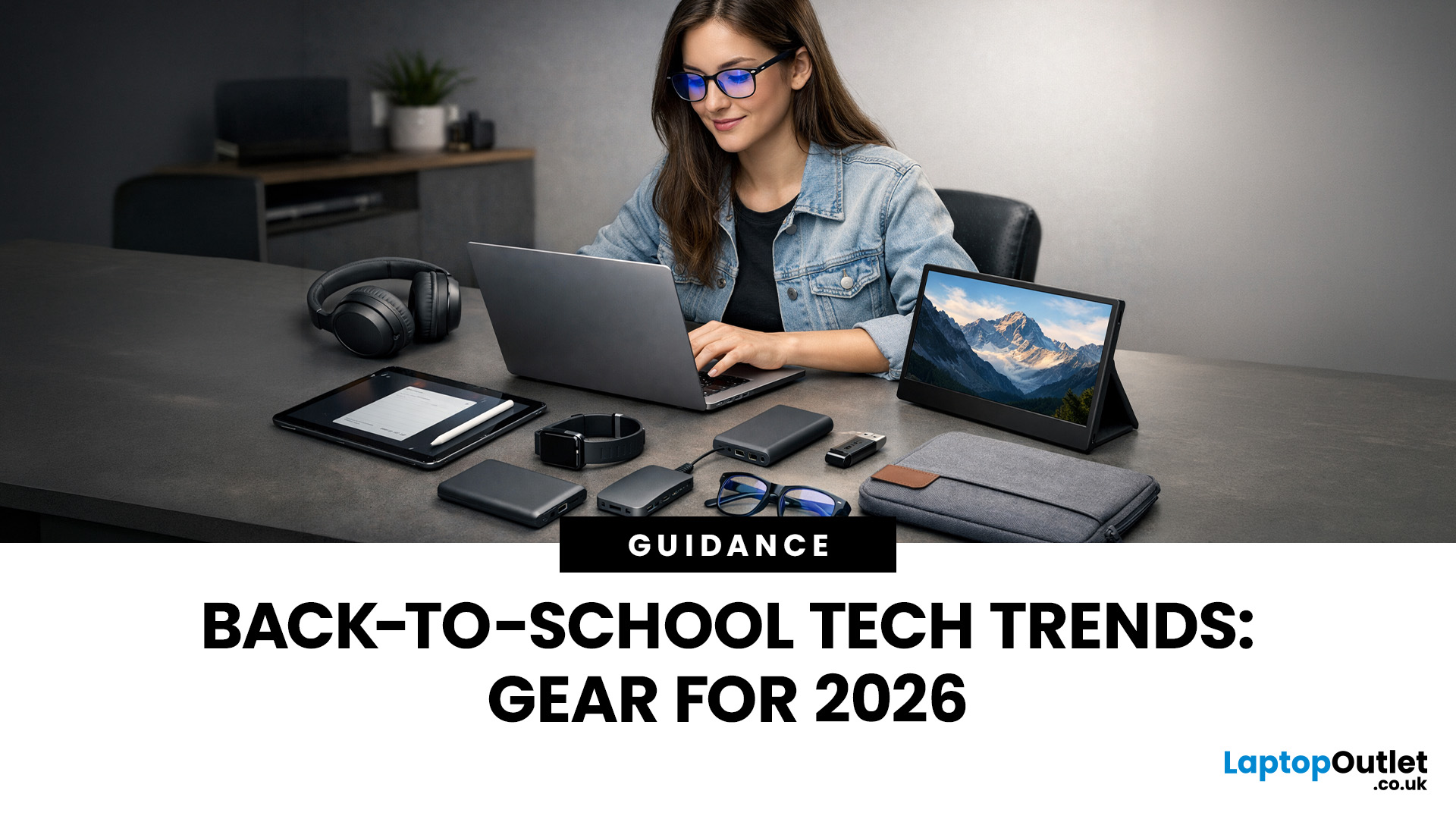
Every year, the back-to-school season brings a rush of shopping. But in 2026, it is not just about stationery and backpacks. Tech has become one of the biggest spending categories on every student's list.
Whether you are a parent, a student, or simply trying to stay informed, knowing the latest back-to-school tech trends can save you time, money, and a few headaches.
So, what are students actually buying this year? Let's break it down.
Why Tech Is Now a Back-to-School Essential
Learning has changed. Most schools and universities across the UK now expect students to have access to their own devices. Hybrid learning, digital coursework, and online collaboration tools have made tech a necessity rather than a luxury.
In fact, a growing number of UK schools have moved to fully digital classrooms. This means students need reliable, capable devices from day one.
Parents and students are also more tech-savvy than ever. They know what to look for. And they are not just buying cheap.

Published: March 13, 2026
Apple has always been known for premium tech. But now the company is pushing things even further. Reports suggest Apple is introducing a brand-new ultra-premium tier of products, with devices that sit above the current “Pro” lineup.
From the iPhone Ultra and Apple Fold to AirPods Ultra and MacBook Ultra, Apple’s next wave of hardware could redefine what “flagship” means. And with Apple’s 50th anniversary approaching in 2026, the company appears to be preparing some of its most ambitious devices yet.
Apple Ultra Devices Strategy: A New Super-Premium Tier
For years, Apple’s product hierarchy was simple:
- Standard models (iPhone, iPad, MacBook Air)
- Pro devices for professionals
- Occasional high-end models like the Apple Watch Ultra
But Apple is now reportedly creating a new “Ultra” category above Pro, focused on extreme performance, premium materials, and experimental tech. Analysts say Apple is planning Ultra-tier devices across the iPhone, Mac, and AirPods lineup, expanding the concept

