



Windows Hello Not Working? Fix PIN, Face and Fingerprint Login
Windows Hello not working on your laptop? The problem could be an incorrect PIN, an unresponsive fingerprint reader, a faulty camera driver or changes to Windows security settings.
The solution depends on which sign-in method is failing and whether you can still access Windows. This guide explains how to troubleshoot Windows Hello on Windows 11, starting with quick fixes before moving to more advanced recovery options.
Windows Hello Not Working? Try These Quick Fixes FirstBefore changing your sign-in settings, try these simple checks:
If you're using one of the latest Windows 11 laptops , remember that supported Windows Hello features depend on the hardware installed. If these checks don't work, follow the section matching your problem. |
Can't Sign In to Windows? Here's What to Do First
If Windows Hello fails at the login screen, you may be able to regain access without changing any system files.
Sign In Using Your Password
- Select Sign-in options below the PIN entry box.
- Choose the password option if available.
- Enter your Microsoft account or local account password.
- Once signed in, open Settings > Accounts > Sign-in options to investigate Windows Hello.
Password option missing? Your device may have passwordless sign-in enabled. In that case, use an available PIN recovery option rather than trying to bypass Windows security.
Reset Your PIN from the Login Screen
If you cannot remember your PIN:
- Select I forgot my PIN, if displayed.
- Complete the identity verification process.
- Follow the instructions to create a new PIN.
- Try signing in again.
Important: The I forgot my PIN option on the login screen is available for Microsoft accounts, not local accounts.
If you've forgotten both your PIN and password, recover your Microsoft account password first. Local account users may be able to answer previously configured security questions. For work-managed devices, contact your IT administrator.
How to Fix a Windows Hello PIN That Isn't Working
A Windows Hello PIN is linked to your device and differs from your Microsoft account password. Problems can arise after security updates, system configuration changes or failed PIN setup.
Change or Reset Your Windows Hello PIN
If you can access Windows:
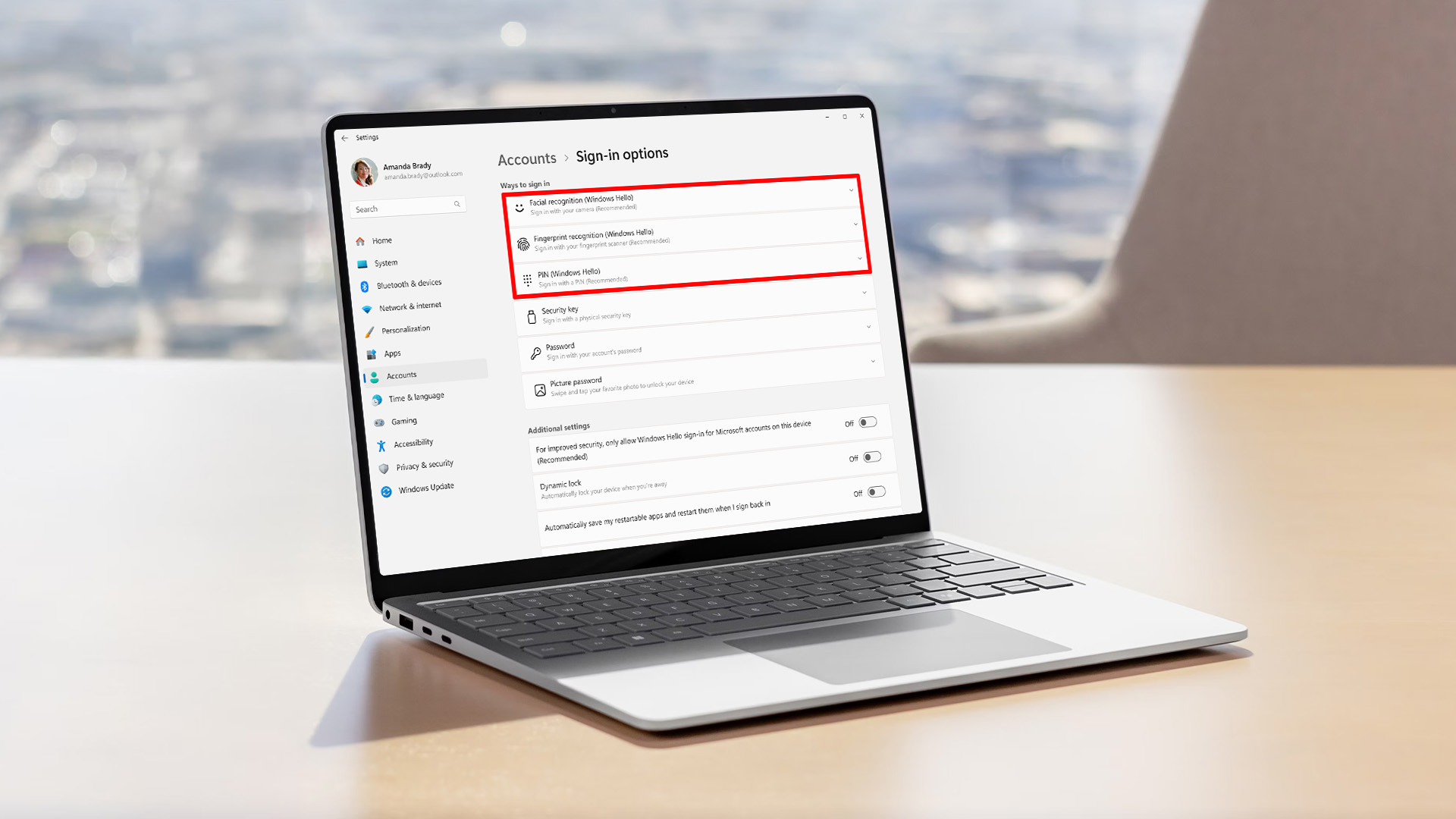
- Open Settings > Accounts > Sign-in options.
- Expand PIN (Windows Hello).
- Select Change PIN if you remember your existing PIN.
- Enter your old PIN and create a new one.
If you've forgotten it, select I forgot my PIN and complete the verification process.
Fix the "Your PIN Is No Longer Available" Error
You might see:
“Your PIN is no longer available due to a change to the security settings on this device.”
This can occur when Windows can no longer use the existing PIN credentials.
Try these steps:
- Select Set up my PIN, if offered.
- Verify your account.
- Create a replacement PIN.
- Restart and test the new PIN.
If the error returns, check Windows updates and device-specific firmware updates. Avoid clearing the TPM or manually deleting credential folders, as these actions can cause additional security and recovery problems.
What If Windows Won't Let You Create a New PIN?
If Windows Hello setup isn't working:
- Sign out, restart and attempt setup again.
- Check your internet connection if account verification fails.
- Install pending Windows updates.
- Check whether an organisation manages your sign-in settings.
If PIN setup repeatedly fails with an error, continue to the driver and Windows repair sections below.
How to Fix Windows Hello Face Recognition
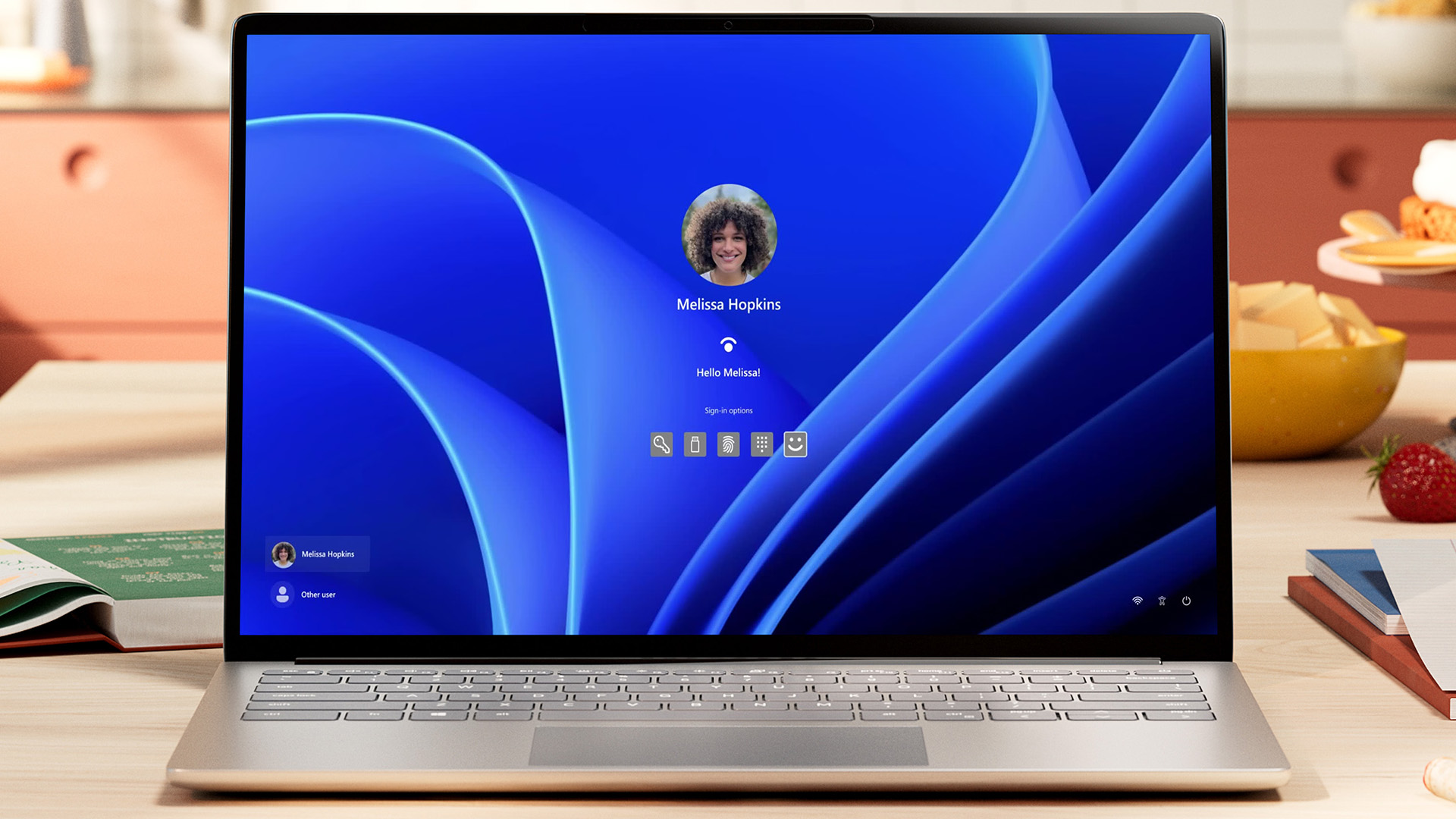
Facial recognition problems generally involve camera detection, recognition conditions, drivers or unsupported hardware.
Fix Face Recognition That Doesn't Recognise You
If Windows displays "Couldn't recognise you", start by checking your surroundings.
- Clean the camera lens and remove any physical camera cover.
- Position your face directly towards the camera.
- Avoid harsh backlighting or strong light from one side.
- Remove accessories that obstruct your face.
If recognition remains unreliable, update your facial recognition profile:
- Open Settings > Accounts > Sign-in options.
- Expand Facial recognition (Windows Hello).
- Select Improve recognition.
- Follow the instructions to scan your face again.
You can also select Remove, followed by Set up, to create a fresh facial recognition profile.
Fix "We Couldn't Find a Camera Compatible with Windows Hello Face"
This message usually indicates that Windows cannot detect suitable facial recognition hardware.
Windows Hello face authentication requires a compatible infrared (IR) or specialised camera system. An ordinary webcam isn't necessarily supported.
To investigate:
- Open Device Manager.
- Expand Cameras or Imaging devices.
- Look for missing, disabled or malfunctioning camera hardware.
- Enable a disabled device or update its driver.
- Check the manufacturer's specifications for Windows Hello support.
You can also open the Windows Camera app to check basic webcam functionality. However, a working webcam does not guarantee that the separate IR hardware is functioning.
Using a Microsoft Surface?
If facial recognition stops working on compatible Microsoft Surface laptops , open the Surface app > Help & support to check device updates and diagnostics.
Do not uninstall camera drivers on Surface Pro X, as restoring them may require a full system reset.
How to Fix Windows Hello Fingerprint Login
If Windows Hello fingerprint recognition isn't working, the problem may involve fingerprint registration, sensor condition or the biometric driver.
Fix Fingerprints That Aren't Being Recognised
Start with these checks:
- Clean the fingerprint sensor using a suitable soft, dry cloth.
- Make sure your finger is clean and dry.
- Use the finger originally registered.
- Place your finger naturally against the sensor rather than pressing excessively.
If recognition is still inconsistent, register your fingerprint again:
- Go to Settings > Accounts > Sign-in options.
- Expand Fingerprint recognition (Windows Hello).
- Select Add a finger, or remove and reconfigure the existing fingerprint.
- Follow the prompts, positioning your finger at different angles.
Registering another finger can also provide a convenient alternative.
Fix a Missing or Unresponsive Fingerprint Reader
If Windows cannot detect your reader:
- Open Device Manager.
- Expand Biometric devices.
- Look for your fingerprint sensor.
- Right-click it and select Enable device, if available.
- Check Properties > Device status for reported errors.
If the sensor is missing, check for manufacturer driver updates. Some laptops also allow biometric hardware to be disabled through firmware settings.
A reader that remains undetected after appropriate driver and firmware checks may require hardware inspection.
What If Windows Hello Is Unavailable or Won't Set Up?
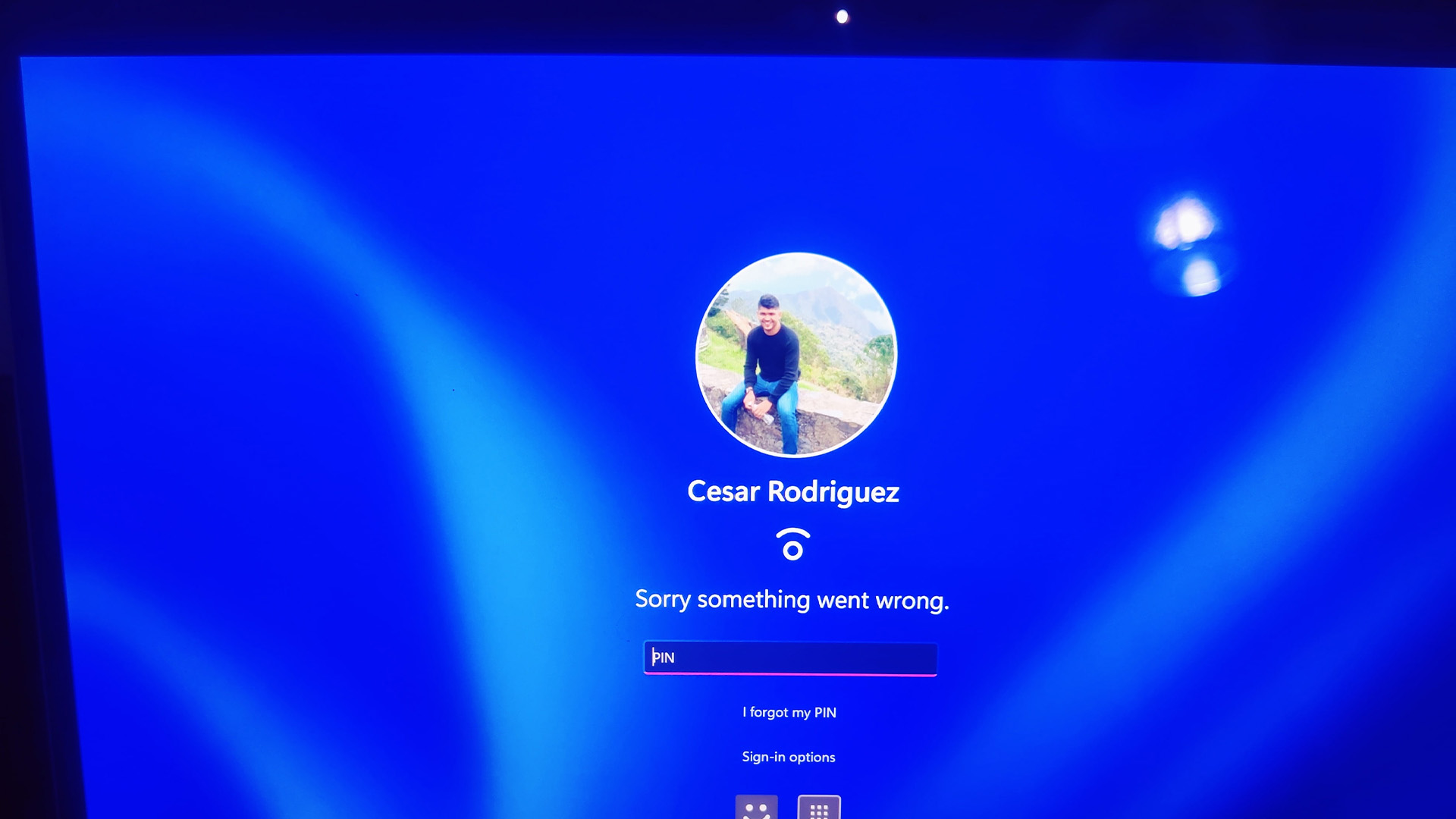
Sometimes Windows displays "This option is currently unavailable", or the setup button is greyed out.
Check Your Laptop's Hardware Compatibility
Windows Hello supports three main authentication methods:
|
Sign-in method |
Requirement |
|
PIN |
Supported Windows sign-in configuration |
|
Face recognition |
Compatible Windows Hello facial recognition camera |
|
Fingerprint |
Compatible fingerprint reader |
A PIN is also used as a backup authentication method when configuring biometric sign-in.
If your laptop lacks the required camera or fingerprint reader, software troubleshooting cannot add that missing hardware capability.
Check Enhanced Sign-in Security
Windows 11's Enhanced sign-in security can restrict certain external biometric devices.
On supported Windows 11 versions, check:
Settings > Accounts > Sign-in options > Additional settings > Enhanced sign-in security
Some compatible external devices may require changes to this setting.
However, disabling Enhanced Sign-in Security reduces protection and can remove existing biometric enrolments and associated credentials, including passkeys. Change it only after checking compatibility and understanding the consequences.
The available controls vary between Windows versions and devices.
Check Work or School Restrictions
On managed business laptops , administrators may control Windows Hello through organisational security policies.
These restrictions can prevent PIN creation, biometric enrolment or changes to authentication settings.
If your device is managed, contact IT support rather than modifying security policies yourself.
Windows Hello Stopped Working After an Update? Try These Fixes
If Windows Hello previously worked but failed after an update, investigate drivers and system components.
1. Install Windows and Manufacturer Updates
Start with:
- Open Settings > Windows Update.
- Select Check for updates.
- Install applicable updates.
- Check Advanced options > Optional updates for available driver updates.
- Restart your laptop.
Manufacturer tools can also identify device-specific updates.
For example, Lenovo Vantage can help identify supported updates on Lenovo laptops , while HP Support Assistant provides driver and firmware update options for supported HP laptops .
Follow manufacturer instructions carefully when updating firmware.
2. Roll Back or Reinstall the Problem Driver
If the problem began immediately after a driver update:
- Open Device Manager.
- Locate the camera or fingerprint reader.
- Right-click the device and select Properties.
- Open the Driver tab.
- Select Roll Back Driver, if available.
If rolling back isn't possible, install the appropriate manufacturer-supported driver.
Reinstalling a device driver may also help, but use model-specific instructions before uninstalling specialised camera or biometric drivers. Restart Windows afterwards to check whether the problem has been resolved.
3. Restart the Windows Biometric Service
If fingerprint or facial recognition remains unresponsive, restarting the biometric service may help:
- Press Windows + R.
- Type services.msc and press Enter.
- Find Windows Biometric Service.
- Right-click and select Restart, if available.
- Test biometric sign-in again.
Administrator permissions may be required. If the service repeatedly fails, investigate its driver or underlying hardware rather than relying on frequent restarts.
4. Check Problems After Sleep or Wake
If Windows Hello works after restarting but fails when waking from sleep, the sensor driver may not be resuming properly.
Install available driver and firmware updates, then test the laptop after several sleep-and-wake cycles.
Advanced Fixes If Windows Hello Still Doesn't Work
If standard troubleshooting hasn't resolved the issue, Windows system corruption or a persistent software conflict may be responsible.
Repair Windows System Files
Windows includes built-in repair commands.
Open Command Prompt as administrator and run:
DISM.exe /Online /Cleanup-Image /RestoreHealth
When the process finishes, run:
sfc /scannow
Allow the scan to complete, restart Windows and test your sign-in options.
These commands check and repair Windows components. They won't fix physically damaged biometric hardware.
Use Windows Recovery Options
If the problem continues, consider the following:
- System Restore: Revert system changes using an available restore point without deleting personal files. Recently installed apps or updates may be affected.
- Repair reinstallation: Under Settings > System > Recovery, select Reinstall now beneath Fix problems using Windows Update, if available. This reinstalls the existing Windows version while retaining files, apps and settings.
- Manufacturer support: Seek a hardware diagnosis if a compatible camera or fingerprint reader remains undetected.
Back up important files and ensure you have any required BitLocker recovery key before major recovery operations.
A complete Windows reset should be a last resort, not the starting point for Windows Hello troubleshooting.

Getting Windows Hello Working Again
When Windows Hello not working, start by identifying whether the problem affects your PIN, camera or fingerprint reader. Simple steps such as restarting Windows, updating drivers or reconfiguring your sign-in method may resolve the issue.
If problems persist, investigate hardware compatibility, security restrictions and Windows system errors before considering recovery or repair.

A Few More Things to Know
Why has Windows Hello suddenly stopped working?
Windows Hello can stop working because of driver updates, damaged sign-in credentials, hardware problems or changes to security settings. Restart Windows and check the affected authentication method first.
Why is my Windows Hello PIN unavailable?
Your PIN may become unavailable after security configuration changes or authentication errors. Use the available PIN recovery option and complete account verification to create a replacement.
Can Windows Hello face recognition work with a normal webcam?
Not necessarily. Windows Hello facial recognition requires compatible specialised camera hardware, generally including infrared technology. A standard webcam used for video calls may not support secure facial authentication.
Why is my fingerprint reader not showing in Windows 11?
The sensor may be disabled, have a missing driver or have developed a hardware fault. Check Device Manager and install the appropriate manufacturer's biometric driver.
Does resetting Windows Hello delete my files?
No. Resetting your Windows Hello PIN or re-enrolling your face or fingerprint does not delete personal files. Resetting the entire Windows installation is a separate operation.
Can I use Windows Hello without an internet connection?
Yes. Once configured, supported PIN, facial and fingerprint sign-in methods generally work offline. However, resetting credentials or verifying your Microsoft account may require internet access.
| Read More: |
| Most Common Windows 11 Update Problems and How to Solve Them |
| How to Update Drivers on Windows 10 & 11 (Complete Guide) |
| How to Use BitLocker and Find Your Recovery Key: A Complete Guide |
Related Articles

Last Updated: July 06, 2026
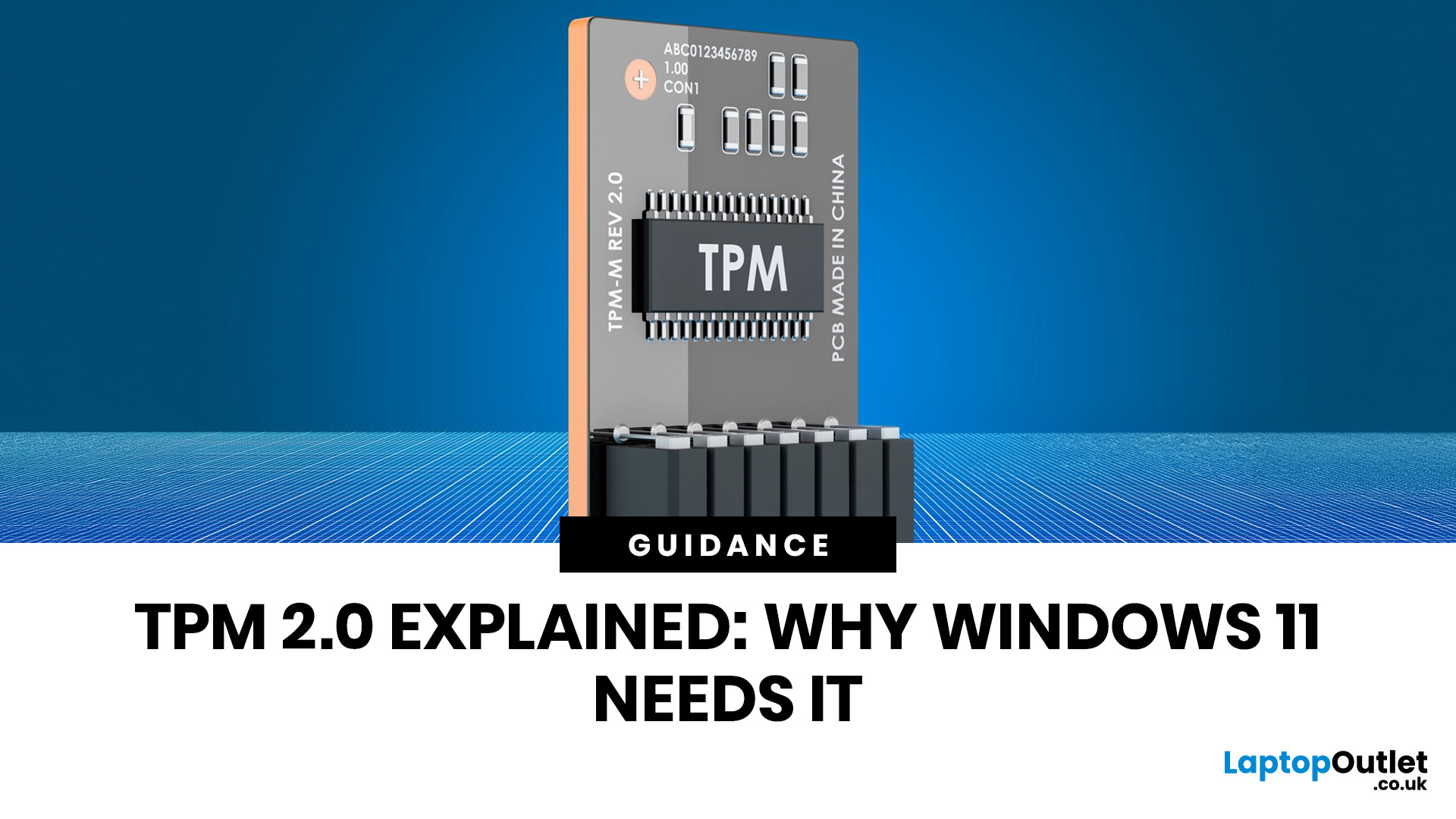
You go to upgrade your PC, everything seems fine, and then Windows 11 drops the digital equivalent of “not you, mate” with a message about TPM 2.0. Suddenly you are searching TPM 2.0 Windows 11, opening BIOS menus you have not touched since the Stone Age, and wondering if your laptop has secretly become ancient overnight. Microsoft’s official Windows 11 minimum requirements still include TPM 2.0, plus UEFI firmware and Secure Boot capability, so this is not some random pop-up glitch. It is part of the platform’s baseline security setup.
If you have been asking what is TPM in computer, do I need TPM for Windows 11, or why this tiny bit of hardware suddenly matters so much, this guide breaks it down in plain English. No jargon soup, no lecture mode, just what TPM is, what it does, why Windows 11 wants it, and what to do if your PC says TPM is missing or disabled.
| Quick answer: TPM 2.0 is a security component built into many modern PCs. It stores cryptographic keys, helps verify system integrity |
Last Updated: July 06, 2026
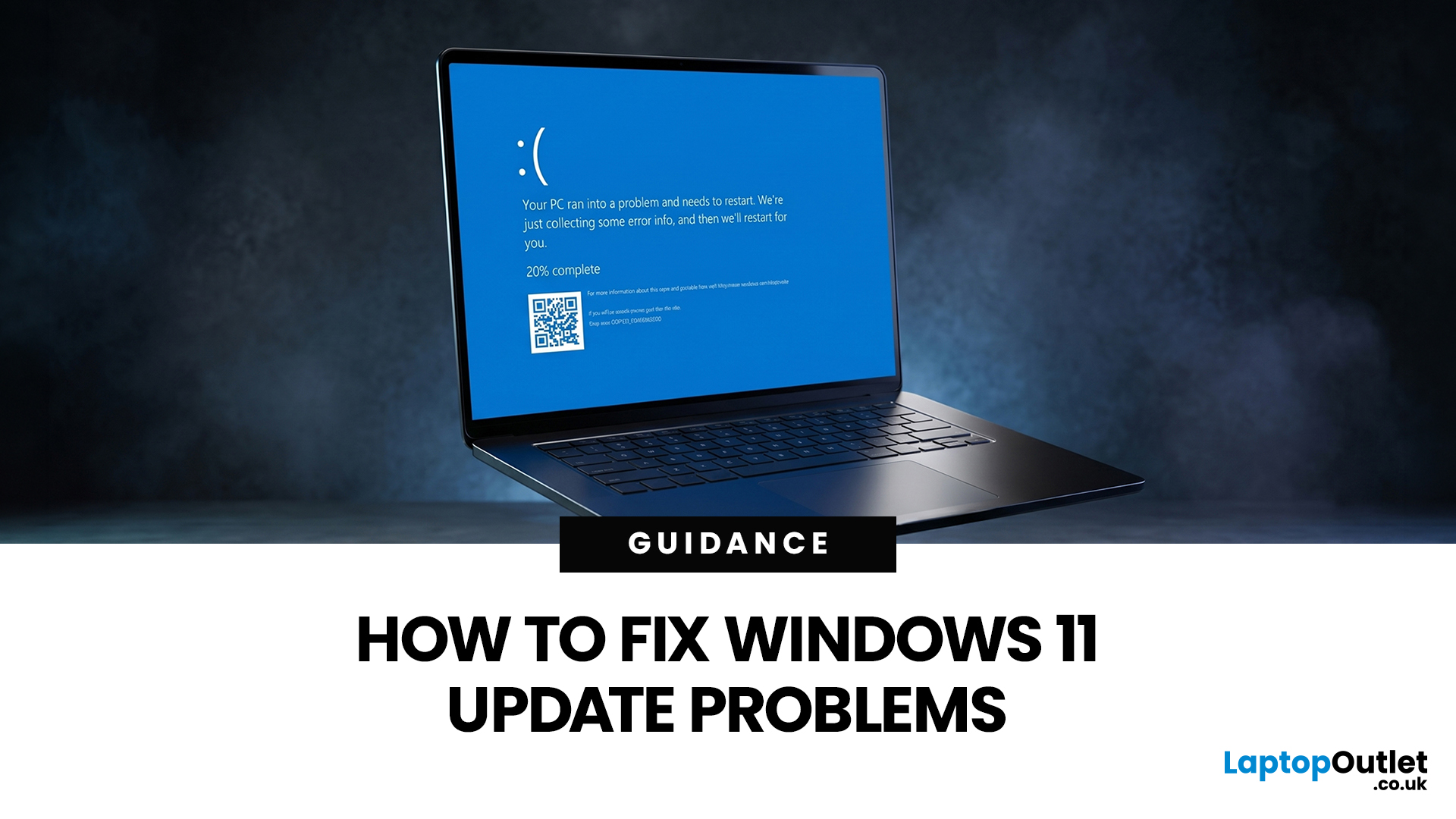
If your PC has decided that today is the day it will freeze at 61%, throw out a random error code, or restart at the worst possible time, you are very much not alone. Windows 11 update issues are one of those annoyingly common problems that can feel dramatic in the moment, but a lot of them are fixable with the right steps.
The good news is that most Windows 11 update problems usually come down to a handful of familiar causes: not enough storage, damaged update files, a disabled service, app conflicts, or a known issue that Microsoft is already tracking. Microsoft’s own support guidance still points users first to the built-in Windows Update troubleshooter and its broader update troubleshooting flow, which is usually the fastest place to start.
Why Windows 11 update fails in the first place
Let’s keep it real: when a Windows 11 update failed message pops up, it does not tell you much. The actual cause is usually one of these:
A Windows 11 update stuck during download or install can be linked
Last Updated: July 06, 2026
A good Windows setup is not just about getting to the desktop. It means finishing the first-run setup properly, installing the latest updates, turning on backup and security features, and knowing which fixes to try before you jump to a reset or replacement. That matters even more now because Windows 10 support ended on 14 October 2025, so staying on a supported Windows version is part of basic maintenance, not an optional extra.
In this Windows & OS guide, we walk through the full process: how to set up Windows, how to update it safely, and how to fix common problems like failed updates, slow performance, Wi-Fi issues, broken apps, and recovery problems. We also cover when it is worth troubleshooting, when a reset makes more sense, and when moving to a newer Windows 11 device is the smarter call.
Quick Answer: The Best Way to Set Up, Update and Fix Windows
If you want the shortest version, do 4 things first. Finish the initial setup carefully, run Windows Update until there is nothing left
Last Updated: July 06, 2026
Whether you're tidying up a slow desktop PC or getting rid of software you never use, knowing how to uninstall apps on Windows is one of the most useful skills you can have.
Both Windows 10 and Windows 11 give you several ways to remove programmes, but the steps differ slightly between the two versions. This guide walks you through every method clearly, plus how to fix it when things go wrong.
5 Ways to Uninstall Apps on Windows 10 and 11

There is more than one way to uninstall apps on Windows, and the right approach often depends on how the app was installed in the first place. Some methods suit modern Microsoft Store apps, while others are better for older desktop software.
The table below gives you a quick overview before we get into the step-by-step detail.
| Method | Best For | Windows 10 | Windows 11 |
|---|---|---|---|
| Start Menu | Modern apps, quick removal | Yes | Yes |
| Settings | Most apps and programmes | Yes | Yes |
| Control Panel | Legacy desktop software | Yes | Yes |
| File Explorer | Apps with built-in uninstallers | Yes | Yes |
| PowerShell |
Last Updated: April 27, 2026
Upgrading to Windows 11 is usually the right move if your laptop is eligible and still running Windows 10. The upgrade remains free for eligible Windows 10 PCs, the standard upgrade path keeps your files, and Windows 10 support ended on 14 October 2025, which makes staying on a supported version of Windows far more important in 2026.
In plain terms, this Windows 11 upgrade guide is about making the move safely. We cover the Windows 11 upgrade process step by step, what to check before you start, how to update to Windows 11 through the right method, what happens to your apps and files, and when replacing the laptop makes more sense than forcing the update. The public Windows 11 download page currently lists version 25H2 as the main public release, while version 26H1 is framed around select new devices rather than a routine in-place upgrade path for existing consumer PCs.
What a Windows 11 Upgrade Actually Means
A Windows 11 upgrade is an in-place move from one Windows version to another,
Last Updated: June 10, 2026
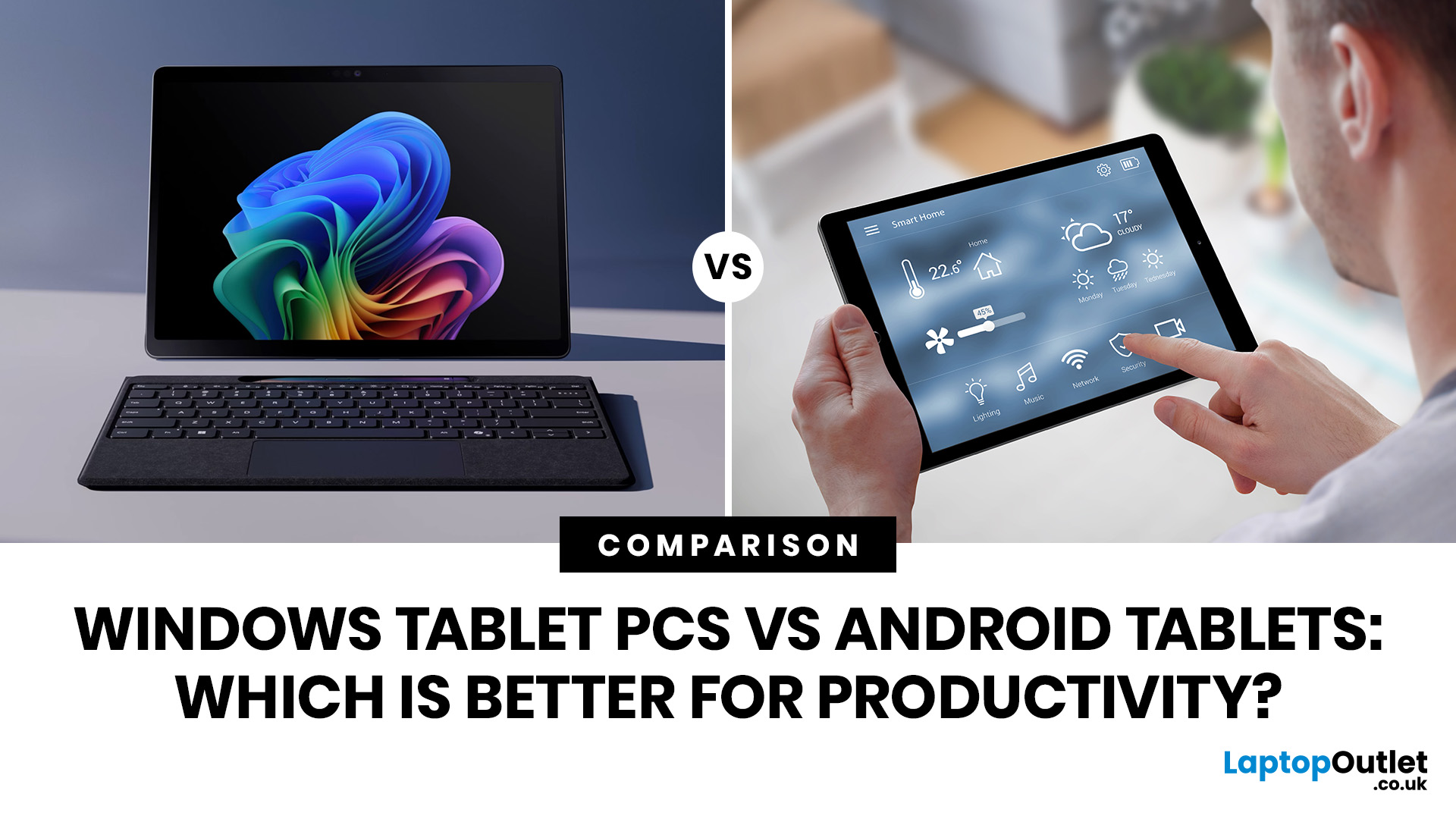
When comparing Windows tablet PCs vs Android tablets, Windows is usually better for productivity-heavy tasks like multitasking, office work and business use, while Android tablets are better for portability, value and lighter everyday productivity.
When comparing Windows tablet PCs vs Android tablets, the best choice depends on how you work. Some users need laptop-style performance for spreadsheets, email, browser tasks and multitasking, while others prefer a portable device for note-taking, research, video calls and everyday flexibility.
That is why the Android vs Windows tablets debate matters. Windows tablets offer a more PC-like experience with stronger multitasking, while Android tablets focus on portability, convenience and app-based productivity.
For buyers in the UK, the best option depends on whether you value desktop-style software, keyboard-led productivity and business features, or a lighter, more affordable system that is easy to carry and simple to use. If you are browsing
Last Updated: May 22, 2026
Your laptop is acting weird, and now you are wondering if it is a driver's problem.
Maybe your Wi-Fi keeps dropping. Maybe your Bluetooth headphones refuse to connect. Maybe your sound has vanished, your printer is ghosting you, or your graphics suddenly look like your laptop is running on low battery and bad vibes.
This is usually the moment people search “how to update drivers” or “update drivers Windows” and hope the answer is not a 40-step tech maze.
Good news: updating drivers on Windows 10 and Windows 11 is not as scary as it sounds. In most cases, Windows can handle driver updates automatically through Windows Update, and Microsoft says drivers act like translators between Windows and your devices, helping your operating system and apps communicate with your hardware.
This guide will show you how to update drivers safely, how to check if drivers are up to date, when to use Device Manager, when to visit the manufacturer’s website, and when driver problems may be a sign, your laptop
Last Updated: June 10, 2026
To protect a Windows 10 PC after end of support, install all available Windows updates, enrol in Extended Security Updates if eligible, use updated antivirus, back up your files, remove old apps, use a modern browser, enable multi-factor authentication, and upgrade to Windows 11 if your PC supports it.
If your PC is still running Windows 10, now is the time to protect it. Windows 10 support ended on 14th October 2025, which means regular security updates and fixes are no longer available unless you take extra steps. Your PC will still work, but it may become more exposed to malware, ransomware, browser attacks, and new security flaws.
The good news is that you still have options. This Windows security guide covers the key Windows 10 protection tips to help you secure your PC, back up your files, and decide whether to upgrade to Windows 11.
Why Windows 10 End of Support Matters
When an operating system reaches end of support, it does not become useless overnight. Your files, apps, browser,
Last Updated: June 10, 2026
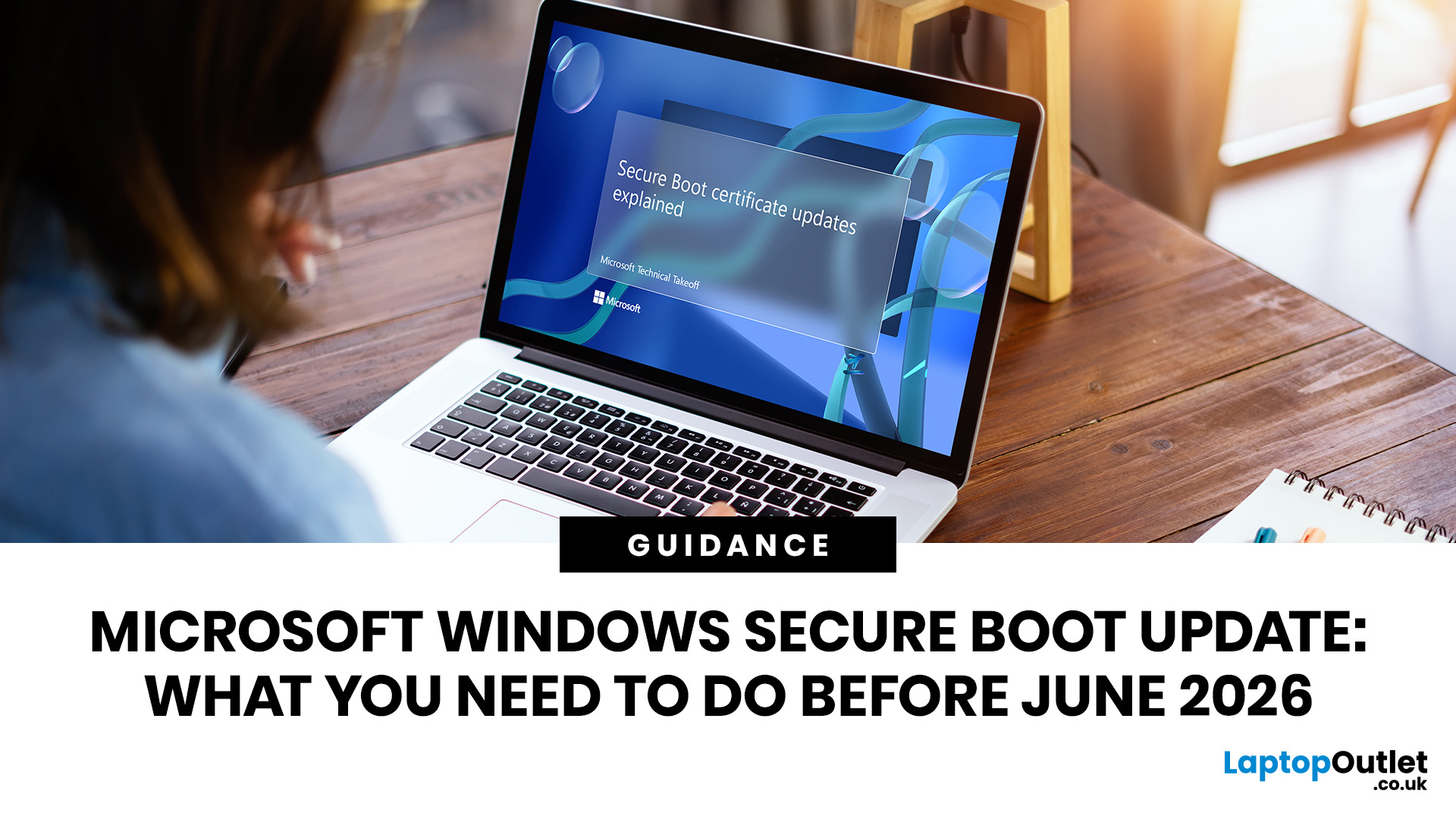
Microsoft is updating Windows Secure Boot certificates before they begin expiring in June 2026. Most supported Windows PCs will receive the update automatically, but users should check Windows Update, Secure Boot status, BIOS/UEFI firmware, and BitLocker recovery key access to avoid future security issues.
Microsoft is rolling out an important Windows Secure Boot update before older Secure Boot certificates begin expiring in 2026. For most home users on supported Windows devices, the update should arrive automatically through Windows Update. But if your PC is older, managed by an organisation, running Windows 10 without Extended Security Updates, or has outdated BIOS/UEFI firmware, you may need to check your device before June 2026.
Secure Boot is the Windows security feature that helps ensure your PC starts using trusted software only. Microsoft says Secure Boot certificates originally issued in 2011 begin expiring in June 2026, and devices need newer 2023 certificates to keep receiving
Last Updated: July 15, 2026
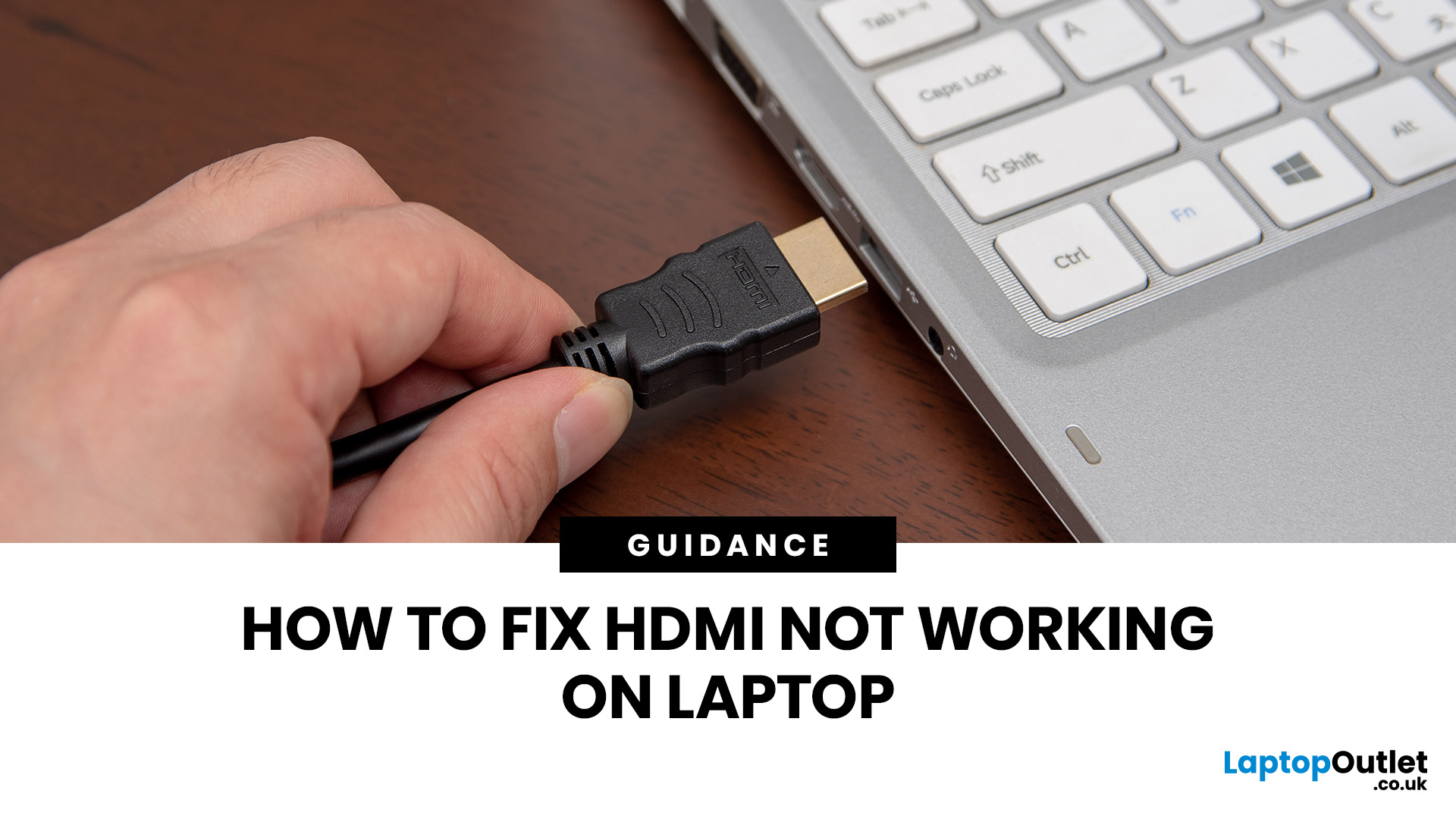
If HDMI is not working on your laptop, start by checking the cable and port for damage, then select the correct input on your monitor or TV. Press Windows + P to choose your display mode. If the screen stays blank, update or reinstall your graphics driver in Device Manager. Most HDMI not working laptop issues are resolved by these steps alone, without needing any specialist help.
There are few things more frustrating than plugging in your HDMI cable and being greeted by a black screen or a "No Signal" message. Whether you are connecting your laptop to a smart TV, an external monitor, or a projector, the issue can almost always be sorted without a trip to a repair shop.
This guide covers most common HDMI not working laptop fixes, from the simplest physical checks right through to driver reinstalls and BIOS settings. Work through the steps in order and you will find your fix quickly.
Why Is Laptop Not Connecting to HDMI?
Before diving into fixes, it helps to understand what causes

