



Windows 10 Users: Do This Immediately to Stay Safe
To protect a Windows 10 PC after end of support, install all available Windows updates, enrol in Extended Security Updates if eligible, use updated antivirus, back up your files, remove old apps, use a modern browser, enable multi-factor authentication, and upgrade to Windows 11 if your PC supports it.
If your PC is still running Windows 10, now is the time to protect it. Windows 10 support ended on 14th October 2025, which means regular security updates and fixes are no longer available unless you take extra steps. Your PC will still work, but it may become more exposed to malware, ransomware, browser attacks, and new security flaws.
The good news is that you still have options. This Windows security guide covers the key Windows 10 protection tips to help you secure your PC, back up your files, and decide whether to upgrade to Windows 11.
Why Windows 10 End of Support Matters
When an operating system reaches end of support, it does not become useless overnight. Your files, apps, browser, printer, and games may still work.
But the security situation has changed.
Microsoft no longer provides normal free security fixes for Windows 10 after the support deadline. The UK’s National Cyber Security Centre also encouraged organisations to prepare for the move to Windows 11 before Windows 10 became legacy technology.
That matters because attackers often look for unsupported systems. Once a weakness is known, criminals can build tools to exploit it. If your PC is not receiving updates, the gap between “known problem” and “fixed problem” may never close.
So, the question is not whether Windows 10 still works.
The question is whether you can still trust it for banking, work, email, passwords, family photos, and personal documents.
1. Check for Windows Updates Immediately
Before doing anything else, open Windows Update and install every available update.
Go to:
Settings > Update & Security > Windows Update > Check for updates
Install all security updates, restart the PC, then check again. Sometimes Windows needs more than one restart to finish everything.
This is the simplest step, but it is also one of the most important. If your PC has missed months of patches, you may already be behind.
Also check whether your device is eligible for Microsoft’s Extended Security Updates programme, which allows Windows 10 users to continue receiving critical security updates for a limited period. Microsoft offers information for UK users through its Windows 10 Extended Security Updates page.
Think of this as buying time. It is not a permanent solution, but it can help protect your PC while you plan your next move.
Before you assume your PC is fully protected, it is also worth checking the latest Microsoft Windows secure boot update, as secure boot changes can affect how well your device defends against low-level threats.
2. Use a Strong Antivirus and Keep It Updated
If you are staying on Windows 10, antivirus protection is no longer optional.
Microsoft Defender is built into Windows and is good enough for many people, but only if it is active, updated, and working properly.
Check it here:
Settings > Update & Security > Windows Security > Virus & threat protection
Make sure real-time protection is turned on. Then run a full scan.
If you prefer a paid antivirus, choose one from a reputable provider and avoid unknown “PC cleaner” tools that promise miracle speed boosts. Some of those apps create more problems than they solve.
A good antivirus should help with:
|
Protection Area |
Why It Matters |
|
Malware scanning |
Detects harmful files and apps |
|
Ransomware protection |
Helps stop files being encrypted by attackers |
|
Web protection |
Blocks dangerous websites |
|
Phishing protection |
Warns about fake login pages |
|
Behaviour monitoring |
Spots suspicious activity |
Antivirus will not make an unsupported PC perfectly safe, but it adds an important layer of defense.
3. Back Up Your Files Before Something Goes Wrong
If your Windows 10 PC is infected, stolen, damaged, or locked by ransomware, your files may be the biggest loss.
That is why backups matter.
At minimum, back up:
- Documents
- Photos
- Videos
- Work files
- Desktop folders
- Browser bookmarks
- Password manager recovery codes
- Important downloads
- Email archives, if stored locally
Use more than one backup method if possible. A good setup is:
|
Backup Type |
Best For |
|
Cloud backup |
Easy access and automatic syncing |
|
External hard drive |
Full local copy of important files |
|
USB drive |
Simple backup for key documents |
|
System image |
Restoring an entire PC setup |
Do not leave your only backup drive plugged in all the time. Ransomware can sometimes encrypt connected drives too.
The safest rule is simple: keep at least one backup separate from your PC.
4. Upgrade to Windows 11 If Your PC Supports It
The cleanest long-term option is to upgrade to Windows 11.
To check whether your PC can upgrade, go to:
Settings > Update & Security > Windows Update
You can also use Microsoft’s PC Health Check tool to see whether your device meets Windows 11 requirements.
A Windows 11 upgrade is worth considering if your PC has:
|
Requirement |
Why It Matters |
|
Supported processor |
Needed for official Windows 11 compatibility |
|
TPM 2.0 |
Helps protect encryption and credentials |
|
Secure Boot |
Helps block boot-level malware |
|
Enough RAM |
Keeps the system responsive |
|
Enough storage |
Prevents upgrade and update problems |
If your PC supports Windows 11, upgrading is usually the most practical way to protect it.
If you are already planning a new device, our guide to Microsoft Surface tablets can help you compare modern Windows hardware before replacing an older Windows 10 laptop.
5. If You Cannot Upgrade, Use Extended Security Updates
Some perfectly usable Windows 10 PCs cannot officially upgrade to Windows 11 because of hardware requirements.
If that is your situation, do not ignore the problem. Look into the Extended Security Updates programme. It can give you extra time by continuing critical security updates for Windows 10.
This is useful if:
- Your PC still works well
- You cannot buy a new laptop yet
- You need more time to move files and apps
- You use specialist software
- You are waiting for a better upgrade deal
But do not treat Extended Security Updates as a forever fix. It is a bridge, not a destination.
Use that extra time to plan your next step: upgrade to Windows 11, replace the PC, or move to another supported operating system.
6. Stop Using an Admin Account Every Day
Many people use an administrator account for everything. That is convenient, but risky.
If malware gets into your PC while you are using an admin account, it may get deeper access to the system.
A safer setup is:
- One administrator account for system changes
- One standard account for daily use
Use the standard account for browsing, email, shopping, streaming, and everyday work. Only use the admin account when installing trusted software or changing system settings.
This small change can reduce the damage caused by malicious apps.
7. Remove Old Apps You No Longer Use
Old software can become a security risk.
If you have apps installed that you no longer use, remove them. This is especially important for old browser extensions, outdated PDF tools, abandoned media players, and trial software that came with the PC.
Go to:
Settings > Apps > Apps & features
Uninstall anything you recognise and no longer need.
Be careful not to remove drivers or system tools unless you know what they do.
Also update the apps you keep, especially:
|
App Type |
Why It Matters |
|
Browsers |
Common target for web attacks |
|
PDF readers |
Often used in phishing attacks |
|
Office apps |
Can open risky documents |
|
Password managers |
Must stay patched |
|
Video meeting apps |
Often used for work |
|
Cloud storage apps |
Handle important files |
Security is not only about Windows updates. Your apps need updates too.
8. Use a Modern Browser
If you stay on Windows 10, your browser becomes one of your most important security tools.
Use a modern browser that still receives updates. Keep it updated automatically and remove extensions you do not trust.
Avoid saving passwords directly in the browser unless you also use strong device security and two-factor authentication. A dedicated password manager is often safer.
Good browser habits include:
- Do not click unknown email links
- Do not download random attachments
- Avoid fake “update your PC” pop-ups
- Use HTTPS websites
- Remove suspicious extensions
- Keep the browser updated
- Use unique passwords for important accounts
Most attacks do not begin with a hacker typing into your PC. They begin with a link, attachment, pop-up, or fake login page.
Anyone who uses Windows for both work and gaming may also want to follow Microsoft’s Project Helix Xbox, especially as Microsoft continues blending PC, cloud, and console experiences.
9. Turn On Multi-Factor Authentication
Passwords alone are not enough.
Turn on multi-factor authentication for your most important accounts, especially:
- Banking
- Microsoft account
- Google account
- Apple ID
- Cloud storage
- Work accounts
- Shopping accounts
- Social media
Email is the most important one. If someone gets into your email, they may be able to reset passwords for many other services.
Use an authenticator app where possible. SMS codes are better than nothing, but app-based verification is usually stronger.
This is one of the best protection steps you can take, whether you use Windows 10 or Windows 11.
10. Be CarefulWithBanking and Sensitive Work
If your Windows 10 PC is no longer receiving security updates, be more cautious about what you use it for.
Avoid using an unsupported Windows 10 PC for:
- Online banking
- Tax accounts
- Business finance
- Password management
- Sensitive work documents
- Medical records
- Crypto wallets
- Admin access to company systems
If you must use it, make sure it has active security updates through Extended Security Updates, updated antivirus, a modern browser, and strong account protection.
For anything sensitive, a supported device is safer.
Should You Replace Your Windows 10 PC?
You do not always need to replace your PC immediately. But you should make a plan.
Replace it sooner if:
- It cannot upgrade to Windows 11
- It is slow even after maintenance
- It has 4GB or 8GB RAM and struggles with basic tasks
- The battery is weak
- It no longer receives firmware updates
- You use it for banking, work, or business
- Repair costs are too high
Keep it temporarily if:
- It is enrolled in Extended Security Updates
- You only use it for light tasks
- It has updated antivirus
- Your files are backed up
- You plan to replace it soon
- It is not used for sensitive activity
A Windows 10 PC can still have a role, but it should not be your most trusted device unless it is properly protected.
Quick Windows 10 Protection Checklist
Use this checklist now:
|
Step |
Done? |
|
Install all Windows updates |
☐ |
|
Check Extended Security Updates eligibility |
☐ |
|
Turn on Microsoft Defender or trusted antivirus |
☐ |
|
Run a full malware scan |
☐ |
|
Back up important files |
☐ |
|
Remove unused apps |
☐ |
|
Update browsers and key software |
☐ |
|
Use a standard account for daily work |
☐ |
|
Turn on multi-factor authentication |
☐ |
|
Check Windows 11 upgrade eligibility |
☐ |
|
Plan replacement if upgrade is not possible |
☐ |

Final Advice: Do Not Wait Until Something Breaks
Windows 10 may still look normal. Your desktop is still there. Your apps may still open. Your files may still be exactly where you left them.
But the security foundation has changed.
If you want to secure a Windows 10 PC, you need to act now: install updates, use antivirus, back up your files, check Extended Security Updates, and upgrade to Windows 11 if your device supports it.
- The worst option is doing nothing.
- A protected Windows 10 PC can buy you time.
- An ignored Windows 10 PC can become a risk.
Common Questions to Answer
Is Windows 10 still safe to use?
Windows 10 can still be used, but it is less safe without ongoing security updates. If you continue using it, install all available updates, use antivirus, back up files, and consider Extended Security Updates.
What should I do first to protect Windows 10?
Start with Windows Update, then check out antivirus protection, back up important files, update your browser, and turn on multi-factor authentication for important accounts.
Can I still upgrade from Windows 10 to Windows 11?
Yes, if your PC meets Windows 11 hardware requirements. Check Windows Update or use Microsoft’s PC Health Check tool.
What if my PC cannot run Windows 11?
Consider Extended Security Updates, replacing the device, or using the Windows 10 PC only for low-risk tasks while you plan a supported upgrade.
Do I need an antivirus on Windows 10?
Yes. Microsoft Defender is built in and works well for many users, but it must be active and updated. You can also use a reputable paid antivirus.
Should I back up files before upgrading to Windows 11?
Yes. Always back up important files before any major operating system upgrades. Use cloud storage, external drive, or both.
Is Extended Security Updates a permanent fix?
No. Extended Security Updates are a temporary way to keep receiving critical security updates. They give you more time, but upgrading or replacing the device is still the better long-term plan.
Related Articles

Last Updated: May 06, 2026
Your Apple AirPods are a brilliant piece of kit, but sometimes the default name – usually something like '[Your Name]'s AirPods' – just doesn't feel personal enough.
Perhaps you have multiple pairs, or maybe you've bought them second-hand and want to shake off the previous owner's tag. Whatever your reason, learning how to rename AirPods is a simple process that helps you personalise your wireless earbuds.
This comprehensive guide will walk you through the simple steps to rename AirPods across all the common platforms.
Renaming Your AirPods on iPhone or iPad (The Easiest Way)
Renaming your AirPods on an iOS or iPadOS device is arguably the simplest method. The change will then update automatically on any other Apple device you own that uses the same Apple ID.
Steps to Rename Your AirPods on iPhone or iPad
- Ensure Connection: Make sure your AirPods are connected to your iPhone or iPad. The quickest way to do this is to open the AirPods case lid near your unlocked device, or place the AirPods

Last Updated: January 21, 2026
For a long time, tablets were seen as secondary devices. Great for Netflix, decent for browsing, but not serious enough for work or study.
That perception is officially outdated.
In 2026, Windows tablets have evolved into some of the most versatile devices you can buy. They’re no longer just tablets that can do work, they’re powerful, flexible computers that happen to be touch-first.
Whether you’re a student, a professional, or someone who wants one device that does everything, this guide breaks down the top Windows tablets in the UK 2026, how they perform in real life, and which models actually make sense to buy right now.
No hype. No spec-sheet dumping. Just clarity.
Why Windows Tablets Matter More Than Ever in 2026

The biggest reason Windows tablets have taken off again is simple: people want flexibility without compromise.
Windows tablets sit in a unique position between laptops and Android tablets. They give you:
- Full desktop software
- Proper multitasking
- Touch and pen support
- Detachable

Last Updated: January 21, 2026
Windows tablets have quietly become one of the most practical tech buys in the UK, especially if you want proper laptop features without paying laptop money. Whether you’re studying, working remotely, or just need a flexible everyday device, a Windows tablet (or budget 2 in 1 Windows tablet) can often do the job of both a tablet and a laptop.
In this 2026 guide, we’re breaking down the best Windows tablets in the UK by price, under £300, and £500 and explaining what you can realistically expect at each level. No hype, no spec overload, just clear advice to help you spend smart.
Why Choose a Windows Tablet Instead of Android or iPad?

Before diving into budgets, it’s worth understanding why people choose Windows tablets in the first place.
A Windows tablet gives you:
- A full desktop operating system
- Proper file management (folders, drives, downloads)
- Compatibility with Microsoft Office and desktop apps
- Keyboard and mouse support
- Often, a 2-in-1 experience with detachable or foldable keyboards
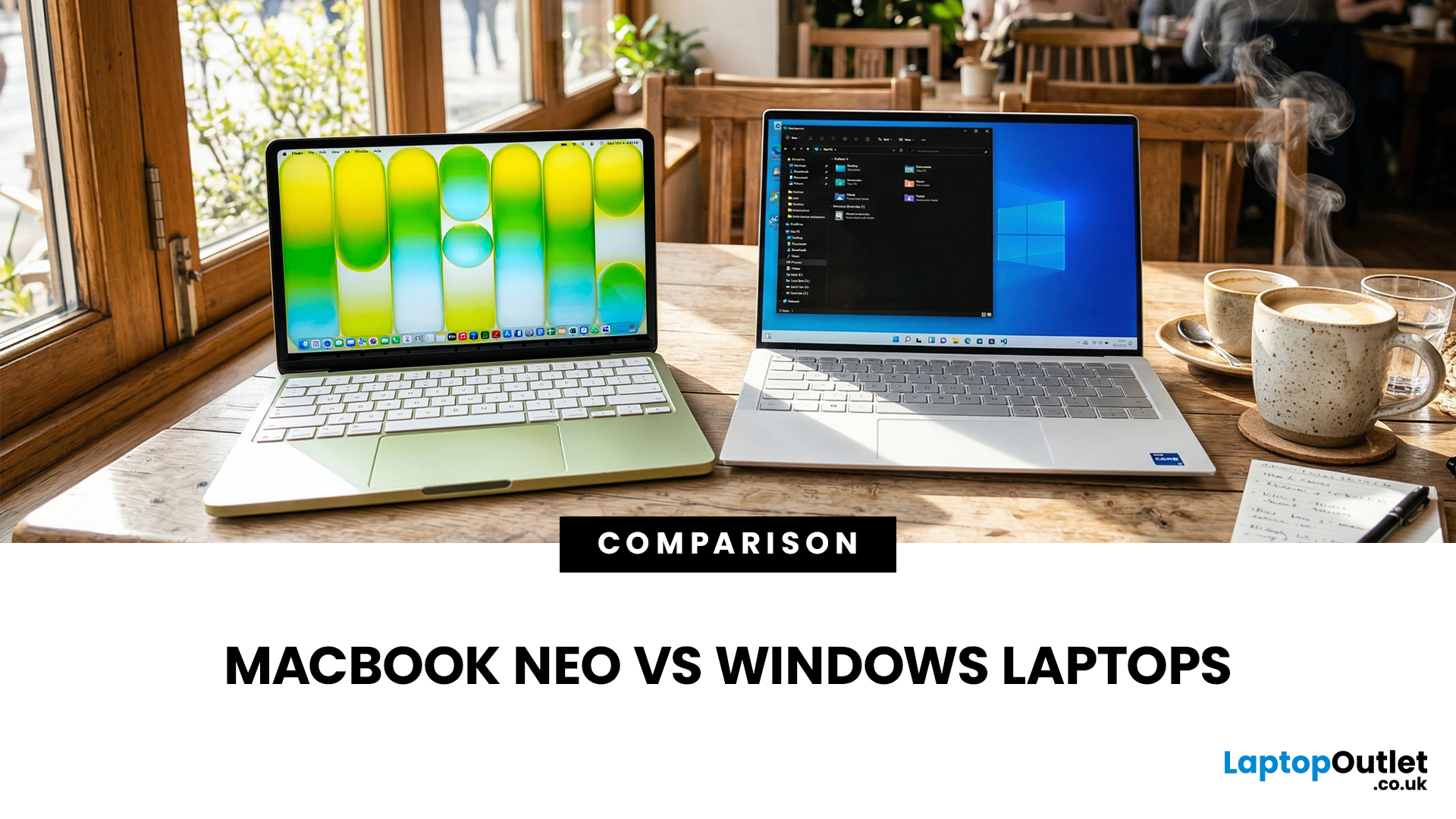
Last Updated: March 09, 2026
If you are comparing MacBook Neo vs Windows laptops, you are really asking one question: should you buy Apple’s cheapest Mac, or get a budget Windows laptop with more ports and more choice?
MacBook Neo is new, starts at £599, and is designed to be a simple, premium-feeling everyday laptop with macOS, long battery life, and strong call quality.
Budget Windows laptops can offer more screen sizes, more ports, and sometimes better upgrade options. But quality is inconsistent in this price range, and that’s where Neo tries to win.
Below is the practical, buyer-focused breakdown.
10-Second Answer Box
Choose MacBook Neo if
- You want the cleanest everyday experience for browsing, school, docs, and calls
- You value build quality and trackpad feel
- You want a laptop that stays fast and quiet for years, without tweaking settings
Choose a budget Windows laptop if
- You want more ports like HDMI and USB-A built in
- You need a bigger screen for the money
- You want the flexibility of Windows software and lots
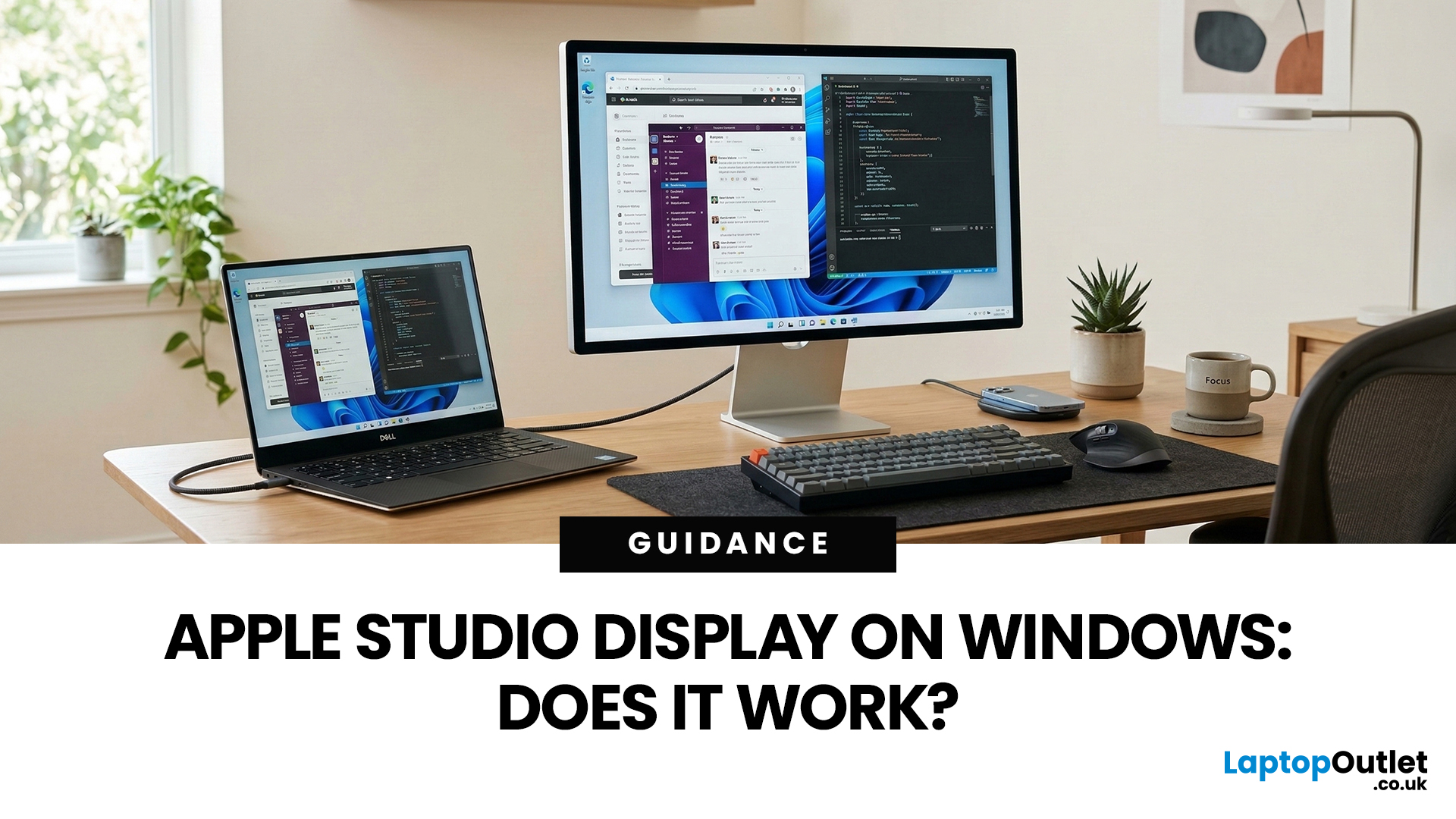
Published: March 06, 2026
You’ve seen the Apple Studio Display. It’s sleek, stupidly sharp, and it makes your desk look like you’ve got your life together. But you’re on Windows. So, the big question is: Does Apple Studio Display work with Windows PCs? Yes, it can. But you won’t always get the full “Apple magic” experience on Windows.
Apple Studio Display + Windows: What Works vs What Doesn’t
Core Monitor Functions (generally work)
The good news: the basics are solid.
- You’ll get a picture (yep, it’s a monitor)
- Resolution and scaling can be adjusted in Windows settings
- It can act as an audio device (the built-in speakers often show up as an output option)
In other words: for day-to-day “I need a stunning screen”, you’re fine.
Features that May be Limited or Not Supported on Windows
Here’s where the “Apple ecosystem” bit starts showing:
- Center Stage (auto-follow webcam feature): usually not available as intended on Windows
- True Tone (auto colour temperature shifts): Generally not supported
- Firmware updates: typically
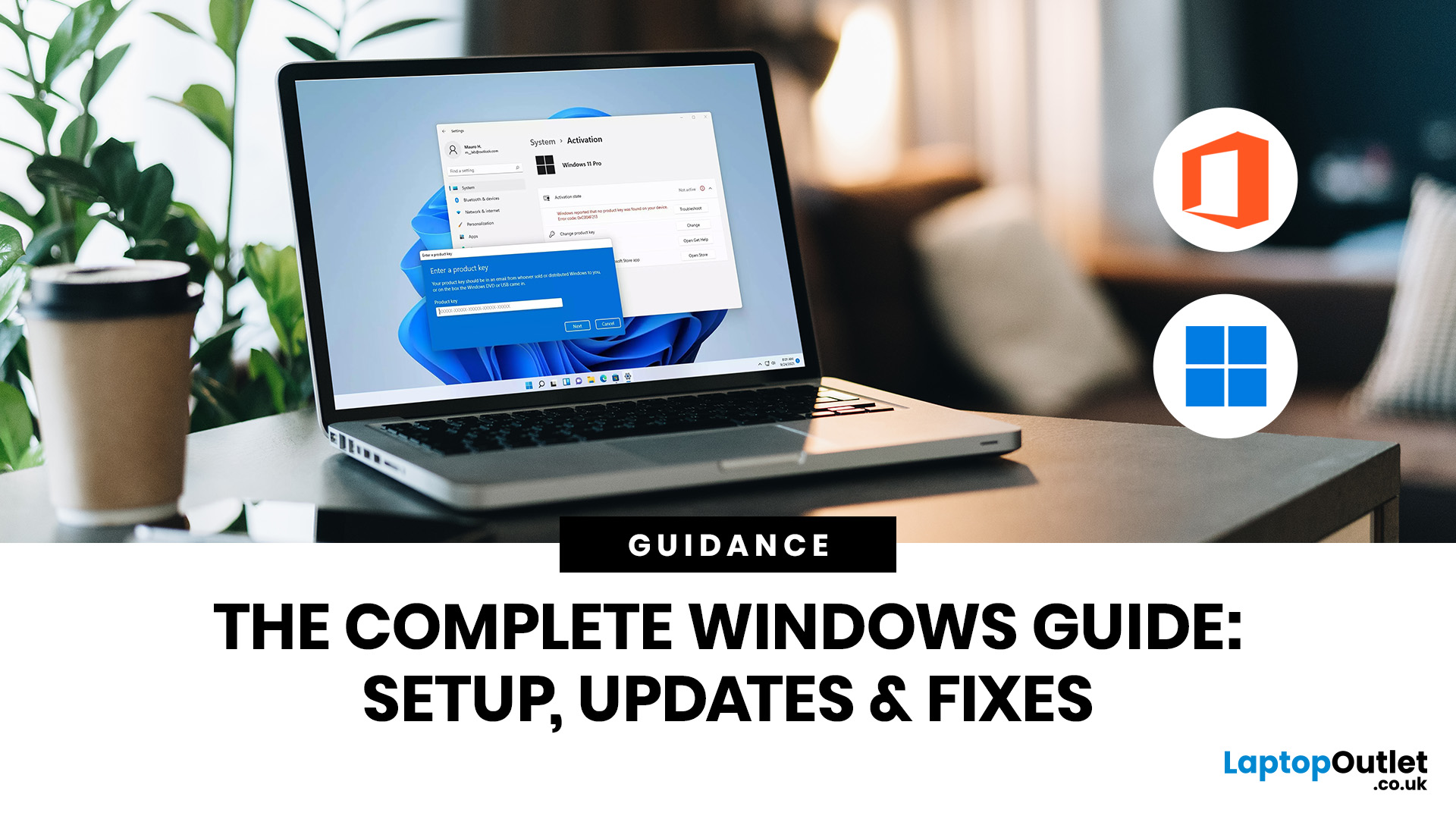
Last Updated: July 06, 2026
If you need to activate Windows Office key products on a new or existing device, the good news is that the process is usually straightforward once you know which licence you have. Whether you are looking for a Windows activation guide, Microsoft Office activation steps, or a quick fix for an activation error, this guide walks you through it in plain English.
Windows 10 and Windows 11 can be activated with either a 25-character product key or a digital licence, while Microsoft 365 and standalone Office versions are typically activated by signing in with the Microsoft account, or work or school account, linked to the purchase.
What is a Microsoft Activation Key?
A Microsoft activation key is usually a 25-character code used to activate Windows or redeem certain Office purchases. For Windows, activation depends on either a product key or a digital license. For newer Office and Microsoft 365 products, the Microsoft account attached to your purchase often replaces the product key for reinstalling
Last Updated: April 22, 2026
Stop reaching for the mouse every five seconds. Windows keyboard shortcuts are one of the fastest, simplest ways to boost your daily output - whether you're writing reports, navigating spreadsheets, or juggling a dozen open tabs at once.
This complete guide covers every shortcut worth knowing across Windows 10 and Windows 11, from the basics to the more advanced tricks that most people never discover.
Why Keyboard Shortcuts Are Worth Learning
Most people pick up one or two shortcuts by accident and never go any further. Yet the productivity gap between someone who relies on a mouse and someone genuinely fluent in shortcuts is striking - you spend less time clicking, less time searching, and considerably more time actually doing the work.
Here's what mastering shortcuts gives you:
- Speed: Tasks that take three clicks happen in milliseconds
- Concentration: Your hands stay on the keyboard, your eyes on the screen
- Less strain: Reduced repetitive mouse movement means fewer aches over a long
Last Updated: April 23, 2026
A blue screen of death fix isn't as daunting as it looks. That sudden blue screen and cryptic stop code are Windows' way of flagging a critical system error - and in most cases, it's something you can sort yourself without professional help.
This guide covers every cause, diagnostic method, and practical solution to get your machine running smoothly again.
What Is a Blue Screen of Death?
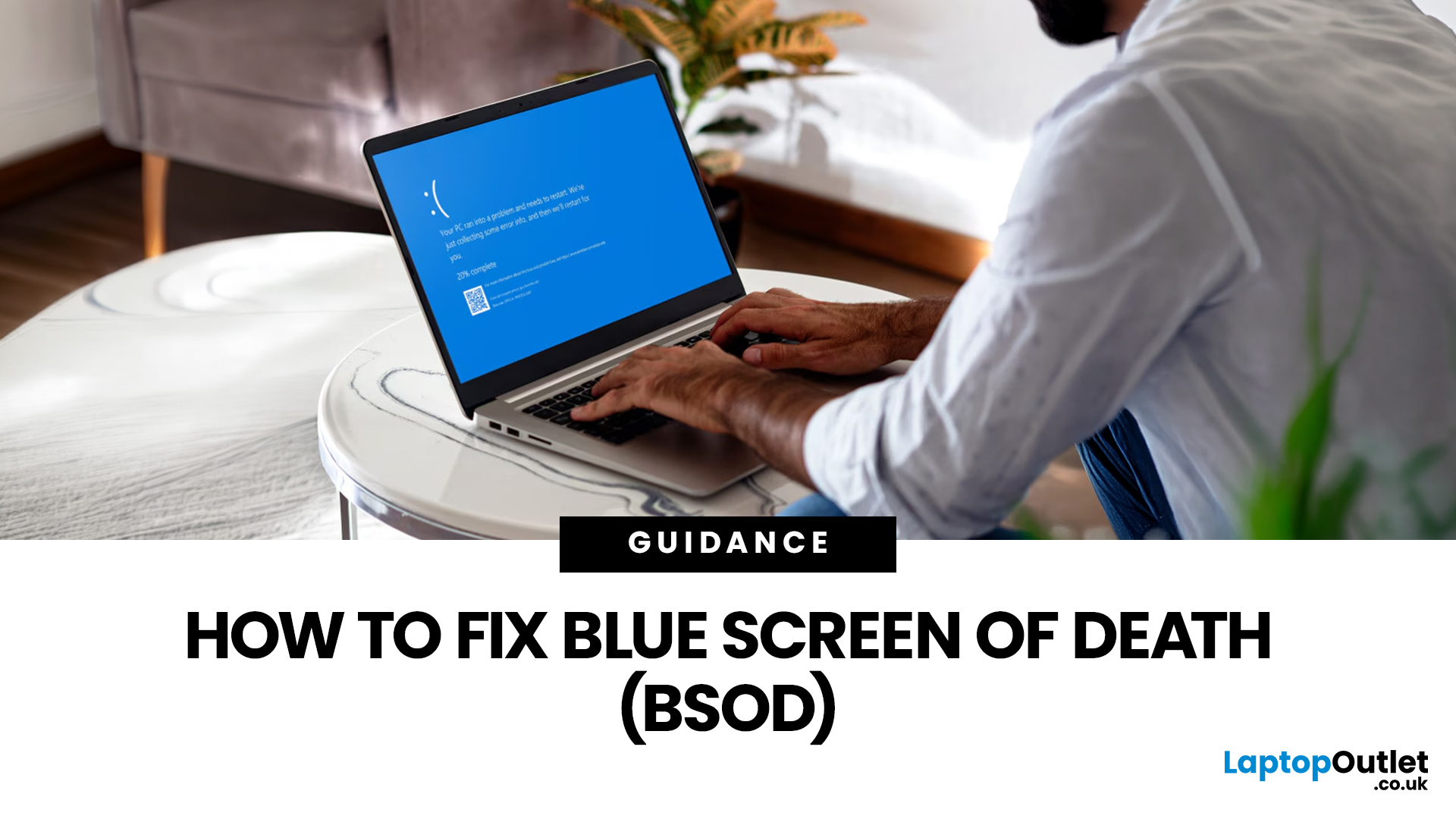
The blue screen of death (BSOD) is a critical stop error built into Windows. When the operating system encounters a fault it cannot safely recover from, it halts everything, logs the crash, and forces a restart - rather than risking data corruption or further damage. Think of it as a failsafe, not just a fault.
What Does It Look Like?
Depending on your version of Windows and the type of crash, a BSOD may show:
- A stop code identifying the error
- A message explaining that Windows ran into a problem
- A progress indicator while diagnostic information is collected
- Sometimes a QR code or additional troubleshooting
Last Updated: July 06, 2026
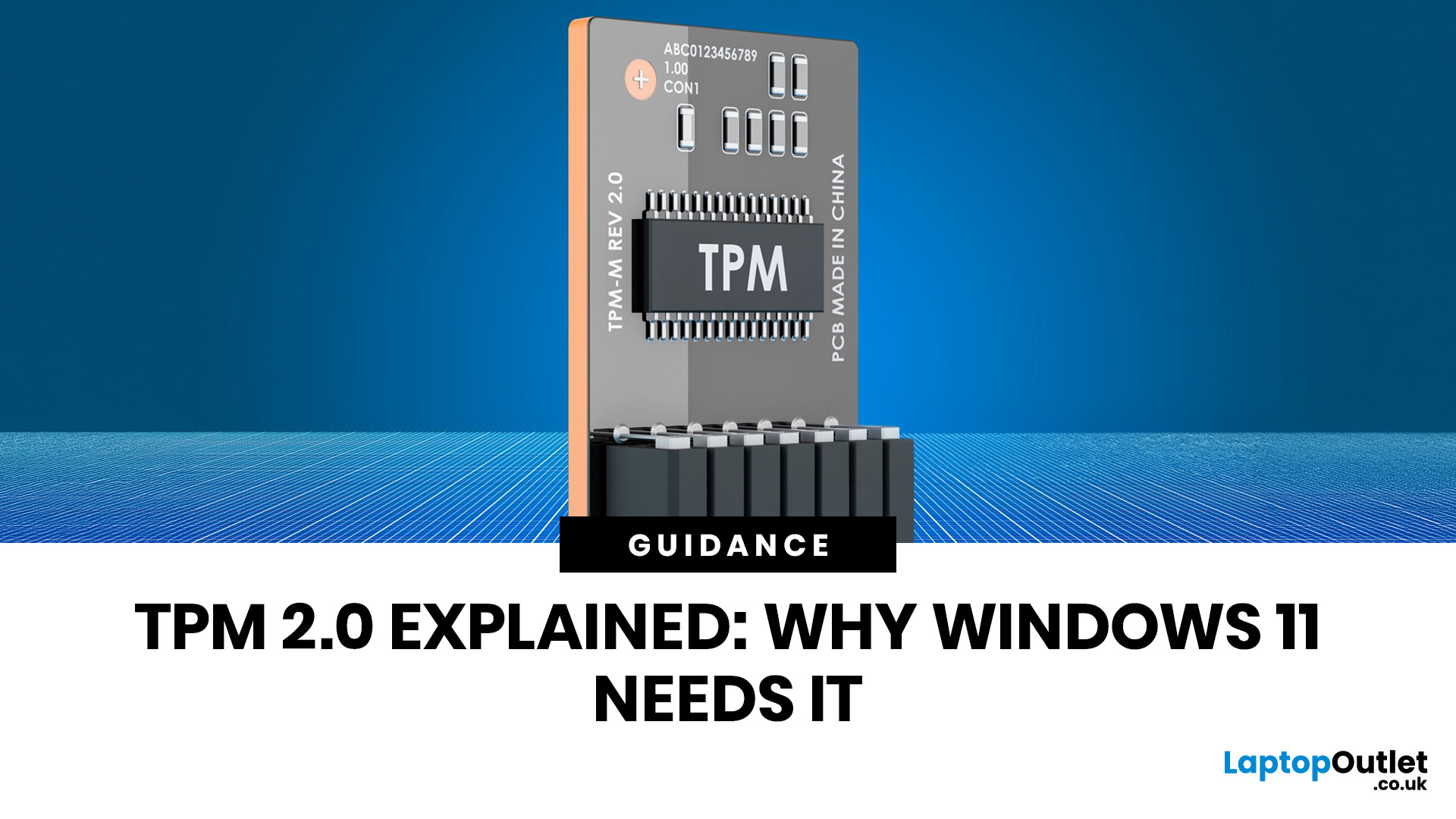
You go to upgrade your PC, everything seems fine, and then Windows 11 drops the digital equivalent of “not you, mate” with a message about TPM 2.0. Suddenly you are searching TPM 2.0 Windows 11, opening BIOS menus you have not touched since the Stone Age, and wondering if your laptop has secretly become ancient overnight. Microsoft’s official Windows 11 minimum requirements still include TPM 2.0, plus UEFI firmware and Secure Boot capability, so this is not some random pop-up glitch. It is part of the platform’s baseline security setup.
If you have been asking what is TPM in computer, do I need TPM for Windows 11, or why this tiny bit of hardware suddenly matters so much, this guide breaks it down in plain English. No jargon soup, no lecture mode, just what TPM is, what it does, why Windows 11 wants it, and what to do if your PC says TPM is missing or disabled.
| Quick answer: TPM 2.0 is a security component built into many modern PCs. It stores cryptographic keys, helps verify system integrity |
Last Updated: July 06, 2026
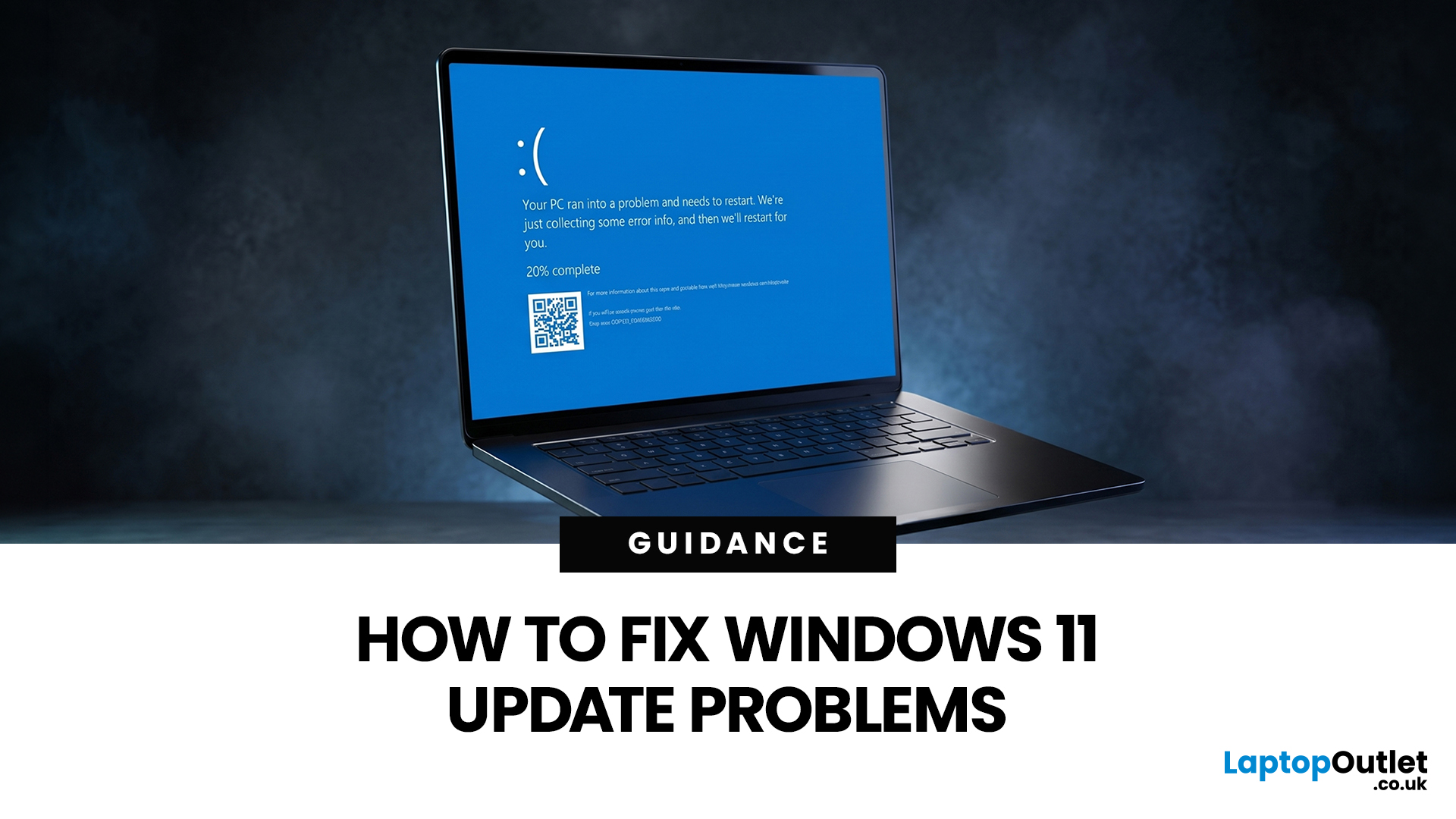
If your PC has decided that today is the day it will freeze at 61%, throw out a random error code, or restart at the worst possible time, you are very much not alone. Windows 11 update issues are one of those annoyingly common problems that can feel dramatic in the moment, but a lot of them are fixable with the right steps.
The good news is that most Windows 11 update problems usually come down to a handful of familiar causes: not enough storage, damaged update files, a disabled service, app conflicts, or a known issue that Microsoft is already tracking. Microsoft’s own support guidance still points users first to the built-in Windows Update troubleshooter and its broader update troubleshooting flow, which is usually the fastest place to start.
Why Windows 11 update fails in the first place
Let’s keep it real: when a Windows 11 update failed message pops up, it does not tell you much. The actual cause is usually one of these:
A Windows 11 update stuck during download or install can be linked

