



What Is NVIDIA Smooth Motion? How It Works and When to Use It
Quick Answer:
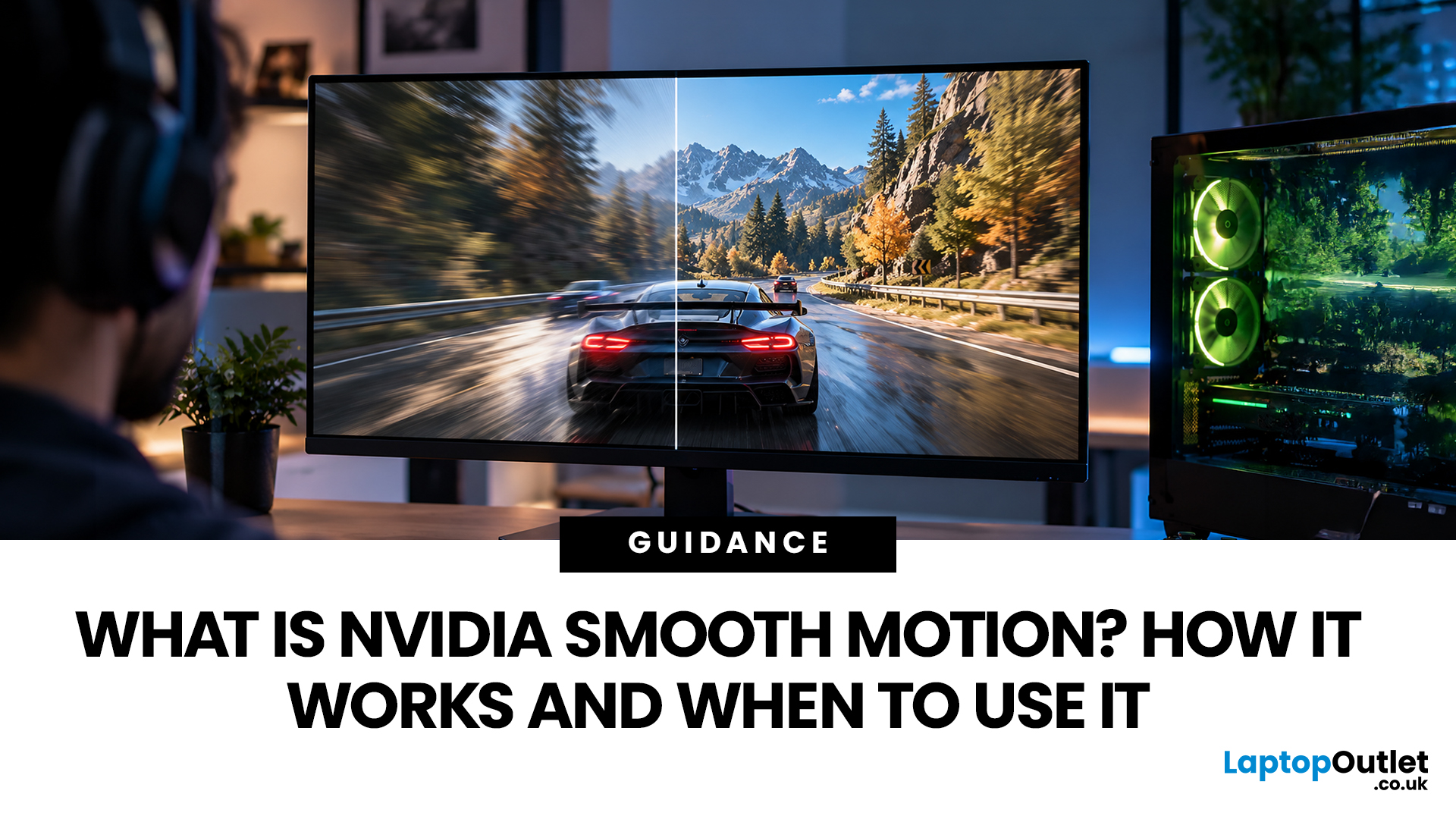
NVIDIA Smooth Motion is a driver-based AI frame-generation technology designed to make gameplay appear smoother by generating an additional frame between two traditionally rendered frames. It is particularly useful for compatible games that do not support NVIDIA DLSS Frame Generation natively.
Smooth Motion works at the graphics-driver level, allowing compatible games to generate additional frames without native frame-generation integration. Introduced for RTX 50 Series GPUs and later expanded to RTX 40 Series in 2025, it supports native resolution and compatible upscaling technologies such as DLSS Super Resolution. While it can make gameplay look smoother, it doesn't guarantee higher performance, lower input latency, or better image quality.
For gamers considering an upgrade, it is worth understanding how this technology works before deciding whether it should be enabled on an existing system or considered when choosing a new gaming laptop or desktop.
How Does NVIDIA Smooth Motion Work?
To understand NVIDIA Smooth Motion, it helps to distinguish between a frame rendered by the game engine and a frame generated by AI. When a game runs, the GPU renders frames based on the scene, player input, lighting, geometry, and other game data. The number of frames rendered each second is commonly expressed as frames per second (FPS).
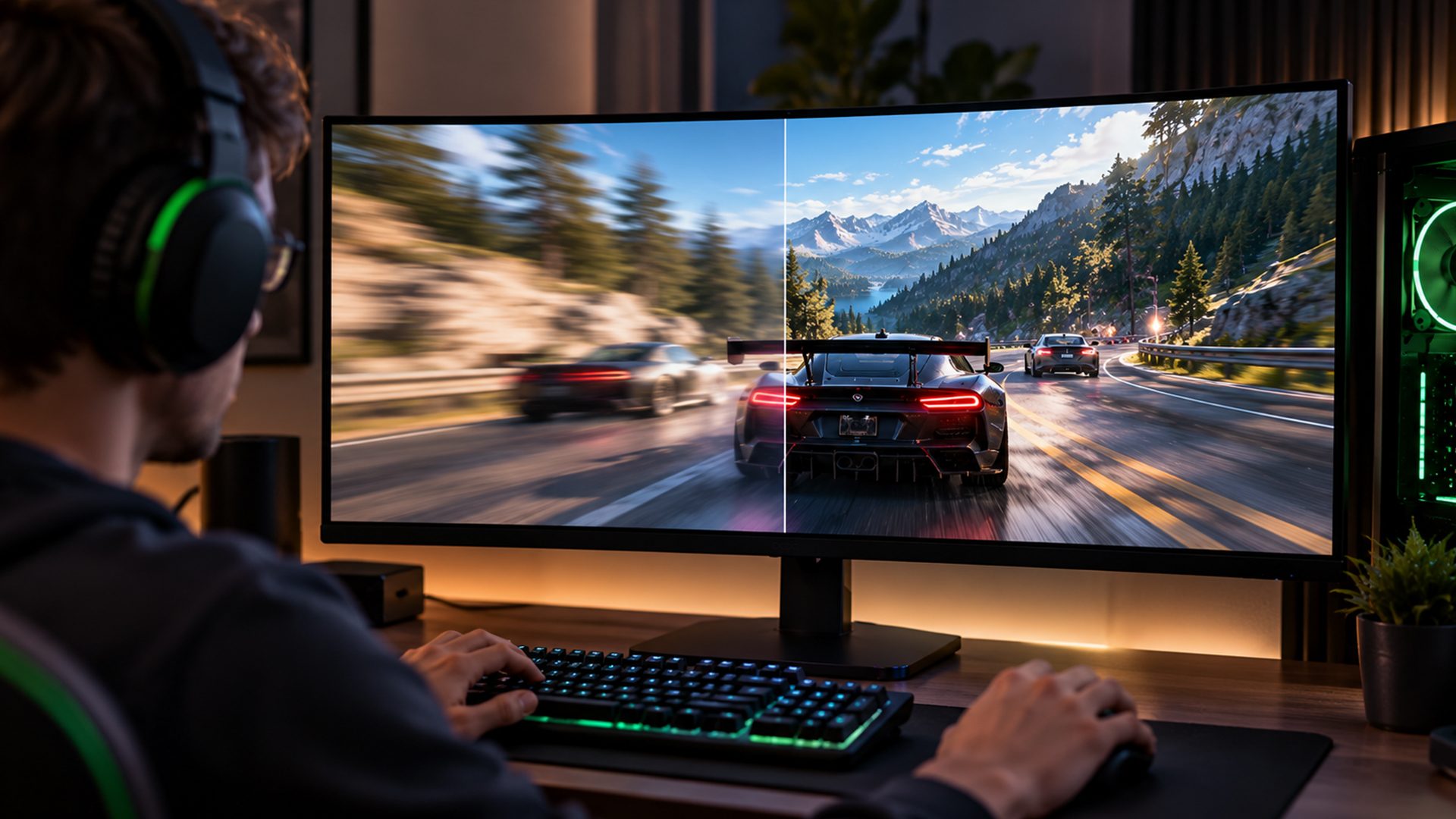
Smooth Motion uses a driver-based AI model to infer an additional frame between two rendered frames. The resulting sequence contains more displayed frames, which can make movement appear more fluid.
Consider a simplified example:
- Without Smooth Motion: The game renders 60 frames per second.
- With Smooth Motion: The system may generate additional frames, producing a perceived or displayed frame rate closer to 120 FPS under suitable conditions.
This is an illustration of the potential effect, not a guaranteed benchmark. Actual results depend on the game, the GPU, the starting frame rate, the graphics settings, and the processing overhead associated with frame generation.
What happens behind the scenes?
The process can be understood in three stages.
- The game renders its frames. The GPU produces the original frames that represent the game's actual simulation and rendered scene.
- The driver-based AI model estimates an intermediate frame. Smooth Motion analyses rendered image information to infer what an intermediate point in the motion could look like.
- The additional frame is presented between rendered frames. By increasing the number of displayed frames, the technology can make motion look smoother on a compatible display.
The important distinction is that a generated frame is not the same as a newly rendered game frame. It does not represent an additional update to the game's simulation or a new opportunity to register player input.
Consequently, a higher displayed FPS figure does not necessarily mean the game responds more quickly to mouse movements, keyboard input, or controller commands. This distinction is especially important in competitive games, where responsiveness can matter as much as visual smoothness.
Which GPUs Support NVIDIA Smooth Motion?
NVIDIA officially documents Smooth Motion support for GeForce RTX 40 Series and RTX 50 Series GPUs. Support is not determined by the GPU name alone: the installed NVIDIA software, supported game API, and selected application's compatibility also matter. Understanding your GPU's generation and capabilities can also help you determine which graphics features your system supports and what performance to expect from newer games.
NVIDIA Smooth Motion on RTX 40 Series
NVIDIA expanded Smooth Motion to the GeForce RTX 40 Series in August 2025, making it available to owners of compatible cards in that generation, including many RTX gaming desktop PCs.
The feature requires compatible versions of the NVIDIA app and Game Ready Driver. Once these requirements are met, users can enable Smooth Motion for supported games through the application's graphics settings.
If you own an RTX 40 Series card, you do not necessarily need to replace your GPU to access this feature. Check your current driver and NVIDIA app versions before assuming your hardware is incompatible.
NVIDIA Smooth Motion on RTX 50 Series
Smooth Motion was initially introduced for GeForce RTX 50 Series GPUs, which are now available across both desktop systems and RTX gaming laptops. These GPUs also support NVIDIA's newer DLSS technologies, although the available features and performance benefits differ between games and GPU generations.
An RTX 50 Series GPU is not a guarantee that Smooth Motion will improve every title. The technology is most relevant when you want driver-level frame generation in a compatible game that lacks a suitable native DLSS Frame Generation option.
Does Smooth Motion work on older GTX graphics cards?
NVIDIA's documented Smooth Motion support covers GeForce RTX 40 Series and RTX 50 Series GPUs. You should not assume that an older GTX card or an RTX 20 Series or RTX 30 Series GPU supports the feature simply because it can run the game.
Check NVIDIA's current documentation and the settings available for your particular hardware before making a purchase or troubleshooting a missing option. If you are comparing upgrade options, explore NVIDIA graphics cards to review available hardware.
How to Enable NVIDIA Smooth Motion
You can enable NVIDIA Smooth Motion through the NVIDIA app for a compatible game. The setting is configured for an individual application, so you can test the feature in one title without automatically applying the same choice to every game.
Before you begin, make sure you have a supported GeForce RTX GPU, an up-to-date NVIDIA app, a compatible driver, and a game that uses a supported graphics API.
Step 1: Update the NVIDIA app and graphics driver
Open the NVIDIA app and check for available updates in its driver section. Install a compatible driver if required, and restart the computer if the installer requests it.
Keeping both the application and the driver current is particularly important for RTX 40 Series users, because NVIDIA introduced their Smooth Motion support through updated software.
Step 2: Open the game's graphics settings in the NVIDIA app
Launch the NVIDIA app and navigate to Graphics .
Open Program settings and select the game for which you want to configure Smooth Motion. If the game does not appear in the list, check whether the app can detect or add the correct game executable.
Step 3: Find Smooth Motion under Driver Settings
With the game selected, scroll through its available settings until you reach the Driver Settings section.
Look for Smooth Motion . If the option is available, switch it on for that game.
The exact interface may change with future NVIDIA app releases, so consult NVIDIA's official Smooth Motion setup instructions if your screen looks different.
Step 4: Launch the game and test performance
Start the game and play a repeatable section, such as a familiar route, a training area, or a scene with consistent camera movement. Compare the experience with Smooth Motion enabled and disabled. Pay attention to more than the FPS counter:
- Does camera movement look smoother?
- Are there visible artefacts around fast-moving objects?
- Does mouse or controller input feel responsive?
- Are frame times stable?
- Does GPU utilisation or power consumption change noticeably?
If the generated frames improve visual smoothness without introducing distracting artefacts or an undesirable input delay, leaving Smooth Motion enabled may make sense for that title. If the experience feels worse, switch it off and compare again. The best setting depends on the game and your priorities.
NVIDIA Smooth Motion On or Off: Which Is Better?
There is no universally correct setting. Smooth Motion can improve perceived motion in some situations, but it also introduces processing overhead and can produce visual artefacts.
The following table provides a practical starting point.
|
Gaming scenario |
Suggested setting |
Reason |
|
A compatible single-player game without native DLSS Frame Generation |
Test it on |
Additional generated frames may improve perceived smoothness. |
|
A game already using native DLSS Frame Generation |
Prefer the game's native feature; don't combine both |
NVIDIA documents that Smooth Motion and native DLSS Frame Generation should not be used together. |
|
A competitive shooter where input responsiveness is critical |
Compare carefully; often leave it off if responsiveness suffers |
More displayed frames do not automatically mean lower input latency. |
|
A game with obvious ghosting or visual artefacts |
Turn it off |
Visual quality matters more than a higher FPS counter. |
|
A game already running smoothly at a high frame rate |
Test both settings |
The additional benefit may be less noticeable, and overhead may not be worthwhile. |
|
A game with inconsistent frame times or very low native FPS |
Investigate the underlying performance issue first |
Frame generation cannot fix every CPU, GPU, or frame-pacing bottleneck. |
These are starting recommendations rather than universal rules. Test each game with the graphics settings, resolution, and frame-rate target you actually use.
Can NVIDIA Smooth Motion improve low FPS?
Smooth Motion can increase the number of displayed frames by inserting generated frames. However, it does not eliminate the underlying workload required to render the original frames.
If your GPU is struggling because of high-resolution rendering, demanding ray tracing, or insufficient processing capacity, consider reducing demanding settings or using an appropriate upscaling option first.
The starting frame rate and frame pacing still matter. Generating additional frames from an unstable or very low frame rate may not produce the experience you expect.
Does NVIDIA Smooth Motion reduce input lag?
Not necessarily. Generated frames can improve visual continuity without proportionally improving how quickly the game responds to player input.
Input latency depends on factors such as the game's simulation, CPU and GPU workload, rendering queue, display, and latency-management settings. Smooth Motion should therefore be evaluated as a visual-smoothness feature, not a universal input-lag solution.
For competitive play, judge responsiveness through actual gameplay rather than relying exclusively on a displayed FPS number.
NVIDIA Smooth Motion vs DLSS
NVIDIA Smooth Motion and DLSS are related through NVIDIA's AI graphics technologies, but they are not interchangeable names for the same feature.
DLSS is a family of neural-rendering technologies that includes Super Resolution, Frame Generation, Ray Reconstruction, and other features. Smooth Motion is a driver-based frame-generation option intended to provide smoother gameplay in titles without native DLSS Frame Generation support.
|
Feature |
NVIDIA Smooth Motion |
DLSS Super Resolution |
DLSS Frame Generation |
|
Main purpose |
Add an inferred frame between rendered frames |
Reconstruct an output image from a lower internal rendering resolution |
Generate additional frames using DLSS's game-integrated technology |
|
Primary mechanism |
Driver-based AI frame generation |
AI-based image upscaling |
Game-integrated frame generation |
|
Requires native DLSS Frame Generation support in the game? |
No |
The game must support the relevant DLSS integration |
Yes, or a compatible NVIDIA app override where supported |
|
Main benefit |
Smoother-looking motion |
Higher performance at a target output resolution, with an image-quality trade-off |
Increased displayed frame rate |
|
Can be combined with the other technology? |
Can work with supported scaling techniques; do not combine with native DLSS Frame Generation |
Can be used alongside compatible frame-generation technologies |
Use the game's supported DLSS configuration rather than stacking it with Smooth Motion |
The key distinction is that Super Resolution changes how the image is rendered and reconstructed, whereas frame generation adds frames between rendered ones.
Smooth Motion is particularly useful as an option for games that do not provide native DLSS Frame Generation. If a game already supports native DLSS Frame Generation, that is generally the more appropriate starting point.
NVIDIA's documentation explicitly warns against running native DLSS Frame Generation and Smooth Motion together because the technologies compete and can reduce performance or introduce visual artefacts. For more information about the wider technology family, consult NVIDIA's DLSS documentation.
NVIDIA Smooth Motion vs Frame Generation: What Is the Difference?
The phrase frame generation describes a broader category of technologies that create additional frames rather than rendering every displayed frame directly through the game engine. Smooth Motion is one such technology. NVIDIA DLSS Frame Generation is another. The main practical difference is where the feature operates and how it integrates with the game.
Smooth Motion operates through the graphics driver. This makes it useful for compatible titles that lack native DLSS Frame Generation support.
DLSS Frame Generation is integrated into supported games and works within NVIDIA's DLSS feature set. Its implementation is designed to work with the game's rendering pipeline and associated technologies.
For supported titles, native DLSS Frame Generation should generally be your first option. Smooth Motion offers an alternative when that native feature is unavailable.
Neither technology guarantees perfect image quality, zero latency, or a particular frame rate. Results vary with the game, hardware, settings, and starting performance.
NVIDIA Smooth Motion Screen Tearing and Other Visual Issues
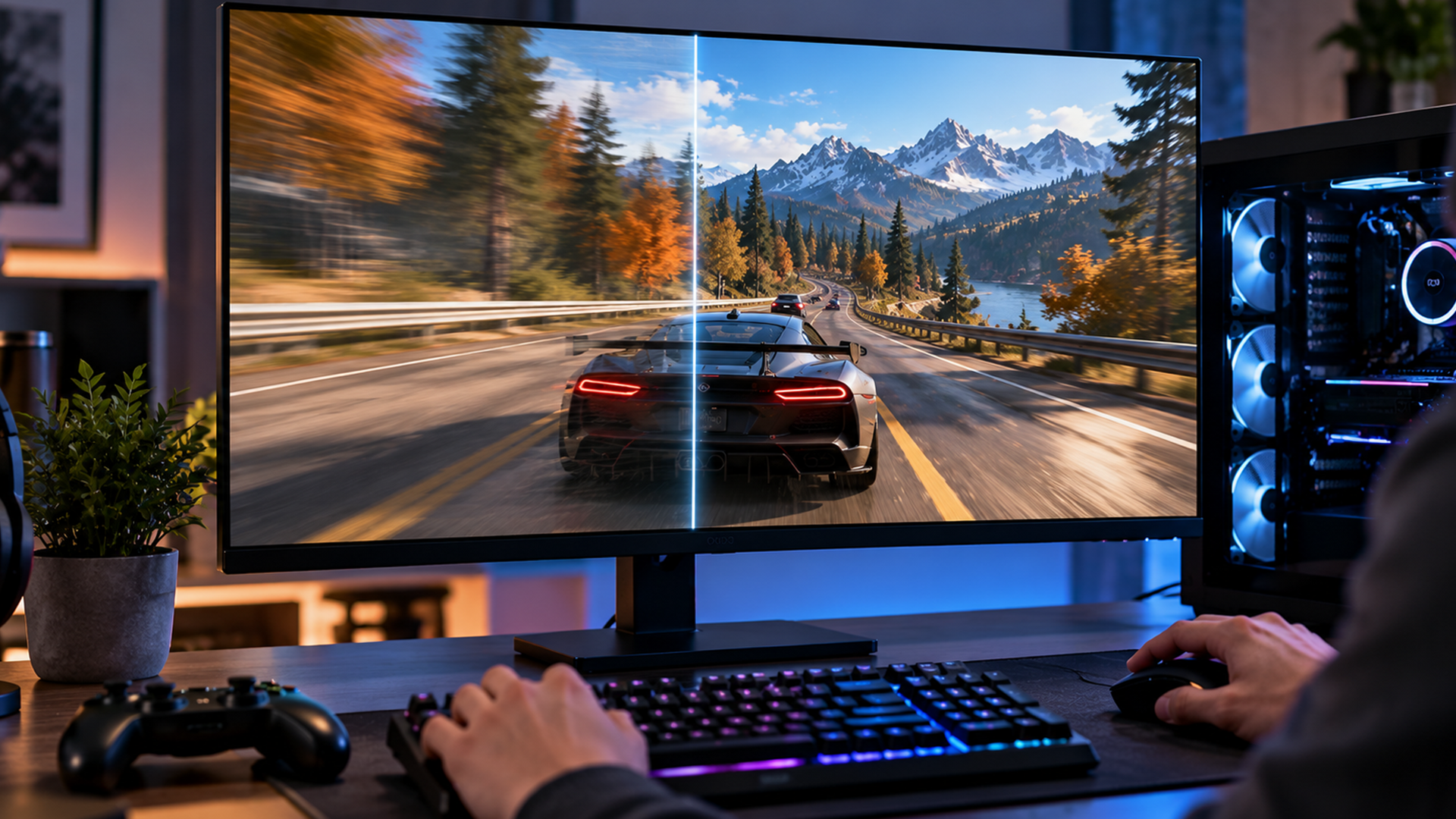
If you notice screen tearing, ghosting, flickering, or unusual motion after enabling Smooth Motion, first determine whether the issue is caused by frame generation, display synchronisation, the game's own rendering behaviour, or another graphics setting.
These problems have different causes, so enabling or disabling a single feature may not resolve every case.
Screen tearing
Screen tearing occurs when the display presents parts of different frames in a way that produces a visible discontinuity, often as a horizontal split.
Smooth Motion increases the number of frames presented, but it is not a universal screen-tearing fix. Display refresh rate, frame pacing, V-Sync, G-SYNC compatibility, and game-specific settings can all affect the result.
Try the following checks:
- Compare gameplay with Smooth Motion enabled and disabled.
- Check whether V-Sync or a compatible variable-refresh-rate option is configured appropriately for your display.
- Check the game's frame-rate cap and your monitor's refresh rate.
- Update the graphics driver if you suspect a driver-related issue.
- Retest using the same game scene and graphics settings.
Change one setting at a time so you can identify which change affects the problem.
Ghosting and visual artefacts
Frame generation estimates what happens between two rendered frames. Complex motion, rapid camera movements, particle effects, fine details, and objects appearing or disappearing can make that estimation more difficult.
If generated frames produce distracting trails, distortions, or unstable details, compare the same scene with Smooth Motion disabled. If the native rendering looks cleaner, the trade-off may not be worthwhile for that game.
Unexpectedly high FPS but poor responsiveness
A higher displayed frame rate does not guarantee a proportionate improvement in input responsiveness. If the game looks smoother but feels less responsive, compare the experience with frame generation disabled. Also check the underlying frame rate and other latency-related settings. For competitive gaming, consistent responsiveness can be more valuable than a larger FPS figure.
Why Is NVIDIA Smooth Motion Greyed Out?
If Smooth Motion is greyed out or missing from the NVIDIA app, check the compatibility requirements before assuming your GPU is faulty.
1. Check your graphics card
Confirm the exact GPU model in your system information or the NVIDIA app. NVIDIA's documented support covers GeForce RTX 40 Series and RTX 50 Series graphics cards. Do not rely on a generic RTX label without checking the generation.
2. Update the NVIDIA app and driver
Install the latest compatible NVIDIA app and graphics driver available for your hardware. This is especially important if you use an RTX 40 Series GPU that has not received recent driver updates.
Restart the system if required and reopen the app.
3. Select a compatible game
Open Graphics → Program settings and select the game you want to configure. Smooth Motion is a driver setting associated with the selected application, so the available options may depend on the game and its graphics API.
NVIDIA documents support for compatible DirectX 11, DirectX 12, and Vulkan games. Support should not be assumed for every game, executable, or rendering configuration.
4. Check the Driver Settings section
Scroll down to the relevant Driver Settings area. If Smooth Motion is not listed, verify that you selected the correct executable and that the application and driver are up to date.
If the option remains unavailable, consult NVIDIA's official support documentation rather than using unofficial workarounds that may not apply to your configuration.
5. Test again after updates
After updating the software or correcting the application selection, restart the game and check the setting again.
If the feature is still unavailable, record your GPU model, driver version, NVIDIA app version, game name, and graphics API before contacting NVIDIA support. These details make it easier to identify a compatibility issue.
If your graphics card is missing from the NVIDIA app or the display stops working after a driver update, check your hardware detection and driver installation before troubleshooting Smooth Motion further.
Is NVIDIA Smooth Motion Worth Using on a Gaming Laptop or Desktop PC?
Whether Smooth Motion is worthwhile depends on your hardware, the games you play, and the balance you prefer between visual smoothness and responsiveness.
When it makes sense on a gaming laptop
A gaming laptop may have a high-refresh-rate display and a compatible RTX GPU, making additional displayed frames attractive in supported titles.
However, laptops also operate within thermal and power limits. Frame generation introduces additional processing, and its practical value depends on the laptop's GPU configuration, cooling, power mode, and starting frame rate.
If you are choosing a system for gaming, compare the graphics card, cooling design, display refresh rate, and overall performance rather than buying based on Smooth Motion alone. Explore the wider range of gaming laptops to compare available systems.
When it makes sense on a gaming desktop PC
A desktop system may offer greater flexibility in cooling, GPU selection, power delivery, and display configuration. That can make it easier to experiment with graphics settings and compare native rendering against generated frames.
Nevertheless, Smooth Motion does not replace the need for a capable GPU. A balanced system with suitable CPU performance, memory, graphics hardware, and a compatible display remains important. I
What should you prioritise when upgrading?
Before choosing new hardware, consider:
- The games you play and whether they support DLSS Frame Generation.
- Your target resolution and refresh rate.
- Your current native frame rate in demanding scenes.
- Whether you prioritise competitive responsiveness or smoother-looking single-player gameplay.
- Your budget, cooling requirements, and upgrade plans.
A newer GPU can offer benefits beyond Smooth Motion, including greater rendering performance and access to additional graphics technologies. If you are considering new gaming desktop PCs, the right choice should still depend on your actual workload, the games you play and the level of performance you need.

Final Verdict: Should You Use NVIDIA Smooth Motion?
NVIDIA Smooth Motion can make compatible RTX 40 Series and RTX 50 Series games look smoother by generating additional frames through the graphics driver, even without native DLSS Frame Generation support. Results vary by game, starting frame rate and image quality.
For the best experience, test the feature on and off in the same scene and assess responsiveness, frame pacing and visual artefacts. When choosing a gaming system, consider overall GPU performance, cooling, display quality and game support too.

Frequently Asked Questions
What is NVIDIA Smooth Motion?
NVIDIA Smooth Motion is a driver-based AI frame-generation technology that infers an additional frame between two rendered frames to make compatible games appear smoother.
How do I enable NVIDIA Smooth Motion?
Update the NVIDIA app and compatible graphics driver, select a compatible game under Graphics → Program settings, locate Driver Settings, and enable Smooth Motion if the option is available.
Does NVIDIA Smooth Motion work on RTX 40 Series GPUs?
Yes. NVIDIA expanded support to GeForce RTX 40 Series GPUs in 2025, provided the required compatible NVIDIA app and Game Ready Driver are installed.
Does NVIDIA Smooth Motion work on RTX 50 Series GPUs?
Yes. Smooth Motion was introduced for GeForce RTX 50 Series GPUs and is also supported on the RTX 40 Series, subject to the relevant software and game compatibility requirements.
Should NVIDIA Smooth Motion be on or off?
Test it on a per-game basis. It may improve perceived smoothness in compatible games without native DLSS Frame Generation, but it can introduce overhead or visual artefacts. For games using native DLSS Frame Generation, use the native feature rather than combining the two.
Is NVIDIA Smooth Motion the same as DLSS Frame Generation?
No. Smooth Motion is driver-based, while DLSS Frame Generation is integrated into supported games or enabled through compatible overrides. Both generate additional frames, but they use different implementations.
Does NVIDIA Smooth Motion fix screen tearing?
Not necessarily. Screen tearing can be affected by display synchronisation, refresh rate, frame pacing, and game settings. Smooth Motion is a frame-generation feature, not a universal screen-tearing solution.
Why is NVIDIA Smooth Motion greyed out?
Possible causes include an unsupported GPU, outdated software, an incompatible game or graphics API, or selecting the wrong game executable. Check the current NVIDIA documentation and update the application and driver before troubleshooting further.
Does NVIDIA Smooth Motion reduce input lag?
It does not guarantee lower input latency. Generated frames can improve visual smoothness without making the game's simulation or player input respond proportionally faster.
Related Articles


Last Updated: December 30, 2025
If your current rig is starting to stutter or you are simply ready to jump into the next generation of visual fidelity, there is no better time to act. The New Year graphics card deals are finally here.
Whether you are a competitive esports player, a 4K gaming enthusiast, or a professional video editor, the right GPU is the heart of your system. This year, we are seeing incredible NVIDIA GPU discounts and an extensive AMD Radeon sale New Year event.
In this guide, we will explore the best graphics cards for gaming and work, ensuring you find the perfect match for your monitor and your budget.
Top New Year Graphics Card Deals for 2026
We have hand-picked eight of the most impressive NVIDIA RTX GPUs and AMD Radeon GPUs currently available. Let’s explore the right card for your setup.
1. MSI GeForce RTX 5060 GAMING 8GB OC Graphics Card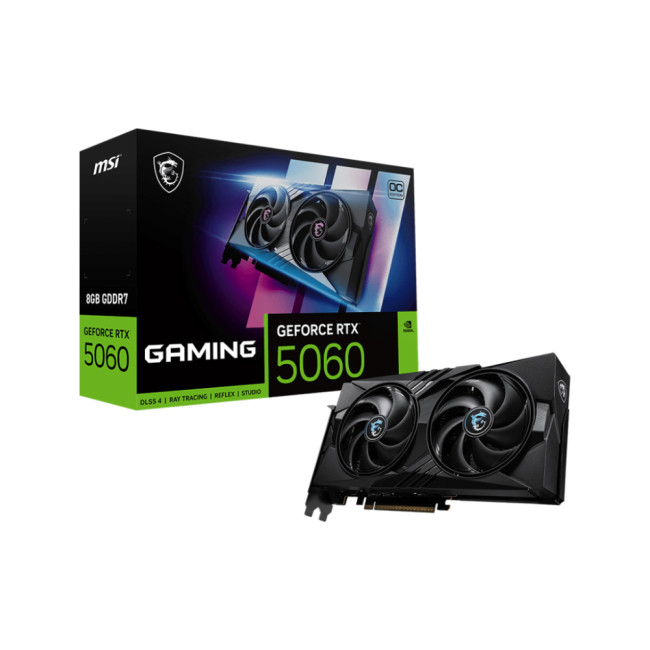
Key Specifications
- GPU: NVIDIA GeForce RTX 5060 (Blackwell Architecture)
- Memory: 8GB GDDR7
- Memory Speed: 28 Gbps
- Memory Interface: 128 bit
- Core
Last Updated: September 02, 2026

Last Updated: April 28, 2026
When it comes to high-performance computing, gaming realism, and creative workloads, NVIDIA graphics cards continue to set the benchmark. From immersive gaming experiences to professional-grade rendering and AI acceleration, NVIDIA’s GPUs power some of the most advanced systems on the market today. This guide explores everything you need to know about Nvidia graphics cards.
Understanding NVIDIA Graphics Cards and their Advantages
When performance matters, NVIDIA continues to lead the graphics card market with technology designed for today’s most demanding applications. From immersive gaming worlds to high-speed creative workflows, NVIDIA GeForce graphics cards deliver the power, efficiency, and visual realism modern users expect. Trusted by gamers and professionals alike, NVIDIA GPUs have become the benchmark for smooth gameplay, intelligent upscaling, and advanced rendering. What truly sets NVIDIA graphics cards apart is how each generation evolves. With smarter architecture, improved
Last Updated: July 10, 2026
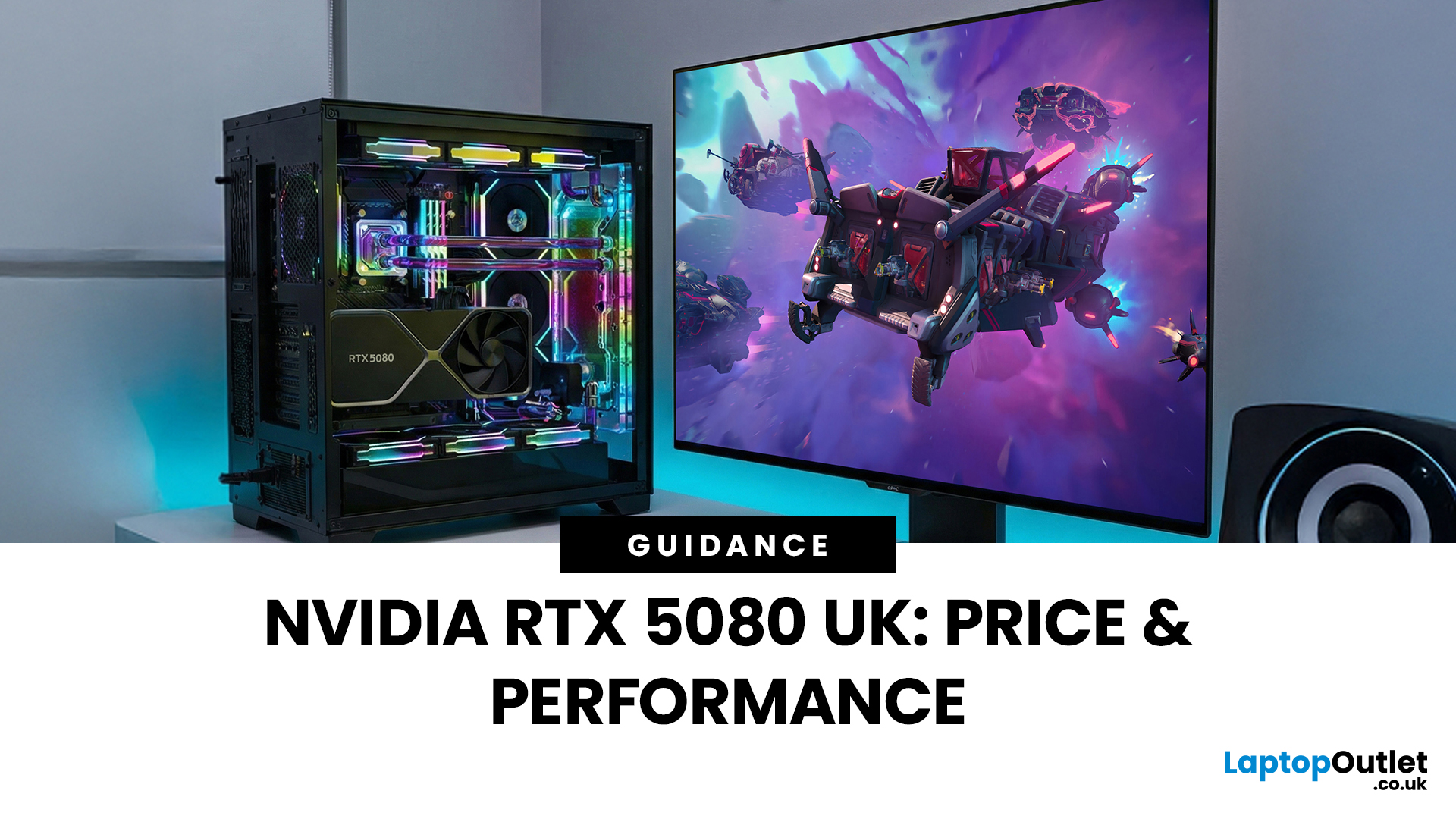
The arrival of a new flagship-tier graphics card always creates excitement, and the NVIDIA RTX 5080 UK is no exception. If you are a gamer or creator who wants to upgrade, understanding the price, performance, and real-world benefits of this card is essential. In this guide, we break down everything you need to know about the RTX 5080, from expected pricing in the UK to gaming performance, comparisons with other high-performance graphics cards, and whether it’s worth waiting for future variants.
How Does the GeForce RTX 5080 Compare to Previous NVIDIA GPUs?
Compared to previous-generation GPUs, the GeForce RTX 5080 delivers notable improvements in both raw performance and efficiency. NVIDIA has focused heavily on performance per watt, meaning users can expect more power without excessive heat or energy consumption. Key improvements include:
- Faster core architecture
- Improved ray tracing performance
- Enhanced AI and DLSS capabilities
- Better memory handling for high-resolution gaming
These

Last Updated: January 13, 2026
NVIDIA used CES (Consumer Technology Association)2026 to outline what it believes is the next major shift in computing — a move away from general-purpose processors towards systems designed primarily for artificial intelligence.
Speaking in Las Vegas, CEO Jensen Huang positioned NVIDIA not just as a graphics company, but as a platform provider for what it calls the “AI era”, spanning data centres, gaming PCs, gaming laptops, robotics, autonomous vehicles and cloud services.
Rather than focusing on a single blockbuster product, NVIDIA announcements CES 2026 centred on a broad ecosystem update. Key themes included the next-generation Rubin compute platform, and advances in AI-driven graphics through DLSS 4.5, new RTX AI PCs.
The Rubin Platform: NVIDIA’s Next-Generation AI Architecture

The biggest news for businesses was the Rubin platform. It is the successor to the successful Blackwell architecture. This system is a team of six different chips working together.
NVIDIA designed this platform

Last Updated: January 27, 2026
The world of PC gaming has changed forever thanks to a massive leap in graphics innovation. If you have looked at modern gaming desktop PCs recently, you have likely seen the term "RTX" everywhere.
But what is NVIDIA RTX technology exactly? It is not just a fancy label on a box. It represents a total shift in how your computer creates the images you see on screen.
By combining clever artificial intelligence with raw power, NVIDIA has made games look like Hollywood films while keeping them running smoothly.
Introduction to NVIDIA RTX Technology
NVIDIA RTX (Ray Tracing Texel eXtreme) is more than just a brand name. it is a high-end computing platform. It combines specialized hardware cores with advanced software to create lifelike visuals.
A Brief History of NVIDIA Graphics Cards
Before RTX, we had the GTX (Giga Texel Shader eXtreme) series. These cards were powerful, but they relied on "rasterisation." This is a method where a 3D scene is squashed into 2D pixels on your screen. It worked
Last Updated: March 30, 2026
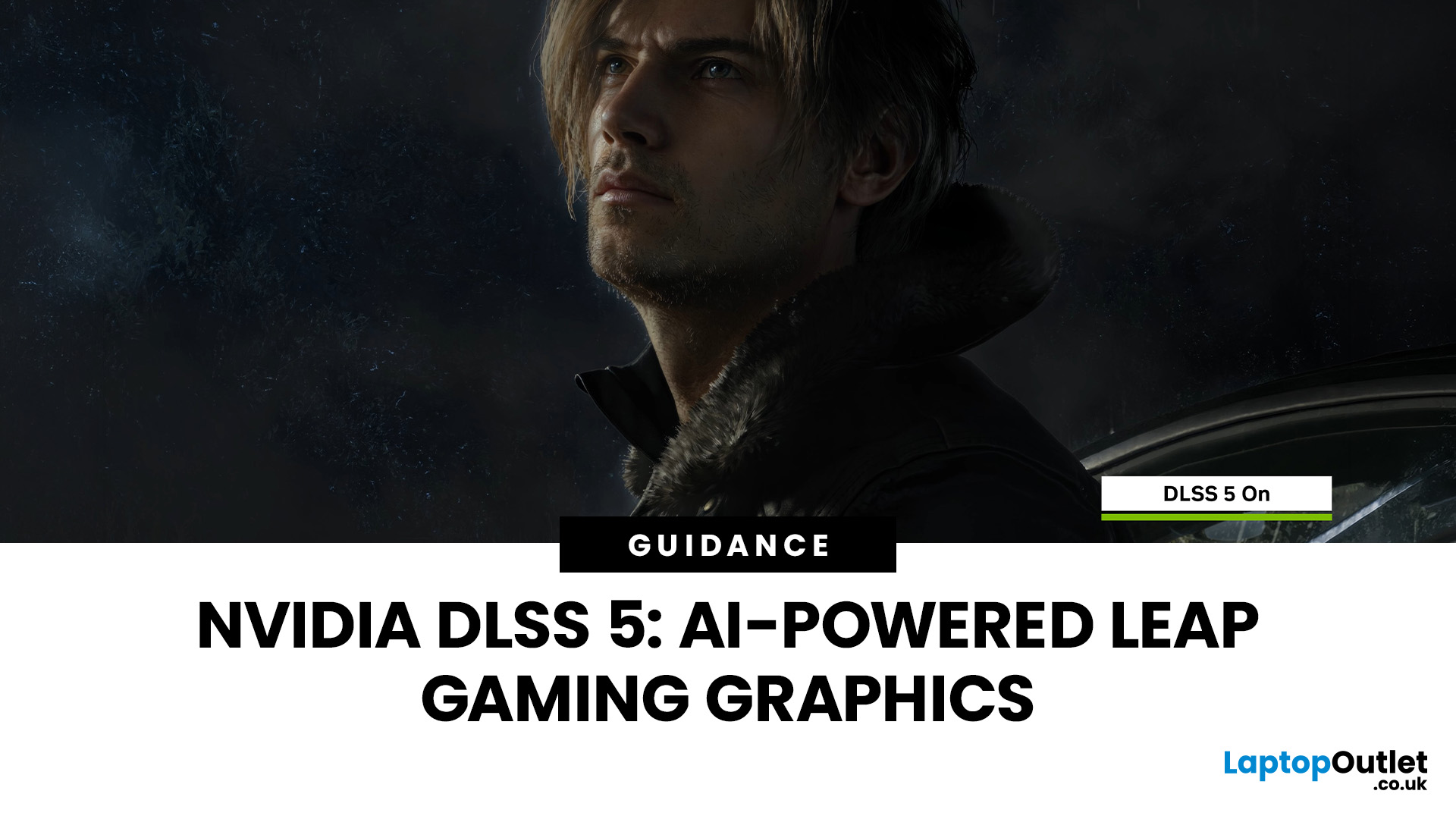
NVIDIA DLSS 5 marks a much bigger shift than a routine version update. Rather than focusing mainly on upscaling and frame generation, NVIDIA is positioning DLSS 5 as a real-time neural rendering system that can add photoreal lighting and material detail to game scenes while they are being played. According to NVIDIA’s March 2026 announcement, it is the company’s biggest graphics breakthrough since real-time ray tracing arrived in 2018, with a launch scheduled for fall 2026.
For PC gamers, that matters because the long-running trade-off between image quality and performance may be changing again. Earlier DLSS versions were mainly about making games run faster at high resolutions. DLSS 5 expands that idea into visual interpretation, where AI is used not just to reconstruct pixels, but to enhance lighting response, material realism and scene fidelity in ways NVIDIA says were previously closer to Hollywood VFX than a 16-millisecond game frame.
For UK buyers looking at a gaming laptop or desktop
Last Updated: August 20, 2026
Last Updated: July 07, 2026
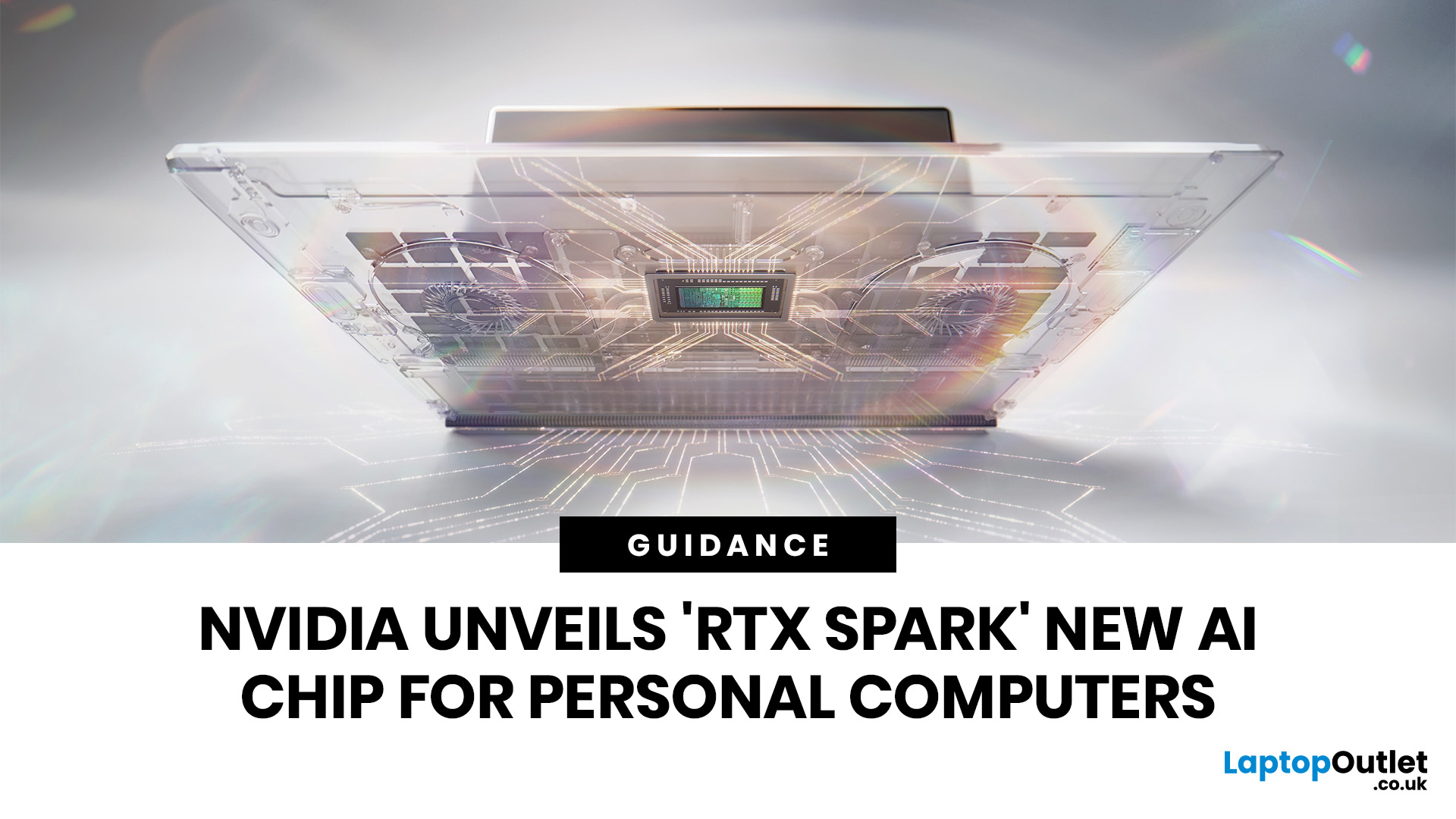
NVIDIA RTX Spark is one of the biggest PC announcements of the AI era. It is NVIDIA’s new AI computing platform for Windows PCs, built to bring local AI agents, RTX graphics, GPU acceleration and high-performance creative work into slim laptops and compact desktop systems.
That matters because personal computing is changing quickly. You are no longer only opening apps, browsing websites or editing documents. The next generation of PCs is being designed to understand your work, run AI models locally, help with coding, create images and videos, search your files, render complex scenes and play demanding games with AI-enhanced graphics.
This is where NVIDIA RTX Spark comes in. According to NVIDIA’s official RTX Spark product page, the platform brings together up to 6,144 Core Blackwell RTX GPUs, a 20-core NVIDIA Grace CPU, up to 128GB unified memory and up to 1 petaflop of AI performance in one platform. In simple words, NVIDIA wants RTX Spark to turn the Windows PC into a personal AI supercomputer.
Published: August 20, 2026

