



Motherboard Wi-Fi or Bluetooth Not Working? Try These 5 Fixes
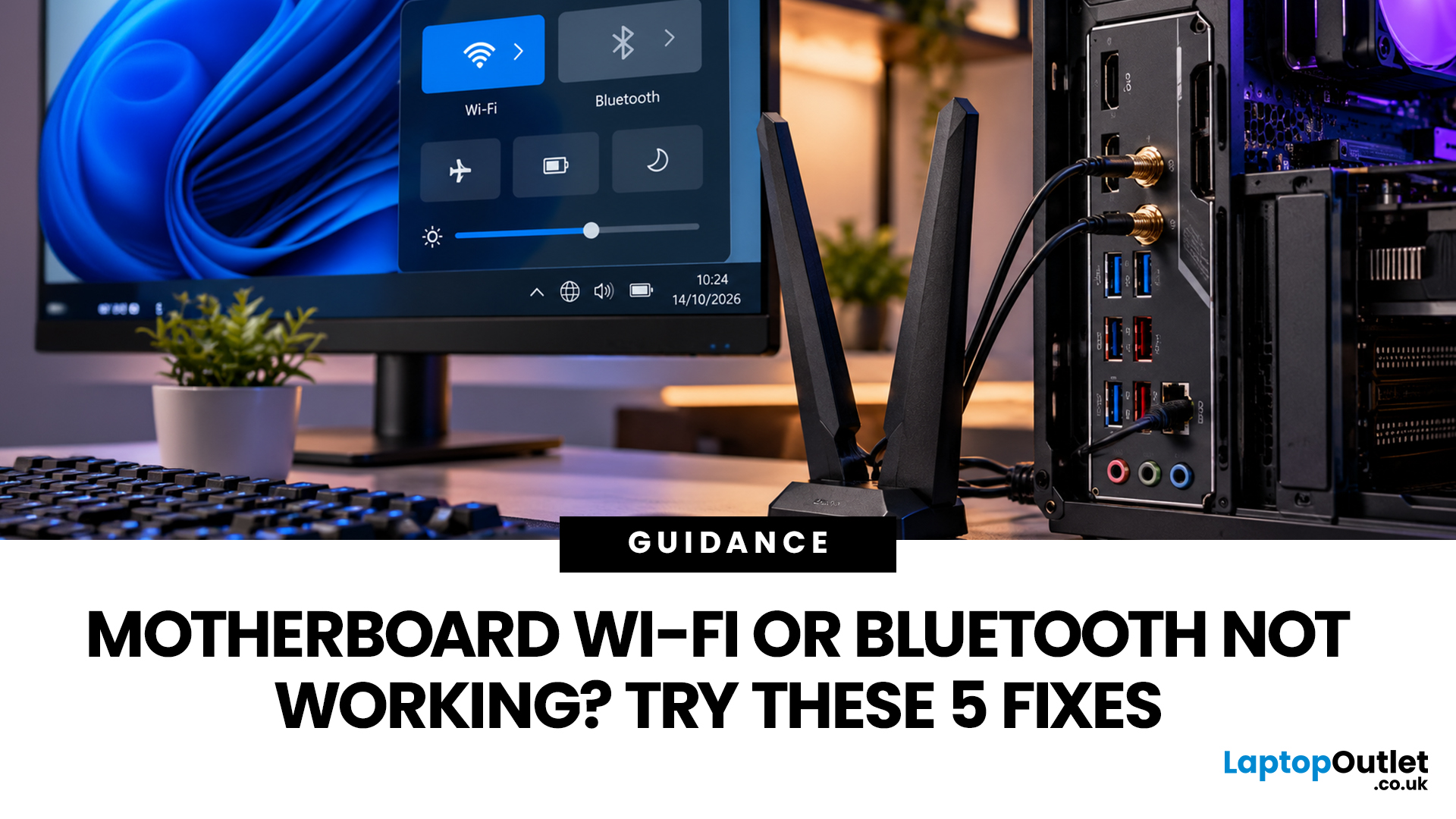
Quick Answer: If your motherboard Wi-Fi or Bluetooth is not working, start by checking the antennas, Windows device detection and the correct wireless drivers. If the issue continues, review BIOS settings, reset network settings, and rule out a hardware fault. Most problems are caused by drivers, configuration, or connectivity issues rather than motherboard failure.
Built-in wireless is convenient until Wi-Fi disappears from Windows, Bluetooth refuses to connect or neither feature works after building or upgrading your PC. If you have a motherboard WiFi not working problem, you usually don't need to assume the board itself has failed.
Loose antennas, missing drivers, disabled wireless hardware, and firmware settings are all possible causes. A new Windows installation can also leave the wireless controller without the correct software. Work through these five fixes in order. Starting with the simplest checks can save you from changing BIOS settings or reinstalling drivers unnecessarily.
Before You Start: Check Whether Your Motherboard Actually Has Wi-Fi
First, confirm that your motherboard includes built-in wireless connectivity. Some boards are sold in both Wi-Fi and non-Wi-Fi versions with very similar names.
Look at the exact model printed on the motherboard or its packaging and check its specification page. You should see Wi-Fi or WLAN listed alongside Bluetooth support.
If you're replacing a board and specifically want wireless connectivity, our range of gaming motherboards with Wi-Fi can help you narrow down models with integrated networking.
Once you've confirmed that wireless hardware is present, move through the following checks.
Fix 1: Check and Reconnect the Wi-Fi Antenna
Desktop motherboard Wi-Fi is designed to work with the supplied external antenna or antennas. You may get a weak connection without them, or your PC may struggle to detect nearby networks at all.
Check the rear I/O panel for the threaded Wi-Fi antenna connectors. Attach the supplied antenna securely, but don't overtighten it. If your board uses a movable antenna base, place it away from the metal PC case and other objects that could obstruct the radio signal. A motherboard WiFi antenna not working issue can show up as:
- Very weak signal strength
- Frequent disconnections
- Networks disappearing unexpectedly
- Bluetooth devices losing connection at short distances
- Much poorer reception than phones or laptops in the same room
If you have two connectors, attach both antennas unless your motherboard documentation states otherwise.
Expert Tip: Don't immediately blame the router if only the desktop has poor reception. Test the same network with your phone from the PC's location. If other devices receive a strong signal, focus on the motherboard, antenna and PC configuration first.
For builders choosing a replacement platform, our AM5 motherboards include options with and without integrated wireless connectivity, so check the individual specification before ordering.
Fix 2: Check Whether Windows Can See the Wireless Hardware
Next, find out whether Windows detects the Wi-Fi and Bluetooth controllers. In Windows 11:
- Right-click Start .
- Select Device Manager .
- Expand Network adapters .
- Look for an Intel, Realtek, MediaTek or similarly named wireless adapter.
- Expand Bluetooth and check for the Bluetooth controller.
It also helps to understand what a network adapter does, as this makes it easier to distinguish a wireless hardware problem from a router or broadband issue.
If the adapter has a downward arrow, right-click it and select Enable device . A yellow warning symbol usually points towards a driver or hardware configuration problem.
If Wi-Fi appears normally, open Settings > Network & internet > Wi-Fi and make sure Wi-Fi is switched on. Windows 11 also provides an automated Network and Internet troubleshooter through the Get Help system.
When a built in WiFi motherboard not working issue starts immediately after installing Windows, missing drivers are particularly likely.
You can also check Windows Update before manually installing anything:
Settings > Windows Update > Check for updates
Restart the PC after applicable updates have been installed.
If you're troubleshooting an older build or deciding whether replacement makes more sense, you can browse our wider selection of motherboards by socket, chipset, form factor and connectivity.
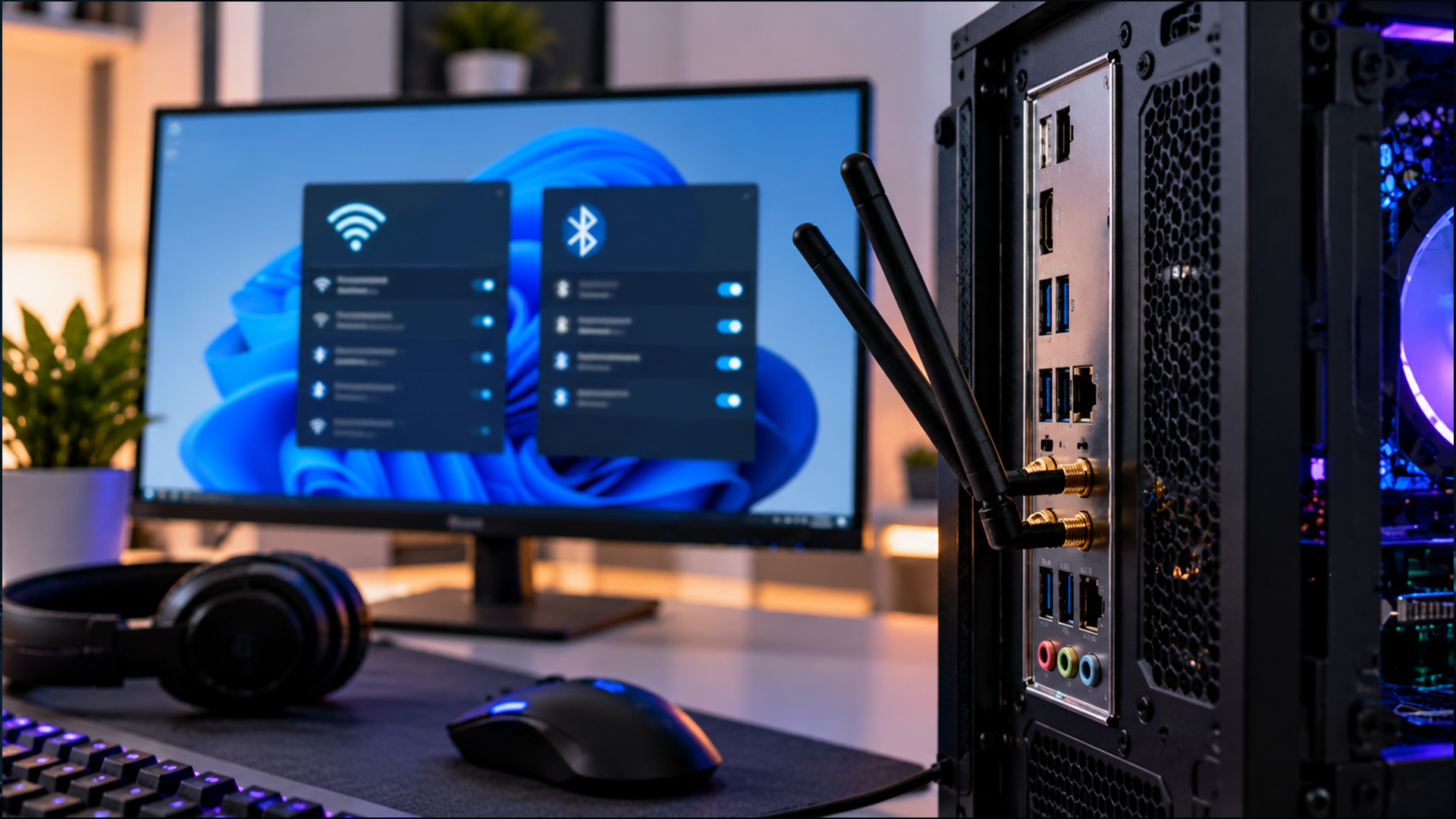
Fix 3: Install the Correct Wi-Fi and Bluetooth Drivers
Drivers are one of the first things to check when a new motherboard WiFi not working problem appears after a fresh Windows installation.
Don't rely solely on whatever generic driver Windows finds. Go to the motherboard manufacturer's support page, search for your exact model and, importantly, check the board revision where applicable.
Download the current Wi-Fi/WLAN and Bluetooth drivers intended for your operating system. Install both packages and restart the computer.
Why both? Wi-Fi and Bluetooth are commonly provided by the same wireless module, but Windows handles them as separate functions with their own drivers. If your motherboard WiFi adapter not working problem started after an update, Device Manager also gives you a few options:
- Update driver to look for another version.
- Uninstall device , restart Windows and let the hardware be detected again.
- Roll Back Driver , where available, if the fault began immediately after a driver change.
Microsoft also recommends reinstalling or rolling back Bluetooth drivers when Bluetooth disappears or becomes unreliable after an update.
What About ASUS, MSI, and Gigabyte Boards?
The troubleshooting principle is the same, but always use support files for your exact board.
If you're dealing with an ASUS motherboard WiFi not working after a fresh installation, ASUS recommends checking Device Manager, reinstalling the wireless and Bluetooth drivers and, if necessary, checking BIOS configuration.
For an MSI motherboard WiFi not working, MSI likewise recommends confirming that the wireless adapter is detected and installing the appropriate motherboard wireless driver. You can find current Intel and AMD options in our MSI motherboards range.
A Gigabyte motherboard WiFi not working problem also needs the exact model and revision checked before downloading drivers. Different revisions can use different wireless chipsets, so don't assume drivers from another revision are interchangeable.
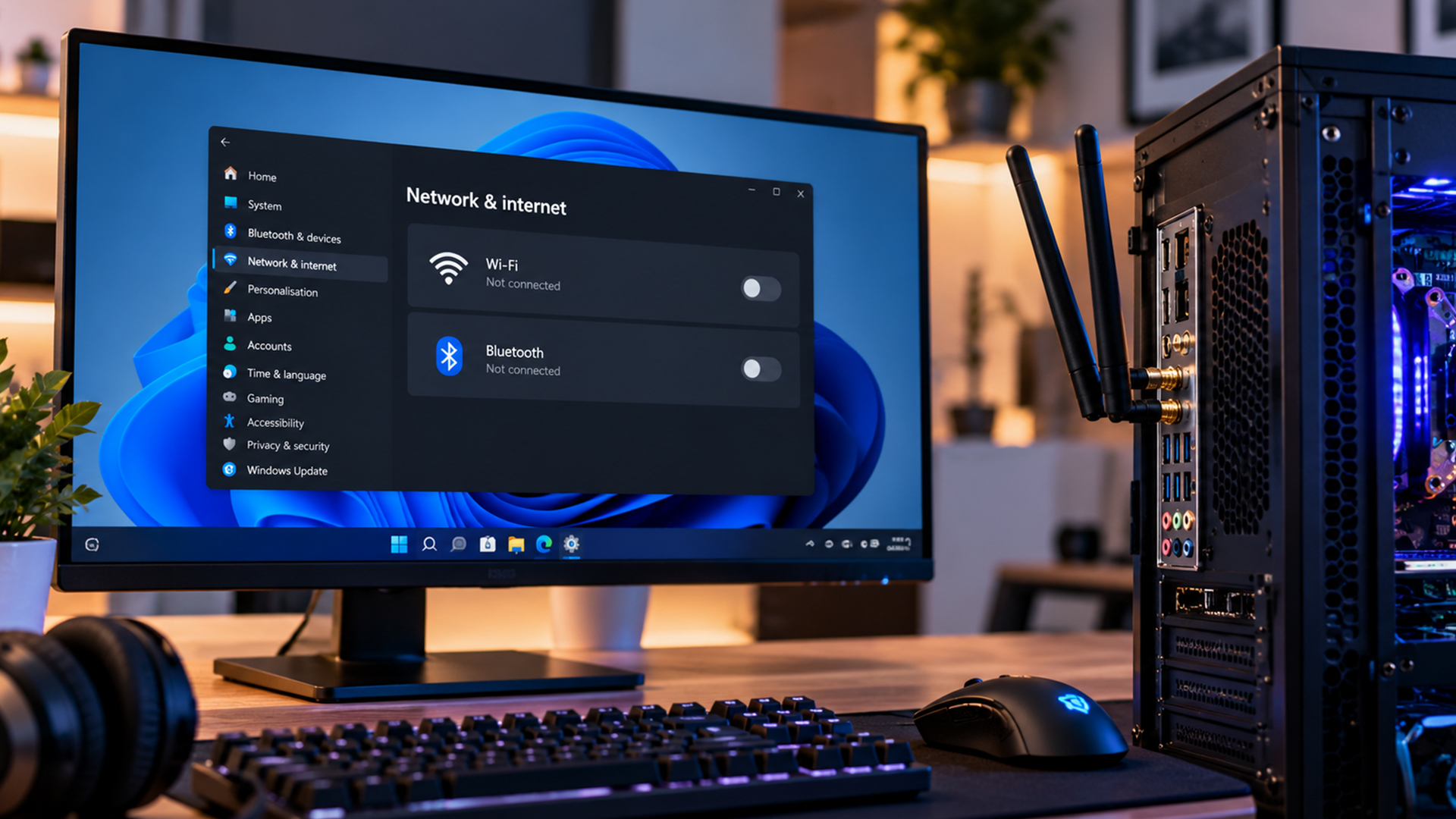
Fix 4: Check Wireless Settings in the BIOS
If Windows doesn't detect the wireless controller at all, check the motherboard's BIOS or UEFI. Restart the computer and enter the BIOS using the key shown during startup, commonly Delete or F2 . Look for an option relating to:
- Onboard Wi-Fi
- WLAN
- Wireless LAN
- Bluetooth
- Connectivity
- Onboard devices
The terminology and location vary between manufacturers and BIOS versions.
Make sure the relevant controller is enabled. If you previously changed BIOS settings, loading optimised/default settings may also resolve an accidental configuration problem. ASUS includes restoring BIOS settings among its motherboard Wi-Fi troubleshooting steps.
If the motherboard manufacturer lists a newer BIOS that specifically addresses connectivity, compatibility or system stability, consider updating it using the manufacturer's documented procedure. If your board supports it, BIOS Flashback can provide another way to update or restore motherboard firmware, particularly when normal boot-based updating is not available.
Important: Don't interrupt a BIOS update or switch off the PC while firmware is being written. Follow the instructions for your exact board rather than using a generic BIOS-update method.
Fix 5: Reset Windows Networking and Isolate a Hardware Problem
If everything is detected and correctly configured but Wi-Fi still refuses to connect, reset the Windows network configuration.
First try forgetting the network:
Settings > Network & internet > Wi-Fi > Manage known networks
Select your network, choose Forget , then reconnect using the correct password.
If that fails, Windows 11 includes a deeper reset at:
Settings > Network & internet > Advanced network settings > Network reset
Use this as a later troubleshooting step because Windows removes installed network adapters and restores their networking settings when the PC restarts. VPN software or virtual network adapters may need reconfiguration afterwards.
A motherboard WiFi and Bluetooth not working at the same time deserves particular attention. If neither controller appears in Device Manager even after installing the correct drivers, checking BIOS settings and performing a full shutdown and restart, the problem could be at hardware or firmware level. At that stage:
- Recheck your exact board model and revision.
- Load BIOS defaults.
- Update BIOS if the manufacturer recommends it.
- Perform a complete shutdown rather than only restarting.
- Contact the board manufacturer's technical support if the controllers remain undetected.
This helps avoid replacing otherwise functional hardware because of a software configuration problem. If the onboard wireless hardware has failed, a PCIe or USB network card can provide an alternative connection without requiring you to replace the entire motherboard.

Final Thoughts
Start with the simple checks: confirm the antennas are connected, make sure Windows detects the wireless hardware, install the correct Wi-Fi and Bluetooth drivers, and review BIOS settings. If the issue continues, reset Windows networking and isolate whether the fault is software, network-related or hardware-based. If both Wi-Fi and Bluetooth fail together, the shared wireless module may be involved. Work through each step individually so you can identify the cause. If replacement is needed, we stock motherboards across different sockets, chipsets, form factors and wireless configurations.

Can a motherboard Wi-Fi card fail while Bluetooth still works?
Yes. Wi-Fi and Bluetooth often share the same wireless module, but they use different radio functions and drivers. One can fail while the other continues working. If only one feature has stopped, the issue may be limited to its driver, antenna path or part of the wireless module.
Does motherboard Wi-Fi work without an Ethernet connection?
Yes. Built-in motherboard Wi-Fi connects directly to a wireless router, so an Ethernet cable is not required. However, you may temporarily need Ethernet or another internet-connected device to download the correct Wi-Fi drivers after a fresh Windows installation.
Can a graphics card interfere with motherboard Wi-Fi?
It can in some PC builds. Large graphics cards, metal cases and other components may affect antenna positioning or wireless signal quality, particularly if the antennas sit directly behind the system. Moving an external antenna base higher or further from the case can sometimes improve reception.
Is a PCIe Wi-Fi card better than built-in motherboard Wi-Fi?
Not necessarily. Modern built-in Wi-Fi can offer similar standards and speeds to PCIe wireless cards. A PCIe card may be useful if your motherboard lacks Wi-Fi, its wireless module develops a fault or you want to upgrade to a newer wireless standard without replacing the motherboard.
Why is my motherboard Wi-Fi slower than my internet speed?
Your broadband speed is only one part of the connection. Wi-Fi performance can also be limited by signal strength, router distance, interference, wireless band, channel congestion and the Wi-Fi standard supported by both devices. Real-world wireless speeds are therefore often lower than the advertised connection rate.
| Read More: |
| Which Motherboard Brands are Best for Gaming? |
| Where to Find Motherboard Model |
| Which Motherboard Brands are Best for Gaming? |
Related Articles

Last Updated: November 20, 2025
“I Remember When … ”
Hello - I’m the motherboard, and I’ve watched the tech world spin faster than ever. Let me take you back.
In the earlier days of my life (think DDR3 memory, PCIe 2.0/3.0 lanes), I was pretty simple: socket + chipset + RAM slots + some PCIe lanes. Many PCs built in those days lived 3‑5 years before an upgrade.
But around 2022–2024, things started to shift dramatically. Two big inflection points:
- Memory: the shift from DDR4 to DDR5. Suddenly I had to support faster speeds, higher capacities, new signalling.
- Interconnect: the jump to PCIe 5.0, and major upgrades in storage (NVMe M.2) and connectivity (WiFi 6/6E, faster LAN).
For example, a recent spec sheet shows a modern board supporting DDR5 up to 9000 MT/s, PCIe 5.0 x16 for graphics, and 10 GbE LAN + WiFi 7.
From my end, I felt I was becoming more than just a support structure - I was the gateway to future performance.
Watching the Market Shift
While I evolve technically, the business around me

Last Updated: October 22, 2026
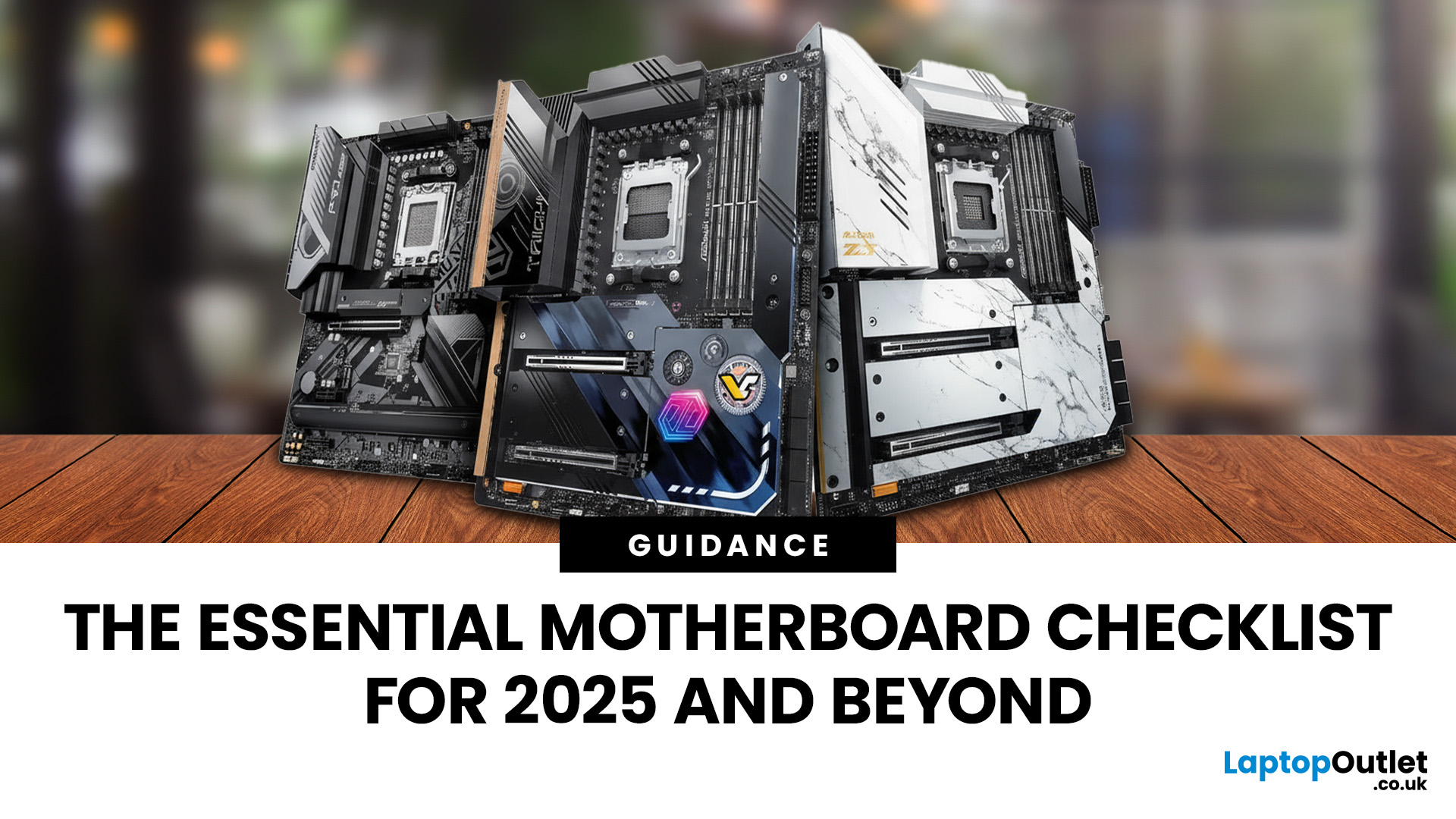
When it comes to motherboards for content creators, 2025 brings a new generation of platforms built for creators, streamers, and professionals. These boards go far beyond gaming specifications — they’re designed for high-performance workflows, advanced connectivity, and AI-enhanced creative control. Whether you’re editing 8K footage, producing music, or streaming live, choosing the right Streaming PC motherboard ensures your setup remains powerful, stable, and efficient.
This guide highlights the best motherboards for content creators and streamers in 2025, focusing on connectivity, expandability, and reliability, essential traits for professionals building a Creator PC build motherboard or a high-performance workstation.
What Makes a Motherboard Ideal for Content Creation?
Before exploring the best workstation motherboards, let’s examine what separates a good motherboard from a truly creator-focused one.
Chipset and CPU Compatibility
Modern DDR5 motherboards for creators should feature
Last Updated: October 22, 2026
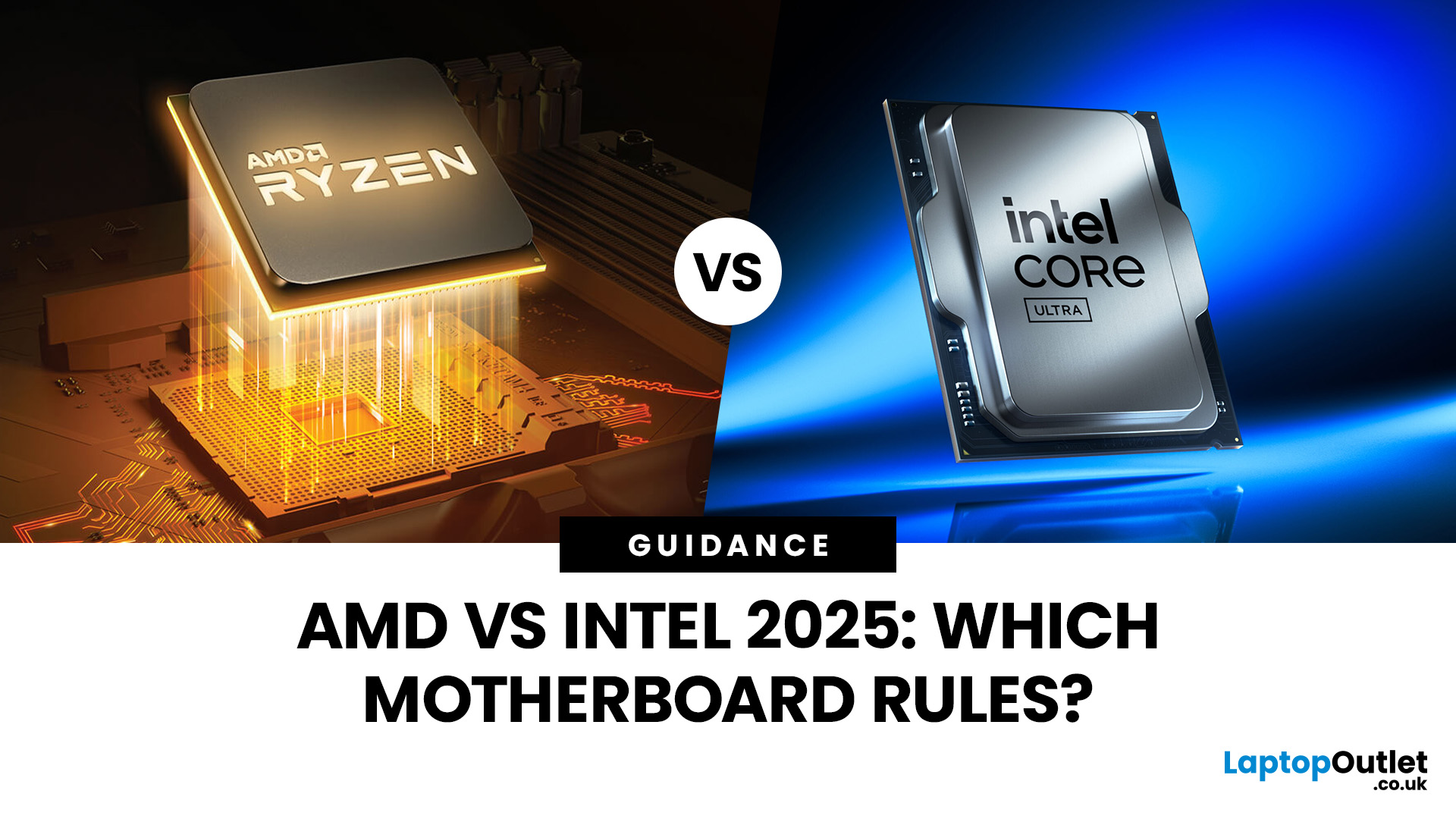
When building a new PC in 2025, choosing the right motherboard is the best long-term decision you can make. It’s the backbone of your system, and opting for an upgrade-ready motherboard means focusing on key technologies like DDR5 memory, fast PCIe standards, and next-gen connectivity.
This guide explores the essential features that define future-proof motherboards and highlights some top models for both AMD and Intel platforms.
If you are just starting your PC build, you should read our guide on how to choose the right motherboard.
Key Future-Proofing Features for 2025
What exactly makes a motherboard “future-proof”? It comes down to technologies that won't become bottlenecks for your most powerful components over the next five years.
- DDR5 Memory Support: This is non-negotiable. DDR5 compatible motherboards offer significantly higher bandwidth and speed than their predecessors.
- PCIe 5.0 Connectivity: This is crucial for both the primary graphics slot (for next-gen GPUs) and at least
Last Updated: October 22, 2026
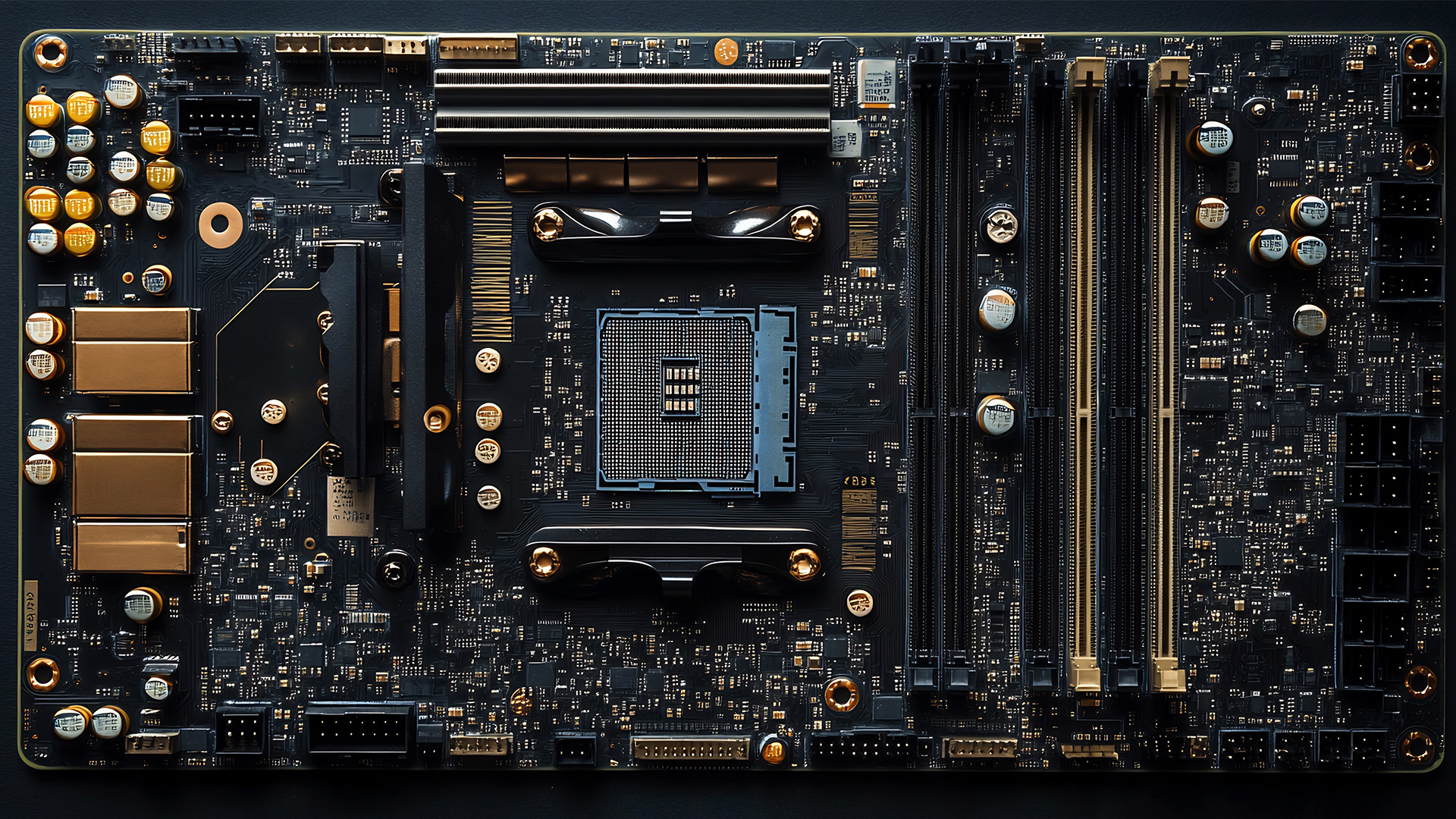
When you’re building or upgrading a PC, choosing the right motherboard can feel a little intimidating — especially when it comes down to the age-old rivalry of AMD vs Intel motherboards.
Both brands make fantastic hardware, but each has its strengths. Whether you’re planning a high-end gaming rig, a creative workstation, or an everyday PC, the motherboard you choose will shape your system’s performance, features, and future-proofing.
In this guide, we’ll compare Intel vs AMD motherboards across performance, chipsets, memory, overclocking, and more. By the end, you’ll know exactly which option suits your needs in 2025.
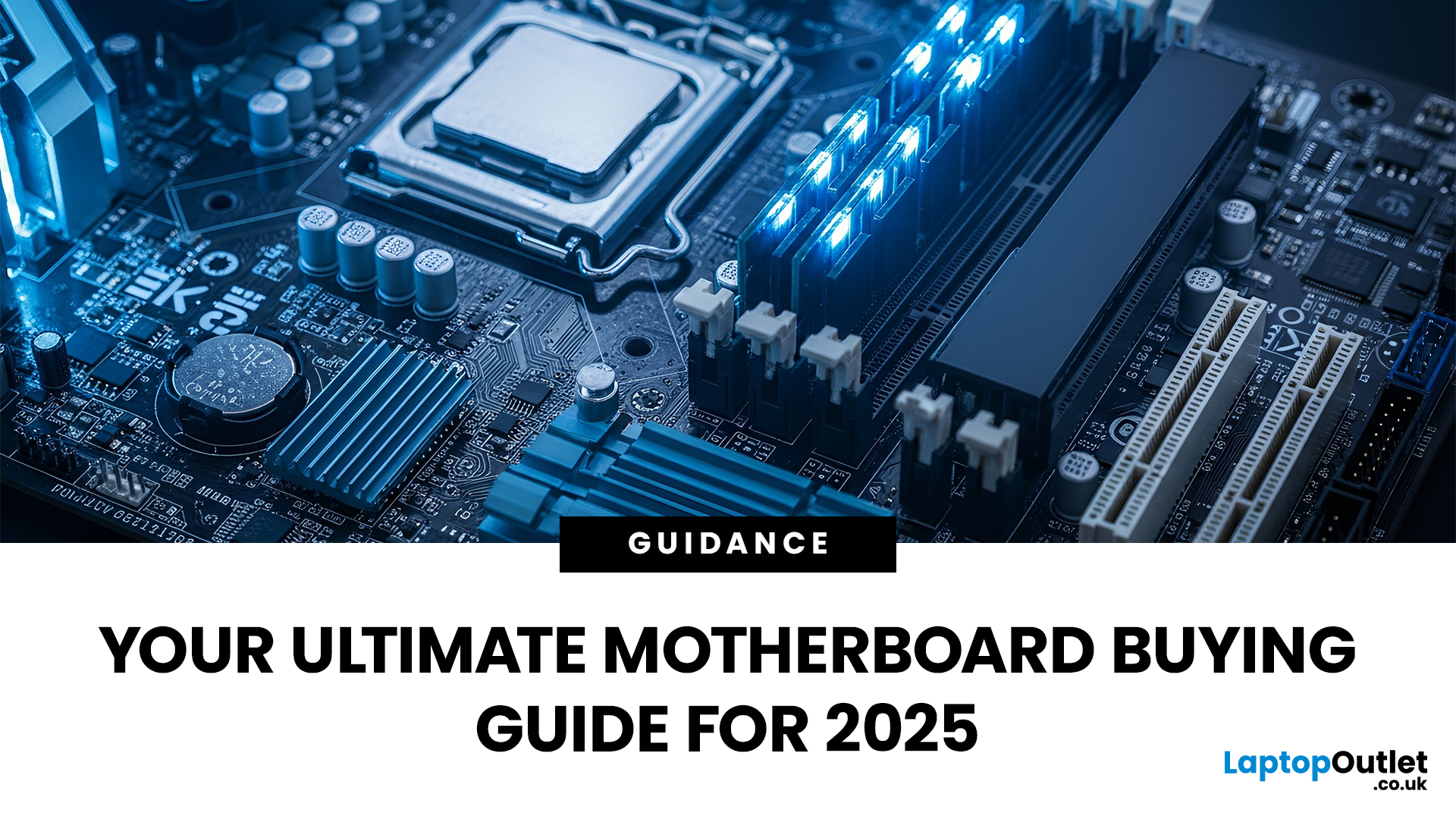
What Exactly is a Motherboard?
Before diving into the AMD vs Intel motherboards comparison, let's briefly clarify what a motherboard is and why it's so important.
Often called the 'mainboard' or 'system board,' the motherboard is the central printed circuit board (PCB) in a computer. It is, quite simply, the foundation and communication hub for all other components.
It houses
Last Updated: December 03, 2025
The motherboard is the central nervous system of your computer. Every component, from the CPU and RAM to the GPU and storage drives, connects to it.
Making the right choice here is crucial. A well-chosen board ensures smooth performance, effortless upgrades, and long-term stability for your entire desktop PC build.
If you’re wondering how to choose the right motherboard to suit your needs, you’ve come to the right place. This comprehensive motherboard buying guide will take you through every essential step to help you lay the best foundation for your next project.
Step 1: CPU Choice Defines the Socket (AMD vs Intel)
The first and most crucial step when selecting a motherboard is choosing your CPU (Central Processing Unit). The processor dictates which socket type and chipset your motherboard must have.
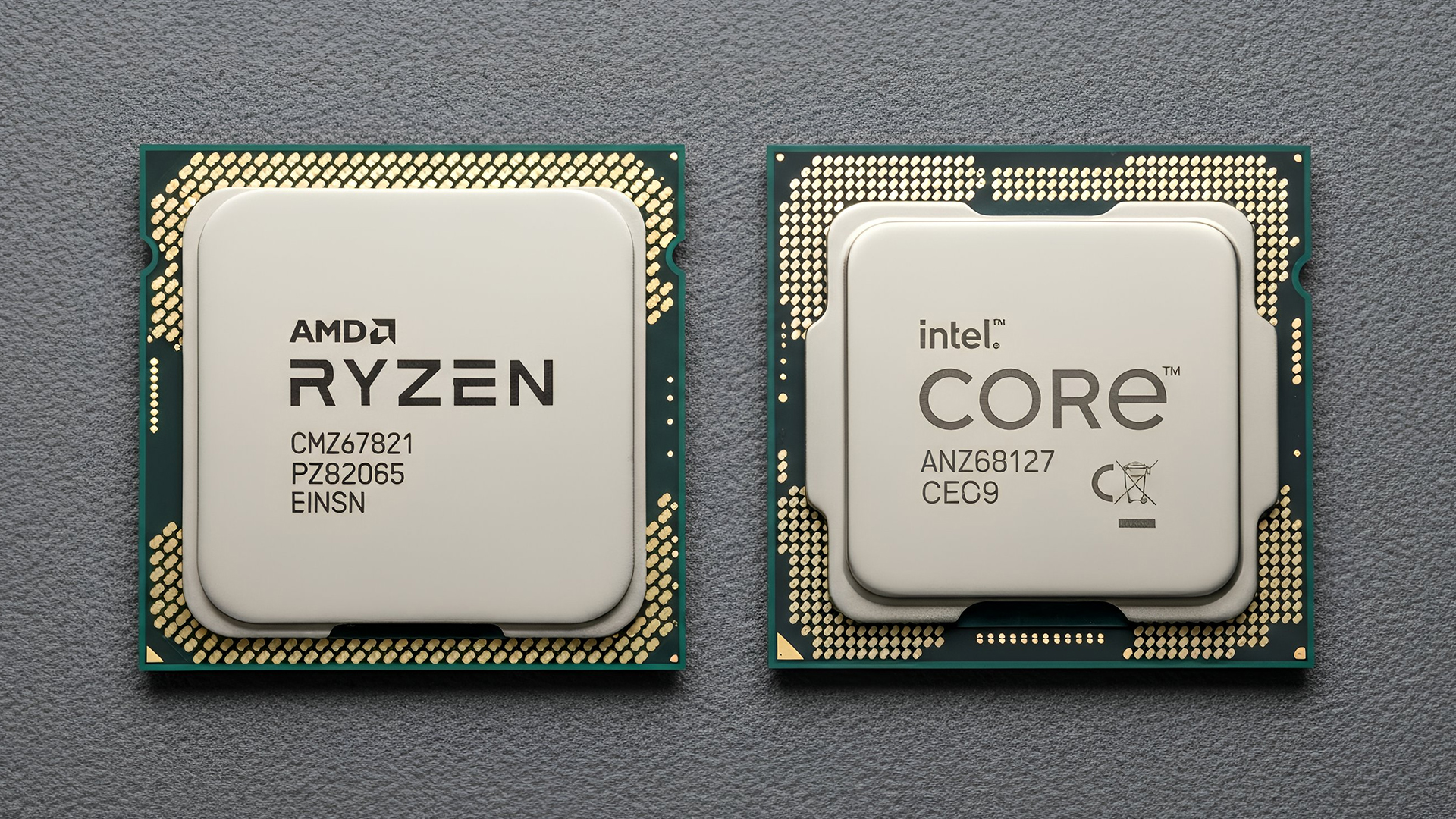
AMD vs Intel Motherboards
- AMD motherboards are known for value and longevity. Platforms like AM5 often maintain compatibility across several CPU generations, allowing for future upgrades

Last Updated: June 05, 2026
If you’re upgrading your gaming rig or building one from scratch in 2025, the motherboard you choose is going to set the tone for your entire PC. Whether you’re aiming for an affordable setup or an ultra-high-end powerhouse, the motherboard is the foundation - determining not just what components you can use today, but how future-ready your system will be.
This guide takes you through the best motherboards for gaming PCs in 2025, handpicked for performance, features, and value. You’ll find AMD and Intel options, from budget boards with modern DDR5 support to premium PCIe 5.0 powerhouses. Every recommendation is researched using up-to-date 2025 benchmarks, market data, and UK availability, ensuring you can make an informed purchase that fits your budget and build goals.
Why the Motherboard Matters in 2025

With the launch of AMD’s Ryzen 9000 and Intel’s 15th-gen “Arrow Lake” CPUs, the motherboard landscape has changed considerably. New chipsets like AMD B650E and Intel Z890 bring cutting-edge

Last Updated: May 06, 2026
year is more than just a fresh calendar; it’s one of the best times of the year to upgrade your PC hardware for less. As retailers clear stock, introduce refreshed product lines, and compete for attention during seasonal sales, motherboard New Year deals 2026 unlock savings that simply aren’t available during regular months. Whether you’re planning a brand-new desktop build, upgrading an ageing system, or finally pairing a powerful CPU with a compatible board, New Year sales make high-end components far more affordable.
New Year Sale on AMD Motherboards
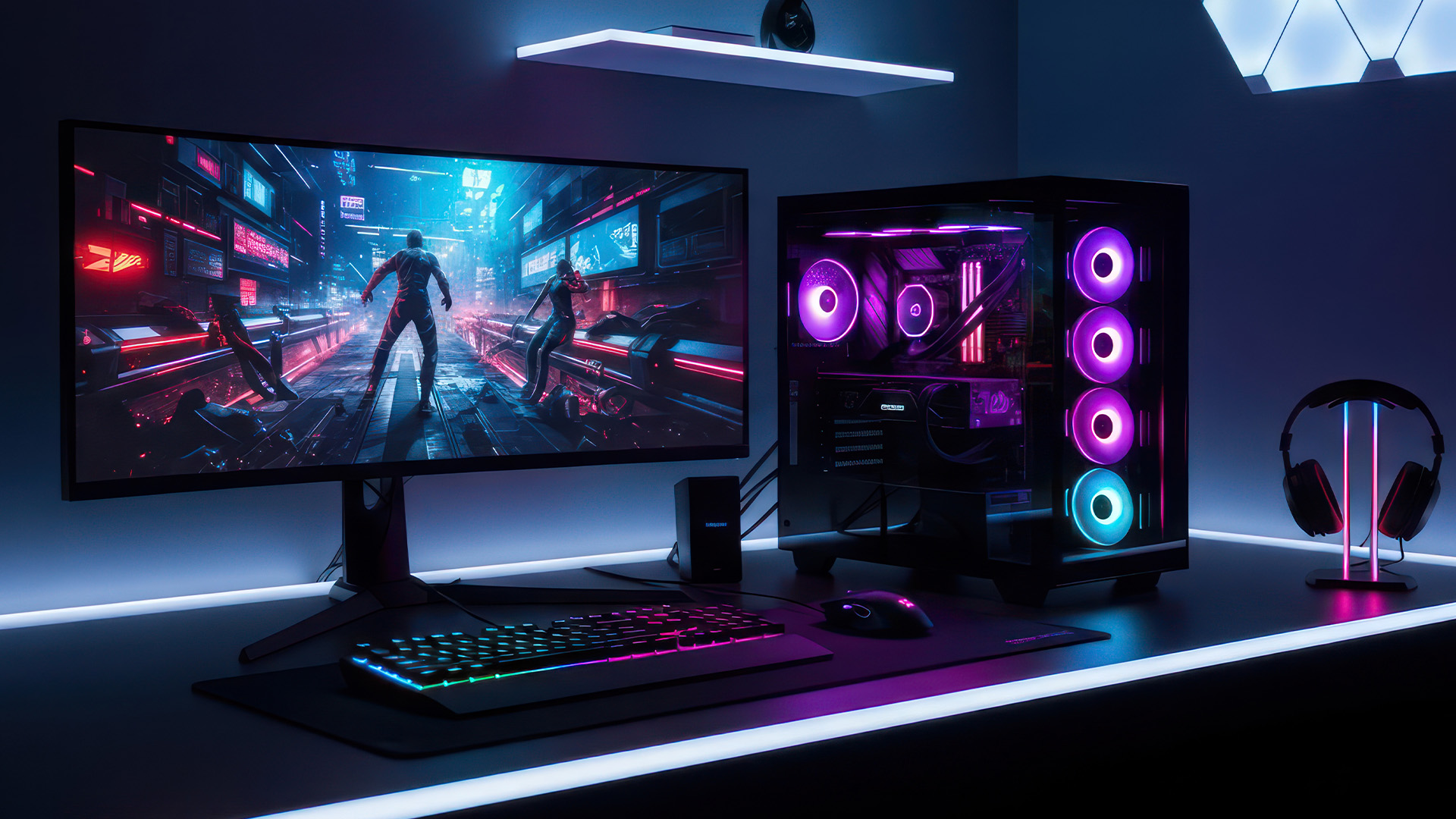
This New Year, AMD motherboard discounts make it easier than ever to build or upgrade your PC with powerful AM5 boards at lowered prices.
1. ASUS TUF GAMING X870E-PLUS WIFI7 ATX AMD Socket AM5 Motherboard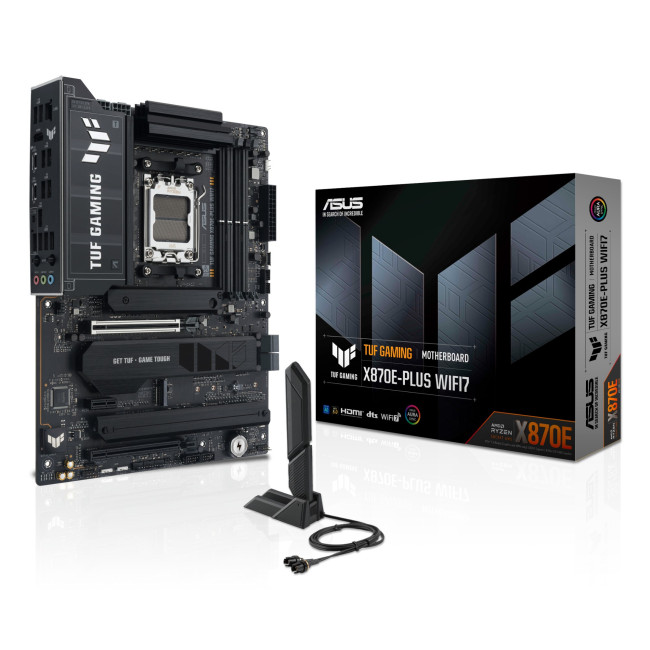
This flagship TUF board typically sits in the upper mid-range price bracket, but New Year Sale pricing often brings it into compelling territory compared to standard retail tags, shaving a noticeable percentage off regular prices.

Last Updated: January 02, 2026
When you start plugging in devices and suddenly run out of USB slots, the first question that comes to mind is a simple one: how many USB ports does my motherboard actually have?
This is something most users never think about until they hit a limitation. Whether you are building a PC, upgrading an old system, or just trying to understand why you need a USB hub, the answer always comes back to your motherboard USB ports.
The tricky part is that the total number of USB ports is not always obvious at first glance. Some are visible on the back of the PC, others are internal, and some are supported but not even active unless you connect the right headers.
This guide breaks everything down in a practical way and helps you discover how to check the total USB ports supported by your motherboard.
Why Motherboard USB Ports Matter More Than You Think
Motherboard USB ports define how many devices your system can handle directly. That includes keyboards, mice, external drives, webcams, printers
Last Updated: January 06, 2026
Need to find motherboard model details for an upgrade? Knowing your motherboard (often called the baseboard or system board) helps you pick compatible RAM and storage to download the right drivers. You can usually confirm it easily in minutes using built-in Windows tools, or via BIOS/UEFI if Windows won’t load. It’s especially handy before ordering parts or booking a repair. Learn easy ways to check your motherboard model in Windows or BIOS.
Method 1: Windows System Information (msinfo32)
System Information often shows the clearest result.
- Press Windows + R
- Type msinfo32 and press Enter
- In System Summary, look for:
BaseBoard Manufacturer
- BaseBoard Product (often the motherboard model)
- BaseBoard Version (board revision)
If you’re sharing details with support, use File > Export to save a report.
Method 2: Command Prompt (WMIC)
A fast command-line check:
- Open Start, type Command Prompt, and run it
You’ll typically see the motherboard manufacturer and product/model code. On some OEM laptops
Last Updated: January 06, 2026
Have you ever needed to upgrade your PC, install new RAM or a CPU, or simply troubleshoot hardware - only to realise you don’t actually know what motherboard is inside your computer? It’s a more common situation than you’d think. Whether you’re working on a desktop you assembled years ago, a shop-bought laptop, or helping a mate sort out theirs, knowing how to check your motherboard type quickly and accurately is a vital tech skill.
Ever wondered what motherboard is powering your PC? Good news - finding out is way easier than you might think. No opening your case, no tech wizard required. Using built-in tools on Windows, macOS, and Linux (plus a few handy apps), you can uncover all the details in just minutes.
Why You Might Need to Know Your Motherboard
Before we explore the methods, you might be wondering why this even matters. Here are common reasons:
- Upgrading components: If you want to fit a new CPU or faster RAM, you must know the motherboard’s socket type and supported standards.

