



How Do I Find Out What Motherboard I Have?
Have you ever needed to upgrade your PC, install new RAM or a CPU, or simply troubleshoot hardware - only to realise you don’t actually know what motherboard is inside your computer? It’s a more common situation than you’d think. Whether you’re working on a desktop you assembled years ago, a shop-bought laptop, or helping a mate sort out theirs, knowing how to check your motherboard type quickly and accurately is a vital tech skill.
Ever wondered what motherboard is powering your PC? Good news - finding out is way easier than you might think. No opening your case, no tech wizard required. Using built-in tools on Windows, macOS, and Linux (plus a few handy apps), you can uncover all the details in just minutes.
Why You Might Need to Know Your Motherboard
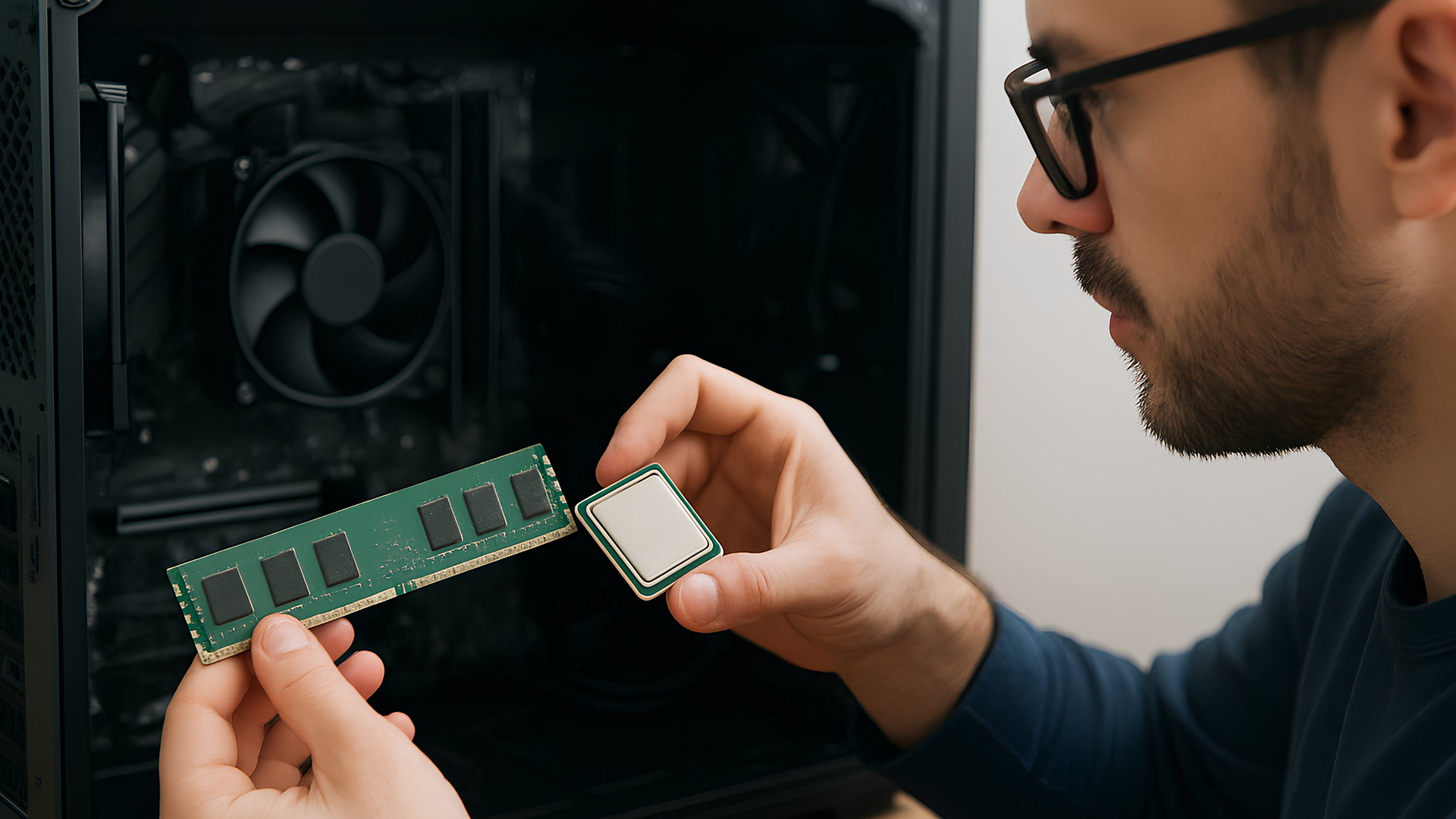
Before we explore the methods, you might be wondering why this even matters. Here are common reasons:
- Upgrading components: If you want to fit a new CPU or faster RAM, you must know the motherboard’s socket type and supported standards.
- Hardware compatibility: Certain GPUs, SSDs, and expansion cards only work with specific motherboard chipsets.
- Troubleshooting: When diagnosing performance woes or boot issues, accurate motherboard details help technicians pinpoint faults faster.
- Firmware and security: BIOS/UEFI updates or enabling hardware-level security like TPM often requires knowing your exact board model.
- Support and warranty: Manufacturers and support forums always ask for your motherboard brand and model first.
Whether your PC is a custom build or a branded system from Dell, HP or Lenovo, there’s an easy way to find this info without tools or expansion cards.
What Is a Motherboard?
Simply put, the motherboard, sometimes called mainboard or baseboard - is the backbone of your computer. It connects the CPU, memory, storage devices, graphics cards and all peripherals. It determines what hardware can work together and how well your system performs.
The motherboard model tells you:
- Manufacturer (e.g., ASUS, MSI, Gigabyte)
- Model name/number (e.g., Z790-E, B550M)
- Supported technologies (CPU type, PCIe versions, RAM limits)
- BIOS/UEFI version
Now let’s look at the practical ways to discover that model name.
1. Use Windows System Information (Quickest Way)
For the majority of people running a Windows PC, this is the fastest method and needs no downloads.
Steps
- Press Windows + R on the keyboard to open the Run dialogue.
- Type msinfo32 and hit Enter.
- In the System Information window, look for:
- BaseBoard Manufacturer
- BaseBoard Product
- BaseBoard Version
This shows your motherboard’s brand and model directly, without opening the PC. It’s often the fastest way to check motherboard type on Windows 10 and 11.
Why This Works
Microsoft includes this utility in all modern Windows versions. It reads your system’s built-in SMBIOS data, essentially a digital hardware descriptor, so you don’t need any third-party apps.
2. Use Command Prompt or PowerShell (Tech-Savvy Option)
If you prefer text commands or are scripting hardware checks (useful in businesses or IT departments), this is perfect.
Windows Command Prompt Method
- Open command prompt (search “cmd”).
- Type:
wmic baseboard get product,Manufacturer,version,serialnumber
- Press Enter.
This returns the manufacturer, model, board version and even the serial number.
PowerShell Alternative
If WMIC is deprecated on your system:
Get-WmiObject win32_baseboard | Format-List Manufacturer,Product,Version,SerialNumber
This gives a detailed listing - helpful for automation across several machines.
3. Check BIOS/UEFI Firmware (No OS Needed)
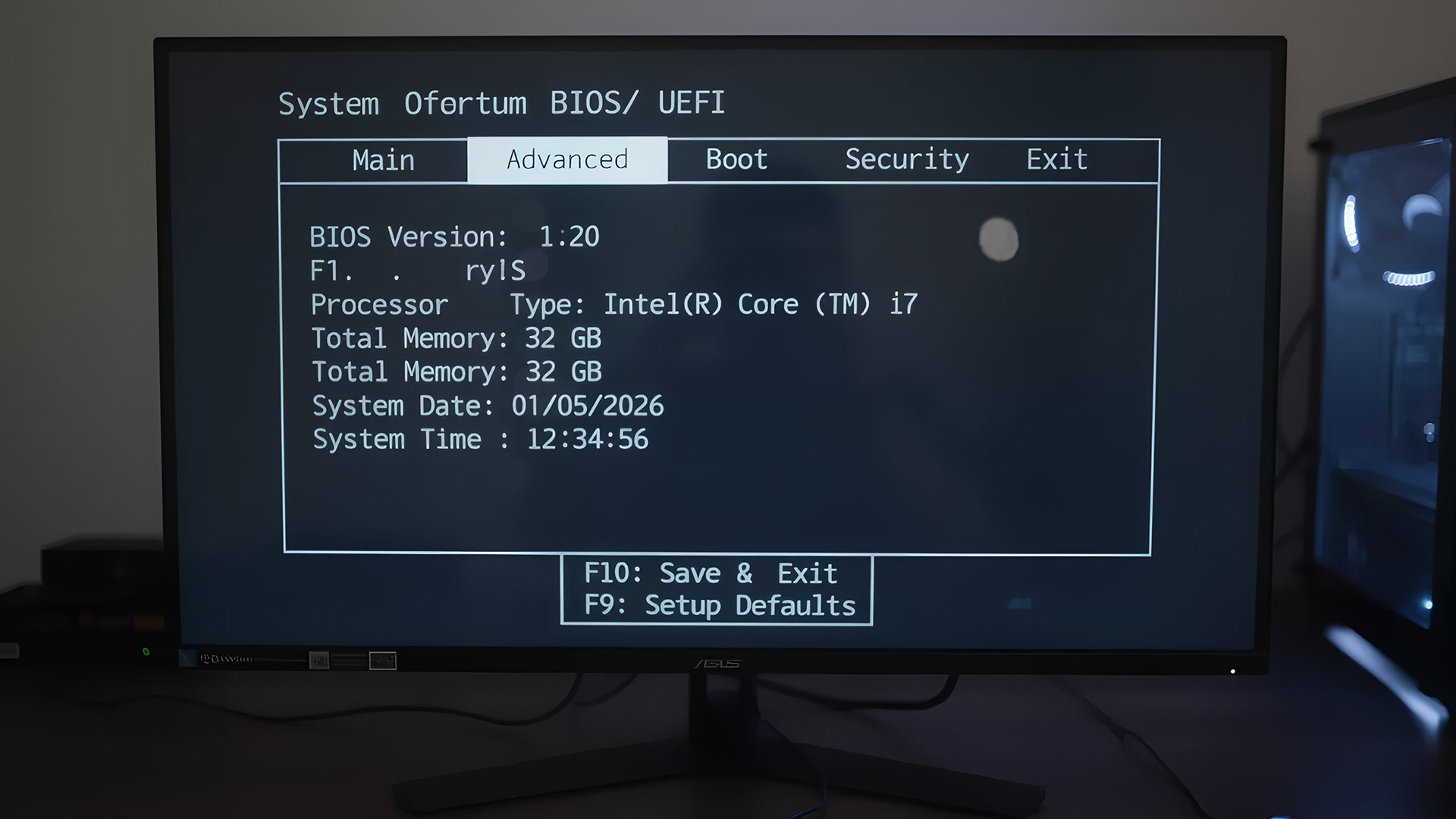
If your PC won’t boot into Windows, you can still get motherboard details via BIOS/UEFI.
How to Access
- Restart your PC.
- Press the BIOS key during POST (commonly F2, Delete, or Esc), your screen will usually show which key briefly.
- In BIOS, look for system information - it typically shows:
- Motherboard model
- BIOS version
- Manufacturer
This method is especially useful if Windows can’t load or you’re troubleshooting hardware.
4. Use Third-Party Tools (More Detailed Information)
There are several free programs that show motherboard info along with other hardware specs.
Popular Tools
- CPU-Z - shows motherboard model, chipset and BIOS details.
- Speccy - a simple overview tool with clear interface.
- HWiNFO - detailed hardware report and sensors data.
- Belarc Advisor - creates an exportable system report.
These tools are excellent if System Information doesn’t show enough detail or you want extra specifications on chipset and firmware.
5. Physically Inspect the Motherboard (When All Else Fails)
If you can open your PC safely:
- Shut down and unplug the machine.
- Remove the side panel.
- Look for text printed near the CPU socket, RAM slots or between PCIe slots.
This usually shows the brands and exact motherboard model on the board surface.
Note: Be careful, this involves opening your machine, which may void warranties on branded laptops or desktops. It’s best for desktops with easy access.
Special Cases - Mac and Linux Systems
Mac hardware doesn’t display a traditional motherboard model like Windows PCs, but you can get a Model Identifier:
- Click the Apple logo > About This Mac > System Report.
- Under hardware overview, you’ll see identifiers like iMac20,1 which can be used to look up motherboard specs via Apple support.
This approach helps if you need motherboard-specific details such as supported RAM or firmware.
Linux
Linux systems use tools like:
- dmidecode — lists hardware data including motherboard info.
- lshw — detailed hardware listing.
Example:
sudo dmidecode -t baseboard
This displays the baseboard’s manufacturer and product name. This method is very useful for sysadmins and power users.
Tips for Accurate Identification
Laptop caveat – Motherboards in laptops are often customised by brands like Dell and HP. The details may be limited, but you can usually find enough to search manufacturer support pages.
Preinstalled BIOS/UEFI – Getting the correct board model means you can download the correct firmware updates or drivers from official manufacturer sites.
Asset tracking – In business environments, scripts using PowerShell and WMIC can automate inventory across many PCs - saving time and improving security compliance.
Documentation – Keep your motherboard details in a safe place. Knowing your model helps during upgrades, repairs or selling your machine.
Common Mistakes to Avoid
Guessing by CPU or PC model, many people assume that a CPU or system model implies motherboard specs. That’s not reliable - especially in desktops where upgrades may have changed configurations.
Ignoring firmware versions - Knowing your motherboard model is great but also check the BIOS/UEFI version - many fixes and compatibility improvements are distributed via firmware updates.
Overlooking OEM constraints, On branded systems (e.g., supermarket PCs), motherboard models may have restricted upgrade paths. Always double-check before buying new parts.
Quick Motherboard Check Summary
Here’s a quick checklist you can follow depending on your situation:
If Windows works:
– Run msinfo32 → see BaseBoard Manufacturer & Product.
If you prefer commands:
– Use wmic baseboard get ... or PowerShell.
If Windows fails:
– Enter BIOS/UEFI during boot.
If you want extra detail:
– Try CPU-Z, Speccy, HWiNFO.
If all else fails:
– Open the case and read it from the board (carefully).

Ready to Upgrade or Troubleshoot?
Now you know how to check motherboard type using system tools, command prompts, third-party apps and even BIOS menus. Whether you’re a casual PC user in Birmingham or a tech hobbyist in Edinburgh, this guide helps you get the details you need without stress or guesswork.
Got a question about your own system? Let me know the make/model of your PC and I can walk you through the exact steps for your specific machine. Let’s get your upgrade sorted!

Frequently Asked Questions
How do I check my motherboard type without opening my PC?
You can check your motherboard type without opening your computer by using built-in system tools. On Windows, press Windows + R, type msinfo32, and look for BaseBoard Manufacturer and BaseBoard Product. This method is quick, safe, and works on Windows 10 and 11.
Can I find out what motherboard I have using Command Prompt?
Yes. Open Command Prompt and enter:
wmic baseboard get product,Manufacturer,version,serialnumber
This command instantly displays your motherboard’s manufacturer, model, and version, making it a reliable way to check motherboard type without installing software.
Does my laptop have a motherboard model like a desktop PC?
Laptops do have motherboards, but they are often custom-built by the manufacturer. As a result, the motherboard name may appear as a generic model number rather than a retail motherboard name. You can still find useful details using System Information or the manufacturer’s support website.
Why is it important to know what motherboard I have before upgrading?
Knowing your motherboard model ensures compatibility with new components such as CPUs, RAM, SSDs, and graphics cards. Different motherboards support different socket types, memory speeds, and expansion slots, so checking your motherboard type helps you avoid buying incompatible hardware.
What should I do if my motherboard information doesn’t show correctly?
If system tools don’t display clear motherboard details, try checking the BIOS/UEFI during startup or using a trusted third-party tool like CPU-Z or HWiNFO. As a last resort, you can physically inspect the motherboard in a desktop PC, where the model name is usually printed on the board.
| Read More: |
| Which Motherboard Brands are Best for Gaming? |
| Best Laptops for Students Heading Into 2026 |
| Tech Trends to Watch in 2026 – AI, Laptops, PCs & More |
Related Articles


Last Updated: June 19, 2026
Building a solid gaming rig begins with choosing the right motherboard. It's the backbone - the component that connects everything: CPU, memory, GPU, storage, peripherals. Get it wrong, and you'll hinder performance or limit future upgrades. Pick it well, and you open the door to overclocking, lightning-fast connectivity, and seamless multitasking. Simply put, a good motherboard ensures your CPU, GPU, RAM, and storage all communicate seamlessly. It powers your connectivity, influences your upgrade path, and even impacts thermals and system stability. If you care about board performance, you should care about the brand which makes it all happen.
In this guide, we'll take a closer look at the best-known and most trusted gaming motherboards brands worldwide, including ASUS, MSI, Gigabyte, and ASRock. These manufacturers have built a reputation across global gaming and enthusiast communities for offering reliable, performance-driven hardware that caters to everyone from casual builders to elite

Last Updated: November 20, 2025
“I Remember When … ”
Hello - I’m the motherboard, and I’ve watched the tech world spin faster than ever. Let me take you back.
In the earlier days of my life (think DDR3 memory, PCIe 2.0/3.0 lanes), I was pretty simple: socket + chipset + RAM slots + some PCIe lanes. Many PCs built in those days lived 3‑5 years before an upgrade.
But around 2022–2024, things started to shift dramatically. Two big inflection points:
- Memory: the shift from DDR4 to DDR5. Suddenly I had to support faster speeds, higher capacities, new signalling.
- Interconnect: the jump to PCIe 5.0, and major upgrades in storage (NVMe M.2) and connectivity (WiFi 6/6E, faster LAN).
For example, a recent spec sheet shows a modern board supporting DDR5 up to 9000 MT/s, PCIe 5.0 x16 for graphics, and 10 GbE LAN + WiFi 7.
From my end, I felt I was becoming more than just a support structure - I was the gateway to future performance.
Watching the Market Shift
While I evolve technically, the business around me

Published: November 13, 2025
When it comes to motherboards for content creators, 2025 brings a new generation of platforms built for creators, streamers, and professionals. These boards go far beyond gaming specifications — they’re designed for high-performance workflows, advanced connectivity, and AI-enhanced creative control. Whether you’re editing 8K footage, producing music, or streaming live, choosing the right Streaming PC motherboard ensures your setup remains powerful, stable, and efficient.
This guide highlights the best motherboards for content creators and streamers in 2025, focusing on connectivity, expandability, and reliability, essential traits for professionals building a Creator PC build motherboard or a high-performance workstation.
What Makes a Motherboard Ideal for Content Creation?
Before exploring the best workstation motherboards, let’s examine what separates a good motherboard from a truly creator-focused one.
Chipset and CPU Compatibility
Modern DDR5 motherboards for creators should feature
Last Updated: April 28, 2026
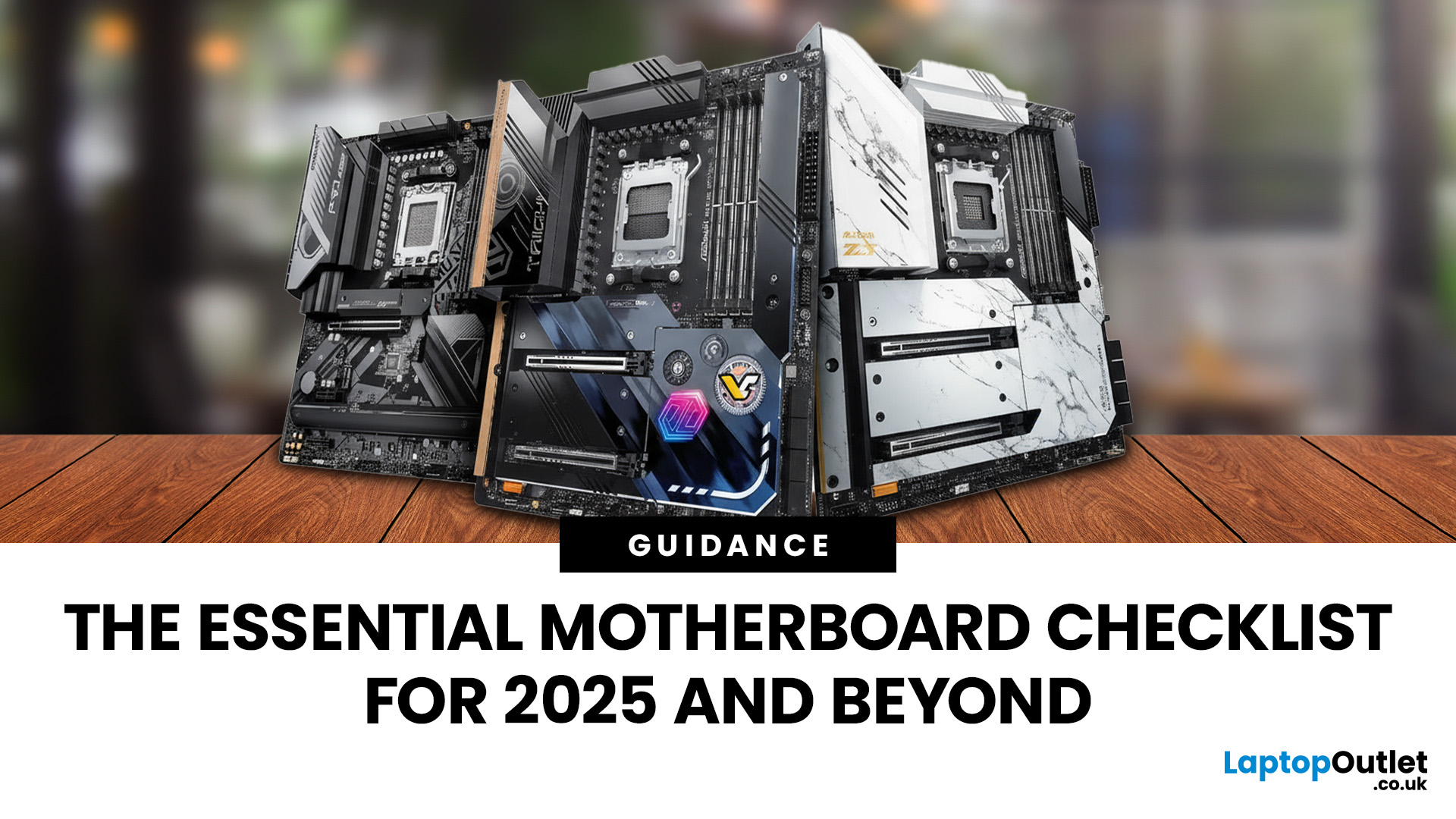
When building a new PC in 2025, choosing the right motherboard is the best long-term decision you can make. It’s the backbone of your system, and opting for an upgrade-ready motherboard means focusing on key technologies like DDR5 memory, fast PCIe standards, and next-gen connectivity.
This guide explores the essential features that define future-proof motherboards and highlights some top models for both AMD and Intel platforms.
If you are just starting your PC build, you should read our guide on how to choose the right motherboard.
Key Future-Proofing Features for 2025
What exactly makes a motherboard “future-proof”? It comes down to technologies that won't become bottlenecks for your most powerful components over the next five years.
- DDR5 Memory Support: This is non-negotiable. DDR5 compatible motherboards offer significantly higher bandwidth and speed than their predecessors.
- PCIe 5.0 Connectivity: This is crucial for both the primary graphics slot (for next-gen GPUs) and at least
Last Updated: November 19, 2025
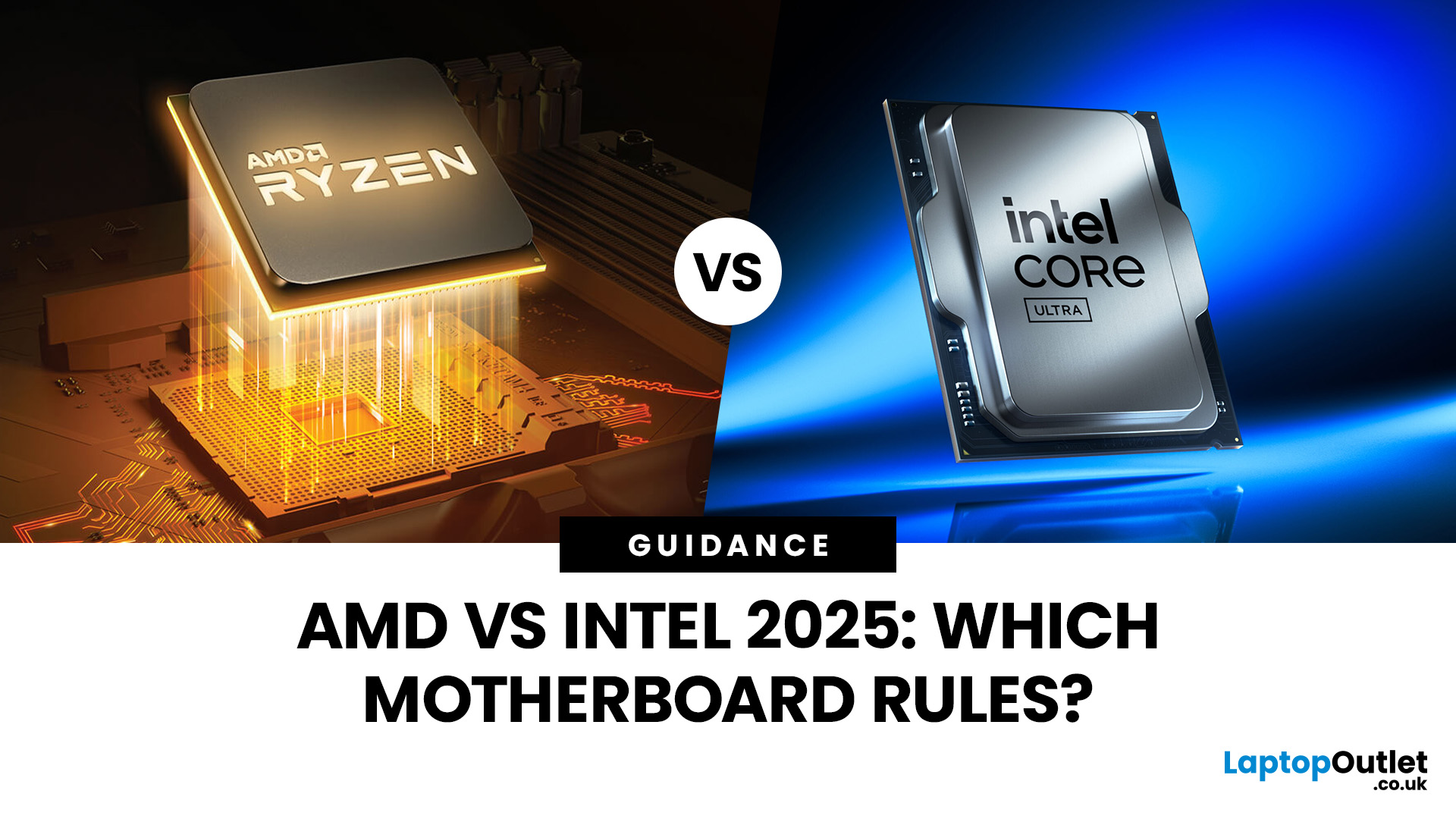
When you’re building or upgrading a PC, choosing the right motherboard can feel a little intimidating — especially when it comes down to the age-old rivalry of AMD vs Intel motherboards.
Both brands make fantastic hardware, but each has its strengths. Whether you’re planning a high-end gaming rig, a creative workstation, or an everyday PC, the motherboard you choose will shape your system’s performance, features, and future-proofing.
In this guide, we’ll compare Intel vs AMD motherboards across performance, chipsets, memory, overclocking, and more. By the end, you’ll know exactly which option suits your needs in 2025.
What Exactly is a Motherboard?
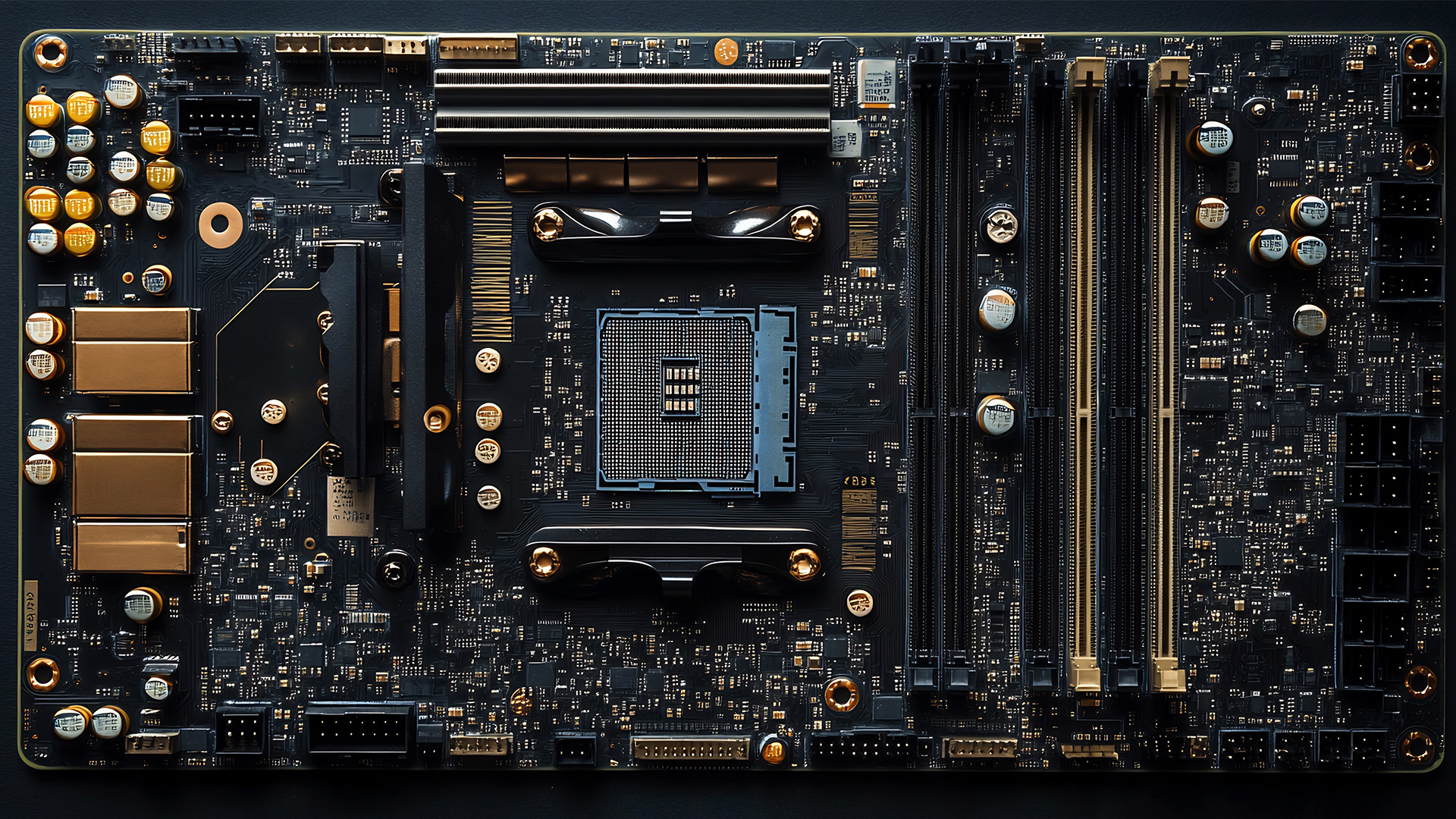
Before diving into the AMD vs Intel motherboards comparison, let's briefly clarify what a motherboard is and why it's so important.
Often called the 'mainboard' or 'system board,' the motherboard is the central printed circuit board (PCB) in a computer. It is, quite simply, the foundation and communication hub for all other components.
It houses
Last Updated: December 03, 2025
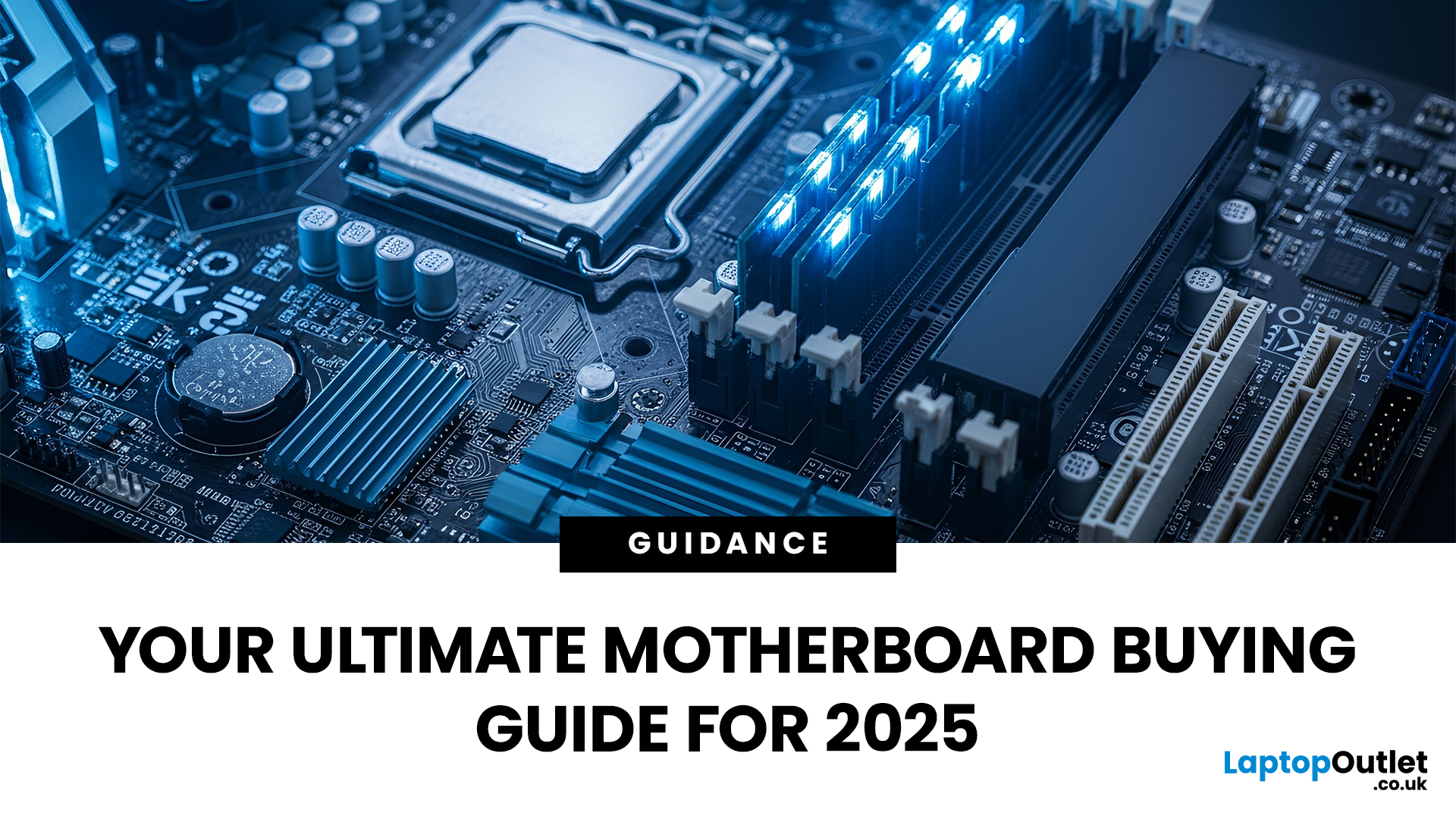
The motherboard is the central nervous system of your computer. Every component, from the CPU and RAM to the GPU and storage drives, connects to it.
Making the right choice here is crucial. A well-chosen board ensures smooth performance, effortless upgrades, and long-term stability for your entire desktop PC build.
If you’re wondering how to choose the right motherboard to suit your needs, you’ve come to the right place. This comprehensive motherboard buying guide will take you through every essential step to help you lay the best foundation for your next project.
Step 1: CPU Choice Defines the Socket (AMD vs Intel)
The first and most crucial step when selecting a motherboard is choosing your CPU (Central Processing Unit). The processor dictates which socket type and chipset your motherboard must have.
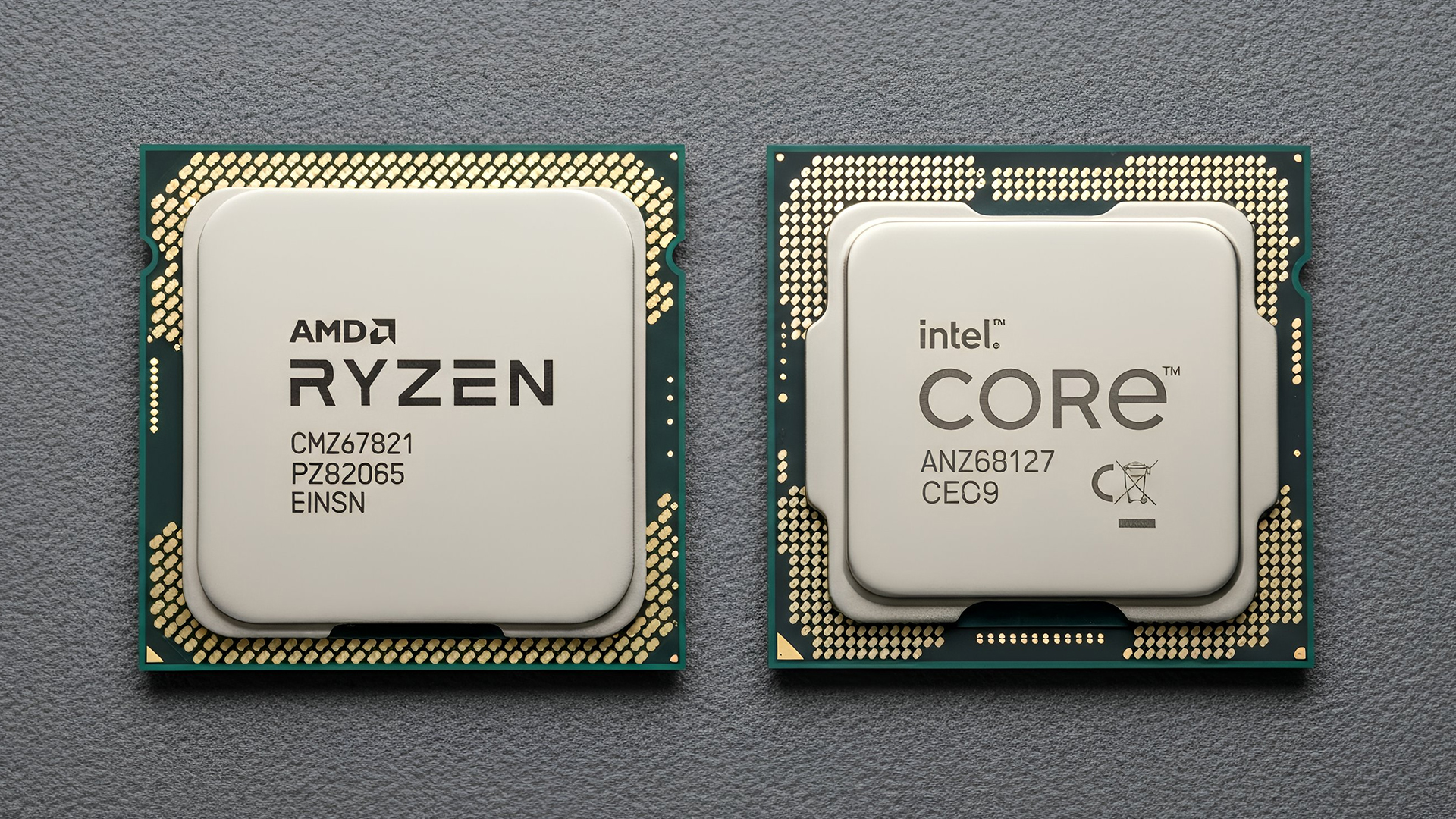
AMD vs Intel Motherboards
- AMD motherboards are known for value and longevity. Platforms like AM5 often maintain compatibility across several CPU generations, allowing for future upgrades

Last Updated: June 05, 2026
If you’re upgrading your gaming rig or building one from scratch in 2025, the motherboard you choose is going to set the tone for your entire PC. Whether you’re aiming for an affordable setup or an ultra-high-end powerhouse, the motherboard is the foundation - determining not just what components you can use today, but how future-ready your system will be.
This guide takes you through the best motherboards for gaming PCs in 2025, handpicked for performance, features, and value. You’ll find AMD and Intel options, from budget boards with modern DDR5 support to premium PCIe 5.0 powerhouses. Every recommendation is researched using up-to-date 2025 benchmarks, market data, and UK availability, ensuring you can make an informed purchase that fits your budget and build goals.
Why the Motherboard Matters in 2025

With the launch of AMD’s Ryzen 9000 and Intel’s 15th-gen “Arrow Lake” CPUs, the motherboard landscape has changed considerably. New chipsets like AMD B650E and Intel Z890 bring cutting-edge

Last Updated: May 06, 2026
year is more than just a fresh calendar; it’s one of the best times of the year to upgrade your PC hardware for less. As retailers clear stock, introduce refreshed product lines, and compete for attention during seasonal sales, motherboard New Year deals 2026 unlock savings that simply aren’t available during regular months. Whether you’re planning a brand-new desktop build, upgrading an ageing system, or finally pairing a powerful CPU with a compatible board, New Year sales make high-end components far more affordable.
New Year Sale on AMD Motherboards
This New Year, AMD motherboard discounts make it easier than ever to build or upgrade your PC with powerful AM5 boards at lowered prices.
1. ASUS TUF GAMING X870E-PLUS WIFI7 ATX AMD Socket AM5 Motherboard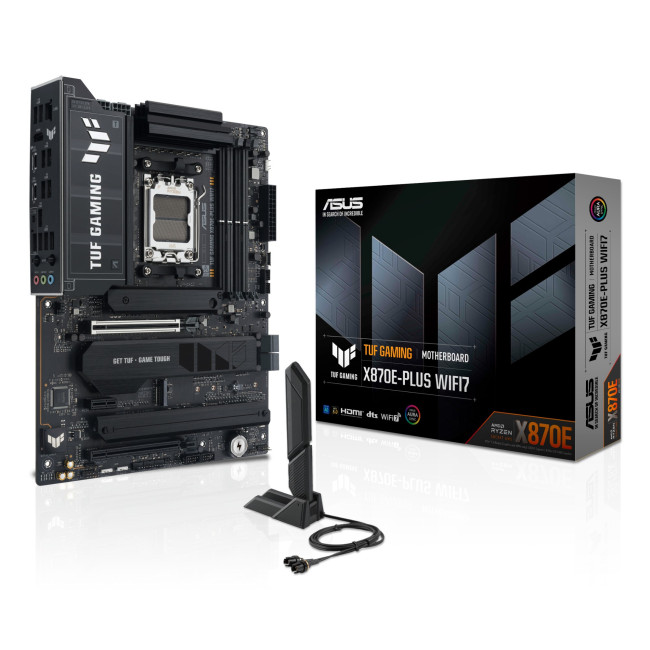
This flagship TUF board typically sits in the upper mid-range price bracket, but New Year Sale pricing often brings it into compelling territory compared to standard retail tags, shaving a noticeable percentage off regular prices.

Last Updated: January 02, 2026
When you start plugging in devices and suddenly run out of USB slots, the first question that comes to mind is a simple one: how many USB ports does my motherboard actually have?
This is something most users never think about until they hit a limitation. Whether you are building a PC, upgrading an old system, or just trying to understand why you need a USB hub, the answer always comes back to your motherboard USB ports.
The tricky part is that the total number of USB ports is not always obvious at first glance. Some are visible on the back of the PC, others are internal, and some are supported but not even active unless you connect the right headers.
This guide breaks everything down in a practical way and helps you discover how to check the total USB ports supported by your motherboard.
Why Motherboard USB Ports Matter More Than You Think
Motherboard USB ports define how many devices your system can handle directly. That includes keyboards, mice, external drives, webcams, printers
Last Updated: January 06, 2026
Need to find motherboard model details for an upgrade? Knowing your motherboard (often called the baseboard or system board) helps you pick compatible RAM and storage to download the right drivers. You can usually confirm it easily in minutes using built-in Windows tools, or via BIOS/UEFI if Windows won’t load. It’s especially handy before ordering parts or booking a repair. Learn easy ways to check your motherboard model in Windows or BIOS.
Method 1: Windows System Information (msinfo32)
System Information often shows the clearest result.
- Press Windows + R
- Type msinfo32 and press Enter
- In System Summary, look for:
BaseBoard Manufacturer
- BaseBoard Product (often the motherboard model)
- BaseBoard Version (board revision)
If you’re sharing details with support, use File > Export to save a report.
Method 2: Command Prompt (WMIC)
A fast command-line check:
- Open Start, type Command Prompt, and run it
You’ll typically see the motherboard manufacturer and product/model code. On some OEM laptops

