



How To Connect Your Lenovo Laptop To A TV
Introduction
In this digital age, laptops and TVs have become essential to our daily lives. It allows users to stream their favourite shows and play video games either on the small screen of a laptop or on a large TV screen. Connecting your Lenovo laptop to a TV can open many possibilities, whether you want to enjoy your favourite movies on a larger screen, share presentations during a meeting, or enjoy gaming with a more expansive display.
Lenovo laptops have various connectivity options, allowing you to connect them to modern TVs easily. This guide will explore instructions and methods for establishing connections and making the most of your Lenovo laptop's capabilities.
Whether you're using HDMI, wireless technologies, or other interfaces, we'll provide comprehensive instructions to enhance your multimedia and productivity experiences.
So, let's get into it!
Methods to Connect the Lenovo Laptop to a TV
There are several methods to connect your Lenovo Laptop to a TV to enhance your viewing experience, whether you want to enjoy multimedia content, give presentations, or extend your workspace. There are multiple tried and tried methods, such as HDMI, DVI Cables, and wireless methods, that are easier than ever with higher display resolutions and automatic device-to-device syncing.
Method 1: Connecting a laptop to a TV wirelessly
Most of the Lenovo laptops support wireless display technologies using Wi-Fi Direct and Miracast. This convenient method eliminates the need to deal with the physical cables.
- First, check if your Lenovo laptop and TV support Miracast and Wi-Fi Direct to ensure compatibility.
- Enable wireless display on the laptop by navigating to the "Settings" menu to select "Display".
- Within the Display settings, look for an option like "Connect to a wireless display" or "Connect to a projector." Click on it to open the Wireless Display menu.
- The laptop will scan the available wireless display devices to ensure that your TV is turned ON and set to connect to the input source.
- Once you have selected the TV, follow the on-screen instructions that may appear to establish a connection.
Method 2: Connect the laptop to the TV using Windows 10
If you have a laptop with Windows 10 and a compatible TV, one quick way to connect your Lenovo laptop to a TV is by using its new screen-casting capabilities built into the Windows 10 interface. This method requires going to the Action Center and clicking the connect option. The laptop will scan to allow you to connect to any nearby device.
Method 3: Connect the laptop to the TV using a wireless Chromecast connection
Chromecast is another popular streaming device that allows you to extend your laptop to TV over a wireless network connection.
- Power the Chromecast using the USB cable and connect it to a power source.
- Follow the instructions on-screen to set up Chromecast and connect it to your laptop's Wi-Fi network.
- Ensure you have the Google Chrome Browser installed on your Lenovo laptop. If not, download and install it from the official website.
- Search the Chrome Store for "Google Cast" or "Chromecast." To install the Google Cast browser extension.
- Select "Cast devices available" from the menu and choose what you want to cast from your Chromebook, whether it's a specific tab, your entire desktop, or a file.
- Tap "Share" to display the content on your Chromebook.
- Click the time in the bottom-right corner to stop the casting screen option.
Method 4: Connecting a laptop to a TV using cables
When connecting the Lenovo laptop to a TV using a cable, multiple options include HDMI, DVI, or even VGA. The key is to find the best cable option that works with your ports.
Using HDMI Cable
If your laptop has an HDMI output, a standard feature on virtually every computer, using an HDMI cable is a reliable way to connect to your TV. HDMI can transmit both high-resolution video and audio signals, providing a solution for connecting your laptop to your TV.
- Connect one HDMI cable end to your laptop's HDMI output port.
- Plug the other end into an available HDMI port on your TV.
- Use the TV remote to select the appropriate input option associated with the HDMI port you used.
- If your laptop screen doesn't appear automatically on the TV, toggle through the display options on your laptop until the connection is established.
Some of the Lenovo laptops might have Micro HDMI or Mini HDMI ports. In such cases, find the cables that convert from micro/mini to full size for compatibility.
Using DVI Cable
If your laptop features a DVI port, this can be another effective way to connect your computer to a TV. DVI is primarily a video interface suitable for tasks like displaying presentations or spreadsheets for group viewing.
- Use a special DVI-to-HDMI cable for the connection.
- If your laptop's video card supports it, this cable allows video and audio signals to be transmitted to the TV.
Using VGA Cable
Old Style VGA cable might be an option if your laptop and TV have VGA ports. However, a VGA only carries video signals, and to connect the audio signals, you'll need to add a mini-jack connector or a mini-jack splitter with an audio RCA cable.
Using a Mini Jack Cable
Another laptop-to-TV connection option is the mini jack connector, which only connects the audio. Use it to connect from the laptop's headphone port to a mini-jack slot on your TV.
Method 5: Screen mirroring Lenovo Laptop to the TV
A screen mirroring method is another technique to effortlessly share your laptop screen with a smart TV. This technology is often supported through technologies like Apple Airplay.
- The first step is to ensure that your smart TV supports screen mirroring technologies.
- Make sure to connect both the devices, laptop and TV to the same Wi-Fi network.
- Allow access to the screen mirroring by choosing the smart TV from the list of available devices.
- Confirm the connection of both your laptop and TV to start mirroring.
Best Lenovo Laptops of 2024
We have selected some of the best Lenovo laptops for 2024. Pick out the one that fits your needs and preferences.
Lenovo ThinkPad P14s Intel Core i7-1360P 16GB RAM 512GB SSD NVIDIA RTX A500 14-inch WUXGA IPS Windows 11 Pro Laptop
The Lenovo ThinkPad P14s with Intel Core i7 offers powerful performance for professional tasks. It has 16GB RAM, a 512GB SSD, and an NVIDIA RTX A500, 14-inch WUXGA IPS laptop designed for demanding workloads. This laptop runs on Windows 11 Pro, combining reliability and efficiency for business users who require top-tier specifications.
Technical Specifications:
- Processor: Intel Core i7 13th Gen. Processor
- Screen size: 14 in, WUXGA Display, IPS
- Maximum Resolution: 1920 x 1200 Max. Resolution
- RAM: 16 GB RAM
- Storage: 512 GB SSD
- GPU: NVIDIA RTX A500 Graphics
- Operating System: Windows 11 Pro
- Connectivity & ports: HDMI | USB 3.2 | Thunderbolt 4
- Colour : Black
- Warranty: 3 Years Warranty
- Processor Generation: 13th gen Intel Core i7
- Processor Speed: 3.70 GHz
- Processor Core Count: 12
- Laptop Battery Capacity: 52.5 Wh
- Item Weight: 1.34 kg
Availability: You can find this high-performance laptop at an affordable price on Laptop Outlet, making it an excellent investment for professionals seeking robust computing.
Lenovo ThinkPad P14s Intel Core i5-1340P 16GB RAM 512GB SSD NVIDIA RTX A500 14-inch WUXGA IPS Windows 11 Pro Laptop
The Lenovo ThinkPad P14s is a versatile laptop suitable for professional use. This laptop has an Intel Core i5 processor, 16GB RAM, a 512GB SSD, and an NVIDIA RTX A500 GPU, providing efficiency and power. This laptop has a 14-inch WUXGA IPS screen that delivers an immersive visual experience. It caters to business needs with reliability and performance.
Technical Specifications:
- Processor: Intel Core i5 13th Gen. Processor
- Screen size: 14 in, WUXGA Display, IPS
- Maximum Resolution: 1920 x 1200 Max. Resolution
- RAM: 16 GB RAM
- Storage: 512 GB SSD
- GPU: NVIDIA RTX A500 Graphics
- Operating System: Windows 11 Pro
- Ports and Connectivity: HDMI | USB 3.2 | Thunderbolt 4
- Colour: Black
- Warranty: 3 Years Warranty
- Processor Generation: 13th gen Intel Core i5
- Processor Speed: 3.40 GHz
- Processor Core Count: 12
- Laptop Battery Capacity: 52.5 Wh
- Item Weight: 1.34 kg
Availability: You can acquire this capable laptop at a fantastic price from Laptop Outlet, ensuring affordability without compromising specifications.
Lenovo ThinkPad T16 Intel Core i5-1335U 16GB RAM 256GB SSD 16-inch WUXGA IPS Windows 11 Pro Laptop
The Lenovo ThinkPad T16, featuring an Intel Core i5-1335U processor, is a reliable workhorse designed for productivity. The 16GB RAM, a 256GB SSD, and a 16-inch WUXGA IPS display provide ample power for daily tasks. This laptop runs on Windows 11 Pro and is equipped to handle professional requirements efficiently.
Technical Specifications:
- Processor: Intel Core i5 13th Gen. Processor
- Screen Size: 16 in, WUXGA Display, IPS
- Maximum Resolution: 1920 x 1200 Max. Resolution
- RAM: 16 GB RAM
- Storage: 256 GB SSD
- GPU: Intel Iris Xe Graphics
- Operating System: Windows 11 Pro
- Connectivity & Ports: HDMI | USB 3.2 | Thunderbolt 4
- Colour: Black
- Warranty :3 Years Warranty
- Processor Generation: 13th gen Intel Core i5
- Processor Speed: 3.40 GHz
- Processor Core Count: 10
- Laptop Battery Capacity: 52.5 Wh
- Item Weight: 1.67 kg
Availability: Find this dependable work companion at Laptop Outlet at an attractive price range
Lenovo ThinkPad L15 Intel Core i5-1335U 16GB RAM 256GB SSD 15.6-inch Full HD IPS Windows 11 Pro Laptop
The Lenovo ThinkPad L15 has an Intel Core i5-1335U processor and offers a well-rounded performance for various computing needs. The 16GB RAM, 256GB SSD, and 15.6-inch Full HD IPS display balance power and portability. This laptop is ideal for business use.
Technical Specifications:
- Processor: Intel Core i5 13th Gen. Processor
- Screen size: 15.6 in, Full HD Display, IPS
- Maximum Resolution: 1920 x 1080 Max. Resolution
- RAM: 16 GB RAM
- Storage: 256 GB SSD
- GPU: Intel Iris Xe Graphics
- Operating System: Windows 11 Pro
- Connectivity and Ports: HDMI | USB 3.2 | Thunderbolt 4
- Colour: Black
- Warranty: 1 Year Warranty
- Processor Generation: 13th gen Intel Core i5
- Processor Speed: 1.30 GHz
- Processor Core Count: 10
- Laptop Battery Capacity: 57 Wh
- Item Weight: 1.77 kg
Availability: Explore this efficient laptop at a fantastic price on Laptop Outlet, ensuring affordability for professional users.
Frequently Asked Questions
Does a Lenovo laptop have a screen mirroring option?
Yes, many Lenovo laptops come with screen mirroring options, but the availability of this feature may vary depending on the model and laptop series. However, Lenovo laptops often support technologies like Miracast or other wireless display options.
Do all Lenovo laptops have HDMI?
HDMI is a standard feature on laptops, including those manufactured by Lenovo. However, it's essential to check the specific model of the Lenovo laptop to confirm the presence of an HDMI port, as some ultraportable models may have different types of ports.
Final Thoughts!
In conclusion, connecting your Lenovo laptop to a TV opens a world of possibilities for work presentations, entertainment, or simply enjoying a larger display. The different methods outlined in this guide cater to various preferences and device compatibility.
Whether you choose the wired route through HDMI or explore wireless options like Miracast or Chromecast, Lenovo laptops provide flexibility for seamless connectivity.
Before choosing a method, consider the specific features of your laptop and TV to ensure compatibility. Each connection option has its advantages so that you can tailor your choice based on convenience, accessibility, and the technology available at your disposal.
Whichever method you opt for, the ability to extend your laptop's screen to a TV enhances both productivity and entertainment. You can make the most of your Lenovo laptop and TV setup by following the steps outlined for each connection type. Elevate your computing experience with the power of dual screens and explore the versatility of connecting your Lenovo laptop to a TV to your digital lifestyle.
Read more:
| How to Connect Asus Chromebook to External Monitor |
| How to Record the Screen of Samsung Laptop While Playing a Game |
| How to Transfer Photos from Phone to Laptop |
Related Articles

Last Updated: August 25, 2026
Dust, fingerprints and smudges can make even a high-resolution display look dull. Fortunately, you can clean monitor at home safely with a soft cloth, a small amount of suitable liquid and the right technique.
To clean a monitor screen safely, switch it off and unplug it. Wipe away dust with a dry microfibre cloth. For fingerprints, lightly dampen the cloth with distilled water and wipe gently. Never spray liquid directly onto the screen or apply strong pressure. Avoid paper towels, window cleaner and ammonia, as they can scratch the display or damage its protective coating. Let it dry completely before reconnecting and switching on.
The safest method is to begin with a dry microfibre cloth and use distilled water only when necessary. Never spray cleaner directly onto the screen, apply strong pressure or use rough materials that could damage the panel or its protective coating.
What Do You Need to Clean a Monitor Screen?
Before cleaning your monitor, gather the following items:
- A clean,
Last Updated: September 11, 2025
Make Your iPhone Screen Bigger
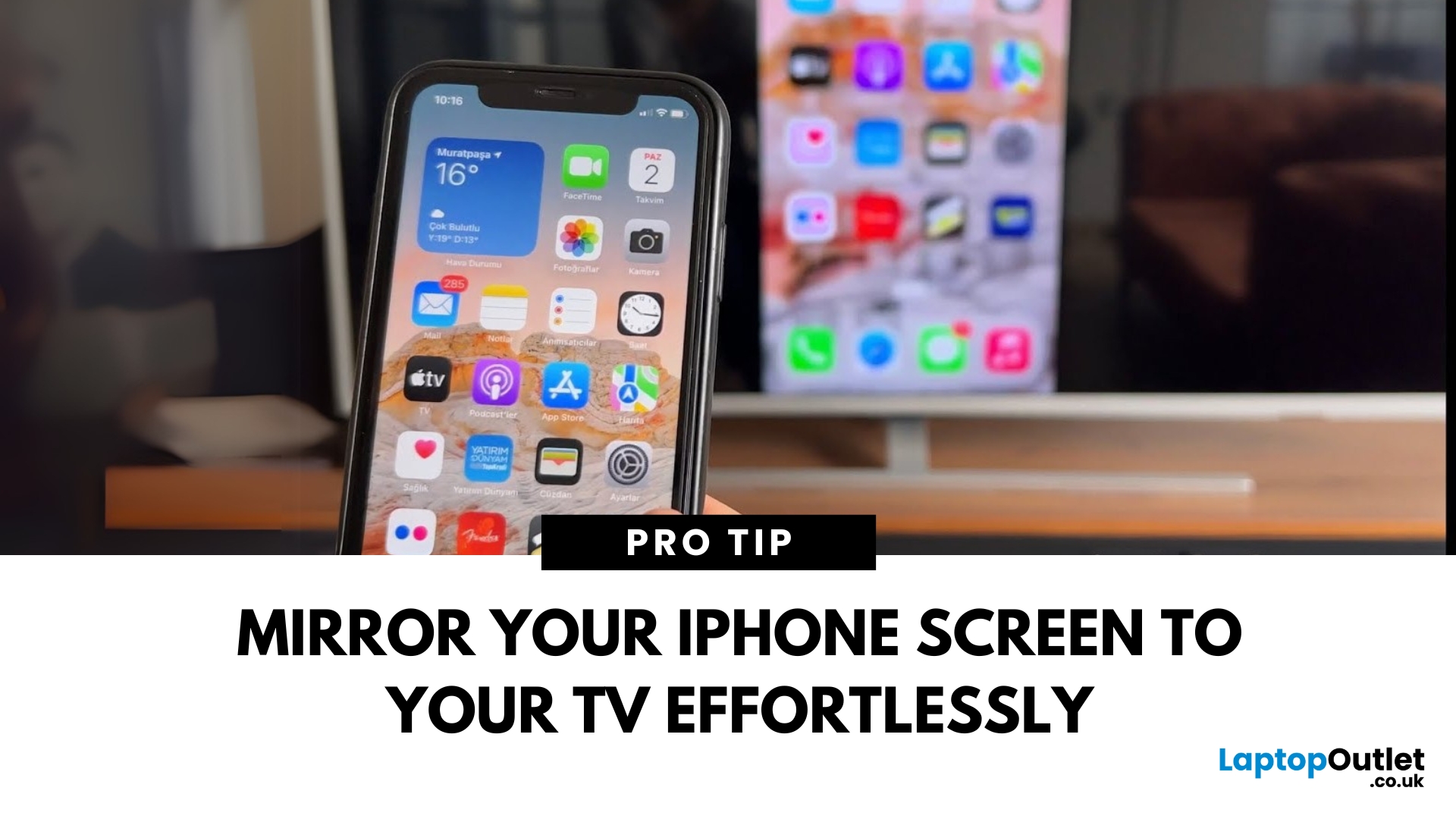
Want to watch photos, videos, or apps on the big screen? Screen mirroring lets you share your iPhone display to a TV wirelessly or with a cable. Whether you’re streaming a film or showing off holiday snaps, here’s how to do it easily.
How to Screen Mirror iPhone to a Smart TV (AirPlay)
Most smart TVs (Samsung, LG, Sony, etc.) now support Apple AirPlay.
Steps:
- Connect your iPhone and TV to the same Wi-Fi network
- Swipe down on your iPhone to open Control Centre
- Tap Screen Mirroring
- Select your TV from the list
- Enter the AirPlay passcode (if required)
Your iPhone screen will now appear on your TV.
How to Screen Mirror iPhone to TV Using an HDMI Cable
If your TV doesn’t support AirPlay, you can use a cable.
What You’ll Need:
- Apple Lightning Digital AV Adapter
- HDMI cable
Steps:
- Plug the adapter into your iPhone
- Connect an HDMI cable between the adapter and your TV
- Switch your TV input to the correct HDMI port
Your iPhone screen will
Last Updated: September 09, 2025
Laptop to TV? Easy
Want to stream Netflix, present slides, or game on a bigger screen? Connecting your laptop to a TV is easier than ever, whether you prefer a cable or a wireless setup. Here’s how to do both quickly and easily.
How to Connect a Laptop to a TV with HDMI (Wired Method)
What You’ll Need:
- A laptop with an HDMI output port
- A TV with an HDMI input port
- An HDMI cable
Steps:
- Plug one end of the HDMI cable into your laptop
- Plug the other end into your TV
- Switch your TV to the correct HDMI input using the remote
- Your laptop screen should appear on the TV
Pro Tip: Press Windows + P (on Windows) to change display mode – Duplicate, Extend, or Second Screen Only
How to Connect a Laptop to a TV Wirelessly
Option 1: Windows Wireless Display (Miracast)
- Make sure your TV supports Miracast or has a streaming device (like Roku or Fire Stick)
- On your laptop, go to Settings > Display > Connect to a Wireless Display
- Select your TV from the list
- Approve the
Last Updated: September 09, 2025
TV Says “No Signal”? Don’t Panic
You’re ready to binge your favourite show—but your TV screen says "No Signal." Frustrating? Absolutely. But don’t worry—it’s usually easy to fix. Let’s break down the most common causes and how to get your screen back in action.
1. The Input Source Is Incorrect
Your TV might be set to the wrong source (HDMI 1, HDMI 2, AV, etc.)
Fix it:
- Press the Input or Source button on your remote
- Cycle through the available sources (HDMI, TV, AV, etc.)
- Stop on the one connected to your device (game console, Sky box, etc.)
2. Loose or Unplugged Cable
A loose HDMI or AV cable can instantly kill the signal.
Fix it:
- Check that all cables are securely plugged in
- Try unplugging and replugging the cable
- Test with a different HDMI port or cable if available
- Pro Tip: Always power off the TV and device before adjusting cables
3. The Connected Device Isn’t Turned On
Sometimes the issue isn’t the TV—it’s the box or console that’s off.
Fix it:
- Make

