



How to Connect a Laptop to a TV
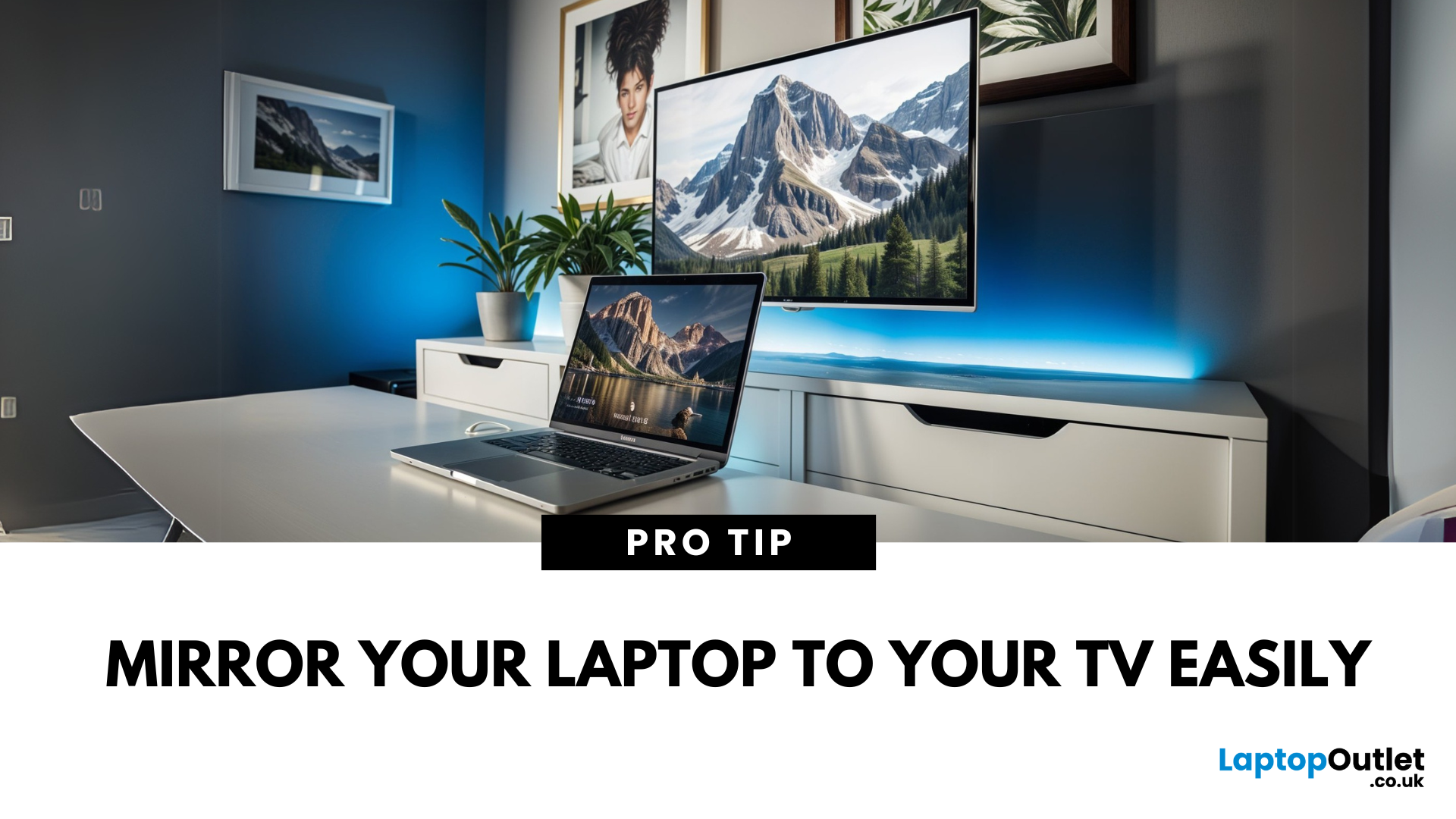
Laptop to TV? Easy
Want to stream Netflix, present slides, or game on a bigger screen? Connecting your laptop to a TV is easier than ever, whether you prefer a cable or a wireless setup. Here’s how to do both quickly and easily.
How to Connect a Laptop to a TV with HDMI (Wired Method)
What You’ll Need:
- A laptop with an HDMI output port
- A TV with an HDMI input port
- An HDMI cable
Steps:
- Plug one end of the HDMI cable into your laptop
- Plug the other end into your TV
- Switch your TV to the correct HDMI input using the remote
- Your laptop screen should appear on the TV
Pro Tip: Press Windows + P (on Windows) to change display mode – Duplicate, Extend, or Second Screen Only
How to Connect a Laptop to a TV Wirelessly
Option 1: Windows Wireless Display (Miracast)
- Make sure your TV supports Miracast or has a streaming device (like Roku or Fire Stick)
- On your laptop, go to Settings > Display > Connect to a Wireless Display
- Select your TV from the list
- Approve the connection on your TV
Option 2: Using Chromecast or Smart TV
- Plug a Chromecast into your TV or use a smart TV with casting support
- Open Google Chrome on your laptop
- Click the three dots (menu) > Cast
- Select your TV from the list
- Choose whether to cast your tab or entire screen
How to Connect a MacBook to a TV
Option 1: HDMI Cable
- Use a USB-C to HDMI adapter if your Mac doesn’t have an HDMI port
- Follow the same steps as above for HDMI connection
Option 2: AirPlay
- Ensure your TV supports AirPlay or use an Apple TV
- On your Mac, click the Control Centre > Screen Mirroring
- Select your TV and enter the AirPlay code if prompted
Troubleshooting Tips
- No signal? Check the HDMI port or input source on your TV
- No sound? Go to Sound settings and set your TV as the audio output device
- Laggy wireless connection? Switch to HDMI for smoother playback
Final Thoughts: Big Screen, Big Possibilities
Connecting your laptop to a TV turns any room into a home theatre, a gaming den, or a second office. With both wired and wireless options, you can easily choose what works best for your setup.
Need a new laptop, smart TV, or streaming device? Explore Laptop Outlet’s tech deals for your perfect big-screen solution.
FAQs: Laptop to TV Connection Questions Answered
1. What’s the easiest way to connect a laptop to a TV?
Using an HDMI cable—it’s plug-and-play and very reliable.
2. Can I connect my laptop to a TV wirelessly?
Yes—use Miracast (Windows), AirPlay (Mac), or Chromecast for wireless casting.
3. Why isn’t my laptop showing up on the TV?
Check HDMI cables, input source, and display settings on your laptop.
4. Can I stream movies from my laptop to my TV?
Absolutely—once connected, you can stream videos, browse, or play games.
5. Do I need an internet connection to connect my laptop to a TV?
No—HDMI doesn’t require internet. Wireless methods may require local Wi-Fi.
Read More:
| How to Screen Mirror iPhone to TV |
| How to Pair Apple Watch to a New Phone |
| How to Clean Your Monitor and TV Screen |
Related Articles

Last Updated: February 23, 2026
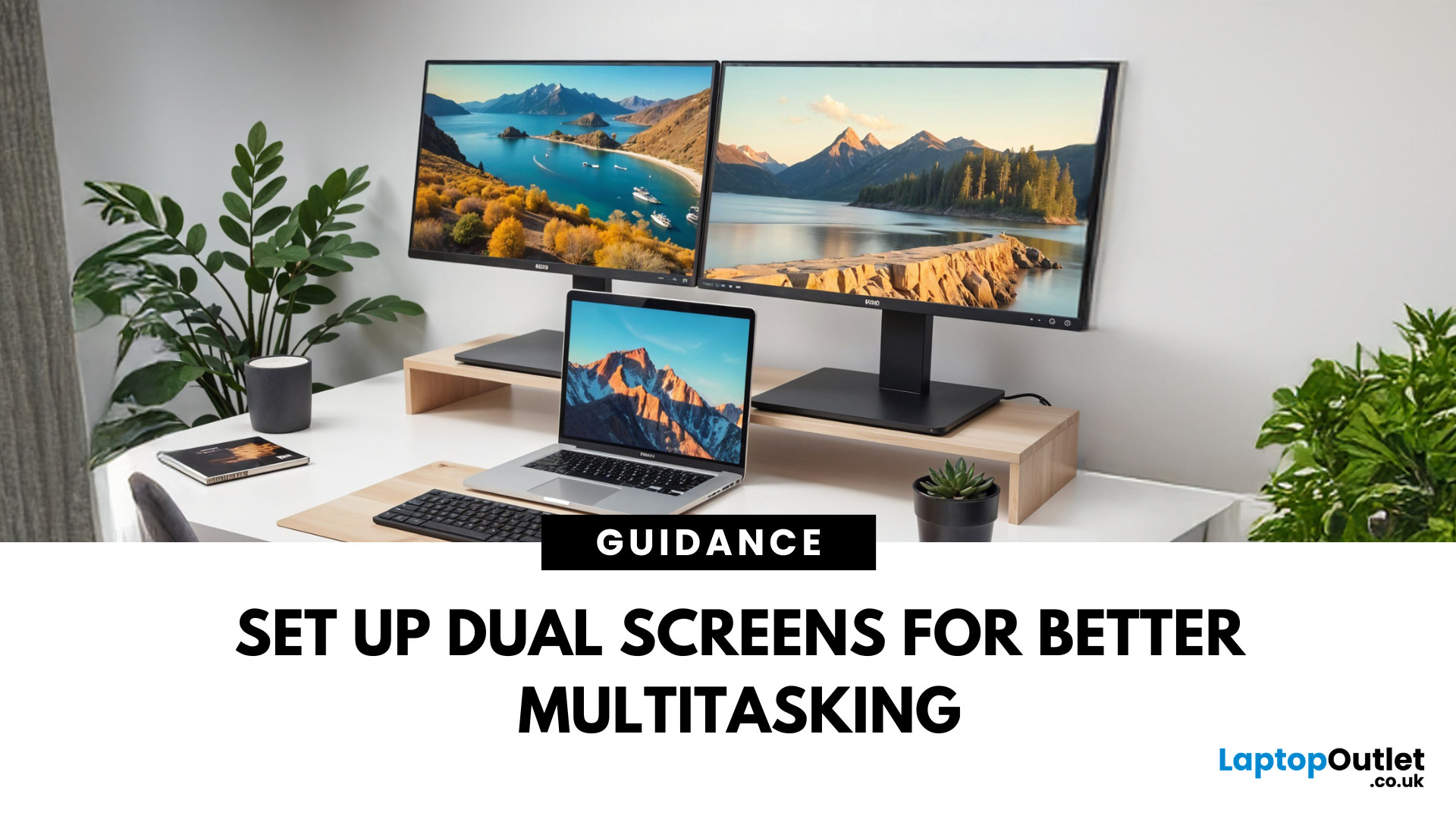
Feeling cramped on your laptop screen? Whether you’re a creative pro, a remote worker, or just need more screen real estate for multitasking—dual monitors are a total game-changer. Here’s how to connect two monitors to your laptop and level up your workspace.
What You’ll Need to Connect Two Monitors
Before you dive in, make sure you’ve got:
- A laptop with multiple display outputs (HDMI, USB-C, DisplayPort, Thunderbolt)
- Two external monitors
- Compatible cables or adapters (HDMI, VGA, USB-C, DisplayPort)
- Optional: Docking station for easier setup
Step-by-Step: How to Connect Two Monitors to a Laptop
1. Check Your Laptop’s Ports
Look at the sides of your laptop—do you have two separate video outputs (e.g., HDMI + USB-C)? If not, you might need a USB-C hub, docking station, or display splitter.
2. Plug in the First Monitor
- Connect your first monitor to the laptop using an HDMI, VGA, or DisplayPort cable.
- Turn on the monitor and make sure it’s set to the correct input source.
Last Updated: October 02, 2025
Capture Your Screen Like a Pro
Whether you’re saving receipts, capturing memes, or sending error messages to IT support—screenshots are super handy. But how you take one depends on your laptop. Don’t worry, we’ve got all the easy ways to screenshot on Windows and Mac laptops in one place.
How to Screenshot on a Windows Laptop
1. Use the Print Screen (PrtScn) Key
- Press PrtScn – Captures the whole screen to clipboard
- Open Paint or Word and press Ctrl + V to paste and save
2. Alt + Print Screen
- Press Alt + PrtScn – Captures the active window only
- Paste into your desired app (e.g., Paint, email, etc.)
3. Windows + Shift + S (Snip & Sketch Tool)
- Opens a selection tool
- Click and drag to capture a specific area
- Screenshot goes to clipboard—paste it anywhere or save via pop-up
4. Windows + Print Screen
- Captures the whole screen and saves it automatically
- Find it in Pictures > Screenshots folder
How to Screenshot on a MacBook or Mac Laptop
1. Command + Shift + 3

Last Updated: October 02, 2025
Time for a Fresh Start?
Whether you’re selling your device, fixing performance issues, or just want a clean slate—a factory reset gives your laptop a fresh start. We’ll walk you through how to factory reset both Windows and Mac laptops, with simple steps anyone can follow.
Before You Factory Reset: Back It Up
- A factory reset wipes everything—apps, files, and settings. So before you dive in:
- Back up files to an external hard drive or cloud (e.g., Google Drive, OneDrive, iCloud)
- Sign out of any accounts (Microsoft, Apple ID)
- Note down any licence keys or passwords you’ll need later
How to Factory Reset a Windows Laptop
- Using Windows Settings (Windows 10 & 11)
- Click Start > Settings > System > Recovery
- Under Reset this PC, click Reset PC
Choose:
- Keep my files – Removes apps/settings, keeps personal files
- Remove everything – Full factory reset
- Follow the prompts to complete the reset
Using Advanced Startup (If You Can’t Boot Normally)
- Force restart the laptop

Last Updated: September 25, 2026
Most laptops have a useful lifespan of roughly 3 to 6 years, although some remain reliable for much longer. How long a laptop lasts depends on build quality, workload, cooling, battery health, hardware, maintenance and software support.
A laptop used mainly for browsing, documents and video calls may stay useful longer than one regularly pushed through gaming, video editing or other demanding workloads. A laptop also does not necessarily need replacing simply because it reaches a certain age.
What Is the Average Laptop Lifespan?
There is no fixed expiry date for a laptop. For many users, the average laptop lifespan falls somewhere between three and six years before age starts to affect performance, portability, reliability or software support.
These ranges are a practical guide, not a guarantee:
| Laptop type or usage | General useful lifespan | What usually affects it |
| Everyday browsing and office use | About 4 to 6 years | Battery wear, software demands and hardware ageing |
| Light, well-maintained |
Last Updated: September 25, 2026
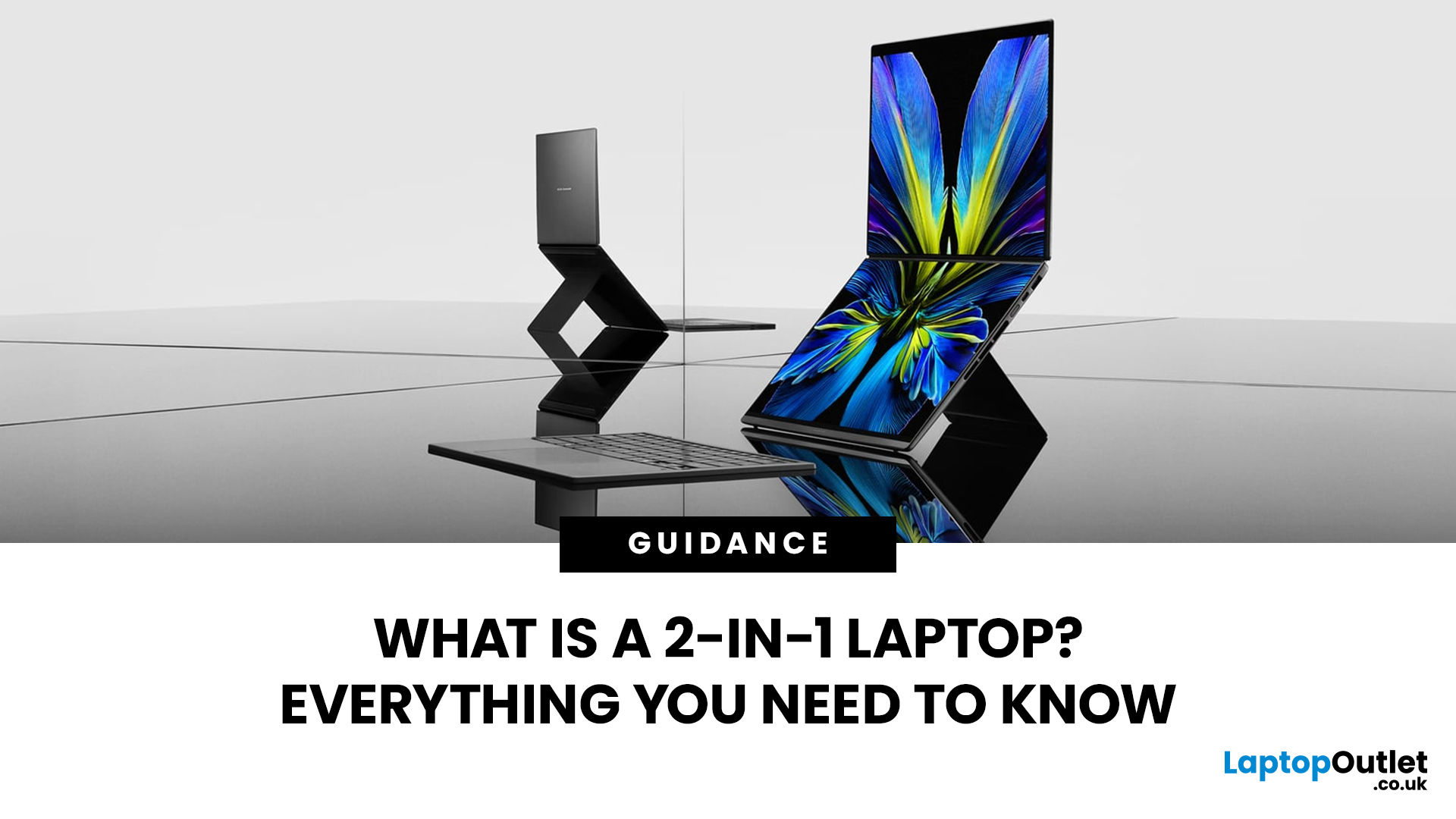
A 2-in-1 laptop gives you the flexibility of a traditional laptop with the touch-first convenience of a tablet, letting you type, draw, take notes, present or watch content in different modes. That versatility also brings important choices around hinges, stylus support, performance, weight and battery life.
This guide explains how 2-in-1 laptops work, the main types available, their advantages and disadvantages, who they suit, and what to look for when choosing one.
What Is a 2-in-1 Laptop?
A 2-in-1 laptop is a portable computer designed to work in both a conventional laptop configuration and a touch-focused form. It has a touchscreen plus either a flexible hinge that moves the keyboard behind the display or a keyboard that can be physically detached.
The term describes the hardware design rather than a particular operating system or performance level. Current 2-in-1 laptops therefore range from compact everyday machines to higher-specification systems designed for productivity and creative

