



How to Screenshot on a Laptop
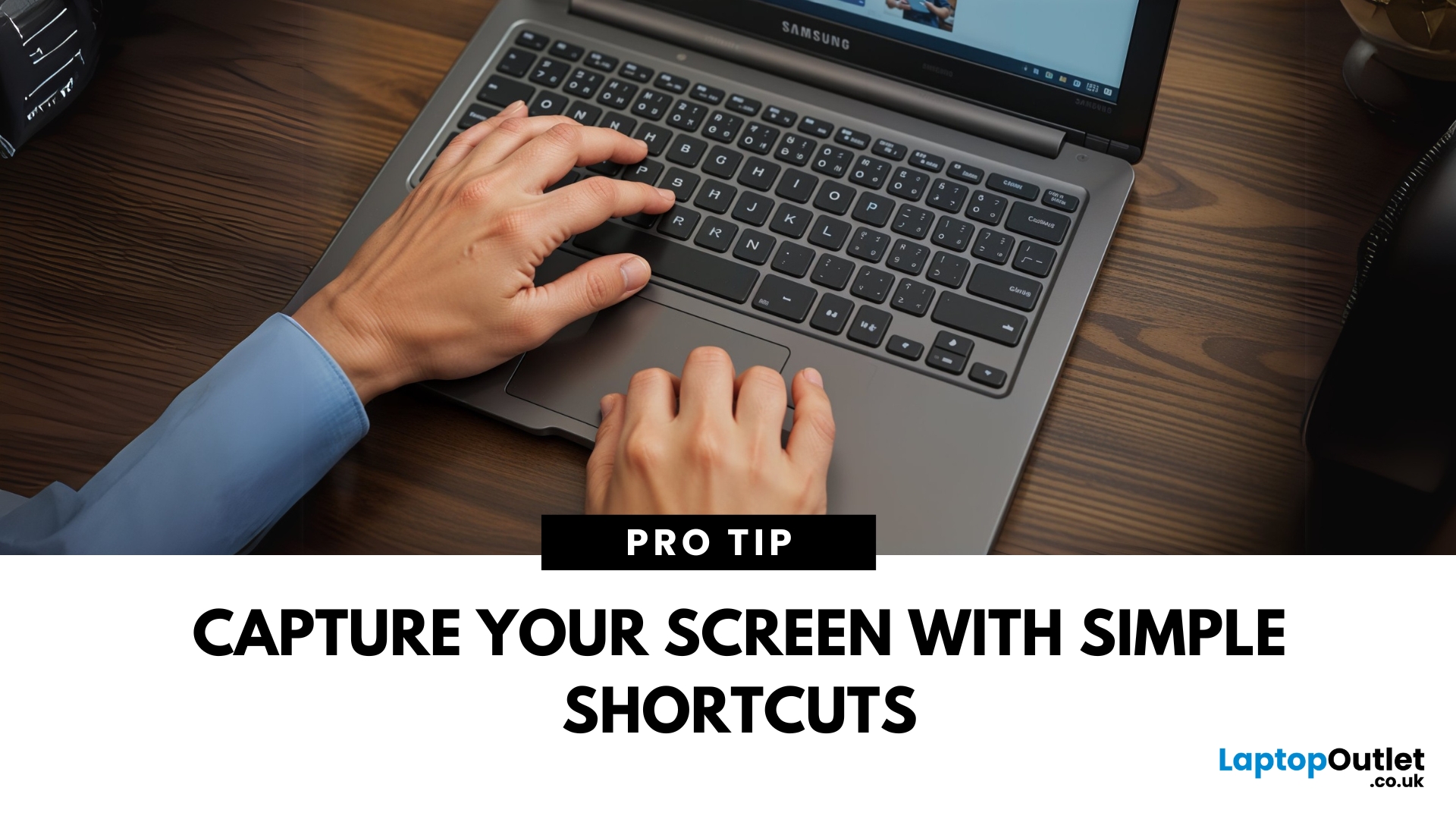
Capture Your Screen Like a Pro
Whether you’re saving receipts, capturing memes, or sending error messages to IT support—screenshots are super handy. But how you take one depends on your laptop. Don’t worry, we’ve got all the easy ways to screenshot on Windows and Mac laptops in one place.
How to Screenshot on a Windows Laptop
1. Use the Print Screen (PrtScn) Key
- Press PrtScn – Captures the whole screen to clipboard
- Open Paint or Word and press Ctrl + V to paste and save
2. Alt + Print Screen
- Press Alt + PrtScn – Captures the active window only
- Paste into your desired app (e.g., Paint, email, etc.)
3. Windows + Shift + S (Snip & Sketch Tool)
- Opens a selection tool
- Click and drag to capture a specific area
- Screenshot goes to clipboard—paste it anywhere or save via pop-up
4. Windows + Print Screen
- Captures the whole screen and saves it automatically
- Find it in Pictures > Screenshots folder
How to Screenshot on a MacBook or Mac Laptop
1. Command + Shift + 3
- Captures the entire screen and saves it to your desktop
2. Command + Shift + 4
- Turns cursor into a crosshair
- Click and drag to capture a portion of the screen
3. Command + Shift + 5
- Opens screenshot menu with options (full screen, window, or portion)
- You can also record your screen from here
Where to Find Your Screenshots
- Windows: Screenshots usually go to Pictures > Screenshots, or clipboard if using PrtScn
- Mac: Screenshots are saved to your desktop by default
Bonus Tip: Use Snipping Tool or Snip & Sketch (Windows)
- Press Start > Snipping Tool or Snip & Sketch
- Take delayed screenshots, annotate, and save easily
Pro Tip: Rename and organise your screenshots for quick access—great for work, school, or content creation!
Final Thoughts: Snag That Screen in Seconds
That’s it—easy, quick, and no apps needed. Whether you’re on a Windows or Mac laptop, screenshot shortcuts save time and effort. And if your laptop is lagging behind, maybe it’s time to screenshot yourself a tech upgrade.
Find high-performance laptops at unbeatable prices—only at Laptop Outlet.
FAQs: Laptop Screenshot Questions Answered
1. What’s the fastest way to screenshot on a Windows laptop?
Press Windows + PrtScn to capture and save instantly.
2. Where are my screenshots saved on Mac?
They’re saved to your desktop by default.
3. Can I take a screenshot without the Print Screen key?
Yes—use Windows + Shift + S to open Snip & Sketch.
4. How do I capture just one window on Mac?
Press Command + Shift + 4, then tap the space bar and click the window.
5. Can I take a screenshot with a delay?
Yes—on Mac, use Command + Shift + 5 > Options. On Windows, use the Snipping Tool and select delay timer.
Watch our Video: How to Screenshot on a Laptop?
Read More:
| How to Speed Up Your Laptop – Easy Fixes for Better Performance |
| Best Laptops Under £500 in 2025 |
| Buying a Laptop for Work in 2025? Don’t Make These 5 Mistakes |
Related Articles

Last Updated: February 23, 2026
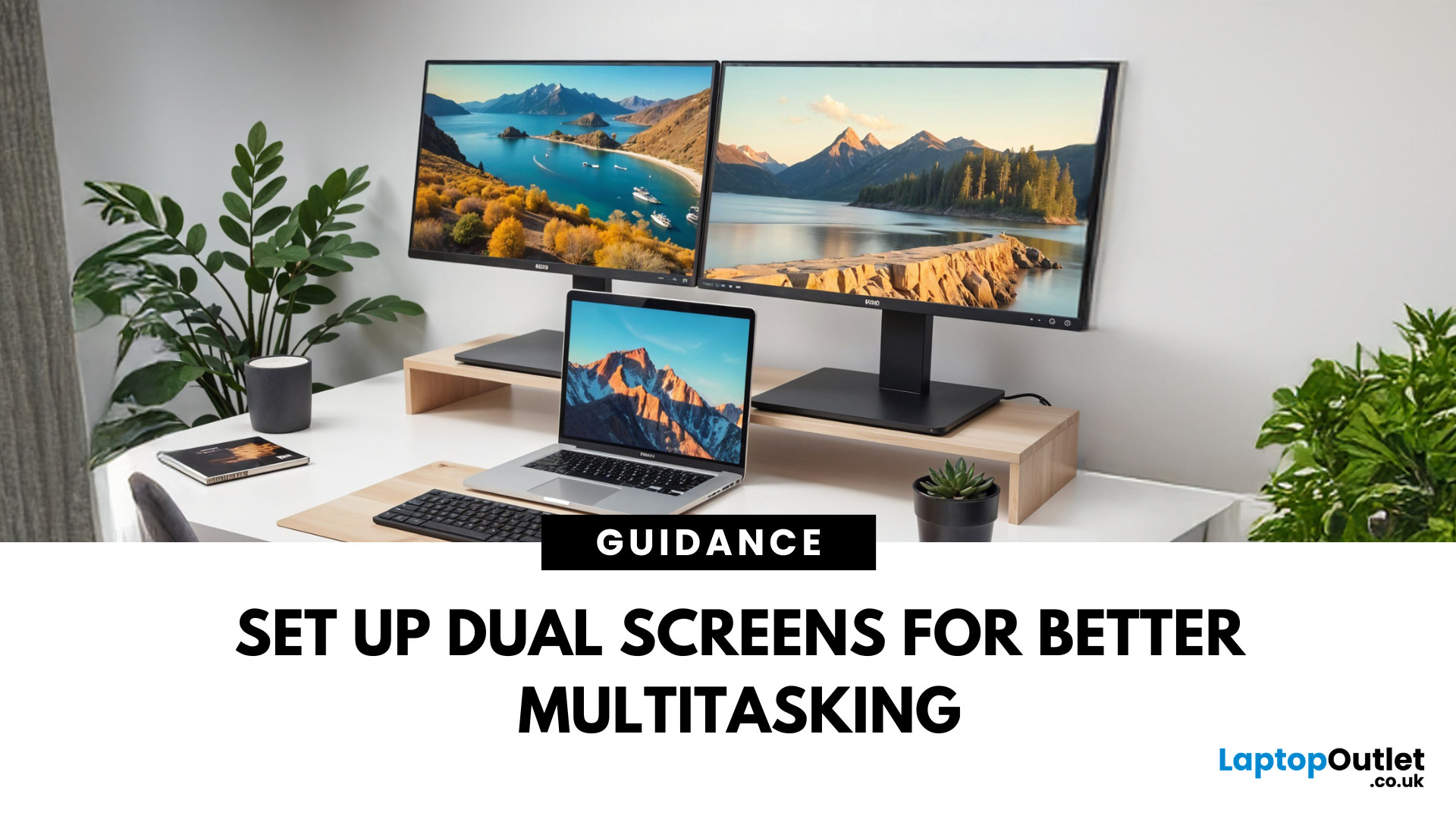
Feeling cramped on your laptop screen? Whether you’re a creative pro, a remote worker, or just need more screen real estate for multitasking—dual monitors are a total game-changer. Here’s how to connect two monitors to your laptop and level up your workspace.
What You’ll Need to Connect Two Monitors
Before you dive in, make sure you’ve got:
- A laptop with multiple display outputs (HDMI, USB-C, DisplayPort, Thunderbolt)
- Two external monitors
- Compatible cables or adapters (HDMI, VGA, USB-C, DisplayPort)
- Optional: Docking station for easier setup
Step-by-Step: How to Connect Two Monitors to a Laptop
1. Check Your Laptop’s Ports
Look at the sides of your laptop—do you have two separate video outputs (e.g., HDMI + USB-C)? If not, you might need a USB-C hub, docking station, or display splitter.
2. Plug in the First Monitor
- Connect your first monitor to the laptop using an HDMI, VGA, or DisplayPort cable.
- Turn on the monitor and make sure it’s set to the correct input source.

Last Updated: September 25, 2026
Most laptops have a useful lifespan of roughly 3 to 6 years, although some remain reliable for much longer. How long a laptop lasts depends on build quality, workload, cooling, battery health, hardware, maintenance and software support.
A laptop used mainly for browsing, documents and video calls may stay useful longer than one regularly pushed through gaming, video editing or other demanding workloads. A laptop also does not necessarily need replacing simply because it reaches a certain age.
What Is the Average Laptop Lifespan?
There is no fixed expiry date for a laptop. For many users, the average laptop lifespan falls somewhere between three and six years before age starts to affect performance, portability, reliability or software support.
These ranges are a practical guide, not a guarantee:
| Laptop type or usage | General useful lifespan | What usually affects it |
| Everyday browsing and office use | About 4 to 6 years | Battery wear, software demands and hardware ageing |
| Light, well-maintained |
Last Updated: August 28, 2026
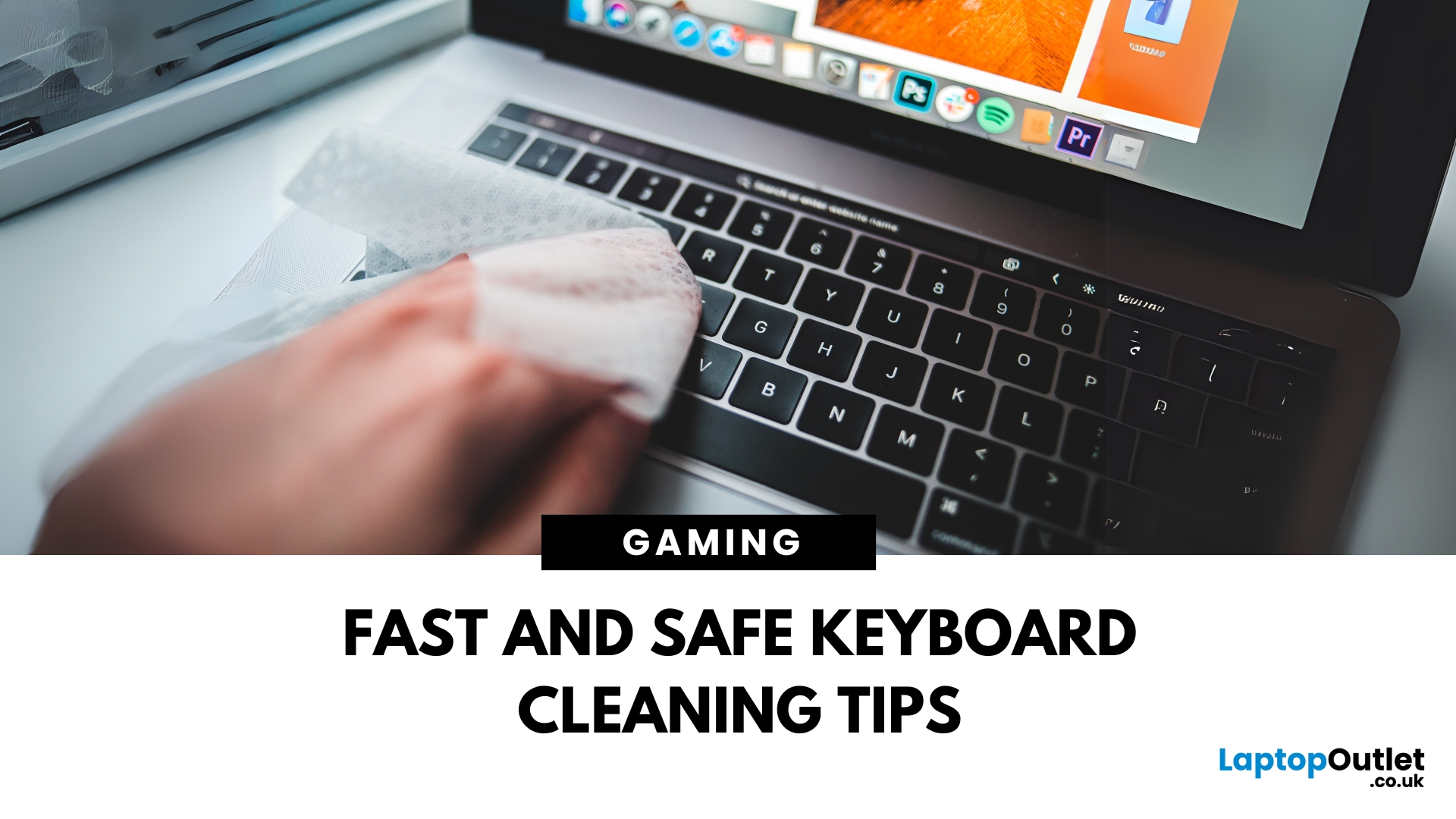
Dust, crumbs, skin oils, and drink residue can make a laptop keyboard look grubby or leave keys slow and sticky. Cleaning it correctly takes only a few minutes, but excess liquid or unsuitable products can damage the key coating and electronics.
How to Clean a Keyboard Safely: Quick Answer
Shut down and unplug the laptop. Remove loose debris with short bursts of compressed air, then wipe the keys with a soft microfibre cloth lightly dampened with 70% isopropyl alcohol. Never spray liquid directly onto the keyboard and let it dry fully before switching it on.
What You Will Need
- Soft microfibre cloth
- Compressed air
- Cotton buds or a soft brush
- 70% isopropyl alcohol
How to Clean a Laptop Keyboard Step by Step
1. Turn Off and Unplug the Laptop
Save your work, shut the laptop down and disconnect the charger and accessories. Cleaning
Last Updated: September 09, 2025
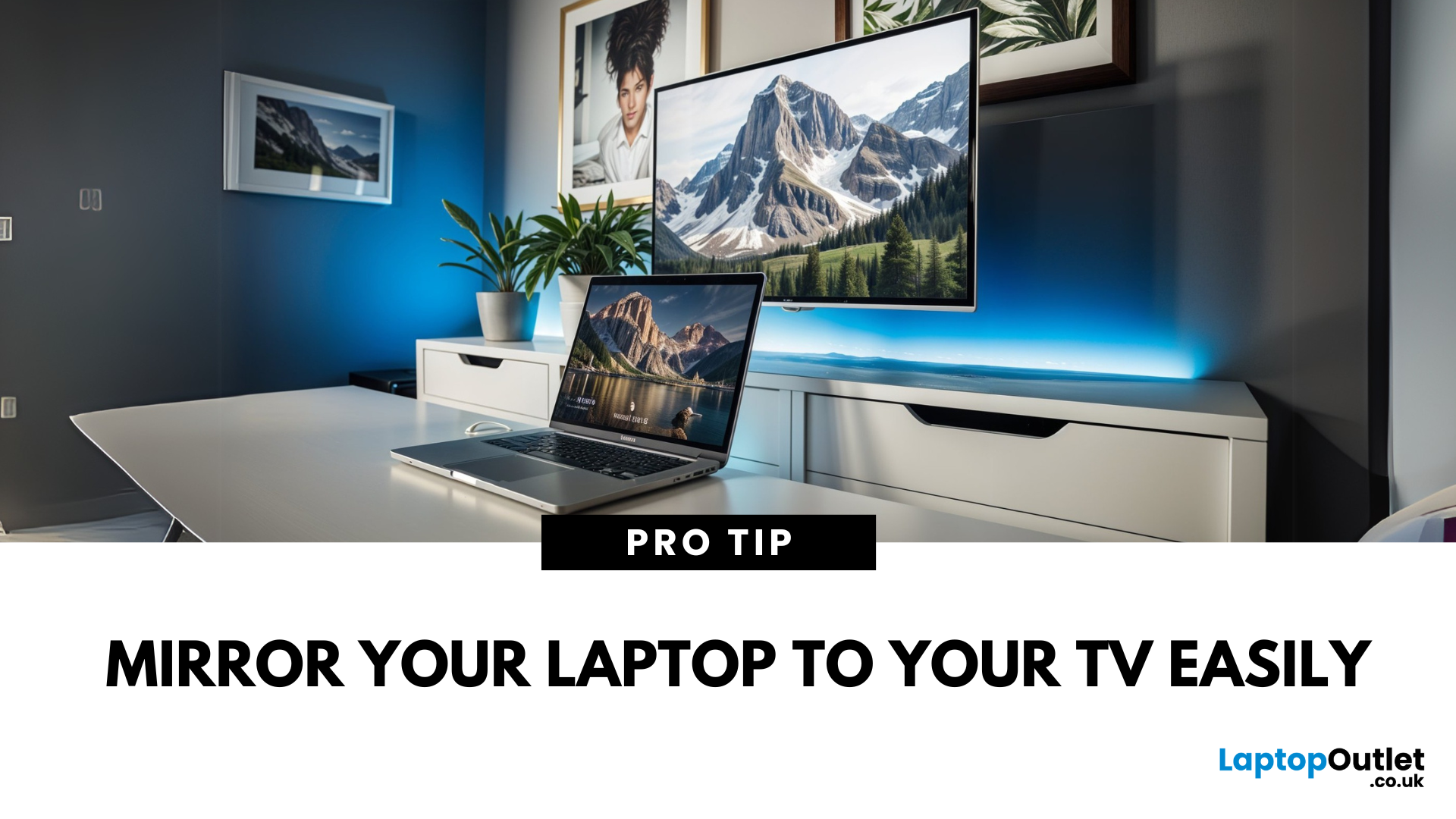
Laptop to TV? Easy
Want to stream Netflix, present slides, or game on a bigger screen? Connecting your laptop to a TV is easier than ever, whether you prefer a cable or a wireless setup. Here’s how to do both quickly and easily.
How to Connect a Laptop to a TV with HDMI (Wired Method)
What You’ll Need:
- A laptop with an HDMI output port
- A TV with an HDMI input port
- An HDMI cable
Steps:
- Plug one end of the HDMI cable into your laptop
- Plug the other end into your TV
- Switch your TV to the correct HDMI input using the remote
- Your laptop screen should appear on the TV
Pro Tip: Press Windows + P (on Windows) to change display mode – Duplicate, Extend, or Second Screen Only
How to Connect a Laptop to a TV Wirelessly
Option 1: Windows Wireless Display (Miracast)
- Make sure your TV supports Miracast or has a streaming device (like Roku or Fire Stick)
- On your laptop, go to Settings > Display > Connect to a Wireless Display
- Select your TV from the list
- Approve the

Last Updated: May 23, 2025
Don’t Panic—There’s Hope
Few things are more frustrating than pressing your laptop’s power button and seeing nothing happen. If your laptop won’t turn on, it could be a simple fix—or at least something you can easily diagnose. Let’s walk through the most common reasons and solutions.
1. Check the Power Source and Cable
- Make sure the power cable is securely plugged in
- Try a different power socket
- Inspect the power adapter and charging cable for damage
- Look for lights on the laptop or charger
If possible, test with a different charger that’s compatible with your laptop
2. Perform a Hard Reset
Sometimes a simple reset can revive a laptop stuck in sleep or hibernation.
Steps:
- Unplug the laptop and remove the battery (if possible)
- Press and hold the power button for 15–30 seconds
- Reconnect the power and try turning it on again
This clears any electrical build-up in the motherboard
3. Check the Battery Health
- If your battery is removable, try turning the laptop on with

