



How to Connect an HP Printer to Wi-Fi

Wireless Printing Made Easy
No more messy cables or complicated setups—connecting your HP printer to Wi-Fi lets you print from anywhere at home or work. Whether you’ve got a new printer or you’re reconnecting, this guide shows you exactly how to get it done.
What You’ll Need
Before you start, make sure you have:
- An HP wireless printer
- Wi-Fi network name (SSID) and password
- A laptop, PC, or smartphone connected to the same Wi-Fi network
How to Connect HP Printer to Wi-Fi – Step by Step
1. Use HP Auto Wireless Connect (For Compatible Models)
- Plug in and turn on your printer
- On your computer, install the HP Smart app or visit 123.hp.com
- Follow on-screen instructions to connect your printer to Wi-Fi automatically
Pro Tip: This is the easiest option if your printer supports it—no need to enter Wi-Fi credentials manually.
2. Use the Printer’s Control Panel (Manual Setup)
- Press the Wi-Fi or Wireless icon on your printer’s screen
- Go to Settings > Wireless Setup Wizard
- Select your Wi-Fi network and enter the password
- Wait for the connection confirmation
3. Use WPS (Wi-Fi Protected Setup)
- Press and hold the Wi-Fi button on your printer until it starts blinking
- Within two minutes, press the WPS button on your router
- The connection will establish automatically
How to Connect Using HP Smart App (Mobile & PC)
- Download the HP Smart app from the App Store, Google Play, or Microsoft Store
- Open the app and tap Set up a new printer
- Follow the in-app instructions to connect your printer to Wi-Fi
What If My HP Printer Won’t Connect to Wi-Fi?
- Make sure you’re within range of the router
- Restart your printer, router, and device
- Double-check your Wi-Fi password
- Ensure your router supports 2.4GHz band (some printers don't support 5GHz)
Final Thoughts: Print Anywhere, Anytime
Connecting your HP printer to Wi-Fi is easier than ever—and once it’s set up, you can print wirelessly from your laptop, phone, or tablet. No more plugging in cables every time you want to print.
Looking for a new printer or laptop to go with it? Check out Laptop Outlet’s latest tech deals today.
FAQs: HP Printer Wi-Fi Setup Questions Answered
1. Can I connect my HP printer to Wi-Fi without a computer?
Yes—you can use the printer’s control panel or the HP Smart app on your smartphone.
2. What if my printer doesn’t show my Wi-Fi network?
Move the printer closer to the router and make sure the network is 2.4GHz.
3. Can I connect my printer to multiple devices?
Yes—once connected to Wi-Fi, any device on the same network can print.
4. How do I reset my HP printer’s Wi-Fi settings?
Go to Settings > Network Settings > Restore Network Defaults on the printer control panel.
5. Do I need internet access to connect my HP printer to Wi-Fi?
No—you only need a local Wi-Fi network. However, some online features require internet access.
Want to know more? Watch our Video!
Read More:
| How to Speed Up Your Laptop |
| How to Screenshot on a Laptop |
| How to Transfer Photos from iPhone to Laptop |
Related Articles

Last Updated: April 03, 2026
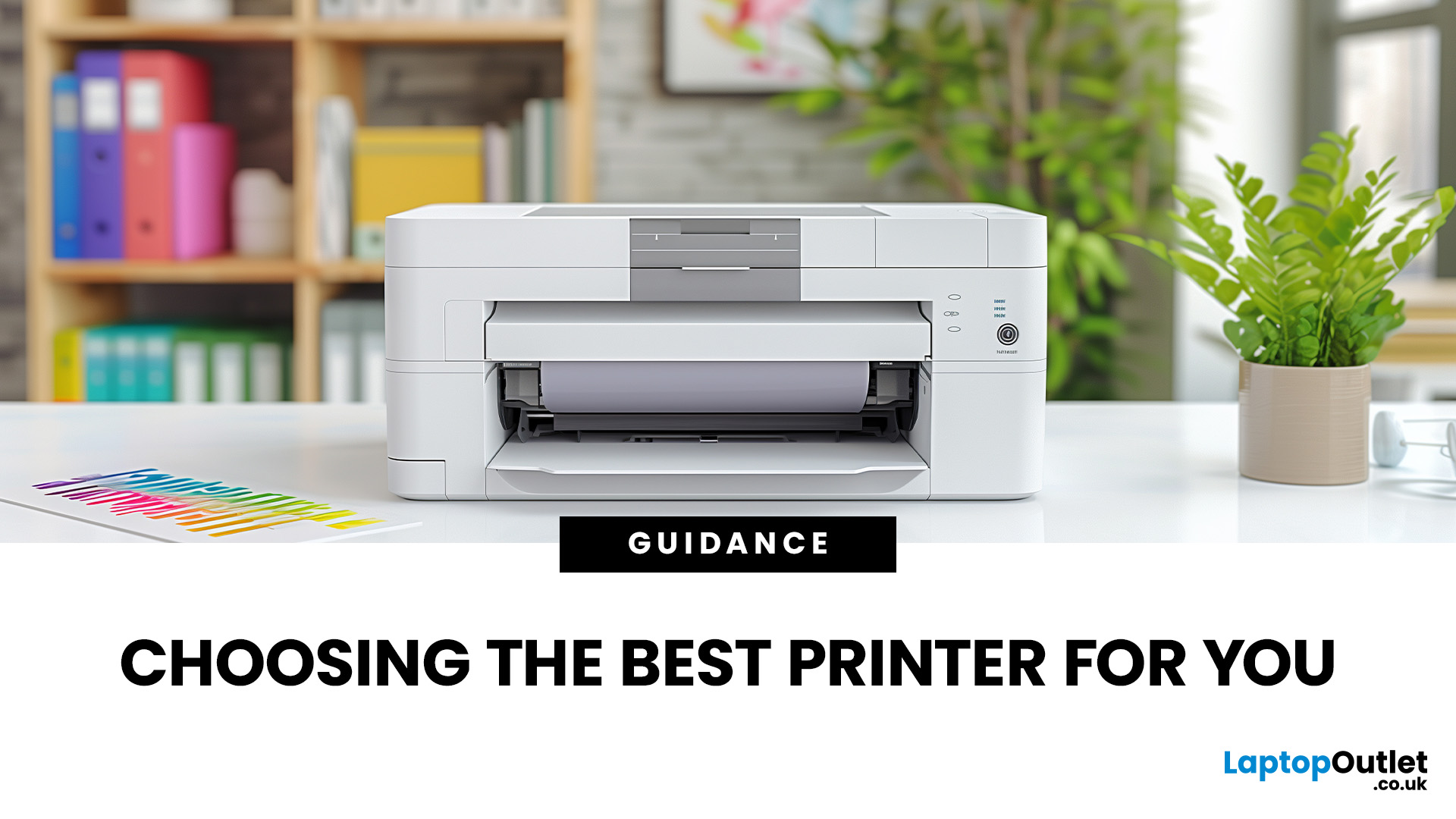
From compact inkjet printers for home use to heavy-duty laser printers for businesses, each model is designed with specific users in mind. While buying a printer may feel challenging, one important thing to remember is that the features you value will greatly impact your long-term satisfaction. Knowing how to choose the right printer for your needs ensures you get value for money, efficiency, and the features that matter most.
Why Choosing the Right Printer Matters
A printer is more than just an accessory, it’s a productivity tool. Picking the wrong one could mean high running costs, slower performance, or features you never use. The right printer, on the other hand, will save time, reduce costs, and fit seamlessly into your lifestyle or workplace.
Things to Consider Before Buying a Printer
What Will You Be Printing?
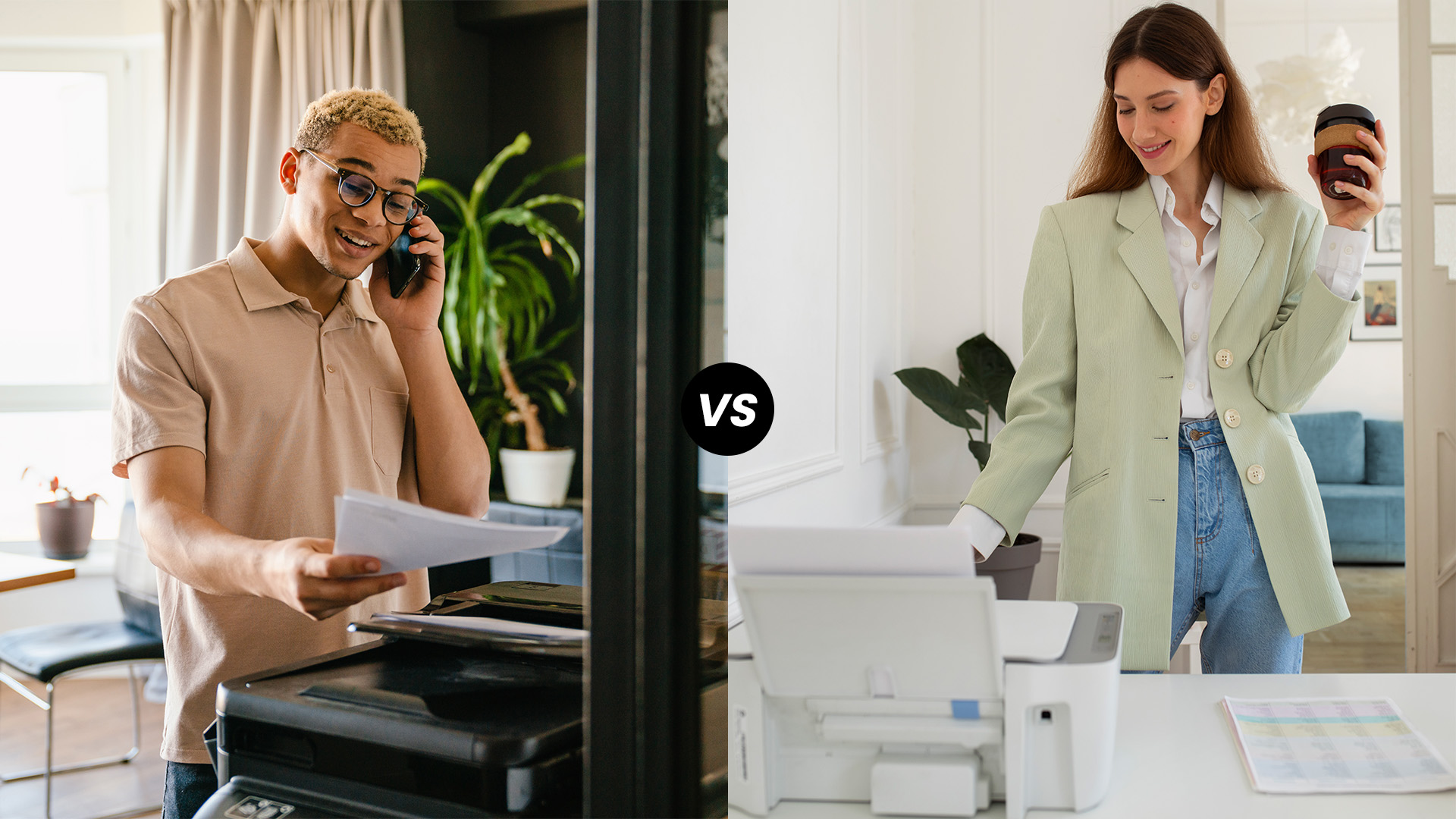
Not all printers are created equal, and the type of documents you print most often should guide your choice. If you're only printing everyday documents like work reports,
Last Updated: June 10, 2026
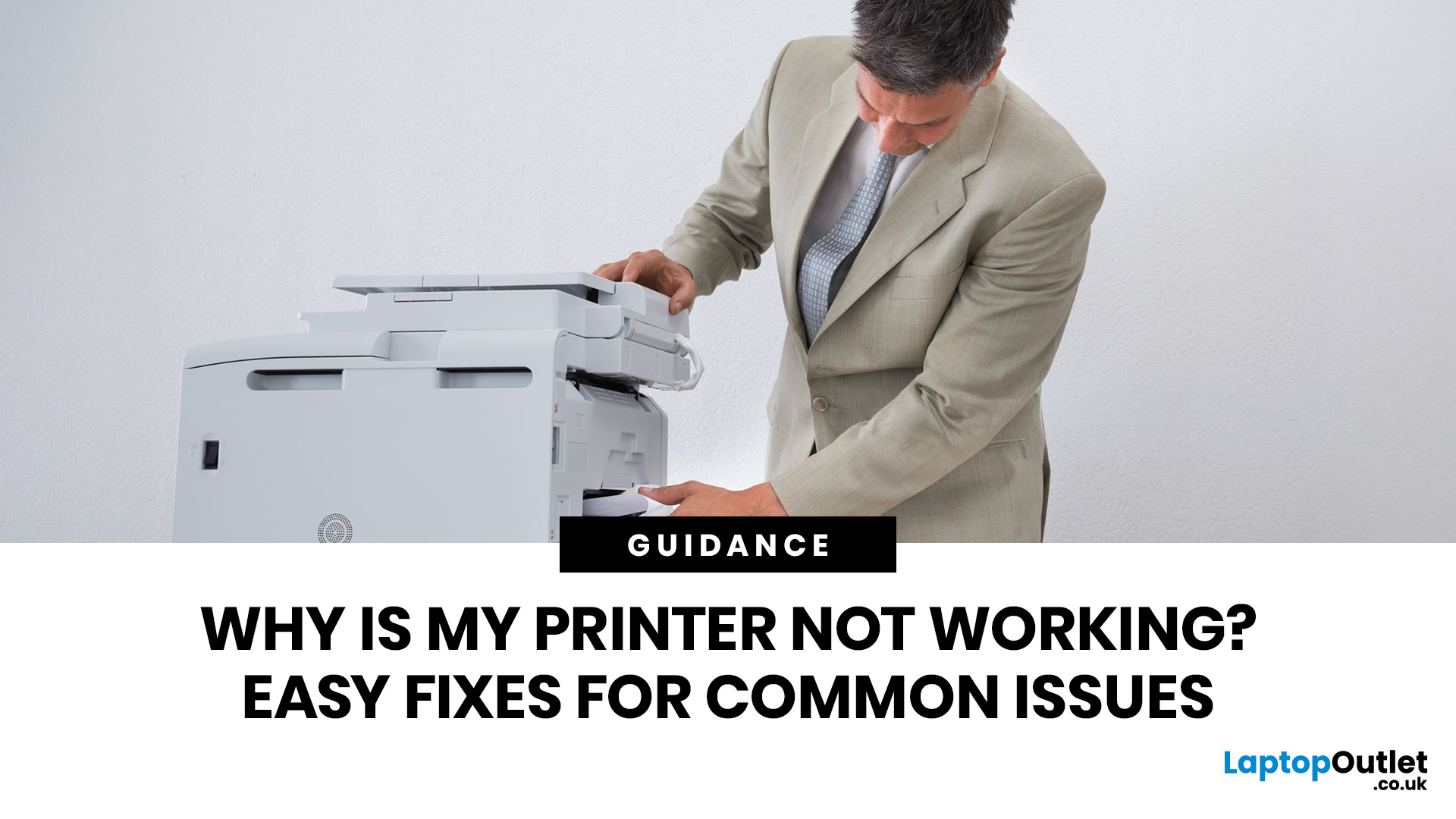
Quick Answer: If your printer is not working, start by checking it is powered on, connected to the correct Wi-Fi network, and set as the default printer. Clear any stuck print jobs from the queue, update or reinstall the printer driver, and restart the Print Spooler service on Windows. On Mac, reset the printing system via System Settings. Most printer problems are solved within minutes with these steps.
A ‘printer not working’ issue is one of the most common tech complaints in UK homes and offices. The good news? Most printer problems are surprisingly easy to fix once you know where to look. This guide covers every major printer fault, with accurate, step-by-step fixes for both Windows 11 and macOS.
What Should I Check First When My Printer Stops Working?
Before diving into software fixes, run through this 60-second physical checklist. You would be surprised how often the simplest things are the actual culprit.
- Power: Is the printer switched on and showing a ready or
Last Updated: April 02, 2026
Why You Need Your Printer’s IP Address
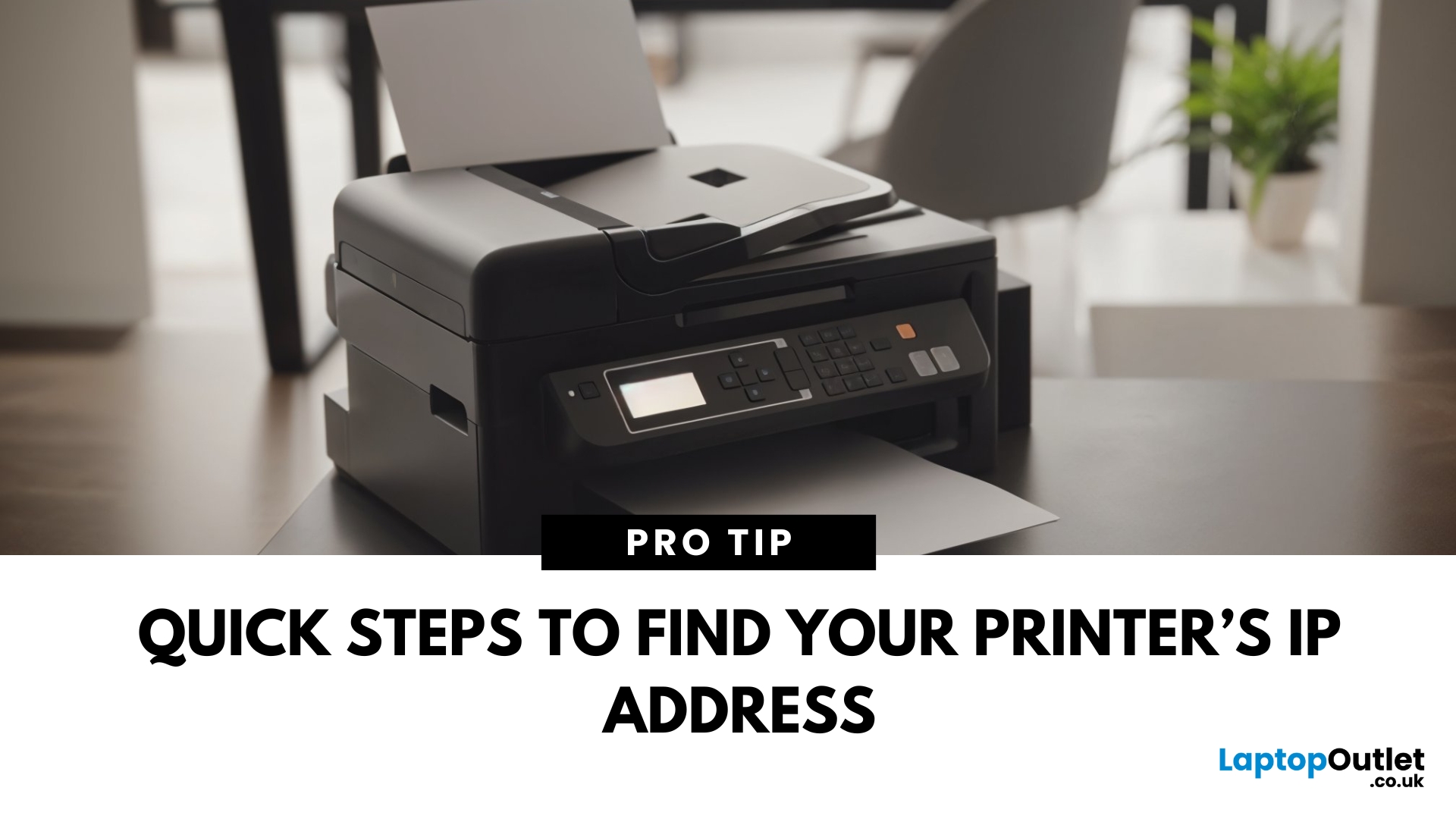
Whether you’re setting up a new device, troubleshooting, or connecting wirelessly—knowing your printer’s IP address is essential. It’s how your laptop or phone finds and communicates with the printer over Wi-Fi. Here’s how to find it in a few simple steps.
How to Find a Printer’s IP Address
1. Check the Printer’s Display Screen (If Available)
- Most modern printers display their network settings.
- Press Menu or Settings on the printer
- Navigate to Network Settings > Wi-Fi Settings
- Look for IP Address
2. Print a Network Configuration Page
- Many printers allow you to print a page showing their network information.
- Go to Settings > Network > Print Network Configuration
- Look for the IPv4 Address or IP Address section on the printout
3. Find Printer IP Address on Windows
- Click Start > Settings > Devices > Printers & Scanners
- Select your printer > Manage > Printer Properties
- Go to the Ports tab and look for the IP address
Alternatively:

Last Updated: April 03, 2026
Mobile Printing Made Simple
Need to print a document, photo, or ticket from your phone? You don’t need to transfer files to a laptop first. Mobile printing lets you print directly from your smartphone or tablet to a wireless printer—fast and hassle-free. Here’s how to do it on both iPhone and Android.
What You’ll Need
Before you start:
- A Wi-Fi-enabled printer
- Your smartphone or tablet
- Both devices connected to the same Wi-Fi network
How to Print from an iPhone (iOS)
1. Use Apple AirPrint
Most modern printers support AirPrint, Apple’s built-in wireless printing feature.
Steps:
- Open the document, photo, or webpage you want to print
- Tap the Share icon (box with arrow)
- Tap Print
- Select your printer from the list
- Choose print settings (number of copies, pages, etc.)
- Tap Print
2. Use the Printer Manufacturer’s App
- If your printer doesn’t support AirPrint:
- Download the manufacturer’s app (e.g., HP Smart, Canon PRINT, Epson iPrint)
- Follow the in-app instructions

Last Updated: April 03, 2026
Printer Offline? Let’s Fix That.
You hit print—and your computer tells you the printer is offline. Frustrating, right? Whether you’re using Windows or macOS, this common error usually has a simple fix. Let’s explore the reasons why your printer might say it’s offline and how to get it back online.
1. What Does “Printer Offline” Mean?
It means your computer can’t communicate with the printer. This could be due to:
- Connection issues (Wi-Fi, USB, or cable)
- Printer being powered off or asleep
- Incorrect default printer settings
- Outdated or corrupted drivers
It doesn’t always mean your printer is broken—just that the computer can’t detect it.
2. Check the Printer Connection
- Ensure the printer is powered on
- Check Wi-Fi or Ethernet connections
- If using USB, confirm the cable is securely plugged in
- Try restarting the printer and your computer
3. Set the Printer as Default (Windows)
Sometimes your computer sends the job to a different printer.
Steps:
- Go to Settings

