



How to Speed Up a Slow Surface Laptop in 2026
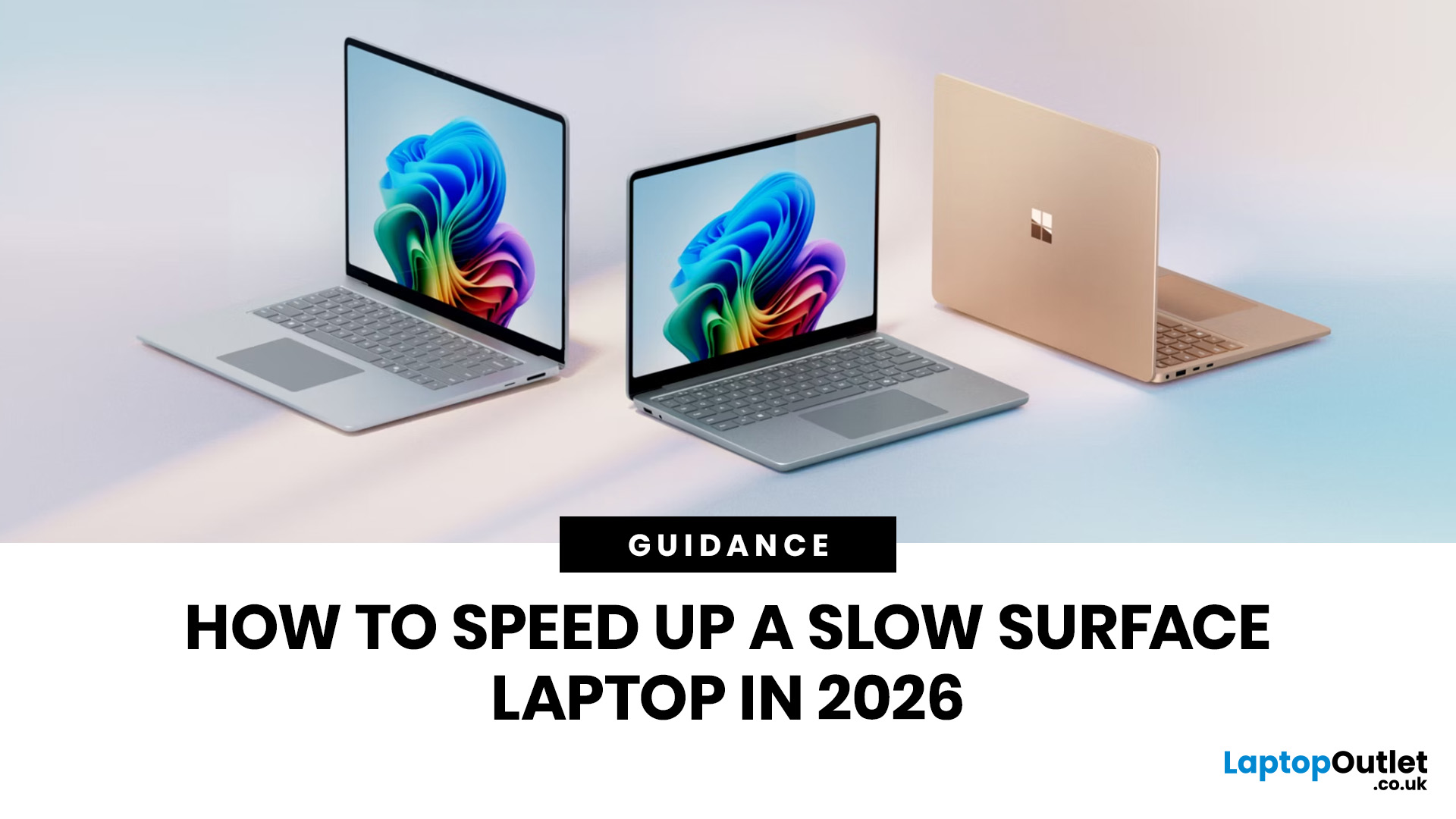
Microsoft’s Surface series has become a staple for professionals, students, and everyday users who value premium build quality and seamless integration with Windows 11. But even high-performance devices can start slowing down over time. If your Surface feels sluggish, apps load too slowly, or multitasking isn’t as smooth as before, it’s time to take action.
The good news is that there are multiple ways to speed up Surface laptop performance in 2026 without needing expensive upgrades. From using Surface performance mode and fine-tuning power settings to cleaning up apps and managing cooling, this guide will walk you through practical, effective strategies to restore speed and extend your device’s life.
Why Surface Laptops Slow Down Over Time
Before diving into solutions, it's worth understanding why even premium laptops lose performance.
Common Causes of Sluggish Performance
Even premium devices like the Surface can experience slowdowns over time, but knowing the reasons helps you apply the right fixes.
- Outdated Drivers and Software: Microsoft regularly releases Windows 11 optimisation updates specifically for Surface hardware. Running older drivers can limit performance, cause compatibility issues, and slow down boot times.
- Too Many Background Apps: Modern apps like Teams, Chrome, and Adobe can be resource heavy. In 2026, Windows 11 includes Efficiency Mode to help control background activity, but leaving too many apps open still drains CPU, RAM, and battery life.
- Fragmented or Full Storage: While SSDs don’t “fragment” like traditional hard drives, they still slow down when nearly full. Experts recommend keeping at least 15–20% free space for smooth performance.
- Improper Surface Power Settings: Leaving your laptop on Battery Saver or low-performance profiles can make it feel sluggish. Newer models with adaptive power modes adjust automatically, but manual fine-tuning is often needed.
- Overheating and Thermal Throttling: Excessive heat remains a top cause of slowdowns. Surface Laptops in 2026 feature AI thermal management and adaptive fan curves, but blocked vents or high workloads can still force the CPU to throttle speed.
By identifying these issues early, you’ll be able to apply targeted fixes, from updating drivers to tweaking Surface power settings, and bring your laptop back to peak efficiency. In addition, if you want to improve Surface laptop battery life, you can read our guide: How to improve battery life on Surface laptops.
Enable Surface Performance Mode
One of the fastest ways to bring back responsiveness is by switching your Surface into its high-performance profile. Microsoft has refined this feature in 2026, making it smarter and more adaptive to user behaviour.
What is Surface Performance Mode?
- A built-in option that allows Surface devices to prioritise processing power and responsiveness over battery savings.
- Accessed through Settings > System > Power & Battery, you can now choose between Best Battery Life, Balanced, Best Performance, and on some models, an Adaptive Performance mode.
- On newer Surface devices, AI-driven power scaling automatically adjusts CPU and GPU performance in real time depending on workload intensity.
Latest Enhancements in 2026
- Dynamic Refresh Rate Control: The PixelSense display can jump to 120Hz during scrolling or gaming, then drop back to 60Hz or 30Hz when idle to conserve energy.
- Thermal-Aware Tuning: Surface Performance Mode now factors in AI thermal management, so the system balances speed and cooling without forcing unnecessary throttling.
- Workload-Specific Optimisation: Whether you’re editing in Adobe Premiere, compiling code, or running a simulation, performance mode ensures system resources are pushed towards the active task.
When to Use It
- Best for video editing, 3D designs, gaming, or software development where maximum speed is required.
- Not recommended for everyday browsing, streaming, or light office work, as it increases battery drain.
- Adaptive Performance mode (where available) is ideal for hybrid workers; it automatically shifts between efficiency and speed depending on the task.
By leveraging Surface performance mode, users can enjoy noticeably smoother multitasking, quicker app launches, and reduced lag, all while letting AI help balance power and efficiency.
Windows 11 Optimisation Tips for Surface
Microsoft continues to evolve Windows 11 with features that make Surface devices faster, smarter, and more efficient. Applying these tweaks ensures your laptop performs at its best.
Keep Your System Updated
- Always update Windows & drivers through Windows Update and the Surface app.
- In 2026, updates now include AI-powered performance patches and energy optimisation improvements tailored specifically for Surface hardware.
- Firmware updates also enhance fan curves, thermal control, and adaptive refresh rates, reducing slowdowns linked to overheating.
Use Windows 11’s Efficiency Mode
- Accessible in Task Manager, Efficiency Mode minimises resource usage for background apps.
- In 2026, Efficiency Mode has become smarter, it uses AI process detection to automatically apply limits on apps like browsers, Teams, or heavy media players when idle.
- This frees up resources for priority apps and extends battery life.
Disable Startup Apps and Background Processes
- Navigate to Task Manager > Startup Apps and turn off non-essential programmes.
- Fewer apps running at startup = faster boot times and smoother day-to-day performance.
- Windows 11 now includes an Automatic Startup Impact rating, flagging apps that cause noticeable delays.
Additional 2026 Optimisation Features
- Windows Recall and Copilot Integration: AI helps predict the apps you’re likely to use, preloading them for faster access.
- Storage Health Monitor: Alerts you when SSD space is too low and suggests cleanup options.
- Adaptive Refresh Rate (ARR): Dynamically adjusts display refresh between 30Hz and 120Hz, balancing smooth visuals and battery efficiency.
By following these Windows 11 optimisation tips, Surface users in 2026 can enjoy faster performance, reduced lag, and better energy management, keeping their devices responsive for years to come. In addition, if you want to upgrade your system you can check our website for Microsoft Surface laptops, both the new and refurbished.
Adjust Surface Power Settings
Power settings are one of the most effective tools for balancing speed, efficiency, and longevity on your Surface Laptop. In 2026, Microsoft has introduced smarter, AI-driven features that make these settings more dynamic than ever.
Best Practices for Surface Laptops
- Switch to Best Performance When Plugged in: This mode unlocks maximum CPU and GPU power, making it ideal for editing, gaming, or compiling code.
- Use Balanced Mode on Battery: This keeps performance steady while managing thermals, reducing the risk of overheating during mobile use.
- Enable Adaptive Refresh Rates (ARR): The PixelSense display can now shift between 30Hz, 60Hz, and 120Hz automatically, preserving battery life during light work while maintaining smooth visuals when needed.
New AI Adaptive Power Modes
- Windows 11 (2026) includes AI Adaptive Mode, which analyses your workflow in real time. It automatically boosts performance for demanding apps and shifts back to efficiency when you’re browsing or writing emails.
- The system also factors in your Surface charging habits, adjusting battery charging thresholds to protect long-term health.
Eco-Friendly Profiles
- A new Eco Power Profile helps reduce carbon footprint by lowering energy use when the laptop is idle or handling simple tasks.
- Great for users who want to extend battery runtime while aligning with sustainability goals.
Workload-Based Performance Scaling
- Heavy apps like Photoshop, Blender, or Teams can now trigger workload-based scaling, ensuring that CPU, GPU, and memory resources are prioritised for those tasks automatically.
- This prevents background apps from hogging resources while you’re focused on productivity.
By fine-tuning your Surface power settings or letting Windows’ AI features manage them, you can strike the perfect balance between performance and efficiency, keeping your laptop responsive whether you’re at a desk or on the move.
Clean Up Apps and Storage
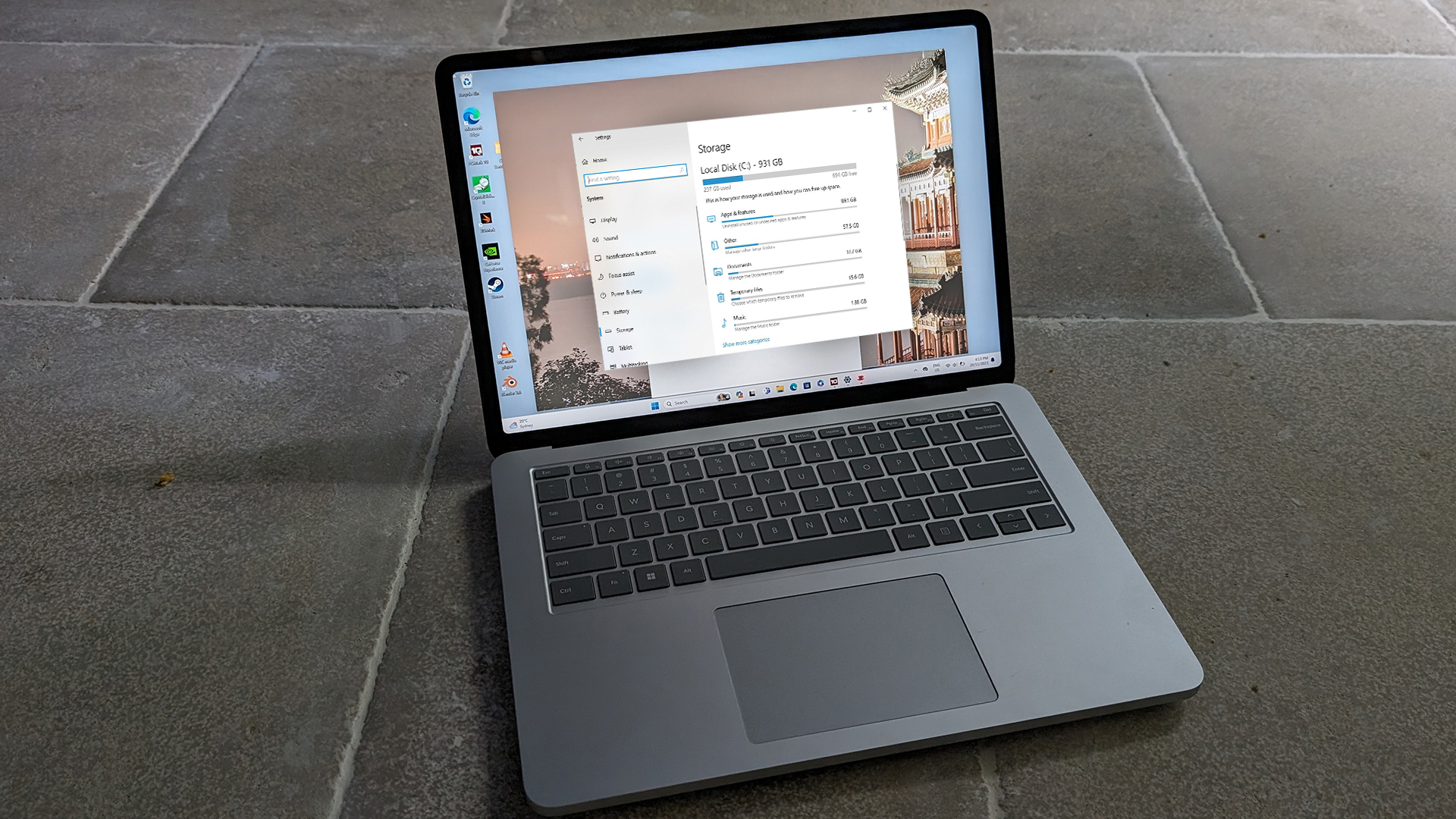
Cluttered storage and unnecessary apps are among the most common causes of slowdowns on Surface devices. In 2026, Windows 11 has introduced smarter, AI-powered tools to make app and storage management more seamless than ever.
Surface App Cleanup
- Remove unused apps through Settings > Apps > Installed Apps to free up RAM and SSD space.
- Use the new Windows 11 App Health Monitor, which highlights rarely used or resource-heavy apps and suggests removal.
- For business or study devices, AI now categorises apps by importance (e.g., essential, occasional, redundant), making cleanup decisions easier.
Smarter Storage Sense
- Microsoft’s AI-powered Storage Sense automatically deletes temporary files, duplicate downloads, and cache data at set intervals.
- In 2026, Storage Sense also integrates with OneDrive, moving infrequently accessed files to the cloud while keeping them available on demand.
- This ensures your SSD stays lean without you manually shifting files.
Optimised File and Media Management
- Windows 11 now includes a Media Optimisation tool, compressing large video and photo libraries without losing quality.
- The Windows Recall feature makes it easier to find old files, while also recommending outdated documents for archiving or deletion.
Keep Free Space for Peak Performance
- Experts recommend keeping at least 15–20% of SSD space free. A nearly full SSD slows down write speeds and affects overall responsiveness.
- The new Storage Health Dashboard alerts you before performance suffers, making it easier to stay proactive.
By regularly performing Surface app cleanup and leveraging AI-powered storage optimisation tools, you’ll keep your Surface Laptop fast, efficient, and clutter-free, extending both performance and lifespan.
Manage Surface Fan and Cooling Tweaks
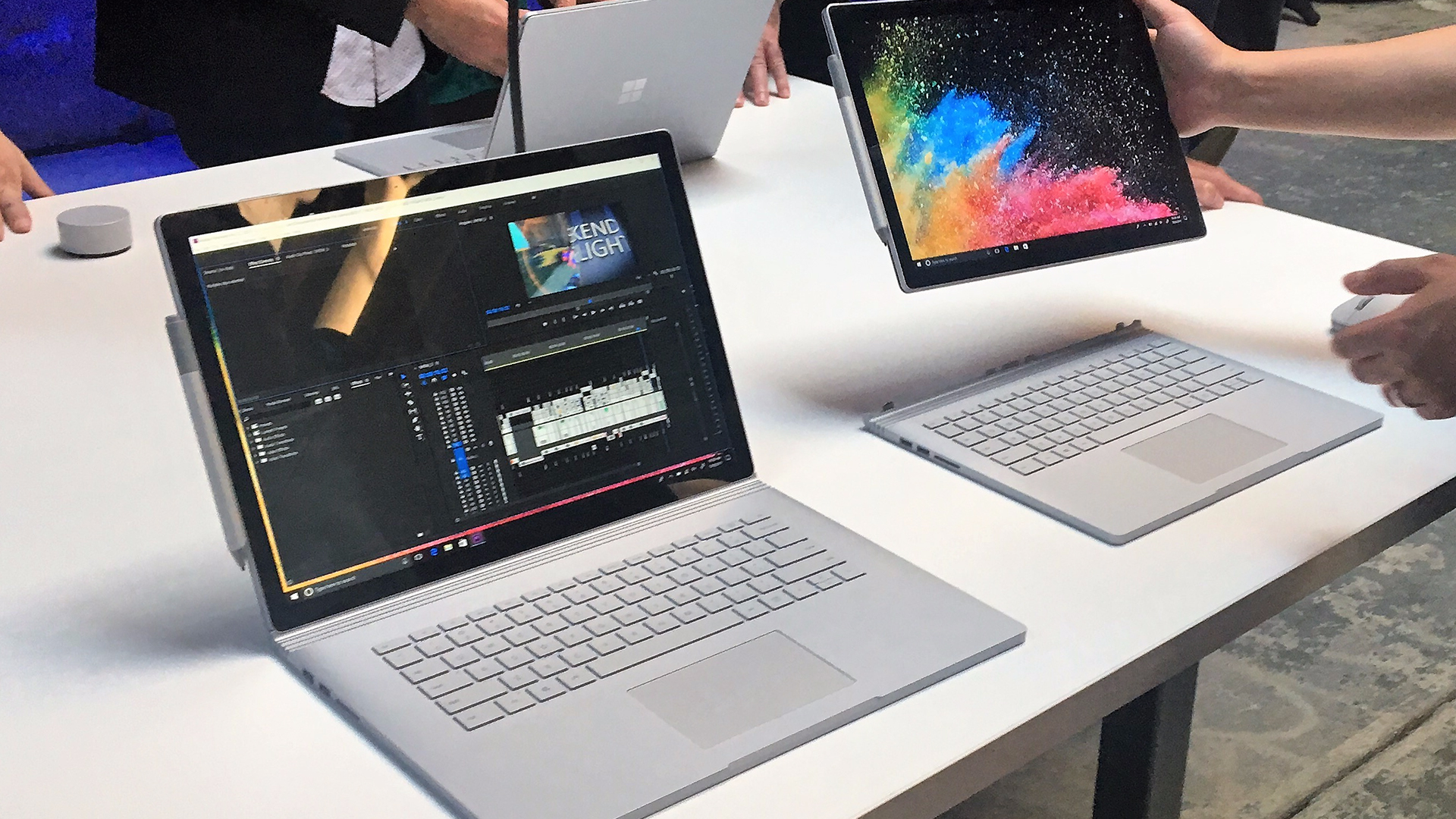
Overheating is one of the most common reasons a laptop slows down. To maintain consistent performance, keeping your Surface cool is essential. Microsoft has significantly improved thermal management in 2026, combining hardware upgrades with AI-driven software controls.
AI Thermal Control
- Newer Surface models feature AI-powered thermal management, which dynamically adjusts CPU/GPU performance and fan speeds based on real-time usage.
- This ensures smoother performance during heavy workloads without unnecessary overheating or noise.
Adaptive Fan Curves
- Firmware updates now include adaptive fan curve adjustments, allowing fans to spin up faster when temps spike but remain quiet during lighter tasks.
- These updates reduce thermal throttling, when your device slows itself down to prevent overheating.
Passive Cooling Improvements
- Microsoft has introduced graphene-enhanced heat spreaders in some Surface models, helping dissipate heat more effectively.
- Combined with slimmer chassis designs, these upgrades allow devices to stay cooler even under pressure.
Best Practices for Users
- Keep vents clear of dust and avoid blocking airflow by using the laptop on soft surfaces.
- Invest in a cooling stand if you regularly run heavy apps like Adobe Premiere or 3D rendering tools.
- Disconnect unused peripherals, as they increase power draw and heat output.
By applying these Surface fan and cooling tweaks, and letting Microsoft’s AI thermal management do its job, you’ll prevent overheating, avoid performance throttling, and extend your laptop’s long-term health.
Advanced Tips to Speed Up Surface Laptop
For those who want to go further, these advanced steps can unlock more speed.
- Run Disk Cleanup & Defragmentation (optimised for SSDs in Windows 11).
- Check for malware using Windows Security or Defender.
- Upgrade RAM or SSD on models that support hardware expansion (some Surface devices are upgradeable).
- Reset your Surface Laptop as a last resort to clear deep software issues and start fresh.
Read our guide to how to choose the right Surface laptop based on your needs to understand which Surface laptop model fits your requirements.

Summary: Smarter Habits, Faster Surface
In 2026, slowing performance doesn’t mean you need a new laptop. With the right combination of Surface performance mode, Windows 11 optimisation tips, and regular app cleanup, you can easily speed up Surface Laptop performance and keep it running smoothly.
Whether you’re a student, professional, or creative, these strategies ensure you’ll get the most out of your Surface device for years to come. And if you’re ready for an upgrade, Laptop Outlet offers the latest Microsoft Surface laptops along with budget-friendly refurbished Microsoft laptops to match every need.

FAQs
What is the quickest way to speed up a Surface Laptop?
Switching to Surface performance mode and disabling unnecessary startup apps offers an instant boost.
Can overheating slow down my Surface?
Yes. Excessive heat triggers performance throttling. Regular updates and Surface fan and cooling tweaks can prevent this.
Do I need to update drivers regularly?
Yes. Keeping Windows & drivers updated ensures your Surface benefits from performance improvements and bug fixes.
Is it safe to remove pre-installed apps?
Yes, most bloatware can be removed without issues. Use Surface app cleanup tools or Storage Sense for best results.
Should I replace my Surface if it’s still slow after optimisation?
Not always. A reset or professional service can restore performance. But if you need more power, explore the latest Microsoft Surface models or refurbished Microsoft laptops for affordable upgrades.
Related Articles

Last Updated: April 02, 2026
Did you know the average laptop lasts about three to five years before performance noticeably dips? The Microsoft Surface Laptop, with its premium build and engineering, can easily outlive that average - but only if you treat it right. Much like a car that runs smoother with regular servicing, your Surface thrives on good habits, smart care, and the occasional tune-up.
Extending your Surface Laptop’s lifespan isn’t just about squeezing out extra months of use; it’s about saving money, reducing e-waste, and ensuring your device performs reliably when you need it most. From battery care to software maintenance, a few small tweaks in how you charge, clean, and optimise your laptop can add years of productivity.
In this guide, we’ll explore proven strategies to extend Surface Laptop lifespan - covering battery care, cooling, cleaning, storage tips, and usage habits - so your Surface stays as sharp tomorrow as the day you unboxed it.
Quick Tips to Extend Your Surface Laptop Lifespan
- Battery
Last Updated: December 23, 2025
Did you know that the very first Microsoft Surface device, launched back in 2012, was marketed as the “tablet that can replace your laptop”? Fast forward a decade, and Surface laptops have become a staple choice for students, professionals, and businesses alike - known for their sleek design, powerful performance, and seamless integration with Windows.
But here’s the thing: even the most innovative devices aren’t immune to the occasional hiccup. Just as your car might need a quick service or your smartphone the occasional update, Surface laptops, too, can develop quirks over time. From a screen that suddenly starts flickering to a keyboard that refuses to cooperate during an important meeting, these glitches can be frustrating - but they’re rarely the end of the road.
Let’s walk through the most common Surface Laptop problems and show you simple, effective fixes to keep your device running smoothly.
Quick Fixes for Surface Laptop Common Problems
- Screen Flickering: Update display drivers,
Last Updated: June 11, 2026
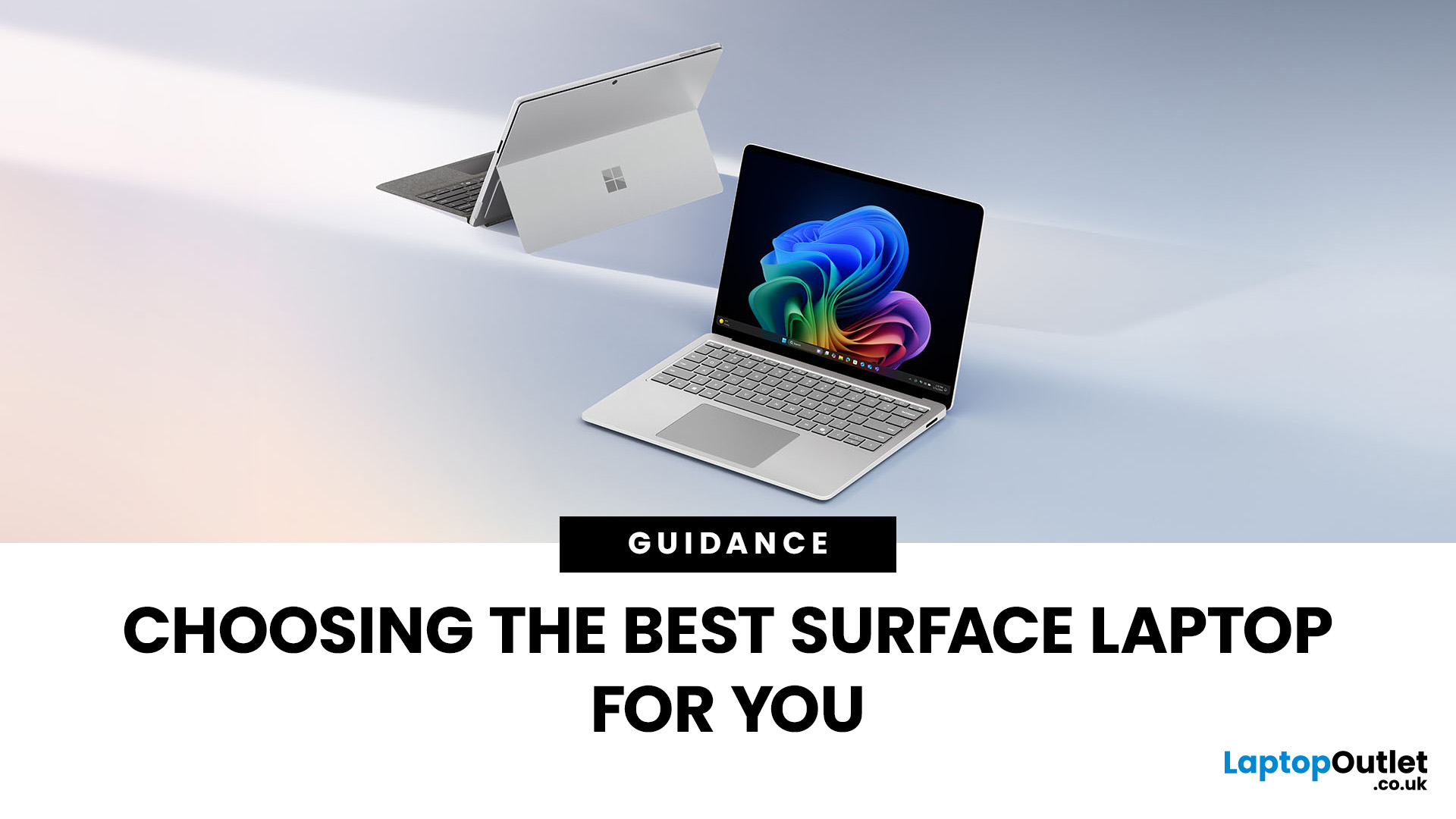
Microsoft’s Surface range has redefined what modern laptops can do, combining sleek design with powerful performance. But with multiple models in the line-up finding the best Surface Laptop for your needs can be a challenge.
Whether you’re a professional, student, or creative, Surface devices offer unique advantages. This blog will guide you through how to pick the right model depending on your lifestyle and work requirements, while also helping you understand how Surface compares with other Microsoft devices like the Surface Book.
Why Surface Laptops Stand Out
Before diving into specific use cases, let’s explore what makes the Surface range popular in 2025.
Premium Build and Design
The Surface Laptop series is known for its minimalist aluminium body, slim profiles, and premium finishes. Lightweight yet durable, these laptops are perfect for professionals on the go.
Seamless Windows Integration
Being Microsoft’s own hardware, Surface devices are optimised for Windows 11 Pro and Windows
Last Updated: December 17, 2025
Microsoft Surface devices are known for their sleek designs, strong performance, and portability. But as with any laptop, battery life is crucial for keeping you productive throughout the day. In this guide, we’ll break down practical tips, smart charging habits, and troubleshooting steps that can extend your laptop’s battery and overall lifespan. From Surface battery saver settings to dealing with overheating issues, you’ll find actionable advice to help you get the most from your Surface device.
Why Battery Life Matters on Surface Laptops
Surface Laptops are designed to balance performance with portability. But when battery drains too quickly, it affects both productivity and convenience. Extended battery life means fewer interruptions, less reliance on chargers, and improved device longevity, essential for students, professionals, and travellers.
For those considering upgrades or cheap Microsoft laptops, understanding these tips will also help you maintain your device better in the
Last Updated: December 17, 2025
Every laptop has its “fresh start” button, but few make it as straightforward (and a little nerve-wracking) as the Microsoft Surface range. Think of it like spring-cleaning your room: sometimes you just need to clear the clutter, dust the corners, and start again - only with files and settings instead of old socks and takeaway boxes.
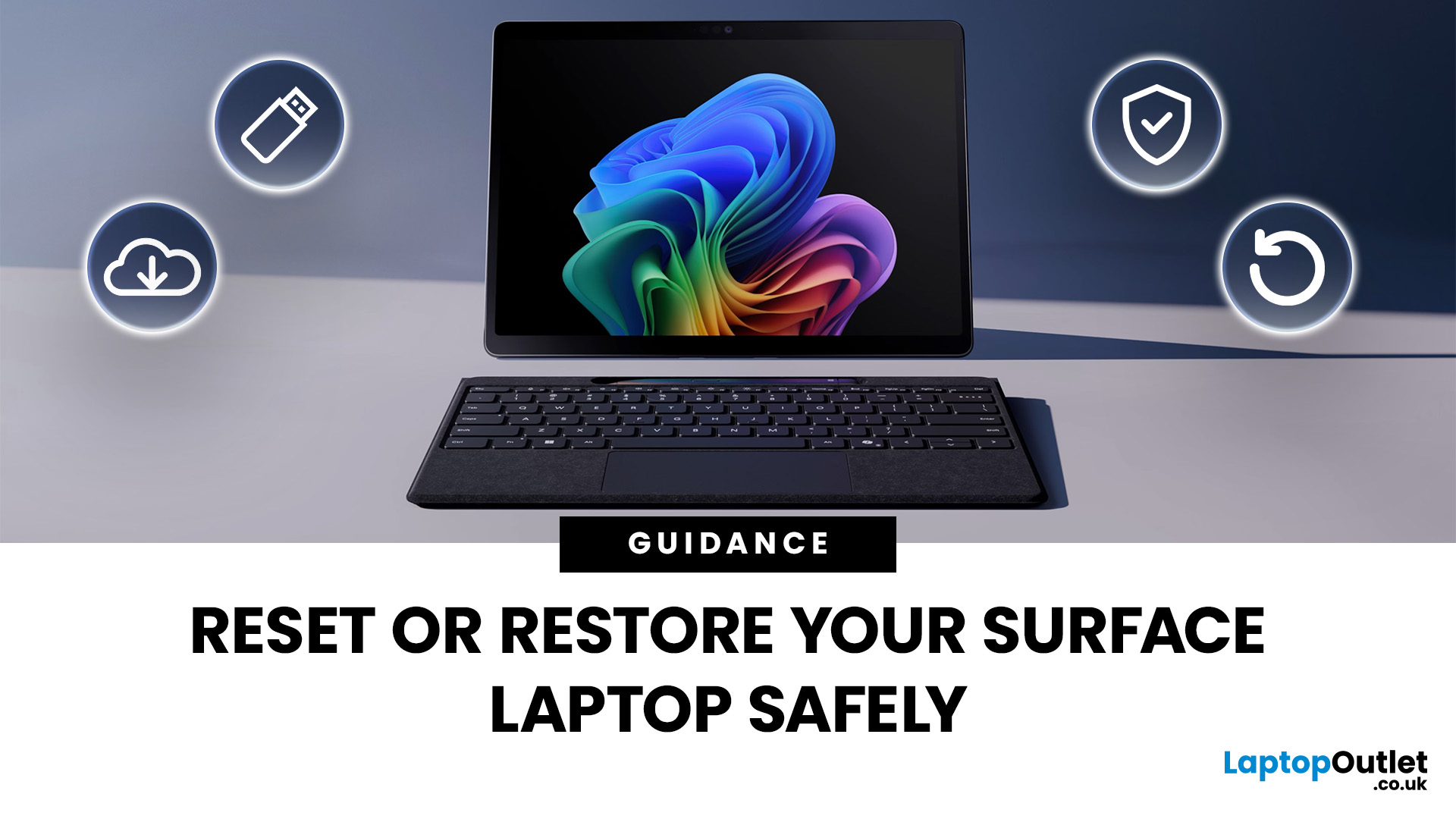
Resetting or restoring a Surface Laptop isn’t just about fixing glitches; it’s also about regaining performance, solving stubborn errors, or preparing the device for resale. But here’s the catch - doing it the wrong way could mean losing precious files, apps, or even your BitLocker recovery key.
Let's walk through safe, step-by-step methods to reset your Surface Laptop without unnecessary headaches. Whether you want a full wipe, a soft restore, or just a system refresh, you’ll find practical tips, backup strategies, and troubleshooting solutions.
Resetting Your Surface Laptop Safely
- Pre-checks first: Charge the battery, note your BitLocker key, and disconnect

Last Updated: December 17, 2025
Microsoft’s Surface range is known for its premium build, elegant design, and seamless Windows 11 experience. But like any device, regular care and the right fixes are key to keeping performance smooth over time. Whether you’re facing slowdowns, connectivity glitches, or hardware concerns, learning the best ways to maintain your device can save you time and money. This guide will explore essential steps for Surface Laptop troubleshooting, from using built-in diagnostic tools to updating drivers and resolving hardware issues.
Why Surface Laptop Maintenance Matters
Even premium laptops need regular care. Poor maintenance not only reduces performance but can also shorten device lifespan.
Common Issues Users Face
- Sluggish performance due to outdated drivers.
- Unresponsive apps caused by background conflicts.
- Battery drain or overheating under heavy workloads.
- Wi-Fi and Bluetooth connectivity problems.
- Hardware issues like touchscreens, keyboards, or fans not responding.
These Surface Laptop
Last Updated: July 10, 2026
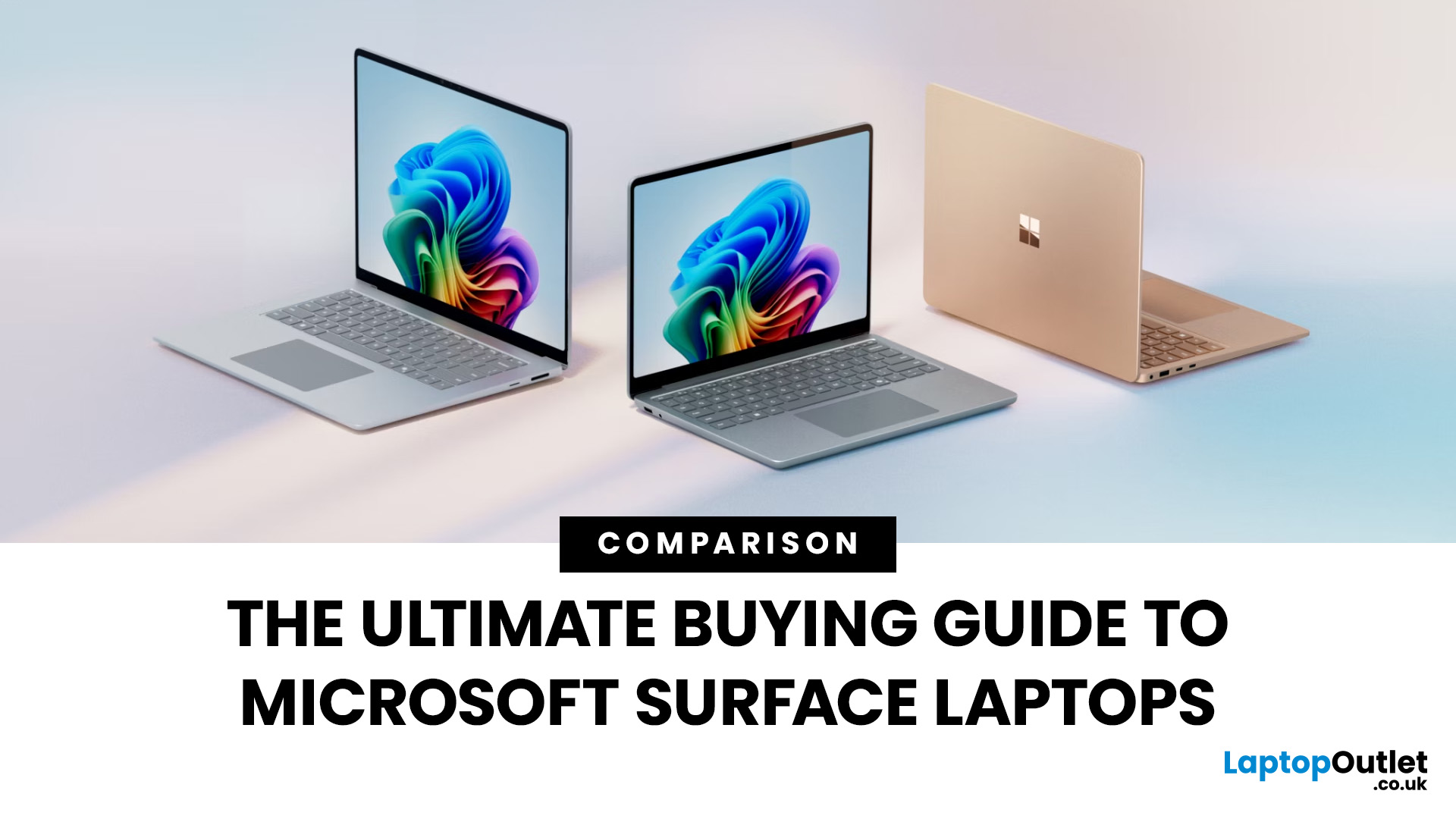
The Microsoft Surface Laptop series has redefined what modern laptops can offer, combining premium design, strong performance, and seamless integration with Windows. With so many models available, from the lightweight Surface Laptop Go to the powerful Surface Laptop Studio, buyers often ask: Which Surface is right for me? That’s where a Microsoft Surface Laptop Buying Guide becomes essential.
Surface laptops stand out for more than just portability and style. With the rise of Copilot+ PC Surface benefits, AI-powered features like Windows Recall and productivity tools make these devices more than laptops; they’re intelligent companions for work, study, and creativity.
Why Choose Microsoft Surface?
Microsoft Surface laptops have earned a reputation as premium devices that combine design elegance, reliable performance, and powerful software integration. For many buyers, the appeal of Surface lies in how seamlessly it blends hardware and software, something only a handful of manufacturers
Published: September 26, 2025
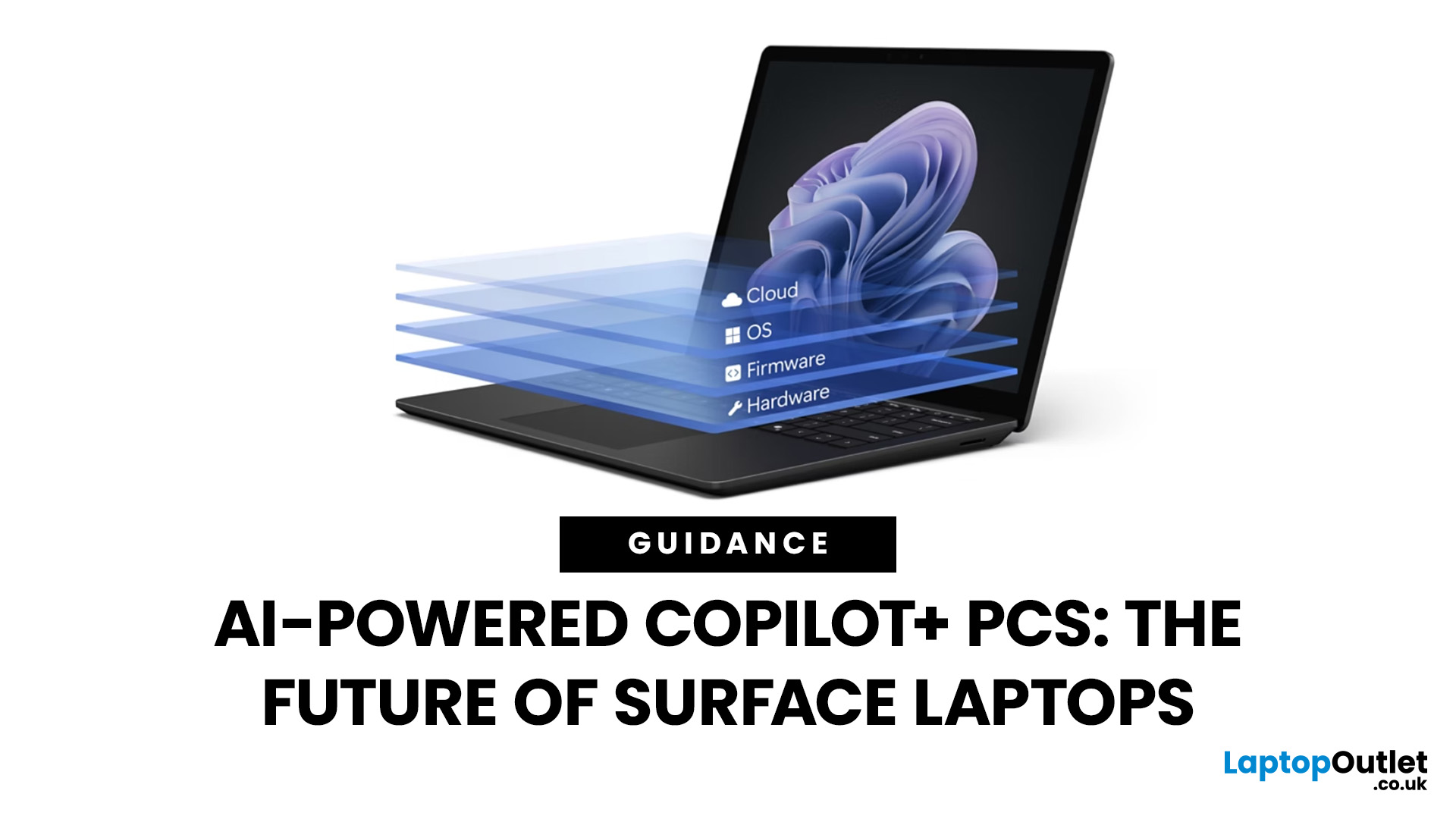
Artificial intelligence is no longer confined to data centres or specialised software - it has entered the very heart of personal computing. With the rise of Copilot+ PCs, Microsoft is redefining what a modern laptop can achieve by embedding advanced AI capabilities directly into everyday workflows. Unlike conventional machines, these devices are designed from the ground up to harness AI, powered by dedicated neural processing units (NPUs) and seamless integration with Windows 11.
Among the growing range of Copilot+ PCs, Microsoft Surface laptops stand out as the true flagships. Built to optimise productivity, creativity, and collaboration, they combine elegant design with cutting-edge technology, delivering features such as Windows Recall, Click to Do, and intelligent multitasking. Together with the Snapdragon X processor, Surface laptops provide unrivalled speed, efficiency, and battery life - all tailored for AI-driven performance. As a result, they are more than just laptops; they are
Last Updated: May 05, 2026
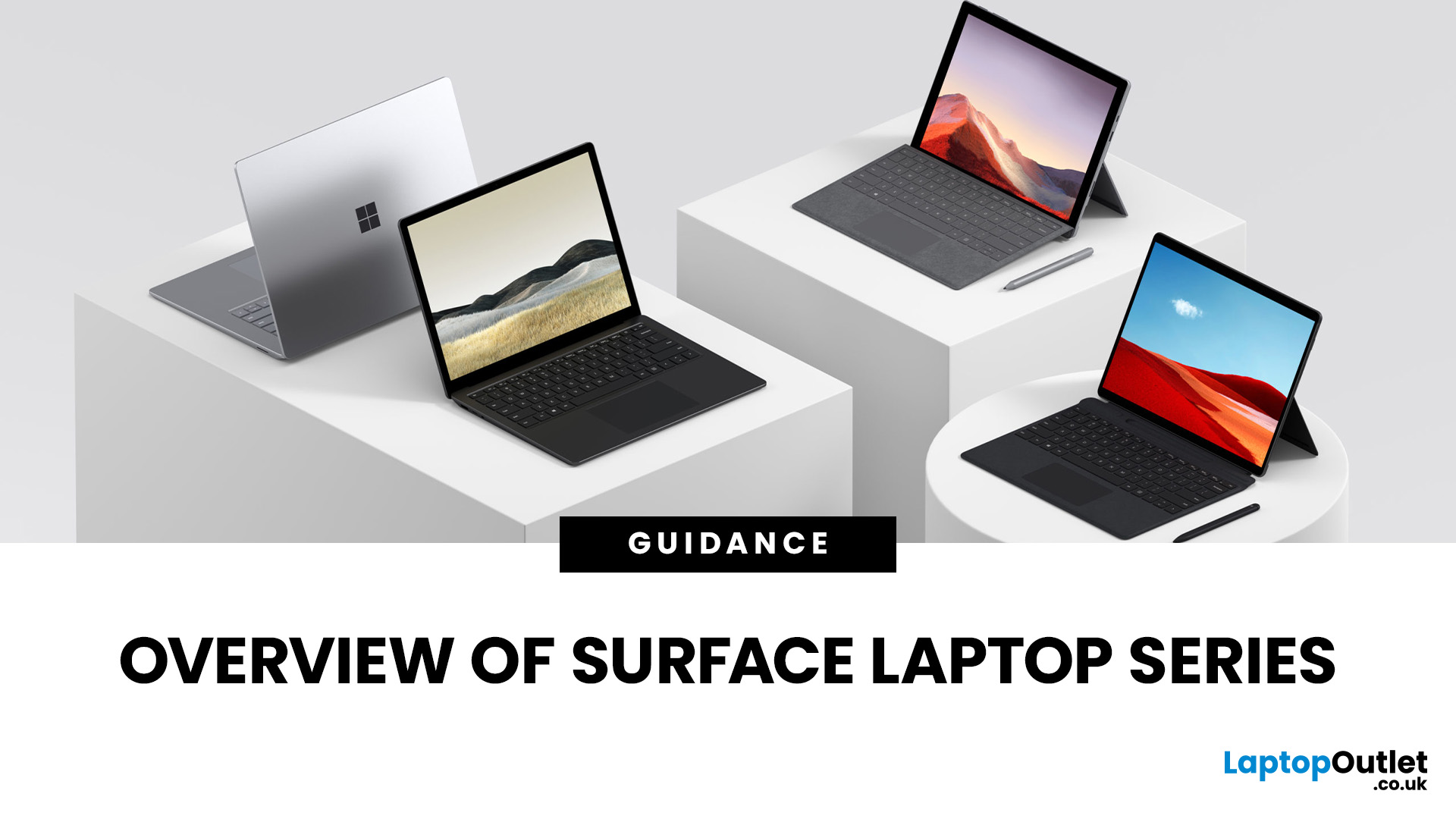
Finding the right laptop isn't always straightforward, especially when you're faced with the wide range of devices in the Microsoft Surface laptop series. Over the years, Microsoft has expanded this lineup to cover just about every type of user: students who want something light and affordable, professionals who need a reliable work machine, and even creatives who require the power of dedicated graphics.
In this guide, we'll explore the key models in the series: Surface Laptop, Surface Laptop Go, Surface Laptop Studio, and Surface Pro. You'll discover what makes each device unique, who they're best suited for, and what trade-offs to consider. By the end, you'll have a clear picture of which Surface laptop matches your lifestyle and budget.
What’s New & Key Trends in Microsoft Surface Laptop Series 2025
- Microsoft is pushing Copilot+ PCs: many Surface devices now include AI enhancements, on-device NPU (neural processing unit) capabilities, and Windows 11 Copilot features optimisations.

Last Updated: May 06, 2026
Microsoft’s Surface range has transformed how people view laptops, offering powerful devices that combine style, portability, and performance. This Surface laptop comparison will break down the strengths of each series, including Surface Laptop Studio vs Surface Pro, and Surface Laptop vs Laptop Go. We’ll also cover a Surface Laptop battery life comparison, so you can pick the device that matches your workflow. If you’re considering upgrading to a Microsoft touchscreen laptop, this guide will help you decide with confidence.
Why Compare Surface Laptops?
Matching Features to User Needs
Not all laptops are built for the same purpose. A student may need affordability and portability, while a designer may prioritise processing power and graphics. By comparing Surface models, you can align features like battery life, performance, and screen size with your everyday needs.
Future-Proofing Your Purchase
In 2025, Surface laptops are equipped with Intel Core Ultra and Snapdragon X Elite processors,

