



How to Scan Documents on iPhone and iPad
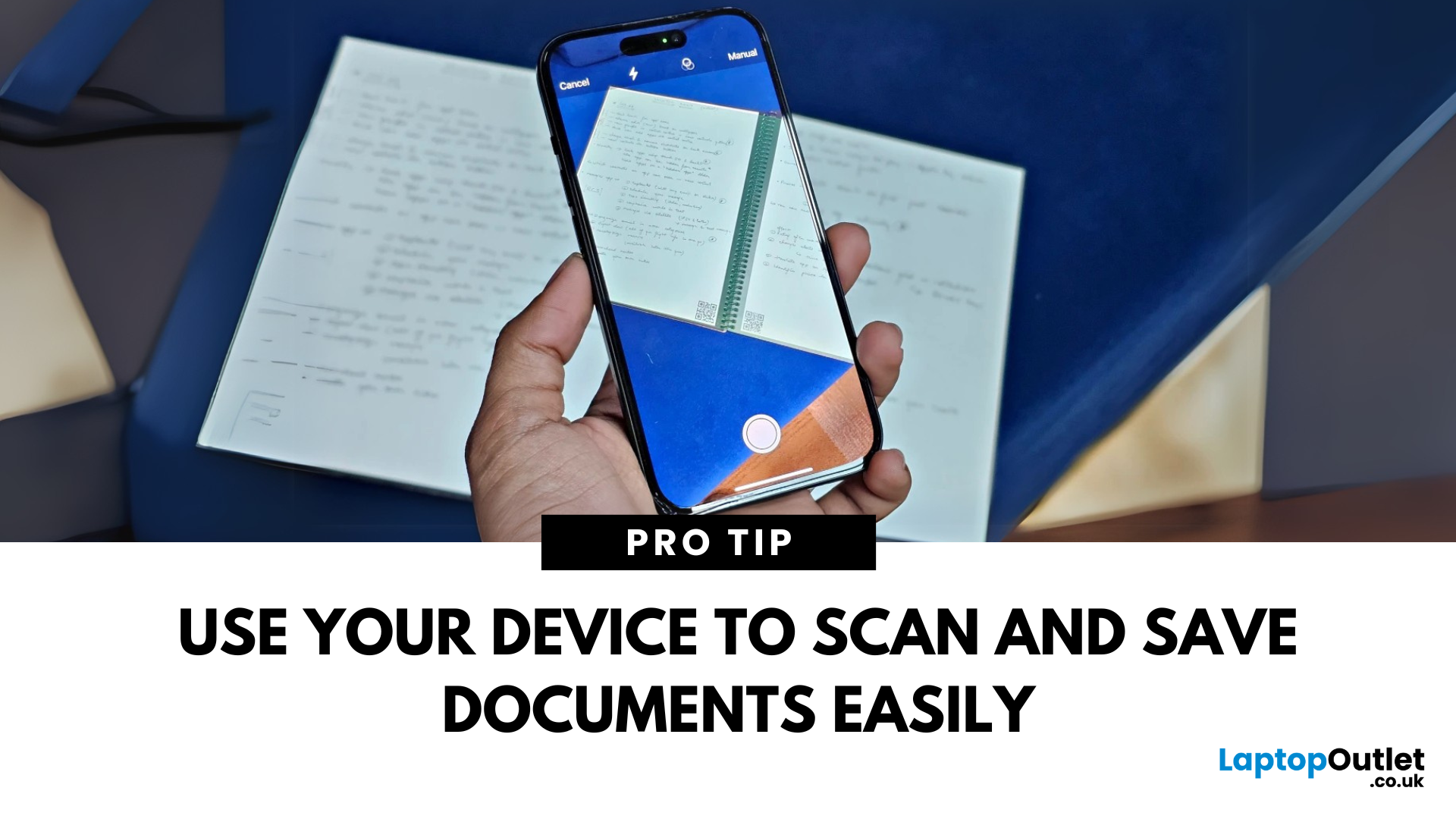
A Scanner in Your Pocket
You don’t need a bulky scanner anymore—your iPhone or iPad can scan documents with amazing quality in just seconds. Thanks to built-in tools like the Notes app, scanning has never been easier. Here’s how to do it.
1. Scan Documents Using the Notes App
The Notes app has a built-in scanner that saves documents as PDFs or images.
Steps:
- Open the Notes app
- Tap the Create New Note icon
- Tap the Camera button
- Select Scan Documents
- Position your document in view; your device will auto-capture, or you can tap the shutter button
- Adjust the corners if needed and tap Keep Scan
- Save it to the note or share/export as a PDF
Use "Auto" mode for hands-free scanning of multiple pages
2. Scan Directly into Files App (iOS 15 and later)
Steps:
- Open the Files app
- Navigate to the folder where you want to save the scan
- Tap the three dots in the top right
- Select Scan Documents
- Capture and save the document directly as a file
Great for creating quick PDFs stored in iCloud or on your device
3. Tips for Perfect Scans
- Place the document on a dark, flat background
- Ensure good lighting (avoid shadows)
- Hold the iPhone/iPad steady above the document
- Use manual capture for tricky documents
4. Edit and Share Your Scanned Documents
After scanning, you can:
- Crop or rotate the image
- Apply filters (Colour, Grayscale, Black & White)
- Share via AirDrop, Mail, Messages, or save to Files or Photos
Final Thoughts: Scan Smarter with iPhone and iPad
Your iPhone and iPad make document scanning effortless. Whether you’re scanning receipts, homework, contracts, or IDs, it takes just a few taps to digitise your documents quickly and professionally.
Need more productivity tech? Explore Laptop Outlet’s latest deals on iPads, accessories, and smart devices today.
FAQs: Scanning Documents on iPhone & iPad
1. Where are scanned documents saved on iPhone?
By default, they are saved in the Notes app or Files app, depending on where you scanned them.
2. Can I scan multiple pages into one file?
Yes—just keep scanning pages during the same session, and they’ll save together.
3. What format are scanned documents saved as?
Typically as PDFs, but you can also export them as images.
4. Do I need a third-party app to scan documents?
No—the built-in Notes and Files apps do the job perfectly.
5. Can I sign scanned documents directly on iPhone?
Yes—use the Markup tool to add a signature after scanning.
Read More:
| How to Free Up Space on iPad |
| Which iPad Do I Have |
| How to Reset iPhone |
Related Articles

Last Updated: September 11, 2025
Last Updated: May 06, 2026

Last Updated: October 02, 2025
Got iPhone Photos? Let’s Move Them
Snapped the perfect selfie? Captured your holiday vibes? Now you want to transfer those shots to your laptop—whether it’s for storage, editing, or sharing. We’ve got you covered with simple ways to transfer photos from iPhone to laptop—whether you’re using Windows or Mac.
How to Transfer Photos from iPhone to Windows Laptop
1. Using USB Cable & Photos App
- Connect your iPhone to your laptop using a Lightning to USB cable
- Unlock your iPhone and tap Trust when prompted
- Open the Photos app on your Windows laptop
- Click Import > From a USB device
- Select the photos you want and import
2. Using File Explorer (Manual Method)
- Plug in your iPhone and unlock it
- Open File Explorer > This PC > Apple iPhone
- Go to Internal Storage > DCIM
- Copy and paste photos to your laptop folder
3. Using iCloud Photos
- Enable iCloud Photos on your iPhone: Settings > Photos > iCloud Photos
- Visit iCloud.com and sign in
- Go to Photos, select images, and
Last Updated: September 11, 2025
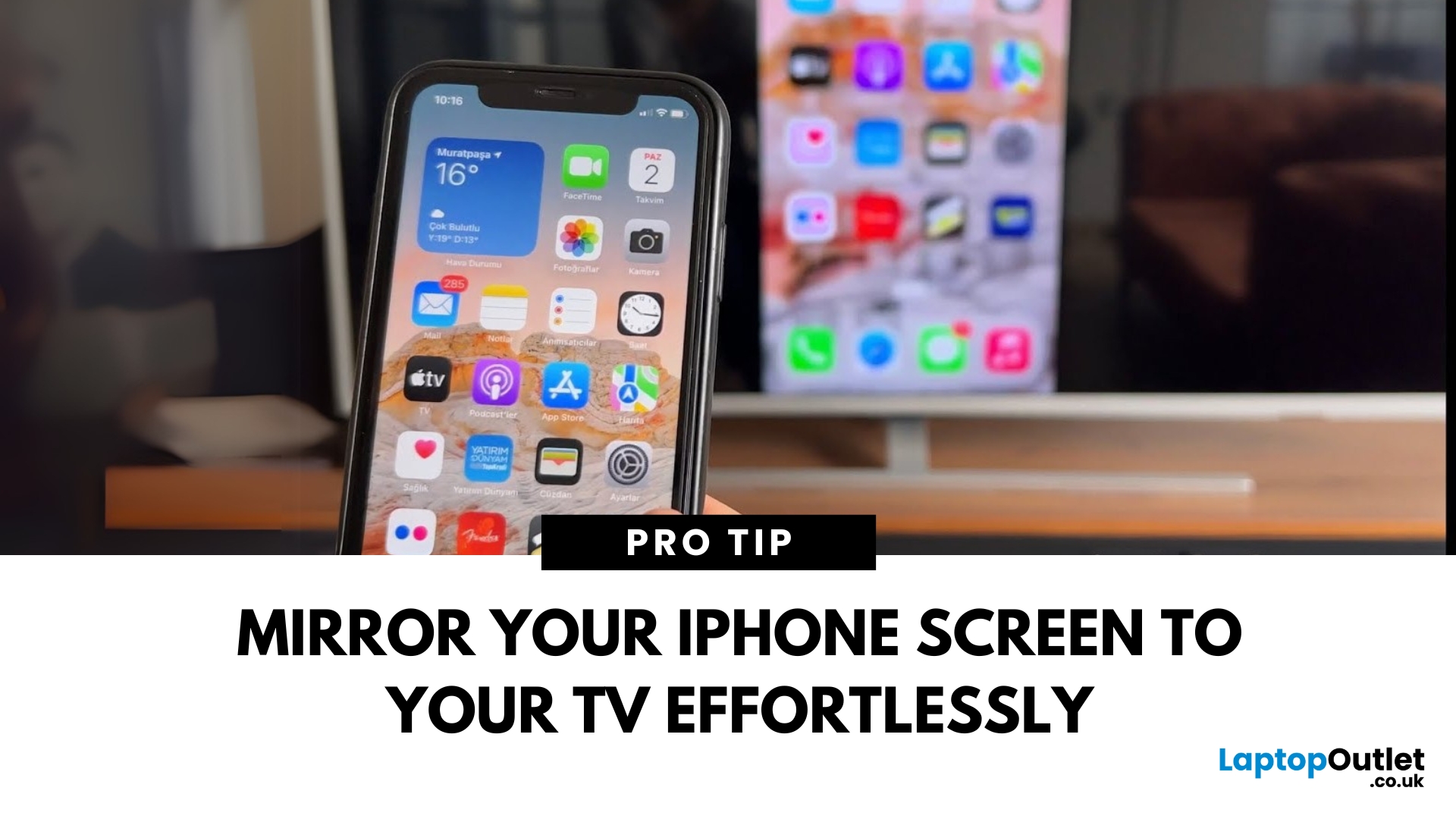
Make Your iPhone Screen Bigger
Want to watch photos, videos, or apps on the big screen? Screen mirroring lets you share your iPhone display to a TV wirelessly or with a cable. Whether you’re streaming a film or showing off holiday snaps, here’s how to do it easily.
How to Screen Mirror iPhone to a Smart TV (AirPlay)
Most smart TVs (Samsung, LG, Sony, etc.) now support Apple AirPlay.
Steps:
- Connect your iPhone and TV to the same Wi-Fi network
- Swipe down on your iPhone to open Control Centre
- Tap Screen Mirroring
- Select your TV from the list
- Enter the AirPlay passcode (if required)
Your iPhone screen will now appear on your TV.
How to Screen Mirror iPhone to TV Using an HDMI Cable
If your TV doesn’t support AirPlay, you can use a cable.
What You’ll Need:
- Apple Lightning Digital AV Adapter
- HDMI cable
Steps:
- Plug the adapter into your iPhone
- Connect an HDMI cable between the adapter and your TV
- Switch your TV input to the correct HDMI port
Your iPhone screen will
Last Updated: September 11, 2025
The Ultimate Smartphone Showdown
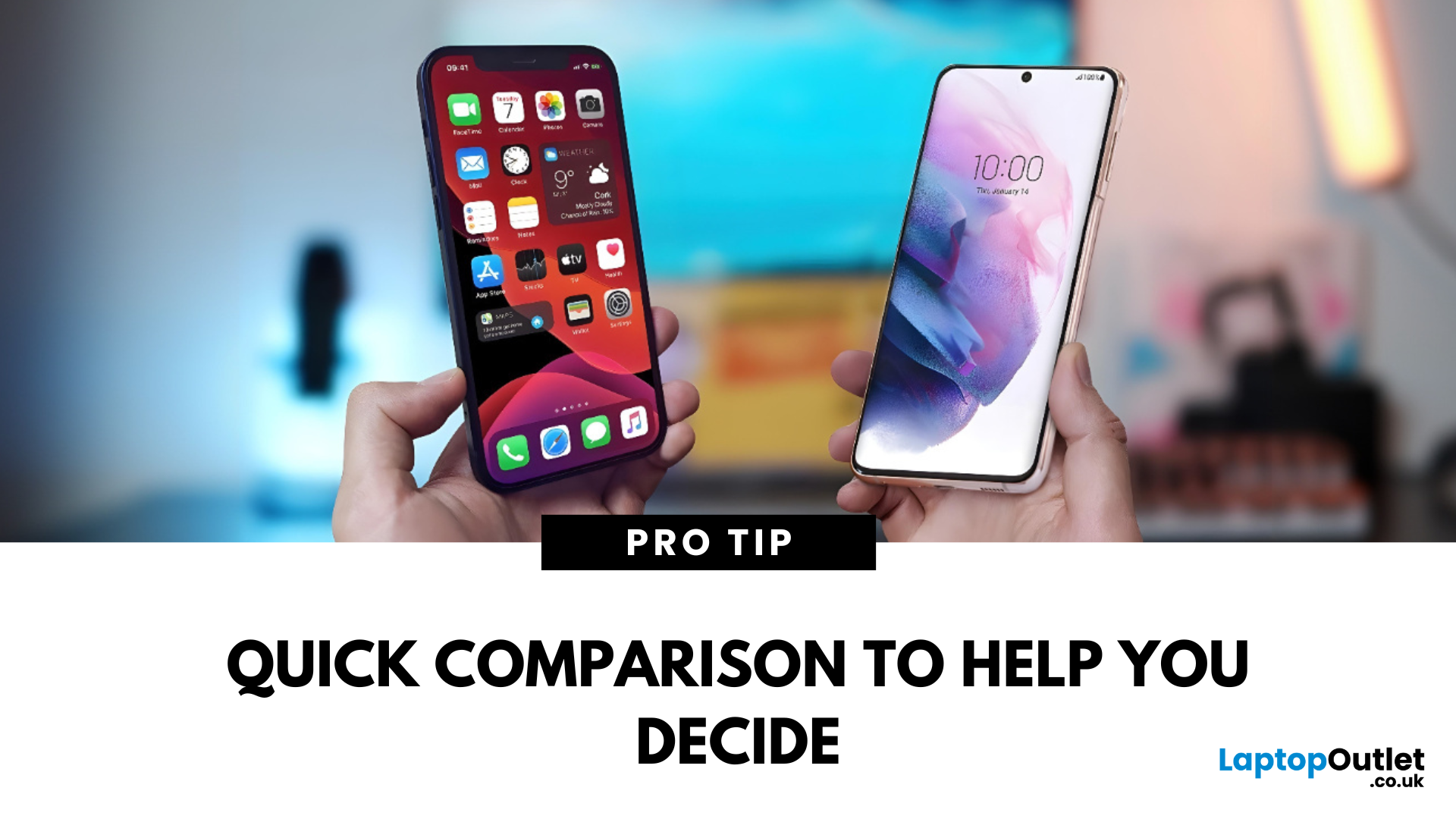
Samsung or iPhone—which is better? It’s a question that sparks debates in group chats, tech forums, and even family dinners. The truth is, both are excellent—but they suit different users. Here’s a breakdown to help you decide which smartphone brand is the better fit for you in 2025.
Design & Build Quality
- iPhone: Premium build, minimalist design, consistent look across models
- Samsung: Sleek designs, more variety (curved displays, foldables like Galaxy Z series)
Verdict: iPhone offers uniform elegance, Samsung delivers bold variety
Display Quality
- iPhone: Super Retina XDR OLED displays, true-to-life colour accuracy
- Samsung: Dynamic AMOLED 2X displays, higher refresh rates (up to 120Hz on most models)
Verdict: Samsung leads in brightness, refresh rate, and screen innovation
Camera Performance
- iPhone: Excellent video quality, cinematic mode, reliable consistency
- Samsung: Powerful zoom (Space Zoom), versatile sensors, vibrant photos
Last Updated: September 11, 2025
Stop Subscriptions You Don’t Use
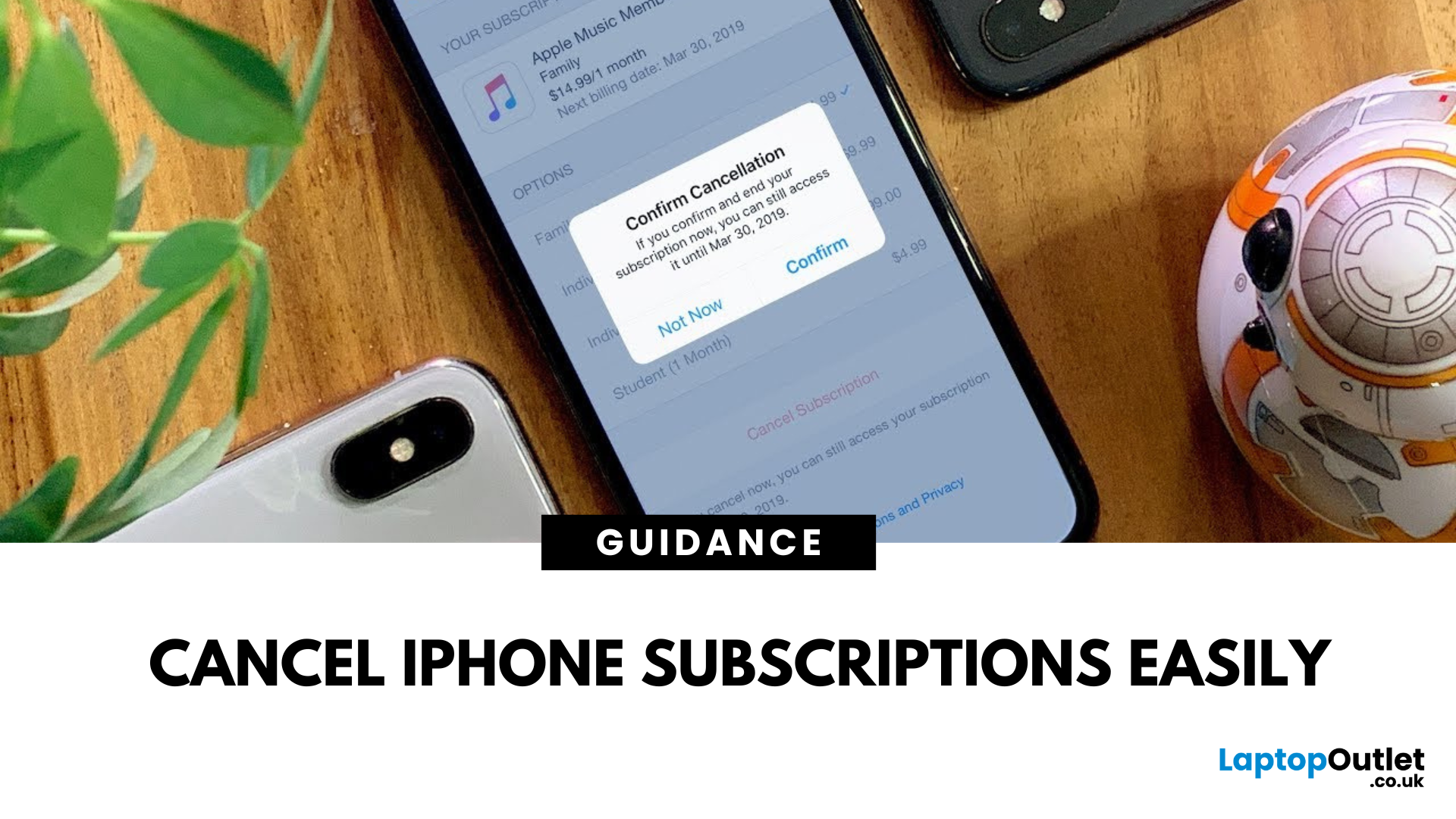
From streaming services to fitness apps, subscriptions can stack up fast. If you're not using one anymore, cancelling it on your iPhone is quick and easy. Here’s how to manage and cancel your subscriptions before the next billing cycle hits.
How to Cancel a Subscription on iPhone (Step-by-Step)
1. Open Settings
- Tap the Settings app on your iPhone
2. Tap Your Apple ID Profile
- It’s your name at the top of the Settings menu
3. Go to Subscriptions
- Tap Subscriptions
- You’ll see a list of active and expired subscriptions
4. Select the Subscription to Cancel
- Tap the app or service you want to stop
- You’ll see details like renewal date and cost
5. Tap Cancel Subscription
- Confirm cancellation when prompted
- Your subscription will remain active until the end of the billing cycle
Pro Tip: You won’t be charged again unless you resubscribe
Can’t Find a Subscription? Try These
- Make sure you’re signed into the correct Apple ID
- Check if
Last Updated: September 11, 2025
Keep Your iPhone Running Smoothly
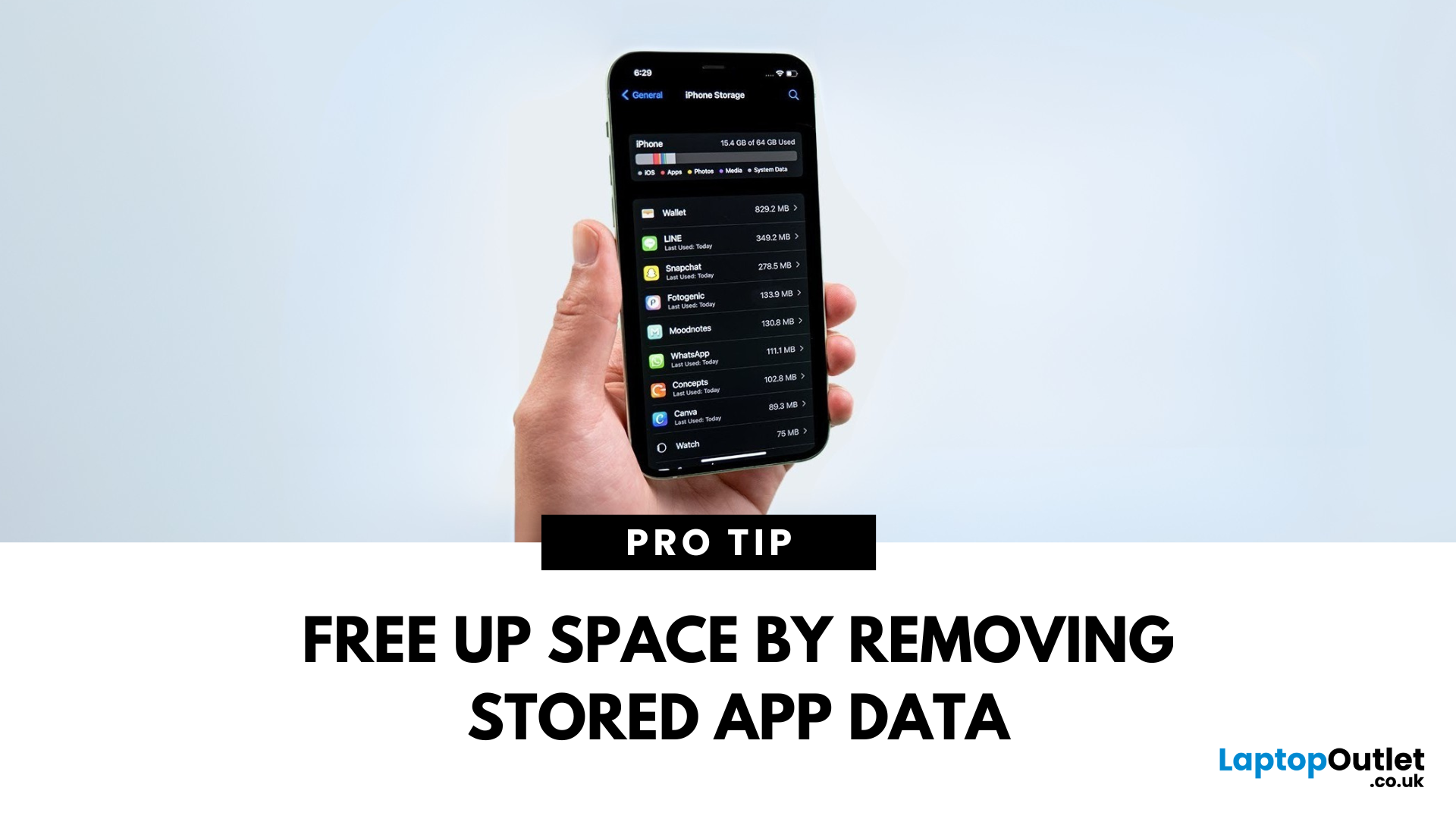
Over time, cached data from Safari, apps, and system processes can clutter your iPhone. If your phone feels slow or you’re running out of space, clearing cache is a smart move. Here’s how to quickly clear cache on your iPhone.
1. Clear Safari Browser Cache
If you browse a lot on Safari, cached web data can build up fast.
Steps:
- Open Settings
- Scroll down and tap Safari
- Tap Clear History and Website Data
- Confirm by tapping Clear History and Data
This removes website history, cookies, and cached images, speeding up browsing
2. Clear Cache in Individual Apps
Some apps like Instagram, YouTube, and Facebook store a lot of temporary data.
Options:
- Check app settings—some apps let you clear cache inside their settings
- If not available, delete and reinstall the app to clear its cache
- Reinstalling resets the app without affecting your saved account details (if backed up)
3. Offload Unused Apps
This saves app data but frees up space

