



Which iPad Do I Have

Know Your iPad Model in Minutes
Need to buy a case, check compatibility, or sell your iPad? First, you need to know exactly which iPad model you have. With so many versions—Pro, Air, Mini, and standard—it can get confusing. Here’s how to quickly identify your iPad.
1. Check in Settings (Easiest Method)
Steps:
- Go to Settings > General > About
- Look for Model Name (e.g. iPad Pro 11-inch (3rd generation))
- Tap Model Number to reveal a code starting with A (e.g. A2270)
- That A-number is the most accurate way to identify your iPad
2. Match Model Number with Apple’s List
Visit Apple’s official iPad identification page and match your A-number to the model and generation.
Examples:
- A2602 = iPad (9th generation)
- A2229 = iPad Pro 12.9-inch (4th generation)
- A2152 = iPad Air (3rd generation)
3. Check the Back of Your iPad (Alternative Method)
If your iPad won’t turn on:
- Flip the iPad over
- Look for small text near the bottom
- Find the Model number (e.g. A1893)
4. Use Your Apple ID Account (Optional)
- If your iPad is linked to your Apple ID:
- Visit appleid.apple.com
- Sign in and view Devices linked to your account
- Click your iPad for model info
What Information Helps Identify Your iPad?
- Model number (Axxxx)
- Display size
- Year of release
- Generation name
- Connection type (Wi-Fi or Cellular)
Final Thoughts: Find Your iPad Model Fast
Finding out which iPad you own is simple if you know where to look. With your model number in hand, you can confirm specs, buy accessories, or check compatibility with apps and Apple Pencil.
Looking for iPad cases, styluses, or trade-in options? Explore Laptop Outlet’s latest Apple accessories today.
FAQs: Identifying Your iPad Model
1. Why does my iPad show two model numbers?
The settings show a marketing name and a hardware model number—both are valid.
2. Can I identify my iPad by serial number?
Yes—enter it on Apple’s website, but the model number is faster for quick reference.
3. What’s the difference between iPad and iPad Air?
iPad Air is thinner and more powerful; iPad is the entry-level option.
4. How do I know if I have a cellular iPad?
If your iPad has a SIM card slot or Cellular option in Settings > Mobile Data, it’s cellular.
5. Will this help with finding a compatible Apple Pencil?
Yes—knowing your model helps confirm which Apple Pencil version works with your iPad.
Read More:
| How to Connect Apple Pencil to iPad |
| How to Check iPad Battery Health |
| How to Reboot a Samsung Tablet |
Related Articles

Last Updated: May 27, 2025
Are you looking for a portable computing solution and don't know which one to choose – an Android tablet or an iPad? Luckily, you've landed at the right place!
The terms "tablets" and an "iPad" are often used interchangeably, but they are different. If you are an Apple user, you may get attracted to an iPad; however, tablet PCs also have matchless capabilities that you cannot simply neglect. On the other hand, as Android users, isn't it exciting to have an Apple device at your disposal?
Both tablets and iPad significantly differ in operating system, design, and performance. Both devices also possess unique pros and drawbacks. Considering all these scenarios, deciding which one will offer the best value for your money may be overwhelming. Luckily, we are here to solve this dilemma.
In this Tablet vs iPad guide, we will walk you through the features of both devices to help you decide on the suitable device that fits your needs and budget.
So, let's get started!
What are Tablet

Last Updated: September 24, 2025
Buying a refurbished iPad can save you hundreds of pounds, but there can be some drawbacks. This guide will help you find out where to buy them, which retailers are worth considering, and everything else you need to consider before you spend your money.
You can purchase second-hand iPads directly from previous owners through platforms like eBay and local retailers. However, a refurbished iPad is different—it has been inspected and tested to ensure it functions like new, often with a warranty for added peace of mind.
Brand-new iPads can cost over £1,000, with even the most affordable models exceeding £300. Opting for a refurbished one can impressively cut costs. Stay with us as we help you through the benefits of a refurbished iPad, the best place to buy a refurbished iPad, and key factors to consider.
So, let's jump right in!
What Exactly Is a Refurbished iPad?
Before we dive into the where-to-buy reconditioned iPad details, it's worth discussing what "refurbished" really

Last Updated: September 09, 2025
Wondering If Your iPad Battery Is Still Strong?
If your iPad doesn’t last as long as it used to, you might be wondering about its battery health. While iOS doesn’t show a detailed battery health tool like the iPhone, there are still ways to monitor your battery’s performance and longevity. Here’s how to do it.
1. Use iPad Battery Settings to Check Usage
Although iPads don’t show battery maximum capacity like iPhones, you can still:
Steps:
- Go to Settings > Battery
- Tap Battery Usage by App to see what’s draining your battery
- View battery level graphs and screen-on time
- This helps identify whether the issue is with the battery or specific apps
2. Use Analytics Data to Estimate Battery Health
Apple doesn’t provide direct battery health info on iPad, but you can dig into system analytics.
Steps:
- Go to Settings > Privacy & Security > Analytics & Improvements
- Tap Analytics Data
- Look for a file like log-aggregated-xxxx and tap it
- Use Copy and paste into Notes or Files
Last Updated: September 09, 2025
Unleash Precision with Apple Pencil
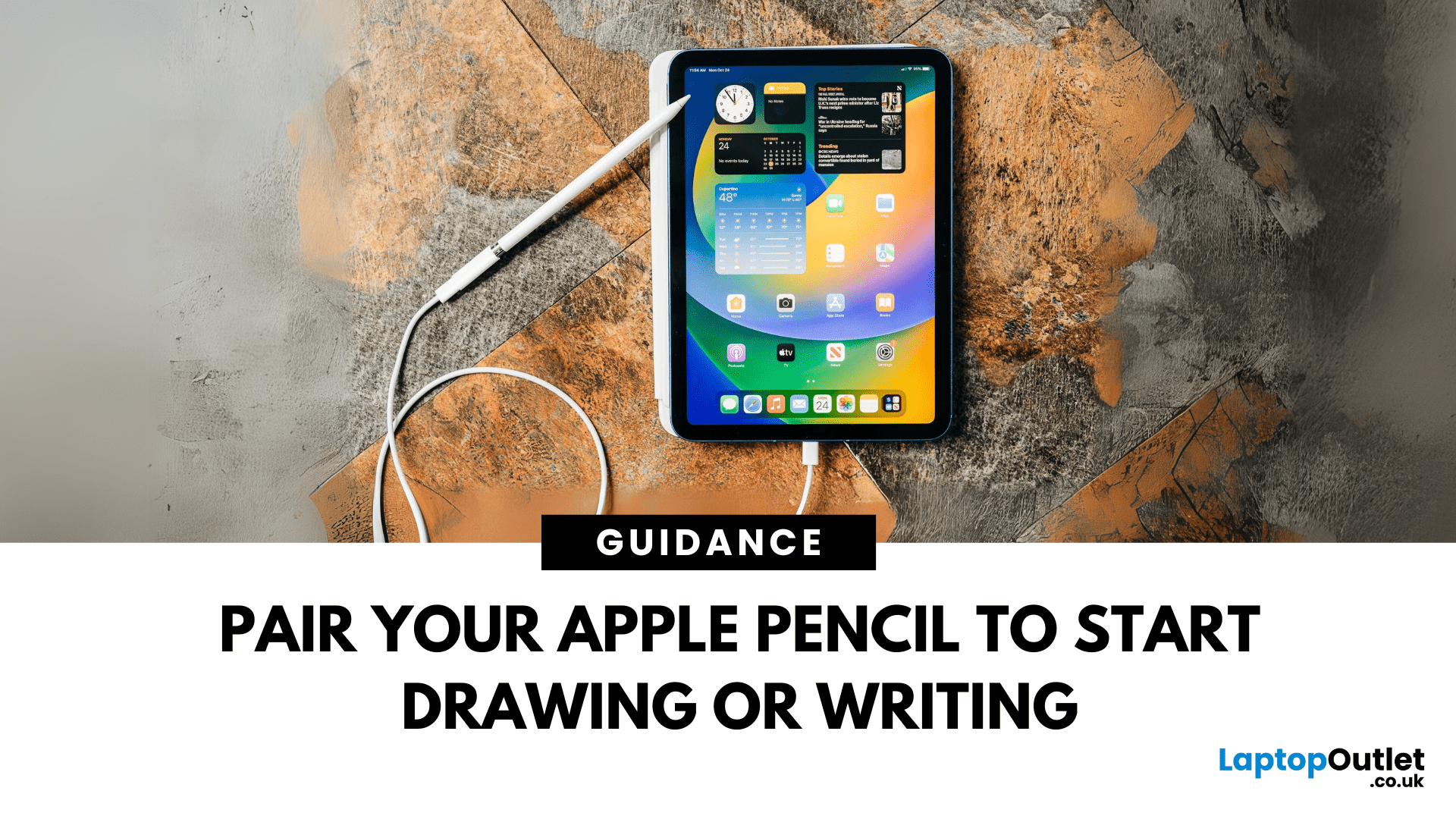
Whether you're an artist, student, or note-taker, the Apple Pencil transforms your iPad into a powerful tool for creativity and productivity. But first, you’ll need to pair it. Here’s how to connect both Apple Pencil 1st Gen and 2nd Gen to your iPad quickly.
How to Connect Apple Pencil (2nd Generation)
Compatible with:
- iPad Pro (3rd gen and later)
- iPad Air (4th gen and later)
- iPad mini (6th gen)
Steps:
- Make sure Bluetooth is enabled (Settings > Bluetooth)
- Attach the Apple Pencil to the magnetic strip on the side of the iPad
- Wait for the Pair prompt and tap it
Your Apple Pencil is now connected and ready to use
How to Connect Apple Pencil (1st Generation)
Compatible with:
- iPad (6th–10th gen)
- iPad Air (3rd gen)
- iPad mini (5th gen)
Steps:
- Remove the cap and plug the Apple Pencil into the iPad’s Lightning port
- Tap Pair when the prompt appears
If your iPad uses USB-C (10th gen), you’ll need a USB-C to Apple Pencil Adapter
Last Updated: May 23, 2025
Running Out of Room? Let’s Fix That.
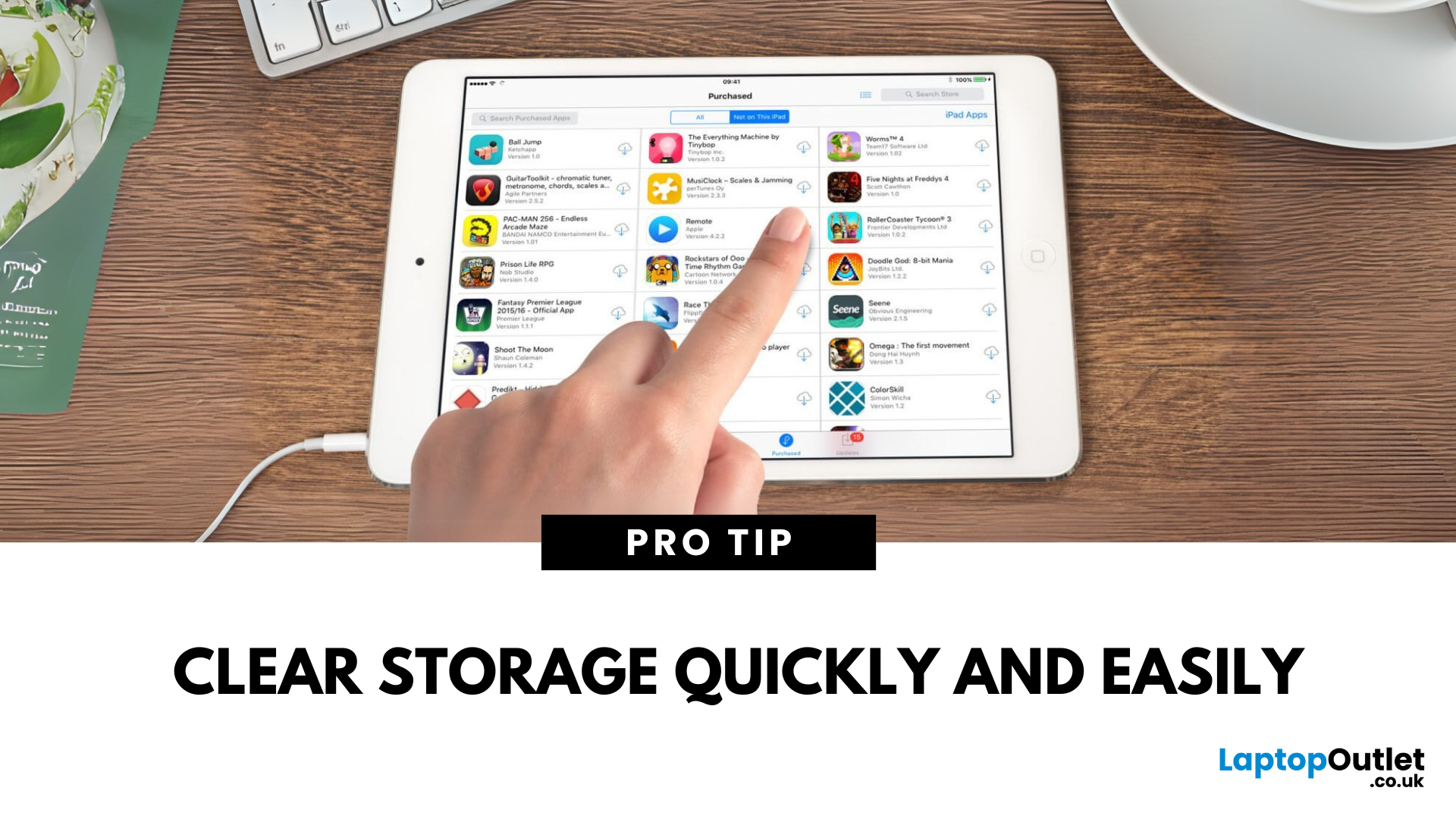
A full iPad can slow down performance and stop you from downloading new apps or taking photos. Whether you're using it for work, play, or school, here’s how to free up space on your iPad and keep it running smoothly.
1. Check Your iPad Storage Usage
Steps:
- Go to Settings > General > iPad Storage
- View a breakdown of what’s using space (apps, photos, media, system)
- Follow Apple’s recommendations if listed (e.g. Offload Unused Apps)
- This helps you see exactly what’s taking up room
2. Delete Unused Apps
Apps you haven’t opened in months? Time to go.
Steps:
- Tap and hold the app icon > Remove App > Delete App
- Or delete directly from iPad Storage settings
3. Offload Unused Apps (Keep Data)
Offloading removes the app but keeps your data safe for when you reinstall it.
Steps:
- Go to Settings > General > iPad Storage
- Tap an app > Offload App
- You can enable automatic offloading under Settings > App Store
4. Clear Safari Cache
Last Updated: September 11, 2025
A Scanner in Your Pocket
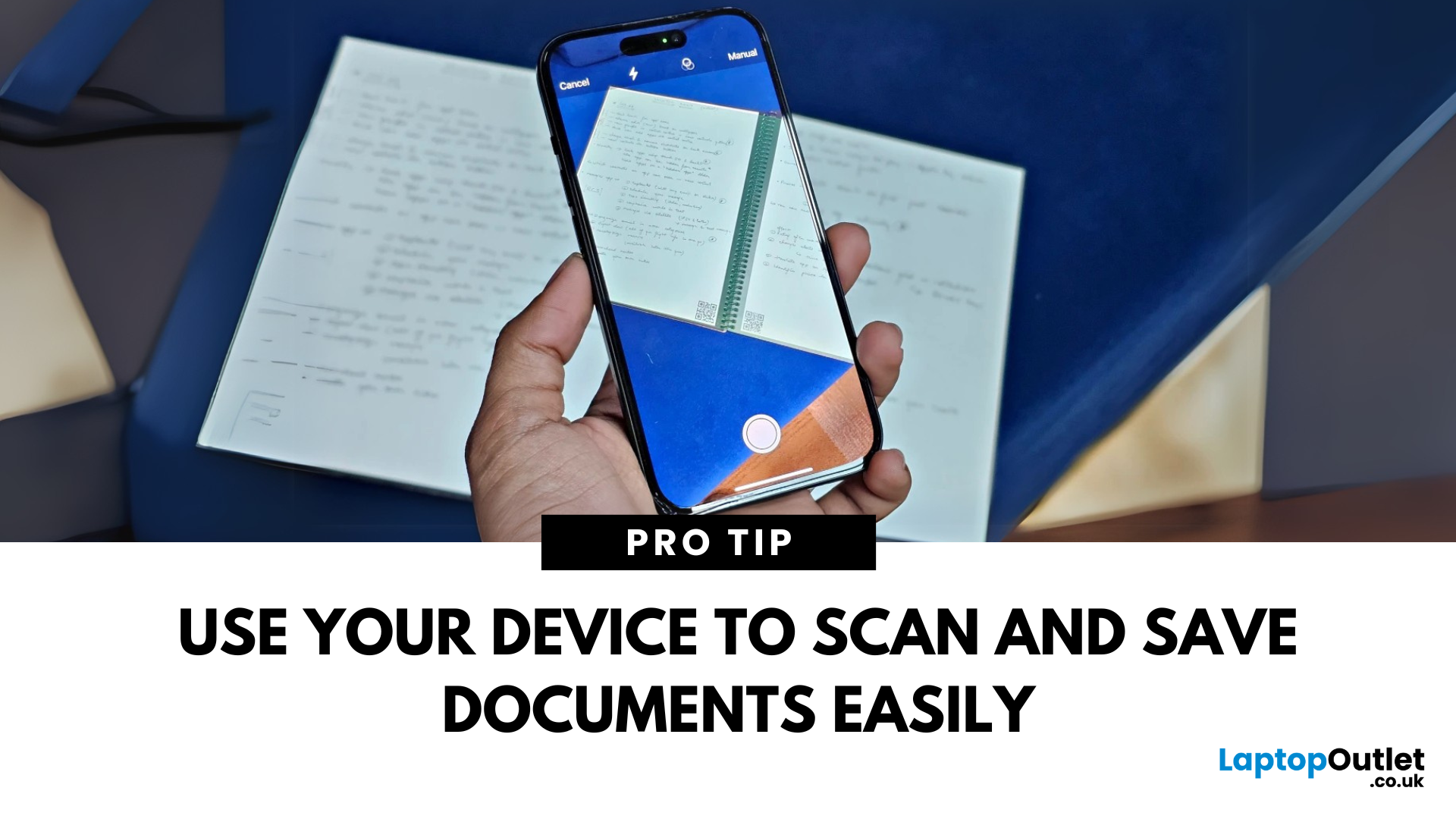
You don’t need a bulky scanner anymore—your iPhone or iPad can scan documents with amazing quality in just seconds. Thanks to built-in tools like the Notes app, scanning has never been easier. Here’s how to do it.
1. Scan Documents Using the Notes App
The Notes app has a built-in scanner that saves documents as PDFs or images.
Steps:
- Open the Notes app
- Tap the Create New Note icon
- Tap the Camera button
- Select Scan Documents
- Position your document in view; your device will auto-capture, or you can tap the shutter button
- Adjust the corners if needed and tap Keep Scan
- Save it to the note or share/export as a PDF
Use "Auto" mode for hands-free scanning of multiple pages
2. Scan Directly into Files App (iOS 15 and later)
Steps:
- Open the Files app
- Navigate to the folder where you want to save the scan
- Tap the three dots in the top right
- Select Scan Documents
- Capture and save the document directly as a file
Great for creating quick PDFs

