



What Is Better Samsung or iPhone?
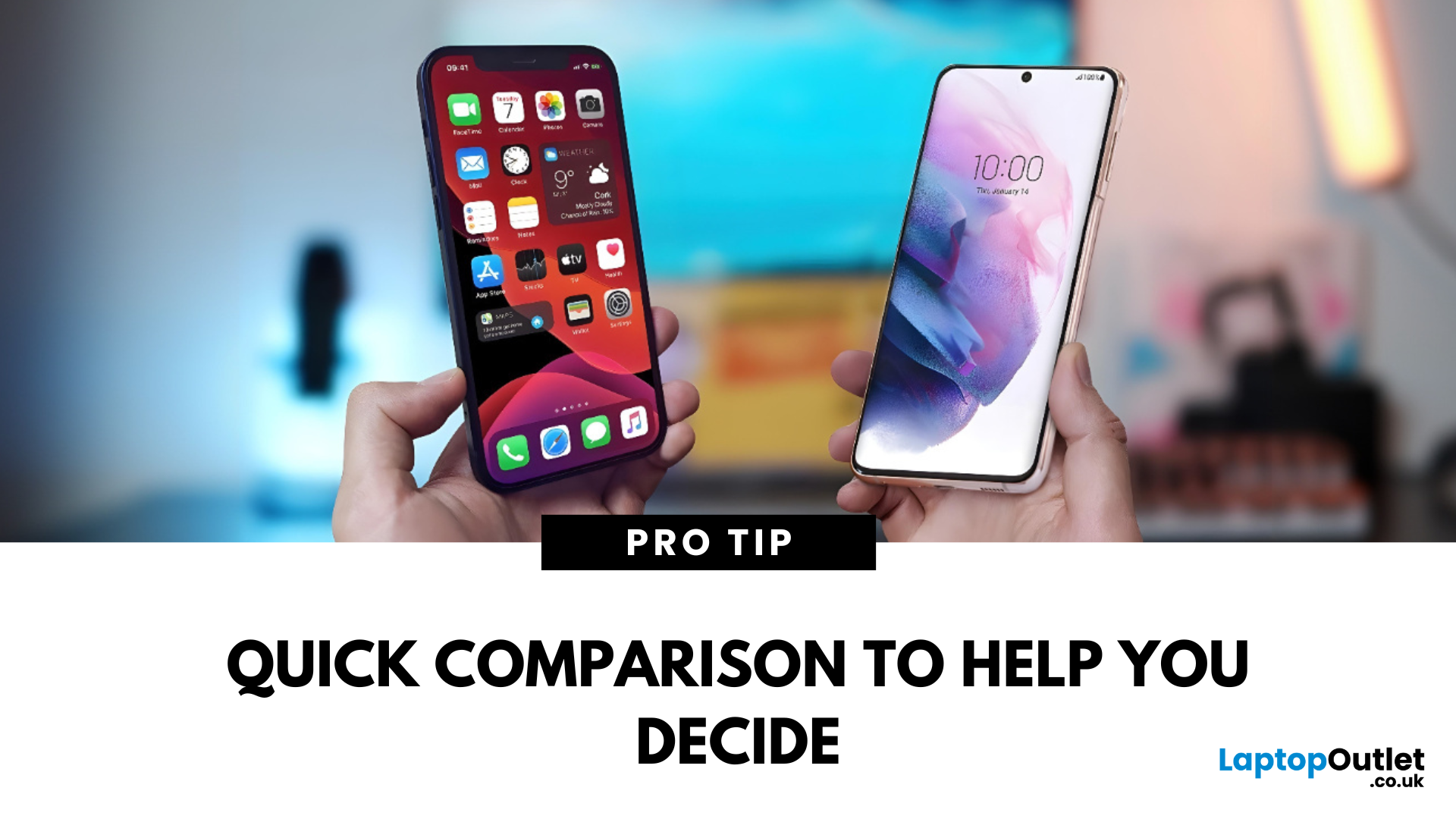
The Ultimate Smartphone Showdown
Samsung or iPhone—which is better? It’s a question that sparks debates in group chats, tech forums, and even family dinners. The truth is, both are excellent—but they suit different users. Here’s a breakdown to help you decide which smartphone brand is the better fit for you in 2025.
Design & Build Quality
- iPhone: Premium build, minimalist design, consistent look across models
- Samsung: Sleek designs, more variety (curved displays, foldables like Galaxy Z series)
Verdict: iPhone offers uniform elegance, Samsung delivers bold variety
Display Quality
- iPhone: Super Retina XDR OLED displays, true-to-life colour accuracy
- Samsung: Dynamic AMOLED 2X displays, higher refresh rates (up to 120Hz on most models)
Verdict: Samsung leads in brightness, refresh rate, and screen innovation
Camera Performance
- iPhone: Excellent video quality, cinematic mode, reliable consistency
- Samsung: Powerful zoom (Space Zoom), versatile sensors, vibrant photos
Verdict: iPhone is best for video, Samsung is great for creative photography
Operating System & Software
- iPhone: iOS is sleek, secure, and gets instant updates for years
- Samsung: Android with One UI – more customisation, but slower update rollout
Verdict: iOS for stability and security, Android for flexibility and features
Performance
- iPhone: A17 Bionic chip is industry-leading, ultra-fast and efficient
- Samsung: Snapdragon or Exynos chips, great performance but not always ahead
Verdict: iPhone wins on raw speed and longevity
Battery Life & Charging
- iPhone: Great battery life, slow charging speed (still no USB-C for older models)
- Samsung: Fast wired and wireless charging, includes USB-C, power-saving features
Verdict: Samsung takes the edge for charging options
Ecosystem & Compatibility
- iPhone: Seamless integration with other Apple products (Mac, iPad, AirPods)
- Samsung: Works well with other Samsung/Android devices, but less tightly integrated
Verdict: If you’re already in the Apple ecosystem, iPhone is unbeatable
Value for Money
- iPhone: Holds resale value well, longer software support
- Samsung: More choice across budgets, frequent discounts and offers
Verdict: Samsung is better for budget flexibility, iPhone is better long-term investment
Who Should Choose iPhone?
- You value stability and long-term updates
- You already use other Apple products
- You shoot a lot of video and want simplicity
- Who Should Choose Samsung?
- You want cutting-edge display and hardware features
- You love customising your phone
- You want options from budget to flagship
Final Thoughts: It Depends on What You Value Most
There’s no single “best” phone—it all depends on your priorities. If you want simplicity, security, and longevity, iPhone may be right for you. If you want innovation, flexibility, and top-tier displays, Samsung could be your perfect match.
Ready to upgrade? Browse Laptop Outlet’s range of Samsung and Apple phones—at prices that make the decision even easier.
FAQs: Samsung vs iPhone Questions Answered
1. Which is easier to use, Samsung or iPhone?
iPhone is more user-friendly for beginners, but Samsung offers more features for advanced users.
2. Which phone has the best camera?
iPhone excels in video; Samsung shines in zoom and wide-angle photography.
3. Which phone lasts longer?
iPhones generally receive software updates for 5–6 years, making them longer-lasting.
4. Do Samsung phones get slower over time?
Like all phones, they can—but regular updates and good habits help keep performance smooth.
5. Which brand offers better budget options?
Samsung—its Galaxy A-series offers great value for money compared to iPhone’s limited entry-level options.
Read More:
| How to Back Up Your Samsung Phone |
| How to Screen Mirror iPhone to TV |
| How to Pair Apple Watch to a New Phone |
Related Articles

Last Updated: September 11, 2025
Last Updated: May 06, 2026

Last Updated: October 02, 2025
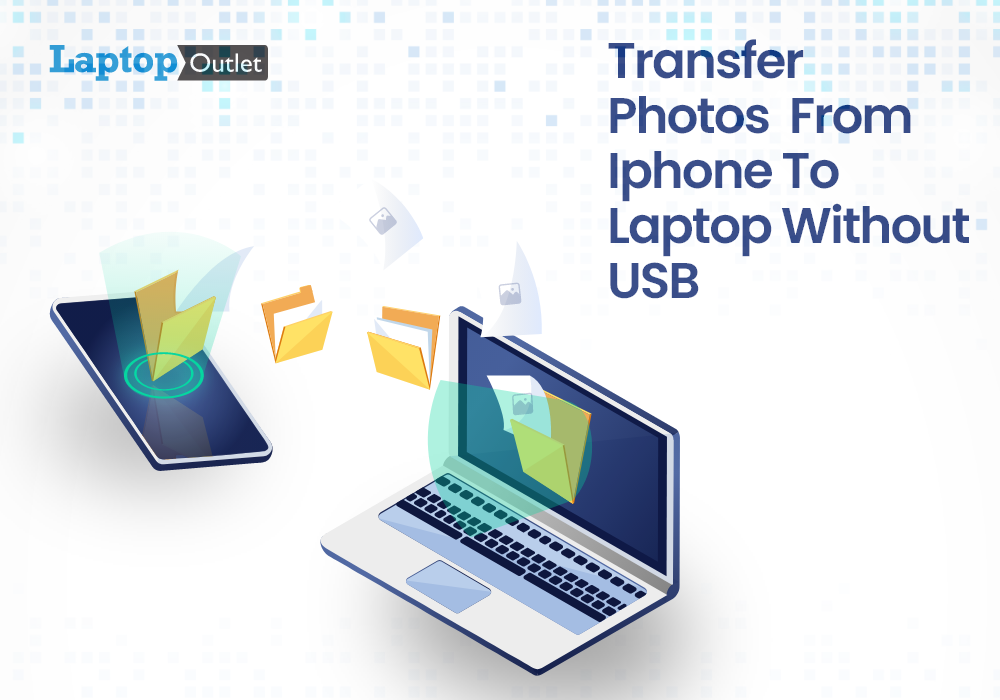
Got iPhone Photos? Let’s Move Them
Snapped the perfect selfie? Captured your holiday vibes? Now you want to transfer those shots to your laptop—whether it’s for storage, editing, or sharing. We’ve got you covered with simple ways to transfer photos from iPhone to laptop—whether you’re using Windows or Mac.
How to Transfer Photos from iPhone to Windows Laptop
1. Using USB Cable & Photos App
- Connect your iPhone to your laptop using a Lightning to USB cable
- Unlock your iPhone and tap Trust when prompted
- Open the Photos app on your Windows laptop
- Click Import > From a USB device
- Select the photos you want and import
2. Using File Explorer (Manual Method)
- Plug in your iPhone and unlock it
- Open File Explorer > This PC > Apple iPhone
- Go to Internal Storage > DCIM
- Copy and paste photos to your laptop folder
3. Using iCloud Photos
- Enable iCloud Photos on your iPhone: Settings > Photos > iCloud Photos
- Visit iCloud.com and sign in
- Go to Photos, select images, and
Last Updated: September 11, 2025
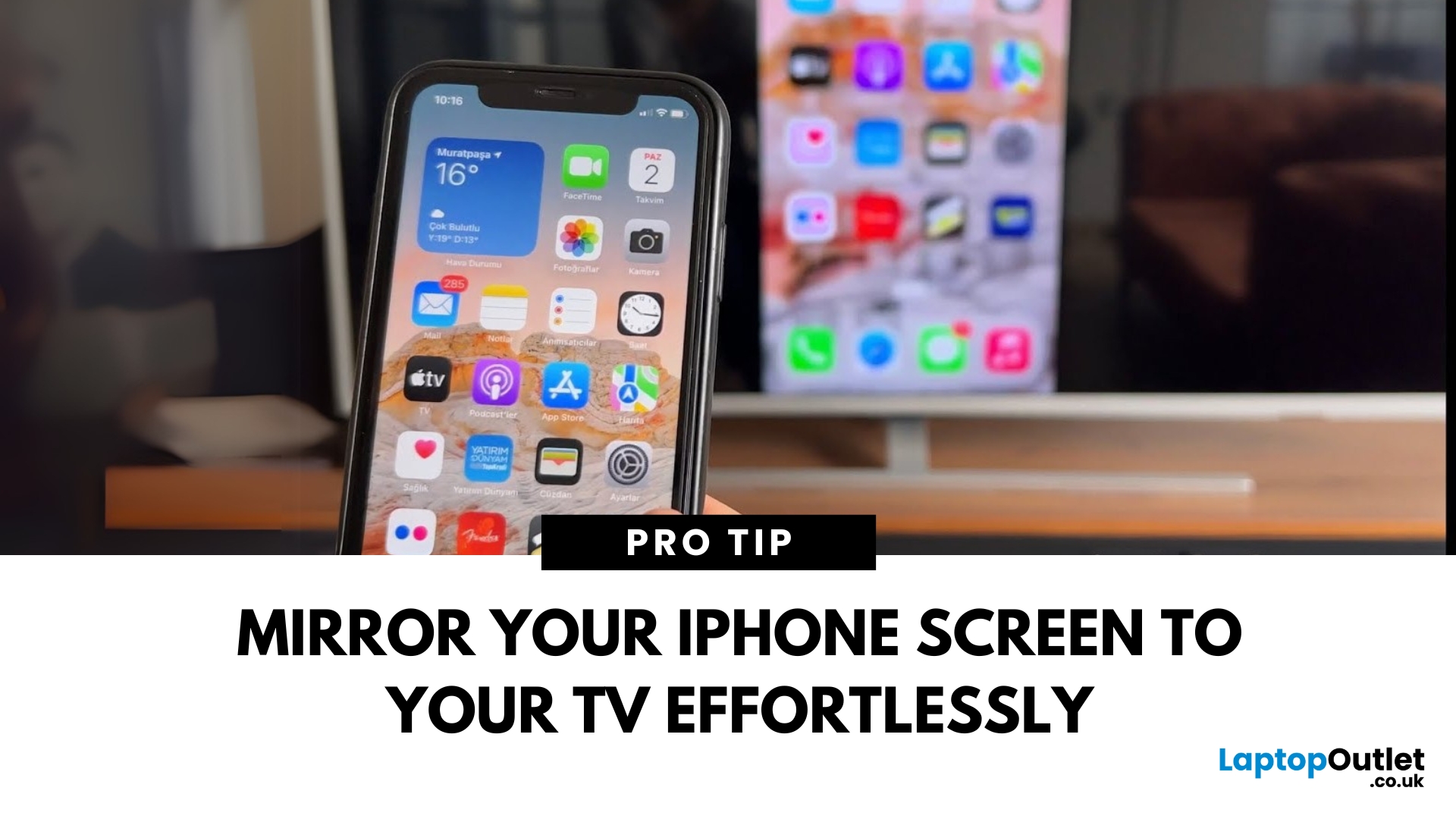
Make Your iPhone Screen Bigger
Want to watch photos, videos, or apps on the big screen? Screen mirroring lets you share your iPhone display to a TV wirelessly or with a cable. Whether you’re streaming a film or showing off holiday snaps, here’s how to do it easily.
How to Screen Mirror iPhone to a Smart TV (AirPlay)
Most smart TVs (Samsung, LG, Sony, etc.) now support Apple AirPlay.
Steps:
- Connect your iPhone and TV to the same Wi-Fi network
- Swipe down on your iPhone to open Control Centre
- Tap Screen Mirroring
- Select your TV from the list
- Enter the AirPlay passcode (if required)
Your iPhone screen will now appear on your TV.
How to Screen Mirror iPhone to TV Using an HDMI Cable
If your TV doesn’t support AirPlay, you can use a cable.
What You’ll Need:
- Apple Lightning Digital AV Adapter
- HDMI cable
Steps:
- Plug the adapter into your iPhone
- Connect an HDMI cable between the adapter and your TV
- Switch your TV input to the correct HDMI port
Your iPhone screen will
Last Updated: September 11, 2025
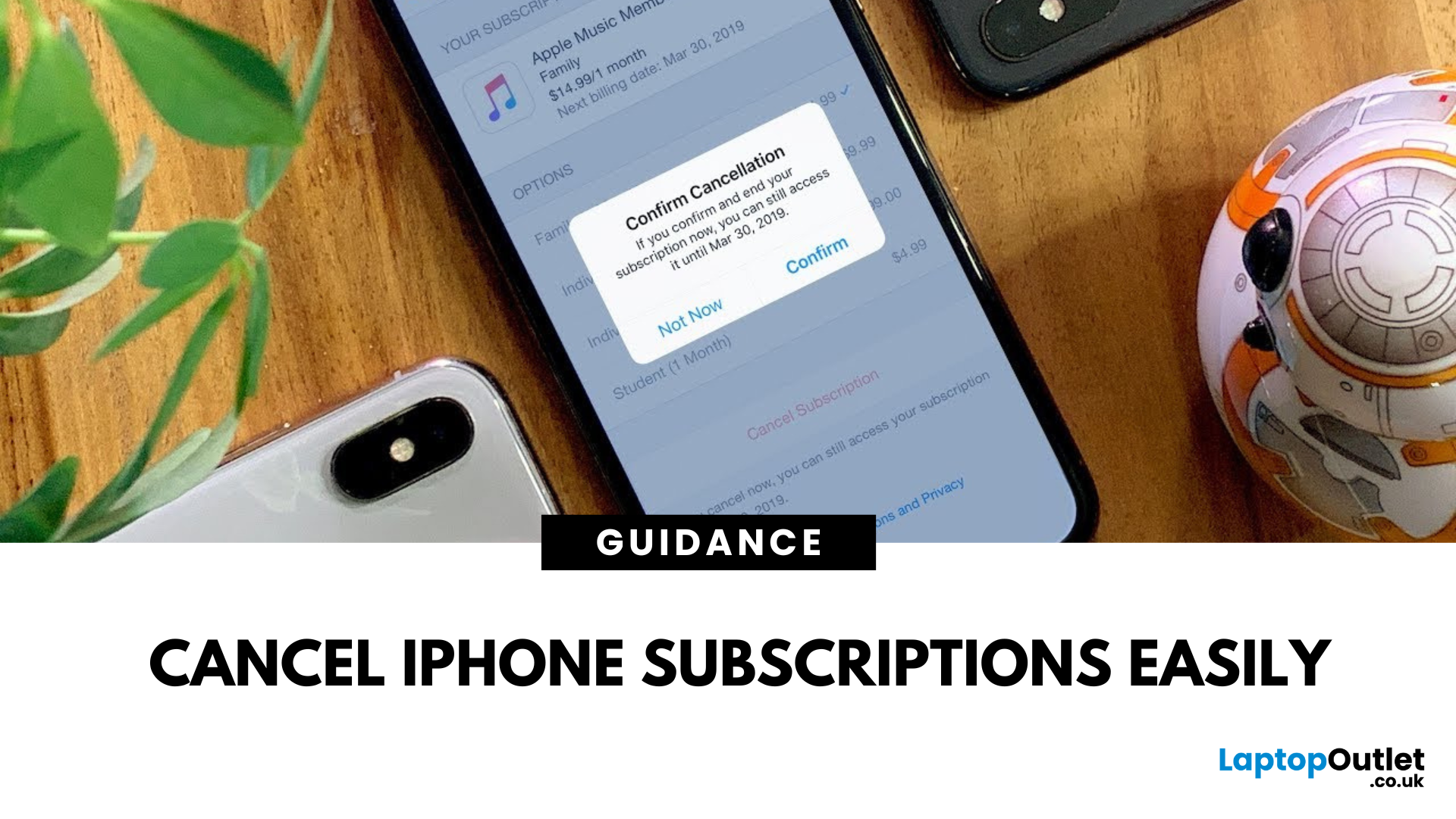
Stop Subscriptions You Don’t Use
From streaming services to fitness apps, subscriptions can stack up fast. If you're not using one anymore, cancelling it on your iPhone is quick and easy. Here’s how to manage and cancel your subscriptions before the next billing cycle hits.
How to Cancel a Subscription on iPhone (Step-by-Step)
1. Open Settings
- Tap the Settings app on your iPhone
2. Tap Your Apple ID Profile
- It’s your name at the top of the Settings menu
3. Go to Subscriptions
- Tap Subscriptions
- You’ll see a list of active and expired subscriptions
4. Select the Subscription to Cancel
- Tap the app or service you want to stop
- You’ll see details like renewal date and cost
5. Tap Cancel Subscription
- Confirm cancellation when prompted
- Your subscription will remain active until the end of the billing cycle
Pro Tip: You won’t be charged again unless you resubscribe
Can’t Find a Subscription? Try These
- Make sure you’re signed into the correct Apple ID
- Check if

