



How to Reset iPhone
Time for a Fresh Start?
Whether your iPhone is frozen, glitching, or you’re preparing to sell it, knowing how to reset your iPhone is essential. There are different types of resets depending on what you need—let’s walk through them all.
1. Soft Reset (Restart Your iPhone)
A soft reset is simply turning your iPhone off and on again—great for fixing minor issues.
Steps (iPhone X or later):
- Press and hold the Side button + Volume Up or Volume Down
- Slide to power off
- Wait a few seconds, then hold the Side button to turn it back on
Steps (iPhone 8 or earlier):
- Hold the Top (or Side) button until "Slide to power off" appears
- No data loss—just a simple reboot
2. Hard Reset (Force Restart Your iPhone)
Useful when your iPhone is unresponsive or frozen.
Steps (iPhone 8, X, 11, 12, 13, 14, 15 Series):
- Quickly press and release Volume Up
- Quickly press and release Volume Down
- Press and hold the Side button until you see the Apple logo
Steps (iPhone 7/7 Plus):
- Press and hold Volume Down + Power button until Apple logo appears
- Steps (iPhone 6s and earlier):
- Press and hold Home + Power button together until the Apple logo shows
- No data loss, just a more forceful reboot
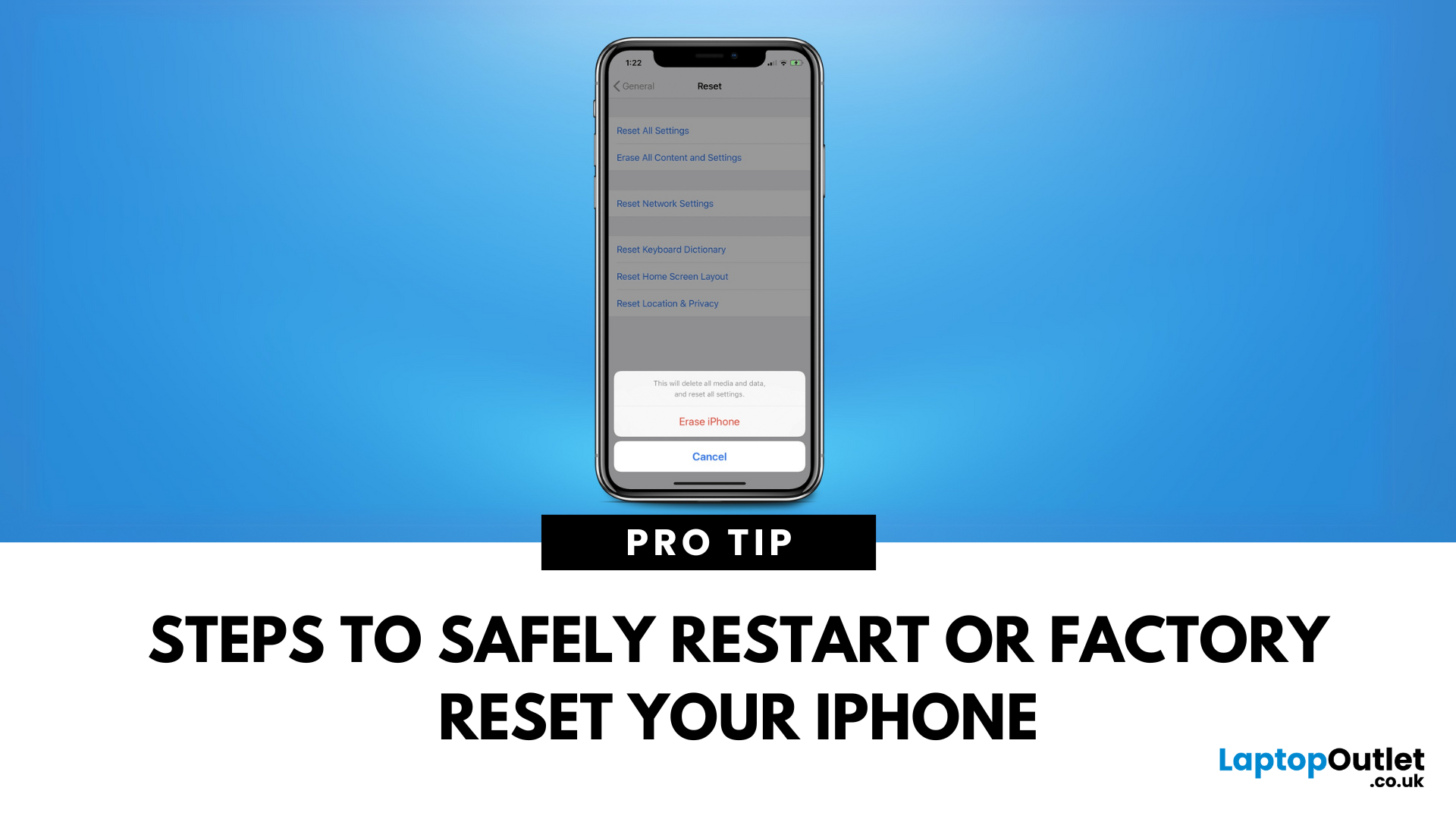
3. Factory Reset (Erase All Content and Settings)
Use this when you want to erase your iPhone completely—ideal when selling, giving away, or troubleshooting major problems.
Steps:
- Back up your iPhone via iCloud or iTunes/Finder
- Go to Settings > General > Transfer or Reset iPhone
- Tap Erase All Content and Settings
- Follow the on-screen instructions
This deletes everything—make sure your data is backed up first
When Should You Reset Your iPhone?
- iPhone is frozen or unresponsive
- Apps crash repeatedly
- iPhone runs extremely slow
- Selling or giving away the device
- Major software issues after an update
Final Thoughts: Reset the Right Way
Resetting your iPhone can fix issues, restore performance, and prepare it for a new owner. Whether it’s a soft restart, a hard reset, or a full factory wipe, knowing the right reset method saves time and stress.
Ready for an upgrade? Browse Laptop Outlet’s latest iPhone models and Apple accessories today.
FAQs: iPhone Reset Questions Answered
1. Will resetting my iPhone delete everything?
Only a factory reset will erase all data. A soft or hard reset won’t.
2. How long does it take to reset an iPhone?
Soft and hard resets take a few minutes. Factory reset depends on data size—usually 5–15 minutes.
3. Should I back up my iPhone before resetting?
Yes—especially before a factory reset.
4. What happens after a factory reset?
Your iPhone returns to its original setup screen, just like new.
5. Can I reset an iPhone without a passcode?
Only via recovery mode using a computer (iTunes/Finder)—you’ll need your Apple ID credentials afterward.
Read More:
| How to Cancel a Subscription on iPhone |
| What Is Better Samsung or iPhone? |
| How to Screen Mirror iPhone to TV |
Related Articles

Last Updated: May 06, 2026

Last Updated: October 02, 2025
Got iPhone Photos? Let’s Move Them
Snapped the perfect selfie? Captured your holiday vibes? Now you want to transfer those shots to your laptop—whether it’s for storage, editing, or sharing. We’ve got you covered with simple ways to transfer photos from iPhone to laptop—whether you’re using Windows or Mac.
How to Transfer Photos from iPhone to Windows Laptop
1. Using USB Cable & Photos App
- Connect your iPhone to your laptop using a Lightning to USB cable
- Unlock your iPhone and tap Trust when prompted
- Open the Photos app on your Windows laptop
- Click Import > From a USB device
- Select the photos you want and import
2. Using File Explorer (Manual Method)
- Plug in your iPhone and unlock it
- Open File Explorer > This PC > Apple iPhone
- Go to Internal Storage > DCIM
- Copy and paste photos to your laptop folder
3. Using iCloud Photos
- Enable iCloud Photos on your iPhone: Settings > Photos > iCloud Photos
- Visit iCloud.com and sign in
- Go to Photos, select images, and
Last Updated: September 11, 2025
Make Your iPhone Screen Bigger
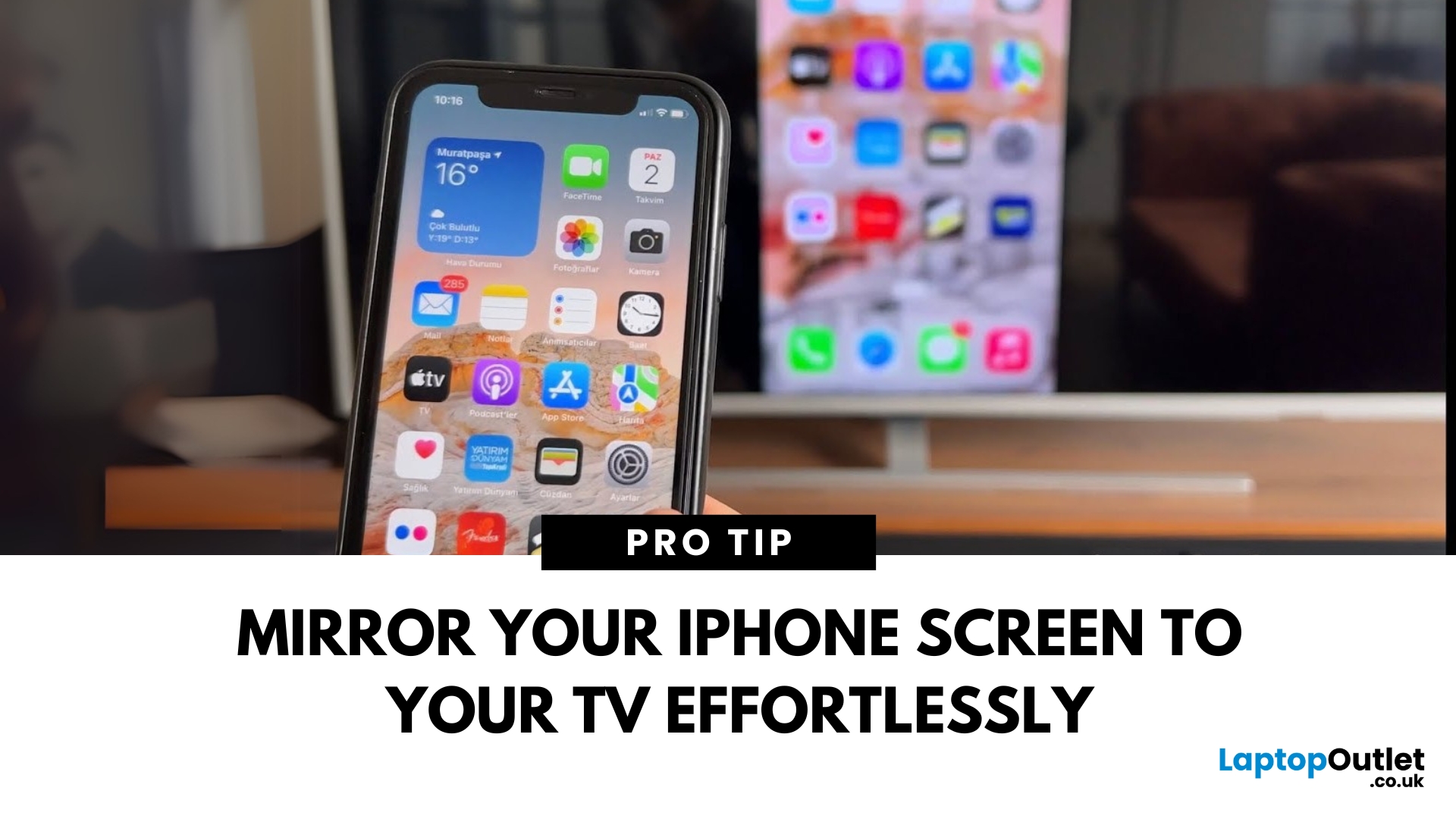
Want to watch photos, videos, or apps on the big screen? Screen mirroring lets you share your iPhone display to a TV wirelessly or with a cable. Whether you’re streaming a film or showing off holiday snaps, here’s how to do it easily.
How to Screen Mirror iPhone to a Smart TV (AirPlay)
Most smart TVs (Samsung, LG, Sony, etc.) now support Apple AirPlay.
Steps:
- Connect your iPhone and TV to the same Wi-Fi network
- Swipe down on your iPhone to open Control Centre
- Tap Screen Mirroring
- Select your TV from the list
- Enter the AirPlay passcode (if required)
Your iPhone screen will now appear on your TV.
How to Screen Mirror iPhone to TV Using an HDMI Cable
If your TV doesn’t support AirPlay, you can use a cable.
What You’ll Need:
- Apple Lightning Digital AV Adapter
- HDMI cable
Steps:
- Plug the adapter into your iPhone
- Connect an HDMI cable between the adapter and your TV
- Switch your TV input to the correct HDMI port
Your iPhone screen will
Last Updated: September 11, 2025
Stop Subscriptions You Don’t Use
From streaming services to fitness apps, subscriptions can stack up fast. If you're not using one anymore, cancelling it on your iPhone is quick and easy. Here’s how to manage and cancel your subscriptions before the next billing cycle hits.
How to Cancel a Subscription on iPhone (Step-by-Step)
1. Open Settings
- Tap the Settings app on your iPhone
2. Tap Your Apple ID Profile
- It’s your name at the top of the Settings menu
3. Go to Subscriptions
- Tap Subscriptions
- You’ll see a list of active and expired subscriptions
4. Select the Subscription to Cancel
- Tap the app or service you want to stop
- You’ll see details like renewal date and cost
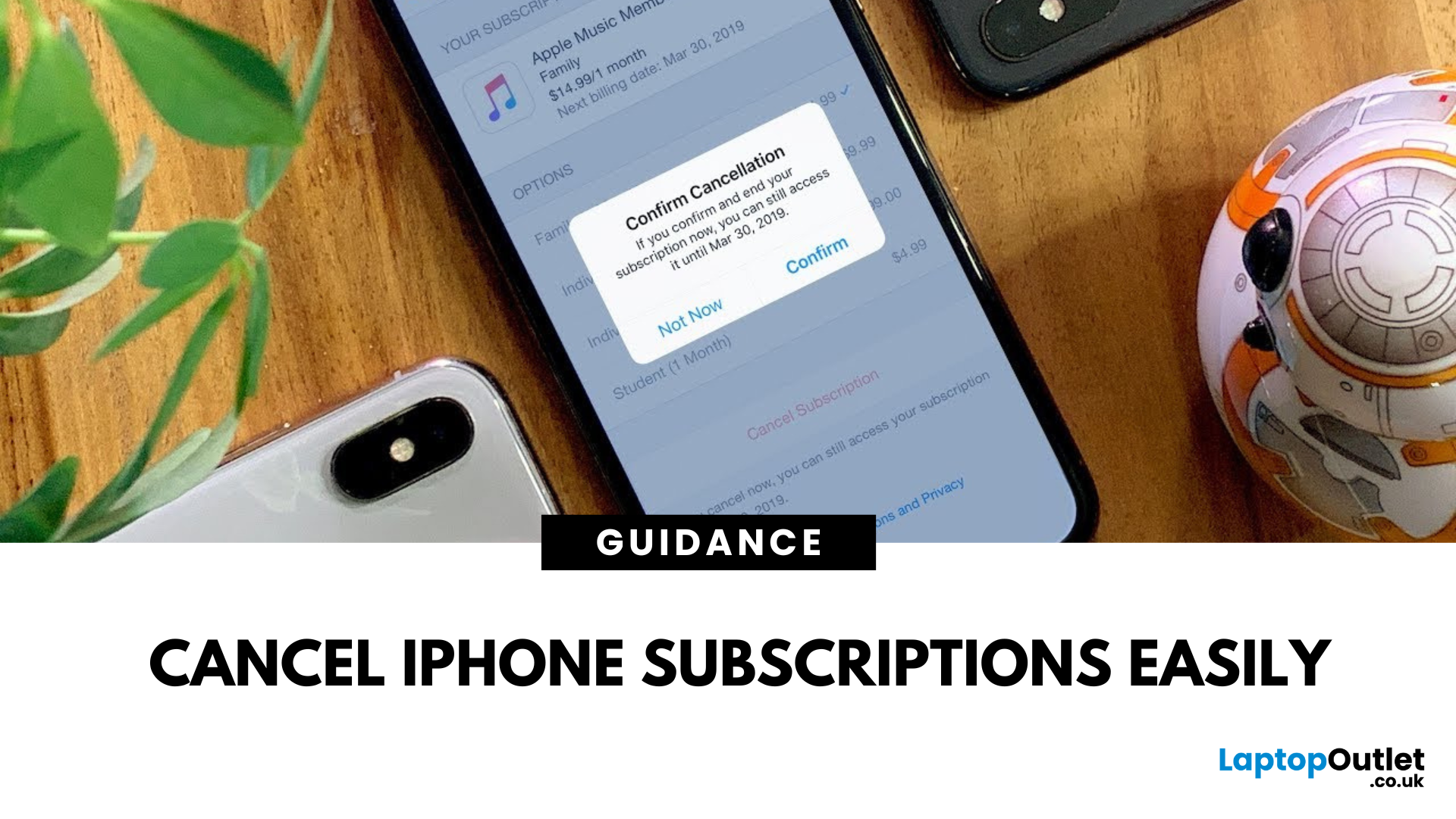
5. Tap Cancel Subscription
- Confirm cancellation when prompted
- Your subscription will remain active until the end of the billing cycle
Pro Tip: You won’t be charged again unless you resubscribe
Can’t Find a Subscription? Try These
- Make sure you’re signed into the correct Apple ID
- Check if
Last Updated: September 11, 2025
Keep Your iPhone Running Smoothly
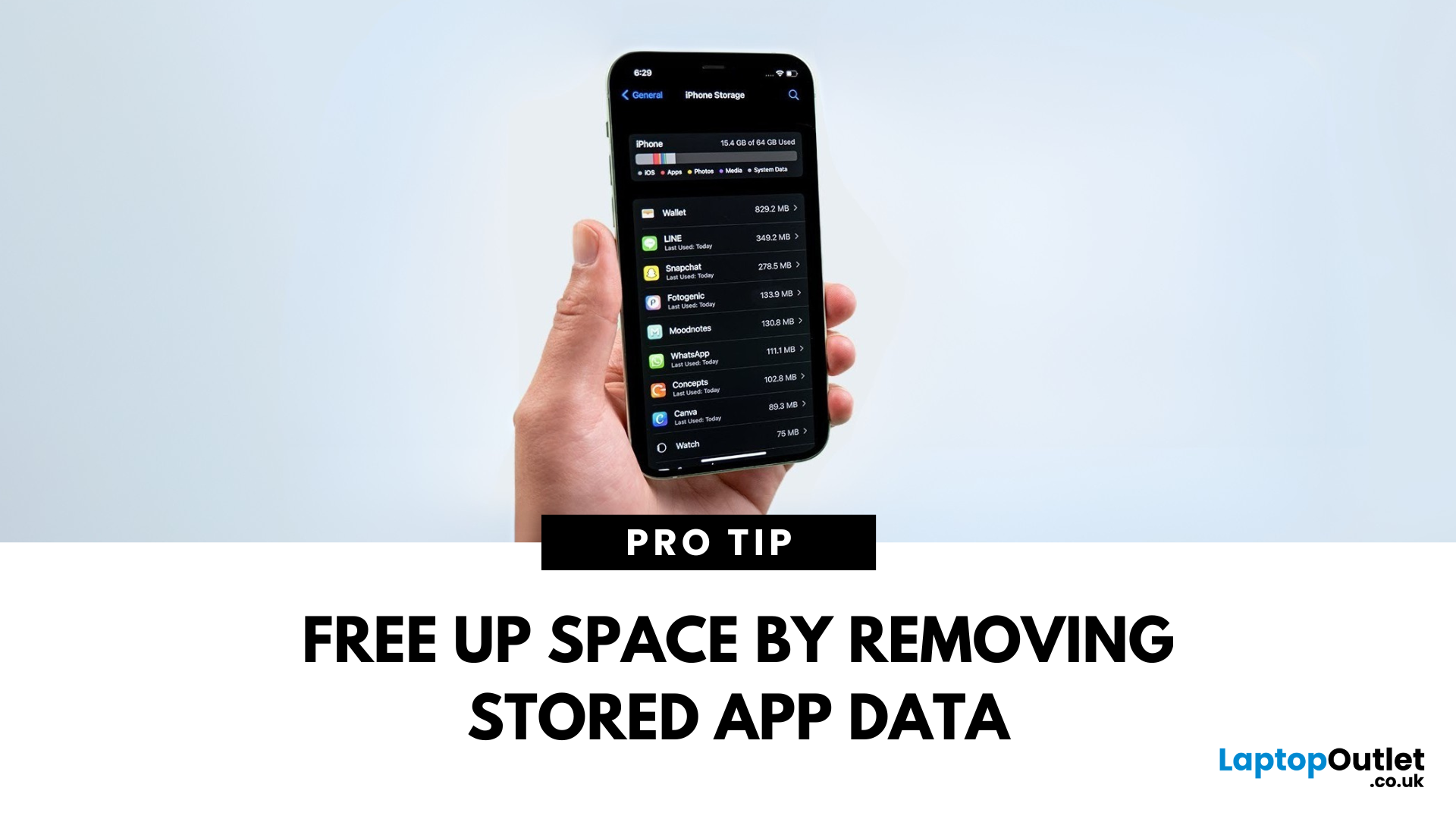
Over time, cached data from Safari, apps, and system processes can clutter your iPhone. If your phone feels slow or you’re running out of space, clearing cache is a smart move. Here’s how to quickly clear cache on your iPhone.
1. Clear Safari Browser Cache
If you browse a lot on Safari, cached web data can build up fast.
Steps:
- Open Settings
- Scroll down and tap Safari
- Tap Clear History and Website Data
- Confirm by tapping Clear History and Data
This removes website history, cookies, and cached images, speeding up browsing
2. Clear Cache in Individual Apps
Some apps like Instagram, YouTube, and Facebook store a lot of temporary data.
Options:
- Check app settings—some apps let you clear cache inside their settings
- If not available, delete and reinstall the app to clear its cache
- Reinstalling resets the app without affecting your saved account details (if backed up)
3. Offload Unused Apps
This saves app data but frees up space
Last Updated: September 11, 2025
A Scanner in Your Pocket
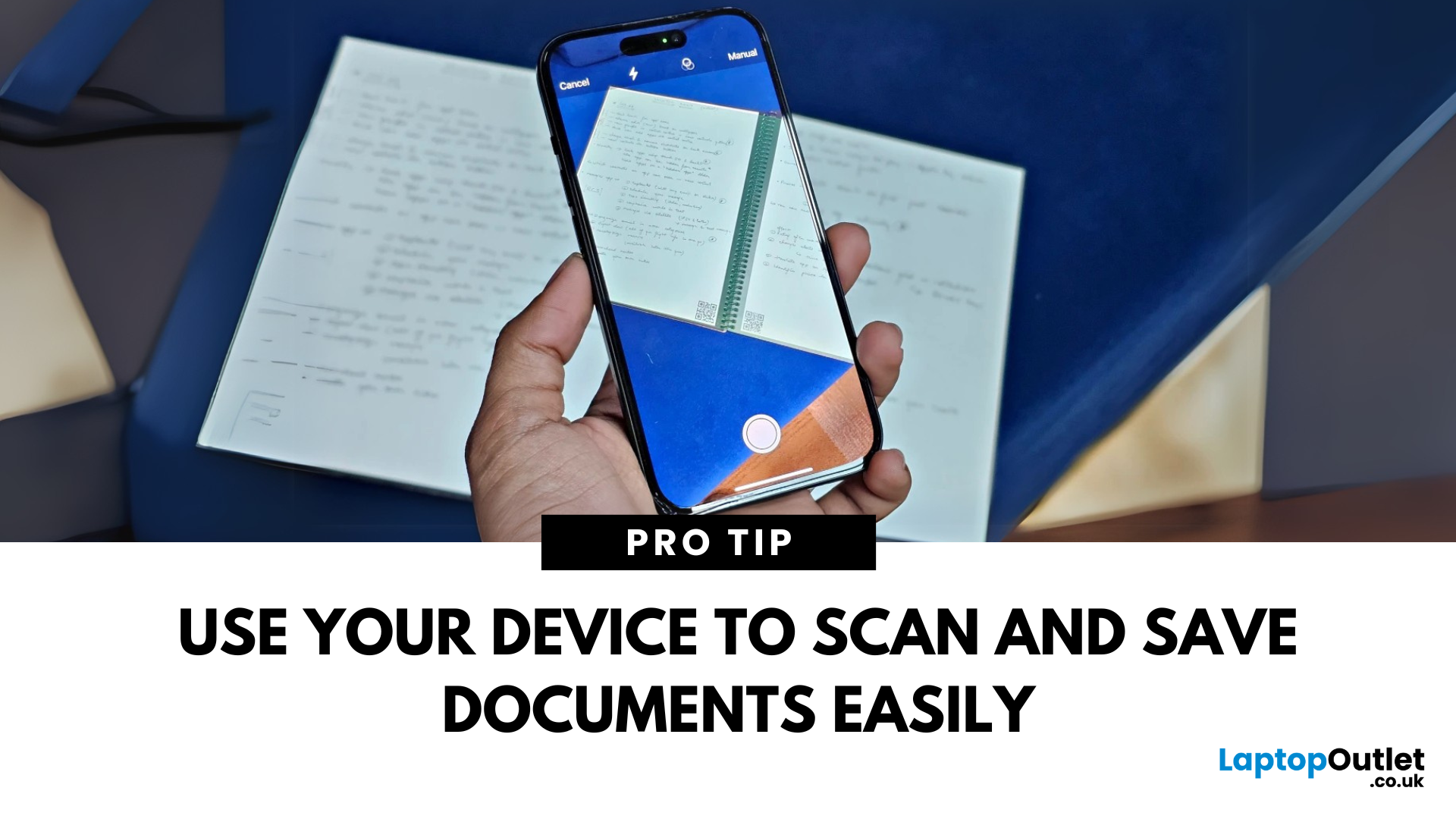
You don’t need a bulky scanner anymore—your iPhone or iPad can scan documents with amazing quality in just seconds. Thanks to built-in tools like the Notes app, scanning has never been easier. Here’s how to do it.
1. Scan Documents Using the Notes App
The Notes app has a built-in scanner that saves documents as PDFs or images.
Steps:
- Open the Notes app
- Tap the Create New Note icon
- Tap the Camera button
- Select Scan Documents
- Position your document in view; your device will auto-capture, or you can tap the shutter button
- Adjust the corners if needed and tap Keep Scan
- Save it to the note or share/export as a PDF
Use "Auto" mode for hands-free scanning of multiple pages
2. Scan Directly into Files App (iOS 15 and later)
Steps:
- Open the Files app
- Navigate to the folder where you want to save the scan
- Tap the three dots in the top right
- Select Scan Documents
- Capture and save the document directly as a file
Great for creating quick PDFs

