



Motherboard USB Ports Not Working? 9 Checks to Try Before Repairs
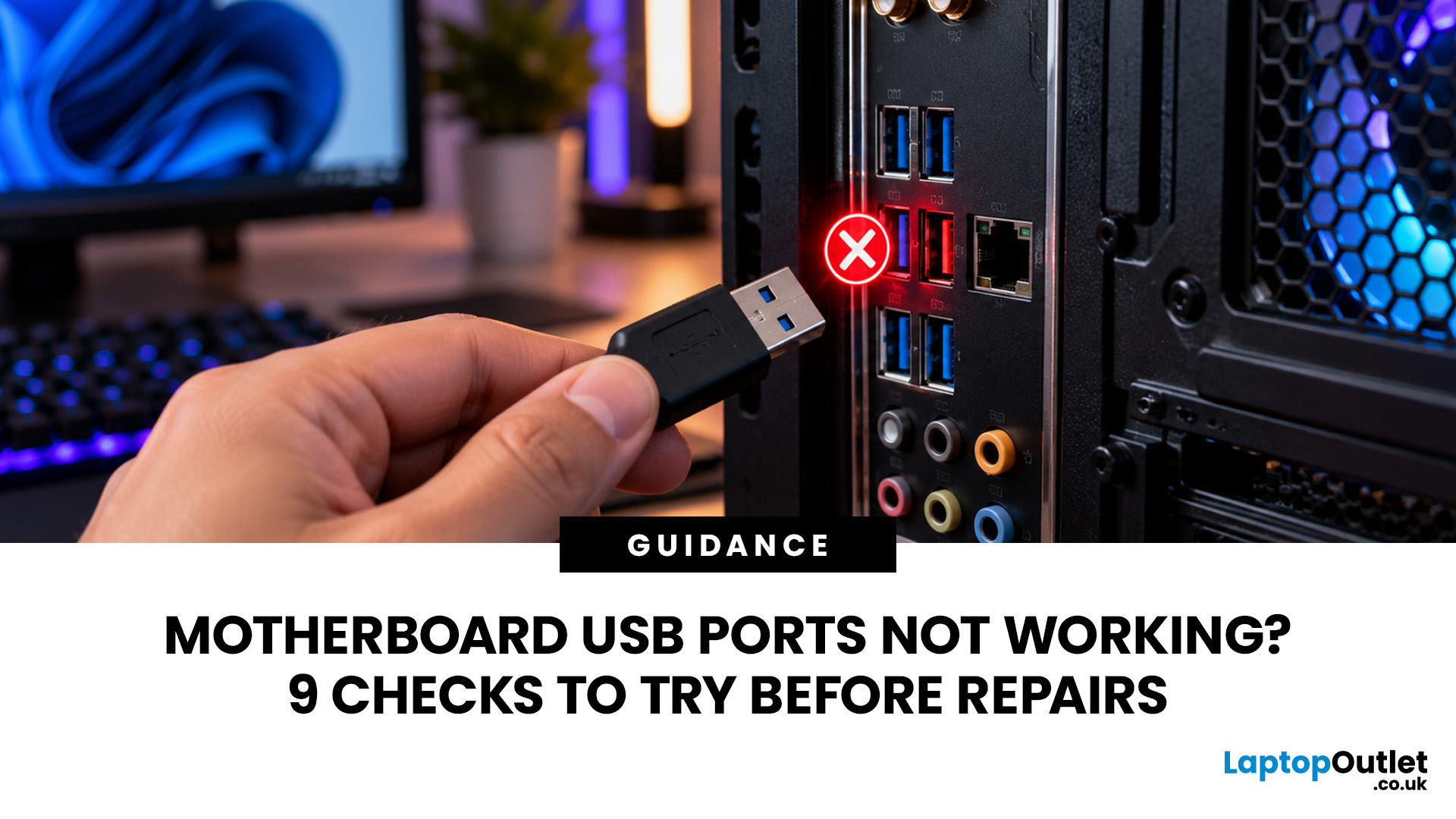
Quick Answer:
Motherboard USB ports may stop working because of loose connections, faulty peripherals, outdated drivers, incorrect BIOS settings or hardware damage. Start by restarting your PC, testing another USB device and checking both front and rear ports. If the problem continues, inspect Windows power settings, reinstall USB controllers and update your motherboard drivers before considering professional repairs or replacement.
USB ports are essential for connecting your keyboard, mouse, external drives and other everyday devices. But what happens when they suddenly stop responding? Whether it's a single faulty port or several connections failing at once, the cause isn't always a damaged motherboard. Before spending money on repairs or replacement, there are nine practical checks worth trying.
Why Do Motherboard USB Ports Stop Working?
USB ports connect everyday peripherals, including keyboards, mice, external drives, headsets and controllers, to your computer. When they stop responding, the problem can affect anything from a single accessory to your entire desktop setup. However, a non-working USB port does not automatically mean your motherboard has failed.
Several components work together to manage USB connectivity:
- USB controllers: Handle communication between the motherboard and connected devices.
- Chipset and firmware: Help initialise and manage USB functionality.
- Windows drivers: Allow the operating system to recognise and communicate with USB hardware.
- Power delivery: Supplies electricity to connected devices within the port's supported limits.
- Internal USB headers: Connect the motherboard to the front USB ports on your PC case.
Problems with any of these can interrupt USB operation. The symptoms also provide useful clues. A port that charges your phone but cannot transfer files suggests a different issue from one that provides no power at all. Similarly, if your keyboard works in BIOS but stops responding when Windows loads, the problem is more likely to involve Windows, drivers or software settings.
Quick tip: Before changing anything, identify whether the fault affects one port, several ports or every USB connection. This can save considerable troubleshooting time.
9 Checks to Fix Motherboard USB Ports Not Working
Work through these checks in order. They begin with simple tests that require no technical experience before moving towards driver, firmware and internal hardware troubleshooting.
1. Restart Your PC and Perform a Power Reset
A temporary USB controller fault can prevent Windows from recognising connected devices. Restarting your computer allows the operating system to initialise the controllers again.
Start with a normal restart:
- Save your work and disconnect unnecessary USB accessories.
- Select Start > Power > Restart.
- Wait for Windows to load completely.
- Reconnect one USB device and check whether it works.
If the motherboard USB ports stopped working suddenly, a full power reset may also help. Shut down the PC, switch off the power supply and unplug the mains cable. Hold the computer's power button for approximately 15 seconds, then reconnect power and restart.
This can help clear certain temporary controller or power-state problems, although it will not repair damaged hardware.
Verdict: If your USB ports work again after restarting, the fault may have been temporary. Repeated failures, however, deserve further investigation.
2. Test Different USB Devices, Cables and Ports
A faulty USB accessory can easily be mistaken for a motherboard problem. Connect a basic wired keyboard or mouse directly to a rear USB-A port. Avoid USB hubs, docking stations and extension cables during testing.
Next, try the same device in another port.
|
What happens? |
What it could mean |
|
One USB port fails, but others work |
Individual port damage or a local connection fault |
|
One device fails across multiple ports |
Faulty device, cable or compatibility issue |
|
Rear ports work, but front ports fail |
Front-panel cable, header or case-port problem |
|
USB devices receive power but are not detected |
Driver, data connection or device fault |
|
All USB ports fail |
Controller, firmware, software or wider hardware issue |
If you are experiencing motherboard back USB ports not working, test ports in different groups on the rear I/O panel. Some motherboards route particular ports through different USB controllers or hubs. Finding out which groups work can help narrow down the problem.
For external drives and other peripherals with removable cables, try another compatible cable. If you're unsure how many USB ports your motherboard supports , checking its specifications can help you identify which connections should be available and where to find them.
Quick tip: A charging light only confirms that some power is available. It does not prove the USB data connection is working.
3. Check Whether USB Ports Work Outside Windows
This is one of the most useful ways to distinguish a Windows problem from a possible firmware or hardware fault. Restart your computer and enter BIOS or UEFI setup using the appropriate key, commonly Delete or F2. The correct key depends on your motherboard.
Try navigating the firmware interface with a wired USB keyboard. If the keyboard works in BIOS but fails after Windows starts, focus on USB drivers, power management and Windows configuration. If the keyboard does not work in BIOS, test another rear USB port and another known-working keyboard before drawing conclusions.
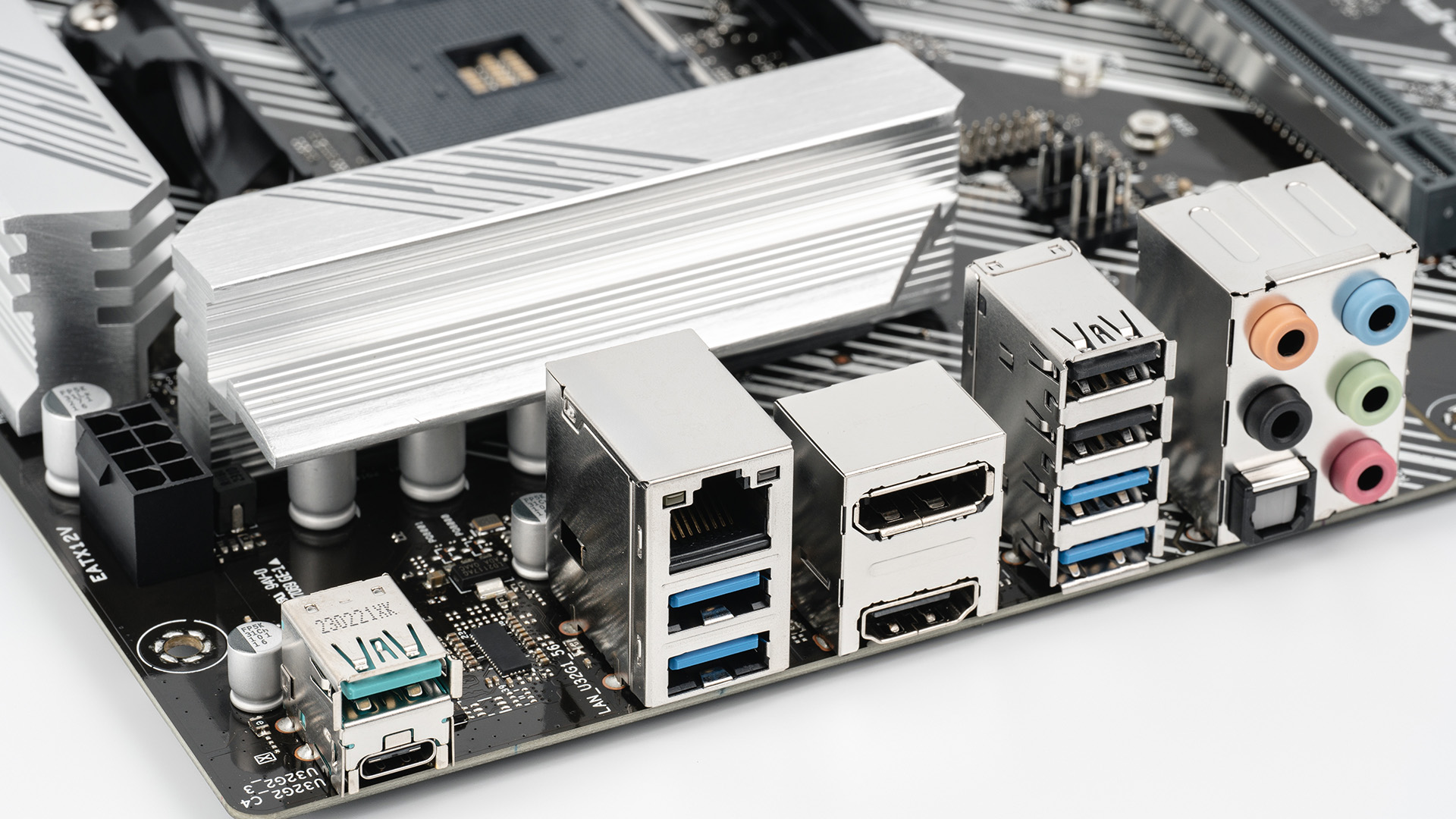
You can also see whether USB support is enabled in firmware.
Look for options such as:
- USB Configuration
- USB Controller
- Legacy USB Support
- XHCI-related settings
The exact menu names vary between manufacturers and firmware versions. Do not disable unfamiliar options or change unrelated BIOS settings.
Important: A device failing in BIOS does not conclusively prove motherboard damage. Some firmware interfaces have limited support for particular peripherals, and USB controller configuration can affect pre-boot functionality.
4. Reinstall USB Controllers in Windows Device Manager
If Windows cannot communicate correctly with a USB controller, connected devices may disappear, disconnect repeatedly or display error messages. Windows Device Manager allows you to inspect and reinstall the affected USB controller drivers.
Follow these steps:
- Right-click the Start button and open Device Manager.
- Expand Universal Serial Bus controllers.
- Look for warning symbols or devices showing errors.
- Right-click the affected USB controller or hub and select Uninstall device.
- Restart your computer to allow Windows to detect and reinstall the hardware.
If you see an Unknown USB Device entry, open its properties and analyse the error information before uninstalling it. Avoid removing every controller at once, particularly if your keyboard and mouse both use USB. Doing so may temporarily disable your input devices.
Windows normally reinstalls standard USB controller drivers automatically, but manufacturer-specific drivers or additional troubleshooting may still be required.
Verdict: This check is particularly useful when USB ports stopped working after a Windows update, driver installation or unexpected system crash.
5. Disable USB Power Saving Temporarily
Windows can reduce power consumption by suspending inactive USB devices. This is useful for efficiency, but certain devices or drivers may not resume correctly. If your USB ports disconnect after sleep or remain unresponsive until a restart, investigate power management.
Check USB hub power management:
- Open Device Manager.
- Expand Universal Serial Bus controllers.
- Open the properties of a USB Root Hub or Generic USB Hub.
- Select the Power Management tab, if available.
- Untick Allow the computer to turn off this device to save power.
- Restart and test the affected device.
Not every USB controller or hub displays this option. You can also investigate USB selective suspend in Windows power settings. Depending on your Windows version and hardware, the setting may not be visible. Temporarily disabling selective suspend can help establish whether power management is involved. However, leaving USB power-saving features disabled may increase energy consumption, particularly on laptops.
Quick tip: If the change makes no difference, restore your original power settings rather than leaving unnecessary adjustments in place.
6. Update Motherboard Chipset and USB Drivers
Missing or incompatible chipset-related drivers can affect how Windows identifies and manages motherboard hardware. This is worth checking after reinstalling Windows, upgrading major components or changing the operating system. Visit the official support page for your exact motherboard model and download the relevant drivers for your installed Windows version.
Depending on the platform, these may include:
- AMD or Intel chipset drivers
- Manufacturer-provided USB or controller drivers, where applicable
- Other platform-specific system drivers
Many modern USB controllers use drivers already included with Windows, so a separate USB driver download may not be necessary. Not sure which motherboard you have? You can find your motherboard model in Windows before downloading drivers, helping you avoid installing software intended for different hardware.
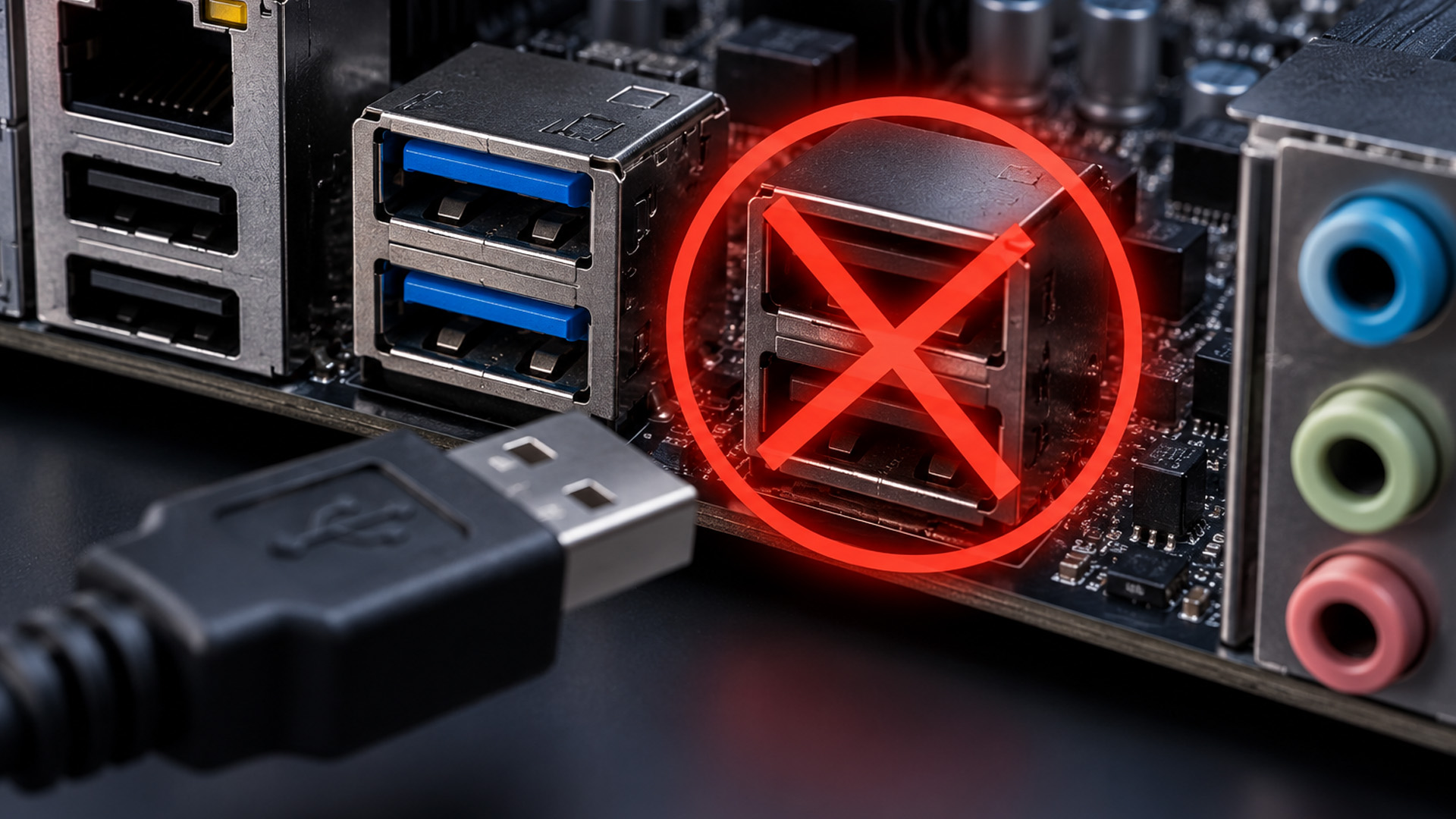
ASUS Motherboard USB Ports Not Working
If you use an ASUS board, identify its exact model and revision where applicable, then check the official ASUS support page for chipset drivers and relevant firmware updates.
Our range of ASUS motherboards includes options for different Intel and AMD desktop builds if replacement eventually becomes necessary.
MSI Motherboard USB Ports Not Working
For MSI systems, download drivers from the support page for your specific motherboard rather than relying on files intended for a similar model. If you are reviewing replacement options, our MSI motherboards cover a variety of desktop configurations.
Gigabyte Motherboard USB Ports Not Working
Gigabyte boards may have different hardware revisions under the same product name. Confirm the revision printed on your motherboard or packaging before selecting downloads. Use Gigabyte's official support resources to find the appropriate chipset drivers and firmware.
Important: Avoid third-party driver download websites. Incorrect or outdated drivers can introduce additional problems instead of fixing USB connectivity.
7. Inspect Front USB Panel Connections and Internal Headers
If your front USB panel is not working but the rear motherboard ports function normally, the issue may involve the connection between your PC case and motherboard. Front USB sockets typically connect through internal cables attached to dedicated motherboard headers.
A loose connector, damaged cable or incorrect installation can prevent these ports from functioning.
Before opening your PC:
-
Shut down Windows completely.
- Switch off the PSU and unplug the mains cable.
- Remove the side panel according to your case instructions.
- Locate the front USB cables and their corresponding motherboard headers.
- Test whether the connectors are seated correctly and inspect them for visible damage.
Common connections include 9-pin USB 2.0 headers, 19-pin USB 3.x headers and dedicated front-panel USB-C headers. These connectors are not interchangeable. Never force a cable into an incompatible header or attempt to straighten damaged pins without appropriate experience. If you are building a PC, check that your case's USB connections match the motherboard's available internal headers.
Our selection of PC cases with front USB ports includes different front-panel arrangements, so it is worth checking USB-A and USB-C header compatibility before choosing a case.
Verdict: When rear USB ports work normally, inspect the case connections before assuming the motherboard needs replacing.
8. Troubleshoot USB-C and USB 3.0 Ports Separately
Not every USB port supports the same capabilities, even when the connectors look similar.
USB-C Port on Motherboard Not Working
USB-C describes the connector rather than a guaranteed set of features. Depending on your motherboard, a USB-C port may support different data speeds, charging capabilities or display output features.
If your USB-C connection fails:
- Test a known-working USB-C cable and device.
- Check whether the device requires more power than the port can supply.
- Confirm that the port supports the feature you are trying to use.
- Inspect the connector for debris or physical damage.
- Check Device Manager for USB controller errors.
For example, connecting a USB-C monitor does not guarantee video output. The motherboard port must specifically support a suitable display-output function.
A USB-C port designed for data transfer alone cannot provide video simply through a different cable. Knowing the differences between USB-A, USB-C, USB 3.2 and USB4 can also help you identify whether the issue involves the port itself or a feature your connection doesn't support.
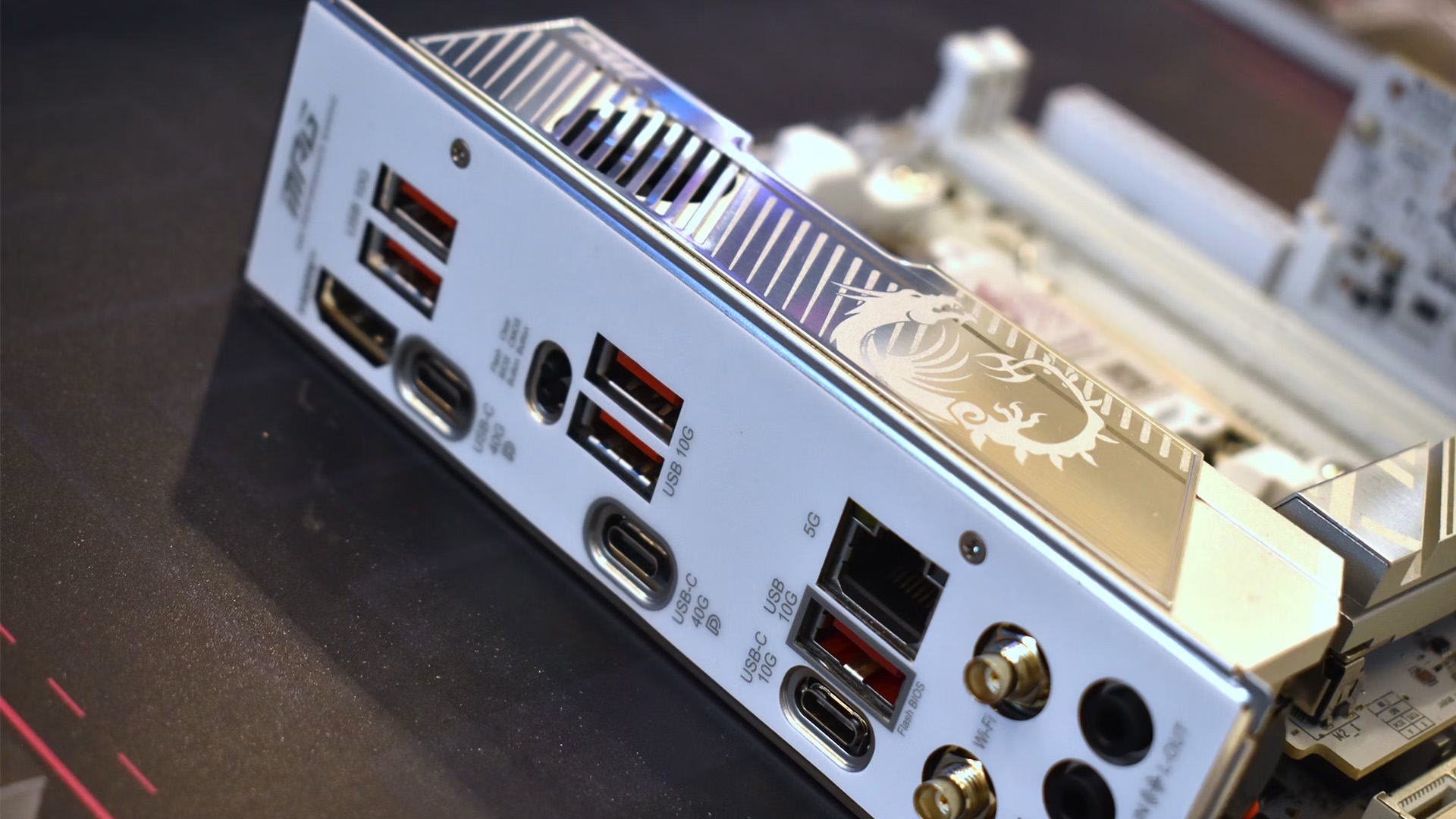
Motherboard USB 3.0 Not Working
If USB 2.0 devices work but USB 3.0 connections fail or operate at reduced speeds, check the cable, device and port capabilities. USB 3.x connections use additional signalling paths for SuperSpeed data transfer. Damage to these contacts can sometimes leave slower USB functionality working.
Try another SuperSpeed-capable cable and device. If the problem affects only front-panel USB 3.x sockets, inspect the internal header connection. Quick tip: Do not rely on port colour alone to identify USB speed. Check the motherboard specifications for the supported standard.
9. Check for Hardware Damage Before Considering Repairs
If none of the previous checks works, examine the motherboard for possible physical damage. This becomes especially important when there is no power to USB ports on the motherboard, even with known-working devices.
With the PC switched off and unplugged, inspect the USB sockets for:
- Bent or broken internal contacts
- Loose connectors
- Foreign objects or debris
- Discolouration suggesting overheating
- Damage around the rear I/O area
Do not insert metal tools into USB sockets or attempt electrical repairs while the motherboard is connected to power. A damaged USB connector may require professional soldering or board-level repair.
If the motherboard all USB ports are not working, the fault could involve the USB controller, firmware, motherboard power circuitry or another system component. A failing power supply can also contribute to wider instability, but USB failure alone does not establish that the PSU is defective.
Verdict: Visible connector damage, repeated electrical faults or complete USB failure after software checks are good reasons to seek professional diagnosis.
When Should You Update the BIOS?
A BIOS update may help when the motherboard manufacturer has released firmware addressing USB compatibility or stability problems.
However, it should not be the first troubleshooting step. Check the official support page for your exact motherboard model and read the firmware release notes.
If the update is relevant, follow the manufacturer's instructions carefully. Do not interrupt the process or use firmware intended for another model. For users considering a future upgrade, our gaming motherboards offer different USB configurations and connectivity features.
Important: BIOS updates carry risks if interrupted or performed incorrectly. If your PC is unstable or you are unsure of the procedure, seek technical assistance.
When Is Motherboard Replacement Necessary?
A motherboard replacement becomes worth considering when multiple ports have confirmed physical damage, a USB controller has failed or professional diagnosis identifies a fault that cannot be repaired economically.
Before replacing the board, check its warranty status and contact the manufacturer or retailer where appropriate. Replacement also requires compatibility with your existing CPU, memory, case and other components.
For compact desktop builds, our Micro-ATX motherboards provide options for compatible cases. However, you should still check the socket, chipset, memory support and internal USB headers. At Laptop Outlet, we offer a selection of motherboards from established manufacturers for different desktop requirements.
Choosing a replacement with the right rear USB connections and front-panel headers can help avoid compatibility problems in your next build.

Final Thoughts
Motherboard USB ports not working can be frustrating, particularly when your keyboard, mouse or external storage suddenly becomes unusable. Fortunately, many USB problems can be resolved without replacing hardware.
Start with simple device and port tests, then investigate Windows drivers, power settings and motherboard connections. Leave BIOS updates and physical repairs until you have ruled out easier causes.
If the issue persists across multiple devices and operating environments, professional diagnosis is the safer next step. At Laptop Outlet, you can browse motherboards and compatible PC components when a repair is no longer practical. Choosing the right USB connectivity for your setup will help keep your desktop ready for everyday work, gaming and future upgrades.

Frequently Asked Questions
Can a motherboard USB port stop working suddenly?
Yes. USB ports can stop responding because of driver faults, power-management issues, firmware problems or physical damage. A sudden failure does not necessarily mean the motherboard is defective. Restart the PC and test another device before investigating further.
Why do my motherboard USB ports have power but no data?
USB power and data use different electrical connections. A damaged data contact, unsuitable cable, faulty device or driver problem can prevent communication even when the device receives power. Test another data-capable cable and a known-working USB device.
Can a BIOS reset fix motherboard USB ports?
Sometimes. Restoring BIOS defaults can resolve problems caused by incorrect USB controller settings. However, resetting firmware may also change boot, memory and storage configurations. Record important settings before making changes, particularly on systems using customised storage configurations.
Why do my USB ports work in BIOS but not Windows?
This often points towards a Windows driver, software or power-management issue. Check Device Manager, install relevant chipset drivers and investigate USB power settings. If the problem began recently, a Windows restore point may also help.
Can I use a USB expansion card instead of replacing my motherboard?
Yes, provided your motherboard has a compatible available PCIe slot and the card meets your requirements. A USB expansion card can provide additional working ports when onboard USB connections fail, although it will not repair the original fault.
| Read More: |
| How Many USB Ports Does My Motherboard Have? |
| How Do I Find Out What Motherboard I Have? |
| USB Types Explained: USB-A, USB-C, USB 3.2, USB4 and Thunderbolt |
Related Articles

Last Updated: June 19, 2026
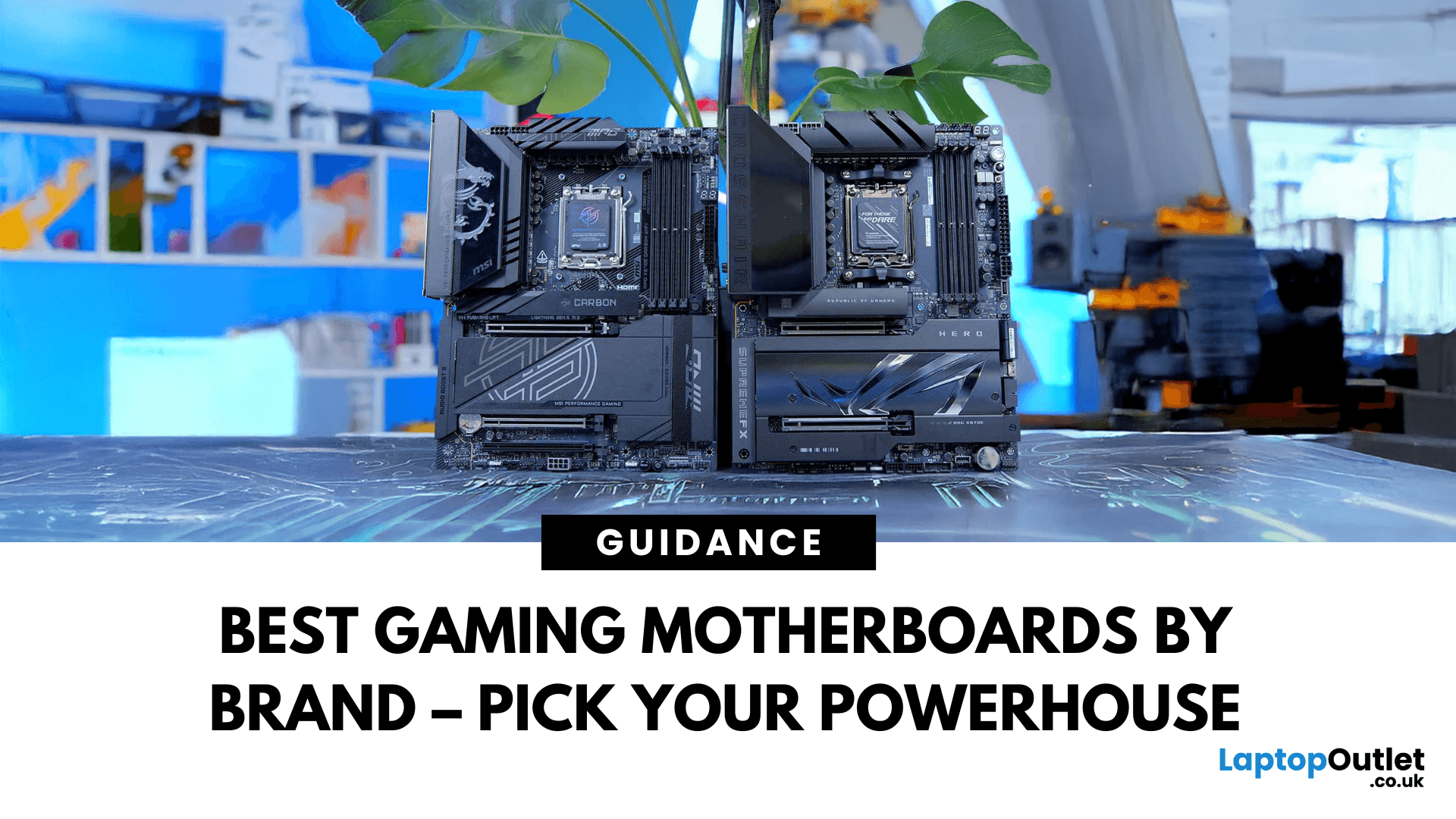
Building a solid gaming rig begins with choosing the right motherboard. It's the backbone - the component that connects everything: CPU, memory, GPU, storage, peripherals. Get it wrong, and you'll hinder performance or limit future upgrades. Pick it well, and you open the door to overclocking, lightning-fast connectivity, and seamless multitasking. Simply put, a good motherboard ensures your CPU, GPU, RAM, and storage all communicate seamlessly. It powers your connectivity, influences your upgrade path, and even impacts thermals and system stability. If you care about board performance, you should care about the brand which makes it all happen.
In this guide, we'll take a closer look at the best-known and most trusted gaming motherboards brands worldwide, including ASUS, MSI, Gigabyte, and ASRock. These manufacturers have built a reputation across global gaming and enthusiast communities for offering reliable, performance-driven hardware that caters to everyone from casual builders to elite
Last Updated: November 20, 2025
“I Remember When … ”
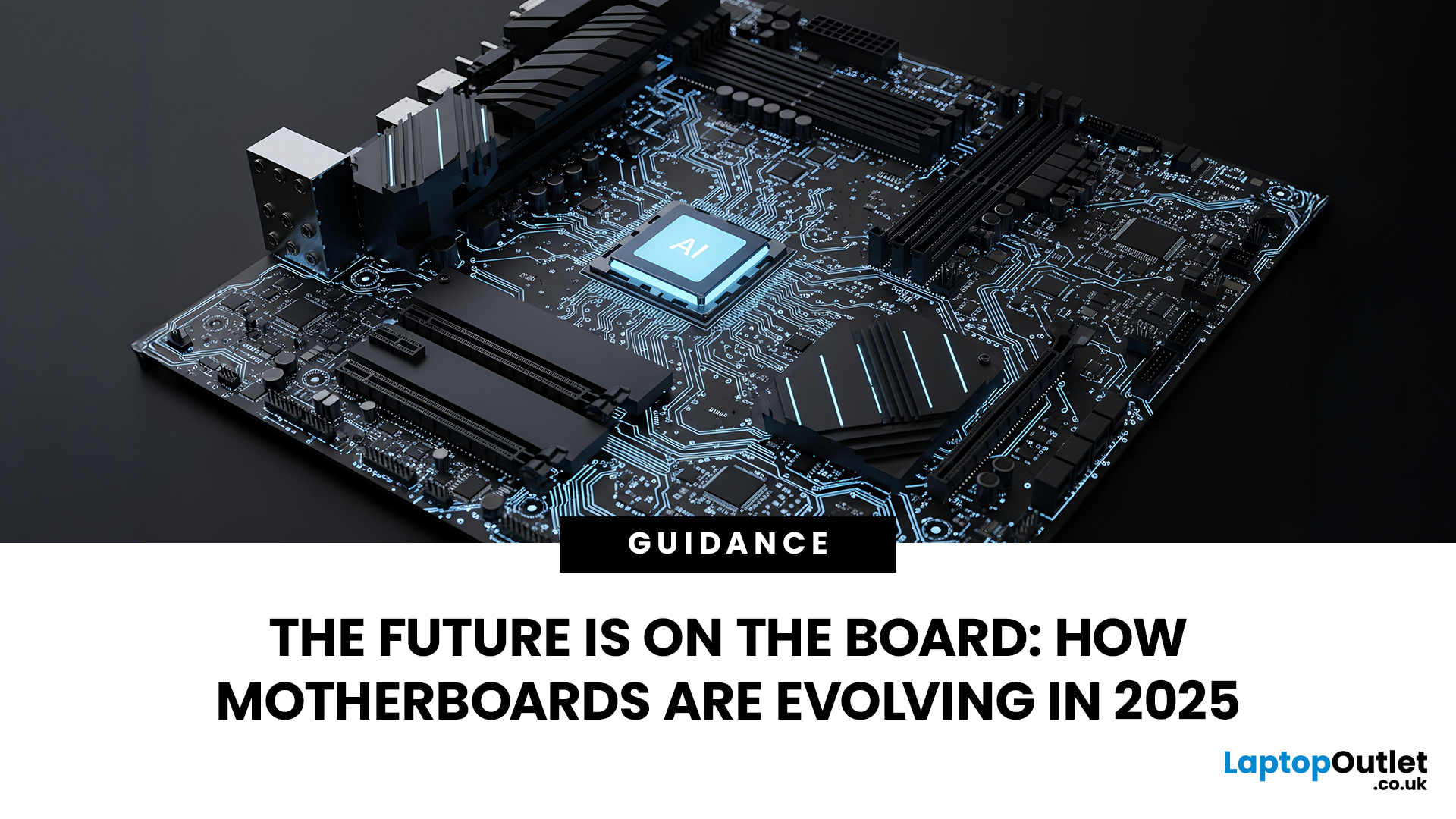
Hello - I’m the motherboard, and I’ve watched the tech world spin faster than ever. Let me take you back.
In the earlier days of my life (think DDR3 memory, PCIe 2.0/3.0 lanes), I was pretty simple: socket + chipset + RAM slots + some PCIe lanes. Many PCs built in those days lived 3‑5 years before an upgrade.
But around 2022–2024, things started to shift dramatically. Two big inflection points:
- Memory: the shift from DDR4 to DDR5. Suddenly I had to support faster speeds, higher capacities, new signalling.
- Interconnect: the jump to PCIe 5.0, and major upgrades in storage (NVMe M.2) and connectivity (WiFi 6/6E, faster LAN).
For example, a recent spec sheet shows a modern board supporting DDR5 up to 9000 MT/s, PCIe 5.0 x16 for graphics, and 10 GbE LAN + WiFi 7.
From my end, I felt I was becoming more than just a support structure - I was the gateway to future performance.
Watching the Market Shift
While I evolve technically, the business around me

Published: November 13, 2025
When it comes to motherboards for content creators, 2025 brings a new generation of platforms built for creators, streamers, and professionals. These boards go far beyond gaming specifications — they’re designed for high-performance workflows, advanced connectivity, and AI-enhanced creative control. Whether you’re editing 8K footage, producing music, or streaming live, choosing the right Streaming PC motherboard ensures your setup remains powerful, stable, and efficient.
This guide highlights the best motherboards for content creators and streamers in 2025, focusing on connectivity, expandability, and reliability, essential traits for professionals building a Creator PC build motherboard or a high-performance workstation.
What Makes a Motherboard Ideal for Content Creation?
Before exploring the best workstation motherboards, let’s examine what separates a good motherboard from a truly creator-focused one.
Chipset and CPU Compatibility
Modern DDR5 motherboards for creators should feature
Last Updated: April 28, 2026
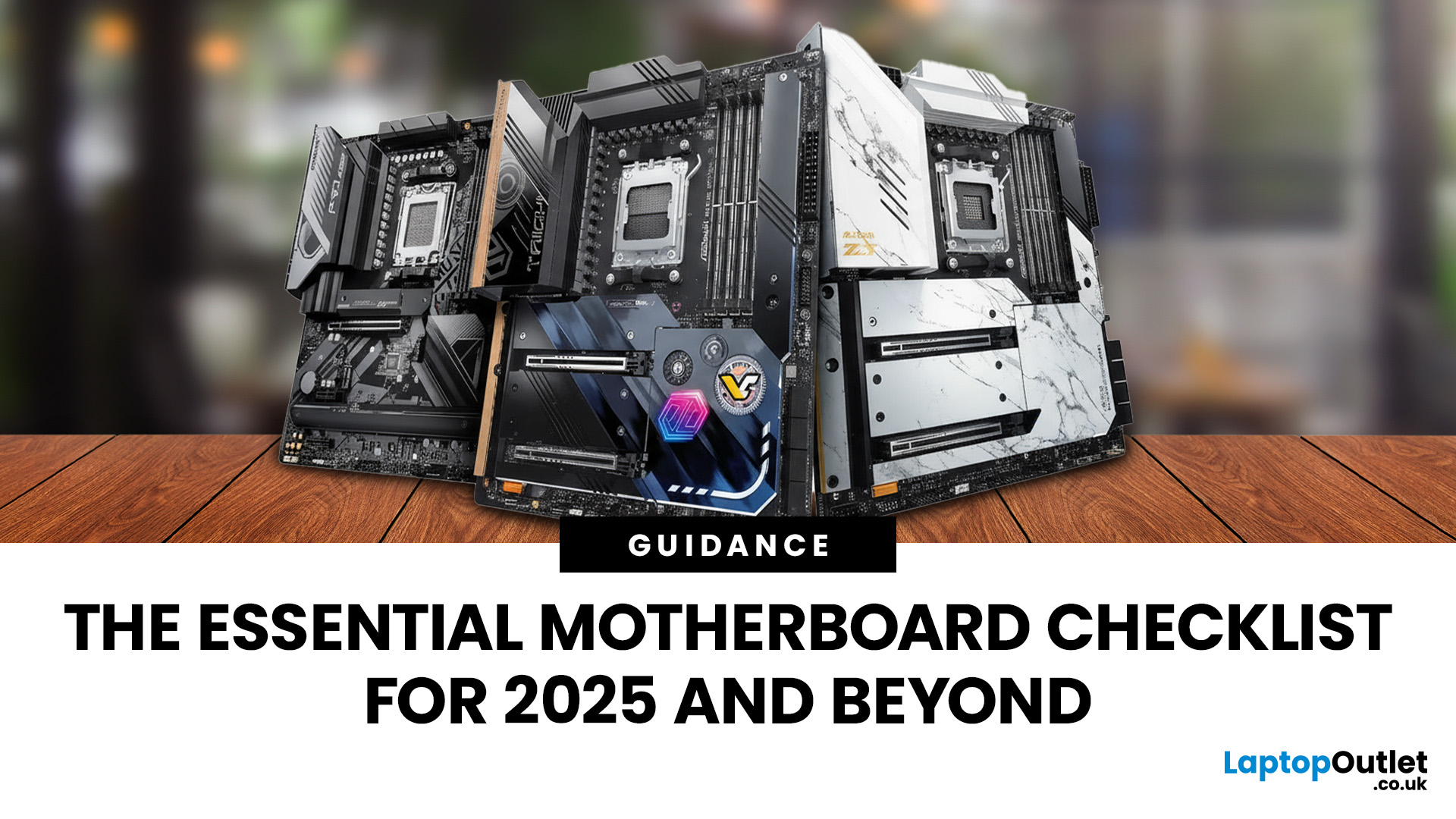
When building a new PC in 2025, choosing the right motherboard is the best long-term decision you can make. It’s the backbone of your system, and opting for an upgrade-ready motherboard means focusing on key technologies like DDR5 memory, fast PCIe standards, and next-gen connectivity.
This guide explores the essential features that define future-proof motherboards and highlights some top models for both AMD and Intel platforms.
If you are just starting your PC build, you should read our guide on how to choose the right motherboard.
Key Future-Proofing Features for 2025
What exactly makes a motherboard “future-proof”? It comes down to technologies that won't become bottlenecks for your most powerful components over the next five years.
- DDR5 Memory Support: This is non-negotiable. DDR5 compatible motherboards offer significantly higher bandwidth and speed than their predecessors.
- PCIe 5.0 Connectivity: This is crucial for both the primary graphics slot (for next-gen GPUs) and at least
Last Updated: November 19, 2025
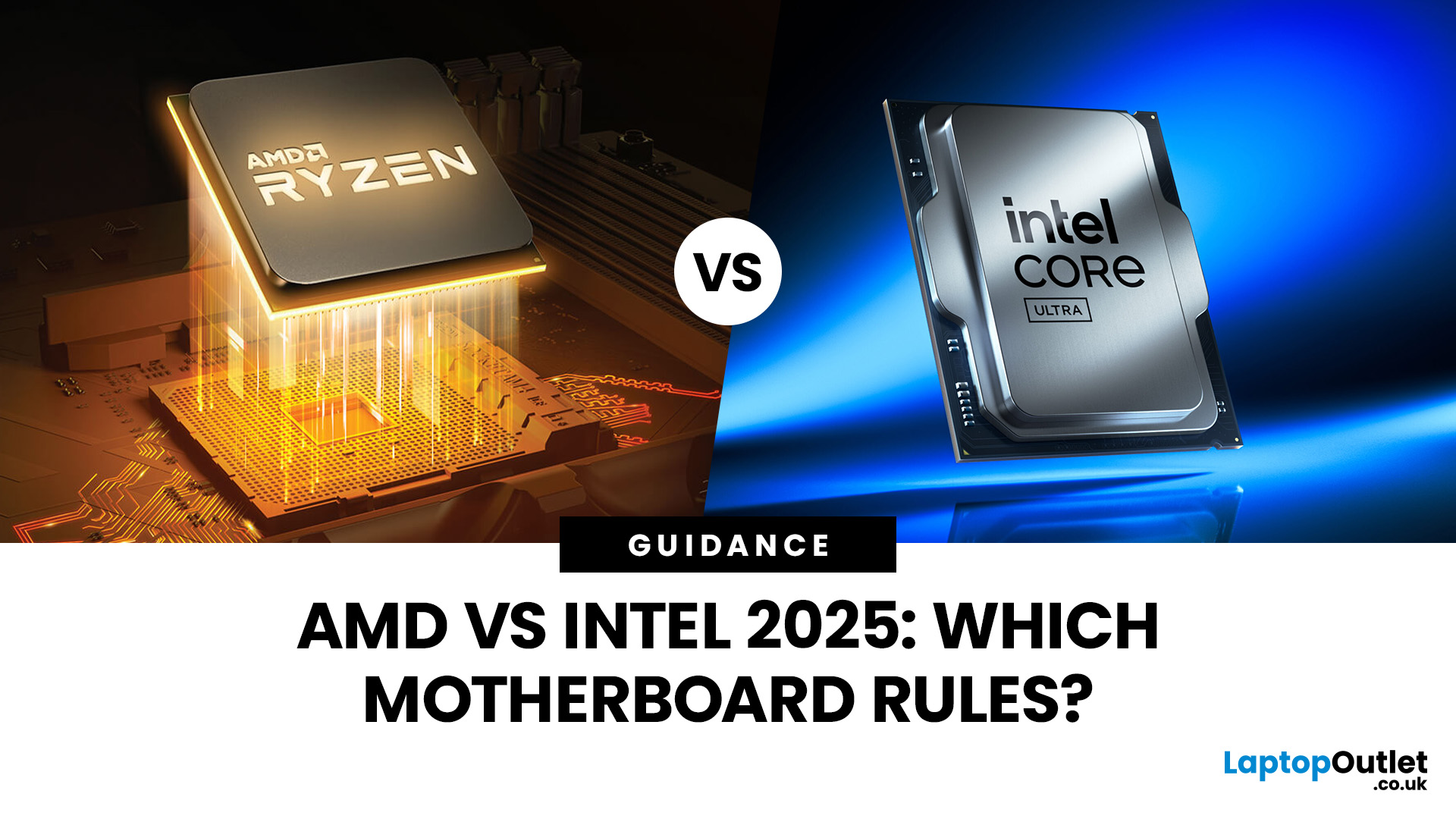
When you’re building or upgrading a PC, choosing the right motherboard can feel a little intimidating — especially when it comes down to the age-old rivalry of AMD vs Intel motherboards.
Both brands make fantastic hardware, but each has its strengths. Whether you’re planning a high-end gaming rig, a creative workstation, or an everyday PC, the motherboard you choose will shape your system’s performance, features, and future-proofing.
In this guide, we’ll compare Intel vs AMD motherboards across performance, chipsets, memory, overclocking, and more. By the end, you’ll know exactly which option suits your needs in 2025.
What Exactly is a Motherboard?
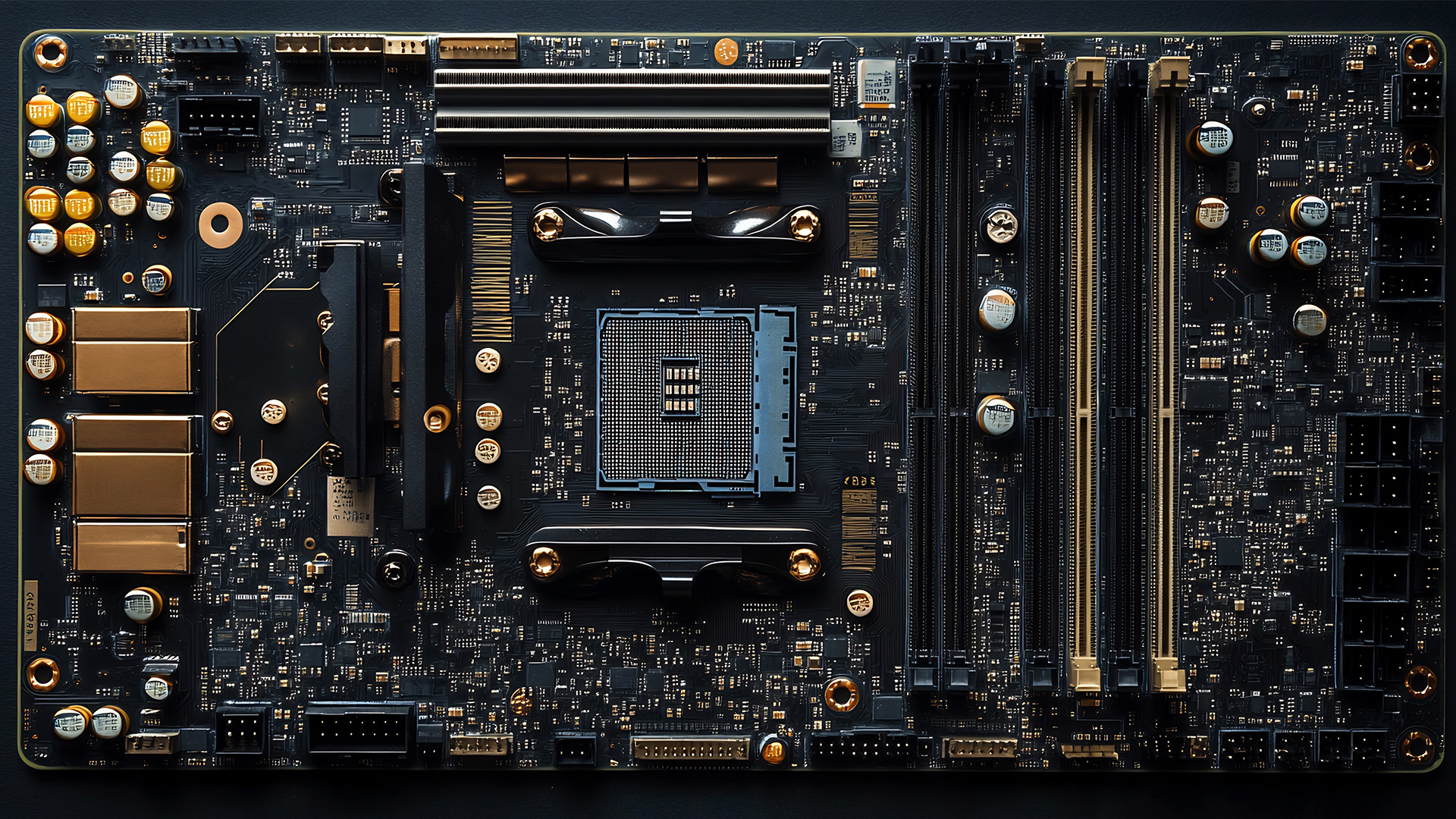
Before diving into the AMD vs Intel motherboards comparison, let's briefly clarify what a motherboard is and why it's so important.
Often called the 'mainboard' or 'system board,' the motherboard is the central printed circuit board (PCB) in a computer. It is, quite simply, the foundation and communication hub for all other components.
It houses
Last Updated: December 03, 2025
The motherboard is the central nervous system of your computer. Every component, from the CPU and RAM to the GPU and storage drives, connects to it.
Making the right choice here is crucial. A well-chosen board ensures smooth performance, effortless upgrades, and long-term stability for your entire desktop PC build.
If you’re wondering how to choose the right motherboard to suit your needs, you’ve come to the right place. This comprehensive motherboard buying guide will take you through every essential step to help you lay the best foundation for your next project.
Step 1: CPU Choice Defines the Socket (AMD vs Intel)
The first and most crucial step when selecting a motherboard is choosing your CPU (Central Processing Unit). The processor dictates which socket type and chipset your motherboard must have.
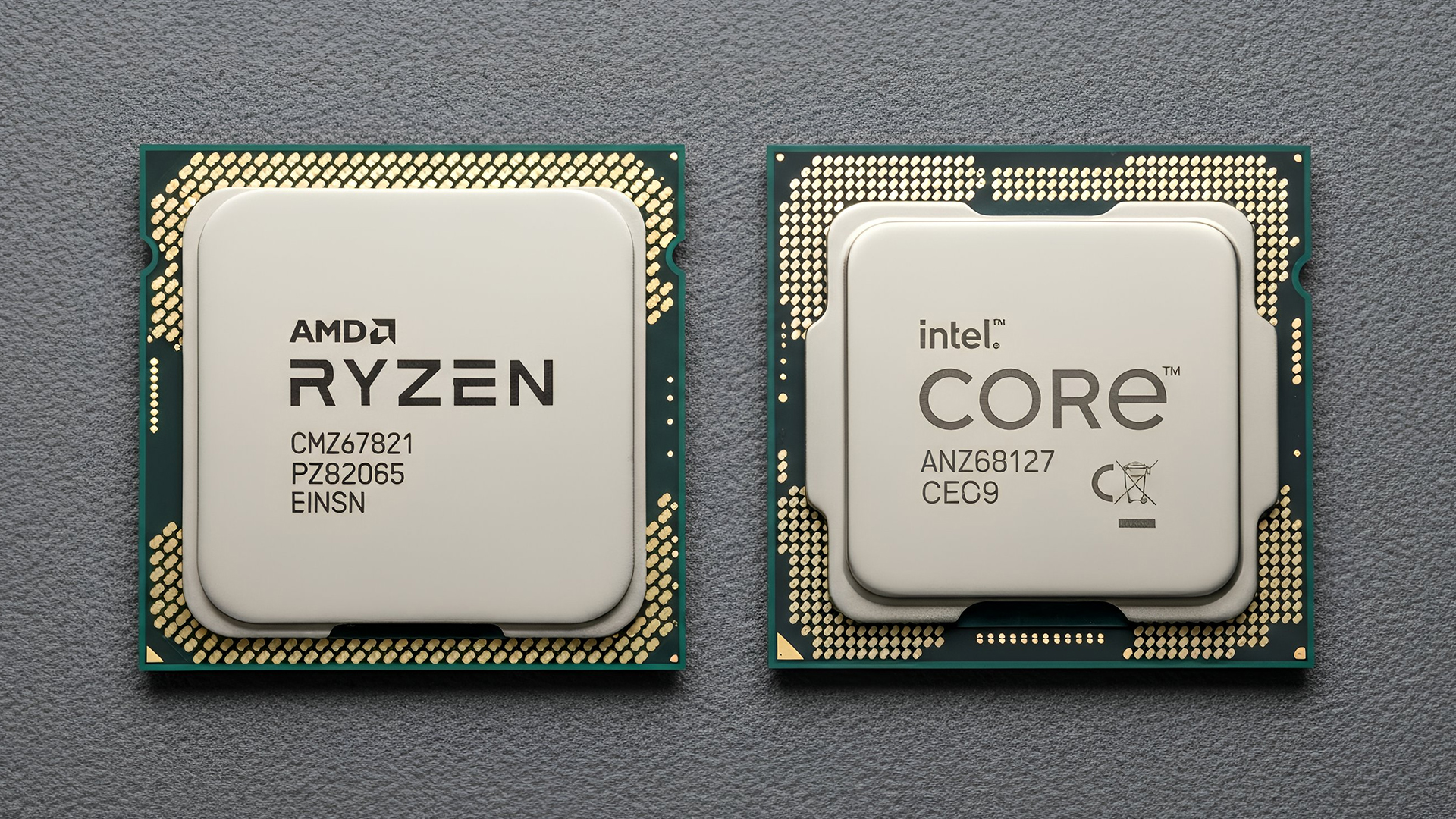
AMD vs Intel Motherboards
- AMD motherboards are known for value and longevity. Platforms like AM5 often maintain compatibility across several CPU generations, allowing for future upgrades

Last Updated: June 05, 2026
If you’re upgrading your gaming rig or building one from scratch in 2025, the motherboard you choose is going to set the tone for your entire PC. Whether you’re aiming for an affordable setup or an ultra-high-end powerhouse, the motherboard is the foundation - determining not just what components you can use today, but how future-ready your system will be.
This guide takes you through the best motherboards for gaming PCs in 2025, handpicked for performance, features, and value. You’ll find AMD and Intel options, from budget boards with modern DDR5 support to premium PCIe 5.0 powerhouses. Every recommendation is researched using up-to-date 2025 benchmarks, market data, and UK availability, ensuring you can make an informed purchase that fits your budget and build goals.
Why the Motherboard Matters in 2025

With the launch of AMD’s Ryzen 9000 and Intel’s 15th-gen “Arrow Lake” CPUs, the motherboard landscape has changed considerably. New chipsets like AMD B650E and Intel Z890 bring cutting-edge

Last Updated: May 06, 2026
year is more than just a fresh calendar; it’s one of the best times of the year to upgrade your PC hardware for less. As retailers clear stock, introduce refreshed product lines, and compete for attention during seasonal sales, motherboard New Year deals 2026 unlock savings that simply aren’t available during regular months. Whether you’re planning a brand-new desktop build, upgrading an ageing system, or finally pairing a powerful CPU with a compatible board, New Year sales make high-end components far more affordable.
New Year Sale on AMD Motherboards
This New Year, AMD motherboard discounts make it easier than ever to build or upgrade your PC with powerful AM5 boards at lowered prices.
1. ASUS TUF GAMING X870E-PLUS WIFI7 ATX AMD Socket AM5 Motherboard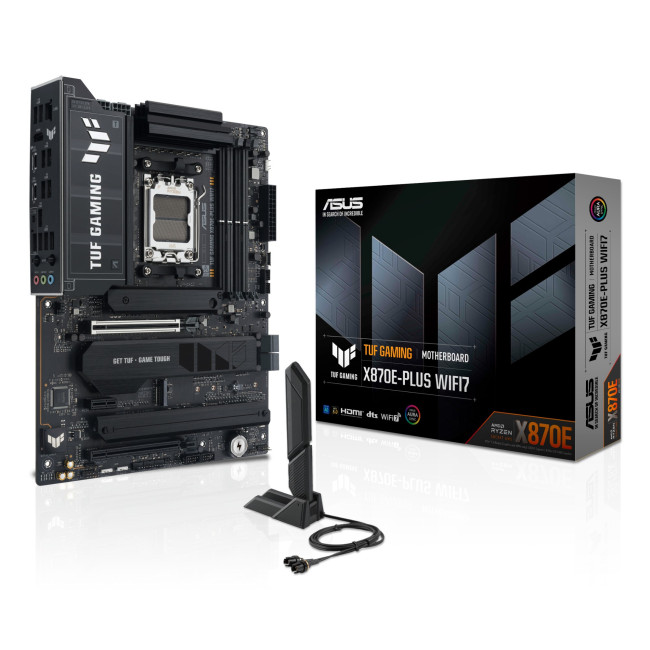
This flagship TUF board typically sits in the upper mid-range price bracket, but New Year Sale pricing often brings it into compelling territory compared to standard retail tags, shaving a noticeable percentage off regular prices.

Last Updated: January 02, 2026
When you start plugging in devices and suddenly run out of USB slots, the first question that comes to mind is a simple one: how many USB ports does my motherboard actually have?
This is something most users never think about until they hit a limitation. Whether you are building a PC, upgrading an old system, or just trying to understand why you need a USB hub, the answer always comes back to your motherboard USB ports.
The tricky part is that the total number of USB ports is not always obvious at first glance. Some are visible on the back of the PC, others are internal, and some are supported but not even active unless you connect the right headers.
This guide breaks everything down in a practical way and helps you discover how to check the total USB ports supported by your motherboard.
Why Motherboard USB Ports Matter More Than You Think
Motherboard USB ports define how many devices your system can handle directly. That includes keyboards, mice, external drives, webcams, printers
Last Updated: January 06, 2026
Need to find motherboard model details for an upgrade? Knowing your motherboard (often called the baseboard or system board) helps you pick compatible RAM and storage to download the right drivers. You can usually confirm it easily in minutes using built-in Windows tools, or via BIOS/UEFI if Windows won’t load. It’s especially handy before ordering parts or booking a repair. Learn easy ways to check your motherboard model in Windows or BIOS.
Method 1: Windows System Information (msinfo32)
System Information often shows the clearest result.
- Press Windows + R
- Type msinfo32 and press Enter
- In System Summary, look for:
BaseBoard Manufacturer
- BaseBoard Product (often the motherboard model)
- BaseBoard Version (board revision)
If you’re sharing details with support, use File > Export to save a report.
Method 2: Command Prompt (WMIC)
A fast command-line check:
- Open Start, type Command Prompt, and run it
You’ll typically see the motherboard manufacturer and product/model code. On some OEM laptops

