



How to Factory Reset a Chromebook

Ready for a Chromebook Refresh?
Whether you're troubleshooting, preparing to sell, or just want a clean slate, factory resetting your Chromebook is quick and easy. The process is known as Powerwash, and it removes all your data and settings—returning the device to like-new condition.
What Does a Factory Reset Do?
- Wipes all files, apps, and settings
- Signs out of your Google Account
- Removes downloaded files and local data
- Restores your Chromebook to factory condition
Make sure to back up any important files to Google Drive or external storage before resetting!
How to Factory Reset a Chromebook (Powerwash)
Option 1: Reset via Settings (Best for most users)
- Click the time at the bottom-right corner > Settings
- Scroll down and click Advanced
- Under Reset settings, click Powerwash > Reset
- Confirm and restart your Chromebook
- Click Powerwash > Continue when prompted
Your Chromebook will reboot and return to the setup screen.
Option 2: Use Shortcut Keys (If you can’t access Settings)
- Sign out of your Chromebook
- Press Ctrl + Alt + Shift + R on the login screen
- Click Restart
- In the box that appears, click Powerwash > Continue
This is useful if you're having trouble logging in or accessing settings.
What to Do After Resetting Your Chromebook
- Reconnect to Wi-Fi
- Sign in with your Google Account
- Restore your settings, apps, and files from Google Drive
If you're selling or giving away your Chromebook, you're done after the reset!
Why Factory Reset Your Chromebook?
- Fix software bugs and glitches
- Improve performance
- Erase personal data before reselling
- Resolve login or sync issues
Final Thoughts: A Clean Slate in Minutes
Factory resetting a Chromebook is simple and fast. Whether you're troubleshooting or preparing for a new user, Powerwash gets your Chromebook back to basics—clean, fast, and ready to go.
Looking to upgrade? Check out Laptop Outlet’s latest deals on Chromebooks and accessories.
FAQs: Chromebook Factory Reset Questions Answered
1. Will a factory reset delete everything on my Chromebook?
Yes—it removes all files, accounts, and settings. Back up important data first.
2. Can I reset my Chromebook without a password?
No—you’ll need to sign out first. If locked out, use guest mode or recovery.
3. What’s the difference between Powerwash and Recovery?
Powerwash resets settings; Recovery reinstalls the OS (used for deeper issues).
4. Can I undo a Powerwash?
No—once done, it’s irreversible. Make sure to back up your files beforehand.
5. Is Powerwash the same on all Chromebooks?
Yes—the steps are standard across all Chrome OS devices.
Read More:
| How to Clean Your Laptop |
| How to Connect a Laptop to a TV |
| How to Factory Reset a Laptop |
Related Articles

Last Updated: April 06, 2026

Last Updated: February 23, 2026

Last Updated: June 11, 2026
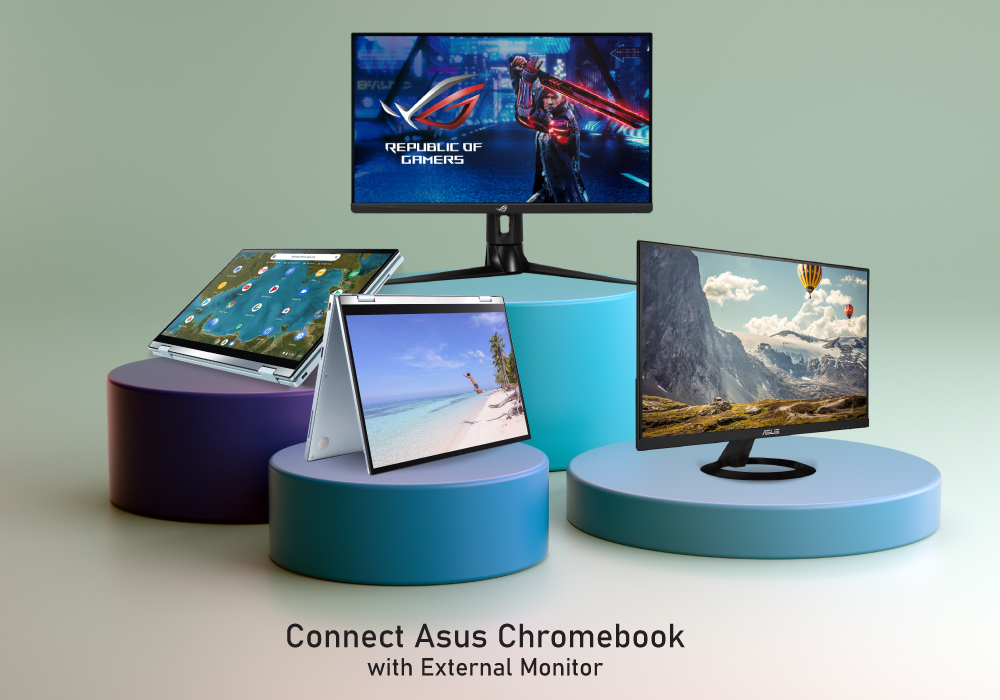
Chromebooks are meant to support best portability with plenty of power packed inside them. Even though there are loads of sizes and shapes that come with Chromebooks nowadays, their portability is still at its peak. With that comes the absence of extremely efficient mouse scrolling. But there are still trackpads attached with Chromebooks that work tremendously for navigation. However, still the use of the best wired and wireless mice with Chromebook can feel heavenly when you are in the middle of work.
Last Updated: August 28, 2026
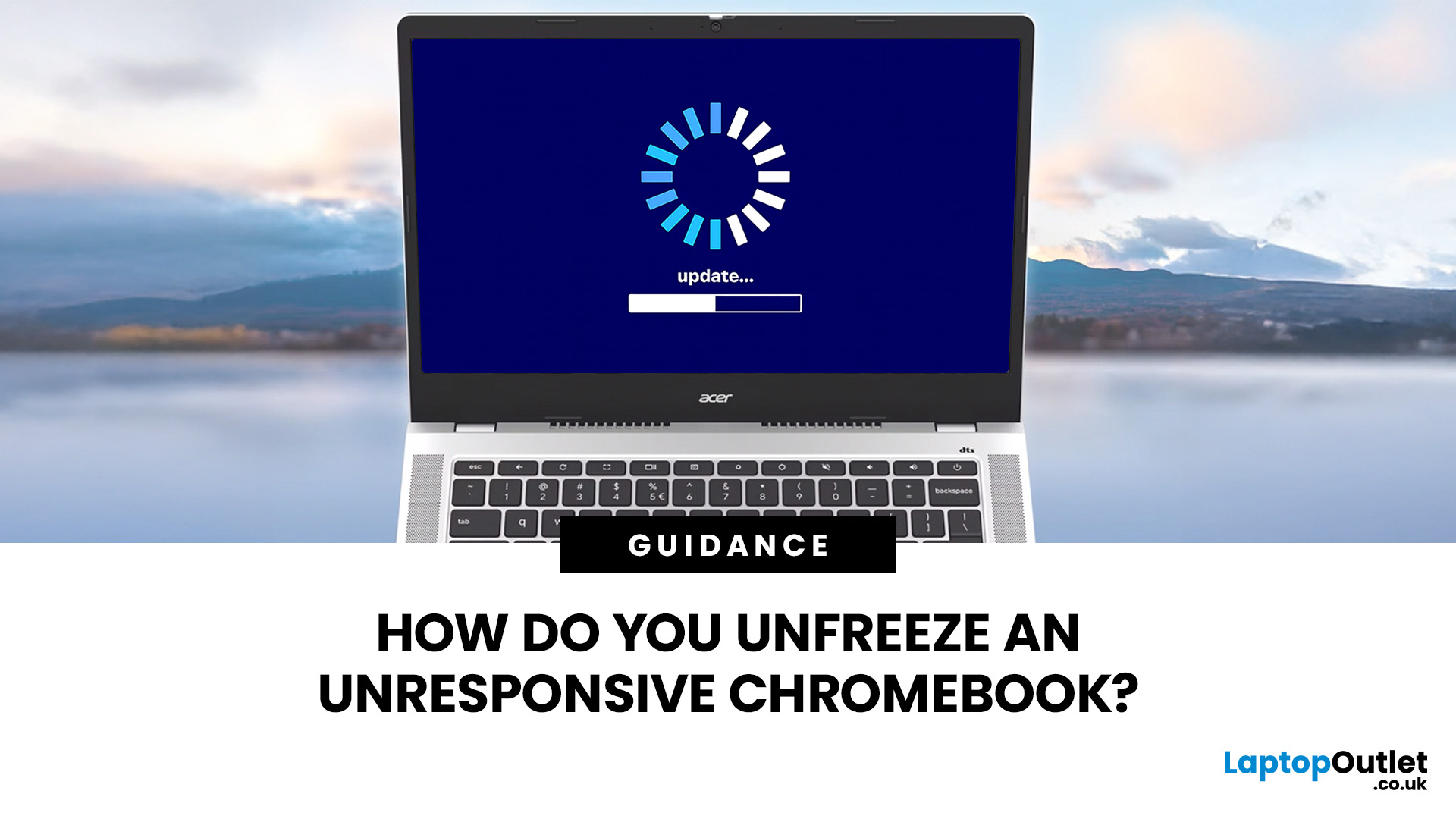
When your Chromebook stops responding, start by closing the frozen tab or app. If the whole device is unresponsive, disconnect any accessories and hold the Power button until it switches off. You should only perform a hardware reset, Powerwash, or ChromeOS recovery if the simpler fixes do not work.
These steps apply to most modern Chromebook laptops, including models from Acer, ASUS, Dell, Google, HP, Lenovo, and Samsung. However, the exact position of the Power and Refresh keys can vary, and a small number of older devices use a model-specific hardware reset method. This guide takes you through the safest troubleshooting order, beginning with fixes that do not remove your files.
Is Your Chromebook Completely Frozen?
Before restarting anything, check which part of your Chromebook not responding.
| What You Can See | Likely Problem | First Action |
| One webpage is frozen, but other tabs work | A page or browser process has crashed | Hard refresh or close the tab |
| One app will not respond | The app has stalled |
Last Updated: June 03, 2025
Chromebooks are also known as the latest version of traditional laptops and are designed to provide faster speed and performance. From sleek, portable designs to robust batteries and powerful processors, Chromebooks offer versatile and efficient computing solutions. These were basically crafted for web surfing, email, Facebook, Docs, Sheets, and general online applications and websites.
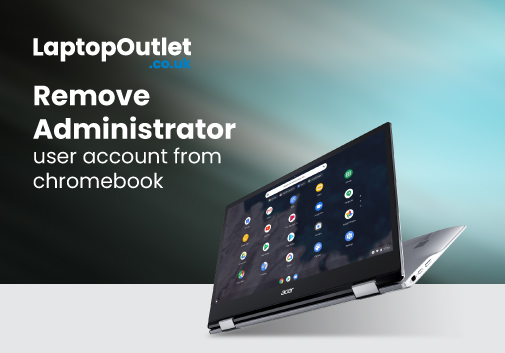
Among other impressive features, a Chromebook’s administrator account allows control of the complete "Chrome device settings", enabling users to manage policies for device enrollment, sign-in settings, software updates, and device reporting. An admin account also provides access to multiple aspects of the device, including network settings, application installations, and security features.
However, there may come a time when you feel it necessary to remove the administrator user account from your student or business Chromebook. The reasons could be many; whether you no longer enjoy the elevated privileges,

