



Forgot Your Mac Password? Here's How to Recover or Reset It

It happens to the best of us. One minute you are logging into your Mac, and the next you realise the password you’ve typed in is wrong. Maybe you’ve updated it recently or you've simply had a complete mental blank. Either way, being locked out of your own computer can feel stressful and frustrating.
The good news is that Apple has built several secure methods into macOS to help you recover your account or reset Mac password quickly and safely. Here’s how:
Method 1: Reset Using Your Apple Account (The Easiest Way)
For many Mac users, the simplest path to recovery is via your linked Apple Account (formerly Apple ID). This option is usually available if you associated your Apple Account with your user profile during the initial Mac setup.
How to Use Your Apple Account for a Password Reset
- Try a Few Times: On the Mac login screen, enter your password incorrectly three times.
- Look for the Hint: After the third incorrect attempt, you should see a message. This message often offers to reset Mac password using your Apple Account. It might say something like, "Restart and show password reset options" or "Reset it using your Apple Account."
- Follow the Prompts: Click the prompt message. Your Mac may restart and then guide you to sign in with your Apple Account email address and password.
- Verification: You might receive a verification code on another trusted device (like your iPhone). Enter this code on your Mac.
- Create a New Password: Once verified, you can select the user account you want to reset and create a brand-new, strong password and a helpful hint.
- Restart: Finally, click 'Restart' to log in with your new password.
Top Tip: If you see a small question mark next to the password field, click it first. This may reveal a password hint you set up, which could jog your memory!
Method 2: Use macOS Recovery Mode (The Reliable Option)
If the Apple Account method isn't available, or you are having trouble connecting, the next step is using macOS Recovery. This is the operating system's emergency toolkit.
Entering Recovery Mode
The steps depend on the chip your Mac uses:
For Apple Silicon Macs (M1, M2, M3 chips, etc.):
- Shut down your Mac completely.
- Press and hold the Power button until you see "Loading startup options."
- Click Options, then click Continue.
For Intel-based Macs:
- Shut down your Mac completely.
- Turn it on, then immediately press and hold the Command (⌘) and R keys.
- Hold these keys until you see the Apple logo or a spinning globe.
Running the Password Reset Assistant
Once you are in Recovery Mode and see the macOS Utilities window:
- Open Terminal: On the menu bar at the top of the screen, click Utilities and then select Terminal.
- Type the Command: In the Terminal window, type resetpassword (all one word) and press Return.
- Launch the Assistant: The Reset Password window will open. If you are asked to select a user you know the password for, click "Forgot all passwords?"
- Follow Verification: Depending on your setup (and whether FileVault is enabled), you might be asked to sign in with your Apple Account or enter a FileVault Recovery Key. Follow the on-screen prompts.
- Set the New Password: You will then be able to choose the user account and reset Mac password. Create a new password, verify it, and add a hint.
- Finish Up: Click Next or Save, then close the utility and restart your Mac using the Apple menu at the top. Log in with your new password.
Method 3: Using Your FileVault Recovery Key
If you use FileVault disk encryption, you may have received a 28-character recovery key when you first set it up. This key can be used as a final fallback.
- On the login screen, enter your password incorrectly until you see the message that allows you to reset Mac password using your recovery key.
- Type in the 28-character key precisely, including the hyphens.
- Follow the instructions to set your new password.
Important: The FileVault Recovery Key is a highly sensitive string of letters and numbers. If you lose your Mac password and the recovery key, and don't have an Apple Account linked, you may lose access to your data permanently.
Method 4: Getting Help from Another Admin User
If you share your Mac with someone who has an Administrator account, they can easily change your password for you.
- Have the Administrator log in to their account.
- Go to the Apple Menu and select System Settings (or System Preferences on older macOS).
- Click Users & Groups.
- Click the lock icon at the bottom and enter the Admin's password to unlock the settings.
- Select your locked user account from the list.
- Click the Reset Password button and follow the simple steps to create a new password for your account.

A Word of Caution: What to Avoid
While trying to reset Mac password, please be careful not to delete your user account or use the "Erase Mac" option in Recovery Mode unless you are absolutely certain that you want to wipe all data from your computer. This should only be used as a last resort, for example, when preparing to sell a Mac you no longer need.
Now that you know how to reset Mac password, create a strong, memorable one and consider setting up a useful hint!

Sorting Out The Loose Ends
Can I reset my Mac password without my Apple Account?
Yes. If you don't have an Apple Account linked, you can use the macOS Recovery Mode method by accessing the Terminal and running the resetpassword command.
Will I lose any files if I reset my Mac password?
No, resetting your Mac password using any of the methods above will not delete or erase your files. It only changes the key that grants you access to your account.
What should I do if I forgot my Apple Account password too?
You need to reset your Apple Account password first via another trusted device or at iforgot.apple.com. Once you have a new Apple Account password, you can use it to reset your Mac login password.
How can I avoid forgetting my password in the future?
You should enable a password hint and consider using a reputable password manager app to store unique and complex passwords securely for all your accounts.
What is the difference between an Apple Account and my Mac password?
Your Mac login password unlocks your computer. Your Apple Account (formerly Apple ID) is for services like iCloud, the App Store, and Apple's website, though it can be used to reset your Mac password.
How do I get into Recovery Mode on the latest Mac models?
Shut down your Mac, then press and hold the Power button until you see startup options. Click Options and then Continue to enter Recovery Mode.
Related Articles

Last Updated: September 09, 2025
Don’t Worry—You’re Not Locked Out
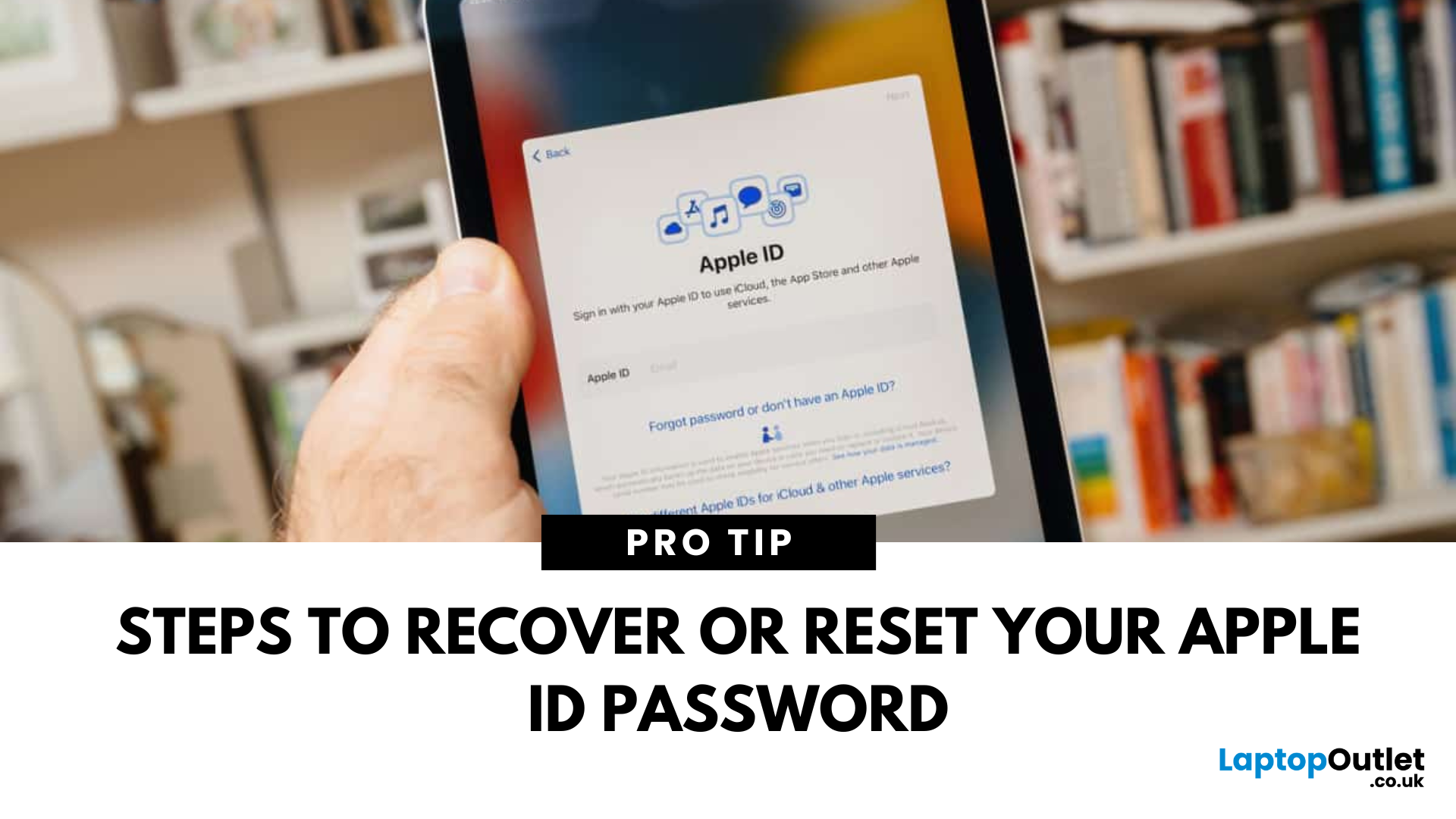
Your Apple ID password unlocks access to iCloud, the App Store, iMessage, and more. If you’ve forgotten it, don’t panic. Finding or resetting your Apple ID password is simple with Apple’s built-in recovery options.
1. Check Password Saved in Keychain (iPhone or Mac)
If you previously saved your Apple ID password in iCloud Keychain:
On iPhone/iPad:
- Open Settings
- Tap Passwords
- Search for "Apple ID"
- Tap to view the saved password
On Mac:
- Open System Settings > Passwords
- Search for "Apple ID"
- If saved, you’ll find your Apple ID password here easily
2. Reset Apple ID Password via Settings (iPhone or iPad)
Steps:
- Open Settings
- Tap your name at the top
- Tap Sign-In & Security (or Password & Security)
- Tap Change Password
- Follow the on-screen instructions
You’ll need your device passcode to proceed
3. Reset Apple ID Password Using Web Browser
Steps:
- Visit iforgot.apple.com
- Enter your Apple ID email address
- Follow
Last Updated: October 14, 2025
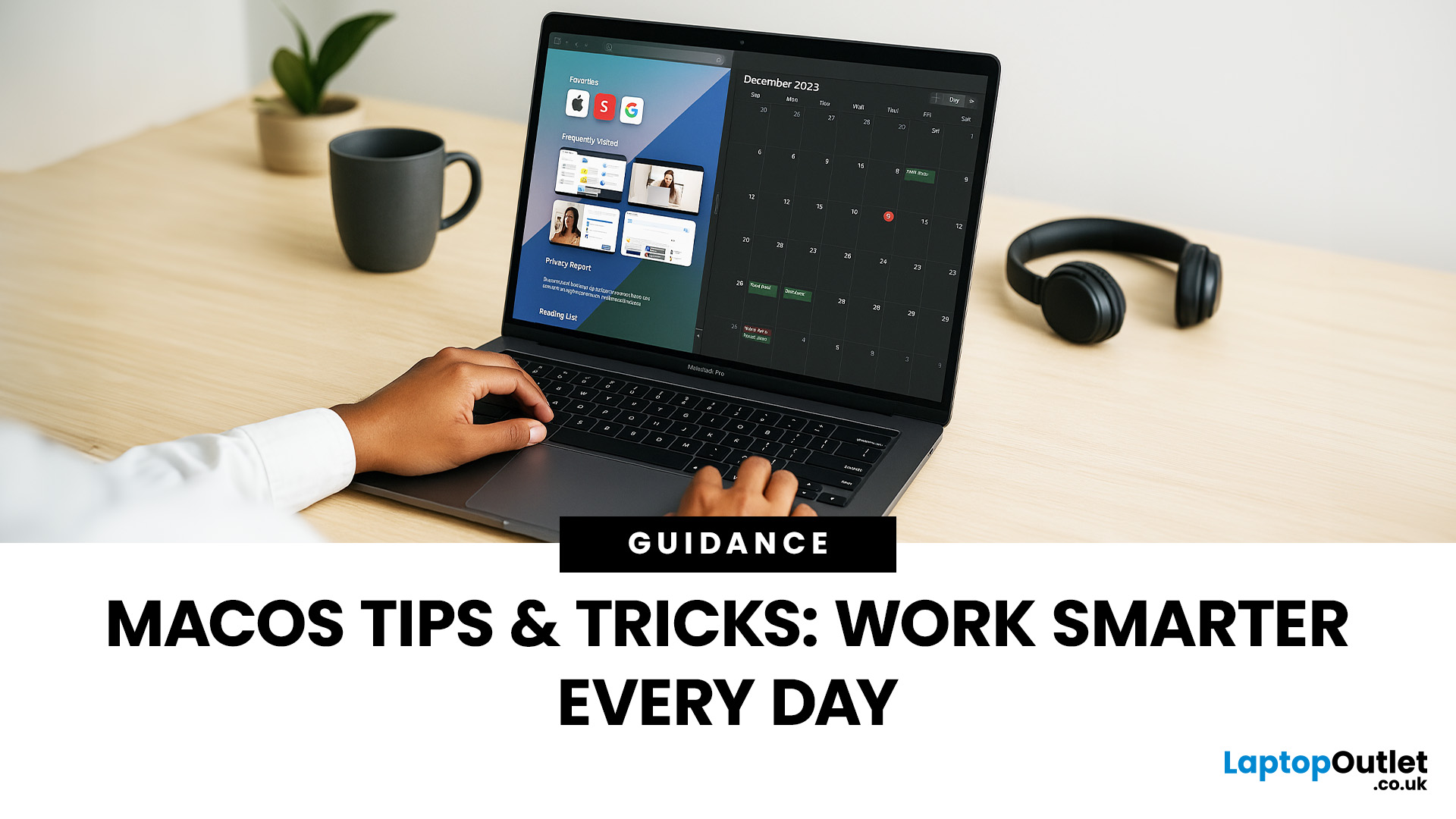
MacBooks are famous for their sleek design and smooth performance, but the real magic lies in macOS itself. Apple’s operating system is packed with features, shortcuts, and clever tools that go far beyond the basics most people use every day. The result? A platform designed not just for style, but for serious productivity.
Whether you’re a student juggling assignment, a professional working across multiple projects, or someone simply looking to streamline daily tasks, learning a few smart macOS tips & tricks can transform the way you work. From hidden features and keyboard shortcuts to multitasking tools and customisation hacks, macOS is full of ways to save time and make your workflow more efficient.
This guide pulls together the most useful macOS productivity hacks to help you get more done in less time. We’ll cover everything from multitasking like a pro to keeping your system secure to tailoring macOS to fit your personal workflow. By the end, you’ll have a toolkit of practical tricks
Last Updated: October 15, 2025
Buying a MacBook isn’t just about picking between an Air or a Pro - it’s also about making smart choices with RAM and storage. These two specs are often overlooked, yet they’re the backbone of your laptop’s performance and longevity. Choose too little, and you’ll quickly hit frustrating slowdowns or run out of space. Choose wisely, and your MacBook will stay fast, reliable, and future-proof for years.
Unlike many Windows laptops, MacBook RAM and storage can’t be upgraded later - what you buy upfront is what you’ll live with. That makes it essential to understand how much you really need. Do students get by with 8GB of RAM? Should professionals always go for 16GB or more? Is 256GB storage enough in the cloud era, or do video editors really need 1TB and beyond?
Why RAM & Storage Matter in a MacBook
When you’re choosing a MacBook, the processor often gets the spotlight - but RAM and storage are just as important. They determine how smooth your experience is today and how well your laptop

Published: October 15, 2025
When it comes to choosing your next laptop, the debate between Windows 11 and macOS remains one of the most important decisions. Both operating systems offer sleek design, advanced performance, and productivity features, but they cater to very different kinds of users. Whether you’re a student, professional, or gamer, knowing how Windows 11 vs macOS comparison stacks up can help you find the right fit for your workflow.
In this guide, we’ll compare Windows 11 and macOS across key areas, including productivity, performance, gaming, user interface, and security, so you can decide which OS works best for your everyday needs.
Windows 11 vs macOS: Overview

Windows 11, released in 2021 and continuously updated through 2025, represents Microsoft’s vision of a modern, intelligent, and AI-integrated operating system. macOS, on the other hand, continues Apple’s tradition of seamless integration with its ecosystem, known for its stability and clean design.
Both systems focus on user experience,

Last Updated: April 02, 2026
If you’ve been holding off on upgrading your Apple tech, this is the moment you’ve been waiting for. Black Friday 2025 is just around the corner, which means serious savings on everything from MacBooks and iPhones to iPads and AirPods.
Apple products rarely see big discounts, so when Black Friday arrives, it’s a golden opportunity to grab the device you’ve had your eye on or to tick a few gifts off your Christmas list. Whether you’re looking for the best MacBook Pro deals, a lightweight MacBook Air, an iPad for the kids or even a refurbished iMac, this year’s offers are shaping up to be impressive.
Here’s your ultimate guide to finding the best Black Friday Apple Deals in 2025, how to shop smartly, and where to get the most for your money.
Why Black Friday 2025 Is a Big Deal for Apple Fans
Apple’s premium design and performance mean prices don’t drop often which is exactly why Black Friday is so exciting. Retailers across the UK slash prices on top Apple gear for a limited time, making

Last Updated: November 12, 2025
Whether you're looking to build a home office, stream movies on the big screen, or just save some precious desk real estate, the question “Should I go for a Mini PC or the Mac Mini?” has probably crossed your tech-loving mind. With the mini computing space heating up faster than a laptop under load, this comparison is long overdue. So, let’s break it down and help you figure out which one deserves a spot on your desk (or under your TV).
What is a Mini PC Anyway?
Before we throw punches, let's define the contenders.
Mini PCs are compact desktop computers made by a variety of manufacturers like Intel, ASUS, HP, and even DIY builds. They're typically small, energy-efficient, and wildly flexible in how you use them. Want Windows 11? Done.
The Mac Mini, on the other hand, is Apple’s small-but-mighty desktop. It’s essentially a baby Mac that fits in your palm but runs like a champ, especially now with Apple Silicon (M1, M2, and potentially M3 soon).
Key Considerations Before Choosing
Published: November 17, 2025
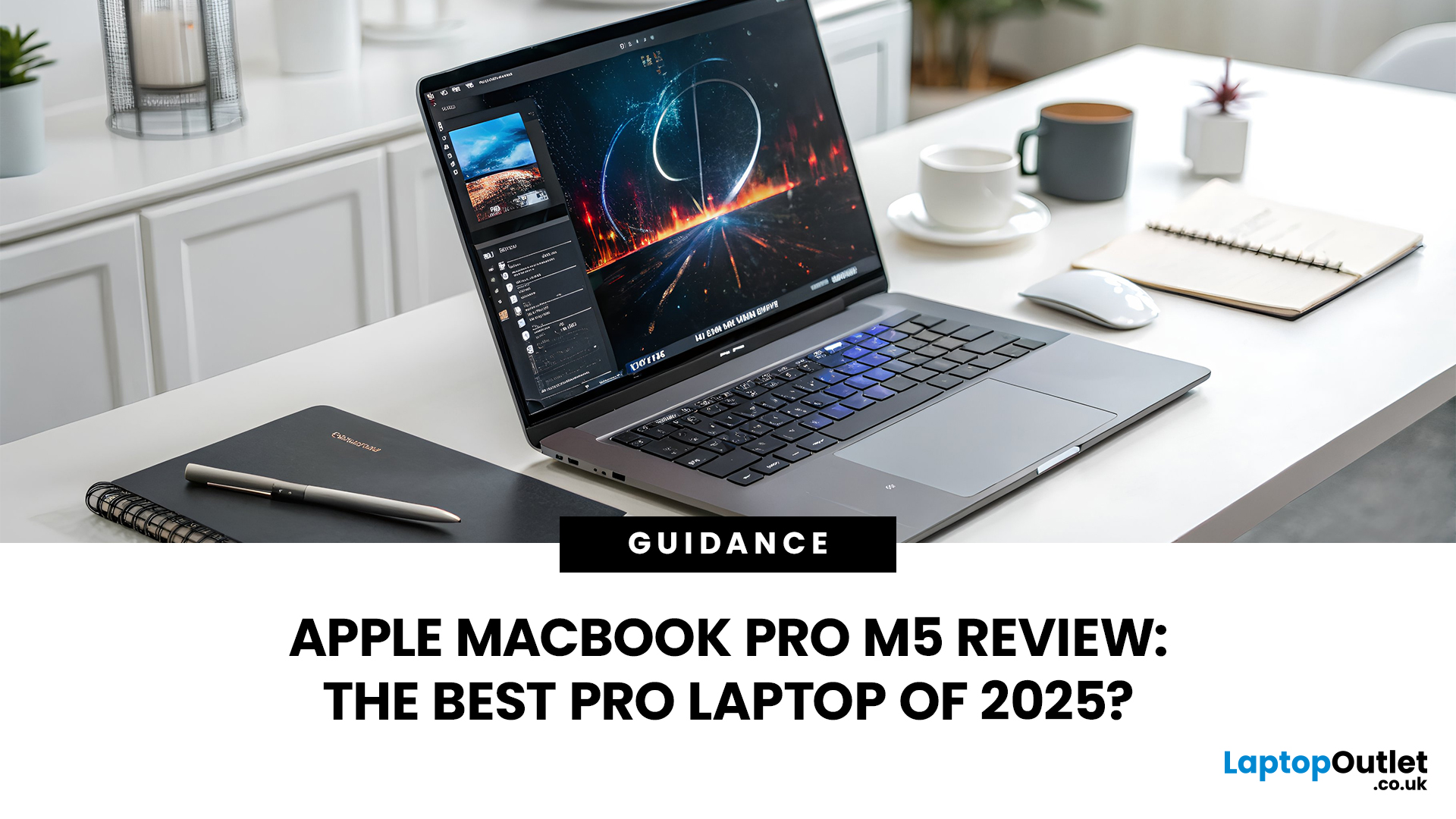
In 2025, Apple continues its dominance in professional laptops with the release of the MacBook Pro M5, the latest evolution of its in-house silicon revolution. Following the impressive M3 Pro and M4 generations, the Apple M5 chip marks a leap in raw performance, AI processing, and energy efficiency - and it’s already being hailed as the gold standard for creative professionals and demanding users.
But does the new M5 MacBook Pro really set a new benchmark in laptop performance? Or are Windows-based power machines like the Dell XPS 15 and Razer Blade 16 catching up?
In this Apple MacBook Pro M5 review, we dive into real-world performance, specs, benchmarks, battery life, display quality, and user experience to see if this is truly the best pro laptop of 2025.
Design and Build: Familiar Excellence, Refined Again
Apple hasn’t reinvented the MacBook’s look - and honestly, it didn’t need to. The M5 edition retains the precision-machined aluminium unibody, but now features a subtle refinement
Last Updated: March 12, 2026
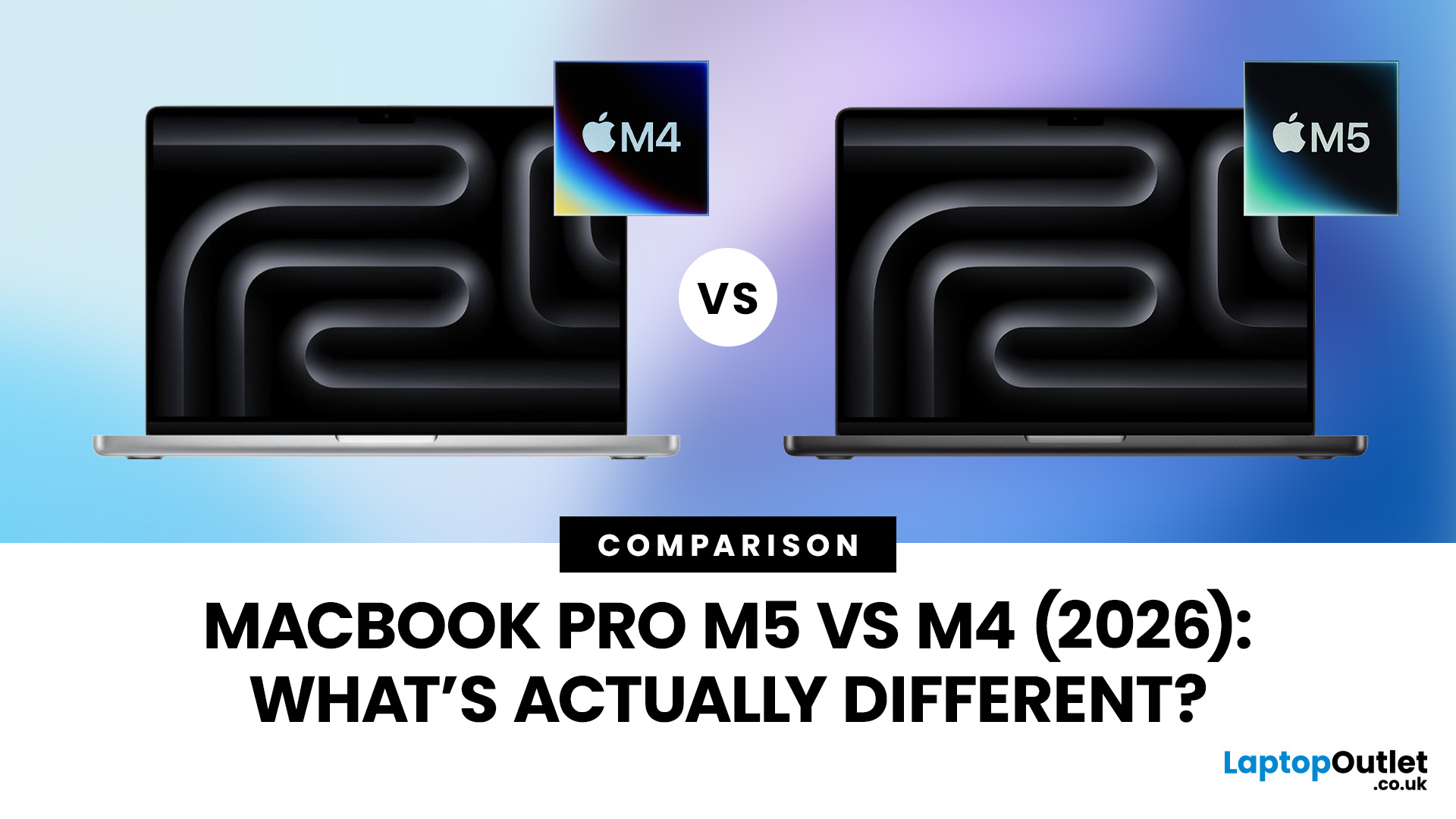
Apple continues to push laptop performance forward with its custom silicon, and the latest generation, powered by the Apple M5 chip - brings new improvements to the MacBook Pro lineup. The previous M4 MacBook Pro, released in 2024, was already one of the most powerful laptops available. However, the 2026 MacBook Pro with the M5 chip introduces several internal upgrades designed to enhance performance, AI processing and efficiency.
For many UK buyers, the key question is simple: is the MacBook Pro M5 a meaningful upgrade over the M4, or should you save money and buy the older model instead?
In this detailed comparison of MacBook Pro M5 vs M4, we will look at:
- CPU and GPU performance differences
- AI and machine learning improvements
- Battery life and efficiency
- Design and display changes
- UK pricing and availability
- Whether upgrading is worth it
By the end of this guide, you’ll have a clear idea of which MacBook Pro is the better choice for UK users in 2026.
MacBook Pro M5 vs M4: Key Differences
Published: November 20, 2025
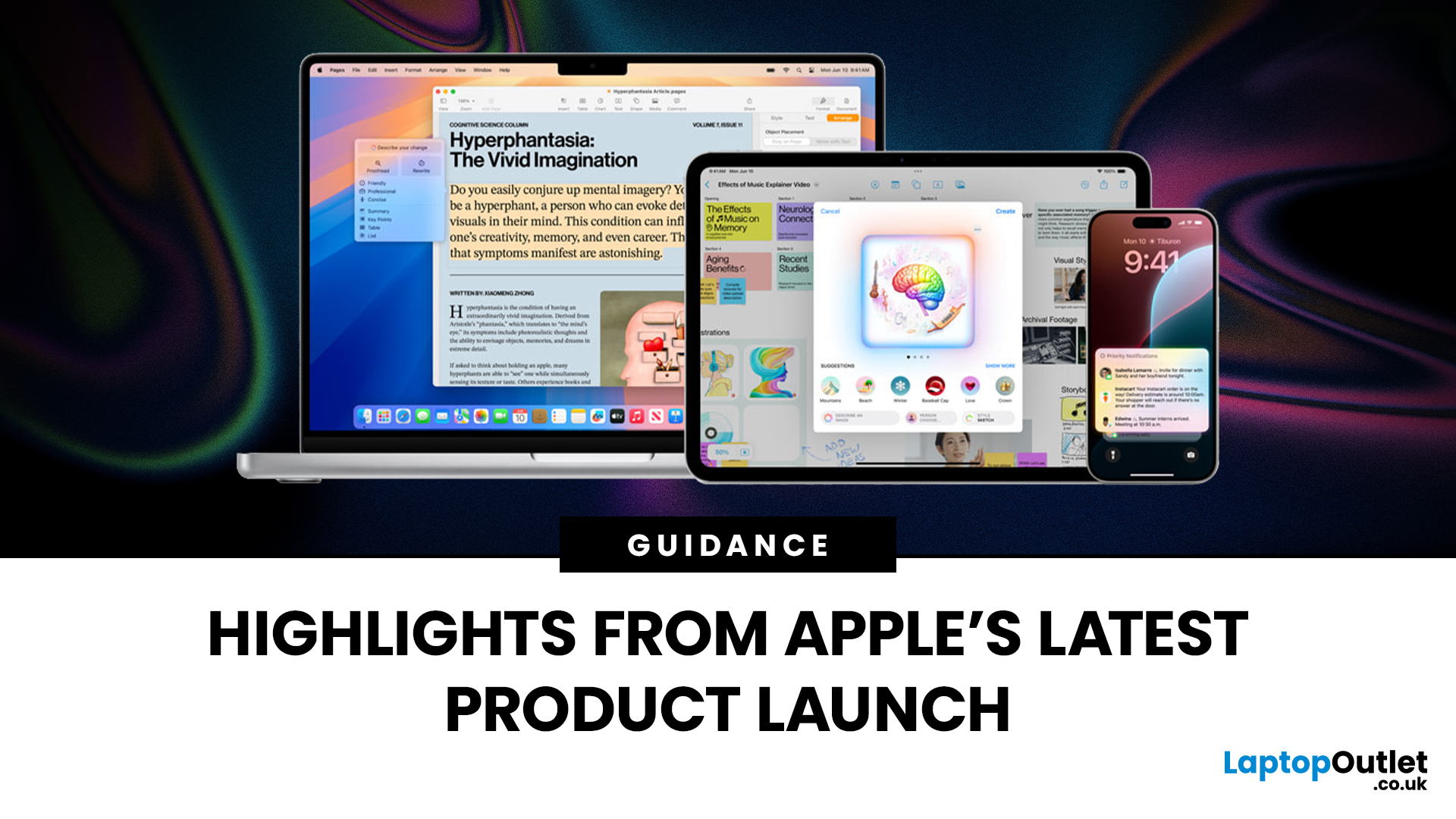
Apple has once again raised the bar with its latest hardware update, unveiling a refreshed line-up including the new Apple MacBook, the iPad Pro, and several other devices. Let’s take a closer look at what’s changed, why it matters, and whether the new Apple MacBook 2025 is worth your attention.
What’s Been Announced?
On 15 October 2025, Apple introduced a suite of devices powered by its latest chip, the Apple M5, including a new 14-inch MacBook Pro, refreshed iPad Pro, and updated mixed-reality headset.
The headline: the new MacBook (and MacBook Pro line) now features the M5 chip built on a 3-nanometre process, offering substantial gains in performance, especially for AI workloads, graphics and battery life.
Meanwhile, the iPad Pro has also seen upgrades, including the M5 chip and enhancements in connectivity, storage, and efficiency.
Why the New Apple MacBook 2025 Matters
Performance and AI
The M5 chip represents a significant step up. According to reports, it delivers AI performance

