



How to Print Screen on a Samsung Laptop
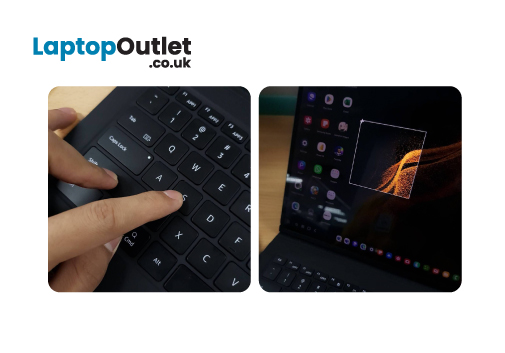
Are you tired of navigating numerous settings and using intricate keyboard shortcuts to print screens on your Samsung laptop? Luckily, we have got you covered by this comprehensive guide!
Although Samsung laptops have impressive hardware and elegant touch screenssome users may need assistance with capturing screenshots on their devices. Whether you want to store good recipes, maintain a record of important correspondence, or share your screen with your friends.
This article will examine many methods for taking screenshots on your Samsung laptop. We'll show you how to take full-screen screenshots, grab the current Window with a single click, and even print a specific section of your screen.
However, before diving into the specifics of Screenshots on a Samsung laptop, it's essential to understand what a screenshot is.
So, let's get started!
What is a Screenshot, exactly?
A screenshot is a digital photo of your laptop screen. It can be used as evidence of anything seen or shared online, as instructional content, or for artistic purposes. Because of their versatility, taking screenshots is a fundamental skill every computer user should have.
Once printed, the screenshot is automatically copied to your computer's clipboard.
You can then paste the screenshot into a file, document an email message, file, or image editor (Paint, for example). Taking a screenshot on a Samsung laptop is a simple and easy way to save important information on the screen or share content with others. You can improve the usability of Samsung laptops for different tasks, whether capturing a moment, storing data, or demonstrating a point.
How do You Screenshot on a Samsung Laptop?
In Samsung Galaxy laptops, there are different ways to capture screenshots, offering flexibility based on what you need to print and save. So, discuss them all one by one.
Method 1: Take a Full Screenshot
If you want to print the entire screen on your Samsung Galaxy Book Pro laptop, hit the "PrtScrn" (Print Screen) button. You'll hear a confirmation click, and the screenshot of your entire laptop screen will be copied to your clipboard. Then, use the keyboard shortcut "Ctrl + V" to paste this image into any file or application accessible from your laptop's menu, such as Paint.
Here's a step-by-step procedure:
Navigate to the desired screen and press the "Ctrl+ PrtScr" buttons simultaneously.
Open an image editor application (for example, Paint or a photo editor).
Paste the snapshot into the editing file using the "Ctrl + V" keyboard shortcut.
Save the file to your laptop based on your selections, and you're done!
Method 2: Press the "Ctrl + Print Screen" Keys
This method allows you to print full screen. All you must do is press the Control and Print Screen buttons simultaneously. After pressing the buttons, copy the screenshot and paste it into an image editor app on your laptop. We recommend Paint because it is widely available on many Windows versions.
After placing the screenshot into Paint, saving it is a simple process. Find the "Save" option from the upper menu to save the image in your selected location. This versatility allows you to manage your screenshots efficiently, whether in the Pictures folder or any other directory in your laptop's hard disc.
Method 3: Press the "Windows + PrtScrn" Keys
Another way to use the PrtScn key is to use the keyboard shortcut Windows Key-PrtScn to capture any specific screen part. To capture a specified section of your screen, whether a single window or a designated region with numerous open windows, press "Windows + PrtScrn." When you press these keys, you'll hear a confirmation click, and the current screen image will be copied onto your clipboard.
This option also allows you to save the screenshot in a location other than OneDrive automatically. When using this method, you see a brief dimming of the screen, and a PNG file will be stored in the default Pictures > Screenshots folder on your Samsung Galaxy laptop. This process ensures that screenshots are conveniently stored in a designated location, simplifying access and management.
Method 4: Press the “Windows + Alt + PrintScreen” Keys
This keyboard shortcut adds a bit of polish to your screen printing. Unlike the traditional PrintScreen key, the Windows Key + Alt + PrintScreen shortcut captures only the currently active Window. So, when you have numerous active windows and must focus on capturing a specific portion, you can use this method. This method will immediately store the screenshot in a designated folder.
Here is how you can do this:
Make sure the Window you want to print is in focus.
Hold the "Windows + Alt+ PrintScreen" simultaneously.
The screenshot of the current Window is stored in the "Videos > Capture" folder.
If you want to edit before saving the screenshot, Press the "Alt + PrintScreen" buttons. The screenshot is now copied to the clipboard. Next, open the "Paint" application and paste the captured screenshot for editing. Once you've made any adjustments, save the edited screenshot on your desired.
Method 5: Windows Key + G: Xbox Game Bar
Windows Samsung laptops such as Samsung Galaxy Book Pro come with a Game Bar as a built-in feature for gamers to record their gameplay and capture the screen during the game. You can also use this application to capture images of the other Windows.
Here is how you can do this:
Press the "Windows + G" keys to open the Game Bar. Otherwise, you can search Game Bar software on the "Windows" menu.
After opening the Game Bar, print the screen by tapping the camera icon on the capture menu.
When you are done, you can access your screenshot by following the designated path: "Videos"> "Capture Folder." Alternatively, you can expedite the process by clicking the "Show All Capture" button beneath the camera icon.
Method 6: Using the Windows Snipping Tool
If you don't want to use the keyboard shortcuts, you can use the snipping tool to capture the screen. Snipping Tool is a built-in screenshot tool in Windows 11/10 operated Samsung Galaxy laptops and allows you to print screens on an open tab, full screen, rectangular area, or free-form area.
This tool is helpful for people who want more options than just printing the entire active Window. You can also capture a specific section of the screen through snipping tools. The screenshot will automatically shift to the Snipping Tool editor. There's no need to use the "Paint" application to edit and save it.
Follow these steps to print via the snipping tool.
Hold the "Windows + S" hotkey to search "Snipping Tool" on your Windows.
Open the Snipping Tool and click the "Mode" icon to select your method of screenshot capture. The available options are free-form snip, rectangular snip, window snip, or full-screen snip.
Now, draw a line with the cursor to indicate the area you want to capture. If you choose the window option, click over the target window, and the full-screen capture begins with the final button press.
When you release the cursor, a notification in the lower right displays a thumbnail image of the screenshot.
Here. If you want to paste the screenshot into another application, you can ignore it because the image has already been saved to the clipboard.
Click on the thumbnail to navigate to the Snipping Tool window, where you may annotate the snapshot with a pen or highlighter, crop the image, or use a ruler for straight lines.
You can save screenshots and edits by clicking on the file>Save As. You can also use Ctrl+S to save the screenshot in the JPG or PNG file formats. You can print the screenshot or open it from the menu options in another application.
Method 7: Use Windows Snip and Sketch Tool
The Snip & Sketch Tool is very similar to a Snipping Tool. So you can easily use this built-in software. To take a screenshot with Snip & Sketch, follow these steps:
Go to the "Windows Start Menu" and find "Snip & Sketch." Click to open it once you get it.
Click the arrow next to "New" to bring up the "Delay" drop-down menu. Select "New" to open the Snipping Bar.
Select your preferred snipping model. Choose "Fullscreen Snip" or "Windows Snip" to capture a specified screen section. Choose "Freeform Snip" or "Rectangular Snip" to click and drag the desired snipping area for greater precision.
Click the "Copy" button to edit and save the original snip. You may also choose "Share" to instantly share the image with your friends.
How to Use Lightshot to Capture Screenshots?
Lightshot is a third-party tool used to print screens on Samsung laptops. It has a user-friendly interface and offers other features like editing & quick online sharing. So, if you're still thinking about "How to print screen on a Samsung laptop," give Lightshot a try. It comes with more functionality and versatility than the above-mentioned built-in methods. You can install Lightshot from the Chrome Web store and add it as an extension.
Follow these steps to capture screenshots using Lightshot.
Visit the Lightshot website and download the software compatible with your operating system.
Open the tool by clicking the "Lightshot" icon in the taskbar or using the "PrintScreen" button.
You will see a dim overlay emerging on your screen. Select the area you wish to capture by clicking and dragging it.
After selecting an area, a little toolbar will pop up on the screen. Here, you can choose from the options such as save, edit, or share.
Click the save icon or use the keyboard shortcut "Ctrl + S" to save the screenshot. Choose the folder where you want to save the file.
You can also share the content with Lightshot via a unique link or direct upload to social media.
Print Screen: Common Issues and Troubleshooting
There are a few common problems that you may encounter when taking screenshots on Samsung laptops, and addressing them is an essential aspect. Here are some of these problems and their troubleshooting tricks.
Screenshot Not Working!
Double-check that you are pressing the appropriate keys simultaneously. As previously mentioned, holding 'PrtScn' with other keys, such as 'Alt' or 'Win' will capture the screenshot.
Update your system frequently. Bugs in the present system version may interfere with the screenshot feature; however, keep checking and installing the latest updates to avoid such problems.
Screenshots are Dark or Have Low Quality!
Ensure you have set the optimal screen brightness before capturing a screenshot. Low screen brightness will result in dim and dark-looking screenshots.
Display resolution directly impacts the quality of the screenshot. If the resolution is low, the printed screenshot will also be of lower quality. So, adjust the screen resolution to get fine-tuned snapshots.
Can't Find Your Screenshot!
If you are using the "Win + PrtScn" method, the screenshot will immediately be saved in the "Pictures" directory's "Screenshots" folder.
If you hit "PrtScn" without other key combinations, the screenshot will be copied to the clipboard. Use any application like Paint or other third-party tool to save and use it.
You can use an image editor or a file explorer to find the files named "Screenshot" or "Screen Capture."
If you cannot save the screenshot, you may need to clear some space on your laptop. Remove the old or unnecessary files or transfer them to an external device.
Screenshot not Capturing the Entire Screen!
The screenshot software may have a problem or an incorrect screen capture setting. You can resolve the issue by adjusting the screen capture settings. Typically, you can locate these settings in the screenshot software or the Windows operating system.
The screenshot is not Saved in the Desired Format (PNG, JPEG)!
You can change the default screenshot format by following these instructions.
Open the Start menu and search Snipping Tool.
Go to the Snipping Tool and click on the File menu.
Select Save As and choose the format you want from the "Save as" type drop-down menu.
Bottom Line
Samsung laptops are well regarded for their exceptional capabilities and durable quality. It feels great to own one. If you recently purchased a Samsung Galaxy laptop or already have one, you may want to know how to print the screen. Capturing the perfect moment on your screen is very easy and quick.
We have outlined different approaches for taking a screenshot on a Samsung computer. You can use the convenient built-in keyboard shortcuts, such as the PrintScreen button, to capture the entire screen or use the "Windows + PrtScrn" key combinations for a quick snapshot. Alternatively, you can enjoy the versatility of the Windows Snipping Tool or third-party tools like Lightshot, which provides more advanced capturing capabilities. It's all in your hands to choose the approach that suits you best! As a bonus, we have highlighted some solutions for people facing issues while printing laptop screens.
If you are looking for an efficient and high-performance Samsung laptop for your computing needs, visit Laptop Outlet. You can unleash the power of unbeatable Black Friday deals and jaw-dropping Cyber Week discounts on your favourite tech products. Whether you're a gamer craving immersive experiences or a professional seeking productivity, we have something for everyone at Laptop Outlet. So, seize the opportunity to upgrade your tech arsenal right now!
FAQS
How do I take a screenshot on a Samsung laptop?
Use the "Power + Volume Down" to quickly capture full-screen shots on a Samsung laptop. You can later find those screenshots from the Screenshots folder > Pictures.
How do you screenshot on a Samsung laptop with Windows 11?
You can print the screen of an active window by following these steps:
Choose the Window you wish to capture.
Press the "ALT+Print Screen" buttons. The screenshot will be saved on your clipboard.
Paste (CTRL+V) the screenshot into Paint, Office program, or any preferred application.
Where is the screenshot button on the laptop?
It depends upon the device or hardware configurations you are using. You can commonly use the shortcut "Windows Logo Key + PrtScn" to capture a screenshot on a laptop. If your device does not have the PrtScn button, you can use "Fn + Windows Logo Key + Space Bar" to capture a screenshot.
Read more:
| How to View a Broken Phone Screen on a Samsung Laptop: Your Comprehensive Guide |
| How to Record the Screen of Samsung Laptop While Playing a Game |
| How to Factory Reset Asus Chromebook Without Password |
Related Articles

Last Updated: December 12, 2025
Are you in the market for a new gaming laptop and wondering what to choose between Samsung or Apple?
If you're even remotely familiar with the gaming arena, then you've no doubt heard of two big names which emerged as frontrunners in the high-stakes race of gaming laptops: Samsung and Apple. The latest Samsung models are super thin and ultraportable, and gaming on them may be mediocre if you stick to older titles. On the other hand, Apple laptops are technically suitable for demanding tasks like video editing and creative design as they have powerful CPUs, but the price may dig a big hole in your pocket. So, what to choose?
To provide you with a definitive answer, this guide covers everything from hardware and performance to laptops' design and user experience.
So, let's get started!
Samsung Laptops (Window-Based)
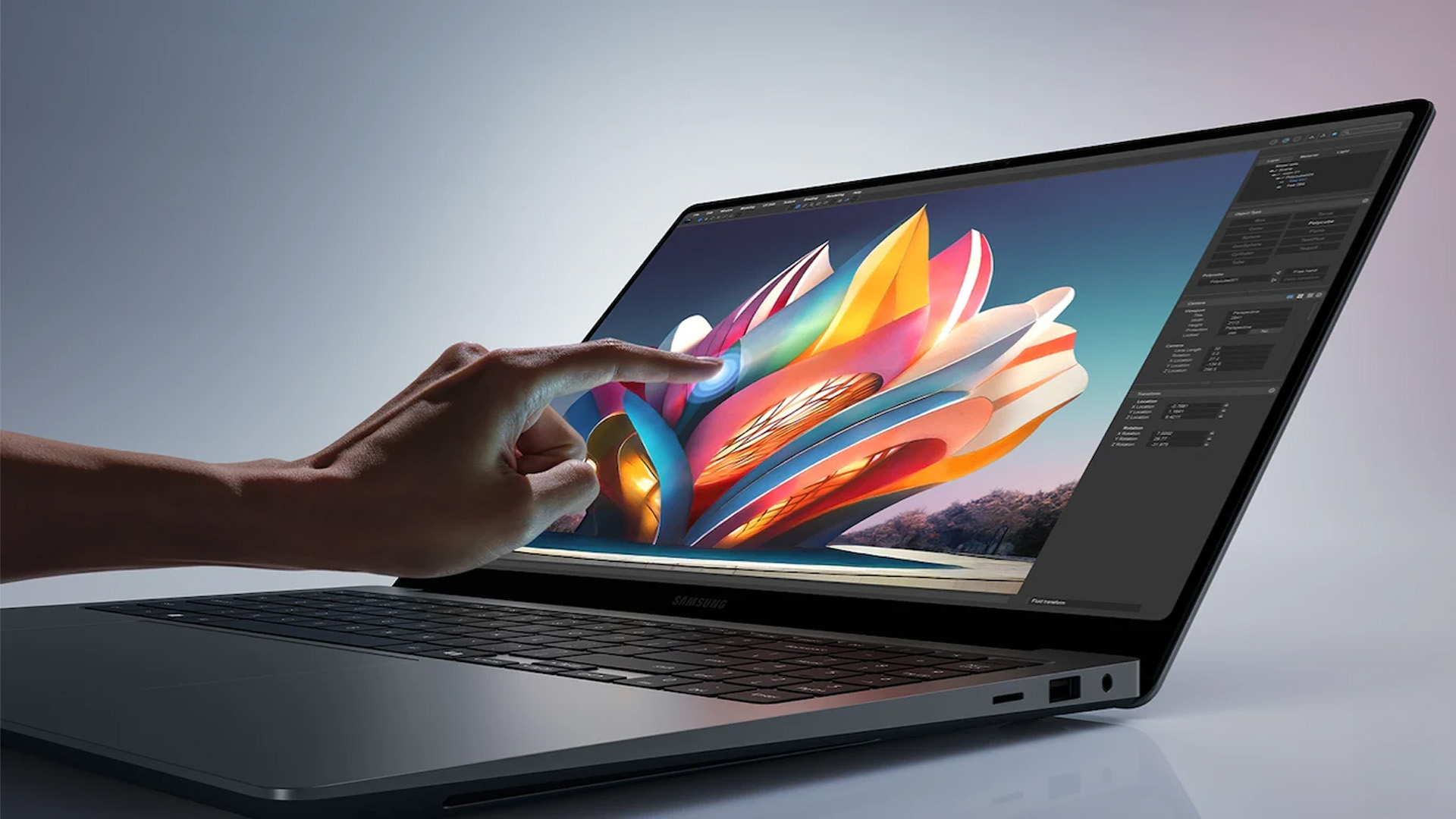
Samsung stands out among the top leading electronics brands in the world. Their laptops are best known for their innovative designs, spectacular build quality, colour-accurate

Last Updated: April 03, 2026
Finding the right laptop for your business is a very important decision. In the modern corporate world, you need a device that is fast, stylish, and easy to carry between meetings. Samsung has become a major player in the laptop market. They are famous for their amazing screens and how well their devices work together.
In this blog, we will look at the 5 best Samsung business laptops. Whether you are a small business owner or a corporate professional, Samsung has a "Galaxy Book" for you. We will look at the specs and explain how these features will help your work life.
Why Choose Samsung Laptops for Business?
Samsung laptops are perfect for business because they are built to be thin and light. This makes them ideal for people who travel or work from different offices.
One of the best reasons to choose Samsung is the "Galaxy Ecosystem." If you already use a Samsung phone or tablet, your laptop will sync with them perfectly. You can share files instantly and even use your tablet as a second
Last Updated: May 27, 2025
Introduction
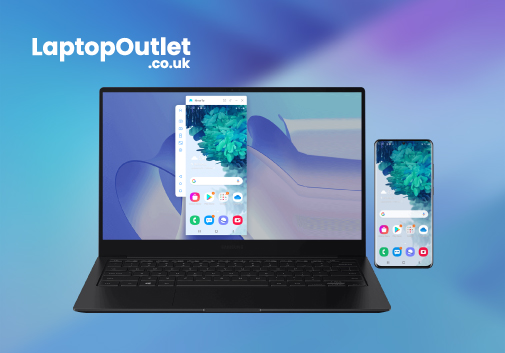
In today's digital age, smartphones have become integral to our lives. They keep us connected, informed, and entertained. However, what happens when your phone's screen is shattered or unresponsive? In this comprehensive guide, we will explore the solutions to a common problem: how to view your broken phone screen on your Samsung laptop. But first, let's understand what a broken phone screen is and why it matters.
What is a Broken Phone Screen?
A broken phone screen is a situation where your smartphone's screen is physically damaged, rendering it unreadable or unresponsive. This damage can occur in various forms, including cracked screens, unresponsive touchscreens, or even wholly shattered displays.
Why Does It Matter to Be Able to View Your Phone Screen on Your Laptop?
Viewing your phone screen on your laptop cannot be overstated. Here are some compelling reasons why it matters:
- Data Retrieval: Your phone may contain critical data, such as contacts, messages, photos,
Last Updated: July 01, 2025
Screen recording on a laptop has become a valuable tool for various reasons. Whether recording your gaming prowess, documenting software processes, or creating in-game tutorials, the screen recording feature lets you capture your favourite moments to share with the world later.
Regardless of the reason, screen recording on a Samsung laptop is relatively simple and can be accomplished with a few simple steps. Thus, if you own a Samsung laptop, you're in luck! You can capture your on-screen gaming activities in multiple ways, ranging from built-in functionalities to powerful third-party applications. The methods offer distinct advantages and cater to different user preferences.
In this article, we will cover the intricacies of each method with step-by-step instructions and additional resources to ensure you capture your gameplay seamlessly.
So, let's dive in!
Method 1: Using Xbox Game Bar
The Xbox Game Bar allows seamless screen recording on a laptop while playing games without

Last Updated: October 22, 2025
Tablet Frozen? It’s Time to Reboot
Your Samsung tablet acting up? Maybe it’s frozen, lagging, or just being plain weird? A reboot can fix a lot of issues fast. Whether you’re doing a quick restart or a hard reset, here’s how to reboot your Samsung tablet the right way—without losing your mind.
How to Do a Soft Reboot (Quick Restart)
This is the easiest and safest way to refresh your tablet without losing any data.
Steps:
- Press and hold the Power button (or Power + Volume Down, depending on model).
- When the Power menu appears, tap Restart.
- Wait for your tablet to turn off and reboot automatically.
Pro Tip: This method works when your screen is responsive and not frozen.
How to Force Restart a Samsung Tablet (If It’s Frozen)
If your tablet is completely unresponsive, try a force reboot:
Steps:
- Press and hold the Power + Volume Down buttons at the same time.
- Hold for around 10-15 seconds until the device vibrates or restarts.
- Release the buttons when you see the
Last Updated: May 23, 2025
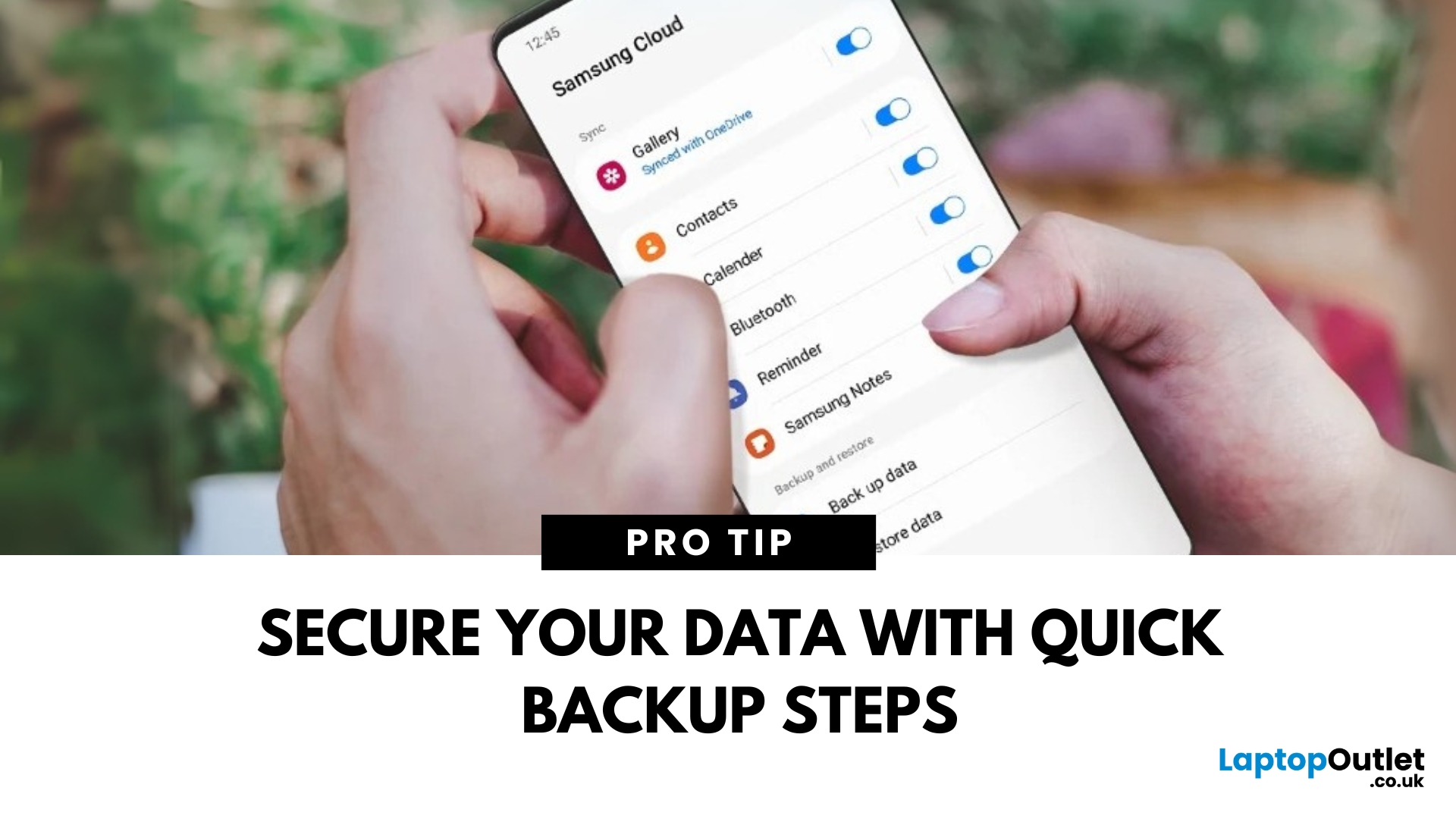
Protect Your Data – Back It Up
Your Samsung phone holds everything—photos, contacts, apps, messages. Losing that data can be a nightmare. That’s why it’s essential to back up your Samsung phone regularly. Here’s how to do it quickly and securely.
How to Back Up a Samsung Phone to Samsung Cloud
1. Open Settings
Tap the Settings app on your Samsung phone.
2. Go to Accounts and Backup
Scroll down and tap Accounts and Backup > Samsung Cloud.
3. Tap Back Up Data
Select the data you want to back up—Contacts, Messages, Apps, Settings, etc.
4. Tap Back Up Now
The backup will start. Make sure you’re connected to Wi-Fi.
Pro Tip: Enable Auto Backup to automatically save your data regularly.
How to Back Up Samsung Phone to Google Account
1. Open Settings
Go to Settings > Google > Backup.
2. Turn On Backup by Google One
Switch on Backup by Google One.
3. Select Data to Back Up
Choose apps, contacts, photos, and more.
4. Tap Back Up Now
Your data will be backed
Last Updated: September 11, 2025
The Galaxy Just Got Smarter
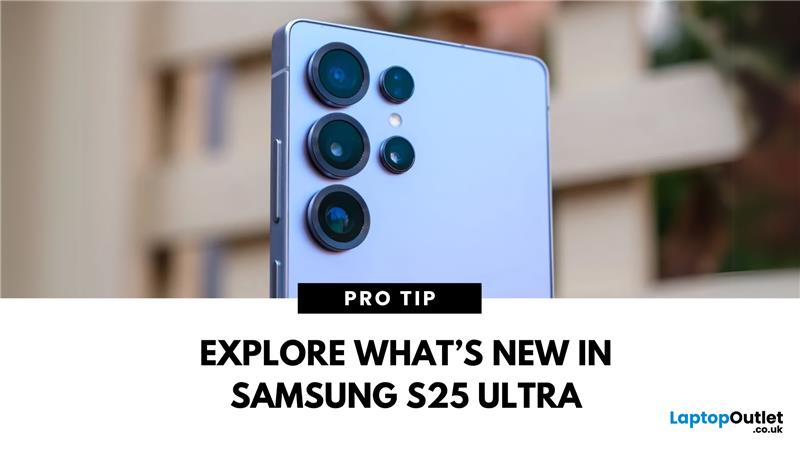
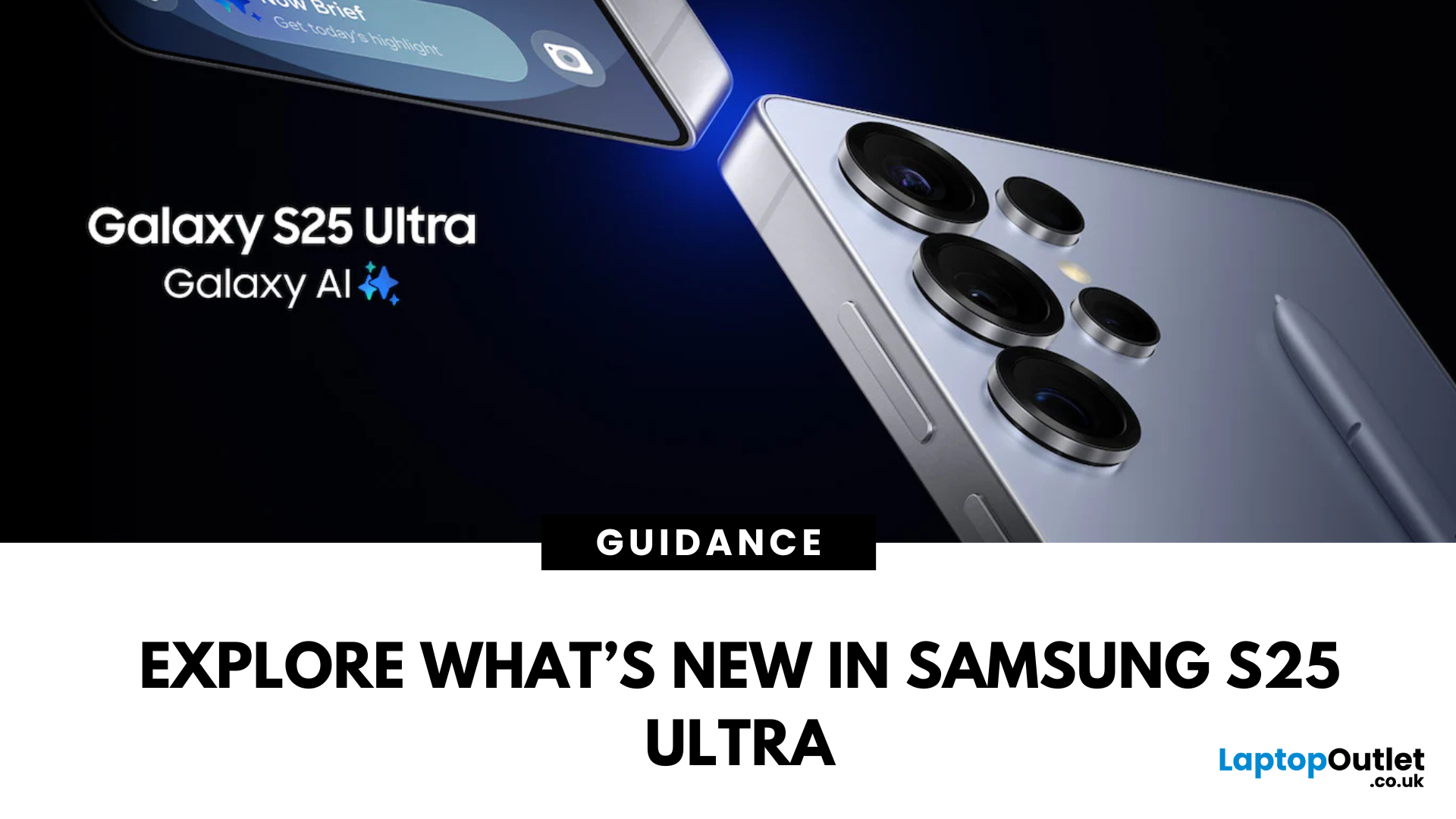
Samsung’s flagship phone has levelled up again. The Samsung Galaxy S25 Ultra brings futuristic performance, next-gen AI capabilities, and premium design upgrades to the palm of your hand. If you're wondering what’s new in the 2025 Ultra model, here’s everything you need to know.
1. Galaxy AI Is Front and Centre
The S25 Ultra introduces Galaxy AI, bringing:
- Live call translation in real-time
- AI photo editing for on-the-fly enhancements
- Generative image suggestions
- Smart calendar, email and writing assistance features
AI tools are deeply integrated into daily tasks, making the phone more intuitive than ever.
2. New Snapdragon 8 Gen 3 Processor
- Enhanced speed, multitasking, and power efficiency
- Faster app load times and smoother gaming performance
- Built to optimise AI and camera functions
Expect top-tier performance for everything from video editing to mobile gaming.
3. Upgraded Camera with AI Nightography
- 200MP main sensor with better
Last Updated: March 17, 2026
Samsung has long dominated the smartphone world, blending cutting-edge innovation, sleek style, and powerful performance with every launch. If you’re wondering what the latest Samsung Galaxy phone is, you’re in the right place. In this blog, we’ll unveil the newest Samsung Galaxy release, highlight its standout specs and features, and guide you to the best deals and offers available right now.
Ready to explore? Let’s uncover the latest together!
What’s the Latest Samsung Galaxy Phone?
To answer the question ‘what’s the latest Samsung Galaxy phone’, we first need to reframe it slightly to ‘what’s the latest Samsung Galaxy series’. That’s because the latest Samsung Galaxy phones all belong to the Samsung S25 Series, which includes three models — the S25, S25+, and S25 Ultra — all launched in the UK in February 2025.
These three models, the S25, S25+, and S25 Ultra, together make up the latest Samsung Galaxy phones. However, if you’re wondering which Samsung Galaxy phone is the most

