



Gaming Controller Settings You Should Change for Every FPS Game
Quick Answer
Gaming controller settings can affect how quickly you turn, how accurately you make small aim corrections and how consistently inputs register. For most FPS games, start by tuning look and ADS sensitivity, stick deadzones, response curve, aim assist, vibration, button layout and trigger behaviour. There is no universal best setup, so test one change at a time during practice sessions.
The same controller can feel very different between FPS games. Sensitivity, deadzones and response curves all change how thumb movement becomes on-screen aim, affecting tracking, recoil control and turning speed.
The goal is not to copy another player’s numbers. Build FPS controller settings that feel predictable for your hands and your game, then keep them stable long enough to judge them properly.
Start With a Reliable Baseline
Save your current values, then test in a training range, practice mode or low-pressure match where you can repeat the same movements.
Change one variable at a time. Altering sensitivity, deadzone and response curve together makes the result hard to diagnose.
- Repeated overshoot usually means the setup is too fast or aggressive.
- Falling behind targets can mean look or ADS speed is too slow.
- Camera drift with the stick released usually means the deadzone is too low.
- If you keep changing settings, give one stable setup more time before judging it.
Gaming Controller Settings to Change First
The best controller settings for FPS games are not one fixed profile. Tune stick response first, then move to layout and comfort settings.
|
Setting |
What it changes |
Useful starting principle |
|
Look sensitivity |
General turning and tracking speed |
Choose control first, then add speed only if needed |
|
ADS sensitivity |
Aim speed while using sights or scopes |
Use a calmer value if fine corrections feel difficult |
|
Stick deadzone |
How far a stick moves before input starts |
Use the lowest stable value without unwanted drift |
|
Response curve |
How stick deflection maps to camera output |
Test direct and damped curves before committing |
|
Aim assist |
Game-provided help around eligible targets |
Begin with the game default and understand its options |
|
Buttons and triggers |
How quickly important actions are reached |
Prioritise access without accidental inputs |
1. Set Look Sensitivity for Control First
Horizontal sensitivity controls left-to-right turning; vertical sensitivity controls up-and-down movement. Higher values turn faster but make small corrections harder to control.
Matching both axes is a simple baseline. Change vertical sensitivity separately only if recoil control or vertical tracking consistently feels wrong.
Judge controller sensitivity settings across repeated fights. If you often pass the target and correct backwards, lower the speed slightly; if you cannot keep up with close targets, raise it a little.
2. Tune ADS Sensitivity Separately
ADS means aiming down sights. Many shooters let ADS sensitivity run at a different speed from hip-fire aim.
A slightly slower ADS speed can help fine long-range corrections, but setting it too low can make close-range tracking feel restrictive.
If 1.00 is the game’s reference multiplier, lower values usually slow ADS movement and higher values increase it. Do not assume the same number will feel identical in another game.
3. Set Stick Deadzones as Low as Your Pad Allows
Controller deadzone settings control how much stick movement is ignored. Too large can make fine aim feel unresponsive; too small can expose stick drift or sensor movement.
Lower the inner deadzone, release the stick and watch the camera. If it moves, raise the value in small steps until the view stays stable. This is more useful than copying a fixed percentage.
An outer deadzone or maximum-input threshold controls when full stick input is reached. Leave it near default unless you have a clear problem reaching full turn speed.
4. Choose an Aim Response Curve You Can Predict
A response curve changes how stick movement becomes camera movement. Names such as Linear, Classic, Standard and Dynamic are not standardised between games.
- Linear-style curves give a more direct relationship between stick movement and output. They can feel immediate, but small movements and drift may also become easier to notice.
- Standard or Classic curves usually soften movement near the centre before building more speed as the stick travels. This can make fine control feel steadier for some players.
- Dynamic-style curves alter the response through different parts of the stick range. They can balance fine movement with quicker turning, but the exact behaviour is game-specific.
There is no universal best curve. Keep deadzone and sensitivity unchanged while testing so you can judge the curve itself.
5. Understand Aim Assist Before Changing It
Aim assist varies by game. Many shooters use slowdown near eligible targets; some also use rotational assistance under defined conditions, while others offer only a simple on/off control.
Start with the game’s default aim assist settings unless you understand what each alternative changes. Similar names do not guarantee similar behaviour between titles.
If a firing range supports aim assist, compare tracking there before changing sensitivity again. This helps separate aim-assist behaviour from your stick settings.
6. Test Vibration and Trigger Effects
Vibration adds feedback, but some players find repeated rumble distracting or tiring. Turning it off does not automatically improve accuracy, so test both states and keep whichever feels more consistent.
Adaptive or resistance-based triggers trade immersion for extra physical resistance. A lighter trigger may suit repeated firing, and supported controllers may let you reduce trigger effects separately.
7. Remap Buttons Around Frequent Actions
Standard layouts may force your right thumb off the aiming stick for jump or crouch. Tactical, bumper-jumper and rear-button layouts can move frequent actions to easier positions.
Keep frequent actions accessible without making the layout confusing. Add one remap at a time, particularly when learning back buttons or paddles.
8. Shorten Trigger Activation Carefully
Trigger deadzones control how far LT/RT or L2/R2 must move before input registers. A shorter activation point can reduce physical travel where the game or controller supports it.
Avoid ranges so short that resting a finger causes accidental inputs. Check hardware limitations too: shorter DualSense Edge trigger stops, for example, disable its adaptive trigger effect.
9. Reduce Controller Input Lag Methodically
If controls feel delayed, the controller may not be the only cause. Frame-rate drops, display processing, wireless interference and heavy PC background activity can all add to a sluggish feel.
USB is useful for troubleshooting because it removes wireless signal quality from the test. Wired is not automatically faster in every case; latency depends on hardware, protocol, platform and firmware.
Keep controller firmware current and close background apps or overlays if they hurt game performance. Windows users can manage supported Xbox pads in Xbox Accessories, while PlayStation Accessories supports DualSense Edge updates and profiles on PC. If frame times are unstable, assess the wider system before blaming the pad, including on gaming desktop PCs.
10. Set FOV Before Fine-Tuning Aim
Field of view, or FOV, is not a controller setting, but it changes how aiming feels. Wider FOV shows more of the scene and can make distant targets appear smaller.
Set a comfortable FOV before fine-tuning sensitivity. Changing both repeatedly makes it harder to judge what each stick movement should do.
Controller tuning cannot replace awareness. In team shooters, positional audio and voice chat help with footsteps, call-outs and off-screen threats. Suitable gaming headsets can help if direction or team chat is difficult to follow.
Use a Repeatable 5 Minute Testing Routine
Use the same short routine each time. Repeated tests tell you more than one chaotic match.
- Track a moving target. Strafe while keeping the crosshair centred. Falling behind suggests more speed may help; repeated overshoot suggests less.
- Flick between two targets. Look for a pattern across several attempts rather than celebrating one clean snap.
- Control a sustained burst. Check whether small downward corrections feel smooth or jerky while managing recoil.
- Practise close-range movement. Combine turning, strafing, jumping or sliding to see whether the layout still lets you aim comfortably.
- Play several normal matches. Keep the settings unchanged long enough to judge consistency under real pressure before tweaking again.

Build Consistency, Not a Perfect Number
Good gaming controller settings should make input feel predictable. Set a stable deadzone, balance look speed with fine control, choose a response curve you understand, then refine ADS, aim assist, triggers and layout around the game you play. Avoid changing several values after every poor match. If your current pad lacks the remapping, trigger or profile options you need, compare compatible gaming controllers at Laptop Outlet and choose one that matches your platform and preferred FPS controls.

Frequently Asked Questions
What sensitivity is best for FPS games on a controller?
There is no universal best sensitivity. Start at a comfortable middle value, then adjust gradually. Lower it if you repeatedly overshoot targets; raise it if you cannot turn or track fast enough during close-range fights.
Should controller deadzone be high or low?
Use the lowest deadzone that keeps the stick stable when released. Too high can make small corrections feel unresponsive, while too low can expose stick drift or normal sensor movement on an older controller.
Does turning off vibration improve FPS gameplay?
Not automatically. Some players prefer less physical distraction and fatigue with vibration disabled, while others value the feedback. Test the same drills with vibration on and off, then keep whichever setting feels more consistent.
What is the best aim response curve for FPS r?
There is no single best response curve. Linear-style curves feel more direct, while Classic or Standard curves can soften fine movement. Dynamic-style options vary by game, so compare them without changing sensitivity at the same time.
How can I reduce input lag on a gaming controller?
Update controller firmware, use a stable connection and test USB when troubleshooting wireless issues. On PC, also check frame rate, background processes and overlays. Perceived input delay can come from the game, display or system, not only the controller.
| Read More: |
| Best Gaming Controllers for PC, PlayStation and Xbox |
| Best Controllers for Call of Duty: Black Ops 7 |
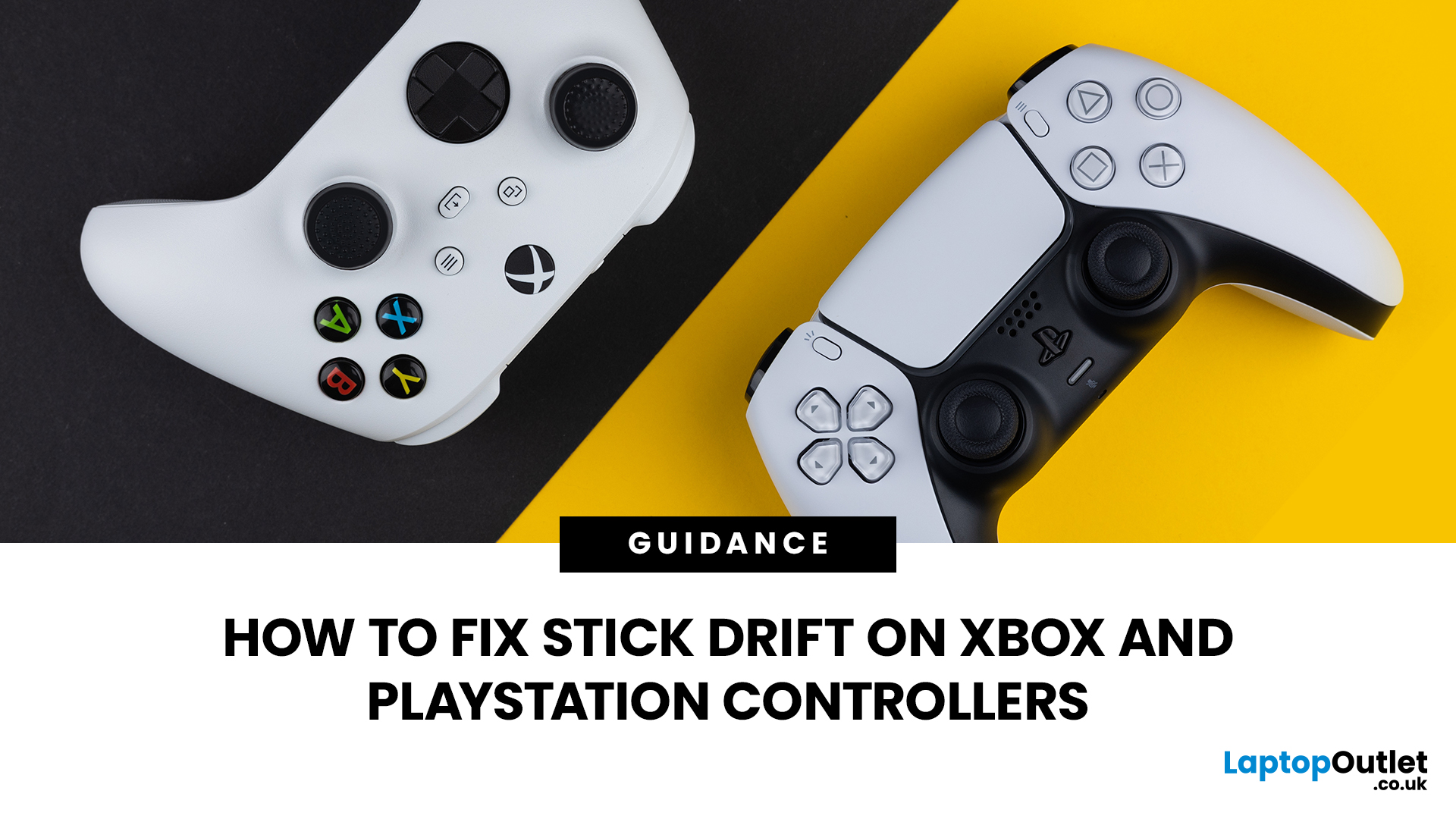
| How to Fix Stick Drift on Xbox and PlayStation Controllers |
Related Articles


Last Updated: May 21, 2026
Call of Duty: Black Ops 7 is built around fast reactions, snappy aim and precise movement. Your skill matters most, of course – but the controller in your hands can absolutely make or break a gunfight.
Below are some of the best controllers for Call of Duty, grouped by platform and playstyle, with direct product links.
What to Look for in a Black Ops 7 Controller
Before we dive into specific models, here are the features that matter most in Call of Duty:
- Fast triggers – short or adjustable trigger travel means faster shots in close-range gunfights.
- Accurate thumbsticks – for smoother tracking, recoil control and precision sniping.
- Extra buttons / paddles – map jump, slide, melee, reload or tac sprint so your thumbs stay on the sticks.
- Good grip & comfort – ranked sessions can last hours; your hands shouldn’t tap out before you do.
- Low-latency connection – wired USB or strong Bluetooth/2.4 GHz wireless for responsive inputs.
Now, let’s match those needs to real controllers you can buy
Last Updated: June 09, 2026
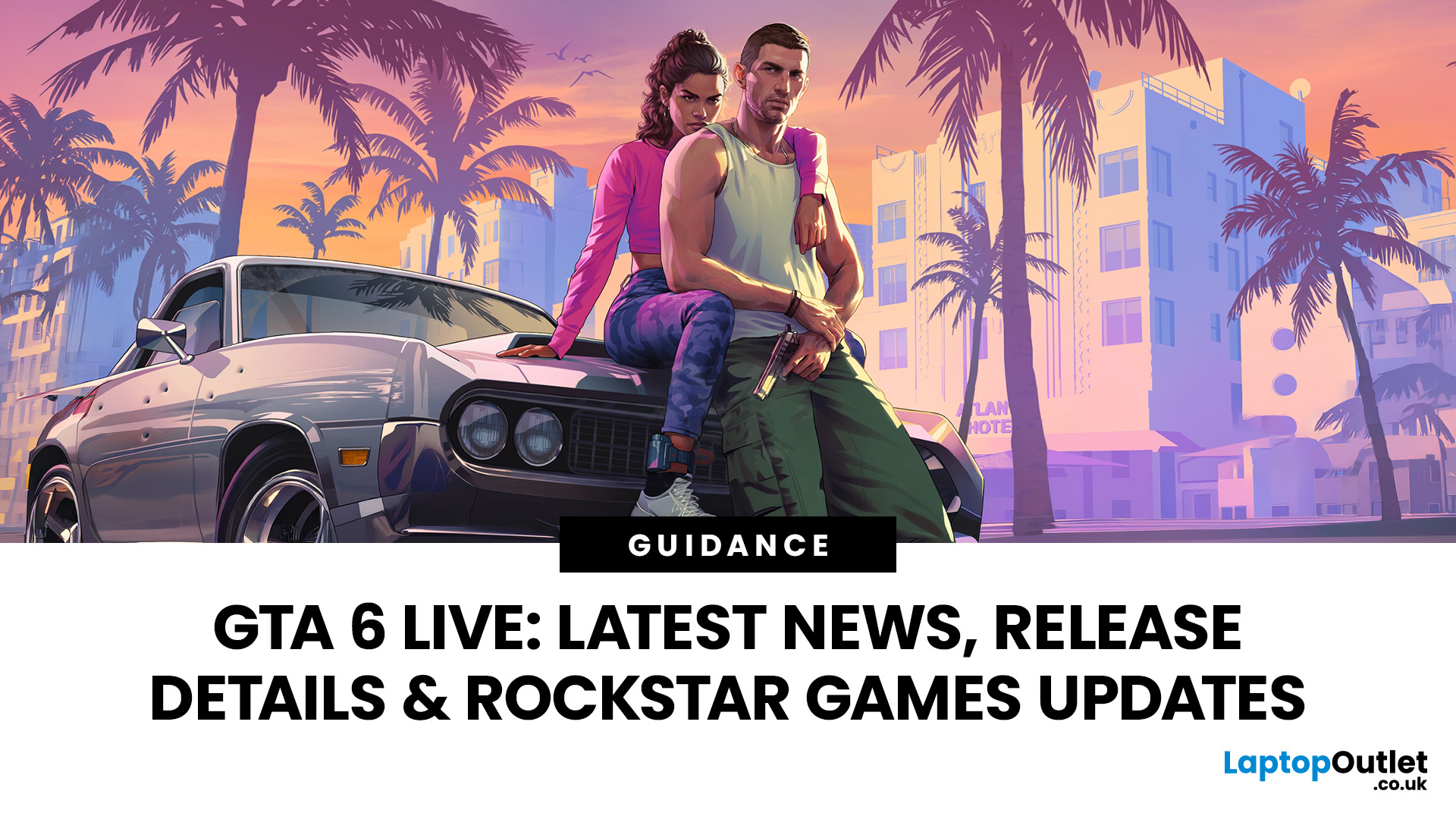
GTA 6 – officially titled Grand Theft Auto VI – is confirmed for release on 19 November 2026 on PlayStation 5 and Xbox Series X|S. Developed by Rockstar Games and published by Take-Two Interactive, the game returns to Vice City within the fictional state of Leonida. It features dual protagonists Jason Duval and Lucia Caminos, the first female lead in the mainline series.
| Note: This article focuses strictly on confirmed information from Rockstar Games, Take-Two Interactive financial disclosures, and officially released trailer content, while clearly flagging what remains unverified. If you are following GTA 6 release date news and want a reliable, up-to-date summary, you are in the right place. |
GTA 6 Release Date – When Is the Game Coming Out?
After a prolonged and much-discussed development cycle, GTA 6 now has a confirmed release date – though that date has changed more than once. Understanding how the current date came about requires a quick look at the timeline of official announcements.

Last Updated: September 07, 2026
Choosing the best tablets for kids in 2026 is not just about picking the cheapest screen. Today’s children use tablets for reading, schoolwork, drawing, watching videos, playing games, video calls, travelling, and exploring educational apps. That means parents need a device that is safe, durable, affordable, and suitable for everyday family use.
The best tablet for kids depends on your child’s age, how they will use it, and how much control you want over apps, websites, downloads, and screen time. Younger children may need a compact, child-friendly tablet with a strong case and simple parental controls. Older children may need a larger screen, better performance, keyboard support, and enough storage for homework, school apps, games, and offline videos.

In this guide, we look at the best tablet options for learning, games, videos, homework, travel, and back-to-school use, helping you choose the best tablet for kids UK families can buy in 2026.
Best Tablets for Kids in 2026: Quick Comparison
Last Updated: July 07, 2026
If you have been wondering what is landing on Xbox Game Pass this month, you are in the right place. July brings a proper mix of a major first-party remake, a few day-one indies, and a couple of long-awaited returning favourites. This guide covers every confirmed addition with release date, the games heading out the door, and what each subscription tier actually gets you.
All Confirmed Xbox Game Pass July 2026 Games & Dates
Here is the full confirmed schedule for Xbox Game Pass July 2026, including platforms and tiers. Day-one releases are highlighted, as these are exclusive to Ultimate and PC Game Pass subscribers.
| RELEASE DATE | GAME | PLATFORMS | TIER REQUIRED | DAY ONE LAUNCH? |
|---|---|---|---|---|
| 2 July | Tony Hawk's Pro Skater 3+4 | Series X|S, PC, Cloud | Ultimate Premium PC | Yes |
| 6 July | Winds of Arcana: Ruination | Series X|S, PC, Cloud | Ultimate Premium PC | Yes |
| 10 July | Palworld 1.0 | Series X|S, PC, Cloud | Ultimate PC | Yes (1.0 launch) |
| 10 July | Wuthering Waves | Series X|S, PC, Cloud | Ultimate PC | Yes (Xbox debut) |
| 13 July | Ascend |
Last Updated: July 15, 2026
Last Updated: July 15, 2026
Buying a controller looks easy until you check the small print.
One pad works on PC but not PS5. Another works on Xbox but only wired. Some have Hall Effect sticks. Some have back buttons. Some look cool, then feel cheap after two weeks.
So, this guide keeps it simple. If you want the best gaming controller for your setup, start with where you play, then match the controller to the game type. Not the other way round.
This is a UK-first guide for PC, PlayStation, Xbox, fighting games, and flight sims. We’ll cover compatibility, comfort, wired vs wireless, stick drift, pro features, and which products actually fit each buyer.
Best Gaming Controller by Type at a Glance
| Type | Best fit | Why it makes sense |
| Best overall | ASUS ROG Raikiri II | Premium PC/Xbox wireless |
| Best controller for PC | Turtle Beach Stealth Pivot | Strong PC wireless pick |
| Best PS5 controller | Sony DualSense | Proper PS5 features |
| Best Xbox controller | ASUS ROG Raikiri Wired | Wired Xbox value |
| Best FPS controller | Razer Wolverine V3 | Fast esports |
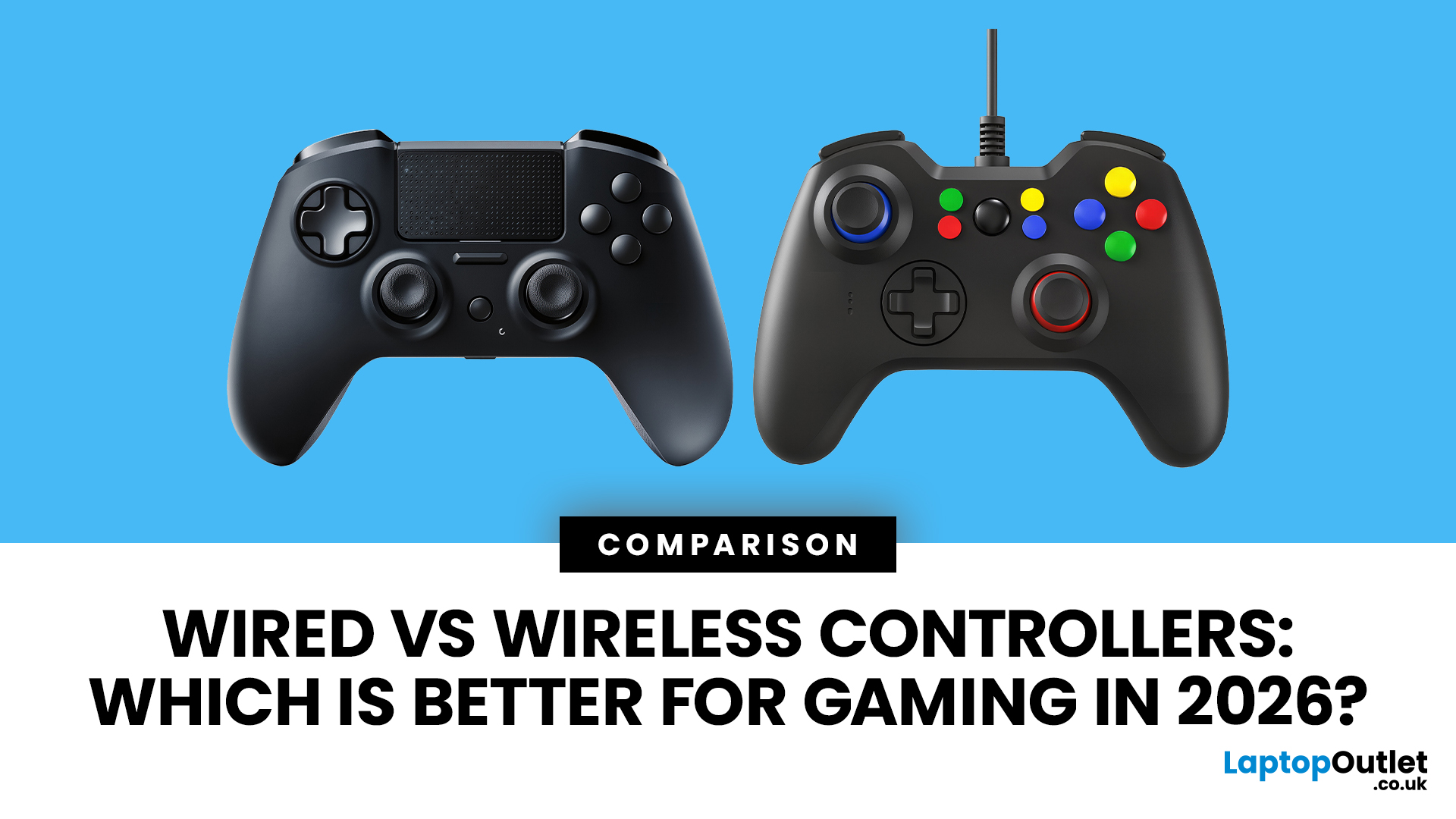
Published: July 22, 2026
Published: August 05, 2026
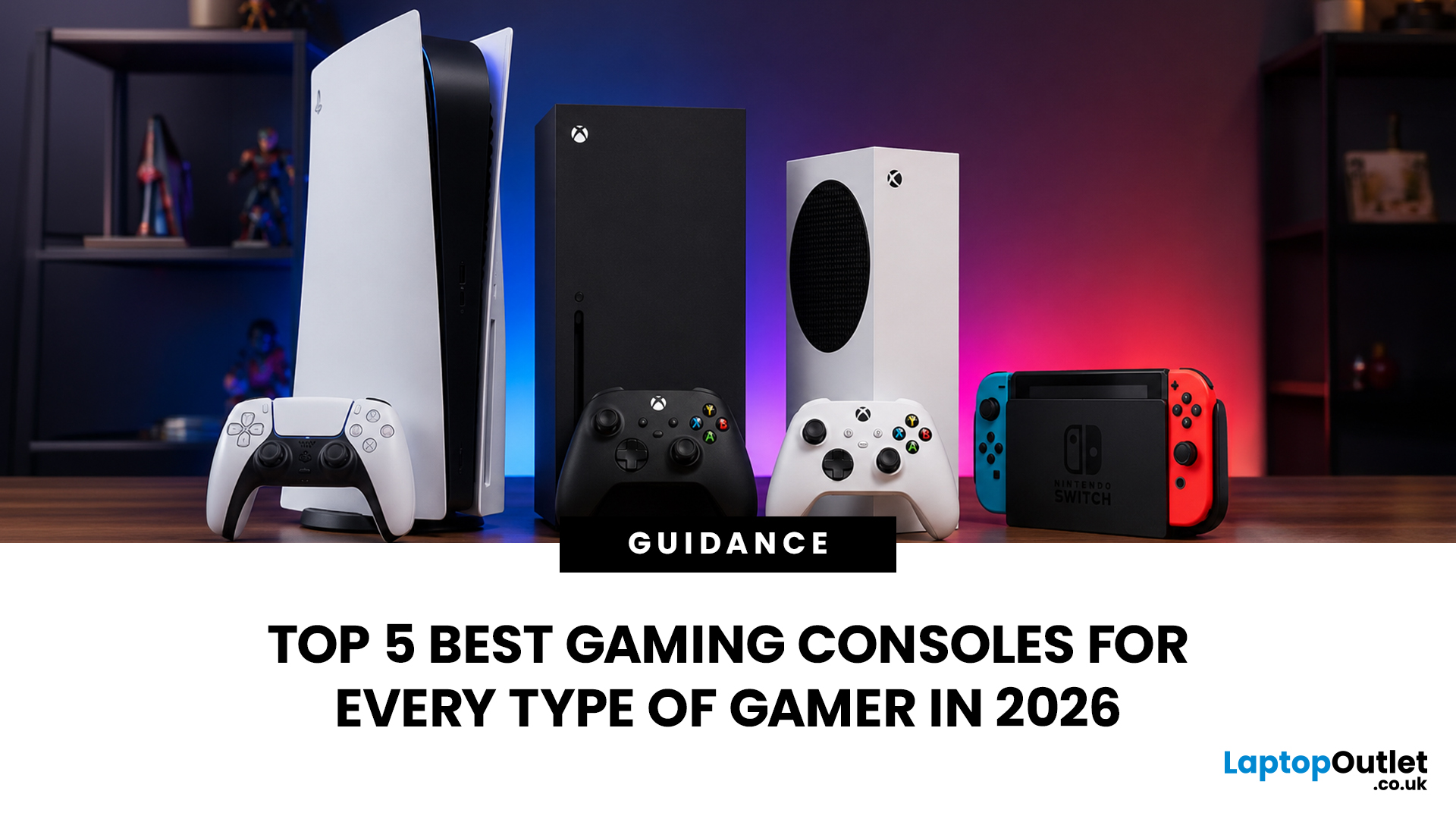
The best gaming console in 2026 depends on where you play, which games you enjoy and how much flexibility you want. The PlayStation 5 Digital Edition is our best overall choice for straightforward big-screen gaming, while the latest Windows and SteamOS handhelds offer far more freedom to play anywhere.
This list covers five of the most exciting systems currently available at Laptop Outlet. From PlayStation exclusives and Xbox Cloud Gaming to full PC libraries in your hands, there is something here for console loyalists, travelling gamers and serious handheld enthusiasts.
Key Highlights
- Best overall gaming console: Sony PlayStation 5 Digital Edition
- Best-value Windows handheld: ASUS ROG Xbox Ally
- Best premium compact handheld: ASUS ROG Xbox Ally X
- Best handheld display: Lenovo Legion Go Gen 2
- Best SteamOS handheld: Lenovo Legion Go S
- Best for traditional TV gaming: PlayStation 5 Digital Edition
- Best for accessing multiple PC game stores: ROG Xbox Ally X
- Best console-like portable experience:
Published: August 10, 2026
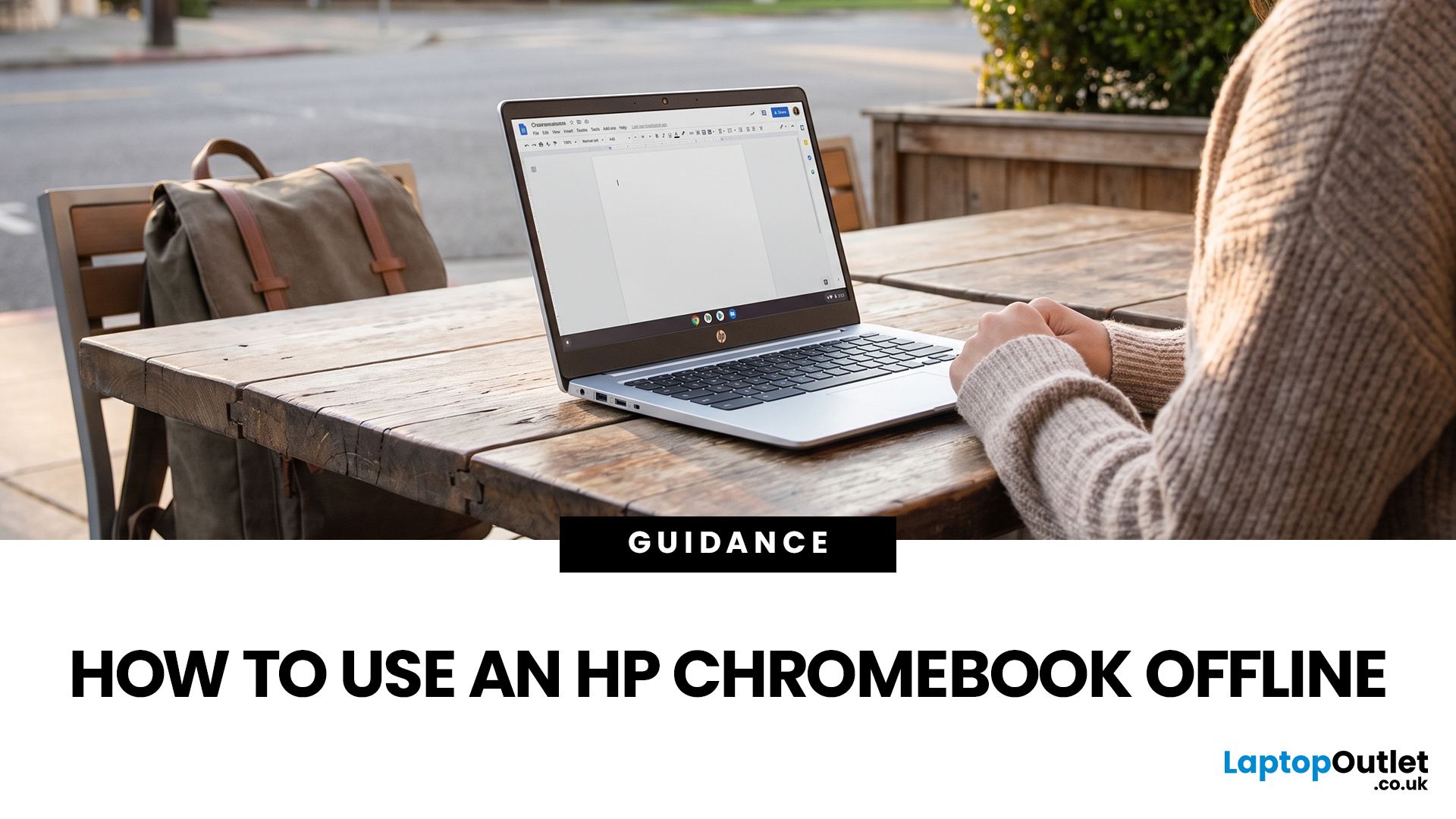
No Wi-Fi doesn't have to mean no work, no films and no games. Whether you're on a train, up a mountain, a long-haul flight or your home broadband has dropped out, using an HP Chromebook offline is easier than most people expect. With a little preparation while you're still connected, your Chromebook keeps working, playing and entertaining you long after the signal disappears.
Can You Use an HP Chromebook Without Wi-Fi?
Yes. HP uses the same ChromeOS offline features as other Chromebook brands. You can open local files, run supported web or Android apps, edit prepared Google Drive documents, use built-in tools and play downloaded media.
Online-only actions pause. You cannot load new websites, receive fresh email, stream undownloaded content, join video calls or use cloud gaming until internet access returns.
| Task | Works offline? | Preparation required |
| Edit Google Docs, Sheets and Slides | Yes | Enable Drive offline access and select key files |
| Read or draft Gmail messages | Yes | Enable Gmail offline |
Published: August 12, 2026
From mouse sensitivity and key commands to macros and RGB lighting, Razer Synapse 4 puts your entire compatible Razer gaming setup under one control panel.
Razer Synapse 4 is Razer’s free device-management software for compatible gaming laptops, mice, keyboards, headsets, controllers and RGB accessories. It gives gamers one place to change performance settings, remap controls, create profiles and macros, and manage lighting. The software is not required for every basic device function, but it unlocks the advanced features that make Razer hardware more customisable.

