



How to Choose the Best Beginner Drawing Tablet: Complete Buyer’s Guid
Buying your first drawing tablet can feel confusing, especially with so many screenless, display, and standalone options available. The best beginner drawing tablet is not always the most expensive one; it depends on how you draw, where you use it, your current device, and your budget.
| Choosing the best drawing tablets beginners depends on your budget, drawing style, and whether you want a screen. A screenless graphics tablet is affordable, a display tablet feels more natural, and a portable tablet with stylus support is ideal for drawing, notes, and everyday use. This guide explains the key features to compare before buying, including pen pressure, size, compatibility, portability, and price. |
This guide explains the main tablet types, key features to compare, and how to choose a beginner-friendly model that suits your learning style.
What Is the Best Drawing Tablet Beginners?
For most beginners, the best choice is either:
- A screenless graphics tablet if you want an affordable drawing pad for beginners and already have a laptop or desktop.
- A display drawing tablet if you want to draw directly on a screen and prefer a more natural pen-on-paper feeling.
- A standalone tablet with stylus support if you want portability and also need a device for everyday use, browsing, note-taking, studying, or entertainment.
If you are just starting digital art, do not focus only on professional-level features. Instead, look for a tablet that is easy to set up, comfortable to draw on, compatible with your device, and suitable for the software you want to use.
A beginner should prioritise:
- Comfortable drawing size
- Good pen pressure
- Low input delay
- Easy driver setup
- Compatible software
- Reliable stylus
- Affordable price
- Portability if needed
The best graphics tablet for a beginner is the one that helps you practise consistently, not the one with the longest feature list.
What Is a Drawing Tablet?
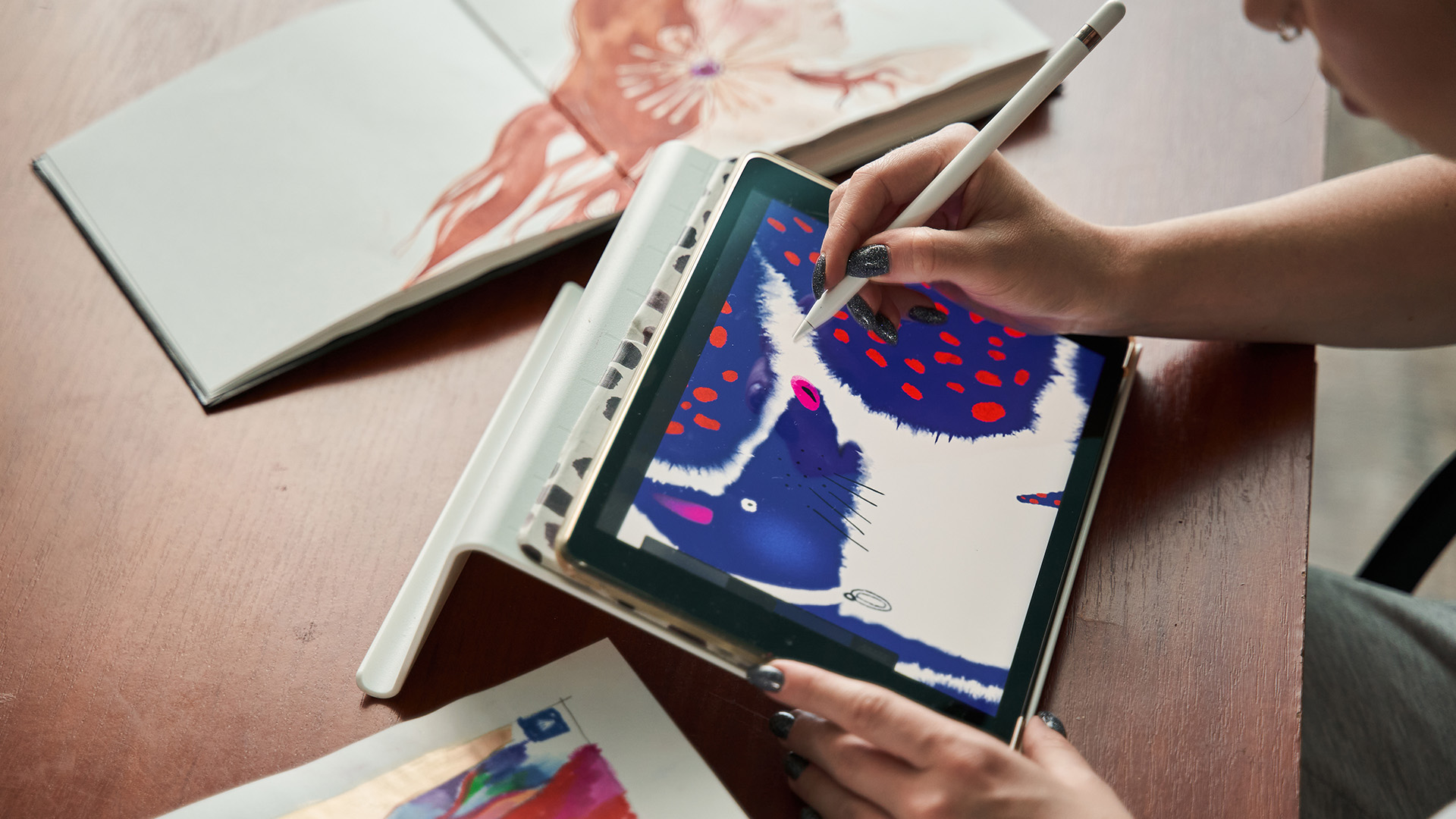
A drawing tablet is a digital input device that lets you draw, sketch, paint, edit photos, or write by using a stylus pen. Instead of using a mouse, you use a pen to create lines, shapes, shading, and brush strokes.
There are three main types of drawing tablets:
- Screenless graphics tablets
- Display drawing tablets
- Standalone tablets with stylus support
Each type suits a different kind of beginner.
1. Screenless Graphics Tablets
A screenless graphics tablet is a flat drawing pad that connects to a laptop or desktop computer. You draw on the pad, but you look at your computer screen to see the artwork.
This type is often called a graphics tablet, graphic tablet for drawing, drawing pad, or digital tablet drawing pad.
Best for:
- Beginners on a budget
- Students
- People with a laptop or desktop already
- Photo editing
- Illustration practice
- Digital note-taking
- Learning hand-eye coordination
Pros:
- Usually the most affordable drawing tablet option
- Lightweight and portable
- Good for beginners who want to learn digital art
- Often more durable than screen tablets
- Does not need charging if USB-powered
- Takes up less desk space
Cons:
- Takes time to get used to drawing while looking at a separate screen
- Less natural than drawing directly on a display
- Requires a laptop or PC
- Driver setup may be needed
A screenless beginner drawing pad is a smart starting point if you want to try digital art without spending too much money.
2. Display Drawing Tablets
A display tablet drawing device has a built-in screen. You connect it to your computer and draw directly on the display using a stylus. This feels more familiar because you can see your hand, pen, and artwork in the same place.
You may also see these described as tablet screen drawing devices, display drawing tablets, or drawing tablets with screens.
Best for:
- Beginners who want a natural drawing experience
- Digital painters
- Illustrators
- Animation students
- Designers
- Users who dislike screenless drawing pads
Pros:
- More natural pen-on-screen experience
- Easier for many beginners to understand
- Better for detailed line work
- Useful for illustration, comics, design, and animation
- Feels closer to traditional drawing
Cons:
- More expensive than screenless tablets
- Usually less portable
- May require HDMI, USB-C, or extra cables
- Needs desk space
- Screen quality varies by model
A display tablet for drawing is a good choice if you already know you want to continue digital art and prefer drawing directly on a screen.
3. Standalone Tablets with Stylus Support
A standalone tablet works without being connected to a laptop or desktop. This includes many Android tablets, Windows tablets, and other portable tablets with stylus support.
This option is useful if you want one device for drawing, studying, streaming, browsing, note-taking, and everyday use.
Best for:
- Students
- Beginners who want portability
- Casual sketching
- Note-taking
- Drawing while travelling
- People who do not want a full desktop setup
Pros:
- Portable and easy to carry
- Works without a separate computer
- Useful for everyday tasks
- Good for drawing, notes, and entertainment
- Touchscreen is easy for beginners
Cons:
- Stylus may be sold separately
- Drawing apps and performance vary
- Storage and RAM matter more
- Some tablets are better for notes than serious drawing
- Pen pressure support depends on the tablet and stylus
Which Type of Drawing Tablet Should a Beginner Choose?
Use this quick comparison:
|
BEGINNER NEED |
BEST TABLE TYPE |
WHY |
|---|---|---|
|
Lowest cost |
Screenless graphics tablet |
Affordable and simple |
|
Most natural drawing feel |
Display drawing tablet |
Draw directly on screen |
|
Drawing and everyday use |
Standalone tablet |
Portable and versatile |
|
Learning digital art seriously |
Medium graphics tablet or display tablet |
Better long-term comfort |
|
Casual sketching |
Android tablet or small graphics tablet |
Easy and budget-friendly |
|
Photo editing |
Screenless graphics tablet |
Precise control at low cost |
|
Animation or illustration |
Display tablet |
Easier detail work |
|
Travel and study |
Portable tablet with stylus |
Works anywhere |
For most new artists, a budget graphics tablet is the safest entry point. But if you already dislike the idea of drawing while looking at a separate monitor, a display tablet drawing setup may be worth the extra cost.
How We Recommend Choosing a Beginner Drawing Tablet
Instead of buying the tablet with the highest-pressure levels or biggest screen, choose based on your actual use.
Before buying, ask yourself:
- Do I already have a laptop or desktop?
- Do I want to draw directly on a screen?
- Will I use the tablet at a desk or while travelling?
- Am I learning as a hobby, for school, or for professional work later?
- What drawing software do I want to use?
- Do I need the tablet for everyday use too?
- What is my realistic budget?
The best drawing tablets beginners are not just about specs. A comfortable beginner drawing pad should fit your hand movement, desk space, software, and learning routine.
Key Features to Look for in a Beginner Drawing Tablet
1. Pen Pressure Sensitivity
Pen pressure controls how your lines respond when you press harder or softer. With pressure sensitivity, you can create thicker lines, lighter shading, darker strokes, and more natural brush effects.
Common pressure levels include:
- 2,048 levels
- 4,096 levels
- 8,192 levels
- 16,384 levels
For beginners, 4,096 or 8,192 pressure levels are usually more than enough. A higher number does not automatically make you a better artist. Brush control, software settings, and practice matter more.
A beginner should look for a pen that feels responsive and consistent, not just the highest-pressure number.
2. Active Drawing Area
The active area is the part of the tablet where you draw. On a screenless tablet, this is the pad surface. On a display tablet, this is the screen.
Small tablets are easier to carry and cheaper, but they can feel cramped. Medium tablets usually offer a better balance for beginners.
|
TABLE SIZE |
BEST FOR |
|---|---|
|
Small |
Travel, notes, simple sketches, limited desk space |
|
Medium |
Best beginner choice for most users |
|
Large |
Professional work, detailed illustration, larger monitors |
If you use a large monitor, a very small graphics tablet may feel too sensitive because small hand movements cover more screen space. A medium drawing pad is usually more comfortable for learning.
3. Display or No Display
Choosing best display tablet for beginner is one of the biggest decisions.
Choose a screenless graphics tablet if you want a cheaper, portable, and durable option.
Choose a display tablet if you want a more natural drawing experience and are willing to spend more.
Choose a standalone tablet if you want a device for both art and everyday use.
There is no single correct answer. The best drawing tablets beginners for drawing depends on how you prefer to work.
4. Stylus Comfort
The pen should feel comfortable in your hand. If it is too thin, too heavy, or slippery, long drawing sessions can become tiring.
Look for:
- Comfortable grip
- Battery-free stylus if possible
- Replaceable nibs
- Side buttons
- Tilt support if you want natural shading
- Low lag
- Good palm rejection on screen tablets
Beginners often focus on the tablet but forget the pen. The stylus is what you will use every day, so comfort matters.
5. Tilt Support
Tilt support lets the tablet detect the angle of the pen. This can make brushes behave more like pencils, markers, or shading tools.
Tilt is useful for:
- Sketching
- Shading
- Digital painting
- Pencil-style brushes
- Natural brush effects
It is not essential for every beginner, but it is a helpful feature if you want to draw more naturally.
6. Shortcut Keys
Many drawing tablets include shortcut buttons. These can be used for undo, zoom, brush size, eraser, hand tool, or switching tools.
Shortcut keys are helpful, but they are not essential. Some artists prefer using a keyboard. Others like having buttons directly on the tablet.
For beginners, 4 to 8 shortcut keys are usually enough.
7. Software Compatibility
Before buying a tablet, check that it works with your device and drawing software.
Popular drawing and creative apps include:
- Adobe Photoshop
- Adobe Illustrator
- Clip Studio Paint
- Krita
- Corel Painter
- Autodesk SketchBook
- Affinity Designer
- Procreate on iPad
- Concepts
- ibisPaint
- MediBang Paint
A screenless or display graphics tablet usually needs a computer. A standalone tablet uses mobile or desktop apps depending on whether it runs Android, Windows, or another operating system.
8. Operating System Compatibility
Check whether the tablet works with:
- Windows
- macOS
- Android
- ChromeOS
- iPadOS
Not every tablet works with every system. Some graphics tablets support Android phones or tablets, but the drawing area may be limited. Some require drivers on Windows or macOS. Some standalone tablets need specific styluses.
If you want a Windows-based creative setup, explore best Windows tablets. If you prefer Android for sketching, browsing, and entertainment, compare beginner-friendly Android tablets.
9. Portability
If you travel, study, or move between rooms, a portable drawing tablet may be better than a large display tablet.
Portable options include:
- Small graphics tablets
- Medium USB-C graphics tablets
- Android tablets with stylus support
- Windows tablets with pen support
- Slim display tablets
For home desks, a larger tablet can be more comfortable. For students or commuters, portability may matter more.
10. Budget
A beginner does not need the most expensive professional drawing tablet. Start with a device that helps you practise regularly.
Budget ranges usually look like this:
|
BUDGET LEVEL |
WHAT TO EXPECT |
|---|---|
|
Entry-level |
Basic screenless drawing pad |
|
Budget-friendly |
Better pen pressure, more active area, shortcut keys |
|
Mid-range |
Larger graphics tablet or smaller display tablet |
|
Higher-end |
Larger display, better colour, improved pen tech |
|
Professional |
Premium display, colour accuracy, advanced workflow features |
A budget drawing tablet can be a great first step. Upgrade later when you know your style, software, and workflow.
Best Drawing Tablet Types by Beginner Profile
Best for Complete Beginners
A medium screenless graphics tablet is usually the best starting point. It is affordable, simple, and good enough for sketching, painting, photo editing, and learning digital art basics.
Look for:
- Medium active area
- 4,096 or 8,192 pressure levels
- Battery-free pen
- Windows and macOS support
- Shortcut keys
- USB-C connection
| Best for: first-time digital artists, students, hobbyists, and budget buyers. |
| Avoid if: you strongly prefer drawing directly on a screen. |
Best Drawing Tablets Beginners Who Want a Screen
A small or medium display tablet is better if you want your drawing experience to feel closer to paper.
Look for:
- Full HD or better screen
- Good colour coverage
- Laminated or low-parallax display if available
- Adjustable stand
- Comfortable stylus
- USB-C or HDMI connection
- Good driver support
| Best for: illustrators, digital painters, comic artists, and users who dislike screenless tablets. |
| Avoid if: you need something very portable or low-cost. |
Best for Students
Students often need a tablet that is useful beyond drawing. A portable tablet with stylus support may be better than a dedicated graphics tablet if you also need notes, web browsing, video calls, and reading.
Look for:
- Lightweight design
- Good battery life
- Stylus compatibility
- Note-taking apps
- Enough storage
- Split-screen support
- Keyboard compatibility if needed
| Best for: school, college, university, note-taking, sketching, and everyday tasks. |
For more general student-friendly options, browse tablet buying options.
Best for Budget Buyers
A budget drawing tablet should still have a reliable pen and a comfortable drawing area. Do not choose only by the lowest price.
Look for:
- Good user reviews
- Reliable brand support
- Replaceable pen nibs
- Compatible drivers
- Enough active area
- Stable USB connection
| Best for: beginners testing digital art for the first time. |
| Avoid if: the product does not clearly list compatibility, pen pressure, or software support. |
Best for Future Professionals
If you are studying design, animation, illustration, architecture, or digital media, you may want a tablet that gives you room to grow.
Look for:
- Medium or large active area
- Strong pen pressure
- Tilt support
- Customisable keys
- Better build quality
- Good software compatibility
- Display option if your work needs precise detail
You do not need a professional drawing tablet on day one, but choosing a slightly better model can save you from upgrading too soon.
Screenless Graphics Tablet vs Display Tablet Drawing: Which Is Better?
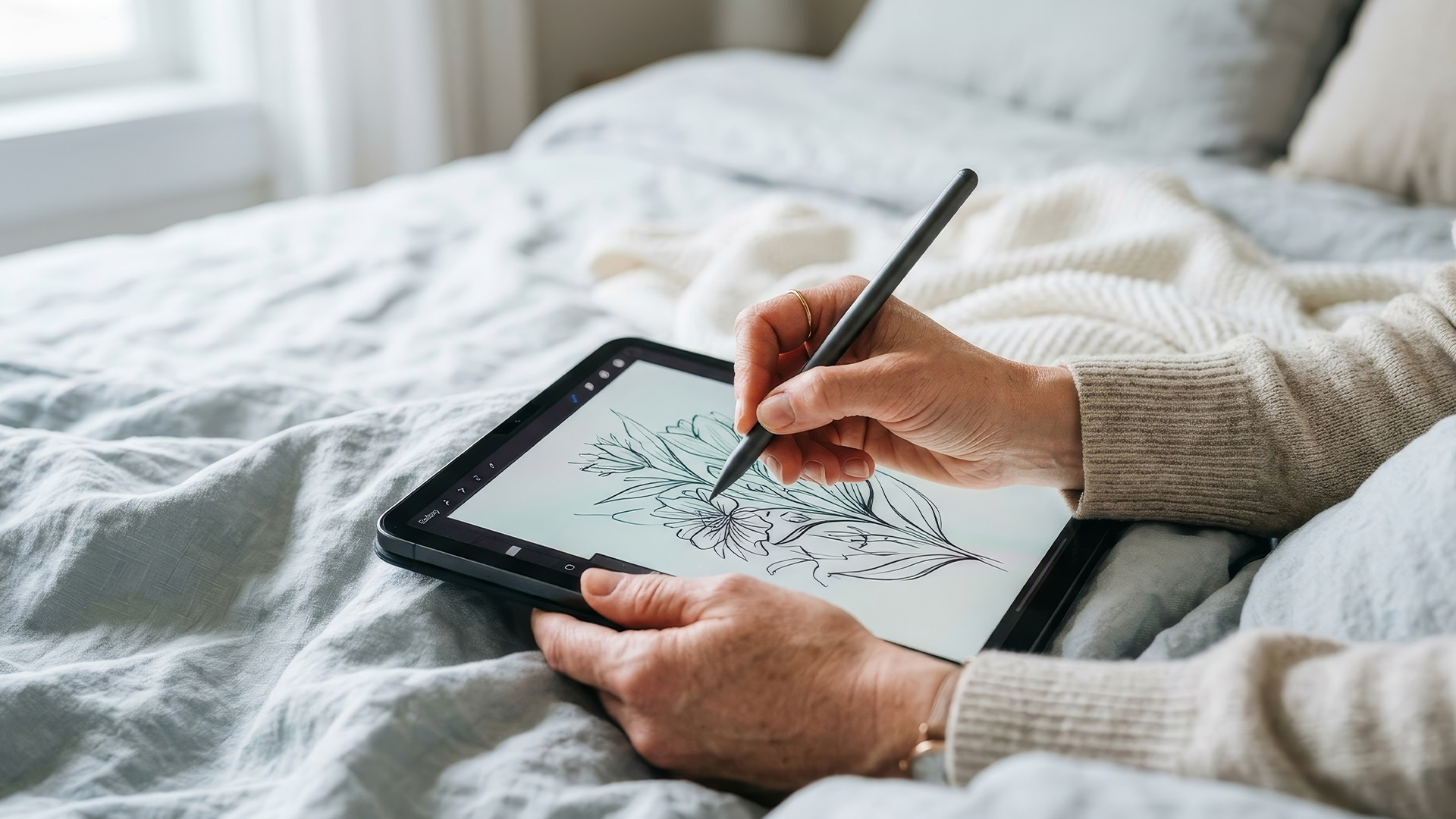
Both can create excellent artwork. The difference is how they feel.
Choose a screenless graphics tablet if:
- You want an affordable drawing tablet.
- You already have a laptop or desktop.
- You do not mind learning hand-eye coordination.
- You want something lightweight.
- You need a simple drawing pad for tablet-style input.
- You want a durable device for practice.
Choose a display tablet if:
- You want to draw directly on the screen.
- You prefer a more natural drawing experience.
- You work on detailed illustration.
- You are willing to spend more.
- You have enough desk space.
- You want better visual control while drawing.
A screenless tablet is usually better value. A display tablet is usually easier to understand at first.
Standalone Tablet vs Dedicated Drawing Tablet
A standalone tablet is not always the same as a dedicated drawing tablet.
A dedicated drawing tablet is mainly made for creative input. It usually connects to a computer and works with desktop software.
A standalone tablet is a complete device. It has its own screen, apps, battery, processor, storage, and operating system.
Choose a standalone tablet if:
- You want drawing and everyday use in one device.
- You travel often.
- You want to take notes.
- You want to sketch away from the desk.
- You do not want to connect to a laptop.
Choose a dedicated drawing tablet if:
- You want better value for art-specific features.
- You already have a computer.
- You use desktop creative software.
- You want a larger drawing setup.
- You care more about drawing performance than general tablet features.
For casual users, portable tablets can be a practical choice. For people focused on illustration, a dedicated graphics tablet or display tablet may offer better drawing control.
What Size Drawing Tablet Should Beginners Buy?
For most beginners, a medium tablet is the safest choice.
Small tablets are cheaper and easier to carry, but they can feel restrictive for drawing. Large tablets are more comfortable for broad strokes, but they cost more and need more desk space.
Small drawing tablets
Good for:
- Travel
- Note-taking
- Photo edits
- Small desks
- Basic sketching
Not ideal for:
- Large arm movements
- Detailed painting
- Big monitors
Medium drawing tablets
Good for:
- Most beginners
- Illustration
- Digital painting
- School projects
- General creative work
Not ideal for:
- Very limited desk space
Large drawing tablets
Good for:
- Professional artists
- Large monitors
- Detailed work
- Designers and illustrators
Not ideal for:
- Portability
- Small desks
- Tight budgets
If you are unsure, choose medium.
How Much Pen Pressure Do Beginners Really Need?
Many tablets advertise very high-pressure sensitivity, but beginners do not need to chase the highest number.
For a new artist, the difference between 4,096 and 8,192 pressure levels may be less important than:
- A stable driver
- A comfortable pen
- Good software settings
- A smooth tablet surface
- Low lag
- Proper brush setup
Pressure sensitivity matters because it helps your strokes feel expressive. But good line control comes from practice.
A beginner-friendly drawing tablet should respond smoothly when you press lightly or heavily. That matters more than the number on the box.
What About Colour Accuracy?
Colour accuracy matters more while choosing best drawing tablets beginners and standalone tablets than on screenless graphics tablets.
If you are buying a display tablet drawing device, check:
- Screen resolution
- Brightness
- Colour coverage
- Viewing angles
- Lamination
- Matte or glossy surface
- Parallax
Parallax is the small gap between the pen tip and the line on the screen. Lower parallax feels more natural.
For beginners, a good Full HD screen is often enough. If you plan to do professional illustration, design, or photo work, better colour accuracy becomes more important.
Top Picks Beginner Drawing Tablets at Laptop Outlet
Looking for an affordable drawing tablet to start digital art? Here are some beginner-friendly options from Laptop Outlet that are currently in stock and come with pen support for sketching, note-taking, and creative apps.
|
PRODUCT |
BEST FOR |
KEY DRAWING-FRIENDLY FEATURES |
BUY NOW |
|
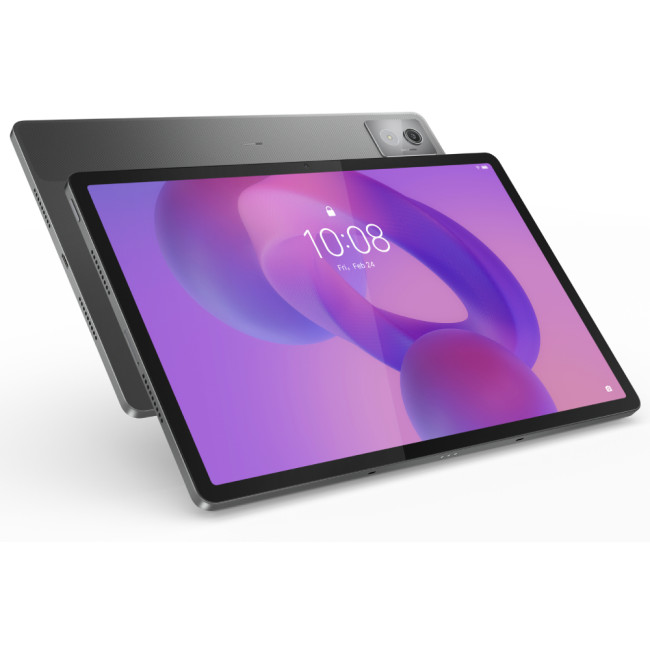
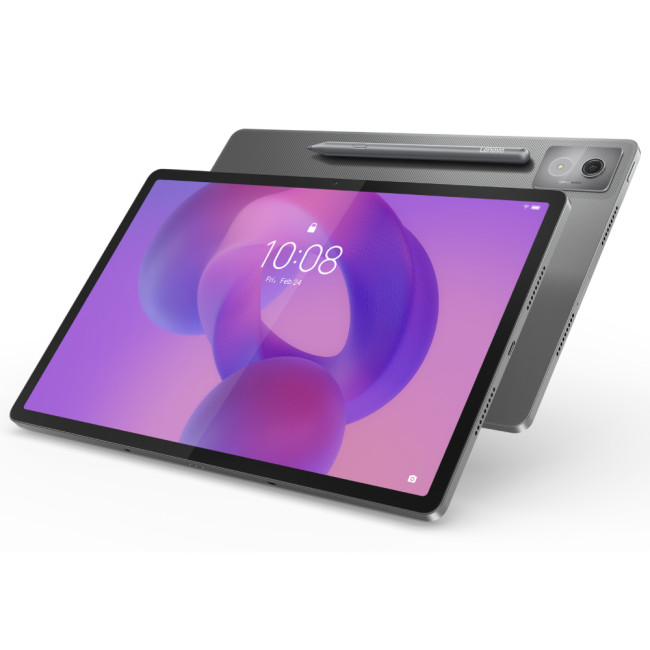
Lenovo Idea Tab Pro 12.7” 3K, 8GB RAM, 128GB Storage, with Pen |
Best overall beginner drawing tablet |
Pen bundled large 12.7” 3K IPS display 8GB RAM Android 14 |
 |
|
Lenovo Idea Tab Pro 12.7” 3K, 8GB RAM, 256GB Storage, with Pen |
Best for extra storage |
Pen bundled 12.7” 3K IPS display 8GB RAM 256GB storage |
 |
|
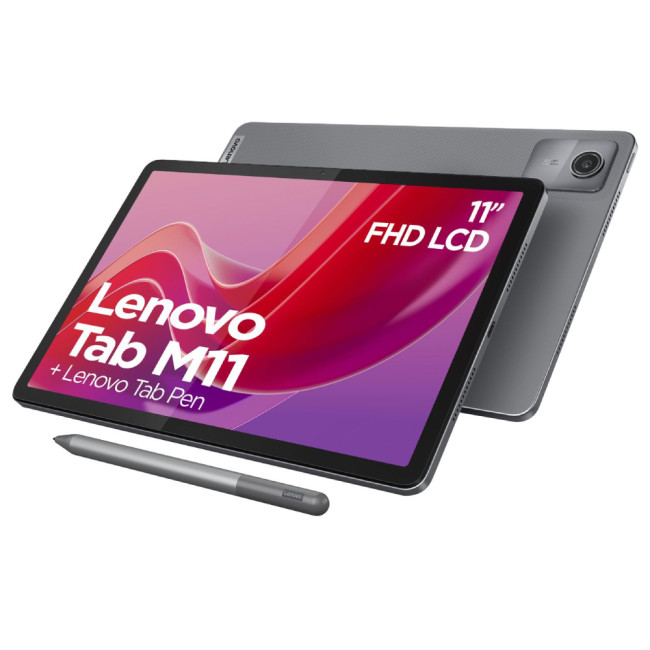
Lenovo Tab M11 11”, 4GB RAM, 128GB Storage, with Pen |
Best affordable beginner option |
Pen included 11” WUXGA IPS display 128GB storage |
 |
What Software Should Beginners Use?
Your tablet is only part of the setup. The software also matters.
Beginner-friendly software options include:
- Krita for free digital painting
- Autodesk SketchBook for simple sketching
- Clip Studio Paint for comics and illustration
- Adobe Photoshop for painting and editing
- Procreate for iPad drawing
- Concepts for sketching and design
- ibisPaint for mobile drawing
Before buying a tablet, check whether it works well with the software you want to use.
Common Mistakes Beginners Should Avoid
Many best drawing tablets beginners goes the wrong drawing tablet because they focus on the wrong features.
Avoid these mistakes:
- Buying the cheapest tablet without checking compatibility.
- Choosing a very small tablet for a large monitor.
- Buying a display tablet without checking cable requirements.
- Assuming every stylus supports pressure sensitivity.
- Forgetting that some tablets need drivers.
- Ignoring replacement nib availability.
- Choosing a tablet only because it says “professional”.
- Buying a standalone tablet without checking app support.
- Spending too much before knowing your drawing habits.
- Expecting the tablet to improve your art instantly.
A tablet is a tool. It can make digital art easier, but it does not replace practice.
Beginner Drawing Tablet Buying Checklist
Before you buy, check this list:
- Does it work with your laptop, desktop, or tablet?
- Does it support your operating system?
- Does the pen support pressure sensitivity?
- Is the active area large enough?
- Is the stylus comfortable?
- Are replacement nibs available?
- Does it need drivers?
- Does it work with your drawing software?
- Is it portable enough for your routine?
- Does it fit your budget?
- Is the brand known for reliable support?
- Does it include the cables you need?
This checklist can help you avoid buying a tablet that looks good online but does not fit your workflow.
How to Test a Drawing Tablet When You First Get It
Once your drawing tablet arrives, do a simple test before fully committing it.
Test 1: Line control
Open a drawing app and draw slow lines, fast lines, circles, and curves. Check whether the cursor follows the pen smoothly.
Test 2: Pressure sensitivity
Draw lines with light, medium, and heavy pressure. The line should change naturally if pressure sensitivity is working.
Test 3: Palm rejection
On display and standalone tablets, rest your hand on the screen while drawing. Check whether accidental touches appear.
Test 4: Comfort
Draw for 20 to 30 minutes. Notice whether your hand, wrist, shoulder, or neck feels uncomfortable.
Test 5: Shortcut setup
Try assigning undo, zoom, brush size, and eraser to shortcut keys. Good shortcuts make drawing faster.
Test 6: Software compatibility
Test the tablet in the app you actually plan to use, not just the default software.
If the tablet feels uncomfortable after short use, it may not be the right size or type for you.
Beginner Drawing Tablet Recommendations by Use Case
|
USE CASE |
RECOMMENDED TABLE TYPE |
WHY |
|---|---|---|
|
First digital art tablet |
Medium screenless graphics tablet |
Best value for learning |
|
Drawing directly on screen |
Entry-level display tablet |
More natural experience |
|
Study and sketching |
Standalone Android or Windows tablet |
Useful for everyday tasks |
|
Travel sketching |
Portable tablet with stylus |
Easy to carry |
|
Photo editing |
Screenless graphics tablet |
Precise control |
|
Animation learning |
Display tablet |
Easier frame-by-frame drawing |
|
Budget setup |
Small or medium graphics tablet |
Low cost |
|
Long-term creative study |
Mid-range display or graphics tablet |
More room to grow |
Is a Budget Drawing Tablet Good Enough?
Yes, a budget drawing tablet can be good enough for beginners. Many new artists start with affordable graphics tablets and use them for sketching, painting, photo editing, and design practice.
A budget tablet is a good choice if:
- You are still learning.
- You are unsure whether digital art is for you.
- You already have a laptop.
- You want to practice without spending too much.
- You do not need a built-in screen.
However, avoid very cheap models with unclear specifications, poor driver support, or no replacement nibs. A low price is only good value if the tablet is reliable.
If you plan to use your drawing tablet for study, work, or creative projects, pairing it with the right laptop accessories can improve comfort, posture, and productivity.
When Should You Upgrade to a Professional Drawing Tablet?
You may be ready to upgrade when:
- You draw regularly.
- Your current tablet feels too small.
- You need better colour accuracy.
- You want to draw directly on the screen.
- You need better shortcut controls.
- You work on paid creative projects.
- Your software workflow has become more advanced.
- You feel limited by your current device.
A professional drawing tablet makes sense when you understand your workflow. Beginners should usually start simple, then upgrade once they know what they need.
Best Beginner Setup for Digital Drawing
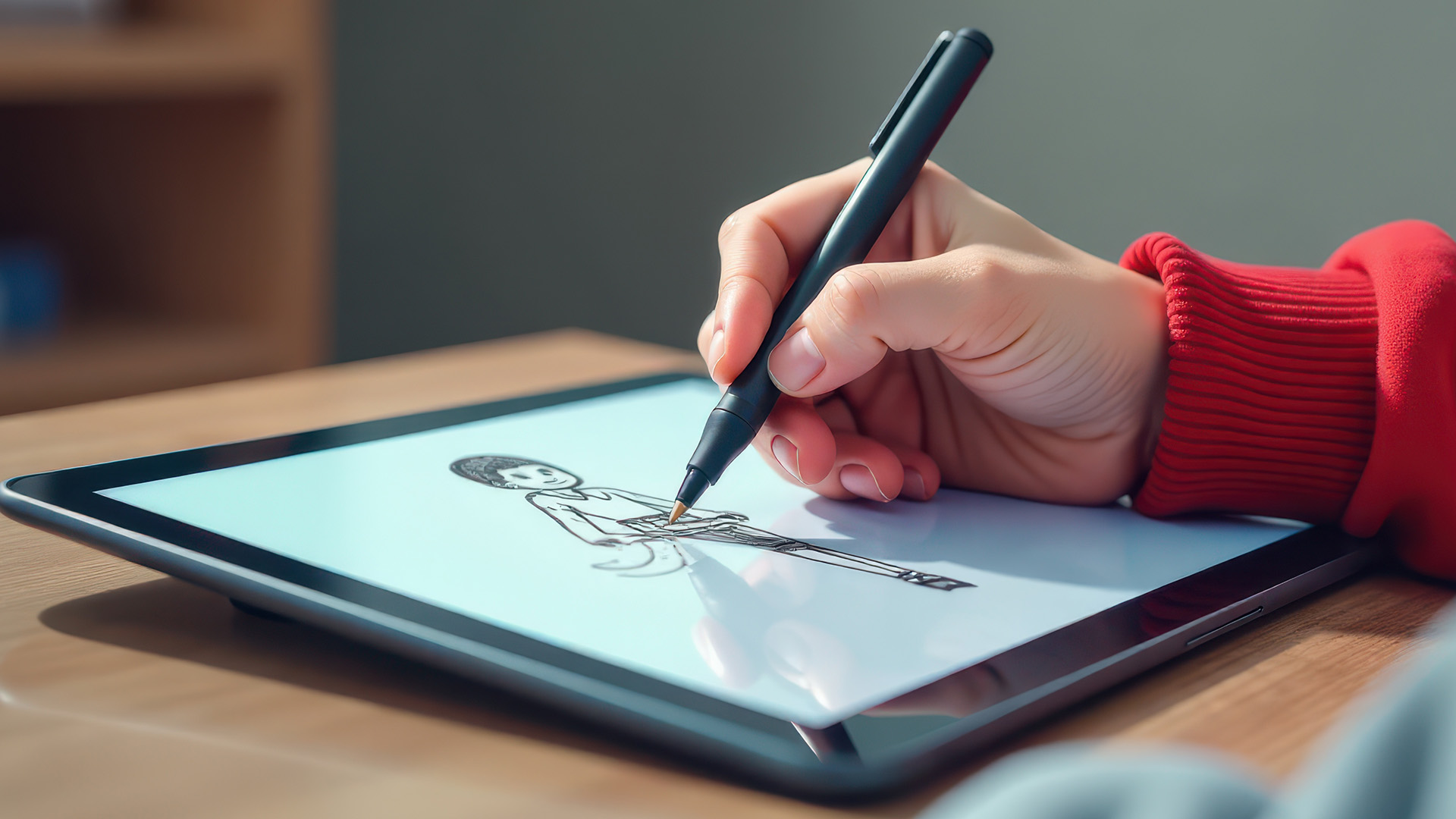
A good beginner setup does not need to be expensive.
For a screenless tablet setup, you need:
- Graphics tablet
- Laptop or desktop
- Drawing software
- Comfortable desk space
- Optional keyboard shortcuts
For a display tablet setup, you need:
- Display drawing tablet
- Laptop or desktop
- Correct cables
- Drawing software
- Adjustable stand if not included
For a standalone tablet setup, you need:
- Tablet with stylus support
- Drawing app
- Enough storage
- Protective case
- Optional keyboard or stand
If you want a device that also works for streaming, study, browsing, and notes, compare tablets for everyday use and portable tablets.
Which Drawing Tablet Is Best for You?
Choose based on your situation:
- If you want the cheapest reliable option, choose a screenless graphics tablet.
- If you want the easiest drawing experience, choose a display tablet.
- If you want drawing plus everyday use, choose a standalone tablet.
- If you are a student, choose something portable and versatile.
- If you want to become a professional artist, choose a tablet with room to grow.
- If you only want to sketch casually, do not overspend.
The best drawing tablets beginners is not the one with the most advanced specs. It is the one that helps you draw more often, learn comfortably, and enjoy the process.

Final Thoughts
Choosing the best beginner drawing tablet is about matching the device to your creative goals. A screenless graphics tablet is affordable and practical. A display tablet drawing for beginners setup feels more natural and is easier for many beginners. A standalone tablet gives you portability and everyday use in one device.
Before buying, think about your budget, drawing style, software, desk space, and whether you want to draw on a screen. Check pen pressure, active area, stylus comfort, compatibility, and portability.
If you are just starting, keep it simple. A good beginner drawing pad should make practice easier, not overwhelm you with features you do not need yet. Once your skills grow, you can upgrade to a larger, more advanced, or professional drawing tablet.

Common Questions Everyone Ask
What is a drawing tablet?
A drawing tablet is a device that lets you draw digitally using a stylus pen. Some drawing tablets connect to a computer, while others have built-in screens or work as standalone tablets.
What is the best drawing tablet beginners?
The best drawing tablet beginners is usually a medium screenless graphics tablet or an entry-level display tablet. Choose based on whether you want the most affordable option or the most natural drawing experience.
Is a graphics tablet good for beginners?
Yes, a graphics tablet is good for beginners because it is affordable, portable, and works well for learning digital drawing, painting, and photo editing.
Should beginners buy a display drawing tablet?
Beginners should buy a display drawing tablet if they want to draw directly on a screen and have the budget for it. It feels more natural but usually costs more than a screenless tablet.
What size drawing tablet is best for beginners?
A medium drawing tablet is best for most beginners. It gives enough space for comfortable drawing without being too large or expensive.
How much pen pressure do I need for drawing?
Most beginners will be fine with 4,096 or 8,192 pressure levels. Smooth response, pen comfort, and software compatibility are more important than chasing the highest number.
Can I use a normal tablet for drawing?
Yes, you can use a normal tablet for drawing if it supports a good stylus and drawing apps. Android and Windows tablets can be good for beginners who want drawing and everyday use in one device.
Is a budget drawing tablet worth it?
Yes, a budget drawing tablet is worth it if you are starting digital art and want to learn without spending too much. Make sure it has pressure sensitivity, compatible drivers, and a comfortable drawing area.
Do I need a laptop for a drawing tablet?
You need a laptop or desktop for most screenless graphics tablets and display tablets. You do not need a laptop if you choose a standalone tablet with stylus support.
What is better: drawing tablet or iPad-style tablet?
A drawing tablet is often better value for dedicated digital art if you already have a computer. A standalone tablet is better if you want portability and everyday use as well as drawing.
Related Articles


Last Updated: January 21, 2026
If you’re shopping for a tablet in 2026, you’ve probably hit the same question everyone else has:
Do I need a 4G tablet, or will a Wi-Fi tablet do the job?
With hybrid work, online study, and always-on lifestyles becoming the norm in the UK, tablets aren’t just Netflix machines anymore. They’re work tools, study partners, and portable productivity hubs.
In this guide, we’re breaking down 4G tablets vs Wi-Fi tablets in a way that actually makes sense, no tech jargon overload, no outdated advice. Just real talk, real use cases, and real buying advice for the UK market.
What Actually Is the Difference Between 4G Tablets and Wi-Fi Tablets?

Let’s start simple
What Are Wi-Fi Tablets?
Wi-Fi tablets connect to the internet only when a Wi-Fi network is available, think home broadband, office Wi-Fi, cafés, libraries, or hotspots.
They’re the most common type of tablet and usually the cheapest option.
Best for:
- Home and office use
- Streaming, browsing, and casual gaming
- Students studying mainly at

Last Updated: April 14, 2026
You need a tablet (well… that’s why you’re here), but figuring out which one actually suits you? That’s where things get tricky.
It’s all gone a bit pear-shaped - there are so many Android tablets out there, each packed with features that sound like they need a dictionary to understand (seriously, who casually says “Magnetoresistive Stylus Support”?). And don’t even get started on the prices.
Finding the right tablet with the right specs and a price that makes sense can quickly turn into a headache.
So, let’s make this easy.
We are going to break down exactly what you need to know, what to look for, what to ignore to choose the best Android tablet for your needs, all in simple, no-jargon language (because no one needs a tech lecture just to buy a tablet).
If you already know what you want, you can jump straight to our full range of android tablets and start browsing.
Otherwise, stick with me, by the end of this, you’ll know exactly which tablet deserves your money.
Quick Picks: Best Android
Published: April 13, 2026
Looking for a tablet that’s built more for watching, playing, and relaxing than working? You’re not alone, Android tablets have quietly become some of the best-value options for streaming and gaming in 2026.
- Big-screen Android tablets are now sharper, louder, and more immersive
- Mid-range processors comfortably handle streaming and casual gaming
- Battery life and audio quality now matter more than raw performance
Streaming, gaming, and genera l entertainment are now the main reasons people pick up tablets again. While flagship devices still exist, most buyers today are leaning toward practical, well-balanced options that deliver strong visuals, solid audio, and long battery life, without pushing into premium pricing.
What actually makes a tablet good for streaming and gaming?
Before jumping into specific models, it helps to understand what separates a good tablet from a great entertainment device.
A strong Android tablet for streaming and gaming isn’t just about specs, it’s about how everything
Last Updated: April 13, 2026
Trying to stay productive these days without the right device? Not happening.
Whether you’re switching between lectures, juggling work tasks, replying to emails, or just trying to organise your day without losing your mind… you need something that can actually keep up.
That’s where Android tablets come in.
They’re lighter than laptops, more powerful than you’d expect, and way more flexible for everyday productivity - whether you’re a student, a professional, or somewhere in between.
But here’s the catch: not all tablets are built for productivity. Some are great for Netflix… but struggle the moment you open 3 tabs. Others look powerful on paper but don’t deliver where it matters.
So, in this guide, we’re breaking down the best Android tablets for work and study, helping you find the right balance between performance, usability, and value, without overcomplicating things.
Quick Picks: Best Android Tablets for Work and Study (2026)
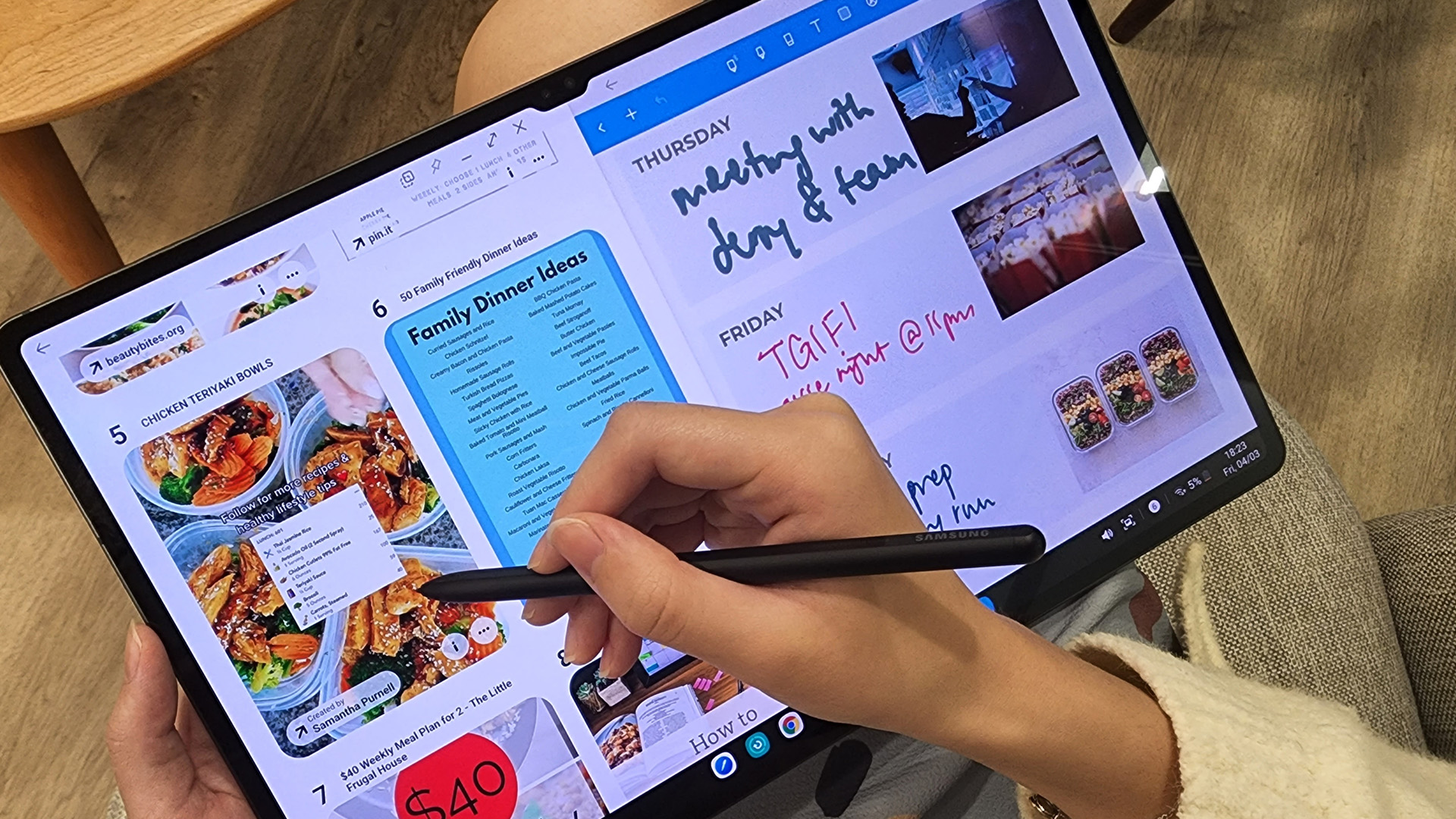
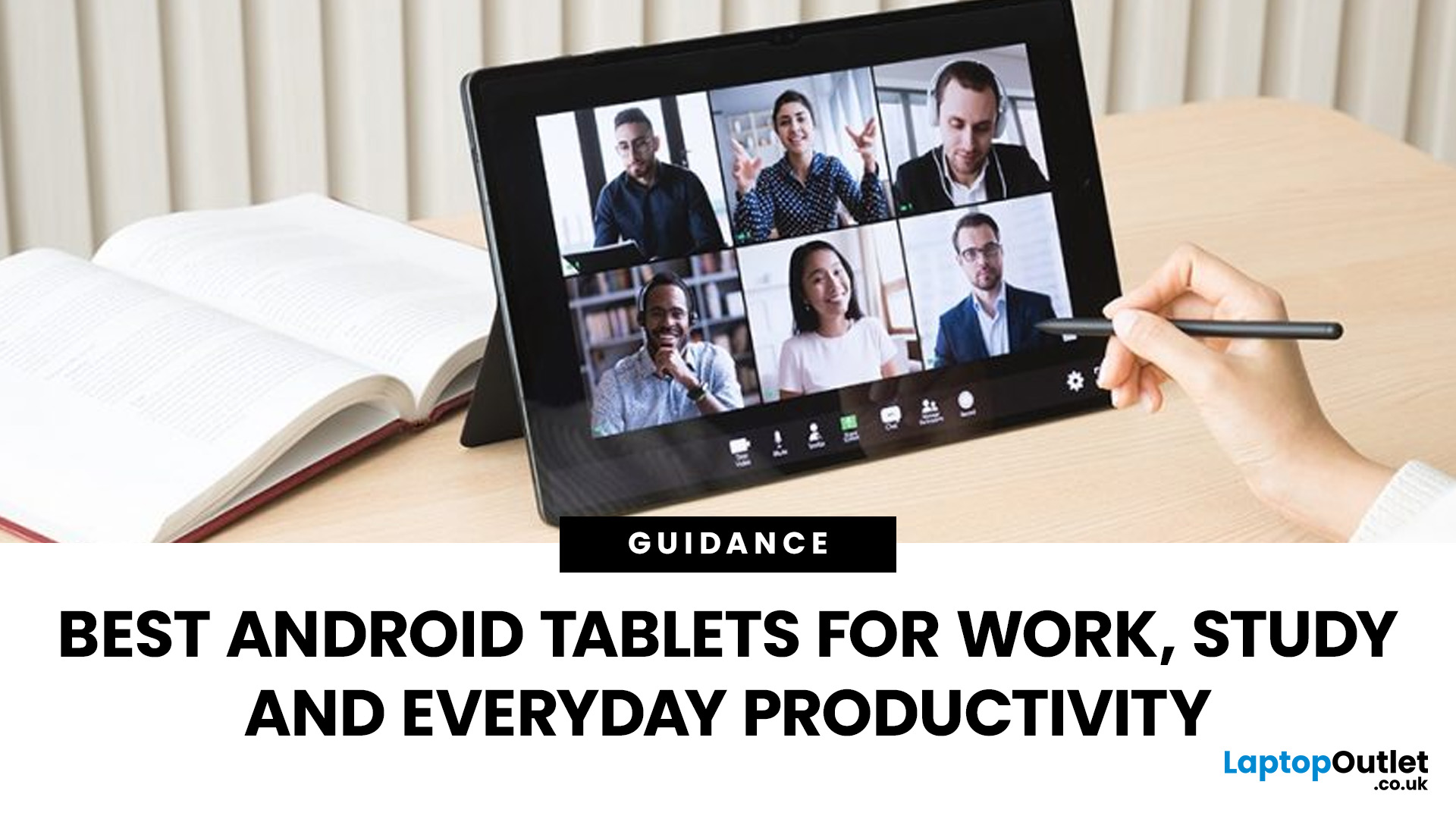
If you just want the highlights, here’s a quick look at
Published: April 14, 2026
Choosing a tablet sounds easy… until you actually start looking.
Suddenly, it turns into a full-on ecosystem debate. Do you go for the clean, premium Apple experience? Or do you choose the flexibility, variety and better-value world of Android?
That’s exactly why so many buyers end up stuck between Android tablets vs iPad.
On one side, iPads have the polished reputation, smooth performance and that classic Apple “it just works” appeal. On the other, Android tablets give you more choice, more price points, more freedom and a way easier entry into the tablet world without your bank account crying in the background.
And if you’re an everyday buyer, that choice matters even more.
Because you’re probably not buying a tablet to do one ultra-specific thing. You want something that fits into daily life. Something good for streaming, scrolling, studying, replying to emails, joining video calls, browsing, shopping, taking notes, maybe even getting a bit of work done when needed.
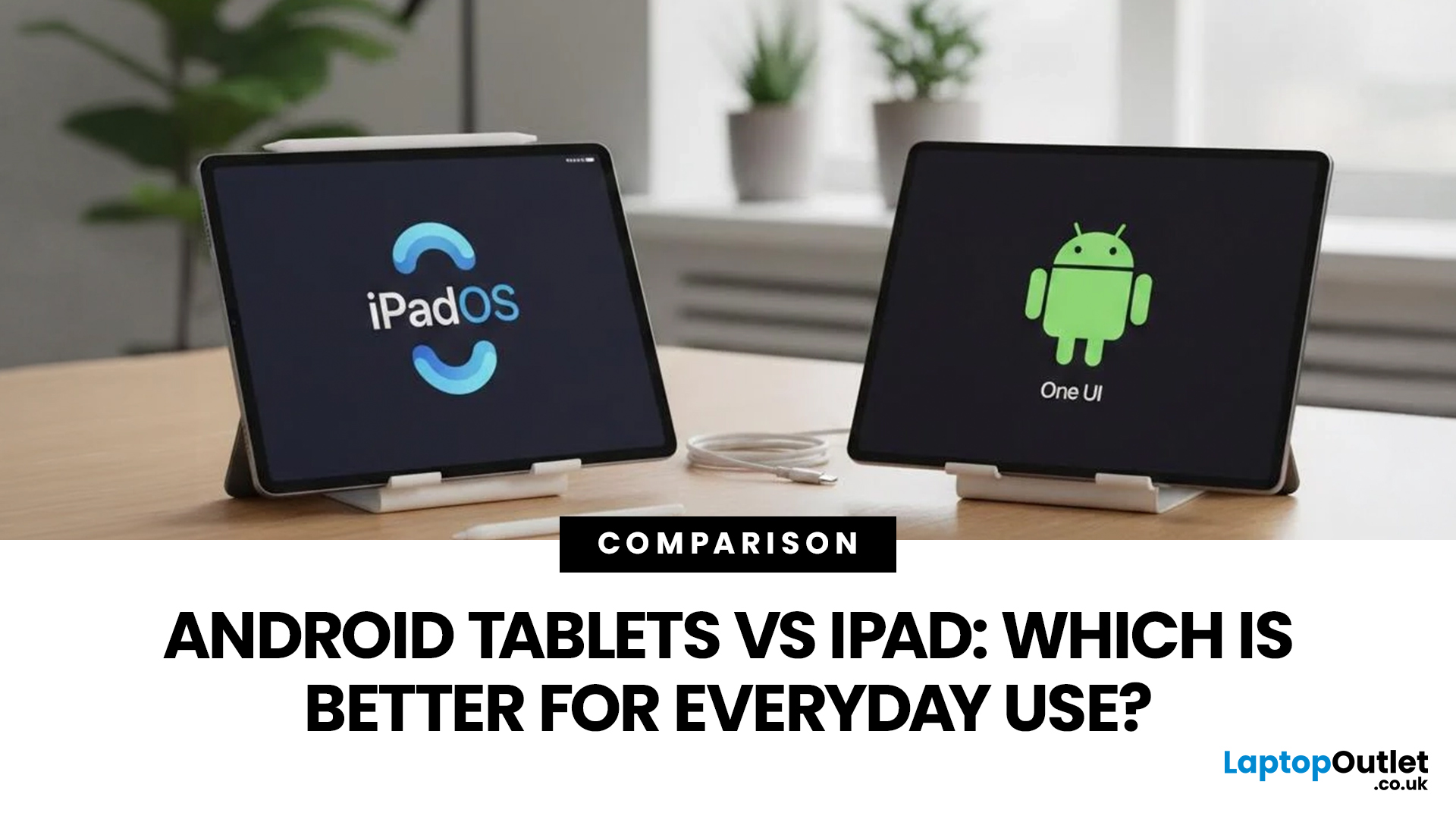
So in this guide,
Last Updated: June 10, 2026
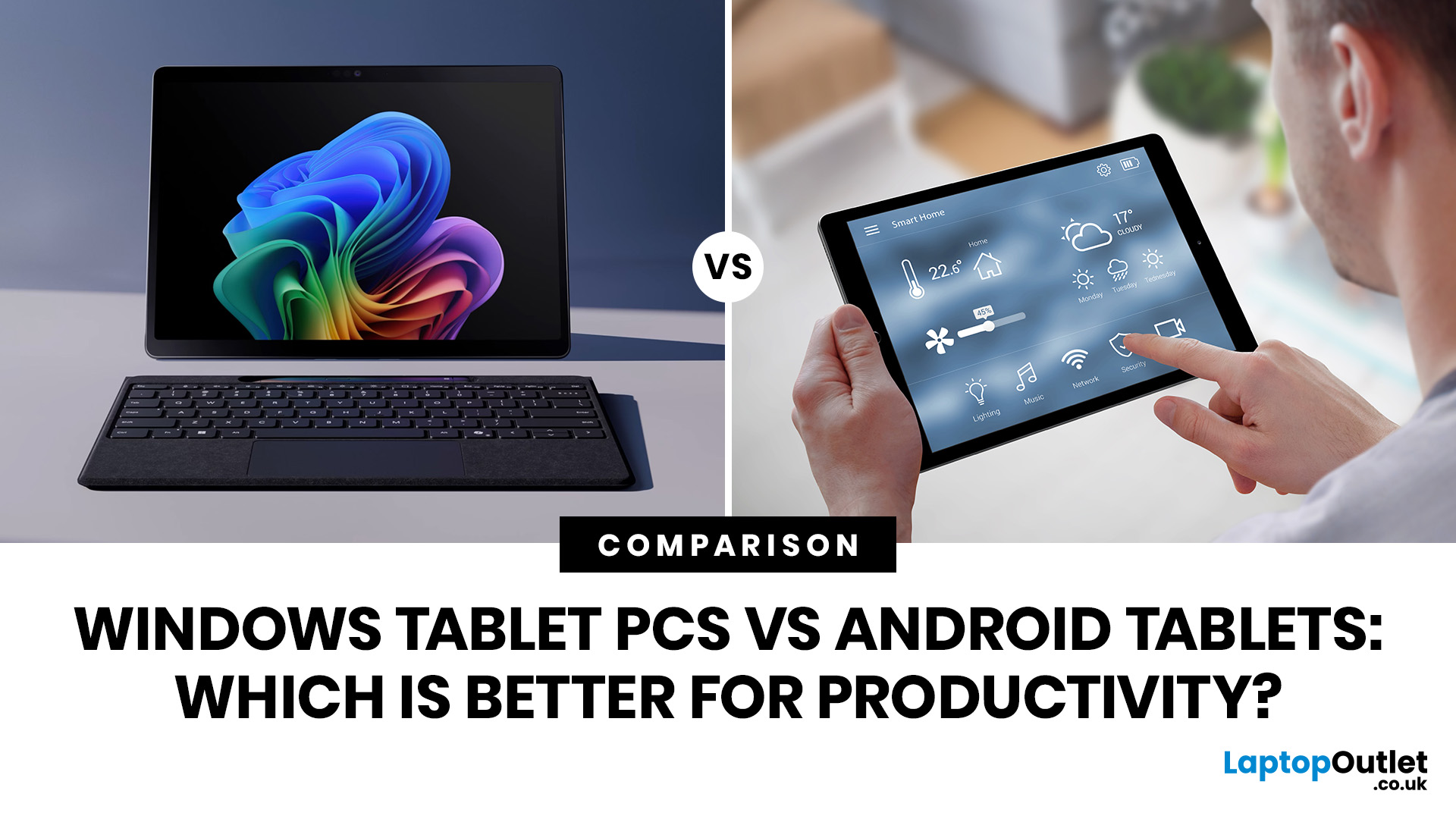
When comparing Windows tablet PCs vs Android tablets, Windows is usually better for productivity-heavy tasks like multitasking, office work and business use, while Android tablets are better for portability, value and lighter everyday productivity.
When comparing Windows tablet PCs vs Android tablets, the best choice depends on how you work. Some users need laptop-style performance for spreadsheets, email, browser tasks and multitasking, while others prefer a portable device for note-taking, research, video calls and everyday flexibility.
That is why the Android vs Windows tablets debate matters. Windows tablets offer a more PC-like experience with stronger multitasking, while Android tablets focus on portability, convenience and app-based productivity.
For buyers in the UK, the best option depends on whether you value desktop-style software, keyboard-led productivity and business features, or a lighter, more affordable system that is easy to carry and simple to use. If you are browsing
Last Updated: April 27, 2026
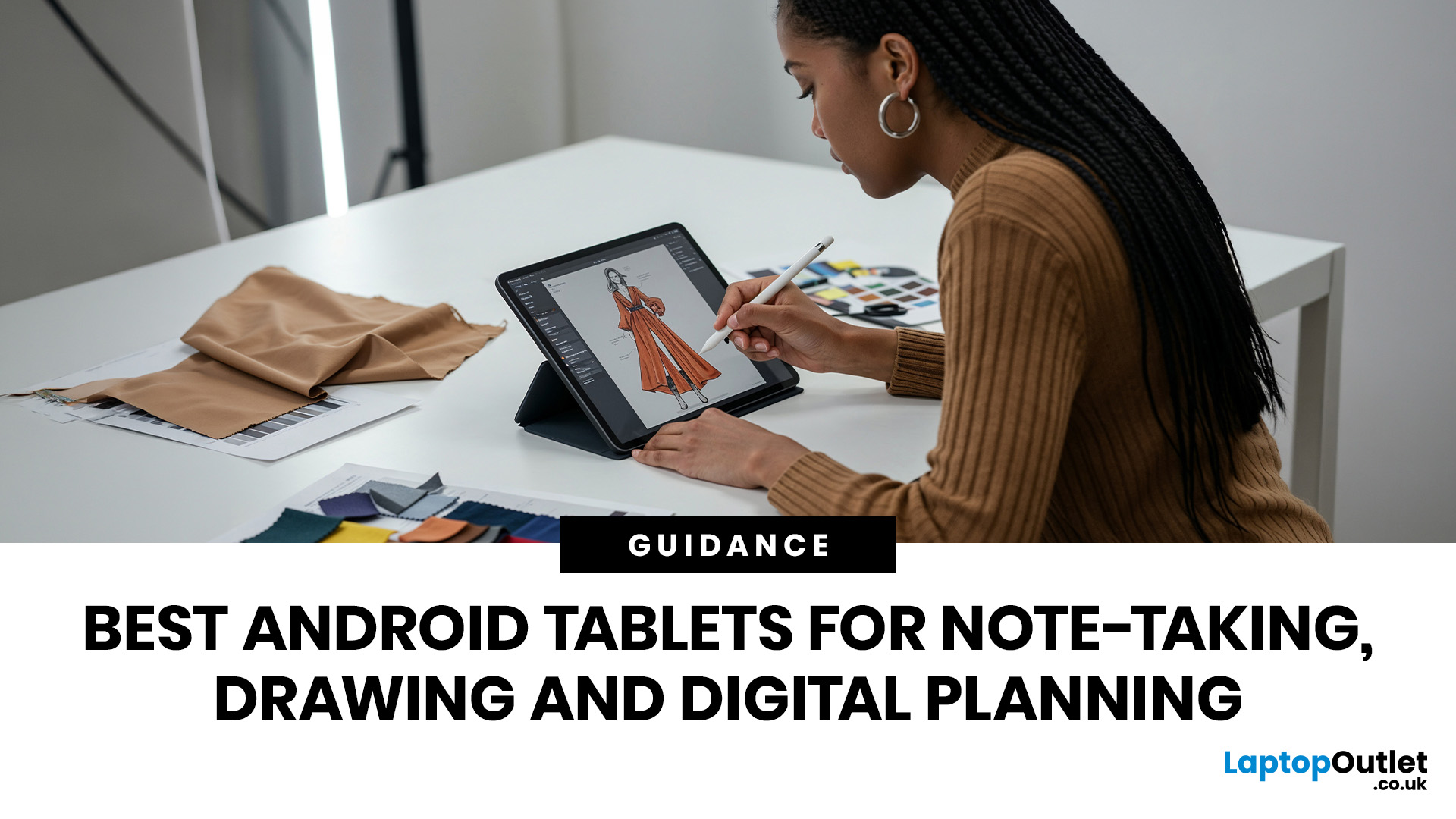
If you are looking for the best Android tablets for note taking and drawing, the key is finding a tablet that feels natural for writing, sketching and digital planning. The best options combine stylus support, a clear display, good portability and enough performance for everyday work, study and creative use.
Not every user needs the same thing. Some want a simple tablet for notes and journaling, while others need a more capable device for drawing, annotating PDFs, and multitasking. That is why choosing among today’s Android tablets with stylus support is really about finding the right fit for your routine.
Android stands out because it offers plenty of choice across features, pricing, and everyday usability. Whether you want a compact planner-friendly device or a more flexible all-rounder, there is a wide range of Android tablets to explore.
Quick answer: what should you look for?
Before going too deep, here is the short version. The best Android tablets for note taking and drawing usually

Last Updated: May 25, 2026
Big tablets are great until you actually have to carry one everywhere. A 12-inch screen looks dreamy on a desk, but on a packed train, budget flight, sofa armrest, or bedside table? Not always the vibe. That is exactly where 8 inch tablets still make sense in 2026. They sit in the sweet spot between a smartphone and a full-size tablet: bigger than your phone for reading, streaming and browsing, but still small enough to hold in one hand, throw in a bag and use without feeling like you are carrying a portable TV.
This 8 inch tablets buying guide is here to help you choose properly. We will compare compact tablets, explain the difference between the Apple iPad mini, Android small tablets and Amazon Fire options, and show which models make sense for reading, travel, streaming, kids, students, and everyday use.
And yes, compact tablets still matter. They are just not trying to be laptops. They are trying to be the device you actually take with you.
Are 8-inch Tablets Still Worth Buying in
Last Updated: June 10, 2026
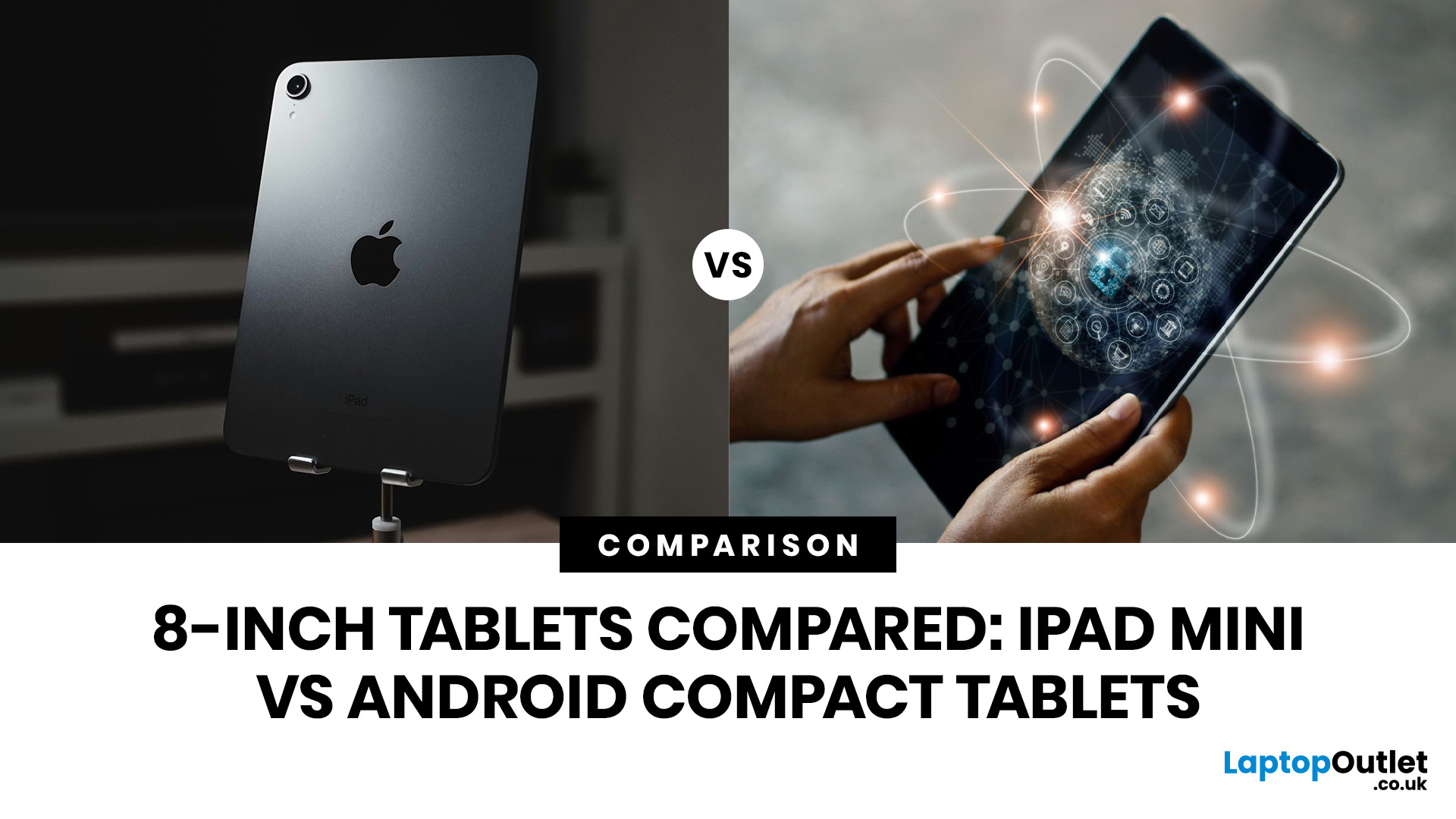
Quick Answer: The iPad mini is the better choice if you want premium performance, a sharper display, Apple Pencil support and long-term everyday speed. Android compact tablets are better if you want a more affordable small tablet for reading, browsing, streaming, video calls and casual use. For most buyers, the iPad mini wins on power and quality, while Android wins on value and budget-friendly practicality.
Small tablets are perfect when you want more screen than a phone but do not want to carry a 11-inch or 13-inch full size tablet everywhere. For reading, commuting, streaming, travelling and light everyday use, the real buying decision often comes down to iPad mini vs Android compact tablets.
In this guide, we compare both options across display quality, performance, software, battery, storage, connectivity, value and use cases so you can decide which compact tablet makes more sense for you.
Quick Comparison: iPad mini or Android Compact Tablet?
If you want the most powerful small tablet

Last Updated: July 13, 2026
Not every tablet needs to be huge. Sometimes, the best tablet is the one you can actually carry every day without it taking over your bag.
That is where the best 8-inch tablets for reading and travel come in. These compact tablets are built for people who want something bigger than a phone but lighter and easier to handle than a full-size 11-inch or 13-inch tablet. They are ideal for reading eBooks, checking emails, streaming on the train, browsing in bed, taking notes, keeping kids entertained, and travelling light. In this guide, we will help you choose the right compact tablet based on display quality, performance, battery, storage, connectivity, and real-world use.
Best 8-inch Tablets Currently Worth Considering at Laptop Outlet
| Model | Best for | Screen | Processor | Memory / storage | Battery |
| Premium reading, travel, notes and everyday use | 8.3-inch Liquid Retina, 2266×1488 | Apple A17 Pro | 128GB or 256GB options available in category | Up to 10 hours |

