



How to Connect the Apple Pencil to the iPad
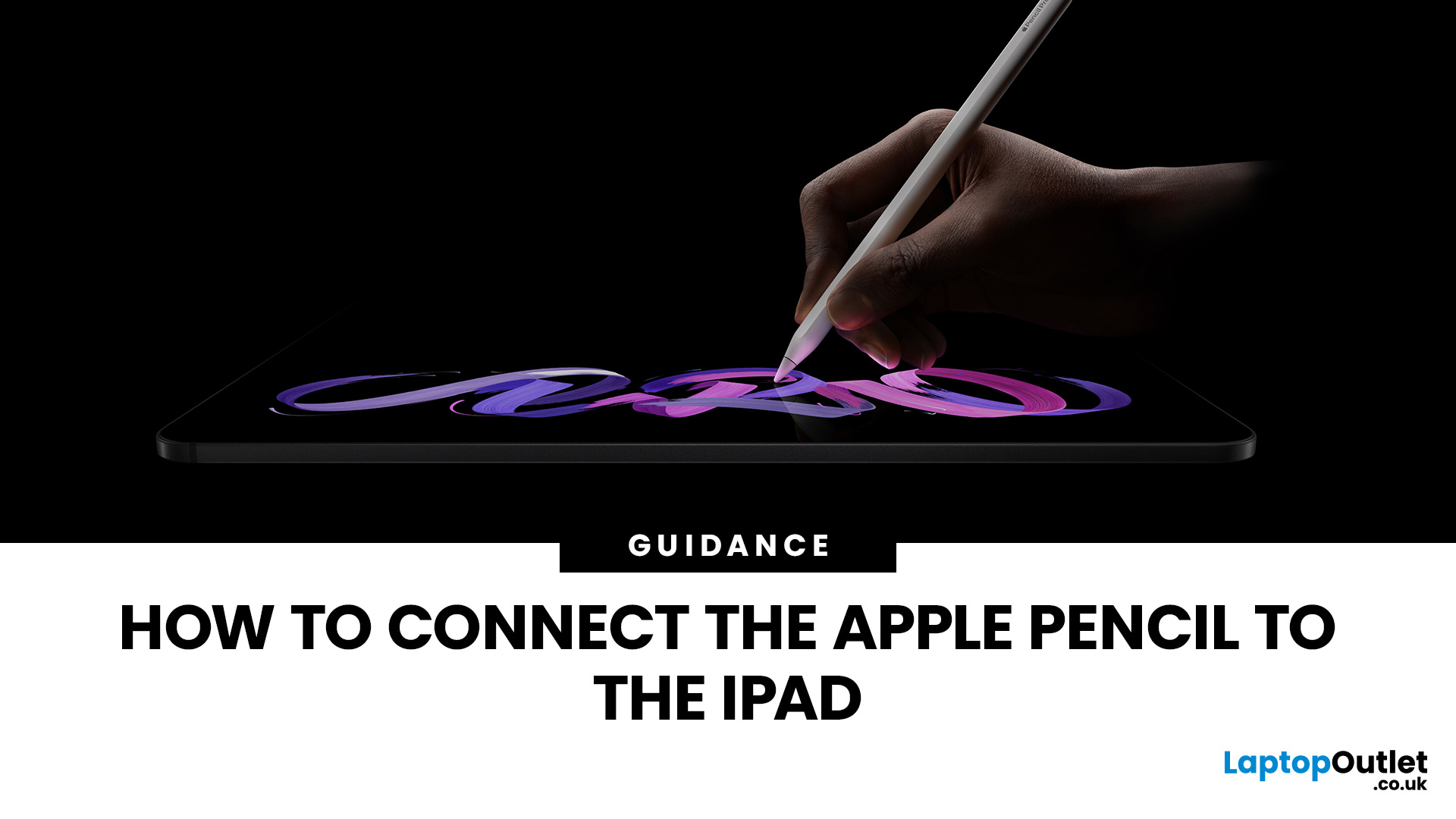
If you have just bought an Apple Pencil or changed to a different iPad, you may be wondering how to connect Apple Pencil to iPad correctly. The process is usually simple, but it depends on which Apple Pencil model you own and which iPad you are using.
| To connect Apple Pencil to iPad, make sure your Apple Pencil model is compatible with your iPad, turn on Bluetooth, then pair it using the correct method. Apple Pencil Pro and Apple Pencil 2nd generation connect magnetically to the side of compatible iPads. Apple Pencil USB-C pairs using a USB-C cable, while Apple Pencil 1st generation connects through the Lightning connector or a USB-C to Apple Pencil adapter on newer iPads. |
Whether you use your iPad for note-taking, sketching, editing documents, studying or creative work, getting the Apple Pencil connected properly is the first step to making the most of your device. If you are comparing tablets before upgrading, you can also explore our tablet collection to find options for work, study and everyday use.
Before You Start: Check Apple Pencil and iPad Compatibility
Before trying to pair your Apple Pencil, make sure you are using the correct Apple Pencil for your iPad. Not every Apple Pencil works with every iPad model, so compatibility is the most important thing to check first.
Apple Pencil currently comes in several versions, including:
- Apple Pencil Pro
- Apple Pencil USB-C
- Apple Pencil 2nd generation
- Apple Pencil 1st generation
If your iPad is not compatible with your Apple Pencil, it will not pair properly even if Bluetooth is switched on. This is one of the most common reasons users search for “how do I connect the Apple Pencil to my iPad” and still cannot get it working.
If you are planning to upgrade, compact iPad devices are worth considering for note-taking, drawing and portable productivity.
How to Connect Apple Pencil Pro to iPad
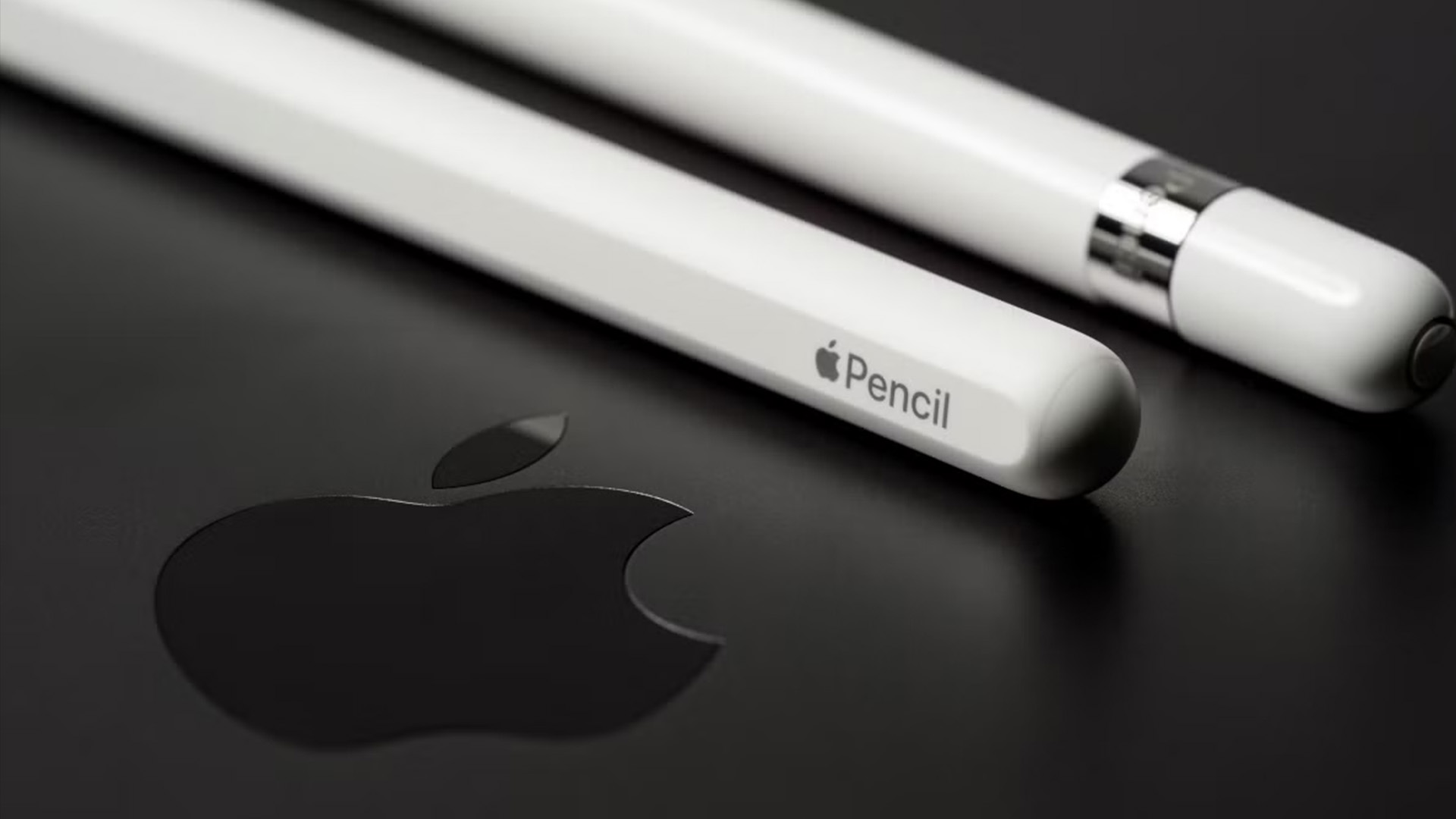
Apple Pencil Pro is designed to connect magnetically with compatible iPad models.
To connect Apple Pencil Pro:
- Turn on your iPad.
- Open Settings and make sure Bluetooth is switched on.
- Place the Apple Pencil Pro on the magnetic connector along the side of the iPad.
- Wait for the pairing message to appear on the screen.
- Tap Pair if prompted.
- Keep the Pencil attached for a short time so it can charge if needed.
Once paired, your Apple Pencil Pro should connect automatically whenever Bluetooth is enabled and the Pencil has enough battery.
This method is quick because there is no cable or adapter involved. It is ideal for users who want a clean setup for drawing, handwritten notes or creative apps.
If your Apple Pencil disconnects often, it is also worth checking your iPad’s battery health to make sure the device is performing properly.
How to Connect Apple Pencil 2nd Generation to iPad
Apple Pencil 2nd generation also connects through the magnetic connector on compatible iPad models. The process is almost the same as Apple Pencil Pro.
To pair Apple Pencil 2nd generation:
- Make sure your iPad is unlocked.
- Go to Settings and turn on Bluetooth.
- Attach the Apple Pencil to the magnetic connector on the side of the iPad.
- Wait for the pairing notification.
- Tap Pair if the option appears.
After pairing, the Apple Pencil should reconnect automatically when attached to the iPad. It also charges while magnetically connected, which makes it convenient for regular use.
If you often use your iPad like a laptop for work, browsing or light productivity, you may also want to compare it with the best convertible tablets, especially if you need a keyboard-friendly device.
How to Connect Apple Pencil USB-C to iPad
Apple Pencil USB-C pairs differently because it uses a USB-C cable rather than magnetic wireless pairing.
To connect Apple Pencil USB-C:
- Turn on your iPad.
- Make sure Bluetooth is enabled.
- Slide open the end of the Apple Pencil USB-C to reveal the USB-C port.
- Connect the Apple Pencil to your iPad using a USB-C cable.
- Wait for the pairing prompt to appear.
- Tap Pair when asked.
Once paired, you can disconnect the cable and start using the Apple Pencil. This model is useful for users who want Apple Pencil support but do not need every premium feature found in Apple Pencil Pro.
If you use tablets mainly for productivity, writing or business apps, you may also want to look at portable Windows tablets as an alternative.
How to Connect Apple Pencil 1st Generation to iPad
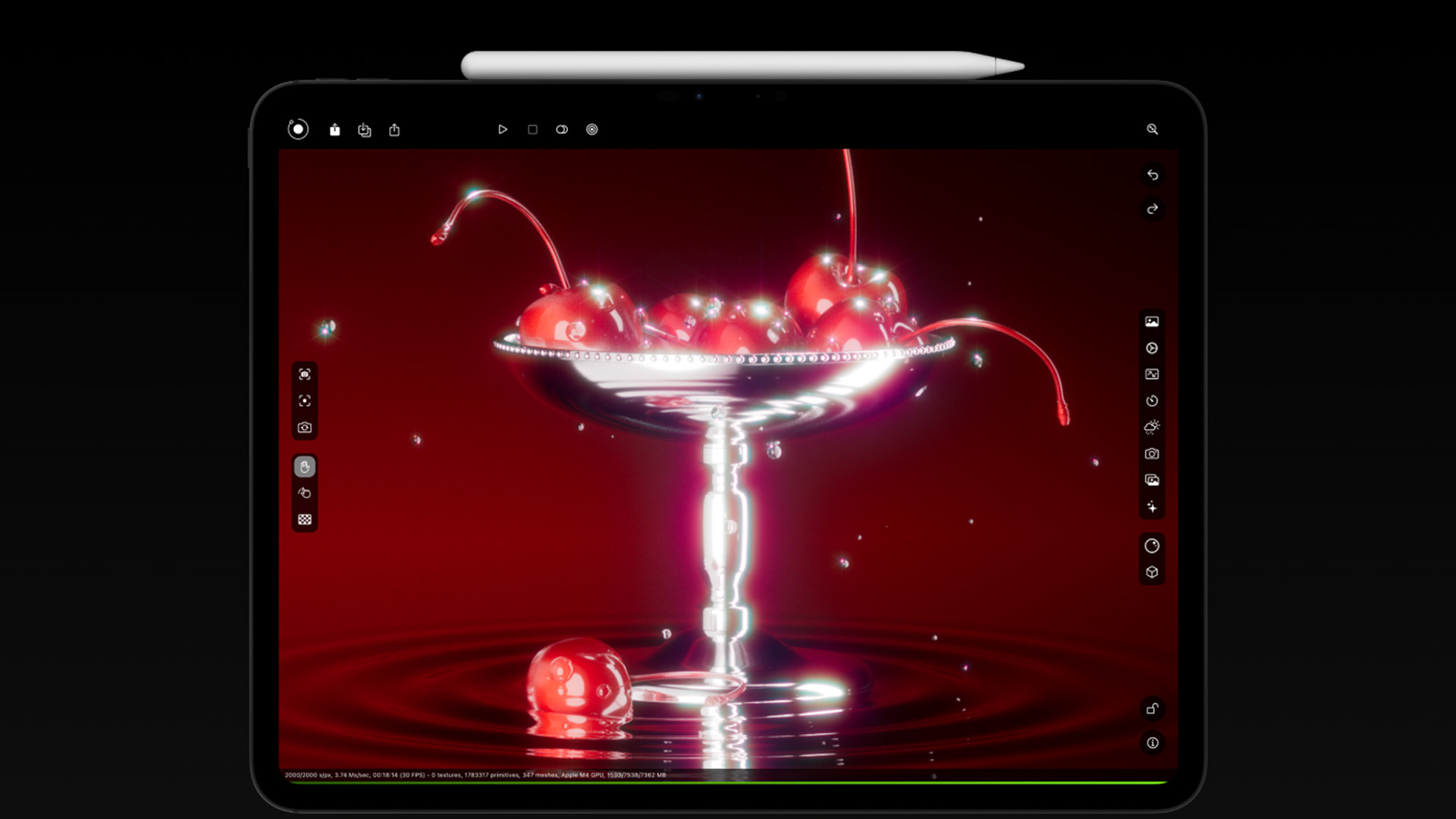
Apple Pencil 1st generation connects differently depending on your iPad model. Older compatible iPads use a Lightning connector, while some newer iPads require a USB-C to Apple Pencil adapter.
For iPads with a Lightning connector
- Remove the cap from the end of the Apple Pencil.
- Plug the Apple Pencil into the Lightning connector on your iPad.
- Wait for the pairing message to appear.
- Tap Pair.
- Unplug the Apple Pencil and start using it.
For iPad models that need a USB-C adapter
- Remove the cap from the Apple Pencil.
- Connect the Apple Pencil to the USB-C to Apple Pencil adapter.
- Connect a compatible USB-C cable to the adapter.
- Plug the other end of the cable into your iPad.
- Wait for the Pair button.
- Tap Pair when it appears.
If you are asking “how do I connect the Apple Pencil to my iPad?” and you own the 1st generation Pencil, the answer usually depends on whether your iPad has Lightning or USB-C.
Users who rely on Apple Pencil for creative work may find the latest iPad Air features helpful for drawing, editing and multitasking.
How to Know If Your Apple Pencil Is Connected
After pairing, you can check whether your Apple Pencil is connected by opening Settings and looking under Bluetooth. If the Apple Pencil appears under connected devices, it has paired successfully.
You can also test it by opening the Notes app and trying to write or draw. If the Pencil responds normally, it is ready to use.
Another useful check is the battery level. Depending on your iPadOS version and Apple Pencil model, you may be able to see the Apple Pencil battery in the Batteries widget or in Apple Pencil settings.
Apple Pencil Connected but Not Working? Try These Fixes
Sometimes your Apple Pencil may appear connected but not work properly. This can happen because of low battery, Bluetooth issues, software glitches, or compatibility problems.
If your Apple Pencil is connected but not working, try the following steps.
1. Check the Battery
Your Apple Pencil may need to charge before it works. Attach it magnetically, plug it in or connect it with the correct cable depending on your model. Wait a few minutes, then try again.
2. Make Sure Bluetooth Is On
Apple Pencil needs Bluetooth to pair and stay connected. Open Settings, go to Bluetooth and make sure it is switched on.
3. Restart Your iPad
A quick restart can fix temporary connection problems. Turn your iPad off, wait a few seconds, then turn it back on and try to connect Apple Pencil again.
4. Forget and Re-Pair the Apple Pencil
If the Apple Pencil appears in Bluetooth settings but does not respond, remove it and pair it again.
Go to Settings, open Bluetooth, tap the information icon next to Apple Pencil, then choose Forget This Device. After that, reconnect the Apple Pencil using the correct pairing method for your model.
5. Remove Cases or Covers
If you use Apple Pencil Pro or Apple Pencil 2nd generation, a thick case may stop the Pencil from sitting correctly on the magnetic connector. Remove the case and try pairing again.
6. Update Your iPad
Software updates can improve device compatibility and fix bugs. Go to Settings, then General, then Software Update to check whether an update is available.
7. Check Compatibility Again
If nothing works, confirm that your Apple Pencil model supports your exact iPad model. A Pencil that looks physically similar may still not be compatible.
If you already own an older iPad Air, comparing iPad Air M4 and iPad Air M3 can help you decide whether an upgrade is worth it.
Why Your Apple Pencil May Not Pair
There are several reasons why your Apple Pencil may not pair with your iPad:
- The Apple Pencil is not compatible with your iPad.
- Bluetooth is turned off.
- The Apple Pencil battery is too low.
- The iPad needs a software update.
- The Pencil is not connected properly.
- A case is blocking the magnetic connector.
- You are using the wrong cable or adapter.
- The Apple Pencil or iPad may need service.
In most cases, the issue can be fixed by checking compatibility, charging the Pencil and pairing it again from Bluetooth settings.
Tips for Using Apple Pencil After Pairing
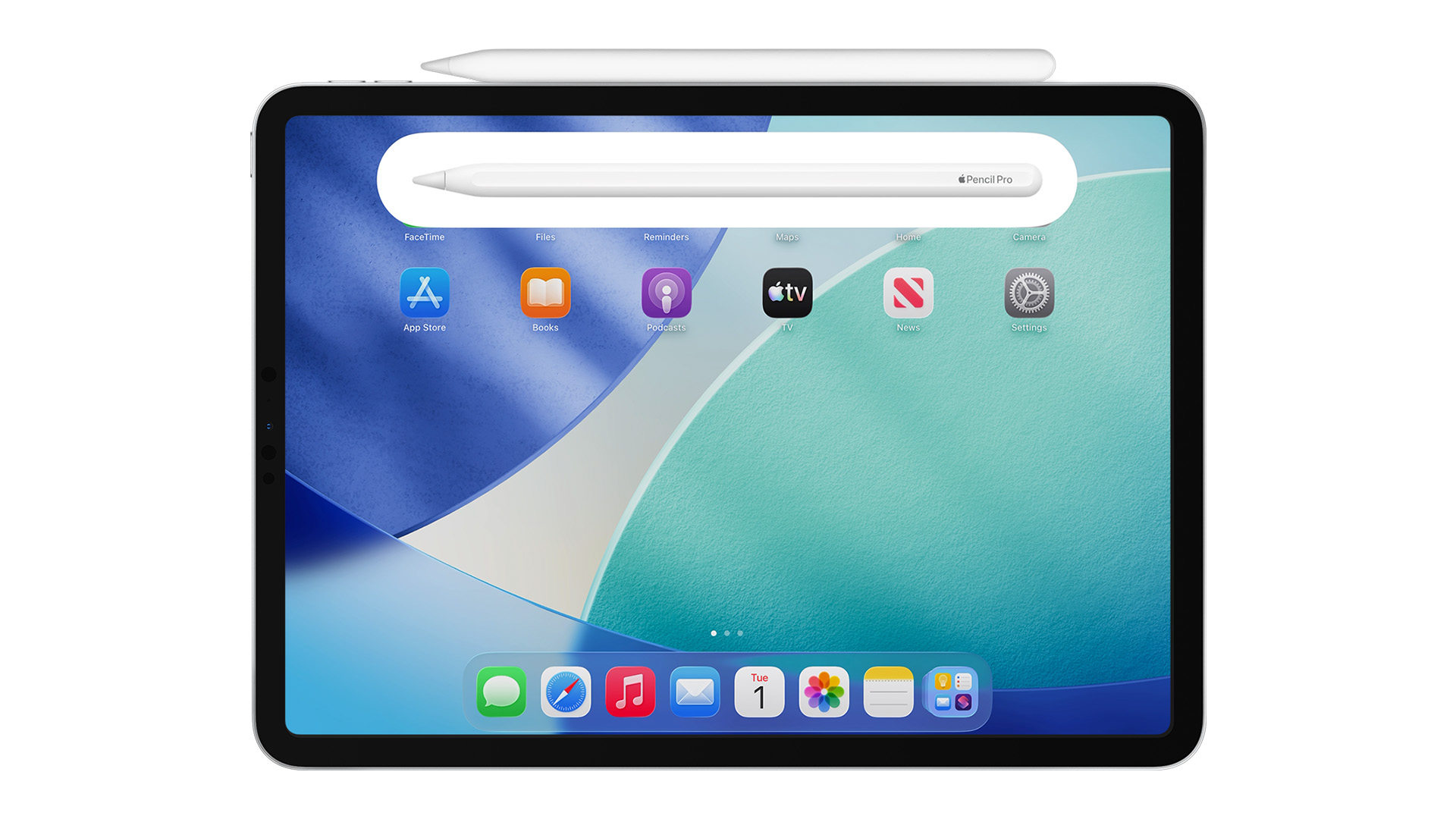
Once your Apple Pencil is connected, you can use it for much more than drawing. It is useful for writing notes, marking up PDFs, sketching ideas, editing images, signing documents, and navigating certain apps.
For better results, keep the tip clean and replace it if it becomes worn. Also, try to keep your Apple Pencil charged so it is ready when you need it.
If you use your iPad for study, a note-taking app and Apple Pencil can make lectures, reading and revision easier. For creative work, the Pencil can help with illustration, design, photo editing, and digital planning.

Final Thoughts
Learning how to connect Apple Pencil to iPad is simple once you know which Apple Pencil model you have. Apple Pencil Pro and Apple Pencil 2nd generation connect magnetically, Apple Pencil USB-C uses a USB-C cable, and Apple Pencil 1st generation uses Lightning or an adapter depending on the iPad.
If your Apple Pencil will not pair or is connected but not working, start with the basics: check compatibility, charge the Pencil, turn on Bluetooth, restart your iPad and try pairing again. Once connected, Apple Pencil can make your iPad more useful for writing, drawing, studying, editing and everyday productivity.

Some Common Questions Everyone Ask
How do I connect the Apple Pencil to my iPad?
To connect Apple Pencil to iPad, turn on Bluetooth and pair it using the method for your Apple Pencil model. Apple Pencil Pro and Apple Pencil 2nd generation attach magnetically. Apple Pencil USB-C connects with a USB-C cable. Apple Pencil 1st generation connects through Lightning or a USB-C adapter.
How to pair Apple Pencil if the Pair button does not appear?
If the Pair button does not appear, charge the Apple Pencil for a few minutes, restart your iPad, check Bluetooth and try connecting again. You can also forget the Apple Pencil from Bluetooth settings and pair it again.
Why is my Apple Pencil connected but not working?
If your Apple Pencil is connected but not working, the battery may be low, Bluetooth may need resetting, the Pencil may need re-pairing or your iPad may need a software update. Also check that your Apple Pencil is compatible with your iPad.
Can I connect any Apple Pencil to any iPad?
No. Each Apple Pencil model only works with specific iPad models. Always check compatibility before buying or pairing an Apple Pencil.
Do I need Bluetooth to use Apple Pencil?
Yes, Bluetooth should be turned on for Apple Pencil pairing and connection. Without Bluetooth, your iPad may not detect or connect to the Apple Pencil properly.
| Read More: |
| How to Check iPad Battery Health |
| Top Features of the New iPad Air with M4 Chip in 2026 |
| iPad Air M4 vs iPad Air M3: Should You Upgrade? |
Related Articles


Last Updated: December 22, 2025
Choosing between Apple’s iPads can feel tricky, especially when both the iPad Air 13-inch and the iPad Pro 13-inch look premium, powerful and remarkably similar at first glance. If you’re weighing up the iPad Air 13 vs iPad Pro 13, this guide is designed to help you make a confident, informed decision based on how you actually plan to use your device.
In this in-depth comparison, we’ll break down performance, display quality, battery life, accessories, and real-world use cases, all with the latest Apple hardware in mind. Whether you’re a student, creative professional, remote worker or casual user, by the end you’ll know exactly which iPad suits you best.
Key Differences Between iPad Air 13-inch and iPad Pro 13-inch
Before diving into individual features, it’s important to understand what separates the Air and Pro lines in Apple’s ecosystem.
Design and Build Quality: Premium Feel Across the Board
Apple doesn’t compromise on build quality, and that’s clear with both models.
Sleek, Lightweight,
Last Updated: December 31, 2025
With the right timing and the right specs, you can land an upgrade that feels genuinely transformative: faster performance, longer battery life, sharper screens, and smoother workflows for work, study, and downtime. New Year promotions are also one of the easiest moments to buy smarter. Stock moves quickly, retailers rotate lines, and discounts get sharper as people reset budgets and goals, meaning the best-value Apple kit often sells out first. That’s why this guide focuses on what to look for, what to prioritise, and how to choose the right Apple device for your needs.
Why New Year is the Best Time to Buy Apple Tech
Apple gear holds value well, which is great when you own it, but it also means discounts can feel harder to find at other times of the year. Around New Year, pricing tends to loosen up across multiple categories, making it easier to upgrade without compromising on model quality. Here’s why New Year shopping is ideal:
- Retail Stock Rotation: end-of-year inventory clears,

Last Updated: December 31, 2025
New year, new goals, and the perfect new tablet to help you reach them. Whether you want to be more productive at work, excel in your studies, or simply enjoy better entertainment, the New Year tablet deals at Laptop Outlet are officially live.
This season, our New Year tech sale brings a massive shift in value, where "budget" no longer means "basic." From the latest iPads at great prices and cheap tablets running Android to the best Microsoft Surface tablet PC deals, there has never been a better time to upgrade.
If you have been waiting for the right moment to grab a bargain, your wait ends here.
Top New Year Tablet Deals for 2026
We have curated a list of the top six tablets available right now. These devices represent the best balance of price, performance, and features.
1. TCL NXTPAPER 11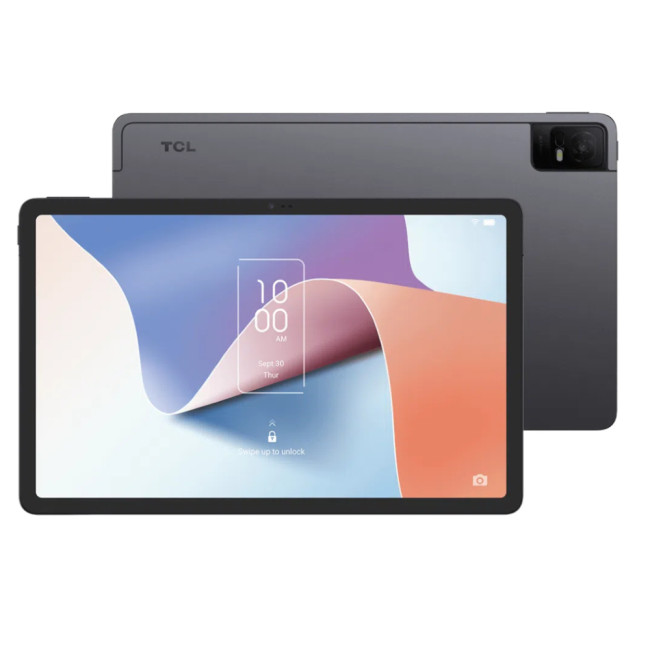
- Processor: MediaTek Helio P60T Octa-core
- Memory: 4GB RAM
- Storage: 128GB
- Display: 10.9-inch 2K (2000 x 1200) NXTPAPER 2.0 Technology
- Graphics: PowerVR GE8320
- Cameras: 8MP Rear, 8MP Front
Last Updated: February 26, 2026
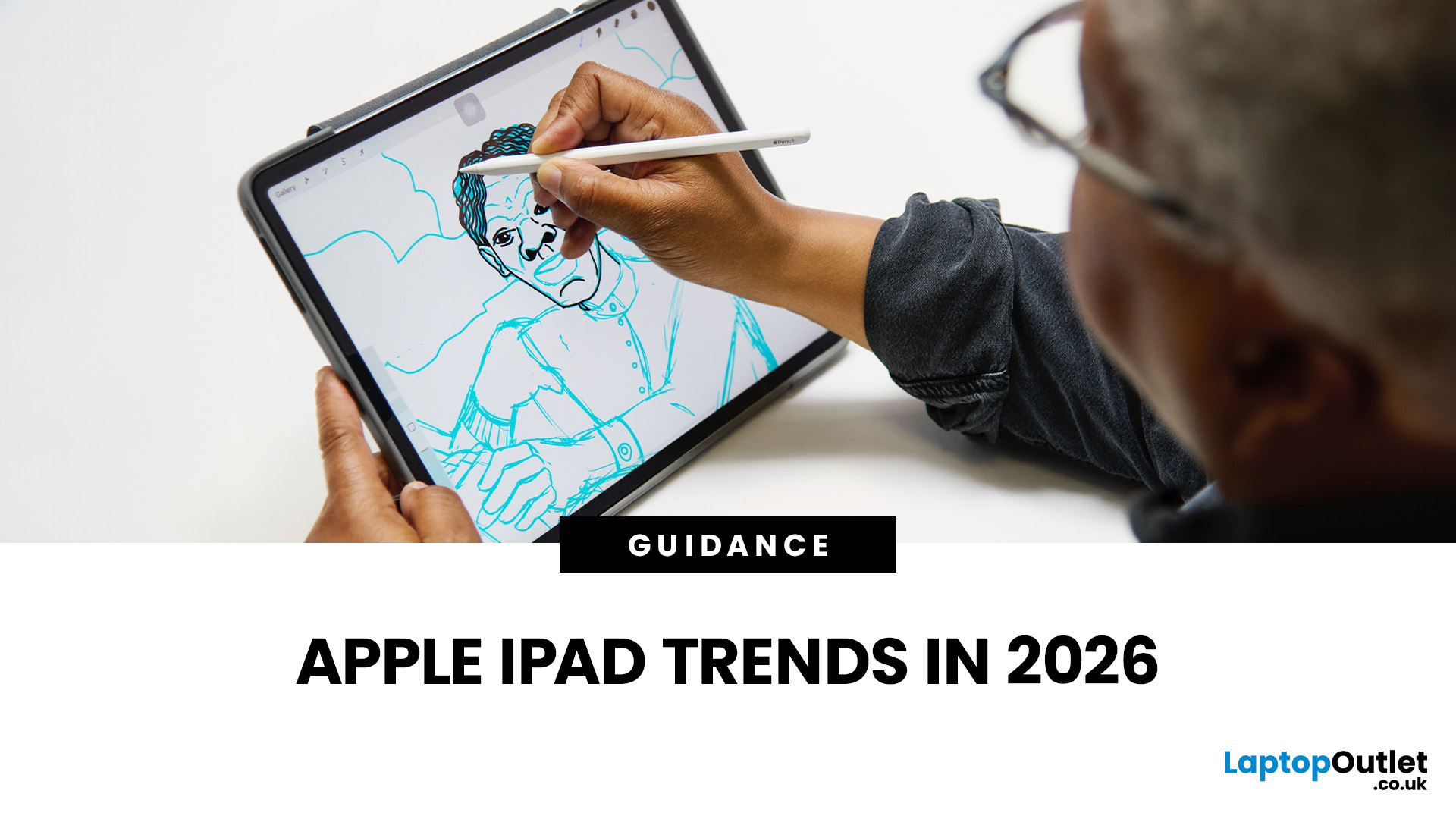
The iPad in 2026 isn’t just a tablet anymore. It’s a content machine, a work-from-anywhere setup, a creative studio, and low-key a laptop replacement for a lot of people in the UK. Apple has quietly (and sometimes not-so-quietly) levelled up the entire iPad lineup, and the Apple iPad trends in 2026 prove one thing: this ecosystem is built for performance, flexibility, and vibes.
This first section breaks down what’s actually new, what’s trending across the latest iPad models, and how Apple is pushing its tablet PCs further into laptop territory, without killing what makes the iPad iconic.
Apple iPad Trends in 2026: The Big Picture
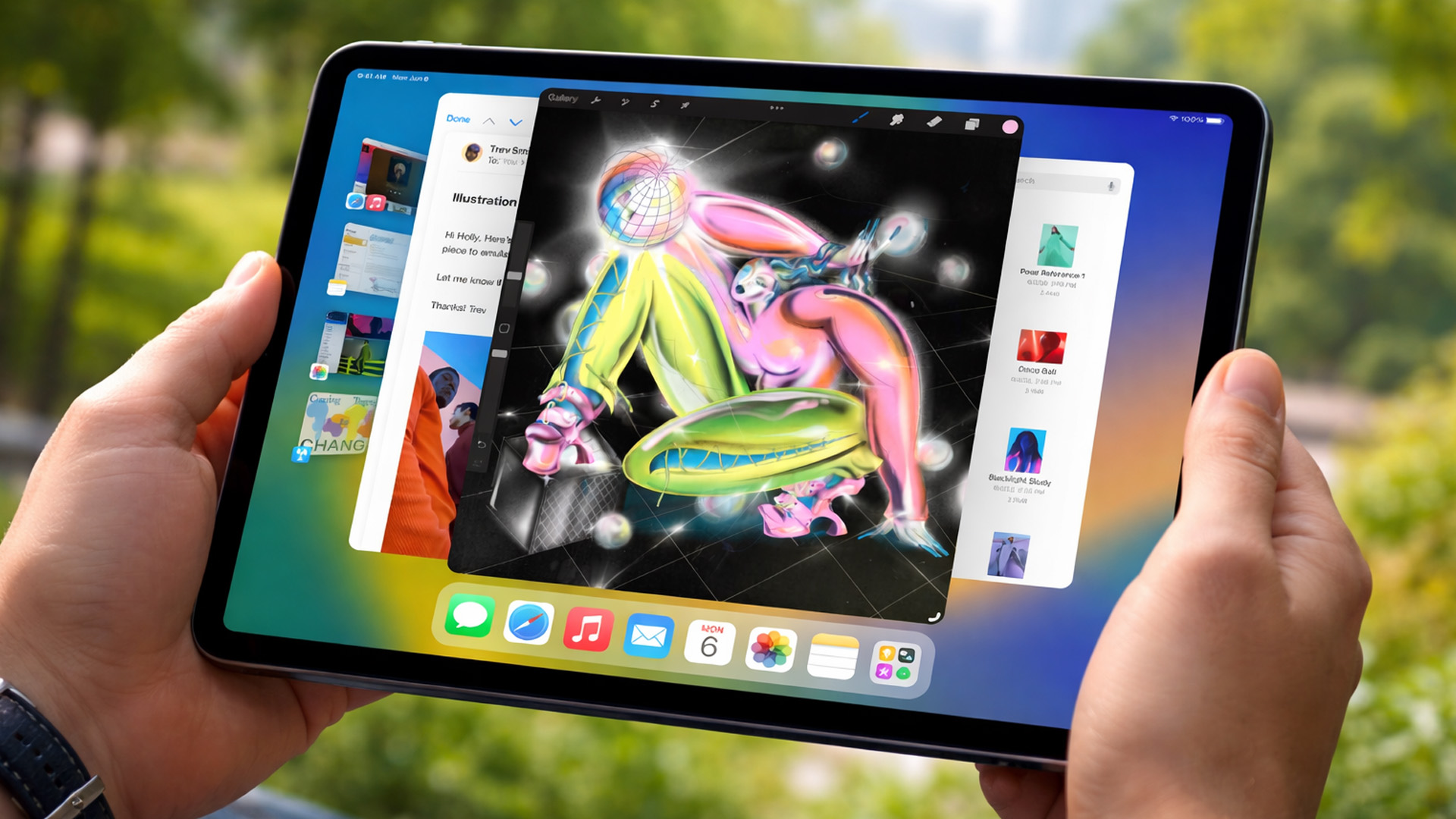
The biggest shift in Apple iPad trends this year isn’t just about faster chips or shinier displays - it’s about positioning. Apple is clearly doubling down on the iPad as a serious productivity and creativity device while still keeping it accessible for everyday users.
In the UK Apple iPad market, buyers are no longer asking “Do I need an iPad?” they’re asking
Published: March 03, 2026
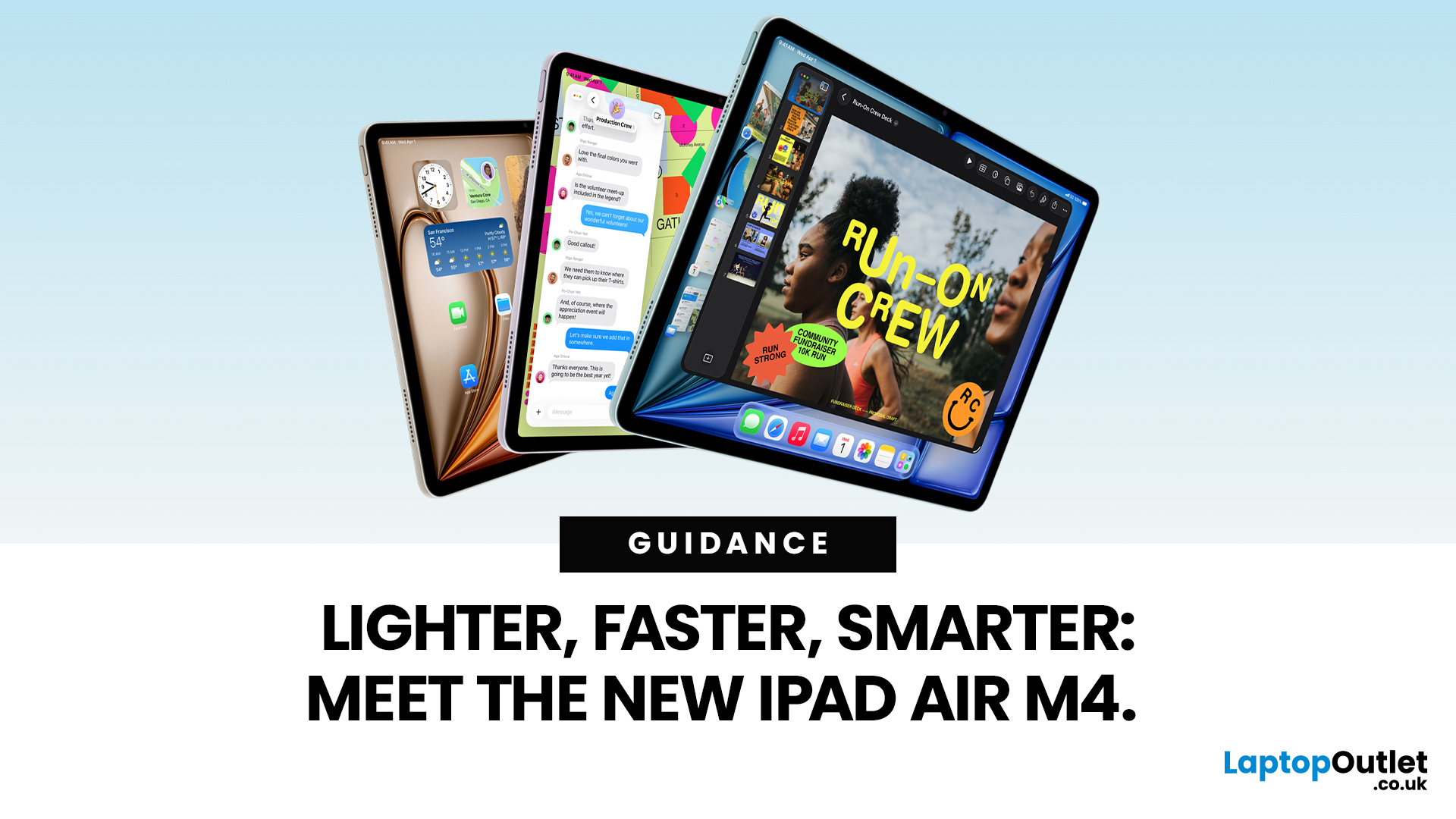
Apple has just unveiled the latest iPad Air, and it's a solid update for anyone in the Apple ecosystem. The iPad Air M4 brings fresh power under the hood without changing much on the outside.
If you're after an Apple tablet that handles work, play, and creativity with ease, this could be your next pick. Let's dive into what makes this device stand out in 2026.
Introducing the iPad Air M4
The new iPad Air comes in two sizes: 11-inch and 13-inch. Both pack the M4 chip, which boosts speed and efficiency. Storage starts at 128GB and goes up to 1TB.
You can choose Wi-Fi only or add cellular for on-the-go use. Colours include space grey, blue, purple, and starlight. This refresh keeps the sleek design fans love, but adds modern tech inside.
Moreover, it supports the latest accessories like the Apple Pencil Pro and Magic Keyboard. These turn the iPad Air M4 into a versatile tool for notes, drawing, or typing.
Powerful Performance with the M4 Chip
At the heart of the iPad Air M4 sits the M4
Published: March 03, 2026
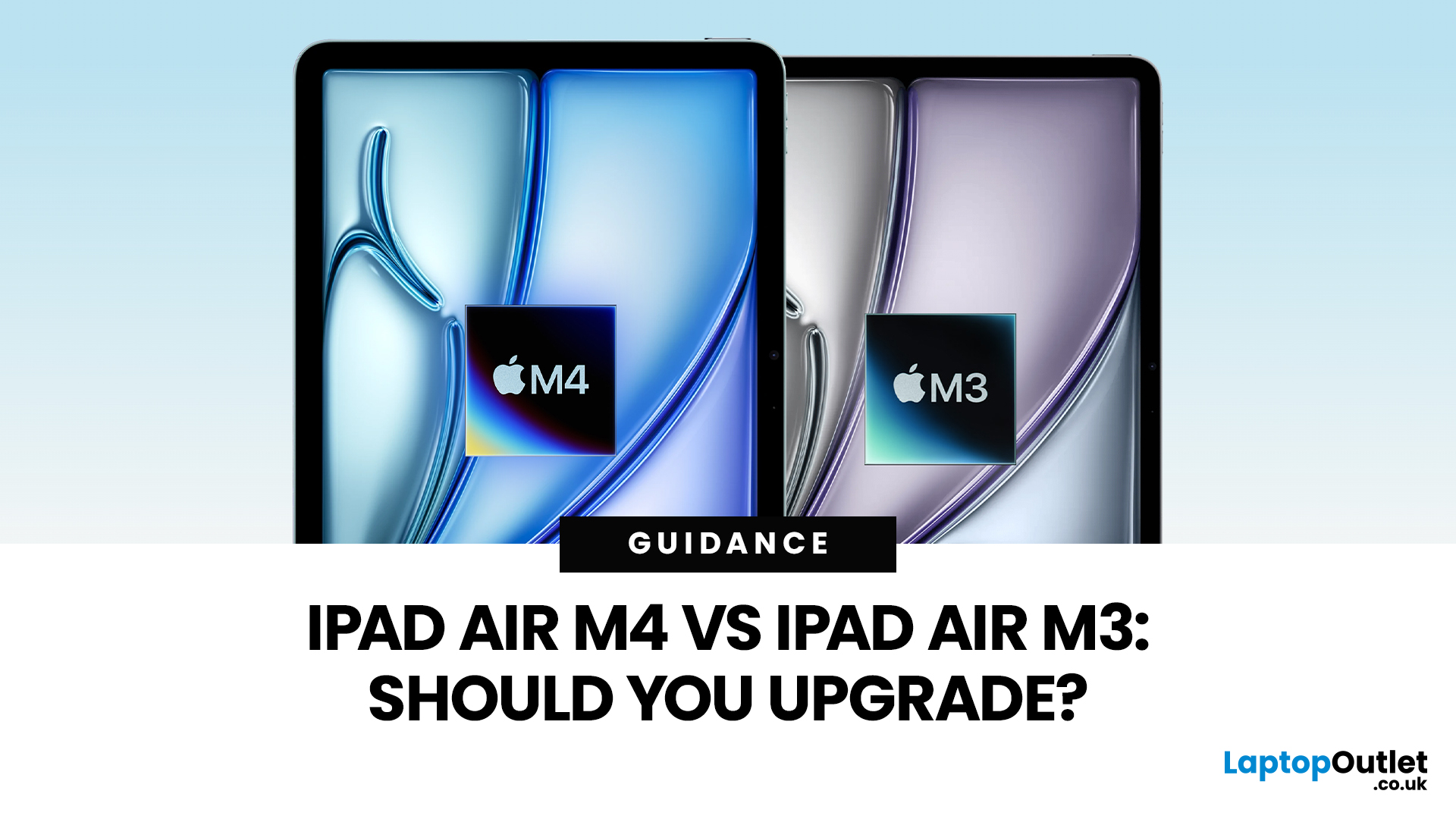
Apple’s iPad Air update for 2026 is exactly what most iPad Air buyers want: the same clean design in 11-inch and 13-inch sizes, but with a much stronger internal platform. The iPad Air M4 moves the Air line onto Apple’s M4 chip, adds more memory, and updates wireless and cellular hardware, so the device stays fast and responsive for longer.
If you are deciding between iPad Air M4 vs M3, the upgrade question is simple: do you need more headroom for heavier apps and multitasking, or is your iPad mainly a media, notes, and browsing device? The M4 model is better on paper and in real use for power tasks, but the M3 model remains “fast enough” for most people, especially if it is discounted.
Quick Answer: Should You Upgrade?
Upgrade to iPad Air M4 if
- You use your iPad like a laptop replacement: Stage Manager, split-screen work, lots of apps open, and big files.
- You do creative work (editing, design, illustration, audio projects), and you want smoother performance under load.
- You plan to
Published: March 04, 2026
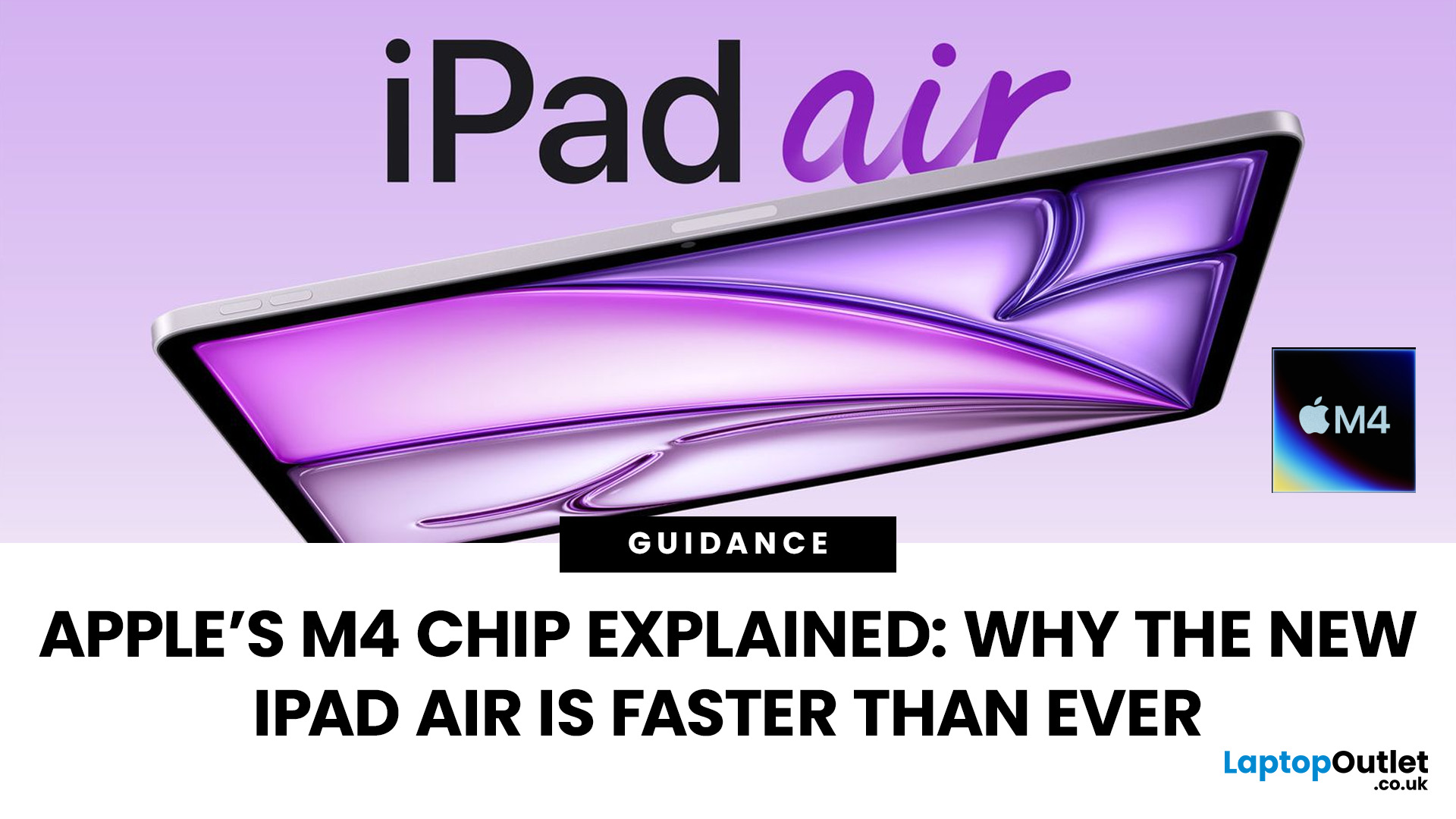
Apple’s silicon strategy has reshaped modern computing and the Apple M4 chip is the latest example of how powerful, efficient processors can transform mobile devices. In this article, we explain exactly what the M4 chip is, why it makes the new iPad Air faster, and what this means for everyday users in the UK and beyond.
What Is the Apple M4 Chip?
The Apple M4 chip is the newest generation of Apple silicon designed for tablets and other devices, including the latest iPad Air lineup. It builds on Apple’s previous M-series processors with improvements in CPU performance, graphical power and machine learning capabilities. The M4 integrates multiple central processing cores, a robust graphics unit and a dedicated neural engine into a single, efficient system-on-chip.
Unlike older mobile processors, which may separate components, the M4 combines CPU, GPU, memory controller, neural accelerators and other key functions into a single package. This unified architecture reduces latency and maximises
Published: March 06, 2026
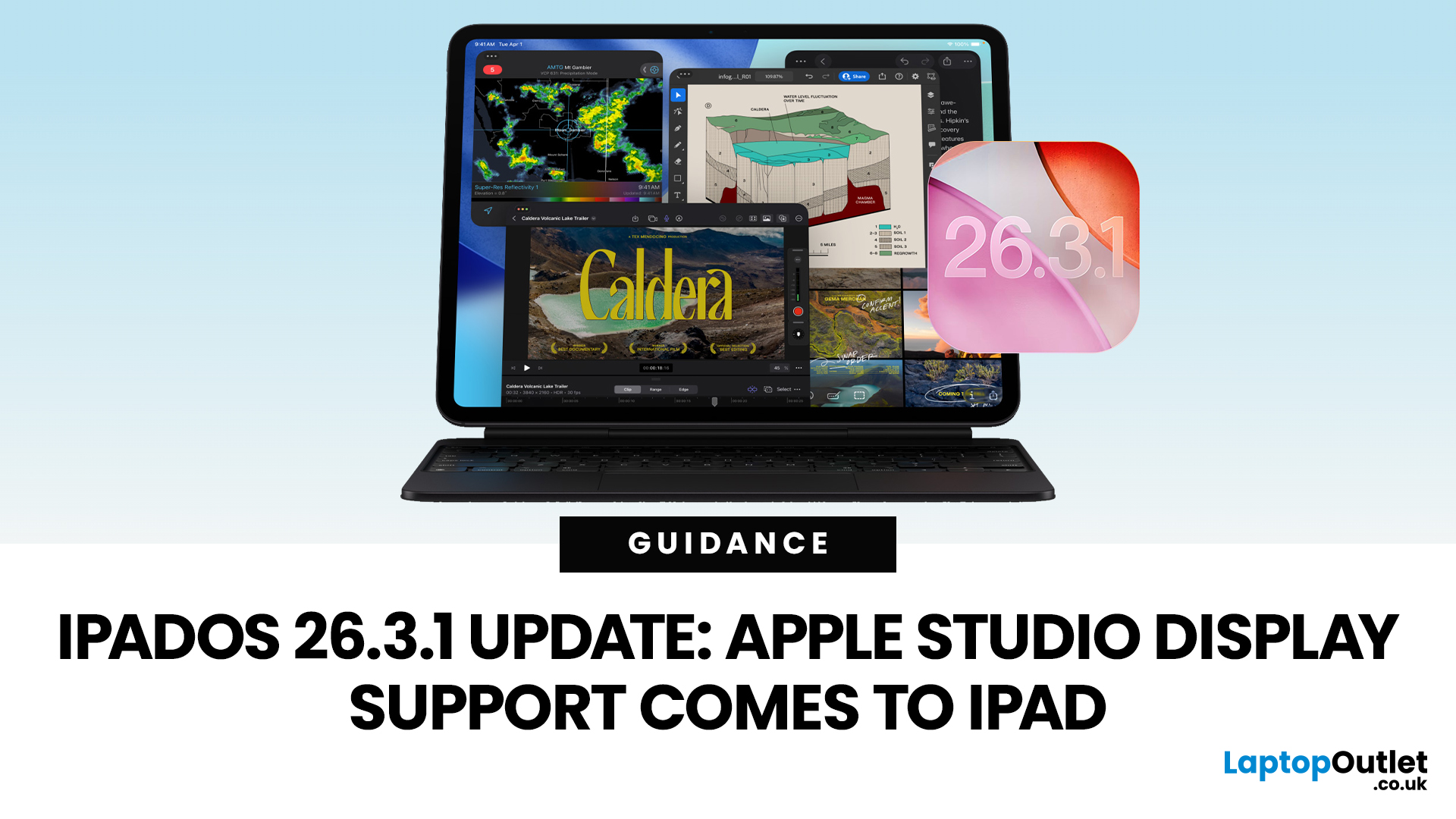
Apple has released the iPadOS 26.3.1 update (build 23D8133) on 4 March 2026, and while it’s a point release, it’s tied to something very tangible: support for Apple’s (new) Studio Display lineup, including Studio Display XDR.
That means, if you use an iPad as part of your desk setup, this is one of those updates that can quietly change your day-to-day. Not with flashy new emoji, but with better compatibility for a serious external monitor.
Below is what’s actually confirmed (and what isn’t), which iPads are included, and what to expect when you plug your iPad into Apple’s Studio Display.
What Apple says is in iPadOS 26.3.1
Apple’s Developer Releases listing confirms:
- iPadOS 26.3.1 (23D8133)
- Release date: 4 March 2026
Apple hasn’t published a public-facing, detailed changelog in the sources available here, and several reports describe the fixes as “unspecified bug fixes” alongside the key compatibility change.
What is clearly and directly supported: Studio Display compatibility now requires
Published: April 14, 2026
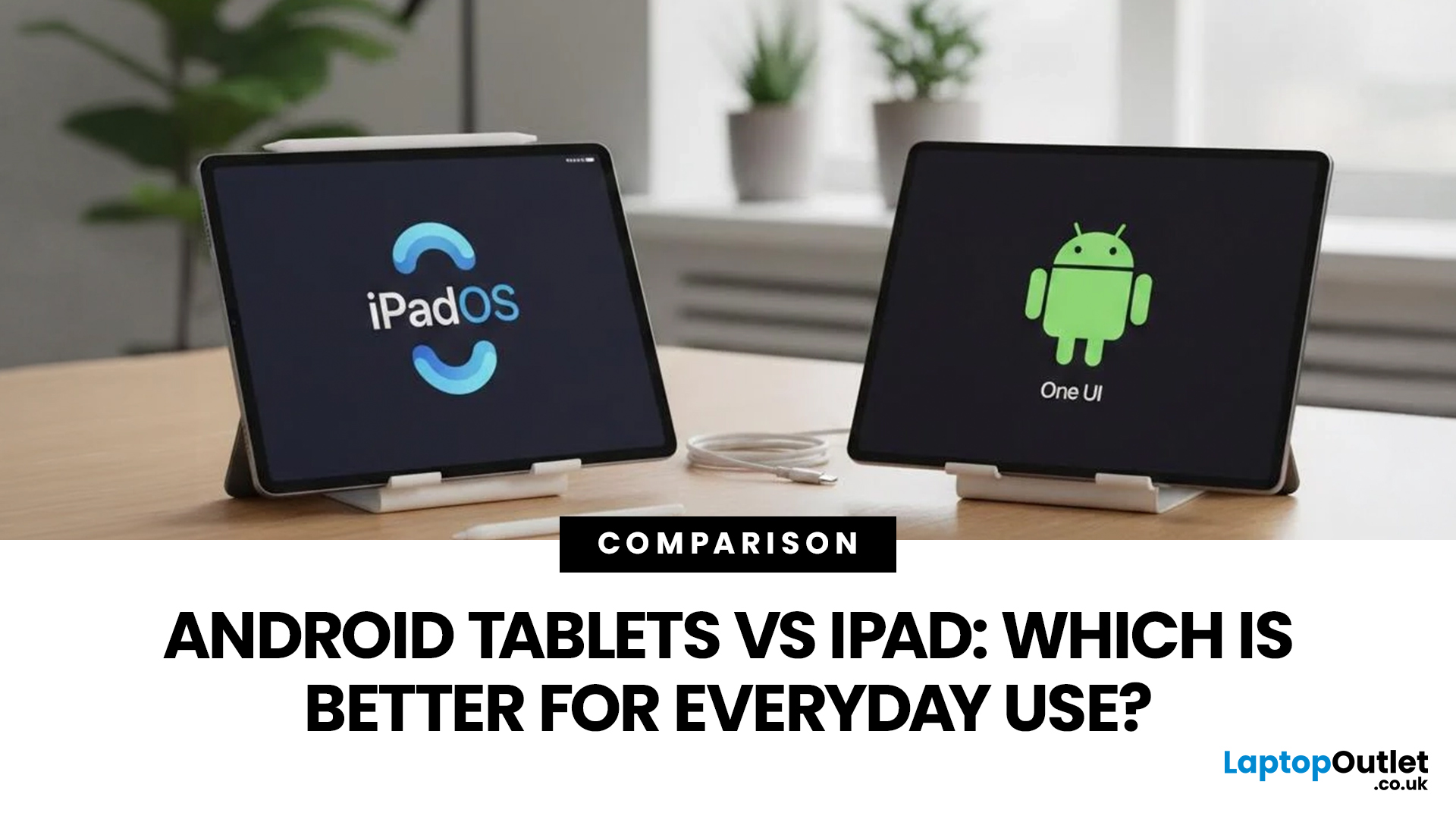
Choosing a tablet sounds easy… until you actually start looking.
Suddenly, it turns into a full-on ecosystem debate. Do you go for the clean, premium Apple experience? Or do you choose the flexibility, variety and better-value world of Android?
That’s exactly why so many buyers end up stuck between Android tablets vs iPad.
On one side, iPads have the polished reputation, smooth performance and that classic Apple “it just works” appeal. On the other, Android tablets give you more choice, more price points, more freedom and a way easier entry into the tablet world without your bank account crying in the background.
And if you’re an everyday buyer, that choice matters even more.
Because you’re probably not buying a tablet to do one ultra-specific thing. You want something that fits into daily life. Something good for streaming, scrolling, studying, replying to emails, joining video calls, browsing, shopping, taking notes, maybe even getting a bit of work done when needed.
So in this guide,
Last Updated: June 10, 2026
Quick Answer: The best iPad in 2026 for most people is the iPad Air with M4 because it delivers strong performance, Apple Intelligence support, 11-inch and 13-inch sizes, Wi-Fi 7, and better long-term value than the entry-level iPad. If you want the most affordable iPad, choose the 11-inch iPad with the A16 chip. If you want the smallest iPad, choose the iPad mini with the A17 Pro chip. If you need the most powerful iPad for design, editing, illustration, or professional workloads, choose the iPad Pro with M5.
Introduction
If you are searching for the best iPad in 2026, the answer depends on what you actually need your tablet to do. You do not need the most expensive iPad for browsing, streaming, schoolwork, emails, video calls, and everyday apps. You need the right balance of screen size, performance, storage, battery life, accessory support, and price.
Apple’s current iPad family gives you four main routes: the standard iPad for everyday use, the iPad mini for portability, the iPad

