



How to Reset a Samsung Phone
Resetting your Samsung phone can fix glitches, clear out clutter, or prepare your device for resale. But before you hit reset, it’s important to know which type you need:
- Soft Reset: A quick reboot to fix minor issues
- Factory Reset: Erases all data and restores your phone to its original settings
Here’s how to do both.
Soft Reset (Restart Your Samsung)
Perfect for fixing frozen apps or sluggish performance:
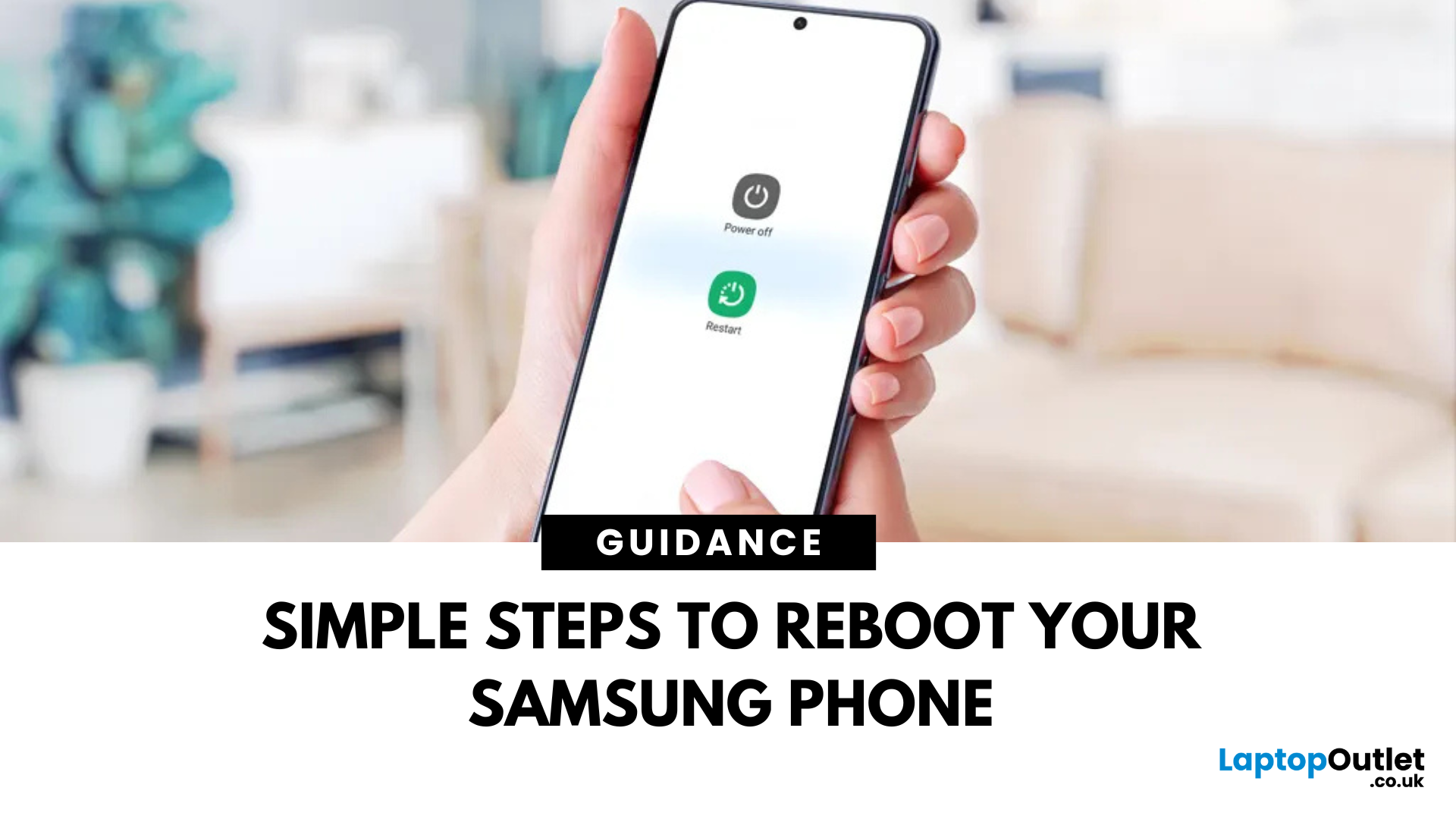
- Press and hold the Power button (or Power + Volume Down) until the power menu appears.
- Tap Restart.
- Wait for your phone to reboot.
Factory Reset (Erase All Data)
Warning: This wipes your entire phone. Back up your data first!
From Settings:
- Go to Settings > General Management > Reset
- Select Factory Data Reset
- Review what will be erased and tap Reset
- Enter your PIN/password if prompted, then confirm with Delete All
Your phone will restart and return to its factory state.
Hard Reset (If Phone is Unresponsive)
For a completely frozen device:
- Turn off your phone
- Press and hold Power + Volume Up together until the Samsung logo appears
- Use Volume buttons to navigate to Wipe data/factory reset
- Press the Power button to select and confirm
Conclusion
Resetting your Samsung phone can be a quick fix for common issues or a crucial step before selling or troubleshooting serious problems. Remember to choose the right reset type for your situation—soft reset for minor glitches, factory reset for a full wipe, or hard reset if your device is unresponsive. Always back up your data beforehand to avoid losing important information.
If you’re thinking about upgrading, check out the latest Samsung phones and unbeatable deals at Laptop Outlet your destination for great UK offers on new and Galaxy models.
FAQs: Resetting a Samsung Phone
1. Will a factory reset remove Samsung account?
No—you’ll still need your account credentials after the reset.
2. How long does a factory reset take?
Usually 5–10 minutes.
3. Can I reset without losing data?
Try a soft reset or use the Smart Switch app to back up first.
4. Is resetting safe for my phone?
Yes—it’s built-in and perfectly safe when done correctly.
5. Should I remove my SIM before resetting?
Not necessary, but you can if you’re selling or giving away the phone.
Time for an upgrade?
Shop Samsung phones at Laptop Outlet—epic UK deals on the latest Galaxy models and refurbished devices.
Read More:
| What is the latest Samsung Galaxy Phone? |
| What is Galaxy AI |
| What Is Better Samsung or iPhone? |
Related Articles


Last Updated: October 22, 2025
Tablet Frozen? It’s Time to Reboot
Your Samsung tablet acting up? Maybe it’s frozen, lagging, or just being plain weird? A reboot can fix a lot of issues fast. Whether you’re doing a quick restart or a hard reset, here’s how to reboot your Samsung tablet the right way—without losing your mind.
How to Do a Soft Reboot (Quick Restart)
This is the easiest and safest way to refresh your tablet without losing any data.
Steps:
- Press and hold the Power button (or Power + Volume Down, depending on model).
- When the Power menu appears, tap Restart.
- Wait for your tablet to turn off and reboot automatically.
Pro Tip: This method works when your screen is responsive and not frozen.
How to Force Restart a Samsung Tablet (If It’s Frozen)
If your tablet is completely unresponsive, try a force reboot:
Steps:
- Press and hold the Power + Volume Down buttons at the same time.
- Hold for around 10-15 seconds until the device vibrates or restarts.
- Release the buttons when you see the
Last Updated: September 11, 2025
The Ultimate Smartphone Showdown
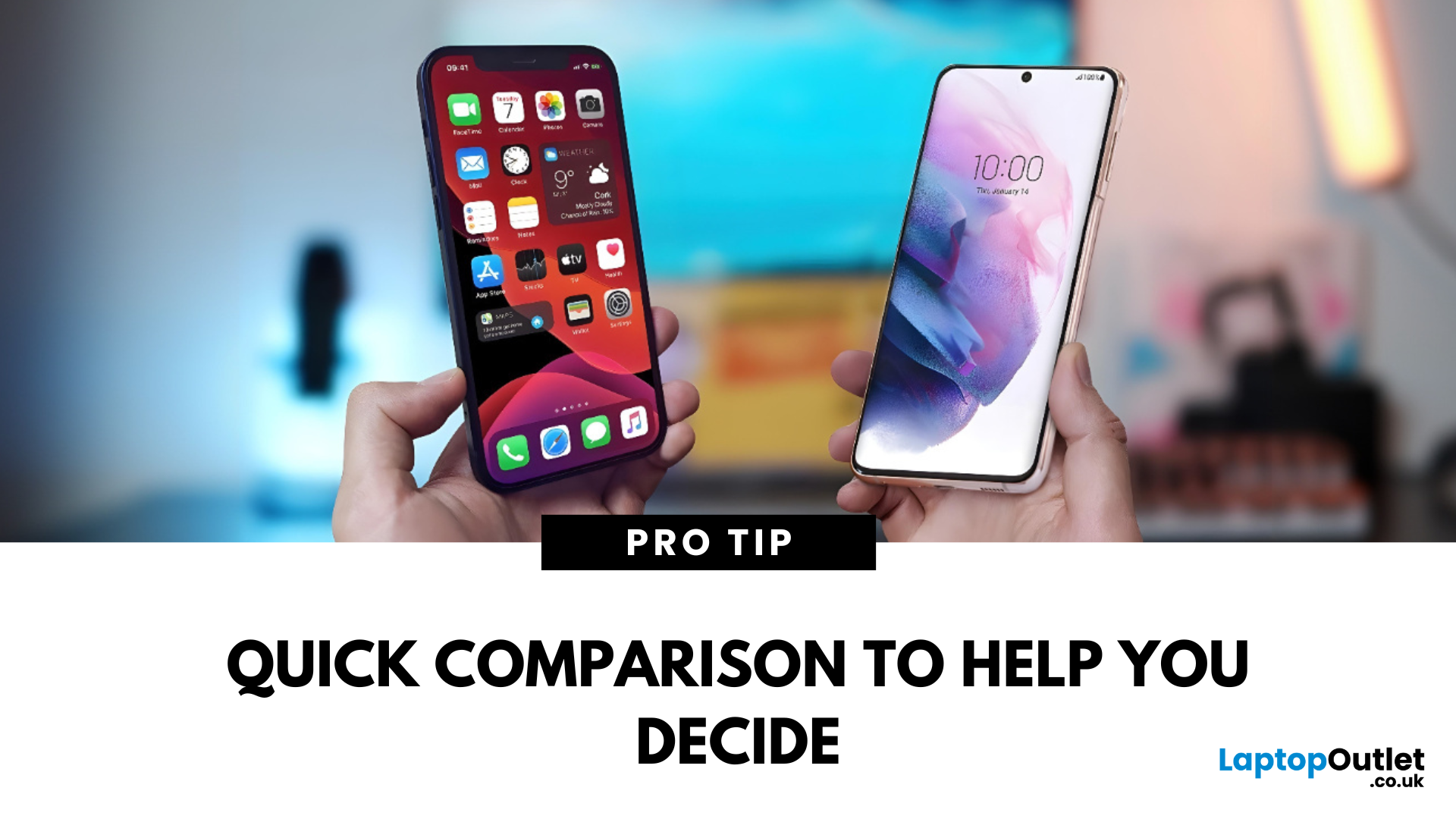
Samsung or iPhone—which is better? It’s a question that sparks debates in group chats, tech forums, and even family dinners. The truth is, both are excellent—but they suit different users. Here’s a breakdown to help you decide which smartphone brand is the better fit for you in 2025.
Design & Build Quality
- iPhone: Premium build, minimalist design, consistent look across models
- Samsung: Sleek designs, more variety (curved displays, foldables like Galaxy Z series)
Verdict: iPhone offers uniform elegance, Samsung delivers bold variety
Display Quality
- iPhone: Super Retina XDR OLED displays, true-to-life colour accuracy
- Samsung: Dynamic AMOLED 2X displays, higher refresh rates (up to 120Hz on most models)
Verdict: Samsung leads in brightness, refresh rate, and screen innovation
Camera Performance
- iPhone: Excellent video quality, cinematic mode, reliable consistency
- Samsung: Powerful zoom (Space Zoom), versatile sensors, vibrant photos
Last Updated: March 17, 2026
Samsung has long dominated the smartphone world, blending cutting-edge innovation, sleek style, and powerful performance with every launch. If you’re wondering what the latest Samsung Galaxy phone is, you’re in the right place. In this blog, we’ll unveil the newest Samsung Galaxy release, highlight its standout specs and features, and guide you to the best deals and offers available right now.
Ready to explore? Let’s uncover the latest together!
What’s the Latest Samsung Galaxy Phone?
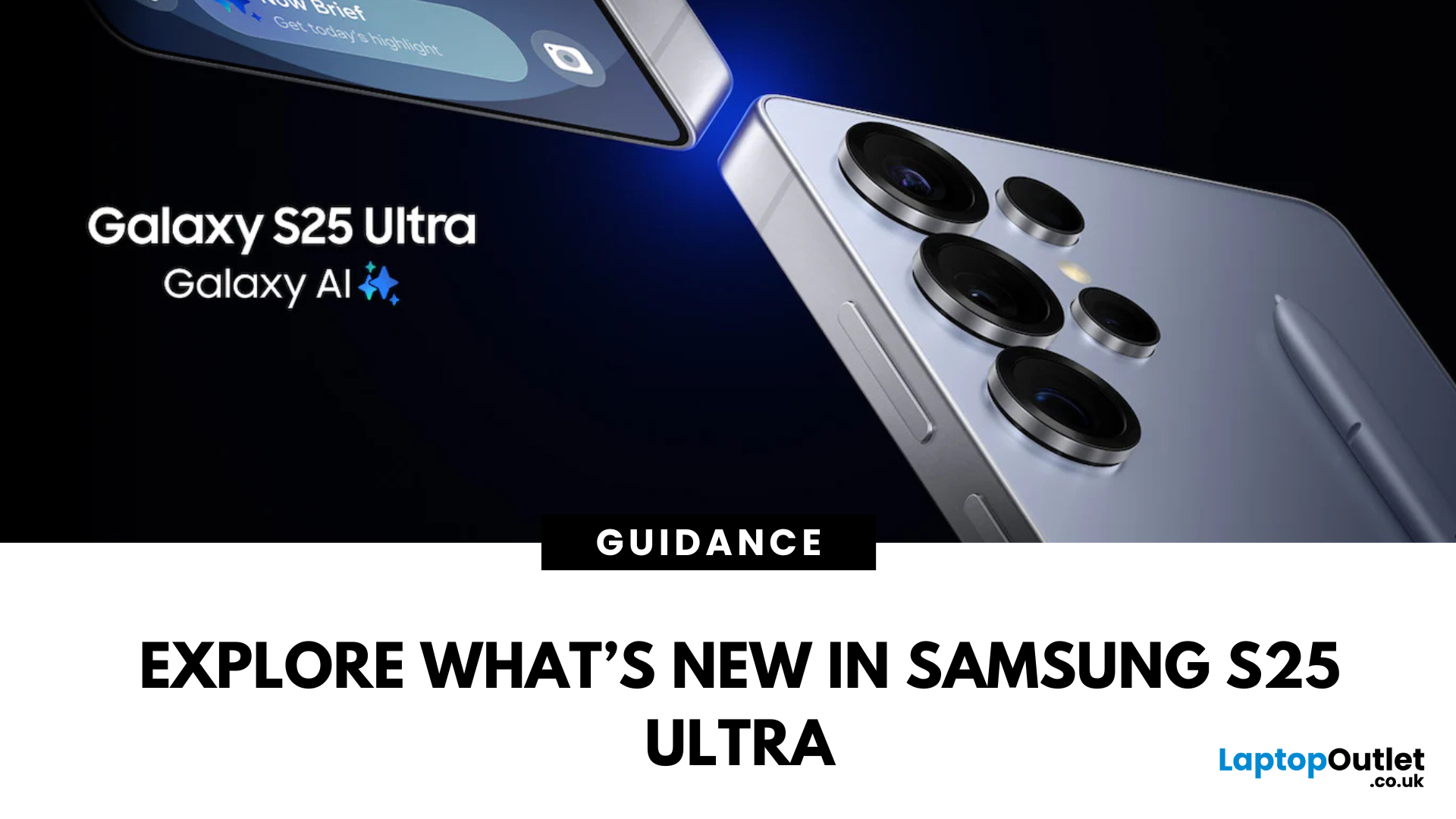
To answer the question ‘what’s the latest Samsung Galaxy phone’, we first need to reframe it slightly to ‘what’s the latest Samsung Galaxy series’. That’s because the latest Samsung Galaxy phones all belong to the Samsung S25 Series, which includes three models — the S25, S25+, and S25 Ultra — all launched in the UK in February 2025.
These three models, the S25, S25+, and S25 Ultra, together make up the latest Samsung Galaxy phones. However, if you’re wondering which Samsung Galaxy phone is the most
Last Updated: September 11, 2025
Locked Out or Changing Network?
Whether you're switching mobile networks or forgot your passcode, knowing how to unlock your Samsung Galaxy phone can save you time, money, and stress. Here's how to do it the right way—safely and securely.
Types of Phone Locks
Samsung phones can be locked in several ways:
- Screen lock: PIN, password, pattern, fingerprint, face unlock
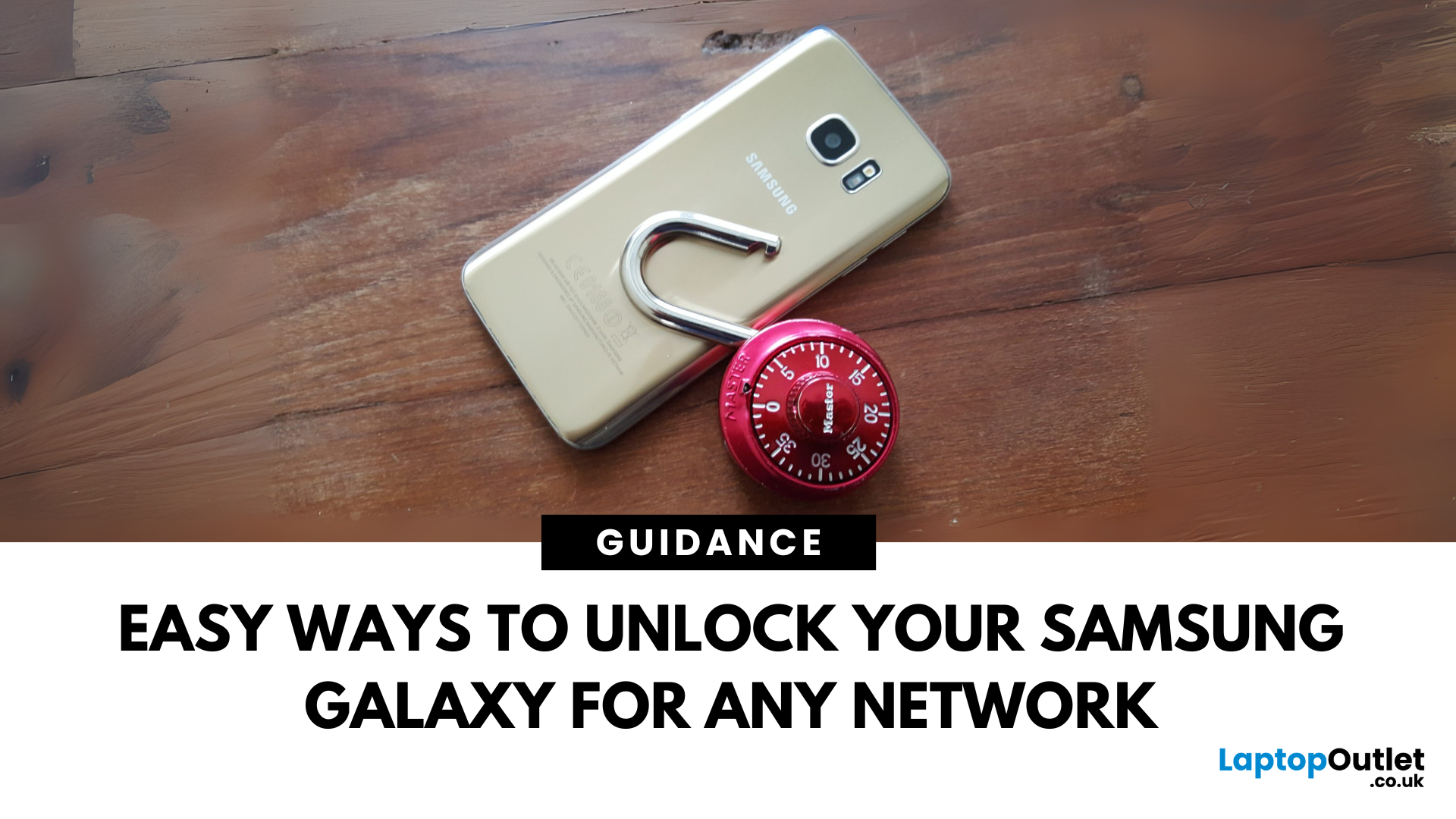
- Network lock (SIM lock): Tied to a specific carrier
- FRP lock (Factory Reset Protection): Google account verification after reset
Let’s look at how to unlock each one.
Unlocking Screen Lock (If You Forgot PIN/Pattern)
Using Samsung Find My Mobile
- Go to findmymobile.samsung.com
- Sign in with your Samsung account
- Select your device
- Click Unlock
Your device must be online and connected to your Samsung account.
Using Factory Reset (As Last Resort)
- Power off your phone
- Hold Power + Volume Up + Bixby (if present)
- Enter recovery mode > Wipe Data/Factory Reset
- Note: This erases all data
Unlocking a Network-Locked
Last Updated: September 11, 2025
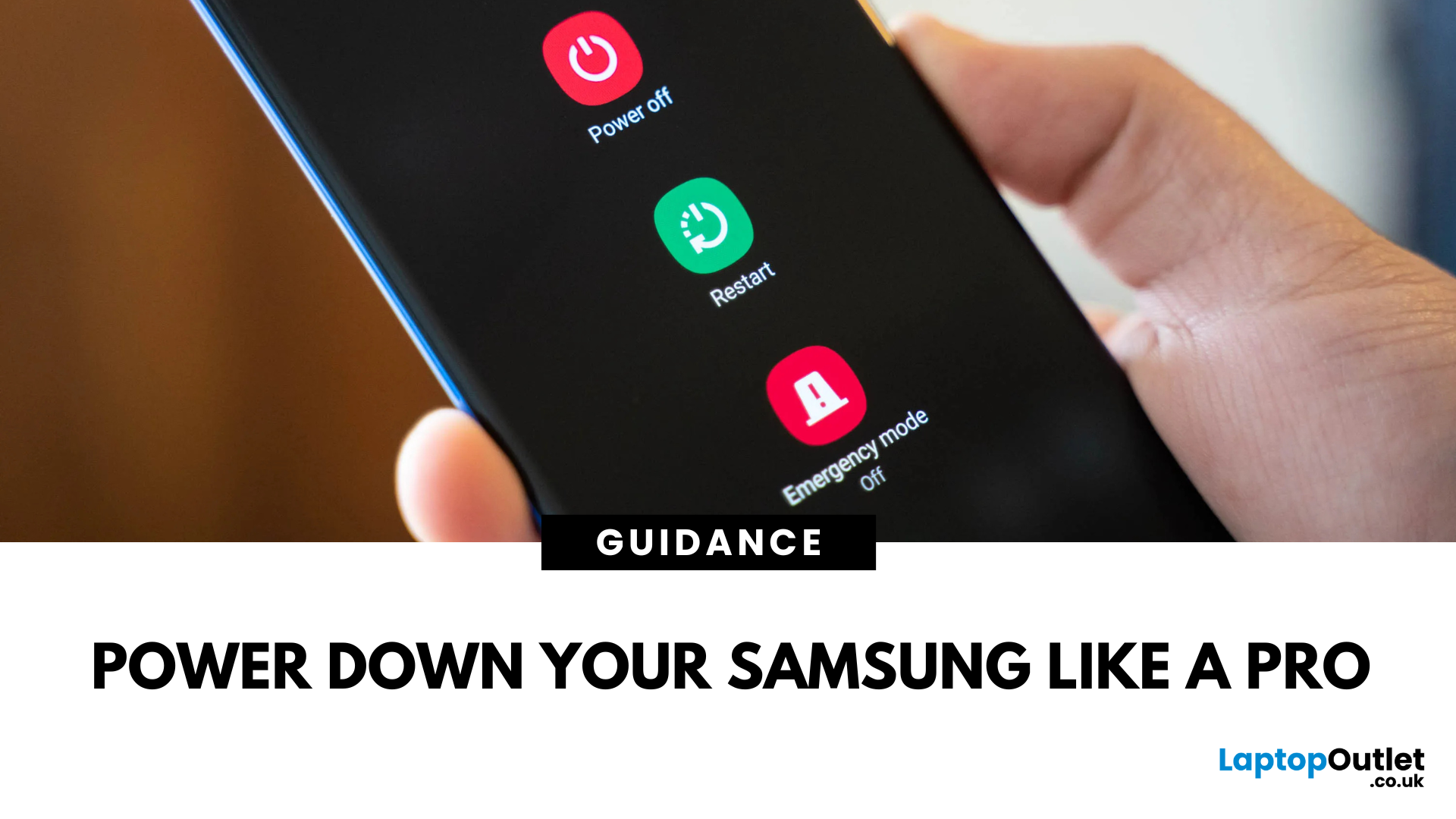
Whether you’re restarting for a software update or saving battery, turning off your Samsung phone is simple—but the steps can vary depending on your model.
Here’s how to do it:
Using the Power Button
For most Samsung Galaxy phones:
- Press and hold the Side (Power) button and Volume Down button together.
- Wait for the power menu to appear.
- Tap Power off, then confirm.
Via Quick Settings Menu
If your Side button is set to wake Bixby (Samsung’s voice assistant):
- Swipe down from the top of the screen to open Quick Settings.
- Tap the Power icon (top-right corner).
- Select Power off.
Using Bixby (Voice Command)
You can also ask Bixby:
- Say: “Hi Bixby, turn off my phone”
- Confirm when prompted
Force Restart If Frozen
If your Samsung phone is unresponsive:
- Hold the Side button + Volume Down for 10–15 seconds until the screen goes black and the Samsung logo appears.
FAQs: Turning Off a Samsung Phone
1. Why won’t my Power button bring up the menu?
It may be mapped

