



How to Change Bluetooth Name on iPhone

Personalise Your iPhone’s Bluetooth Identity
Ever noticed that your iPhone shows up with a default name when connecting to Bluetooth devices or using AirDrop? Changing your Bluetooth name isn’t just fun—it also makes your device easier to recognise. Here’s how to change your iPhone’s Bluetooth name in just a few taps.
1. Why Change Your iPhone’s Bluetooth Name?
- Easier to identify in crowded Bluetooth lists
- Personalises your AirDrop name
- Adds privacy (especially in public places)
- Prevents mix-ups when sharing files
2. How to Change Your iPhone’s Bluetooth Name
Step-by-Step Guide:
- Open the Settings app on your iPhone
- Tap General
- Tap About
- Select Name
- Enter your new Bluetooth name
- Tap Done
Your new name will now appear when connecting to Bluetooth devices and using AirDrop
3. Things to Keep in Mind
- This also changes your AirDrop and hotspot name
- You can change it back at any time
- Some older Bluetooth accessories may not update the name immediately
4. Extra Tip: Restart Bluetooth Devices
After renaming your iPhone:
- Turn Bluetooth off and back on (Settings > Bluetooth)
- Disconnect and reconnect to your device if it doesn’t show the updated name
Final Thoughts: Make It Yours
Changing your Bluetooth name on iPhone is a small tweak with big benefits—making it easier to connect and share without confusion. Whether it’s for fun, clarity, or privacy, your personalised device name is just a few taps away.
Explore the latest iPhones and Bluetooth accessories at Laptop Outlet for a seamless tech experience.
FAQs: iPhone Bluetooth Name
1. Does changing the name affect my iPhone’s performance?
No—it only changes how it appears to other devices.
2. Will this change my iCloud device name?
Yes—it updates across your Apple ecosystem.
3. Can I use emojis in the name?
Yes—most Bluetooth devices and Apple services support emojis.
4. Why isn’t the new name showing up on another device?
Try toggling Bluetooth off/on or reconnecting the device.
5. Can I use different Bluetooth names for different devices?
No—the name applies universally to your iPhone.
Read More:
| How to Sync iPhone and iPad |
| How Do I Find a Lost iPhone |
| How to Find Your Apple ID Password |
Related Articles

Last Updated: September 11, 2025
Last Updated: May 06, 2026

Last Updated: October 02, 2025
Got iPhone Photos? Let’s Move Them
Snapped the perfect selfie? Captured your holiday vibes? Now you want to transfer those shots to your laptop—whether it’s for storage, editing, or sharing. We’ve got you covered with simple ways to transfer photos from iPhone to laptop—whether you’re using Windows or Mac.
How to Transfer Photos from iPhone to Windows Laptop
1. Using USB Cable & Photos App
- Connect your iPhone to your laptop using a Lightning to USB cable
- Unlock your iPhone and tap Trust when prompted
- Open the Photos app on your Windows laptop
- Click Import > From a USB device
- Select the photos you want and import
2. Using File Explorer (Manual Method)
- Plug in your iPhone and unlock it
- Open File Explorer > This PC > Apple iPhone
- Go to Internal Storage > DCIM
- Copy and paste photos to your laptop folder
3. Using iCloud Photos
- Enable iCloud Photos on your iPhone: Settings > Photos > iCloud Photos
- Visit iCloud.com and sign in
- Go to Photos, select images, and
Last Updated: September 11, 2025
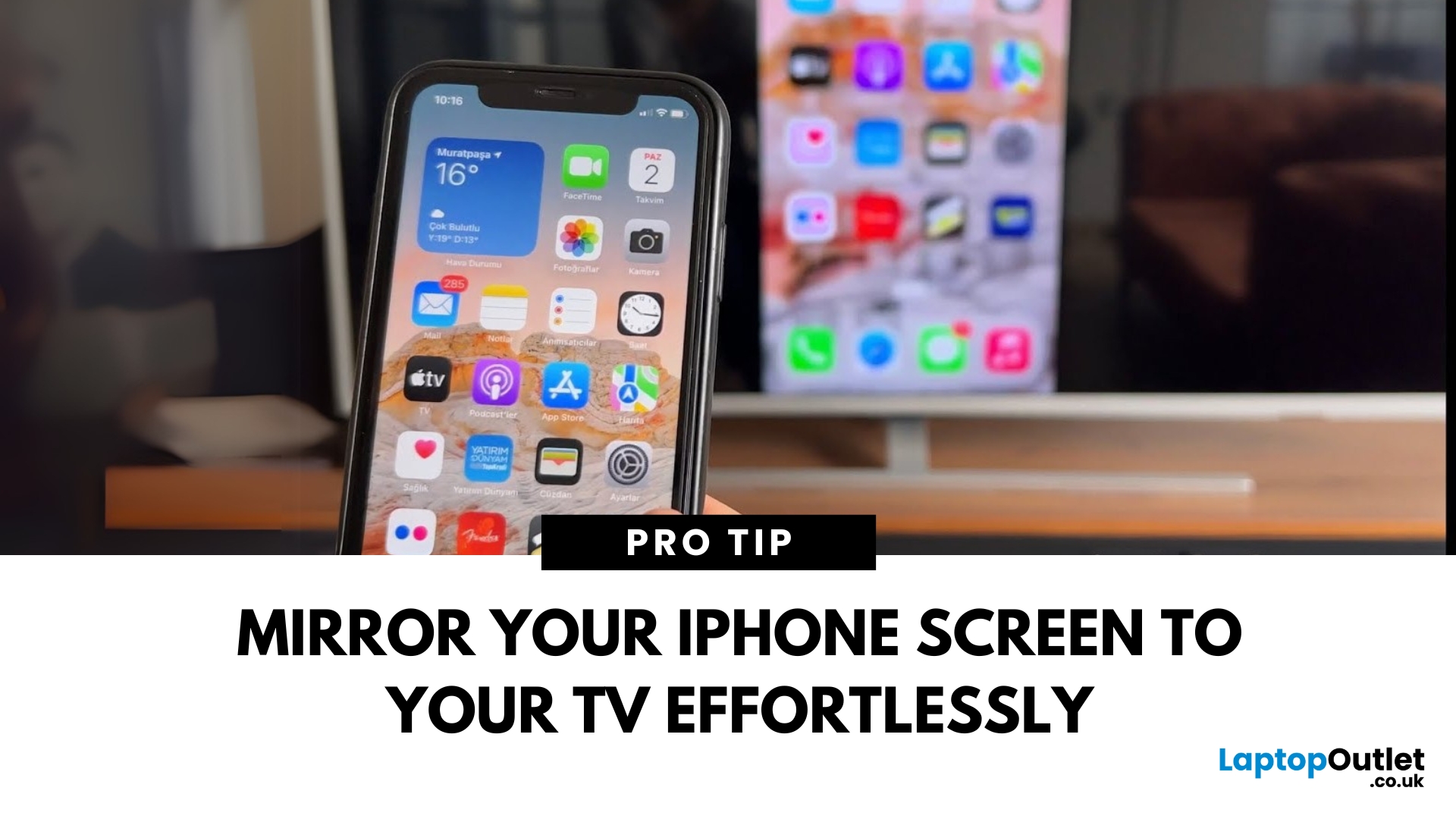
Make Your iPhone Screen Bigger
Want to watch photos, videos, or apps on the big screen? Screen mirroring lets you share your iPhone display to a TV wirelessly or with a cable. Whether you’re streaming a film or showing off holiday snaps, here’s how to do it easily.
How to Screen Mirror iPhone to a Smart TV (AirPlay)
Most smart TVs (Samsung, LG, Sony, etc.) now support Apple AirPlay.
Steps:
- Connect your iPhone and TV to the same Wi-Fi network
- Swipe down on your iPhone to open Control Centre
- Tap Screen Mirroring
- Select your TV from the list
- Enter the AirPlay passcode (if required)
Your iPhone screen will now appear on your TV.
How to Screen Mirror iPhone to TV Using an HDMI Cable
If your TV doesn’t support AirPlay, you can use a cable.
What You’ll Need:
- Apple Lightning Digital AV Adapter
- HDMI cable
Steps:
- Plug the adapter into your iPhone
- Connect an HDMI cable between the adapter and your TV
- Switch your TV input to the correct HDMI port
Your iPhone screen will
Last Updated: September 11, 2025
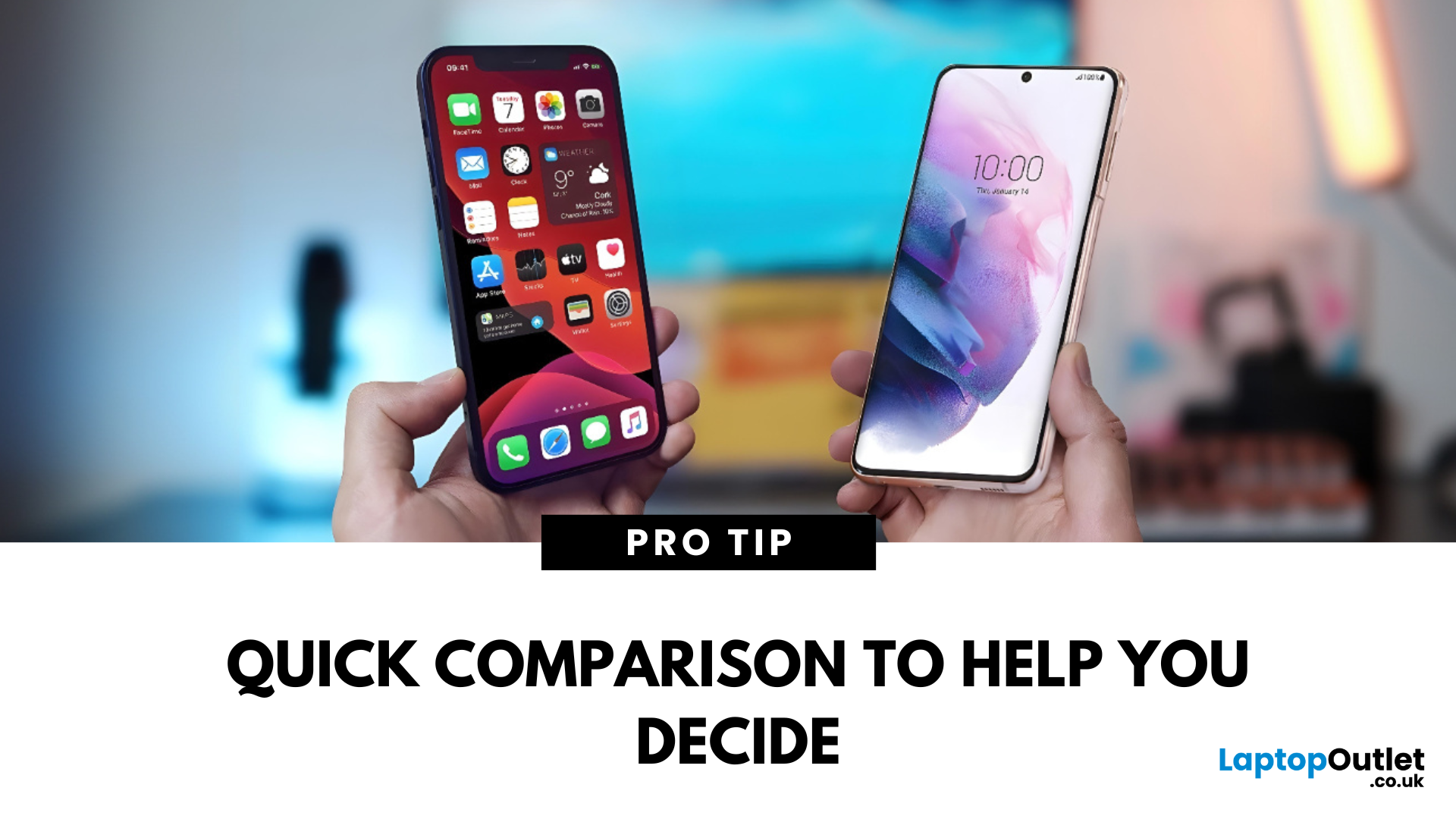
The Ultimate Smartphone Showdown
Samsung or iPhone—which is better? It’s a question that sparks debates in group chats, tech forums, and even family dinners. The truth is, both are excellent—but they suit different users. Here’s a breakdown to help you decide which smartphone brand is the better fit for you in 2025.
Design & Build Quality
- iPhone: Premium build, minimalist design, consistent look across models
- Samsung: Sleek designs, more variety (curved displays, foldables like Galaxy Z series)
Verdict: iPhone offers uniform elegance, Samsung delivers bold variety
Display Quality
- iPhone: Super Retina XDR OLED displays, true-to-life colour accuracy
- Samsung: Dynamic AMOLED 2X displays, higher refresh rates (up to 120Hz on most models)
Verdict: Samsung leads in brightness, refresh rate, and screen innovation
Camera Performance
- iPhone: Excellent video quality, cinematic mode, reliable consistency
- Samsung: Powerful zoom (Space Zoom), versatile sensors, vibrant photos

