



How to Sync iPhone and iPad

Seamless Apple Syncing
One of the biggest perks of Apple devices is how smoothly they work together. If you own both an iPhone and iPad, syncing them can save you time, keep your files up to date, and make switching between devices feel effortless. Here’s how to sync your iPhone and iPad in just a few steps.
1. Make Sure You’re Using the Same Apple ID
- Go to Settings > [your name] on both devices
- Make sure you’re signed in with the same Apple ID
If not, sign out and back in with the same account
2. Turn On iCloud Sync
Steps:
- On both devices, go to Settings > [your name] > iCloud
- Toggle on the apps and services you want to sync:
- Photos
- Contacts
- Calendar
- Notes
- Safari
- Messages
iCloud keeps your data consistent across devices
3. Sync Messages Between iPhone and iPad
- Go to Settings > Messages > Text Message Forwarding on your iPhone
- Enable your iPad to receive and send texts
- Turn on iMessage on both devices (Settings > Messages)
4. Sync Safari Tabs and Bookmarks
- In iCloud settings, toggle on Safari
- You can now view open tabs, bookmarks, and history across devices
5. Sync Photos and Videos
- Enable iCloud Photos under Settings > Photos
- Photos and videos will appear on both devices automatically
Make sure there’s enough iCloud storage for large media libraries
6. Enable Handoff for Continuity Features
- Go to Settings > General > AirPlay & Handoff
- Turn on Handoff on both iPhone and iPad
- Switch between apps like Safari, Mail, Notes, or Pages without losing progress
7. Use iCloud Drive for Files
- Go to Settings > iCloud > iCloud Drive and turn it on
- Access files from the Files app on both devices
Final Thoughts: Apple Ecosystem in Sync
Once your iPhone and iPad are synced, everything from messages to notes and photos stays up to date—no manual transfers, no extra steps. It's one of the best features of owning multiple Apple devices.
Looking to expand your Apple setup? Explore the latest iPads and iPhones at Laptop Outlet.
FAQs: Syncing iPhone and iPad
1. Do I need Wi-Fi to sync iPhone and iPad?
Yes—most sync features require an internet connection, preferably Wi-Fi.
2. Will syncing affect battery life?
Slightly, especially with iCloud Photos and Background App Refresh enabled.
3. Can I sync apps across devices?
Yes—go to Settings > App Store and turn on automatic downloads.
4. Can I sync via cable instead of iCloud?
Yes—use Finder on macOS or iTunes on Windows for manual syncing.
5. What happens if I use different Apple IDs?
Devices won't sync properly—Apple ID is essential for continuity and iCloud.
Read More:
| How to Pair Apple Watch to a New Phone |
| How to Screen Mirror iPhone to TV |
| How to Scan Documents on iPhone and iPad |
Related Articles

Last Updated: May 27, 2025
Are you looking for a portable computing solution and don't know which one to choose – an Android tablet or an iPad? Luckily, you've landed at the right place!
The terms "tablets" and an "iPad" are often used interchangeably, but they are different. If you are an Apple user, you may get attracted to an iPad; however, tablet PCs also have matchless capabilities that you cannot simply neglect. On the other hand, as Android users, isn't it exciting to have an Apple device at your disposal?
Both tablets and iPad significantly differ in operating system, design, and performance. Both devices also possess unique pros and drawbacks. Considering all these scenarios, deciding which one will offer the best value for your money may be overwhelming. Luckily, we are here to solve this dilemma.
In this Tablet vs iPad guide, we will walk you through the features of both devices to help you decide on the suitable device that fits your needs and budget.
So, let's get started!
What are Tablet
Last Updated: September 11, 2025
Make Your iPhone Screen Bigger
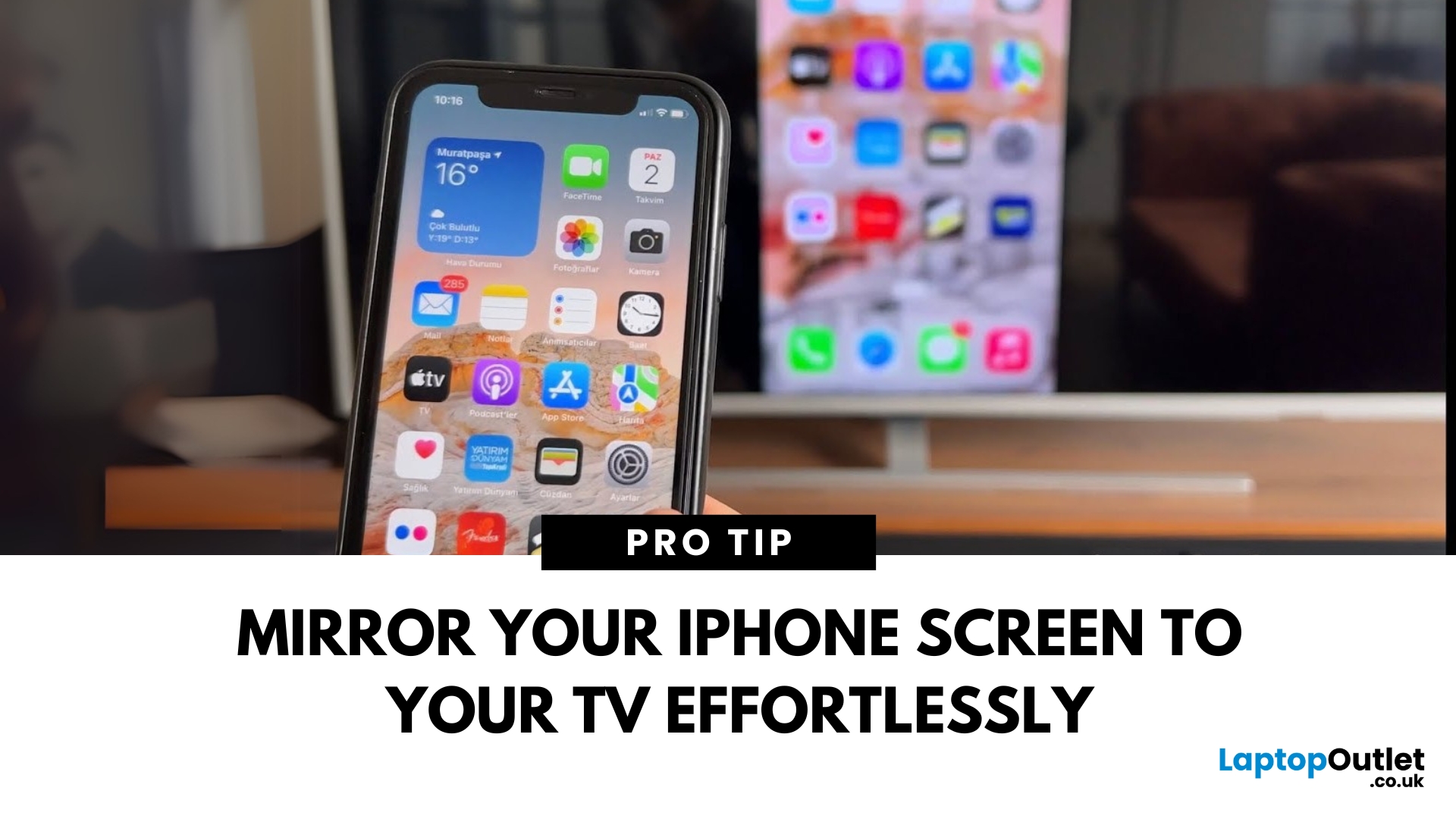
Want to watch photos, videos, or apps on the big screen? Screen mirroring lets you share your iPhone display to a TV wirelessly or with a cable. Whether you’re streaming a film or showing off holiday snaps, here’s how to do it easily.
How to Screen Mirror iPhone to a Smart TV (AirPlay)
Most smart TVs (Samsung, LG, Sony, etc.) now support Apple AirPlay.
Steps:
- Connect your iPhone and TV to the same Wi-Fi network
- Swipe down on your iPhone to open Control Centre
- Tap Screen Mirroring
- Select your TV from the list
- Enter the AirPlay passcode (if required)
Your iPhone screen will now appear on your TV.
How to Screen Mirror iPhone to TV Using an HDMI Cable
If your TV doesn’t support AirPlay, you can use a cable.
What You’ll Need:
- Apple Lightning Digital AV Adapter
- HDMI cable
Steps:
- Plug the adapter into your iPhone
- Connect an HDMI cable between the adapter and your TV
- Switch your TV input to the correct HDMI port
Your iPhone screen will
Last Updated: October 03, 2025
New iPhone, Same Watch? Here’s How to Pair It
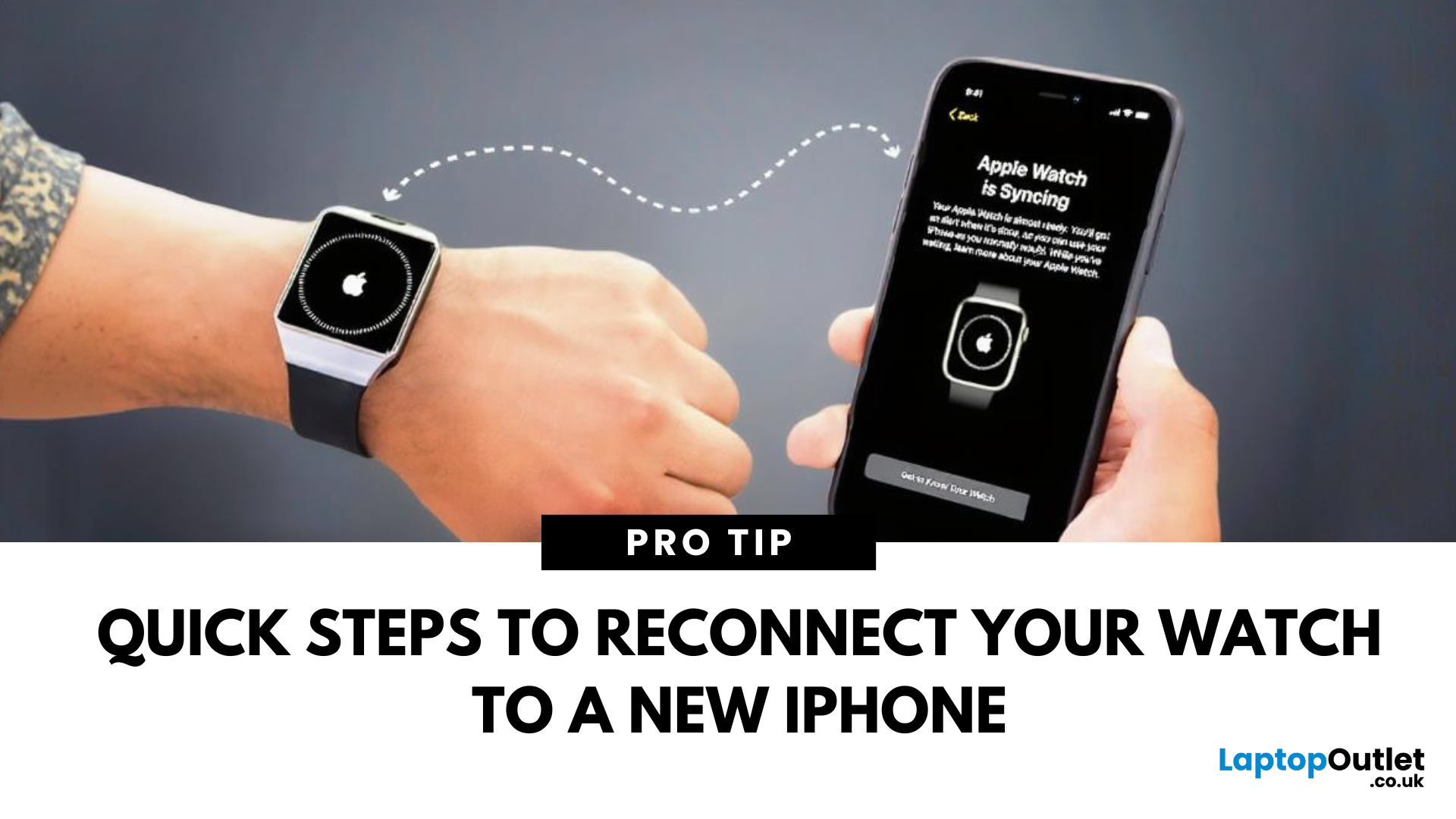
Upgrading to a new iPhone? Great! But what about your Apple Watch? You’ll need to pair it to your new phone and transfer all your settings, apps, and data. Here’s how to do it step by step without losing your watch data.
How to Pair Apple Watch to a New iPhone – Step by Step
1. Back Up Your Old iPhone
Your Apple Watch data is included in your iPhone backup.
Steps:
- Go to Settings > [Your Name] > iCloud > iCloud Backup
- Tap Back Up Now
Alternatively, back up via iTunes or Finder on a computer.
2. Unpair Your Apple Watch from Your Old iPhone
- Open the Watch app on your old iPhone
- Tap All Watches > Info icon (i) next to your watch
- Tap Unpair Apple Watch
- Confirm and enter your Apple ID password
This creates a backup of your watch on your old iPhone.
3. Set Up Your New iPhone
Restore your new iPhone from your latest iCloud or iTunes backup so it includes your Apple Watch data.
4. Pair Apple Watch with New iPhone
- Bring
Last Updated: September 09, 2025
Unleash Precision with Apple Pencil
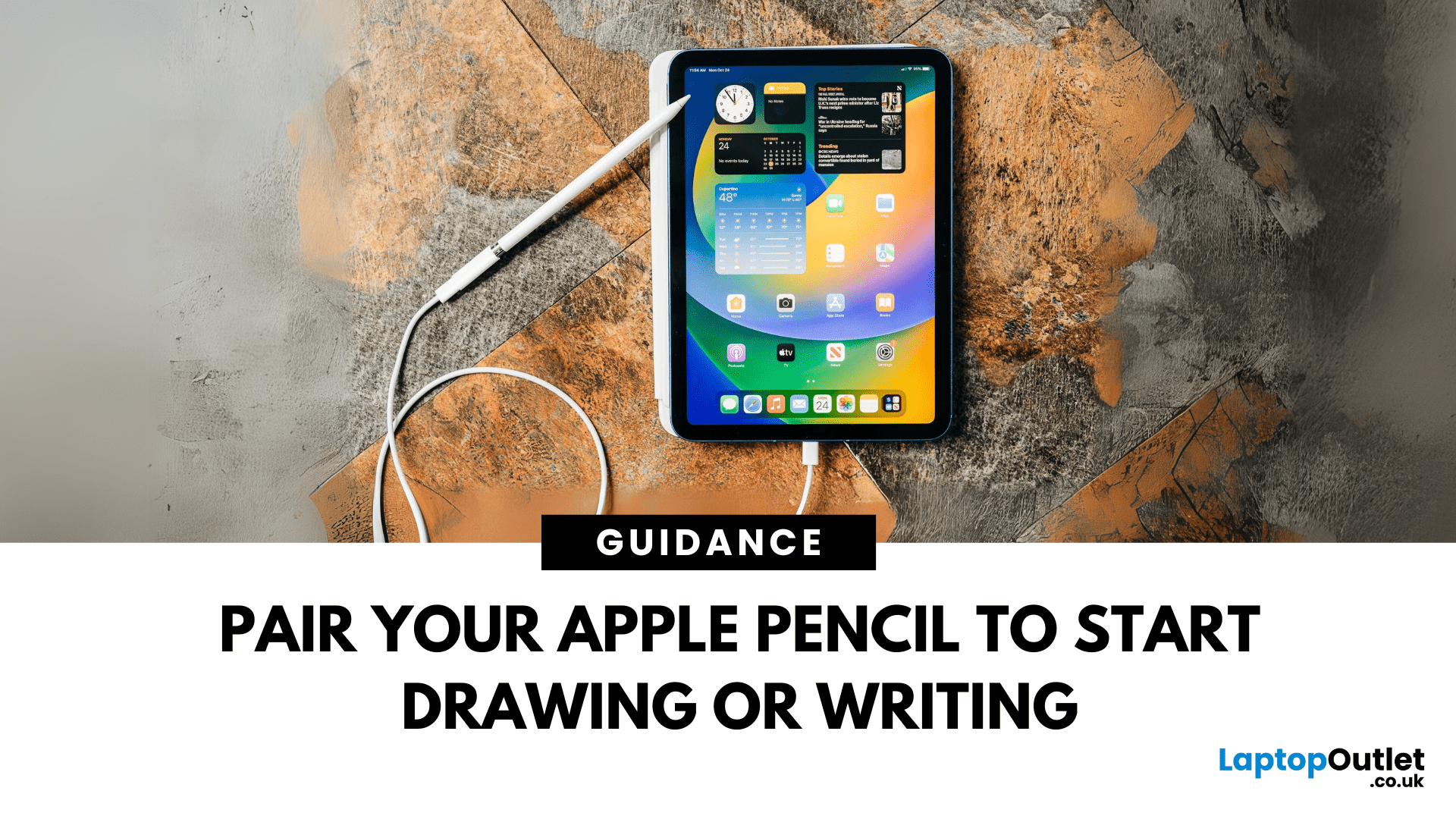
Whether you're an artist, student, or note-taker, the Apple Pencil transforms your iPad into a powerful tool for creativity and productivity. But first, you’ll need to pair it. Here’s how to connect both Apple Pencil 1st Gen and 2nd Gen to your iPad quickly.
How to Connect Apple Pencil (2nd Generation)
Compatible with:
- iPad Pro (3rd gen and later)
- iPad Air (4th gen and later)
- iPad mini (6th gen)
Steps:
- Make sure Bluetooth is enabled (Settings > Bluetooth)
- Attach the Apple Pencil to the magnetic strip on the side of the iPad
- Wait for the Pair prompt and tap it
Your Apple Pencil is now connected and ready to use
How to Connect Apple Pencil (1st Generation)
Compatible with:
- iPad (6th–10th gen)
- iPad Air (3rd gen)
- iPad mini (5th gen)
Steps:
- Remove the cap and plug the Apple Pencil into the iPad’s Lightning port
- Tap Pair when the prompt appears
If your iPad uses USB-C (10th gen), you’ll need a USB-C to Apple Pencil Adapter
Last Updated: May 23, 2025
Running Out of Room? Let’s Fix That.
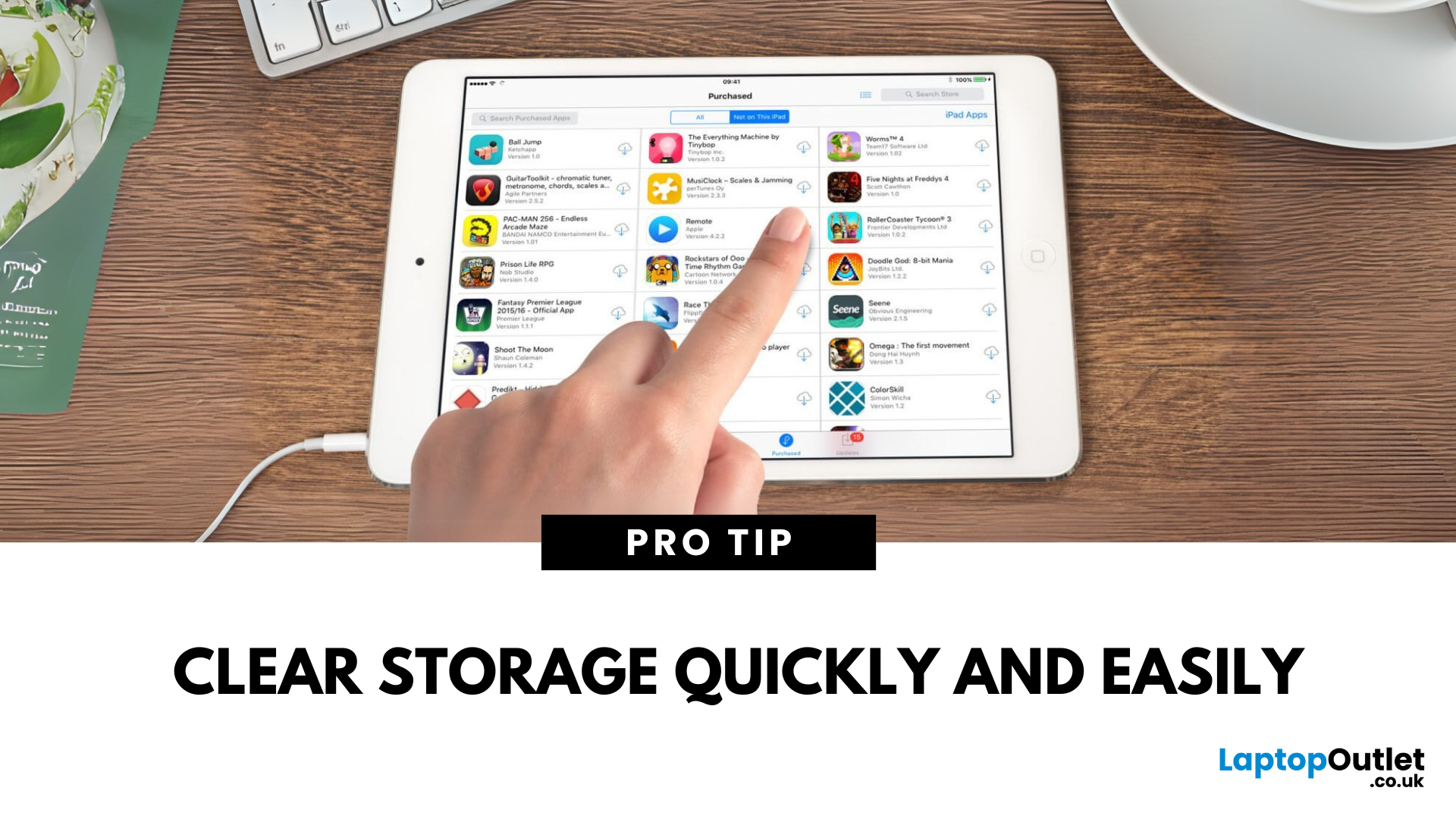
A full iPad can slow down performance and stop you from downloading new apps or taking photos. Whether you're using it for work, play, or school, here’s how to free up space on your iPad and keep it running smoothly.
1. Check Your iPad Storage Usage
Steps:
- Go to Settings > General > iPad Storage
- View a breakdown of what’s using space (apps, photos, media, system)
- Follow Apple’s recommendations if listed (e.g. Offload Unused Apps)
- This helps you see exactly what’s taking up room
2. Delete Unused Apps
Apps you haven’t opened in months? Time to go.
Steps:
- Tap and hold the app icon > Remove App > Delete App
- Or delete directly from iPad Storage settings
3. Offload Unused Apps (Keep Data)
Offloading removes the app but keeps your data safe for when you reinstall it.
Steps:
- Go to Settings > General > iPad Storage
- Tap an app > Offload App
- You can enable automatic offloading under Settings > App Store
4. Clear Safari Cache
Last Updated: September 11, 2025
A Scanner in Your Pocket
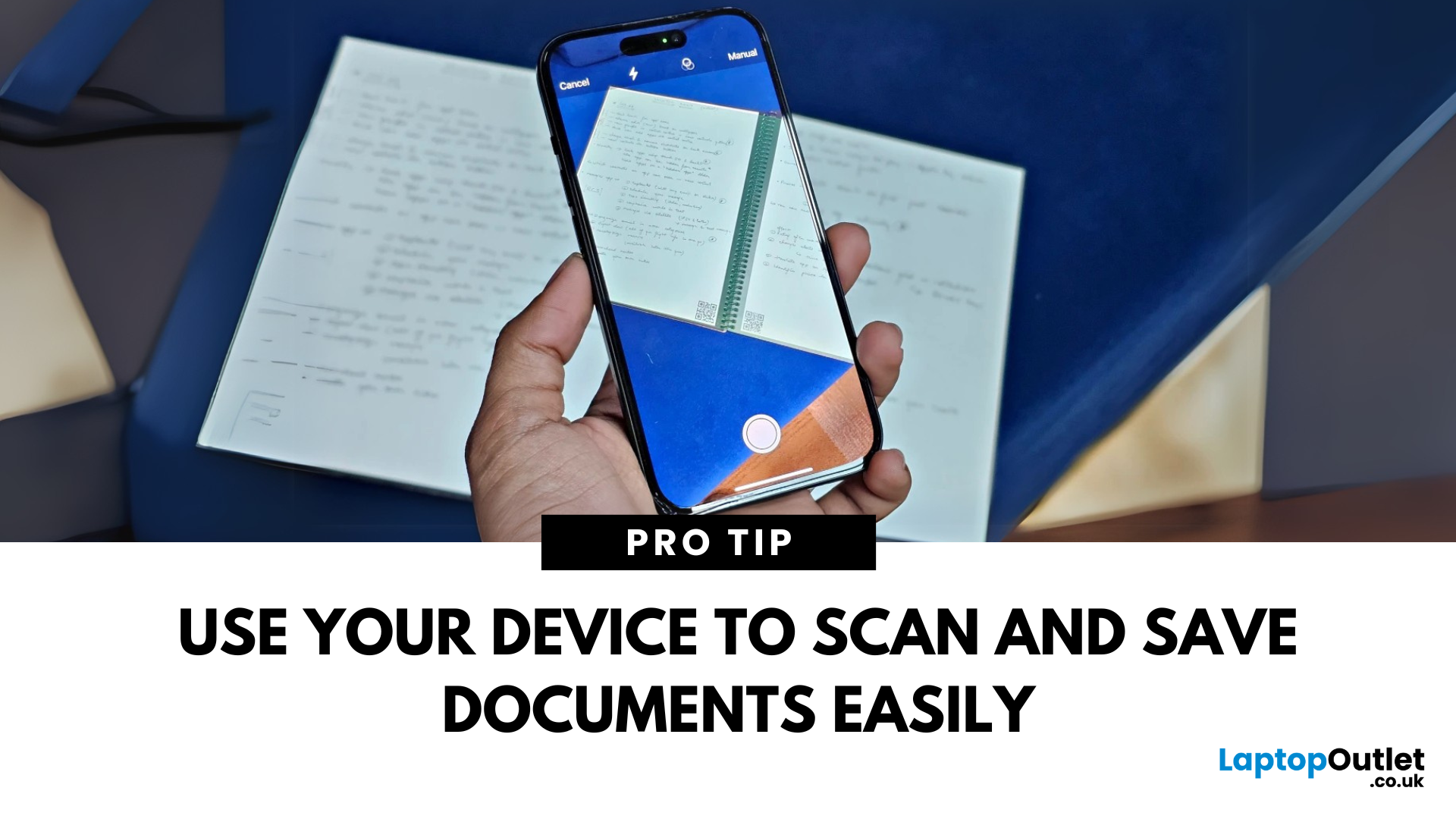
You don’t need a bulky scanner anymore—your iPhone or iPad can scan documents with amazing quality in just seconds. Thanks to built-in tools like the Notes app, scanning has never been easier. Here’s how to do it.
1. Scan Documents Using the Notes App
The Notes app has a built-in scanner that saves documents as PDFs or images.
Steps:
- Open the Notes app
- Tap the Create New Note icon
- Tap the Camera button
- Select Scan Documents
- Position your document in view; your device will auto-capture, or you can tap the shutter button
- Adjust the corners if needed and tap Keep Scan
- Save it to the note or share/export as a PDF
Use "Auto" mode for hands-free scanning of multiple pages
2. Scan Directly into Files App (iOS 15 and later)
Steps:
- Open the Files app
- Navigate to the folder where you want to save the scan
- Tap the three dots in the top right
- Select Scan Documents
- Capture and save the document directly as a file
Great for creating quick PDFs

