



What to Look for When Buying a TV

Find Your Perfect Screen
Looking to upgrade your entertainment experience? Whether it’s for movies, gaming, or everyday watching, buying a TV can feel overwhelming with so many options. Here’s your simple guide to what to look for when buying a TV in 2025.
Screen Size: How Big Should You Go?
Tips:
- Measure the space where your TV will go
- Bigger isn’t always better—distance and resolution matter
- For living rooms: 50–75 inches is a sweet spot
- For bedrooms or smaller rooms: 32–43 inches works well
Sit around 1.5 times the screen size away for the best experience
Screen Resolution: How Clear Is the Picture?
- HD (720p): Budget or small TVs only
- Full HD (1080p): Still common for budget and mid-range TVs
- 4K (Ultra HD): Best value and most popular for new TVs
- 8K: Super high-end; limited content but future-ready
For most buyers, 4K is the best value choice
Display Technology: LED, QLED, or OLED?
- LED: Basic, energy-efficient, budget-friendly
- QLED (Quantum Dot): Brighter colours, better contrast (Samsung & others)
- OLED: Rich blacks, incredible contrast, perfect for film lovers (LG, Sony)
- OLED = best picture quality, but at a higher price
Smart Features: TV Meets Tech
- Built-in apps: Netflix, YouTube, Disney+, etc.
- Voice control: Alexa, Google Assistant, or Siri
- App store and software updates
Look for an intuitive interface like Google TV, webOS, or Tizen
Connectivity: Ports and Wireless Options
- HDMI ports: At least 3 for consoles, Blu-ray, soundbars
- USB ports: For media playback or power
- Wi-Fi & Ethernet: For smooth streaming
- Bluetooth: To connect headphones or speakers
Refresh Rate: Smoother Motion Matters
- 60Hz: Standard for casual watching
- 120Hz or higher: Better for gaming and fast sports
- Gamers should look for VRR (Variable Refresh Rate) support
Audio Quality: Don’t Forget the Sound
- Built-in speakers vary—some are weak
- Consider a soundbar or external speaker setup
Look for Dolby Atmos or DTS support for better sound
Brand & Reliability
- Top trusted brands in 2025 include:
- Samsung, LG, Sony, Hisense, TCL
Read reviews and check warranty terms
Budget: What Can You Spend?
- Under £300: Entry-level Full HD TVs, some 4K options
- £300–£600: Reliable 4K smart TVs with strong features
- £600+: Premium features like OLED, QLED, and larger screens
Final Thoughts: Buy Smart, Watch Smarter
Buying a new TV doesn’t have to be complicated. Focus on screen size, picture quality, smart features, and connectivity to get the best value for your space and needs.
Need help choosing the right TV? Explore Laptop Outlet’s latest TV deals, bundles, and buying guides today.
FAQs: TV Buying Guide Questions
1. Is 4K worth it over Full HD?
Yes—4K offers much sharper visuals, even on mid-sized TVs.
2. What size TV should I get for my room?
Measure your space—generally, 50–65 inches is ideal for living rooms.
3. Do I need a soundbar with my new TV?
Many built-in speakers are average—soundbars improve the experience.
4. What’s the difference between LED and OLED?
OLED has better contrast and colour, but LED is more affordable.
5. How many HDMI ports do I need?
At least 3 for flexibility with consoles, streaming devices, and more.
Read More:
| Why Does My TV Say "No Signal" |
| How to Connect a Laptop to a TV |
| How to Screen Mirror iPhone to TV |
Related Articles

Last Updated: September 09, 2025
Introduction
In this digital age, laptops and TVs have become essential to our daily lives. It allows users to stream their favourite shows and play video games either on the small screen of a laptop or on a large TV screen. Connecting your Lenovo laptop to a TV can open many possibilities, whether you want to enjoy your favourite movies on a larger screen, share presentations during a meeting, or enjoy gaming with a more expansive display.
Lenovo laptops have various connectivity options, allowing you to connect them to modern TVs easily. This guide will explore instructions and methods for establishing connections and making the most of your Lenovo laptop's capabilities.
Whether you're using HDMI, wireless technologies, or other interfaces, we'll provide comprehensive instructions to enhance your multimedia and productivity experiences.
So, let's get into it!
Methods to Connect the Lenovo Laptop to a TV
There are several methods to connect your Lenovo Laptop to a TV to enhance your viewing
Last Updated: August 25, 2026
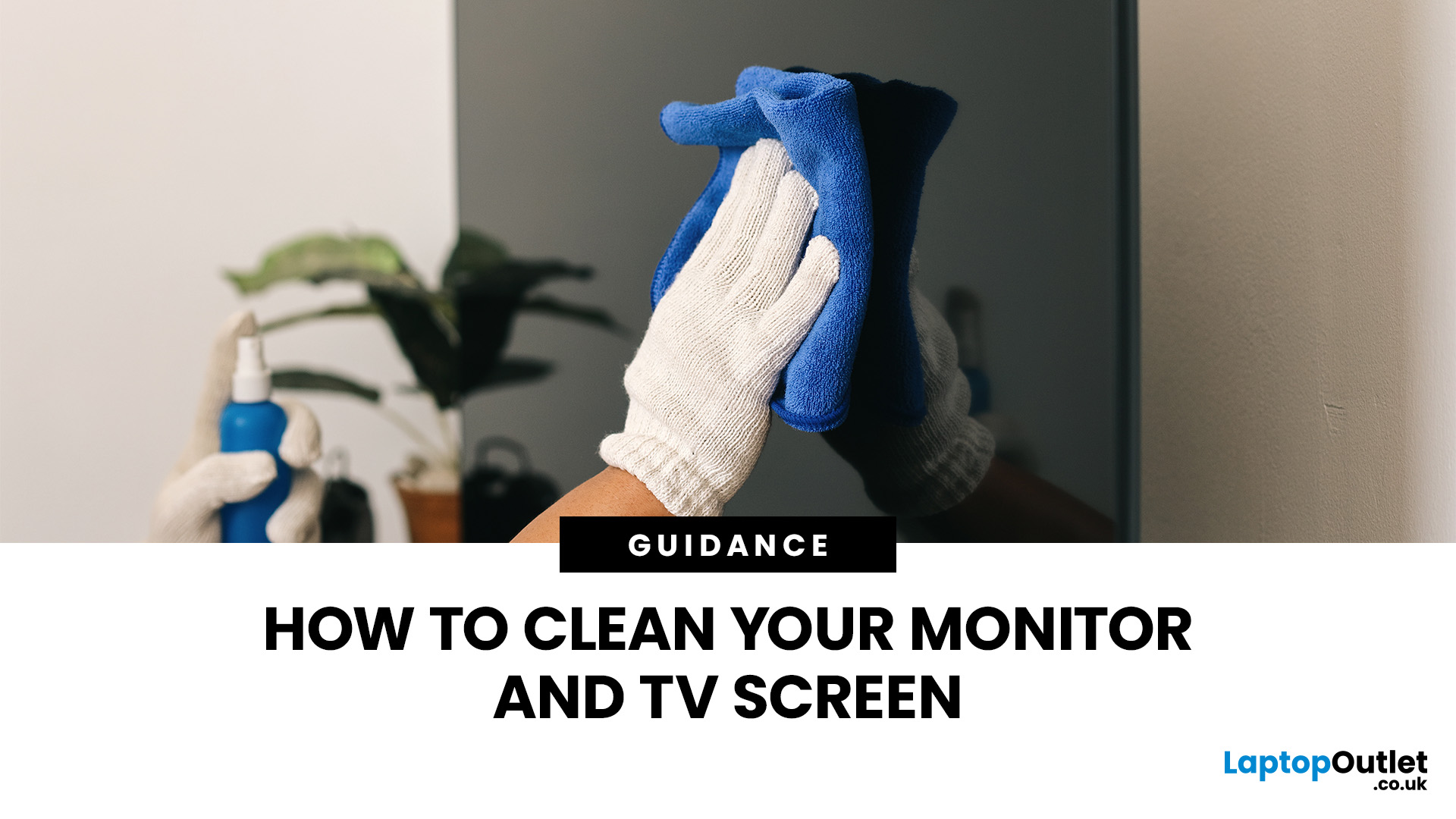
Dust, fingerprints and smudges can make even a high-resolution display look dull. Fortunately, you can clean monitor at home safely with a soft cloth, a small amount of suitable liquid and the right technique.
To clean a monitor screen safely, switch it off and unplug it. Wipe away dust with a dry microfibre cloth. For fingerprints, lightly dampen the cloth with distilled water and wipe gently. Never spray liquid directly onto the screen or apply strong pressure. Avoid paper towels, window cleaner and ammonia, as they can scratch the display or damage its protective coating. Let it dry completely before reconnecting and switching on.
The safest method is to begin with a dry microfibre cloth and use distilled water only when necessary. Never spray cleaner directly onto the screen, apply strong pressure or use rough materials that could damage the panel or its protective coating.
What Do You Need to Clean a Monitor Screen?
Before cleaning your monitor, gather the following items:
- A clean,
Last Updated: September 11, 2025
Make Your iPhone Screen Bigger
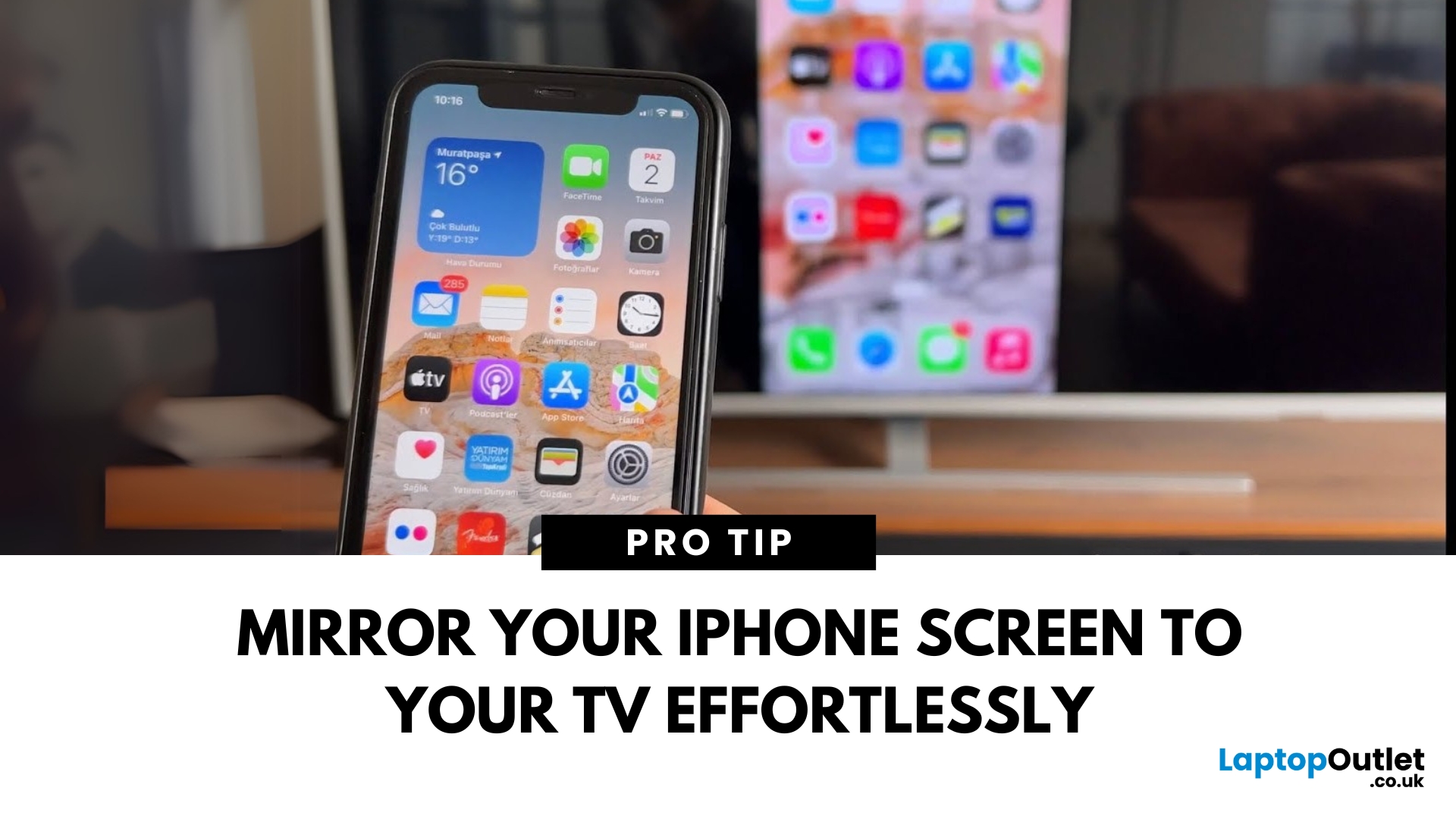
Want to watch photos, videos, or apps on the big screen? Screen mirroring lets you share your iPhone display to a TV wirelessly or with a cable. Whether you’re streaming a film or showing off holiday snaps, here’s how to do it easily.
How to Screen Mirror iPhone to a Smart TV (AirPlay)
Most smart TVs (Samsung, LG, Sony, etc.) now support Apple AirPlay.
Steps:
- Connect your iPhone and TV to the same Wi-Fi network
- Swipe down on your iPhone to open Control Centre
- Tap Screen Mirroring
- Select your TV from the list
- Enter the AirPlay passcode (if required)
Your iPhone screen will now appear on your TV.
How to Screen Mirror iPhone to TV Using an HDMI Cable
If your TV doesn’t support AirPlay, you can use a cable.
What You’ll Need:
- Apple Lightning Digital AV Adapter
- HDMI cable
Steps:
- Plug the adapter into your iPhone
- Connect an HDMI cable between the adapter and your TV
- Switch your TV input to the correct HDMI port
Your iPhone screen will

Last Updated: September 09, 2025
Take Your Nintendo Switch Gaming to the Big Screen
The Nintendo Switch is built for flexibility—you can play handheld, tabletop, or connect it to your TV for a full console experience. Whether you’re new to the Switch or just need a refresher, here’s how to connect your Nintendo Switch to your TV in minutes.
What You’ll Need
Make sure you’ve got:
- Nintendo Switch console
- Nintendo Switch dock
- HDMI cable
- Nintendo Switch AC adapter
- A TV with an HDMI port
How to Connect Nintendo Switch to TV – Step by Step
1. Open the Switch Dock
- Flip open the back panel of the dock.
2. Plug in the AC Adapter and HDMI Cable
- Insert the AC adapter into the dock’s top port (AC ADAPTER)
- Plug the HDMI cable into the middle port (HDMI OUT)
3. Connect the Dock to Your TV
- Plug the other end of the HDMI cable into your TV’s HDMI port.
4. Place the Nintendo Switch in the Dock
- Align the Switch console with the USB-C connector inside the dock
- Slide it in until it clicks into place
5.
Last Updated: September 09, 2025
Laptop to TV? Easy
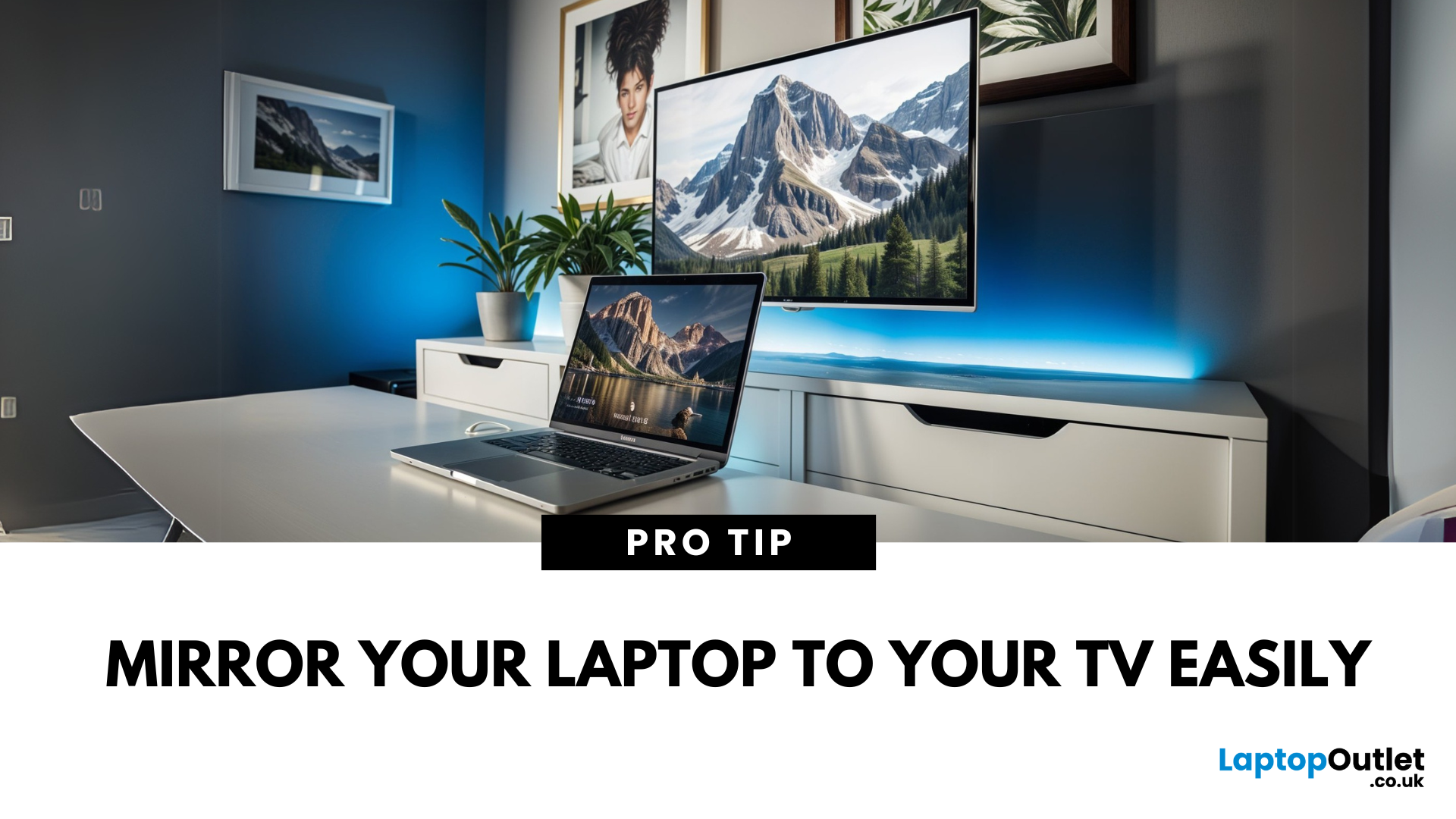
Want to stream Netflix, present slides, or game on a bigger screen? Connecting your laptop to a TV is easier than ever, whether you prefer a cable or a wireless setup. Here’s how to do both quickly and easily.
How to Connect a Laptop to a TV with HDMI (Wired Method)
What You’ll Need:
- A laptop with an HDMI output port
- A TV with an HDMI input port
- An HDMI cable
Steps:
- Plug one end of the HDMI cable into your laptop
- Plug the other end into your TV
- Switch your TV to the correct HDMI input using the remote
- Your laptop screen should appear on the TV
Pro Tip: Press Windows + P (on Windows) to change display mode – Duplicate, Extend, or Second Screen Only
How to Connect a Laptop to a TV Wirelessly
Option 1: Windows Wireless Display (Miracast)
- Make sure your TV supports Miracast or has a streaming device (like Roku or Fire Stick)
- On your laptop, go to Settings > Display > Connect to a Wireless Display
- Select your TV from the list
- Approve the
Last Updated: September 09, 2025
TV Says “No Signal”? Don’t Panic
You’re ready to binge your favourite show—but your TV screen says "No Signal." Frustrating? Absolutely. But don’t worry—it’s usually easy to fix. Let’s break down the most common causes and how to get your screen back in action.
1. The Input Source Is Incorrect
Your TV might be set to the wrong source (HDMI 1, HDMI 2, AV, etc.)
Fix it:
- Press the Input or Source button on your remote
- Cycle through the available sources (HDMI, TV, AV, etc.)
- Stop on the one connected to your device (game console, Sky box, etc.)
2. Loose or Unplugged Cable
A loose HDMI or AV cable can instantly kill the signal.
Fix it:
- Check that all cables are securely plugged in
- Try unplugging and replugging the cable
- Test with a different HDMI port or cable if available
- Pro Tip: Always power off the TV and device before adjusting cables
3. The Connected Device Isn’t Turned On
Sometimes the issue isn’t the TV—it’s the box or console that’s off.
Fix it:
- Make

