



Which Laptop Is Best for AI
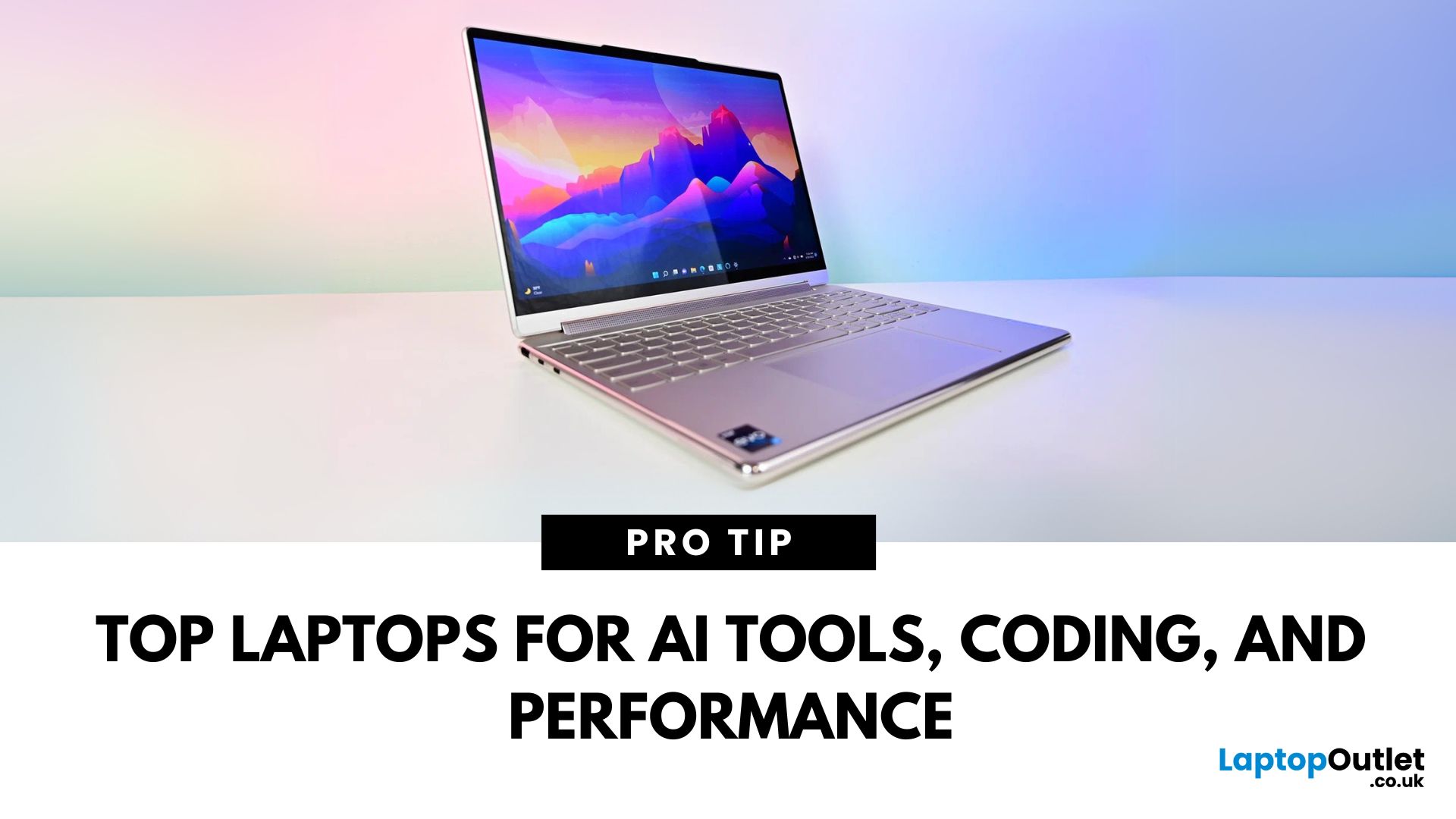
Power Meets Intelligence
Artificial Intelligence isn’t just a buzzword—it’s a growing career path and essential in modern tech workflows. Whether you’re studying data science, training ML models, or running AI software like TensorFlow or PyTorch, here’s how to choose the best laptop for AI in 2025.
What Makes a Laptop Ideal for AI Work?
To handle AI workloads effectively, your laptop should have:
- High-performance CPU (Intel Core i7/i9, AMD Ryzen 7/9)
- Powerful GPU (NVIDIA RTX or Apple M-series)
- Minimum 16GB RAM (32GB+ preferred for deep learning)
- Fast SSD storage (512GB or more)
- Support for CUDA (for NVIDIA GPU users)
A good display and thermals are also key for long sessions
Best Windows Laptop for AI: Dell XPS 15 (2025)
- CPU: Intel Core i9 (14th Gen)
- GPU: NVIDIA RTX 4070
- RAM: 32GB
- Storage: 1TB SSD
- Why It’s Great: Excellent all-rounder with AI-ready performance and stunning display
Best Mac for AI & Data Science: MacBook Pro M3 Max (2025)
- CPU/GPU: Apple M3 Max chip
- RAM: Up to 64GB
- Storage: Up to 2TB SSD
- Why It’s Great: High-efficiency chip for AI development with native support for ML tools
Best for TensorFlow, Python, and on-device model testing
Best Budget AI Laptop: ASUS ROG Zephyrus G14
- CPU: AMD Ryzen 9
- GPU: NVIDIA RTX 4060
- RAM: 16GB (upgradeable)
- Storage: 1TB SSD
- Why It’s Great: Combines gaming power with affordability for AI beginners and students
Best Laptop for AI Researchers: Lenovo ThinkPad X1 Extreme Gen 6
- CPU: Intel Core i9
- GPU: NVIDIA RTX 3080
- RAM: 32GB
- Storage: 1TB SSD
- Why It’s Great: Workstation-class reliability with security features and robust thermal design
Best Ultraportable for AI On-the-Go: Razer Blade 14
- CPU: AMD Ryzen 9
- GPU: NVIDIA RTX 4070
- RAM: 16GB
- Storage: 1TB SSD
- Why It’s Great: Ultra-compact and powerful for AI work on the move
Things to Consider Before Buying an AI Laptop
- OS Compatibility: Linux support or dual-boot if needed
- GPU Acceleration: Required for deep learning frameworks (CUDA/NVIDIA)
- Battery Life: Some AI work is power-intensive—plugged-in use is common
- Upgrade Options: RAM and SSD upgradability for future-proofing
Top AI Use Cases for These Laptops
- Machine learning model training
- Data preprocessing and visualisation
- Natural language processing
- Neural networks and deep learning
- AI toolkits: TensorFlow, Keras, PyTorch, Jupyter, etc.
Final Thoughts: AI Needs Power—Choose Wisely
From compact machines to workstation beasts, the best laptop for AI depends on your workflow. Gamers, data scientists, and researchers alike need speed, graphics performance, and high memory—so pick the one that fits your level and ambition.
Ready to upgrade your AI workflow? Explore Laptop Outlet’s range of high-performance laptops built for creators, engineers, and AI developers.
FAQs: AI Laptop Buying Questions Answered
1. Can I do AI development on a regular laptop?
Yes—but for model training, you’ll want dedicated GPU power.
2. Do I need a gaming laptop for AI?
Gaming laptops often have the specs you need—especially strong GPUs and cooling.
3. Is macOS good for machine learning?
Yes—especially with M-series chips and Python-based tools.
4. Should I get Linux for AI development?
Many AI developers prefer Linux or dual-boot setups for better compatibility.
5. What specs are most important for deep learning?
High-end GPU (preferably NVIDIA), lots of RAM (32GB+), and a fast SSD.
Read More:
| How to Check Your PC Specs |
| What Is Generative AI |
| What Laptop Should I Buy |
Related Articles

Last Updated: December 01, 2025
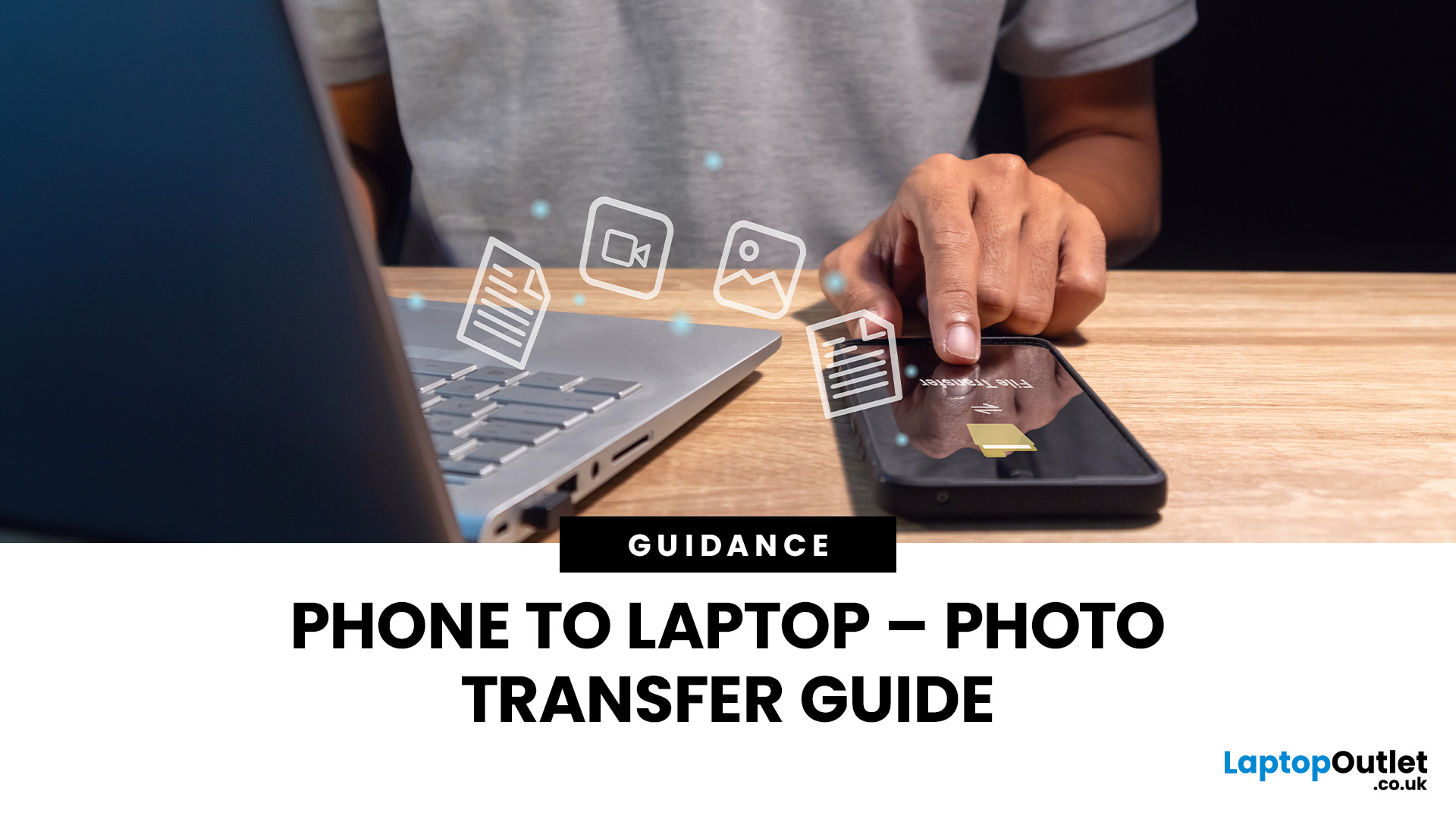
In an era dominated by digital photography, smartphones have become our go-to devices for capturing and storing precious moments. But mobile phones do not have enough space to keep these pictures for a longer run. Transferring these photos to a more secure and convenient platform, such as a laptop, is a common requirement. Whether you're looking to free up space on your phone, organise your photos on a larger screen, or create backups, transferring pictures from your phone to a laptop is essential. This comprehensive guide will explore various methods to accomplish this task seamlessly.
Using a USB Cable
A USB cable is one of the most straightforward methods to transfer photos from your mobile phone to a laptop. This method is widely applicable and works for both Android and iOS devices.
For Android Devices
- Connect your Android phone to your laptop using a USB cable.
- On your phone, enable the "File Transfer" or "Media Transfer Protocol (MTP)" mode.
- Open the file explorer on your laptop

Last Updated: February 25, 2026
Buying a laptop and notebook on a deal is an incredible way to save money and get your designated device without breaking the bank. However, always explore laptop & notebook deals at reputable and trusted retailers like Laptop Outlet for quality assurance, warranty, competitive prices, vast selection, and secure transactions.
Are you looking for a compelling laptop on a budget? Do you want a top-of-the-line notebook while keeping costs low?
If so, explore laptop and notebook deals to get your desired laptop and notebook for much less!
Laptop and notebook deals are a remarkable way to save money. In addition to savings, they offer a wide range of laptops and notebooks, enabling you to choose the best device for your needs.
While deals can be alluring, exploring deals at trusted retailers like Laptop Outlet is essential, as they provide quality assurance, warranties, and the best prices.
Discover excellence with unparalleled deals at Laptop Outlet, innovating your

Last Updated: October 02, 2025
Got iPhone Photos? Let’s Move Them
Snapped the perfect selfie? Captured your holiday vibes? Now you want to transfer those shots to your laptop—whether it’s for storage, editing, or sharing. We’ve got you covered with simple ways to transfer photos from iPhone to laptop—whether you’re using Windows or Mac.
How to Transfer Photos from iPhone to Windows Laptop
1. Using USB Cable & Photos App
- Connect your iPhone to your laptop using a Lightning to USB cable
- Unlock your iPhone and tap Trust when prompted
- Open the Photos app on your Windows laptop
- Click Import > From a USB device
- Select the photos you want and import
2. Using File Explorer (Manual Method)
- Plug in your iPhone and unlock it
- Open File Explorer > This PC > Apple iPhone
- Go to Internal Storage > DCIM
- Copy and paste photos to your laptop folder
3. Using iCloud Photos
- Enable iCloud Photos on your iPhone: Settings > Photos > iCloud Photos
- Visit iCloud.com and sign in
- Go to Photos, select images, and

Last Updated: September 25, 2026
Most laptops have a useful lifespan of roughly 3 to 6 years, although some remain reliable for much longer. How long a laptop lasts depends on build quality, workload, cooling, battery health, hardware, maintenance and software support.
A laptop used mainly for browsing, documents and video calls may stay useful longer than one regularly pushed through gaming, video editing or other demanding workloads. A laptop also does not necessarily need replacing simply because it reaches a certain age.
What Is the Average Laptop Lifespan?
There is no fixed expiry date for a laptop. For many users, the average laptop lifespan falls somewhere between three and six years before age starts to affect performance, portability, reliability or software support.
These ranges are a practical guide, not a guarantee:
| Laptop type or usage | General useful lifespan | What usually affects it |
| Everyday browsing and office use | About 4 to 6 years | Battery wear, software demands and hardware ageing |
| Light, well-maintained |
Last Updated: August 28, 2026
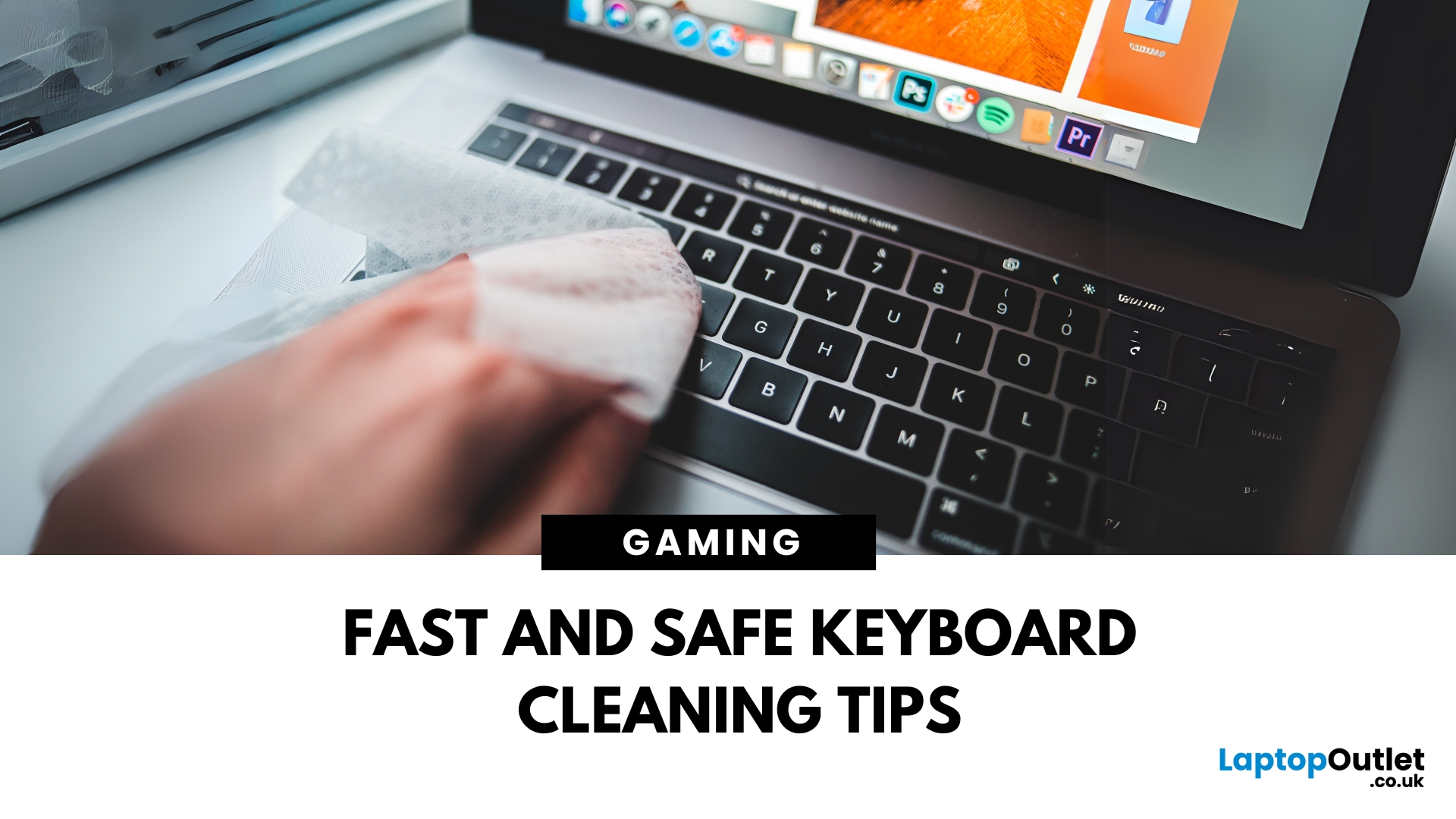
Dust, crumbs, skin oils, and drink residue can make a laptop keyboard look grubby or leave keys slow and sticky. Cleaning it correctly takes only a few minutes, but excess liquid or unsuitable products can damage the key coating and electronics.
How to Clean a Keyboard Safely: Quick Answer
Shut down and unplug the laptop. Remove loose debris with short bursts of compressed air, then wipe the keys with a soft microfibre cloth lightly dampened with 70% isopropyl alcohol. Never spray liquid directly onto the keyboard and let it dry fully before switching it on.
What You Will Need
- Soft microfibre cloth
- Compressed air
- Cotton buds or a soft brush
- 70% isopropyl alcohol
How to Clean a Laptop Keyboard Step by Step
1. Turn Off and Unplug the Laptop
Save your work, shut the laptop down and disconnect the charger and accessories. Cleaning
Last Updated: September 24, 2026
Last Updated: September 09, 2025
Laptop to TV? Easy
Want to stream Netflix, present slides, or game on a bigger screen? Connecting your laptop to a TV is easier than ever, whether you prefer a cable or a wireless setup. Here’s how to do both quickly and easily.
How to Connect a Laptop to a TV with HDMI (Wired Method)
What You’ll Need:
- A laptop with an HDMI output port
- A TV with an HDMI input port
- An HDMI cable
Steps:
- Plug one end of the HDMI cable into your laptop
- Plug the other end into your TV
- Switch your TV to the correct HDMI input using the remote
- Your laptop screen should appear on the TV
Pro Tip: Press Windows + P (on Windows) to change display mode – Duplicate, Extend, or Second Screen Only
How to Connect a Laptop to a TV Wirelessly
Option 1: Windows Wireless Display (Miracast)
- Make sure your TV supports Miracast or has a streaming device (like Roku or Fire Stick)
- On your laptop, go to Settings > Display > Connect to a Wireless Display
- Select your TV from the list
- Approve the

