



5 Hidden Features and Tips Every Asus Laptop User Should Know

From sleek ultrabooks prioritising portability without compromising power to high-performance gaming laptops designed to deliver a gaming experience, Asus covers the spectrum with innovation and precision.
The ZenBook series showcases elegance, exemplifying Asus's commitment to aesthetics and functionality. Meanwhile, the ROG (Republic of Gamers) series provides cutting-edge gaming machines with top-tier graphics and processing power. Whether you're a creative professional, a business user, or a gaming enthusiast, Asus has crafted a laptop tailored to meet your demands.
Beyond the apparent functionalities lie concealed gems waiting to be discovered. This blog will explore five features and tips that every Asus laptop user should know, offering insights into customisation, productivity boosts, and performance optimisation.
So, let's dive right into it!
Smart Gesture Controls
Asus laptops have an intuitive feature, Smart Gesture control, that transforms the touchpad into a dynamic tool for easy navigation. These controls extend beyond the basic point-and-click functionality to new gestures that enhance user experience.
Multi-Touch: These smart gesture controls allow multiple fingers on the touchpad to execute different commands simultaneously. It includes two-finger scrolling, pinch-to-zoom, and three-finger swiping for app switching or navigating between desktops.
Gesture Customisation: Asus recognises the importance of personalisation. Users can customise gestures based on usage patterns to align with their workflows and efficiency.
Palm Rejection Technology: The advanced palm rejection technology prevents accidental touches from interfering with the actions. This technology ensures that gestures respond accurately, even when your palm contacts the touchpad while typing.
Intuitive Gestures for Windows: From activating the Action Centre with a swipe to invoking the Task View for a quick overview of open applications, Smart Gesture Controls provide intuitive shortcuts for enhanced productivity.
Smart Gesture Controls facilitate smooth multitasking, whether working on multiple applications or managing various browser tabs. Use three-finger gestures to switch between open applications or create a custom gesture to navigate to your preferred apps.
Experiment with these gestures and touchpad settings to discover a more intuitive and efficient approach to navigating your Asus laptop.
My Asus App for System Diagnostics

My Asus app offers users a window into the inner workings of their devices. The functionality lies in the capability for comprehensive system diagnostics, providing insights into the health of your laptop.
Health Checkup: The My Asus app conducts a thorough health checkup, scrutinising critical components such as the processor, memory, storage, and battery. It provides a comprehensive overview of your laptop's vital statistics, highlighting areas requiring attention.
Real-time Monitoring: The app tracks vital performance metrics, alerting you to resource utilisation, temperature, and battery health fluctuations. This proactive monitoring ensures potential issues are identified before they impact your user experience.
Troubleshooting Wizard: The My Asus app is a troubleshooting wizard for users with issues. It intelligently identifies problems and offers one-click solutions, guiding users to resolve issues efficiently. From connectivity issues to software glitches, the app streamlines the troubleshooting process.
Performance Optimisation: My Asus goes beyond diagnostics to deliver performance optimisation solutions. It suggests tweaks and adjustments to enhance your laptop's efficiency, ensuring it operates at its full potential. From managing startup programs to optimising power settings, the app provides actionable recommendations for an optimised experience.
System Updates and Drivers: The app notifies users of available system updates, ensuring the laptop benefits from the latest features and security patches. Additionally, it manages driver updates, ensuring hardware compatibility and stability.
User-Friendly Interface: Despite its robust capabilities, the My Asus app maintains a user-friendly interface, making it accessible even for users with minimal technical expertise.
Quick Key Customisation
Quick key customisation allows users to tailor the keyboard to their unique needs, assigning shortcuts to specific functions for effortless access.
Personalised Shortcuts: It lets you assign shortcuts to specific functions, applications, or commands that align with your workflow, enhancing productivity by reducing the time spent navigating menus or searching for commands.
Streamlined Navigation: Tired of repetitive clicks and menu navigation? With Quick Key Customisation, essential functions are just a key press away. Whether launching a frequently used application, toggling between windows, or executing specific commands, these shortcuts streamline navigation and save seconds, ultimately contributing to a more efficient workflow.
Tailored for Tasks: Different tasks often require different tools and commands. Quick Key Customisation allows you to tailor your keyboard layout to suit the demands of various tasks. Whether editing documents, designing graphics, or coding, having task-specific shortcuts at your fingertips enhances precision and accelerates task completion.
Effortless Assignments: Asus makes assigning shortcuts a breeze with an intuitive and user-friendly interface. Navigate through settings to locate the Quick Key Customization feature and effortlessly assign functions to the keys of your choice. The process is designed to be straightforward, ensuring that users of all technical backgrounds can take advantage of this feature.
Time-Saving Benefits: The primary goal of Quick Key Customization is to save you time. This feature contributes to a more fluid and time-efficient workflow by reducing the steps needed to execute specific actions. Over your laptop usage, these time savings accumulate, making your overall computing experience more convenient.
Sonic Master Audio Enhancements

The critical element contributing to the audio excellence in the ASUS laptops is the SonicMaster audio enhancement technology. This technology elevates your auditory experience to deliver top-notch audio quality.
The SonicMaster technology encompasses a range of hardware and software solutions, all aimed at delivering precise, rich, and well-balanced sound.
It features a speaker designed to optimise the audio clarity and depth. Whether enjoying music, watching movies, or engaging in video calls, the premium speaker setup ensures that every audio is clear.
Asus provides the Audio Wizard app that allows users to fine-tune audio settings based on their preferences. The Audio Wizard app often includes preset modes for scenarios like music listening, movie watching, gaming, and communication.
SonicMaster also incorporates technologies for noise reduction and audio clarity. It ensures that you can enjoy clear audio even in noisy environments. Whether in a crowded cafe or a bustling airport, SonicMaster strives to deliver an undisturbed audio experience.
Battery Health
Asus recognises battery health's role in a laptop's longevity and performance. Asus incorporates the Battery Health Charging feature to address this concern and empower users with control over their device's battery life. This innovative functionality aims to extend the lifespan of your laptop's battery by intelligently managing charging behaviour.
The Battery Health Charging feature allows users to set a specific charging limit for their laptop's battery. It enables you to cap the battery charge at a lower percentage, typically around 60% to 80%. This limitation reduces the stress on the battery cells and wear and tear associated with complete charge cycles.
The incorporation of smart charging management algorithms dynamically adjusts the charging behaviour based on user settings and usage patterns. This approach ensures the laptop's battery remains within the defined charging limit, even when connected to a power source.
The concept revolves around minimising the impact of charge cycles on the battery. A charge cycle is completed when a battery goes from 0% to 100% and back to 0%. By keeping the charge within a lower range, Battery Health Charging helps reduce the frequency of complete charge cycles, thus preserving the battery's health over time. The goal is to contribute to the optimal long-term performance of your laptop's battery.

Final Thoughts!
In conclusion, the full potential of the ASUS laptop involves exploring the hidden features that enhance the overall user experience. From smart gesture controls to system diagnostics and customisable quick keys, these features offer a range of tools to improve your laptop for productivity and efficiency. The Asus lineup is known for its innovative technology, and these hidden gems ensure that you make the most of your device.
As you continue to discover and implement these tips, you'll find yourself navigating through your Asus laptop more quickly and efficiently. Whether you're a professional, student, or casual user, these hidden features add more functionality to your device. Take the time to explore and personalise your laptop to suit your unique needs and preferences and elevate your Asus experience to new heights.
For those looking to explore the latest Asus laptops or upgrade to a new device, visit Laptop Outlet for a broad selection of Asus laptops at competitive prices.

Still Have Questions?
What are some hidden features available on ASUS laptops?
ASUS laptops come with handy hidden features like MyASUS app integration, NumberPad touchpad, AI noise cancellation, ASUS Splendid Display modes, and battery health charging options.
How can the MyASUS app improve my laptop experience?
The MyASUS app allows you to optimise performance, update drivers, adjust fan modes, and even link your phone to your laptop for file sharing and screen mirroring.
What is the ASUS NumberPad and how does it work?
The ASUS NumberPad turns the touchpad into a numeric keypad with a simple tap—perfect for quick calculations or data entry without carrying an external keyboard.
Does my ASUS laptop have AI noise-cancelling technology?
Yes, many modern ASUS laptops include AI noise-cancelling microphones and speakers, which automatically filter background sounds during calls and meetings for clearer audio.
How can I extend my ASUS laptop’s battery life?
You can use the Battery Health Charging feature in the MyASUS app to set charging limits (60%, 80%, or 100%), helping prolong battery lifespan and reduce wear over time.
| Read More: |
| Essential Tips to Extend ASUS Laptop Lifespan |
| ASUS Laptop Comparisons: Which Series is Best for You? |
| How to Choose the Right ASUS Laptop Based on Your Needs |
Related Articles
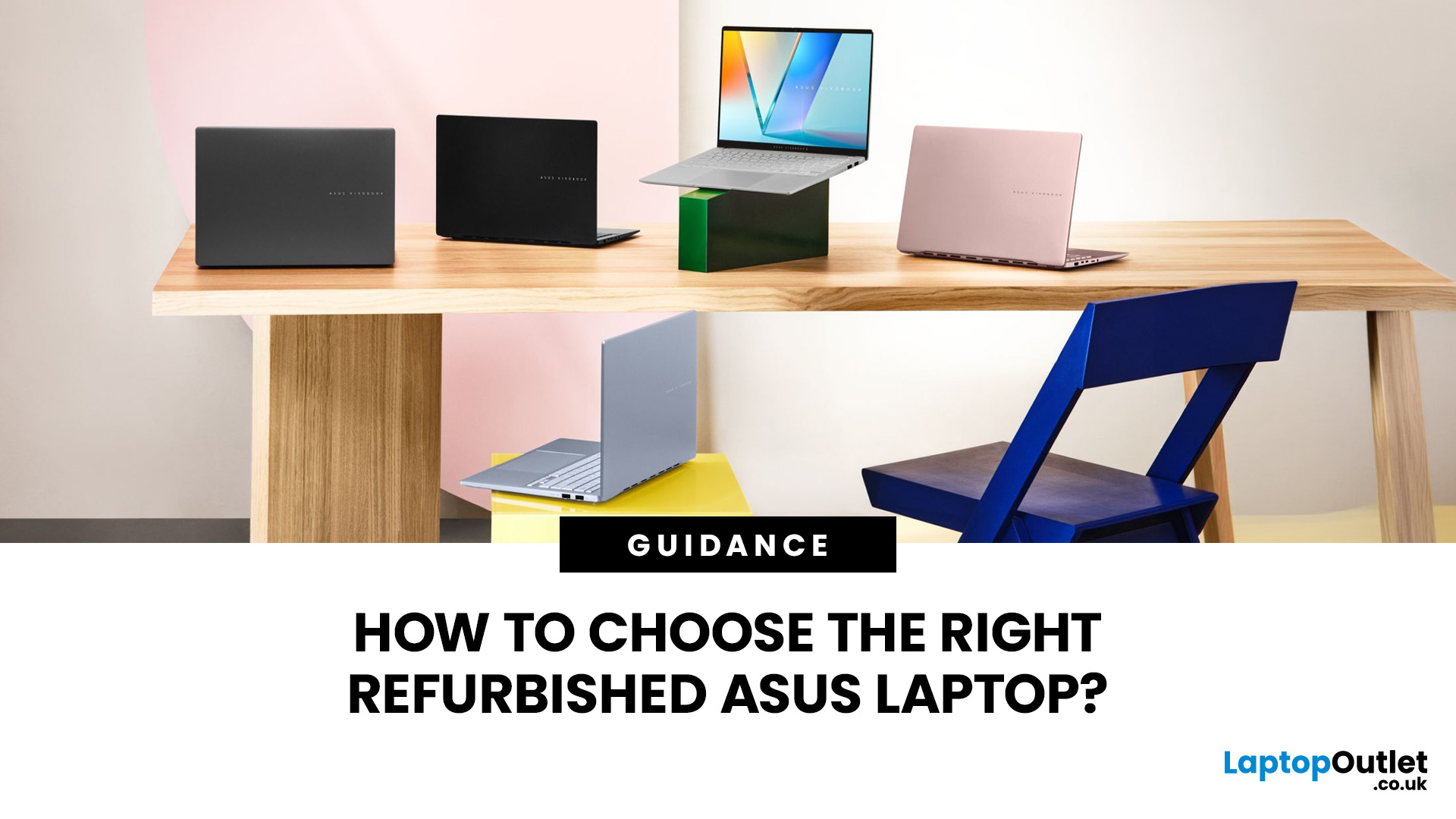

Last Updated: September 09, 2026
Refurbished ASUS laptops span everyday computing, business, creative work, gaming, and ChromeOS, with models from several hardware generations often available at the same time. Two laptops from the same Vivobook or Zenbook family can therefore differ significantly in processor, memory, display, battery condition, and upgradeability. This guide covers the key specifications and checks that matter, including performance, battery health, condition grading, ports, and software support.
Start With the Workload
Before comparing individual laptops, decide what you expect the device to handle. This immediately rules out specifications that are either insufficient or unnecessary.
- Everyday use and study: Web browsing, Microsoft Office, streaming, video calls, and coursework generally do not require a dedicated graphics card. Prioritise a responsive processor, sufficient memory, SSD storage, and good battery condition.
- Business and remote work: Look for enough memory for multitasking, practical connectivity

Last Updated: April 02, 2026
Choosing the right laptop in 2025 is not easy. The market is full of options, and many buyers in the UK struggle to find a device that balances performance, price, and long-term value. This is where ASUS laptops stand out. With a strong reputation for design, reliability, and innovation, ASUS has become a top choice for students, professionals, gamers, and creative users across the UK.
In this latest ASUS Laptops guide, we will take you through every detail you need to know before making a purchase. From ASUS laptop features to a full breakdown of ASUS laptop models, we explain which series works best for your usage.
Whether you are searching for the best ASUS laptops 2025 for gaming, business, or everyday work, this guide has you covered. By the end, you will be able to confidently choose the right laptop for your needs.
Introduction to ASUS Laptops: Innovation, Performance, and Market Presence
Founded in 1989, ASUS has grown from a small hardware manufacturer into one of the most respected
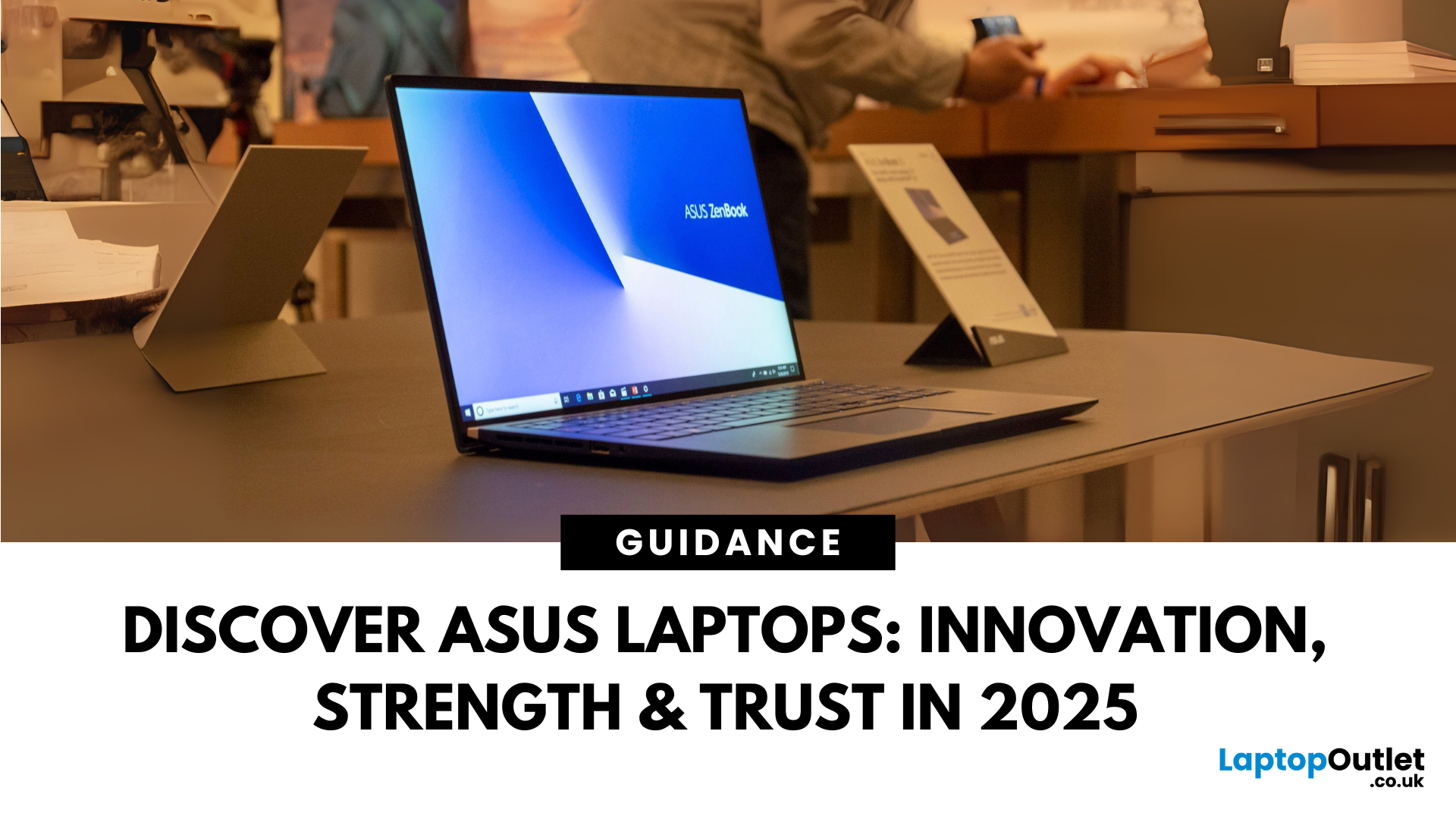
Last Updated: April 02, 2026
Choosing the right laptop in 2025 can feel like a challenge. With numerous options available in the UK market, it’s easy to get lost in specifications, designs, and price tags. Yet, one brand continues to shine above the rest: ASUS.
From its beginnings in 1989, ASUS has grown into one of the most trusted laptop names worldwide, and its success in the UK is no exception. The brand’s strength lies in its ability to combine innovation, performance, and affordability, making technology accessible for all.
Every user finds a place in the ASUS story. Students rely on the Chromebook by ASUS for simplicity and value. Professionals turn to the sleek ZenBook lineup or reliable ExpertBook business laptops. Gamers embrace the power of ROG laptops and durable TUF series laptops, while creatives choose the ProArt devices for demanding projects.
This blog introduces ASUS laptops, exploring their history, brand strength, innovations, market position, and diverse series.
ASUS History
Founded in 1989 in

Last Updated: September 09, 2026
LG and ASUS now overlap far more than their reputations suggest. LG gram still specialises in exceptionally light laptops, but its latest range adds OLED displays, Intel Core Ultra and AMD Ryzen AI processors, Copilot+ features, and improved connectivity. ASUS stretches much further, from portable Zenbooks and everyday Vivobooks to creator-focused ProArt and powerful ROG gaming machines.
This LG vs ASUS laptops comparison looks at performance, RAM, storage, displays, battery life, AI features and graphics so you can see which approach suits you.
Which LG and ASUS Range Fits Your Needs?
LG's current family includes gram Book, gram, gram Pro, and gram Pro 2-in-1. The focus remains thin-and-light computing, but the latest gram Pro hardware is considerably more capable than the “light office laptop” label suggests.
The current 16-inch gram Pro, for example, combines a 3K OLED screen, Intel Core Ultra processor, LPDDR5X memory and a 77Wh battery while weighing just 1.199kg.
ASUS separates different

Last Updated: October 08, 2025
If you’ve ever owned an ASUS laptop - whether it’s a VivoBook for uni work, a TUF machine for gaming, or a Zephyrus for serious creative projects - you’ll know that things don’t always run perfectly forever. Over time, you might notice your battery draining faster, your fans spinning louder, or a game stuttering that used to run smoothly. Nine times out of ten, that’s down to drivers or firmware needing an update.
Updating drivers and the BIOS isn’t glamorous, but it’s one of the most effective ways to keep your ASUS laptop running at its best. The latest drivers squash bugs, improve compatibility with Windows 11, and even unlock new features. A BIOS update can go further still, ironing out stability issues, boosting performance, and extending hardware lifespan.
The good news? ASUS gives you proper tools like MyASUS, Armoury Crate, EZ Flash, and WinFlash, which make updates far less intimidating than they sound. Whether you’re rocking an ASUS VivoBook, TU F, or Zephyrus, this walkthrough

Last Updated: April 08, 2026
Your ASUS laptop was quick when you first got it. Now it stutters, freezes, or takes an age just to open Chrome. Sound familiar? You are not alone, and more importantly, you do not need to splash out on a brand-new machine.
This guide will walk you through exactly what is causing the slowdown and how to fix it. Whether you have an ASUS VivoBook, ZenBook, TUF Gaming, or ROG, there is something here for you.
Why Is Your ASUS Laptop Running Slow?
Before throwing solutions at the problem, it helps to know what you are actually dealing with. Here are the most common culprits:
| Cause | What It Means | How Common? |
| Too many startup apps | Apps launching at boot hog CPU and RAM | Very common |
| Thermal throttling | Laptop overheats and slows the CPU to cool down | Very common |
| HDD (not SSD) | Old spinning hard drive is the bottleneck | Common in older models |
| Low RAM | Not enough memory for your workload | Common |
| Bloatware | Pre-installed software running in the background | Common |
| Outdated drivers/BIOS | Software bugs causing |
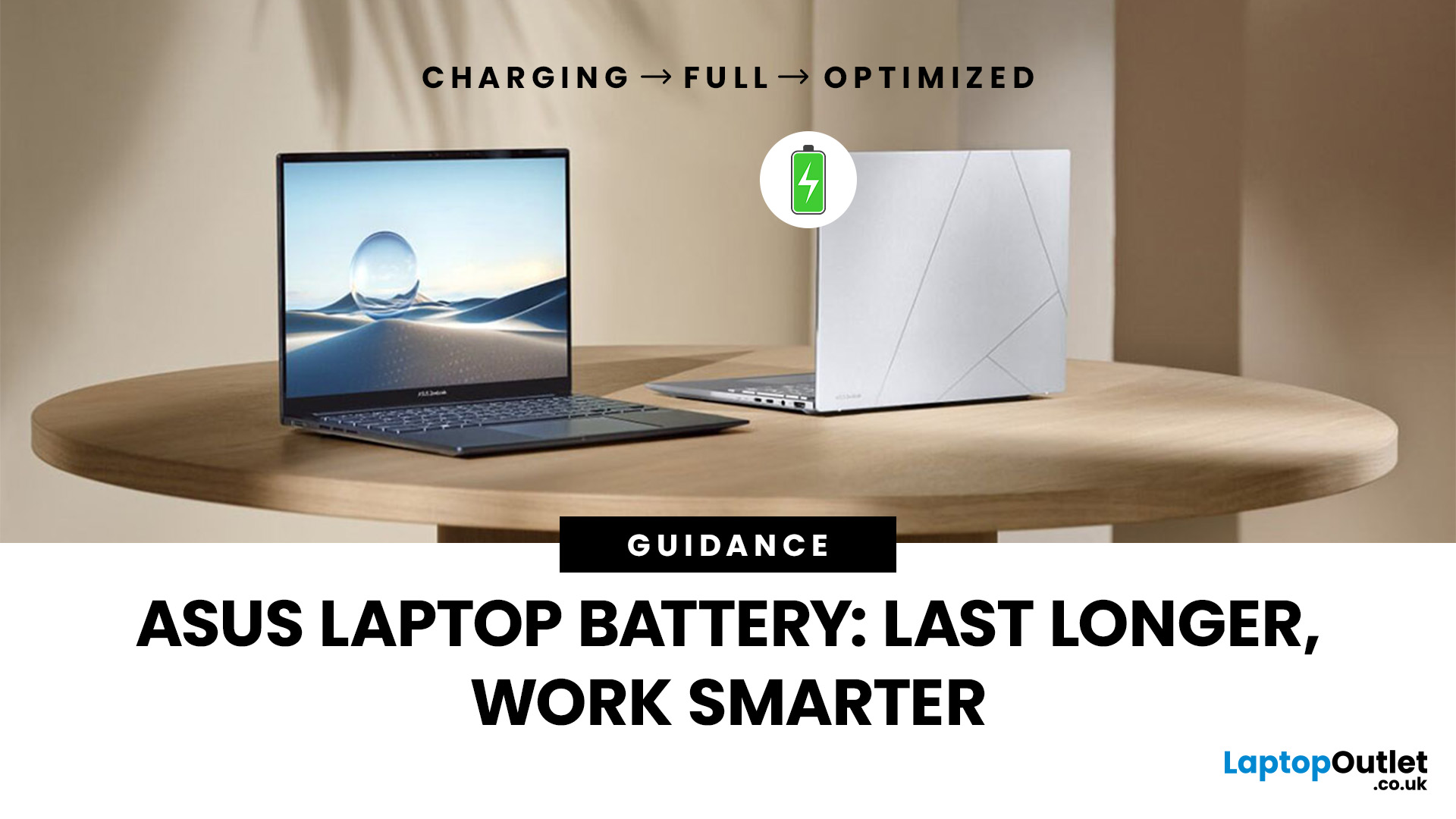
Published: October 09, 2025
Battery life is one of the first things people notice on a laptop, and ASUS models are no exception. Whether you’re using a VivoBook for everyday work or a Zephyrus for gaming, performance on the go only matters if the battery can keep up. Over time, though, most users see the same problem - the charge doesn’t last like it used to.
The good news is, you don’t need to settle for short sessions and constant charging. ASUS laptops include built-in features like Battery Health Charging, power modes in MyASUS, and Windows 11 settings that can help extend run time. Add in a few simple tweaks - like managing brightness, limiting background apps, or calibrating the battery - and you can squeeze out noticeably more hours.
This guide covers everything you need to know about ASUS laptop battery optimisation, with practical steps you can apply straight away.
Understanding ASUS Laptop Battery Basics
Before we jump into optimisation, it helps to know how your ASUS laptop battery actually works. Most
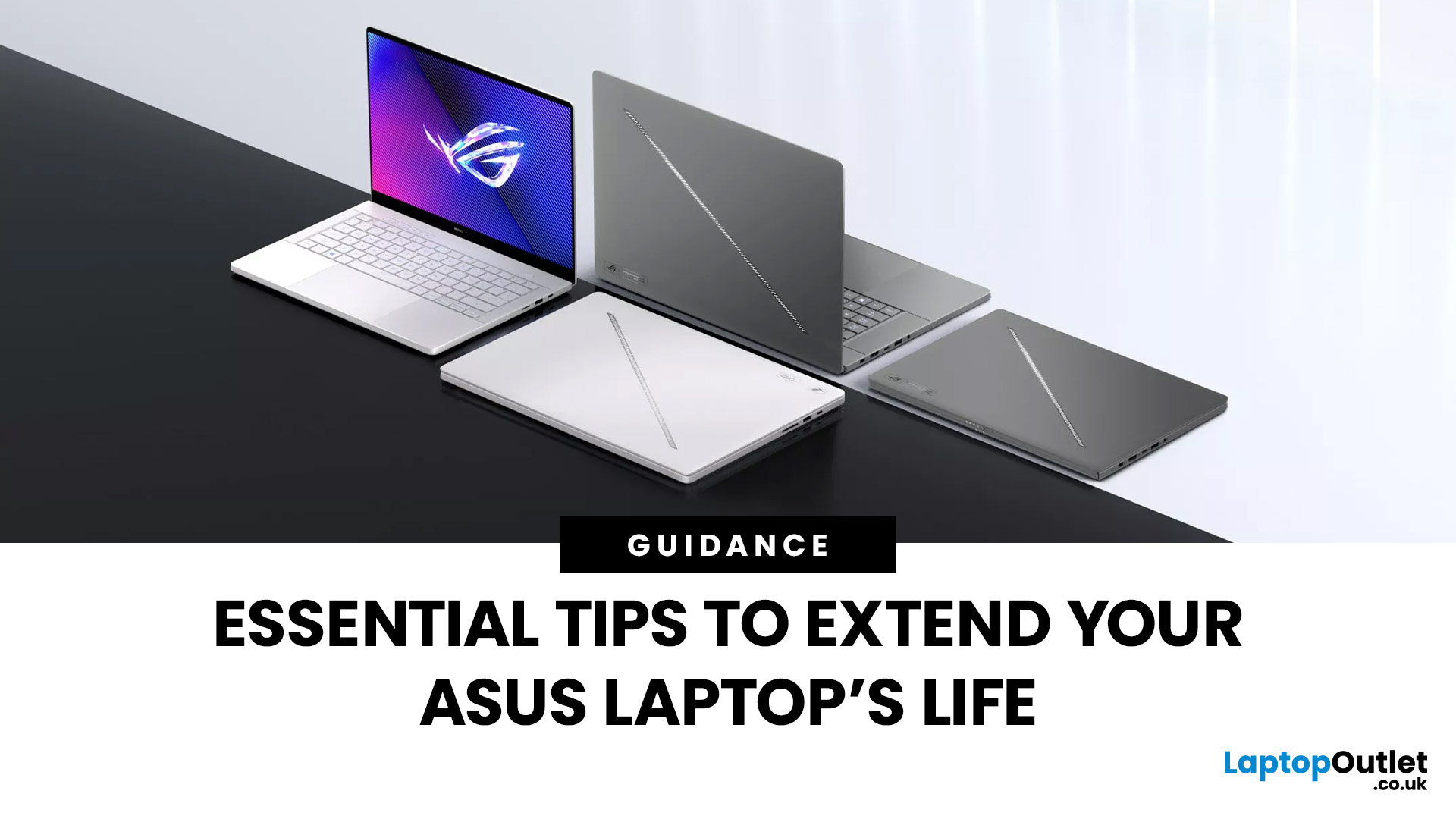
Last Updated: October 09, 2025
ASUS laptops are known for their blend of performance, durability, and innovation, but like any device, they need proper care to perform their best, year after year. Whether you own a ZenBook for productivity, a TUF model for durability, or a Zephyrus gaming powerhouse, regular upkeep and the right usage habits can significantly extend your laptop’s life.
This guide provides essential tips to extend ASUS laptop lifespan, covering everything from battery care and cleaning routines to cooling solutions and performance optimisation. With these practical ASUS laptop maintenance tips, you can keep your system fast, reliable, and looking as good as new well into the future.
Why Extending Your ASUS Laptop Lifespan Matters
Long-Term Value
Investing in an ASUS laptop is a long-term commitment, whether for work, study, or gaming. Extending its lifespan saves money by delaying the need for upgrades and maximises your return on investment.
Sustainability Impact
Caring for your device also reduces e-waste.
Published: October 09, 2025
Resetting or restoring your ASUS laptop can often fix persistent software issues, performance slowdowns, or even forgotten passwords. Whether you’re using an ASUS ZenBook, VivoBook, or ROG gaming laptop, knowing how to reset an ASUS laptop safely ensures your device runs smoothly without risking data loss. In this guide, we’ll cover different reset options, including factory reset in Windows 11, resetting without a password, accessing the ASUS recovery partition, and BIOS reset methods.
Why You Might Need to Reset an ASUS Laptop
There are several scenarios, where performing a reset or restore on your ASUS laptop is the smartest and safest solution. In 2025, with laptops running more advanced AI-powered Windows 11 features and heavier apps, resets are not just for fixing major problems but also for ensuring long-term stability.
- Performance Issues & Slowdowns
Even with SSDs and the latest Intel Core Ultra or AMD Ryzen 8000/9000 processors, ASUS laptops can slow down over time due to background

