



Battery Life & Performance Optimisation Tips for ZenBook Users
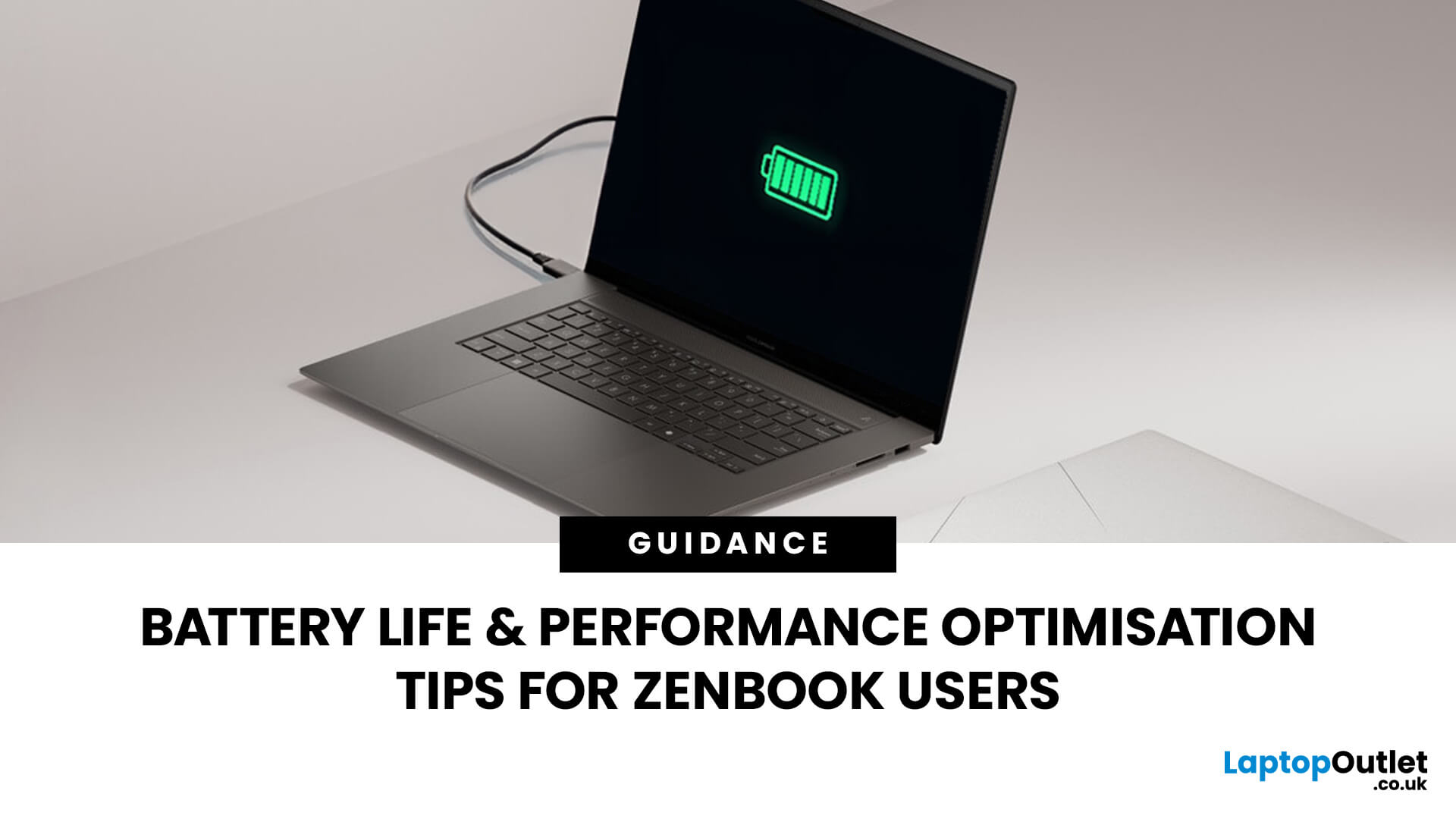
Ever been in the middle of editing a video, sending that last-minute client report, or streaming a movie and your ZenBook suddenly flashes the dreaded ‘save me, lord, I’m dying (low battery) warning?’ You’re not alone. Even the most efficient ASUS ZenBooks can drain faster than expected if they’re not set up for peak performance.
The good news? These laptops are packed with smart power management tools, hidden Windows settings, and ASUS-exclusive features that can stretch every per cent of your battery while keeping your system running smoothly. Whether you use your ZenBook for creative projects, business, or all-day multitasking, a few intelligent tweaks can make it feel like new again.
In this guide, we’ll skip the generic “dim your screen” advice and dive into real ZenBook-specific tips that actually make a difference.
Understanding How ZenBook Power Management Actually Works
So, here’s the thing - your ZenBook isn’t just another sleek slab of metal with a keyboard. It’s got a mini ecosystem inside that’s constantly thinking about how to balance power and performance. ASUS engineers really said, “let’s make this laptop smarter than its owner on a Monday morning.”
At the core is ASUS Intelligent Performance Technology (AIPT) - a fancy way of saying your ZenBook adjusts its mood based on what you’re doing. Editing 4K footage? It cranks up the fans and unlocks that extra juice. Typing emails in a café? It chills, saves energy, and quietly sips battery instead of chugging it.
Then there’s the MyASUS app, your underrated sidekick. It controls everything - fan profiles, battery health charging, performance modes, even OLED care settings. You can literally tell your ZenBook whether to go beast mode or zen mode. Editing 4K footage? It cranks up the fans and unlocks that extra juice.
Doing creative work or editing videos often? You’ll want a model built for that. Explore the best ASUS ZenBooks for video editing and creative work.
And don’t sleep on ASUS’s OLED tech, it’s bright, gorgeous, and surprisingly power-friendly if you manage it right (we’ll get there). Together, all these systems keep your ZenBook running smooth without burning through battery like it’s on an energy drink spree.
Optimising Power Settings with MyASUS & Windows 11
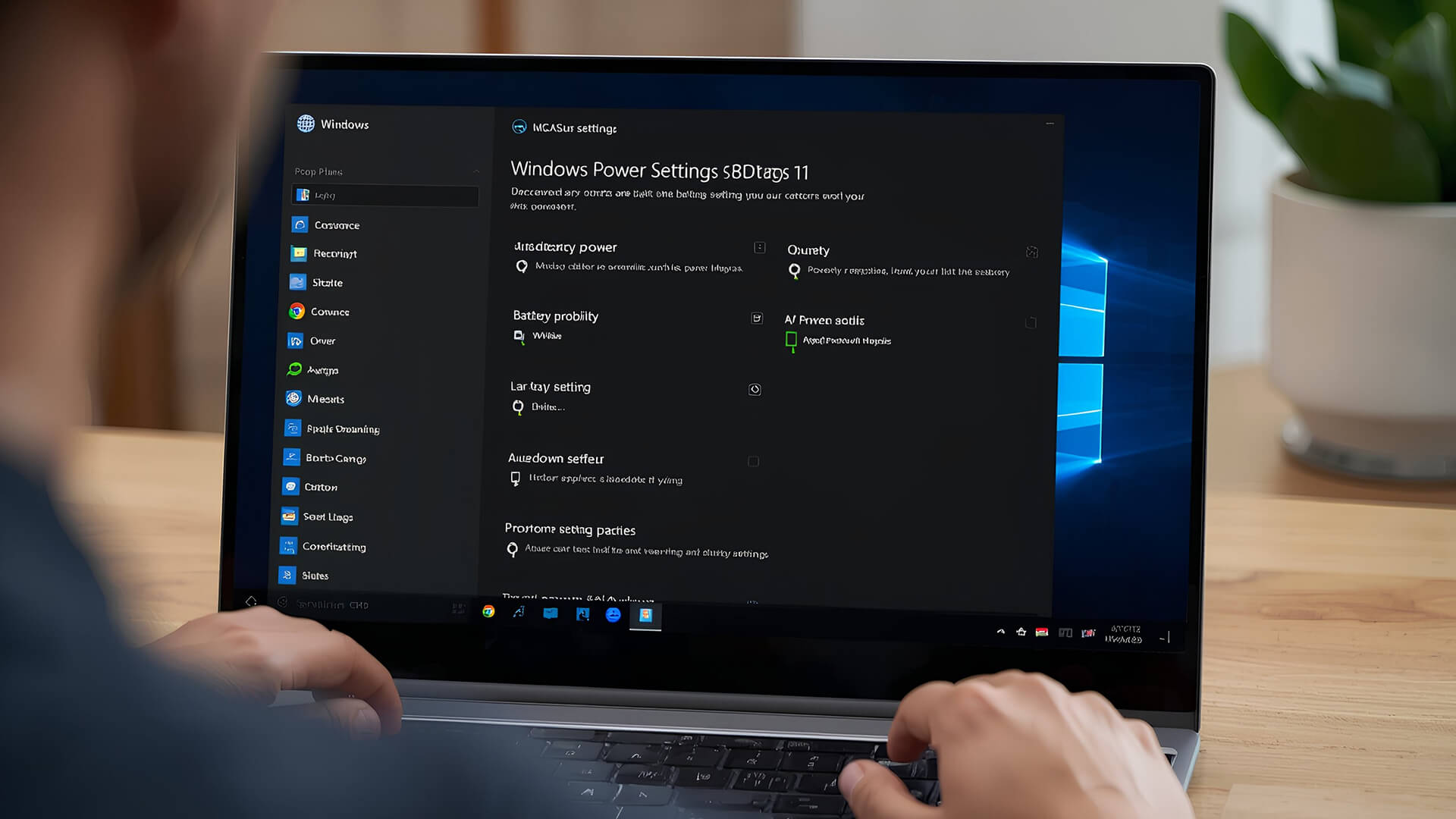
Okay, let’s get practical - because this is where most ZenBook users leave power savings on the table.
MyASUS: The Control Room, You Forgot You Had
Pop open MyASUS → Customisation → Power & Performance, and you’ll find three moods:
- Whisper Mode – the “I’m just browsing TikTok and pretending to work” mode. Quiet, cool, and battery efficient.
- Balanced Mode – your everyday sweet spot. Keeps things smooth without killing battery life.
- Performance Mode – for when you’re rendering videos or gaming and don’t care if the fans sound like a jet engine.
Pro tip: Set Battery Health Charging to cap at 80 % if you’re mostly plugged in. It sounds small, but it can double your battery’s lifespan. Also, switch to Whisper Mode automatically when you unplug, MyASUS lets you do that. Lazy efficiency = best efficiency.
Fine-Tuning Windows 11 Power Options
Now slide into Settings → System → Power & Battery.
Set your Power Mode to Best power efficiency when you’re out and about, and balanced when plugged in.
Then open Task Manager → Startup Apps and tell half of those random programs to chill. You don’t need Teams, Steam, Spotify, and fifteen updaters launching every time you boot up.
And if you’re feeling fancy, dive into Processor Power Management (in advanced power settings). Drop your minimum processor state to around 20–30 % for extra battery life when idle. The ZenBook still wakes up instantly when you push it, but it doesn’t waste power doing nothing.
Display Optimisation: Making OLED Work for You, Not Against You
ZenBook OLED displays are the kind of screens that make your phone jealous, punchy colours, pure blacks, absolute chef’s-kiss vibes. But here’s the secret: all that eye candy comes at an energy cost if you don’t play it right.
First rule: dark mode is your best friend. OLED pixels literally turn off to show black, meaning dark wallpapers and apps save real battery, not placebo savings.
Second, check MyASUS → OLED Care. Turn on features like Pixel Shift and Screen Saver Timer, they don’t just protect your display from burn-in, they subtly reduce constant pixel load, which means less power drain.
And if your ZenBook rocks a 120 Hz screen, here’s the move: drop it to 60 Hz when you’re doing basic work. The refresh rate alone can eat up to 10–15 % of your battery.
It’s all about balance. Brightness and refresh rate make your ZenBook look cinematic - but when you’re just browsing, chill. Think of it like switching from sports car mode to eco-cruise. You still look cool, but your battery thanks you later.
ZenBook OLED displays are the kind of screens that make your phone jealous...Want to understand what makes them so good? Here’s a full deep dive into ZenBook OLED displays and their professional-grade visuals.
Managing Background Services, Startup Apps & ASUS Utilities
Let’s be real: half the reason your ZenBook battery dips fast is because Windows loves multitasking a little too much. Stuff runs in the background like it’s getting paid to.
Start with Task Manager → Startup Apps. Anything marked High impact that you don’t use daily? Disable it. You don’t need Discord, Zoom, OneDrive and twenty auto-updaters waking up the moment your laptop does.
Then head into MyASUS → Customer Support → System Diagnosis. You can check for background services eating up power, and MyASUS will even recommend tweaks.
If you’ve got Armoury Crate Lite installed, make sure it’s not running full-time unless you actually use gaming or creator profiles. Same for ASUS Lighting Service, cool effects are fun until your battery cries.
Pro move: pause Windows background sync (OneDrive, Dropbox) when you’re on battery. You can always resync later - your ZenBook isn’t a cloud server.
Hardware-Level Optimisation (BIOS, Firmware & Battery Calibration)
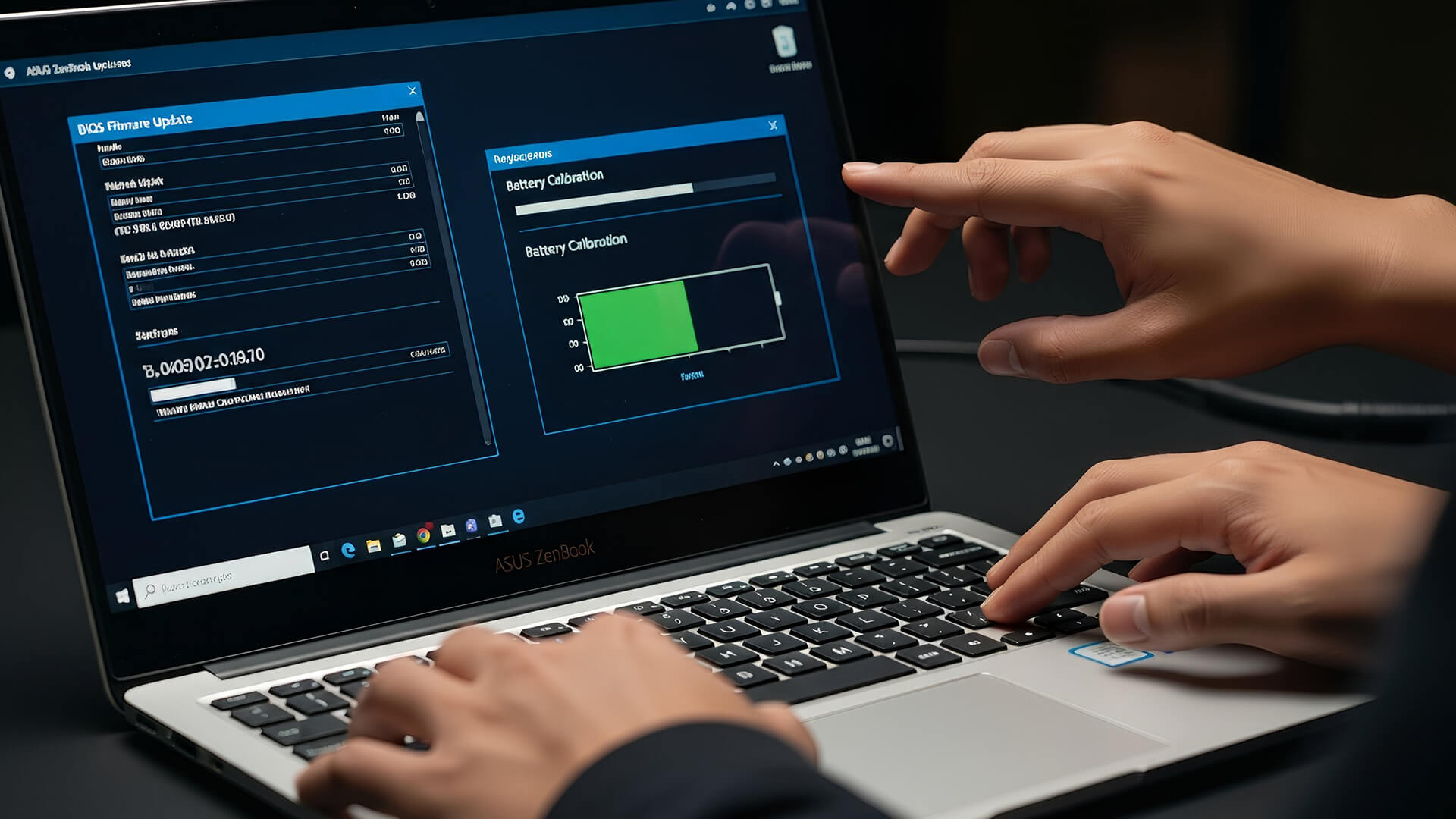
This is where most users never look - and that’s why their laptops age faster than they should.
BIOS & Firmware Updates
Open MyASUS → Customer Support → Live Update and check for BIOS or power management updates. ASUS drops silent patches that can literally fix battery drain, fan behaviour, or power throttling. Don’t skip them, it’s a free performance.
Battery Health Mode in BIOS
Some ZenBooks have it built right into BIOS under Advanced → ASUS Battery Health Charging. You’ll see options like “Maximum Lifespan Mode (60 %)” or “Balanced Mode (80 %).” If you’re plugged in 90 % of the time, cap it. Less heat, less wear, longer life - easy win.
Calibrating the Battery (the right way)
Once every few months:
- Charge to 100 %.
- Unplug and drain it down to 10 % or lower.
- Let it rest for a few hours.
- Recharge fully to 100 %.
That resets your battery’s internal gauge, giving MyASUS accurate data and preventing those “still 40 % → dies instantly” moments.
Bonus tip: Avoid using random “battery optimiser” apps - ASUS already gives you legit calibration tools.
Cooling & Performance Management
Here’s a truth bomb: your laptop’s worst enemy isn’t YouTube, it’s heat. Every extra degree means wasted energy and faster battery drain.
Head into MyASUS → Customisation → Fan Profiles. You’ve got three modes:
- Whisper — cool, quiet, minimal battery use.
- Standard — balanced for daily work.
- Performance — full fan power, full send.
Keep it on Standard most of the time; switch to Whisper when you’re on battery and just writing, watching, or researching.
Physically, keep the ZenBook’s vents clear, even a thin layer of dust can hike temps by 5–8 °C. Use a stand or slightly raise the rear; better airflow = less fan stress = more battery hours.
And don’t block those side vents with blankets, bags, or your knees. This laptop’s smart, but it can’t defy physics.
Connectivity & Peripheral Management
Your ZenBook battery isn’t just powering the laptop, it’s also feeding every wireless signal, dongle, and blinking gadget you plug in. If you’re trying to stretch battery life, cut the unnecessary cords.
- Wi-Fi: Most ZenBooks use Wi-Fi 6 or 6E. That’s fast, but when you’re working offline, flip on Airplane Mode. If you’re streaming or downloading, use Efficiency Mode in MyASUS, it fine-tunes signal power without tanking speed.
- Bluetooth: Turn it off when you’re not using headphones or your mouse. It’s a sneaky power drain that never asks permission.
- USB & peripherals: Unplug external drives, webcams, and hubs when you’re mobile. Even idle USB devices pull a small charge.
- Thunderbolt ports: They’re awesome for high-speed data, but they stay semi-active in the background. Disable USB Selective Suspend only when you really need external power delivery.
Bottom line: your ZenBook’s battery should feed you, not your accessories.
Advanced Tweaks for Power Users

If you like getting under the hood, these moves are for you. Handle them with care and brag later when your battery stats look like magic.
- Battery Report Tool: Open Command Prompt → powercfg /batteryreport. This generates a detailed HTML file showing battery wear, capacity, and usage patterns. You’ll instantly know what drains you the most.
- Modern Standby Tweaks: Some ZenBooks support Modern Standby - ultra-fast wake, but it sips power while “sleeping.” If your laptop loses juice overnight, disable “Allow Wake Timers” in Power Options.
- Service Control: Open services.msc and set things like SysMain and Connected User Experiences Telemetry to Manual. That’s Microsoft’s polite way of saying “we like background data.” You don’t need that on battery.
- Armoury Crate & ProArt Creator Hub: For ZenBook Pro or Duo models, these apps let you custom-cap CPU or GPU power when unplugged. Less voltage = less heat = more minutes.
These aren’t hacks; they’re quiet optimisations that stack up. You’ll feel it after one full day of mobile work.
Daily Habits That Maximise Battery Health
Small moves, big payoff. Here’s the daily routine that keeps ZenBooks young.
- Keep charge between 40–80 %. Set this limit in Battery Health Charging inside MyASUS. Constant 100 % charging = shorter lifespan.
- Don’t edit 4K video on battery. Heavy workloads make heat, and heat kills cells. Plug in when doing demanding work.
- Sleep vs Hibernate: Use Sleep for coffee breaks, Hibernate for lunch breaks. It saves more power and doesn’t interrupt sessions.
- Restart often. A quick reboot clears cached background junk Windows hoards like its gold.
- Avoid full drains daily. Modern lithium-ion batteries prefer consistency - not drama.
These habits sound small, but they’re the reason some ZenBooks still last 8–10 hours years later. So next time you pack for a coffee-shop workday or an all-day uni session…If you’re using your ZenBook for remote work, these remote work productivity tips with ASUS ZenBook can level up your mobile workflow.
When to Replace or Service the Battery
Even with good habits, batteries age. If your ZenBook suddenly drops from 40 % to 5 %, or the bottom feels like a heat pad, it’s time for a check-up.
- Check Wear Level: Open MyASUS → Battery Information. If health dips below 70 %, performance throttling usually follows.
- Watch for Swelling: Any lift under the trackpad or keyboard = stop using and get it serviced.
- Rapid Drain or No Charge: Sometimes firmware, sometimes the cell itself. Use MyASUS → System Diagnosis for quick tests before replacing.
When the battery’s done, don’t DIY unless you’re certified. Hit an ASUS Service Centre, or honestly, consider upgrading - ASUS ZenBooks with long battery life are built on improved battery chemistry. Still deciding between a ZenBook and something lighter? Compare the ASUS Chromebook vs ZenBook to see what fits your 2025 workflow best.

FAQs
How can I make my ASUS ZenBook battery last longer?
Use MyASUS Battery Health Charging to cap charging at 80 %, switch to Whisper Mode on battery, and keep brightness low when using the OLED display.
Is it OK to keep my ZenBook plugged in all the time?
Yes, if you enable Battery Health Charging in MyASUS. It prevents overcharging by holding charge at 60–80 %, protecting the cells long term.
Why does my ZenBook drain battery in sleep mode?
That’s Modern Standby. Go to Settings → System → Power & Battery → Additional Settings and disable Allow Wake Timers or switch to Hibernate instead.
Should I calibrate my ZenBook battery?
Every 2–3 months, yes. Fully charge, drain to 10 %, rest a few hours, then recharge to 100 %. It helps your laptop read battery levels accurately.
What’s the best power mode for daily use?
Stick to Balanced Mode in MyASUS. It keeps performance smooth while saving battery, a solid middle ground for everyday editing, browsing, and streaming.

Conclusion
Your ZenBook already has the brains, it just needs you to unlock its full chill-and-efficient potential. From tuning MyASUS profiles to trimming background noise and babying that OLED display, every tweak adds up to longer sessions, fewer chargers, and smoother multitasking.
Battery life isn’t about turning everything off; it’s about teaching your ZenBook when to flex and when to relax.
So next time you pack for a coffee-shop workday or an all-day uni session, you’ll know your laptop can keep up, quietly, confidently, and efficiently. And if you’re eyeing an upgrade, check out current ASUS laptop deals.
Related Articles


Last Updated: September 09, 2026
ASUS Zenbook and HP Envy have long competed for buyers wanting a premium Windows laptop without moving into workstation or gaming territory. That comparison has changed though: Zenbook remains an active ASUS family, while HP has retired Envy as part of its move to the OmniBook range.
So, is an ASUS Zenbook better than an HP Envy today? That depends on whether you are comparing a new Zenbook against an older or refurbished Envy, or looking for HP's current equivalent.
ASUS Zenbook vs HP Envy: Quick Answer
Buying new? ASUS Zenbook is the more relevant choice because HP Envy is no longer an active current-generation range. HP says its newer OmniBook X family replaces Envy in its reorganised consumer line-up.
Buying refurbished or discounted? An HP Envy can still make sense if the processor generation, RAM, storage, battery condition and price compare favourably with newer alternatives.
| Area | ASUS Zenbook | HP Envy | HP's Current Alternative |
| Status | Current | Legacy/discontinued family | OmniBook X |
| Processors |
Last Updated: December 09, 2025
Two ZenBooks, One Big Decision
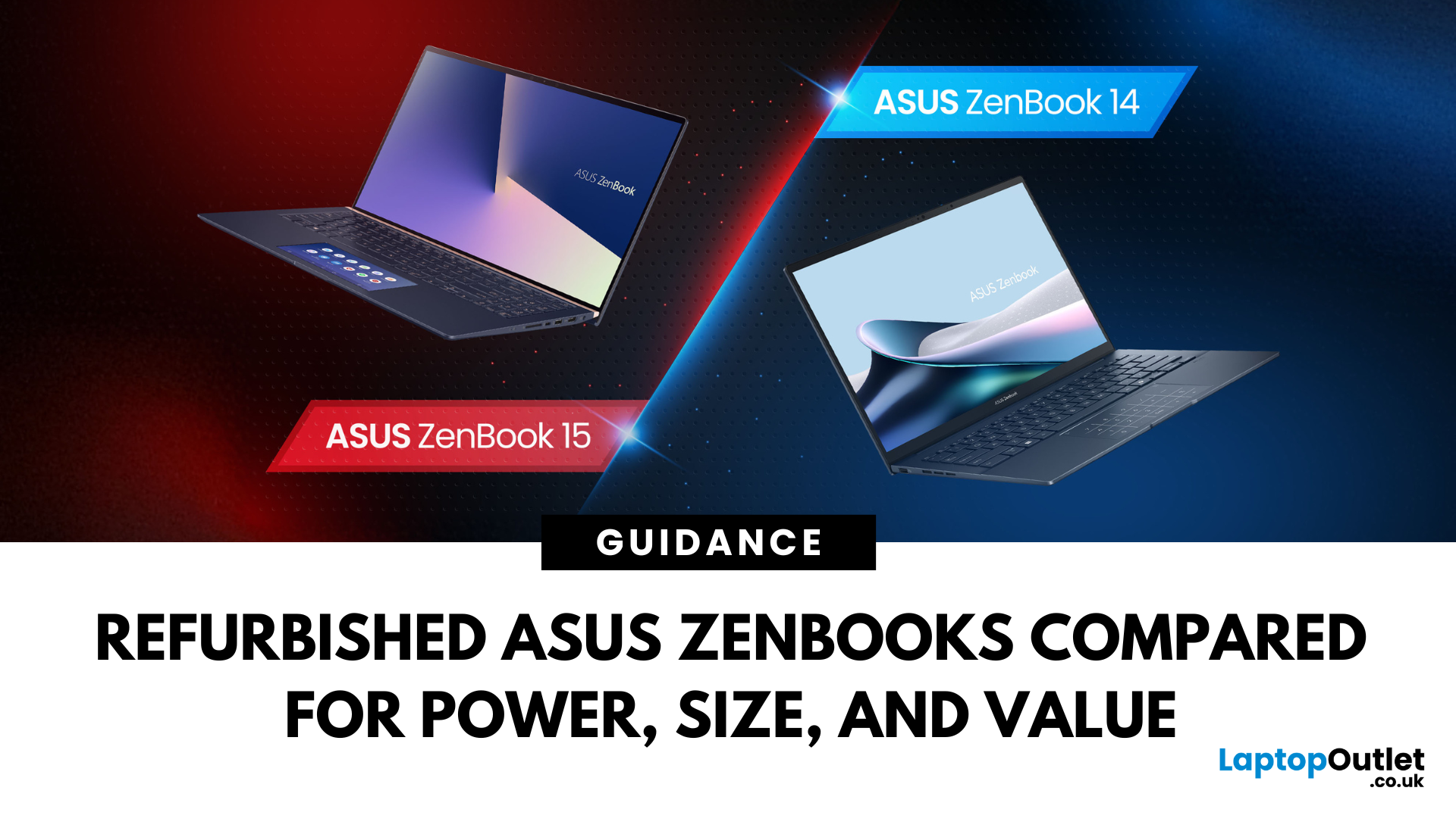
Looking for a slick ASUS ZenBook but stuck between the 14 and 15? Whether you’re a student on the move or a creator chasing peak performance, the refurbished ASUS ZenBook 14 and 15 pack serious punch — without the premium price tag.
In this guide, we break down the key differences in size, specs, and use cases, and help you decide which one’s right for you. Refurbished laptops offer incredible value – and we’re here to help you score the best one for your setup.
Key Differences Between Refurbished ASUS ZenBook 14 and ZenBook 15
While both the ASUS ZenBook 14 and 15 deliver premium performance at unbeatable prices when refurbished, their differences go beyond screen size. If you're choosing between them, it's all about how and where you'll use your laptop — whether you're on the go, creating content, or just want a smooth daily experience.
Portability and Everyday Use
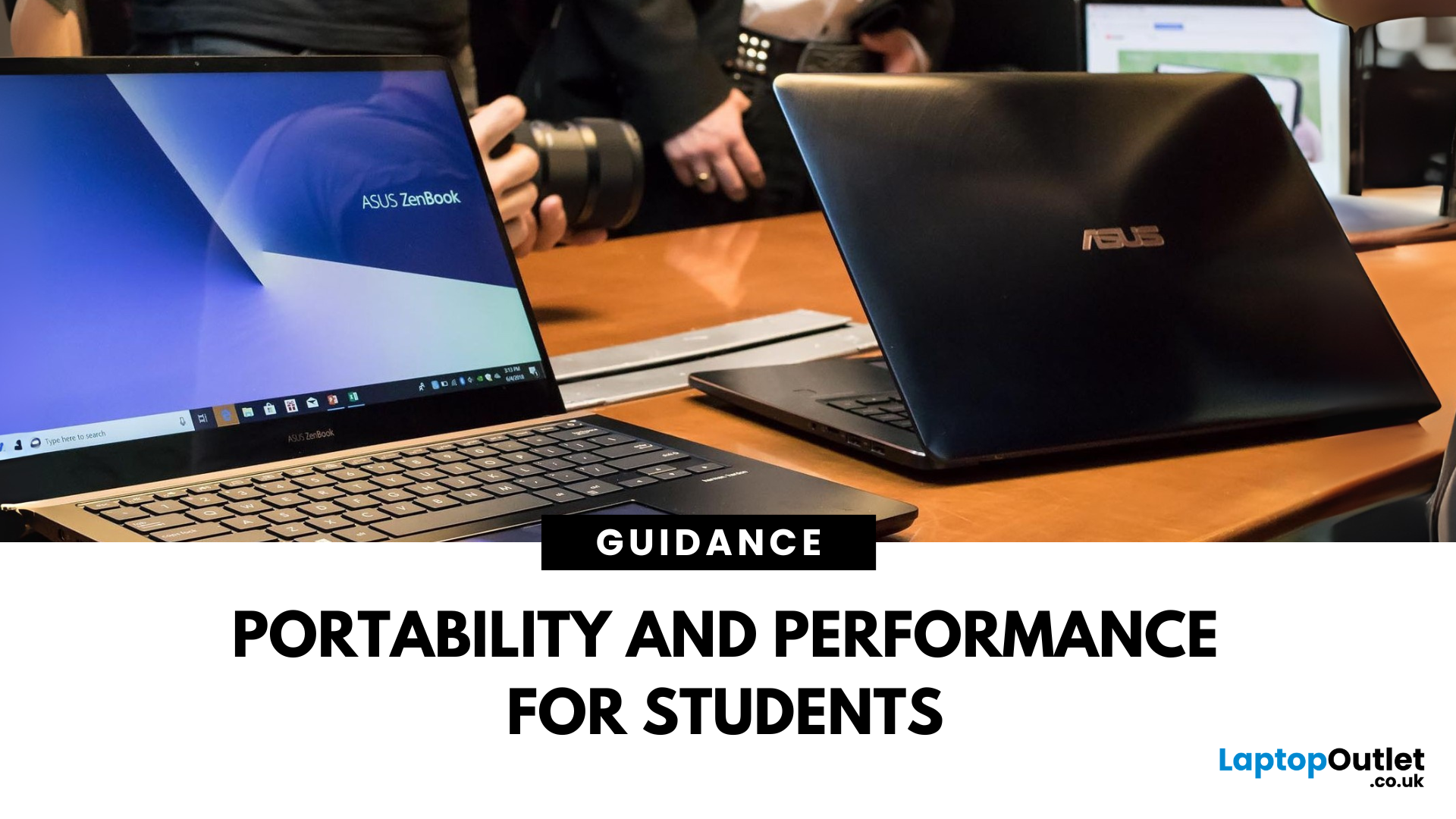
The Refurbished ZenBook 14 OLED is built for mobility. Weighing just around 1.39kg and measuring
Last Updated: September 09, 2025
A Smart Choice for Smarter Study?
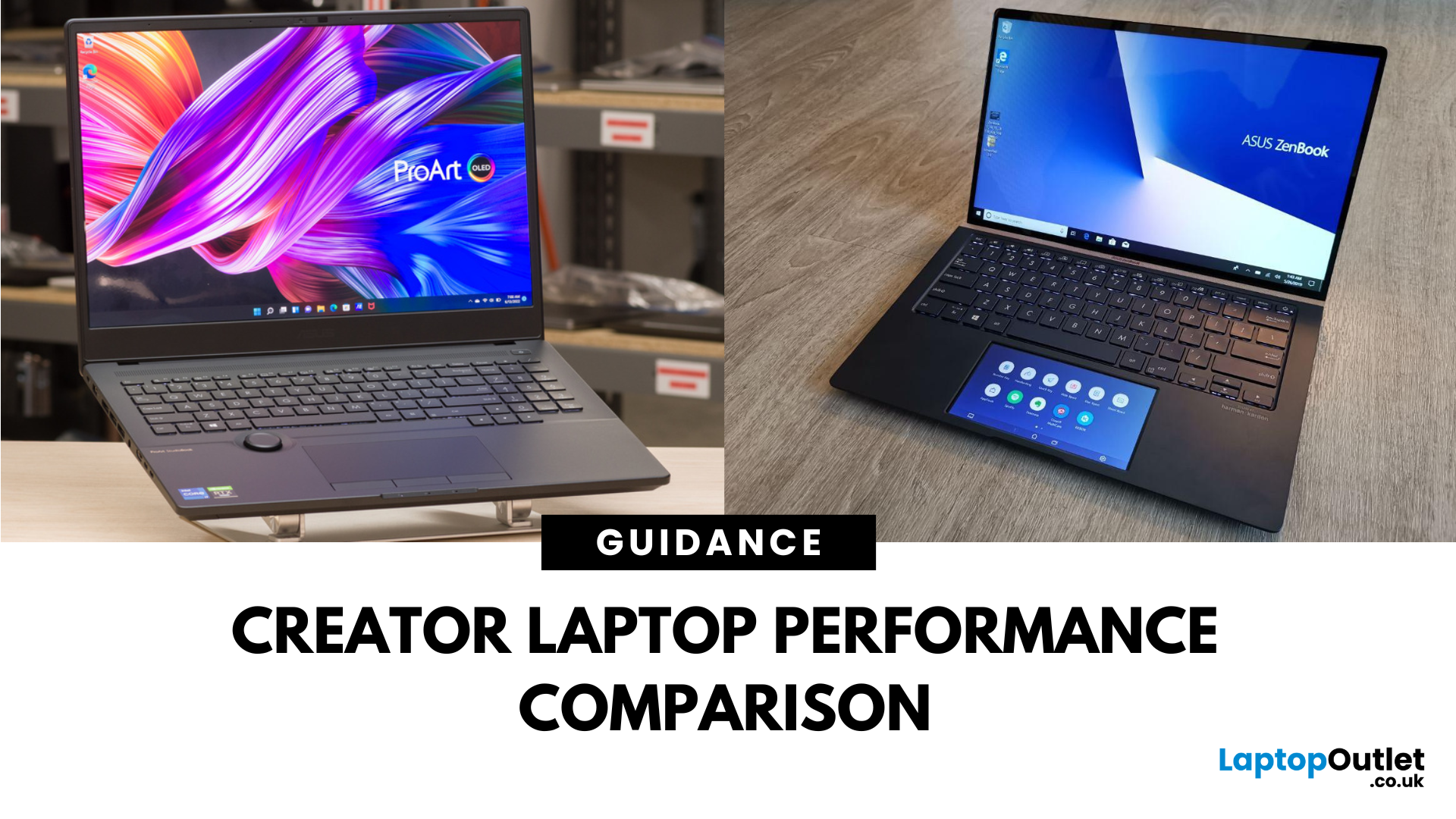
Choosing a laptop for school or university? The ASUS ZenBook is often praised for its sleek design and solid specs—but is it really the best laptop for students in 2025? Let’s break down its strengths, weaknesses, and whether it’s right for your academic life.
What Is the ASUS ZenBook?
The ZenBook is ASUS’s premium ultrabook range—lightweight, stylish, and packed with high-performance components. Designed for productivity and mobility, it’s a go-to for professionals, creatives, and yes—students.
Why Students Love the ZenBook
- Lightweight design – easy to carry to lectures or cafes
- Long battery life – up to 10–14 hours depending on model
- Fast processors – Intel Core i5/i7 or AMD Ryzen 5/7
- Full HD or OLED screens – clear visuals for research and video
- Great keyboard & trackpad – for comfortable writing and multitasking
ZenBook Models for Students (2025 Picks)
ZenBook 14 (UX425)
- Ultra-light (1.2kg)
- 11th/12th Gen Intel or Ryzen processors
Last Updated: October 03, 2025
What’s the Main Difference Between ASUS ProArt and ZenBook?
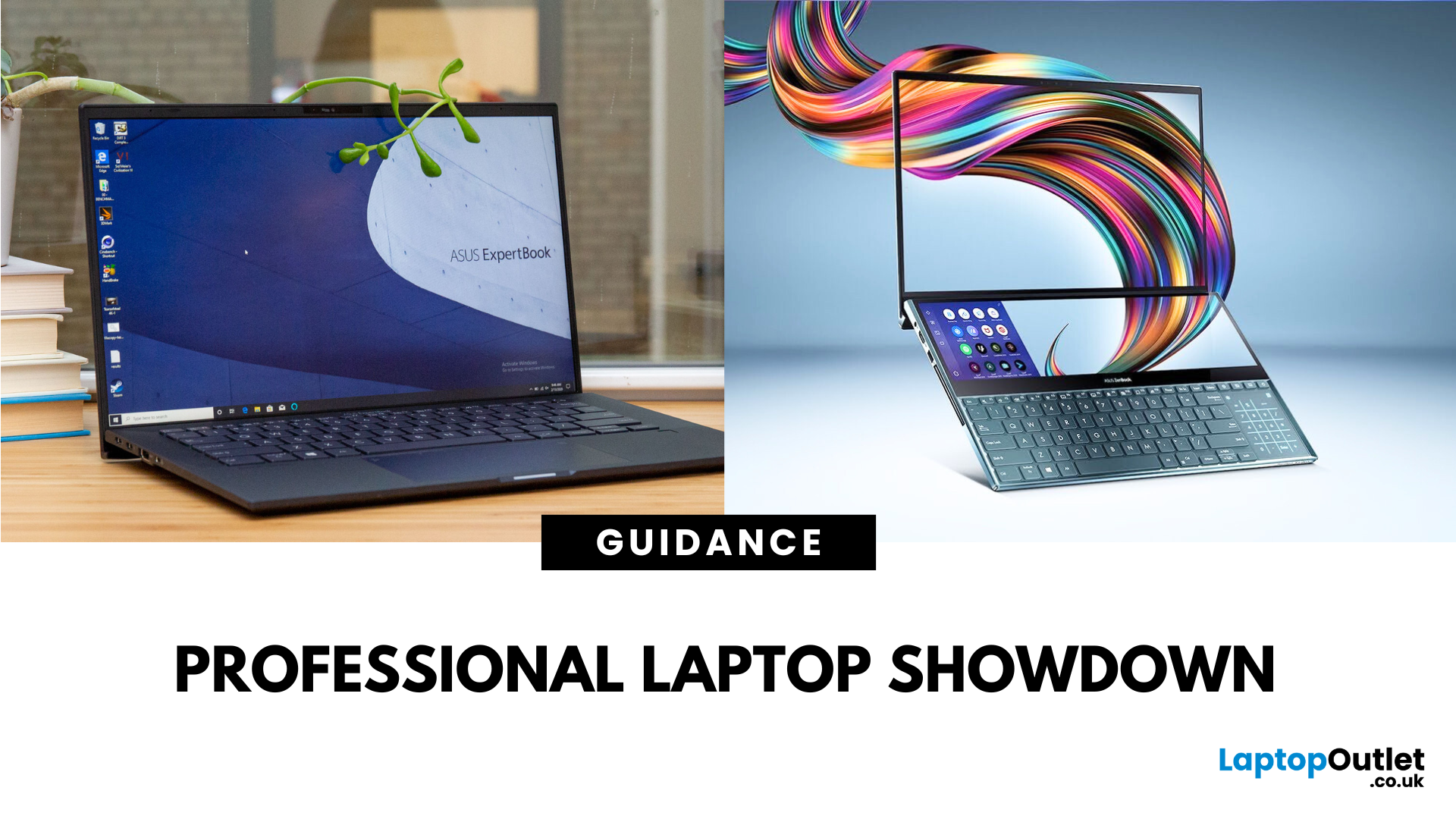
The ASUS ProArt series is engineered for professional content creators working in video production, photography, animation, and 3D modelling. It delivers ISV-certified performance, ultra-accurate colour displays, and AI-powered creator tools like ASUS DialPad and Creator Hub.
The ASUS ZenBook series targets professionals and creatives who need portability, battery endurance, and sleek aesthetics. While still capable for creative work, ZenBooks are tuned for light-to-moderate creative tasks, multitasking, and on-the-go use rather than maximum workstation output.
Specs Face-Off: ASUS ProArt vs ZenBook
| Feature | ASUS ProArt Series | ASUS ZenBook Series |
| Target Audience | Professional creators needing maximum power and colour precision | Mobile creatives, designers, and professionals seeking portability and style |
| Performance Focus | Workstation CPUs & NVIDIA RTX GPUs, ISV-certified for Adobe/Autodesk | Efficient CPUs, integrated or mid-tier GPUs, |
Last Updated: April 02, 2026
What’s the Difference Between ExpertBook and ZenBook?
The ExpertBook line is designed for professionals who demand durability, lightweight builds, enterprise features, and long battery life often with vPro support and MIL-STD testing. The ZenBook series decks out innovators and creators with premium OLED (and even dual-screen) displays, ultra-light designs, and high-end performance geared toward aesthetics and mobility.
Specs Face-Off: ExpertBook vs ZenBook
| Spec Category | ExpertBook (e.g., B5, B1, P3) | ZenBook (e.g., 14 OLED, Duo, S16) |
| Build & Weight | Ultra-light (~1.27–1.41 kg), MILSTD durability | Super-slim (~1.2–1.5 kg), aluminium/titanium builds, dual-screen option |
| Display & Visuals | Business-friendly 14" FHD or WQXGA screens, optional touch/stylus | Stunning 14" 2.8K OLED at 120 Hz, vivid dual-screen Duo models, immersive S16 displays |
| Performance | Up to Intel Ultra 7 with vPro, optional Arc/RTX GPU in some models | Core Ultra 7 or Ryzen AI CPUs, upgraded for creatives and heavy multitasking |
Last Updated: September 09, 2025
What’s the Difference Between VivoBook and ZenBook?
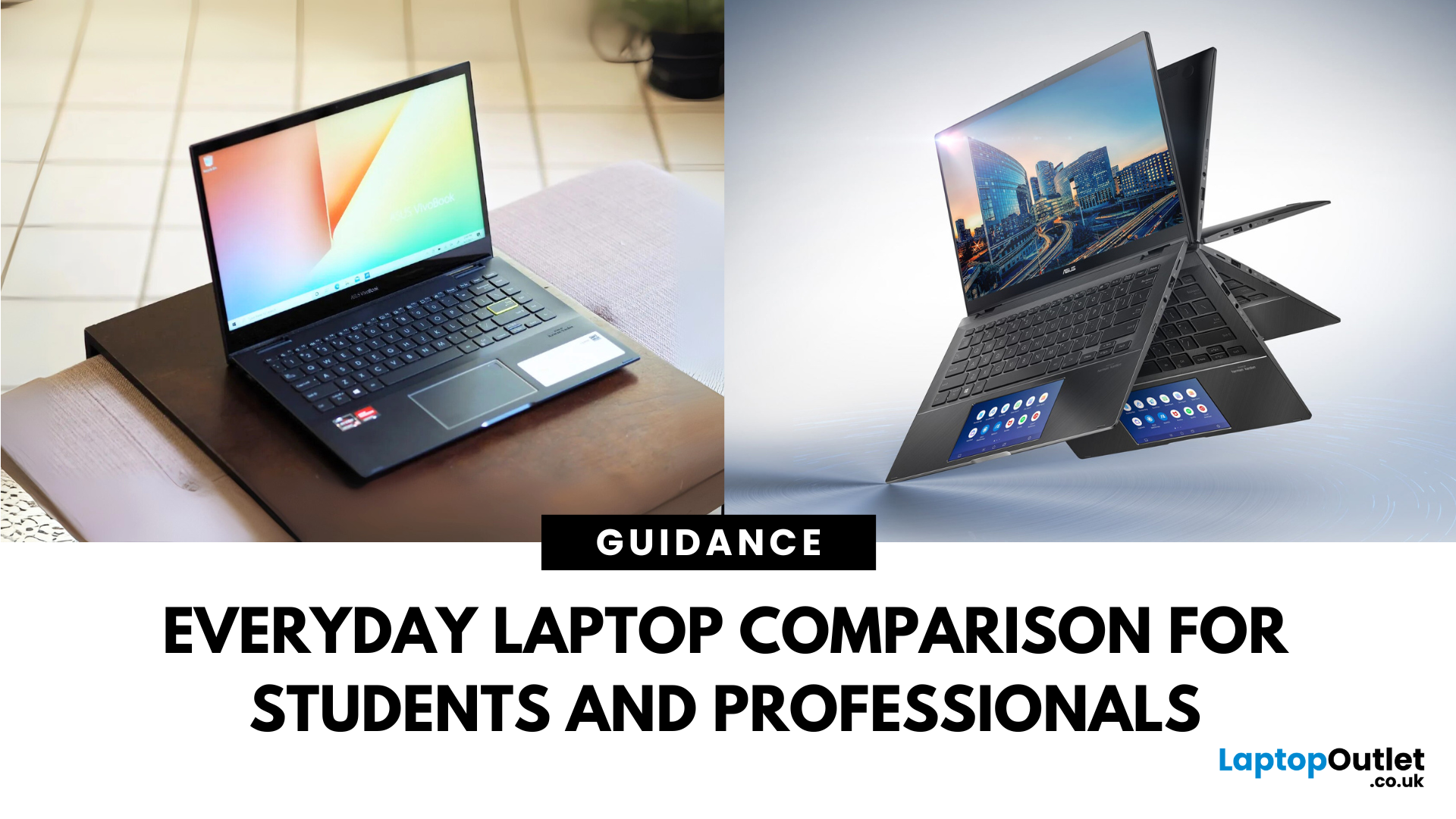
VivoBook is ASUS’s mainstream lineup—affordable, performance-balanced laptops for everyday use, students, and casual users. On the other hand, ZenBook is the premium alternative—sleek, aluminum builds, slim profiles, higher specs, and aimed at professionals or users who want long-term durability and style.
Feature Comparison Table
| Feature | VivoBook | ZenBook |
| Build & Design | Plastic/metal mix, budget-friendly | All-metal, ultra-slim premium build |
| Performance | Good everyday CPUs (e.g. Ryzen 5, Intel U-series) | Higher-end CPUs, often Core Ultra or better |
| Display | Reliable FHD panels | Often OLED or higher-quality touchscreens |
| Battery Life | Solid, entry-level (~8–10 h) | Excellent endurance—up to ~16 h on OLED ZenBook 14 OLED |
| Portability | Moderate—lighter options available | Thinner and lighter overall |
| Price | Very budget-friendly | Premium pricing, but great value for specs |
Performance & Design
- VivoBook: Offers solid specs for

Last Updated: July 02, 2026
Choosing the right laptop in 2025 can feel like a challenge. With endless options in the UK market, different brands, specifications, and price points, it’s easy to feel overwhelmed. This is where ASUS makes the decision simpler. Over the years, ASUS has built a reputation as one of the most trusted technology brands by offering laptops that combine performance, reliability, and affordability.
Think about the wide variety of users today: a student who needs a lightweight laptop for lectures, a business professional who spends hours travelling, a gamer chasing the ultimate performance, or a creative tackling demanding design projects. Each has unique needs, but ASUS has carefully designed a laptop series for all of them.
In this ASUS laptop Series explained blog, we’ll explore the full 2025 lineup: ZenBook, VivoBook, ROG, TUF Gaming, ExpertBook, Chromebook, and ProArt StudioBook, so you can confidently choose the ASUS laptop that fits your life.

